

Imagine you own an HVAC repair company. Your WordPress website allows clients to book appointments and sign job contracts online. To make that happen, you use the Dropbox Sign Gravity Forms integration. It enables you to create forms, accept customer form submissions, and store documents.
But are Gravity Forms and Dropbox Sign your best options? Not necessarily. These Jotform alternatives involve multiple platforms that can be complex to set up. Compatibility issues can also create gaps between form submissions and collection. On top of that, Gravity Forms and Dropbox Sign require separate subscriptions, which can quickly eat into your budget.
Another option? Jotform. With native form and signature collection built in, it removes the extra layers and keeps everything in one place. You also get access to powerful features that just aren’t available with the Gravity Forms and Dropbox Sign setup.
In this guide, we’ll walk you through how the Gravity Forms integration feature with Dropbox Sign works — and where it falls short. We’ll also show you how Jotform overcomes these barriers and why it’s a smarter alternative.
How the Dropbox Sign Gravity Forms integration works
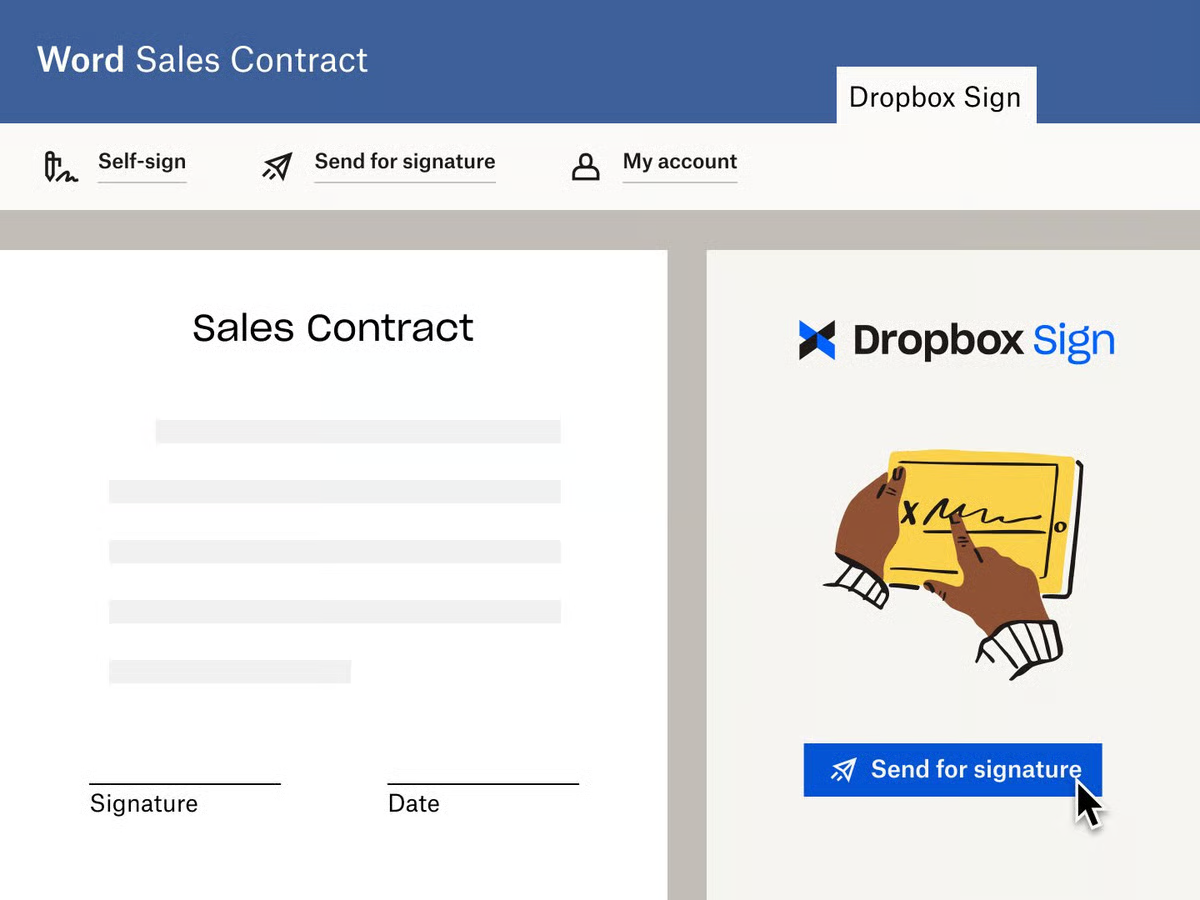
What is Dropbox, and why would you use it with Gravity Forms?
Dropbox is an online cloud storage service. Dropbox benefits include backup, sharing features, and offline functionality.
When integrated with Gravity Forms, Dropbox allows you to receive uploaded documents through your WordPress website and save them to a designated Dropbox folder that you control. But integrating Dropbox Sign and Gravity Forms is far from straightforward. Here’s an overview of the steps required to set it up.
1. Download and activate the Dropbox add-on
- Log into your Gravity Forms account. Click Downloads to view available add-ons. Select Dropbox and download it to your computer. Don’t unzip the files — you’ll upload the add-on in its original state to your WordPress website.
- Log into your WordPress website. In the administrator dashboard, select Plugins and Add New.
- Click Upload Plugin and then Choose File. Select the Dropbox add-on zip file and click Install Now.
- Wait for WordPress to install the file and then click Activate Plugin.
2. Authenticate Gravity Forms with a Dropbox Sign account
- Navigate to the Gravity Forms settings page. Choose Dropbox from the side menu.
- Click Sign Up to create a new Dropbox account. If you already have one, click Connect to Dropbox.
- Wait for Gravity Forms to connect you with the Dropbox website. Select the account to use with your website, and click Allow to authorize access. After granting authorization, Dropbox automatically returns you to your website.
3. Create a feed
Gravity Forms uses feeds to direct form submissions to your desired location. You’ll need to create a feed for any data collected through Gravity Forms and sent to Dropbox.
- Navigate to the WordPress administrator dashboard for your website. Click Forms in the left side menu.
- Choose the form you want to use with Dropbox. After opening the form, hover over Settings and click Dropbox.
- Click Add New to create a new feed. The Dropbox feed settings menu should appear.
- Enter your desired feed settings.
- Name: Used to identify the feed internally. It won’t appear on your website or within submission data.
- File Upload Field: Defines which upload fields to share with Dropbox.
- Destination Folder: Specifies the folder where uploaded submissions are saved.
- Conditional Logic: Optional field where you can specify conditions for sending a file to Dropbox.
- Click Save Settings to complete the process.
4. Test the form’s functionality
After enabling the Dropbox Sign Gravity Forms integration, test it out on your website. Upload an eligible form and verify that it’s saved to the right folder. If you enabled conditional logic, test whether the integration handles forms in the way you’d expect.
Keep in mind that there’s no Gravity Forms e-signature option that’s natively included in the Dropbox Sign integration. If you need a Dropbox e-signature, you’ll have to request it through a manual workaround.
Drawbacks of the Dropbox Sign Gravity Forms setup
Why isn’t Dropbox Sign and Gravity Forms an optimal solution? For starters, it uses two platforms to handle a simple task: uploading and saving forms. If your site has multiple pages all collecting forms, expect to spend a lot of time configuring your setup.
After the integration, you’ll also rely on third-party automation to handle uploaded forms. If something breaks down in the system, you could face potential delays or errors that prevent you from receiving data.
Integration carries a high maintenance overhead, too. Third-party apps can change processes or introduce updates at any time. To avoid incompatibilities that affect your site, you’ll need ongoing maintenance. This can include updating plug-ins and verifying continued compatibility.
Another problem? Scattered data workflows. Forms submitted through your website go to a designated Dropbox folder. To retrieve them, you’ll need to access Dropbox. That’s not ideal if you prefer to keep forms locally or in another cloud storage service.
What’s more, collecting signatures with Gravity Forms and Dropbox Sign requires additional plug-ins or a manual workaround. If you need a customer to sign a document, they can do so after form submission. For example, if a client must approve a work contract, they’ll submit their form online and sign it separately. There’s no native conditional logic or advanced workflow between the form and signature steps.
And finally, Gravity Forms and Dropbox Sign aren’t cheap. Gravity Forms pricing starts at $159 per year for a Pro License, which is required to access the Dropbox add-on. You’ll also need a Dropbox Sign account. Professional plans start at $16.58 monthly for an annual subscription.
A better alternative: Jotform
Jotform provides an all-in-one solution for collecting forms and e-signatures. It completely eliminates the need for Gravity Forms and Dropbox Sign, saving you both time and money.
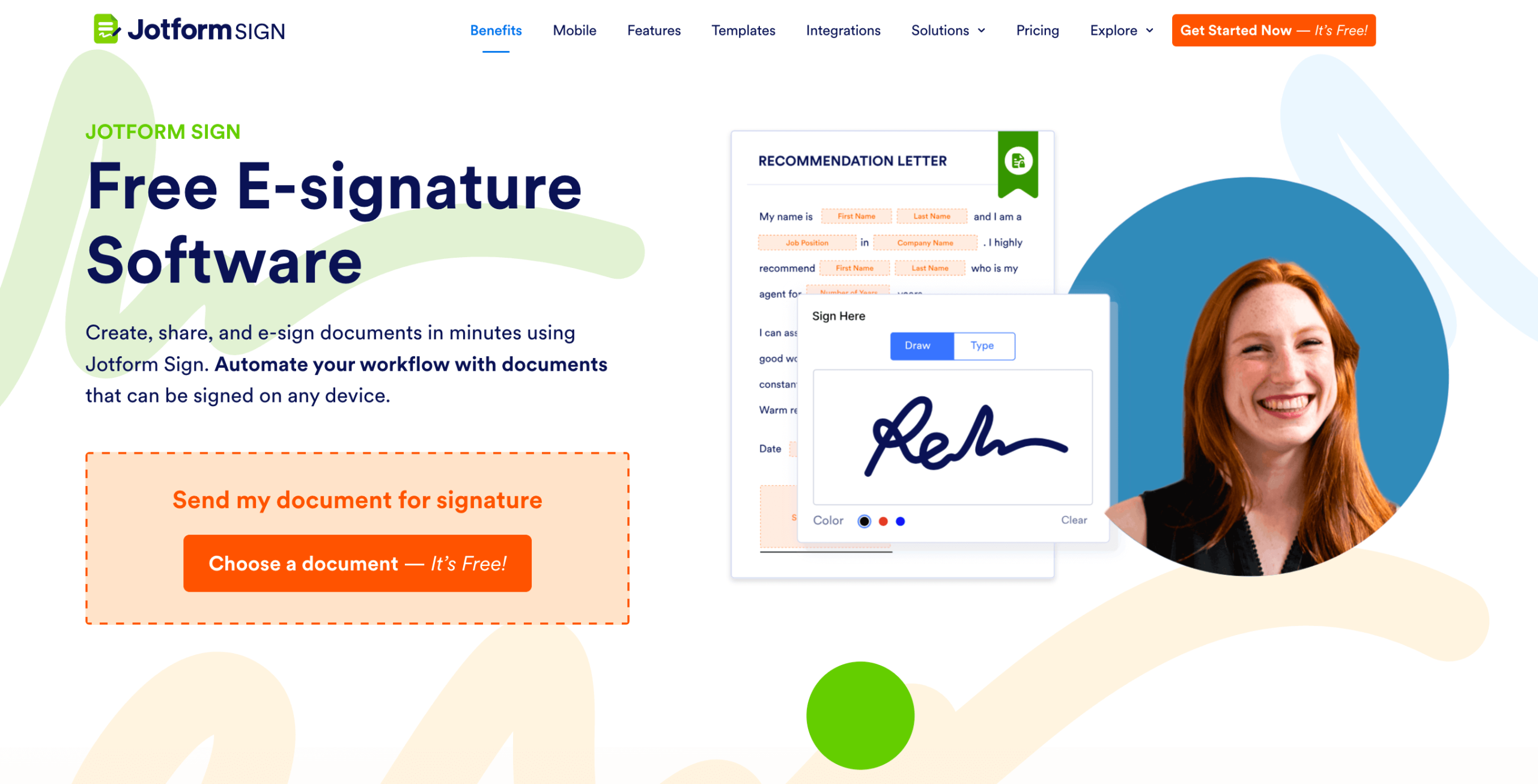
You won’t have to worry about compatibility issues between multiple systems, either. Our native e-signature platform, Jotform Sign, integrates naturally, so your website users or customers can sign forms online wherever they are. This allows for a streamlined workflow that’s free of errors, delays, and unnecessary complexity.
Send my document for signature
File type is not allowed.
Maximum file size limit exceeded. (5MB)
Something went wrong.
With Jotform, you have access to a form builder with over 10,000 templates — no plug-ins required. Power users benefit from our advanced features, which include automated calculations, conditional logic, and capabilities for multi-page forms.
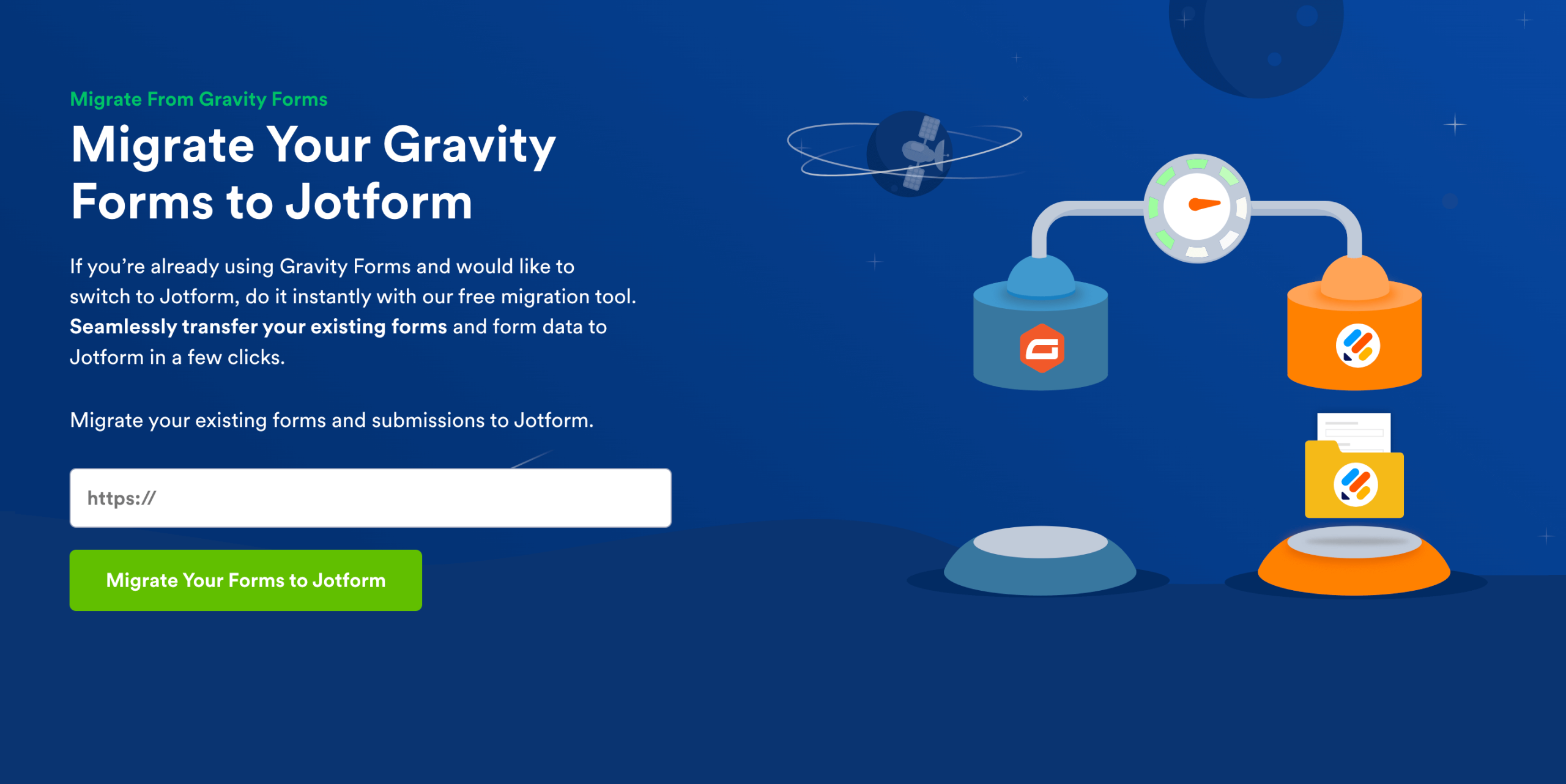
Jotform supports over 100 integrations, too, including Dropbox. If you prefer Dropbox as a file storage solution, connect your account using Jotform’s Dropbox integration to automatically save completed forms to a folder of your choosing. And if you’re coming from Gravity Forms or a similar platform, Jotform simplifies the switch without losing previous data. Just start by entering your website address.
Best of all, Jotform’s single interface is user-friendly, allowing for easy team onboarding with a minimal learning curve. You retain complete control over your workflows and conditional logic. Plus, our centralized data storage and submission management features allow you to monitor document collection and signing.
Skip the plug-in headaches
Dropbox Sign and Gravity Forms can get the job done. When integrated with your WordPress site, they’ll let you collect client forms and store data. The catch? Setup isn’t easy, often involving multiple plug-ins and a commitment to ongoing maintenance to keep your site compatible. And if you need signed forms, you’ll have to adapt your workflow to accommodate a non-native workaround.
Luckily, there’s an easier solution: Dropbox Sign alternatives like Jotform. Built with small and medium-sized businesses in mind, it supports automated form workflows right out of the box. With Jotform, you can create forms, request e-signatures, and store documents in a designated folder. It’s simpler, more reliable, and typically more cost-effective than juggling several tools.
Businesses that adopt Jotform’s all-in-one platform early can save time, streamline workflows, and reduce risk as they grow. And when it’s time to scale, you’ll already have a solution that can scale with you — especially if forms, contracts, and signed documents are part of your everyday.
Ready to get started? Try Jotform for free. Instantly import your Gravity Forms and start collecting e-signatures without the plug-in hassle.
AS ALWAYS, CONSULT AN ATTORNEY BEFORE RELYING ON ANY INFORMATION ON THIS PAGE. THE CONTENT ABOVE IS FOR INFORMATIONAL PURPOSES ONLY. JOTFORM IS NOT PROVIDING LEGAL, FINANCIAL OR OTHER ADVICE.
This article is for WordPress developers, agencies, and form admins using Gravity Forms who want to add e-signature capabilities via Dropbox Sign. It’s ideal for those seeking seamless form-to-signature workflows or exploring all-in-one alternatives like Jotform that combine forms and e-signatures natively.










































































Send Comment: