


The e-signature market is crowded, for better or worse. There are dozens of options, and each one would love to be all things to all users. But budgets and bandwidths being limited, every e-signature tool prioritizes certain features and use cases over others. And that’s especially evident when comparing Dropbox Sign (formerly HelloSign) versus PandaDoc.
At first, the differences between the two platforms seem straightforward. Dropbox Sign, a product of Dropbox’s 2019 acquisition of HelloSign, is a narrowly focused e-signature tool. But although PandaDoc’s main dashboard looks similar and uses much of the same language, it also throws in a full-fledged document management system, with tools for editing and signing agreements, contracts, and anything else that fits on a page.
Sales and revenue teams might prefer PandaDoc for its document creation, flexibility, and collaboration tools. Operations, HR, and legal teams are probably more interested in Dropbox Sign’s focus on templates, access control, and compliance across large volumes of agreements. For most organizations, these competing priorities live under the same organizational chart, which is why I can’t tell you which option is better in the span of a few short paragraphs.
I tested and compared Dropbox Sign and PandaDoc over several days. Looking at each platform’s onboarding, usability, pricing, integrations, and security guarantees, I noted how each excelled or fell short for specific e-signature use cases. There’s a lot to consider — including a third option in Jotform Sign, which outperforms Dropbox Sign and PandaDoc in a few key areas. If your team sends out even a few signed agreements per month, it’s worth digging into all the details and differences between these business-ready e-signature platforms.
Key takeaways
At the end of the day, it isn’t too hard to request and retain an electronic signature. And almost every app that promises to help with this covers the basics in more or less the same way. This is just as true for the two apps featured in this article as it is for other Dropbox Sign alternatives and PandaDoc alternatives. But while both of these apps let you upload agreements, place signer fields on the page, and send them in ways that are compliant with e-signature regulations, they do differ in several key ways:
- PandaDoc is better for creating, editing, and negotiating sales-focused documents like proposals, quotes, and pricing agreements.
- Dropbox Sign is better for standardized contracts and repeatable workflows that need to move quickly with minimal training.
- PandaDoc offers far more drafting, collaboration, and content customization tools, including dynamic pricing tables, product catalogs, and embedded media.
- PandaDoc gates many critical features behind its Business plan, while Dropbox Sign delivers essential functionality at a lower entry price.
- Dropbox Sign’s API and security posture make it more enterprise-ready for large-scale, compliance-driven signing workflows.
Unfortunately, neither of these platforms can offer workflow automation on par with what I’ve come to expect after testing a wide range of software. And beyond that, Dropbox Sign and PandaDoc make creating an electronic signature from web forms much harder and more expensive than it needs to be. When you upload a document or create one from scratch with Jotform Sign, however, it not only detects fillable fields, it also connects to your existing forms, dumps data into Jotform Tables, and can act as either a trigger or an action in Jotform Workflows. It’s a far better option for form and automation-centric e-signatures.
 Jotform Sign |  Dropbox Sign |  PandaDoc | |
|---|---|---|---|
| Best for | Using forms to gather and automate e-signatures | Standardized contracts and repeatable workflows | Pricing and payment-related proposals and agreements |
| Workflow and automation | A native automation builder enables pre-filling, routing, approving, and archiving | API, Zapier, and Make | API, Zapier, Make, and limited in-app automations |
| Integrations | Salesforce, Slack, Pipedrive, and dozens more | Dropbox, Drive, Salesforce, Box, OneDrive, and HubSpot | HubSpot, Salesforce, Pipedrive, Stripe, QuickBooks, and many more |
| Document capabilities | Place fields with just one click, fetch and send data with native app integrations, and view results in a mobile app | Create your own templates that work with qualified electronic signatures, bulk send requests, and audit trails | Add dynamic pricing tables, embedded videos, and payment fields to any document |
| Pricing | Starting at $39/month | Starting at $20/month | Starting at $35/month |
Dropbox Sign (formerly HelloSign)
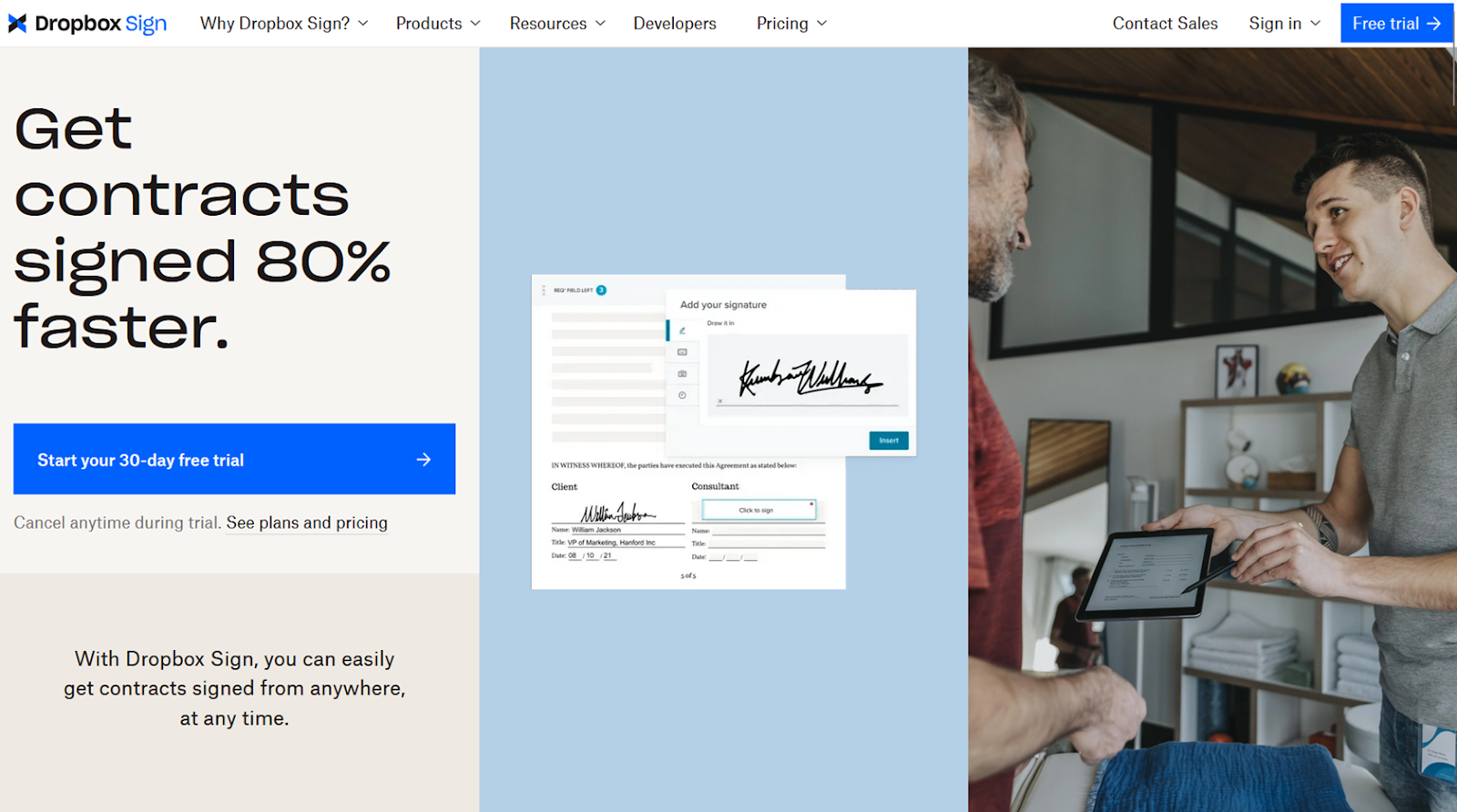
Best for: Standardized contracts and repeatable workflows
What I loved most: While there are many different types of electronic signatures, most organizations end up sending the same handful of documents with minor tweaks for each recipient. Across all my tests of the best e-signature apps, Dropbox Sign had the cleanest interface and most straightforward templates for nontechnical people who just need to keep things moving, but it also gave technical folks an enterprise and compliance-ready API to operationalize rote e-signatures.
- Key features:
- Ability to pull in contact data from HubSpot
- SMS and AI recipient authentication tools
- Tight (although confusing) integration with other Dropbox apps
- Template gallery on all plans
- Pros:
- Ability to integrate signature fields into your app or website
- Little to no prior e-signature knowledge required
- Unlimited signature requests on all plans
- Cons:
- Virtually no team collaboration features
- Manual placement of fields — can feel tedious
Pricing:
- With the Essentials plan ($20 per month, billed monthly), you get unlimited signature requests, space for as many as five custom templates, and basic integrations for one user.
- On the Standard plan ($30 per user per month, billed monthly), you can add up to 5 users to your team, save as many as 15 templates, add your own branding, track usage statistics, and create bulk signature requests.
- Finally, the Premium plan (custom quote) comes with unlimited templates, data residency, performance analytics, and advanced security settings for five or more users.
- Choose annual billing for a discount on all plans.
Does Dropbox Sign have a free trial? Yes, visit the Dropbox Sign pricing page and sign up to try either the Essentials or Standard plan free for 30 days after you sign up with a credit card.
For the accounting, legal, sales, and procurement people on your team, creating a signature request will start from Dropbox Sign’s main dashboard. If it’s the first time they’re sending a document, they’ll click the Upload dropdown to add a PDF, XLS, DOC, or image from their computer, Google Drive, Box, OneDrive, or Dropbox cloud storage. That will take them to a page for adding recipients, followed by a page for placing signature fields on the document before reviewing and sending.
Over in the Documents tab, you can track the status of requested signatures, send reminders, add expiration dates, and edit signed documents to create new signature requests. The Team documents view displays a list of all documents each user has permissions to view. Templates are not clearly marked in the Documents tab and need to be managed in another view. In the Templates tab, there are 40+ premade options in the gallery, ranging from employee performance evaluation forms to lease agreements. Click the Save template or Create template button for documents that you’ll reuse often or send in bulk.
Each Dropbox Sign account will have a long list of account-specific settings — such as email signature, notification settings (there are many), and contact syncing — that can be tweaked from the Settings page. For users and admins who are comfortable with more technical workflows, the Settings page is where you’ll also find integrations connectors and an API key generator.
PandaDoc
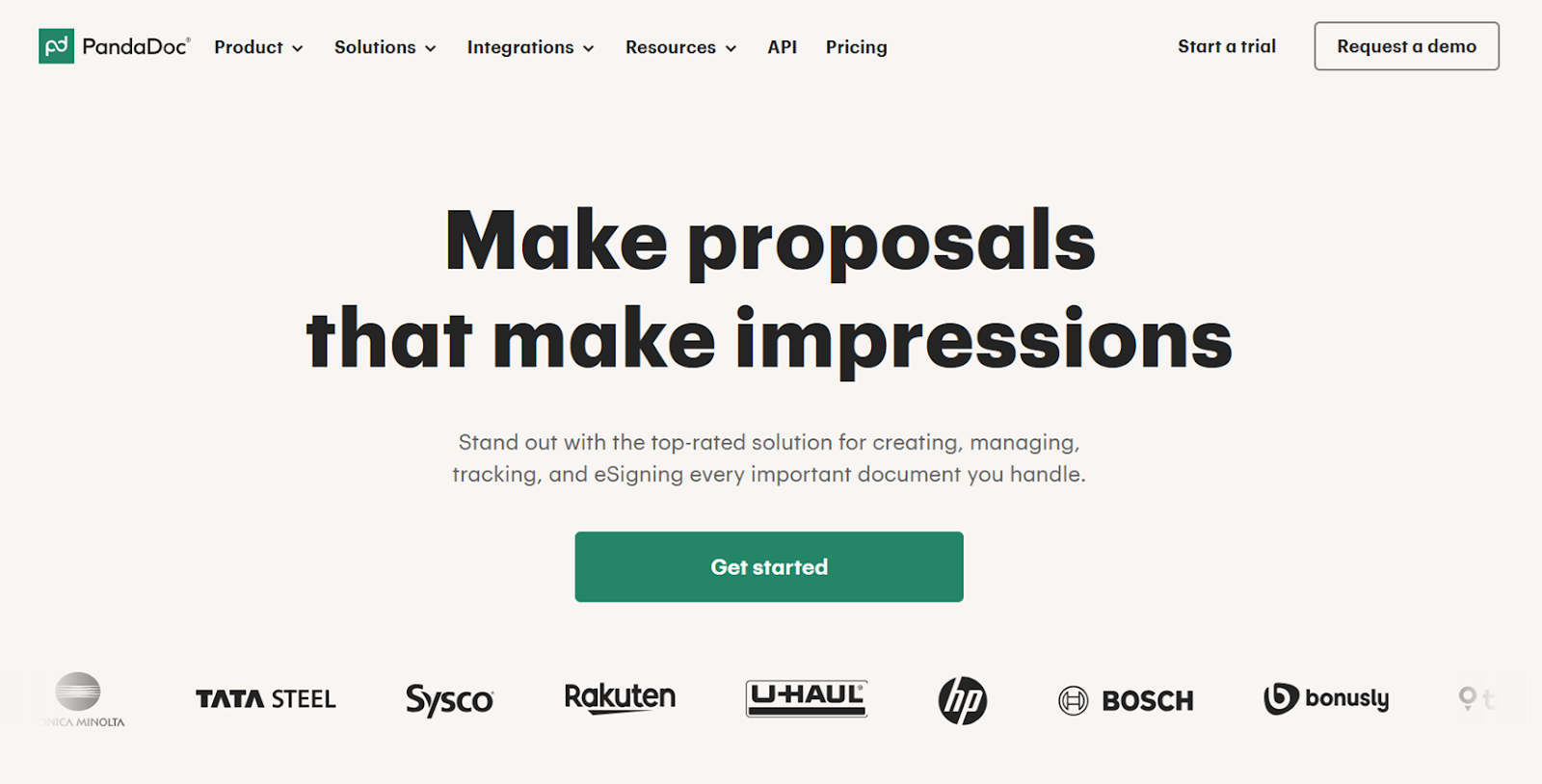
Best for: Pricing and payment-related proposals and agreements
What I loved most: While I don’t create many quotes or proposals in my work, I didn’t have any trouble creating and sending out a test contract in PandaDoc within four or five minutes. I was able to pull products and details from external catalogs, make quantities editable by recipient, and create discounts and bundles, all without needing to watch a single tutorial or onboarding video.
Key features:
- Smart content for automatic changes based on recipient profiles
- Automatic data transfer from a customer relationship management (CRM) system
- Several payment, billing, and collections features
- Ability to leave public and private comments on contracts and proposals
Pros:
- Tons of features without feeling overwhelming
- Unlimited e-signatures on all plans
- Nice list of integrations
Cons:
- Many important features only available with most expensive plans
- Limited automation options
Pricing:
- PandaDoc’s free plan lets you e-sign five documents and request five e-signatures per month, with an allotment of up to five document templates of any size.
- The Starter plan ($35 per seat per month, billed monthly) includes unlimited e-signatures and e-signature requests, as well as PandaDoc’s document editor.
- The Business plan ($65 per seat per month) is required for custom branding, web forms, approval workflows, in-person signing, document expiration, automatic reminders, automations, and CRM integrations.
- The Enterprise plan (custom quote) throws in smart content blocks, webhooks, API usage, and the option to choose data residency.
- Choose annual billing for a discount on paid plans.
Does PandaDoc have a free trial? Yes, PandaDoc’s free trial, which is only available for the Starter plan, lasts 14 days and does not require a credit card.
Creating a new document in PandaDoc is similar to using most other e-signature platforms, with a +Document button in the upper-right corner of most dashboard views as well as a +Create new… option in the sidebar. You can start with a blank document, upload a supported file, import from Google Drive, Dropbox, or OneDrive, or choose a template from the gallery.
PandaDoc’s templates look great, but with the platform’s focus on sales agreements, they often lean too heavily on design. If you need to create a nondisclosure agreement, for example, it’s probably better to create it from scratch rather than fight with a fancy cover design from a template.
Once you’re in the editor, adding content to the page is a piece of cake. Click the three horizontal dots to change page-level themes, including background color, opacity, and layout size. Then, select the plus symbol to drop fields and content blocks onto the page. Selecting any element on the page will bring up a properties overlay where you can assign fillable fields, create conditional rules, add details like dropdown menu choices, and leave public or private comments.
Finally, select the Extensions tab to connect variable fields to data from a CRM platform like HubSpot or Salesforce. Alternatively, you can create a product database inside PandaDoc itself using the Catalog sidebar outside the editor. When you’re ready, click the Send button in the upper-right portion of the screen to either email or SMS contract recipients.
You can track a document’s signing status from the Home or Documents tabs. There are also options to convert an edited document into a template, add tags for organizing files, create a renewal schedule, or extend its expiration, depending on your account tier.
PandaDoc has significantly more drafting and editing features
Document creation
Dropbox Sign’s approach to creating e-signature contracts is somewhat limited. You can upload an existing document and drag and drop signer fields onto it, edit a template, or create a backend API route from some external input. PandaDoc has all the same options plus the ability to start with a blank page, adding any of the dozens of content types from the editor to create something entirely new.
Editing and updating templates
In Dropbox Sign, you can open the Templates sidebar, then click the three vertical dots next to a template and select Edit to open a drag-and-drop editor for placing fillable fields on the page. PandaDoc starts out similarly: You navigate to the Templates sidebar, pick the one you’d like, then click Use template. With PandaDoc’s editor, however, you can also modify everything on the page, from images to paragraphs to dynamic blocks.
Internal and external collaboration features
If you want a colleague to double-check a contract you created in Dropbox Sign, you will either have to send them a link or tell them the name of the document saved to the Team documents tab — there is no tagging. Compare that to PandaDoc, which has a +Invite button at the top of the editor for adding collaborators, as well as a toggle for entering Suggesting mode à la Google Docs. You can also highlight anything inside the editor and hit the Comment button to leave a note that can be set to private (visible to people in your company) or public (visible to contract recipients).
Dropbox Sign is more enterprise-ready
Security and compliance
Both Dropbox Sign and PandaDoc uphold SOC 2 Type II principles and attest to meeting ESIGN, eIDAS, GDPR, CCPA, PCI DSS, and HIPAA requirements as well. The only deviation in their promises is that Dropbox Sign mentions HITECH while PandaDoc mentions FERPA compliance. Additionally, Dropbox Sign has more advanced security features on higher plans and enforces stricter policies, like extremely short inactivity logout windows.
Skills required for use
Dropbox Sign is far less demanding than PandaDoc in terms of user training. Everything is labeled with nontechnical terms, the interface is minimal, and placing fields is hard to get wrong. Its API is also arguably easier to use for junior or less experienced developers. PandaDoc is not hard to use or navigate per se, but it is far more finicky and complex by comparison, especially when it comes to editing and designing documents.
Dropbox Sign is a better value for the money
Choosing a plan most teams will need
While it has a much longer list of features than Dropbox Sign, PandaDoc gates almost all of its most useful tools behind its Business plan. Even if you don’t need the document editor, you’ll still need to pony up more than twice the price of a Dropbox Sign subscription for basic features in PandaDoc, such as approval workflows, bulk sending, document expirations, and automatic reminders.
Scaling up e-signatures
I find it hard to believe that most businesses would be able to get by without PandaDoc’s Business tier or higher. If you go that route, it’s a flat $65 per user per month (when billed monthly), with the option to move to a custom Enterprise plan when your team size or request backlog justifies a sales negotiation.
Dropbox Sign is unquestionably cheaper — but harder to put a specific number on. Plenty of teams will be fine on the Essentials plan, while others might need the Standard. And it can get even harder to predict pricing because teams with five or more users will have to talk to sales, even if they aren’t interested in an enterprise plan.
Anticipating plan limits likely to cause issues
With Dropbox Sign, you’re probably going to run up against the user limits (only 1 on the Essentials plan and 2–5 on the Standard plan) and template limits. PandaDoc, on the other hand, doesn’t have any quantity-based restrictions beyond the five-template limit on the Starter tier. However, you will have to contend with somewhat opaque credit-based limits for web forms, bulk sending, and automations on the Business plan.
Dropbox Sign vs PandaDoc: Which one wins?
Choose Dropbox Sign if…
You tend to send the same contracts over and over again, care deeply about compliance and access controls, and want an interface that nontechnical teammates can’t really mess up. When it acquired HelloSign, Dropbox cemented itself as the safer bet for high-volume, standardized signing workflows where speed, simplicity, and API reliability matter more than document polish.
Choose PandaDoc if…
Every contract needs to be extensively tailored to its recipient and the negotiations surrounding them. PandaDoc shines when you need rich document creation, collaboration, and CRM-driven content — assuming you’re willing to pay for the Business plan to unlock the features that actually matter.
Choose Jotform Sign if…
E-signatures begin as structured data, not static PDFs, and signatures are just one step in a larger workflow. Jotform Sign is the strongest option when you want form-first e-signatures with automatic field detection, native automation, and a built-in database that eliminates backend coding or manual handoffs between tools.
Choose Jotform for e-signatures that plug into your forms and workflows
Documents, contracts, agreements, proposals, quotes: None of these exist in a vacuum. They are all based on data you already have stored in other platforms or that’s already written on the page. PandaDoc and Dropbox Sign have options for pulling in contact details from elsewhere, but both tools require jumping through a lot of hoops to do so. And neither platform has automatic field detection. Jotform Sign, on the other hand, offers another option. With e-signatures built around one of the best form builders available, Jotform leans on its own native workflow builder and database for a suite of tools that “just work.”
Jotform Sign lets you turn form responses into signed PDFs automatically, prefill documents with existing data, and trigger signature requests based on form submissions. Unlike Dropbox Sign’s focus on straightforward signing or PandaDoc’s sales-centric document automation, Jotform Sign is built for teams that need to capture structured information first — and sign later, all within a single ecosystem. And it’s all available for you to try out on the free-forever plan. Sign up today to get started.
This article is for SMBs choosing an e-signature solution, sales and revenue teams sending proposals and contracts and operations and HR teams handling approvals, agreements and employee documents.
AS ALWAYS, CONSULT AN ATTORNEY AND/OR OTHER APPLICABLE PROFESSIONALS BEFORE RELYING ON ANY INFORMATION ON THIS PAGE. THE CONTENT ABOVE IS FOR INFORMATIONAL PURPOSES ONLY. JOTFORM IS NOT PROVIDING LEGAL, TAX, FINANCIAL OR OTHER ADVICE.





































































Send Comment: