
Did you know your G2 reviews already travel — with or without you? G2 runs a syndication network that distributes them to AWS Marketplace, Azure Marketplace, and Ramp, so a buyer can read what your customers think without ever visiting G2. But the one place your software reviews won’t show up on their own is your own website — particularly if you use Squarespace.
Squarespace doesn’t have a native G2 block. You could upload screenshots, but you’ll need to replace them as reviews and ratings change, which is a never-ending job in itself. Or there are two less manual ways to add G2 reviews to Squarespace: G2’s native widget and a free, customizable G2 Review Widget. I’ll walk you through both methods below.
Before we start
Both methods drop a script into a code block, which Squarespace only renders on Core plans and above. I’d check your plan now, before you start customizing a widget your site won’t display. Then come back here for the rest of the article.
Option 1: Use G2’s native Testimonials Widget
If your product is listed on G2 and you can log into my.G2, you can try this right now. G2’s Testimonials Widget puts selected written reviews on your page. Here’s how it works:
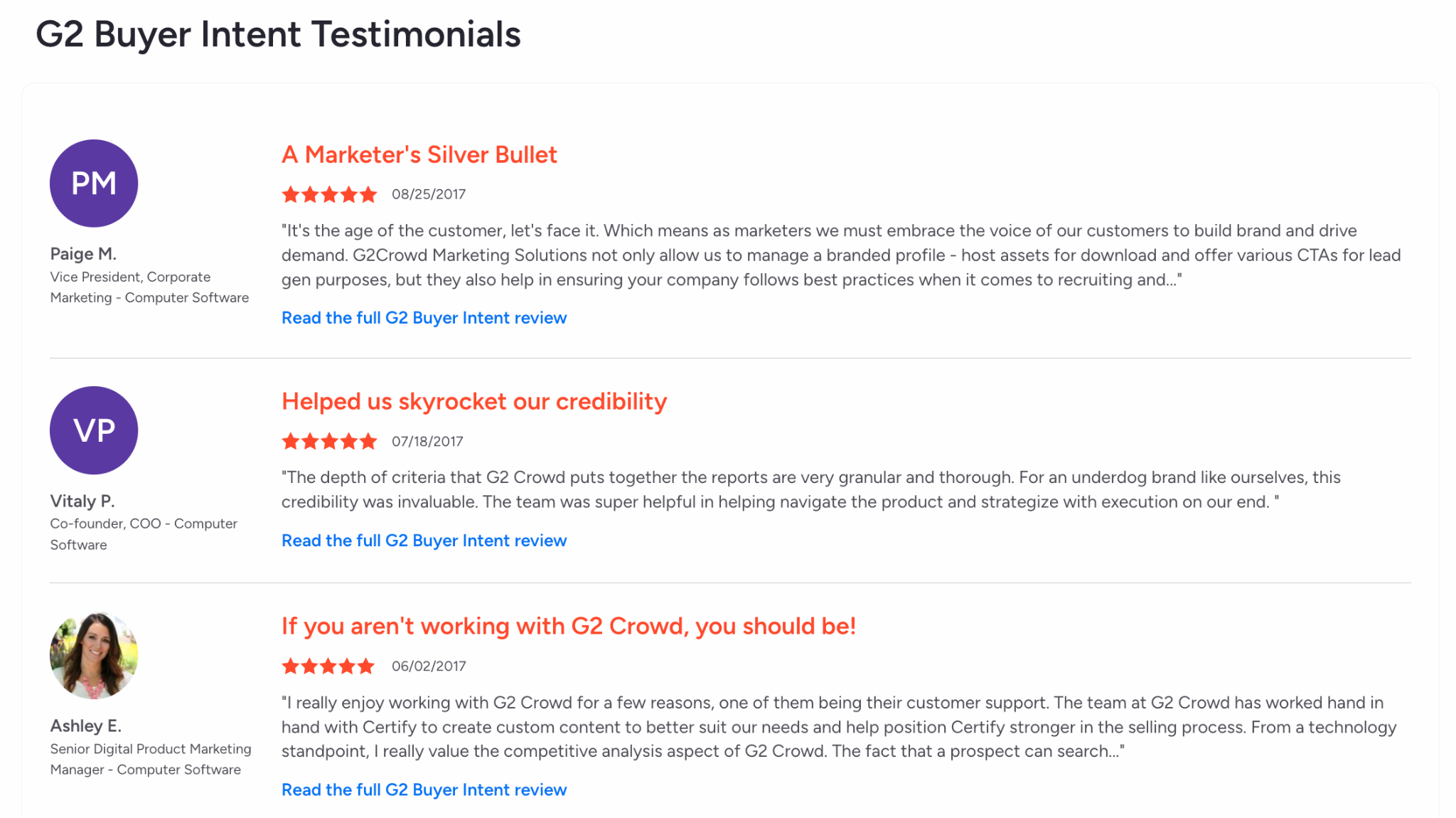
- Open the Testimonials builder: Log into my.G2 and go to Marketing Content > Widgets > Testimonials. Click Add Widget. Enter a title, choose a font, and select a branding color. The color applies to your review titles.
- Choose your reviews and copy the code: Click Choose Reviews, then Add this Review beside each selection. You can include up to 20 reviews. G2 automatically suggests two to get you started.
Pro Tip
Don’t hide all your three- and four-star reviews! I’d leave room for customers who like your software and have a few notes. The TrustRadius 2026 Review Quality Report says reviews that describe real workflows and outcomes, and include enough detail about the reviewer’s role, make buying decisions more informed.
- Order your reviews and copy the embed code: In the next editor, drag your reviews into the order you want, copy the embed code, and save any further changes. I’d choose reviews that answer questions someone might have on that particular page.
- Paste the code into Squarespace: Open your chosen Squarespace page and click Edit. Select Add Block > Code where you want the reviews to appear, then click the pencil icon to open the block’s settings.
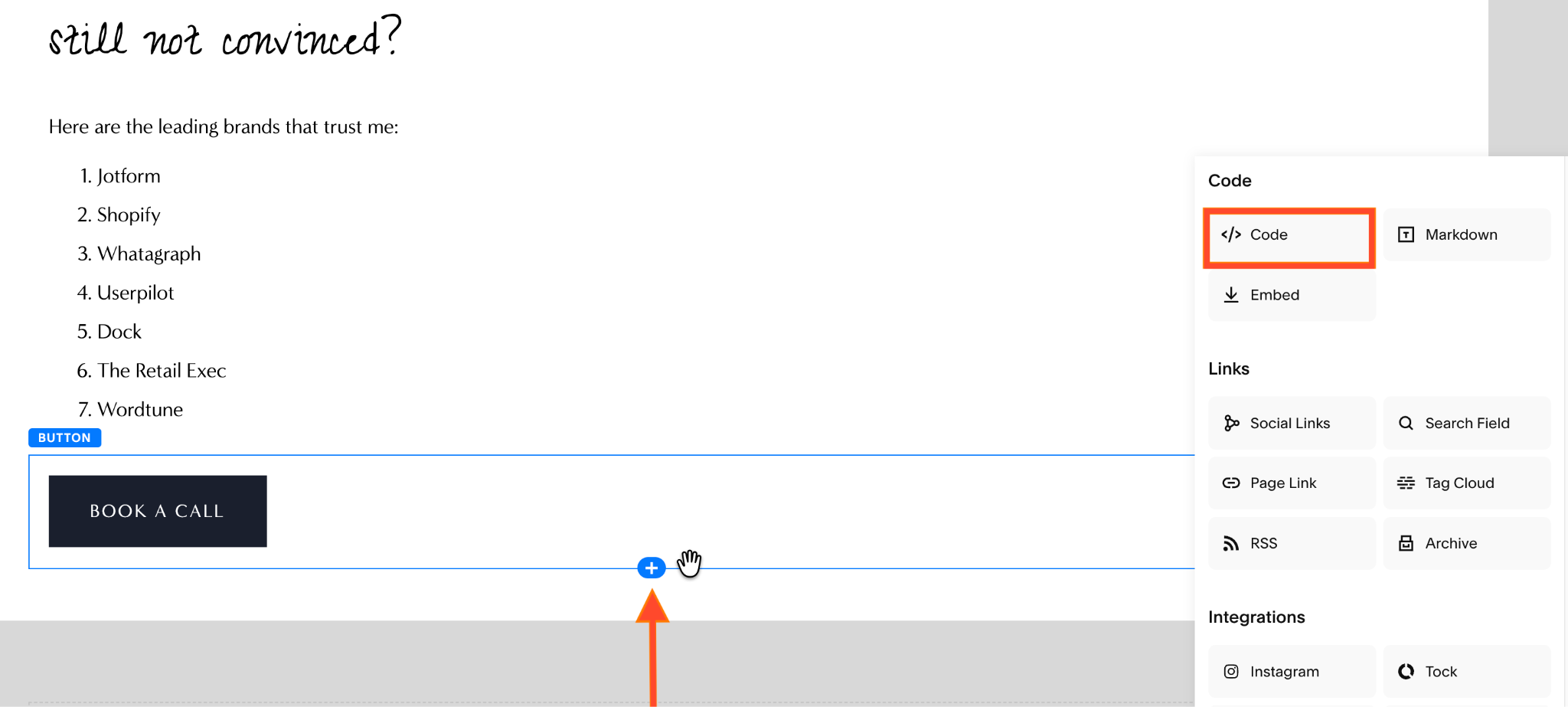
- Choose HTML mode: Paste the snippet and keep Display Source Code switched off. Save the page. If the widget doesn’t appear in the editor, try Preview in Safe Mode or view the page while logged out.
The documented Testimonials controls cover fonts, review-title color, and review order. They don’t, however, include a full grid-layout editor. You also choose the reviews yourself, so newer feedback needs to be added manually. G2 allows CSS adjustments for sizing, but it won’t provide support for display problems caused by those changes.
It works. It’s free. But I want the reviews on the page to be the reviews on G2, today, without a calendar reminder to go and sync them. That’s why I recommend…
Option 2: Add a free, customizable G2 Review Widget
If you want a feed that updates itself and fits a phone screen without you editing pixel values, the better route is a hosted embed like Jotform’s G2 Review Widget.
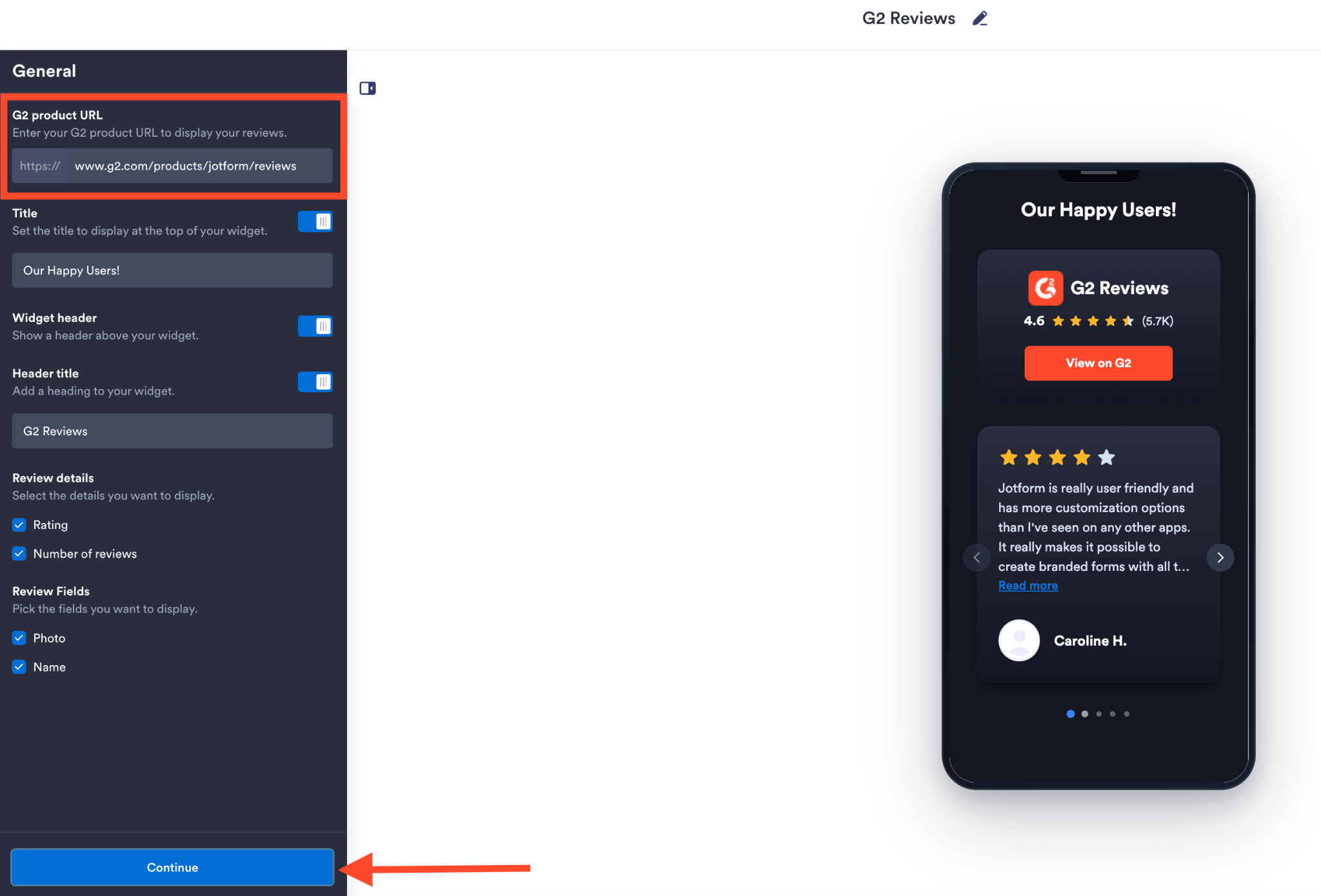
- Connect your G2 product page: Open the widget builder and paste your product’s G2 reviews URL into the G2 product URL field under General. From here, you can change the title and choose which details appear. Click Continue.
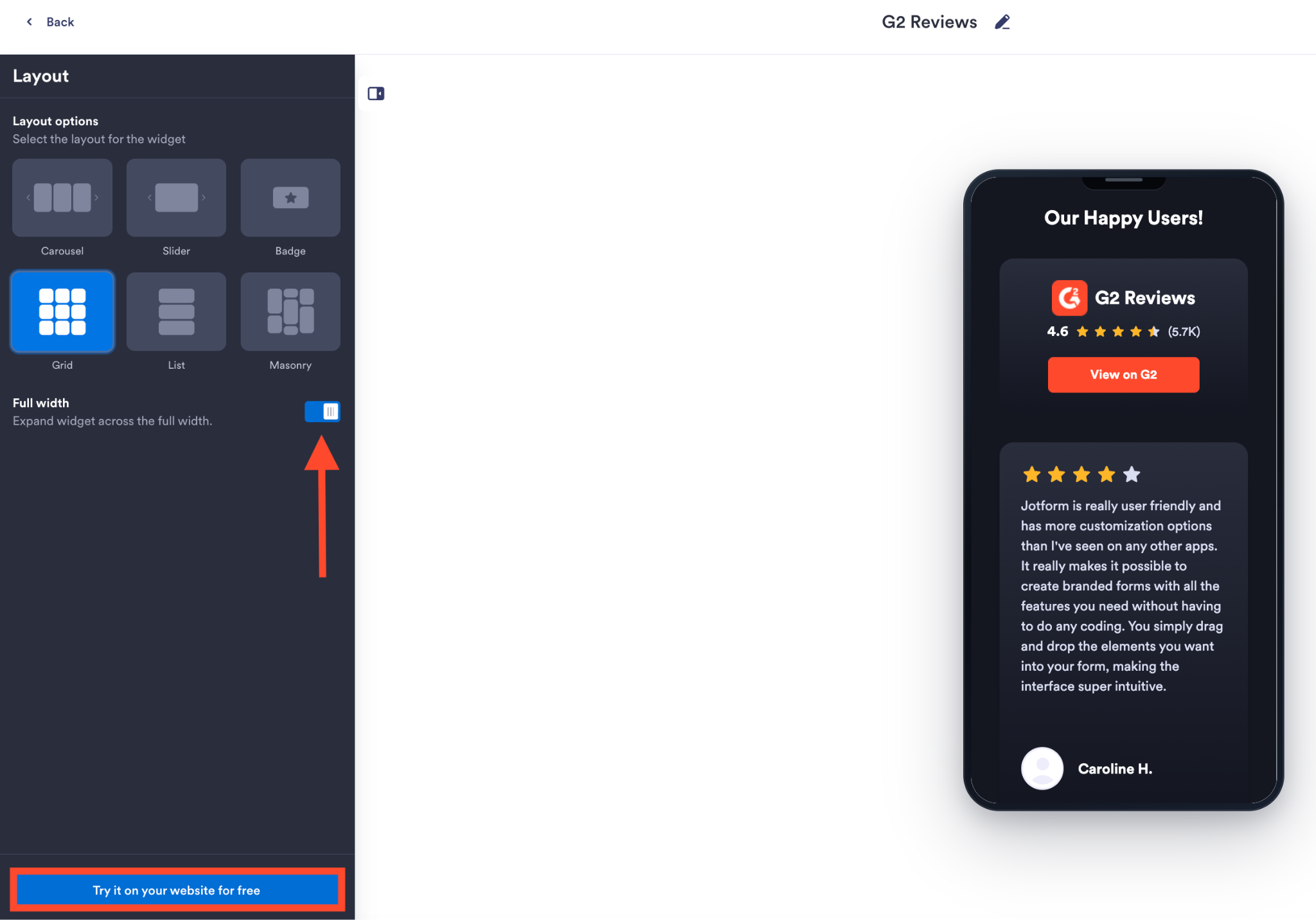
- Customize the appearance and layout: Under Styles, choose whether to use the dark theme, adjust the button and text colors, and edit the call to action. Click Continue to choose your layout. Enable Full width if you want the widget to fill its available space. Once you’re happy, click Try it on your website for free.
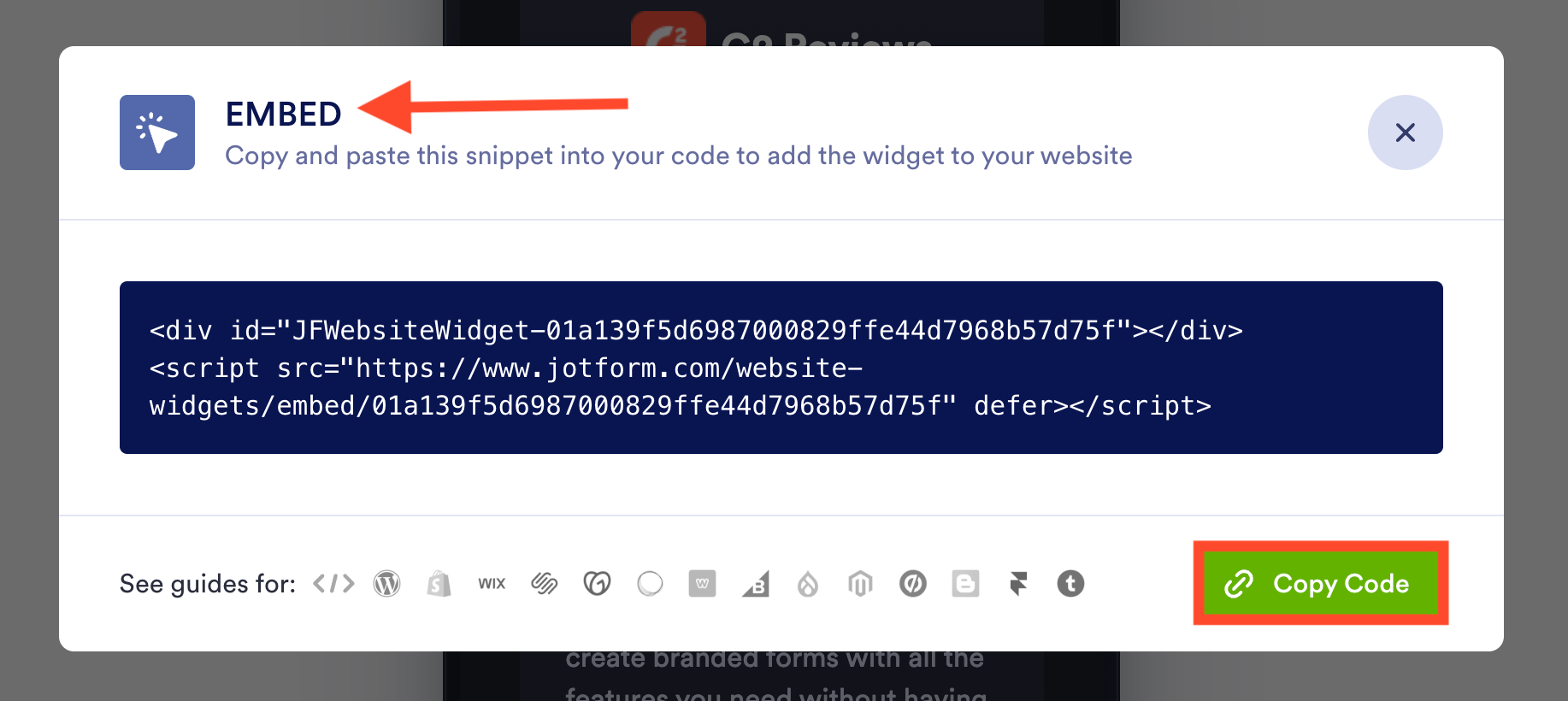
- Copy the embed code: On the Embed popup screen that appears, click Copy Code.
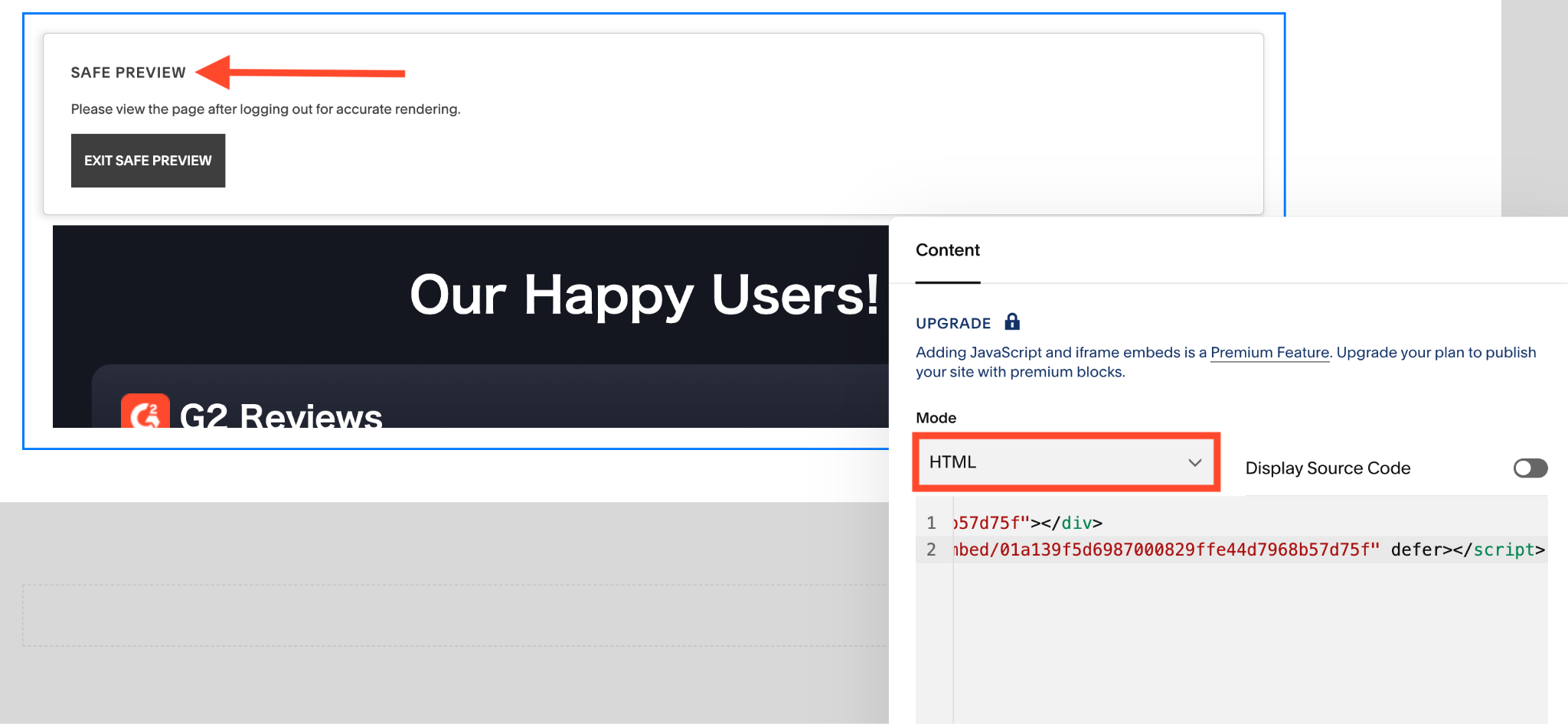
- Go to your Squarespace website: Open your page, click Edit, and select Add Block > Code. Set the block to HTML, paste the snippet, and leave Display Source Code switched off.
- Save your changes: Check the published page on desktop and your phone. Follow the View on G2 link, too, to confirm it opens the right listing.
You may see the widget in “Safe Preview” mode even before upgrading your Squarespace plan, as I did while testing this. That doesn’t mean you can publish it — Squarespace requires Core or above for JavaScript and iFrame embeds. If that plan limit has you rethinking your platform, Jotform’s guide to making a website is worth a look.
You’re reading this on Jotform’s blog, so of course using Jotform is my recommendation if you want to add G2 reviews to your Squarespace site. But here’s a quick comparison in the spirit of transparency:
- The Jotform G2 Review Widget updates automatically: Compare that with Option 1, where the reviews are whatever you hand-picked the last time you logged into my.G2.
- You get responsive layout choices: Switch between a carousel, grid, or other layouts and check the mobile preview without writing custom CSS.
- You can use your site’s typography: Leave the custom-font toggle off to use your site’s font. There’s also scoped CSS if you want more control.
- You can remove Jotform branding: The switch is in the Styles panel. Your widget remains and looks like yours.
Squarespace is easier with a widget library
The G2 Review Widget is one of more than 500 in Jotform’s Website Widgets directory, and they all go into Squarespace the same way: Build it, copy the code, paste that code into a code block.
Once you’ve done it, you know how to do it for any of them, including the
- Popup Widget, for collecting newsletter signups or directing interested visitors to a demo request form
- FAQ Widget, for searchable answers to the pricing and setup questions buyers ask before booking a call
- Countdown Timer Widget, for a launch or webinar — set the date and let the timer handle the counting
If you already use Jotform forms, the Jotform-Squarespace integration covers embedding those too. Browse the Website Widgets directory, and start supercharging your Squarespace site today.


Add G2 reviews to Squarespace FAQs
For a written testimonial from any source (like an email, survey response, or call), open your page editor, click Add Block > Quote, and enter the customer’s words and attribution. That’s enough to add social proof to Squarespace without another tool.
If your testimonials are on G2 and you don’t want to copy them over by hand, Jotform lets you build a custom G2 widget for Squarespace.
Yes, absolutely! Jotform’s free Google Reviews Widget is a great Squarespace review app alternative that you can manage through Jotform.
This article is for B2B SaaS companies, tech startups, agencies, and enterprise service providers using Squarespace who want to showcase verified social proof without paying recurring app fees or wrestling with rigid, broken iframe codes.










































Send Comment: