
Promotional banners are essential for driving traffic on any website, whether you’re promoting your end-of-year sale, announcing a new product, or advertising an upcoming event. Effective custom banners use rich media, countdown timers, and strong calls to action to boost click-through rates and client engagement.
For Squarespace users, adding a banner may require an outside solution. Squarespace offers a native announcement bar feature, but this option is limited to a single line of text with a basic link and rigid display requirements. You can also create a hero section as an announcement bar using the Fluid Engine editor, but it lacks the compact and dynamic qualities of a banner.
To create a true custom banner for Squarespace, if you don’t write CSS code, you have two options: buying a premium third-party plug-in or code snippet, or using a free, lightweight serverless widget.
Option 1: Install a premium Squarespace plug-in or custom CSS snippet
Many users work around Squarespace’s limitations by paying a third-party service or code creator for custom plug-in code. Custom code allows you to circumvent design restrictions and place assets on your page manually. You’ll need to find and purchase a license, then add the code to a custom page block or to your Squarespace site using the Code Injection.
Once you’ve found a code that works for your needs, you can add it to your site in two ways, depending on whether you are adding it to a single page or every page on your site. Here’s how to tackle both:
Full site
- Click on the Pages tab in the left-hand navigation menu.
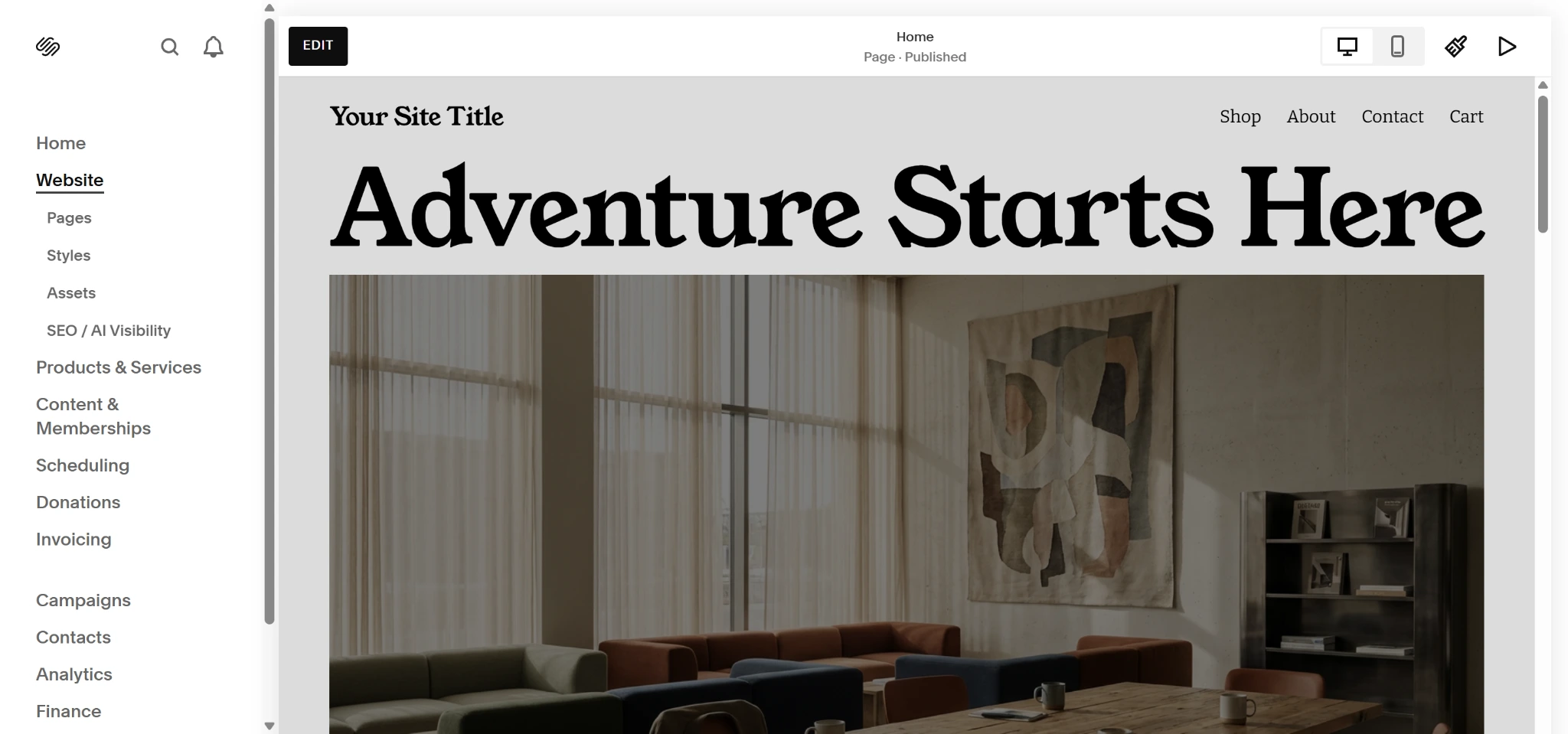
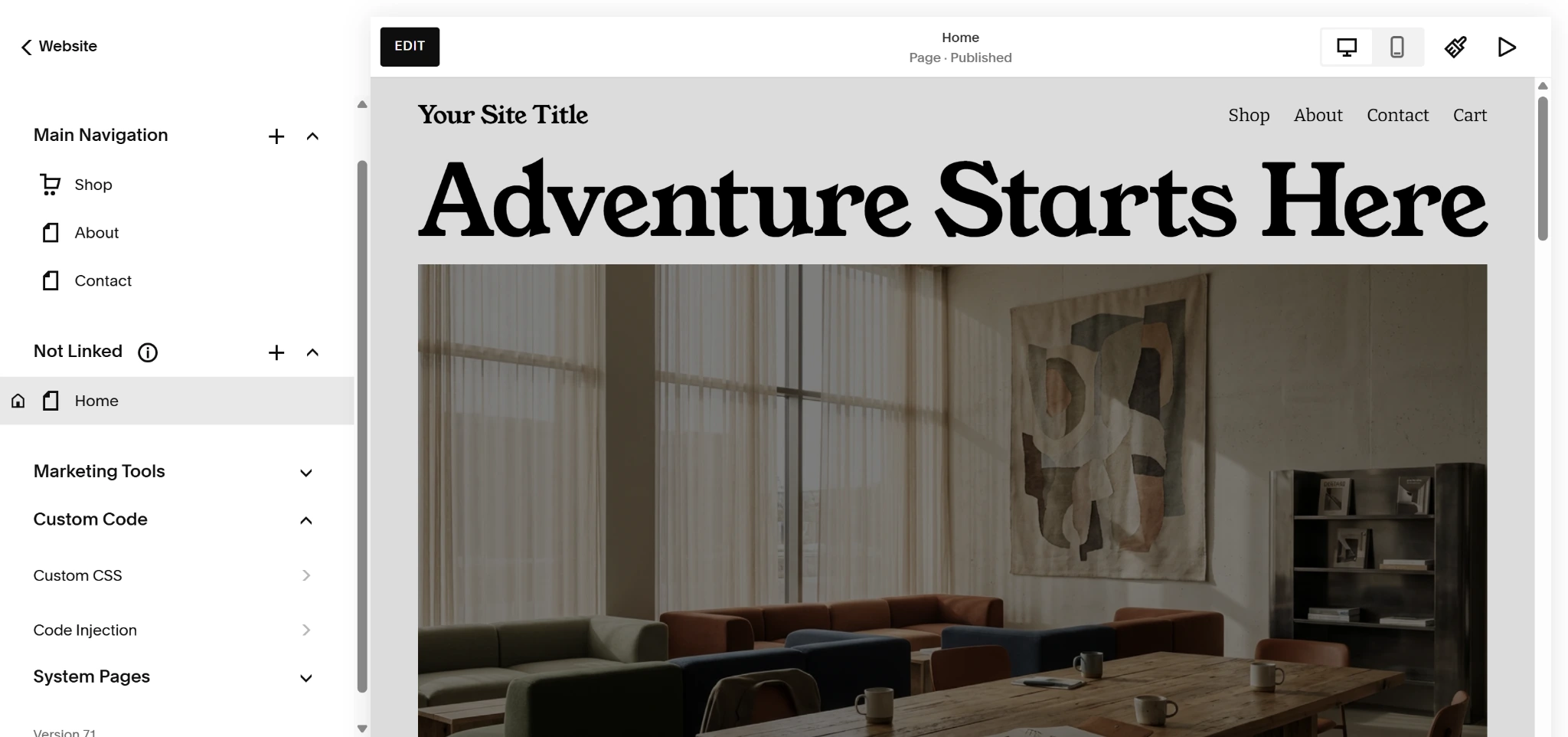
- Select the Custom Code dropdown at the bottom of the menu and click Code Injection.
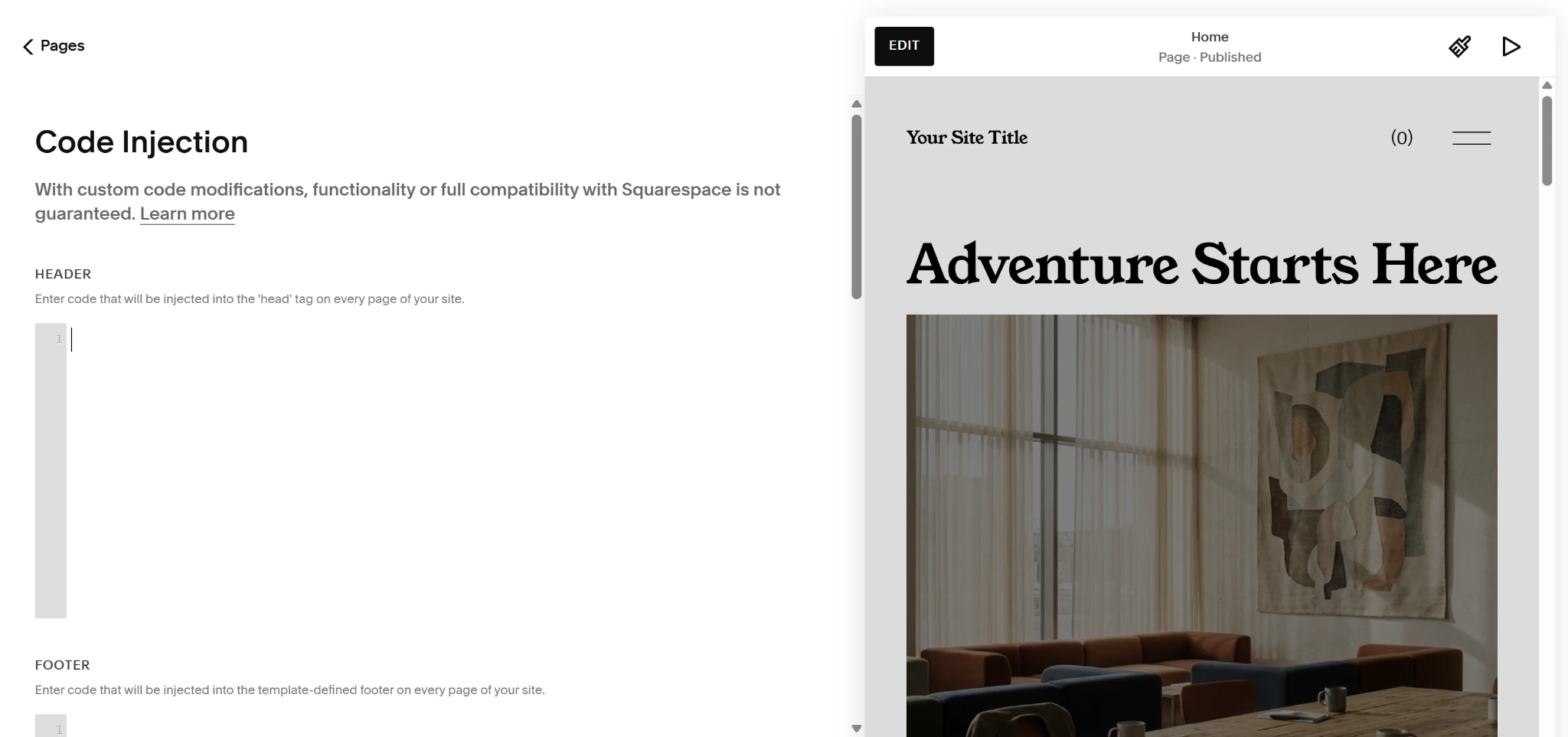
- Paste your custom code into the header or footer of your site.
Single page
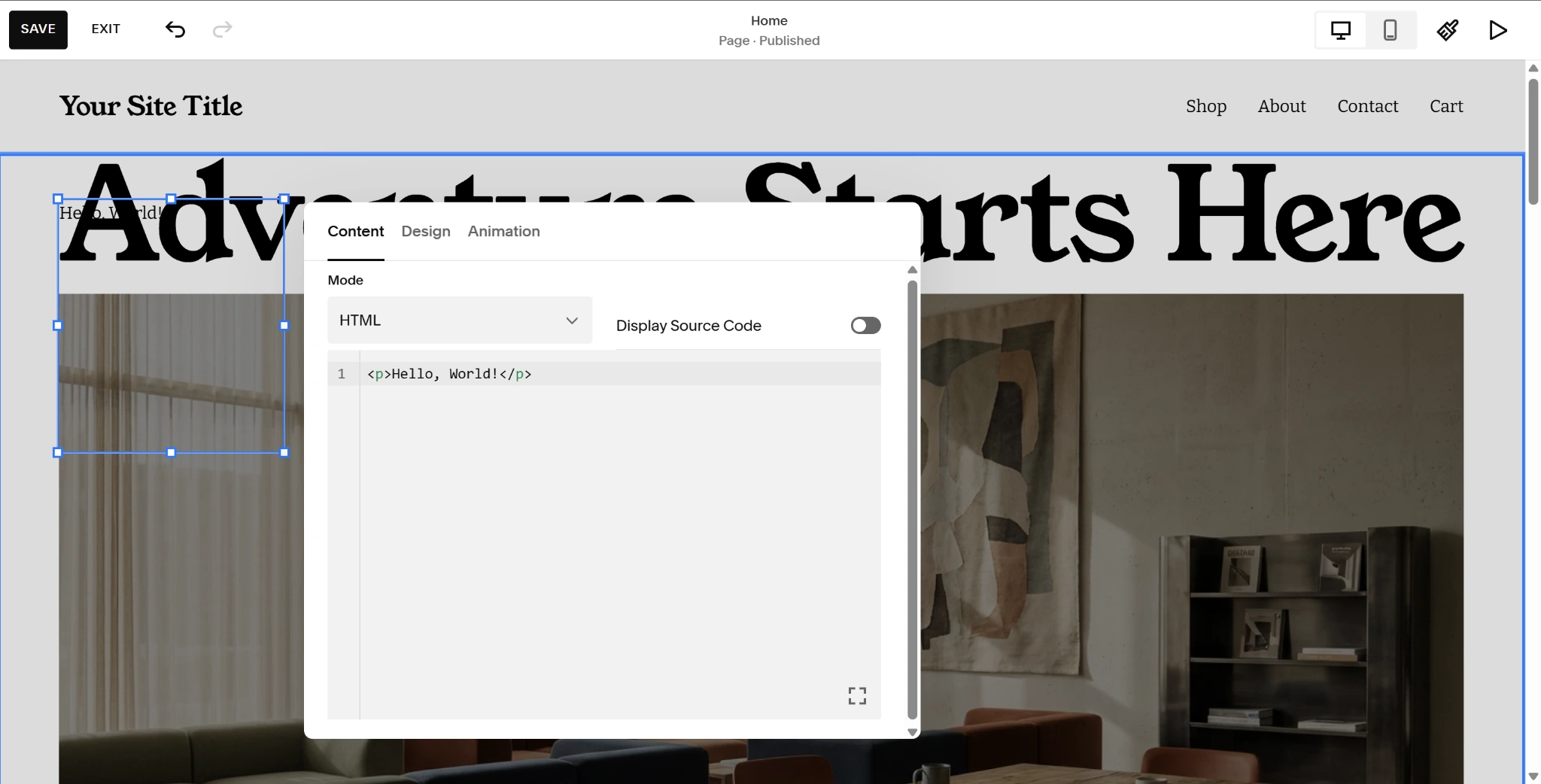
- Open the page and click the Edit button at the top.
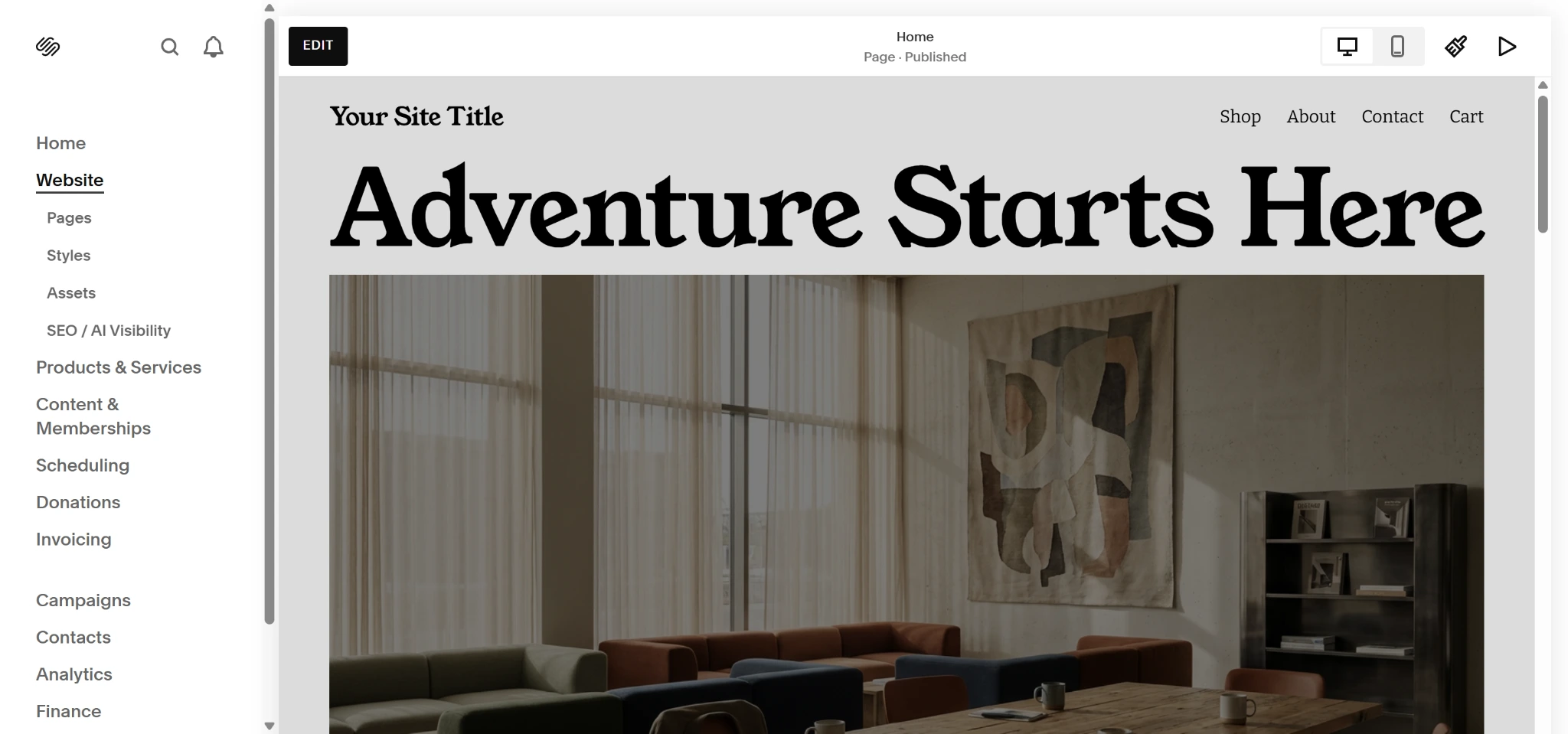
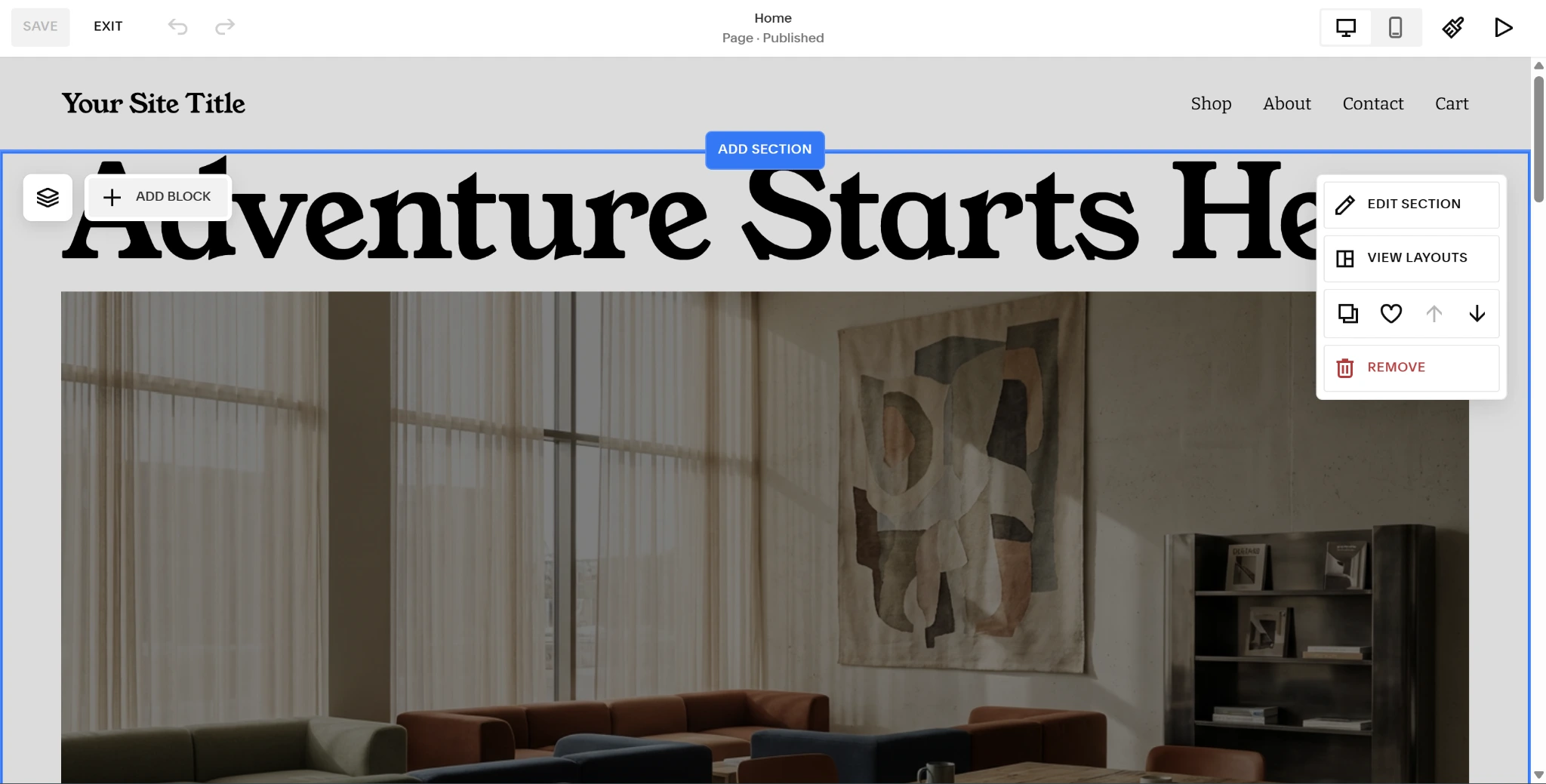
- Click Add Block where you want to add your banner.
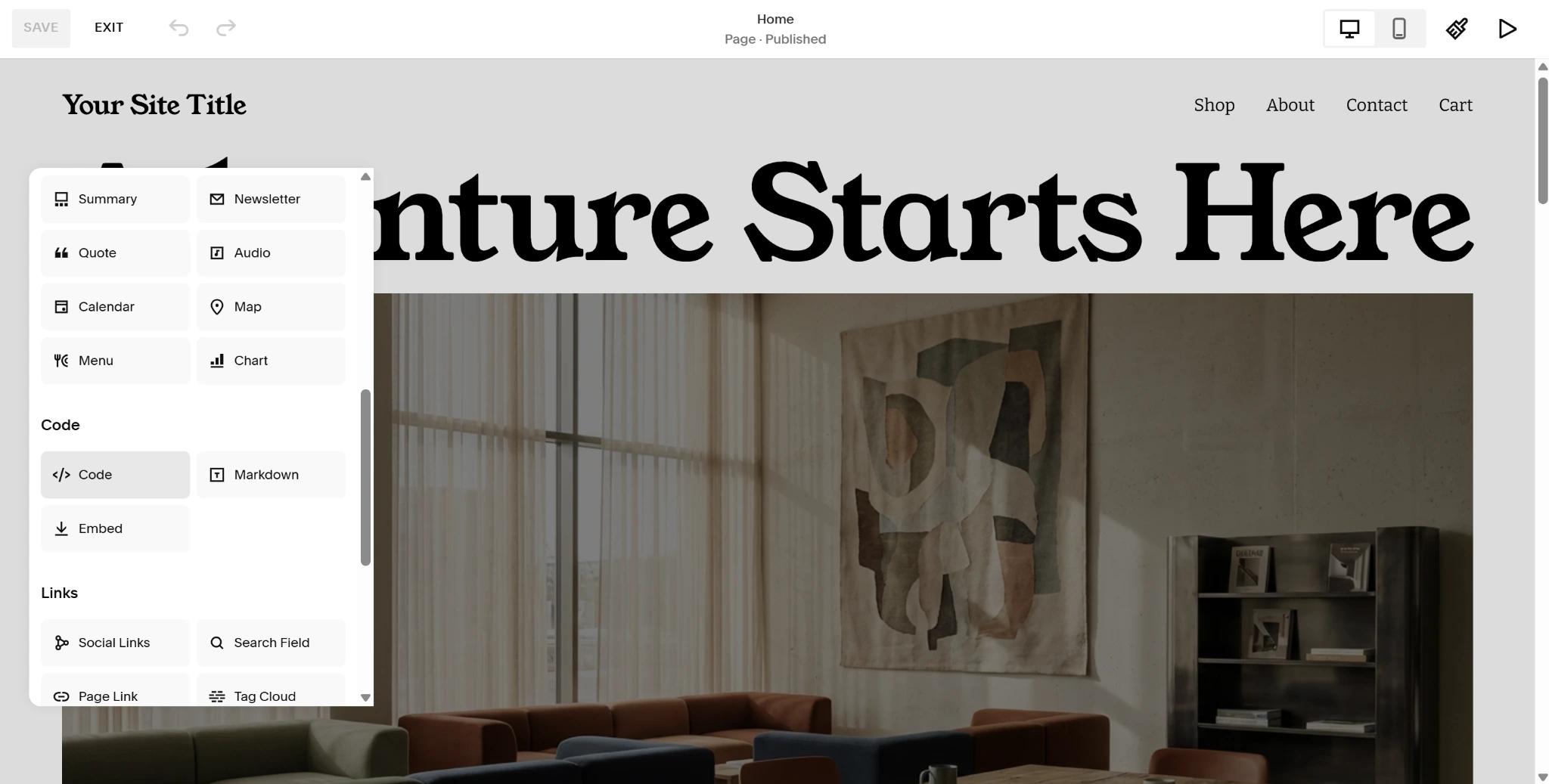
- Scroll down and click the Code option.
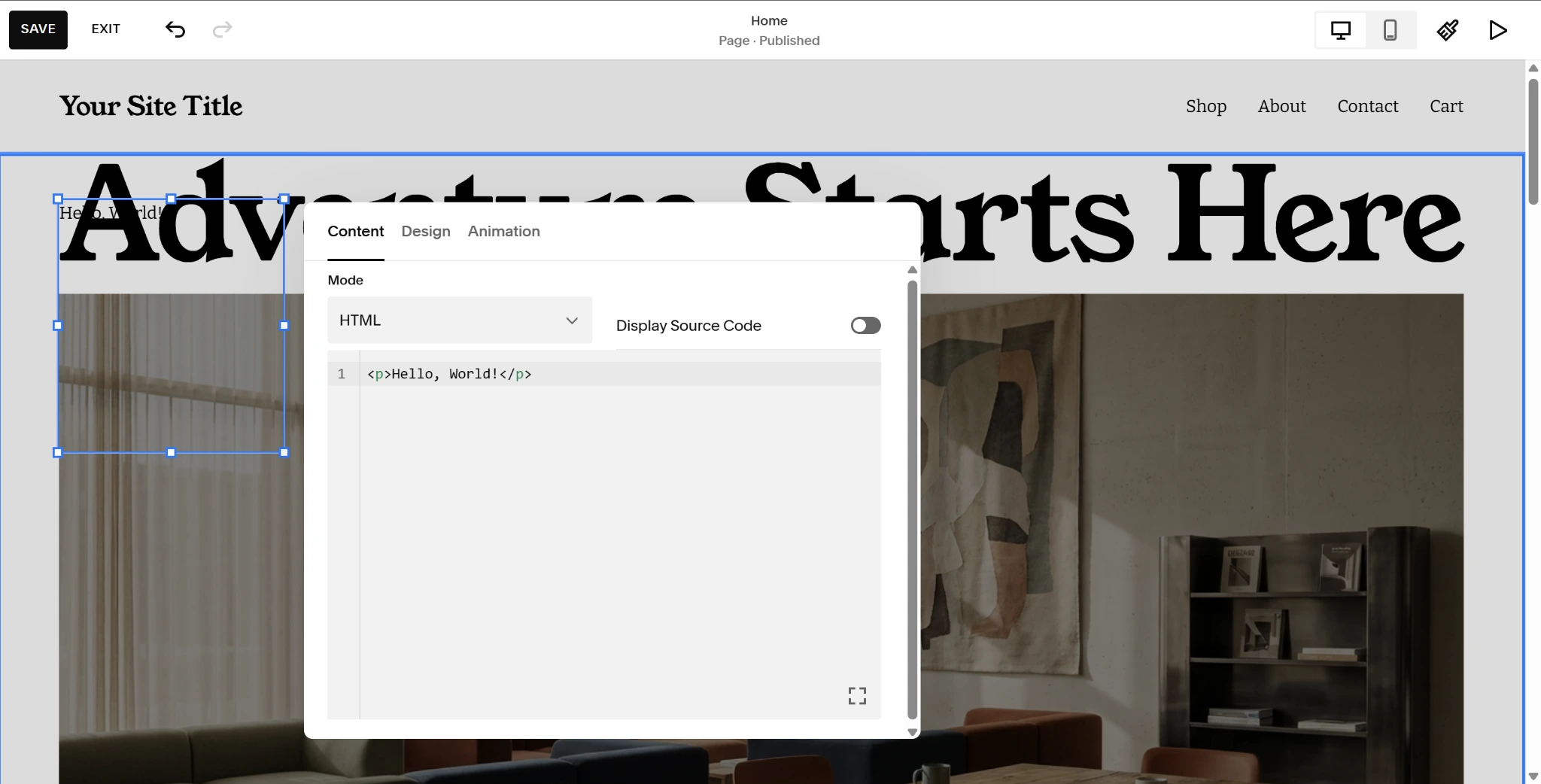
- Click into your new code block, choose your code type from the dropdown menu, and paste your code into the block. Click Save to finalize.
The issue with this route is the unpredictability and costs of paying for premium code. Some options cost $25 or more for a basic banner, countdown timer, or similar tool.
“Freemium” options can also be misleading. These options can easily break when Squarespace updates its core infrastructure or slow down your site with unoptimized or non-mobile-friendly assets.
You shouldn’t have to pay for making a website more effective. That’s why Jotform has a free interactive banner option for Squarespace users.
Option 2: Add a free, interactive banner widget (recommended)
If you want a banner but don’t want to pay for licenses, recurring subscriptions, or custom code, the best solution is a reliable hosted embed. With the Jotform Banner Widget, you can easily customize your banner and generate a unique embed code that you can paste directly into Squarespace.
Here’s how to add this paid snippet alternative for Squarespace to your site:
- Navigate to the Jotform Banner Widget page and click the Get Started Now button in the top right corner to open your new widget.
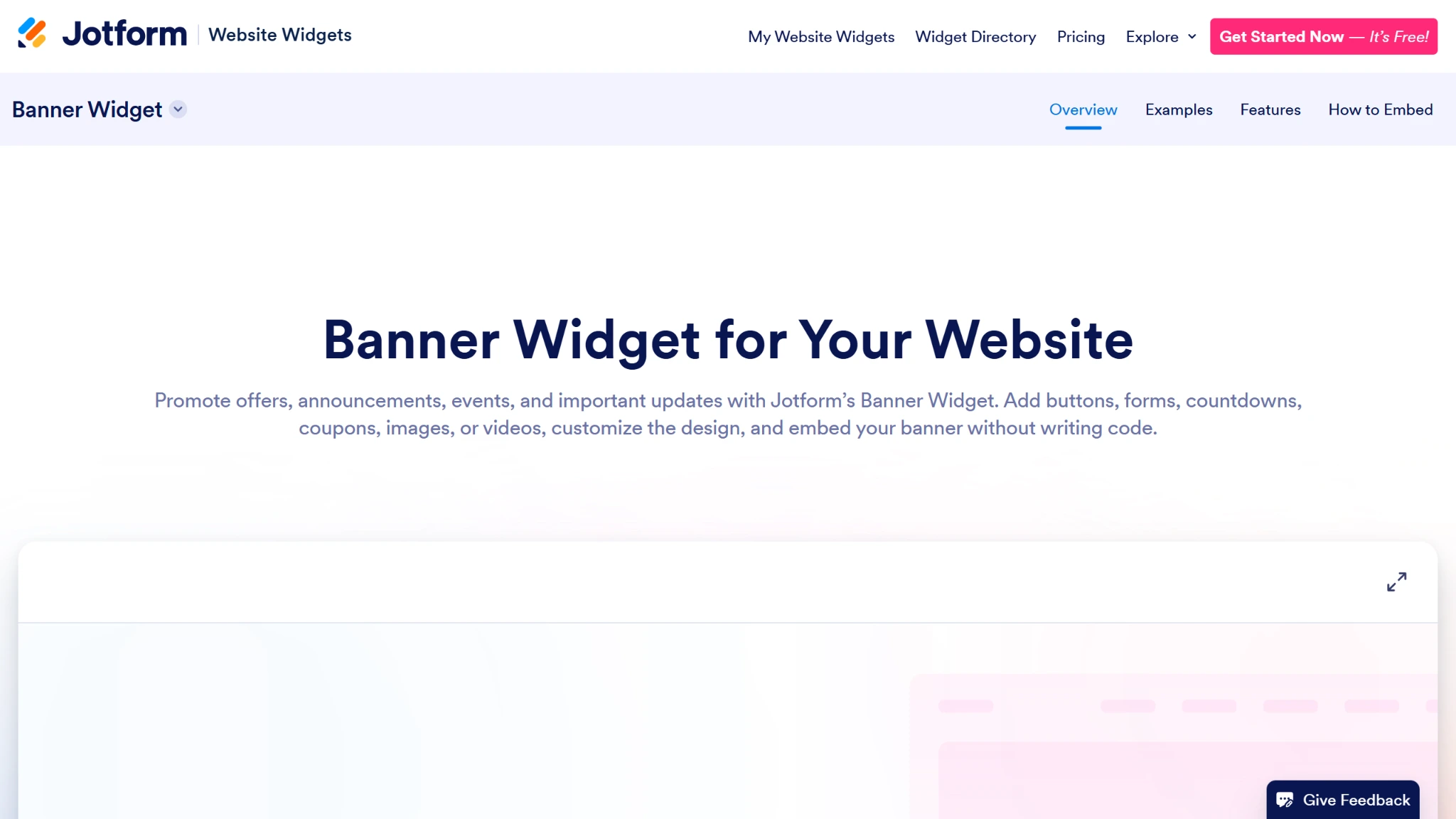
- Customize your banner using the Widget Properties menu.
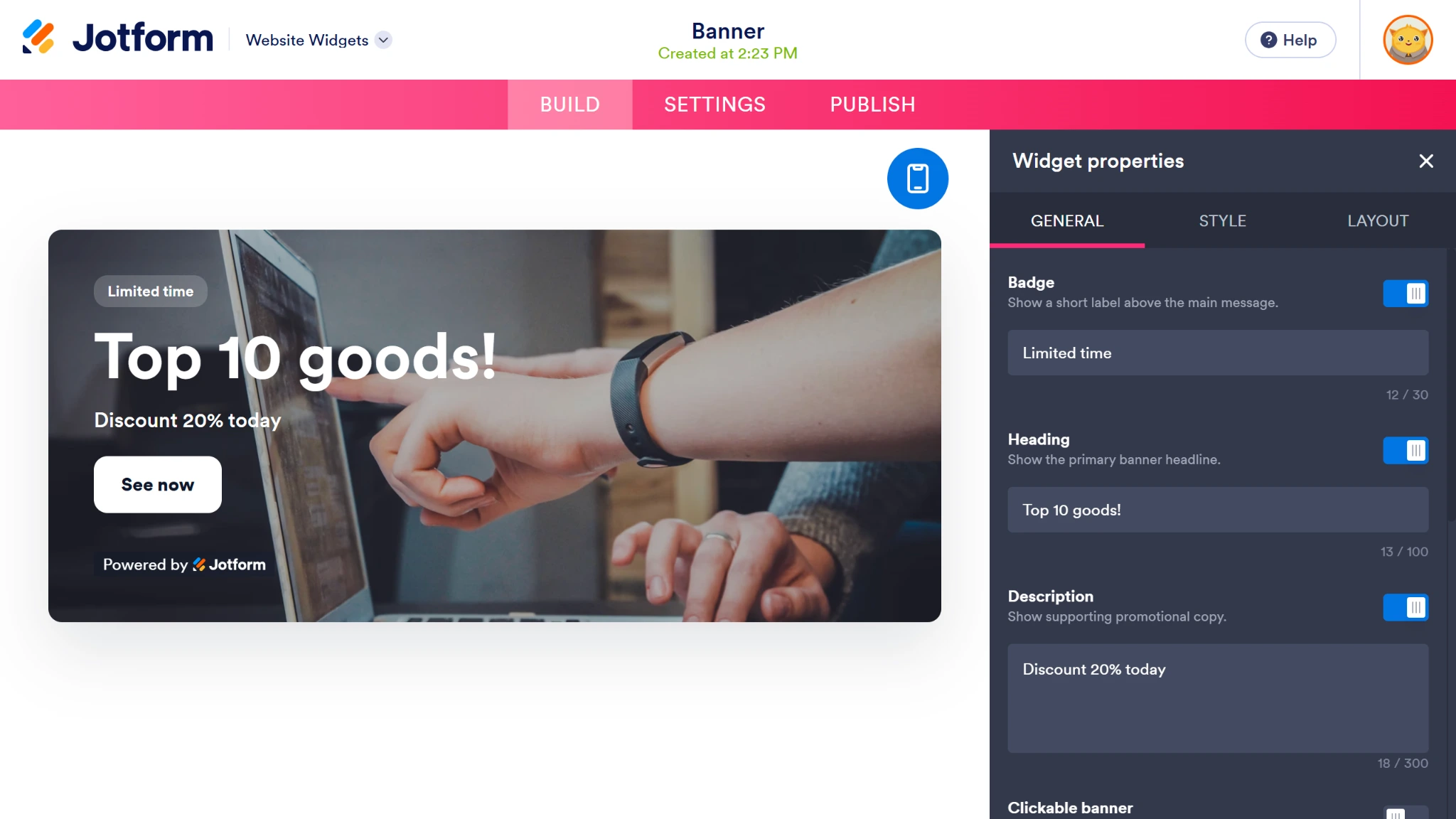
- Once your banner is ready, click Publish, then click the Copy Code button to generate your embed code.
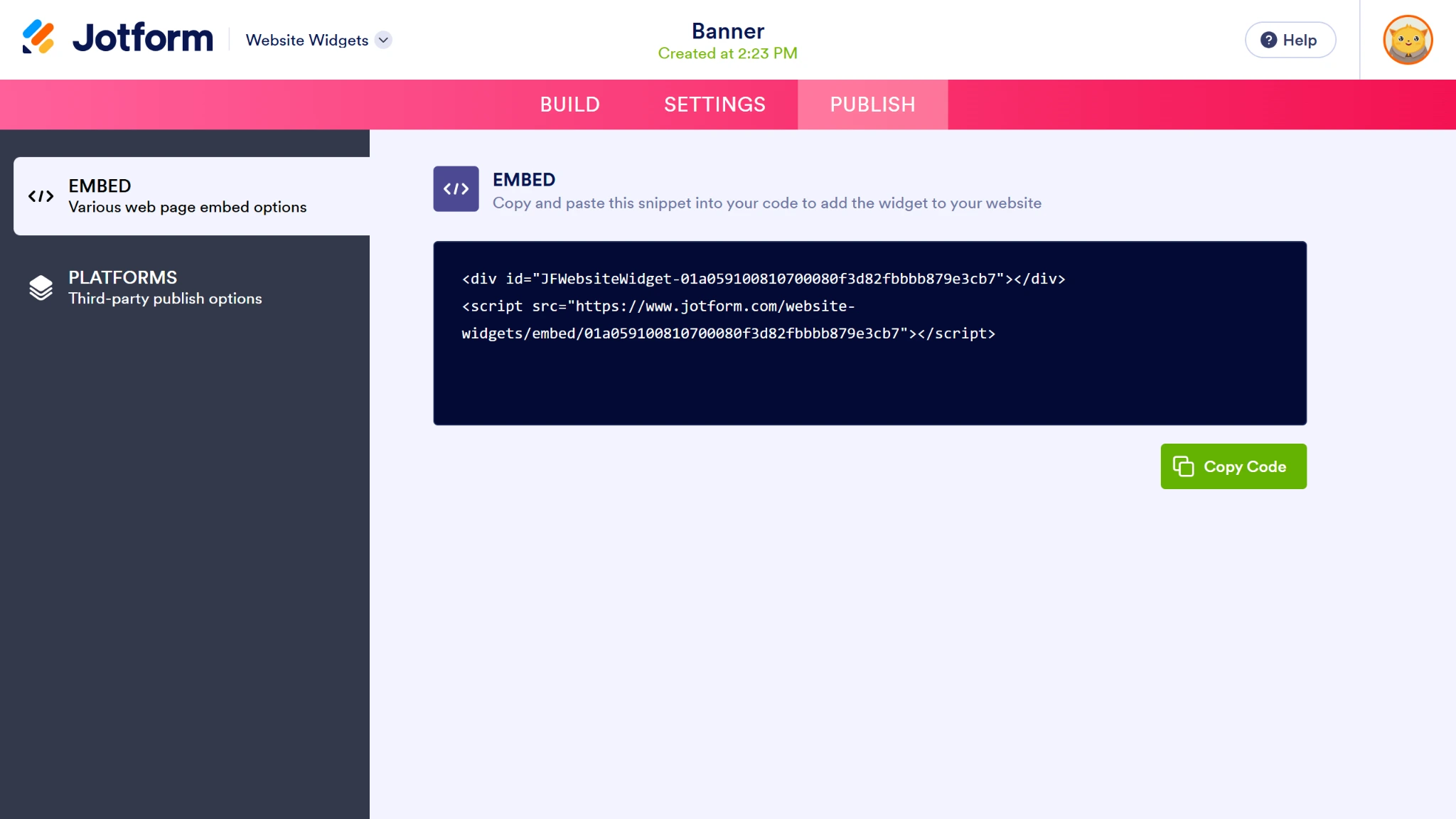
Then follow these steps to embed a promo banner for Squarespace either sitewide or page by page:
Full site
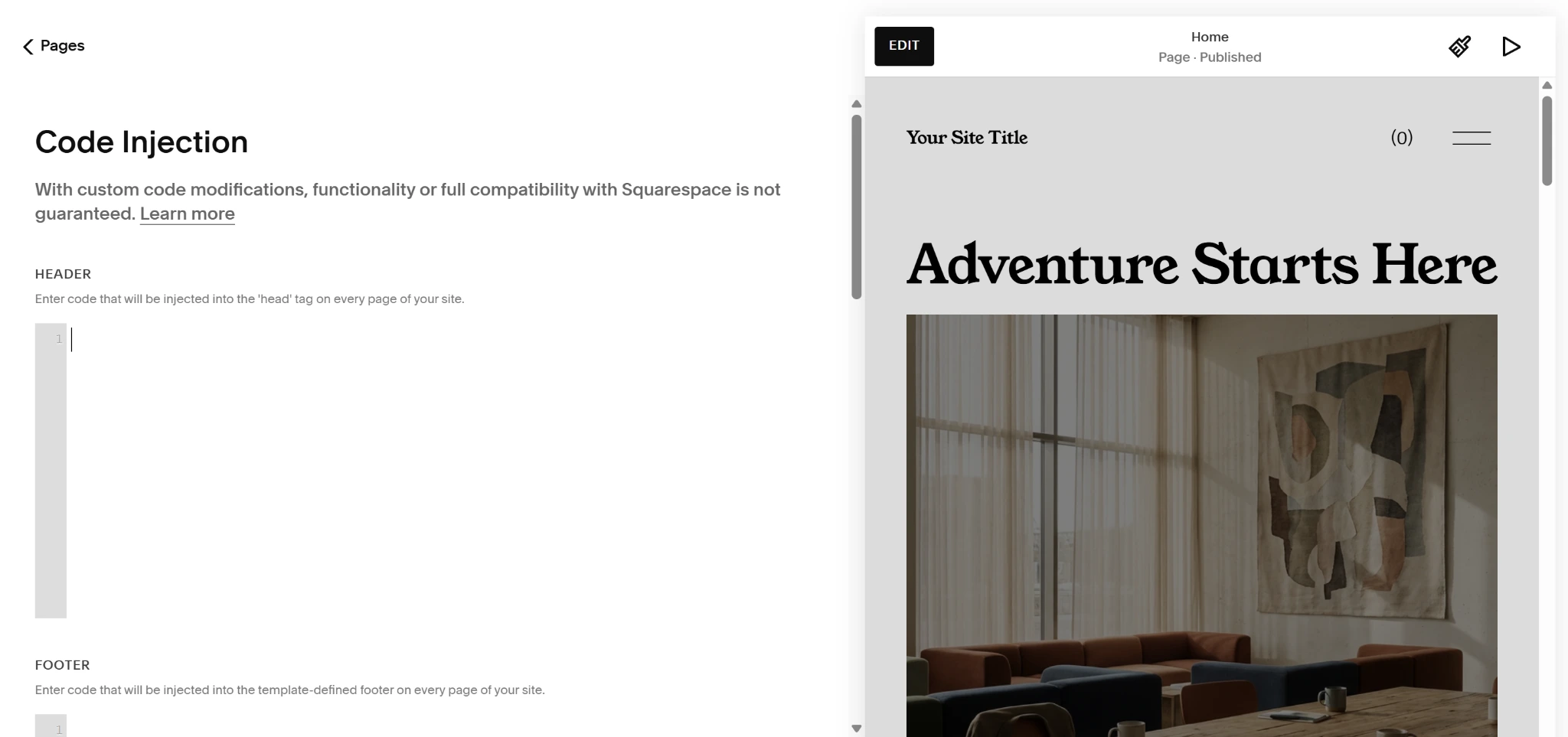
- Click on the Pages tab in the left-hand navigation menu.
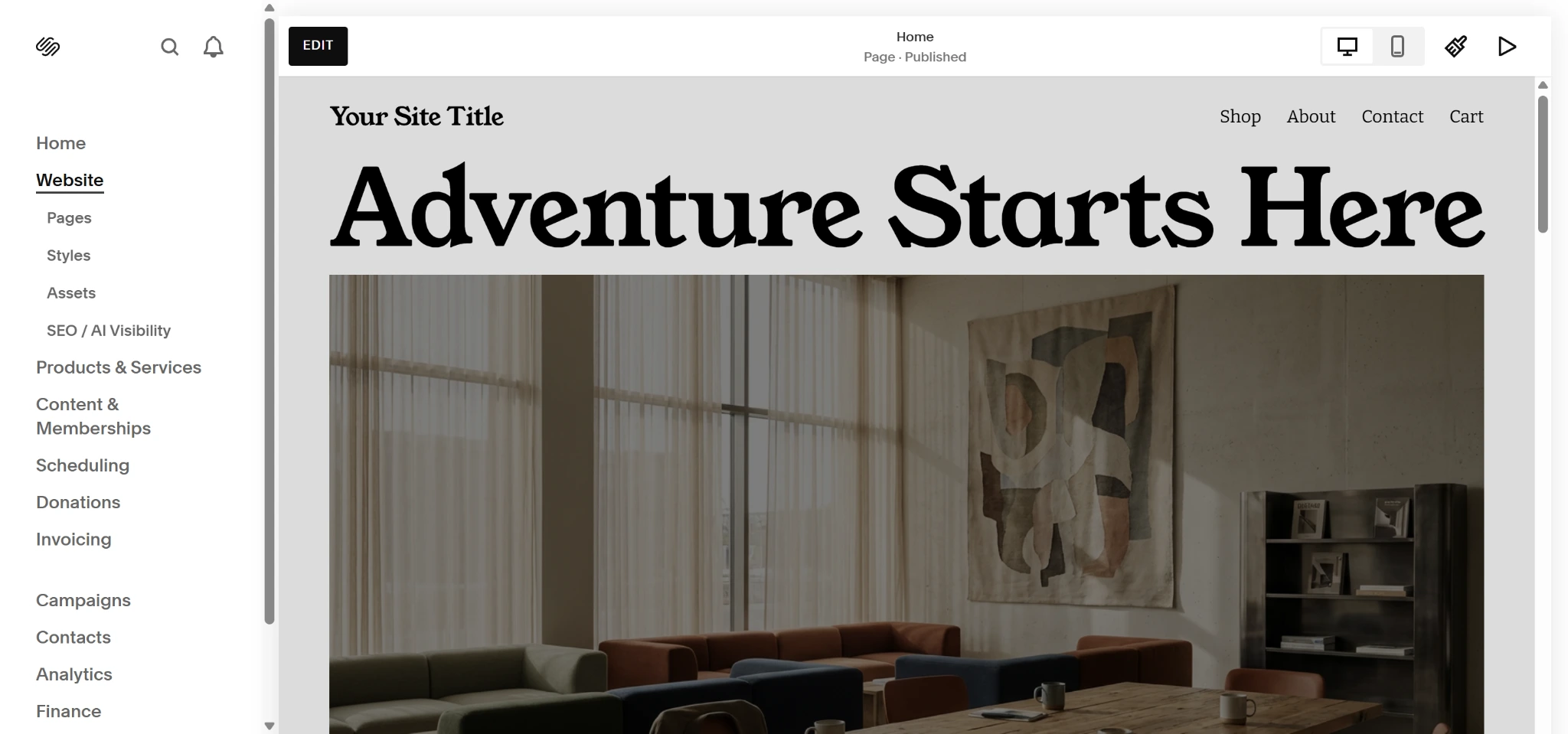
- Select the Custom Code dropdown at the bottom of the menu and click Code Injection.
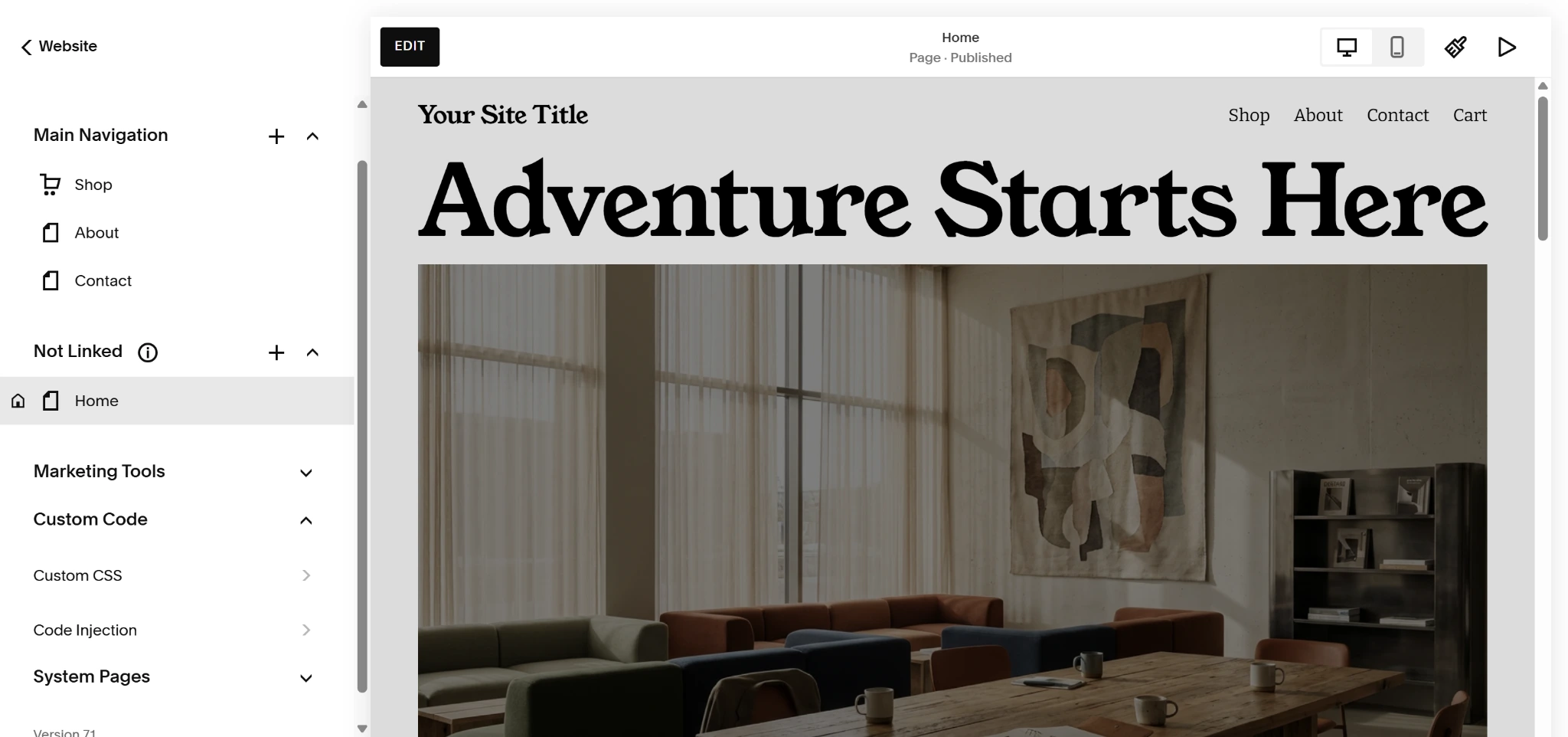
- Paste your custom code into the header or footer of your site.
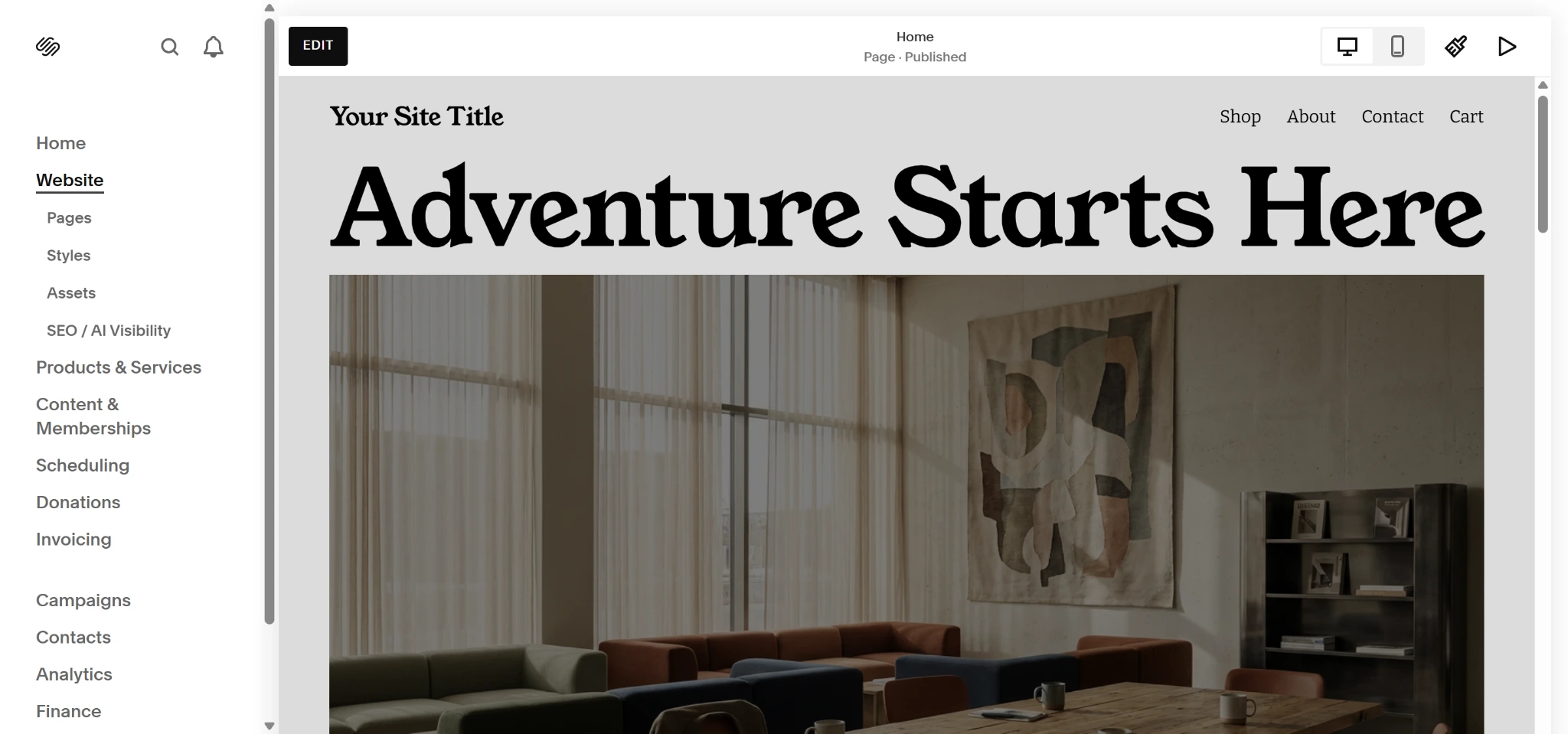
Single page
- Open the page you’re adding a banner to and click on the Edit button at the top.
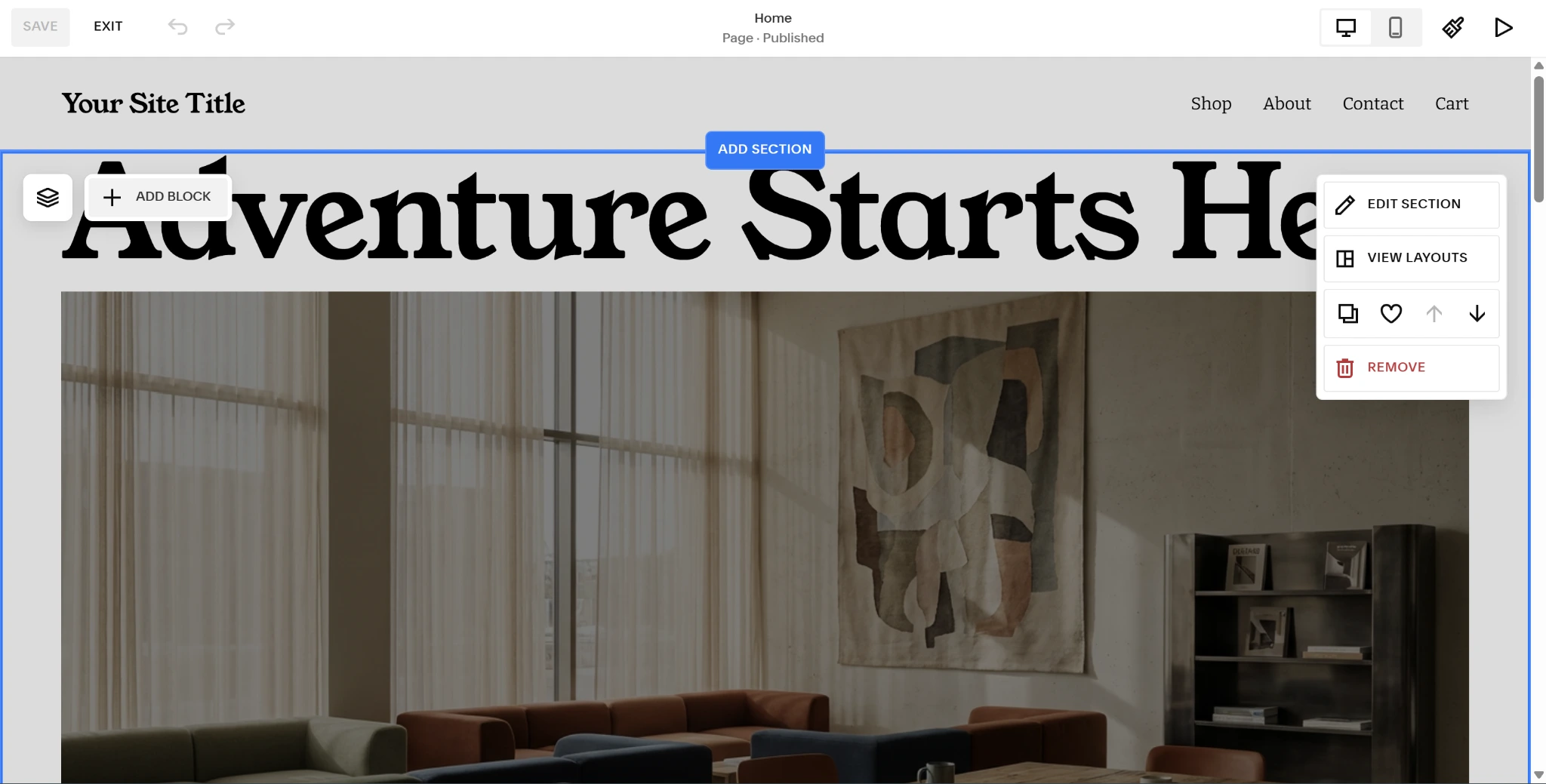
- Click Add Block where you want to add your banner.
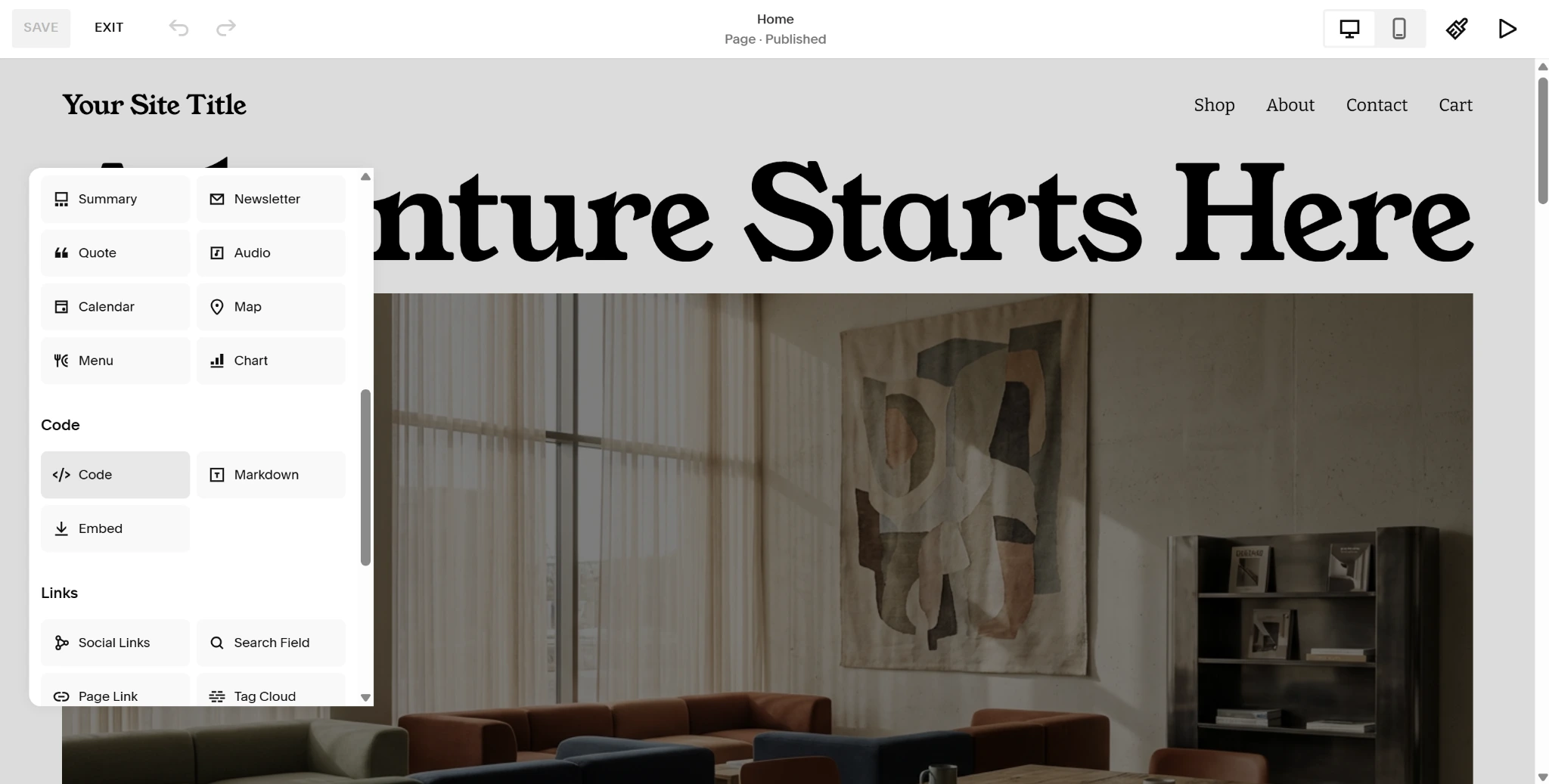
- Scroll down and click the Code option.
- Click into your new code block, choose your code type from the dropdown menu, and paste your code into the block. Click Save to finalize.
Jotform not only makes it easy to add this free banner widget on Squarespace, but also lets you customize your banner directly in its widget builder through a visual editor for free. You can personalize your banner’s background images, embed YouTube or Vimeo videos, add interactive call-to-action buttons, insert countdown timers, and control visibility by device. Plus, because Jotform is off-server, adding the banner to your site won’t conflict with Squarespace’s core updates or break your layout.
Supercharge your Squarespace site with smart, serverless widgets
With Jotform, your options don’t end with banners. Jotform offers a full suite of free website widgets to help maximize conversions, keep your website lightweight, and eliminate unnecessary premium plug-in subscriptions.
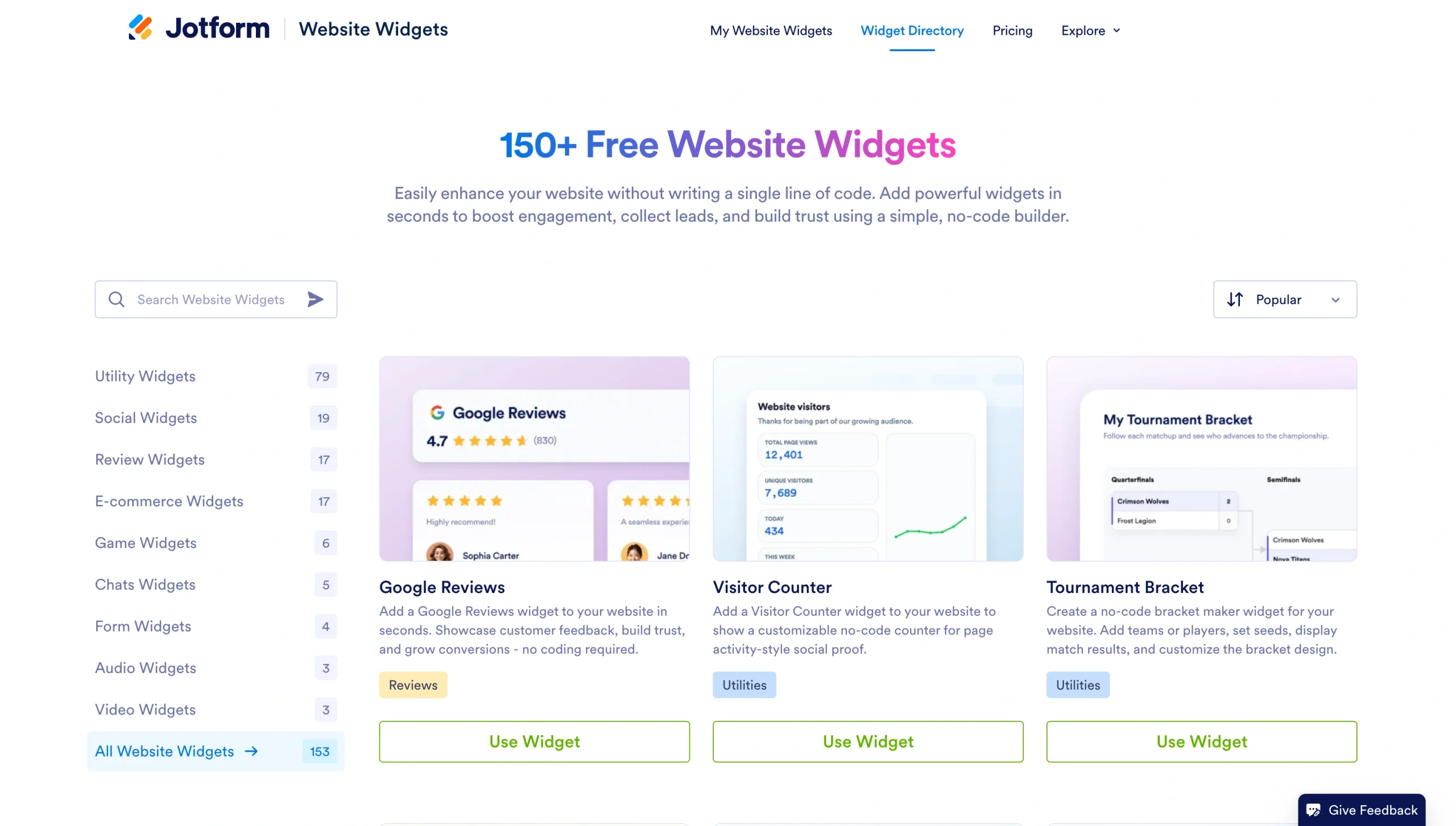
These widgets inject powerful features into your Squarespace site with simple embed codes, including
- FAQ Widget for answers to common customer questions
- Google Reviews Widget to display customer satisfaction
- Countdown Timer Widget for upcoming events or product drops
- Back to Top Widget for smoother user interactions
- QR Code Widget for easy access to menus, documents, and more
You can even use Jotform to create a seamless connection between your online forms and your Squarespace site using the Jotform-Squarespace integration.
Don’t spend your time and money managing a premium website plug-in just to add a banner to your homepage. Use Jotform’s free, serverless website widgets to elevate your website experience and capture important leads.
This article is for Squarespace site owners, photographers, and boutique agencies who want to embed rich, interactive promotional banners with countdowns or lead capture forms without relying on basic native blocks or buying premium code snippets.









































Send Comment: