
The call-to-action button is the highest-value element on a landing page, since every visitor you send to the checkout, a contact form, or a downloadable resource has to click one to get there. And a button that stands out from the section around it — with its own color, an icon, or a hover effect — gets a noticeably better click-through rate than one that blends in.
Squarespace has a native Button Block, but you style it from your global Site Styles panel rather than by selecting the button itself. Buttons come in three types: primary, secondary, and tertiary. Each type is styled across your whole site, so you get three button designs in total. Restyling a primary button applies to every primary button you have, and the same applies to the secondary and tertiary types. The settings are limited on their own too, with no options for icons, hover effects, or gradients.
There are two ways to give one button its own design without changing every other button on your site. You can write or buy custom CSS and paste it into your Custom CSS panel to target that specific block, or you can use a free hosted widget, style the button in a visual builder, and paste the embed code into a code block.
If you’re a Squarespace site owner, marketer, or designer who wants a custom CTA button on Squarespace without writing CSS or paying a developer for a snippet, this guide walks you through how to add a button on Squarespace using both methods — starting with the CSS method and then the widget.
Option 1: Use native blocks with custom CSS snippets
The standard way to get a unique button design on a Squarespace page is to add the native button block and then override its styling with your own CSS. Squarespace has a Custom CSS panel for that, and targeting a single block by its ID keeps the change on one button instead of every button of its type.
Here’s how to add a button on Squarespace with custom CSS:
- Open the page in your editor, hover over the section you want to add the button to, click Add Block, and choose Button.
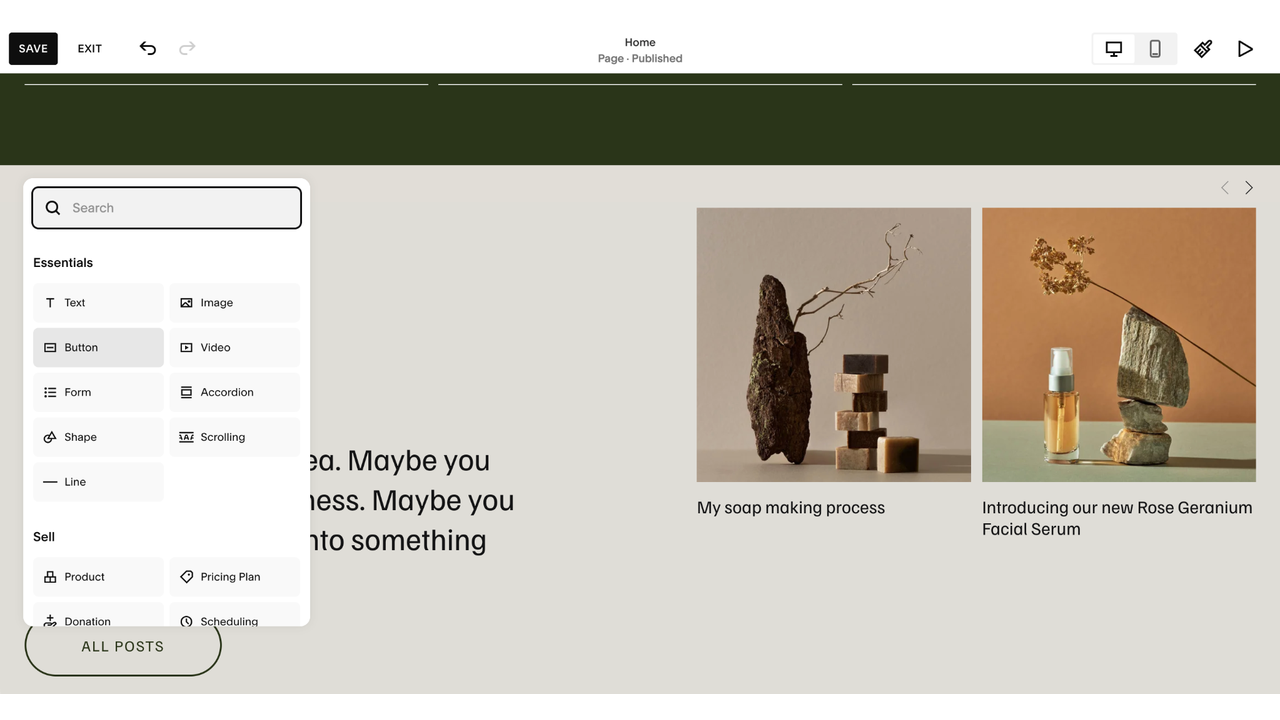
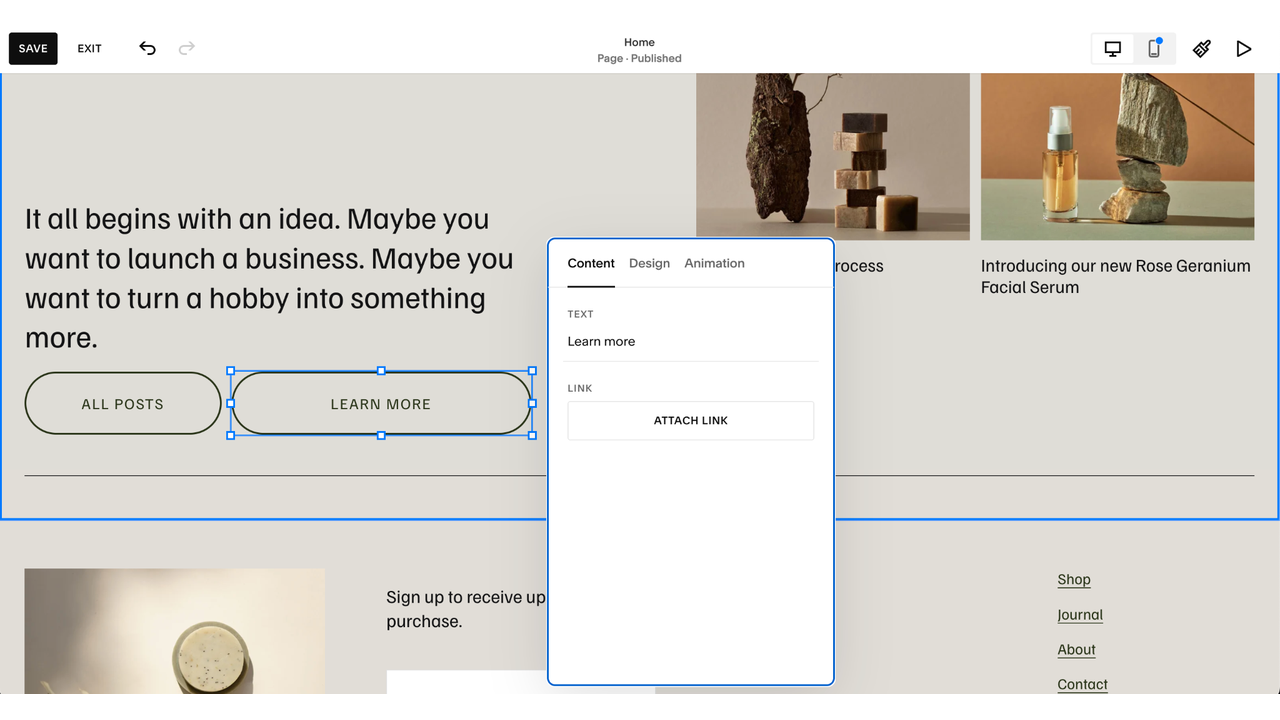
- Click the pencil icon or double-click the button to set your text and link. Choose primary, secondary, or tertiary, and then click Save in the top-left corner.
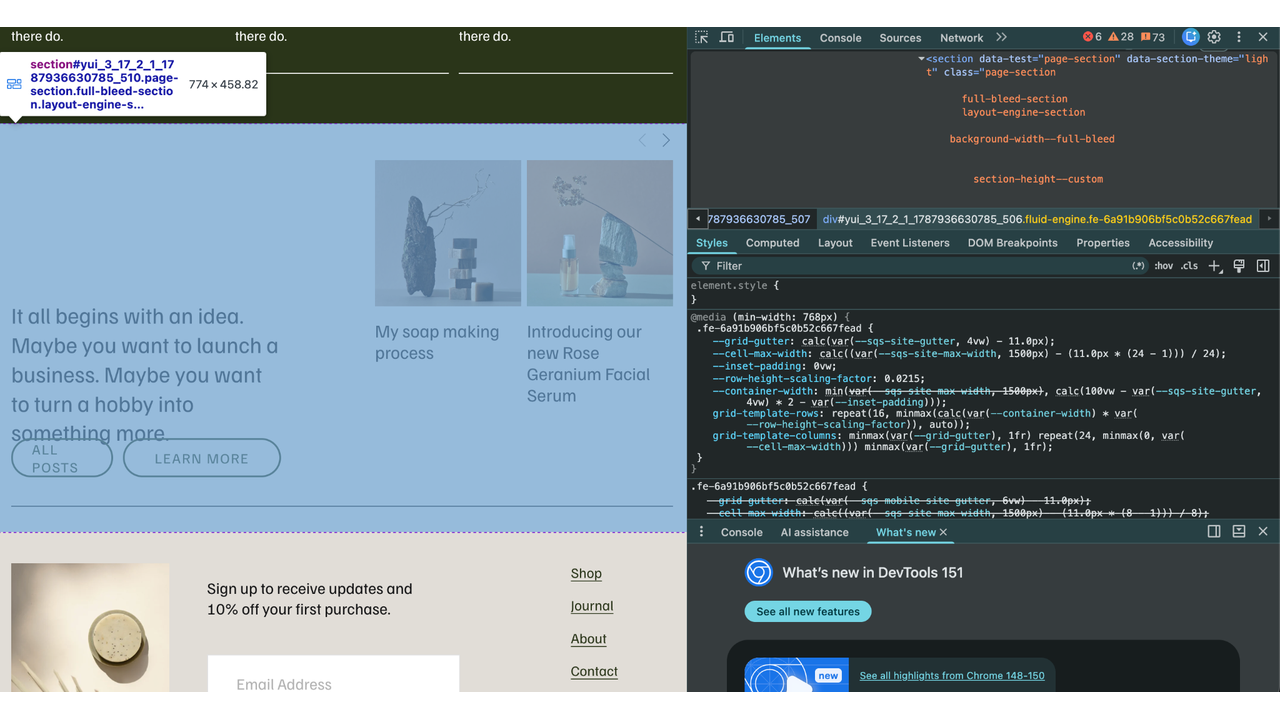
- Next, find the block ID. Every block on a Squarespace page has a unique ID, and putting it in front of your CSS limits the change to that one button rather than applying it to every button of its type. You can find it by inspecting the page in your browser, right-clicking the block and selecting Inspect, or by using one of the free Squarespace ID finder browser extensions.
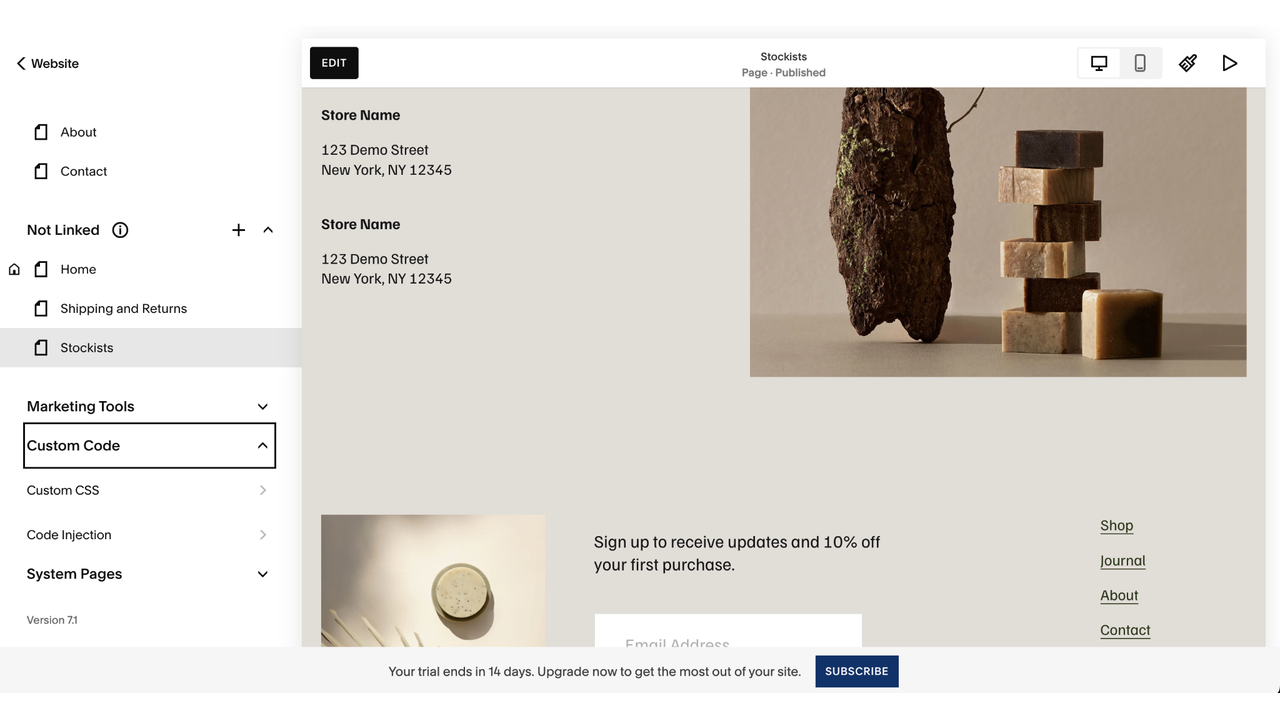
- Outside of your editor, go to Website in the sidebar, click Pages, then Custom Code, and select Custom CSS.
- Write and save your rules — target that block ID, and then click Save. Squarespace’s own styles are specific enough that you’ll often need to add !important for yours to take effect. Once saved, that one button looks the way you want while every other button on your site stays as it was.
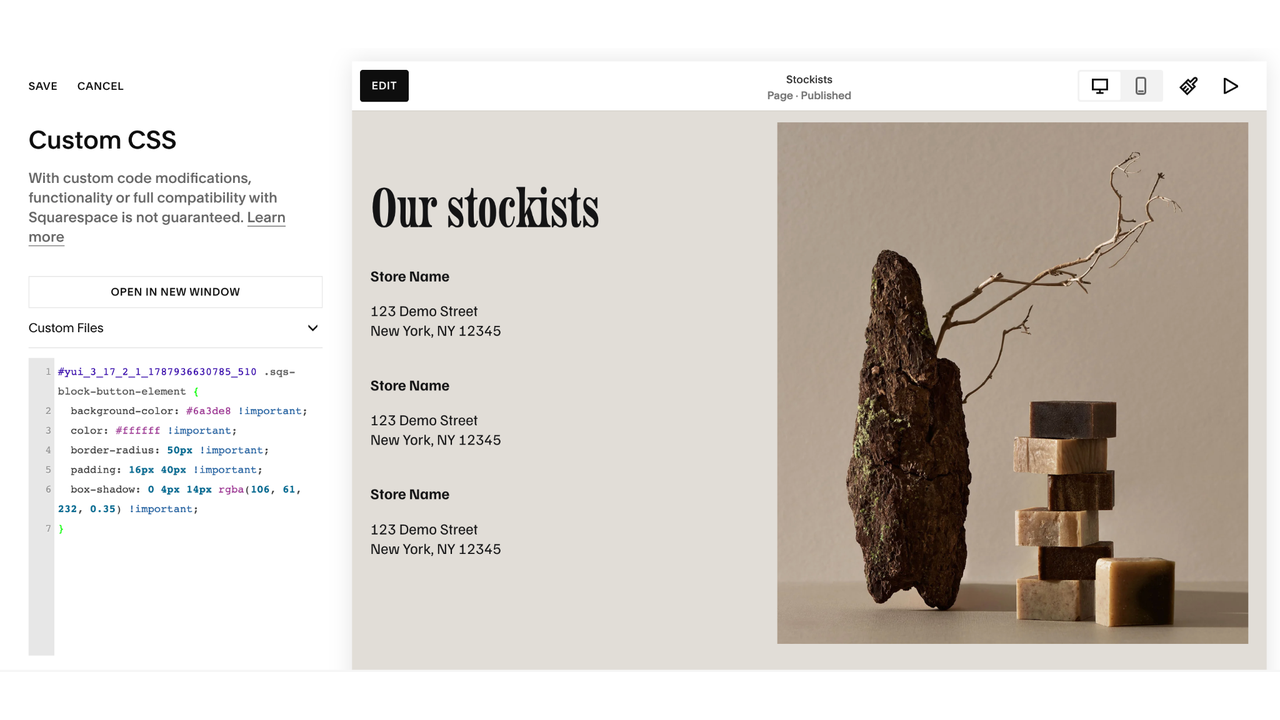
Getting the targeting wrong is the most common problem, since a snippet written for “.sqs-block-button-element” without a block ID in front of it restyles every native button on your site, including your header CTA and your checkout buttons. Another common issue is how it appears on mobile — fixed widths and large font sizes that look right on a desktop can push the button off the phone screen or break the text into single-letter lines.
Snippets are easy enough to find, and Squarespace designers publish plenty of them for free on their blogs, though the more elaborate hover and animation effects tend to be sold as paid add-ons. Either way, you’re pasting code you didn’t write into a panel that affects your whole site, and you’re on your own when it comes to debugging it if something looks wrong.
Option 2: Add a free, customizable button widget (recommended)
Building the button in a separate tool is the custom CSS alternative on Squarespace, since you’re placing a new button on the page rather than overriding the styling on a native one. Here, you set up the button in a visual builder, copy the embed code, and paste it into a code block on your page.
Before you start, check your Squarespace plan. Adding an embed code to a code block is a premium feature that requires the Core plan or higher. On the entry-level plan, the code stays in the block but doesn’t work.
In terms of which widget to go for, Jotform’s Button Widget is a free button widget for Squarespace that gives you more visual control than the native block. You can customize the background, text, and hover colors independently, add an icon before or after the label, and adjust corner radius, height, padding, text size, and shadow.
Here’s how to add a button on Squarespace using the widget:
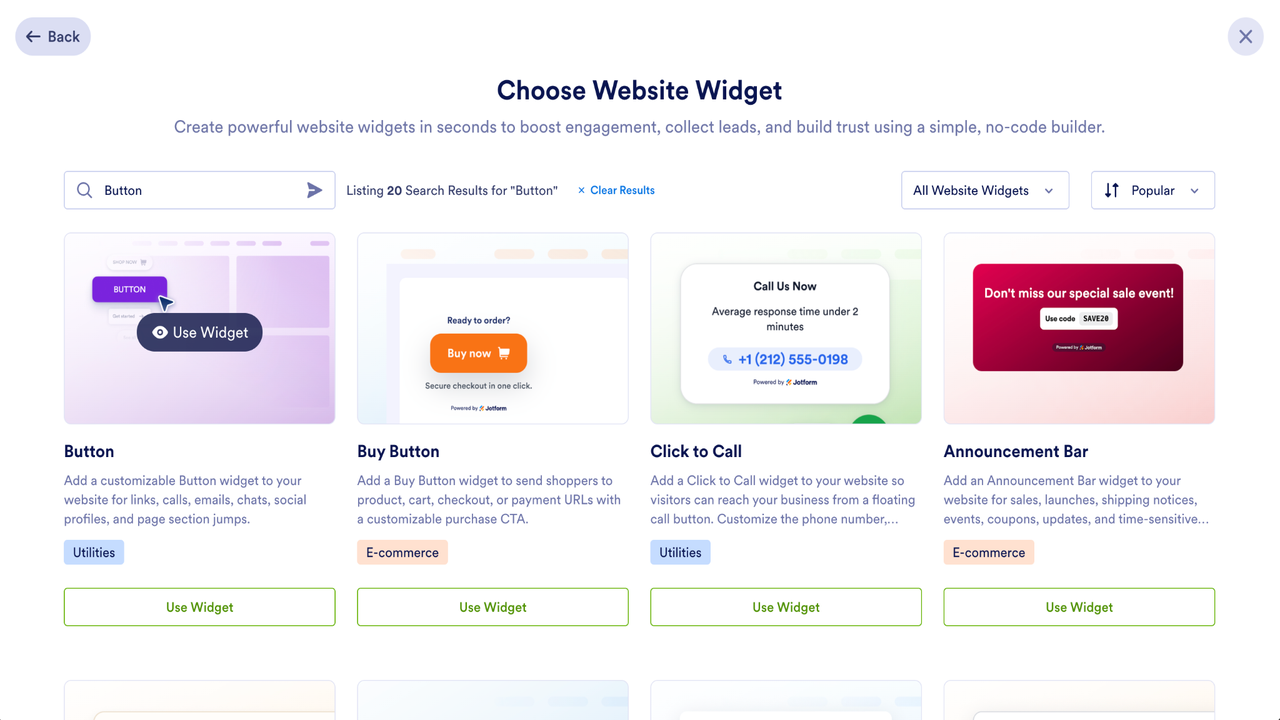
- On your Jotform Workspace page, click Create, select Website Widget, search for “Button,” and then click Use Widget.
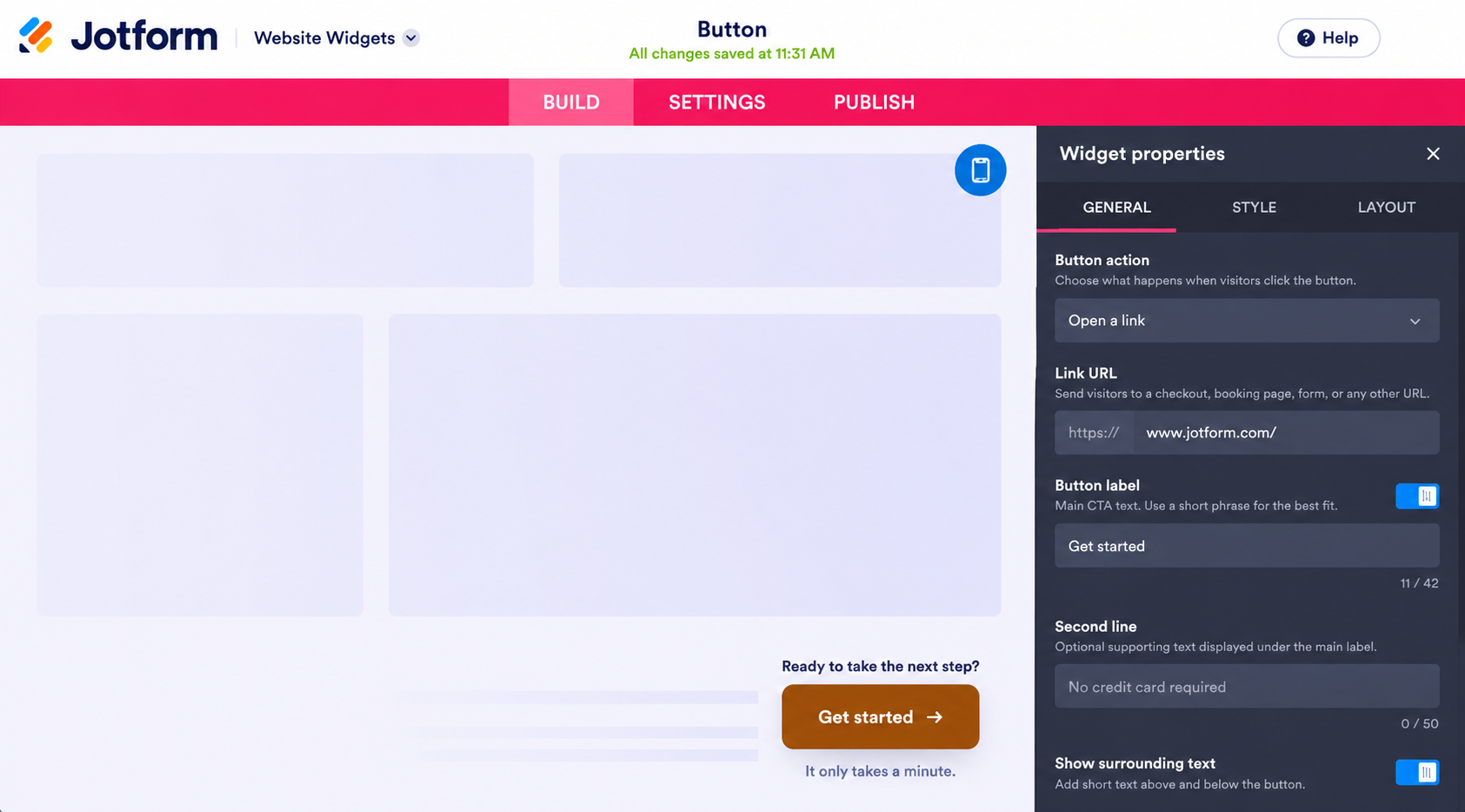
- Under the General tab, choose what the button does — whether that’s opening a webpage, starting an email, or opening a WhatsApp chat — and then enter your link URL and button label. Switch to the Style tab for colors, icons, and shapes, then to the Layout tab to choose whether the button is inline or floating and whether it appears on desktop, mobile, or both.
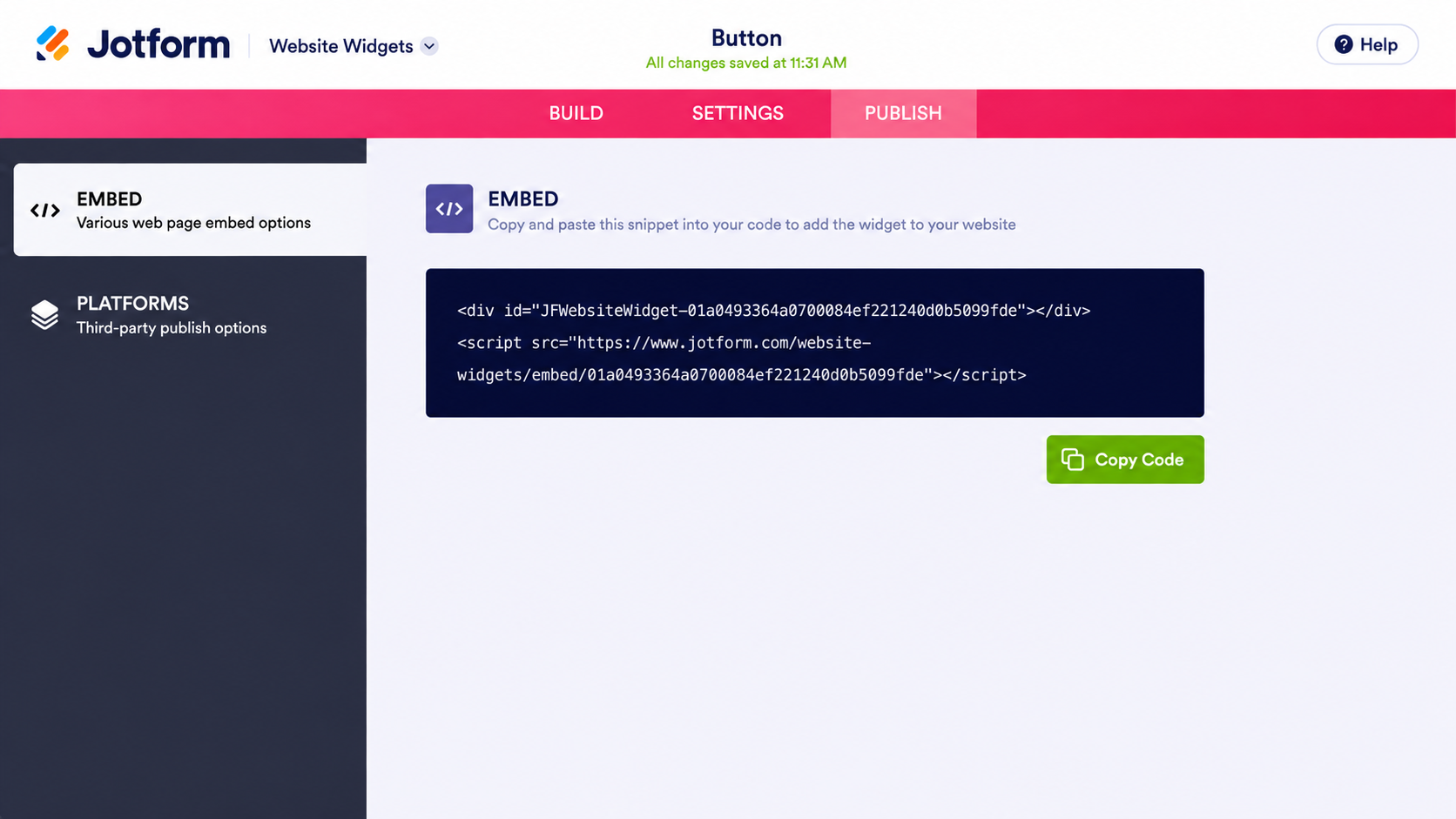
- Click Publish, and then click Copy Code in the Embed section.
- In your Squarespace editor, click Add Block, choose Code, set the block mode to HTML, delete the placeholder text, paste your code, and click Save.
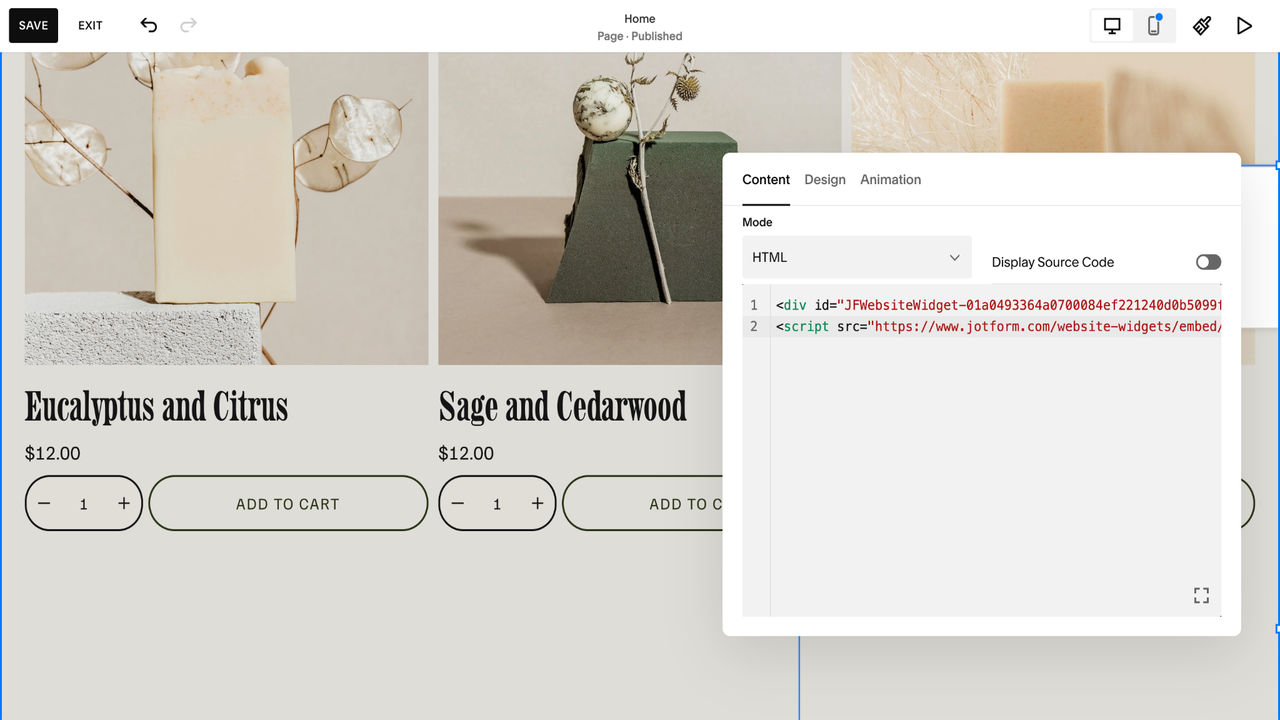
Because the button is styled in Jotform rather than in your Custom CSS panel, it won’t conflict with your global Site Styles, and your changes won’t affect other buttons on your site. Testing a different color or label means editing the widget instead of hunting down a block ID and rewriting a snippet.
Supercharge your Squarespace site with smart, serverless widgets
As a marketer, site owner, or designer, your time is too valuable to spend it tracking down a block ID so that one CTA can look different from the rest of your site. A button widget solves that in a few minutes, and you can restyle it later without touching your Custom CSS panel again.
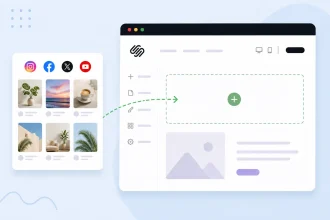
A button is one of several things you can add to a Squarespace page without a code snippet or a paid plug-in. Jotform’s free website widgets directory has more than 150 options, including
- A countdown timer for a launch or an enrollment deadline, creating urgency that a static button can’t
- A popup for the signup offer you’d otherwise need a premium plug-in to run
- A social feed that keeps your latest posts on the page, so a site you update occasionally still looks current
Each one embeds through a code block in the same way that the button does. That means you don’t need to buy another snippet or plug-in every time you want one more element on a page.
If you’re still making a website or planning a rebuild, it’s worth knowing which pieces you can add later without a developer. The Jotform-Squarespace integration embeds forms on your site in the same way, so a button that sends people to a signup page can hand off to the form that collects their information.
No matter which Squarespace call-to-action alternative you choose, a button that stands out is worth more than one that matches everything else on the page. The widget is simply a faster, more affordable way to earn the click.
This article is for Squarespace site owners, marketers, and designers who want to add highly customized, conversion-optimized call-to-action buttons without being restricted by global theme settings or writing custom CSS.








































Send Comment: