
If you’re a creator or small brand making a website on Squarespace, you’ll know how important — and challenging — it is to keep it fresh. Your social profiles always show your latest posts, but your homepage has probably stayed the same for a few months, so your brand can look inactive even when it’s busy.
Adding a social media feed to your Squarespace site takes care of all this for you. It displays your newest posts automatically and refreshes every time you post, so you’re never updating the same content twice. That live feed also gives visitors recent social proof from real posts and keeps current imagery on your homepage — without any manual work on your part. And because the feed lives on your site, visitors get that content without clicking away to Instagram or Facebook, where they’re far more likely to keep scrolling their own feed instead of returning to your website.
So, how do you go about incorporating these posts? Squarespace has a native Instagram block that displays your recent posts, but it’s the only social media platform with one, and it has a documented habit of disconnecting on its own. The other option is a hosted widget, which brings several social platforms into one feed that you can embed on your page.
If you want to show dynamic social content and increase your dwell time without dealing with disconnected API tokens or the limits of the Instagram block, read on. This guide walks through how to add a social media feed to Squarespace, starting with the native option and then the widget.
Option 1: Use the native Squarespace Instagram block
Squarespace’s built-in option for showing real posts is the Instagram block, which displays your recent photos directly on a page. To embed an Instagram feed on Squarespace, this is the block you want — the similarly named Social Links block only adds clickable icons that send visitors to your profiles.
To add your social media feed to Squarespace using its native Instagram block, follow these steps:
- In the Squarespace back end, select the Settings icon, then Third Party Tools. Select Connected Accounts, and then Instagram. Log in and click Authorize. Instagram requires a professional account for this connection.
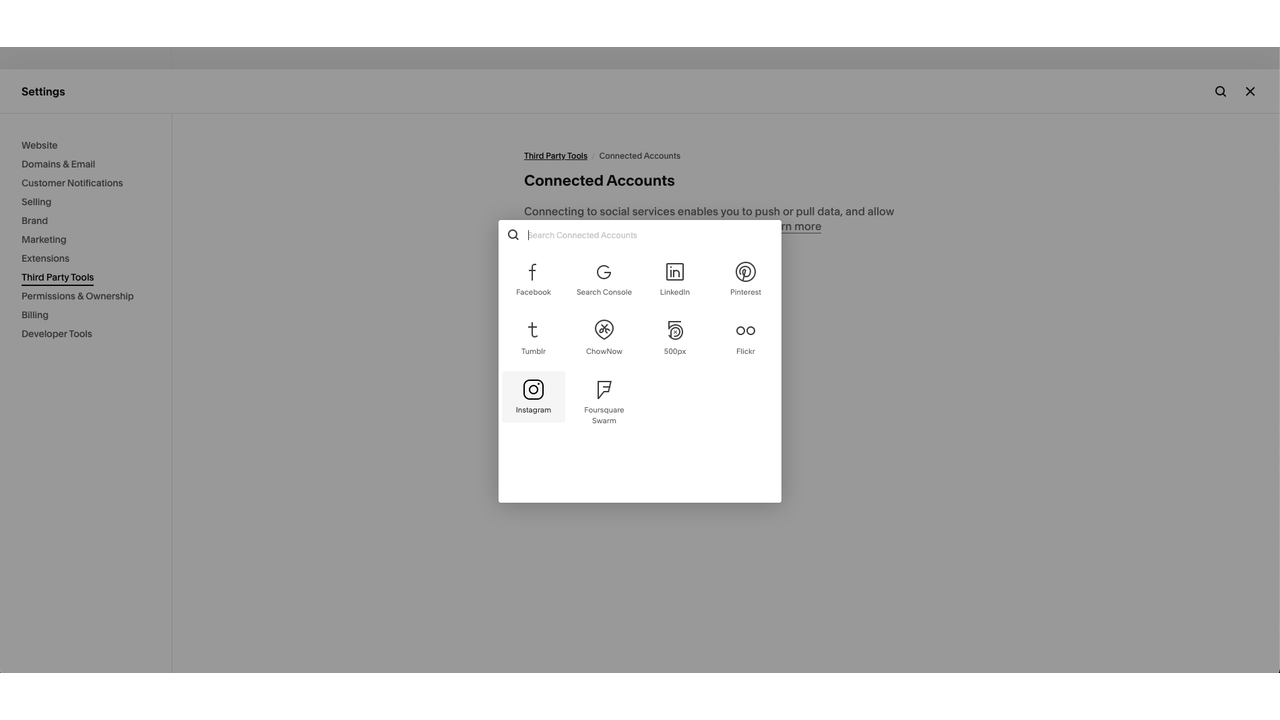
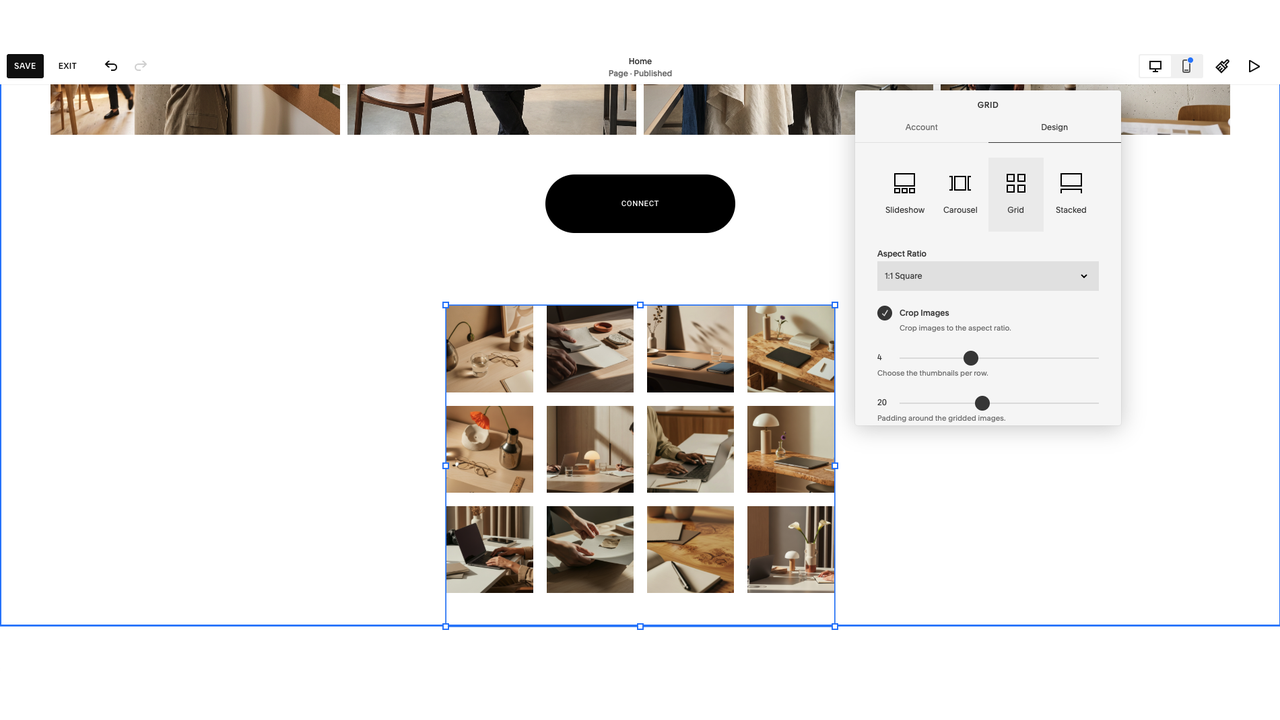
- Edit the site, click + Add Block or an insert point, then choose Instagram. Open the block editor by clicking the pencil icon.

- In the Account tab, select your connected account and set how many posts to show (up to 20). In the Design tab, pick a layout from Slideshow, Carousel, Grid, or Stacked, and then save the page.
Squarespace connects to Instagram through an API authorization that expires periodically, and when it does, the block freezes on the last set of posts it loaded without showing an error. In December 2024, Meta retired the Instagram Basic Display API (the service the block used to pull your posts), so existing connections stopped working until site owners reconnected their accounts. The block can show duplicate posts, archived posts, an “unauthorized” message, or nothing at all — all of which appear in Squarespace’s own troubleshooting guide. Fixing any of it means logging back in and reconnecting manually.
Beyond the inevitable disconnections, there are other limitations that might discourage you from adding a social media feed to Squarespace with this method. For one thing, you’re capped at 20 posts with no hashtag or keyword filtering features. For another, there’s no native block for TikTok or any other social platform, and you can’t combine several networks into one grid.
Option 2: Add a free, unified social feed widget (recommended)
Rather than Squarespace connecting to each platform, a Squarespace social media widget manages the sources itself and gives you an embed code to paste onto your page. If you want a multiplatform feed that keeps updating without having to reconnect various accounts, this is the more dependable option for adding a social media feed to Squarespace.
Jotform’s Social Feed widget gathers posts from Instagram, Facebook, LinkedIn, YouTube, X, and any RSS source, then displays them in one responsive feed. It’s a free social feed embed, so you can set it up and see how it looks before committing to anything.
Before you start, check your Squarespace plan, since adding iFrame or JavaScript code to a code block is a premium feature that requires the Core plan or higher. On the Basic plan, the code stays in the block but doesn’t work.
Here’s how to create the feed and add it to your Squarespace page using Jotform:
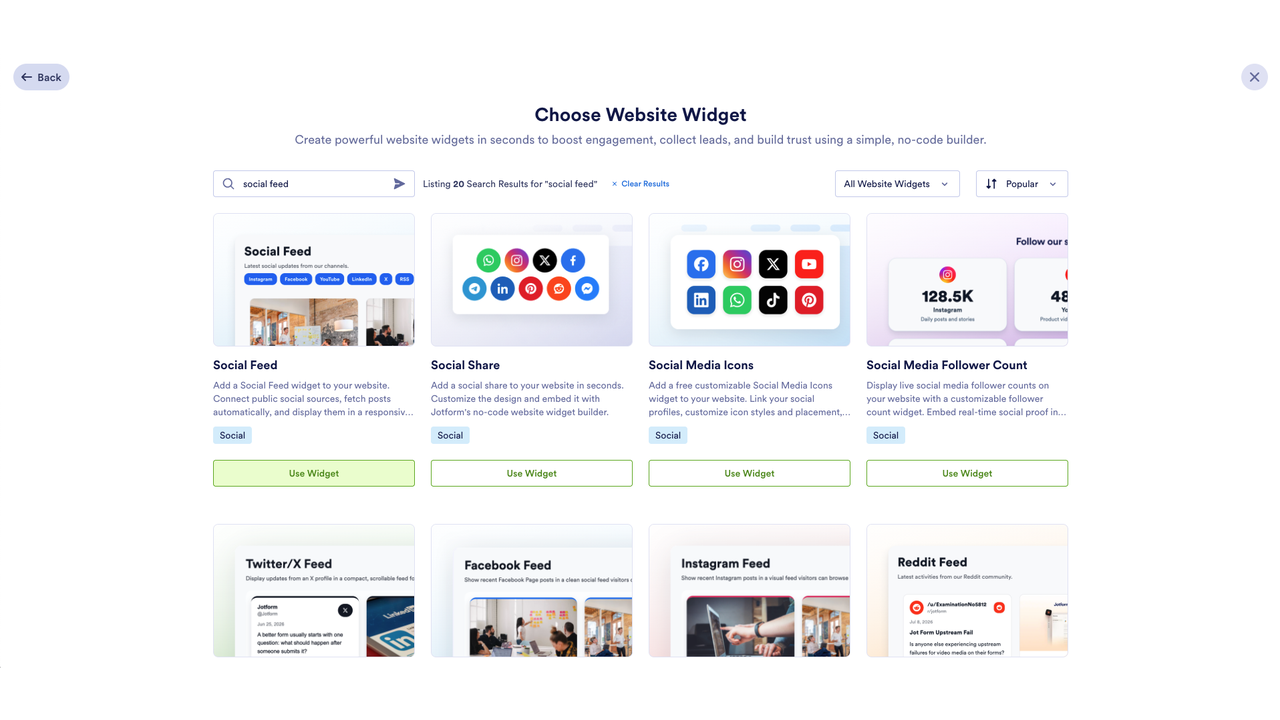
- On your Jotform Workspace page, click Create, choose Website Widget, then search for the Social Feed widget and click Use Widget.
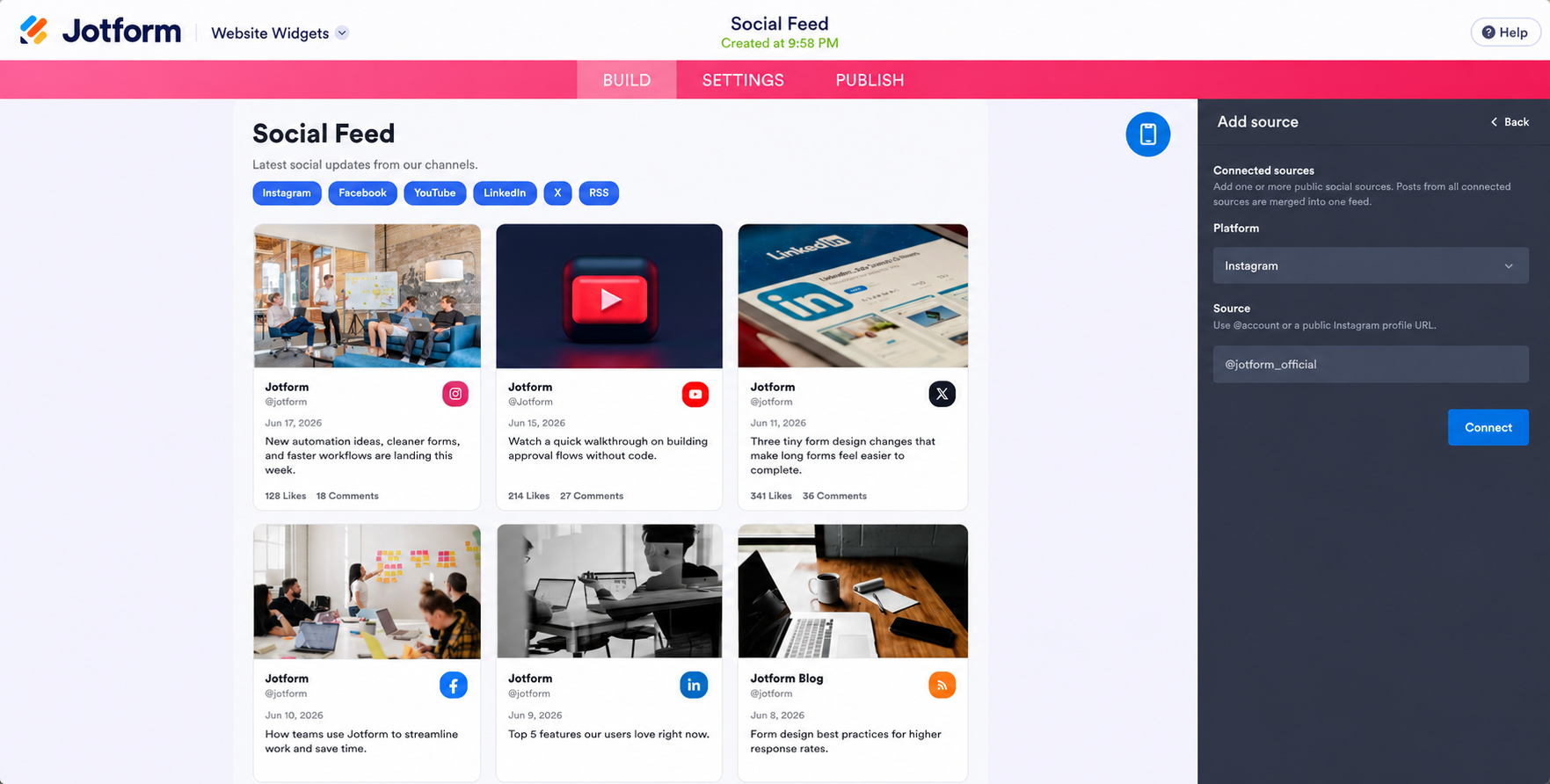
- Under the General tab in the Widget properties menu on the right, click + Add first source. Pick a platform from the dropdown, enter your account handle or public profile URL, and click Connect. Repeat for each account you want in the feed, and posts from all connected sources will merge into one.
- Use the Style and Layout tabs to set your theme, colors, post style, columns, and post limit. Then click Publish in the top navigation bar.
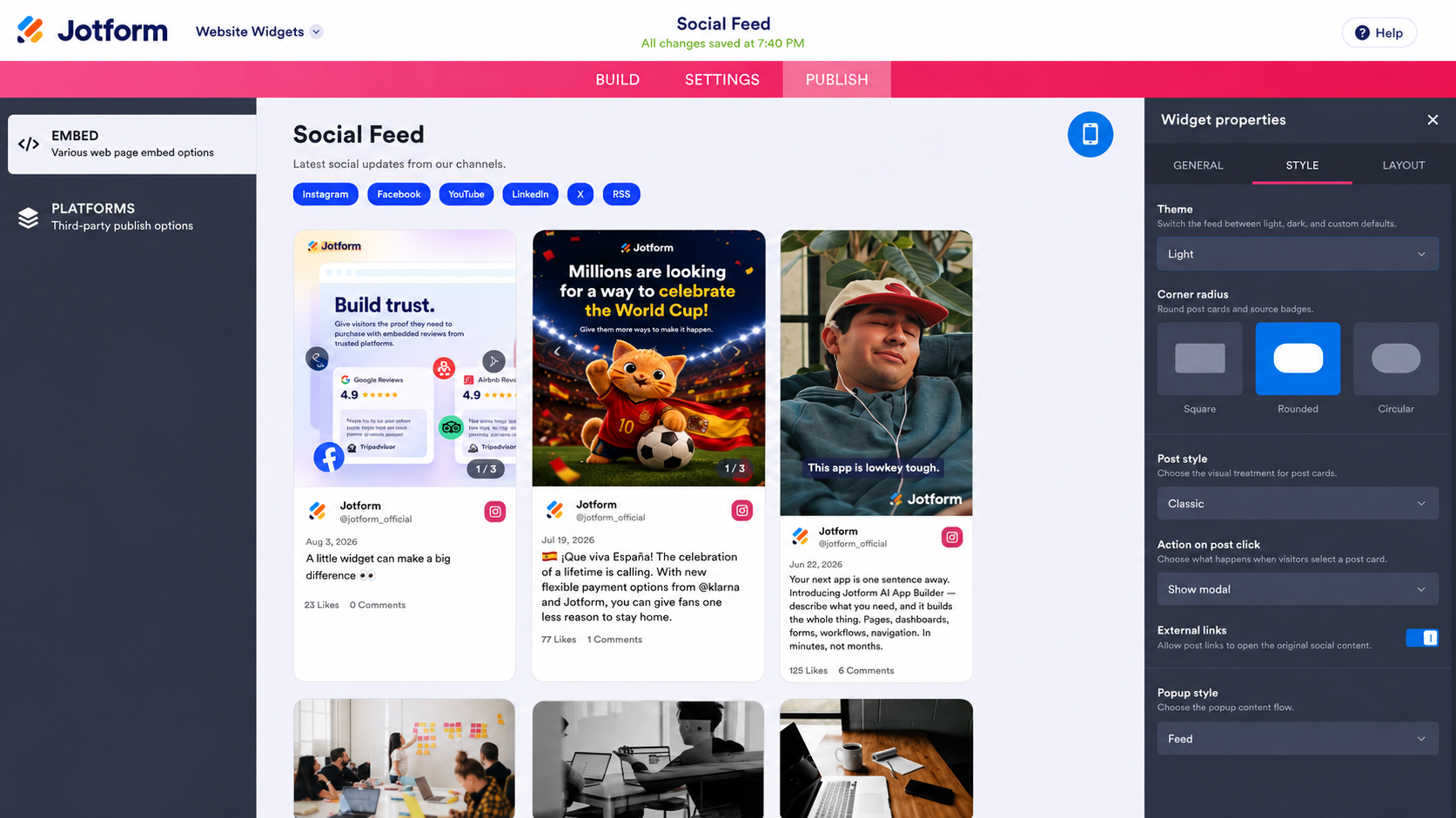
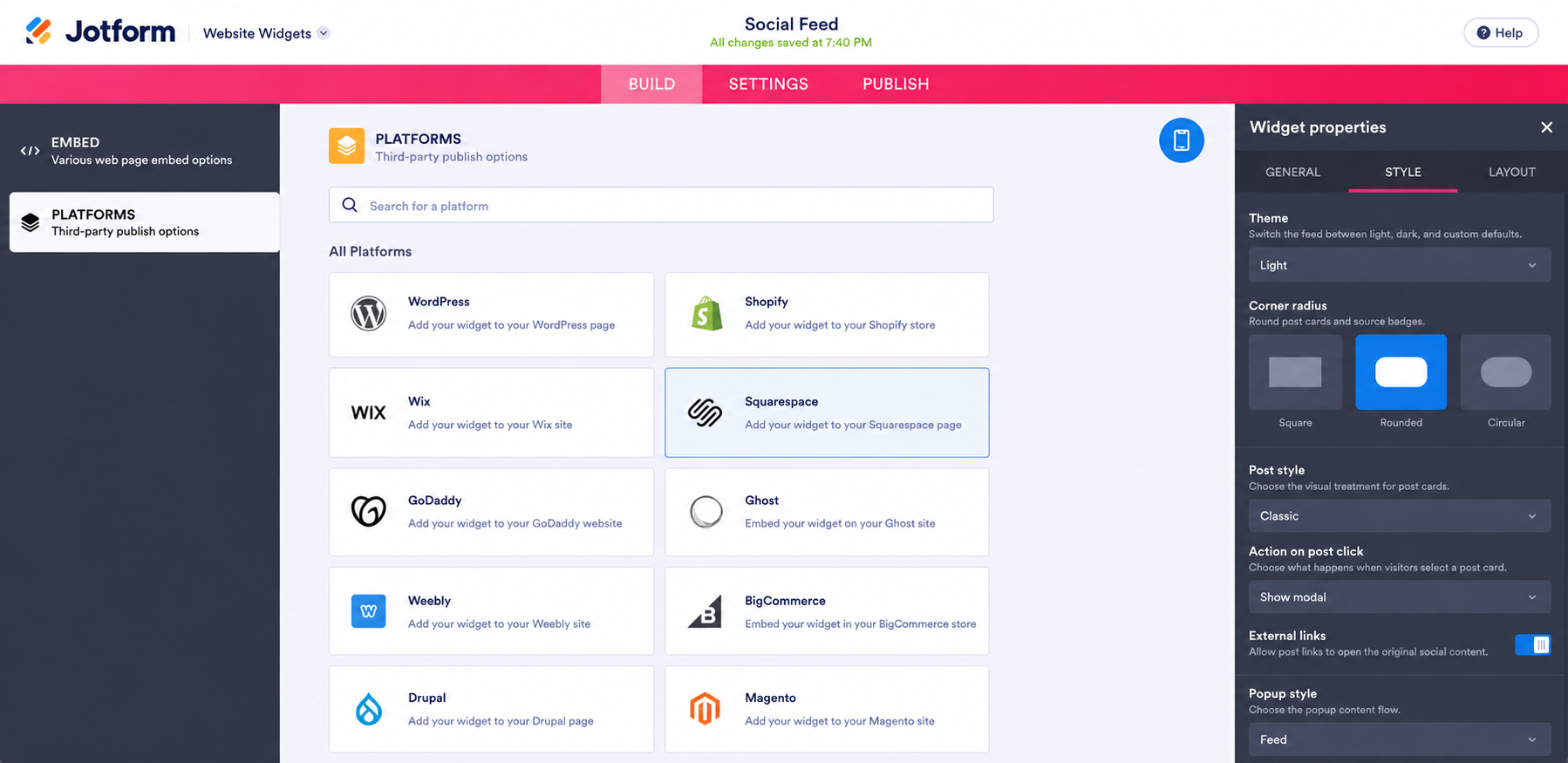
- In the Embed section, click Copy Code. You can also go to Platforms in the left menu and select Squarespace for platform-specific instructions.
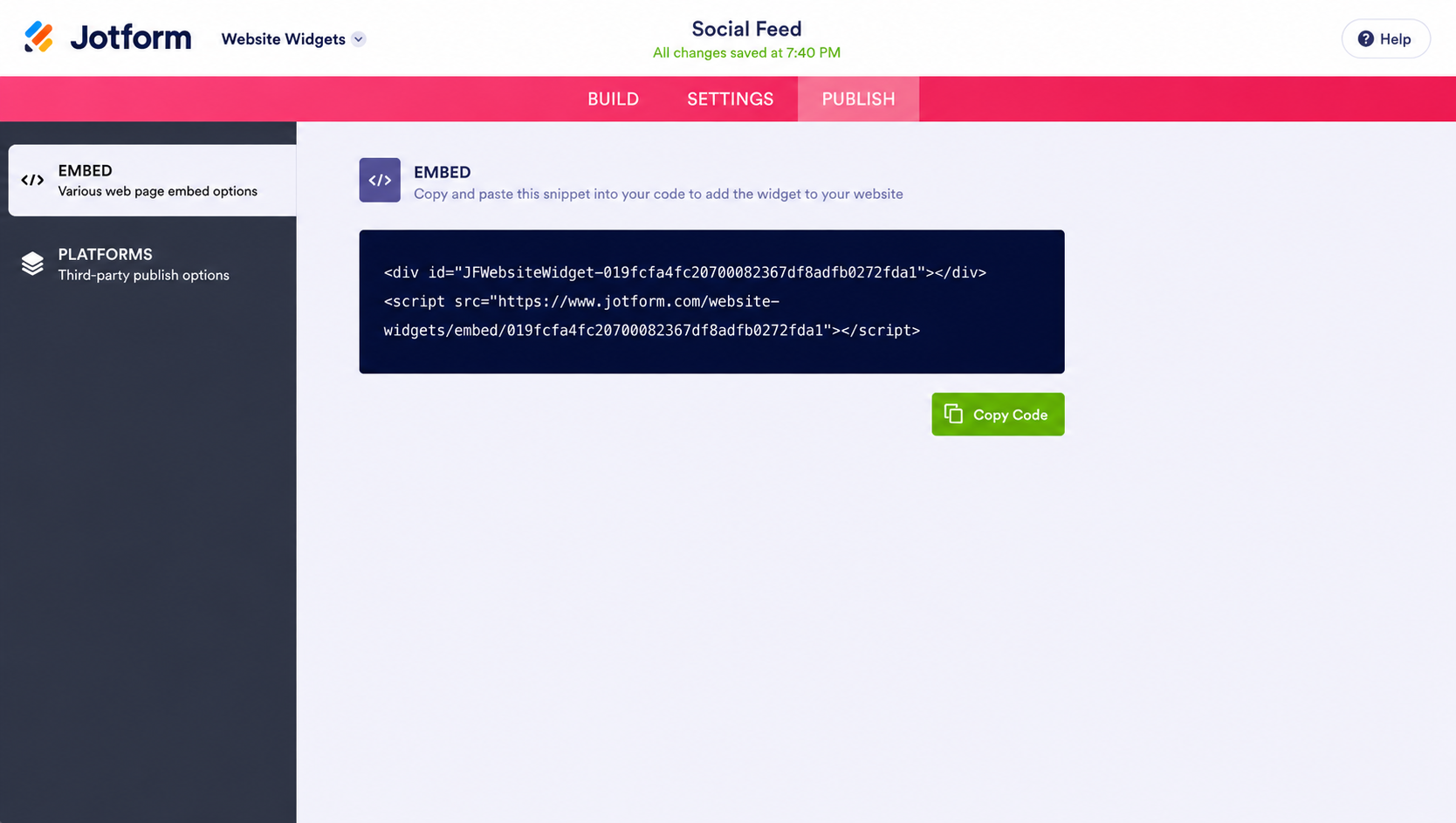
You can also go to Platforms in the left menu and select Squarespace for platform-specific instructions.
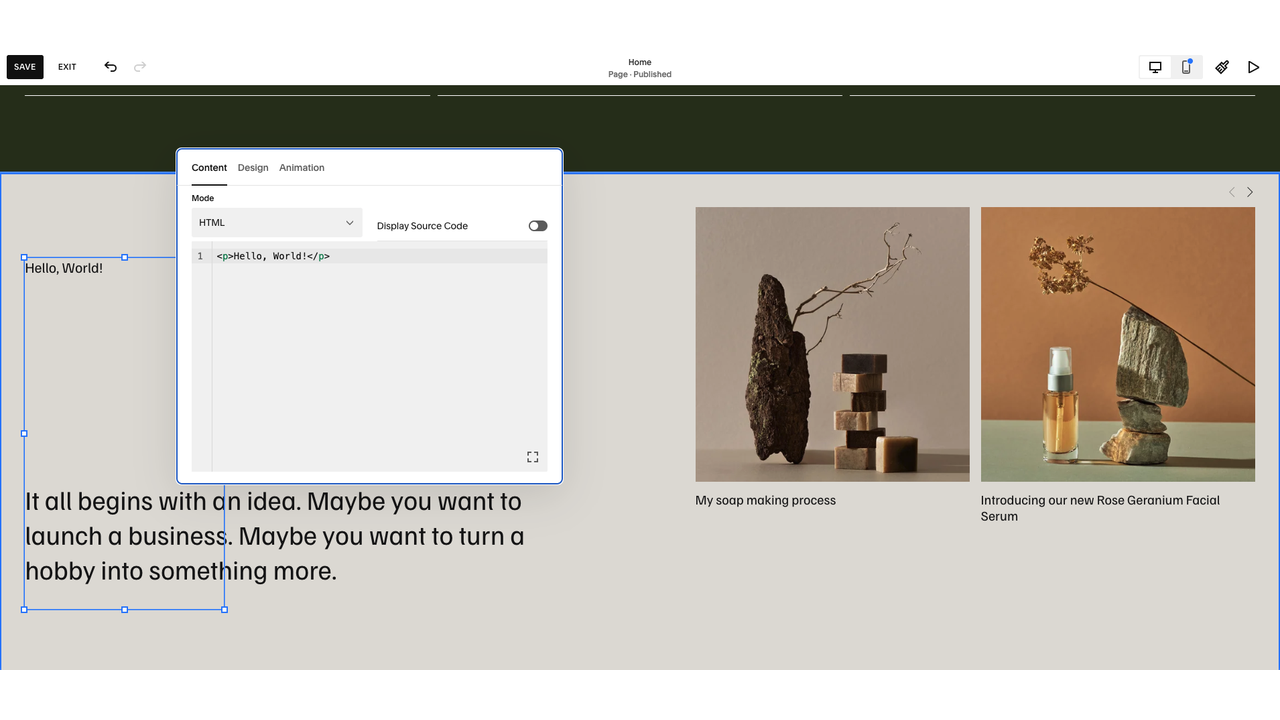
- In Squarespace, open the page where you want the feed, click + Add Block, and choose Code. Delete the placeholder text, paste your embed code, make sure the block is set to HTML with Display Source turned off, and then click Save.
Combining sources is Jotform’s main advantage over the native block, since multiple social feeds on Squarespace can appear in one layout instead of needing a separate block for each. Source tabs let visitors browse each feed without leaving the section, and you control what each post card shows, including author names, dates, captions, source badges, and engagement counts. Jotform also lets you adjust columns, spacing, colors, and themes, or add custom CSS so that the feed matches your site styles.
Supercharge your Squarespace site with smart, serverless widgets
A social feed is one of many pieces you can add without touching your template’s design. Jotform’s free website widgets directory covers more than 150 options, including a Google Reviews widget for social proof on a service page, an FAQ widget for the questions that fill your inbox, and a countdown timer for a launch or an enrollment deadline. Each one is embedded the same way, so your Squarespace layout stays intact. The Jotform-Squarespace integration covers forms as well, if you need bookings, inquiries, or signups on the same site.
Your time is better spent creating and posting than logging in every few weeks to reconnect a broken account. Jotform’s Social Feed widget and the rest of the directory keep your site current with no upkeep on your end, so your Squarespace template stays exactly as you designed it.
This article is for creators, boutique brands, and portfolio owners on Squarespace who want to showcase dynamic social content to increase dwell time, without battling disconnected API tokens or rigid native blocks.










































Send Comment: