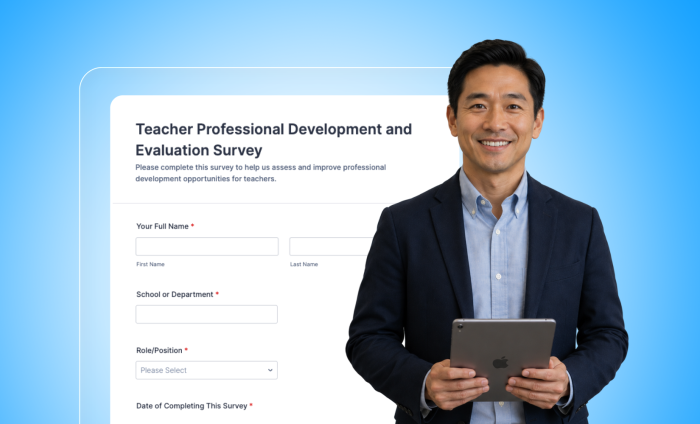
Professional development (PD) is important for teachers, but how effective is the PD your teachers take?
To find out, you need to know if PD improves student outcomes and helps teachers deliver lessons, engage students, and so on. A good way to do this is with a survey.
Measuring PD effectiveness
Schools and school districts spend, on average, thousands of dollars per teacher for professional development every year (Breslow & Bock, Evaluating Professional Learning).
Everyone who works in education knows that there’s no money to waste, so it’s important to make sure that the professional development your institution pays for is worth it.
How do you do that?
For starters, ask teachers what they think — not just of a PD seminar or class but also of any ongoing coaching and learning resources they received.
Find out if they implemented anything they learned into their lessons. If they did, ask whether it engaged students.
Perhaps most important, ask about any impact PD had on student outcomes. For instance, did students do better or worse after a teacher implemented what they learned?
Using educational technology to collect data and organize a PD evaluation gives schools a clearer way to connect teacher learning with classroom impact. Though some of this data could come from student grade reports, most would be best collected via a survey. And surveys are one of the things Jotform excels at.


Build your survey with Jotform
It’s easy to create a survey in Jotform. You can start with one of our training evaluation forms, like
- Teacher Professional Development and Evaluation Survey Form Template
- Professional Development Feedback Survey Form Template
- Professional Development Exit Survey Form Template
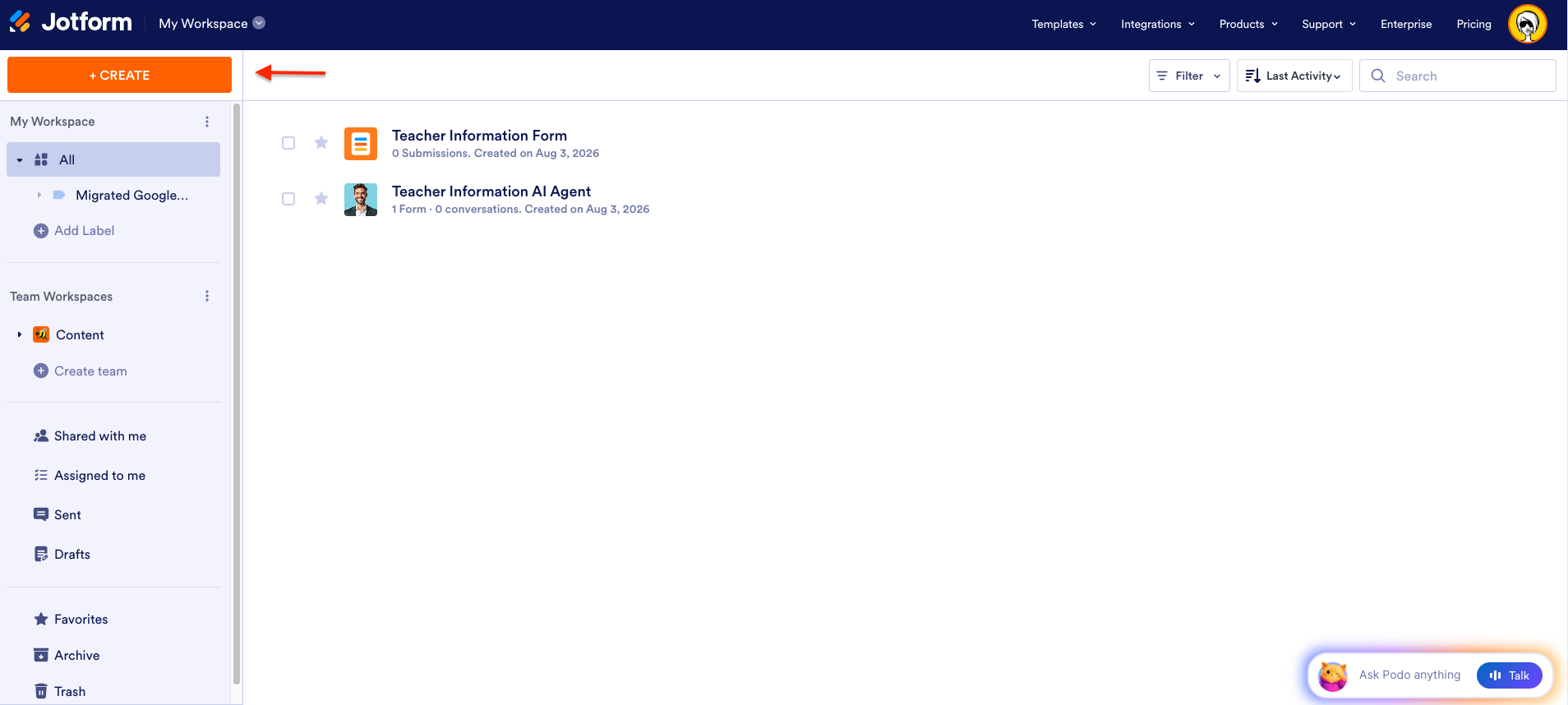
You can also build a survey in the Jotform Form Builder. Just go to your Workspace and click the Create button.
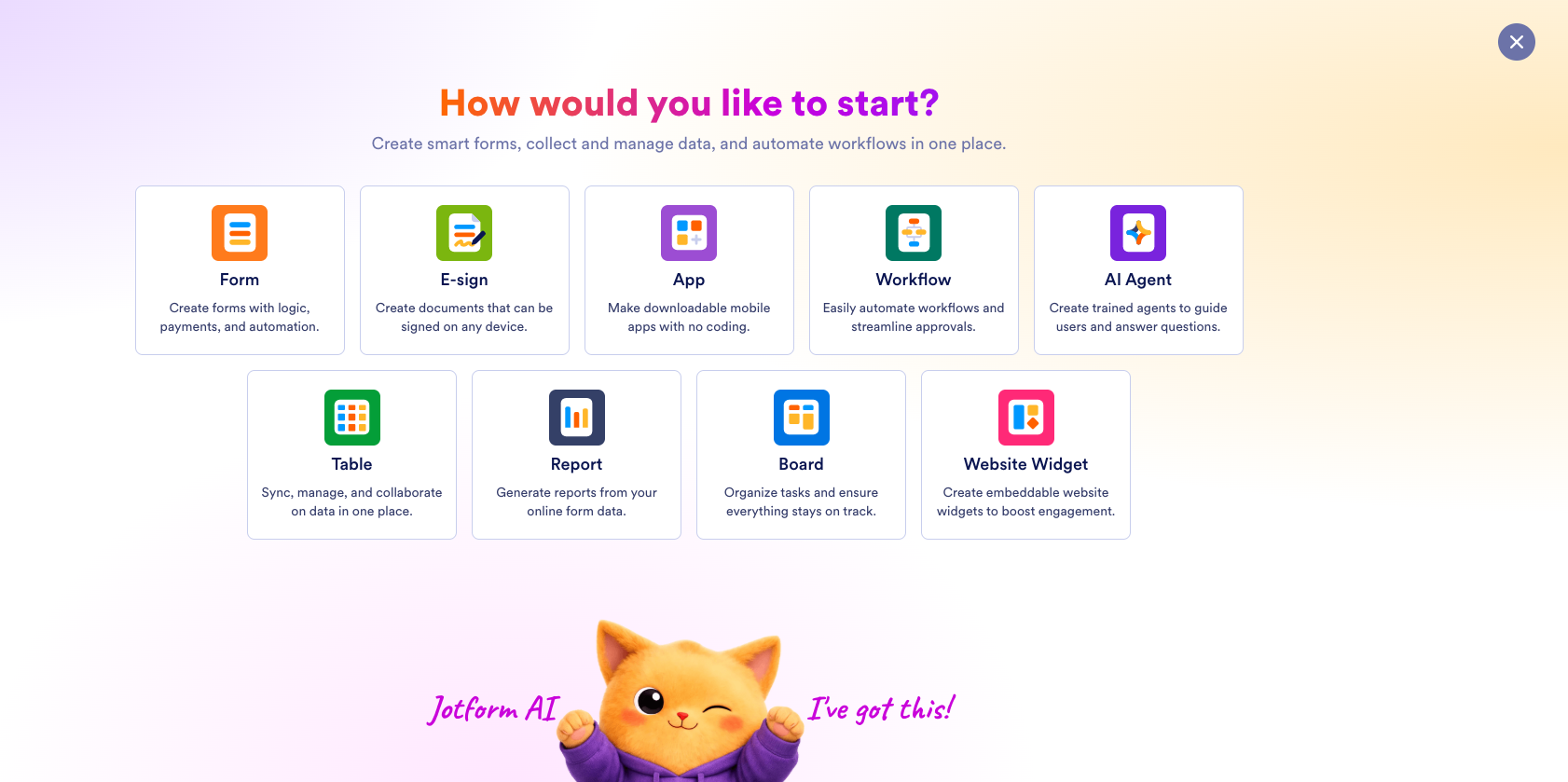
On the next page, click the Form tile.
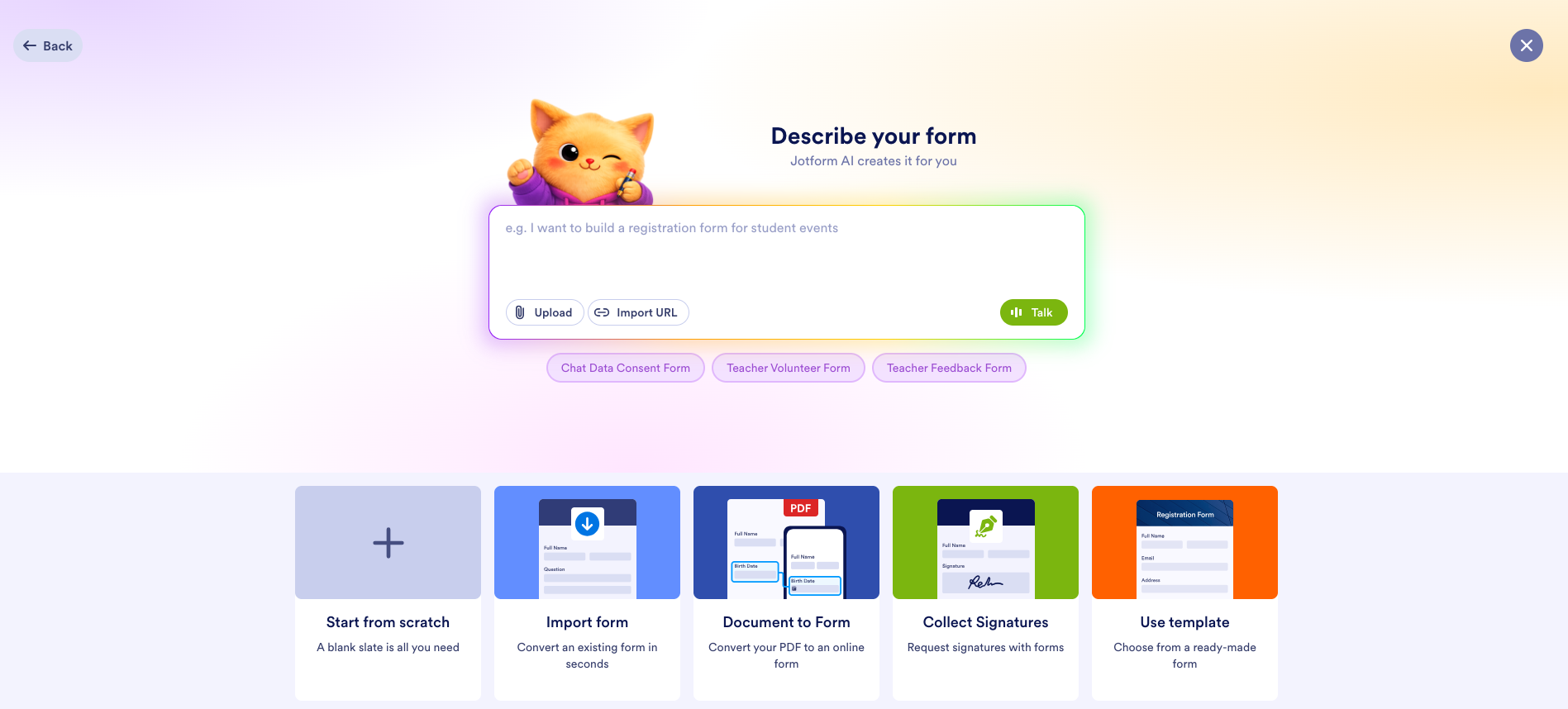
If you want to build a survey using the Form Builder, click Start from scratch. If you want to use AI to build it, just enter a prompt.
In the Form Builder, you can drag and drop elements from the menu on the left or ask Podo, our Form Copilot, to create or customize a survey for you.
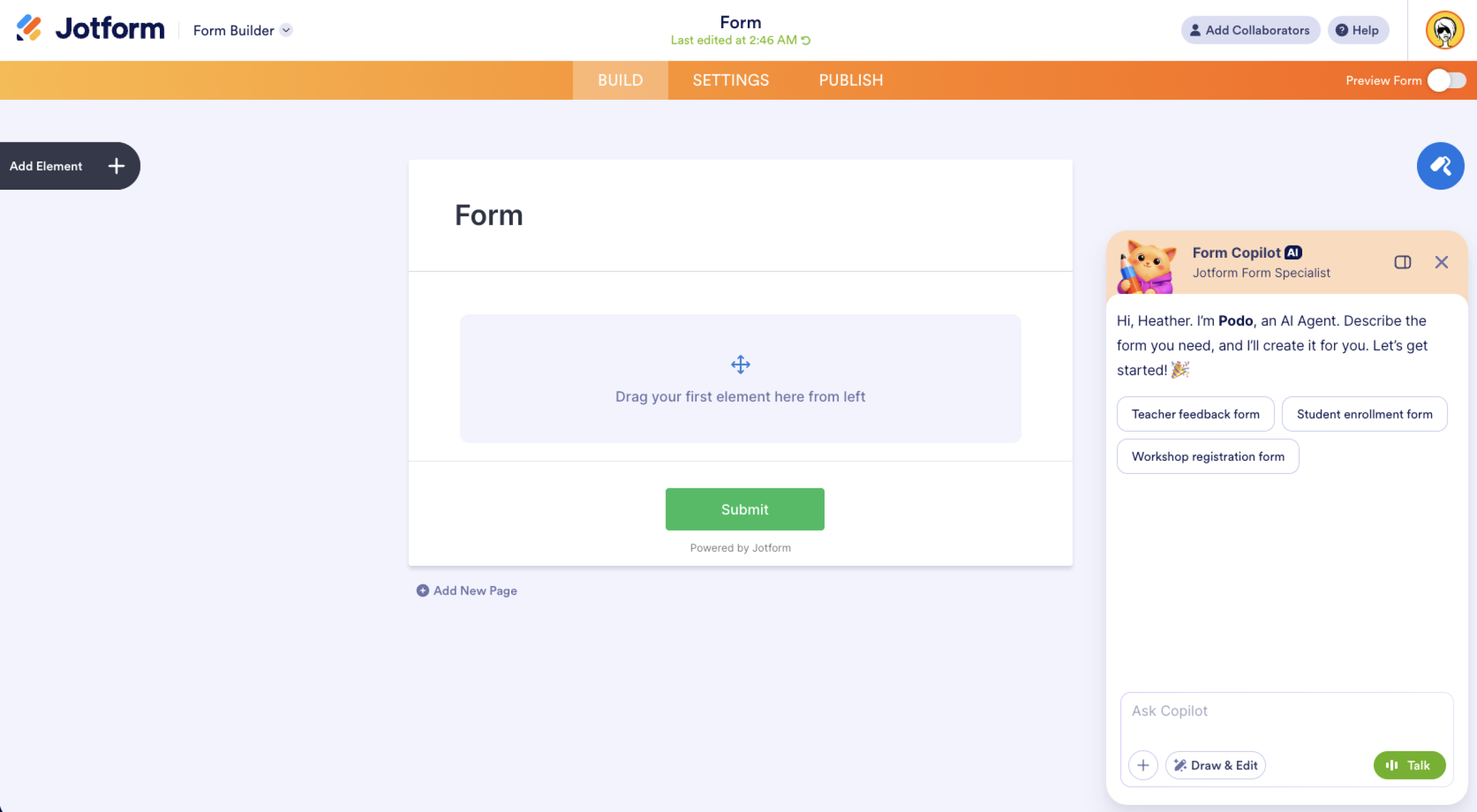
I entered the following prompt into Copilot.
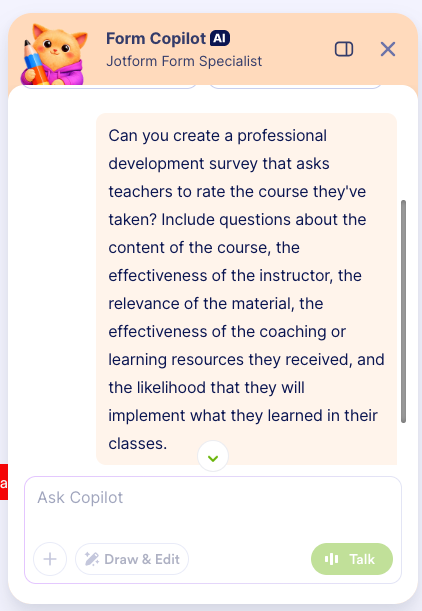
The resulting survey includes exactly the questions I requested. We can add additional information, like a name field, the subject the teacher teaches, and the grade level.

What if a teacher teaches more than one subject? You can simply add a second subject field, or you can use Jotform’s conditional logic to show or hide the second subject field based on the answer to a previous question.
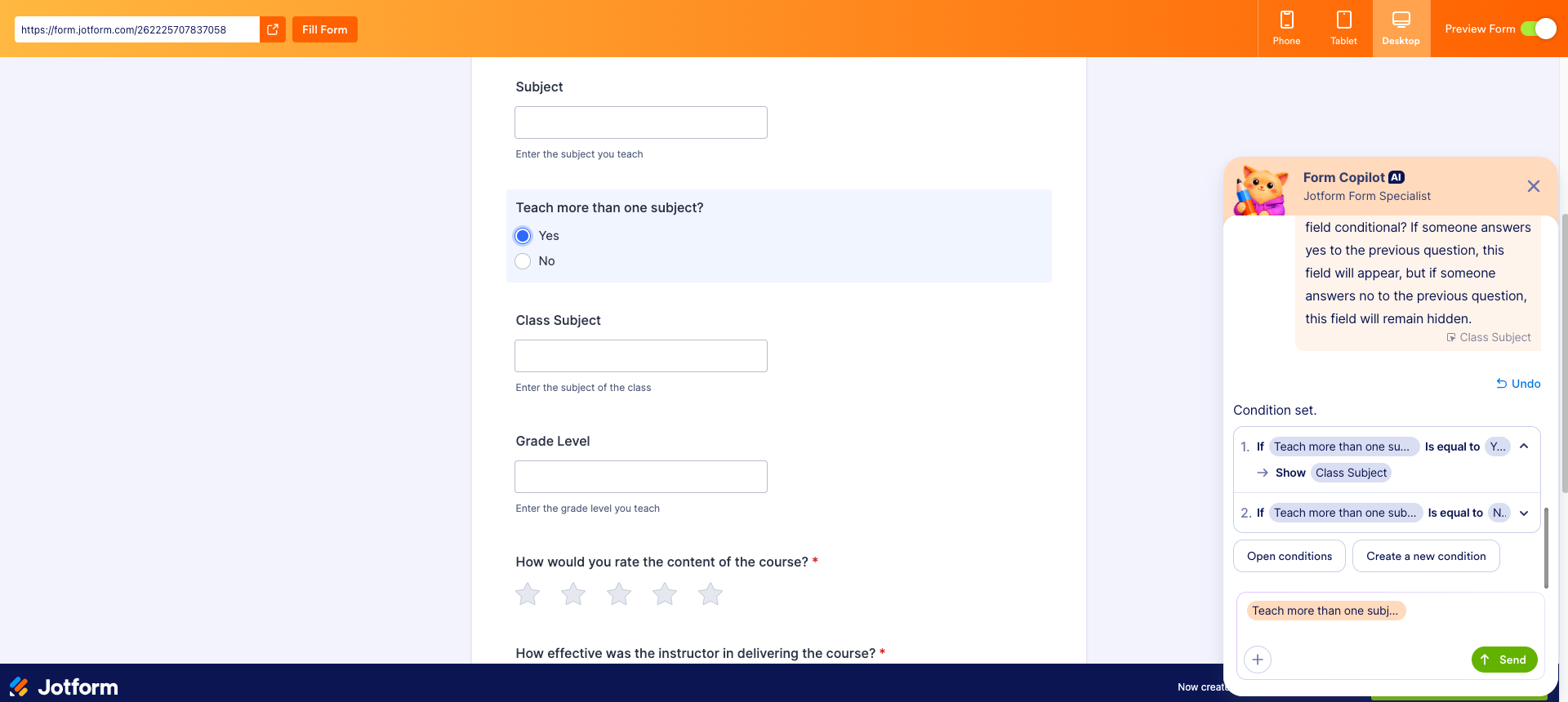
Need to adjust the conditions? Just click the Open conditions button in the chat.
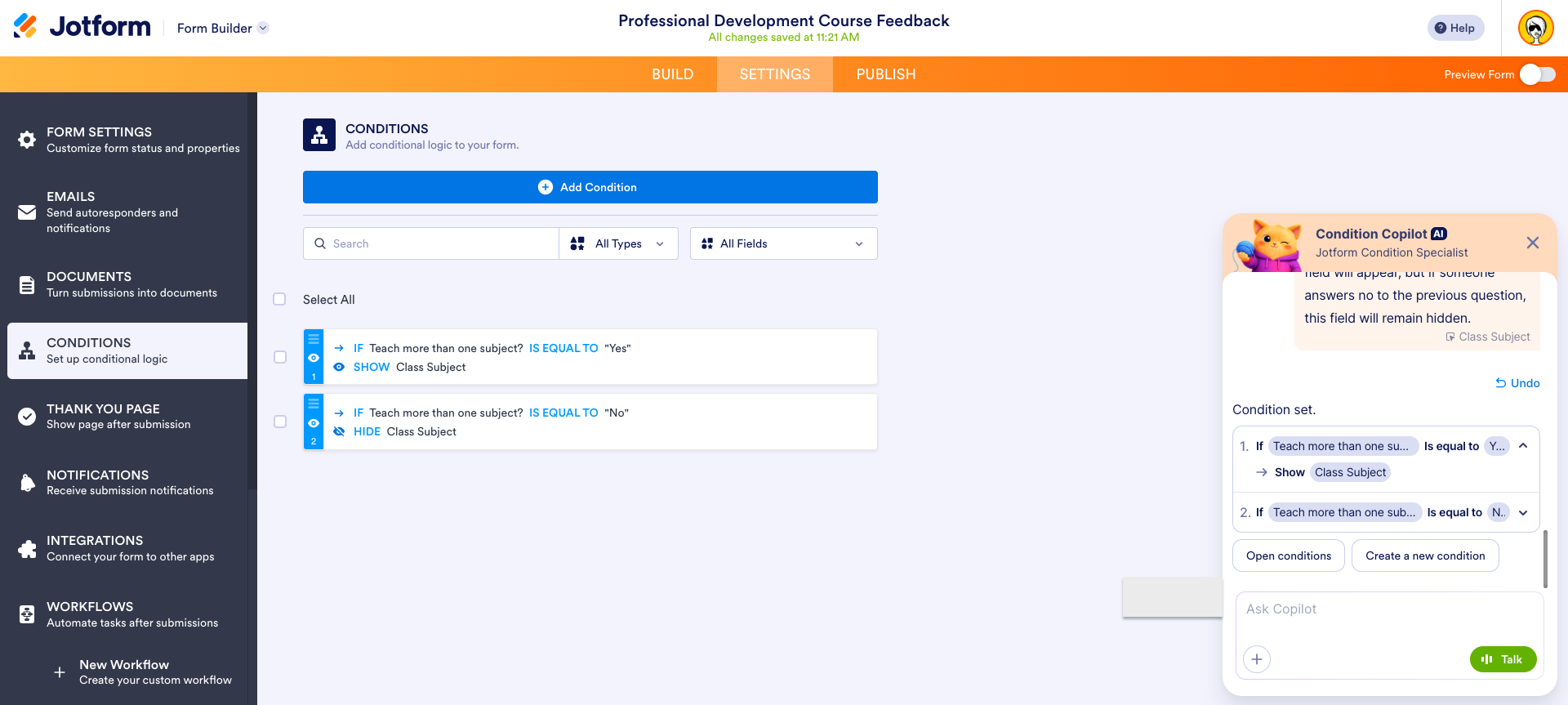
Conditional logic is a great way to keep teachers engaged while they complete the survey because they will only see the questions that are relevant to them.
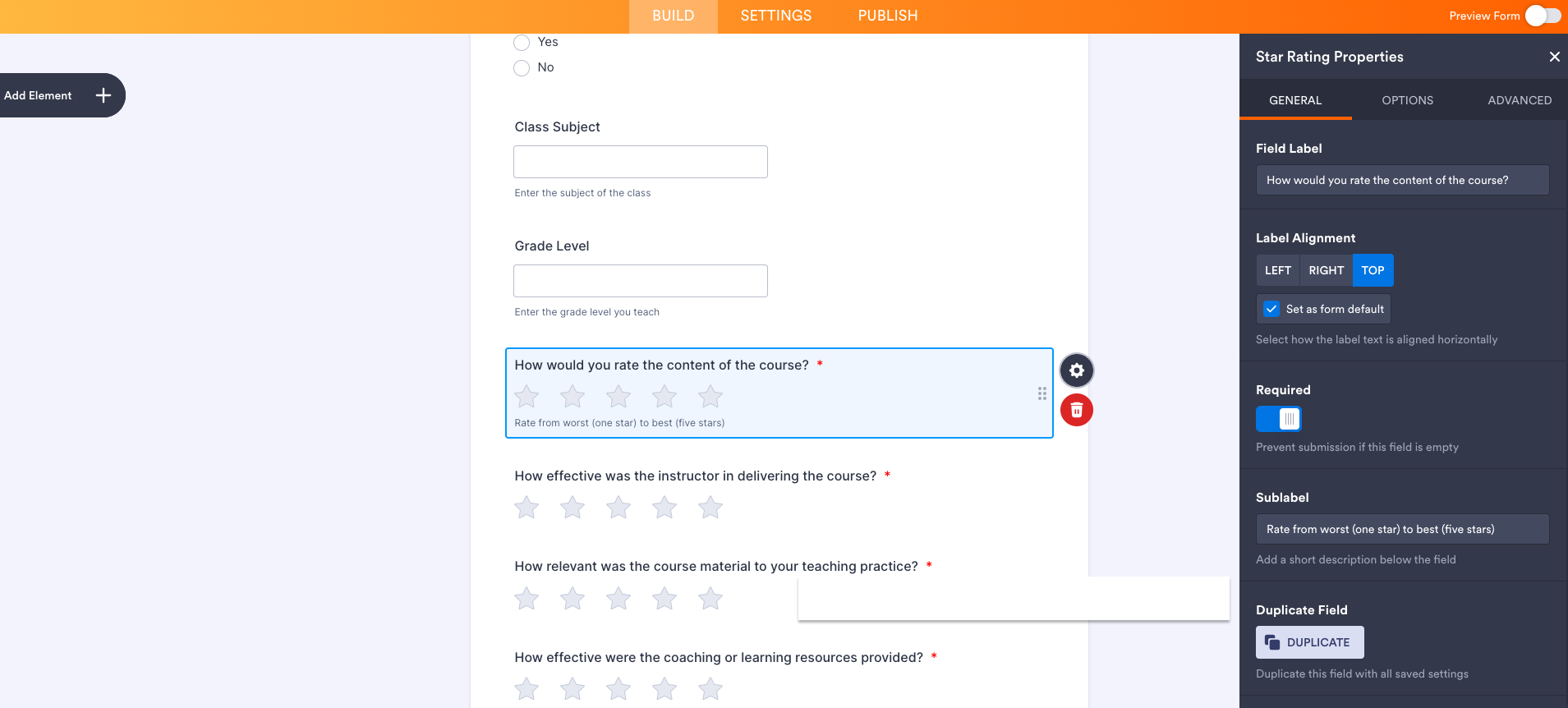
To add a sublabel to a question, you can ask Copilot to do this or click on the gear icon to the right of the element. This will open the element properties menu, where you can add the sublabel.
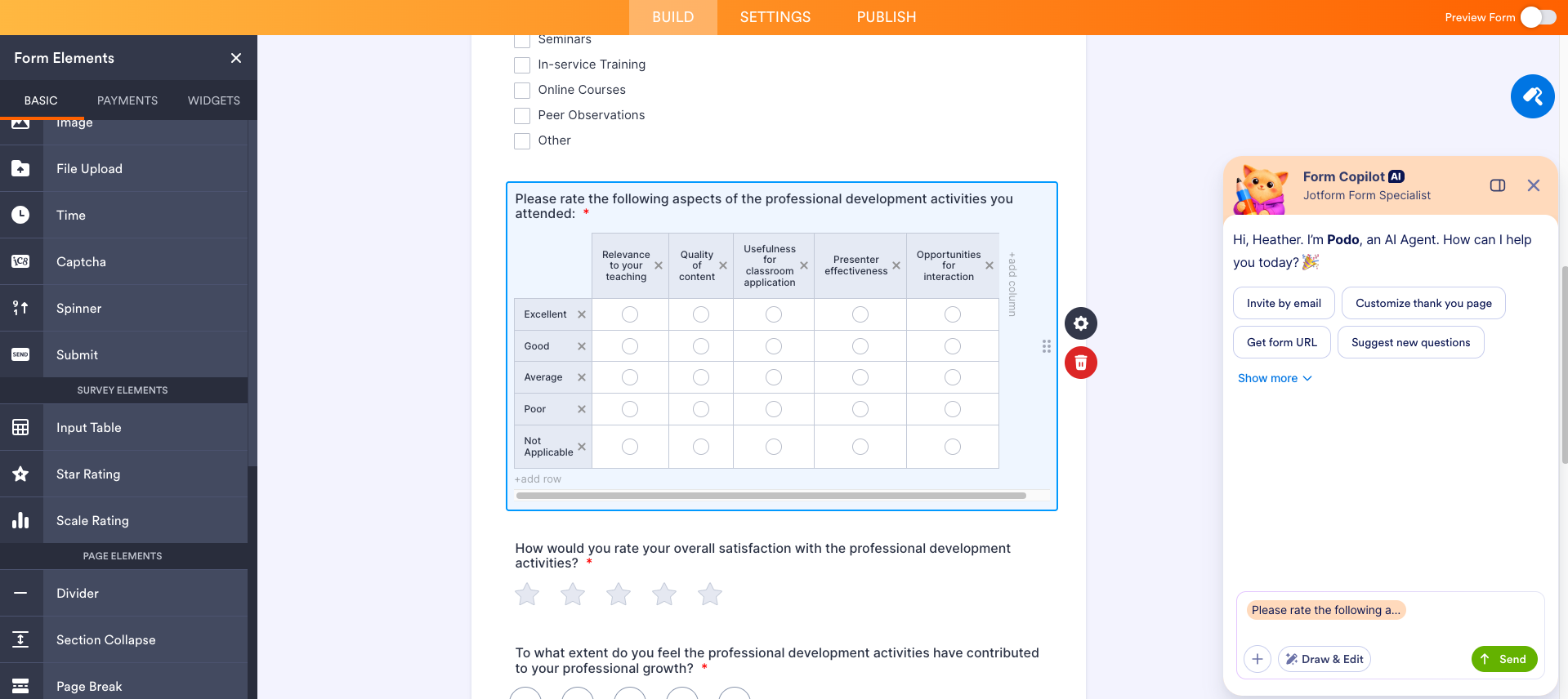
Perhaps you’d like to capture more than just a simple rating. You can use an Input Table element (listed under Survey Elements in the menu on the left).
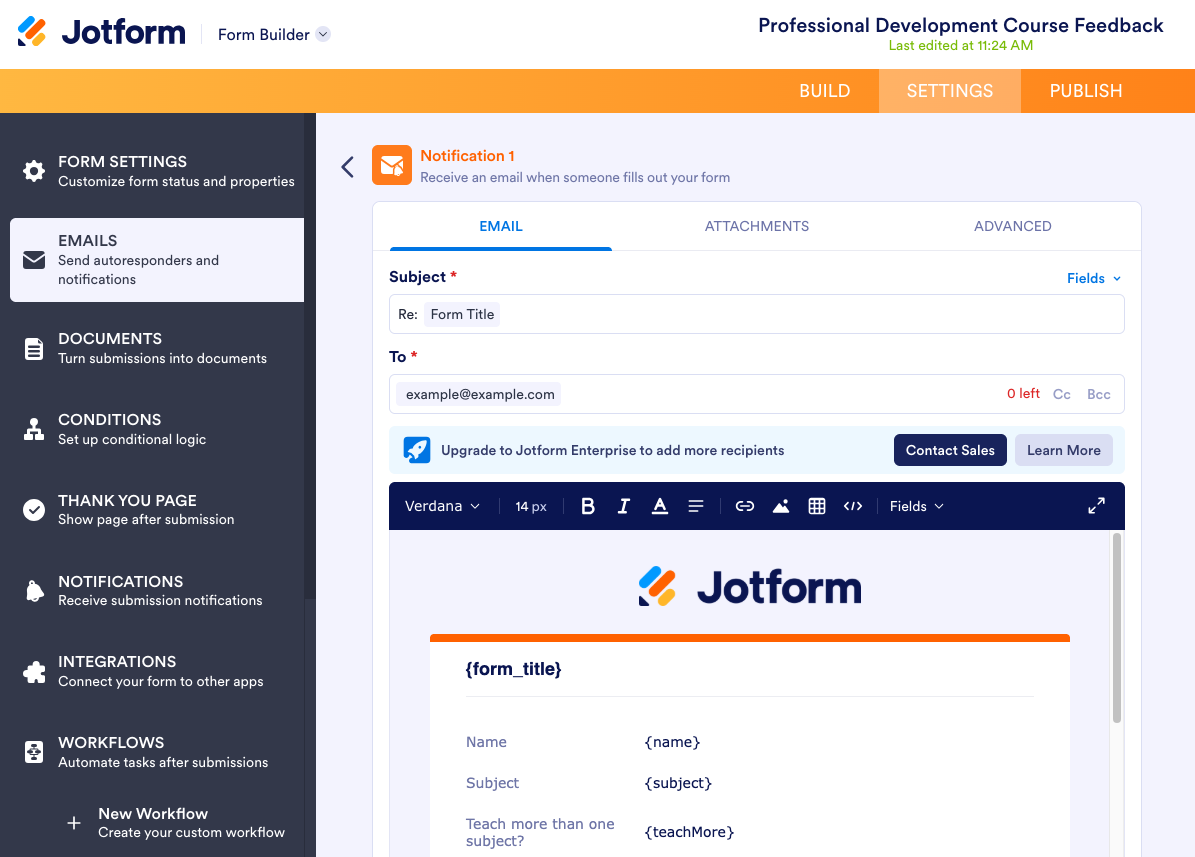
Jotform also allows you to send autoresponder and notification emails once a survey has been submitted.
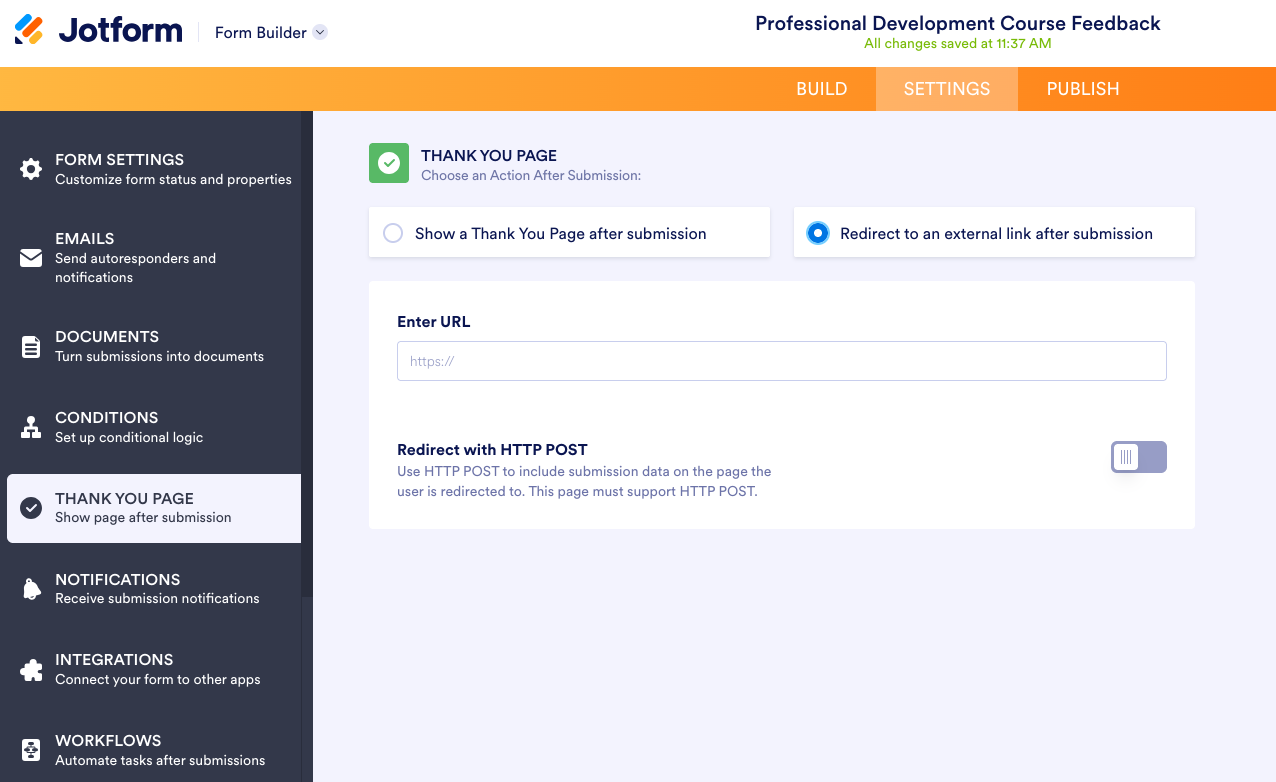
And you can customize the page that shows after a survey is completed.
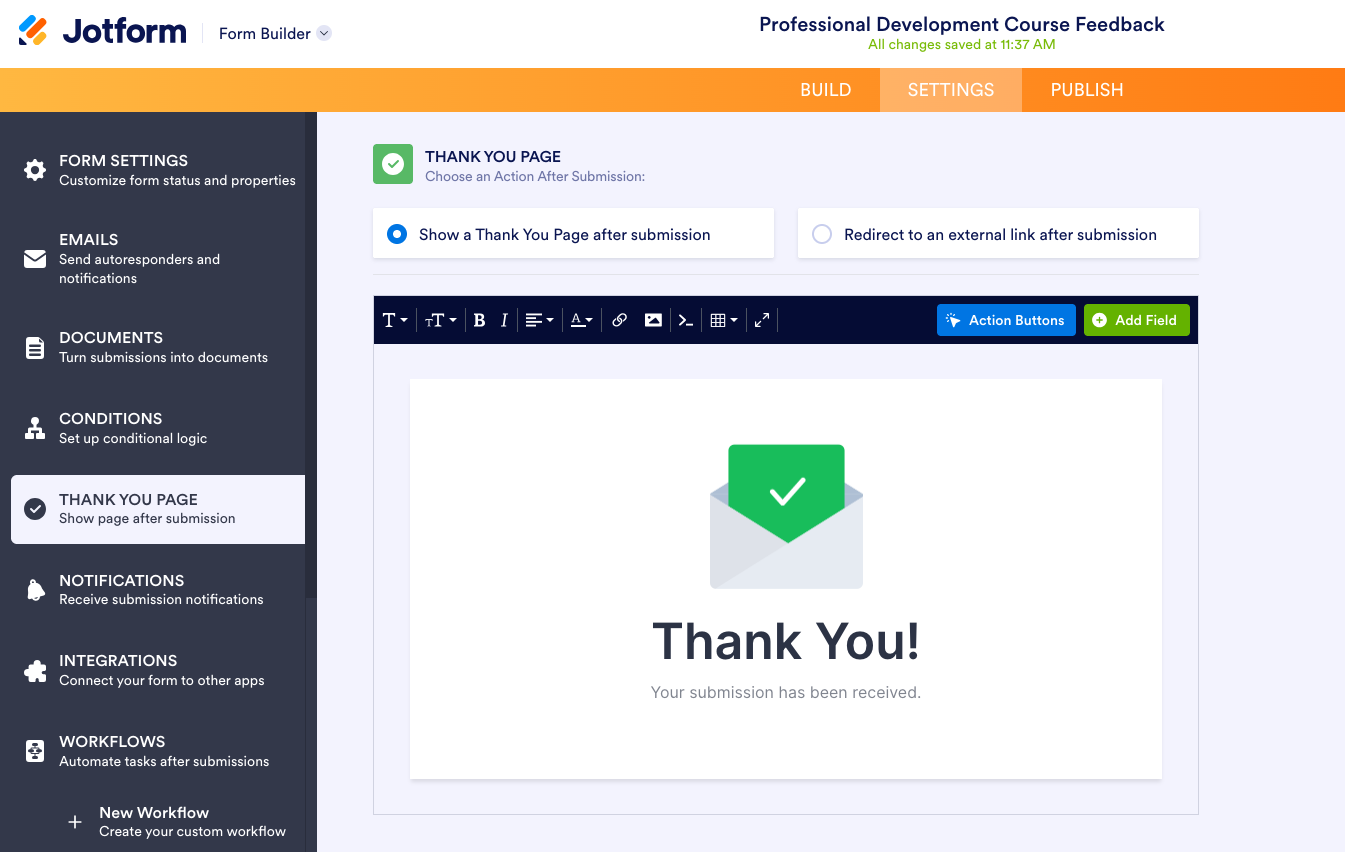
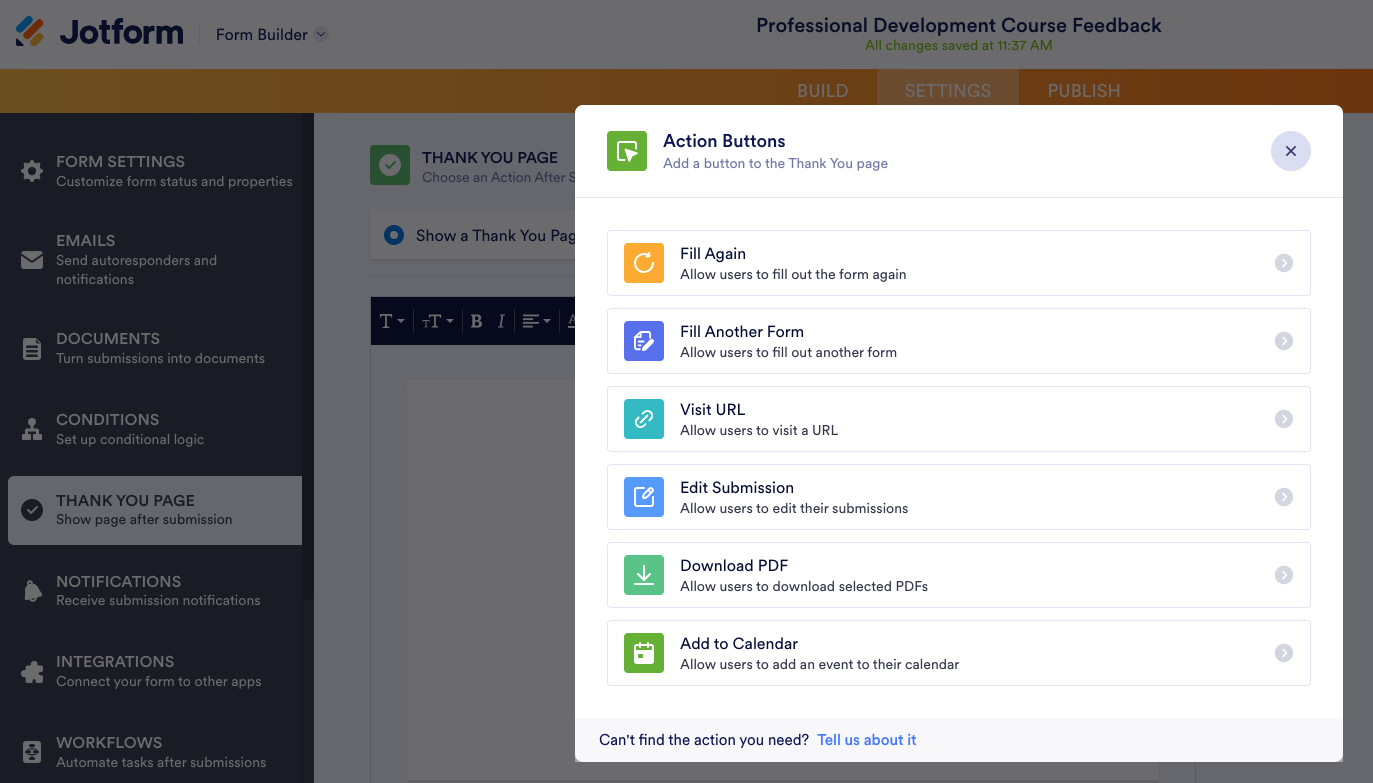
Include Action Buttons on your Thank You page to allow survey participants to fill out the form again, edit their response, fill out another form, and more.
Don’t want the teachers taking your survey to have to hunt for information like the name of the PD session? Use Jotform Prefill to include that information in the survey for them.
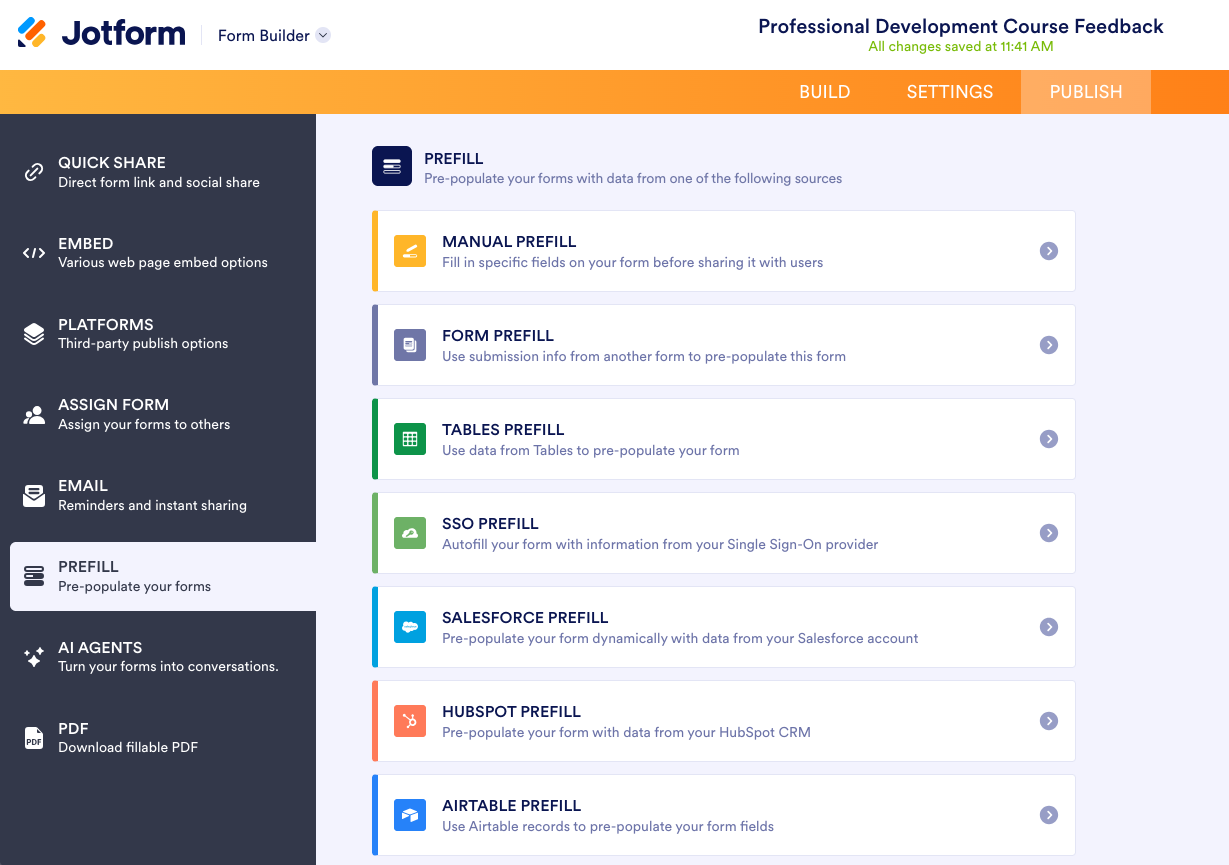
You can manually input the information you want prefilled or pre-populate from sources like another form, Jotform Tables, and third-party apps like Salesforce, HubSpot, or your SSO provider.
Perhaps your teachers need to upload portfolios and different file types, like videos and artwork. This is where Jotform’s File Upload field comes in handy.
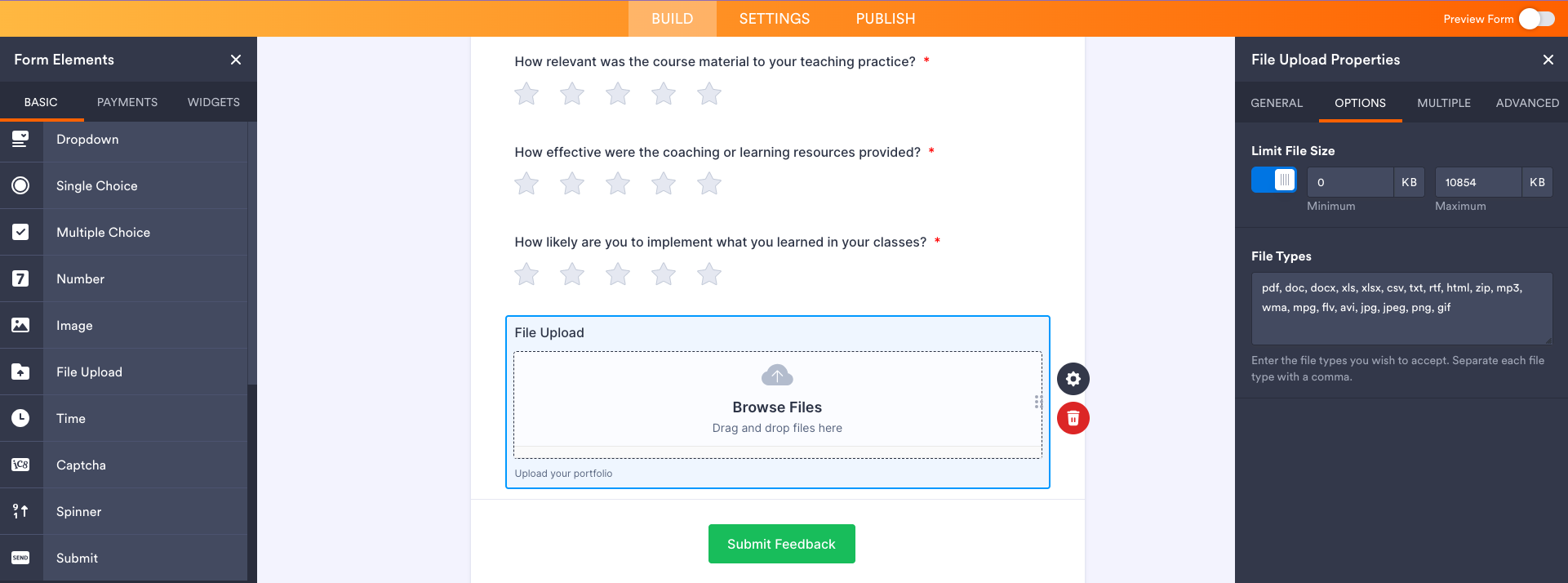
You can even specify which file types to accept.
Is your PD hitting the mark? It’s hard to know without the right data. Jotform can help you collect that information. Get started today!
This article is for school administrators, district leaders, instructional coaches, and education teams that need a practical way to evaluate whether teacher professional development is actually improving instruction and student outcomes.

































































































Send Comment: