
Using Google Forms is easy, but choosing among the 12 Google Forms question formats can slow you down. Understand the different Google Forms question types so you can pick the right option for each question and make your forms easier for people to answer.

1. Multiple choice
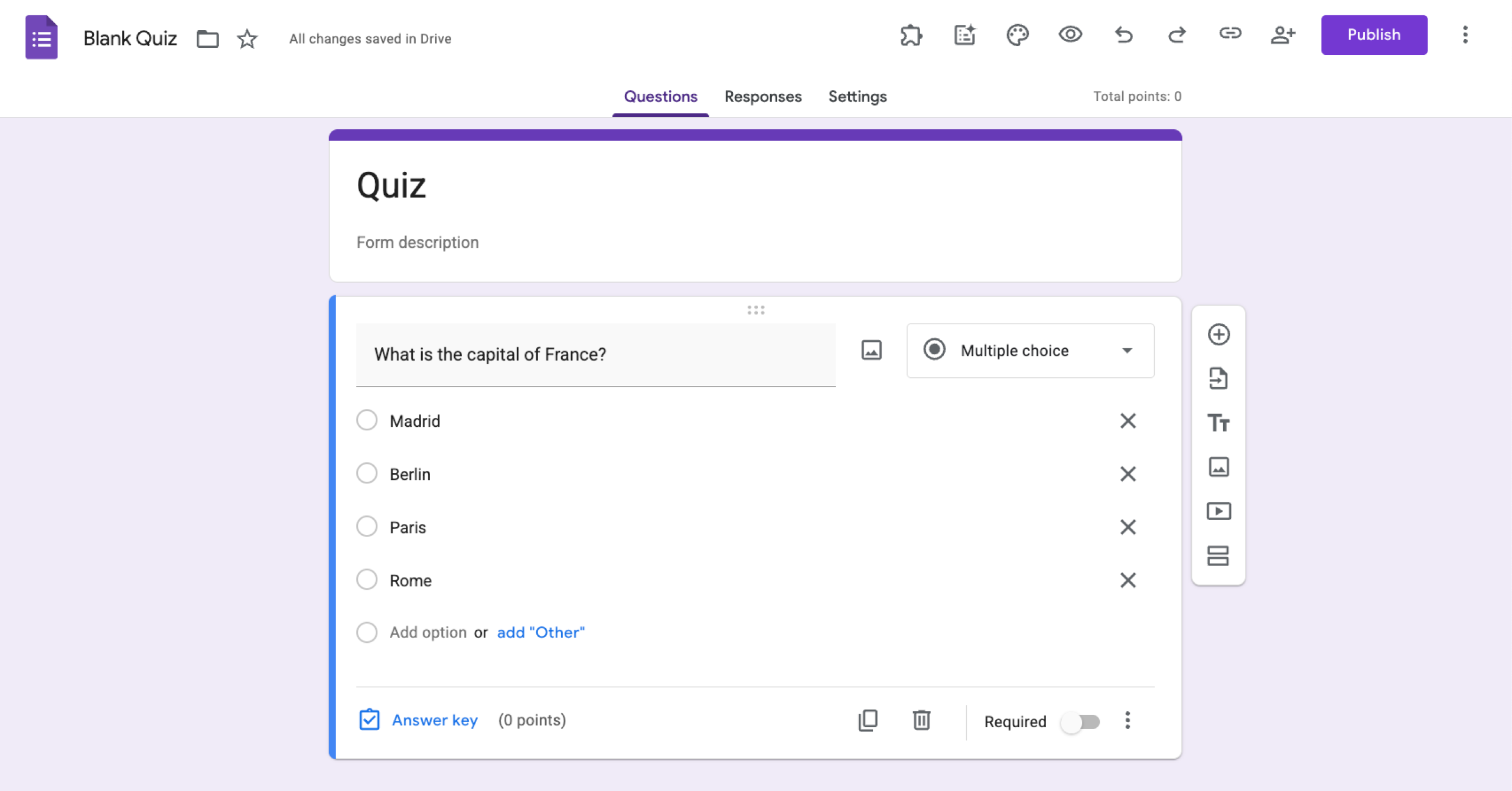
Use when: You want respondents to pick one option from a list.
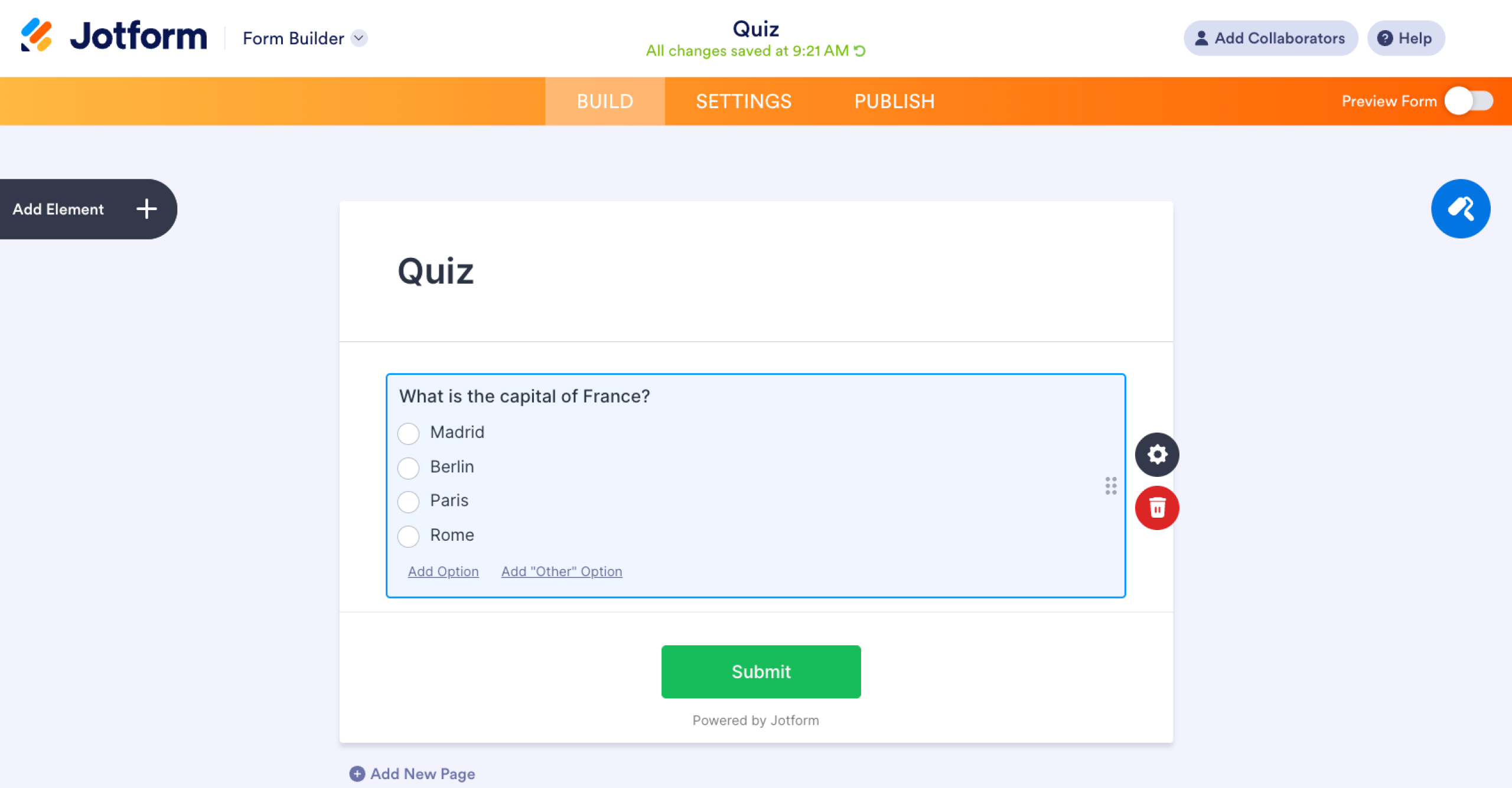
Multiple-choice questions let respondents select a single answer from a set of predefined options. You can also add an “Other” option, where they can type a short answer if none of the other options work for them. This format works well for surveys, quizzes, and feedback forms where only one answer should apply.
The same multiple-choice question type is also available in Jotform, where you can customize choices, layout, and logic with more flexibility.
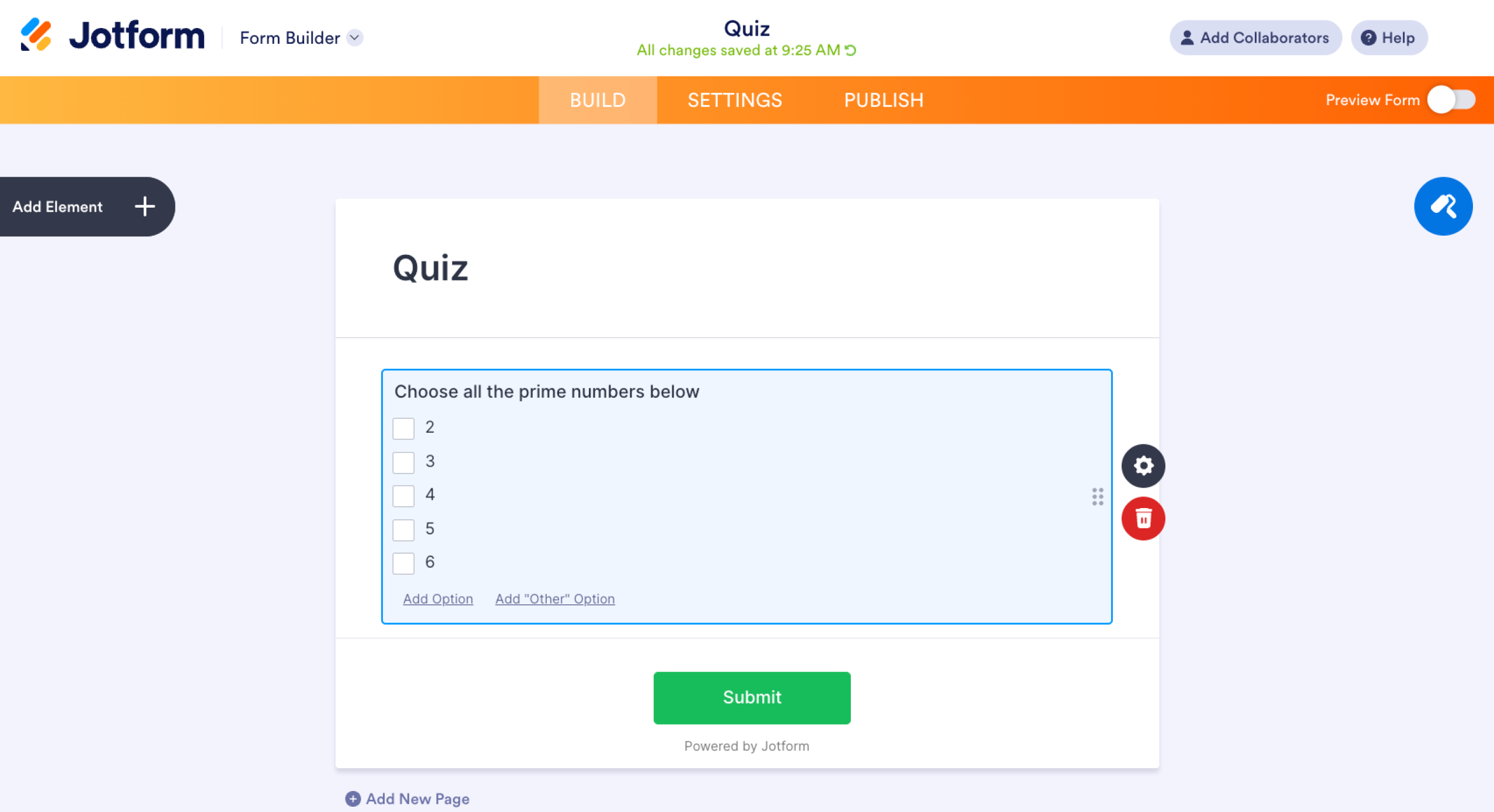
2. Checkboxes
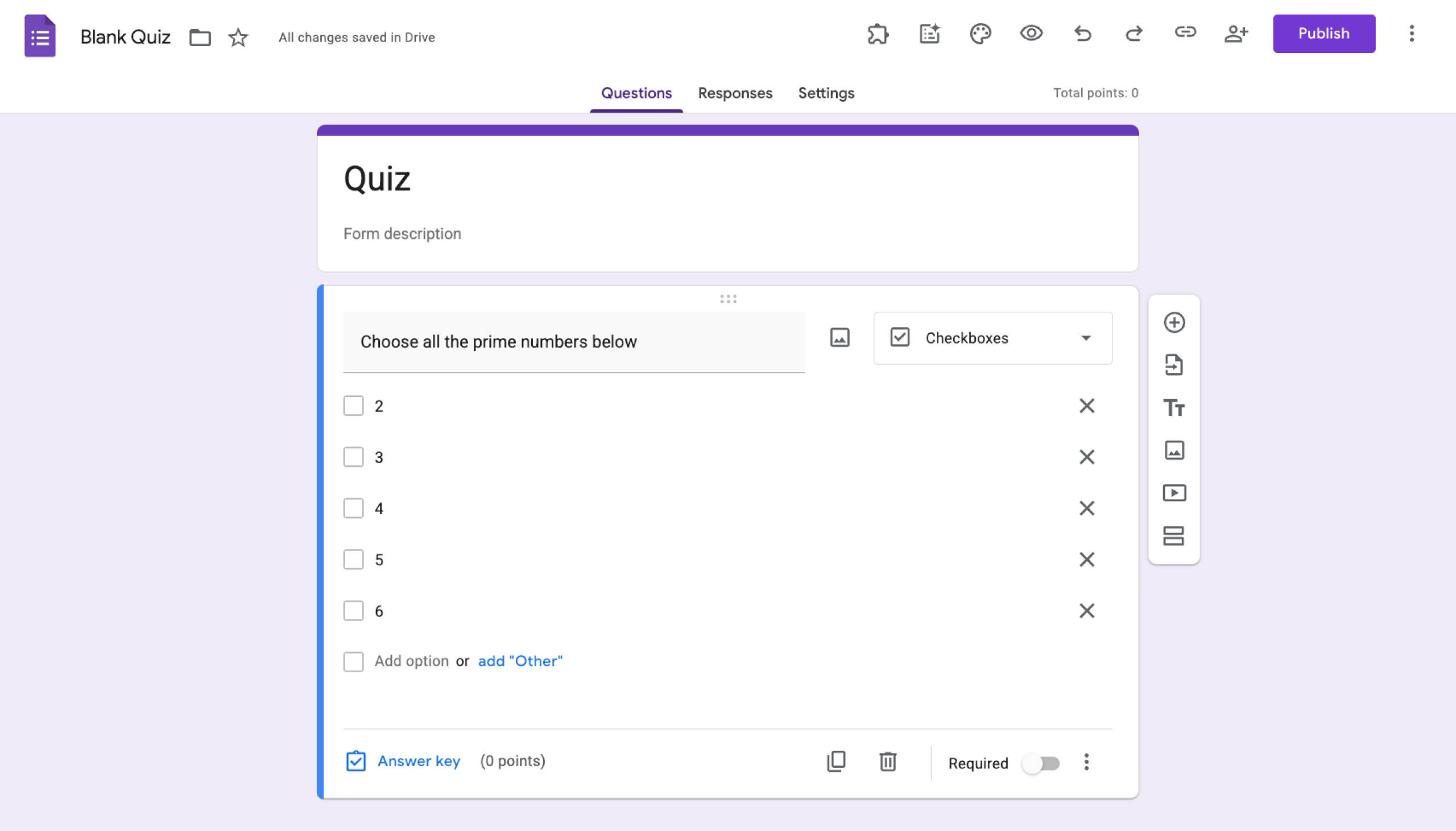
Use when: Respondents may need to select more than one option.
Checkbox questions allow respondents to choose multiple answers from a list. This makes them useful for questions where several options may apply, such as selecting interests, features used, or preferred contact methods. You can also add “Other.”
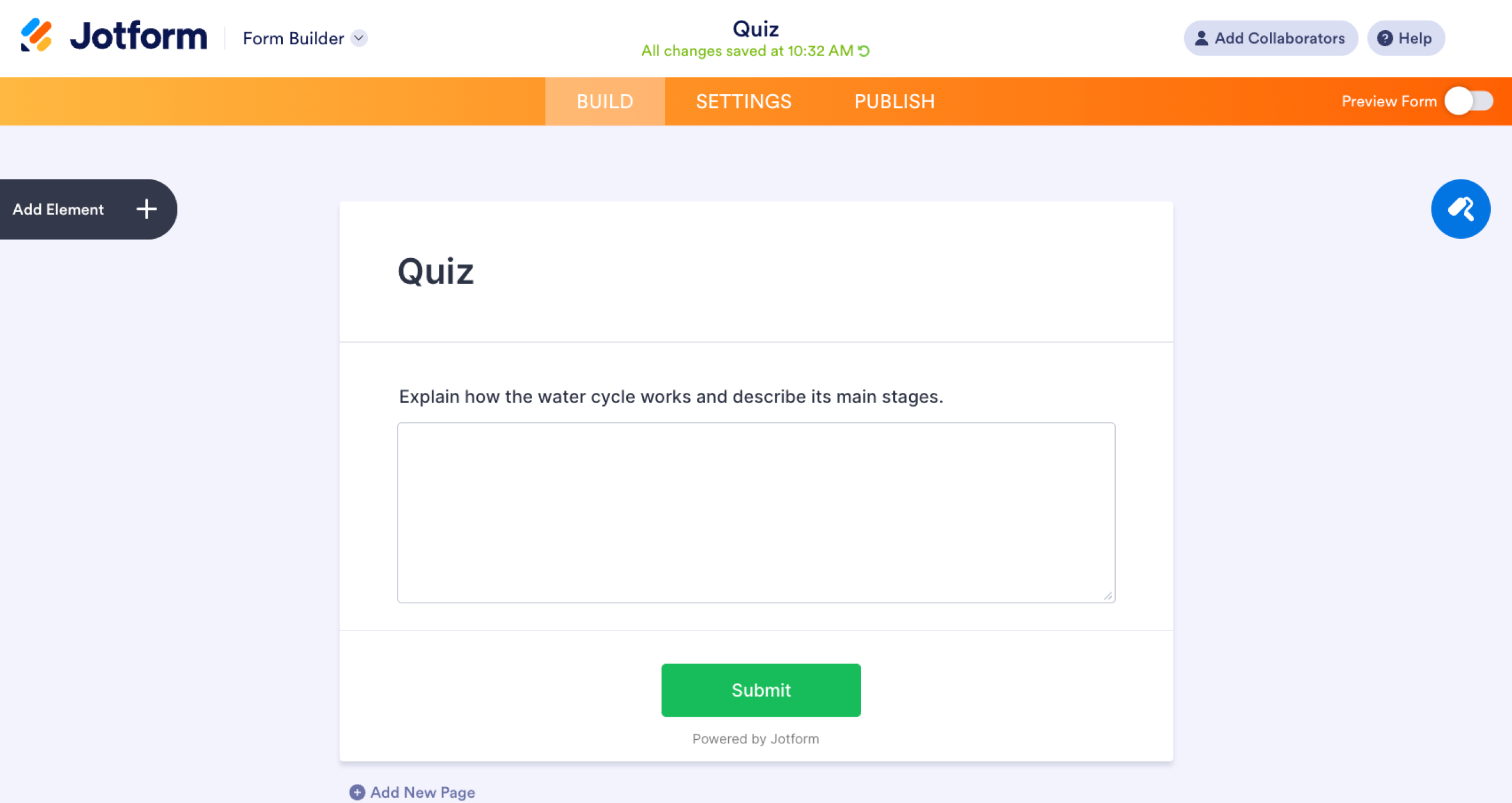
The key difference between multiple choice and checkboxes is that multiple choice allows only one answer, whereas checkboxes allow several. The same checkbox question type is also available in Jotform for flexible form building.
3. Multiple choice grid
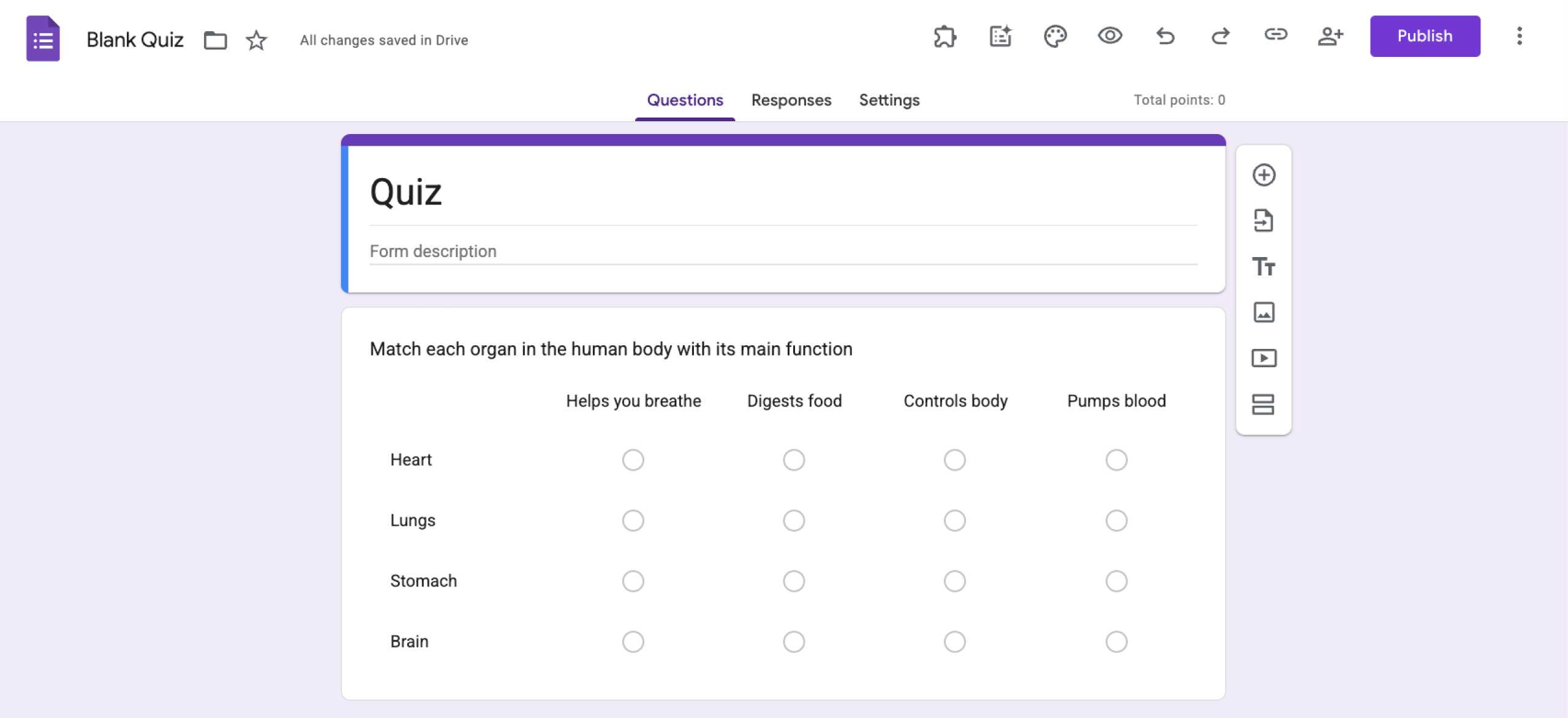
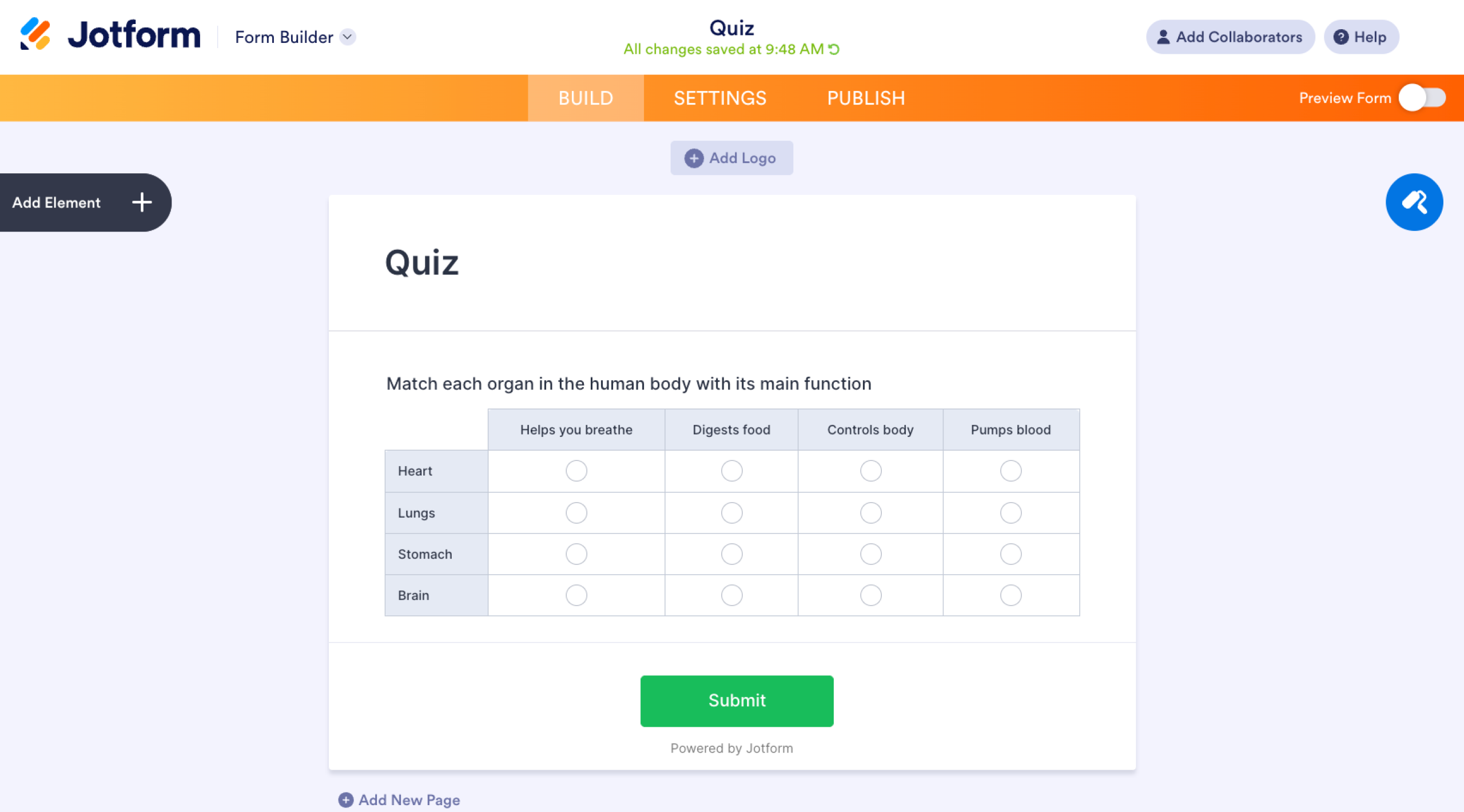
Use when: You want respondents to choose one or more options per row.
A multiple-choice grid lets you ask questions using a shared list of answers arranged in rows and columns. Respondents can select one or more answers in each row, but if needed, Google Forms can limit one response per column. This format is useful for ratings, comparisons, or feedback across multiple items.
You can also find the same multiple-choice grid format in Jotform, which offers an AI form builder for building organized surveys and evaluation forms.
4. Checkbox grid
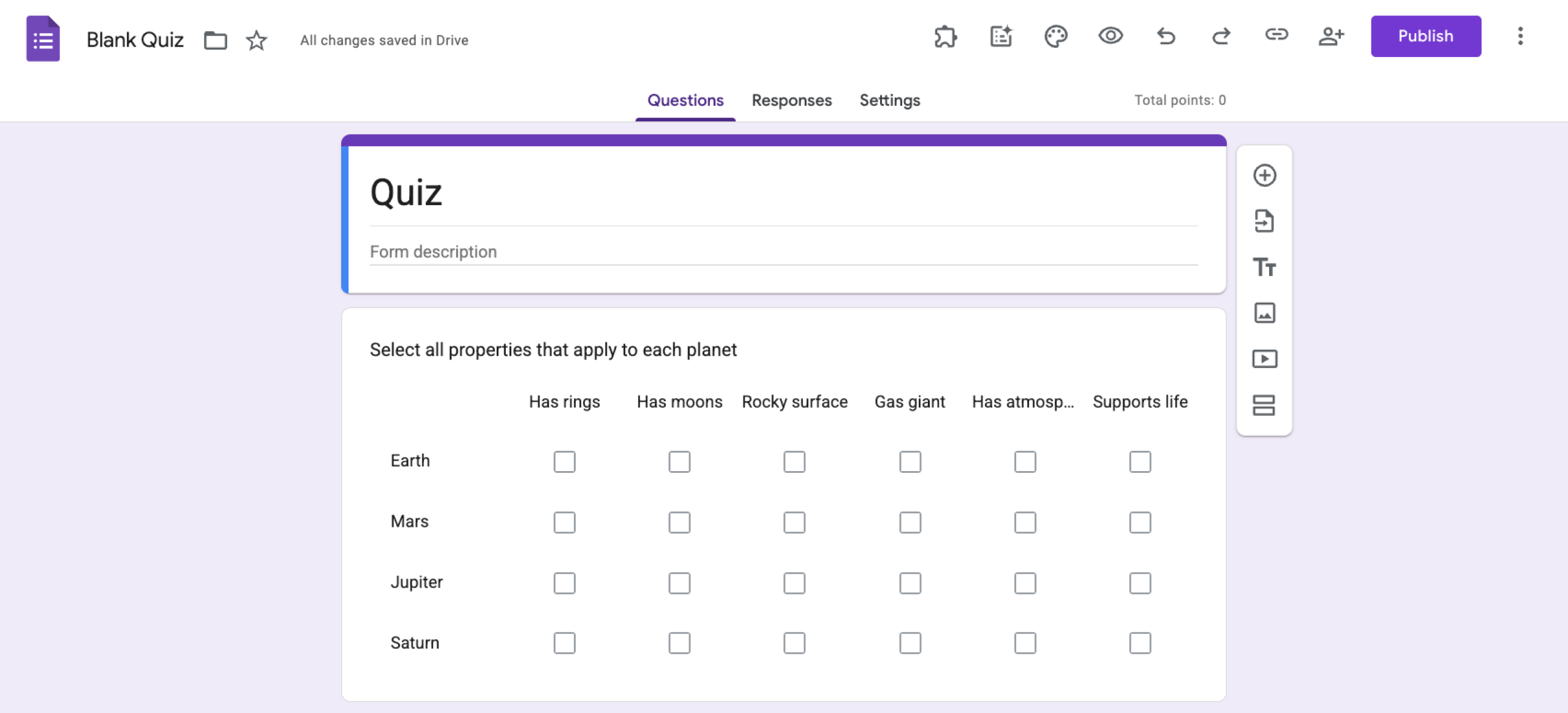
Use when: Respondents may need to select one or more answers within each row.
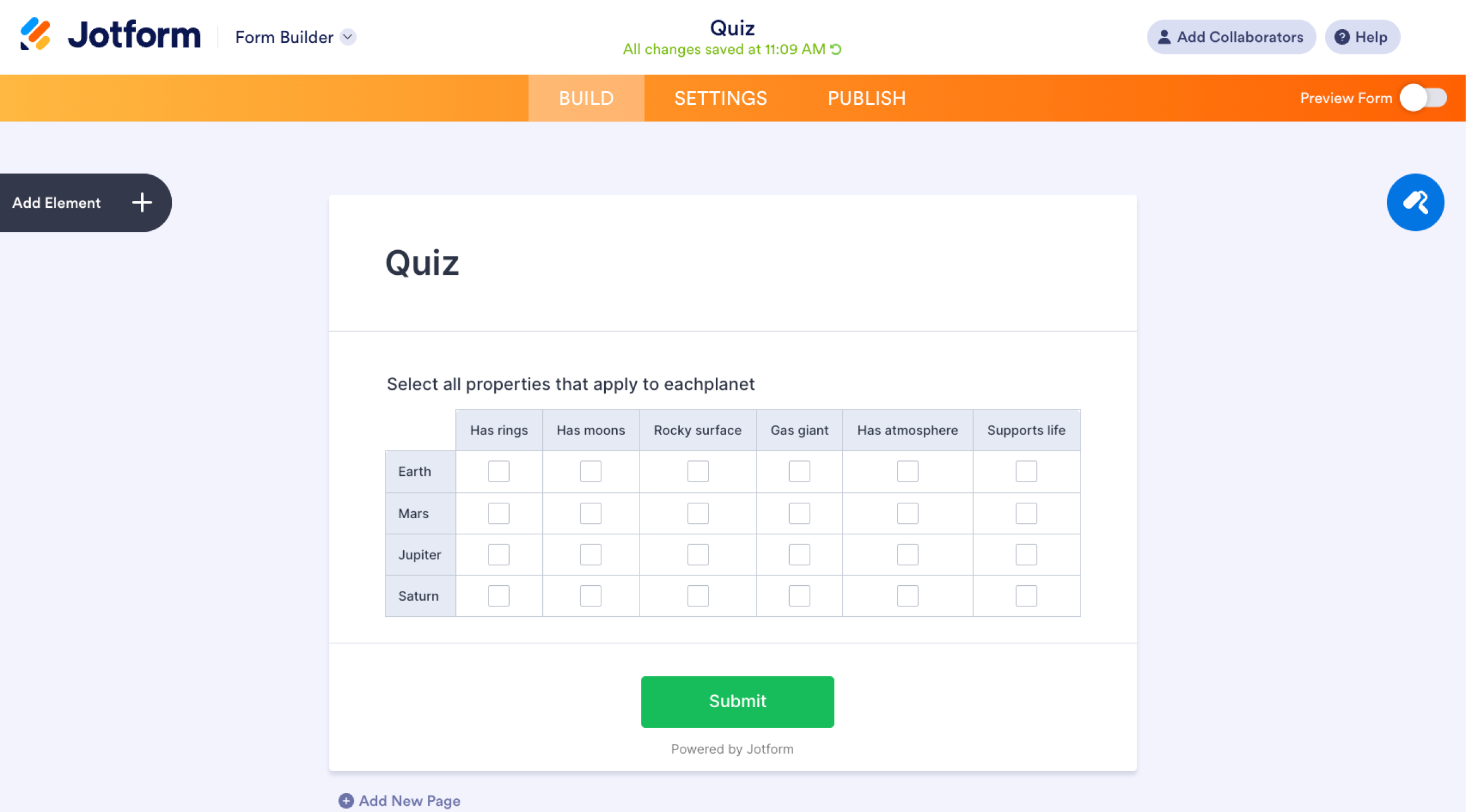
A checkbox grid is similar to a multiple-choice grid: Respondents can select one or more options per row. You can limit the number of responses to one if needed. When comparing the multiple-choice grid vs the checkbox grid, the only difference is how they are displayed. The former lets you select answers, while the latter lets you checkmark them.
Jotform supports the same format, plus automation through Jotform Workflows that help you connect multiple forms, trigger actions with conditional logic, and build advanced workflows.
5. Dropdown
Use when: You have many answer choices and want to keep the form compact.
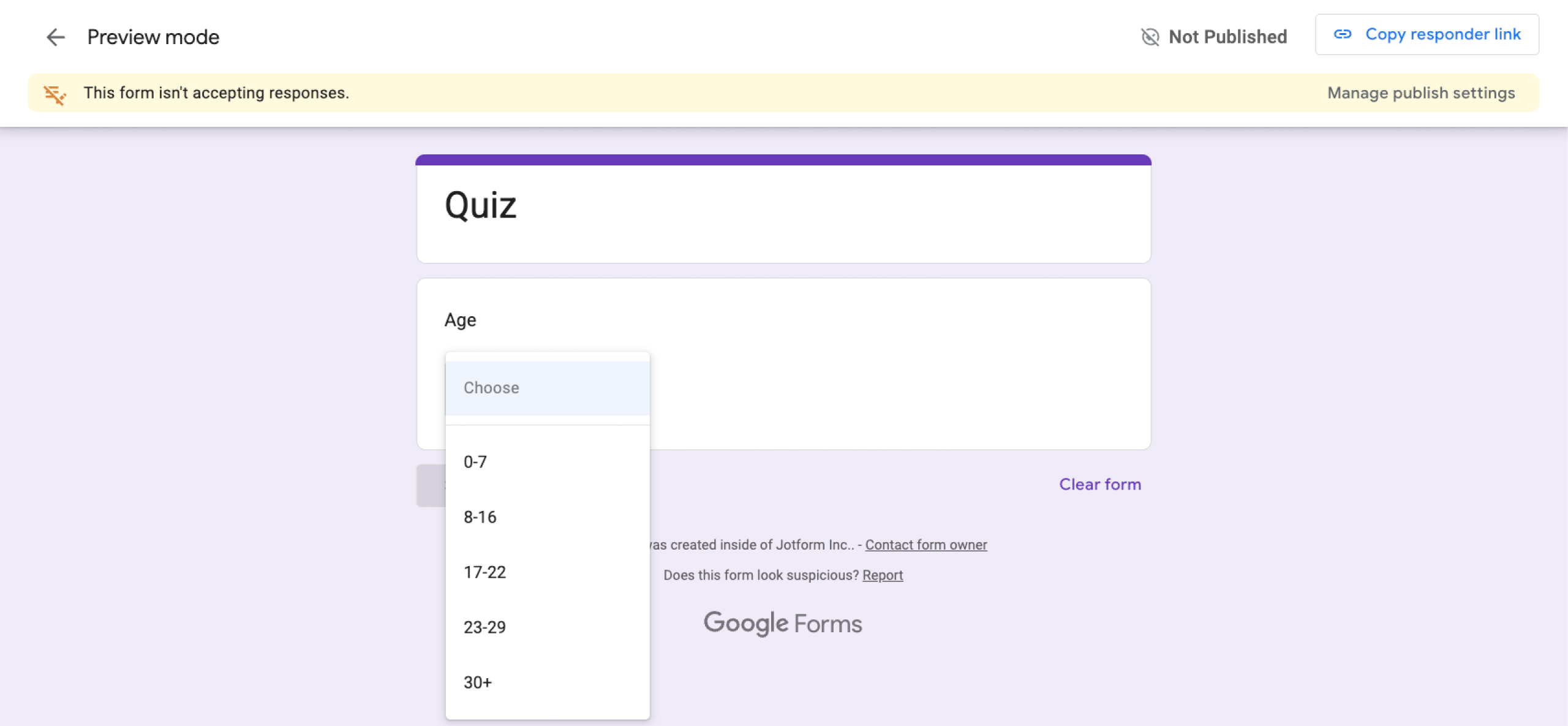
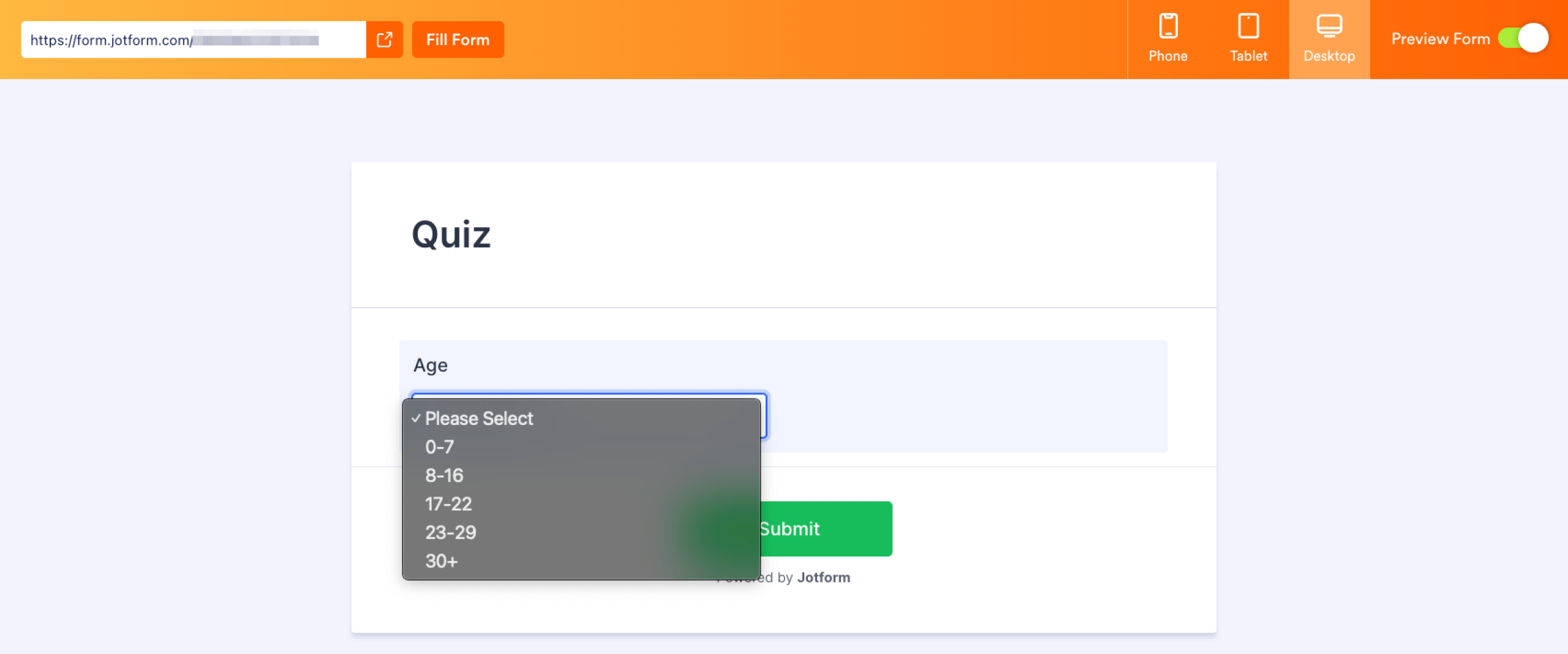
A dropdown question lets respondents pick one option from a collapsible list. It keeps forms clean when there are many choices, such as selecting a country, department, or time zone. Using dropdowns in Google Forms is simple; just add the question type and enter options. You can even send respondents to a certain section based on their answers.
The same format is available in Jotform, where additional Jotform features, such as QR code forms and CRM integrations, allow deeper customization and easier form management.
6. Linear scale
Use when: You want respondents to rate something on a numbered scale.
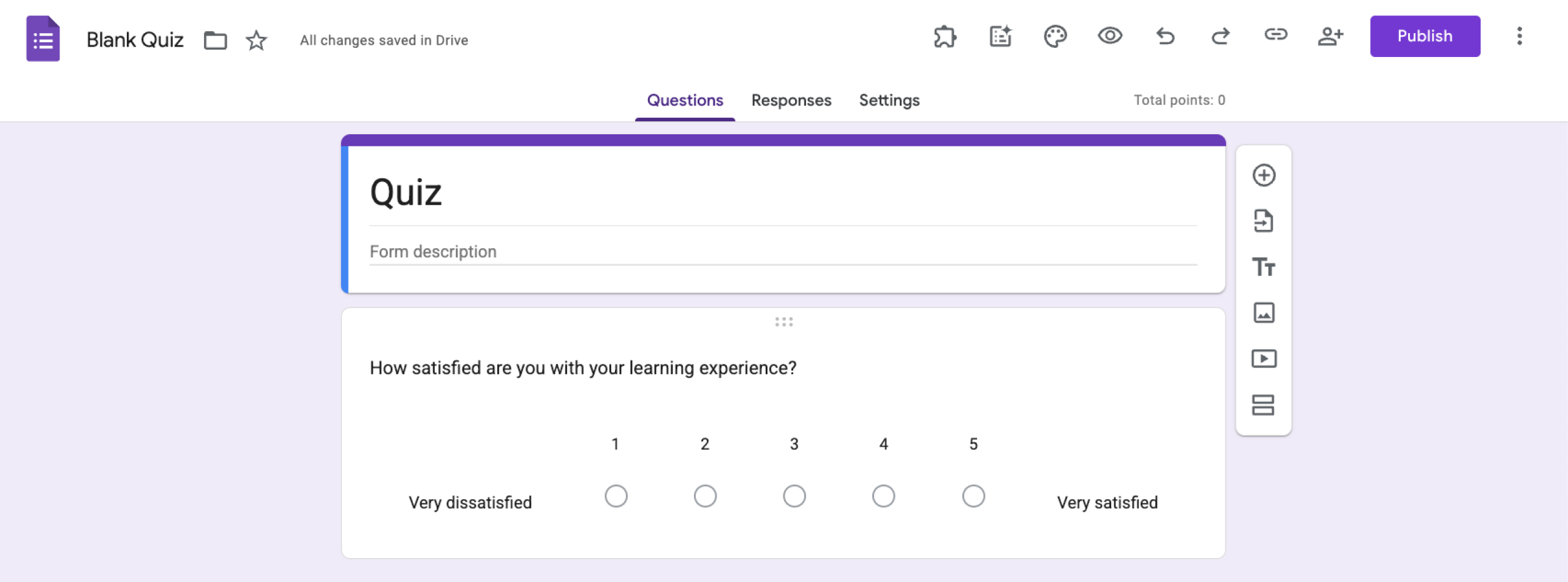
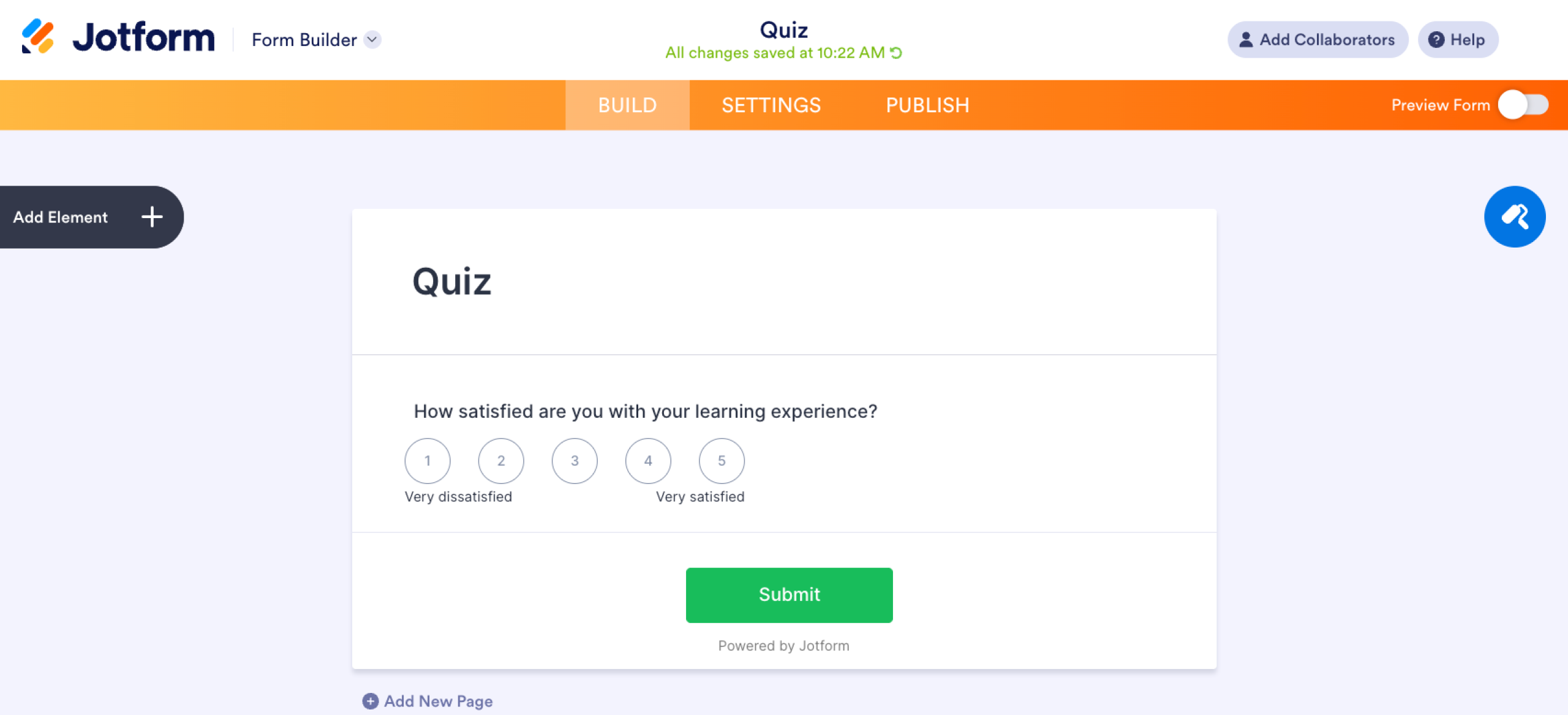
Linear scale questions in Google Forms are easy to set up and useful for quick ratings. They allow respondents to rate an item on a scale, typically ranging from 0 to 10. This format is commonly used to measure satisfaction, agreement, or likelihood.
You can find the same question type in Jotform, too, where you can build similar rating questions and start faster with access to 20,000+ ready-to-use form templates.
7. Short answer
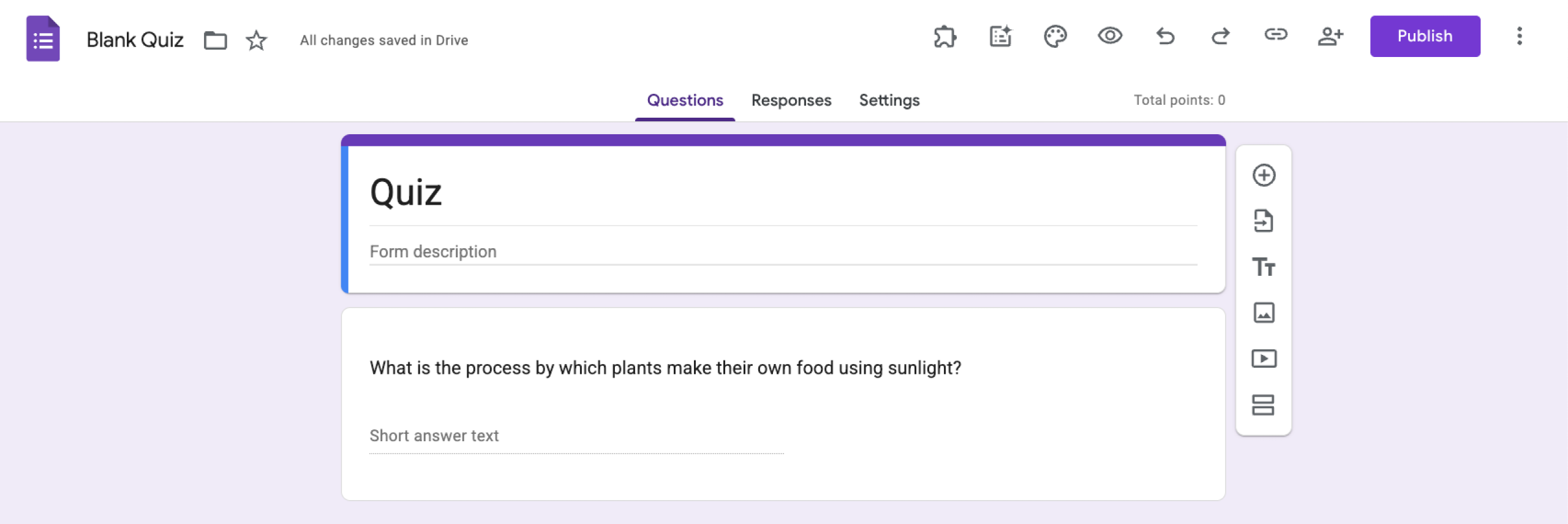
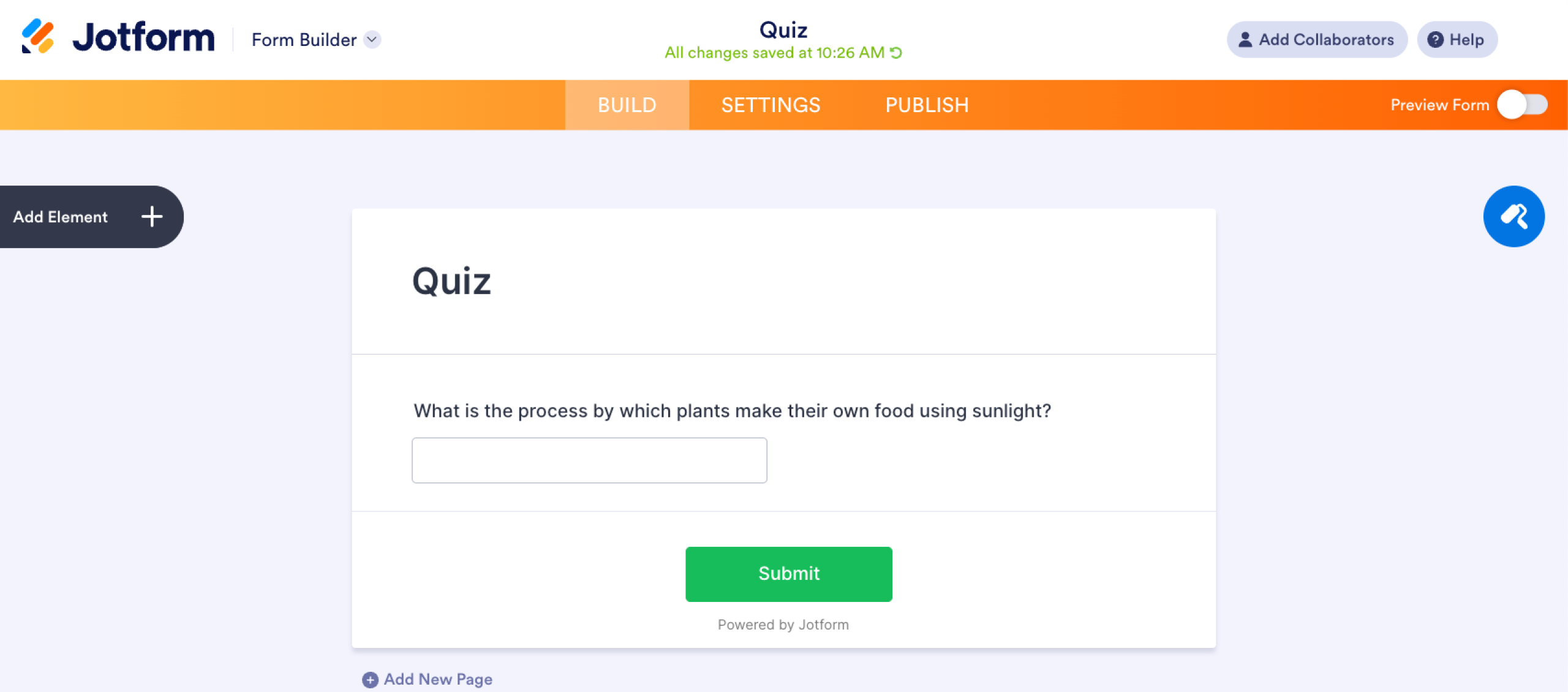
Use when: You expect a brief text response, such as a name, email, or short comment.
Short answer questions let respondents enter a single line of text, and you can even set a limit for maximum character count. They work well for collecting quick details like names, job titles, or brief feedback.
The same question type is also available in Jotform, where you can enhance forms with customizable form widgets that add extra functionality, integrations, and design options.
Pro Tip
Want to ensure users enter data in the correct format for your questions? Read our complete guide on response validation Google Forms settings to automatically restrict inputs like email addresses, number ranges, or text lengths.
8. Paragraph
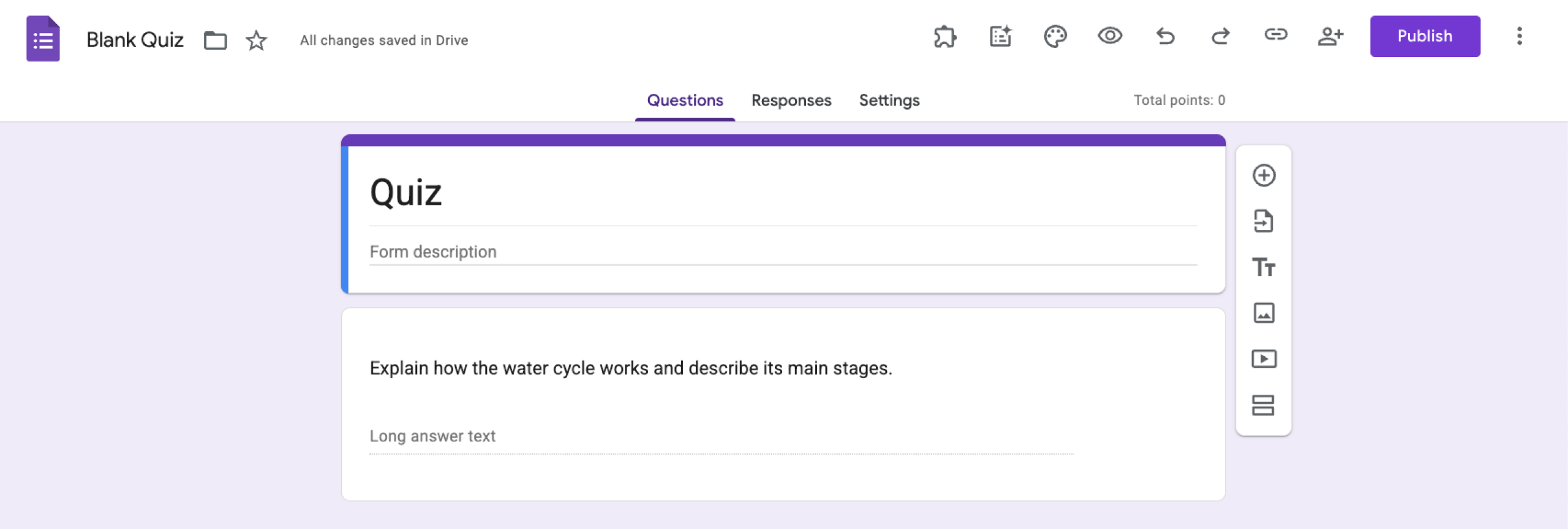
Use when: You want respondents to provide longer, detailed responses.
Paragraph questions allow respondents to write longer text answers, making them useful for thorough feedback, explanations, or open-ended opinions. When comparing short-answer vs paragraph questions, the difference comes down to answer length. Short answer fields are meant for brief responses, while paragraph fields provide more space for detailed input.
You can find the paragraph question type in Jotform, which is widely considered one of the best Google Forms alternatives for advanced form customization and features.
9. Date
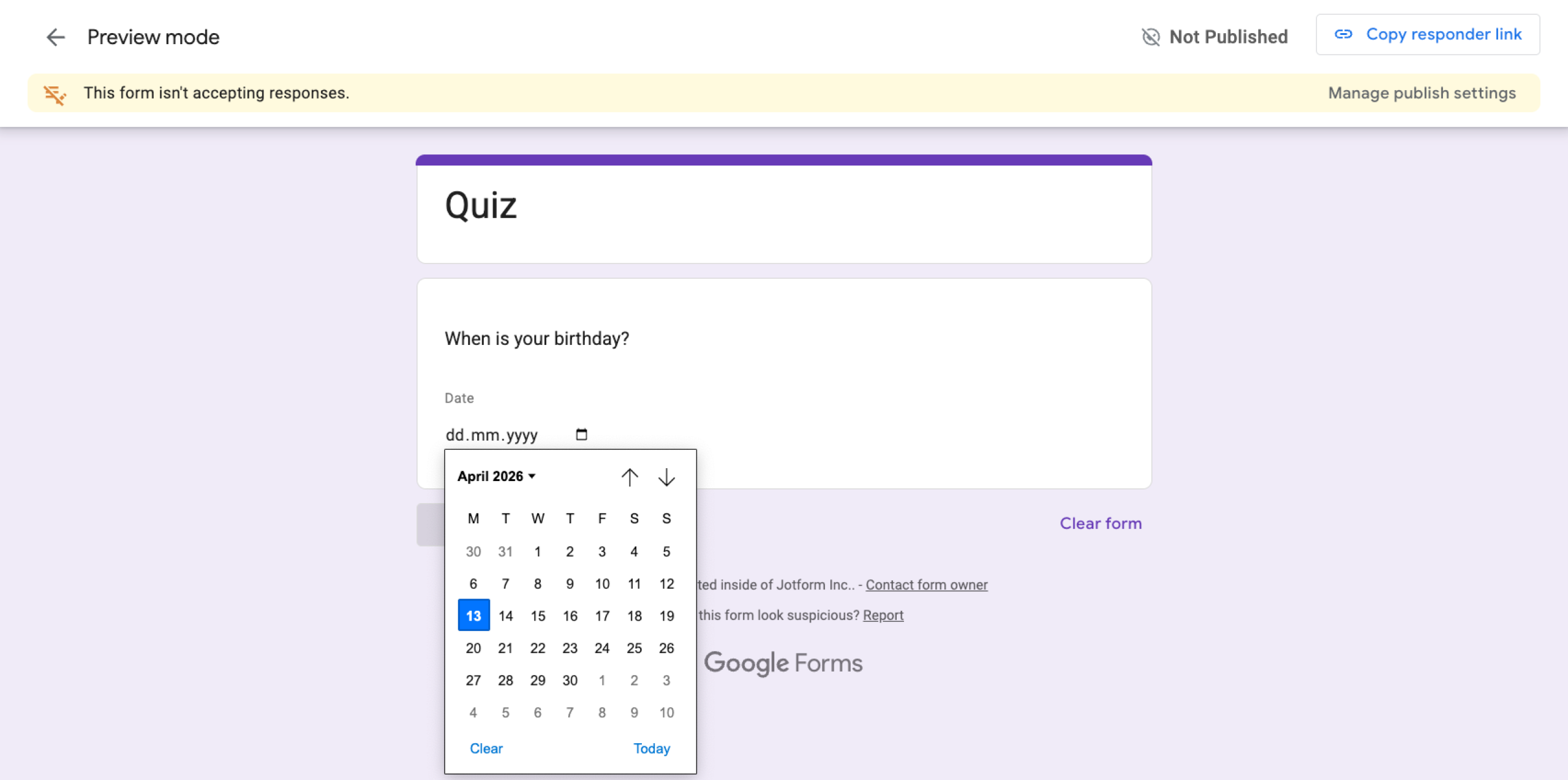
Use when: You want respondents to select a specific date in the mm/dd/yyyy format.
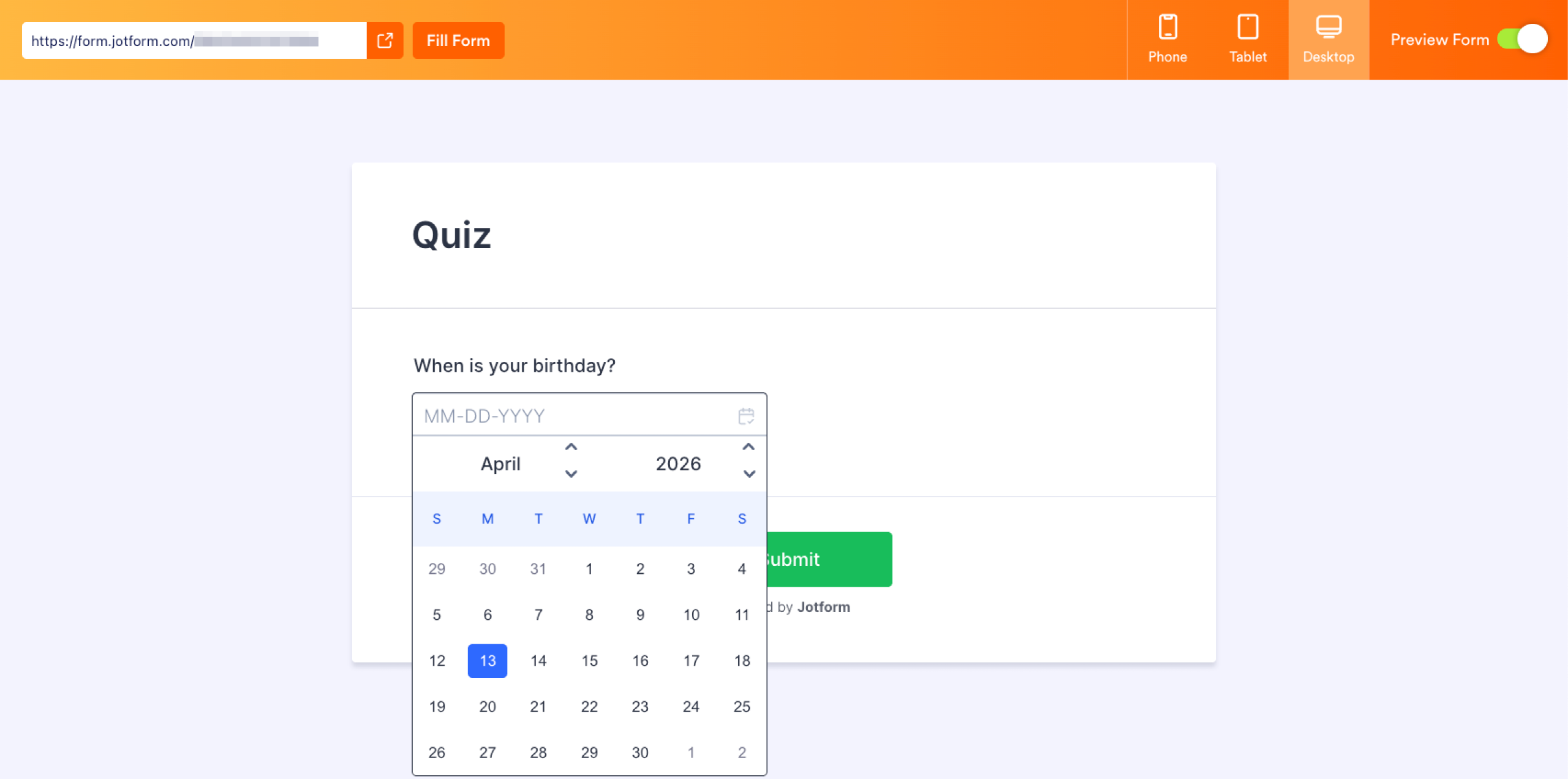
The date question type allows respondents to choose a calendar date directly within the form. It’s useful for scheduling events, booking appointments, collecting birthdates, or tracking deadlines. Google Forms includes a built-in date picker to make responses consistent and easy to analyze. You can even include the year or time with dates.
The same date field is also available in Jotform, where you can further customize the calendar format and connect it with scheduling tools.
10. File upload
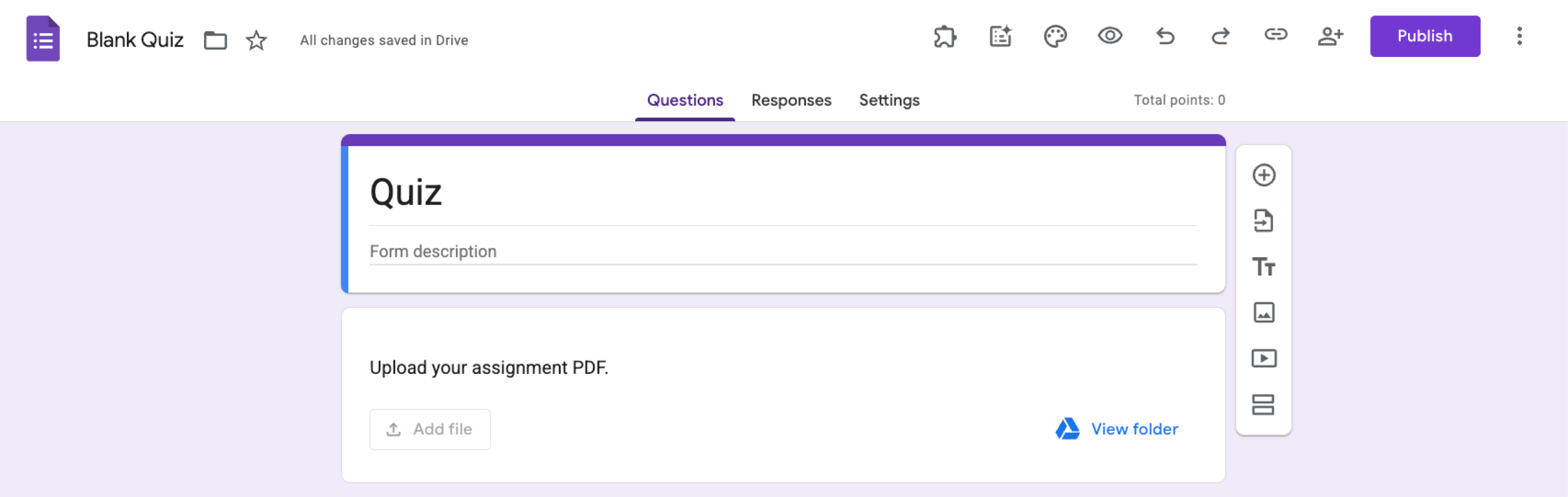
Use when: You want respondents to submit documents, images, or other files.
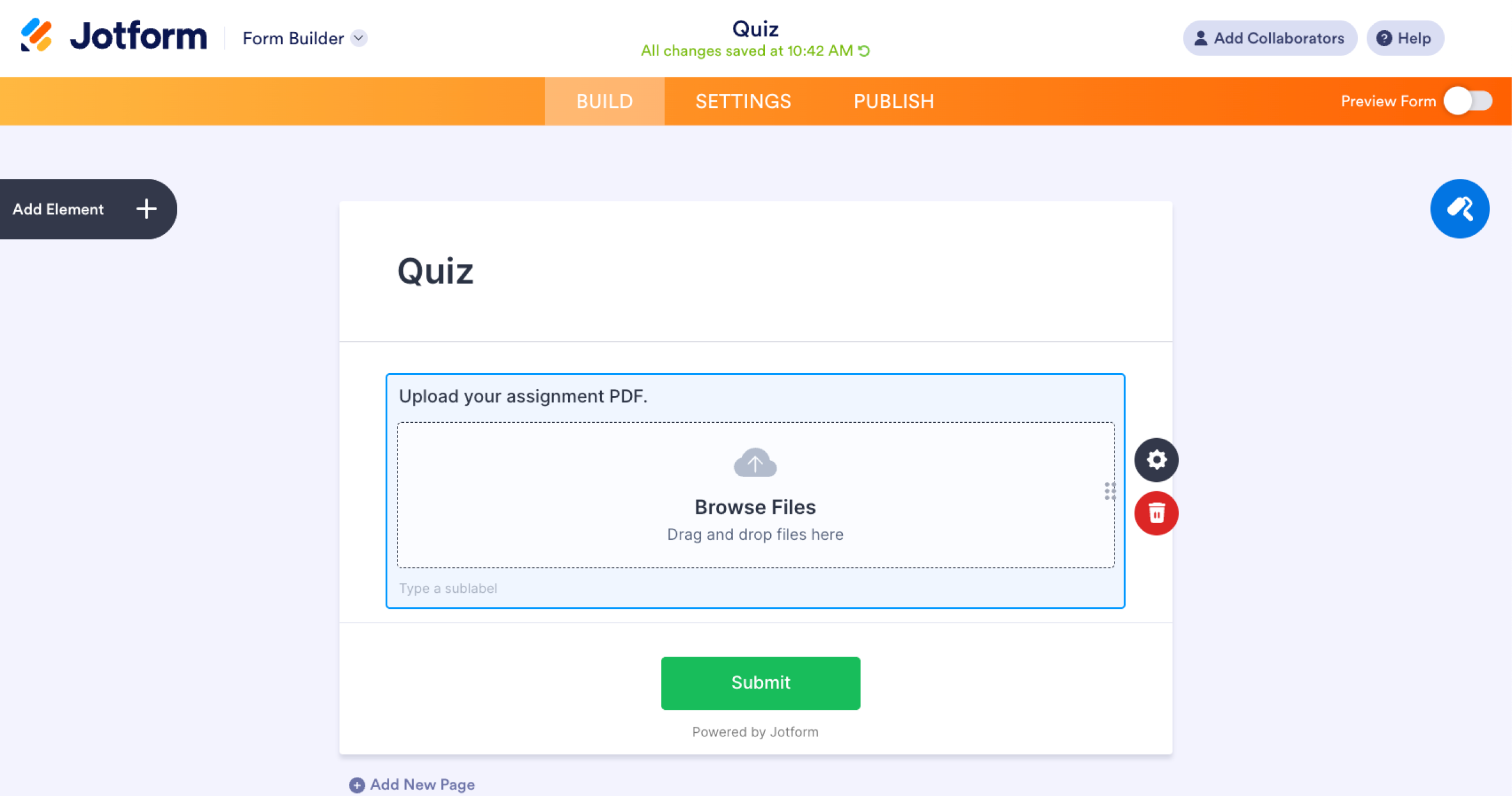
File upload in Google Forms lets respondents attach files directly within a form. It’s useful for collecting resumes, assignments, images, or supporting documents during submissions. Uploaded files are stored in the form owner’s Google Drive for easy access. You can specify file types, the maximum number of files, and the maximum file size responders can upload.
The same capability is available in Jotform, where you can customize file uploads with size limits, file type restrictions, and integrations.
11. Rating
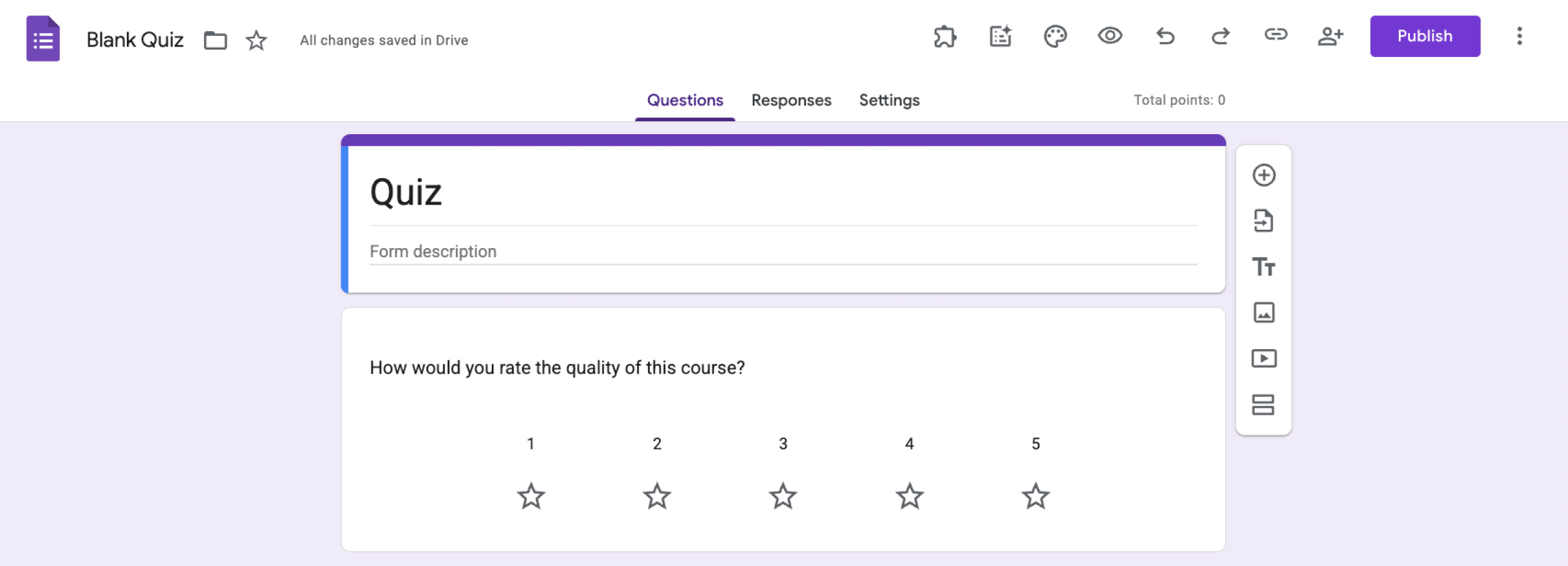
Use when: You want respondents to rate something quickly using stars, hearts, or thumbs up.
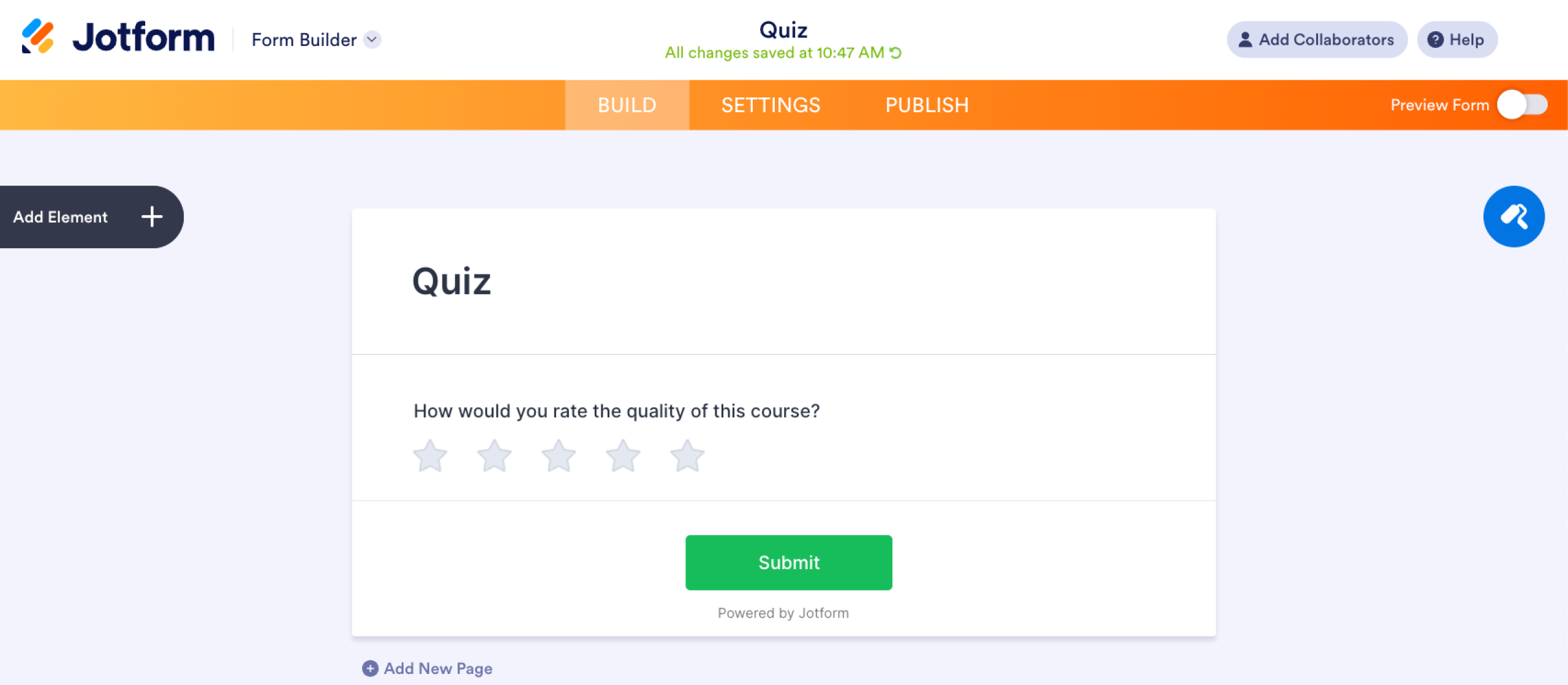
Rating questions help you collect quick feedback using a simple scale between 3 and 10. You can represent your rating with a star, a heart, or a thumbs-up. This question type is for those searching for a Google Forms rating scale.
Some users also try to create Google Forms ranking questions using this format, but that usually requires workarounds. Jotform includes a built-in rating field that makes collecting visual feedback much simpler.
12. Time
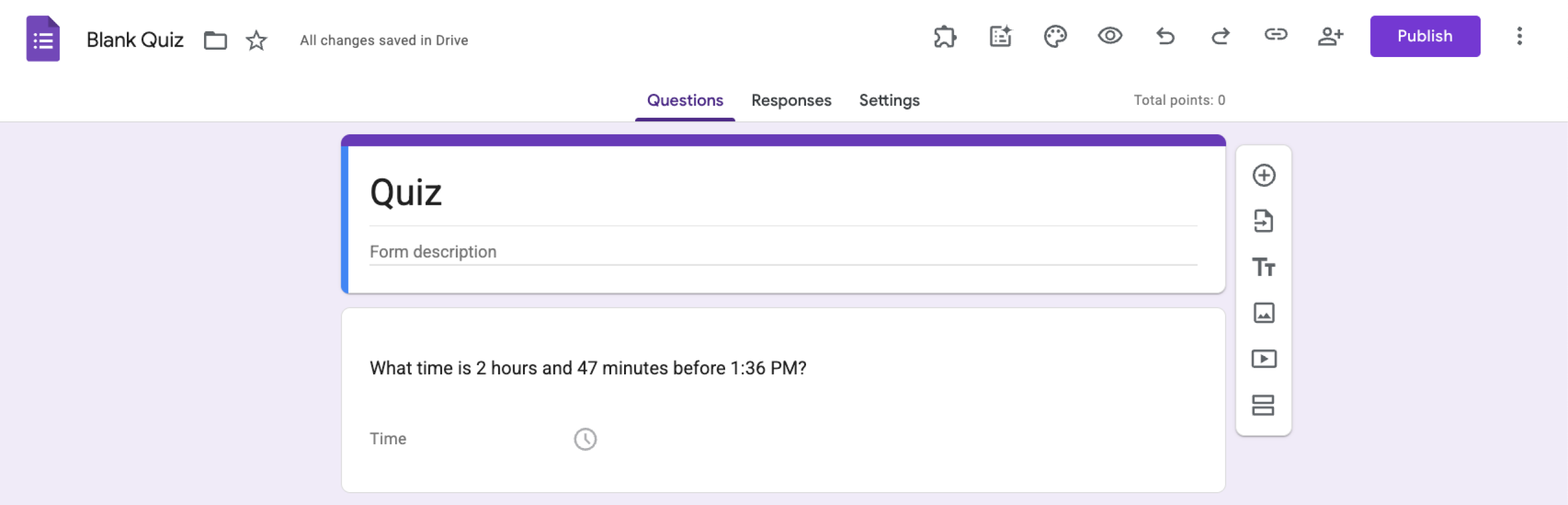
Use when: You want respondents to enter a specific time or duration.
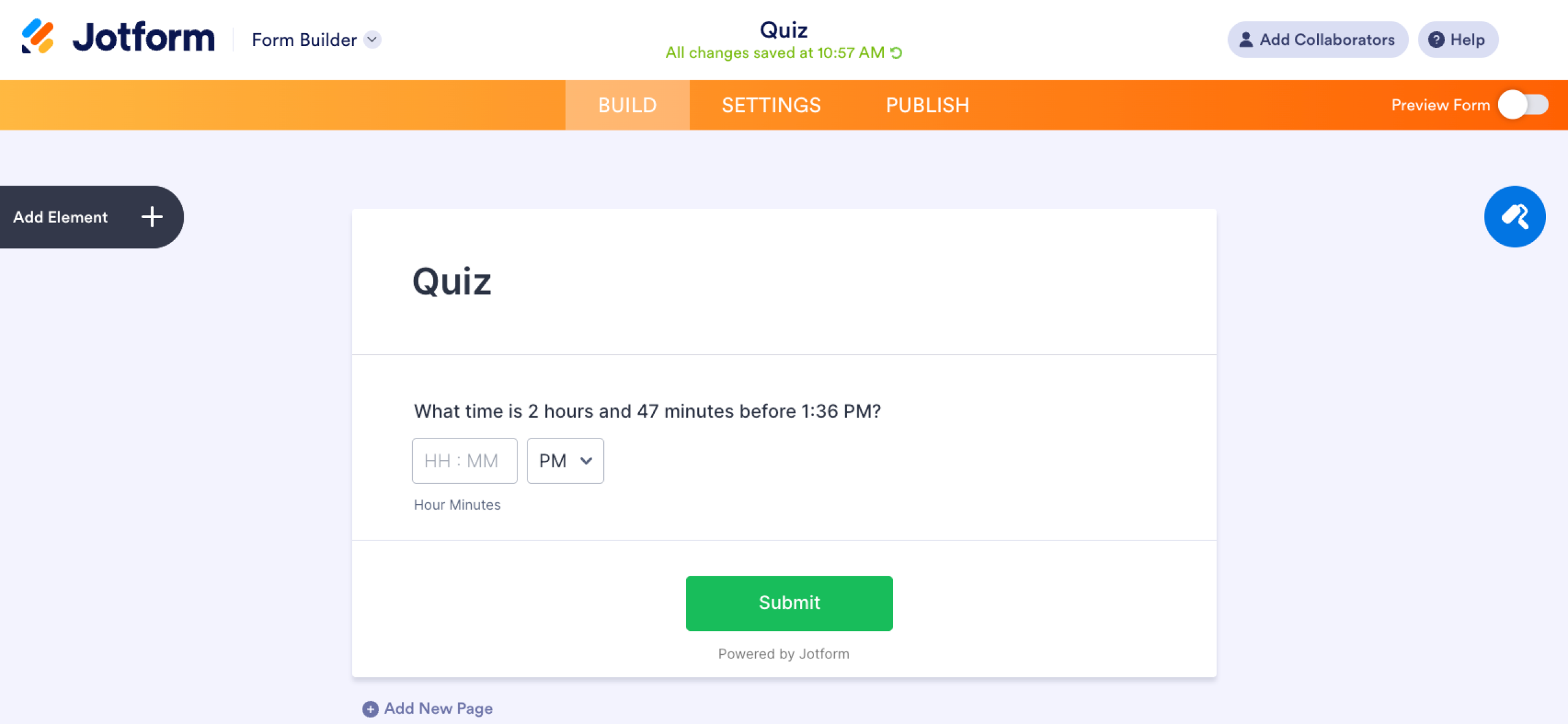
The time question type lets respondents provide a precise time, such as a start time, appointment slot, or time spent on an activity. Responders can enter time in “hh:mm AM/PM” format or duration in “hours minutes seconds” format.
The same time field is also supported in Jotform, where you can combine it with scheduling features and advanced form settings.
Pro Tip
If you haven’t numbered your questions, you can check our guide on how to number questions in Google Forms.
Looking for more than 12 question types? Switch to Jotform
Google Forms works well for basic surveys and quizzes. Still, many users run into limits when forms become more complex. For one, there are only 12 Google Forms question types. It also doesn’t have features like a slider scale.
If you need more flexibility than the standard quiz question types in Google Forms, Jotform offers a wider set of tools and customization options. With Jotform’s powerful form builder, you can access dozens of customizable form fields and advanced features designed for more efficient workflows.
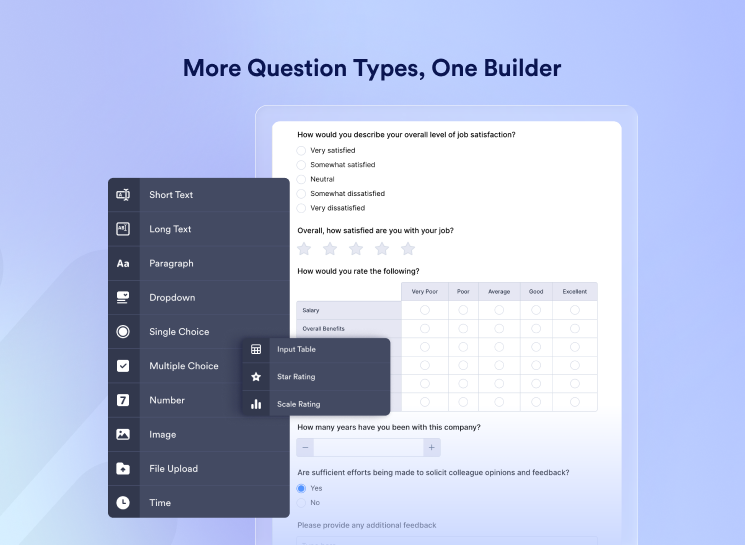
Here are some capabilities Jotform offers that go beyond what’s available in Google Forms:
- Multiline questions: Create larger, flexible text inputs for detailed responses and structured feedback.
- Clone forms: Duplicate an existing form instantly to reuse layouts, questions, and settings.
- Conditional logic: Show or hide questions based on previous answers to create smarter, dynamic forms.
- Answer piping: Insert a respondent’s previous answer into subsequent questions to create a more personalized flow.
- IP address collection: Capture respondent IP addresses to improve submission tracking and security.
- Form URL customization: Create branded, easy-to-share form links instead of long default URLs.
- 40+ payment processor integrations: Accept payments directly through your forms with services like PayPal, Stripe, and Square.
And no, you don’t have to start from scratch if you’re already using Google Forms. You can easily migrate from Google Forms to Jotform. Jotform lets you import and convert existing forms in just a few clicks, making it easy to keep your questions while unlocking more powerful features.


Try Jotform today and start building forms that are more flexible, customizable, and easier to manage.
This article is for the teachers, project managers, and small business owners who are already using Google Forms but feel limited by the basic options and want to know how to collect better data.


































































































Send Comment: