
If you want to convert a PDF to a Google Form, you may be disappointed to know that Google Forms currently does not have a built-in solution for the process.
However, there is good news! In this article, we go over two clever workarounds you can try that will help you get the job done — no fancy optical character recognition (OCR) tools required.
Plus, we’ll introduce you to an AI add-on from Jotform that creates Google Forms from multiple file types. It’s a faster, more accurate option you’ll definitely want to try!

Step by step: How to convert PDFs to Google Forms (manual method)
Google Forms doesn’t have a native tool for PDF-to-form conversions, but you can use this manual workaround. Keep in mind that doing any process manually opens up the possibility of introducing human error.
- Upload your PDF document to Google Drive.
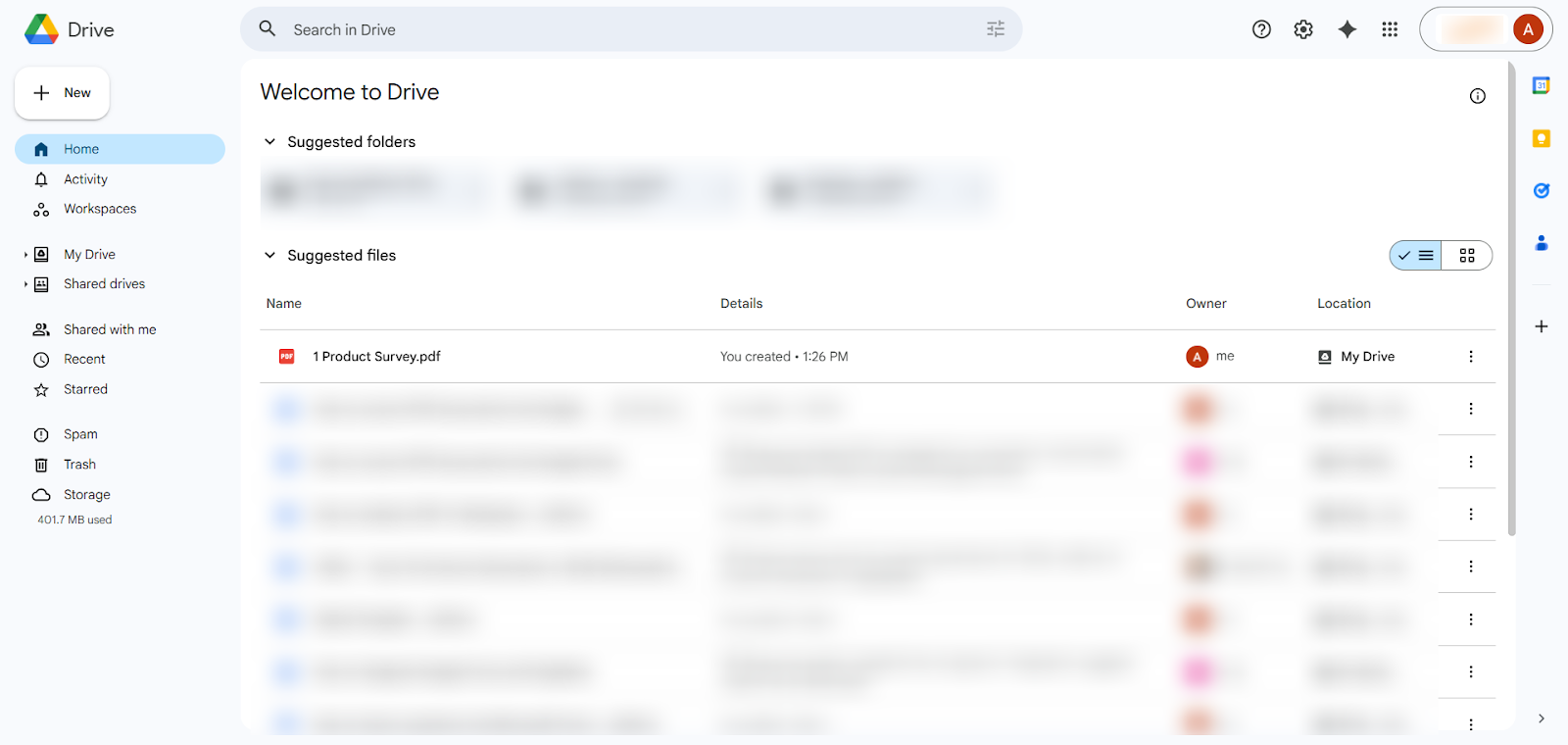
- Right click on the PDF then click Open with. Select Google Docs. This action extracts the text from the PDF and place it in a Google Doc file on your Google Drive.
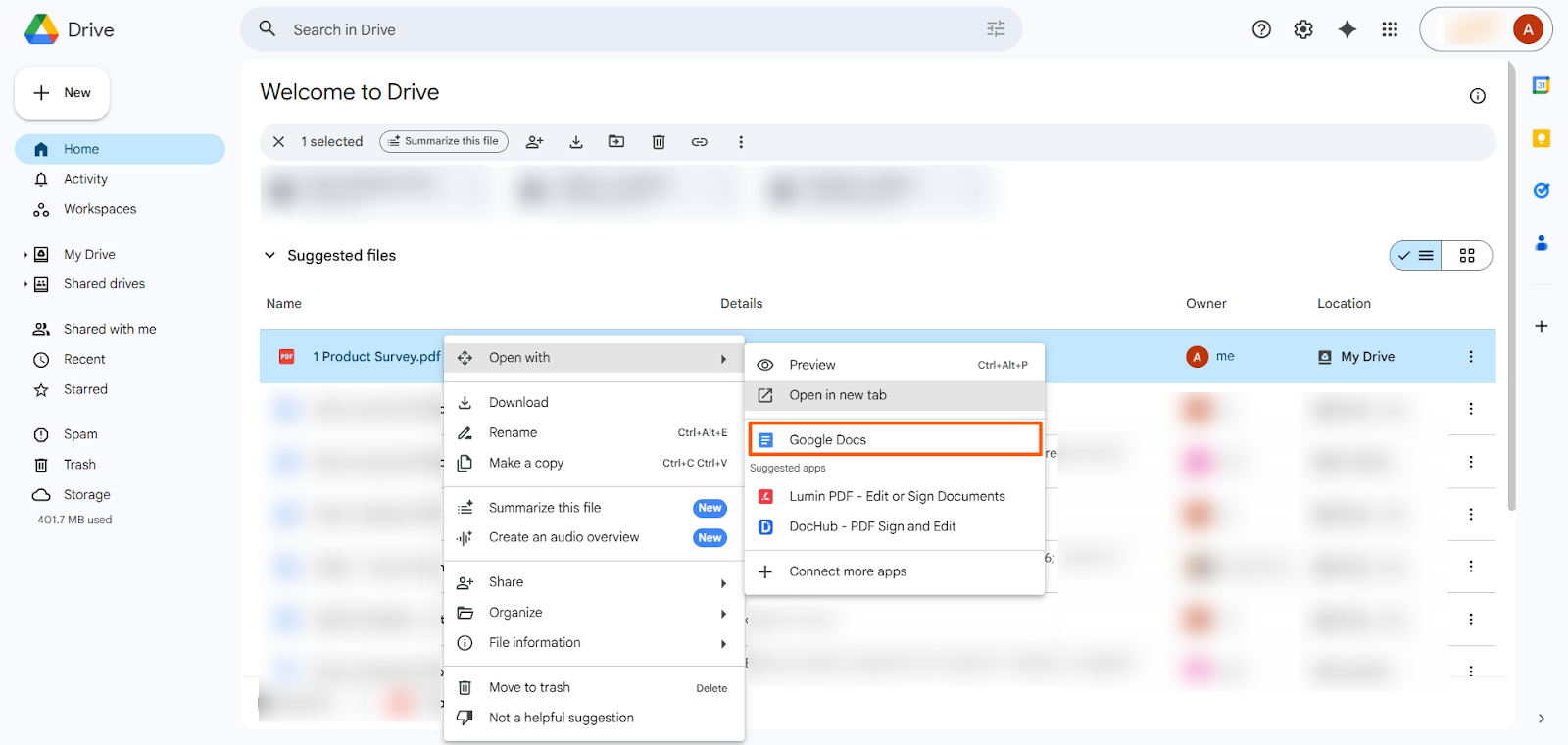
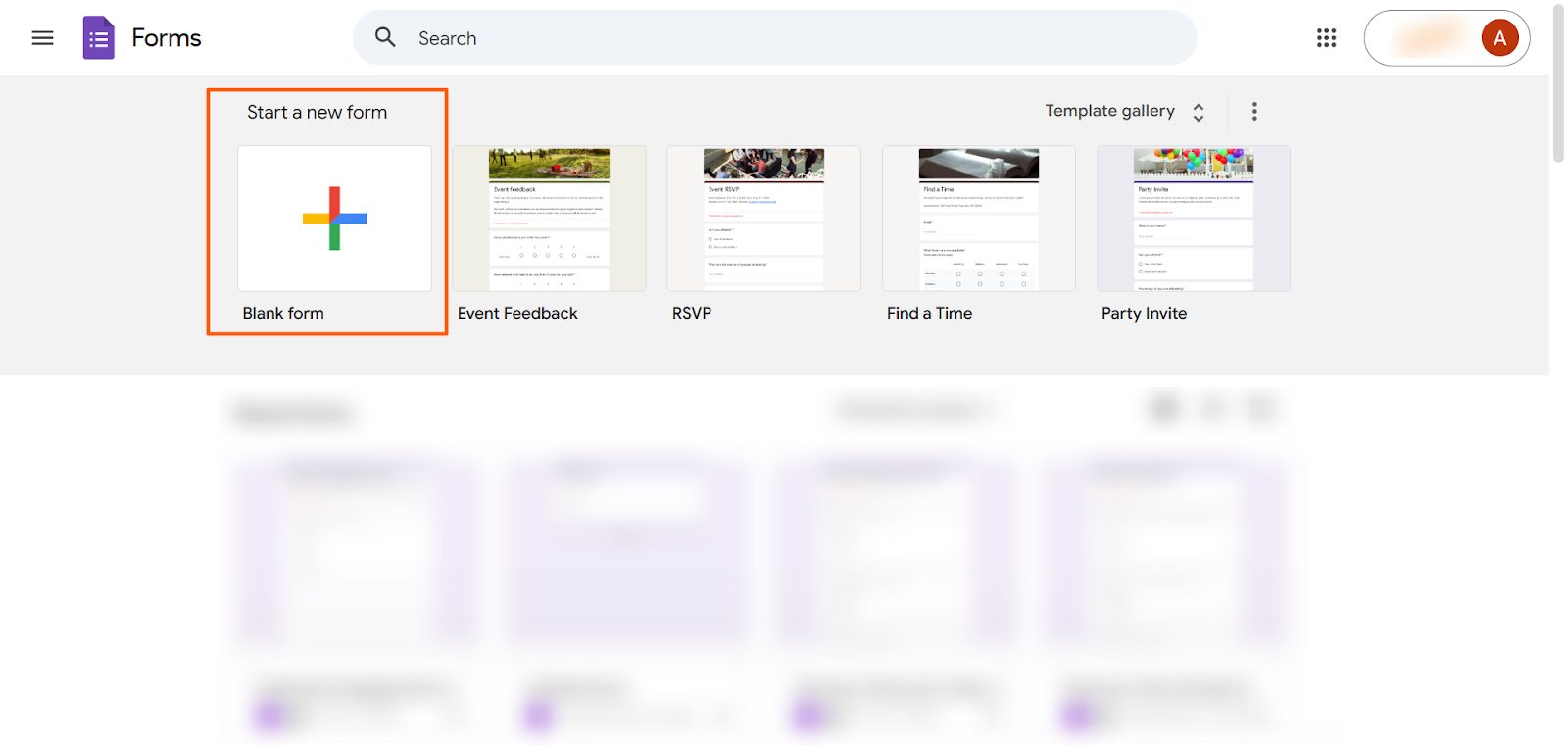
- Open Google Forms. Click Blank form.
- Manually copy the questions and answers from the Google Doc file into the Google Form. Be sure to select the appropriate question types. (For basic information on how to use Google Forms, read our helpful tutorial.)
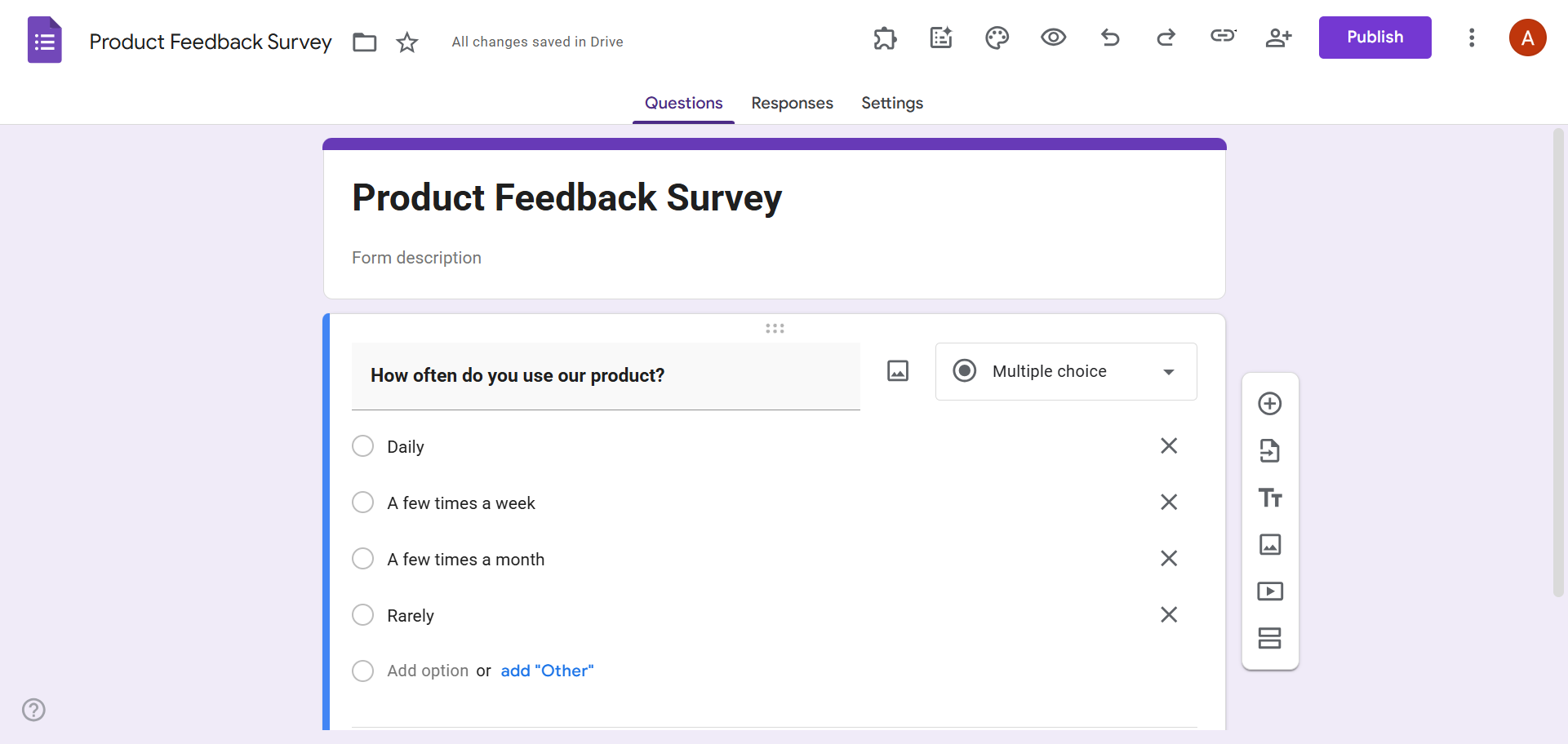
Once you’ve created your Google Form, you can also save it as a PDF if needed. Simply click the three-dot icon, select Print, and then select Save as PDF.
How to use a Google Forms add-on to import from a PDF
While there is no native solution to convert PDFs to Google Forms, several Google Forms add-ons can help you with the process. One popular tool is Automagical Forms.
Another option is AI Form Builder from Jotform, which uses artificial intelligence to completely streamline the process of importing questions into your Google Form using artificial intelligence. AI Form Builder can import questions from Google Docs, Google Sheets, and Google Slides, as well as export questions from Google Forms to other file types.
If you’re working with a PDF file, begin by opening it as a Google Doc in your Google Drive. Then, you can use AI Form Builder from Jotform to import questions into Google Forms.
Here’s how to use AI Form Builder from Jotform:
- Open Google Forms. Click Blank form.
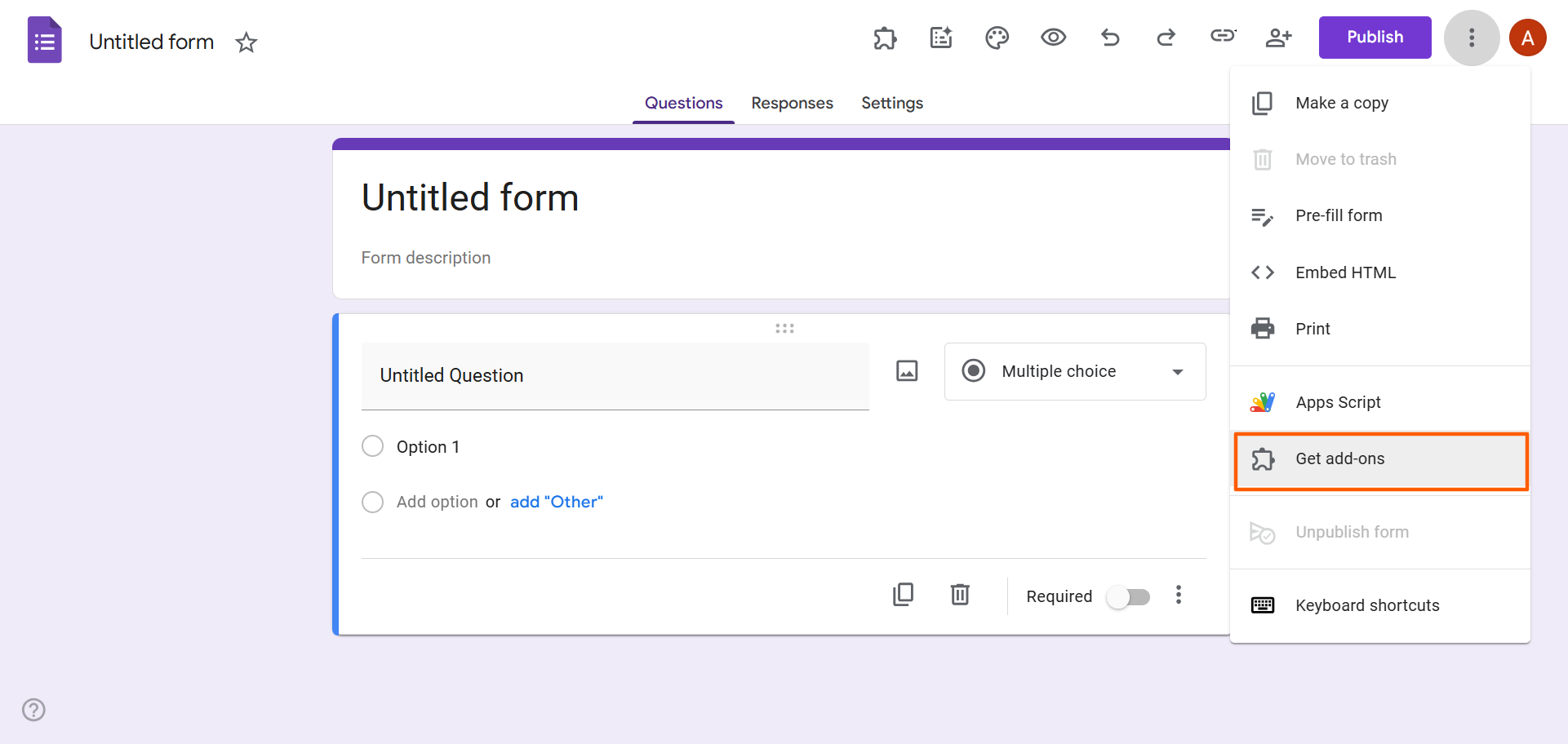
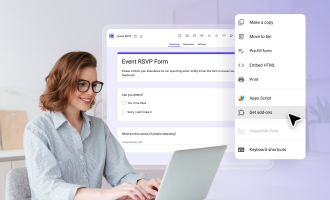
- Click the three-dot icon, then select Click Get add-ons.
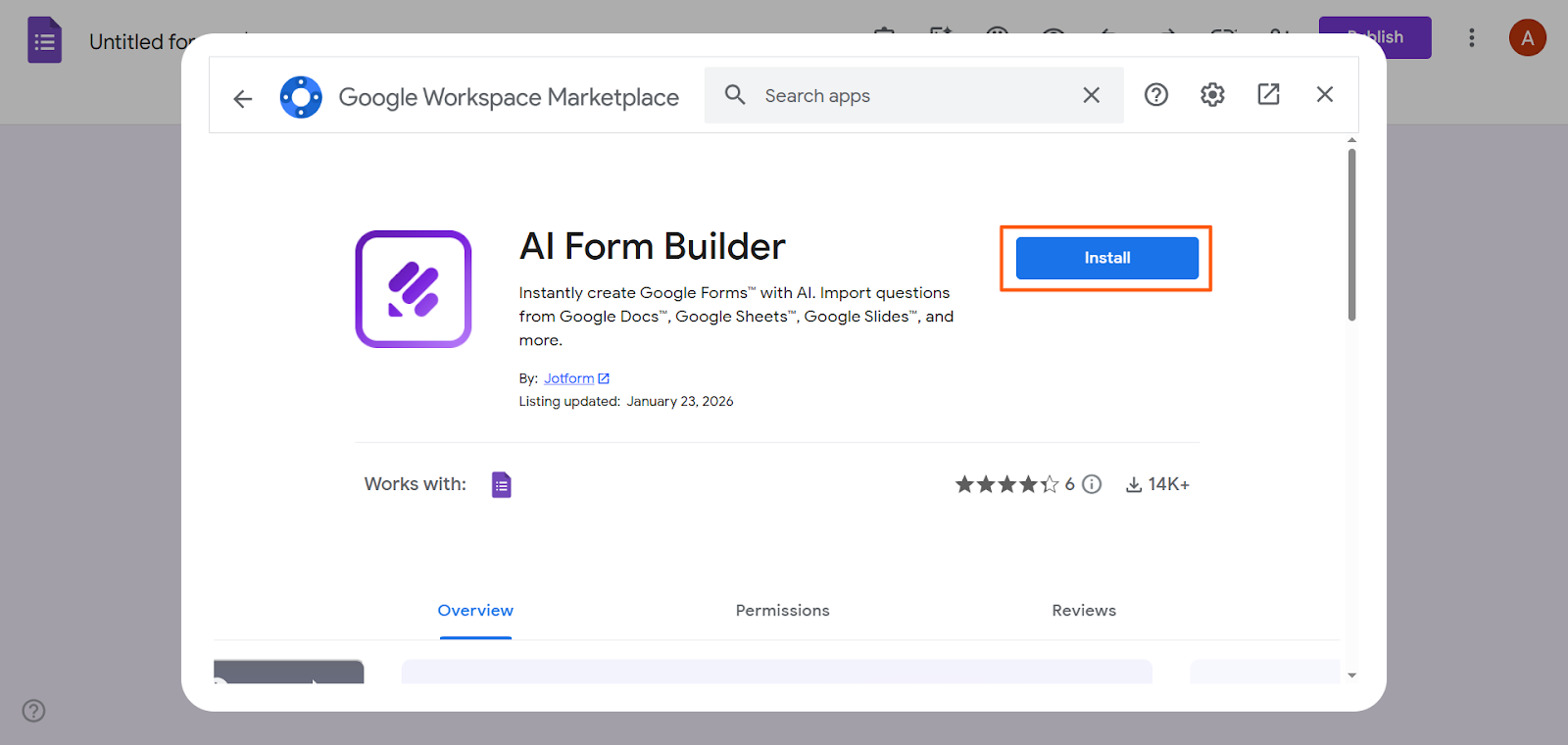
- Search for AI Form Builder Jotform. Click Install. Provide any necessary authorization and permissions.
- Click the add-ons icon. Select AI Form Builder.
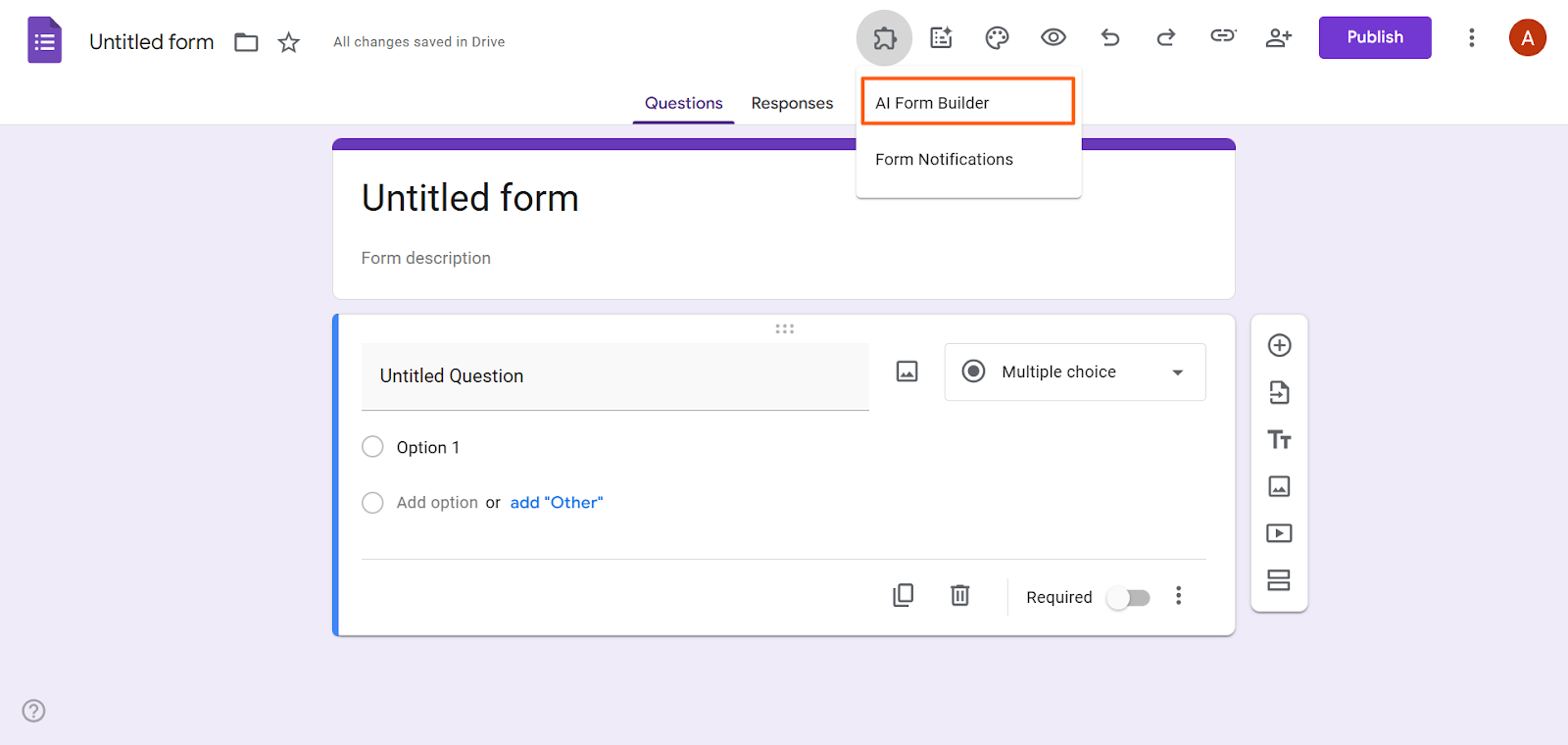
- Click Open Builder.
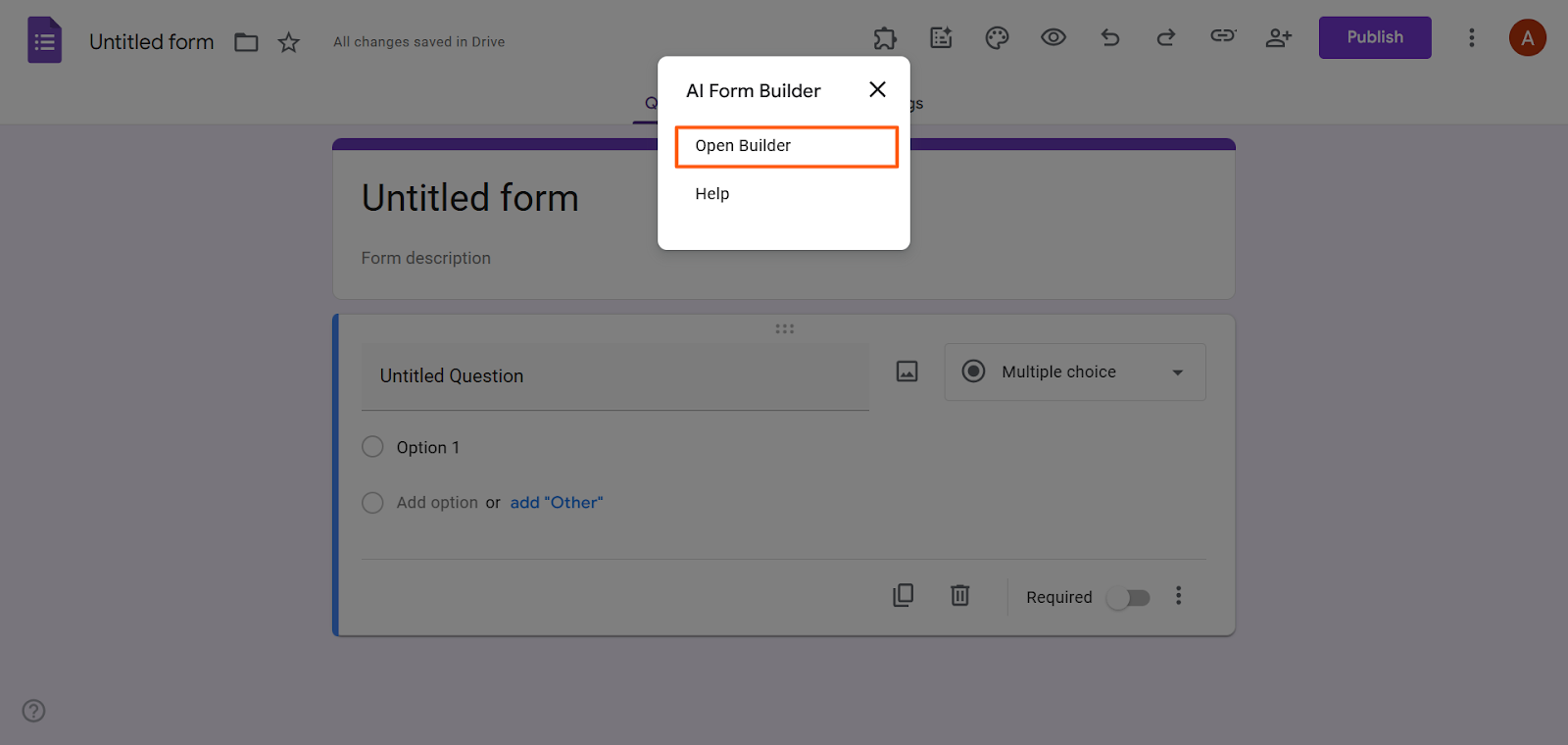
- Under Import fields from another file, click Google Drive or Google Docs.
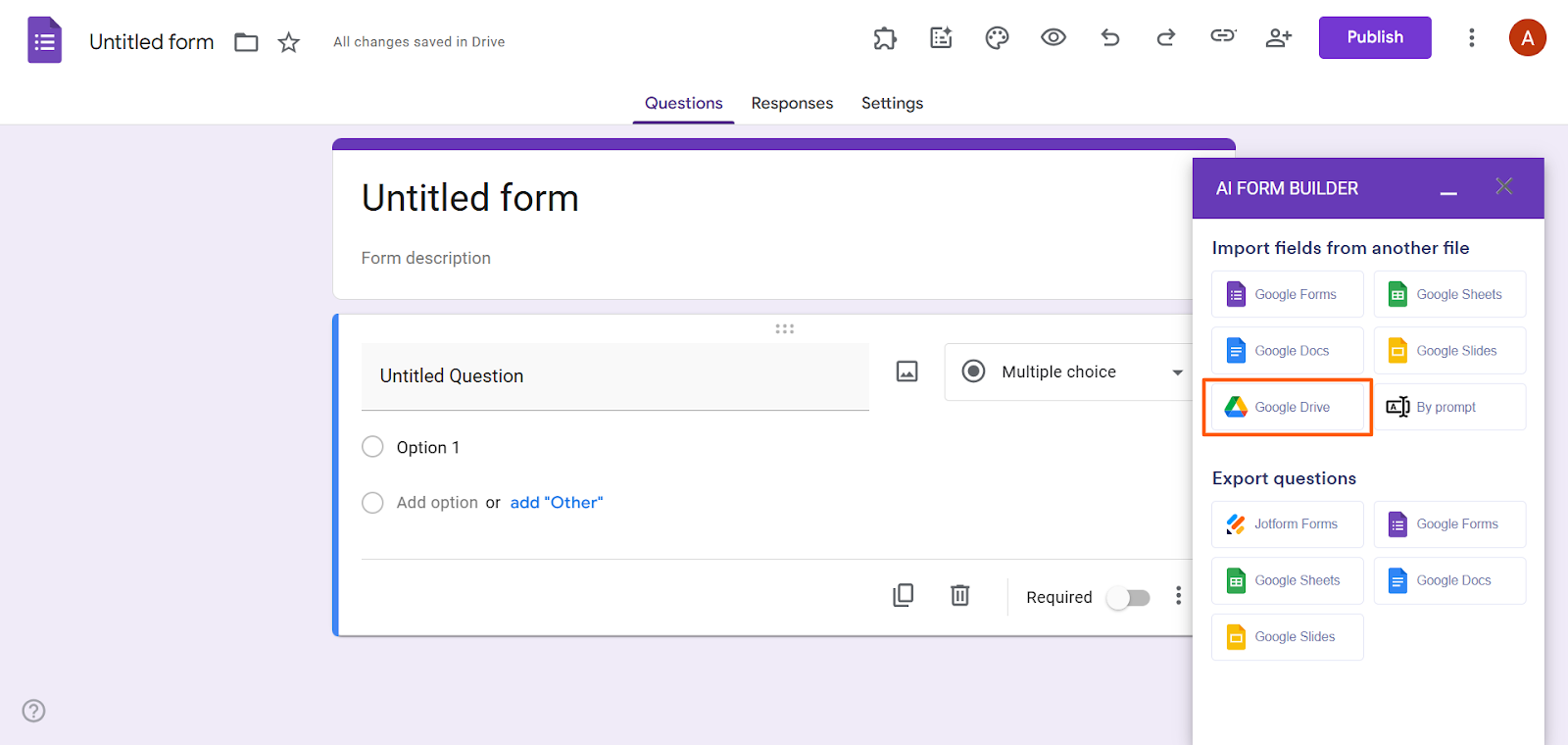
- Select the file you want to convert to a Google Form.
- Select a form type: Form or Quiz. Forms are ideal for general surveys, feedback forms, and contact forms. Quizzes are forms that require right or wrong answers.
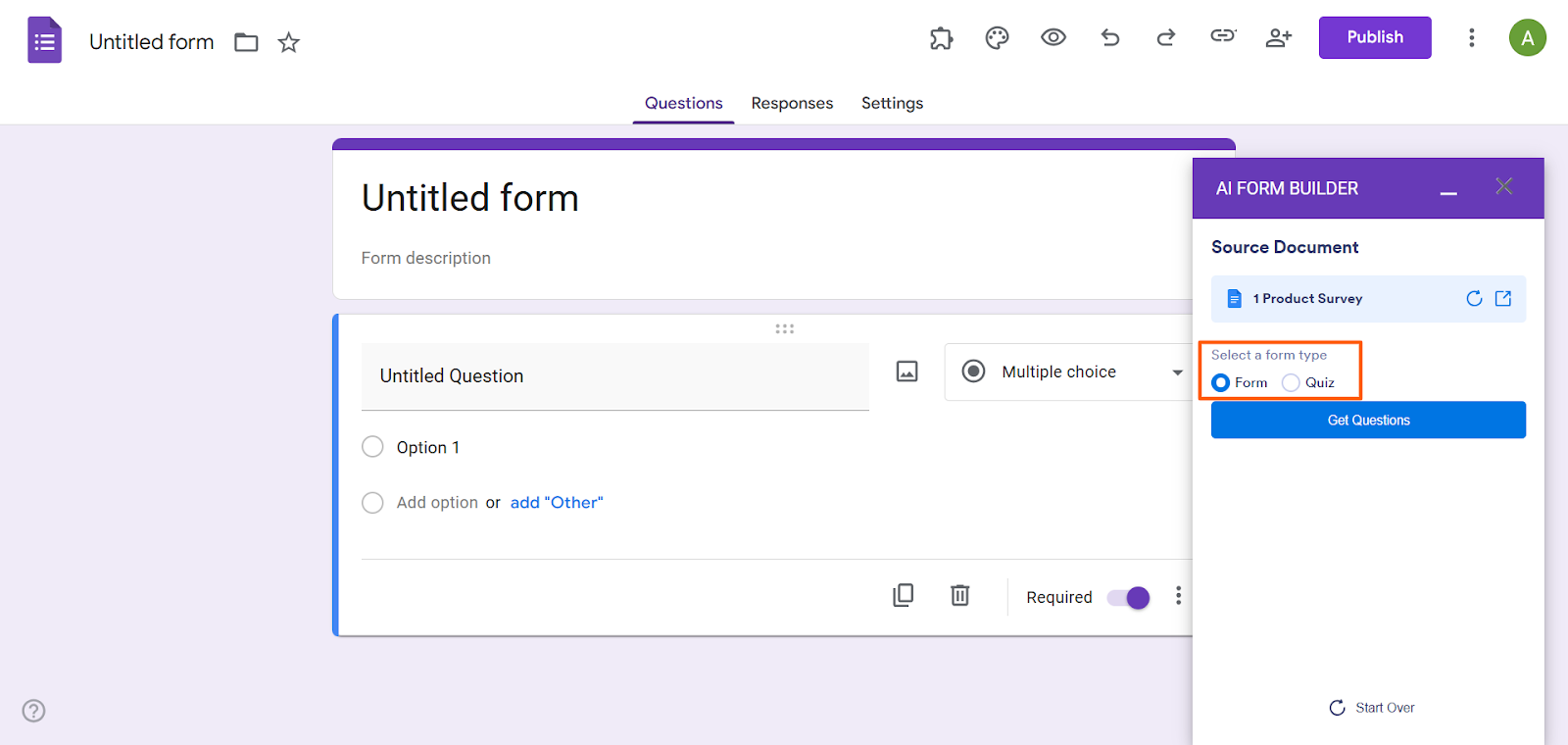
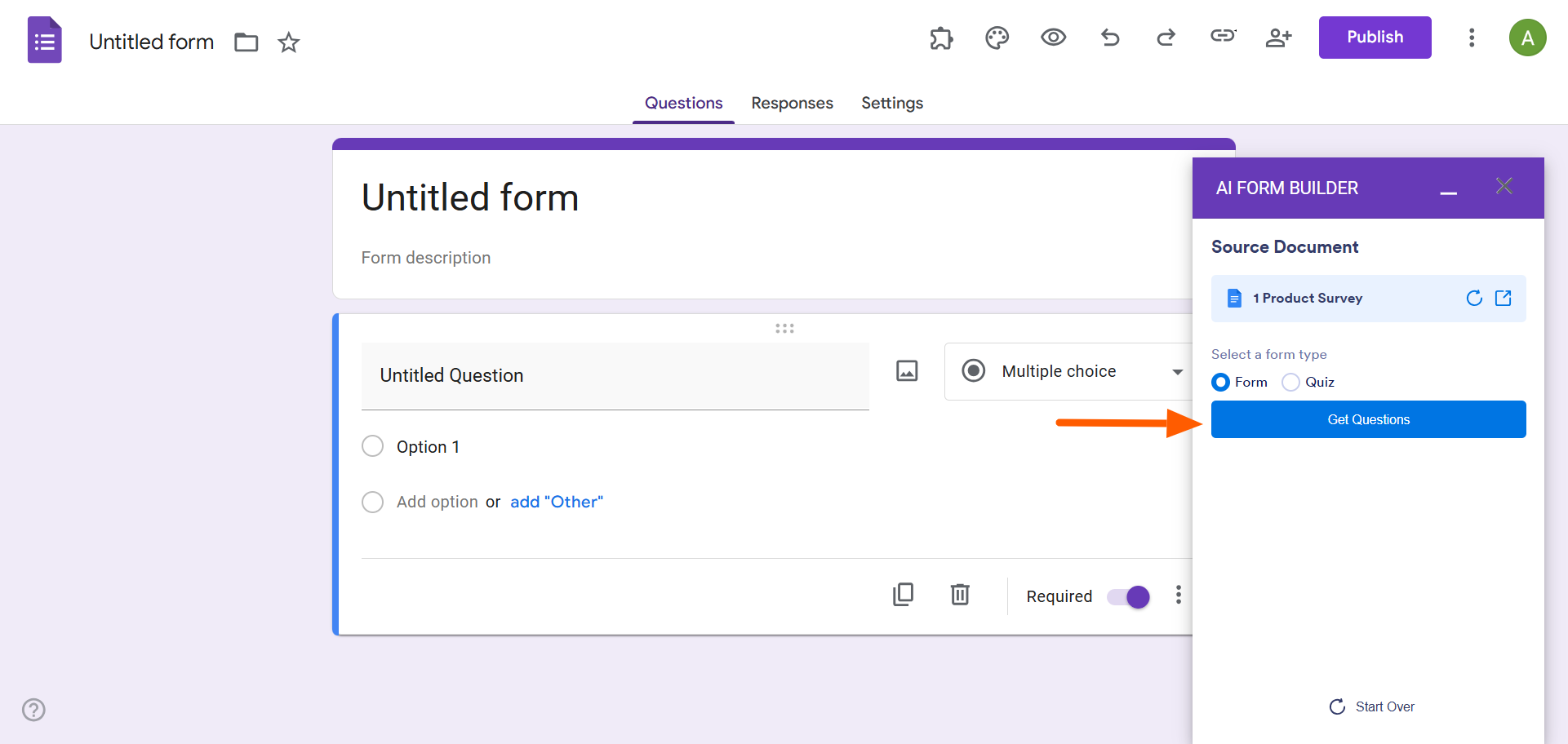
- Click Get Questions. AI Form Builder will provide a preview of the questions it has extracted from the document.
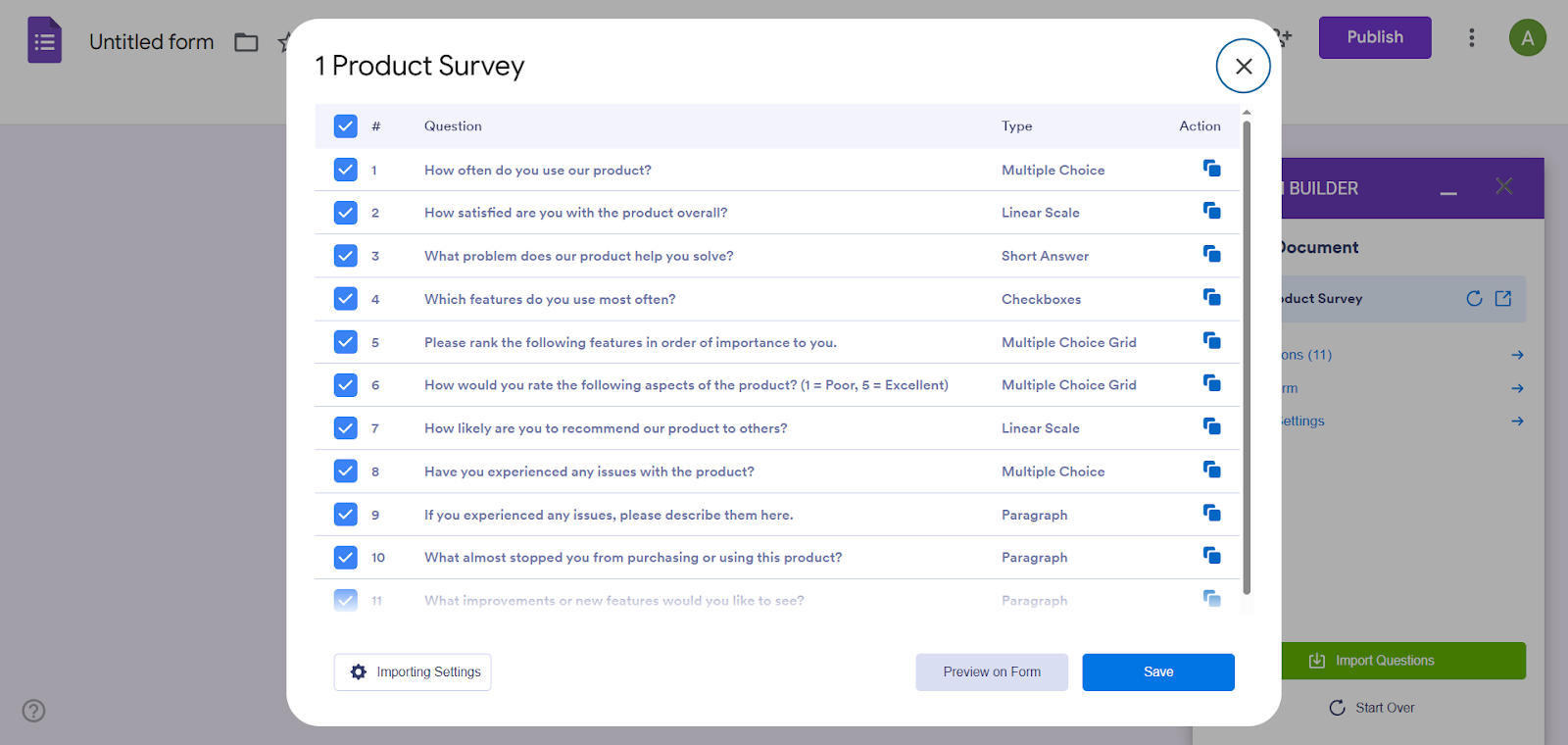
- Click See Questions. Here, you can review question titles, check answer options, confirm formatting, and deselect any questions you do not want to import.
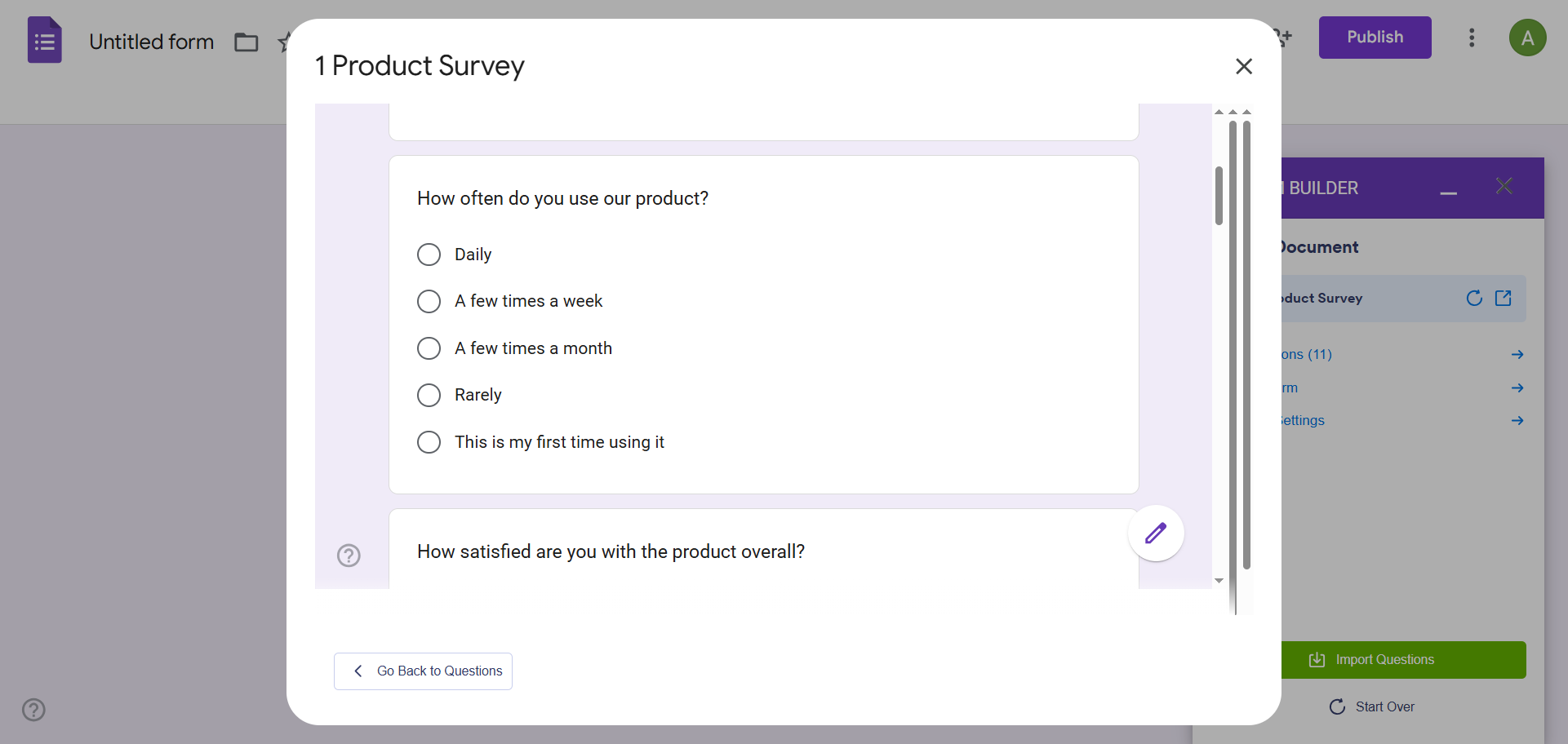
- Click Preview Form. Here, you can see how your form will look once it’s laid out in Google Forms. Verify your question order and check question field types.
- Click Importing Settings. Select any content settings you need, such as making all questions required or shuffling the question order.
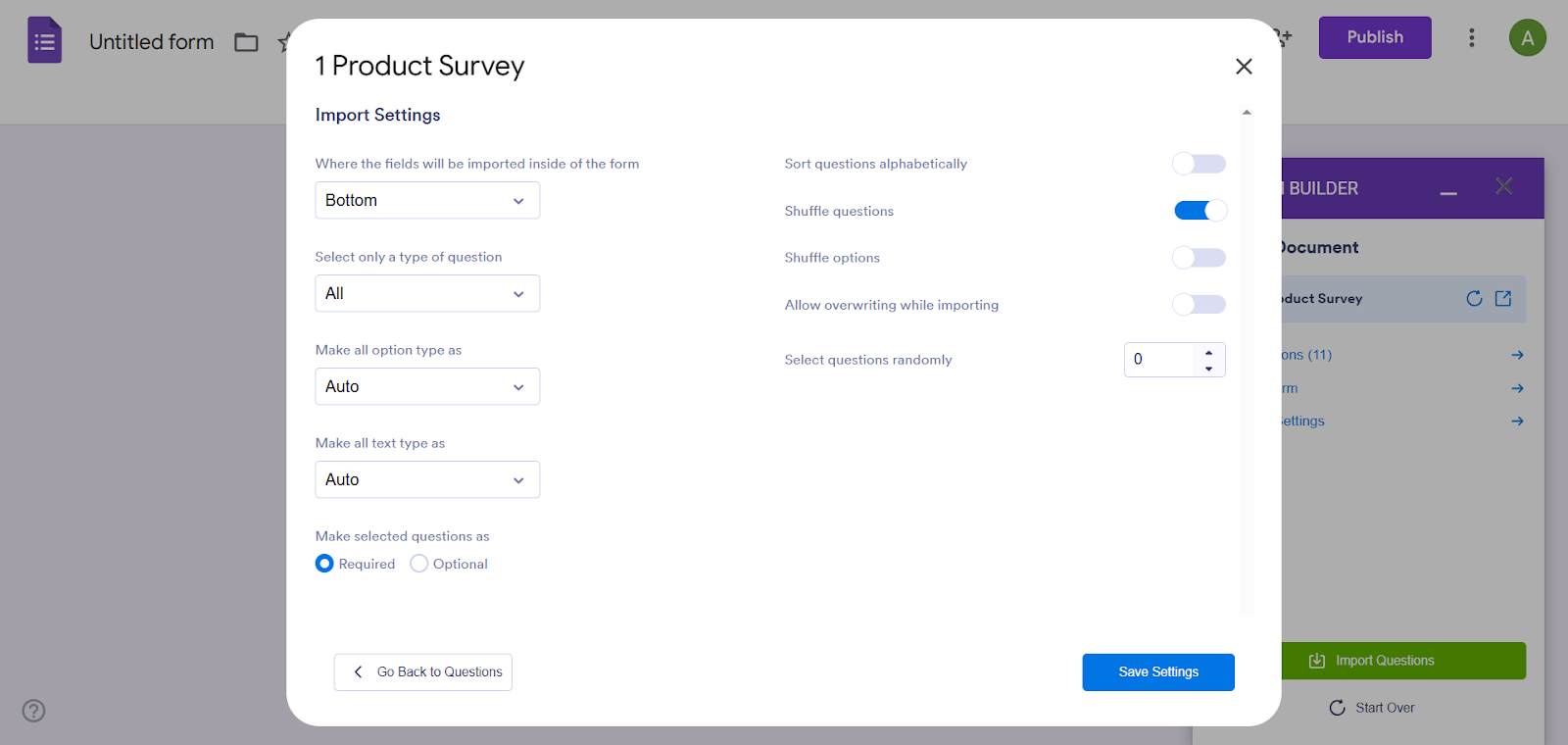
- Click Import Questions.
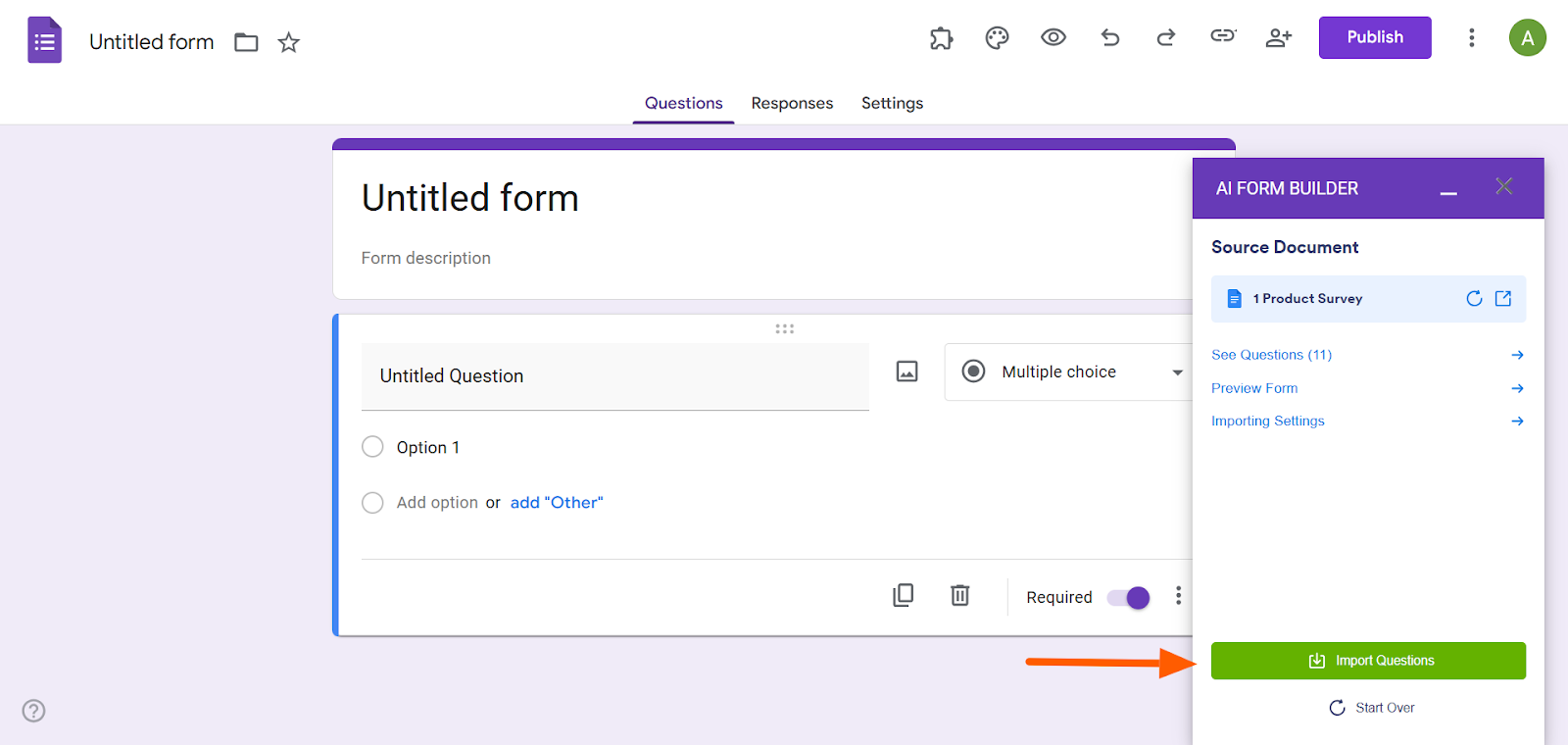
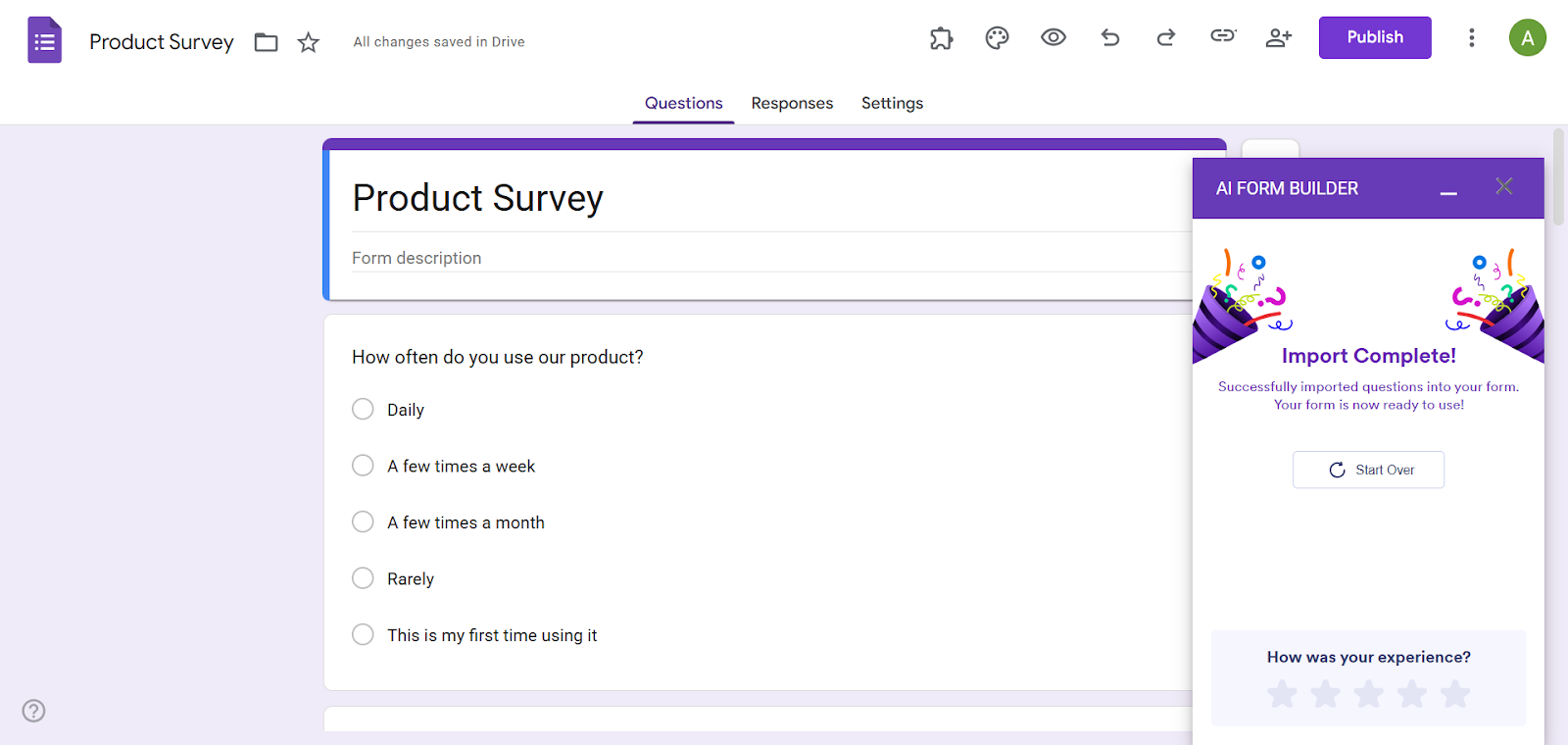
- AI Form Builder will then automatically import the questions from the doc into the Google Form.
Jotform: A smarter Google Forms alternative
There is no built-in way to convert PDF documents into Google Forms. You can either try the manual approach of copying and pasting questions — or you can get things done with ease using a Google Forms add-on like the AI Form Builder from Jotform. Leveraging artificial intelligence, this tool is ideal when you’re working with a high volume of documents or questions. Plus, it’s intuitive and easy to use.


As a leading Google Forms alternative, Jotform offers a number of PDF tools that you may find handy. Try the Smart PDF Forms tool, for example, enables you to convert your PDF into an interactive HTML web form.
Whether you’re looking to import questions from your PDF to a Google Form, convert your PDF to a web form, or even chat with your PDF using AI, Jotform can help. Give one of our tools a try today!
This article is for educators, HR teams, event organizers, and operations staff who have PDFs like intake forms, surveys, applications, or checklists and need to turn them into a shareable online form without rebuilding everything from scratch.

































































































Send Comment: