
If you’re part of a support ops or customer experience team using Google Forms and Zendesk, you might be wondering how to connect the two — especially if you want to automatically turn form responses into tickets. Unfortunately, there’s no native Google Forms integration for Zendesk.
But that doesn’t mean you’re stuck copying and pasting responses by hand. There are several workarounds you can use to create a Google Forms–Zendesk integration. They do involve third-party tools, which can be tricky, but we’ll walk you through the details in this article.
We’ll also introduce you to Jotform, which has a native integration with Zendesk. If you want to move beyond basic tools like Google Forms — and make it easier to create other, similar workflows with the tools you use daily — it’s well worth a try.
Google Forms–Zendesk integration via third-party tools
If you’ve been using Google Forms for a while now, you’ve no doubt come across some of its limitations — especially the lack of advanced functionality and integrations.
The good news is that you can get around this by using third-party tools to create integrations — in this case, a Google Forms–support ticket integration. Here are a few popular options that make it possible to connect Google Forms to Zendesk:
- Zapier: This leading no-code workflow automation tool offers a Quick Connect solution between Google Forms and Zendesk, as well as several workflow templates you can customize based on your needs.
- Make: A powerful workflow automation tool, Make can connect Google Forms with Zendesk to create support tickets from form responses.
- Unito: This workflow automation tool provides a two-way sync between Google Forms and Zendesk, without the risk of duplications or infinite loops.
- n8n: A low-code, node-based workflow automation tool, n8n connects Google Forms and Zendesk using APIs.
- Pluga: Another no-code workflow automation app, you can use Pluga to connect Google Forms and Zendesk and get rid of manual processes.
In case you haven’t used third-party automation tools before, we’ll walk you through the process of setting up this connection for the leading option, Zapier.
Connecting Google Forms to Zendesk with Zapier
To carry out the steps below, you’ll need to have a Google account (with a Google Form you want to connect), a Zendesk account, and a Zapier account. Keep in mind that Zendesk is primarily a paid tool with several pricing plans, but it does offer a short free trial.
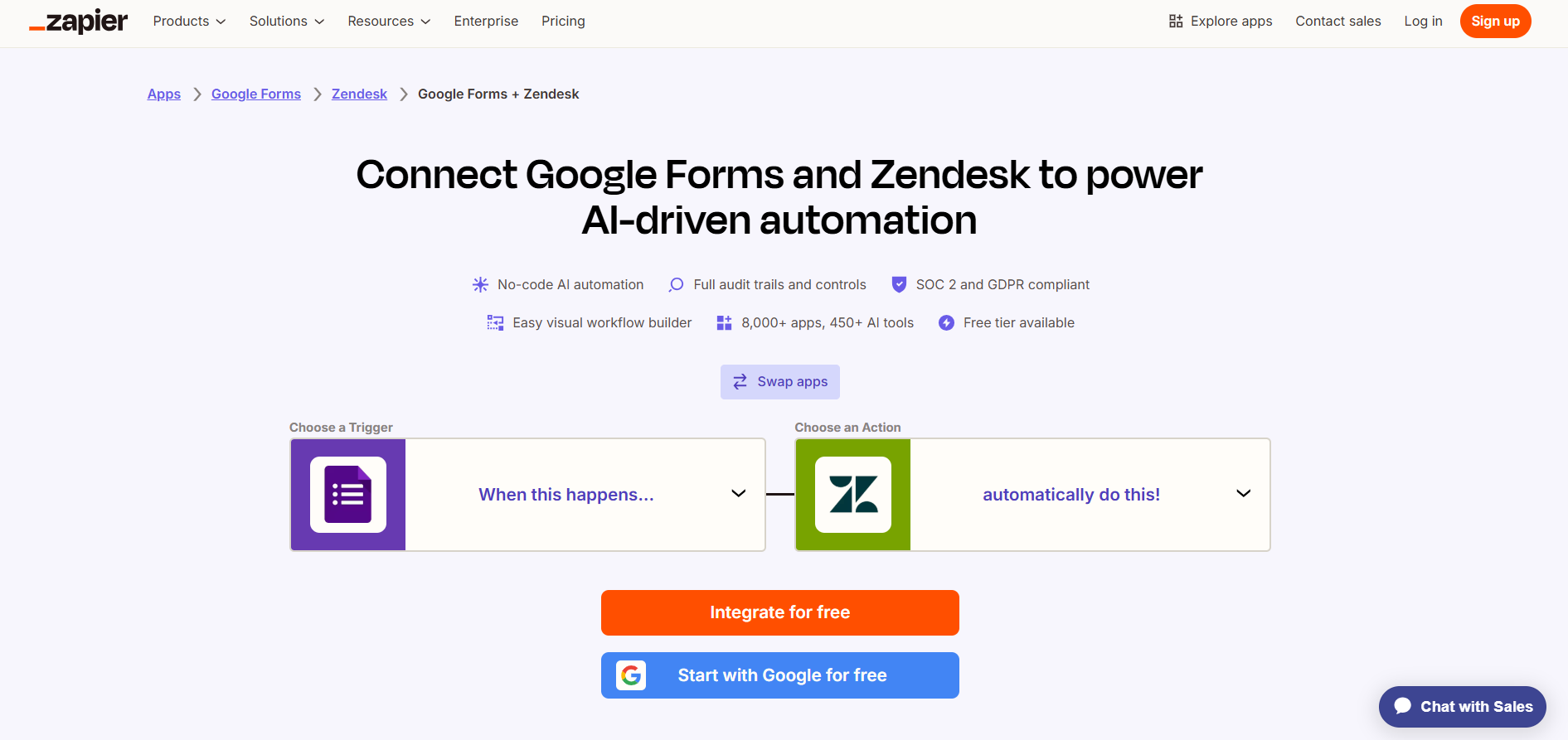
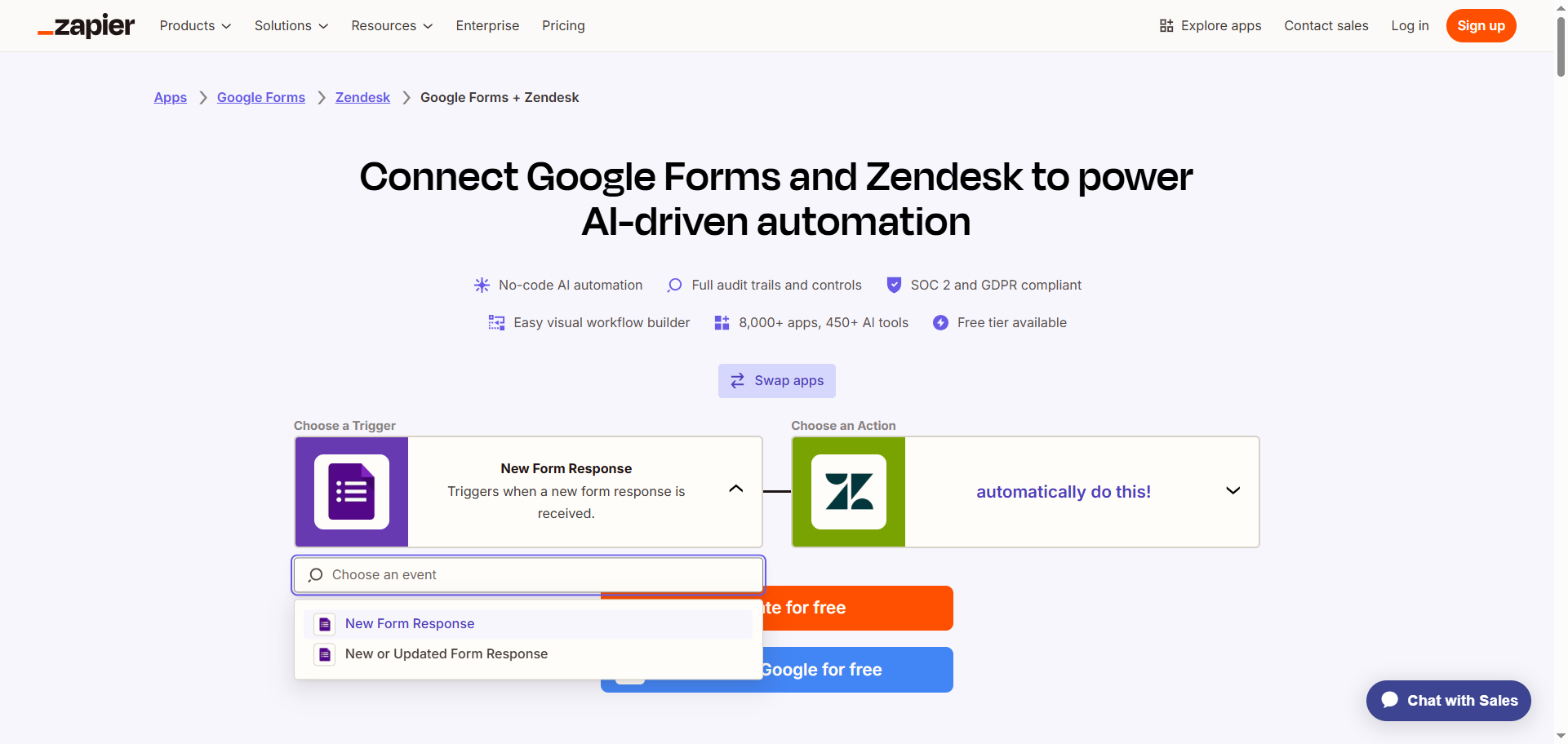
- Select a trigger for Google Forms from the dropdown menu, such as New Form Response.
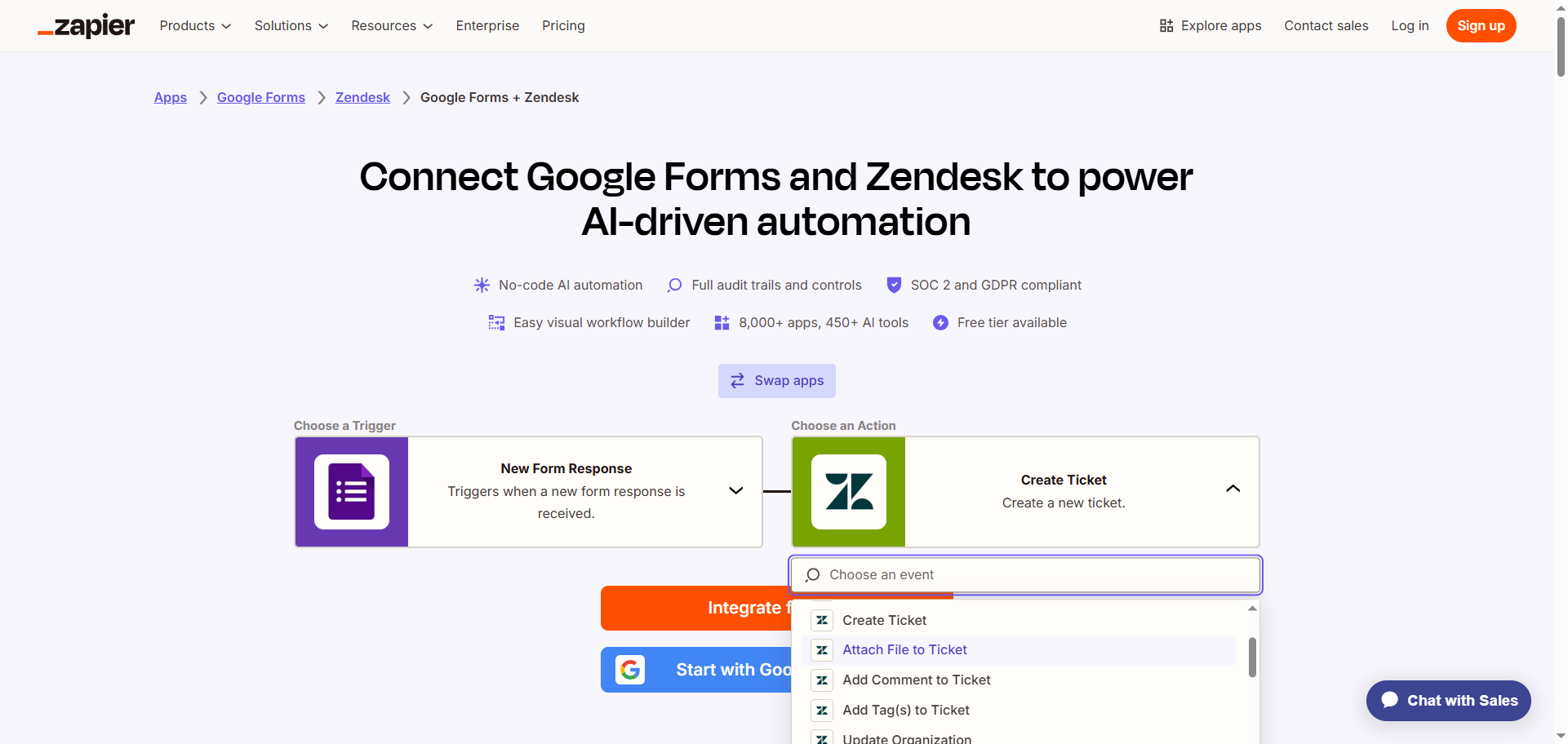
- Select an action for Zendesk from the dropdown menu, such as Create Ticket.
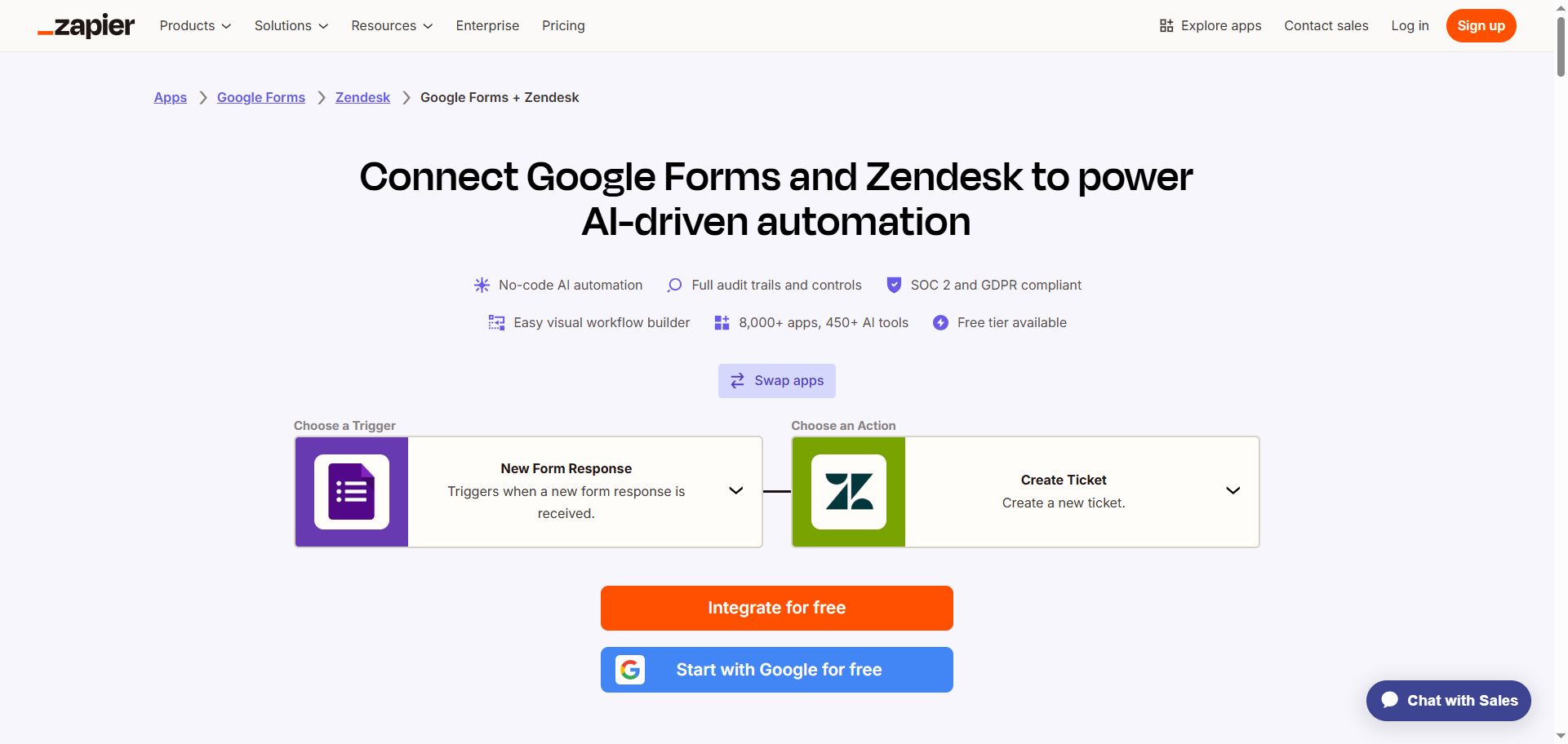
- Click Integrate for free.
- Log into your Zapier account.
- Click Google Forms and follow the prompts to connect it to your Zapier account. Configure and test the connection with Google Forms.
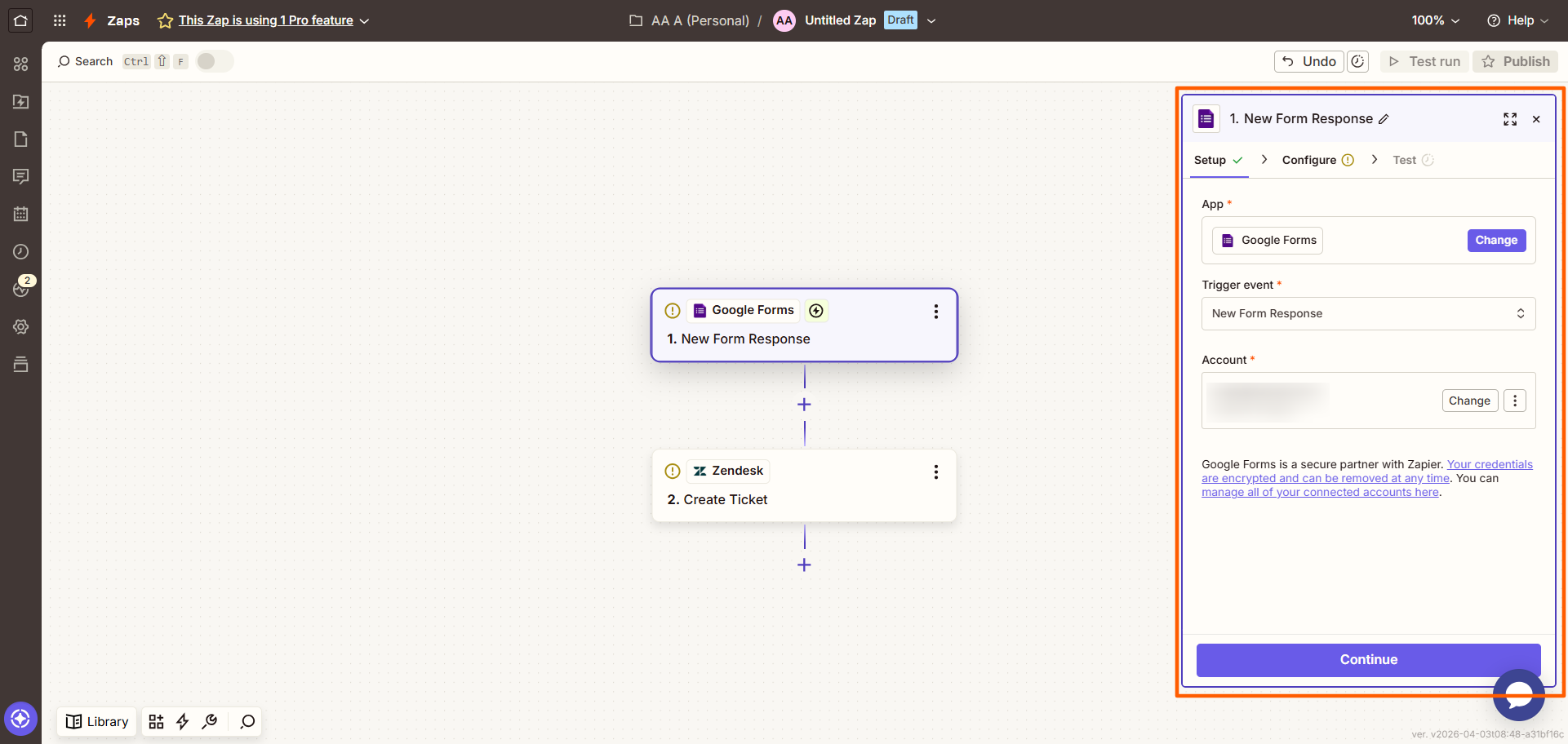
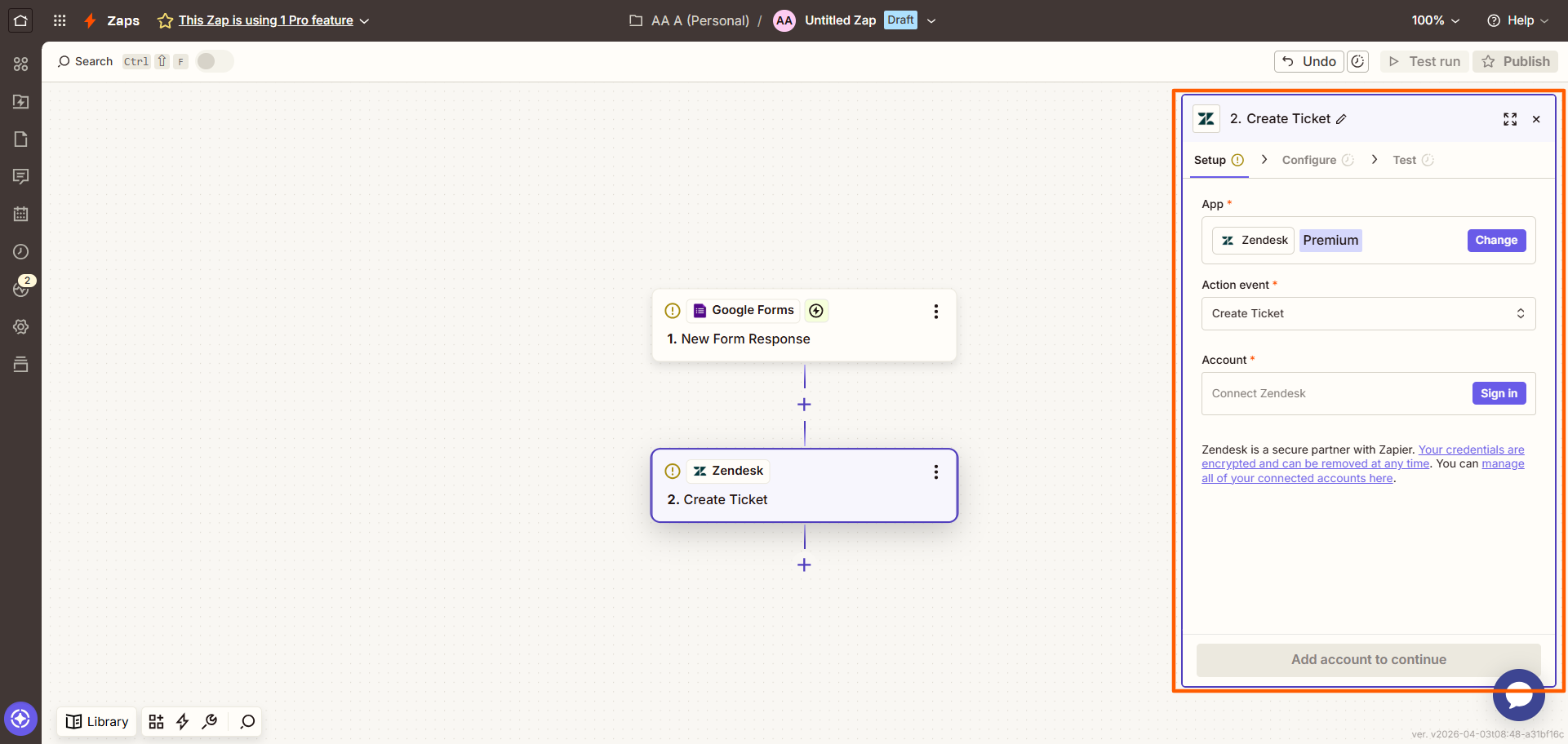
- Click Zendesk and follow the prompts to connect it to your Zapier account. Configure and test the connection, ensuring you’ve mapped the data from Google Forms to Zendesk.
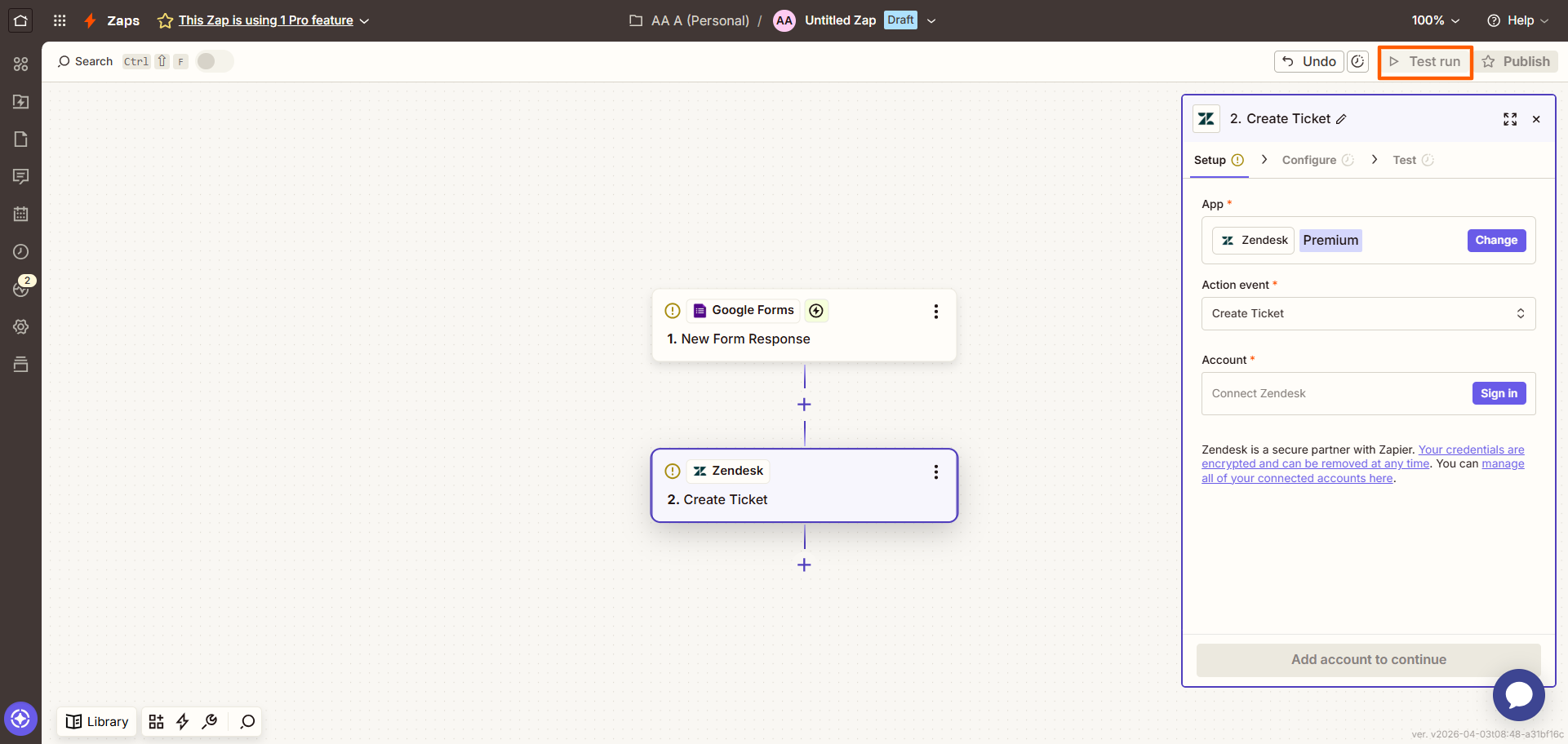
- Click Test run at the top right to see if the connection works. Make any necessary changes.
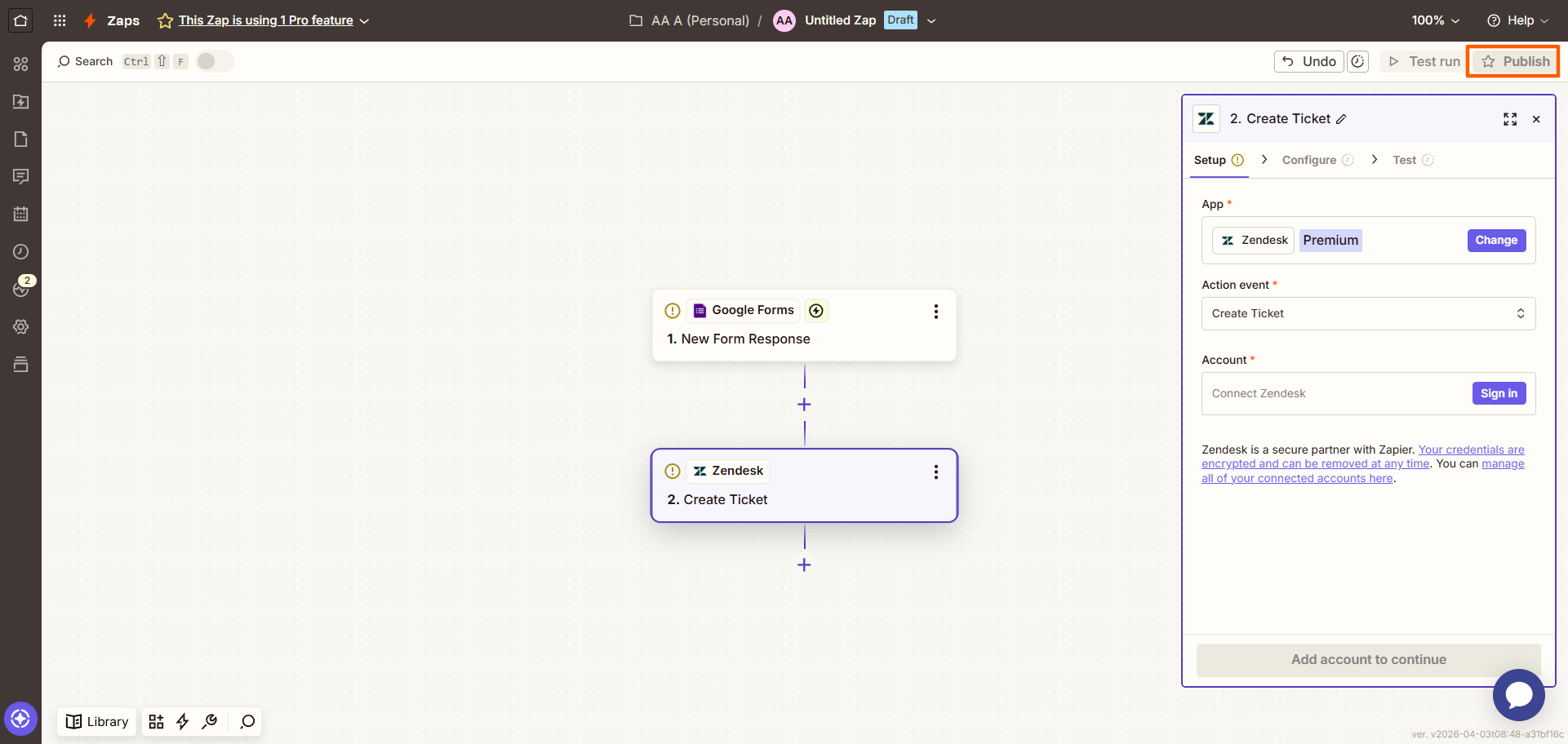
- Click Publish,and it’s done —you’ve effectively created a Google Forms–customer service automation system. Every time your Google Form receives a submission, it’ll create a ticket in Zendesk.
If this Google Forms–helpdesk workflow setup seems overly complicated, it’s time to step away from Google Forms. You need a form builder that natively integrates with Zendesk so that you don’t have to fiddle with workaround solutions.
Jotform integrates with Zendesk natively
There’s an easier way to create a Zendesk ticket from a form: Switch to Jotform. One of the best Google Forms alternatives available, Jotform makes it easy to connect your forms with Zendesk.
The Jotform-Zendesk integration enables you to automatically create new tickets in Zendesk from form submissions, which is ideal for support requests, customer orders, employee feedback forms, and more. Your team can easily process requests without missing any important details.
Want to learn how to integrate Zendesk with Jotform? Follow these instructions:
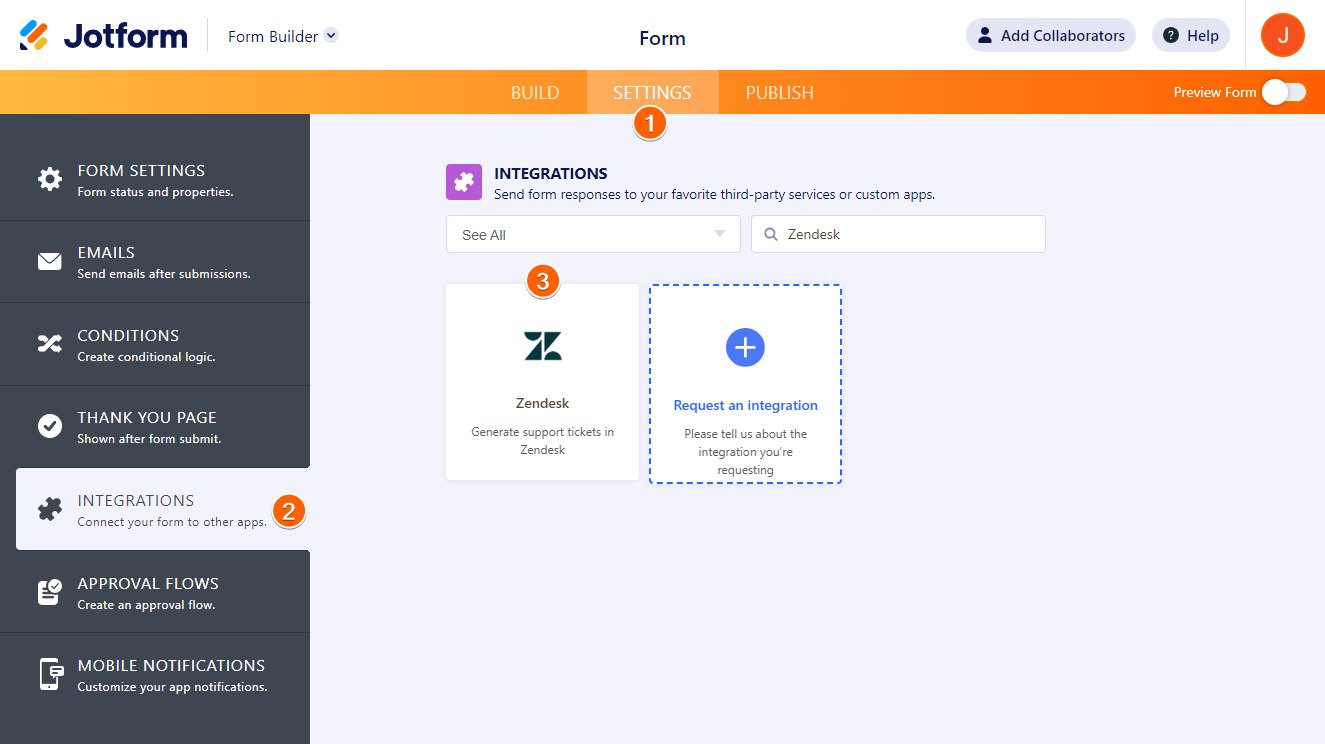
- Open the form you want to connect to Zendesk, and select Settings from the top menu.
- Click Integrations on the left-hand side menu.
- Search for and click on Zendesk.
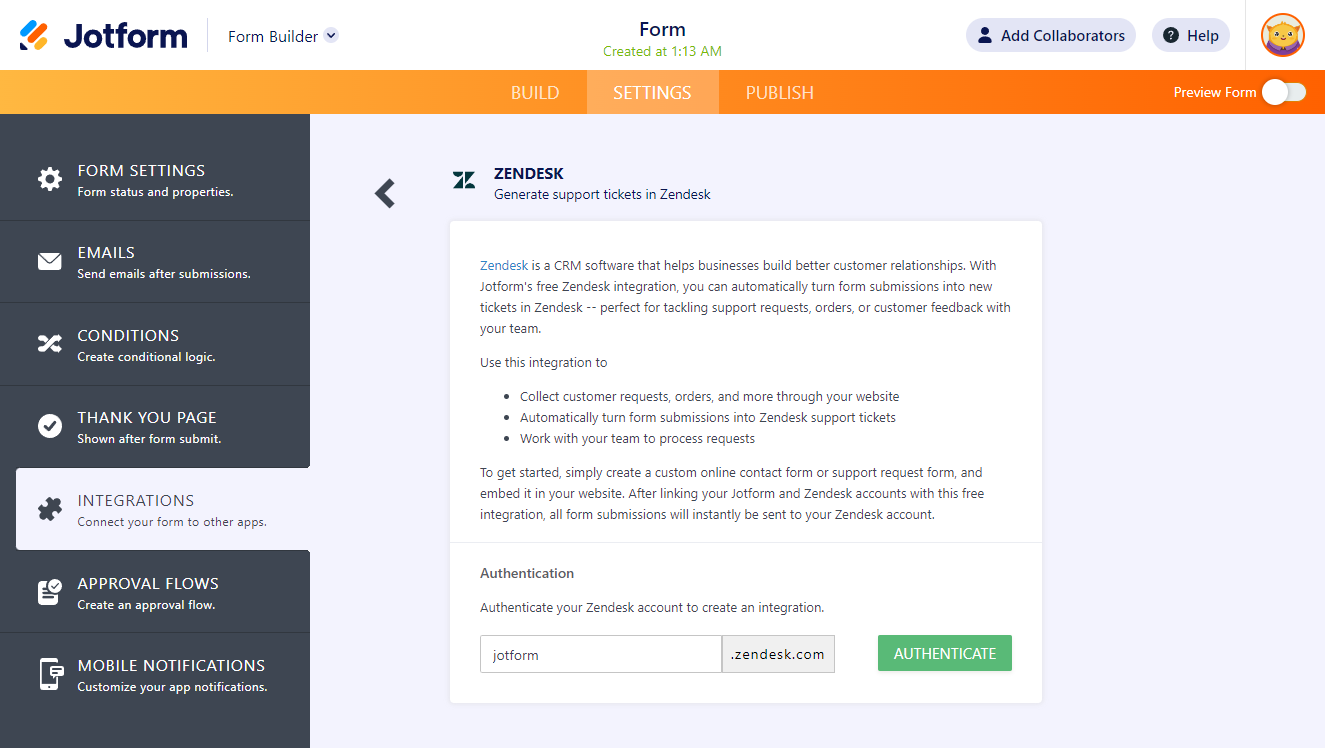
- Type in your Zendesk subdomain, which is the first part of your Zendesk URL.
- Click Authenticate.
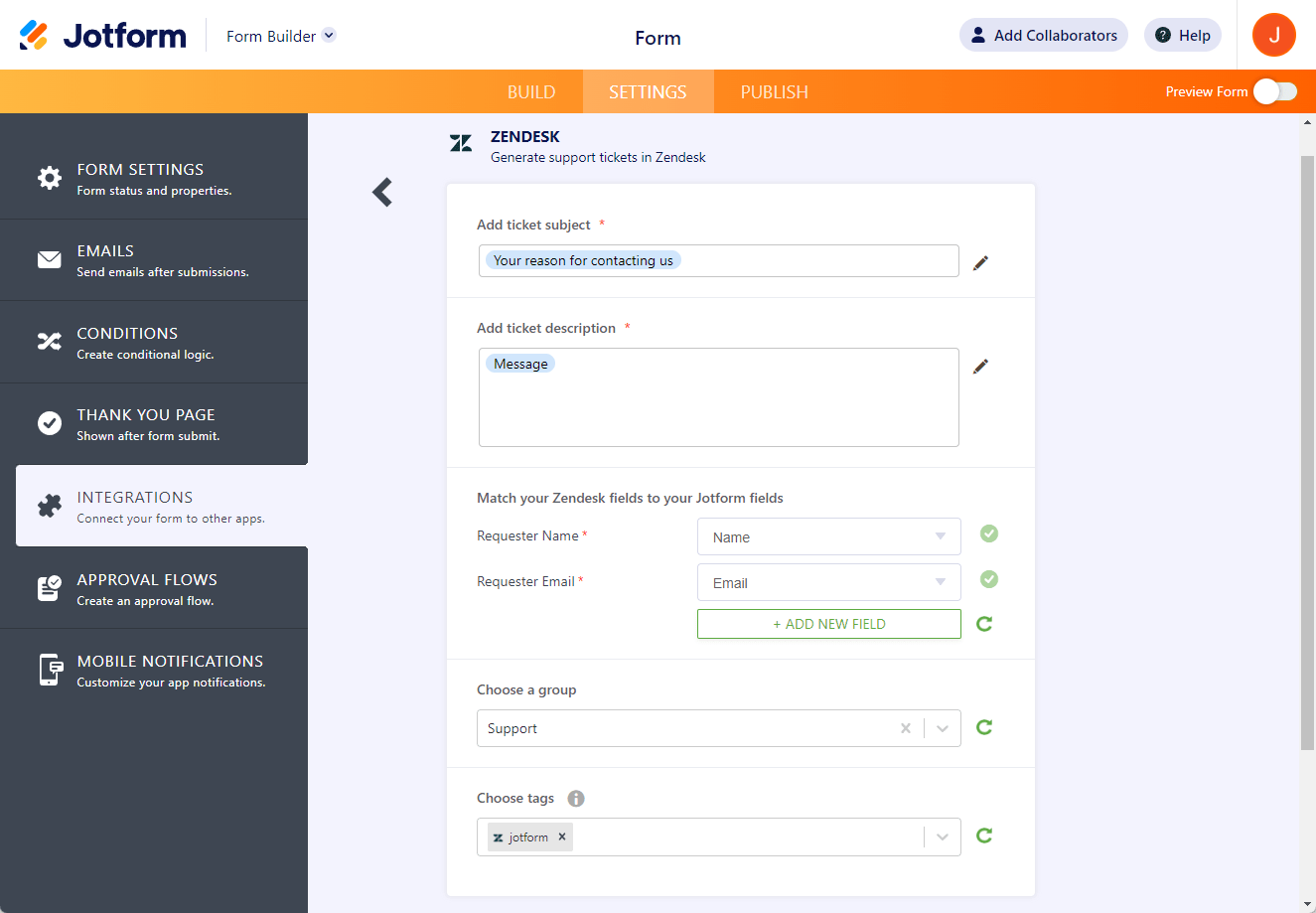
- Provide the following information to finish setting up the integration:
- Add ticket subject: Select the field you want to use as the ticket subject line.
- Add ticket description: Select the field you want to use for the ticket description.
- Match your Zendesk fields to your Jotform fields: While Jotform will match the name and email fields by default, you can also add additional fields you’d like to match. Consider adding Status, Priority, and Type fields.
- Choose a group: Select the group that handles the tickets from the dropdown.
- Choose tags: Select or add tags for the specific workflow you’re setting up.
- Attach uploaded files: This field is relevant if you have a File Upload field in your form.
- Click Save.
- Click Finish.
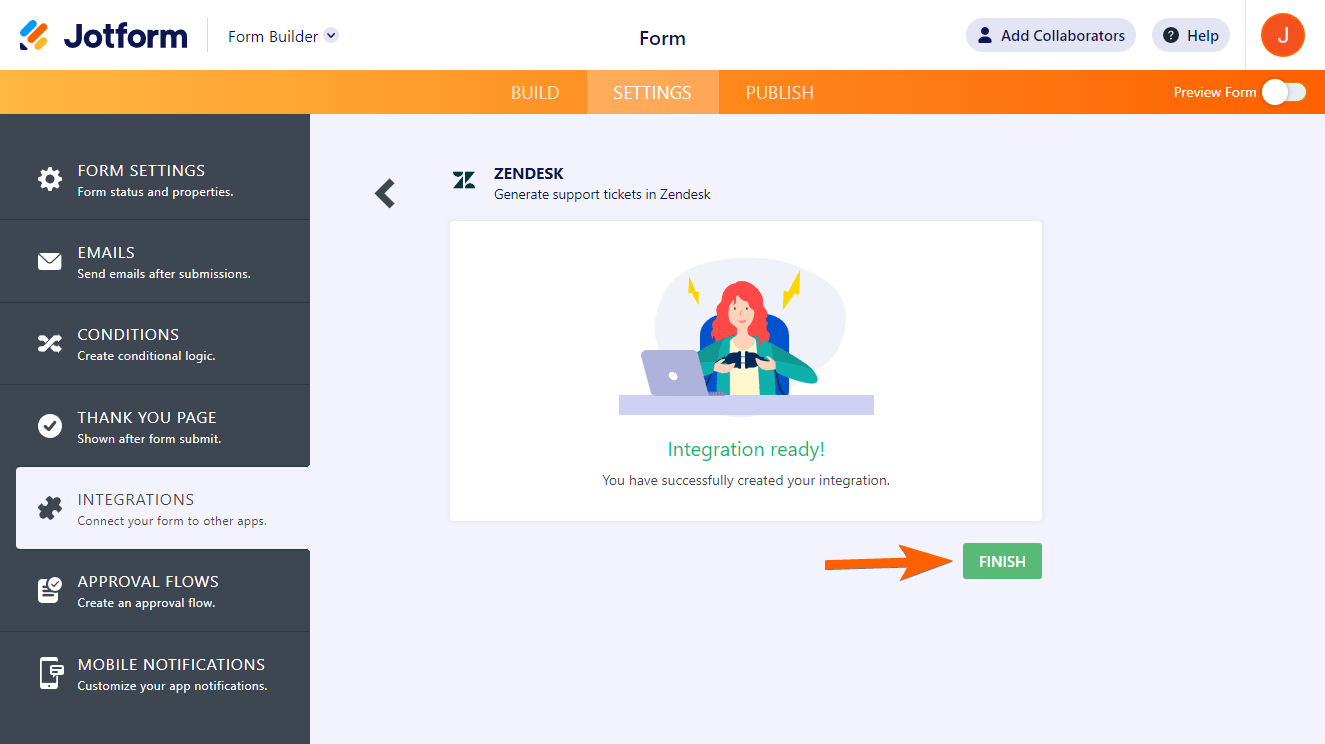
Setting up the form-builder-to-Zendesk integration is that easy with Jotform. Now, every time you receive a form submission, it’ll automatically create a ticket in Zendesk.
Switch to Jotform for a native Zendesk integration and so much more
Google Forms users quickly realize they’ll have access to more features and integrations when they use Jotform. See why:
 Jotform |  Google Forms | |
|---|---|---|
| Native Zendesk integration | ||
| Fields and widgets | 20-plus basic fields and 100-plus widgets | 12 question types |
| Conditional logic | Limited capability | |
| Integrations | More than 150 | Add-ons supported |
| Templates | More than 20,000 | 17 |
| Themes | 1,000-plus ready-made themes and custom theme creation | Limited theme customization |
| Custom notifications and auto-responder emails | ||
| Reporting features | Report Builder and Form Analytics | Limited graphs |
| Mobile app | Jotform Mobile |
When you compare Jotform to Google Forms, it’s clear why users switch:
- Jotform has over 150 native form integrations to popular tools like Zendesk so you can easily create advanced workflows to enhance productivity.
- Don’t want to create a form from scratch? Jotform comes with over 20,000 form templates you can customize in the form builder.
- Jotform offers several advanced features like conditional logic, custom notifications, and custom auto-responder emails so that you can fully tailor every form to your needs.
- If you want to extend the functionality of your form, Jotform comes with over 100 widgets for signatures, calendars, dropdown menus, videos, and so much more.
Plus, the capabilities of Jotform go well beyond form-building. Once you receive responses, you can use Jotform’s Form Analytics tool to better understand your data, and create stunning reports with its Report Builder.
Jotform is intuitive and easy to use, whether you’re new at using online form builders or a pro. You can figure out how to do anything in Jotform in just a few minutes. Even better, you can do it all from anywhere — whether you’re at the office or visiting customer support centers — using the Jotform mobile app.
Migrate your Google Forms to Jotform with a single click
If using third-party tools isn’t working for you, then it’s time to switch to Jotform. With a native integration to Zendesk, automating ticket creation is a breeze.
Worried you’ll have to rebuild your Google Forms in Jotform when you make the switch? Migrate to Jotform, and we’ll move over your questions and form structure as-is, so your formatting stays intact. In just one click, you can switch from Google Forms to Jotform and gain access to our sophisticated features and advanced integrations.


What’s more, Jotform has a free plan. There’s nothing standing in the way of you creating custom forms, accessing native integrations, and building advanced workflows. Create your Jotform account today.
This article is for support operations leads and CX teams using Zendesk who want to convert Google Forms responses into Zendesk tickets — useful for intake forms, feedback forms, and internal request workflows.




































































































Send Comment: