
If you manage a customer support or IT helpdesk team, you already know how important it is to connect your forms with your support tools. It keeps requests organized, speeds up response times, and helps everything run more smoothly.
But if you’re using Google Forms and Freshdesk, getting them to work together isn’t exactly straightforward. There’s no native Google Forms-Freshdesk integration — which means relying on third-party tools to bridge the gap.
In this article, we’ll walk you through a few workarounds to connect the two tools, including step-by-step instructions for one of them. Looking for a simpler option? Jotform offers a more seamless way to connect your forms to Freshdesk, so we’ll explore this route too.
Connect Google Forms to Freshdesk via third-party tools
If you’ve been using Google Forms for some time, you may have already come up against its limitations. It’s a basic form builder which lacks advanced functionality and native integrations with important tools in your tech stack. If you want to connect Google Forms to something like Freshdesk, you have to explore third-party tools such as:
- Zapier: A leading no-code automation tool, Zapier has a Google Forms Freshdesk Quick Connect option as well as ready-to-use workflow templates that you can customize based on your needs.
- Form Director Google Workspace add-on: Available in the Google Workspace Marketplace, Form Director is an add-on that enables you to connect Google Forms to Freshdesk to complete specific actions. Note that you’ll need to have a Freshdesk API key to use this add-on.
- Pabbly Connect: Pabbly Connect also offers an easy way to integrate Google Forms with Freshdesk using a similar mechanism to Zapier.
- Onlizer: This solution connects Google Forms with Freshdesk using a visual builder and powerful API connectors.
Feel like form-to-ticket automation using third-party tools is a little over your head? Don’t worry — we provide step-by-step instructions below on how to create a Freshdesk ticket from Google Forms using Zapier, since it’s one of the leading options.
Connecting Google Forms to Freshdesk using Zapier
First, you’ll need to have a Google account (with a form you want to connect), a Freshdesk account, and a Zapier account. Keep in mind that Freshdesk is primarily a paid tool with multiple plans, but it does have a free trial.
Then, follow these steps:
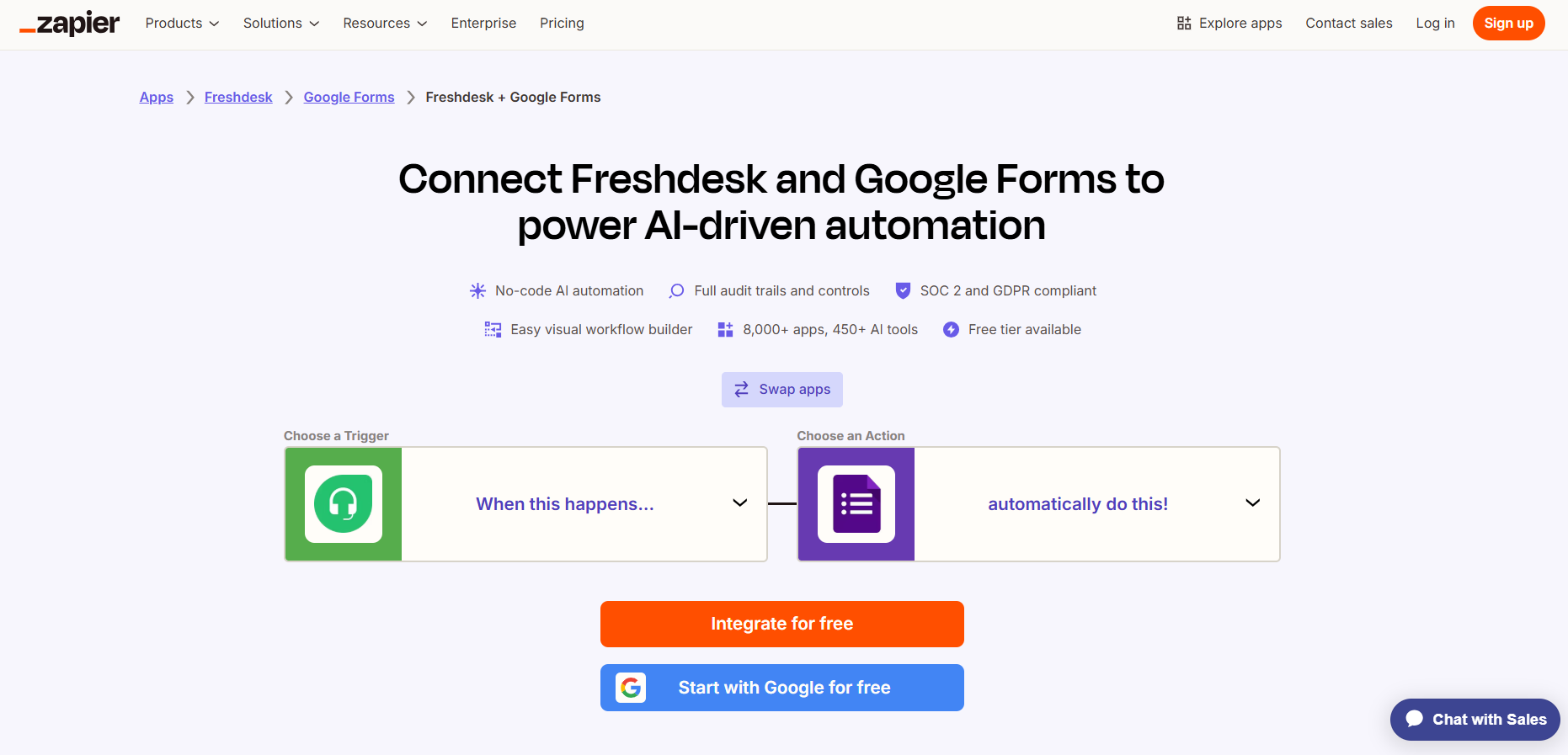
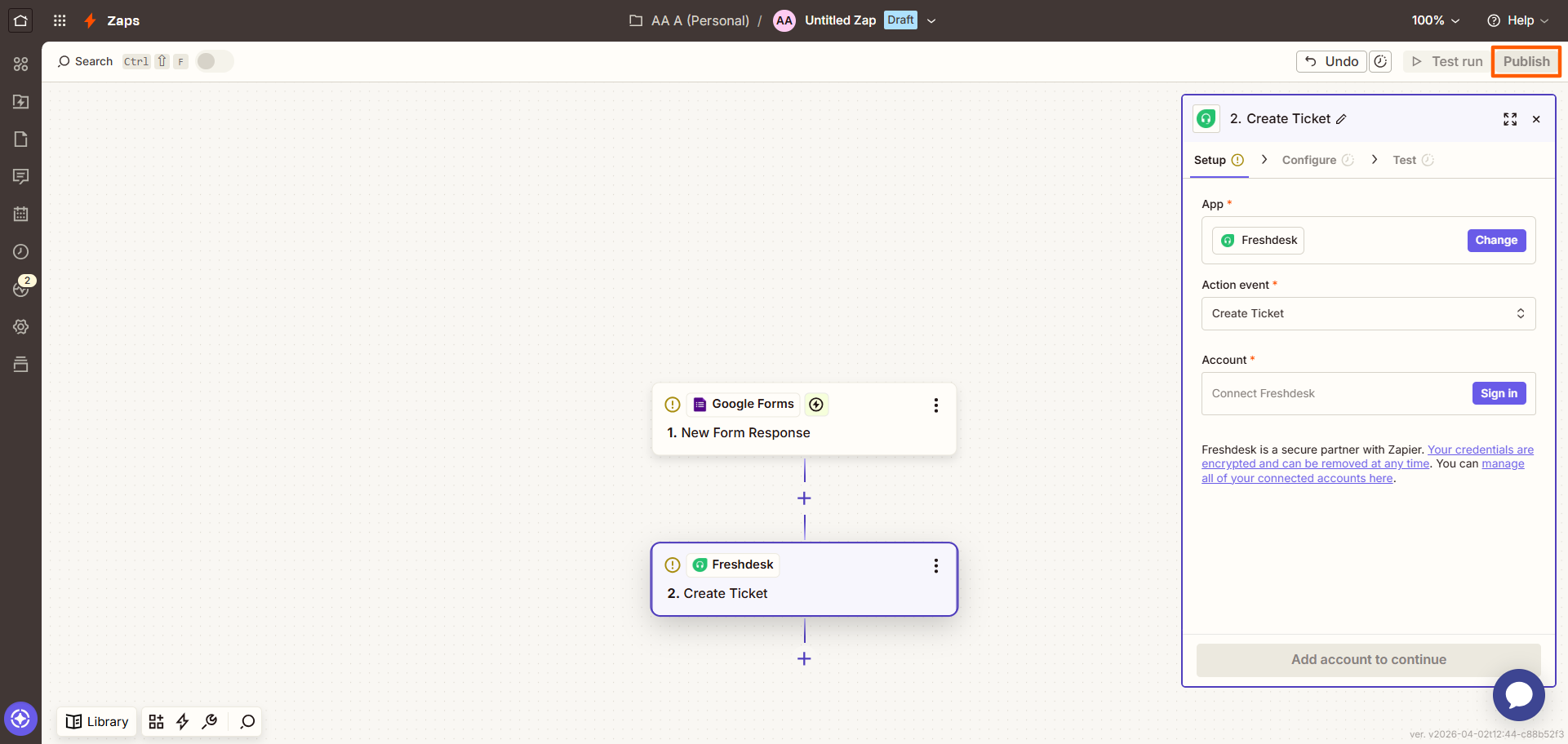
- Click Swap apps so that Google Forms is the trigger and Freshdesk is the action.
- Select a trigger for Google Forms from the dropdown menu, such as New Form Response.
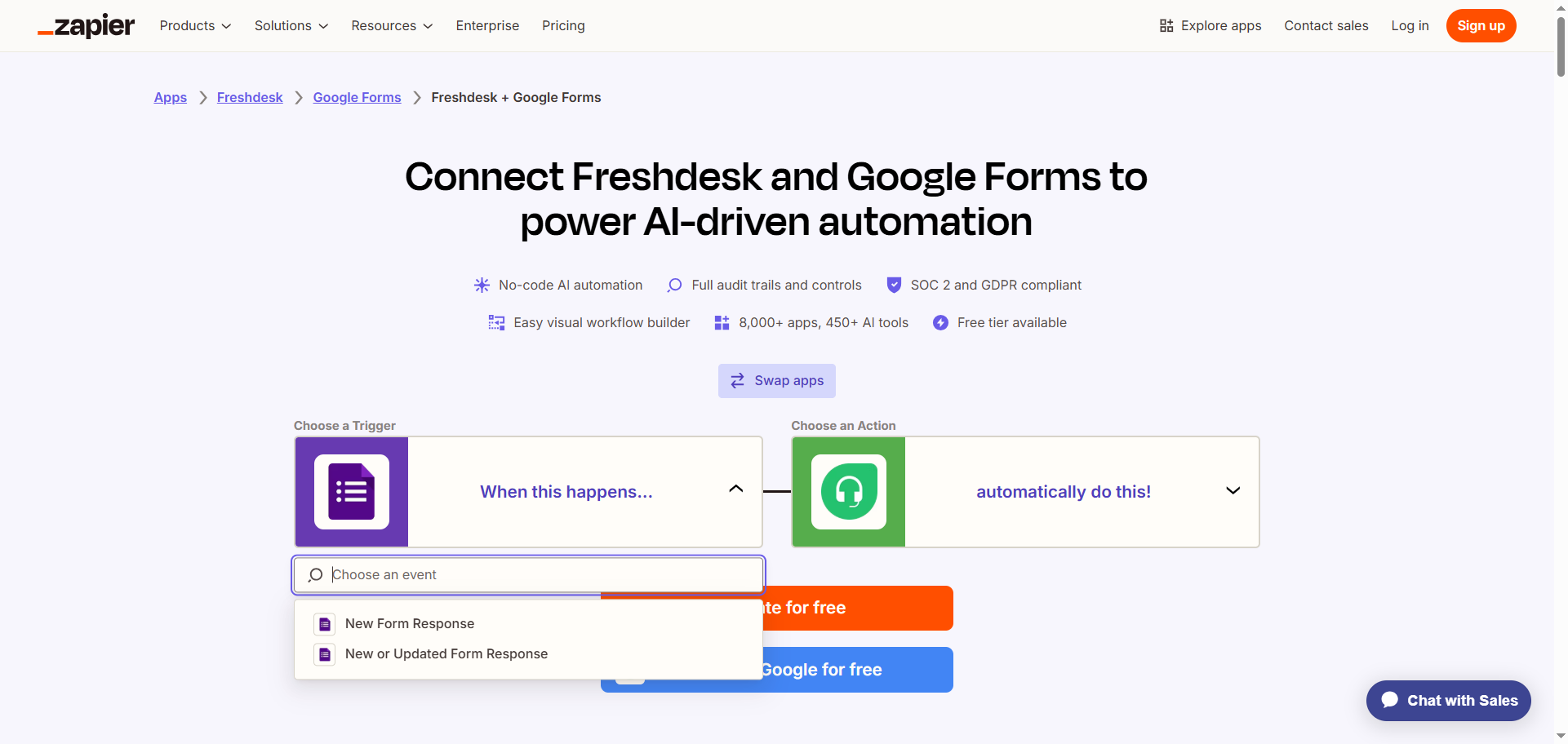
- Select an action for Freshdesk from the dropdown menu, such as Create Ticket.
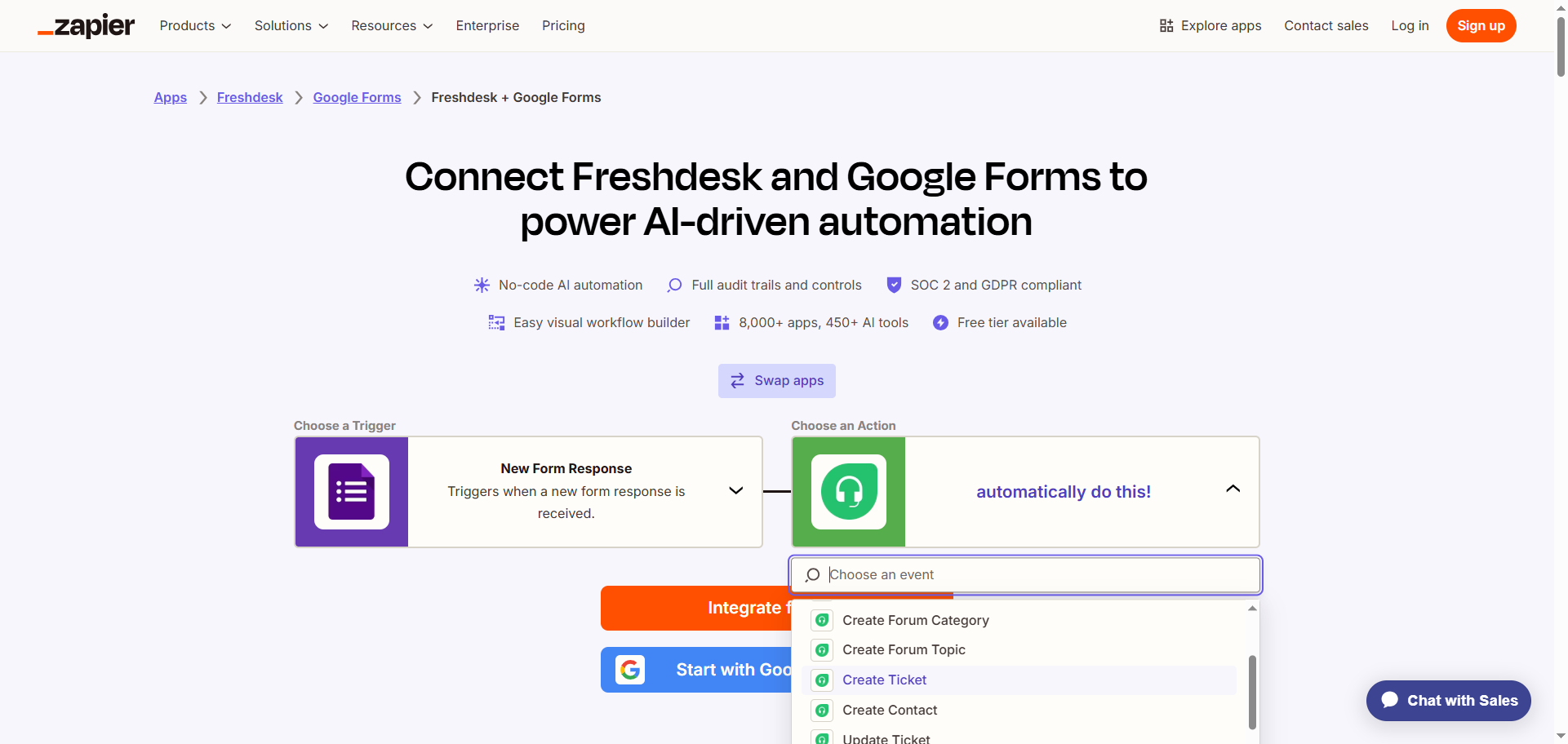
- Click Integrate for free.
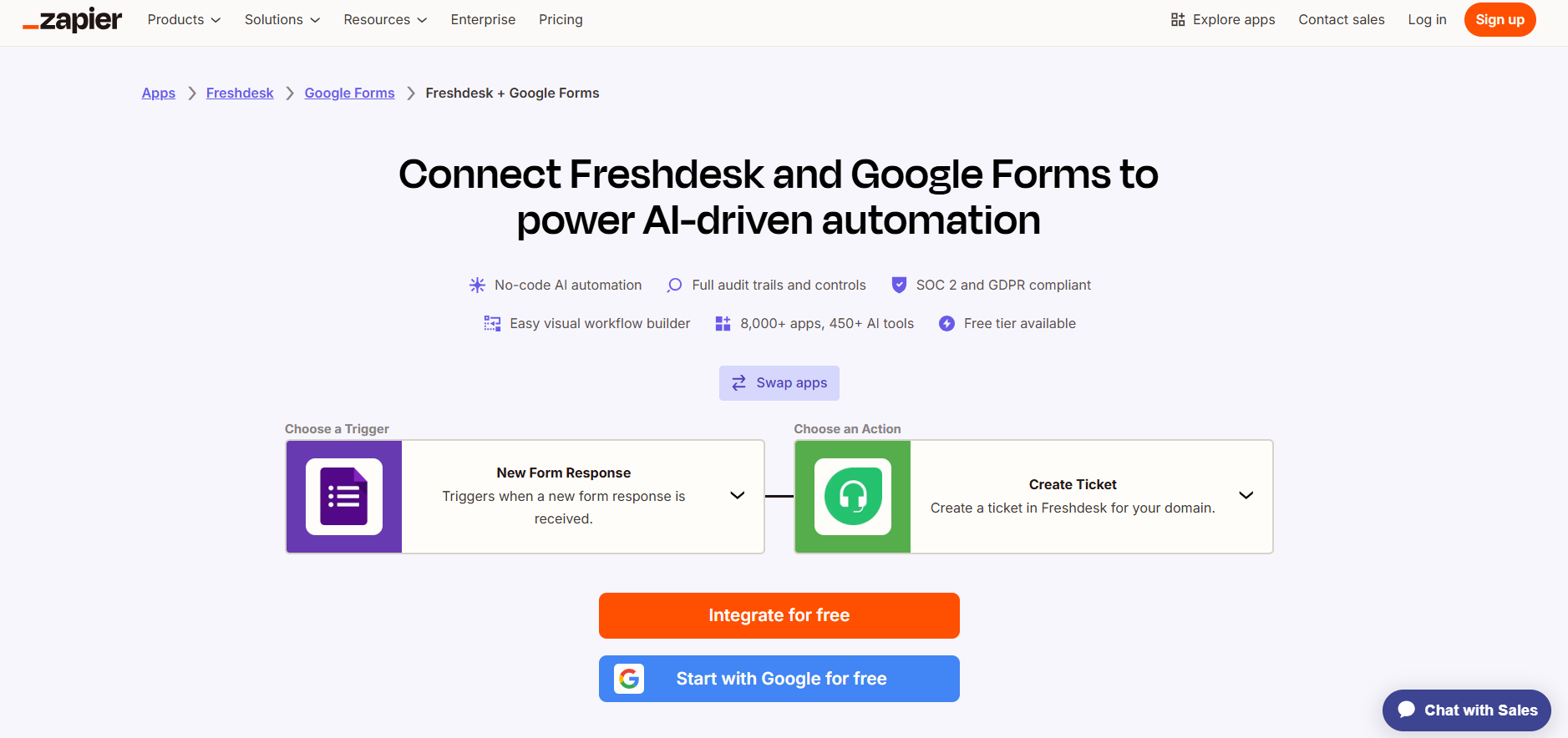
- Log into your Zapier account.
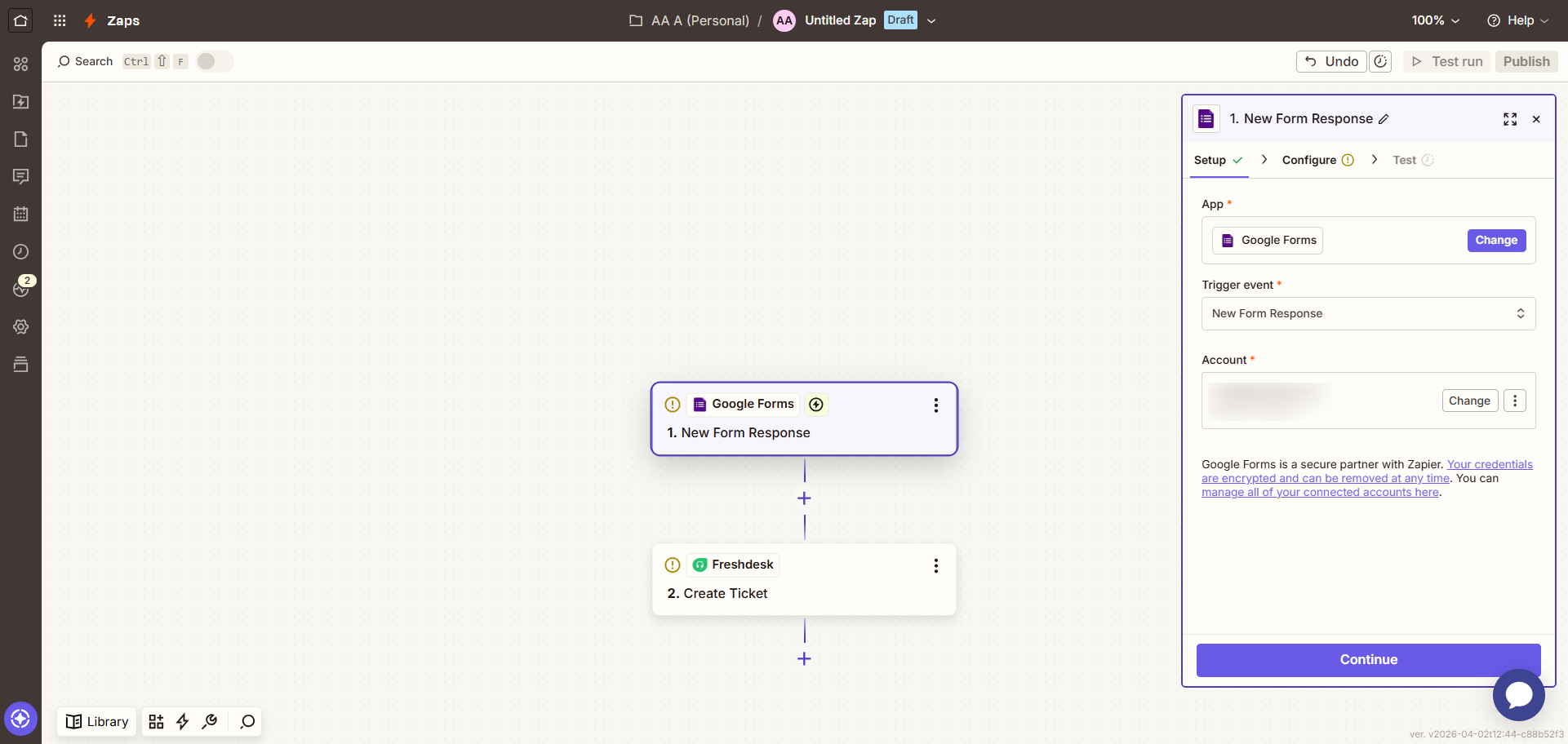
- Click Google Forms and follow the prompts to connect it to your Zapier account. Configure and test the connection with Google Forms.
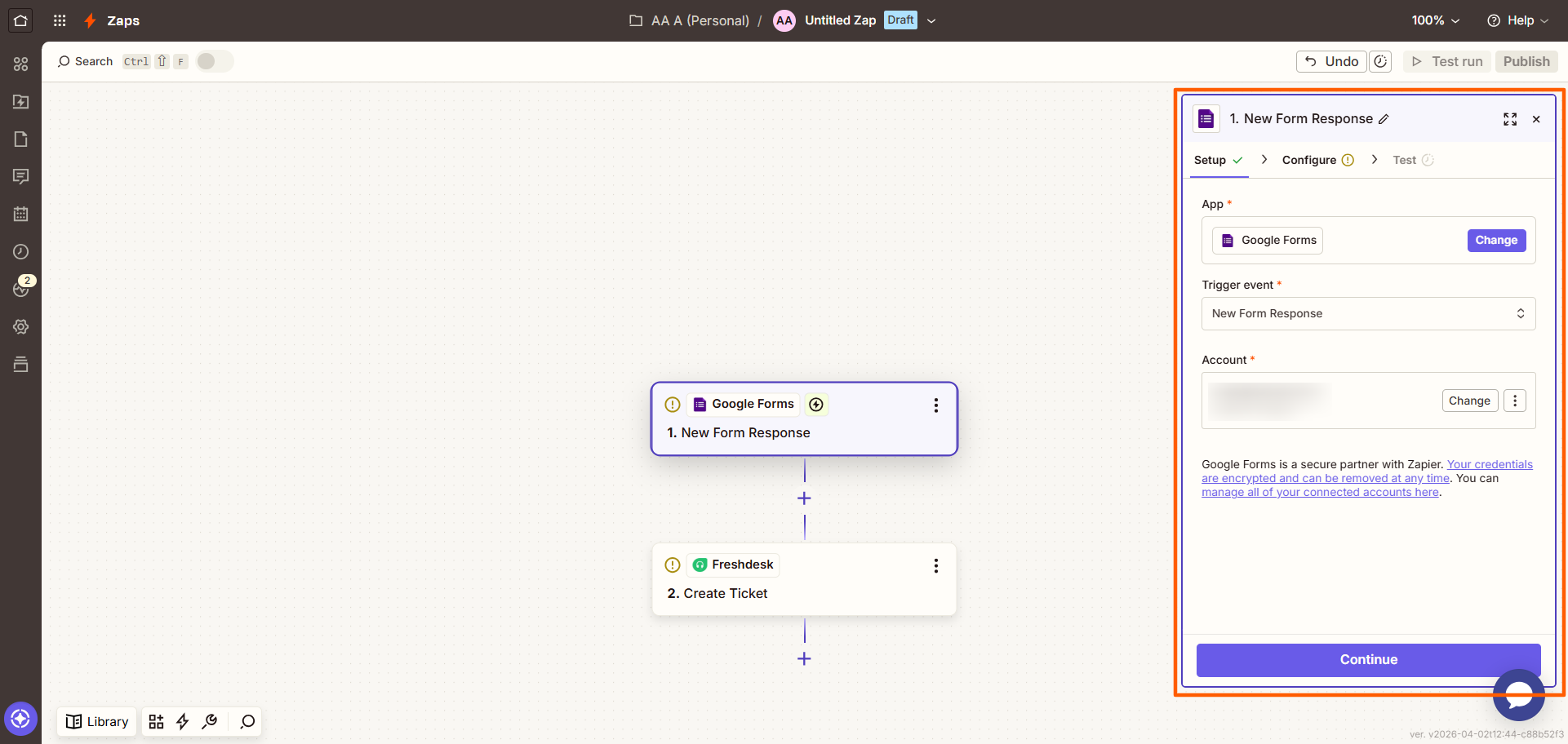
- Click Freshdesk and follow the prompts to connect it to your Zapier account. Configure and test the connection, ensuring you’ve mapped the data from Google Forms to Freshdesk.
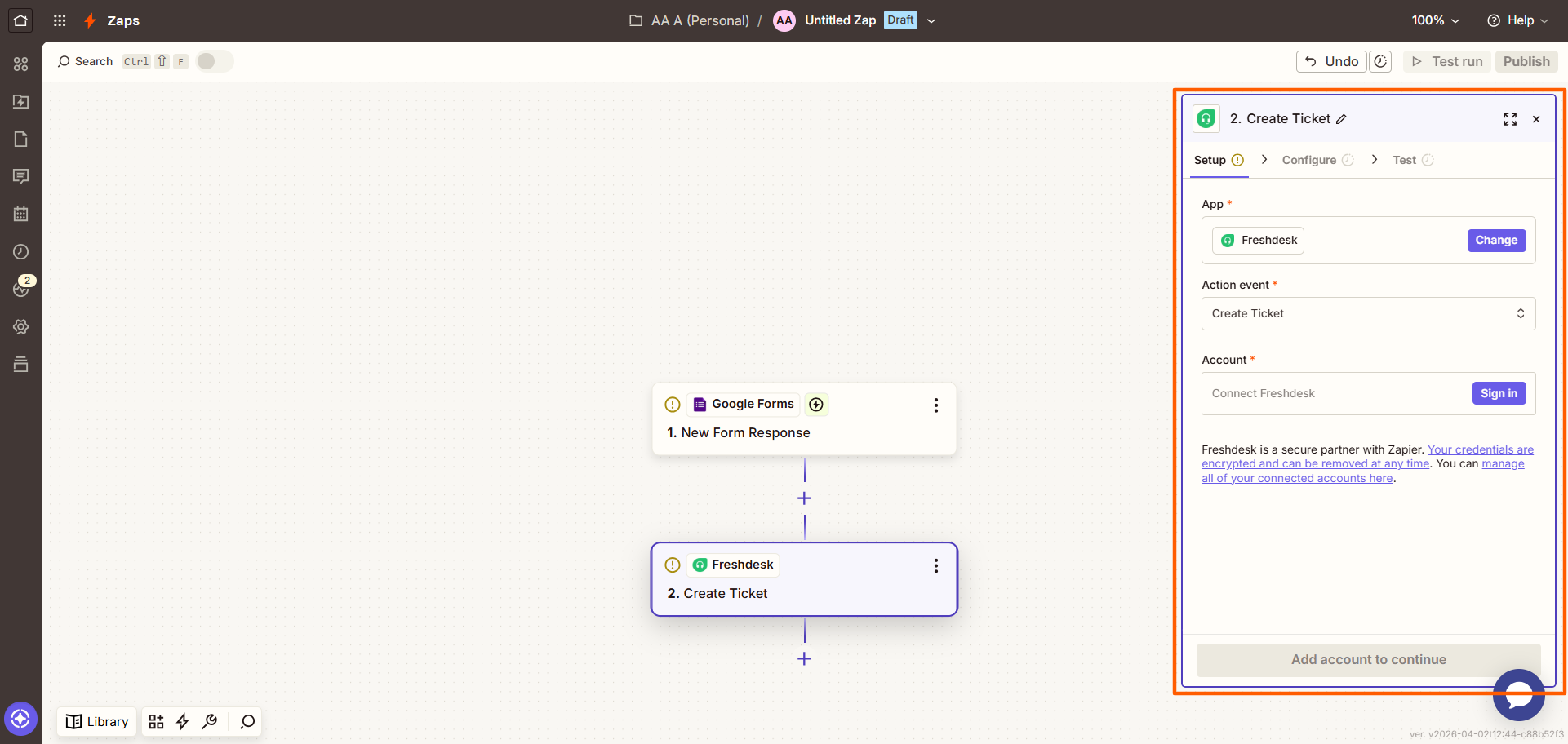
- Click Test run in the top right to ensure your Zapier connection for the trigger and action is working properly. Make adjustments as necessary.
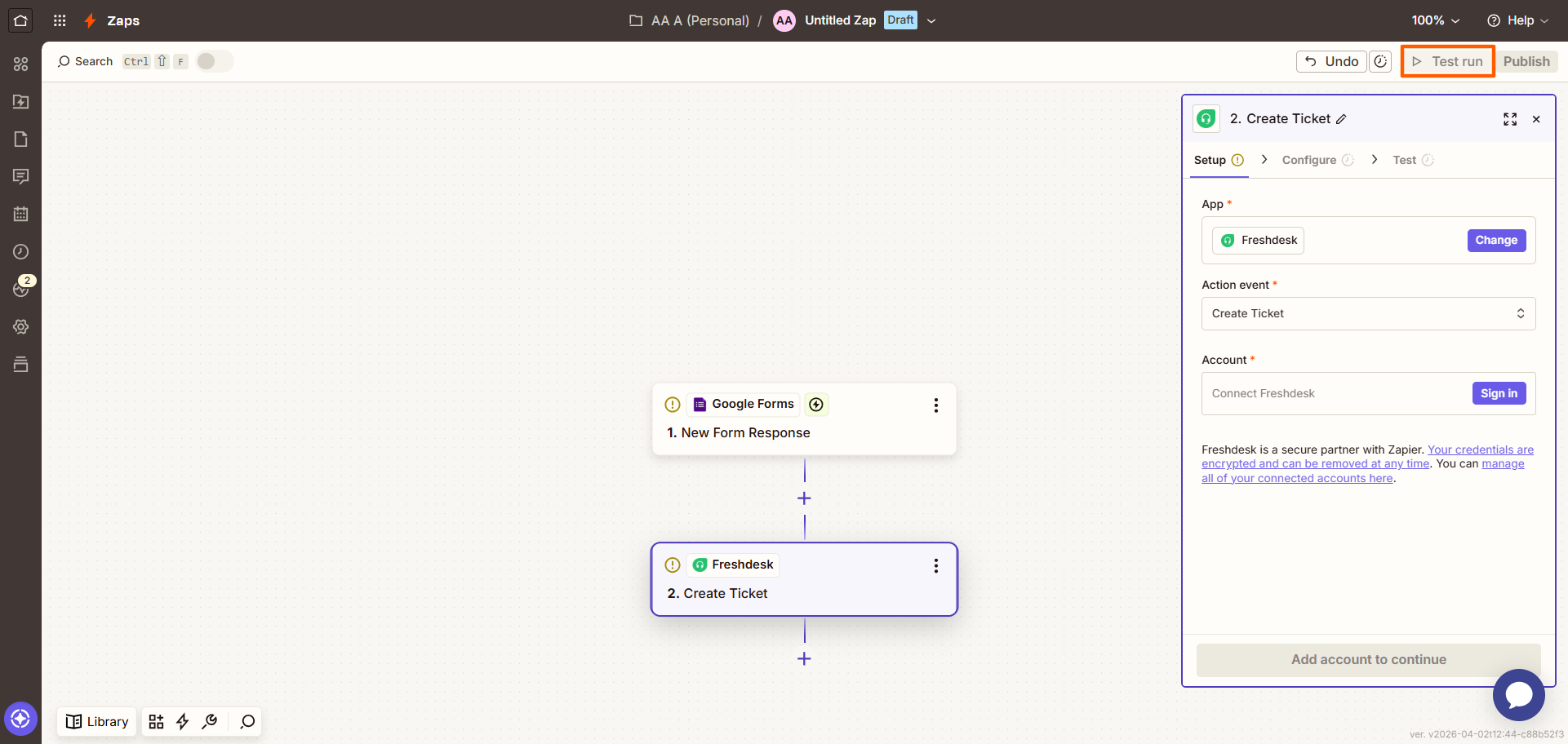
- Click Publish. Now, when you receive a new Google Form response, it’ll create a ticket in Freshdesk.
If using third-party workflow automation tools seems a bit overwhelming, you’re not alone. Many users want an easier solution when it comes to connecting tools in their tech stack. It may be time to find an online form builder other than Google Forms that makes integrating with Freshdesk easy.
Jotform integrates with Freshdesk natively
One of the best Google Forms alternatives available, Jotform is a form builder that has a native integration with Freshdesk. This means you don’t need to worry about signing up for third-party tools to make the connection. It all happens intuitively within Jotform.
Whether you’re managing customer support issues, internal requests, or software bugs, the Jotform-Freshdesk integration ensures nothing falls through the cracks. The data from your Jotform forms goes directly into Freshdesk so you can stay organized and on track.
Want to learn how to integrate Freshdesk with Jotform? Create a free Jotform account and follow these instructions:
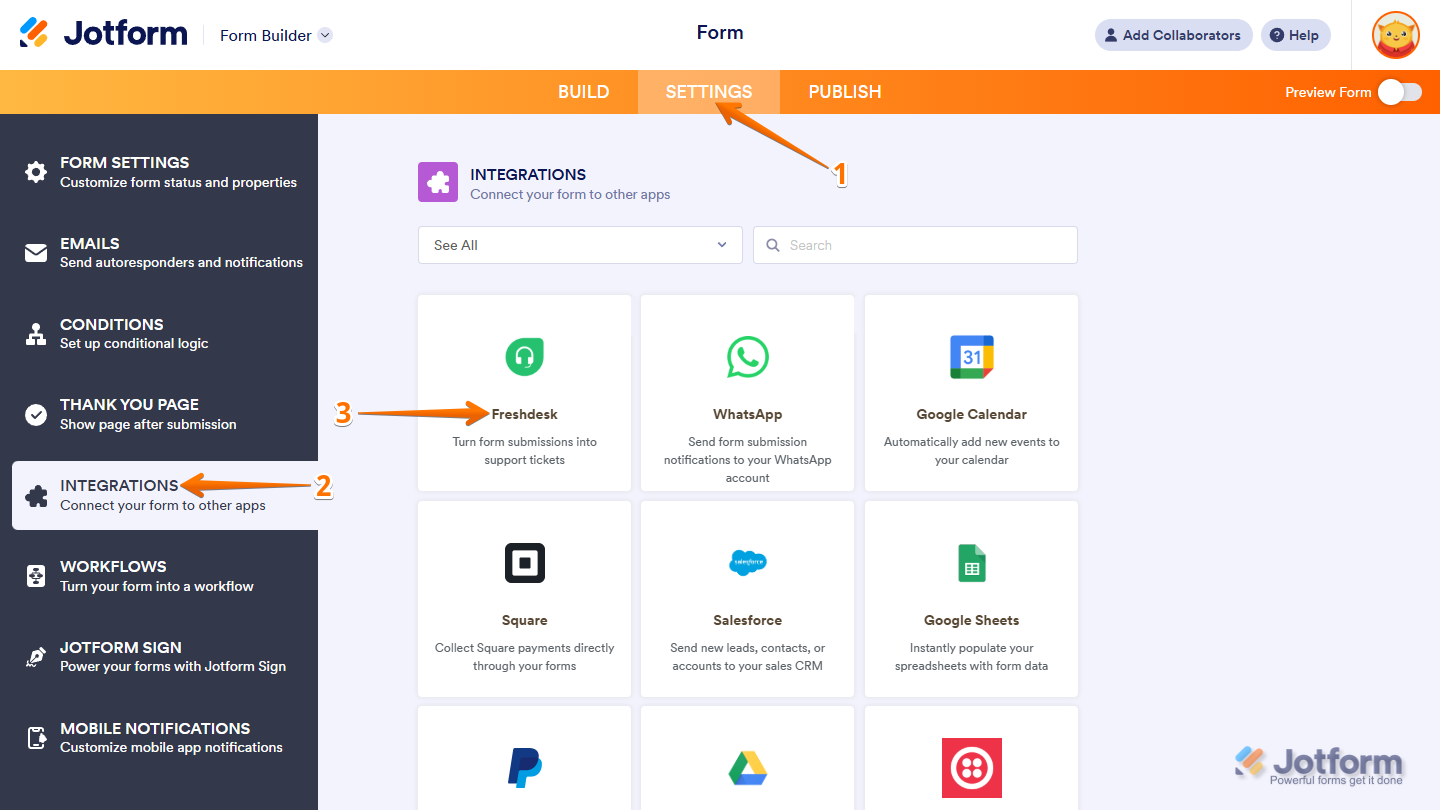
- Open the Jotform form you want to connect to Freshdesk. Click Settings in the top navigation bar.
- Click Integrations in the left-hand side menu.
- Search for and click on Freshdesk.
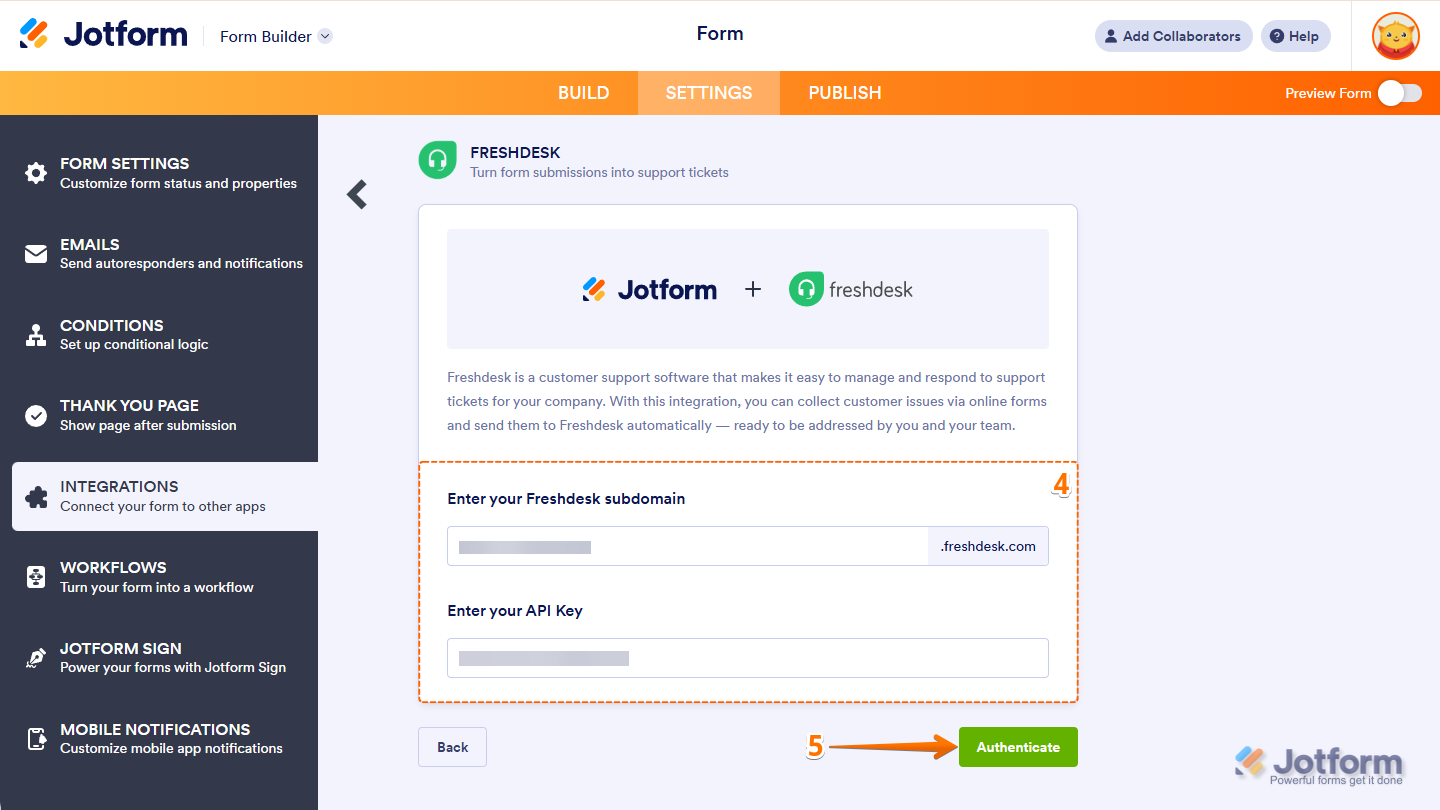
- Fill in the following information:
- Enter your Freshdesk subdomain: This is the first part of your Freshdesk URL.
- Enter your API Key: Find your API key and copy and paste it into this field.
- Click Authenticate.
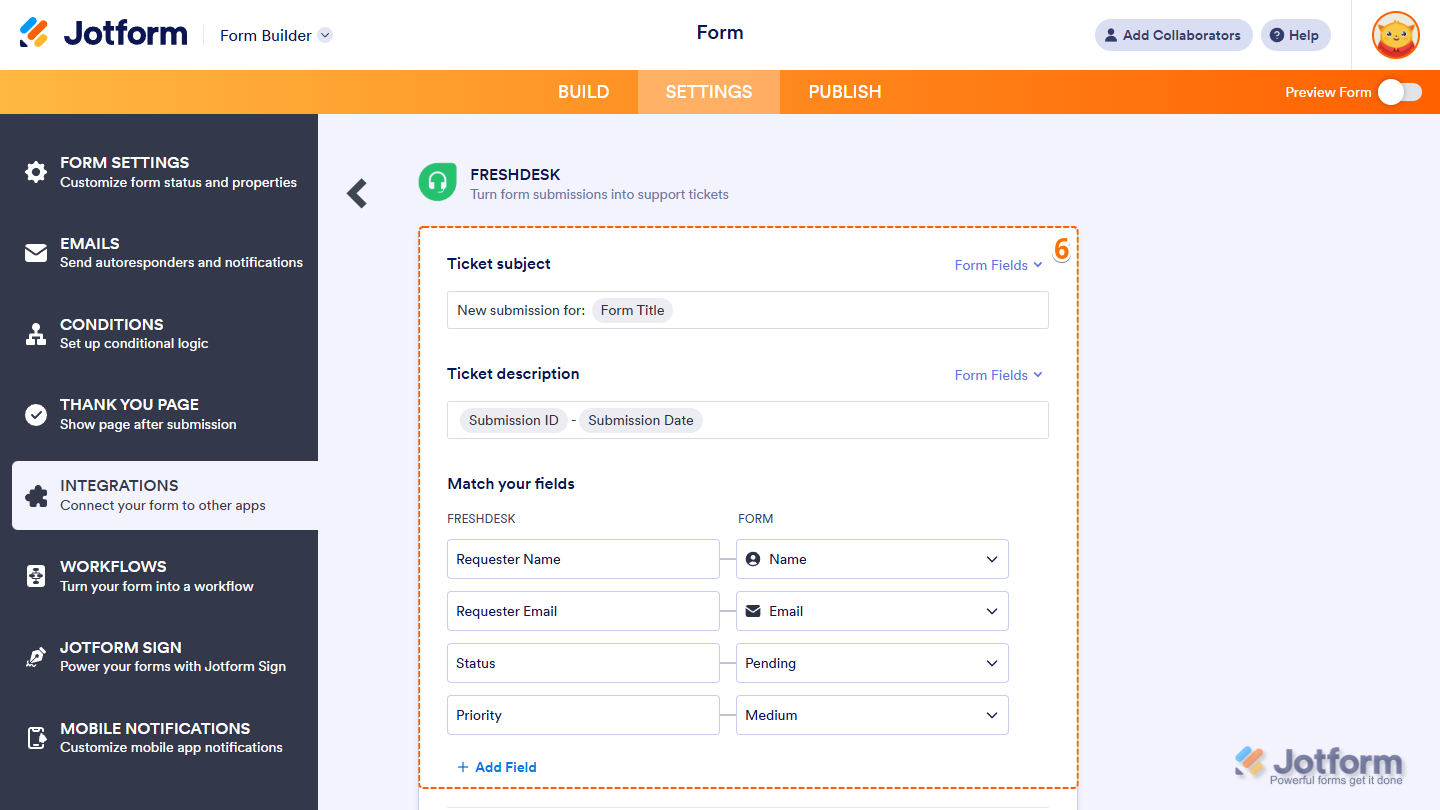
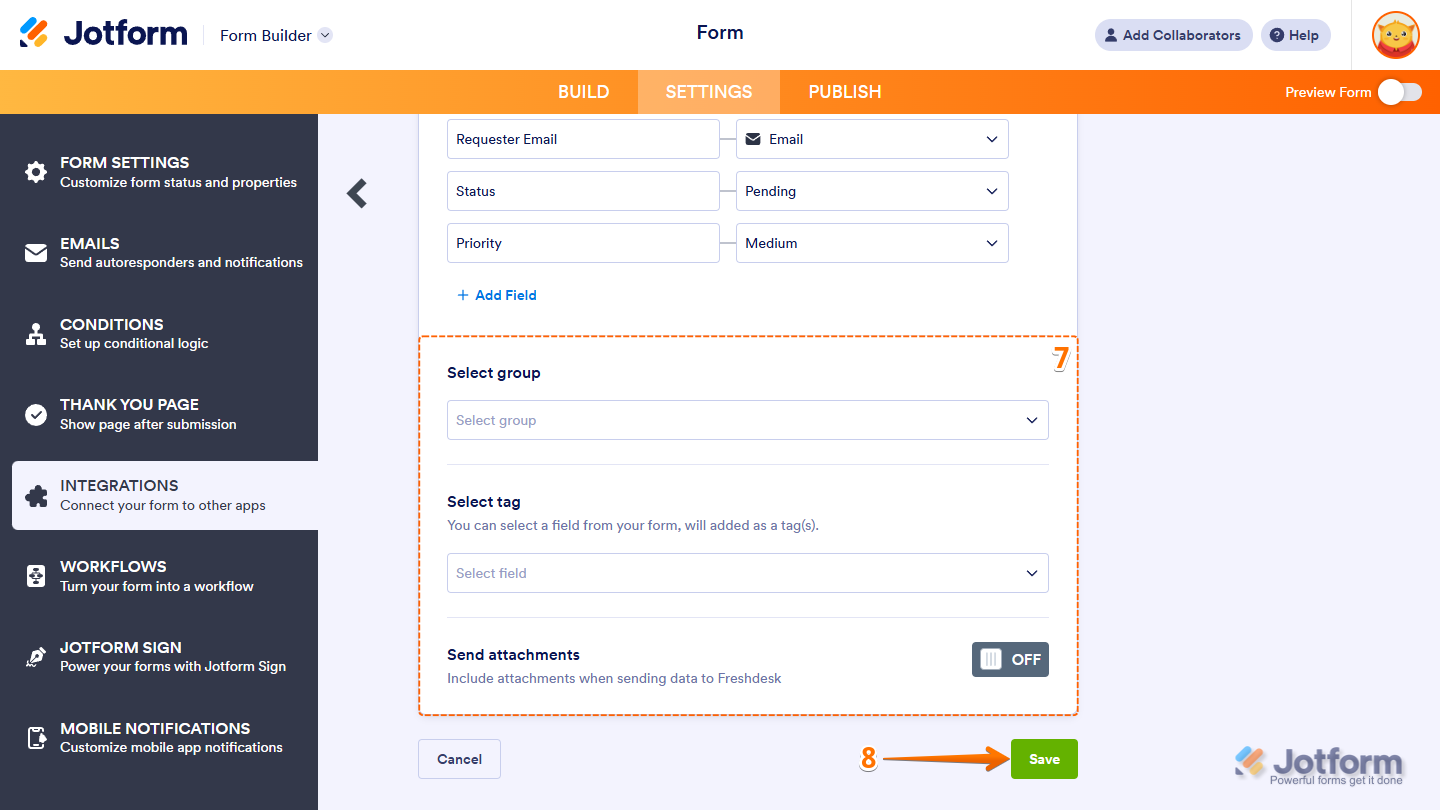
- Fill in the following fields:
- Ticket subject: Select which form field you’d like to use as the subject line of the Freshdesk ticket.
- Ticket description: Select the form field you’d like to use for the main message of the Freshdesk ticket.
- Match your fields: Align the fields in Freshdesk with the fields in your form. You can add more fields if needed by clicking Add Field.
- Scroll down on the setup page, and provide the following information:
- Select group: Choose which support group the ticket should be assigned to.
- Select tag: Add a tag here to help filter your tickets.
- Send attachments: If you’d like to include file uploads from the form to the ticket, toggle this setting to On.
- Click Save.
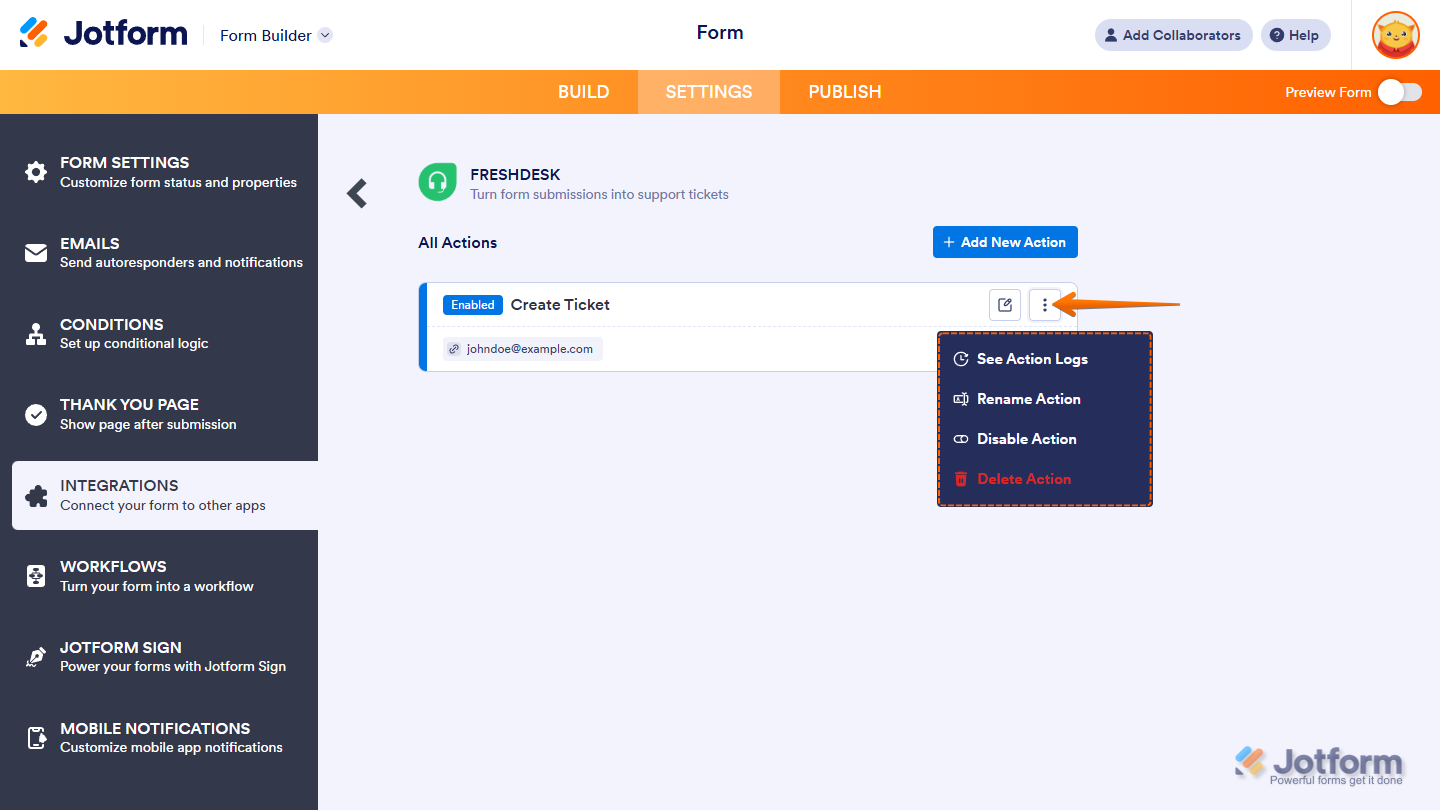
Integrating Jotform natively with Freshdesk is that easy. Now that your form is connected to Freshdesk, you can see and access a number of actions for the Freshdesk ticket:
- See Action Logs: From here, you can view successful and failed runs.
- Rename Action: Click this to change the title of an action.
- Disable Action: This stops the integration from sending data.
- Delete Action: Click this if you want to remove this action from the form.
Switch to Jotform for a native Freshdesk integration and so much more
Google Forms users are consistently switching to Jotform. Why? Compare the two form builders head to head to see for yourself:
 Jotform |  Google Forms | |
|---|---|---|
| Native Freshdesk integration | ||
| Fields and widgets | 20-plus basic fields and 100-plus widgets | 12 question types |
| Conditional logic | Limited capability | |
| Integrations | More than 150 | Add-ons supported |
| Templates | More than 20,000 | 17 |
| Themes | More than 1,000 ready-made themes and custom theme creation | Limited theme customization |
| Custom notifications and auto-responder emails | ||
| Reporting features | Report Builder and Form Analytics | Limited graphs |
| Mobile app | Jotform Mobile |
As you can see, Google Forms has limited features and doesn’t offer the functionality many users need beyond basic form creation. Jotform, on the other hand, comes out ahead for many reasons. Among them, it has:
- Over 150 native form integrations with tools you use every day, like Freshdesk, Slack, and Canva
- Over 20,000 form templates for a range of use cases, such as contact forms, bug reports, customer support requests, and more
- Thousands of ready-made themes and custom themes you can use to tailor the look of your form to your brand
On top of that, Jotform offers advanced reporting features, such as form analytics and a visual report builder, so you can fully understand the data you collect. Plus, if you’re frequently on the go — maybe you’re visiting support call centers or attending client meetings — you can keep up with Jotform through the mobile app.
With all of these advanced features and capabilities, Jotform is still intuitive and easy to use. Whether you’re new to online form builders or have been using them for years, you’ll love Jotform’s straightforward interface.
Migrate your Google Forms to Jotform with a single click
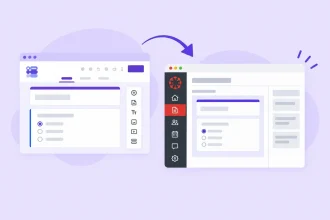
If you’ve already built your forms in Google Forms, there’s no need to start over. You can easily migrate to Jotform and keep your form questions and structure intact. Once set up, you can start using its advanced features and integrations right away to take your workflows further.


Best of all, Jotform has a free plan — just like Google Forms. Make the switch today and see how simple it is to create custom forms and connect them with tools like Freshdesk.
This article is for customer support managers and IT helpdesk teams using Freshdesk who want to turn Google Forms submissions — such as support requests, bug reports, or intake forms — into Freshdesk tickets automatically.





























































































Send Comment: