
Google users expect a certain level of reliability from the Google Workspace suite of products. Backed by Google’s industry-leading technology, these solutions are held to a high standard of availability. But even with advanced technology like Google Forms, you may still run into issues.
According to the Google Workspace Status Dashboard, Google Forms averages about one outage per year due to issues on Google’s end. However, many other factors can affect your ability to access or use Google Forms as expected.
We’ll highlight common reasons Google Forms may not be working, explain why these issues occur, and show you how to determine the cause of a service interruption. The next time you find yourself typing “Why is Google Forms not working?” into your browser, you’ll have a better idea of how to troubleshoot.


10 common reasons why Google Forms isn’t working
Working on any digital platform inevitably comes with issues beyond your control. Frustrations with Google Forms (such as forms not loading, responses not being recorded, issues with sharing, and broken links) can stem from a range of problems that aren’t always easy to identify at first.
To get to the root cause of your Google Forms issue, here are some of the most common reasons the tool may not be operating as expected.
1. Internet connectivity issues
Just like any online application, your internet connection plays a key role in how effectively you can access your tools. If you’re having trouble getting Google Forms to behave, this is the first place to look.
Start by checking your device’s internet connection. If it isn’t working, troubleshoot to determine where the issue is originating. Your device may not be connected to the correct Wi-Fi network, or your router may be experiencing signal issues. Once you reestablish your connection, try using Google Forms again to see whether it’s working properly.
2. Caching and cookies issues
As you surf the web, your browser collects information about the sites you visit and your activity, including
- Images
- Logins
- Preferences
- Scripts
This data is stored in your browser cache and cookies. While it can help streamline your online experience, it can also sometimes interfere with how Google Forms works.
If you’re struggling to find the root cause of your issue, try clearing your browsing data in your browser’s privacy settings. Keep in mind that this data is separate from your search history and clearing it may affect your browsing experience. After deleting your data, reopen Google Forms to see whether the issue has been resolved.
3. Conflicting browser integrations
Browsers such as Google Chrome offer a wide array of integrations to customize your experience. While these tools can be useful, they may interfere with how your browser interacts with tools including Google Forms.
If you’re having trouble using Google Forms, try disabling or uninstalling your browser extensions. Take a methodical approach by switching off one extension at a time to see whether a specific one is causing the issue. If you can’t identify a single culprit, try turning off all integrations and re-enabling them one by one.
4. Missing required fields
In some cases, the issue is as simple as a missing required field. Google Forms allows owners to designate certain fields as required for submission. If you don’t complete them, you won’t be able to submit your response.
Before diving into more complex troubleshooting, give your form a quick scan. If you find you’re missing required information, filling it in should resolve the issue quickly.
5. Sender’s Google account storage is full
Not all problems with Google Forms are tied to your device or Google’s servers. If you’re unable to complete and submit a form, the owner may no longer be able to accept responses due to storage limits.
Because responses are stored in the owner’s Google account, they need enough available space to receive new submissions. If you’re struggling to record your response and can’t find any issues on your end, the form owner may need to check their storage.
6. Form setup issues
The way a form owner sets up their document can also affect how it functions. Whether you or someone else created the form, there may be conditional logic, validation rules, and calculations that affect usability. Incorrect form setup can lead to calculation errors, broken or missing fields, or other user experience issues.
If you’re the form owner, double-check your settings and make adjustments as needed. If you’re filling out someone else’s form, let them know what you’re encountering so they can fix it.
7. Account and permission issues
Many users password protect Google Form so only certain people can view or respond to them. If Google Forms isn’t behaving properly, it may be because your Google account doesn’t have permission.
To troubleshoot this, you could try requesting access from the person who shared the form or request permission in Google Forms itself. However, before doing that, make sure you’re logged in to the correct Google account. If you have multiple accounts for work, school, or personal use, you may simply be logged in to the wrong one.
8. Closed forms
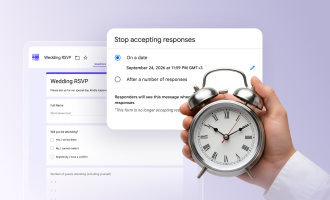
Google Forms may not be working because the form has been closed. Form owners can close a Google Form manually for any number of reasons. However, a common reason for closing a form is that the owner has limited the number of responses that can be submitted.
If you’re unsure whether a form is closed, contact the owner. If the response limit has been reached, you won’t be able to interact with the form unless it’s reopened.
9. JavaScript disabled
Google Forms relies heavily on JavaScript for functionality, user experience, and advanced features. If you have JavaScript disabled in your browser, the form may not work as expected.
To check whether JavaScript is disabled, go to your browser’s privacy and security settings. You can search for JavaScript in your settings menu or find it under site settings. Make sure it’s enabled, and then try accessing your form again.
10. Service disruptions
Although it happens rarely, Google Forms may not be working properly due to a Google server issue. In this case, you may need to use third-party tools to confirm whether Google Forms is down and wait for experts to resolve the issue.
How to check if Google Forms is down
If you’ve done your due diligence and still can’t find a reason why Google Forms isn’t working, it may be time to check Google’s server status. There are a few ways to do that:
- Visit the Google Workspace Status page: Google offers a dedicated Google Workspace Status Dashboard that shows disruptions or outages affecting its services. This is the most direct way to check the platform’s status.
- Check Downdetector: This crowdsourced status checker helps users determine whether there is a widespread issue with digital tools such as Google Forms by monitoring complaints. If many users are reporting outages to Downdetector, your Google Forms struggles may be outside your control.
- Test from another device: If there are no reported outages, try using Google Forms on another device. If your form works there, the issue may be specific to your device settings.
- Use a form monitoring tool: If you want to check a specific Google form, try a form tracking tool to see whether there is anything wrong with that particular form.
When Google Forms isn’t working, it’s frustrating for both respondents and form creators. These issues can affect your form’s performance and overall experience. When that’s the case, it may be worth considering an alternative form builder that offers more reliability and advanced features.
When to consider an alternative to Google Forms
Although Google’s infrastructure is highly reliable, other factors can still limit Google Forms’ functionality. These can include
- Availability issues
- Lack of advanced features
- User experience limitations
- Data security
If you’re experiencing one of these common problems, Jotform could be the Google Forms alternative you need.
Jotform’s offline forms feature addresses one of the most common challenges with Google Forms. Because using Jotform doesn’t require an internet connection, users can access forms regardless of location or connection stability.
Jotform also addresses privacy concerns with Google Forms by using a 256-bit SSL encryption to transmit form data. Jotform is PCI DSS Service Provider Level 1 compliant and GDPR compliant, and it offers HIPAA compliance features to safeguard protected health information from unauthorized third parties.
So how do you make the switch? Jotform allows you to migrate your Google Forms directly into its interface in minutes. There’s no need to rebuild your forms; your questions and structure are imported automatically. Jotform is free to use and offers 24-7 support to ensure a smooth transition.
Compare your form-building options with Jotform
If you’re consistently struggling with Google Forms because of anything from internet connectivity to server problems, or you simply need a more advanced solution, it may be time to explore other options. Jotform is a powerful online form builder that addresses many of Google Forms’ limitations while remaining easy to use.
This article is for website operators, business professionals, educators, and anyone who relies on Google Forms and wants to troubleshoot performance issues or explore more reliable form-building alternatives.

































































































Send Comment: