
You can tell the physical difference between a signup sheet and a multipage application. In the digital world, though, they’re both categorized as online forms, even though one involves basic data intake and the other triggers a multistep process involving reviews and approvals.
In this scenario, Google Forms is the signup sheet. It’s fast and free and makes basic data collection incredibly simple. Cognito Forms is the application. It’s built for more complexity: With a single form, you can calculate totals, route submissions, collect e-signatures, and process payments. However, both platforms can do many of the same tasks, and there are also use cases neither tool handles well.
I tested both platforms to understand when it makes sense to choose one over the other. If you’re trying to decide between Google Forms and Cognito Forms (or if you’re wondering whether a third option, such as Jotform, is a better call), this article will help.
Key findings from my testing
Many teams use Google Forms as the default option until they hit a wall. If your team needs to process payments, make calculations, approve items, and use conditional logic, Cognito Forms is worth exploring. Here’s a quick rundown of when it makes sense to use each platform:
- Google Forms is well suited for internal data collection involving a few questions; it’s free, requires no setup, and works immediately if your team already uses Google Workspace.
- Cognito Forms makes sense if your team uses forms for multistep processes, such as patient intake, customer portals, and employee reimbursement; you can add calculations, conditional logic, routing, approvals, and payments to any form.
- Neither platform offers many AI features or integrations, so try another solution if you’re building cross-platform, AI-driven workflows.
- Choose Jotform for workflow automation. It has 150-plus native integrations, no transaction fees for payments, and AI Agents that can follow up on form submissions via email, WhatsApp, and phone calls.
 Google Forms |  Cognito Forms |  Jotform | |
|---|---|---|---|
| Best for | Short surveys and internal data collection | Calculation-heavy forms with built-in payments, e-signatures, and client portals | AI-powered form workflows using integrations and no-coding-required apps |
| Starting price | $8.40 per user, per month | $19 per month | $39 per month |
| Free plan | Yes, free for personal and educational use | ||
| Number of templates | 17 | 200 | 20,000+ |
| Conditional logic | Basic branching only | Advanced options on all plans | Advanced options on all plans |
| Workflow automation | Not without third-party tools | ||
| Calculations | |||
| Save-and-resume feature | Yes (on Pro plan and above) | ||
| Offline forms | Yes, via Jotform Mobile Forms | ||
| Payment support | Yes; free and Pro plans support Stripe and charge a 1–2 percent fee; users of higher-tier plans can also use PayPal or Square (no fee) | Yes; 40-plus payment integrations, including Stripe, PayPal, Square, Authorize.net, and Chargify | |
| AI features | Gemini prompt-to-form (Workspace plans only) | AI form generator with workflow diagram | Jotform’s AI Form Generator, Jotform AI Agents, Jotform’s AI Workflow Generator |
| Native integrations | Google Workspace only | 60-plus integrations (but just a handful of native integrations) | 150-plus native integrations |
| HIPAA compliance features | Limited (Workspace Business Standard plan and above; no audit logging) | Yes (Enterprise plan only) | Yes (Gold and Enterprise plans) |
| Learn More | Learn More | Try It Now! |
What is Cognito Forms?
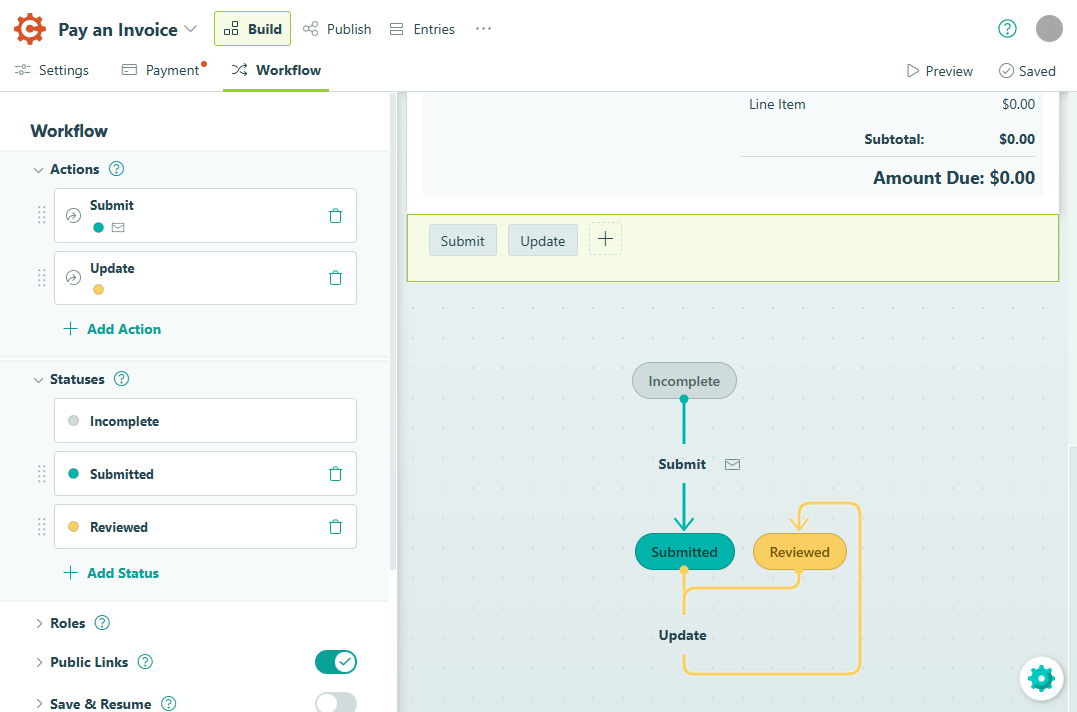
Cognito Forms, a no-code form builder, does more than just collect data. It captures e-signatures, generates PDFs, automates multistep workflows, assigns tasks, and handles payments via Stripe, PayPal, and Square. Cognito Forms can do tasks you wouldn’t expect a form builder to do, such as create client portals, and its strength lies in support for complex, form-driven processes, such as patient intake, HR onboarding, custom orders, and grant applications.
What I liked most about Cognito Forms: With a single form, you can collect data, run calculations, route users with conditional logic, manage approvals, process payments, and generate receipts. I was impressed with the number of features in the free (Individual) plan, particularly the built-in payment processing.
Pro Tip
Looking for alternatives to Cognito Forms? You can migrate your existing forms to Jotform in just a few steps.
- Pros:
- A single form can handle data collection, calculations, e-signatures, approvals, and payments.
- In the client portal, users can track their submissions and complete follow-up tasks.
- Its workflow automation supports multistep approval processes.
- The free plan includes payment processing and an unlimited number of forms.
- Cons:
- Steep learning curve for anything beyond a basic form
- Fairly dated selection of form templates and styles
- Extra 1–2 percent transaction fee to process payments on the Individual and Pro plans
- No native mobile app
Advanced calculations and logic
If there’s a single reason for power users to try Cognito Forms, it’s the advanced options. You can build pricing forms that calculate totals based on user input, lead-generation forms that weigh answers and return a result, and route submissions depending on users’ responses. Cognito Forms has unusually granular logic controls: You can set up multicondition rules that show or hide individual fields or make certain fields required or optional, depending on how users answer other questions.
Here’s the tricky part: Cognito Forms uses its own expression syntax for calculations, so even familiarity with standard Excel-style expressions (such as COUNTIF or SUM) won’t help you. You can use AI to get started, but refining your calculations may take some trial and error. If you need basic conditional logic, this shouldn’t be an issue.
Payment and data handling
Cognito Forms supports Stripe payments on all plans, including the Individual tier. That makes it a solid option for use cases such as registrations, bookings, fundraising, and invoicing. It offers end-to-end data encryption and fraud protection and is PCI DSS certified for payment security.
Though they are stacked with features, lower-tier plans do have some limitations. The Individual plan includes a 2 percent surcharge for transactions, while the Pro plan has an extra 1 percent charge, and they connect with Stripe only for payments. The Team and Enterprise plans connect with PayPal, Square, and Stripe, and there are no extra transaction fees; with these plans, you can also save customers’ card information for repeat payments.
Cognito Forms’s payment-specific form features include flexible pricing controls (for custom pricing, discounts, and taxes) and conditional logic. These forms can contain formulas that calculate payment totals, set up recurring payments, and generate receipts and invoices.
Workflow-friendly structure
Cognito Forms also handles lightweight process automation. For example, when employees fill out an expense reimbursement form, Cognito Forms can send it to their manager for approval before passing it to the finance team for reimbursement.
To set up this type of workflow, you can use the built-in visual workflow designer to map out your process and add approval chains, escalations, and conditional steps. You can also automate task assignments, set dynamic due dates and reminders, and enable parallel tasks so a delay in one part of your process doesn’t hold everything up. On the user end, multistep forms and repeating sections make long intake processes feel less intimidating.
Just keep in mind that you’ll need the Team plan or above to take advantage of most of these workflow automation features. The Individual and Pro plans have conditional logic, but no routing or task assignment.
Cognito Forms pricing
- Individual: Free for one user and includes unlimited forms, 100 entries per month, 100 MB of storage, and Stripe payments. Payments are included, but they’re subject to an additional 2 percent transaction fee.
- Pro ($19 per month, billed monthly): Includes two users, 2,000 entries per month, 1 GB of storage, e-signatures, email attachments, and Stripe payments. Cognito Forms branding is removed from your forms, and the transaction fee is 1 percent.
- Team ($39 per month, billed monthly): Includes five users; 10,000 entries per month; 10 GB of storage; PayPal, Square, and Stripe payments (no additional fees); and a client portal feature. This plan also comes with guest access (five guests), making it easier to collaborate with users outside your organization.
- Enterprise ($129 per month, billed monthly): Includes 20 users; 20 guests; unlimited entries; 100 GB of storage; PayPal, Square, and Stripe payments (no additional fees); and HIPAA compliance features, single sign-on, two-factor authentication, folder permissions, and two years of audit log history.
All paid plans offer a free 14-day trial, with no credit card information required. Additional users on any plan cost $5 per user, per month. If you opt to be billed annually, you’ll save between 10 and 20 percent, depending on your plan and number of users.
Pro Tip
If you are looking for more alternatives, you can check out our Sign Up Genius vs Google Forms comparison.
What is Google Forms?
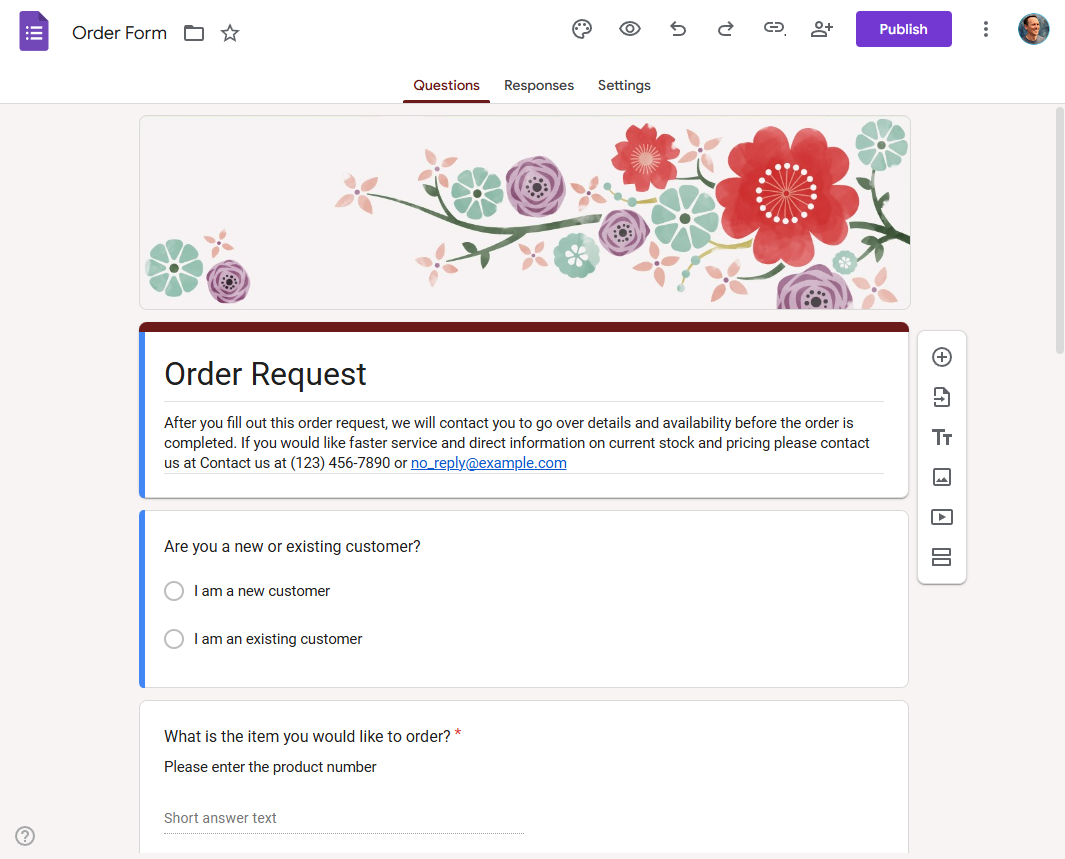
Google Forms is a free form builder that’s exactly what you’d expect from Google. It’s fast and simple, and there’s zero setup: If you already have a Gmail or Google Workspace account, you can just head over to forms.google.com and get started. For millions of businesses (and billions of Gmail users), Google Forms is often a first stop for basic form needs. It’s also well suited for internal operations in large organizations, because employees with Google Workspace accounts can use it without additional licensing.
What I liked most about Google Forms: There’s essentially no learning curve with Google Forms. You open it, click a template, start building, and everything just works. Its integration in the Google ecosystem comes with advantages, such as responses saved in Google Sheets automatically. Google Forms doesn’t try to tackle complex functionality, such as payments and workflows, which keeps the interface uncluttered and easy to learn if you just need simple forms that collect data.
- Pros:
- Free, with no limits and no trial period
- Automatic submissions sync to Google Sheets
- Native integration with Google Sheets, Drive, and the rest of Google Workspace
- Zero setup and almost no learning curve
- Cons:
- No payments, calculations, or e-signatures
- Limited conditional logic and no workflow automation
- Weak design flexibility and just 17 templates
Google ecosystem integration
Google Forms integrates natively with other flagship Google Workspace products, including Sheets, Drive, and Gmail (along with more niche integrations for Slides, Docs, Calendar, and others). Google Sheets is a huge bonus: It’s much easier to manage large volumes of responses on a spreadsheet, and Google Sheets automatically populates with column headers that match your field names. Other notably useful Workspace integrations include Google Drive, where you can store and manage forms; Gmail, for email notifications; and Google Groups, which is a lifesaver for large organizations, because it allows Google Forms to inherit the permissions structure you already use for other Google apps.
If you’re connecting apps outside the Google ecosystem, things get trickier. You can use automation tools, such as Zapier, to build workflows, but there’s no native process to connect Google Forms to outside apps.
Simplicity and speed
Google Forms is a tough option to top if you need to create a basic form quickly. Using a prebuilt template, without making any changes, you can have a published form ready in 30 seconds. The drawback is that Google Forms has only 17 templates.
To test a more realistic scenario, I created a five-question form with a Multiple-Choice field, a Text field, and a few required questions. It took about three minutes. Because permissions are already set up within Google Workspace, it took only one more click to specify precisely who could fill out the form I created.
The process will take more time if you need to adjust your form’s design, create a quiz, or specify how your responses will be collected. Those processes were all intuitive and easy to navigate.
Basic logic and survey tools
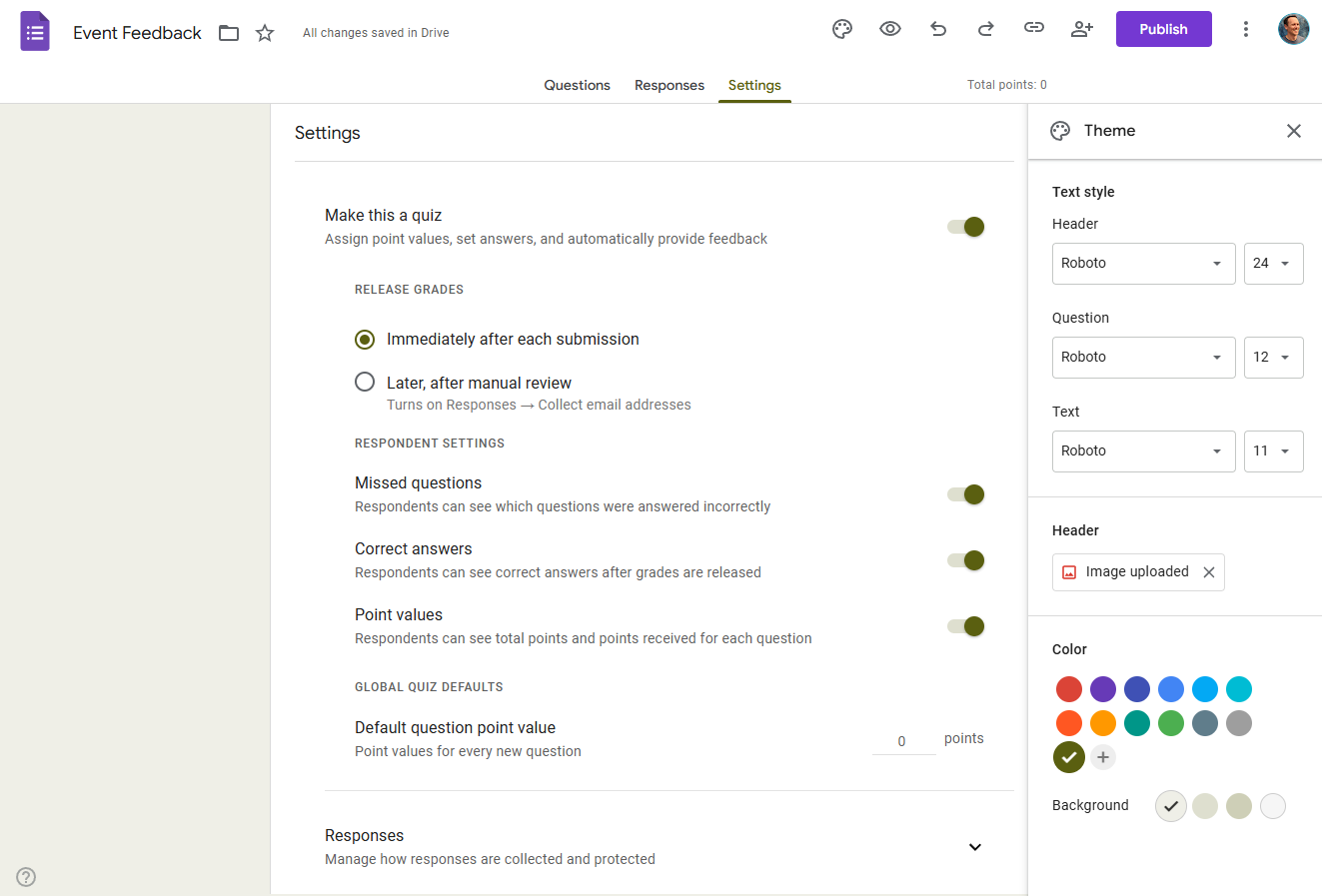
Google Forms is very limited in conditional logic and branching options. You can skip sections based on your users’ answers, but you can’t show or hide individual fields. And if you need calculations, payments, approvals, or branching based on multiple conditions, you’re out of luck.
Still, Google Forms is often enough for personal and educational use, as well as lightweight internal use for businesses. The quiz mode adds autograding and point values to your survey, and it has a decent selection of response types, including paragraph boxes, star ratings, multiple-choice grids, and linear scales.
Google Forms pricing
Google Forms is free for personal use, and educators get free access via Google Workspace for Education.
For businesses, Google Workspace Starter costs $8.40 per user, per month and gives you access to Google Forms, along with the rest of Google’s workplace apps.


Cognito Forms vs Google Forms: Side-by-side comparison
After spending time testing the capabilities of each tool, here’s what I’d recommend keeping in mind as you make your decision.
Cognito Forms is better for calculations and conditional logic
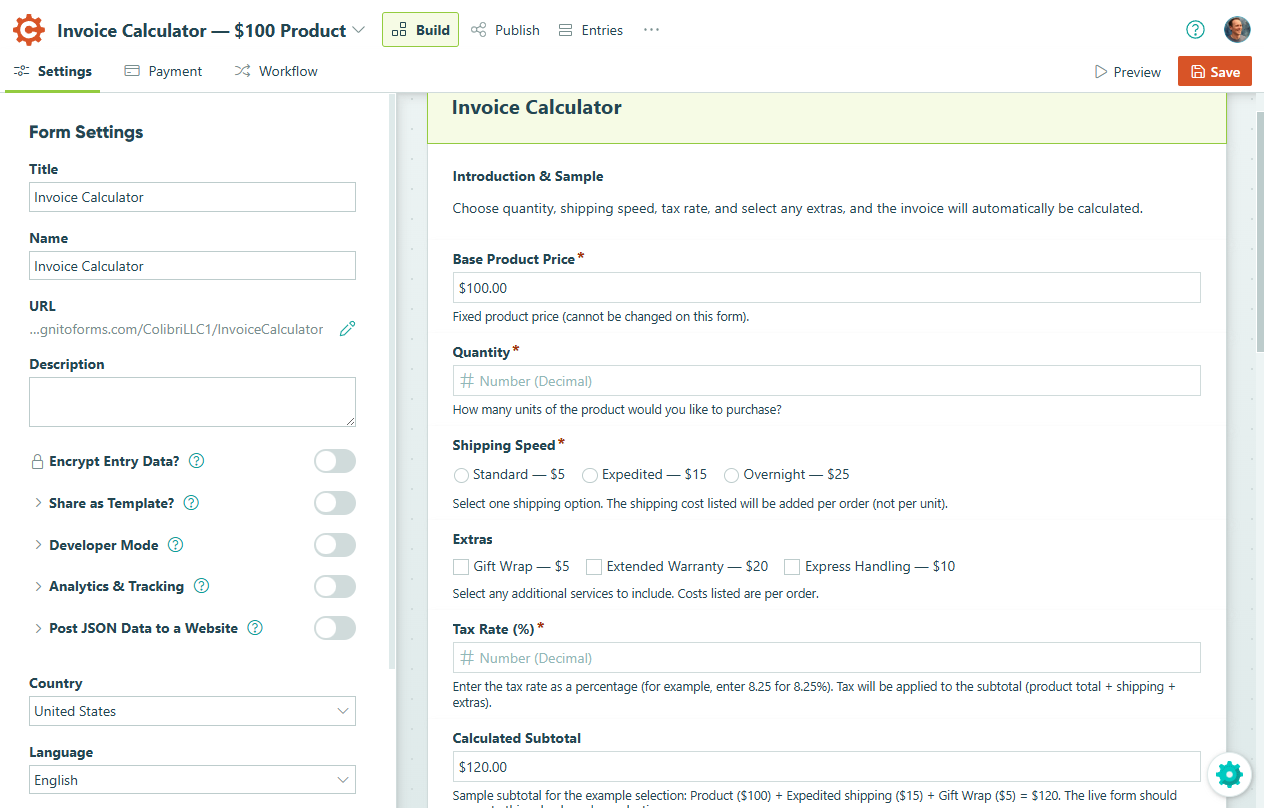
If you’re making complex forms that adjust dynamically, include calculations, and incorporate conditional logic, Cognito Forms is your only real option. Google Forms does offer a simplified form of conditional branching, but you can show or hide entire sections, not individual fields, and you can’t include multiple conditions or calculations.
While the two form builders accomplish roughly the same thing if you’re building a simple survey, Cognito Forms can handle a more complex process. For order forms, expense reporting, bid proposals, lead scoring, and other applications that dynamically respond to user input, Google Forms isn’t enough.
Even if you don’t need calculations or conditional logic, Cognito Forms is generally better for collecting lots of information. For longer forms, its save-and-resume feature allows users to step away and return without losing their progress.
Google Forms has a simpler learning curve
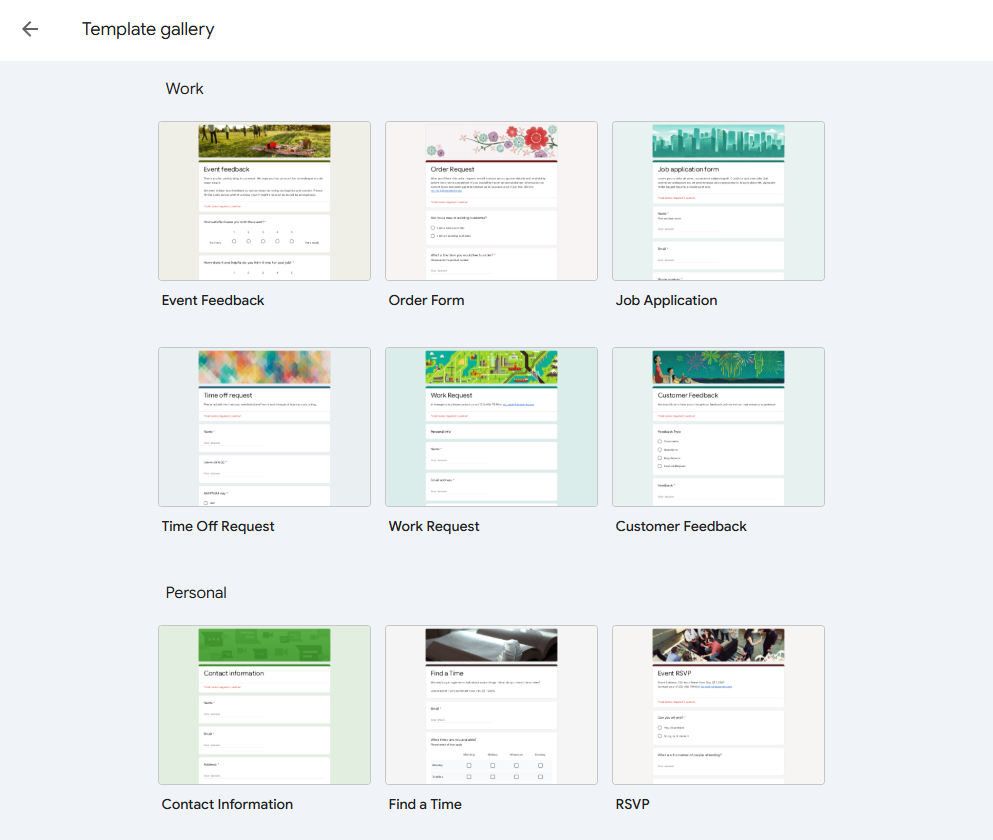
Google Forms can’t accommodate complex use cases, but that might actually be a good thing if you need simple surveys. There’s no need to read FAQs or study documentation.
Cognito Forms isn’t hard to use if you’re creating a basic form. But as you add conditional logic, calculations, and payments, you’ll have to navigate a heap of additional settings. Everything is relatively intuitive, but all those added options mean you’re more likely to get lost occasionally and find yourself checking the instructions. And if you’re dealing with formulas, expect to spend more time familiarizing yourself with Cognito Forms’s syntax. It’s a custom system that won’t correspond to anything you’ve seen before.
Cognito Forms is the only option for payments
You can’t collect payments with Google Forms. If you’re handling event registrations, service bookings, or anything else that requires collecting money, you need a different tool.
Cognito Forms lets you collect payments on any plan, including the Individual plan. Fraud protection, PCI DSS certification, and data encryption are all built in. Higher-tier plans also let you process payments with PayPal or Square. Depending on the payment gateway you choose, you can access flexible payment options: Customers can save their credit card information for recurring billing, split purchases into multiple payments, and even pay with Venmo.
Just keep in mind that if you’re processing payments on Cognito Forms’s Individual or Pro plan, you’ll need to pay a 1–2 percent fee on top of Stripe’s standard payment processing fees.
Pro Tip
Jotform doesn’t charge transaction fees on payments, even on the free plan. It also connects with 40-plus payment processors, making it a better option if you want to support a wide variety of payment methods.
Both tools have limited AI features
Neither tool is particularly impressive when it comes to AI.
Google Forms’s Gemini integration lets users generate a form from a text prompt and suggests additional questions based on existing content. However, it’s available only on paid Google Workspace plans, which means free users don’t have access to it. And depending on the region you’re in, you might not see any AI features at all. They haven’t rolled out everywhere yet.
Cognito Forms has an AI form generator too. It’s more advanced than what Google offers: In addition to creating full forms, it also generates workflow diagrams that map out each step involved in the process.
The Jotform AI Form Builder is more dynamic. Like Cognito Forms, it lets you generate complex forms and workflows with a single prompt, but Jotform also lets you offload other aspects of your work by infusing AI throughout your workflow. For example, you can use AI to analyze sentiment, extract information from uploaded files, summarize information, run calculations, or dynamically categorize submissions based on their content. You can also connect your form with a Jotform AI Agent, allowing you to use AI customer service reps to instantly follow up on requests via email, WhatsApp, phone, and more.
Neither tool integrates with many outside apps
For smooth integrations within the Google ecosystem, Google Forms is a great option. But connecting non-Google apps requires a third-party integration provider, such as Zapier or Make.
Cognito Forms connects with more than 60 apps, but only a handful of those are native integrations, including Google Analytics, Squarespace, and WordPress.
Jotform offers 150-plus native integrations with tools such as Salesforce, Slack, HubSpot, and Asana. If you’re building cross-platform workflows, that translates to less cost and complexity and more stability.
Cognito Forms vs Google Forms: Which one should you choose?
Choose Google Forms if
- You’re looking for a free tool with no submission limits, no trial period, and no gated features.
- You already use Google Workspace and want your team to start building forms with no learning curve and no admin setup.
- You want native integrations with other Google Workspace products.
Choose Cognito Forms if
- You want a form tool that handles data collection, calculations, conditional logic, e-signatures, approvals, and payments.
- You need built-in workflows to manage multistep processes, such as approvals, task assignments, and client intake.
- You’re looking for a free plan with robust features, including payments.
Need forms that scale with your entire workflow? Meet Jotform
If your team outgrows Google Forms and is looking for a more powerful form builder, Cognito Forms could be your likely next step: It handles forms, e-signatures, workflows, logic, and payments. But its weak integrations and lack of AI features can be limiting if you want to design AI-driven processes that connect to your entire tech stack.
A comprehensive option for form and workflows, Jotform offers conditional logic, calculations, payments, e-signatures, and approval routing. Its 150-plus native integrations (including enterprise platforms such as Salesforce) and 20,000-plus templates make it easy to get started and connect to any tool in your stack.
Jotform also includes features absent in Google Forms and Cognito Forms:
- Offline form collection via Jotform Mobile Forms (useful for field teams, events, and work in areas with unreliable internet)
- Jotform Tables for viewing, filtering, and managing submissions without exporting data to a spreadsheet
- Jotform AI Agents and AI Chatbot for conversational, multichannel automation based on your forms and documents
- Jotform Boards for team management, with kanban-style tasks made from form submissions
- Jotform Inbox for managing and responding to submissions across every form from one place
- Jotform Store Builder for selling products and services from your Jotform account
- Jotform Apps for bundling your forms, links, and content into a standalone app through a process involving no coding
Jotform was built to do much more than collect responses. The Form Builder is just the start: Submissions can trigger workflows, approvals, AI-powered follow-up, and cross-app automation. Sign up for free and test whether Jotform makes sense for your team.
This article is for educators, nonprofit and small-business teams, and operations-heavy departments that use forms in two very different ways, quick internal data collection versus structured, multi-step applications that require calculations, conditional logic, payments, signatures, and approvals.






































































































Send Comment: