Does your daily work involve the use of both Microsoft 365 and Google Forms? Linking these two tools means that Google Forms submissions automatically trigger Outlook calendar events or emails — without you having to switch ecosystems and do things manually. Unfortunately, Google Forms does not have a native integration with Microsoft Outlook; so if you want to do this, you’ll have to get creative.
To connect Google Forms to Outlook, you can get the job done with third-party workflow automation tools like Zapier. In this article, we’ll explain your options for creating a Google Forms/Microsoft Outlook integration and walk you through how to use one of the most common solutions.
Finally, for those who want to streamline integration, we’ll introduce you to Jotform — an alternative to Google Forms that has a native integration with Microsoft Outlook.
Google Forms–Microsoft Outlook integration via third-party tools
Using Google Forms has its advantages — it’s easy to navigate and free to use. However, it also comes with its share of limitations. There’s no native way to connect Google Forms to Microsoft Outlook, so you have to use third-party workflow automation tools. There are several options you can try, some of which include:
- Zapier: A popular choice, this no-code workflow automation tool has a Quick Connect option for integrating Google Forms with Outlook, along with several customizable workflow automation templates.
- n8n: This is a low-code workflow automation tool that connects Google Forms with Microsoft Outlook using APIs, letting you build custom workflows.
- IFTTT: Another no-code workflow automation option, IFTTT creates a connection between Google Forms and Microsoft Outlook. It also offers several other connections for Google Forms.
- Make: A visual no-code platform, Make offers a connection between Google Forms and Microsoft Outlook email. While it doesn’t offer an integration with Microsoft Outlook calendar, it has several templates for email workflows.
- Integrately: This workflow automation tool offers several ready-to-use automations between Google Forms and Microsoft Outlook.
Creating a Google Forms/Microsoft 365 integration using third-party tools can be a complex process, especially if you’re new to workflow automation. Below, we’ll walk you through how to use Zapier, one of the leading options for connecting Google Forms and Microsoft Outlook.
To do this process yourself, you’ll need a Google account (and a Google Form you want to connect), a Microsoft Outlook account, and a Zapier account.
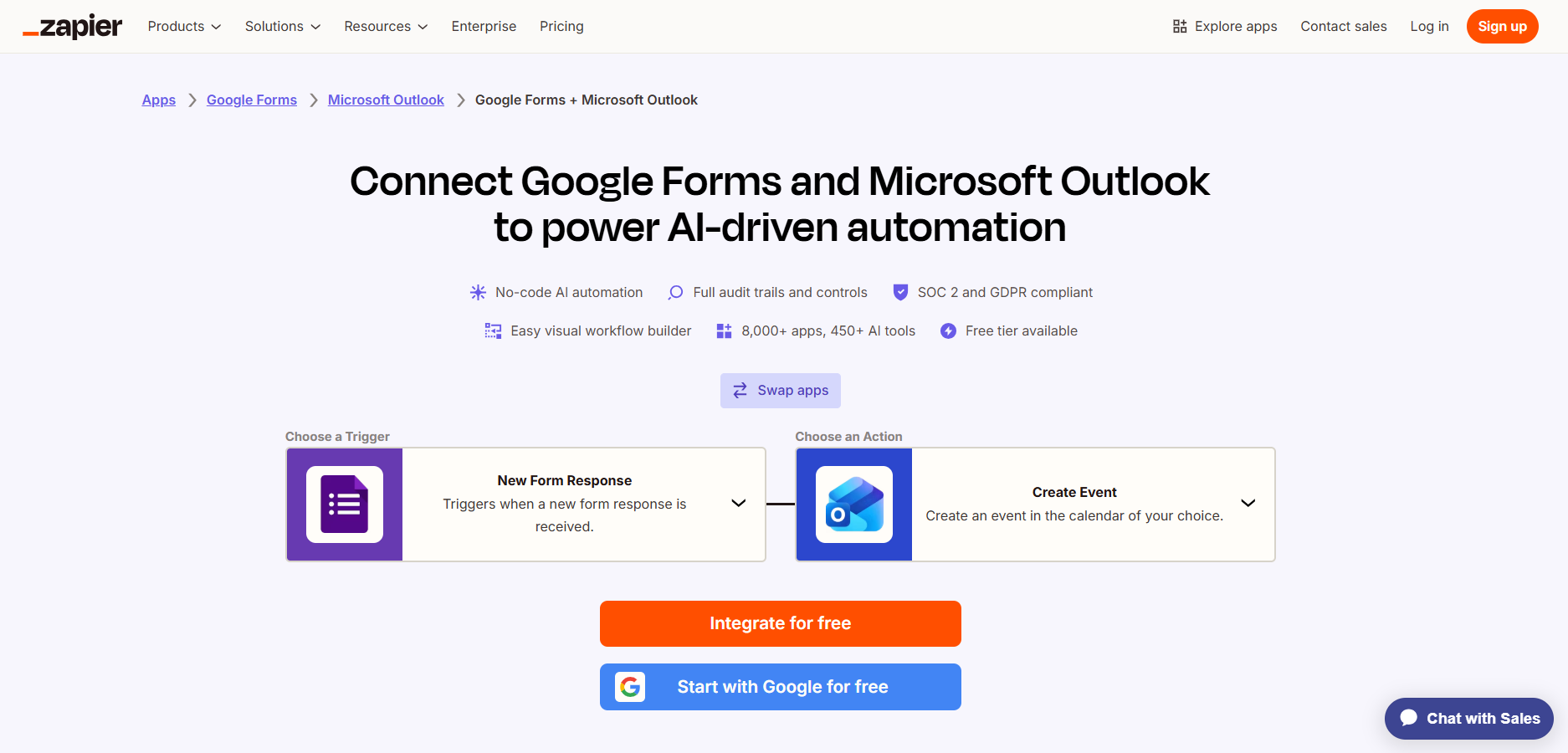
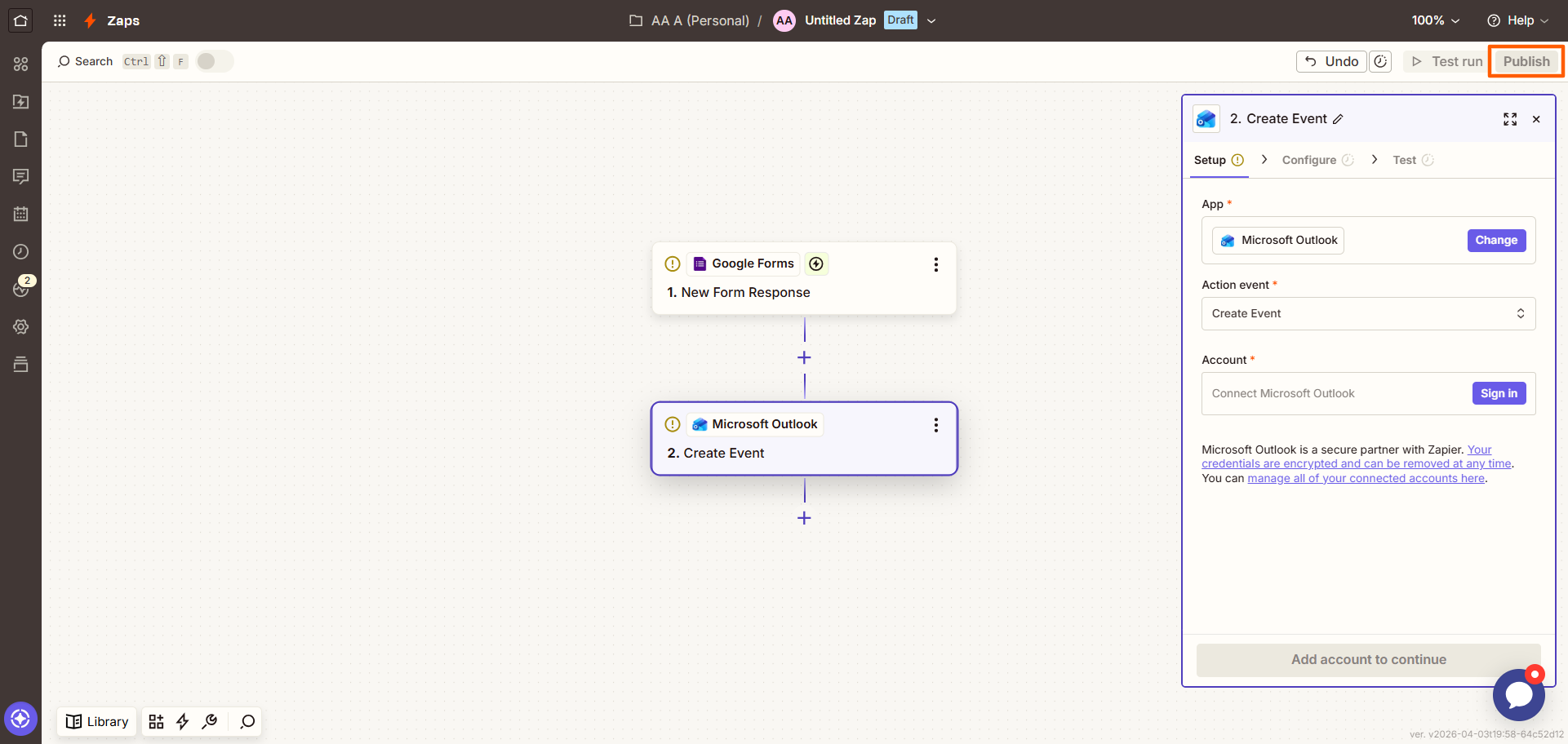
- Go to the Zapier Google Forms Microsoft Outlook Quick Connect page.
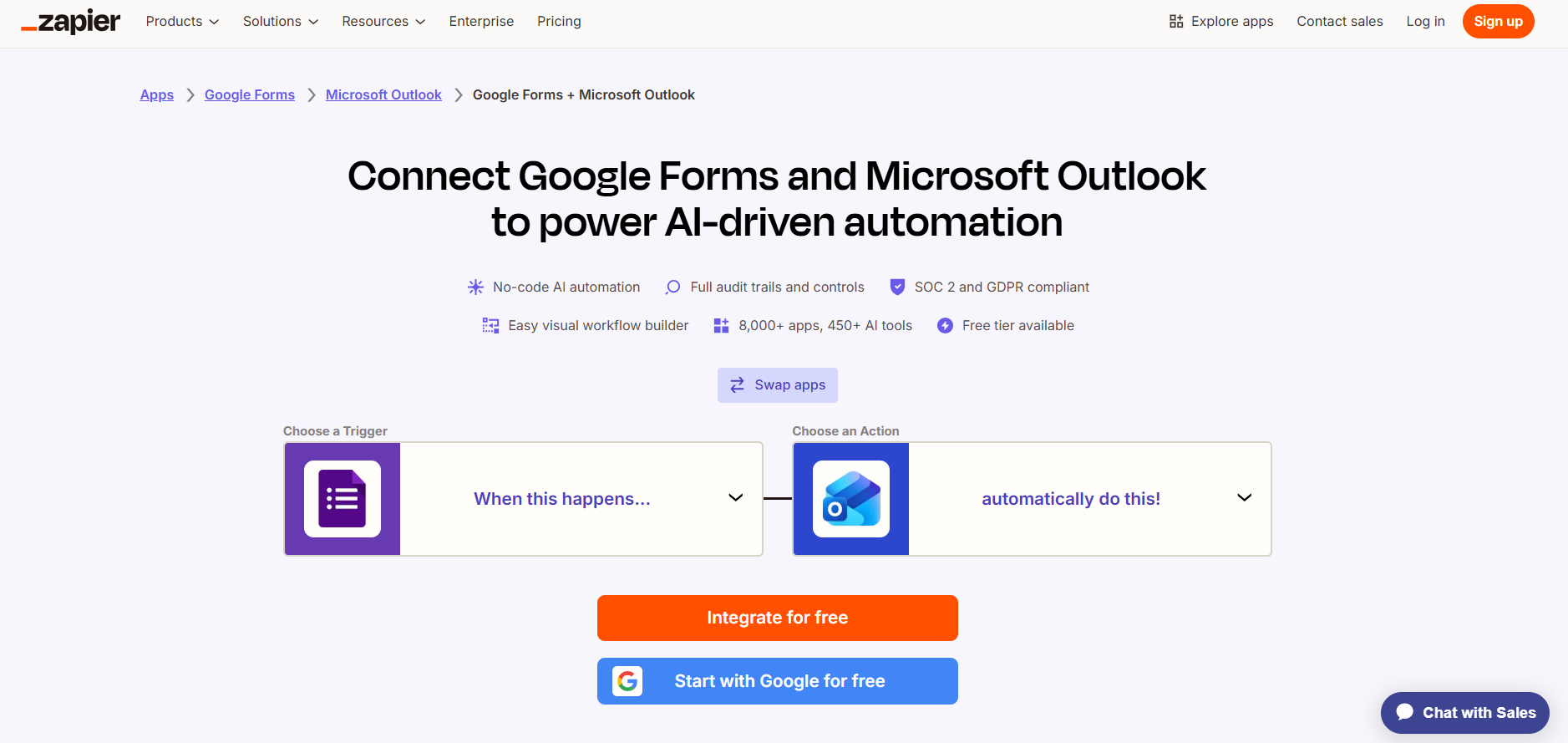
- Click the icon for Google Forms and select the trigger that starts the workflow from the dropdown menu. For example, New Form Response.
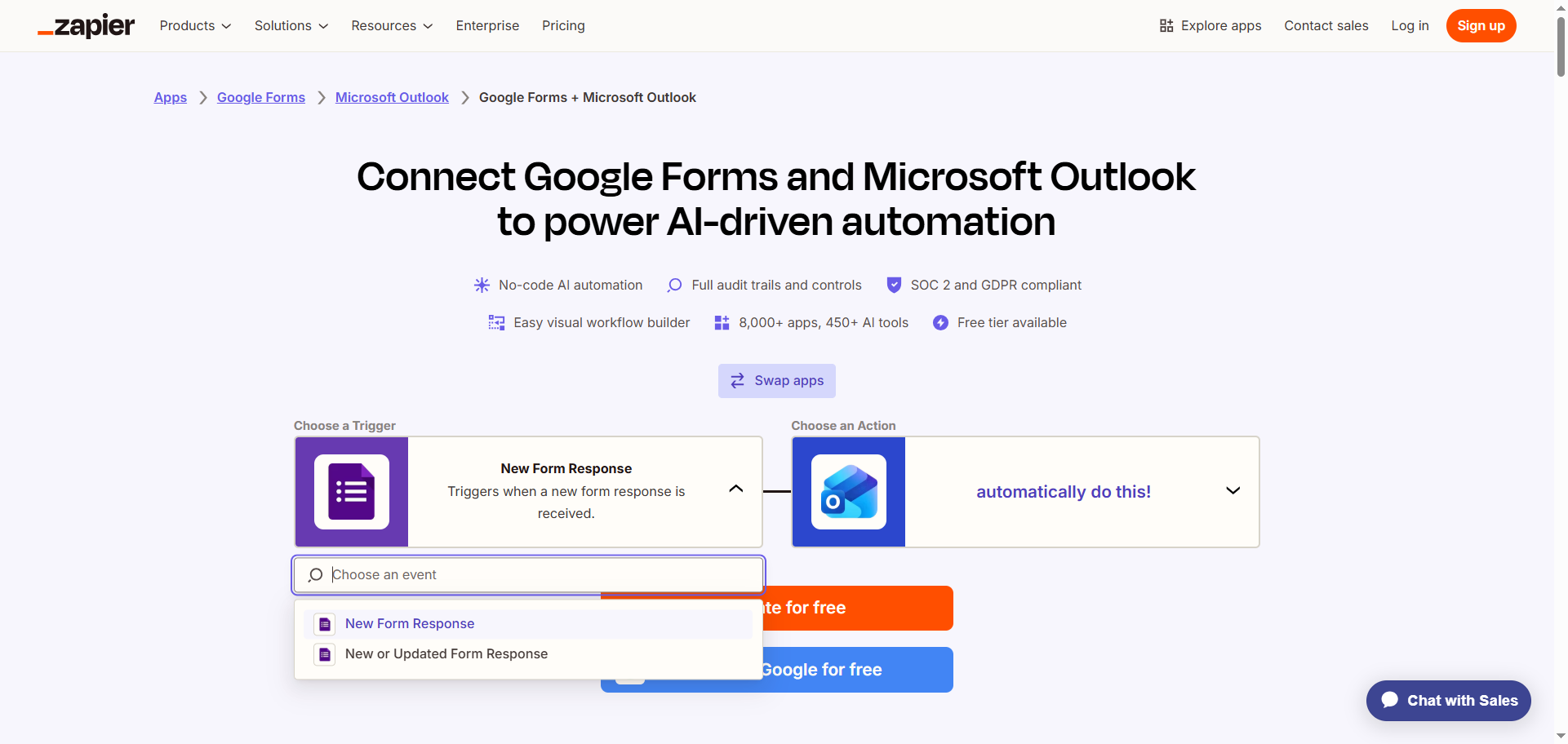
- Click the Microsoft Outlook icon and select the action that should occur as a result of the trigger from the dropdown menu. For example, Create Event. You could also choose Create Draft Email for Google Forms email notifications in Outlook.
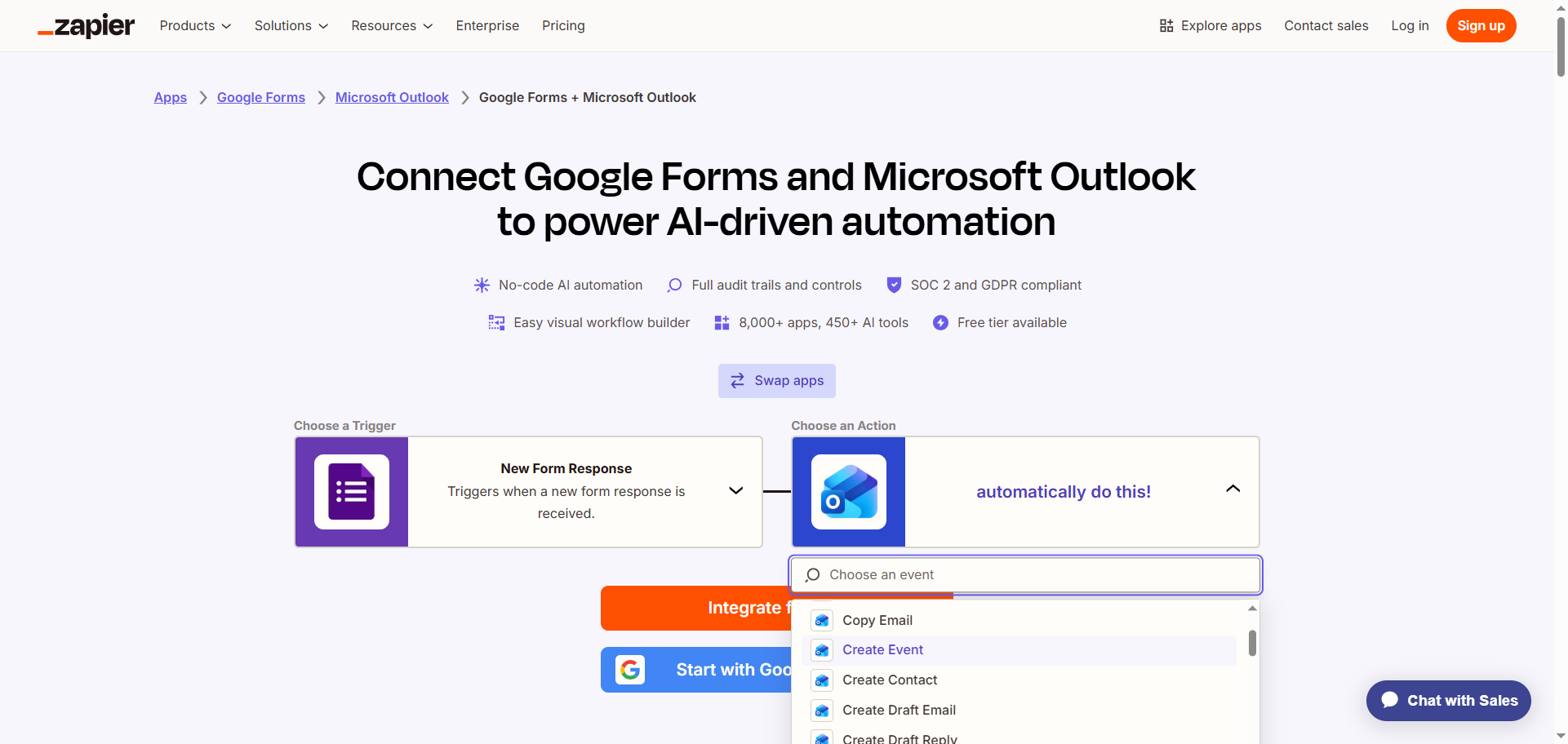
- Click Integrate for free.
- Log in to your Zapier account.
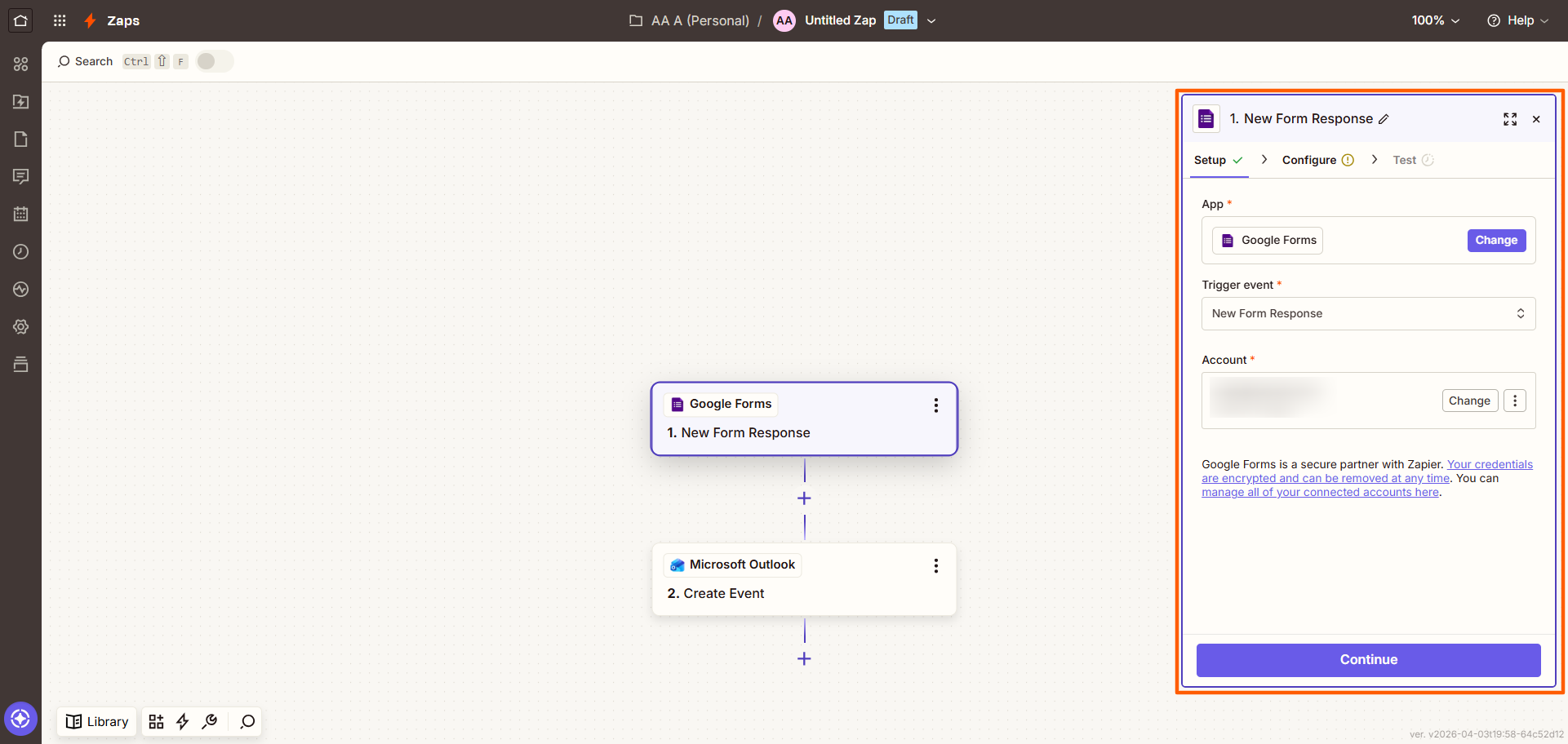
- Click Google Forms and follow the prompts to connect it to your Zapier account. Configure and test the connection with Google Forms.
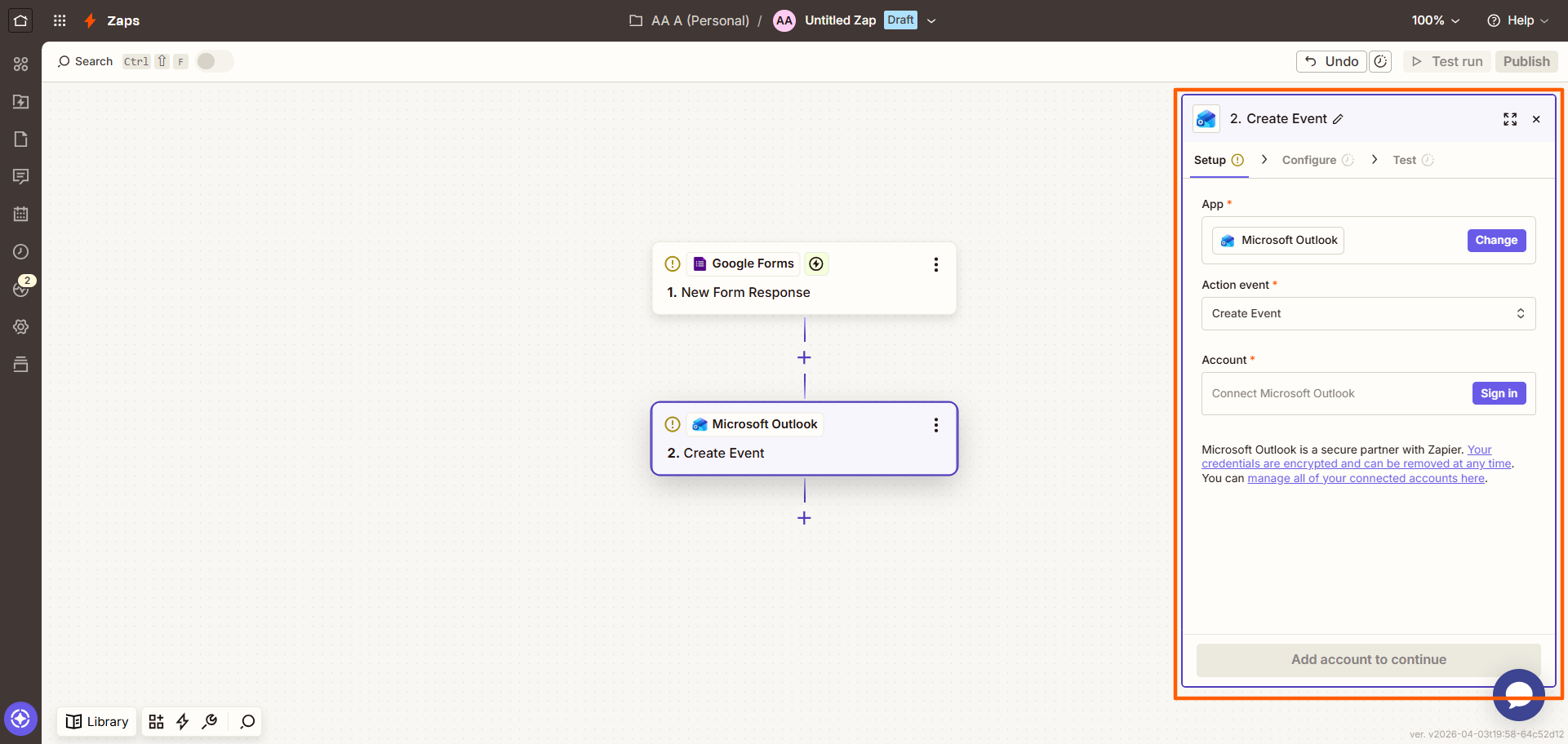
- Click Microsoft Outlook and follow the prompts to connect it to your Zapier account. Configure and test the connection with Google Forms, ensuring you have mapped the data from Google Forms to Microsoft Outlook.
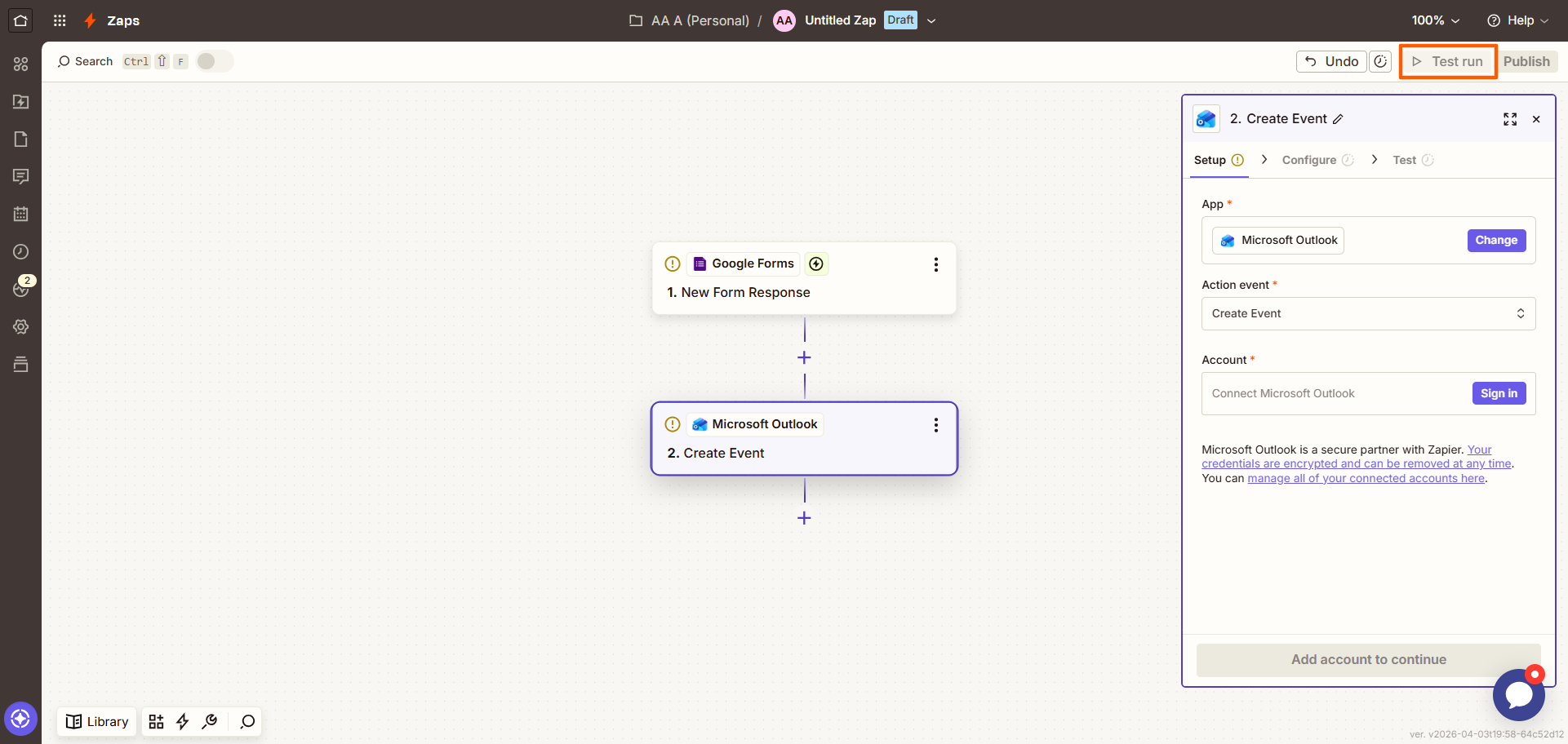
- Click Test run at the top right to see if the connection works. Make any necessary changes.
- Click Publish. Now, whenever your Google Form receives a submission, it will automatically create an event in Microsoft Outlook Calendar.
If using Zapier to create a Google Forms/Outlook email or calendar integration feels like a headache, you’re not alone. It’s one of many reasons people switch from Google Forms to Jotform — a form builder that connects to Microsoft Outlook with just a few clicks.
Jotform integrates with Microsoft Outlook natively
You can incorporate forms seamlessly into your daily work (and avoid messing around with third-party tools!) using Jotform for form creation. The best Google Forms alternative available, Jotform not only connects to Microsoft Outlook but to most other tools in your tech stack as well.
The Jotform Outlook integration is a two-way connection between Jotform’s appointment field and the Microsoft Outlook calendar, keeping them in sync. It ensures your availability as it appears on forms is correct so your customers, prospects, or employees can book appointments with you reliably. It’s the perfect solution for reducing missed appointments, saving administrative time, and making sure everyone is on the same page.
Want to learn how to integrate Microsoft Outlook with Jotform? Follow these step-by-step instructions:
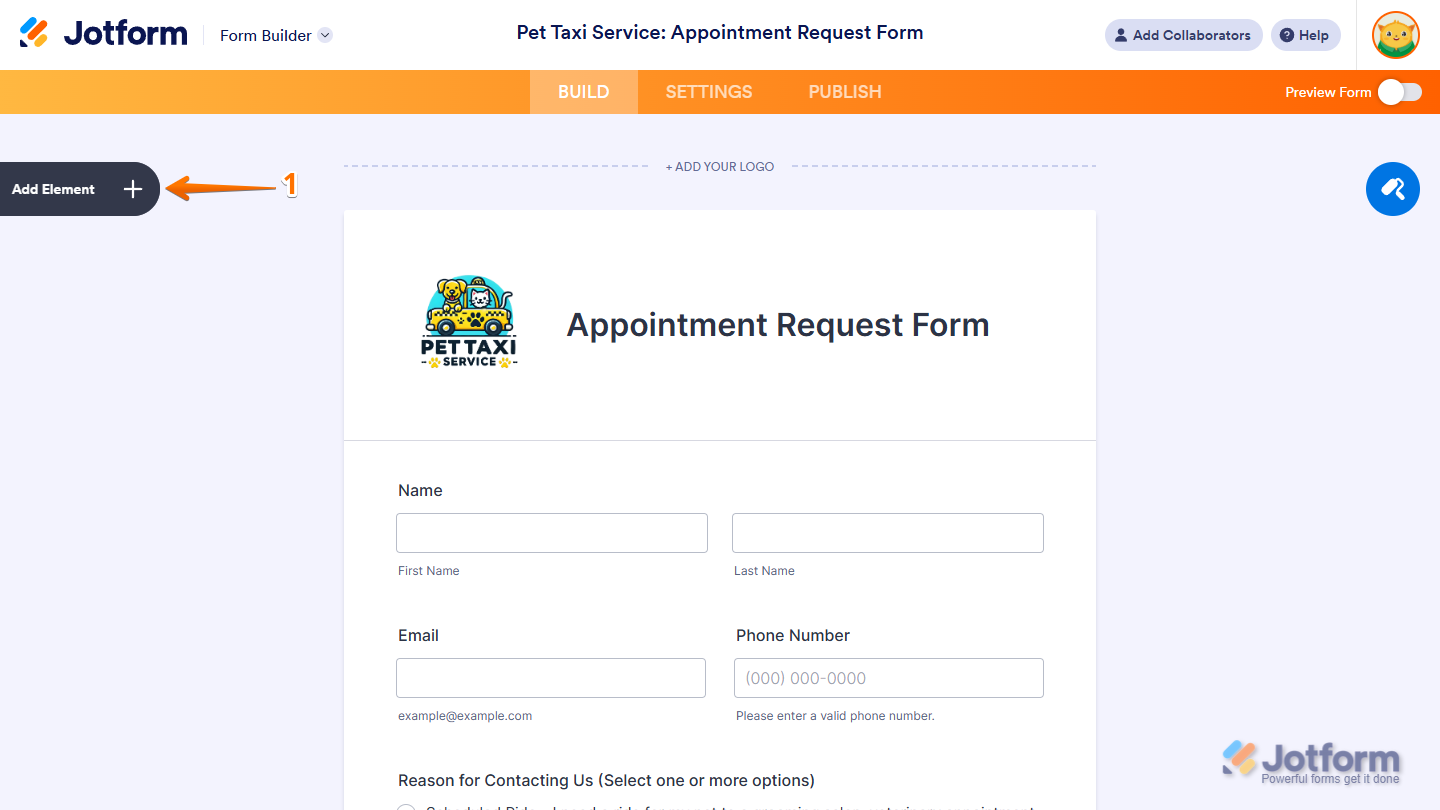
- Open the Jotform form you want to connect to Microsoft Outlook. Click on Add Element.
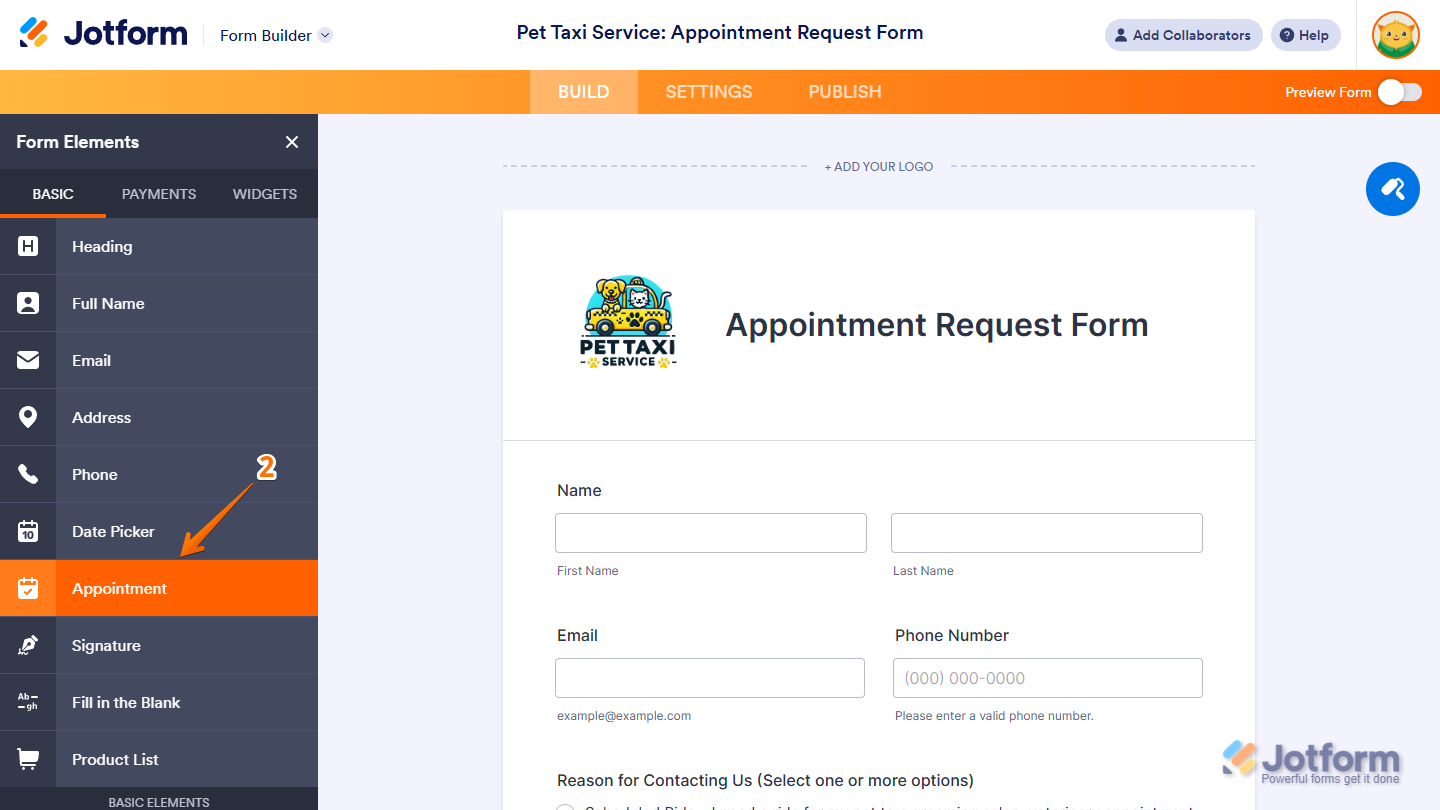
- Scroll down to Appointment in the Basic tab. Click Appointment and drag and drop it to where you would like it on your form.
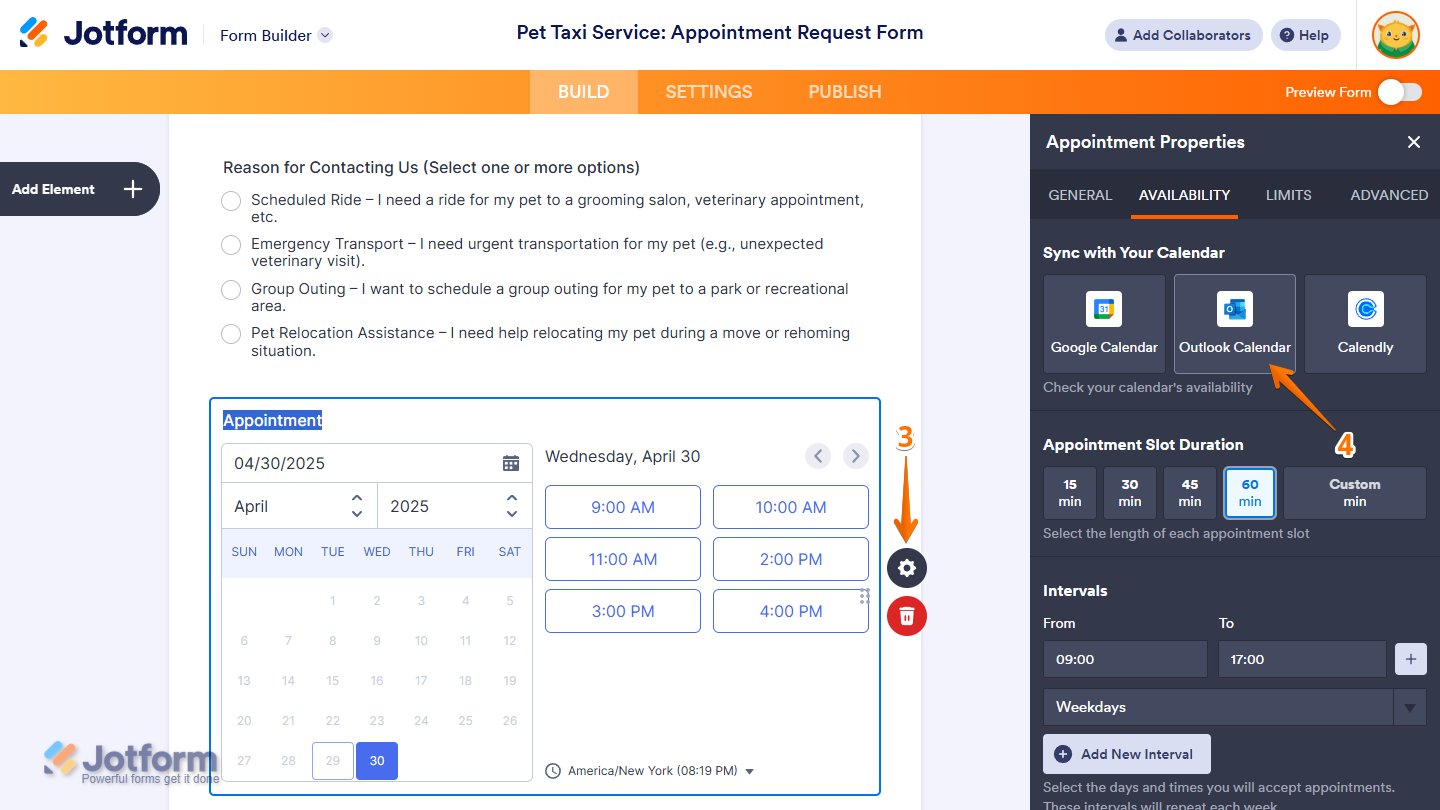
- Click the Gear icon on the Appointment field.
- Jotform will open the Appointment Properties window. Click the Availability tab. Then, click Outlook Calendar.
- Click Authenticate. Log in and provide authorization to integrate Jotform with your Microsoft Outlook account.
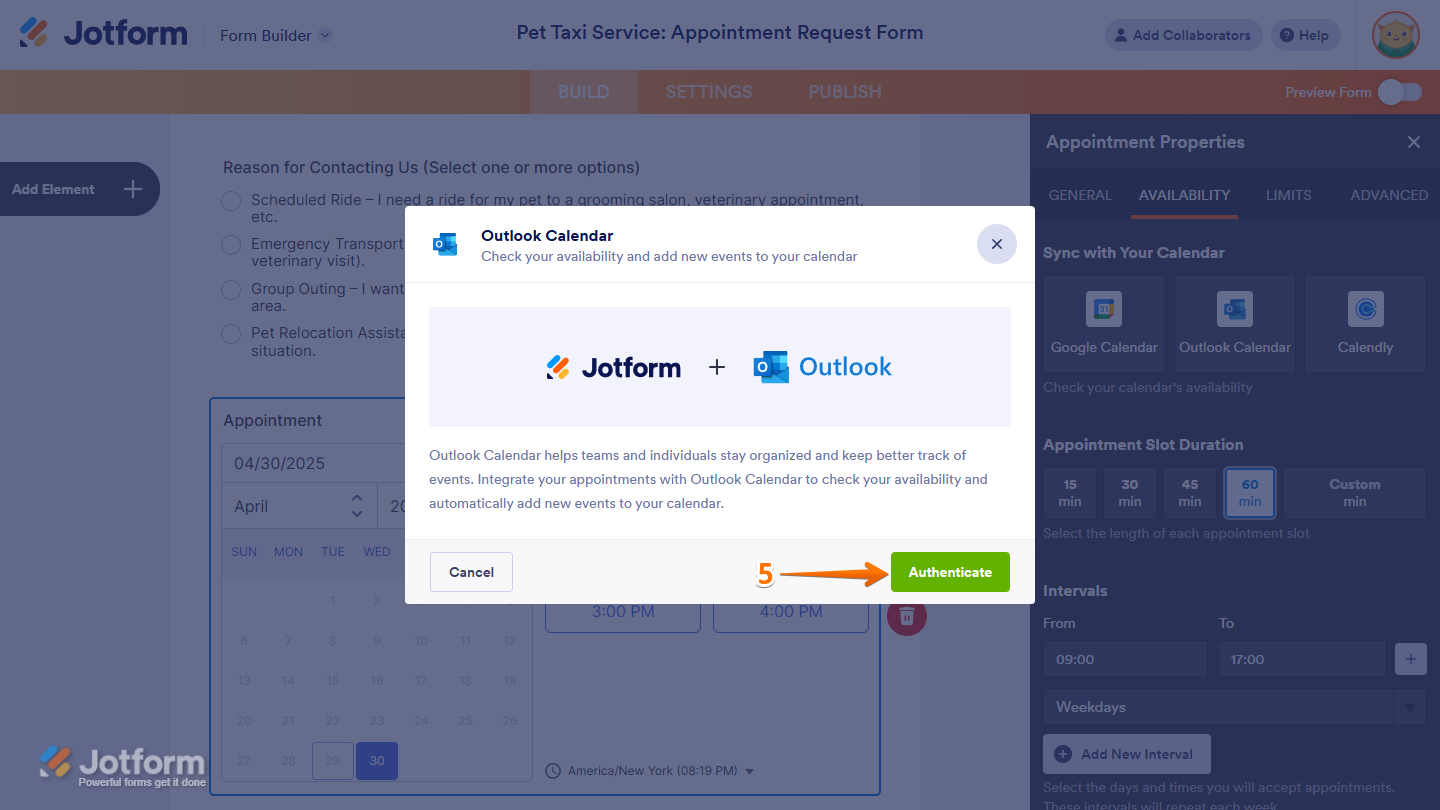
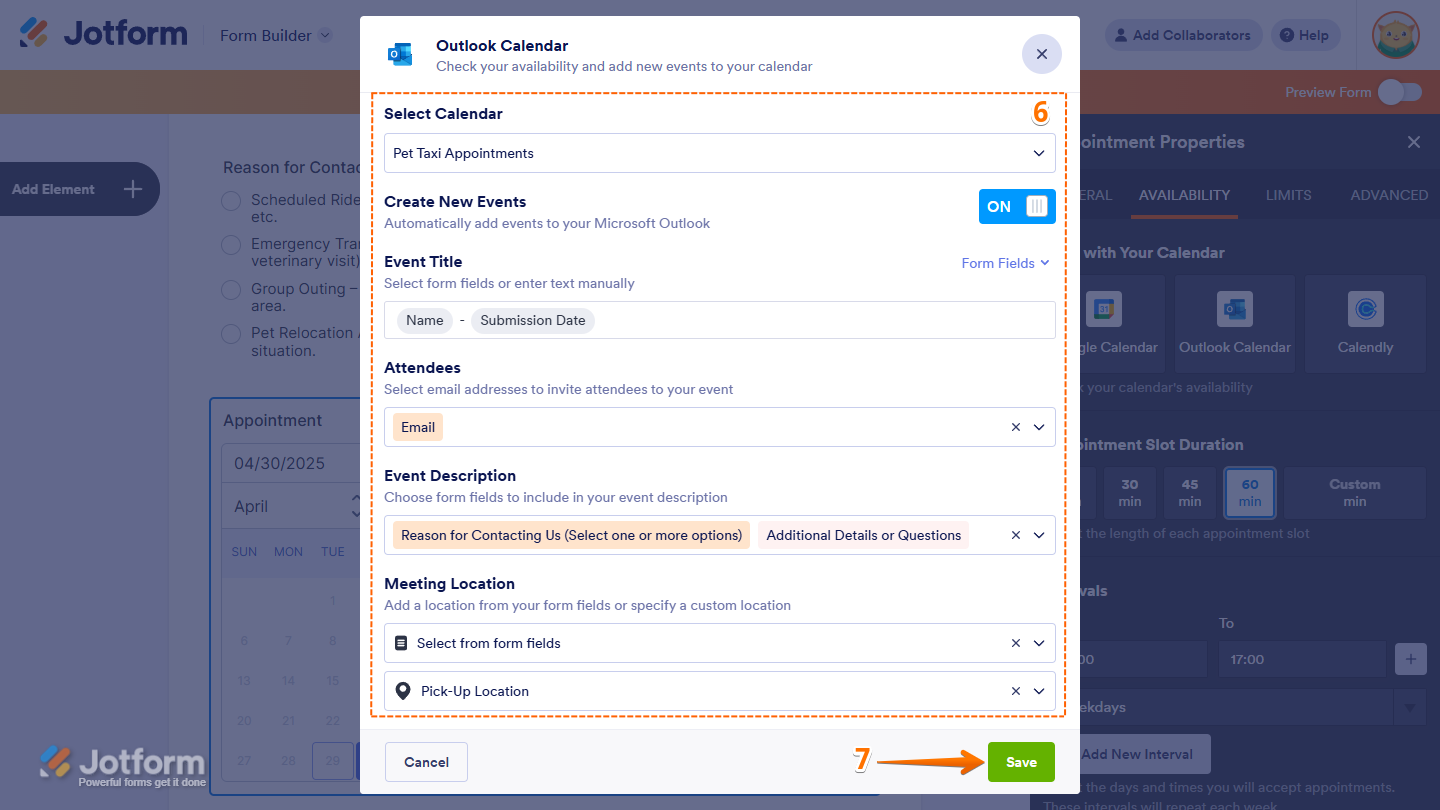
- Once it’s connected to your Microsoft Outlook account, select the following settings to connect to your calendar:
- Select Calendar: Open the drop-down menu and choose the calendar you want to configure.
- Event Title: Create a title for the Outlook event by choosing a custom title or inserting dynamic values from your Jotform form by selecting supported form fields, such as Full Name, Email, Address, Phone, Date Pickers, and more from the drop-down menu.
- Attendees: Select email fields from the form for whom you want to send the invitation to.
- Event Description: What event details should be in the event description? Select from supported fields, such as Long Text, Dropdown, Multiple Choice, or more. You can select multiple fields for this option.
- Meeting Location: Choose where the meeting will be held from options such as Microsoft Teams Meeting, Skype, a custom location, or a selection from your form fields.
- Click Save.
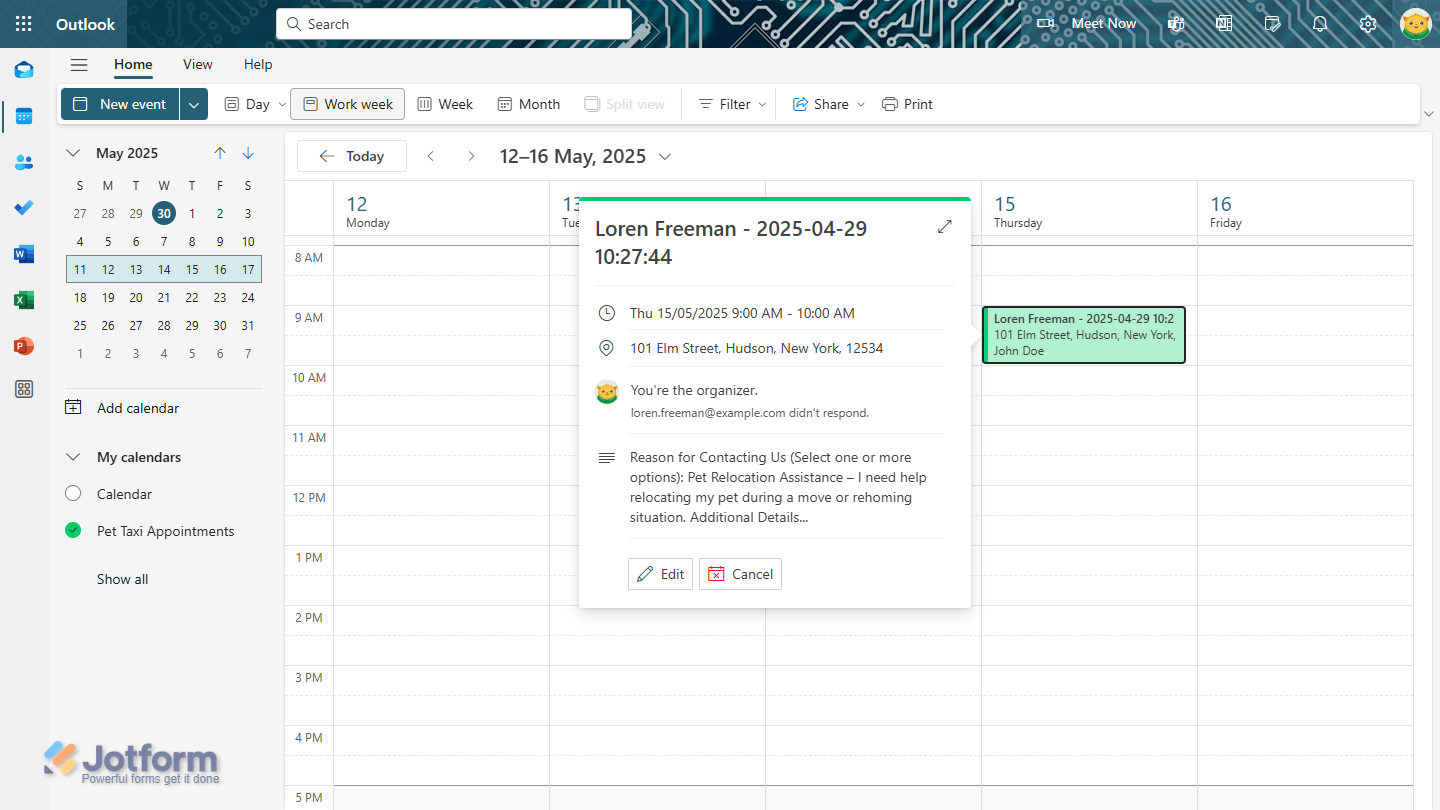
Connecting Jotform to your Microsoft Outlook calendar is that easy! Whenever a form respondent books an appointment through your Jotform form, it automatically creates an event invite in your Outlook calendar.
Pro Tip
Want to connect Jotform to more than just your Outlook calendar? No problem! Jotform also offers a native integration to instantly send emails using information submitted through Jotform Forms, streamlining communication.
Switch to Jotform for native Microsoft Outlook integration and so much more
Why do Google Forms users consistently switch to Jotform? Here are a few reasons:
 Jotform |  Google Forms | |
|---|---|---|
| Native Microsoft Outlook Integration | ||
| Fields and widgets | 20+ basic fields & 100+ widgets | 11 question types |
| Conditional logic | Limited capability | |
| Integrations | 150+ | Add-ons supported |
| Templates | 20,000+ | 17 |
| Themes | 1,000+ ready-made themes & custom theme creation | Limited theme customization |
| Custom notifications & auto-responder emails | ||
| Reporting features | Report Builder and Form Analytics | Limited graphs |
| Mobile app | Jotform Mobile | |
| Try It Now | Learn More |
When you compare Google Forms to an advanced form builder like Jotform, a few important aspects really stand out:
- Jotform comes with 150-plus native form integrations to tools in your tech stack like Microsoft Outlook, making it easy for you to create automated workflows like event invites from form submissions.
- You don’t ever have to build a form from scratch with Jotform. It offers 20,000-plus form templates for different industries and use cases, saving you time and energy.
- Jotform has sophisticated form features like conditional logic, so you can create relevant, engaging forms for your users.
- If you want to create custom forms, Jotform is your best bet. It comes with more than a thousand themes to create the perfect form. Plus, you can even customize form thank you and auto-responder emails.
With Jotform, you also have access to form analytics and reporting tools, so you can use your form data to make business decisions. And when you’re on the go, you can manage and update your forms using Jotform’s mobile app.
While Jotform has sophisticated features, it is highly intuitive — making it an ideal choice for those new to using online form builders as well as experts. You can create nearly any kind of workflow with Jotform quickly and simply.
Migrate your Google Forms to Jotform with a single click
Let’s face it: The best way to streamline your internal workflows is to migrate to Jotform. You can access hundreds of native integrations for tools in your tech stack and create professional-looking, engaging forms to boot!
Worried you’ll have to rebuild your Google Forms in Jotform if you migrate? That’s not the case. Our migration tool does all the work for you, keeping your form questions and structure intact. In just one click, you can move everything over to Jotform with ease.


Best of all, Jotform has a free plan, so there’s really nothing stopping you from making the move. Explore how easy it is to migrate to Jotform, integrate your forms with Microsoft Outlook, and create automated workflows to streamline your processes. Try Jotform today!
This article is for office administrators, operations teams, and enterprise users working in Microsoft 365 environments who want Google Forms submissions to trigger Outlook emails or calendar events — without switching ecosystems.


































































































Send Comment: