Jotform’s Terms and Conditions widget lets you add terms and conditions directly to your form so users can review important policies and confirm that they agree before submitting. It’s a simple way to keep your terms easy to find and review without adding unnecessary fields or clutter.
Whether you’re creating a new form or updating an existing one, you can add and set up the Terms and Conditions widget in a few easy steps. Here’s how to do it:
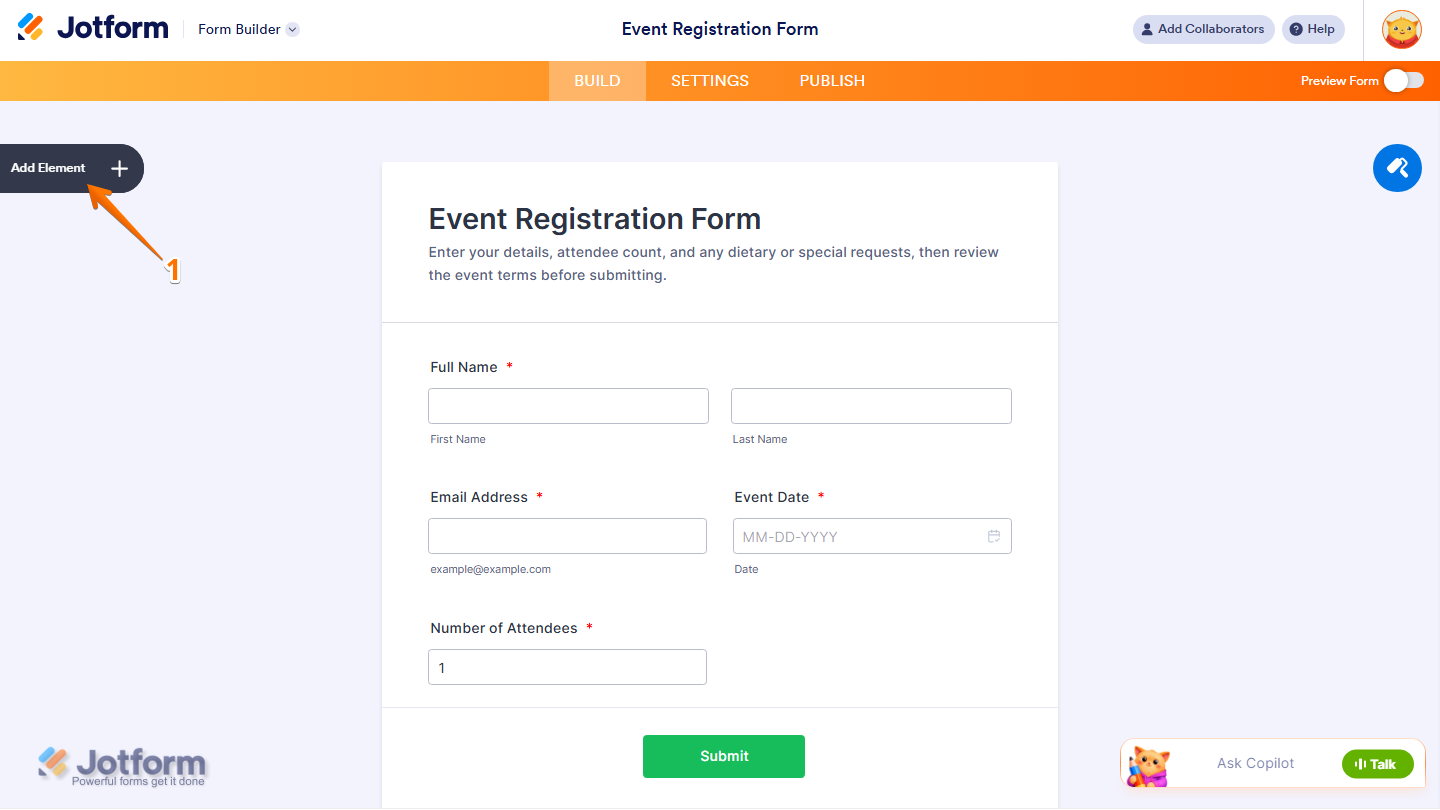
- In Form Builder, click on Add Element on the left side of the page.
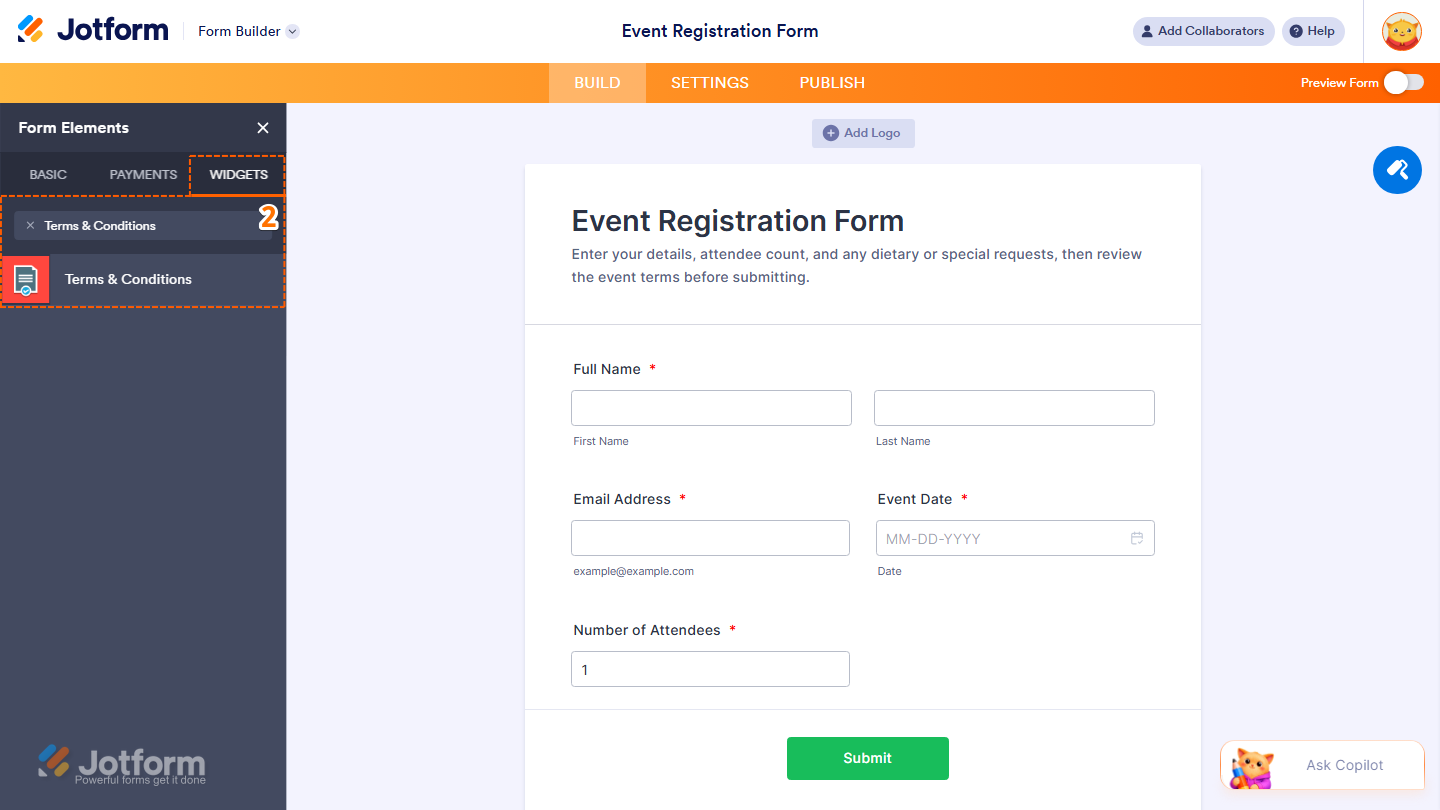
- Now, in the Form Elements menu, under the Widgets tab, search for Terms and Conditions and click on it. Or, just drag and drop it to where you want it to be on your form.
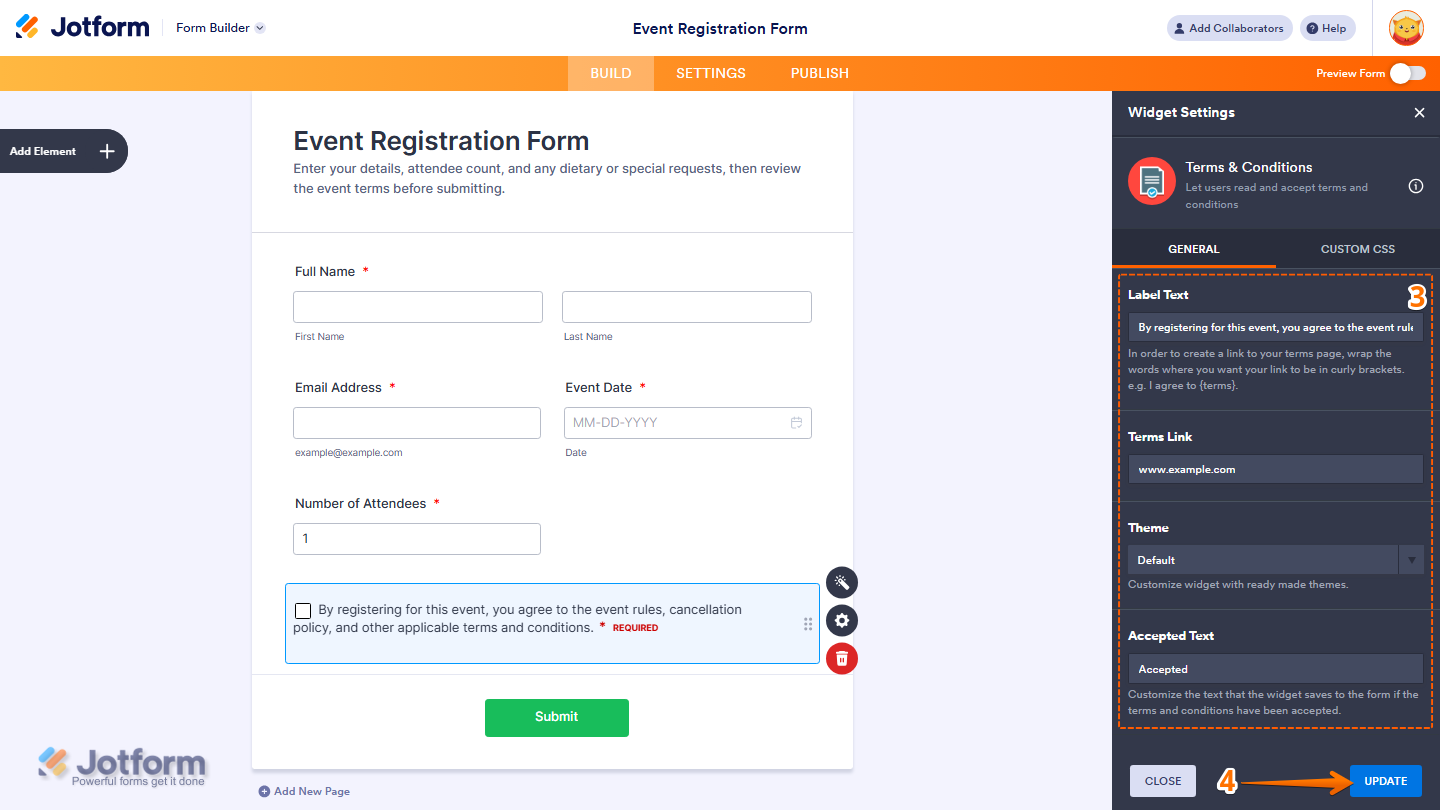
- Next, in the Widget Settings menu that opens on the right side of the page, under the General tab, you’ll see this list of settings you can configure:
- Label Text — Edit the main text shown next to the Agreement Checkbox.
- Terms Link — Add the URL to your License Agreement or Terms and Conditions.
- Theme — Select the default theme for white backgrounds, and use the light theme for dark backgrounds.
- Accepted Text — Customize the message displayed after the user accepts the agreement.
- When your settings are ready, click on Update.
That’s it. You’ve successfully added and set up the Terms and Conditions widget on your form.
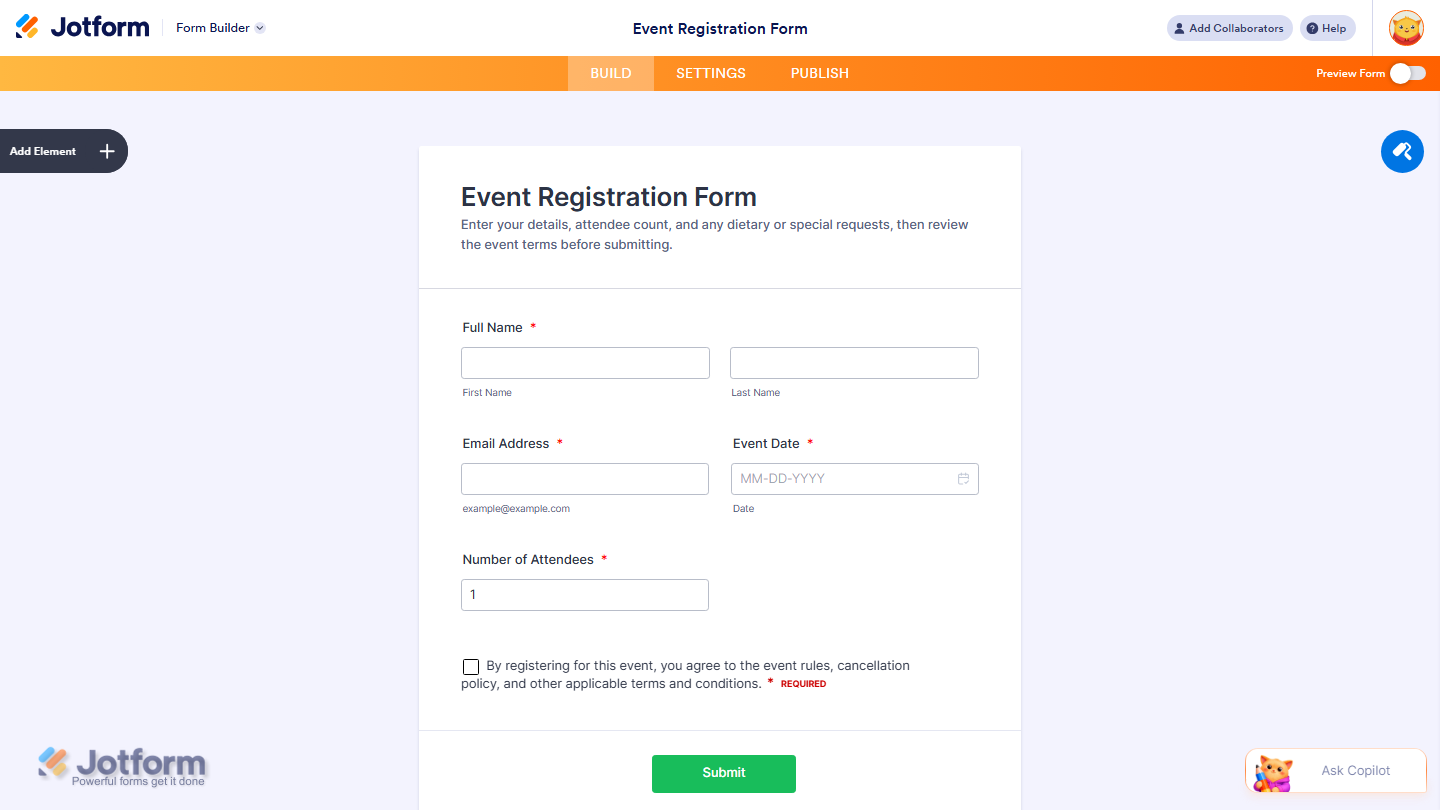
You can explore how it looks with this demo form.
Note
- For advanced styling of the Terms and Conditions widget, you can add your own custom CSS code under the Custom CSS tab in the Widget Settings. Our guide on How to Inject CSS Codes to Widgets walks you through everything.
- You can also configure the widget properties, like the alignment, labels, size, visibility, and more, to control how it looks and behaves on your form. Check out our guide on How to Access and Configure the Question Properties of a Widget to learn more.

Send Comment:
28 Comments:
December 15, 2020
Hi! I need to collect an ID and Password on my form but, I want to make sure that I am in compliance. I just reviewed the above information on how to add a terms and conditions checkbox to the form - but, I am confused on how to add the link.
Can you please assist me? Is this the only way I can collect a login on my form?
September 4, 2020
In the payment section on a form, when you have multiple products under a category how can you default for the categories to be collapsed when the form is open, it seems to default to the categories open and uncollapsed making that section longer.
February 4, 2020
I have tried the instructions above. Although I replace the href code with my URL ( the final URL to which the user is sent is:
Help - please!
Thanks,
Andre
December 23, 2018
Sar mera account create kar dijiye cantect no 9285170220
November 21, 2018
Hello, the OPTIONS field does not accept the hyperlink.
I tried to copy& paste
"I have read and agree to the Terms and Conditions"
and after pasting in the OPTIONS field appears only
"I have read and agree to the Terms and Conditions". HTML code was not pasted in, automatically.
August 23, 2018
Hi
I'm trying to do this but when write in Options the string "I have read and agree to the Terms and Conditions" don't let me insert html tags, only appear the text, so the link doesn't work.
Why?
Thanks in advance
Alfonso
July 30, 2018
Hi there - I am trying to set this up but the Options box does not allow me to input the
Terms and Conditions in the box? The link disappears and does not set up a hyperlink!
Please help!
Thank you
June 21, 2018
It doesnt Work
My url are deleted while typing !
February 27, 2018
**** THIS IS ENTIRELY USELESS IF YOU WANT TO EMBED YOUR FORM ON YOUR WEBSITE ****
So many ridiculous restrictions. Follow the instructions to the T, and there's always something outdated, that no longer works. I cannot insert any code such as TEXT HERE
As soon as I use HTML tags, they get automatically erased while I type. The widget doesn't work when I embed my form. Ready to move on from this terribly restricted service. Why do I HAVE to use an iframe for my form's widgets to work correctly? Restrictions....
October 9, 2017
I keep trying to add this to a form but it deletes the url link. I don't have a checkbox option so I used a multiple choice but with only one answer. If I put the link in the answer and have no question then the asterisk is above rather than alongside but either way it won't keep the url link in the text. My form is here
March 24, 2015
The "required" star for my label is the line above my option. How do I fix this?
September 19, 2014
My form is sent to me and also a copy to the submitter. I want them to get a copy of the agreement when the form is sent... Right now, all I get is the acknowledgement that they agree to it and have read it. How do I send a copy of those terms (they are in html format) with the form when it is submitted.?
Thanks
September 4, 2014
I don't know anything about this stuff, all I want is the terms and conditions to show up when I print the PDF of their submission. How do I do that?
August 6, 2014
Hi guys, the code provided above doesn't allow for the terms and conditions to open in a new window. Instead it redirects the viewer away from the form. Please help me with this asap!
March 10, 2014
Hi,
I'd like to get a 'hard copy' SAVE of the total agreement with name and toggled T&C box on 1 pdf.
Now when my T&C form is submitted I only receive the name in my Jotform inbox.
Thanks
January 30, 2014
Olha, já era fã de vocês, agora estou no nivel full.. Parabens mesmo. Que continue crescendo e compartilhando o conhecimento de vocês.
November 21, 2013
HEllo, I would like to edit the term of conditions. when the guest fills the forms and click on the term of conditions I'd like that it opens a small windows with all the terms. Is this possible?
thank you
August 17, 2012
Where and how can I write my own terms and agreements?
January 22, 2012
sorry..already found the answer..Captcha button..;-)
January 22, 2012
Hi..Where can I find the option "enter the text as shown"..as u hv in ur example?
November 16, 2011
Nevermind the coding did not come up. You can just Google "what is the code to have a link open in a new window?" and you should be able to find it.
November 16, 2011
Here is a coding example if you want the link to open in a new window.
to got to JOTFORM!
September 15, 2011
Can I link from one jotform page to another jotform page?
I put in the html on one form
but it does not work - any ideas?
April 21, 2011
What I have done in the past is to create my YES and NO check boxes. Then, I go to the "conditions" tab. In this instance, a Thank You page was not needed, so I reset the custom URL thank you link to match the YES or NO checkbox. I don't know it you can sub a URL for a conditional email setting or not. If so, that would accomplish the same thing. May be the "low-tech" way to do it, but it worked fine.
April 3, 2011
See the thread in forum: https://www.jotform.com/answers/18869-Terms-and-conditions-accept-decline-that-forwards-automatically