
Templates are among the simplest ways to streamline your time-consuming e-signature workflows. Instead of recreating the same document every time, you can standardize it once and reuse it over and over again. That means faster preparation, fewer formatting mistakes, and less work for your team.
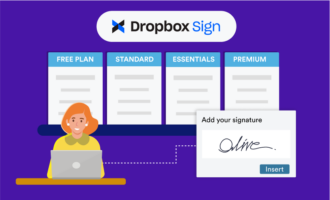
How? With Dropbox Sign. But what is Dropbox Sign? Dropbox Sign (formerly HelloSign) is an e-signature solution that lets you create reusable document templates that you can customize and quickly send out for signing whenever needed.
If you’re a digital workflow manager, part of a small business team, or simply want to streamline your e-signature process, keep reading to learn how Dropbox Sign templates can help you send documents faster. We’ll also explore how more flexible Dropbox Sign alternatives, like Jotform Sign, offer deeper customization and automation.
How to create templates in Dropbox Sign
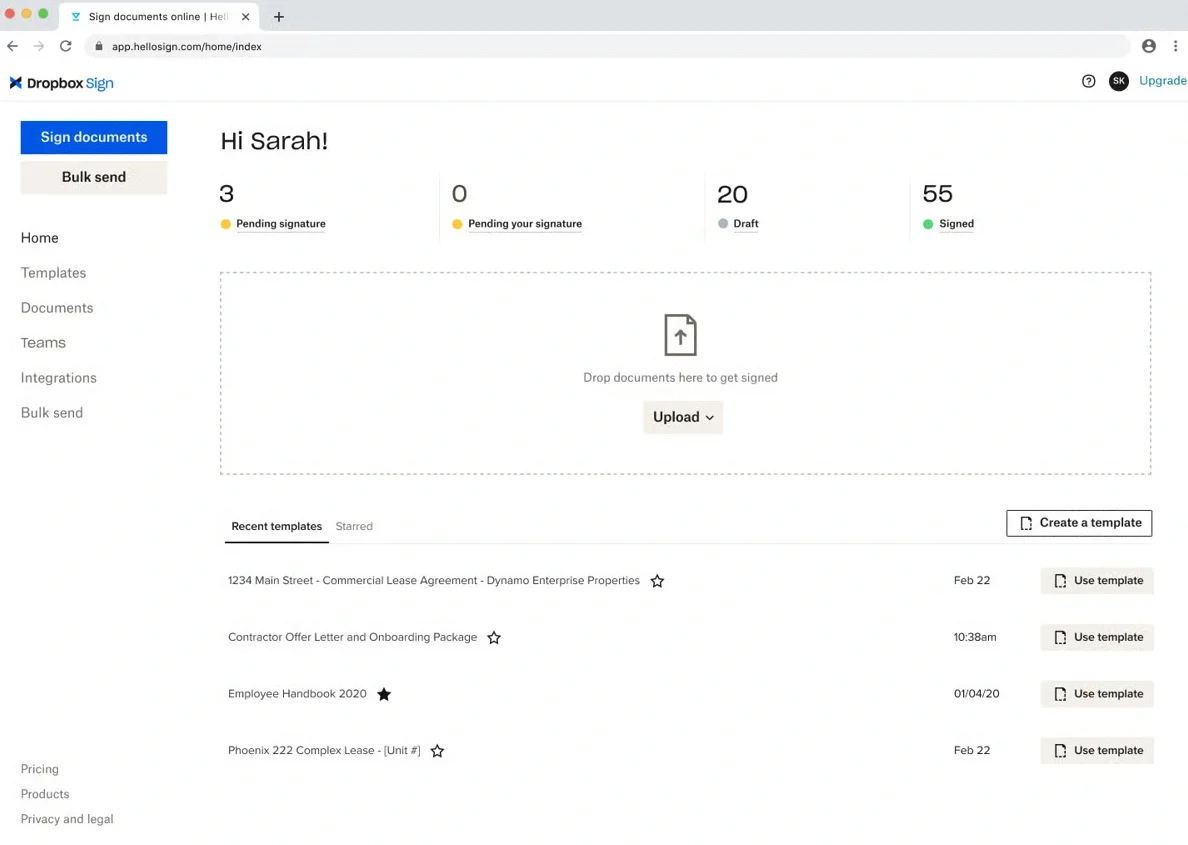
Creating Dropbox Sign templates helps you turn documents into consistent, reusable Dropbox e-signature workflows that save prep time and reduce errors for your team. It’s one of the stronger Jotform alternatives for e-signatures.
Instead of rebuilding fields from scratch, you can give your team a reliable starting point for contracts, forms, and other agreements so they can send them in minutes.
If you’re ready to set up your first template, here’s a breakdown of the steps:
- Sign into your Dropbox Sign account at sign.dropbox.com.
- In the left-hand sidebar, click Templates.
- Click Create template (usually in the lower-right corner).
- Upload the document you want to reuse by dragging it into the upload area or clicking Select files to choose it from your computer or cloud storage. Click Continue.
- Add your signers and assign each one a role (for example, “Client,” “Manager,” or “HR”).
- Drag and drop fields (signature, name, date, checkboxes, text boxes) onto the document, placing them where each signer needs to complete them.
- Review the roles, field placement, and signing order, then add a clear template name and, if you like, a default email message for signers.
- Click Save template.
- Your template will now be stored in the Dropbox Sign Template gallery, so your team can use it anytime.
Limitations of Dropbox Sign templates
There are many Dropbox benefits, including the fact that Dropbox Sign templates can save you time when getting started with e-signatures. But when you start sending more documents each week, you may notice that Dropbox Sign templates aren’t removing as much work as expected.
As your team and document volume grow, a few crucial limitations may come up that are worth considering:
- Every template relies on manual field placement, and there’s no dynamic conditional logic. You have to drag and drop fields for each scenario instead of the document updating automatically.
- You only get a small set of pre-built options, which means you’ll create most Dropbox Sign templates from scratch rather than starting with industry-specific examples.
- Automation is relatively basic, with no native form integration or advanced workflow builder to pass data from one step to the next.
- Powerful template features, including team sharing, require a paid plan. This can be a roadblock if you’re testing e-signatures with a small team or are on a tight budget.
As teams outgrow basic Dropbox Sign templates (once known as HelloSign templates), they often look for tools that offer deeper customization, automation, and a larger template library.
A better alternative: Jotform Sign templates
Jotform Sign templates are the right solution if you want fast, repeatable e-sign workflows without spending hours rebuilding documents.
Instead of starting from a blank page, you can choose from 900-plus ready-made templates for contracts, NDAs, agreements, and more. You get a polished starting point for almost any use case — without having to write or design a document from scratch.
From there, Jotform’s Sign Builder lets you go beyond basic templates and customize layouts, fields, and branding. You can drag and drop fields to place them exactly where you want people to fill them out. You can also set up automated approval flows to add approvers, define conditions, and trigger actions automatically based on responses.
And because Jotform Sign connects directly to forms, you can collect data once, auto-fill your templates, and send them for e-signature. Imagine creating a new client agreement where names, dates, and terms populate automatically — no copy-pasting required.
All of these features take work off your team’s plate. You spend only minutes setting up documents, avoid confusion and incomplete forms, and reduce manual errors that can affect revenue or compliance. And it’s all available on a free plan, too, with upgrades for advanced options like prefill from 100-plus integrations and automated workflows.
Pro Tip
If your team already keeps signed documents or client files in Dropbox, Jotform’s Dropbox integration lets you automatically send new submissions and signed PDFs from Jotform Sign straight to your existing Dropbox folders. That way, you can switch to Jotform Sign and everything stays right where you expect it.
Streamline your e-sign workflows
Jotform Sign templates give you a faster, more flexible way to manage e-signatures, especially when the same documents go out repeatedly. Instead of rebuilding layouts or managing multiple tools, you can rely on one platform for customization, automation, and an extensive template library.
As your organization grows, Jotform Sign makes it easier to keep contracts and forms consistent while saving time and reducing mistakes. Give it a try for free today.
Send my document for signature
File type is not allowed.
Maximum file size limit exceeded. (5MB)
Something went wrong.
AS ALWAYS, CONSULT AN ATTORNEY BEFORE RELYING ON ANY INFORMATION ON THIS PAGE. THE CONTENT ABOVE IS FOR INFORMATIONAL PURPOSES ONLY. JOTFORM IS NOT PROVIDING LEGAL, FINANCIAL OR OTHER ADVICE.
This article is for teams and organizations exploring faster, more consistent ways to create, reuse, and send e-signature documents while reducing manual work, improving document accuracy, and comparing template-based workflow options for growing day-to-day signing needs.



































































Send Comment: