

Dropbox Sign is an e-signature tool that helps you send, sign, and manage documents online so you can move contracts forward without relying on physical documentation. You can access Dropbox Sign from the web or mobile, upload or create documents, and quickly collect signatures from clients or teammates. If you already use Dropbox to store files, this integration makes it easy to keep signed agreements organized.
In this guide, you’ll learn how to use Dropbox Sign and when Jotform Sign may be a better fit, especially for small business owners, operations managers, and anyone looking to simplify their document workflows.
How to use Dropbox Sign
Dropbox Sign lets you upload a document, add signature fields, and collect legally binding e-signatures. But how do e-signatures work? This can all be done from your browser and doesn’t require extra software. If you’re in a Dropbox Sign getting-started mode, the basics come down to just a few clicks.
Instead of spending your time watching hard-to-follow Dropbox Sign tutorials, here are straightforward steps on how to use Dropbox Sign to send signature requests and sign documents:
How to send a signature request
- Log in to your Dropbox Sign account at sign.dropbox.com.
- Click Sign Documents on the homepage.
- Upload the file you need signed, or choose a template you’ve already saved.
- Enter the signer’s name and email address.
- If more than one person needs to sign, click Add another signer.
- Check the Set signer order box so the document moves through approvals in the correct order.
- Drag and drop fields onto the document, and assign each one to the correct signer.
- Customize the email subject and message.
- Click Send for signature.
After you follow these steps, signers will get a secure link via email, and you can track the document’s status from your dashboard.
How to sign a Dropbox Sign document
- Open the email you received from Dropbox Sign.
- Click Review & Sign.
- Click the signature field, or click Get Started to find the signature fields.
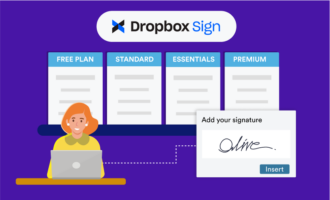
- Choose whether to draw, type, or upload your signature.
- Click Insert, regardless of the option you chose.
- Fill in any remaining required fields.
- Click Continue.
- Click I Agree to finalize your signature.
Once you’re done, both you and the requester will receive an email with a link to view the signed copy. You can both download it for your records.
Limitations of Dropbox Sign
Dropbox e-signatures are a good option for basic signing, and while there are Dropbox Sign benefits, it also comes with a few limitations you’ll want to keep in mind as your Dropbox Sign workflows grow.
Paid plans and usage limit
Dropbox Sign offers a free plan, but you can only send a limited number of documents per month. For example, you get up to three free signature requests every 30 days. If you’re part of a high-volume team, you will quickly outgrow using Dropbox Sign’s free plan. To keep sending more signature requests or unlock advanced features, you’ll need a separate paid subscription on top of any Dropbox storage plan you already have.
Template customization constraints
Dropbox Sign works well for simple, repeatable documents, but its templates are relatively limited. Deep customization, like advanced layout changes, conditional fields, or dynamic, data-driven content, is harder to achieve. This makes complex agreements harder to manage at scale.
Manual work for data-heavy workflows
If you rely on contracts that require data collection, signatures, and ongoing recordkeeping, Dropbox Sign often becomes just one step in a longer workflow. You’ll gather data in one place, move it into documents, and then update internal systems after signing. This manual process can lead to repetitive work and errors over time.
No built-in form builder
Dropbox Sign doesn’t offer a native form builder for collecting data before signing. You typically have to rely on third-party tools to gather information, then manually move that data into your documents. If your team depends on detailed intake forms or complex questionnaires, this extra step can slow things down and make end-to-end workflows harder to manage.
Collaboration, automation, and scalability gaps
The strongest collaboration features and controls are only available in higher-tier plans (Standard and Premium), which may be out of reach for smaller teams. Automation for reminders, conditional logic, and multistep approvals is also limited. This can lead to scalability issues for complex approval workflows or enterprise needs, requiring additional tools or custom integrations beyond Dropbox Sign.
Pro Tip
Already storing your signed documents or client files in Dropbox? You can connect Dropbox to Jotform for a smooth transition. New submissions and signed documents are sent directly to your existing folders, making it easy to move to Jotform Sign without disrupting your team’s file organization.
Jotform Sign: A better alternative
Jotform Sign is one of the best native, all-in-one Dropbox Sign alternatives. It combines powerful online forms with e-signatures in a single platform for teams that need more than a basic, one-time signature. You can collect data, generate documents, and get them signed without switching between tools. For growing teams, this makes it easier to build scalable, repeatable workflows.
Jotform Sign also offers an integrated digital document experience. You can
- Start with a form
- Prefill fields from existing data
- Send documents for signature
- Store everything in one place for easy tracking and compliance
Jotform Sign’s templates are another significant advantage, featuring 800-plus industry-specific templates (like contracts, NDAs, and proposals) that you can customize with a drag-and-drop Sign Builder. Instead of static templates that need manual edits for every new signer, you can add dynamic fields, use conditional logic, and run calculations so each document adapts to the information a respondent provides.
Even on the free plan, you can access templates and core features, so it’s easier for small teams to get started without committing to a paid subscription right away.
Because Jotform Sign is part of Jotform’s platform, you can collect data once and use it to automatically populate your document templates before sending them for e-signature.
For example, you might have a form that asks for a client’s name, company, address, project details, and fees. When the client submits the form, those answers can automatically populate the right fields in your contract template (name in the header, company in the intro, fees in the pricing section, etc.). Once everything is filled in, that customized contract is sent out for e-signature without you having to copy and paste anything manually.
For advanced workflows, you can prefill fields from hundreds of integrations, automate approvals and notifications, and reuse components across multiple documents.
If you’re new to e-signatures or digital workflows, explore our step-by-step guides and tutorials to help you set everything up with confidence.
Choosing the right e-signature workflow
Now that you know how to use Dropbox Sign, you can see it’s one of the strongest Jotform alternatives for simple, one-time e-signatures, especially if you need a quick way to send and sign contracts online.
Jotform Sign, on the other hand, goes further by combining powerful forms, flexible templates, and e-signatures in a single platform that supports data collection, approvals, and record keeping in one place.
For teams with growing workflows or frequent contract use, starting with a unified solution like Jotform Sign can save time, reduce manual work, and keep everything organized. If you’re ready to streamline how you create, send, and manage agreements, explore Jotform Sign and start building your next workflow.
This article is for small business owners, freelancers, operations managers, and anyone who wants to simplify their document workflows with e-signatures by learning how to use Dropbox Sign and exploring more powerful alternatives like Jotform Sign.



































































Send Comment: