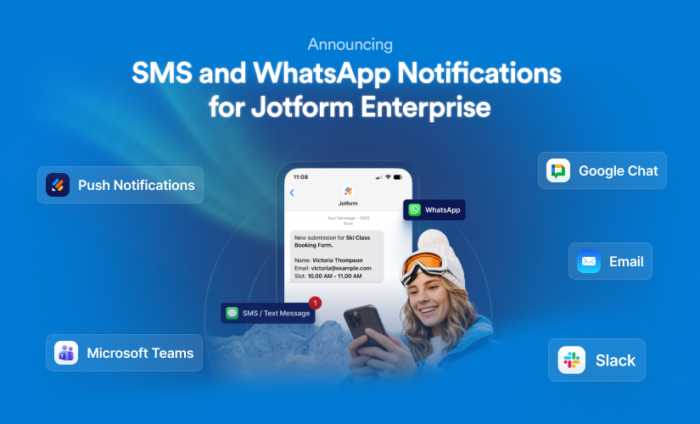

Get real-time submission alerts across secure, enterprise-ready channels — so critical workflows never slow down
Last year, nearly 350 million form submissions flowed through Jotform. For our Enterprise customers, many of those submissions powered mission-critical workflows across industries like healthcare, government, education, nonprofit, and finance.
Enterprise teams don’t operate at email speed anymore.
When submissions trigger patient intake, compliance reviews, approval workflows, or internal service requests, waiting for an email notification, or missing one entirely, can create real business risk. Emails get delayed. They get filtered. And they compete with thousands of other messages every day.
For Enterprise organizations, that’s not good enough.
A new, unified Notifications experience — built for Enterprise
This month, we’re expanding Jotform Enterprise Notifications through SMS, WhatsApp, Slack, Microsoft Teams, and the Jotform Enterprise mobile app. Enterprise customers now have secure, flexible options to route submission alerts directly into the channels their teams already monitor — without relying on third-party automation.
Multichannel notification options include
- SMS/text notifications with phone number verification
- WhatsApp notifications for global, real-time alerts
- Mobile push notifications from the Jotform Enterprise mobile app
- Native Slack and Microsoft Teams integrations for channels and chats
- Reliable email notifications — they’re still there if you need them
Enable Notifications in minutes
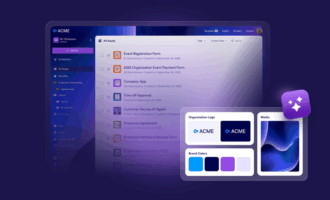
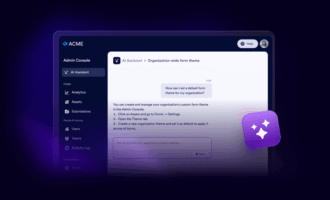
Each team, and each workflow, can choose the channel that makes the most sense. As an Enterprise customer, you have the flexibility to fully customize these options in the Admin Console, controlling what is visible to your team members. From the Admin Console, click on Assets > Forms > Settings to manage your organization’s notifications settings.
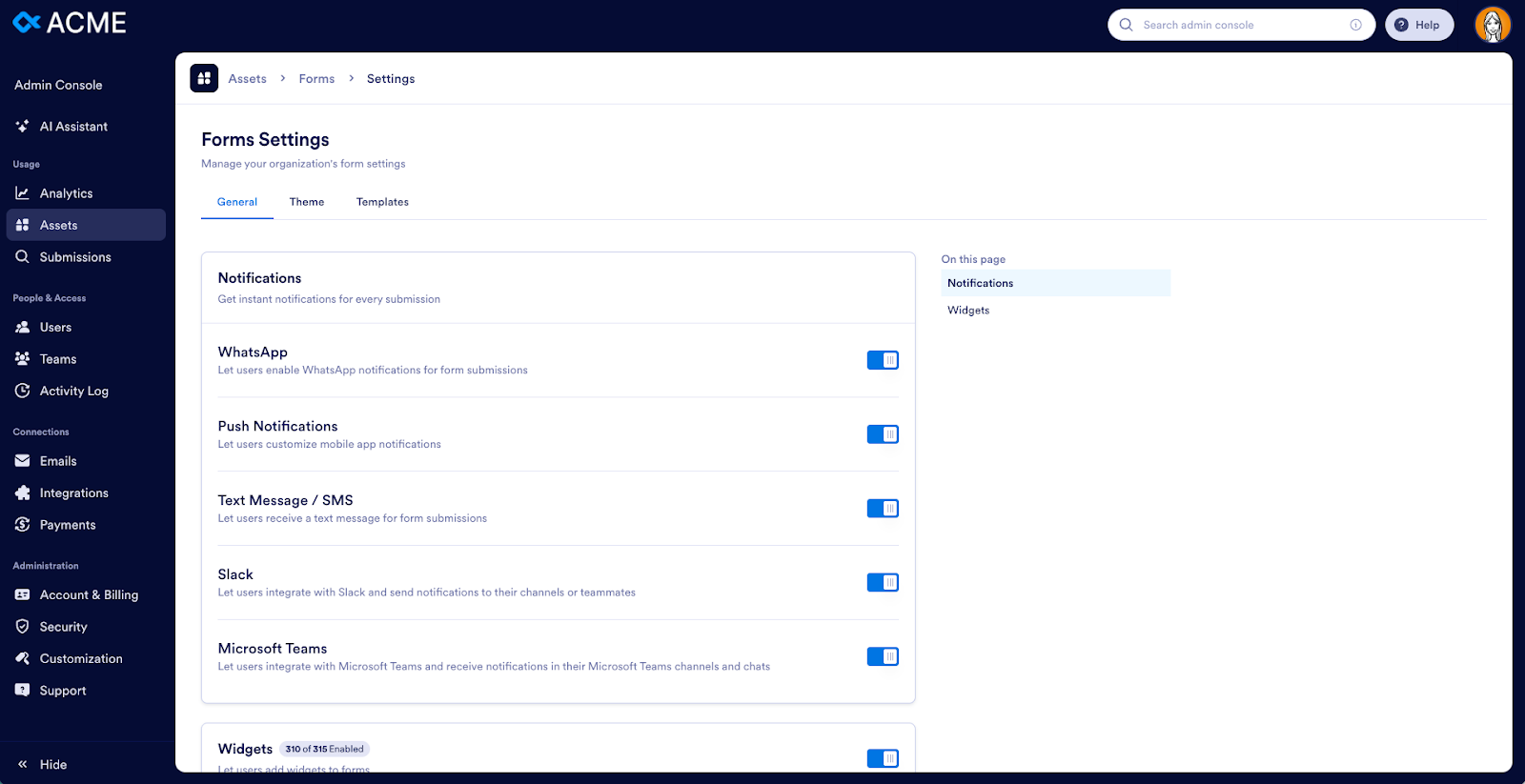
From the Admin Console, click on Assets, Forms, and then Settings to manage your organization’s notifications settings.
Setting up Notifications in Jotform Enterprise takes less than a minute.
Start by opening the form you want to monitor and navigating to Form Builder > Settings > Notifications.
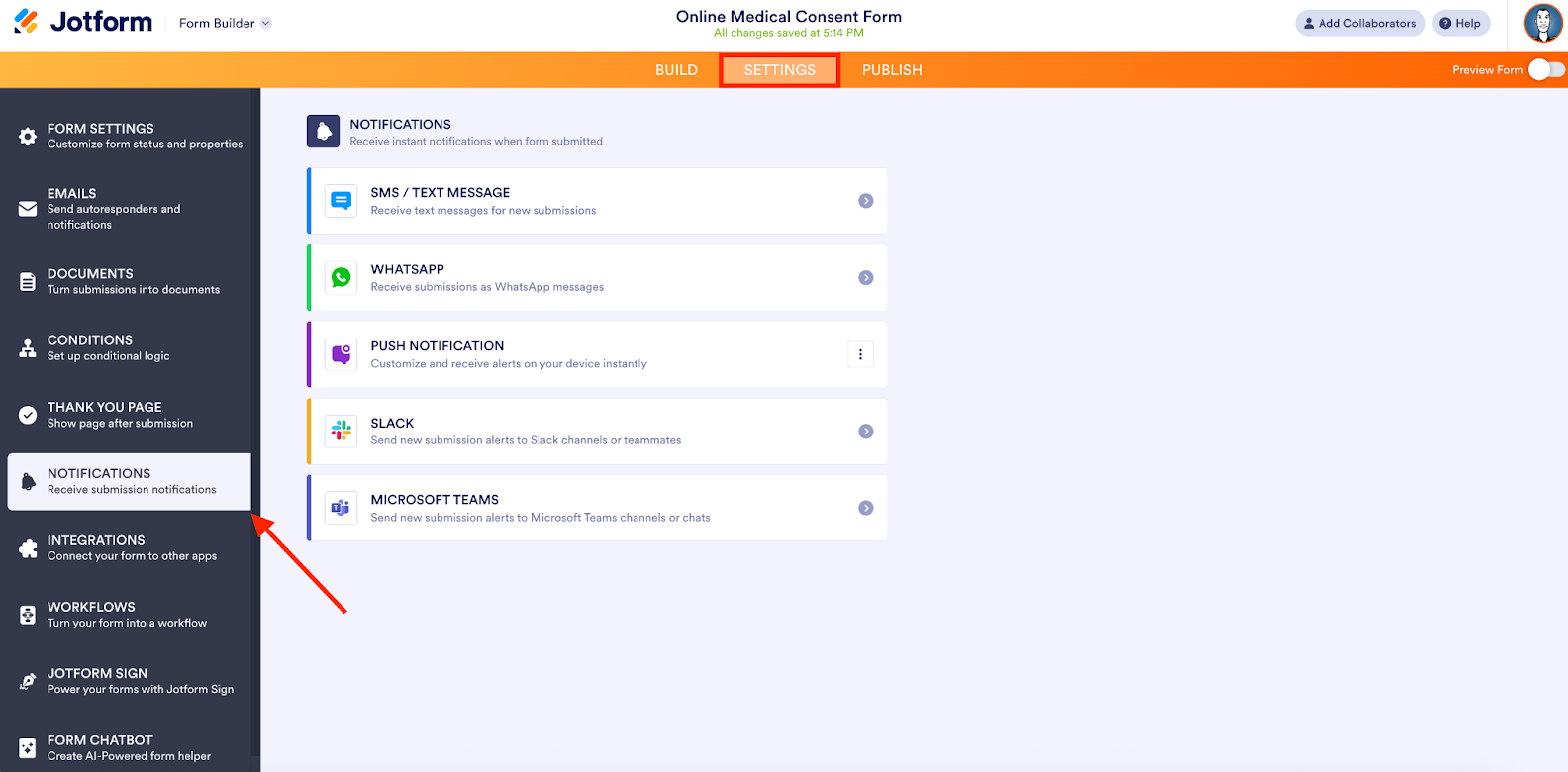
From there, select the channel you want to activate.
WhatsApp Notifications
Select the WhatsApp option and select the notification template:
- Form title
- Form title + submitter name
- Form title + submitter name and email
Next, verify your phone number.
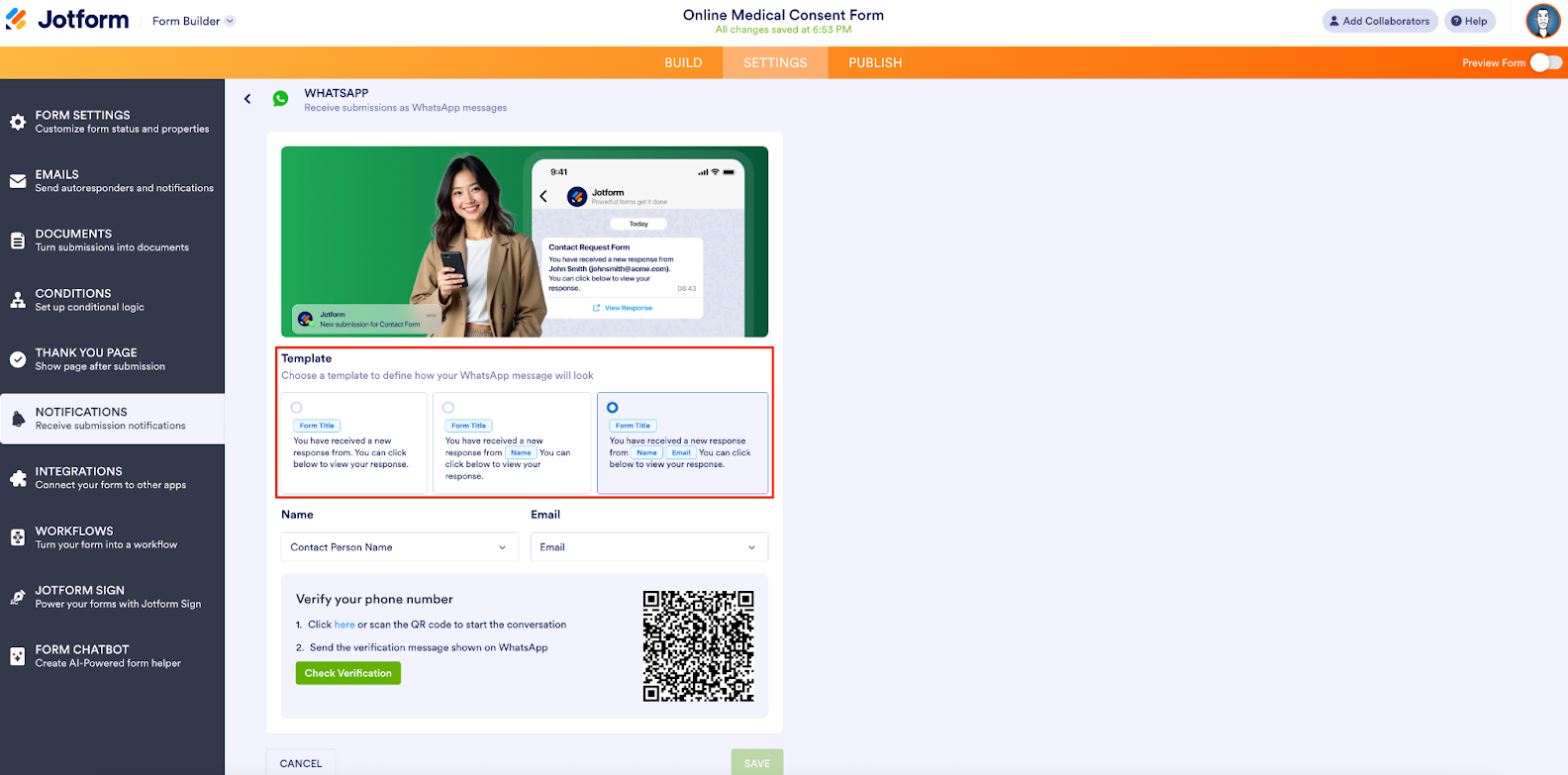
Click the button to start a WhatsApp conversation (via the app or web).
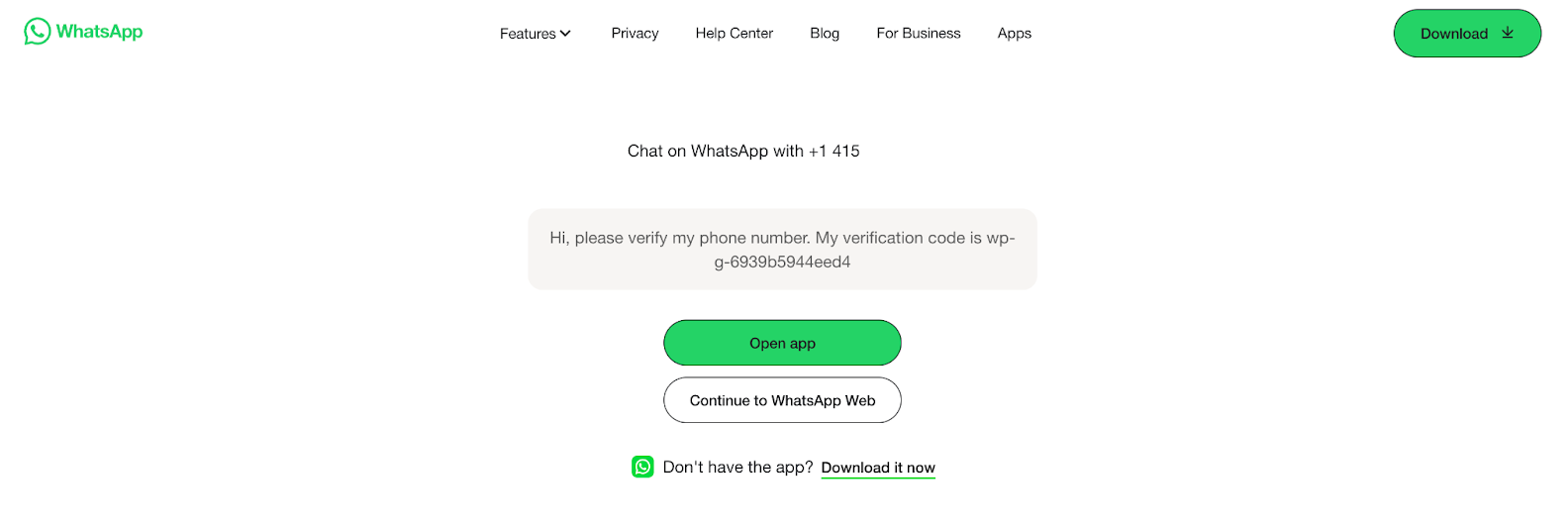
Enter the verification code as a message to Jotform. You’ll then receive a message that your phone number has been verified.
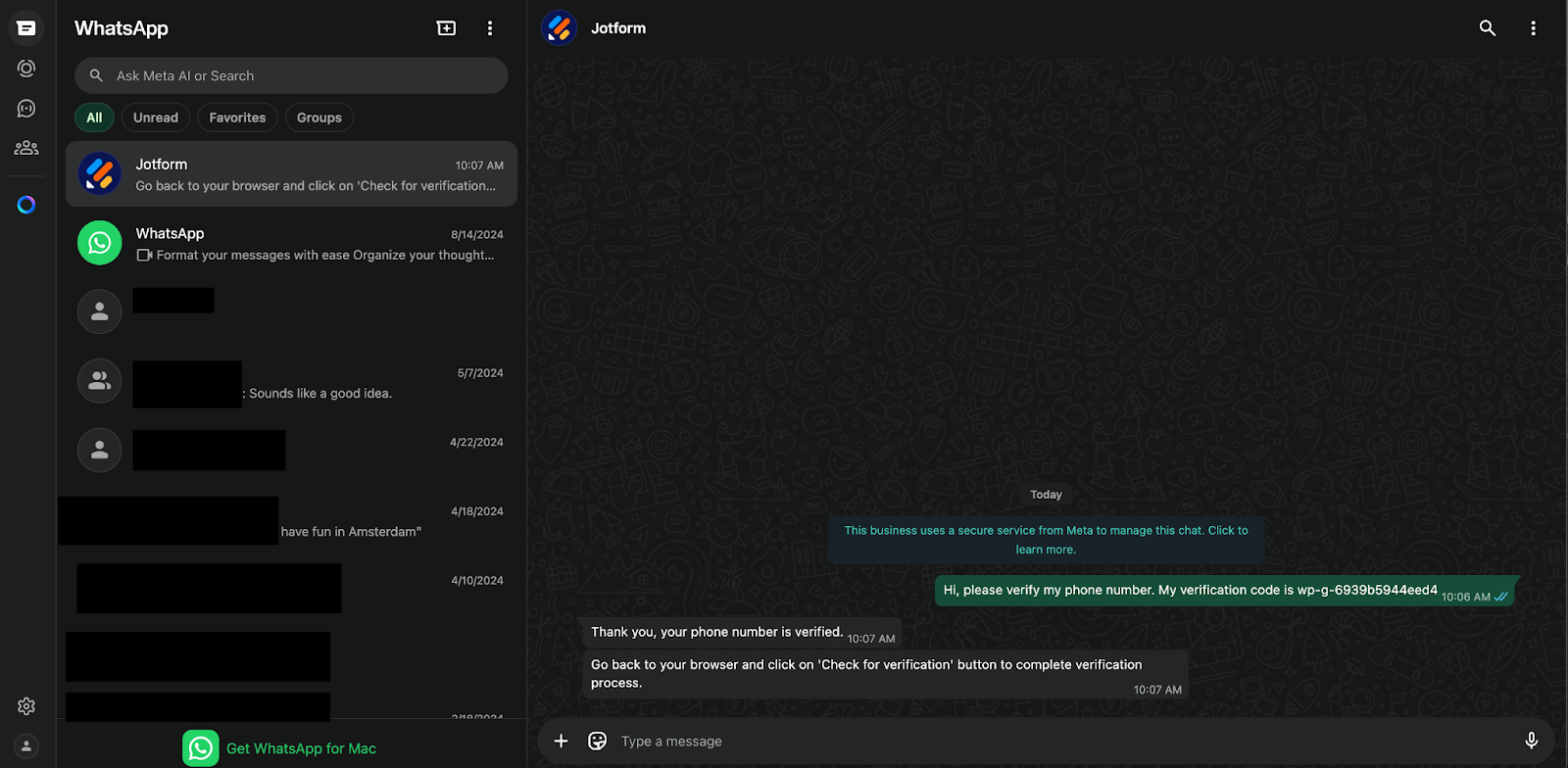
Back in the Form Builder (or Jotform app), click the Check Verification button to complete the verification process. You’ll see a confirmation.
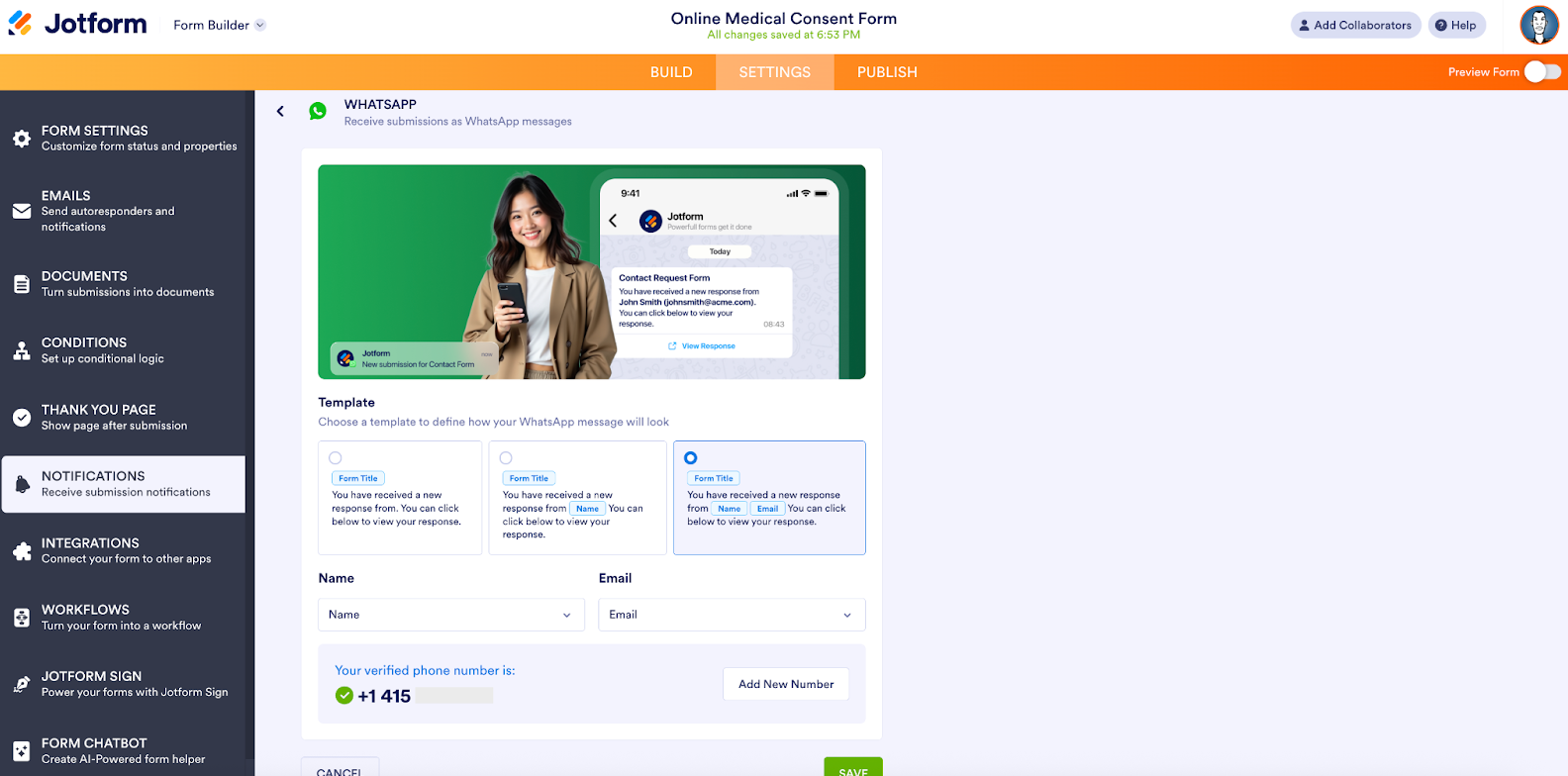
That’s it. Every new form submission now triggers an instant WhatsApp alert.
Enterprise tip: Admins and form owners can configure WhatsApp notifications for globally distributed teams that rely on WhatsApp as their primary communication channel.
Why WhatsApp Notifications for Enterprise?
For many global organizations, WhatsApp is the most consistently checked communication tool — especially for frontline teams, field staff, and regional offices.
It’s ideal for:
- Global sales alerts
- Service requests and escalations
- Intake and scheduling notifications
- Distributed teams working across time zones
SMS Notifications
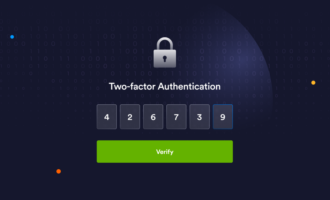
Enter the phone number that you want to receive alerts. Jotform will send a verification code.
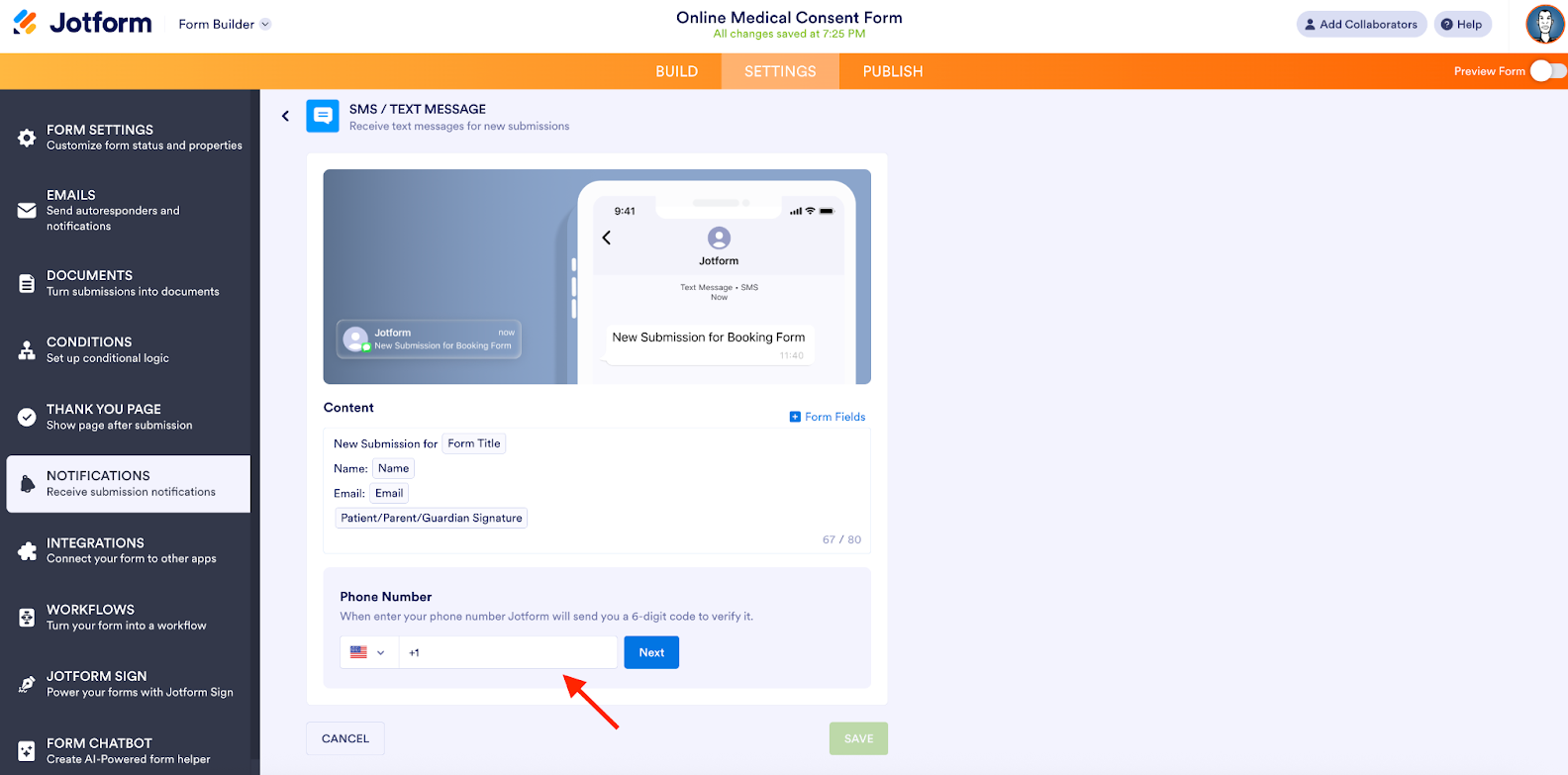
Enter the code sent to your phone, and your number will be verified.
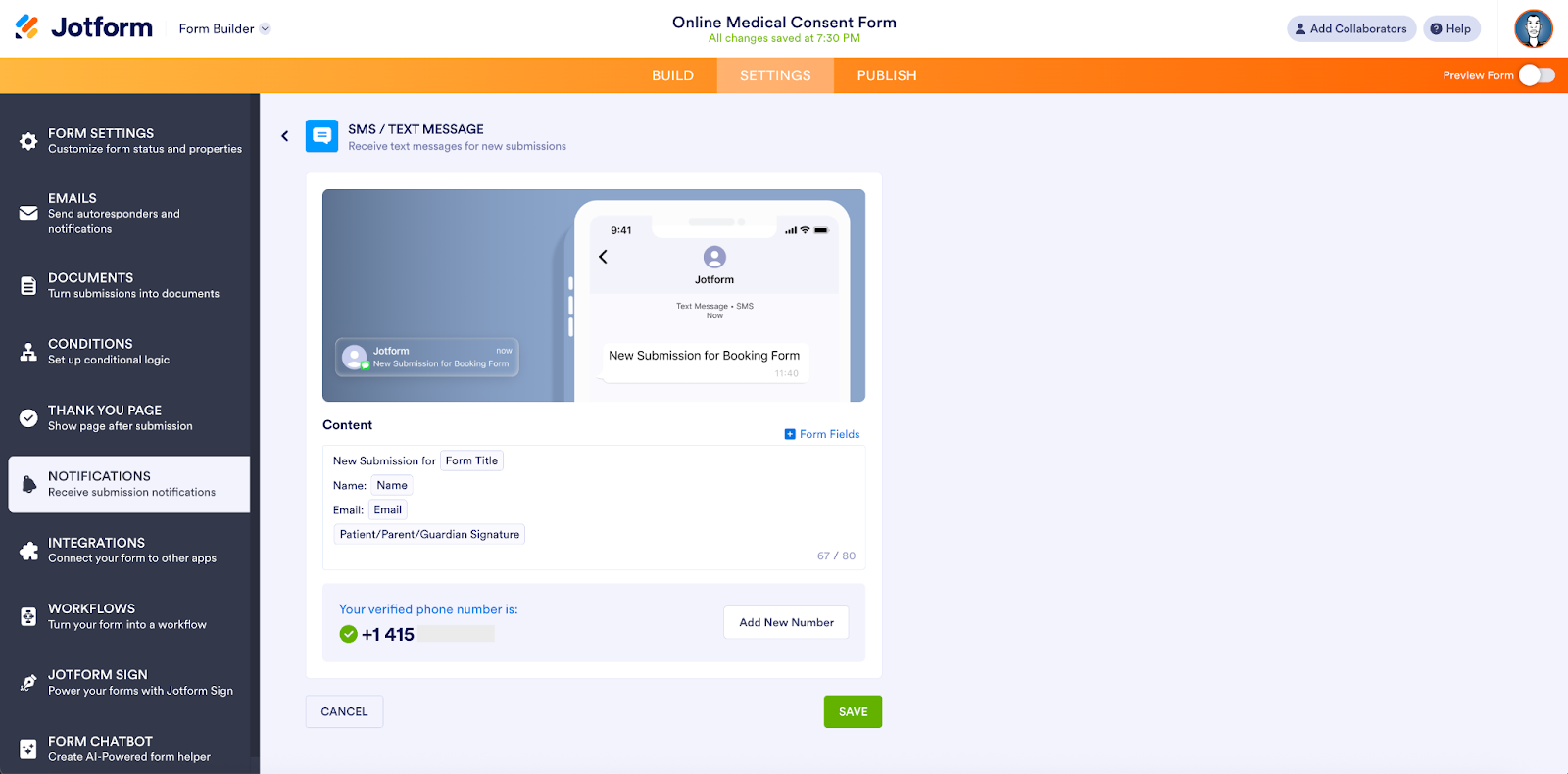
You’ll now receive form submissions as an SMS/text message to the phone number you verified.
Why SMS Notifications?
SMS is universal, fast, and extremely reliable — even when data access is limited.
Enterprise teams commonly use SMS for
- After-hours or on-call alerts
- Healthcare intake follow-ups
- High-priority recruiting workflows
- Incident response or escalation paths
Did you know?
You can customize exactly which form fields appear in each notification, ensuring teams receive only the most relevant data.
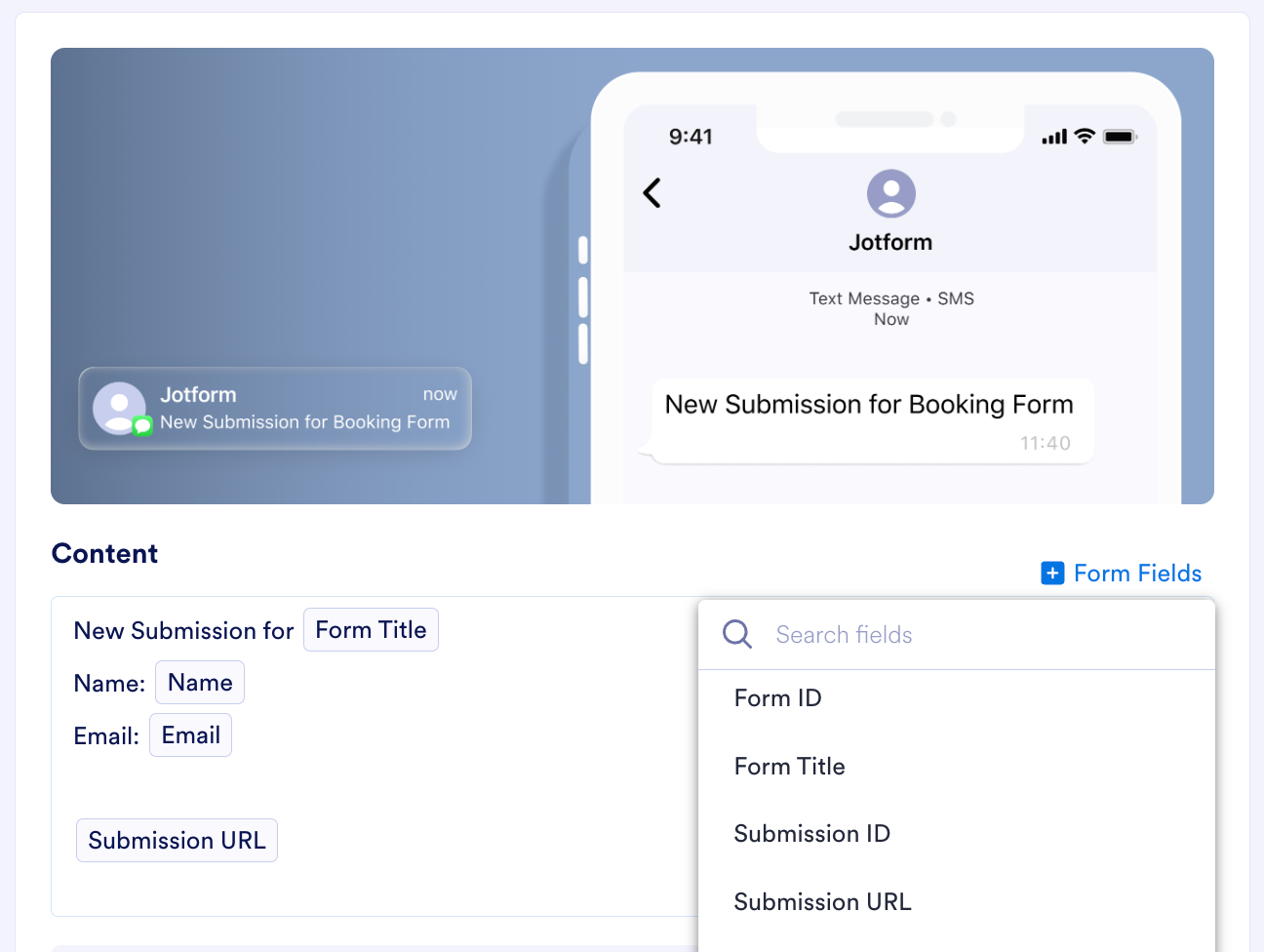
Enabling Notifications through the Jotform Enterprise mobile app
To enable push notifications from the Jotform Enterprise mobile app, simply scan the QR code with your mobile phone. Once you’ve downloaded the Jotform app, click the Save button.
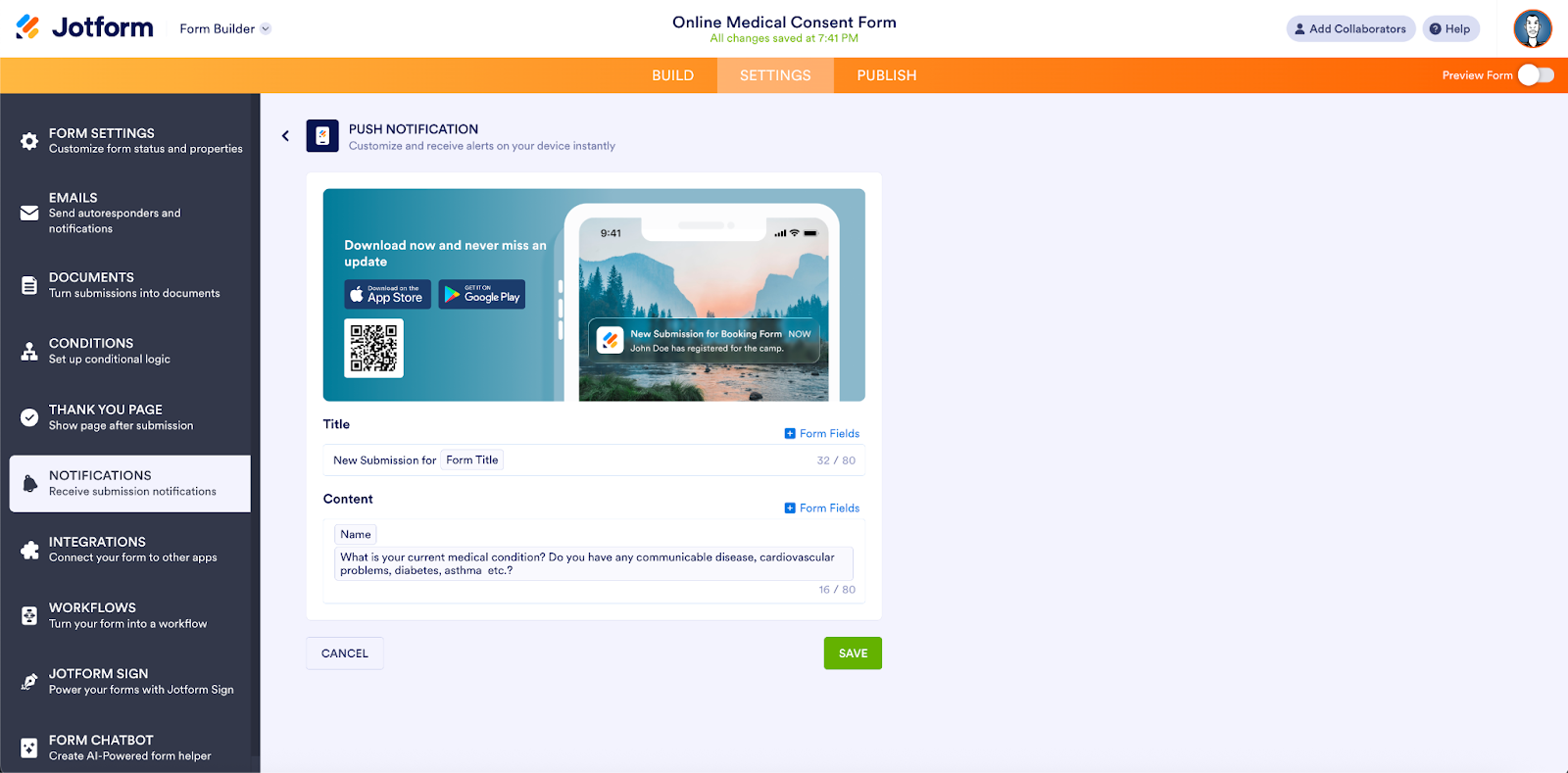
Note: Even if you’ve already installed the Jotform mobile app, you’ll need to enable push notifications from the setup screen. This ensures the device registers properly and allows us to send real-time notifications for that specific form.
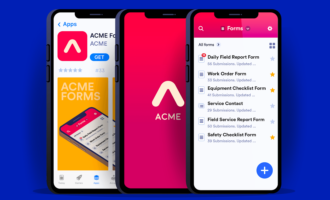
Download the Jotform mobile app from the App Store or Google Play. You’ll receive push notifications whenever your forms are submitted.
Once enabled, submissions trigger instant push notifications — no coding or third-party tools required.
Keep teams aligned with Slack and Microsoft Teams
Jotform Enterprise includes native integrations with Slack and Microsoft Teams.
Send submissions to:
- Slack channels or direct messages
- Microsoft Teams channels, chats, or calendars
This gives teams immediate visibility into new requests, approvals, or submissions — without switching tools or building custom workflows.
Product compatibility overview
Enterprise customers often ask how notifications work across the Jotform platform. Here’s a quick snapshot of compatibility (as of December 2025):
Form Settings | Form Integration | Table Action Button | Workflow Integration | Sign Integration | HIPAA Compatible | |
|---|---|---|---|---|---|---|
| Push Notification | ||||||
| Text Message / SMS | ||||||
| Slack | ||||||
| Microsoft Teams |
Enable SMS/WhatsApp Notifications on your most important forms
If your customers, patients, partners, or internal teams rely on immediate responses, notification speed matters.
With Notifications for Jotform Enterprise, submissions arrive where your teams already work — whether that’s WhatsApp, SMS, Slack, Microsoft Teams, or the Jotform Enterprise mobile app.
The result?
- Faster response times
- Stronger team coordination
- Reduced risk of missed submissions
- A better mobile and collaboration experience
As always, we welcome your feedback — and we’d love to hear which notification channels you want next.






























































Send Comment:
1 Comment:
December 16, 2025
Hey, this is cool. Who are the SMS notifications restricted to? Can we substitute (or add) these for client notifications? Or is it limited to 'licensed users' at our company?