Organizations rely on administrators to make systems better: from responding to tickets to building feature requests. But who’s making things better for the administrators?&
We are. Introducing a completely reimagined Admin Console for Jotform Enterprise, designed specifically for the technical admins and data managers who keep organizations running smoothly.
Whether you’re configuring server-wide security settings, managing user permissions, or tracking asset performance across your organization, everything you need is now organized, accessible, and actionable.
Let’s begin with the completely redesigned homepage that puts everything at your fingertips.
New and noteworthy
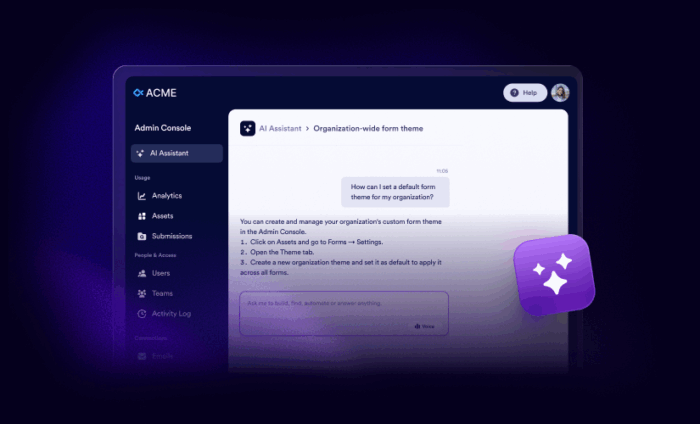
Starting at the top left of the screen is the new AI Assistant. It’s standing by to answer questions, find resources, and build whatever you envision. The AI Assistant is also available to users, providing robust support for form creation, how-tos, and more.
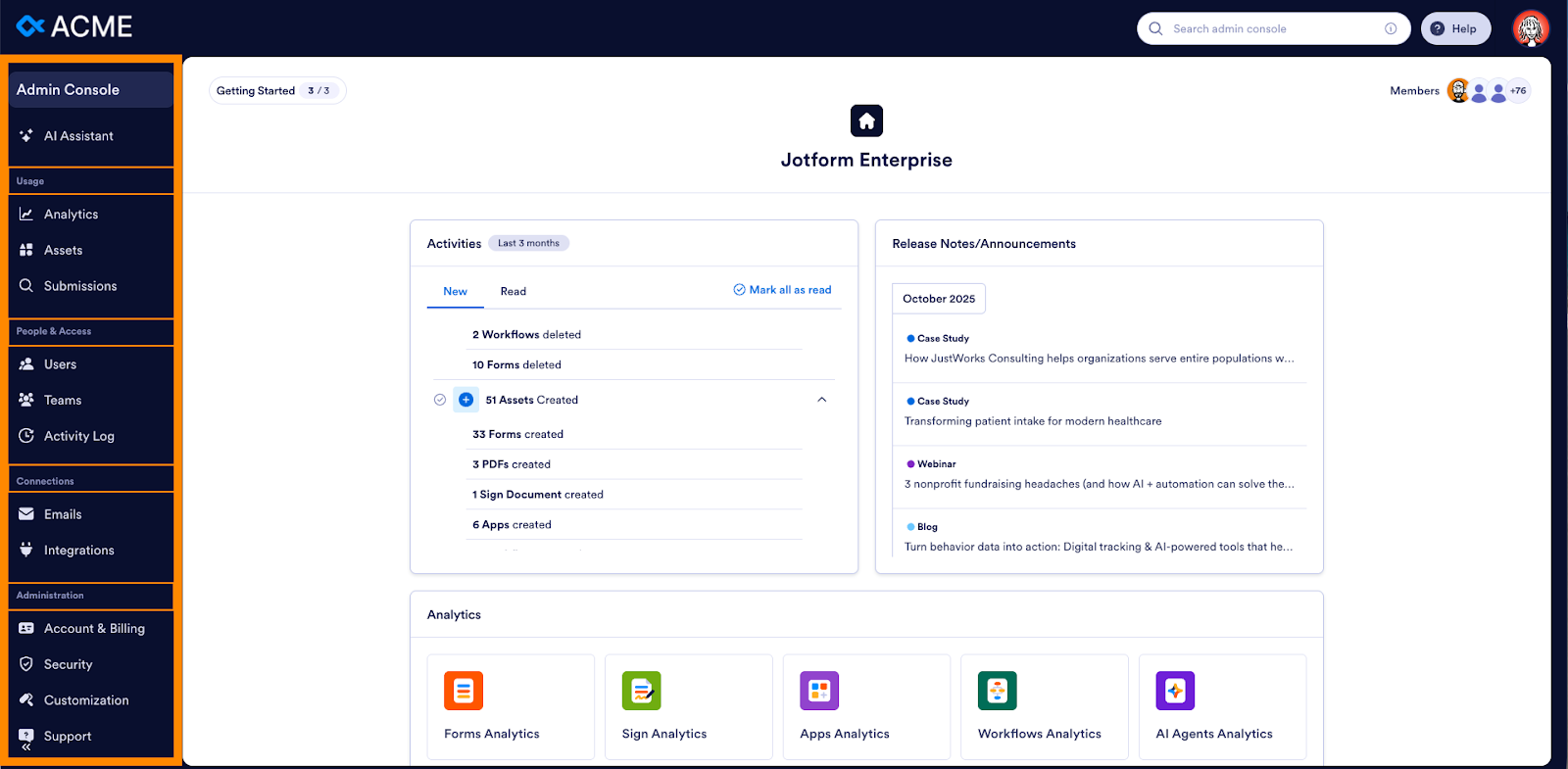
Below that, you’ll find a new menu with four main sections that make it easy manage your Enterprise account:
- Usage for analytics, assets, and submissions
- People & Access, for users, teams, and activity logs
- Connections for emails and integrations
- Administration for account and billing, security, customization, and support
There’s a lot to explore in each section, but let’s start with the homepage’s featured shortcuts.
Getting started: From server configuration to brand application
A key benefit of the Jotform Enterprise platform is the ability to white label everything, from custom-branded apps to custom form URLs. With Jotform Enterprise, your organization’s brand stays front and center, creating a seamless experience and fostering trust.
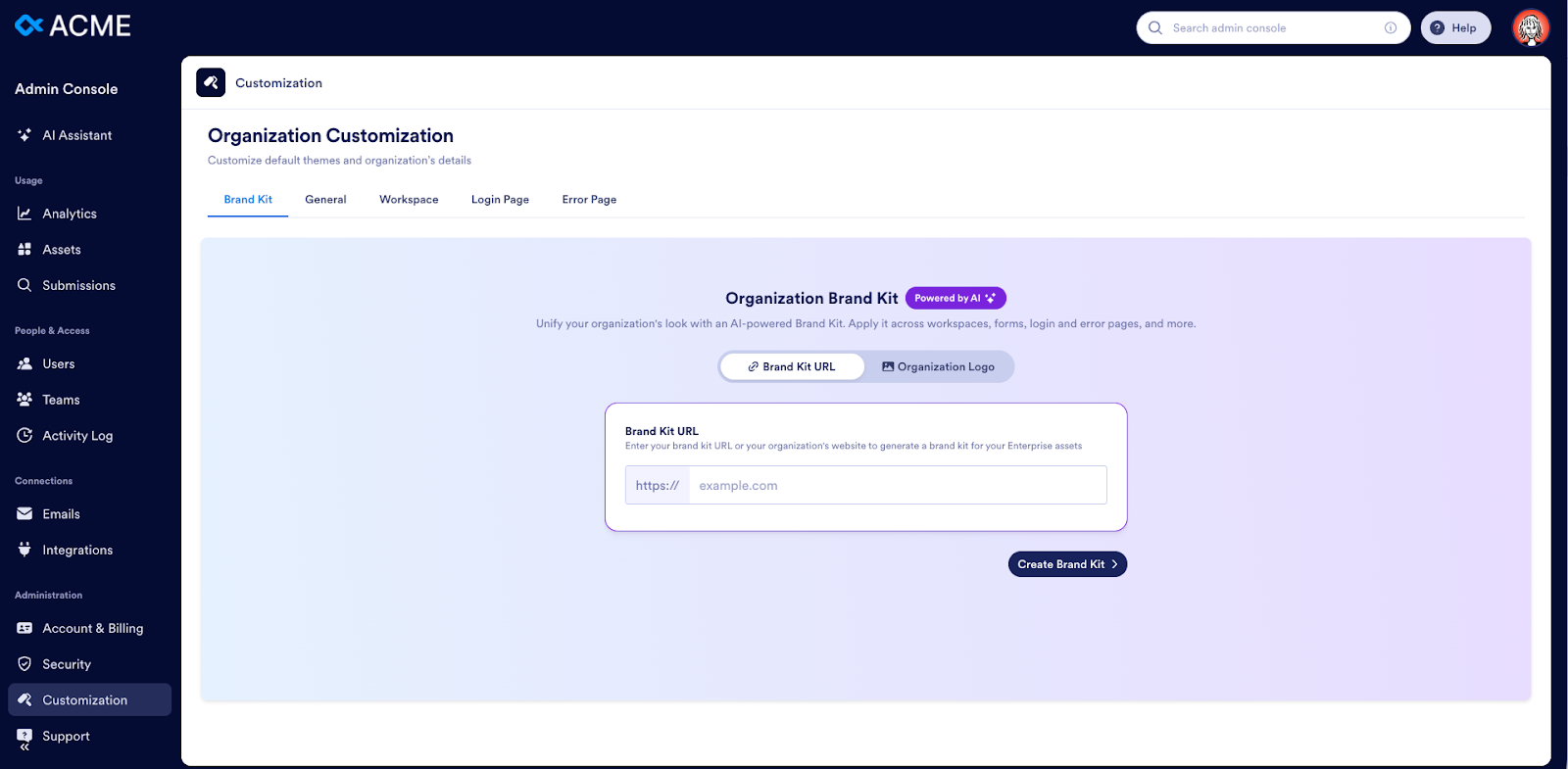
The Admin Console homepage now features a Getting Started guide to simplify initial server configuration, including branding. Admins will be guided through customization options to create a distinct platform experience with personalized login pages, error pages, headers, sidebars, logos, and favicons.
You can revise these settings at any time from the Customization page, which is part of the Administration section of the Admin Console.
New and noteworthy
Pressed for time? Simply upload your logo or paste in your organization’s URL to create an AI-powered Brand Kit. This one-click, intelligent branding system will dynamically apply your branding to assets across the platform for a uniform look in an instant.
Security made simple: From your first login to global applications
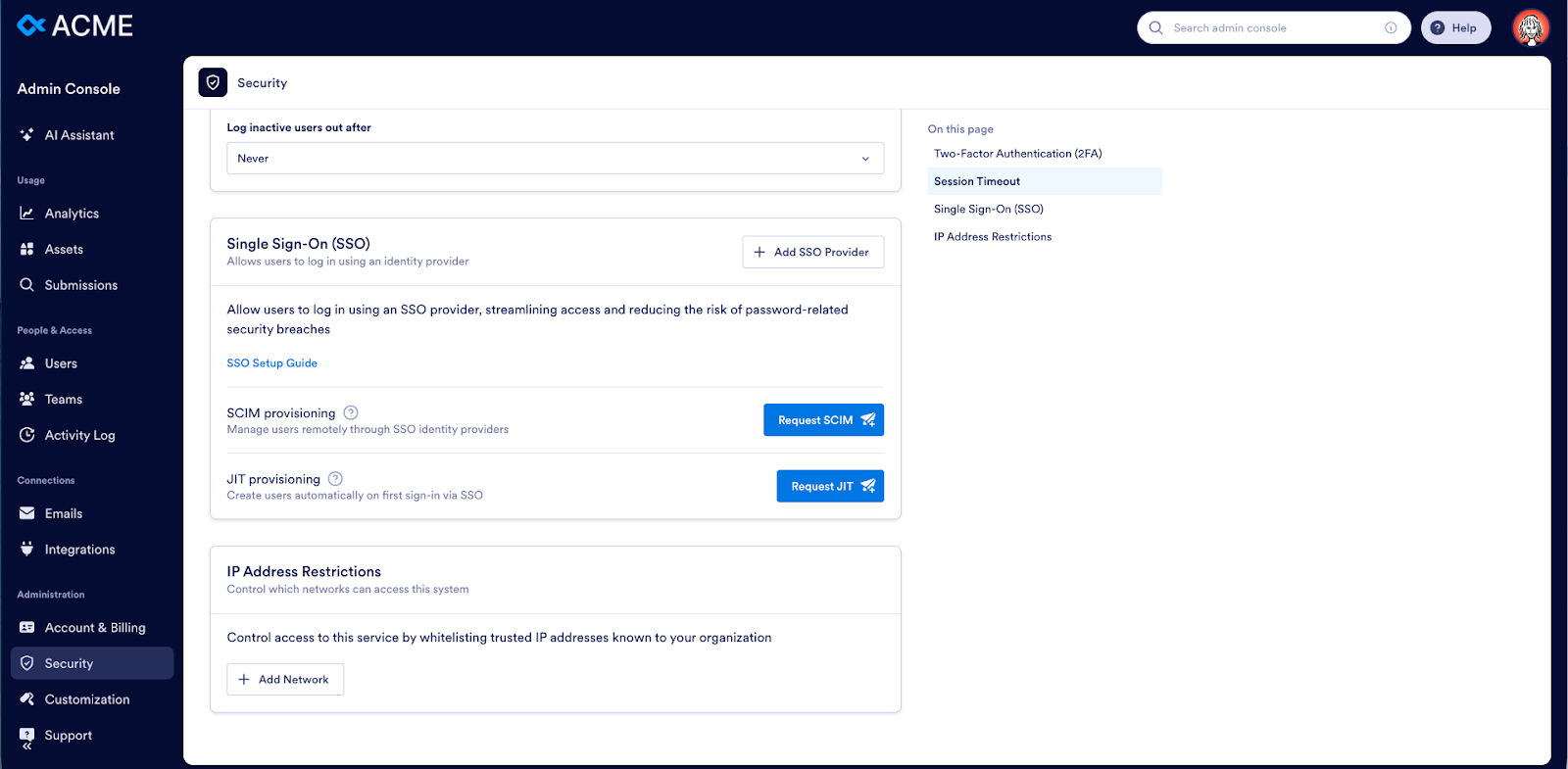
The Getting Started guide also covers security settings to enable 2FA, add an SSO provider, set up session time-out, and manage server-wide sender emails. All of these security and authentication controls can be (re)configured from the Security page (under Administration).
Managing server-wide sender emails: Opening the lines of communication
The final getting-started step is establishing your organization’s sender emails. Go to Emails in the Connections section. Here, you can set up SMTP to display an email address for notification emails. If desired, you can create multiple sender emails, permit users to create sender emails, and set or enforce a default sender email.
Activity tracking across your organization’s platform use
New and Noteworthy
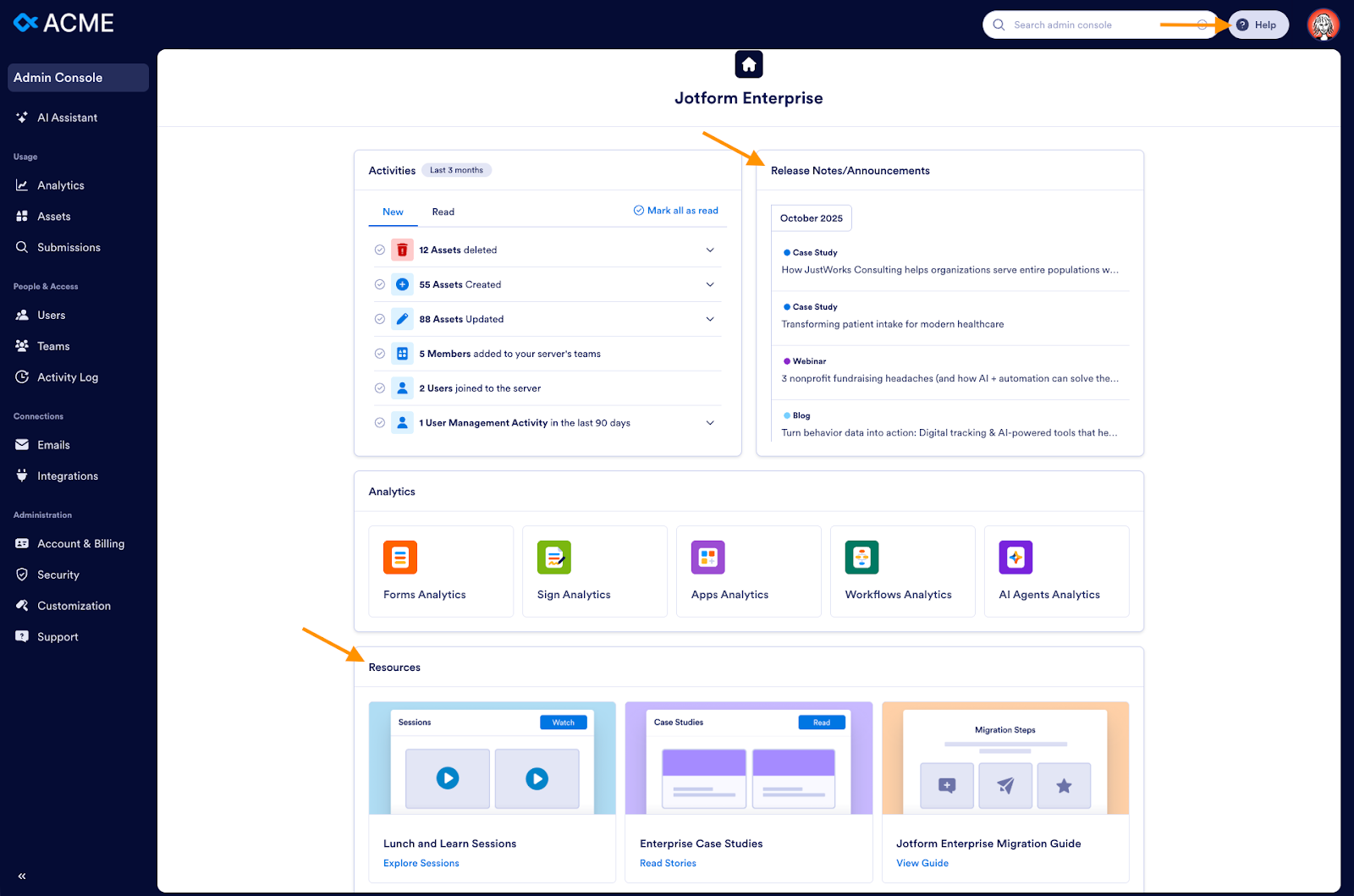
The Activities widget provides a summary of server activity, including assets created, updated, and deleted, and the number of new team members and users. Simply expand and click into each section to reveal detailed information.
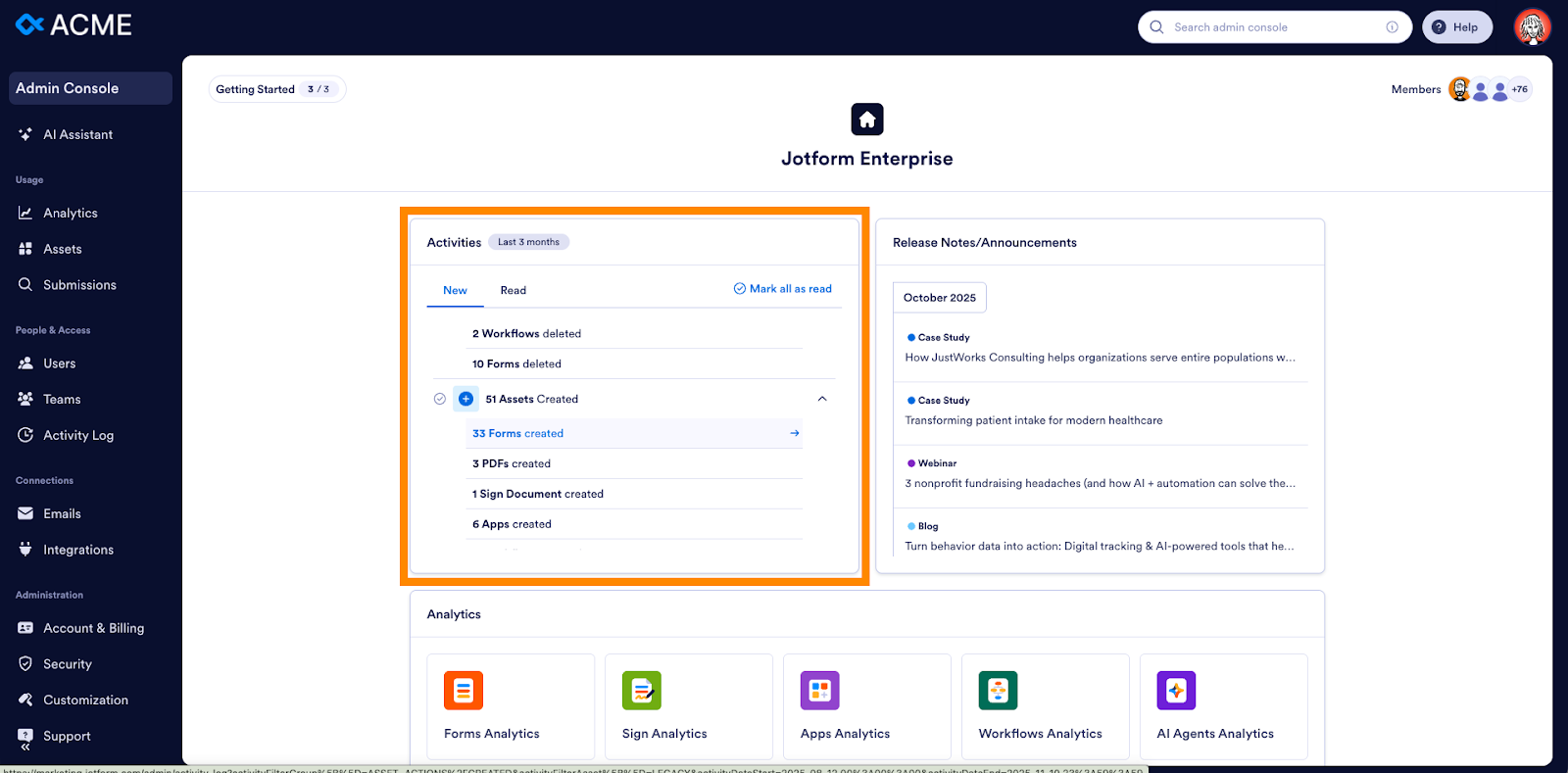
You can search all activity records by date range, user, activity, and asset type by going to Activity Log (under People & Access). Download the search results as a CSV or Excel file as needed for reporting.
New and Noteworthy
Many of you requested educational materials specific to Jotform Enterprise. The new homepage provides three options for learning: Release Notes/Announcements, Resources, and a Help Center. Scroll through new announcements, webinars, and case studies; view on-demand Lunch and Learn sessions; or click on the Help button to access a library of help guides.
Analytics to inform decision-making and optimization
New and Noteworthy
Another major Jotform Enterprise 2.0 update is comprehensive analytics for all asset types. Track performance metrics for Forms, Workflows, Sign Documents, Apps, and AI Agents — all from a single dashboard. Filter by date range to identify trends, locate bottlenecks in processes, track completion times, analyze traffic and engagement, monitor AI response quality, and more.
Beyond these homepage shortcuts, several new enhancements are worth noting.
Unified asset management
Manage all asset types across your organization — Forms, Workflows, Sign Documents, Apps, and AI Agents — from a single interface. With Assets, you’ll find exactly what you’re looking for by filtering views or searching assets by keyword.
New and Noteworthy
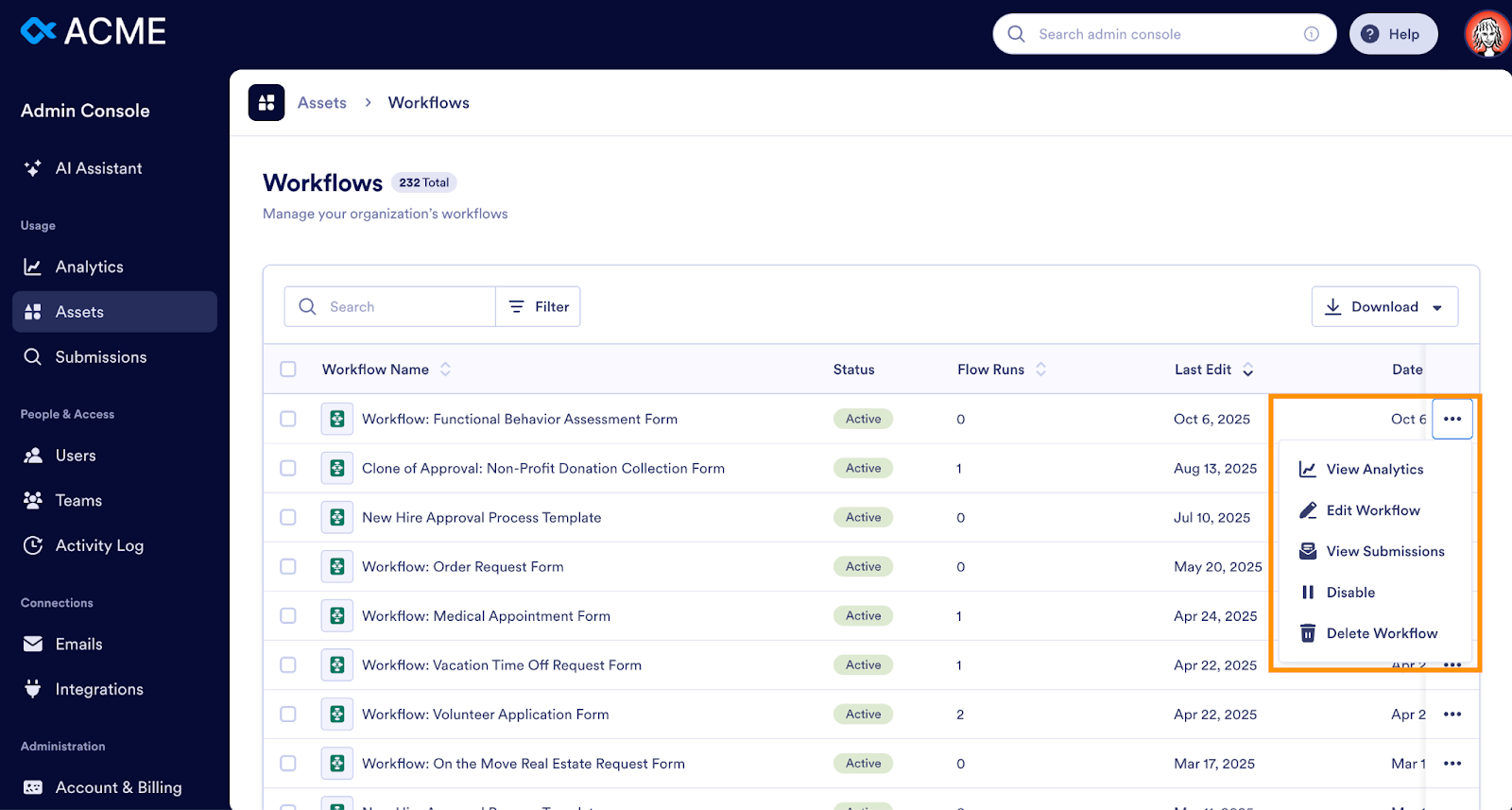
Each asset type now includes specialized management features. The Forms section contains direct widget management, eliminating the need for unnecessary navigation. For AI Agents, you can control which channels operate organization-wide and purchase phone numbers for calls and SMS directly through the Admin Console. It’s easy to quickly identify errors and view total run counts for Workflows. And you can see usage metrics for Sign Documents at a glance.
Click on the three-dot menu to the right of any asset to quickly view details, such as submissions or analytics, or to edit, disable, or delete the asset.
Search submissions by individual or in aggregate to identify trends
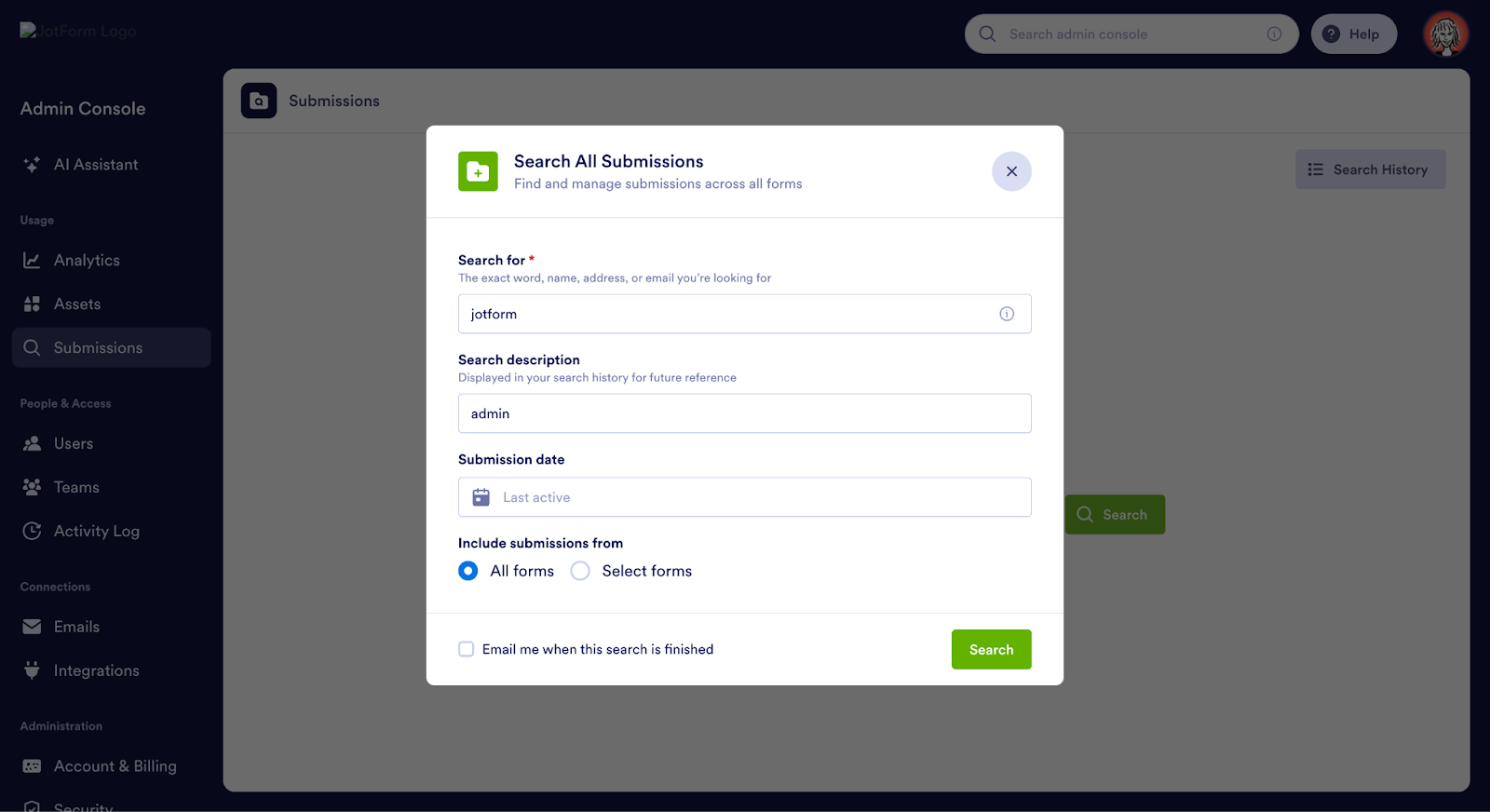
The Submissions page makes it easy to locate records for a particular individual or review submission data in aggregate. Search for a keyword across all form submissions, or use the advanced search feature to find data related to specific form fillers.
New Custom Form Theme for brand consistency across assets
Maintaining brand consistency can be challenging, especially if you’re managing hundreds or even thousands of forms.
New and Noteworthy
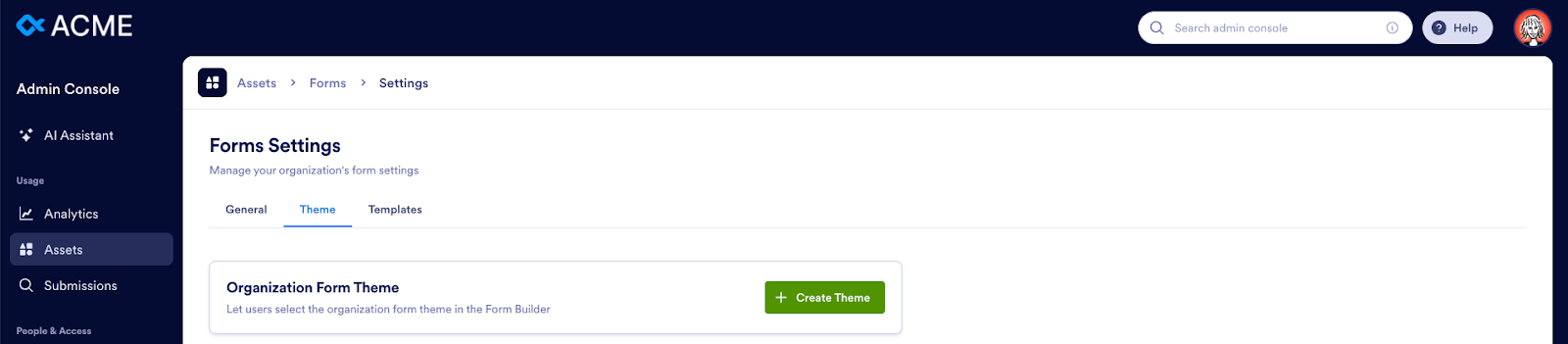
With the new Custom Form Theme, admins can create organization-specific themes and share them with all users on the same server. Go to Assets → Forms → Settings → Theme to create your theme.
Need iron-clad branding? Enforce themes organization-wide to ensure every form reflects your organization’s brand identity.
Enhanced user management for superior security
Securing organizational data is paramount to maintaining your brand and trust in your organization.
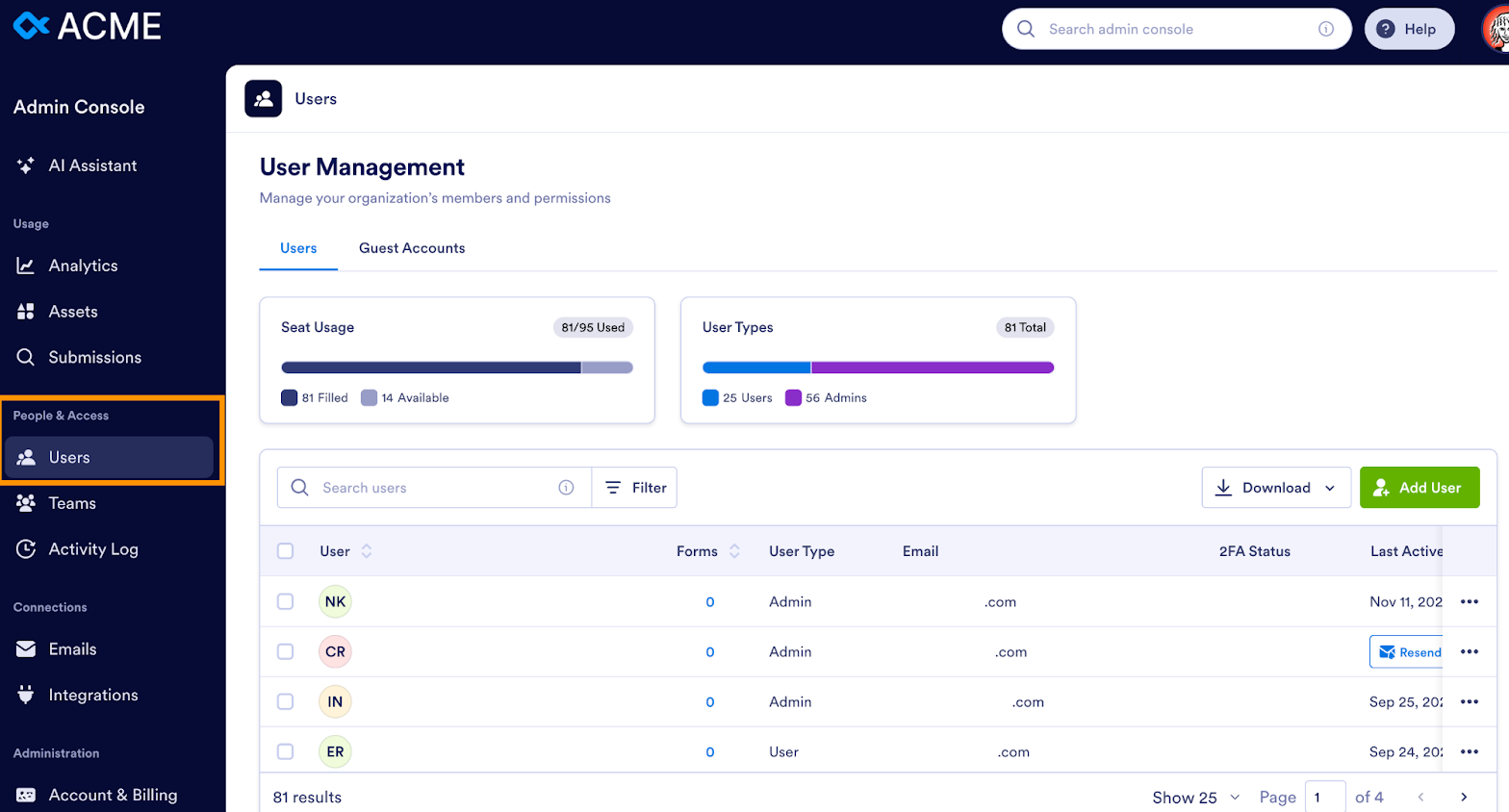
The new user management capabilities, under People and Access, empower admins to reset passwords, log out users individually or in bulk, and download complete user lists — all without touching an API. View every asset assigned to each user, track team memberships, and monitor seat use to stay ahead of capacity.
New and Noteworthy
And, yes, you can also manage guest users. For the first time, admins can view and manage guest users who submit forms but don’t hold licenses. This enhanced visibility helps you track everyone involved in your processes, ensuring secure access controls across internal and external participants.
Keep tabs on connections: from outgoing emails to third-party integrations
The Connections section helps you monitor email logs, SMTPs, and integrations across all of your organization’s assets. On the Emails page, you can view or search email logs by date or source, review sender emails used within your server, add sender emails, and set or require a default sender email.
Ensure teams are connected to the tools they need via the Integrations tab. Using the filtered view, you can search by integration, call volume, failed integrations, or by asset owner to home in on any reported issues. The Logs section offers a dashboard that tracks the status of all calls at a glance, making it easy to monitor and troubleshoot integrations in real time.
Administration: From account management to Zoom calls
At the bottom of the redesigned Admin Console menu are features to help you manage essential platform operations. In addition to the aforementioned security and customization features, you’ll find details on seat use as well as AI voice minutes and messages. Support is also nested here, with options to enable users to submit support tickets, track existing tickets, and schedule Zoom calls with a customer success manager.
Jotform Enterprise 2.0: Your strategic advantage
The reimagined Admin Console isn’t just about making tasks easier — it’s about enabling organizational success. With comprehensive analytics, unified management, and unprecedented visibility, you’ll make smarter decisions, respond to issues faster, and reap the value of your digital infrastructure.
Ready to change how you’re driving organizational success? Contact the Jotform Enterprise sales team today to learn how the new Admin Console can transform your organization’s operational efficiency and strategic capabilities.
































































































Send Comment:
3 Comments:
December 16, 2025
How does the new Jotform Enterprise Admin Console improve an administrator’s ability to manage security, branding, and analytics at scale compared to the previous version?
December 8, 2025
Wow, the new Jotform Enterprise Admin Console looks like a real game-changer for admins! I love how everything is organized in one place — from user management to analytics and integrations. The AI Assistant seems especially helpful for answering questions and speeding up workflow without hunting through menus.
November 23, 2025
Such a great and best idea!