
If you’re a Jotform Enterprise user, you don’t have to navigate complex technical issues alone. Your dedicated customer success manager (CSM) is available to help you maximize your account’s potential, optimize your data workflows, and troubleshoot advanced configurations. Instead of trading emails to find an open time slot, you can book a live Zoom session with your CRM directly from your Admin Console.
Who can access the Admin Console?
The Admin Console acts as a secure command center for your Jotform Enterprise account, meaning only users who are designated admins can view the organization-wide dashboard and access the direct Zoom scheduling option.
Non-admin users can still request technical assistance at any time through the standard support form found in their personal dashboard (shown below). However, they won’t see the Admin Console or the direct calendar shortcut unless you grant them admin permission. We’ll show you exactly how to give your team members access to the Admin Console in step 3 below.
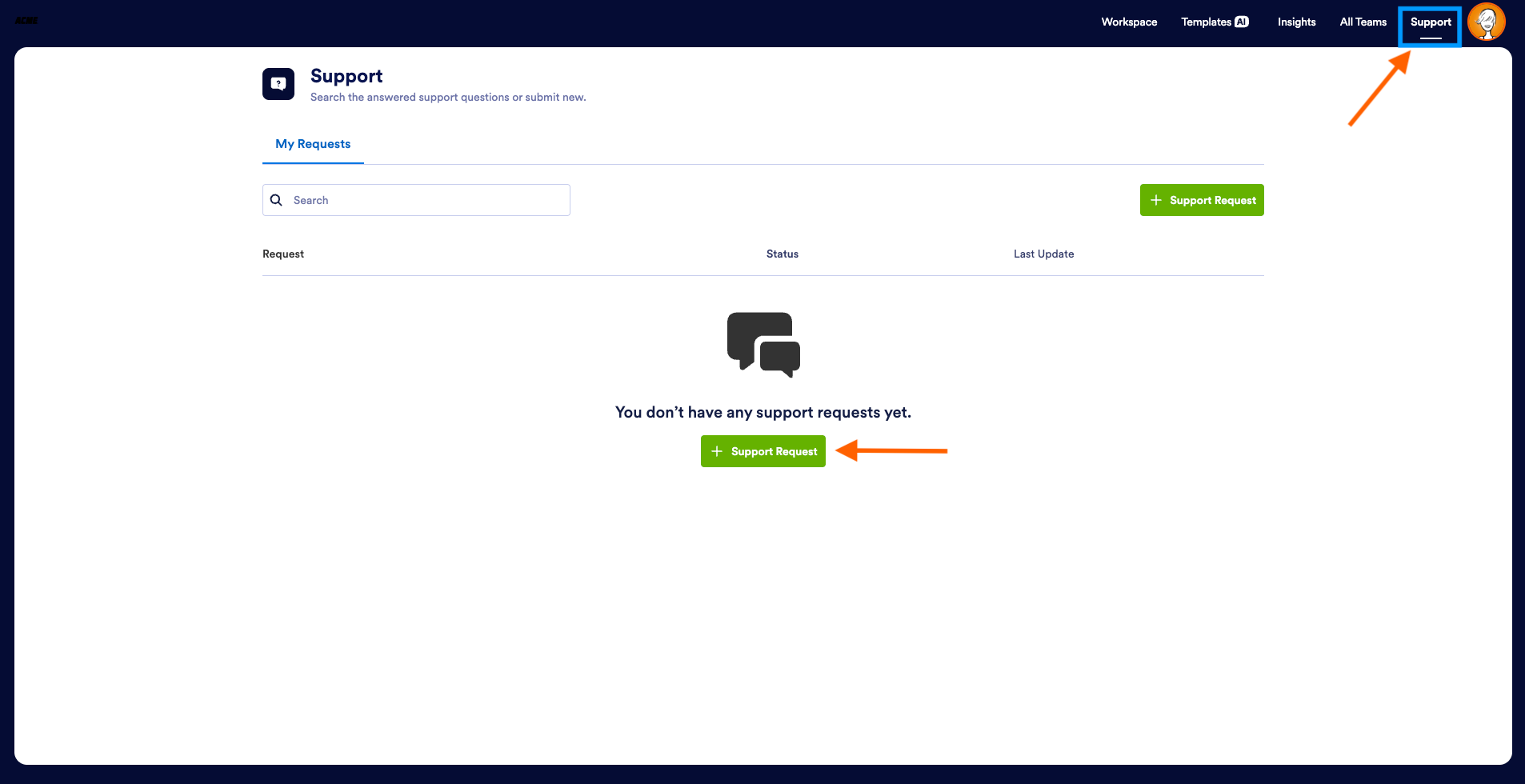
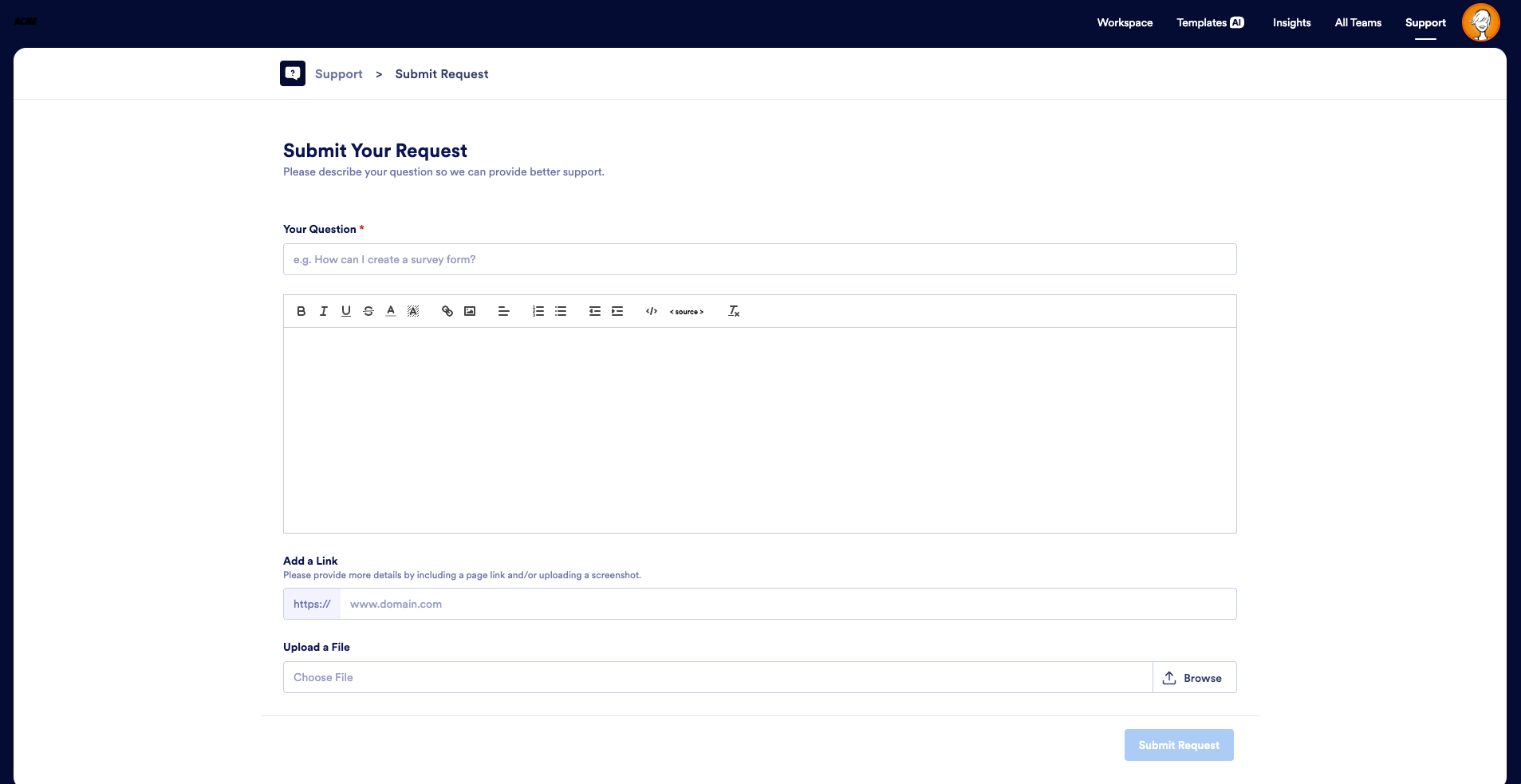
Your step-by-step guide to booking a technical support session
Follow this walkthrough to learn how to use the Admin Console’s support features and get on your CSM’s calendar in seconds.
1. Open the Admin Console
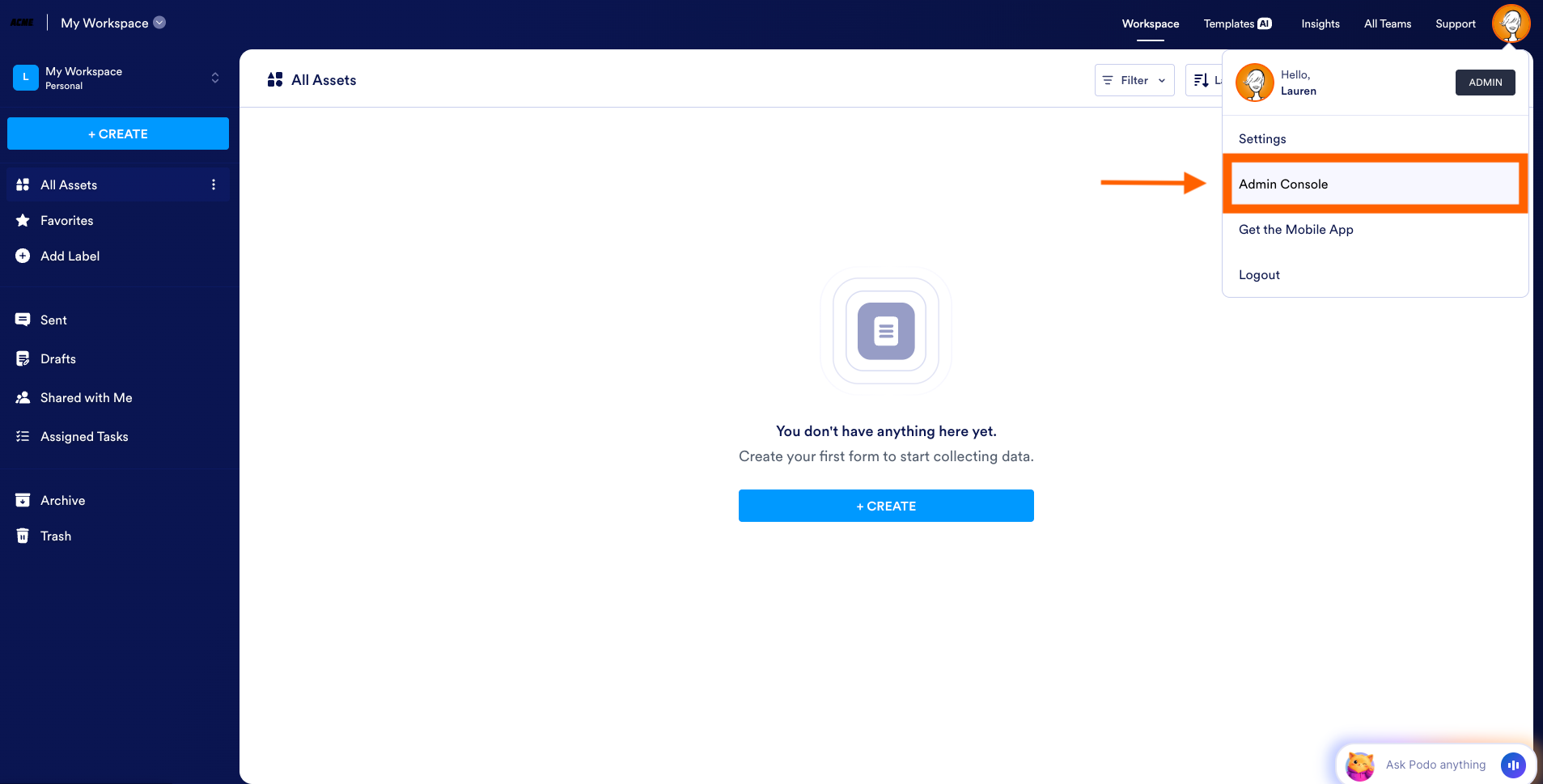
To begin, log in to your Jotform Enterprise account. Click on your avatar icon in the upper-right corner of the screen and select Admin Console from the dropdown menu. This dashboard serves as your primary hub for managing users, tracking system data, and accessing premium assistance.
2. Navigate to the Support tab
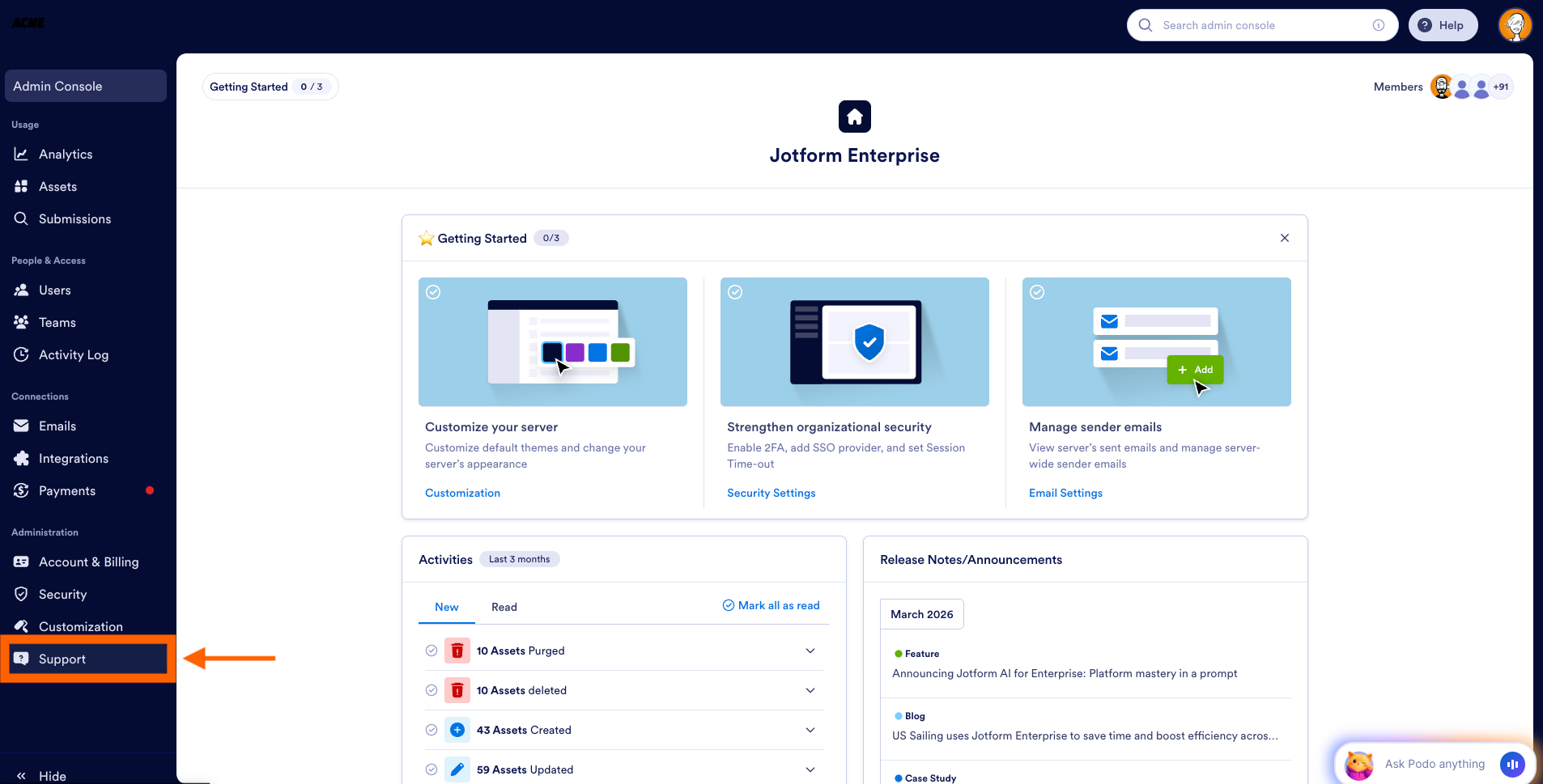
Once you’re in the Admin Console, select the Support tab from the menu on the left. This page acts as a comprehensive archive of your organization’s full technical support history. Here, you can track active tickets and review past solutions, making it easy to verify the status of existing requests before you request a new meeting.
3. Manage team permissions (optional)
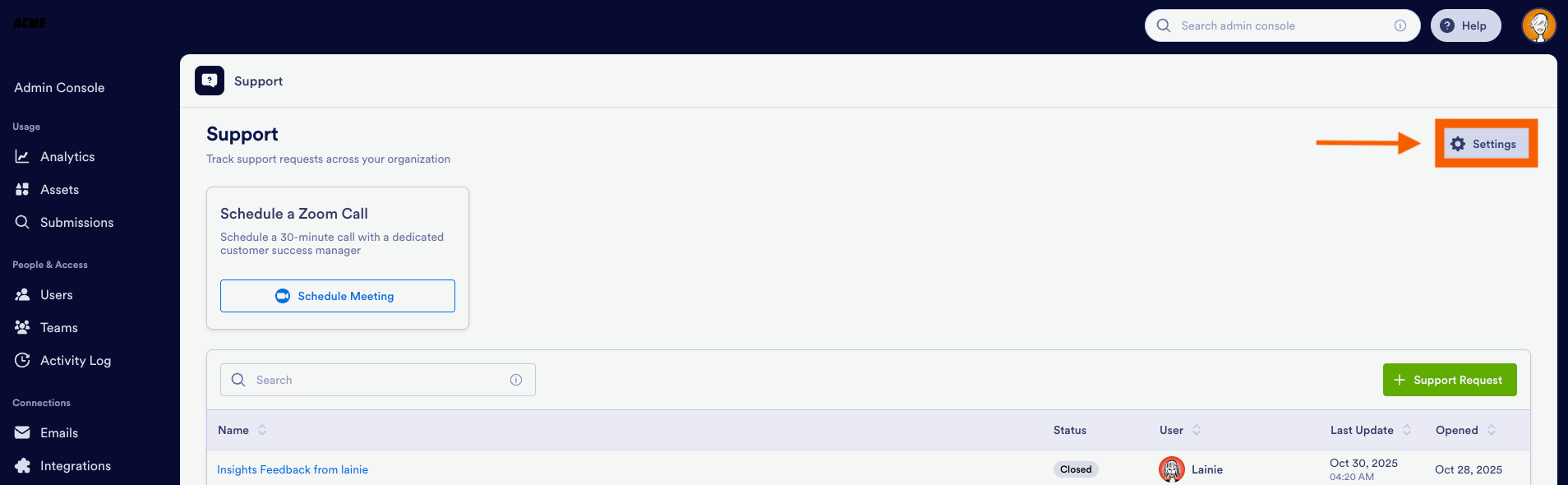
We know that department heads, developers, or power users often need to resolve technical issues quickly without an administrator acting as a middleman. If you want to grant team members direct access to this page, click the Settings button on the right side of the Support dashboard.
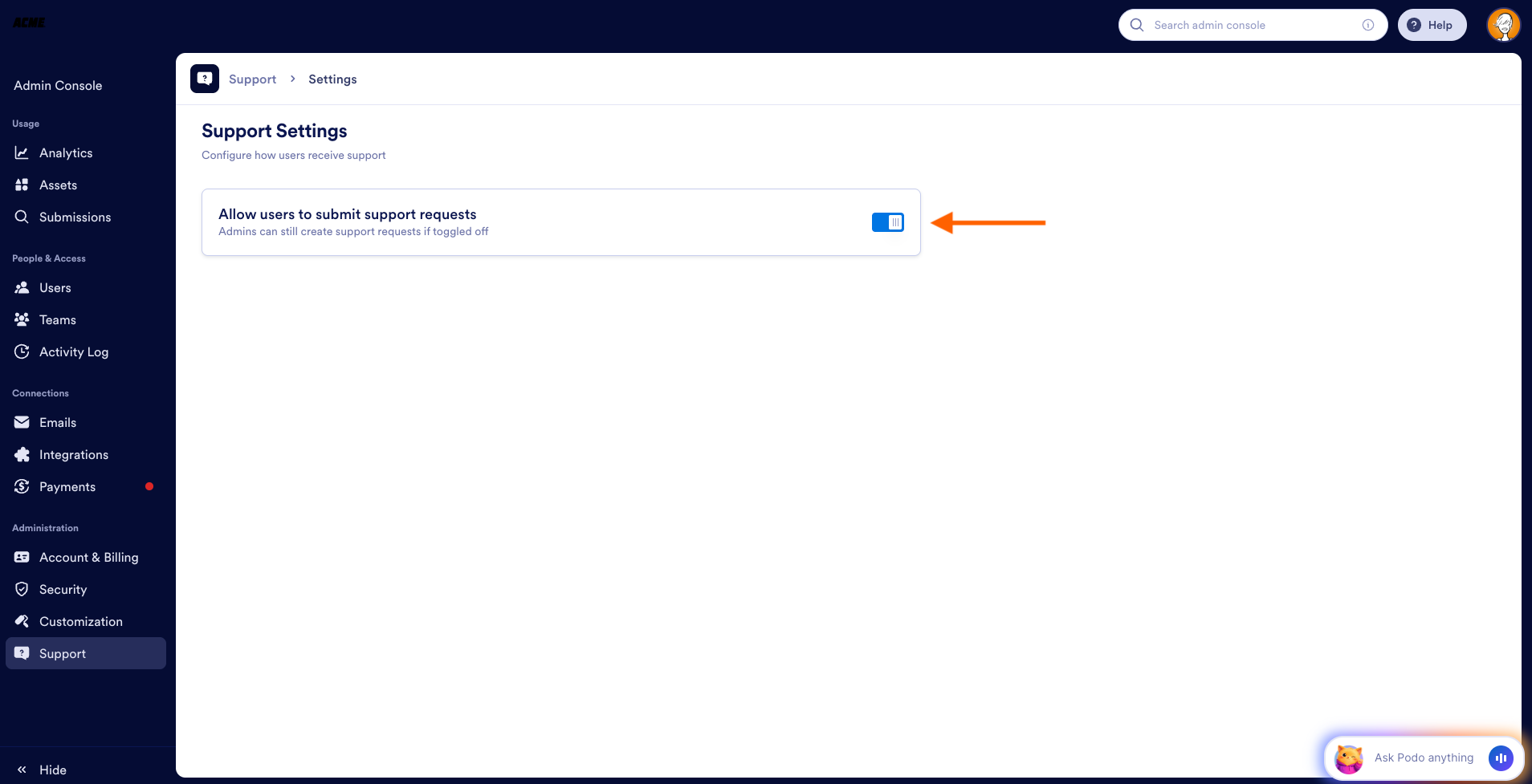
In Settings, you’ll find a toggle. Turning on this switch allows your non-admin users to enter the Support hub to view tickets and schedule calls. Leaving it toggled off keeps this dashboard strictly confidential to admins.
4. Launch the scheduler
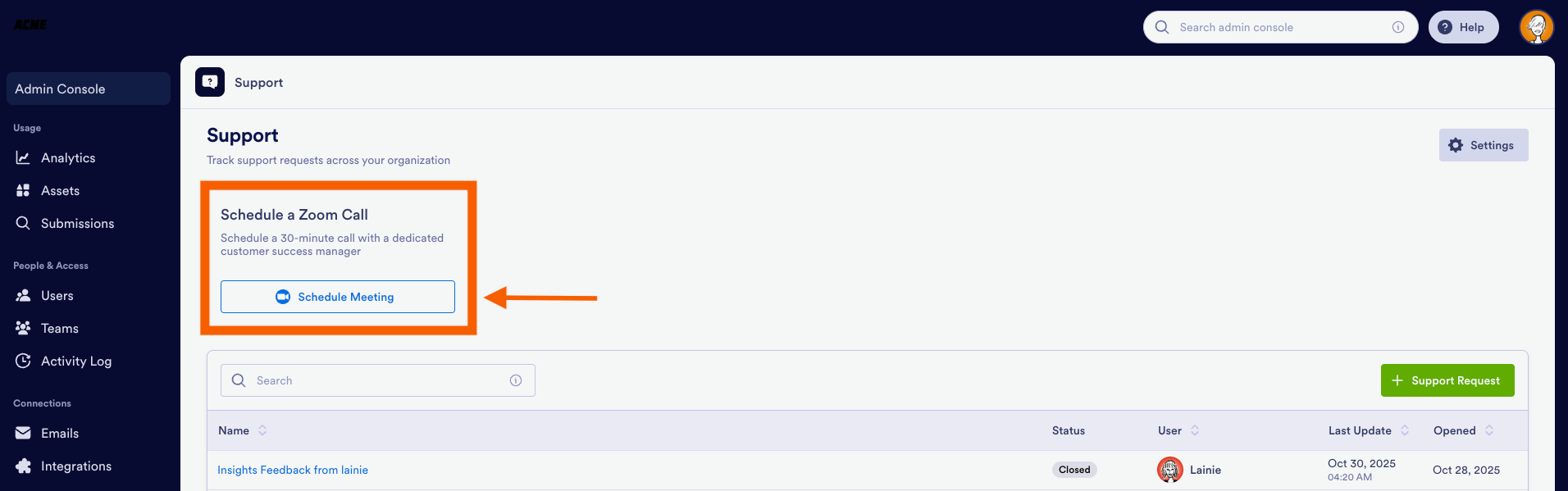
With your team settings configured, look for the box labeled Schedule a Zoom Call. This scheduling integration was built to eliminate the friction of traditional appointment booking. Review the brief description outlining your 30-minute session. When you are ready to connect with your CSM, click the blue Schedule Meeting button.
5. Select a time slot
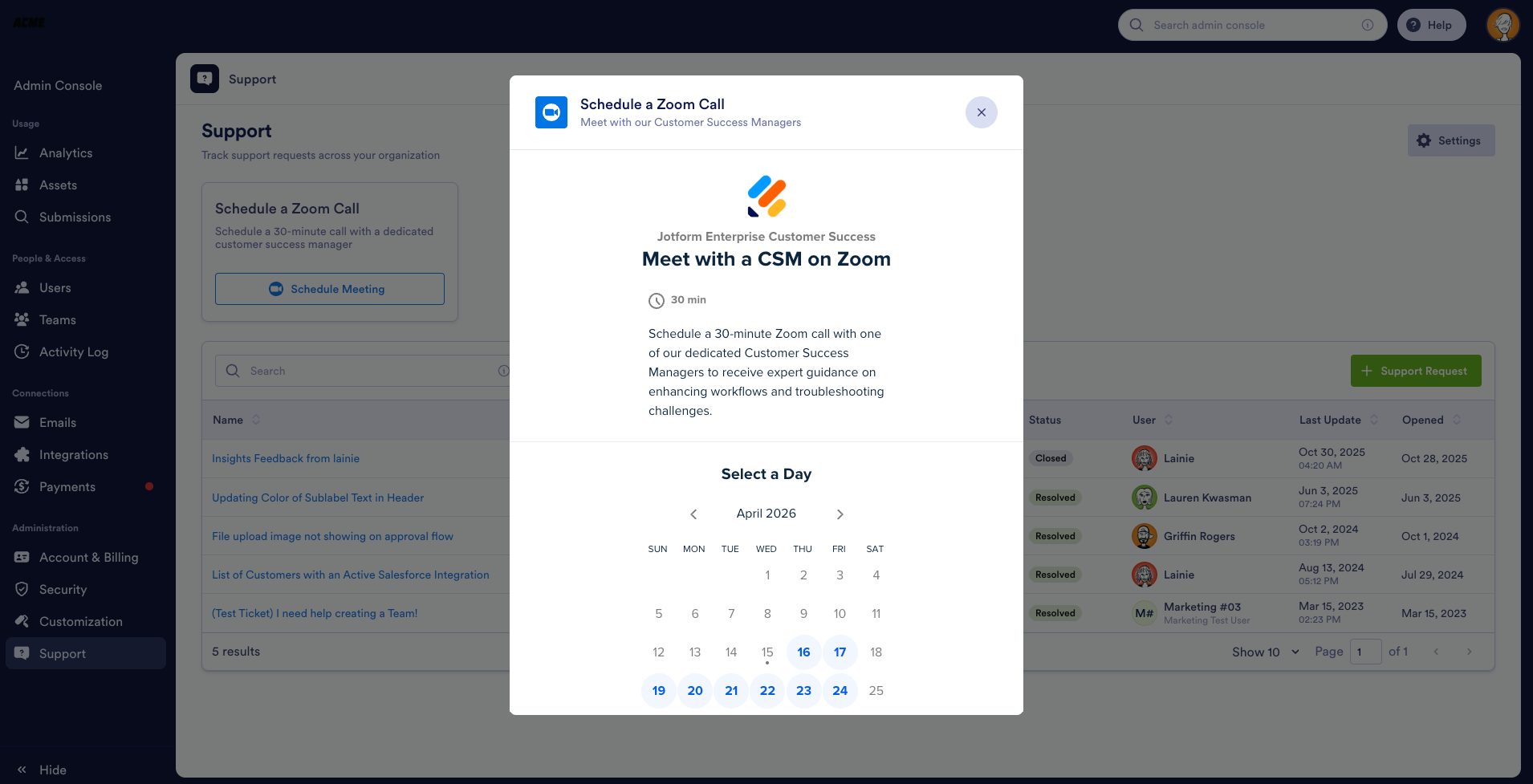
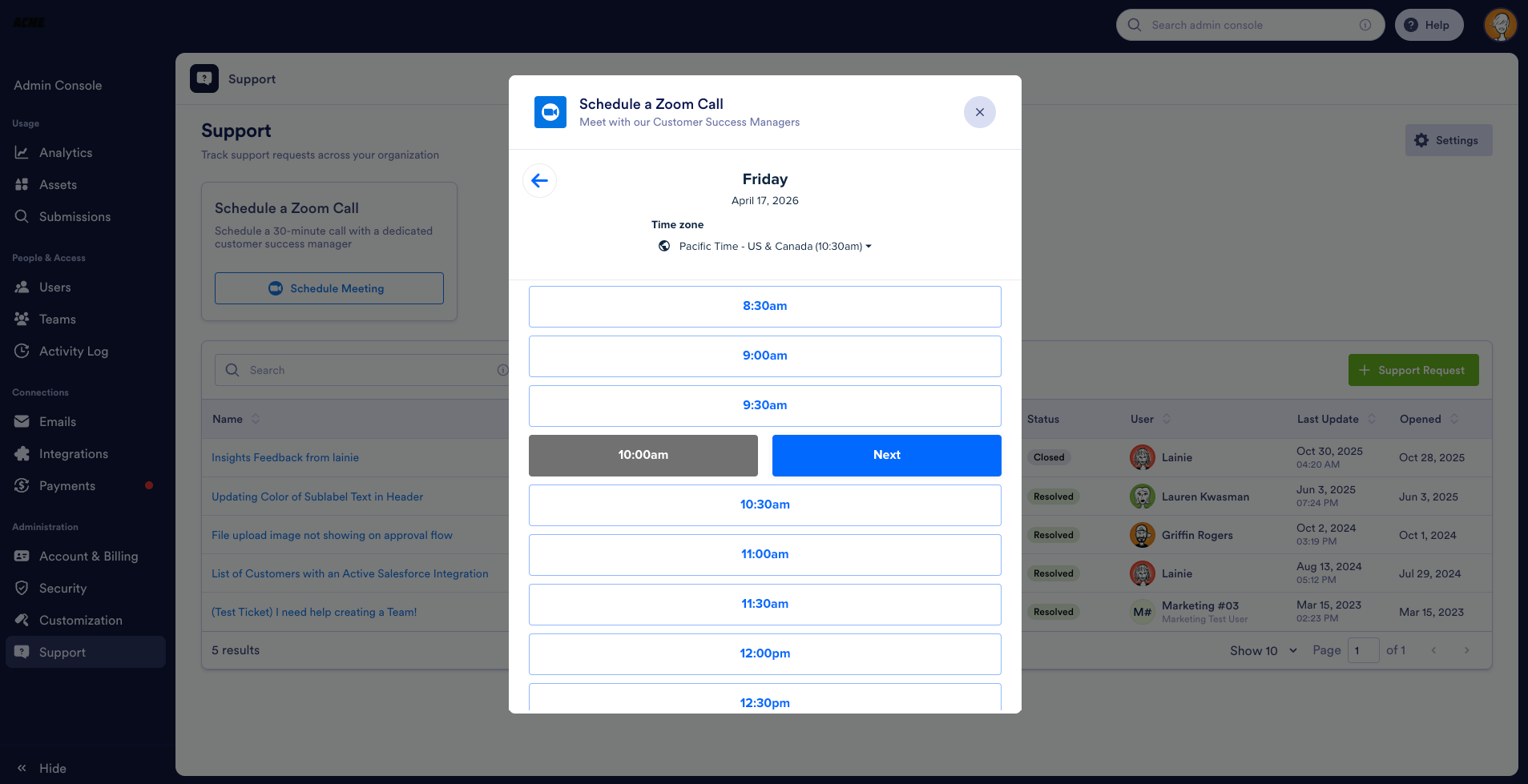
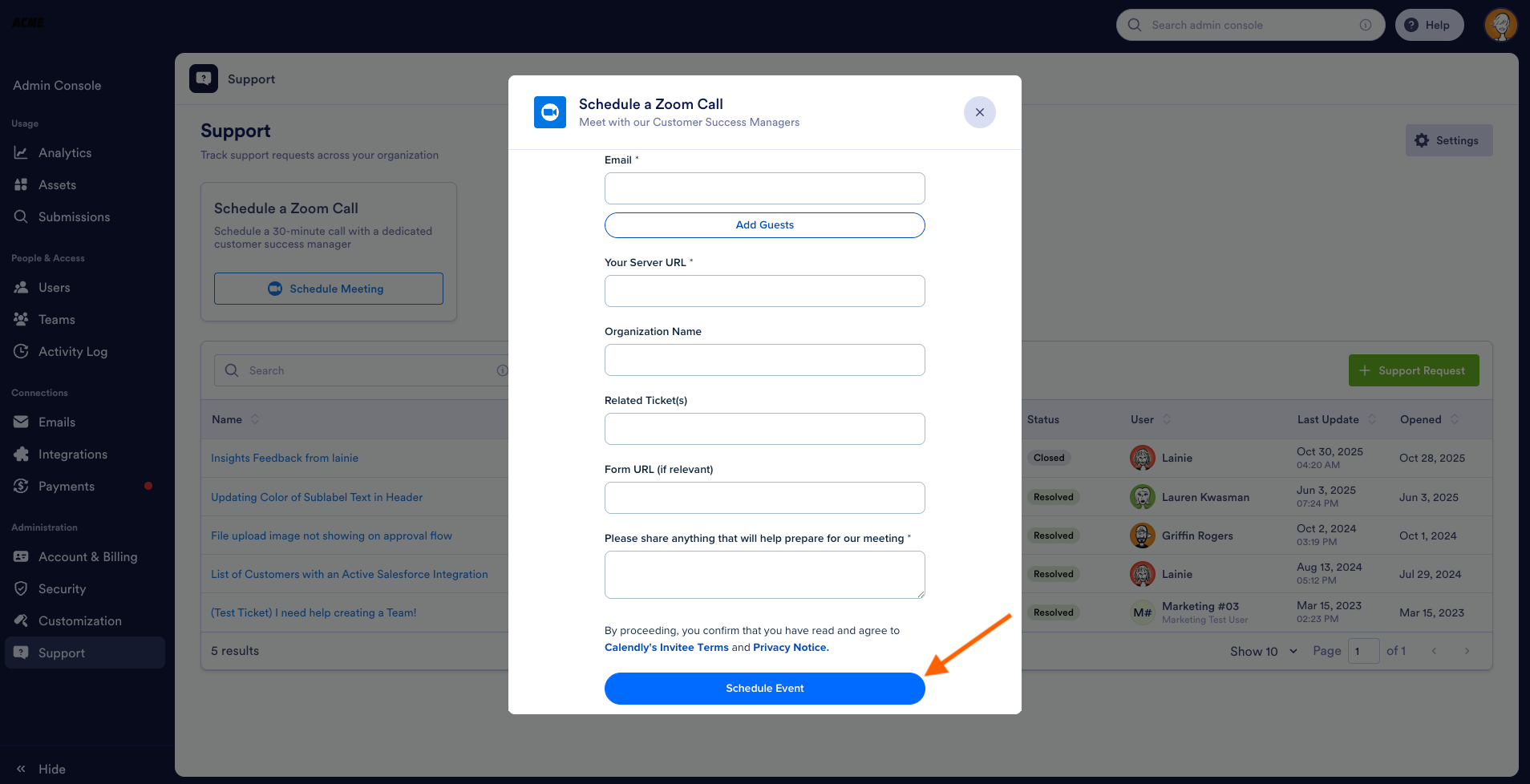
You will be directed immediately to your customer success manager’s real-time calendar. You can completely skip the back-and-forth scheduling emails — simply look at their live availability, choose a date and time that works for you, and provide a brief summary of your goals for the call.
Step 6: Review your meeting details
Once you hit the Schedule Event button, the scheduling system handles the rest. An automated calendar invitation will instantly land in your inbox containing your confirmed time and a unique Zoom link. The same details are synced to your CSM’s calendar, meaning your appointment is booked and you’re ready to meet.
Preparing for a successful session
To help your customer success manager dive straight into a solution, it’s best to gather a few essential details before your call:
- Form IDs or URLs: Have links handy for the specific forms you are building or troubleshooting
- Workflow outlines: Write down a quick summary of the data routing or approval steps you want to achieve.
- Integration requirements: Note the specific credentials or field-mapping details for any third-party tools (like Salesforce or HubSpot) you plan to link with Jotform Enterprise.
Pro Tip
Looking to scale your organization with custom multi-user workflows and dedicated administrative controls? Visit our Jotform contact sales page to request a personalized enterprise demo, discuss custom pricing, and explore dedicated account support.
Maximize your enterprise workflow today
Your time is valuable. The Admin Console’s integrated support hub gives your organization on-demand access to technical experts, so you can spend less time coordinating logistics and more time scaling your operations. Head over your Admin Console today to check your CSM’s availability, streamline your team’s access, and keep your projects moving forward smoothly.











































































Send Comment: