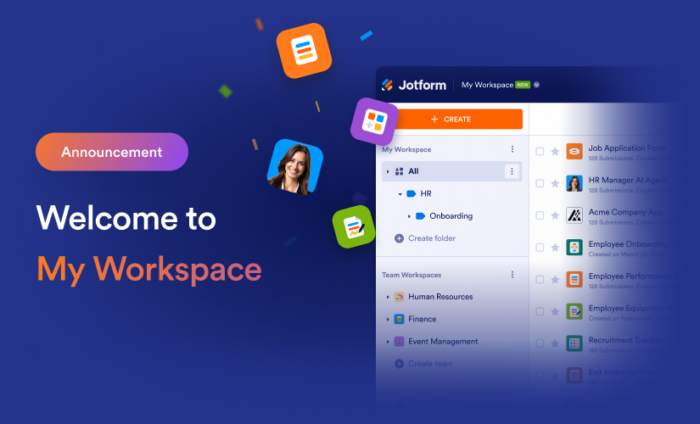
Using Jotform Enterprise just got easier, thanks to improvements that create a more intuitive, personalized experience.
When you log in to your Jotform Enterprise account, you’ll now land in My Workspace, which has replaced the My Forms homepage. This update transforms the way your organization interacts with Jotform Enterprise by offering a unified, customized, and more productive interface.
Why did we make this change? The transition to My Workspace stems from the valuable feedback of our customers. You told us you wanted better organization and more navigable resources. That’s exactly what My Workspace delivers: a more intuitive and effective platform.
A key focus of this update was to improve product discoverability by showcasing a variety of asset types in a single view. My Workspace introduces new features like a mixed listing of all assets, breadcrumb navigation, and a central hub for asset creation.
Better organization was one of the most highly requested enhancements. New asset management features include easier access to Team Workspaces and shared asset folders. Improved navigation ensures the platform feels intuitive and helps you quickly find the solutions Jotform offers.
You can also empower your team to work smarter with new AI features. Build AI Agents to automate support requests and streamline workflows, bringing the power of AI directly into your daily operations. Set a consistent visual brand for your Jotform interface and unify your team with the new AI-powered brand kit.
What makes My Workspace so great?
1. Improved organization and navigation
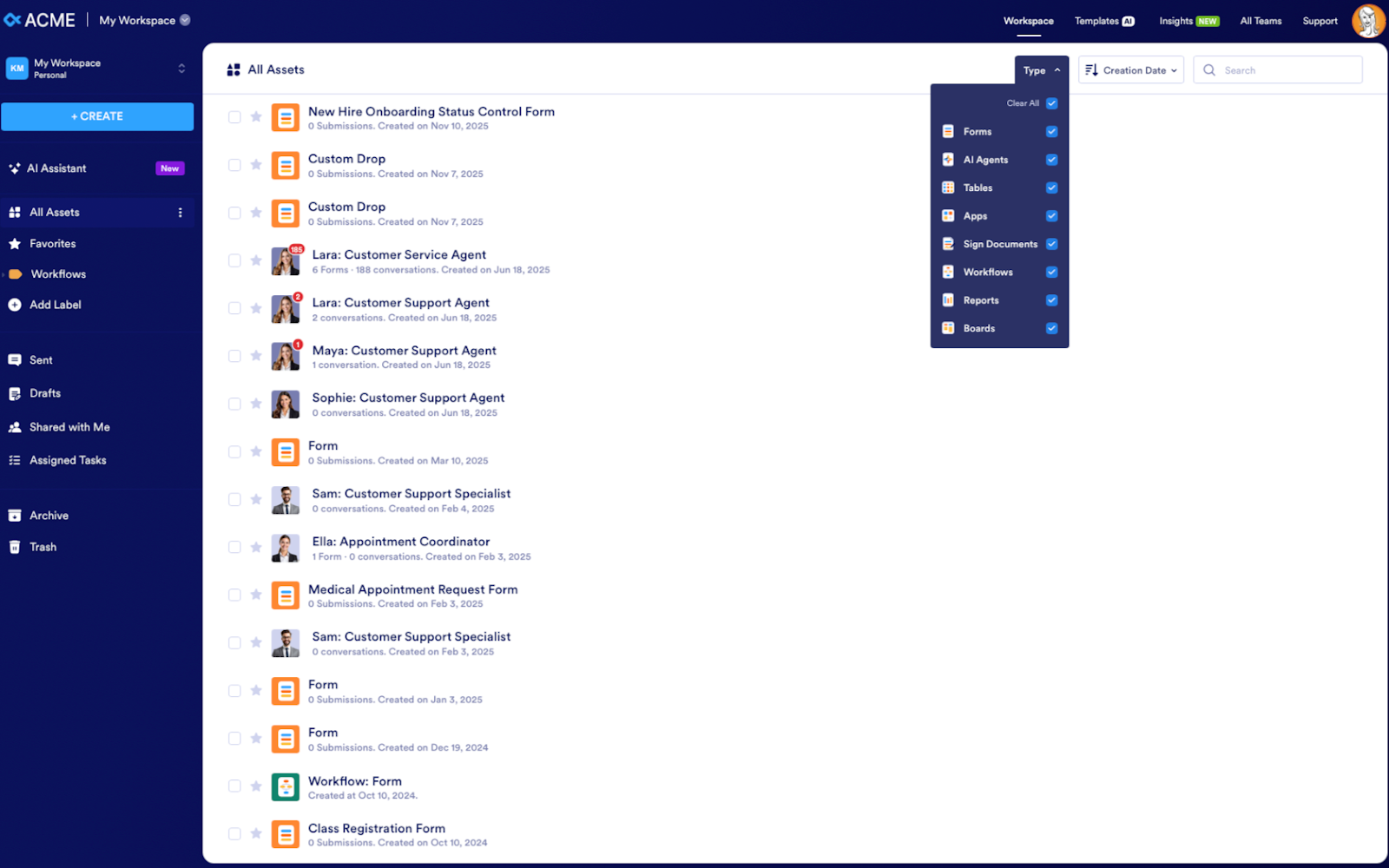
One of our top priorities for My Workspace was giving you better ways to organize and navigate your Jotform Enterprise assets. My Workspace now displays all your forms, tables, reports, e-sign documents, apps, AI agents, and boards in one comprehensive list. You no longer need to go to each product to view its assets.
We also added a Type filter that allows you to choose which assets to display. For example, if you want to list forms only, select the Forms option in the dropdown menu. You can also sort the assets further according to secondary criteria. To list your forms by submission count, select Forms for the asset type and Submission Count the dropdown menu next to the Type filter.
2. Increased asset accessibility with Team Workspaces and Labels
Now you can access your Team Workspaces more easily through the dropdown menu in My Workspace. With a single click, you can preview a Team Workspace to see and manage all team assets without leaving the page.
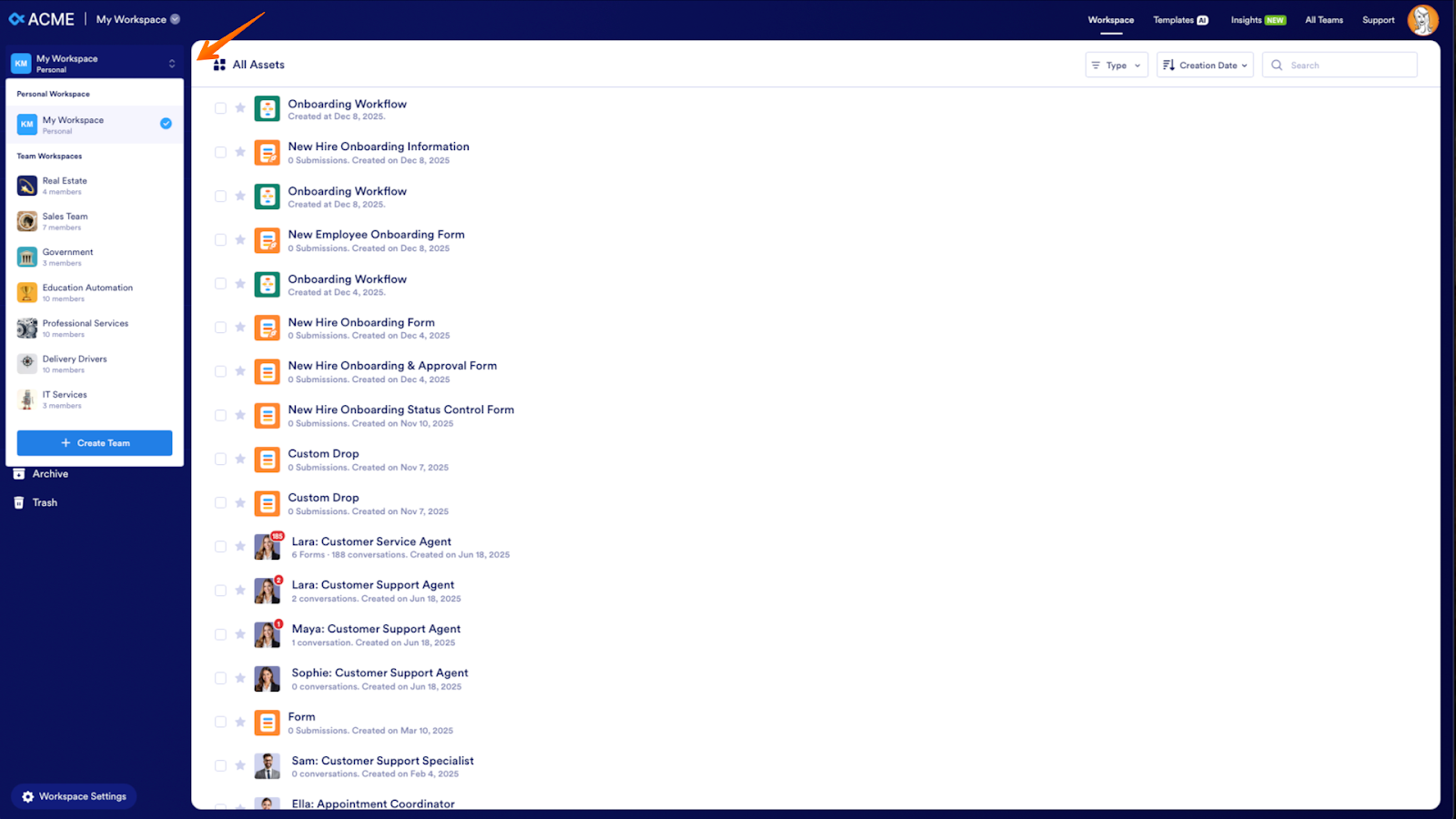
We’ve also introduced a better way of organizing your assets: Labels. This powerful update for My Workspace was one of our most requested features. Labels are a more versatile alternative to the previous folder system. Unlike folders, which were available only on the My Forms page and only worked with forms, you can apply Labels to any asset type, including forms, reports, tables, e-sign documents, apps, workflows, AI agents, and more.
Organize assets in your workspace according to how you work — by project, department, clients, time period, or workflow stage. You can assign multiple labels to a single item, making it easier to filter, group, and cross-reference related assets, regardless of type.
3. Enhanced asset collaboration
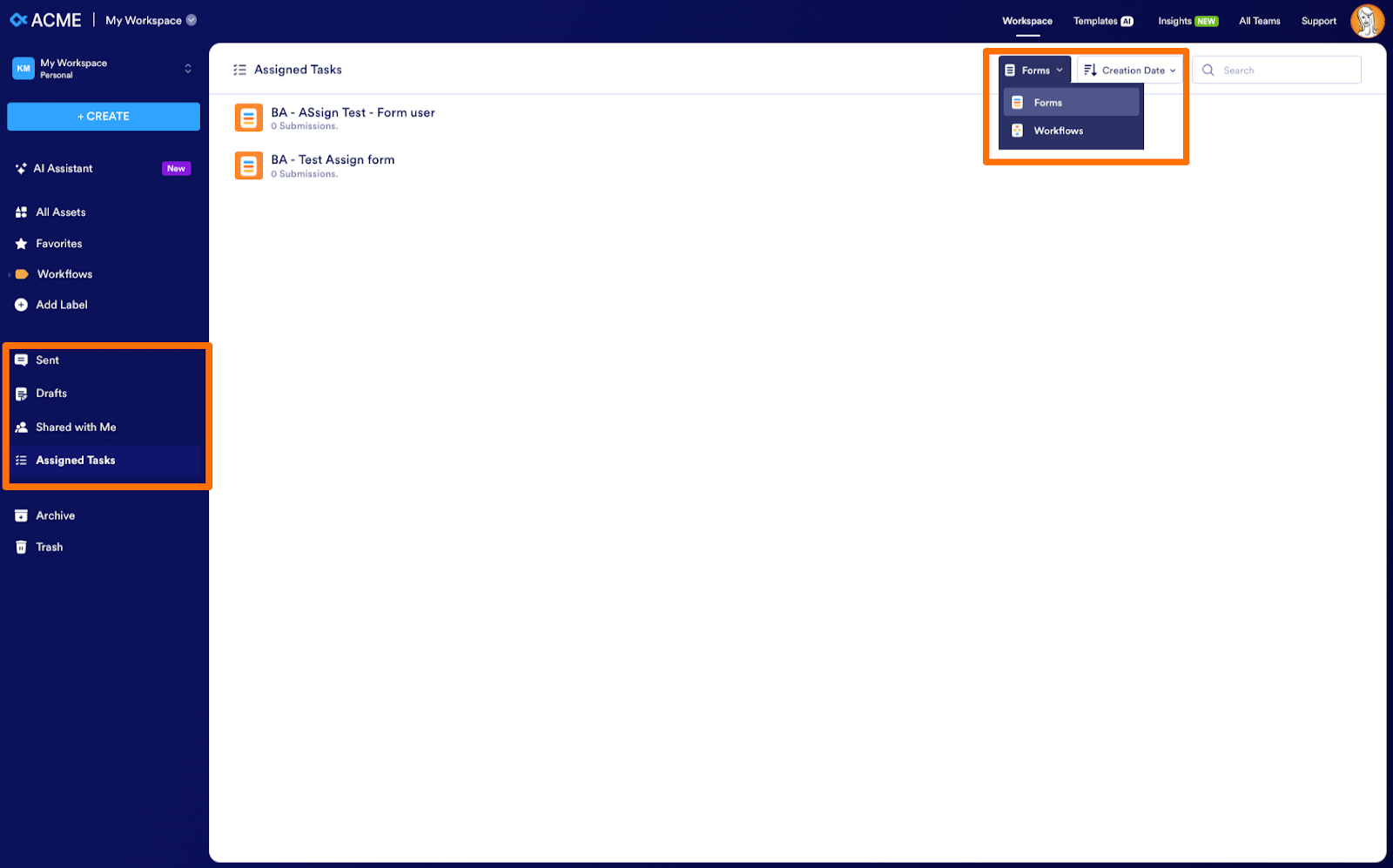
In the left panel of My Workspace, assets are organized into folders labeled Sent, Drafts, Shared with Me, and Assigned Tasks. Each folder displays assets that you’ve been granted access to as a collaborator, owned by other users on your Enterprise server.
- Sent shows the forms you’ve submitted and your conversations with AI Agents.
- Drafts contains the form responses you’ve saved but not yet submitted.
- Shared with Me holds the forms and folders that you can access as a guest user.
- Assigned Tasks contains forms and workflows that require your action — such as submitting a form or approving/denying a request.
You can display the assets you want to see using the dropdown menu at the top of each page. For example, select Assigned Tasks, and then choose whether to display Forms and Workflows.
4. Elevated design elements
Now, Enterprise users can now personalize their workspace with updated design and branding options. The new Workspace Settings modal lets you choose a background image or color and even update button colors. The font colors automatically adjust to complement your background color, creating a clean, polished look. This premium feature gives you the freedom to create a space that truly feels your own.
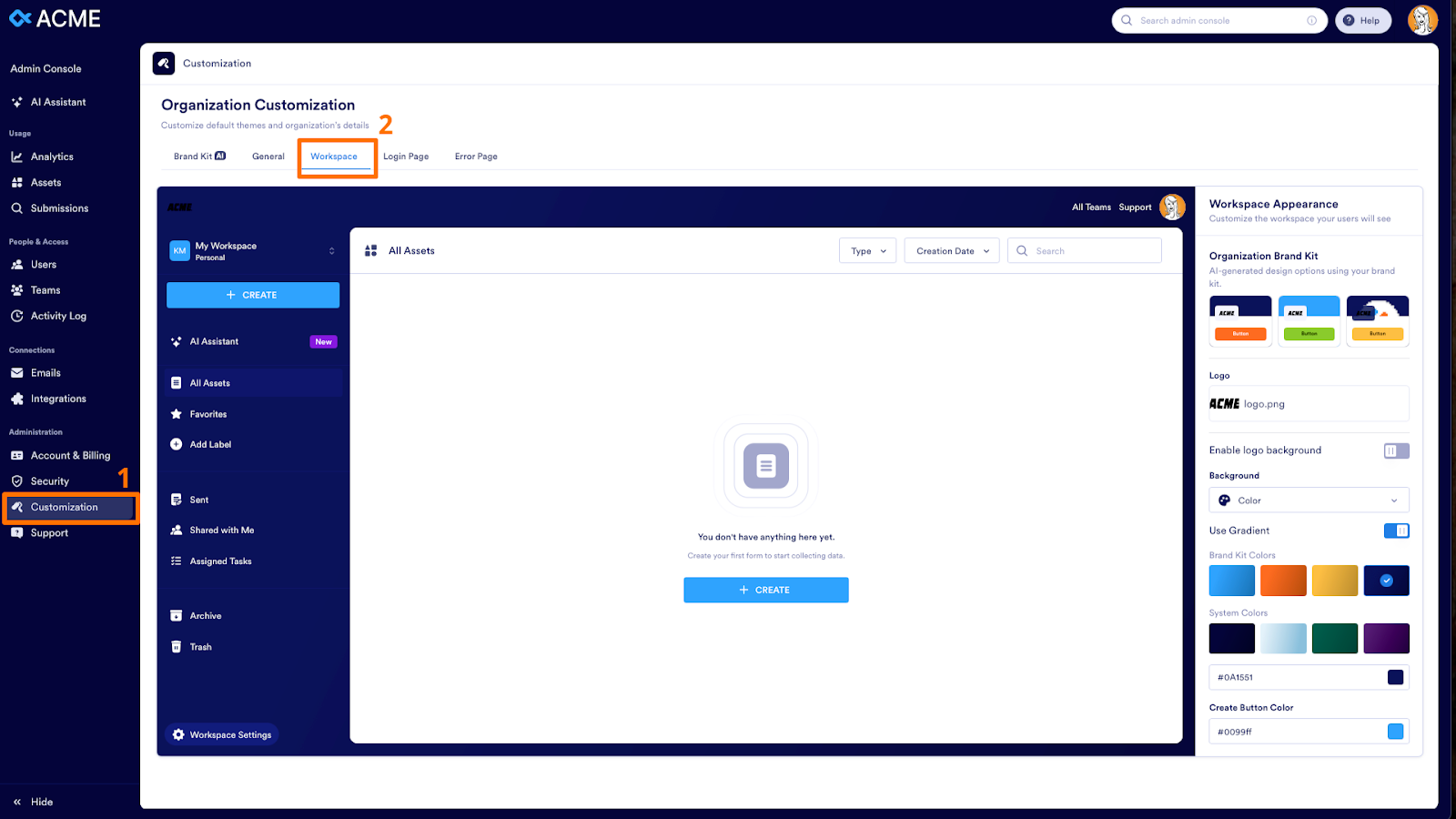
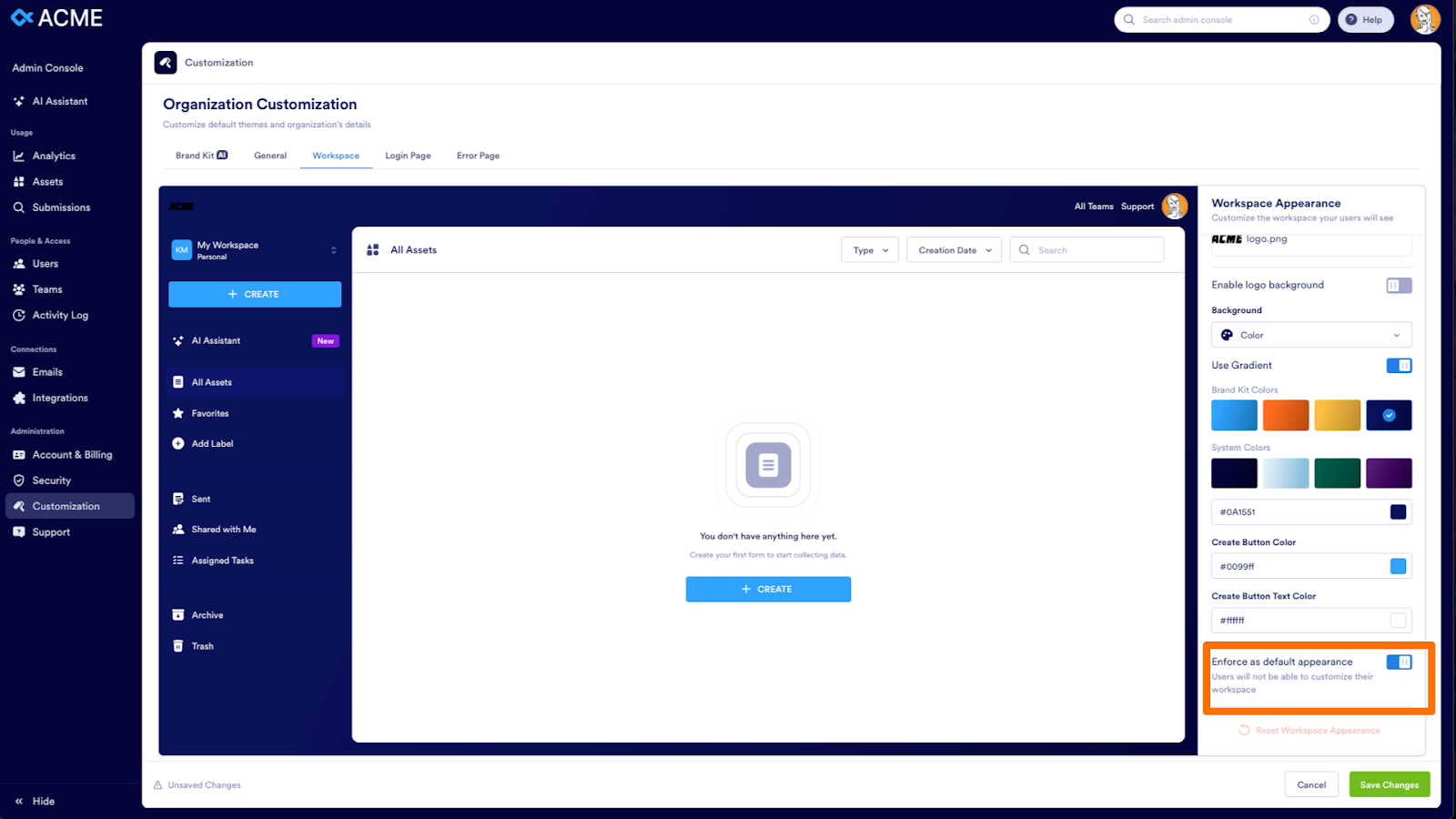
Admins can manage customization server-wide and enforce a default appearance across the organization using the updated Admin Console. Admins may also enable the Workspace Settings modal for non-admin users. If the admin enforces a default workspace appearance, the user will not see a Workspace Settings button.
Here’s how to customize workspaces for your organization (as an admin):
- Go to your Admin Console.
- Select Customization.
- Select Workspace.
- Under Workspace Appearance, change your color scheme and upload your logo.
To set your selections as the default Workspace appearance for all users, toggle on Enforce as default appearance. To allow users to customize their own workspace, keep this option toggled off.
To customize your workspace as a user (if enabled by your admin):
- Go to Workspace Settings.
- Select Color to change your background, text, and button colors.
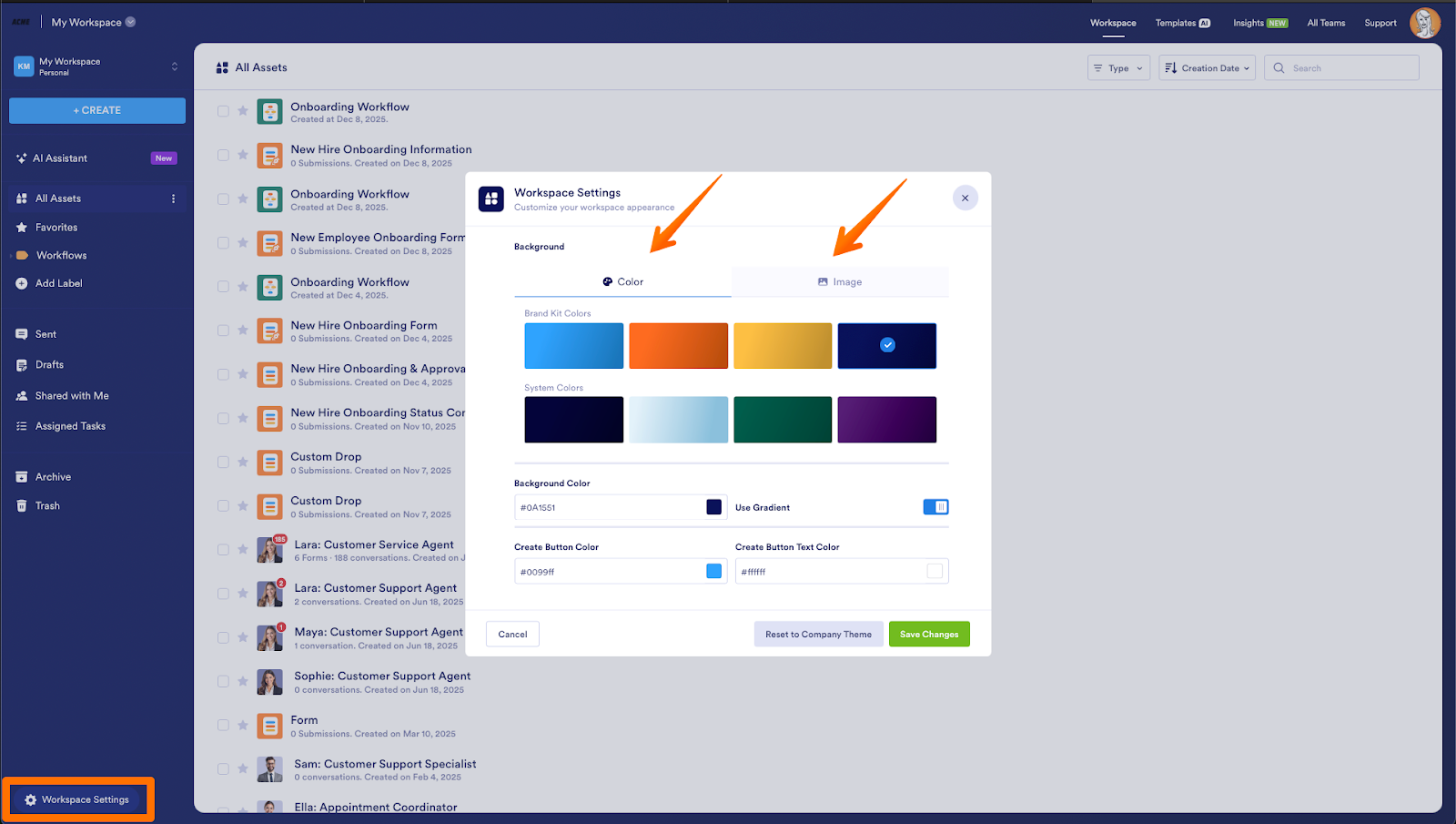
- Select Image to upload an image from your computer.
- You can also reset your Workspace to the company theme.
5. Improved user interface
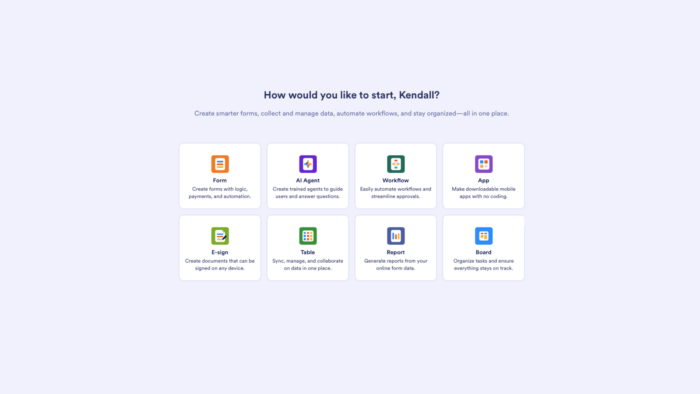
It’s now easier than ever to create assets in Jotform Enterprise — from forms to apps to AI agents. Users can now access all Jotform Enterprise products through a new central creation hub using the + Create button in My Workspace. Selecting + Create opens a page with links to Forms, AI Agents, Apps, Workflows, and other products, so you can quickly get started..
We also added a breadcrumb menu to the toolbar at the top of the My Workspace page. This feature helps you to easily keep track of the folders and subfolders you open as you navigate.
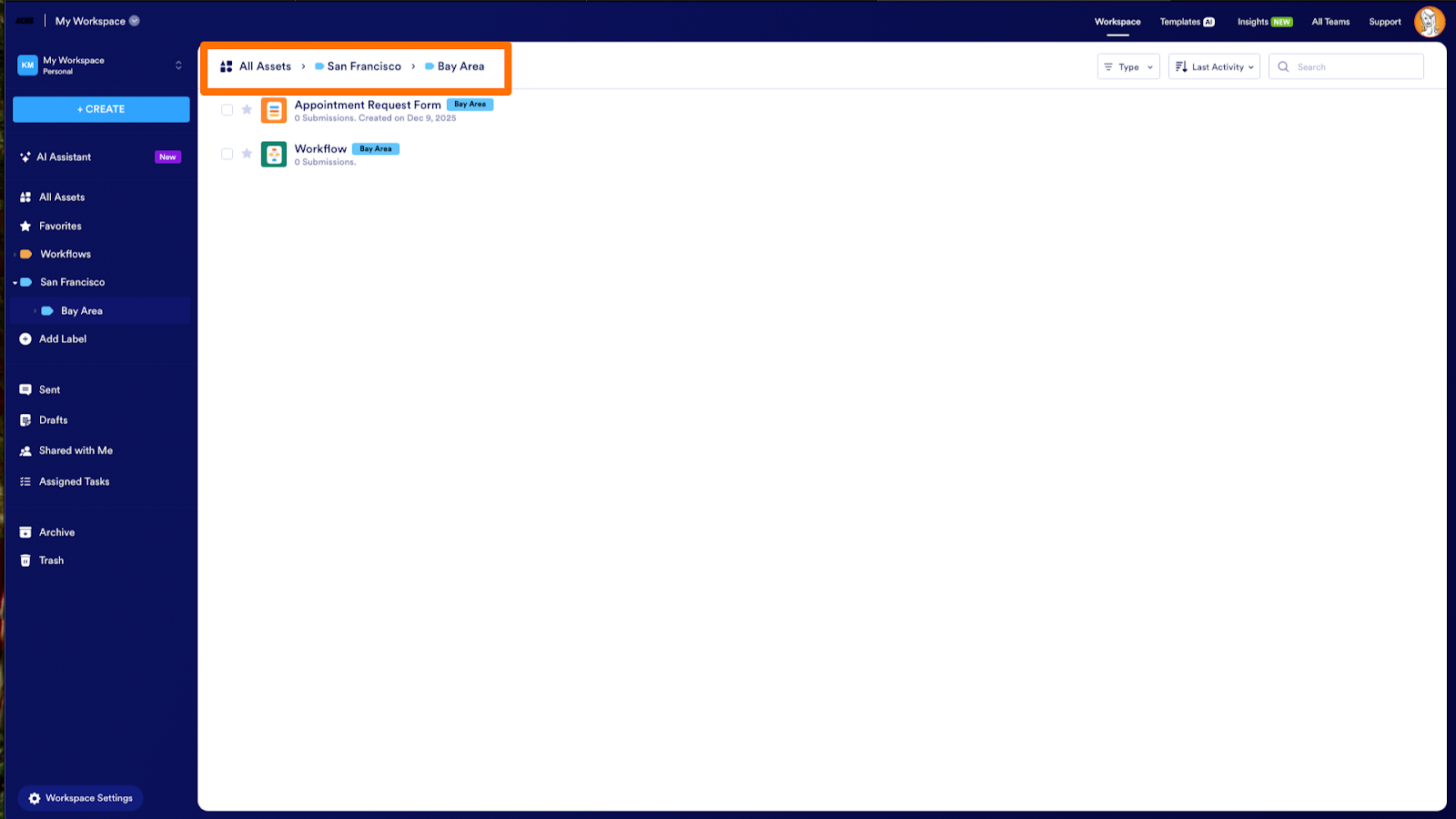
Guest users now enjoy an improved experience as well. When you share an asset with a guest user, or assign one to them, they are taken directly to the My Workspace interface — without having to create an account. They will also be able to see all shared assets and folders in one place.
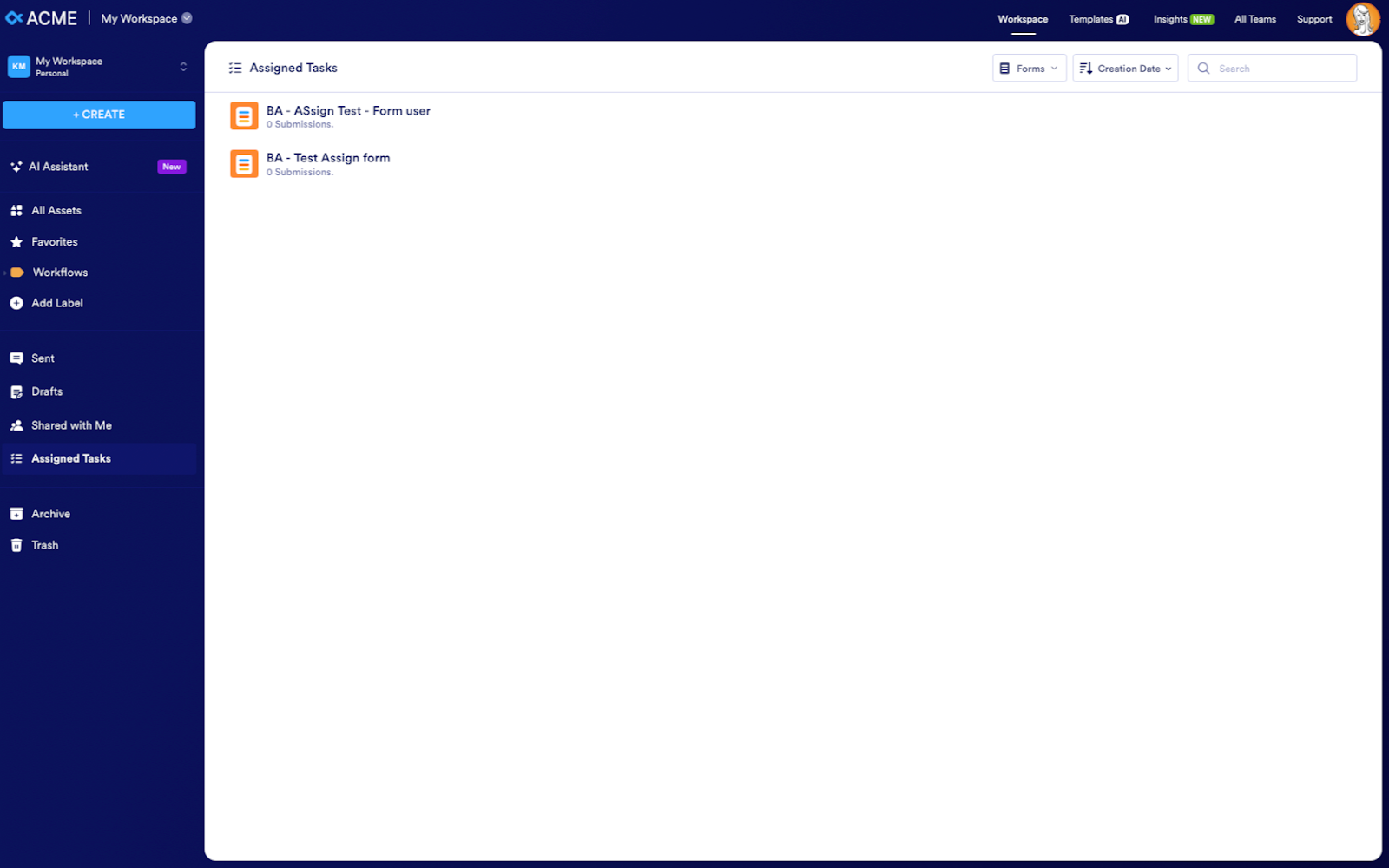
The items in the left panel in My Workspace function the same way for guest users as they do for logged-in users. Guests can view assets shared with or assigned to them, easily view or edit forms they’ve filled out, access AI Agents conversations they’ve had, and easily navigate between forms, AI agents, tables, reports, boards, and workflows in their Shared with Me folder.
6. AI-powered support and branding tools
The latest platform update, Jotform Enterprise 2.0, includes enhanced AI features to help your team customize workspaces and scale operations confidently.
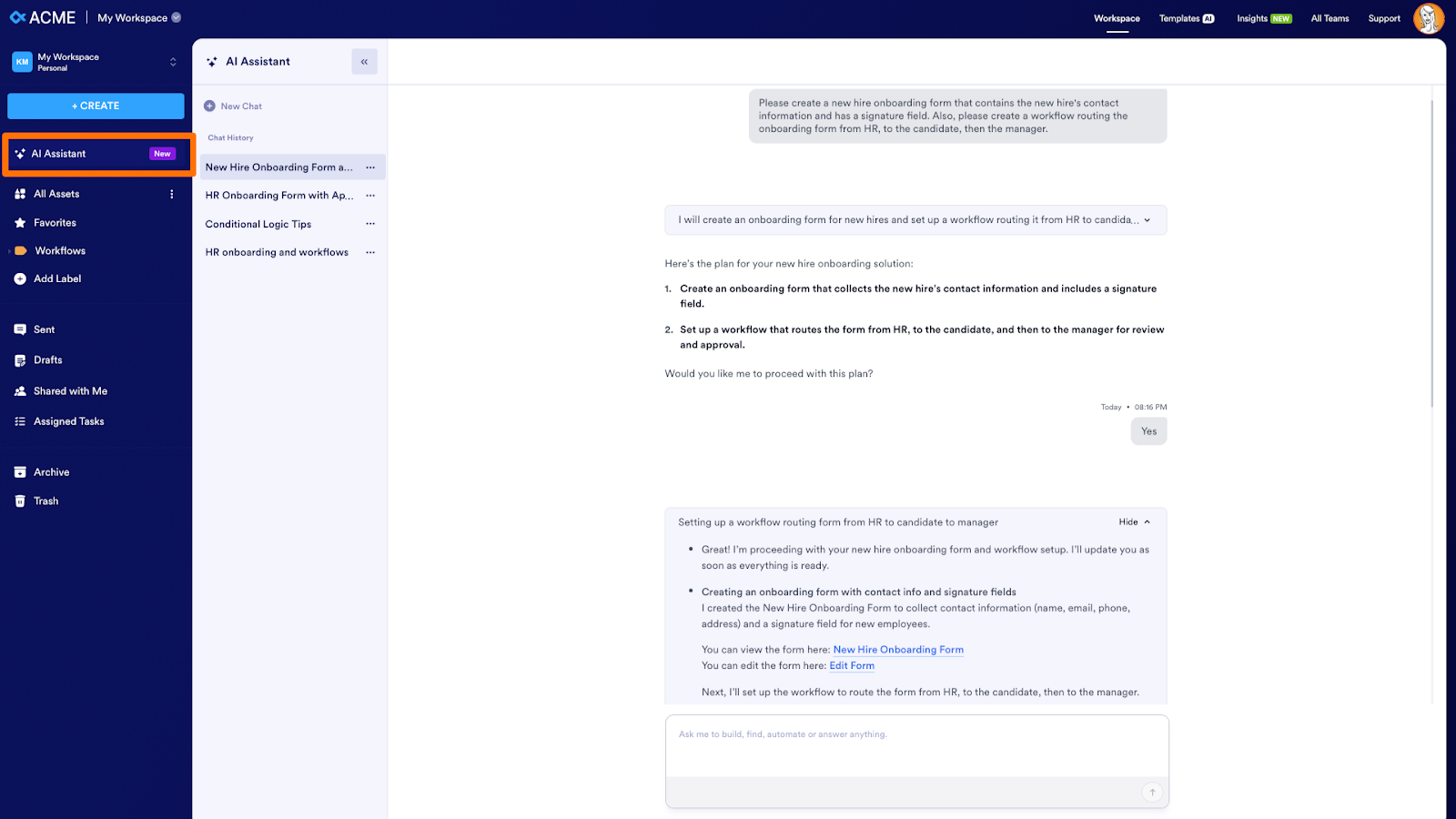
Now available in the Admin Console and in My Workspace, the AI Assistant feature provides a powerful new way to get immediate answers to your questions about the platform. Ask the AI Assistant to provide tips on how to use specific features, build complex assets and workflows, route questions to customer support when needed, and more.
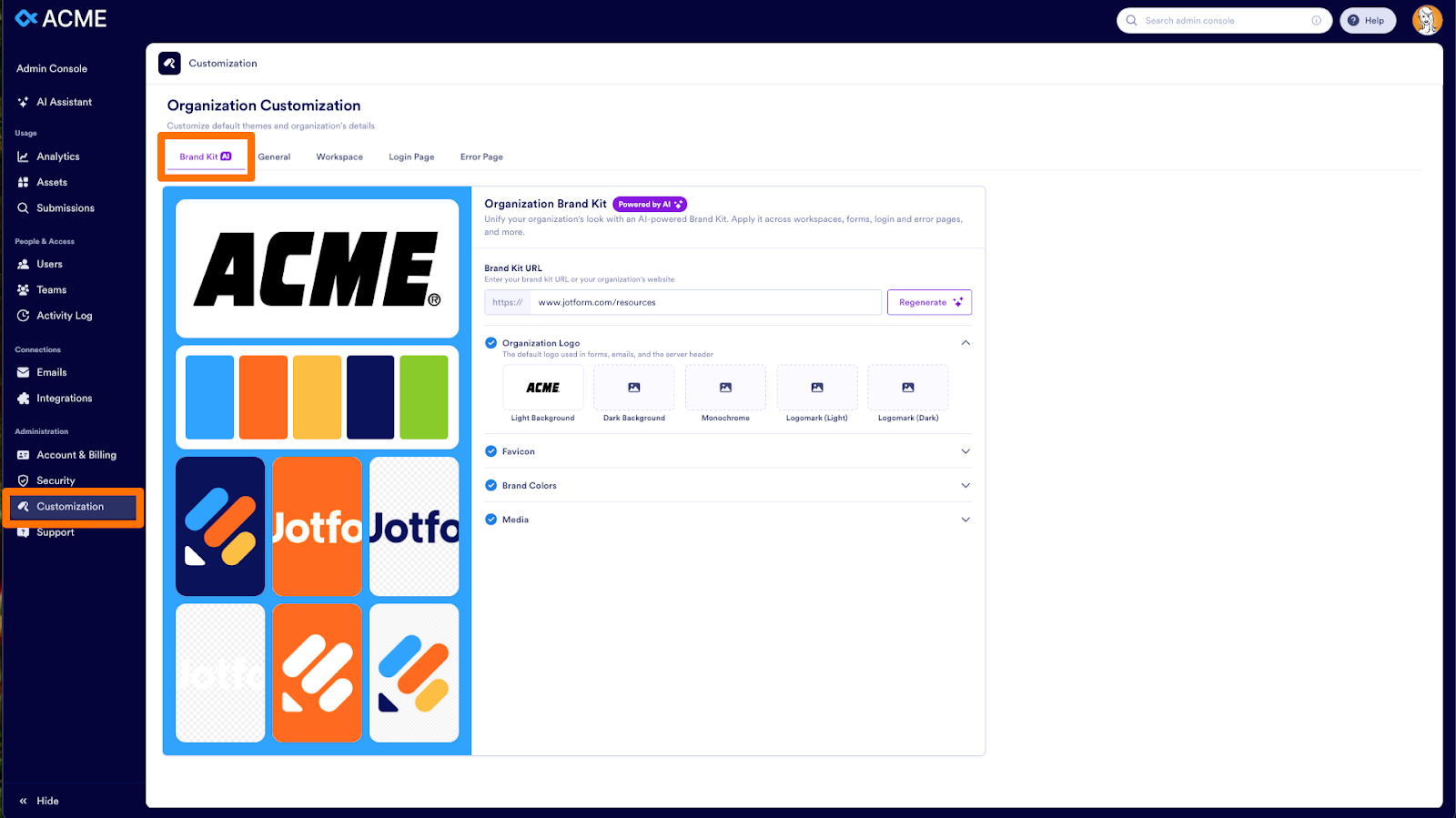
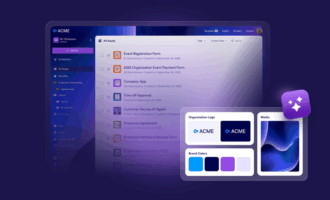
The new AI-powered Brand Kit feature lets you apply your organization’s branding across every workspace and synced resource with a single click. This feature uses AI to analyze your company logo or website, detect your brand colors and other style elements, and then generates a cohesive visual identity for your Jotform Enterprise interface in seconds. This tool, available in the Admin Console, ensures brand consistency organization-wide, while saving time and automating setup.
Get ready to build intricate forms, elevate your workflows, and harness your creativity with these latest enhancements to the Jotform Enterprise experience. We hope My Workspace provides a more unified and organized environment where your team can seamlessly work with all Jotform Enterprise products in one place.

























































































Send Comment: