

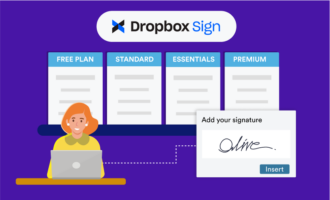
Finalizing a contract isn’t as simple as it sounds. You need to prepare, send, sign, and track the document securely. E-signature tools such as Dropbox Sign eliminate the additional wait time and risk of physically mailing contracts, but that’s not all it does.
Tools such as Dropbox Sign often include an autofill feature that populates data in e-signature documents. With autofill, you don’t need to enter this data manually, and that saves you time, reduces errors, and improves the signer’s experience.
Many e-signature tools have standard fields, such as the signer’s name, their email address, and the date. As your organization’s e-signature needs grow, however, you might benefit from tools that offer more data fields, repeated workflows, and form-to-contract pipelines. A more flexible tool, such as Jotform Sign, can provide that added value.
How to autofill in Dropbox Sign
If you aren’t already using it, you may be thinking, “Take a step back. What is Dropbox?” Dropbox, a cloud storage tool for file sharing, includes resources such as Dropbox Sign, which allows users to securely send contracts to others for signatures.
By autofilling data, Dropbox Sign makes contract signing quicker and easier.
Follow these steps to streamline your Dropbox e-signature workflows:
- Upload the document you want users to sign. You can upload files from your computer or Dropbox, or use an existing template.
- Add the names and email addresses of all the users who need to sign the document. If you’re adding more than one signer, select Add another signer, and enter each person’s details separately.
- Decide which fields should be completed for each signer. Beyond requesting signatures or initials, you can add standard fields and e-signature autopopulating fields. In Dropbox Sign, those fields are
- Full name
- Date signed
- Company
- Job title
- Drag and drop the necessary fields where you want them in the document.
- Add any other recipients who need a copy of the document; also add a document title and an optional message for each signer.
- Select Send for signature to send the request to the signer.
The Dropbox Sign prefill feature works differently for different signers. If the signer is already a Dropbox Sign user and has filled out their profile information, fields will be automatically populated with the correct information when that signer opens the document. They can still update the information, as needed, by editing the field as they would a text box.
If Dropbox Sign doesn’t autofill their information, the person is probably not a Dropbox Sign user. The only fields that will autopopulate are the signer’s name and email address (as provided by the requester) and the date. Other fields, such as company name and title, will be blank.
Pro Tip
While there are many Dropbox benefits, including the contract autofill feature, you may eventually want a more comprehensive e-signature tool, such as Jotform Sign. Luckily, Jotform’s Dropbox integration enables a smooth transition for teams that already store documents in Dropbox and wish to migrate to Jotform Sign for more advanced workflows.
Jotform Sign: A better alternative for prefill & automation
As your business grows, your document workflows may become more advanced. Jotform Sign is a more scalable alternative to Dropbox Sign. It offers form-based data collection, a Prefill feature, PDF generation, and e-signature collection all in a single, streamlined workflow.
Dropbox Sign primarily helps users add signature fields and basic autopopulated fields, such as name, email address, and date. As one of the most powerful Dropbox Sign alternatives, Jotform offers a broader, form-driven approach to preparing documents for signatures.
Jotform Smart PDF Forms turns PDFs into convenient, interactive online forms with just a few clicks. When you receive a submission, Jotform automatically creates a prefilled PDF with your original layout. Jotform Smart PDF Forms’ Prefill options allow you to populate data before generating a document.
With Jotform Prefill, you can automatically complete fields such as
- Full name
- Email address
- Address
- Phone number
- Date
- Time
- Single-choice response
- Multiple-choice response
- Scale rating
- Dropdown response
- Fill in the Blank response
- Short text response
- Long text response
Say, for example, you need a contract that includes information you received through form responses. After a respondent fills out your form, you can use Jotform Prefill to plug the relevant details into a contract. Then, the signer will need only to review and sign the document, rather than entering all those details manually. Jotform Prefill saves the signer time, helping you create smoother, faster contract workflows.
How to autofill with Jotform Sign
Follow these steps to prefill documents in Jotform Sign:
- On the My Forms page, create a new form.
- Import your contract as a PDF file.
- Map all necessary fields onto the PDF. Move and resize any fields that aren’t in the right place in the PDF. If necessary, drag and drop new form elements.
- Under the Publish tab, go to Prefill options.
- Select from the Prefill options (which include Manual, Form, Tables, and CSV/Excel import) to complete the contract details before sending to the signers.
Add a Signature field, and enable Jotform Sign so the only thing the client needs to do is sign. No data entry will be required. The completed Jotform Prefill PDFs will be automatically delivered to both parties.
Conclusion
Dropbox Sign’s autofill feature is helpful, especially when your contracts require only basic signer information, such as a name, email address, and title. The tool makes simple signature workflows faster and reduces errors. However, the autofill function in Dropbox Sign is limited to a narrow set of fields, and the tool doesn’t support advanced data collection or multistep document preparation.
You’ll have many more Prefill choices in Jotform Sign. Jotform gives you structured data capture, prefilled form workflows, PDF generation, and more control over document preparation before signatures are requested. Those features make it the more powerful option.
This article is for digital operations teams, document workflow managers, and anyone who wants to streamline e-signature processes with autofill features in Dropbox Sign or upgrade to more advanced, prefilled document automation using Jotform Sign.
AS ALWAYS, CONSULT AN ATTORNEY BEFORE RELYING ON ANY INFORMATION ON THIS PAGE. THE CONTENT ABOVE IS FOR INFORMATIONAL PURPOSES ONLY. JOTFORM IS NOT PROVIDING LEGAL, FINANCIAL OR OTHER ADVICE.




































































Send Comment: