
If you’re new to Jotform – or maybe you recently migrated from Adobe FormsCentral – you may not be familiar with how easy it is to turn your ordinary looking form into a gorgeous piece of online art. Jotform’s incredibly advanced Form Designer allows your inner designer to shine; it’s the easiest tool around for creating customized, beautiful form themes that don’t require any knowledge of complicated CSS.
With that being said, here are a few pointers to get you started.
Customize Your Colors:
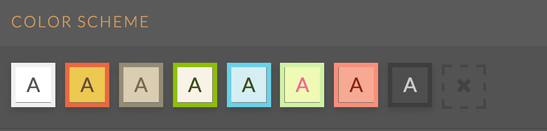
We make it easy for you with a great selection of color schemes to choose from.


But what if you’re interested in developing your own color scheme? Well, that’s pretty easy too! Unless you have your own company colors you’re looking to use, one of our favorite tools to start with is the Adobe Kuler color tool to get an idea of different color pairings.
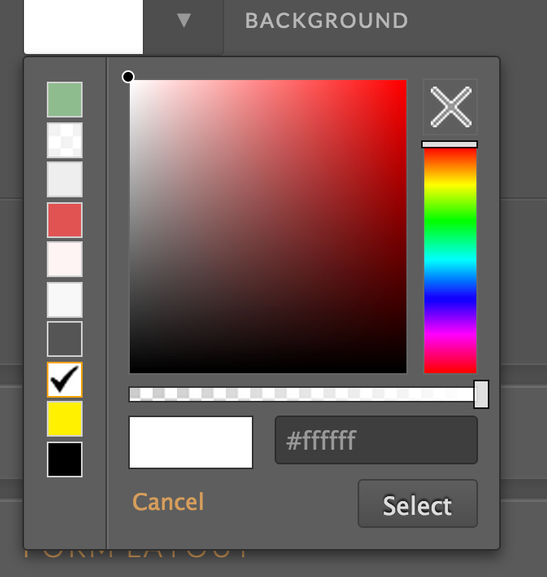
Once you know the look you’re going for, either easily click the colors on the scale or enter the Hex numbers in the custom color box for the background, input background, frame and text.
Use Beautiful Imagery:
Without requiring a whole lot of extra work, you can make your web form gorgeous just by using the right background image.
Whether you take your own high resolution photos, or you want to use stock images, great images are a perfect place to start. We recommend Unsplash for some magnificent, copyright-free pictures.
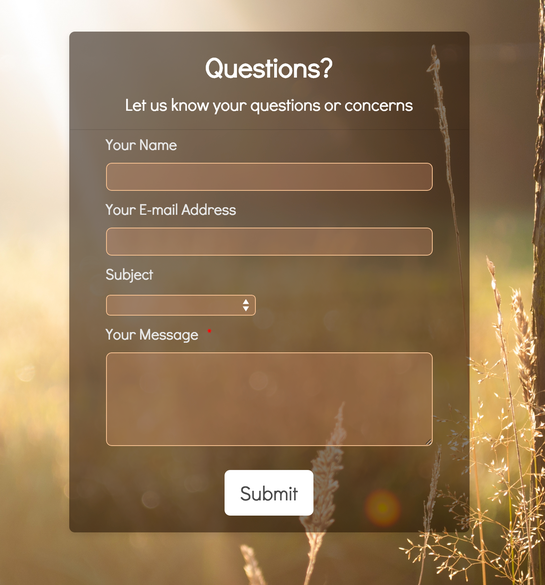
From there, you should consider making your form frame somewhat (if not entirely) transparent to really let the image shine. Using this method, you can have a spectacular form that lets the image do most of the heavy lifting.
Transparent Boxes:
If you happen to be using one of those beautiful images; it’s best to avoid covering it up with opaque boxes on your page.
Even if you don’t know a lick of CSS, there are easy solutions for creating a transparent dropdown menu so it doesn’t look out of place.
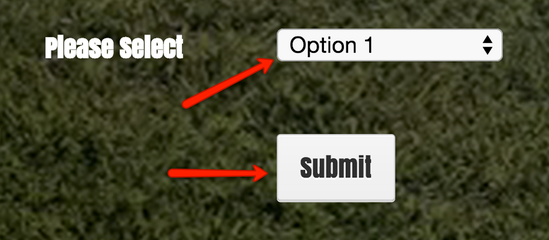
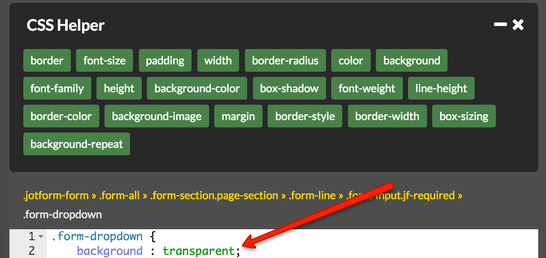
It couldn’t be easier using Jotform’s guided point-and-click CSS helper. First things first – click on the field you’d like to change, which will prompt the CSS Helper’s menu to appear on the right side of the page.
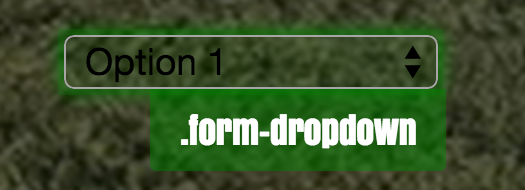
Then copy and paste: “background : transparent;” into the field below to get a completely transparent background on the selected form box or drop menu.
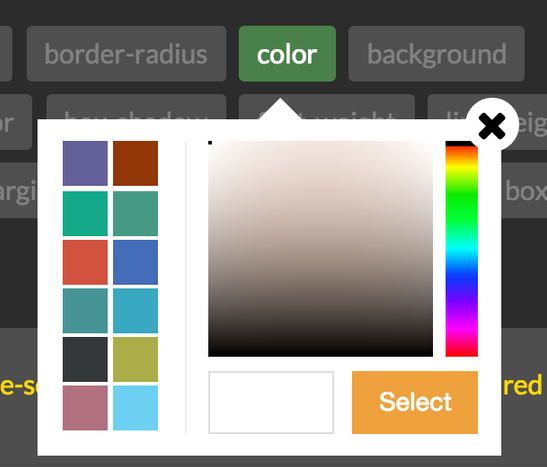
Then you’ll probably want to change the color the font to make it match the rest of your colors as well. To do that, click on the box you’d like changed, and find the “color” icon in the CSS Helper.
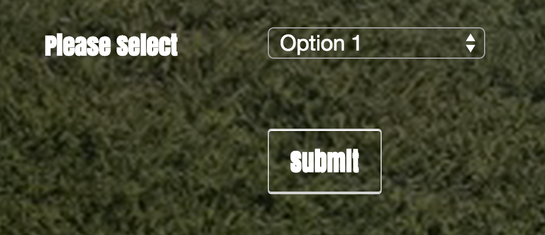
The end result is a form that lets the background image show itself with limited obstruction.
Highlighted Colors:
An important final step before sending your form to the masses is tweaking the highlighted color to match the feel of your form. The highlighted color is the one that appears when a user clicks on a form field. By default, the highlight color is a bright yellow, which may or may not be suitable for your form.
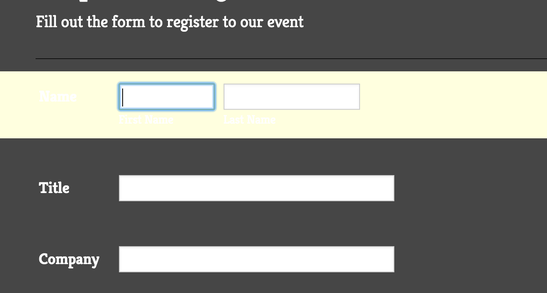
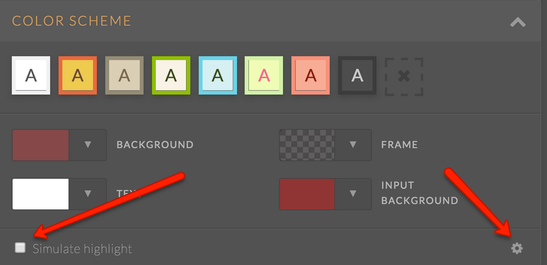
Editing the color takes about 30 seconds, and it’s well worth it. Just find where it says “show highlight” under Color Scheme, and find the gear icon to the far right for more options.
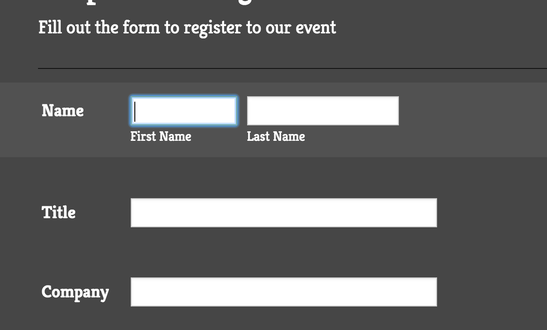
Especially if you’re using a light font, it’s best to use a more subtle highlight so that you can still read the text behind the highlight.
Have you had any experience trying Jotform’s Form Designer yet? Tell us about your form design experience or any tips you have!











































Send Comment: