
Anyone who regularly collects addresses — whether it’s for shipping purposes, event registrations, student signups, or something else — knows how important address autocomplete is for reducing friction in the form-filling process. But if you’re trying to use Google Forms for address collection, you’ve probably already run into this snag: There’s no native Google Forms address autocomplete feature.
However, that doesn’t mean it’s impossible to enable this functionality. In this article, we’ll explain two methods for adding address autocomplete to Google Forms. And if you’d rather skip the hassle of a Google Forms workaround, we’ll also introduce you to an alternative form builder that has this and other important features already built in: Jotform.


Method 1: Using third-party add-ons for Google Forms address autocomplete
One option for getting Google Forms autocomplete address functionality is to use third-party add-ons.
These types of tools use a custom front-end form known as a wrapper link that connects to the Google Places API, a developer tool that can access Google’s location database in order to “see” user addresses. (The Google Places API is not to be confused with the Google Maps API; for address forms, the visual aspect of maps isn’t usually needed.)
Here are more details around how they work:
- You create your form in Google Forms as usual.
- The add-on reads the form structure and generates a separate public-facing URL — the “wrapper” — around the original form. This is necessary because Google Forms can’t modify the live interface in order to perform a search. In the new form version, Google Places Autocomplete is attached to the address field.
- Form respondents access the custom wrapper URL instead of the default Google Forms link.
- As they begin typing, the form sends partial text to the Google Places API. Google Places returns predicted addresses in real time, enabling the autocomplete form.
- When the user clicks on a suggested address, the API returns the address information in structured form (street name and number, city, state, etc.) and maps each component to the corresponding form fields.
- The completed data is submitted back into Google Forms. Google Forms is still used for backend storage, so address information appears as it normally would in any associated Google Sheets and workflows.
Formfacade is the most popular Google Forms add-on capable of handling address autocomplete. You can access it via the Google Workspace Marketplace.
Note that, for this and other methods, you’ll need a Google Maps API key — a unique code that allows Google to identify who’s making the location information requests. This is easy enough to get; keep reading for more details.
Pro Tip
Want to save your respondents from having to enter other information manually? See our article on how to autofill a Google Form for more helpful workarounds.
Method 2: The Google Apps Script method (advanced)
Are you comfortable using a bit of code? If so, another option is to use Google Apps Script to get address data.
The Google Apps Script method works somewhat differently than the add-on. Instead of creating a new form and serving up address predictions live, this method verifies addresses and cleans them up after users hit “submit.”
Essentially, it’s a backend method for getting accurate addresses — a must for successful data collection.
Here’s how it works:
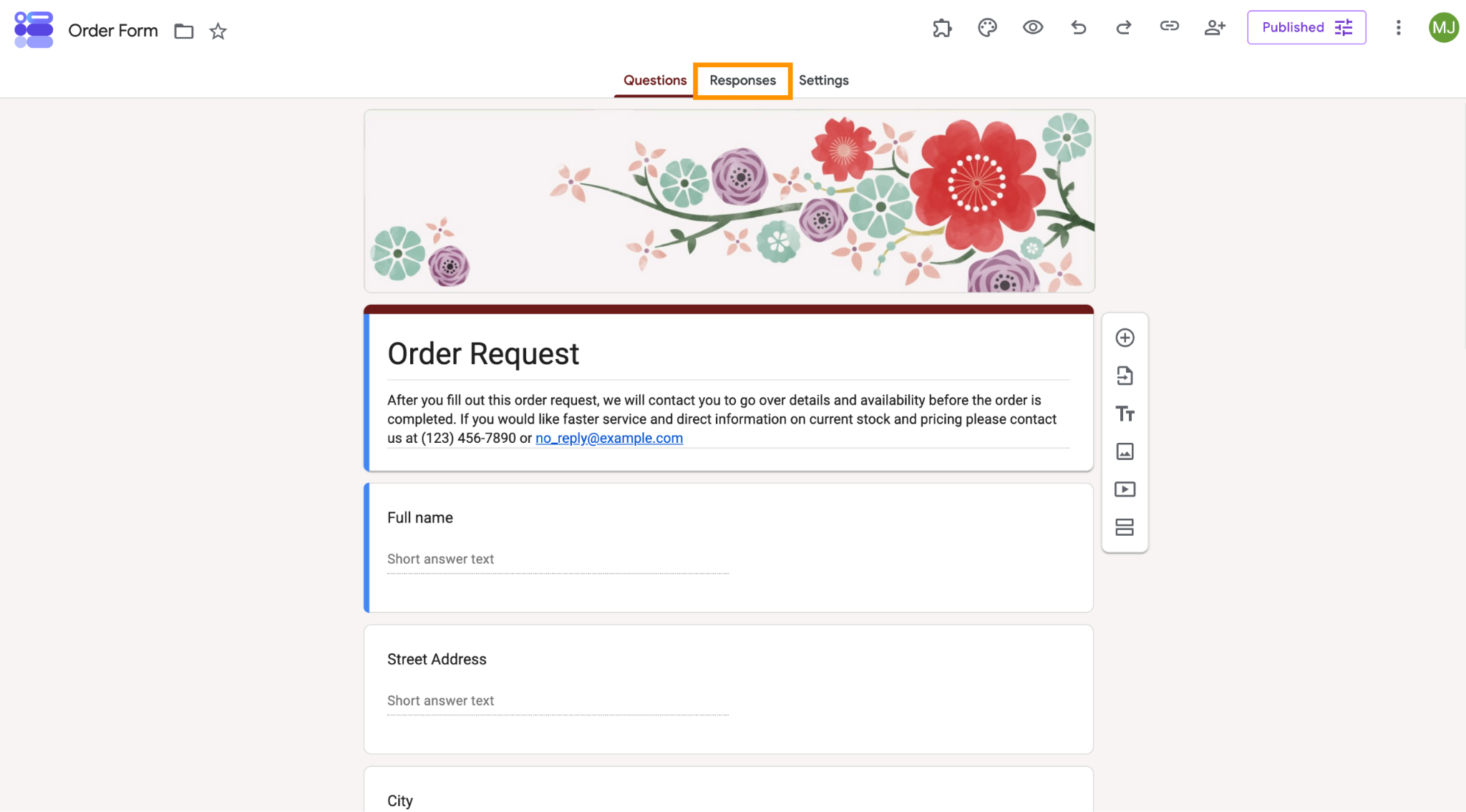
- Open your form and click the Responses tab at the top.
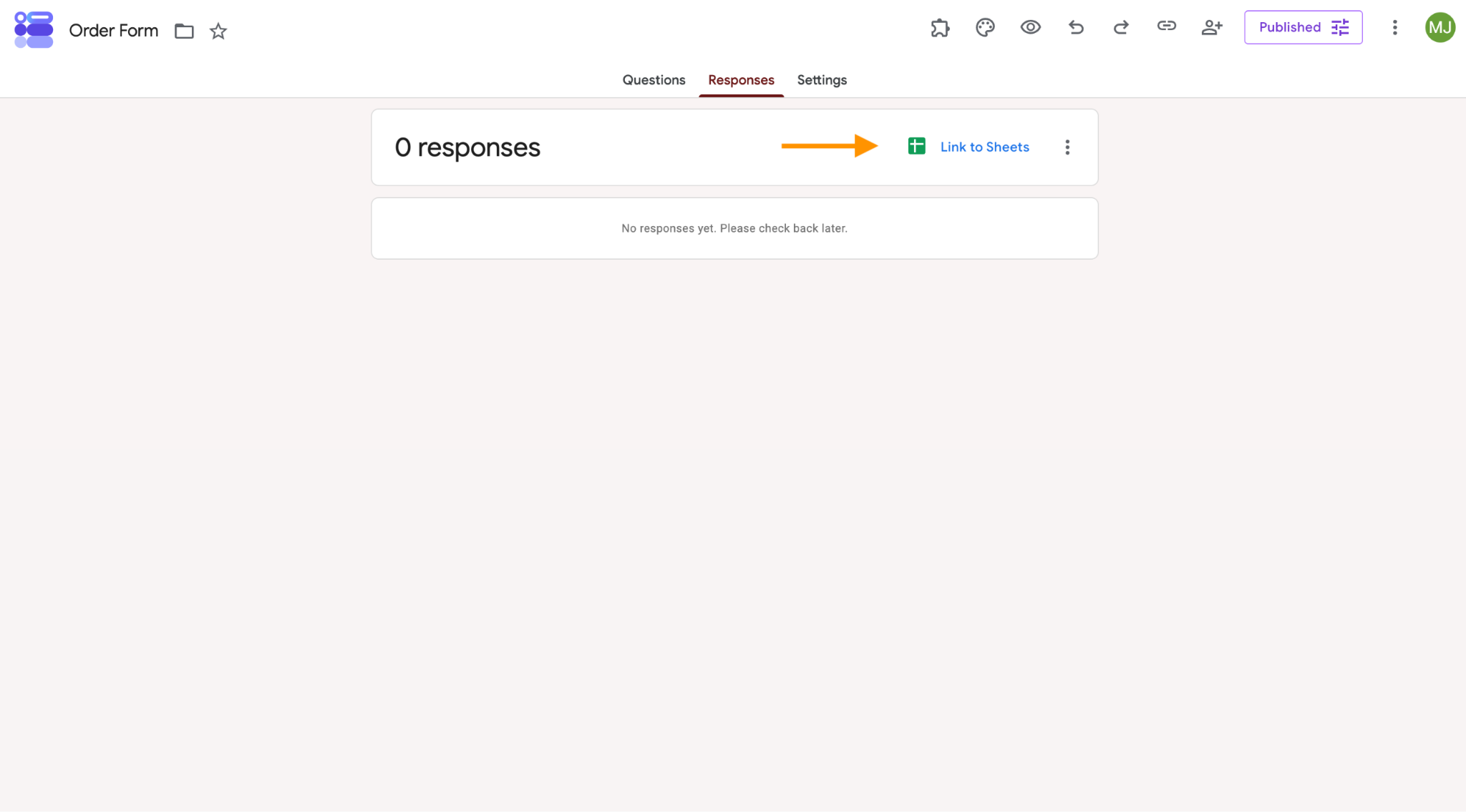
- Click Link to Sheets.
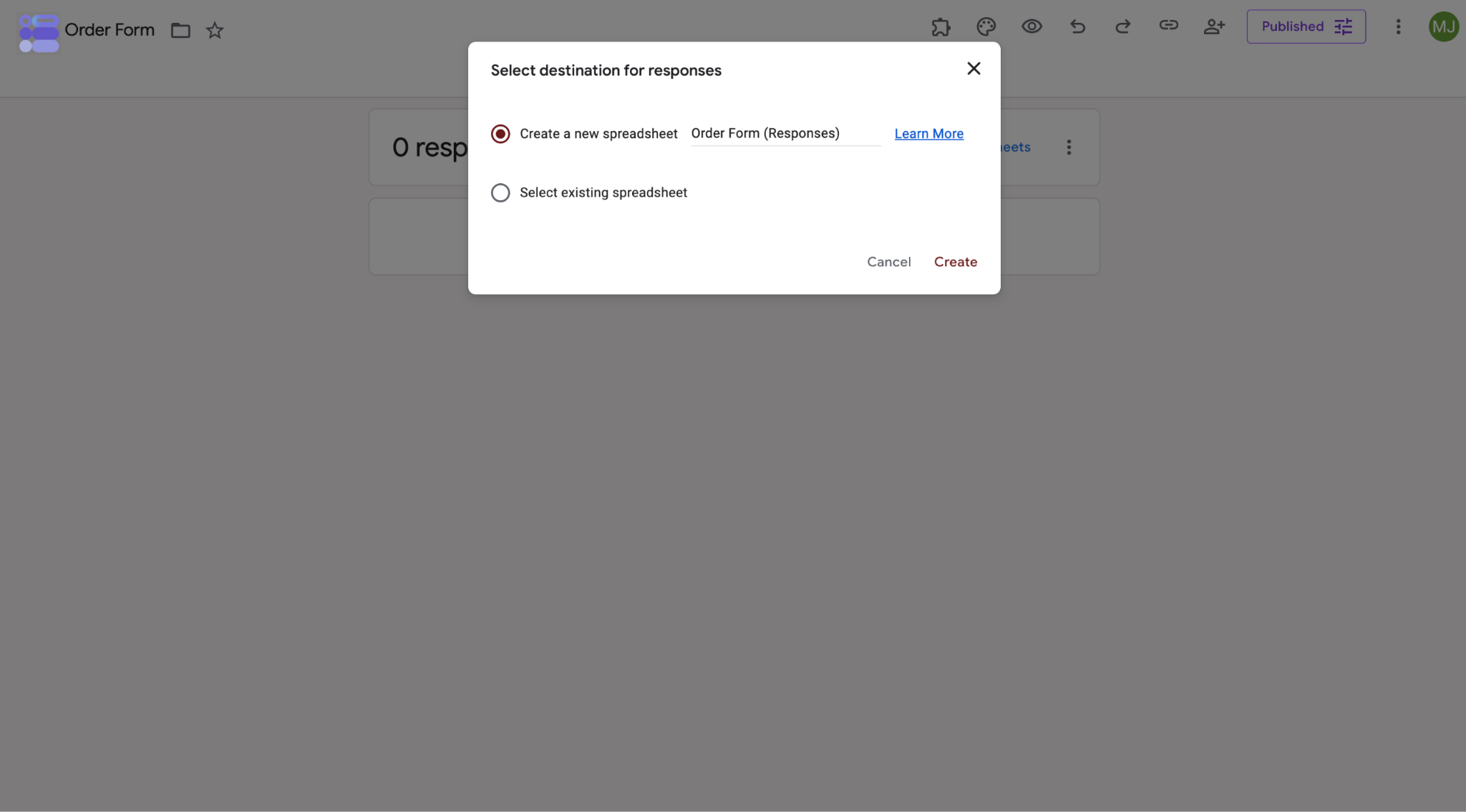
- Create a new spreadsheet.
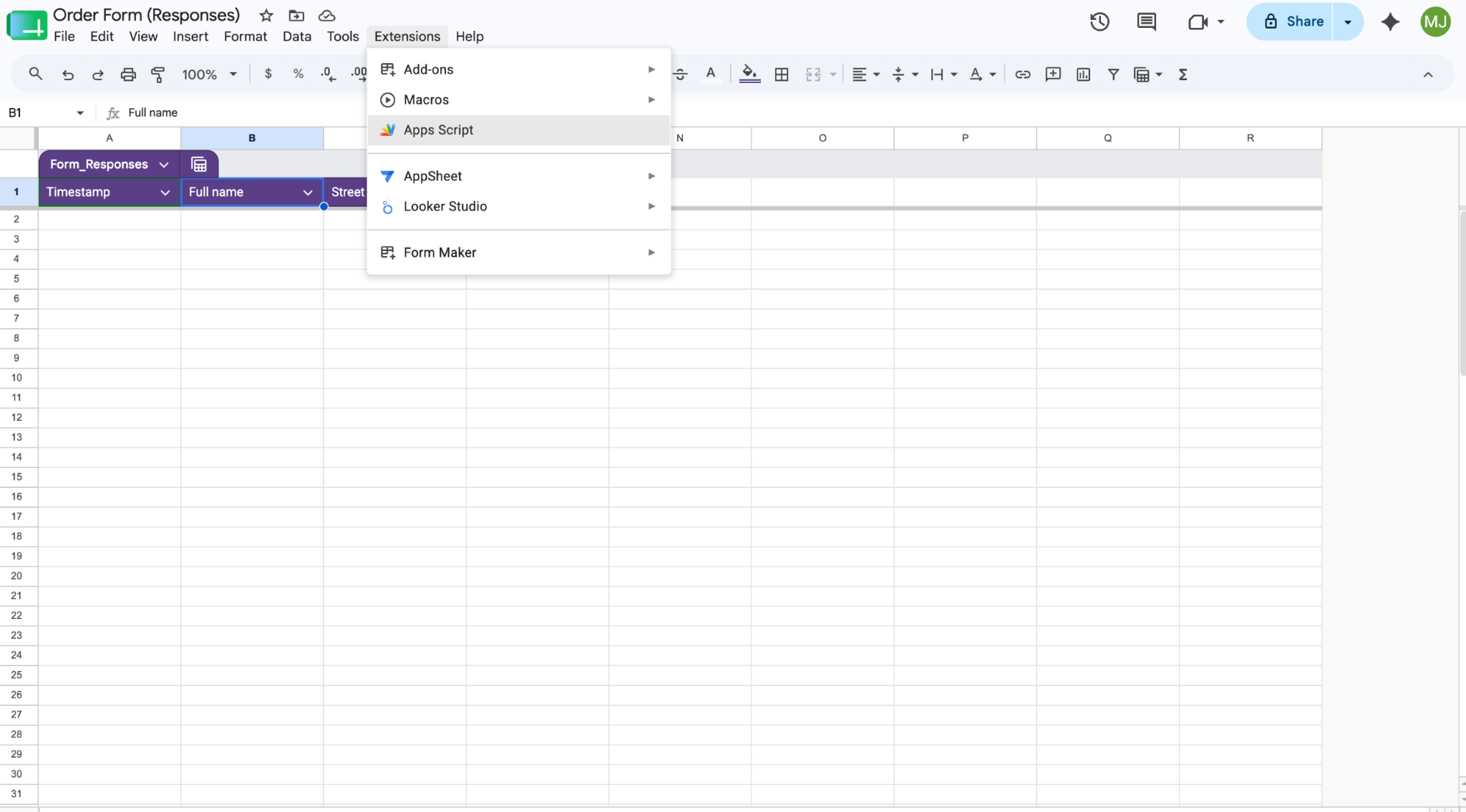
- In the new Google Sheet, go to Extensions in the top menu, and select Apps Script.
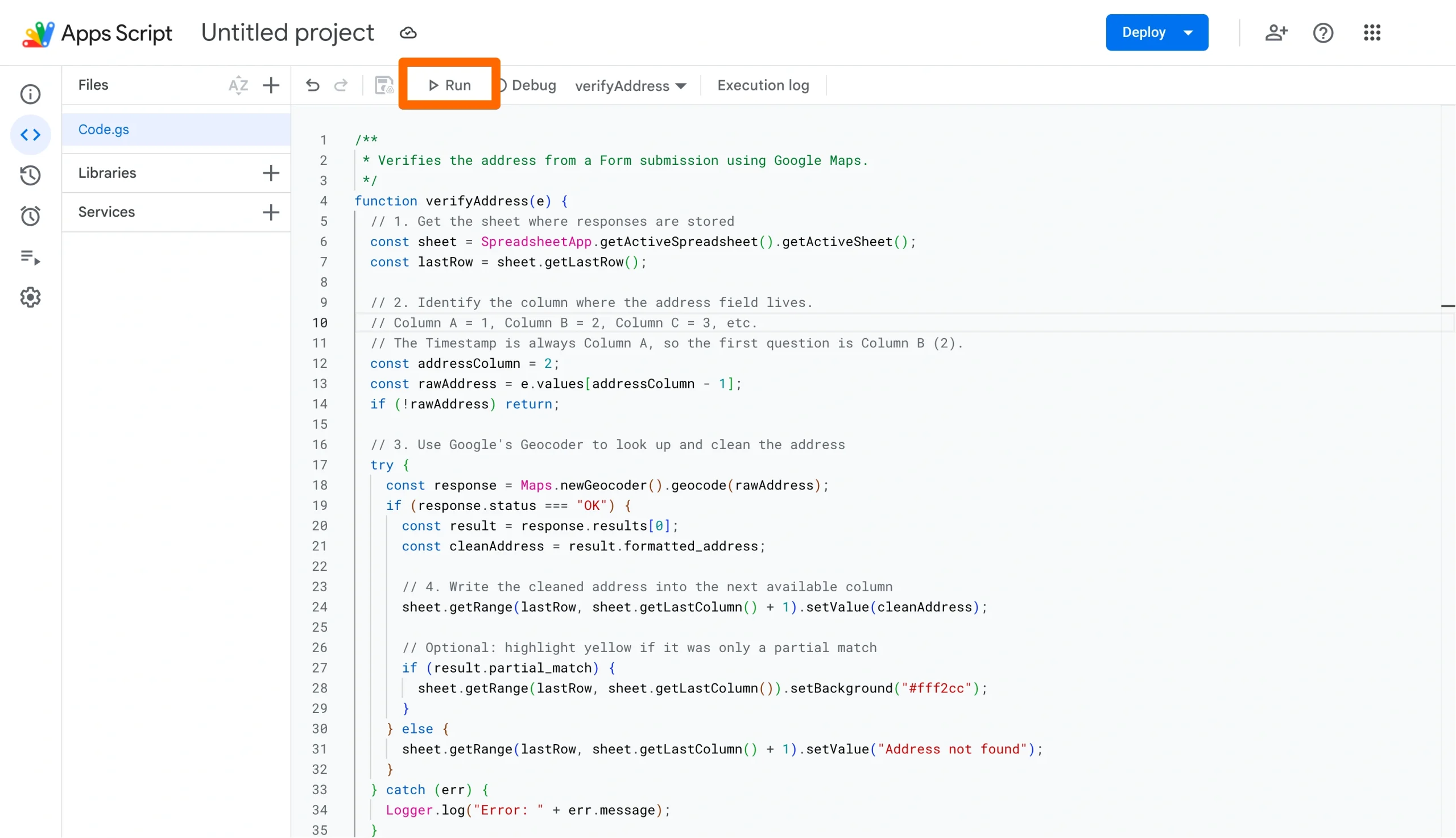
- Delete any code currently in the editor and paste the following. Make sure that the column number in your pasted-in code matches the actual column number of the address field on your spreadsheet.
/**
 * Verifies the address from a Form submission using Google Maps.
 */
function verifyAddress(e) {
  // 1. Get the sheet where responses are stored
  const sheet = SpreadsheetApp.getActiveSpreadsheet().getActiveSheet();
  const lastRow = sheet.getLastRow();

  // 2. Identify the column where the address field lives.
  // Column A = 1, Column B = 2, Column C = 3, etc.
  // The Timestamp is always Column A, so the first question is Column B (2).
  const addressColumn = 2;
  const rawAddress = e.values[addressColumn - 1];
  if (!rawAddress) return;

  // 3. Use Google's Geocoder to look up and clean the address
  try {
    const response = Maps.newGeocoder().geocode(rawAddress);
    if (response.status === "OK") {
      const result = response.results[0];
      const cleanAddress = result.formatted_address;

      // 4. Write the cleaned address into the next available column
      sheet.getRange(lastRow, sheet.getLastColumn() + 1).setValue(cleanAddress);

      // Optional: highlight yellow if it was only a partial match
      if (result.partial_match) {
        sheet.getRange(lastRow, sheet.getLastColumn()).setBackground("#fff2cc");
      }
    } else {
      sheet.getRange(lastRow, sheet.getLastColumn() + 1).setValue("Address not found");
    }
  } catch (err) {
    Logger.log("Error: " + err.message);
  }
}
- Click the Save icon and then Run at the top, and allow permissions.
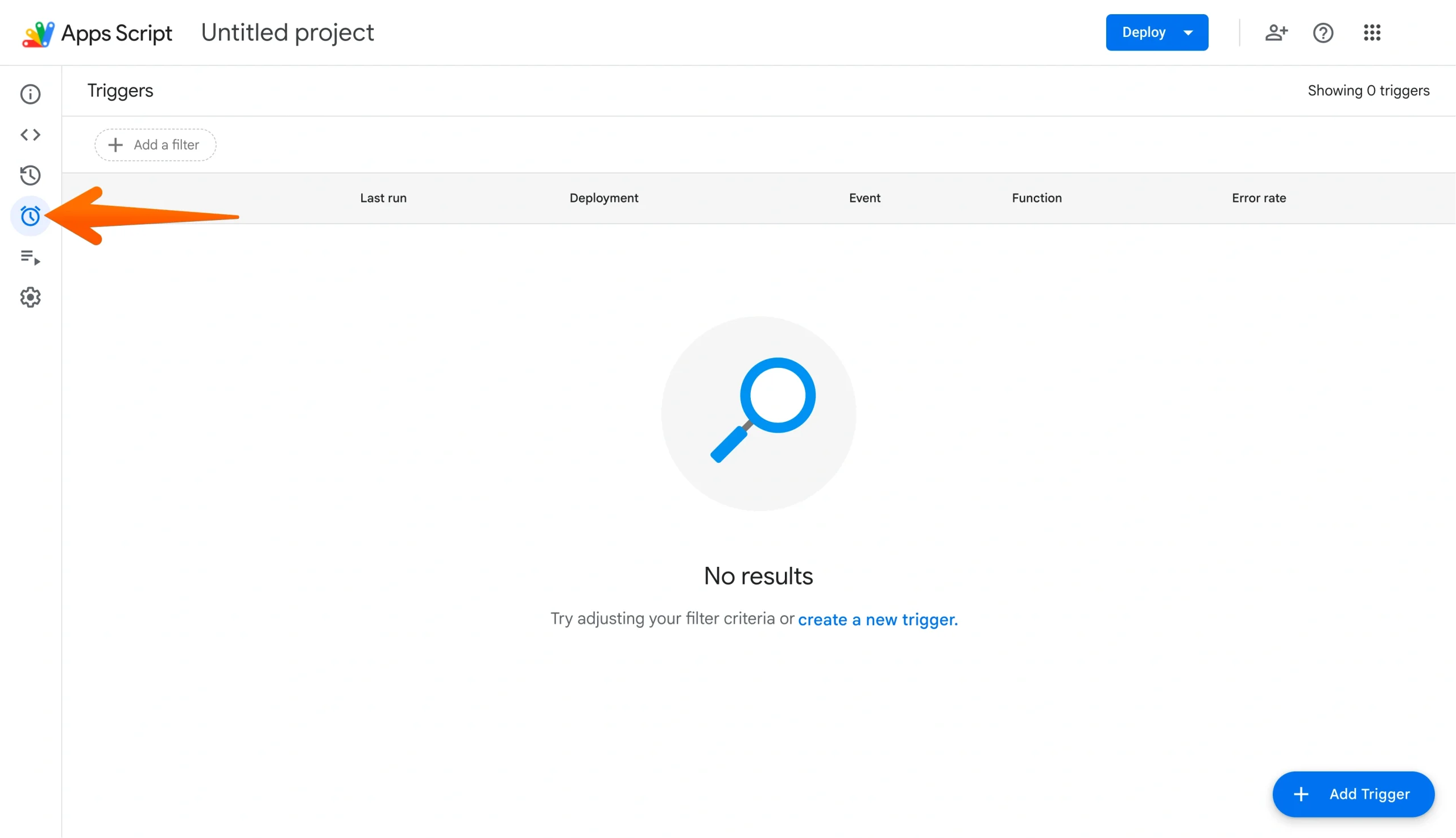
- In the Apps Script editor, click the Triggers icon (the clock) in the left menu.
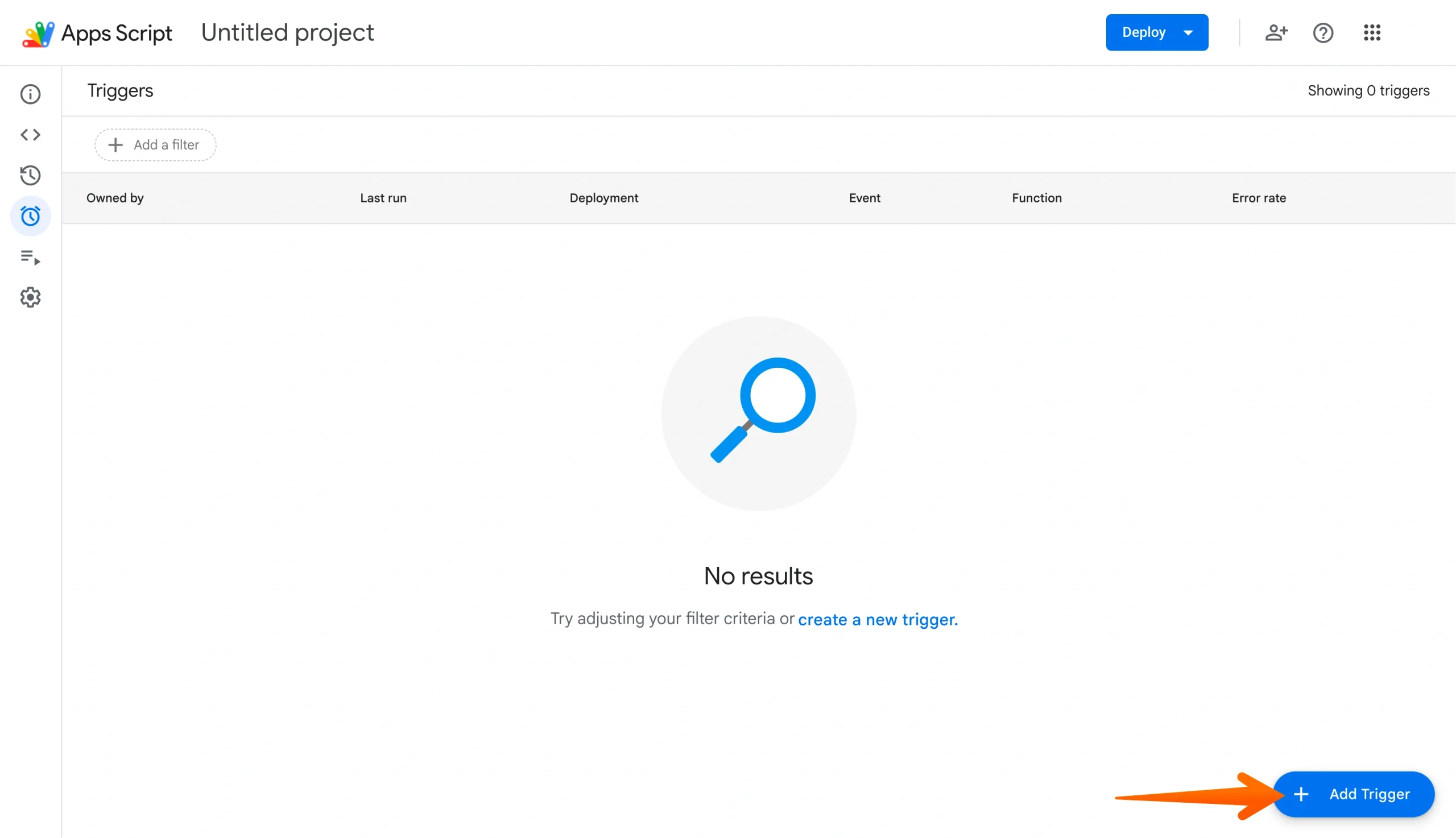
- Click the blue + Add Trigger button at the bottom right.
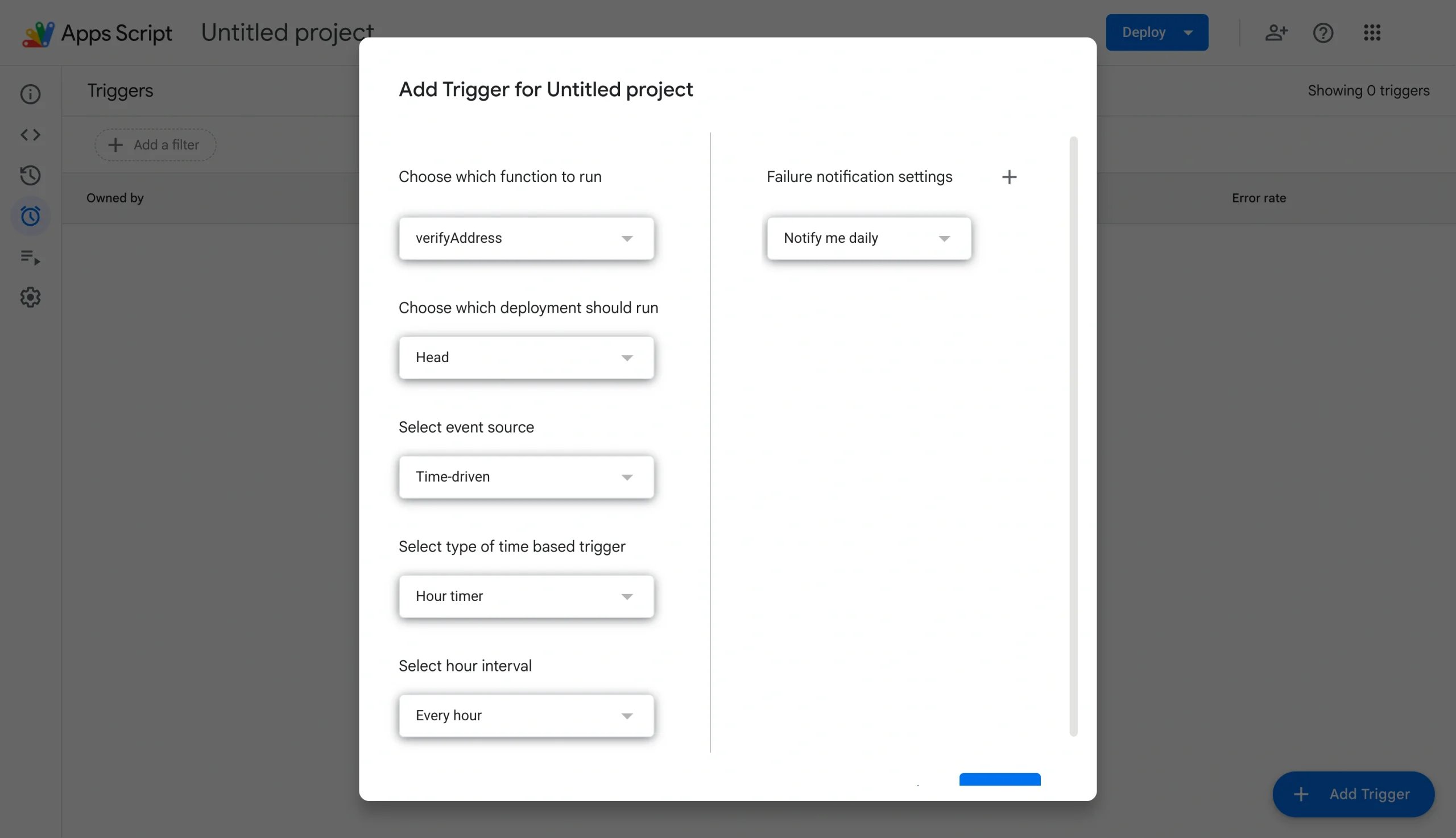
- Set the following settings: Choose which function to run (verifyAddress), select event source (from spreadsheet), and select event type (On form submit). Click Save.
- A popup will ask for permissions. Click your account, then Allow.
- Test it by going back to your Google Form and submitting a real entry, incorporating a typo or incorrect number. Then check the address in your Google Sheet, where it should appear perfectly spelled and formatted.
Jotform: The easiest native solution for address autocomplete
If the above options sound a bit more complicated than you’d like, you’re not the only one. In reality, these solutions are not among the most common (or most preferred) methods for those who want to use address autocomplete on their forms. Instead, people often look for Google Forms alternatives with autocomplete functionality built in.
Jotform is one of the best — and easiest — tools to use for adding address autocomplete in forms.
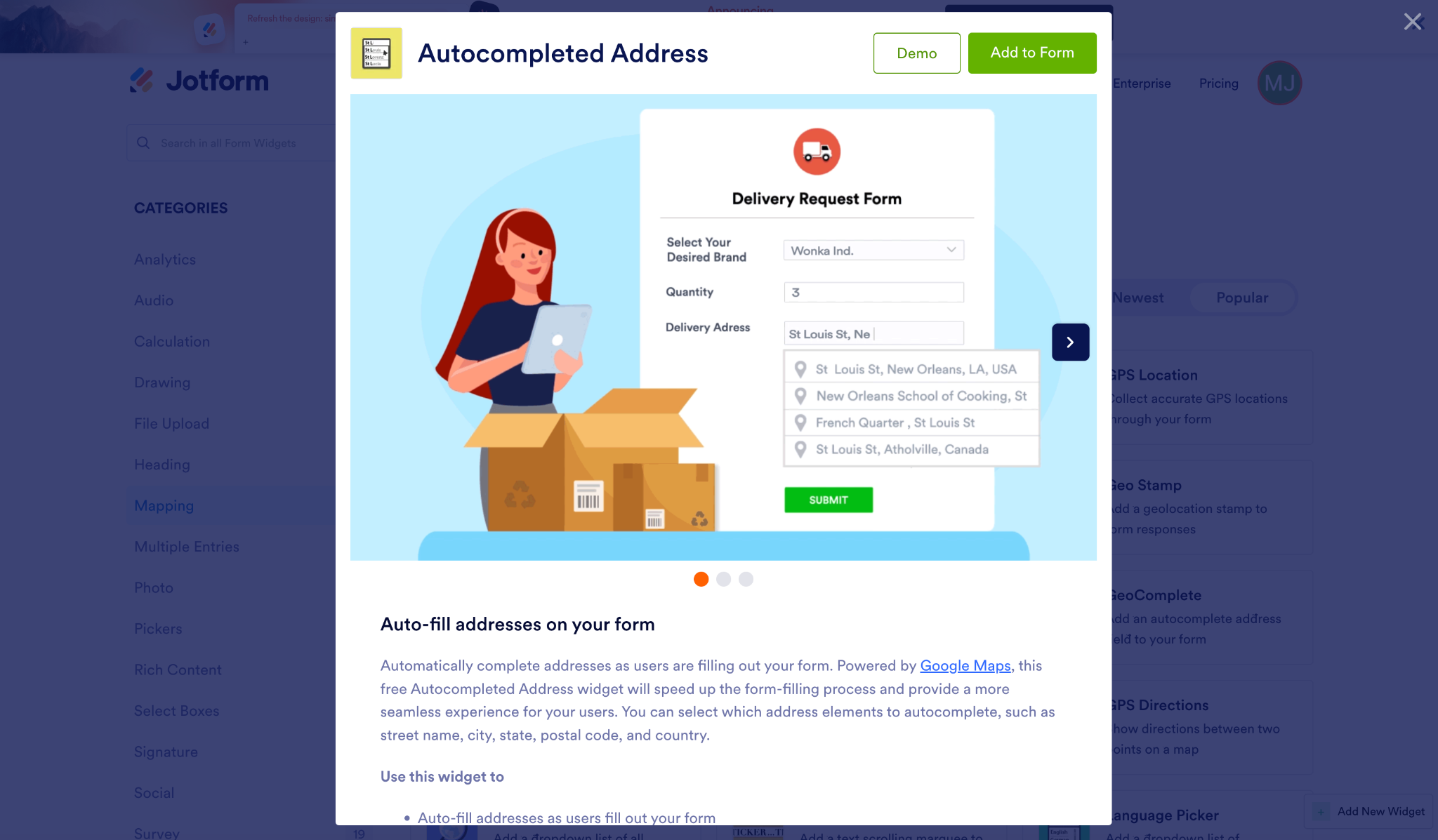
With Jotform, you can forget about these clunky Google Forms workarounds and hacks to collect addresses. Instead, you simply drag and drop the Autocompleted Address widget into your form as you’re building it and select which address elements to autocomplete, such as street name, city, state, postal code, and country.
Powered by Google Maps, it pulls real-time, verified data directly from the Google Maps API, ensuring complete address accuracy. Hands down, it’s the easiest way to ensure your users have a good experience and complete forms quickly.
Pro Tip
Adding address autocomplete to a Jotform form is easy, but you’ll still need a Google Maps API key to power the search results. It’s a simple process; just follow these step-by-step instructions and you’ll be off and running in no time.
Migrate your Google Forms to Jotform in minutes
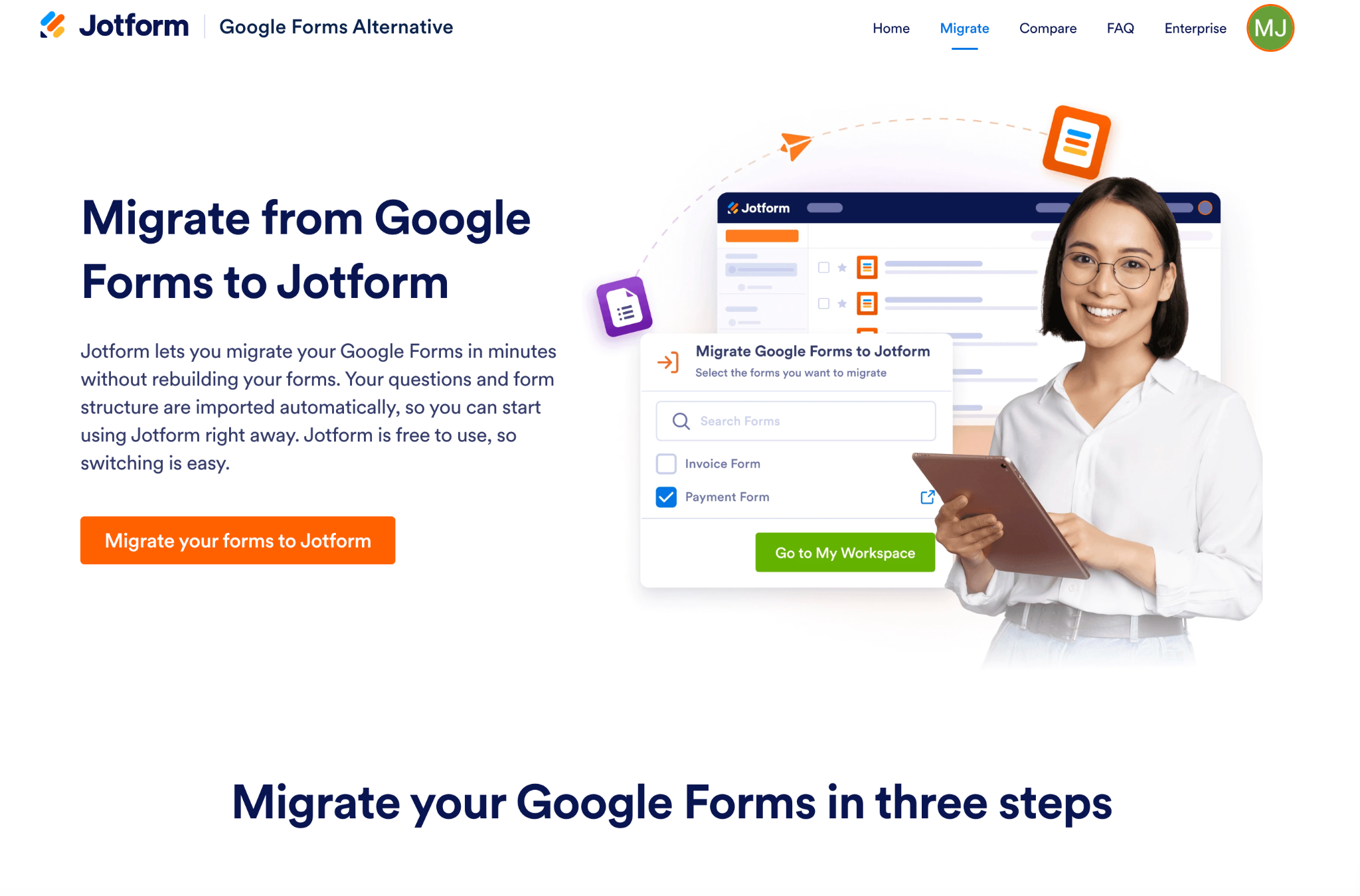
Worried about having to recreate your forms in Jotform? Don’t be. Jotform has a migration tool that can transfer your existing Google Forms quickly and easily. There’s no rebuilding or starting from scratch — your questions and form structure are imported as-is. All you have to do is review the result and make any quick edits to start using them in Jotform.
Not only does Jotform come with a native address autocomplete element, but it also has more advanced functionality than Google Forms overall. Creating forms is a breeze with its tens of thousands of templates. Or you can take advantage of Jotform AI, which can build forms for you in seconds. Jotform also has a ton of features, like advanced conditional logic and customization options, to help make your forms more engaging for customers, prospects, students, and other audiences.
Another important benefit is that Jotform seamlessly incorporates forms and their data into your workflow. While Google Forms limits you to basic data collection, Jotform integrates with more than 150 other business tools, including over 40 payment gateways for easy payment collection. If you’ve ever experienced frustration with Google Forms’ limitations, Jotform is the professional upgrade you’ve been looking for.
Give Jotform a try today using its free-forever tier, and upgrade when needed.
FAQs about Google Forms address autocomplete
There’s no native Google Forms–Google Maps integration, so your only option is to use a third-party add-on tool like Formfacade as a workaround. In this case, you’ll be using Formfacade for front-end data collection and Google Forms for data storage. A simpler alternative is to use a different form builder altogether, like Jotform, that has this functionality built in.
You can easily create a Google Form with address fields designated as “short answer” boxes. To ensure the accuracy of the collected data, consider using Formfacade to add address autocomplete functionality, or switching to another form builder that has this functionality built in (like Jotform). Learn how to create a Google Form here and the basics of how to use Google Forms here.
This article is for small business owners, operations managers, event coordinators, educators, and non-technical marketers who regularly collect address data via Google Forms and want to reduce form abandonment, improve data accuracy, and streamline the submission experience — without necessarily knowing how to code.




































































































Send Comment: