
Quick guide: How to link Google Forms to Google Sheets
- Navigate to the Responses tab.
- Click the Link to Sheets icon.
- Choose your spreadsheet destination: New or Existing.
- View your Google Forms data in Google Sheets.
If you use Google Forms to collect data from respondents, manually copying and pasting their answers into a spreadsheet is a waste of time. Since both Google Forms and Google Sheets are part of Google Workspace, you can automatically export your answers into Google Sheets so you can get on with more important tasks — no need for a Google Forms integration.
In this article, we’ll show you how to link Google Forms to Google Sheets in just 30 seconds. Once connected, every new form submission will populate a new row in Google Sheets unprompted and in real time, so you don’t need to refresh or re-import the data.


1. Navigate to the Responses tab
If you’re looking to connect Google Forms to Google Sheets so that you can manage your form data in a spreadsheet, the first step is to go to the form you want to connect.
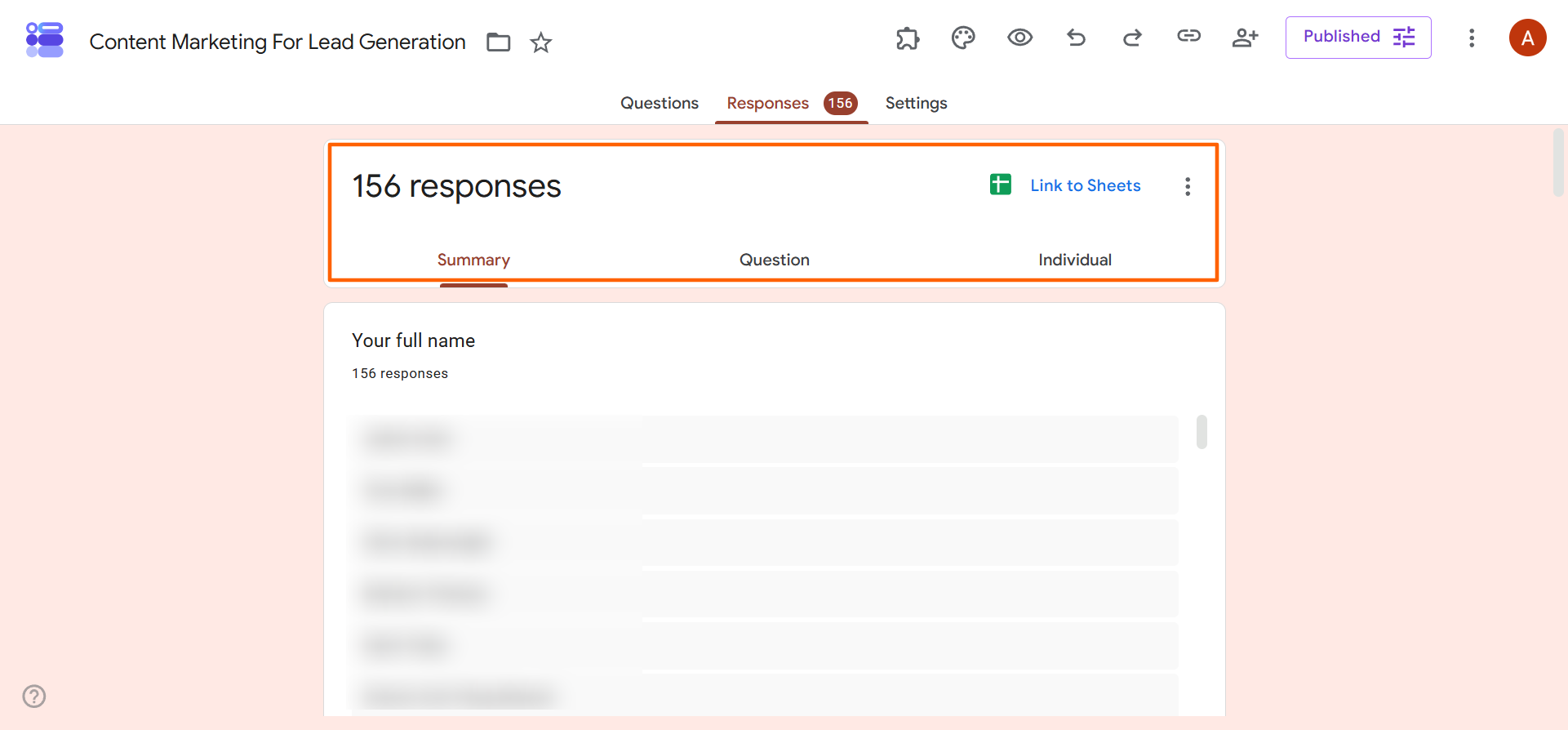
Then, navigate to the Responses tab. Here you’ll see all the responses organized into three categories: Summary, Question, and Individual. You’ll also see a Link to Sheets icon.
2. Click the Link to Sheets icon
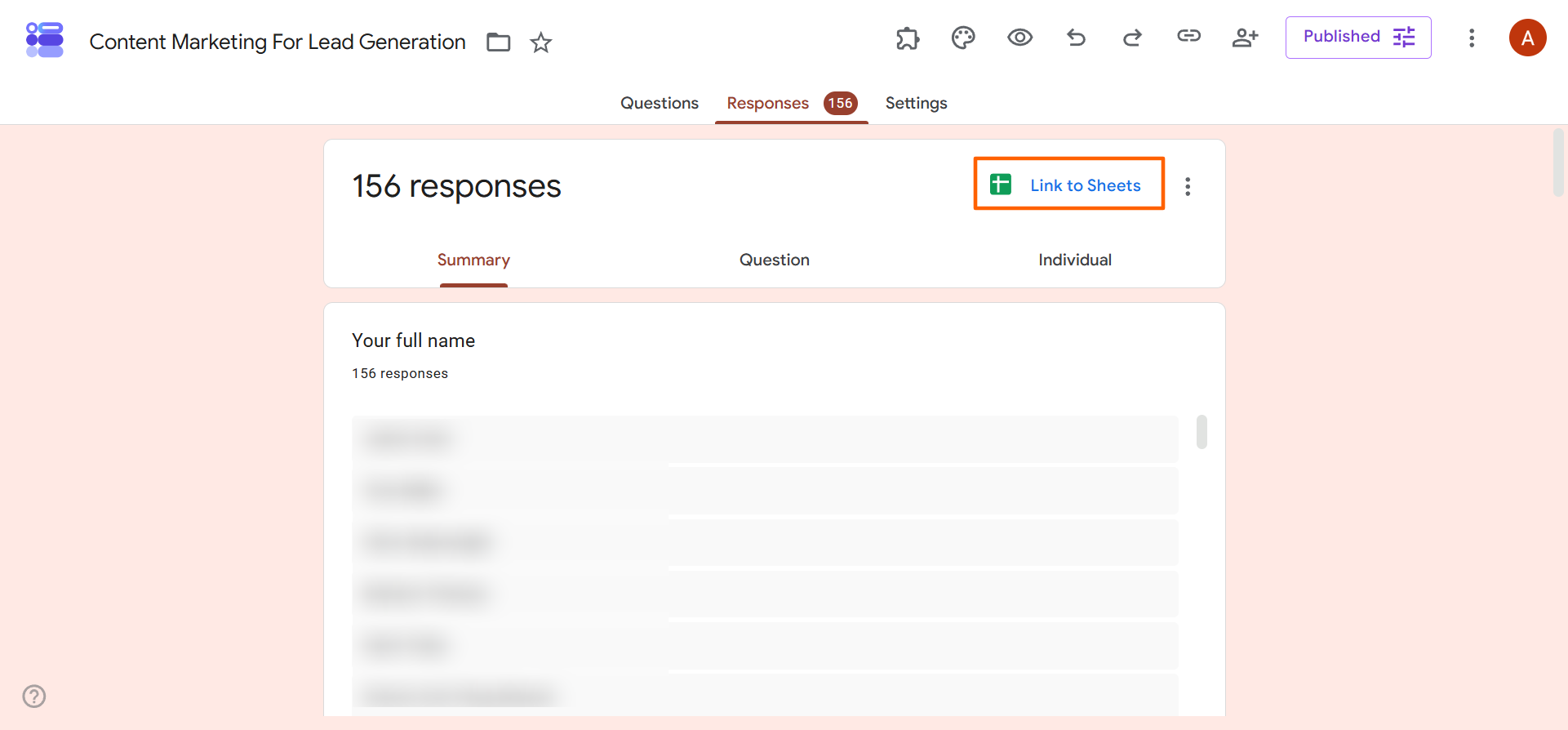
Click the Link to Sheets icon to connect Google Forms to Google Sheets.
3. Choose your spreadsheet destination
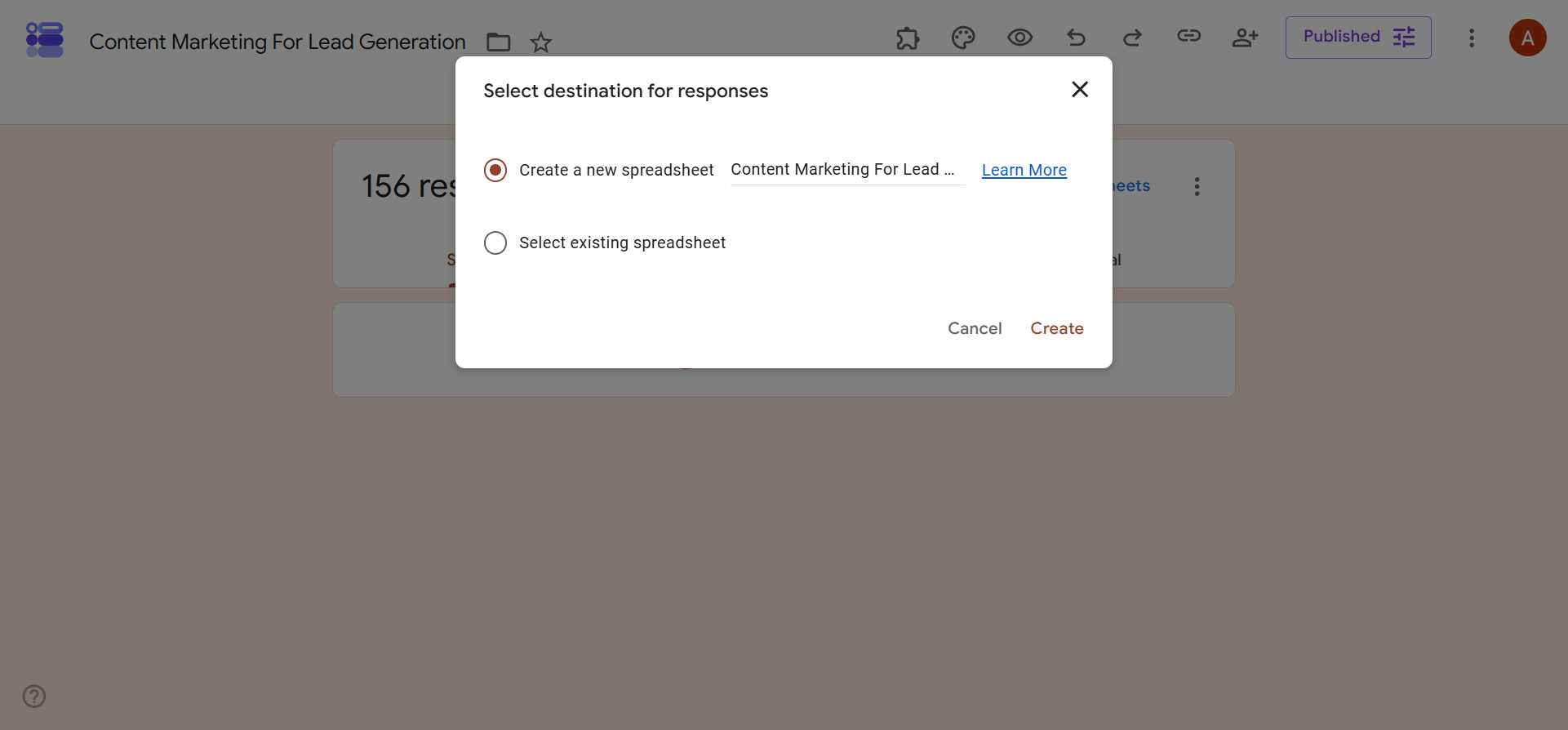
When you click the Link to Sheets icon, Google Forms will give you two options: Create a new spreadsheet or Select existing spreadsheet.
Pro Tip
Any current data in your Google Forms will be sent to a Google Sheet and any new responses coming in will automatically sync into the same spreadsheet. You won’t need to refresh or re-sync anything to see the incoming data — it’ll automatically populate in the spreadsheet as a new row.
Create a new spreadsheet
The Create a new spreadsheet option is a good choice if you don’t already have somewhere you’re collecting related data, and you want to export Google Forms responses to a new Google Sheet. When you click this option, Google Workspace will open a new Google Sheet that will automatically be saved in your Google Drive.
Select an existing spreadsheet
If you want to export Google Forms to Sheets and you already have an existing sheet where you’re collecting related data, you can choose Select an existing spreadsheet. This action will enable you to pick a sheet from your Google Drive that will serve as the destination for your exported data.
Pro Tip
If you need to unlink or change your connected spreadsheet, don’t worry — there’s an easy way to do so in Google Forms. Simply go to the Responses tab, click the three vertical dots next to the Google Sheets icon, and select Unlink form. Click Confirm. This will unlink the form from the spreadsheet, and it’ll stop syncing new data.
However, your existing spreadsheet data will remain there. You can link your form to a new Google Sheet if needed.
Ready for a better database? Upgrade to Jotform
Linking Google Forms to Google Sheets is a great starting point if you want to view Google Forms analytics and create Google Forms reports. But beware: Standard spreadsheets like Google Sheets can get messy, and collecting complex data — especially file uploads or payments — requires a more sophisticated system.
That’s where Jotform, the best Google Forms alternative, comes in. This powerful form builder has a full ecosystem of tools and features to help you collect, view, manage, track, and understand respondent data.
Here’s why users choose Jotform over Google Forms:
- No login required to fill the forms: With Jotform, respondents don’t need to log in when they fill out and submit their forms — even when they’re uploading files. This isn’t possible with Google Forms.
- Native integration with Google Sheets: Need something more powerful than Google Forms but love working in Google Sheets? Use the Jotform Google Sheets integration, which connects the tools natively so you can use powerful Jotform forms with Google Sheets and instantly send your data to Google Drive.
- Robust, full-featured forms: Jotform forms come with thousands of templates for a range of use cases and industries, hundreds of native integrations to popular tools in your tech stack, and advanced features like payment processing and conditional logic.
- Powerful spreadsheet-powered platform: Jotform Tables is a collaborative tool for collecting, organizing, and managing your data. It displays information in different formats such as grid, kanban, or calendar. Use it to search and filter your data, send data to other platforms, work with team members, and more.
- Sophisticated report-building tool: Want to create visualizations of your form data? With Jotform Report Builder, you can easily build charts, graphs, and presentations to better communicate your findings to stakeholders.
- Multi-step workflow automation: Want to take action based on form responses? Jotform Workflows enables you to automate notifications, follow-ups, and approvals based on form data.
Best of all, you can migrate your Google Forms to Jotform with a single click. There’s no need to rebuild your Google Forms in Jotform as we transfer your form questions and structure for you. Create a free account with Jotform today, and see how easy it is to make robust forms and analyze your form data in different ways.
This article is for project managers, educators, HR professionals, and event organizers who want to automate their data collection and eliminate manual data entry by pushing form responses directly into a spreadsheet.


































































































Send Comment: