
Want to use Google Forms to run a promotional giveaway or charity raffle? In this article, we’ll show you how to do it.
But beware: Google Forms works best for basic, free giveaways. It can’t handle the behind-the-scenes complexities associated with professional, paid raffles, which include transaction tracking, ticket number generation, and payment processing. You’ll be able to whip up a simple entry form in no time, but you’ll soon have to look for workarounds to handle the rest of the process.
Keep reading to find out why using a different tool can help you avoid doing the extra work Google Forms requires.


The basics of running a digital raffle
There are three parts of a digital raffle:
- Writing the rules: You define the prize, the start/end dates, eligibility (age/location), and how the winner will be chosen.
- Building the entry form: You create a digital form to collect participant data.
- Drawing the winner: You export the data and use a randomizer to pick the winner.
How to set up a raffle in Google Forms
Here’s how to create a Google Form for a raffle, step-by-step:
Step 1: Build the form and add fields
To start, review our tutorial How to use Google Forms. Then follow these steps to create your entry form:
- Open Google Forms and click Blank Form. (There are no Google Forms giveaway templates.)
- Add a form title, such as Summer Carnival Raffle.
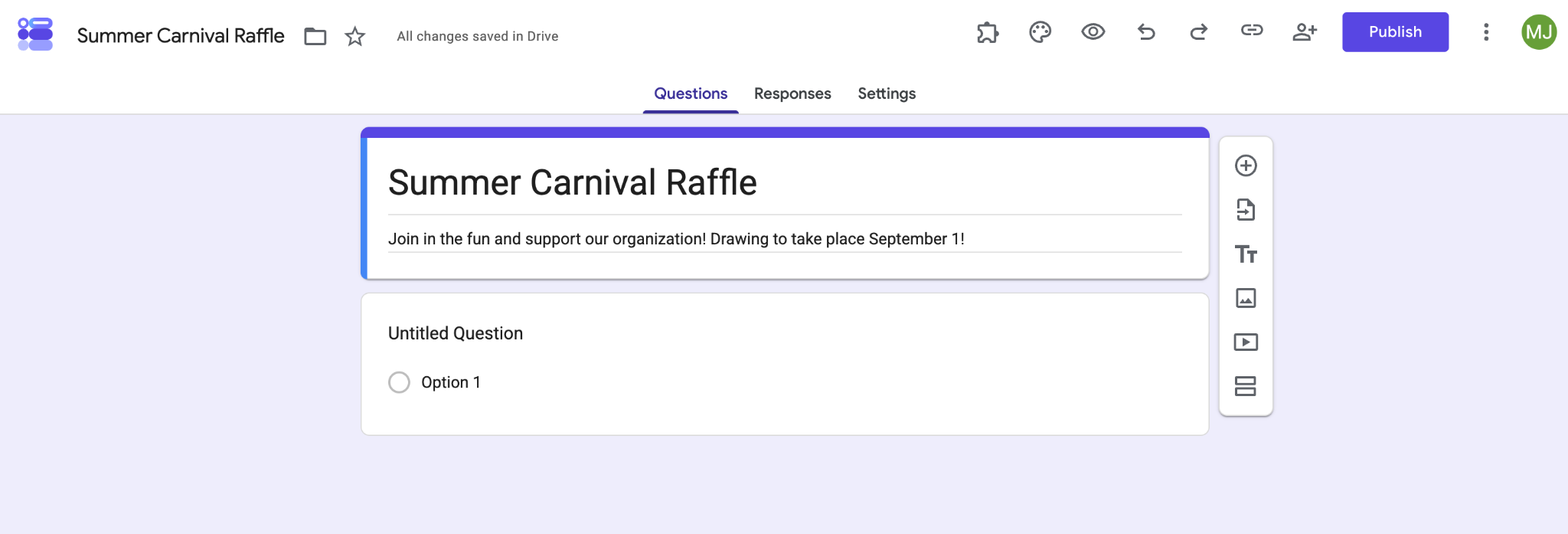
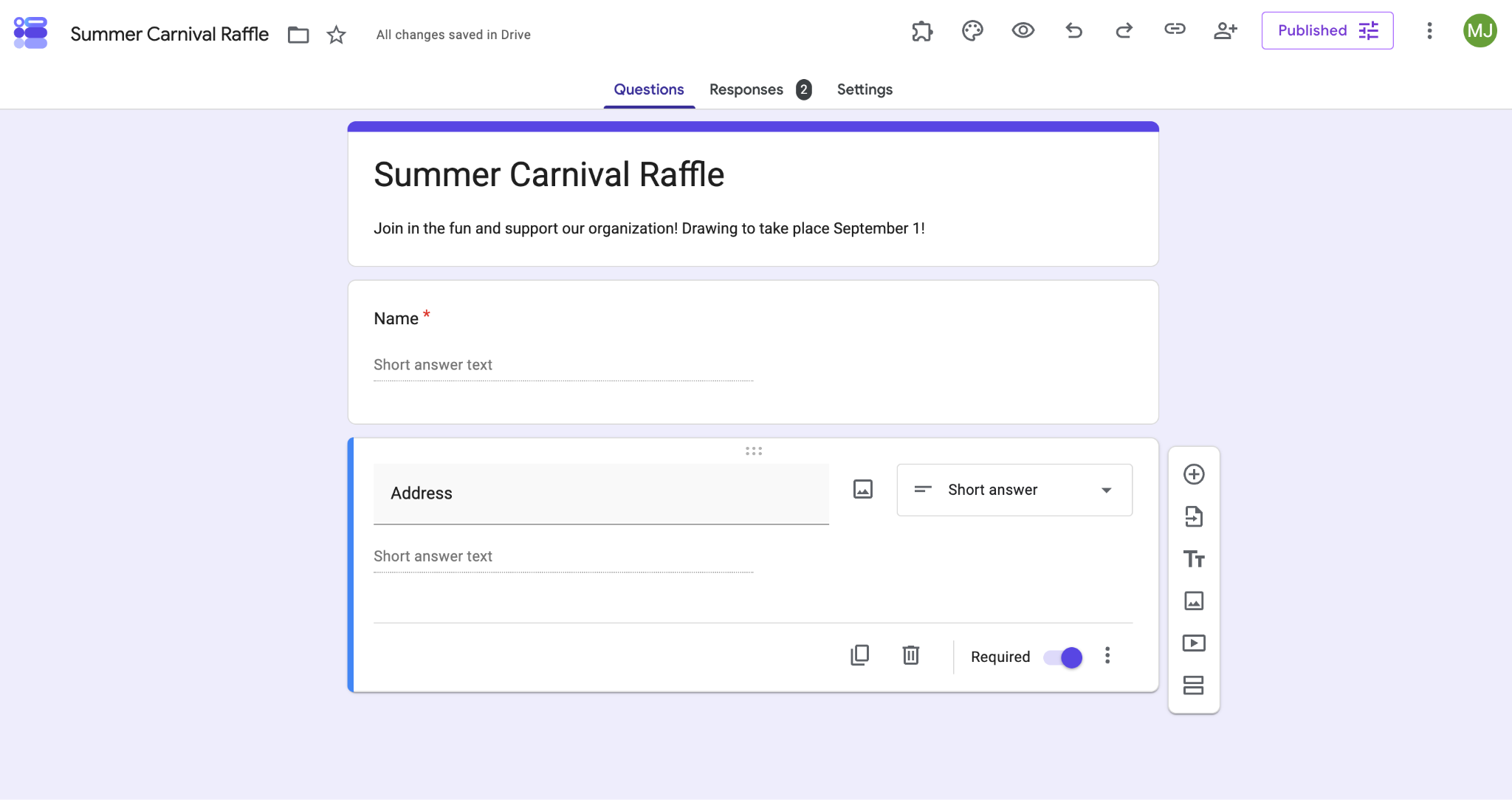
- Add the fields needed for information collection, such as name, address, city, email, and phone number. In the dropdown, choose Short Answer to allow participants to type in their information, and then click the Required setting for each question.
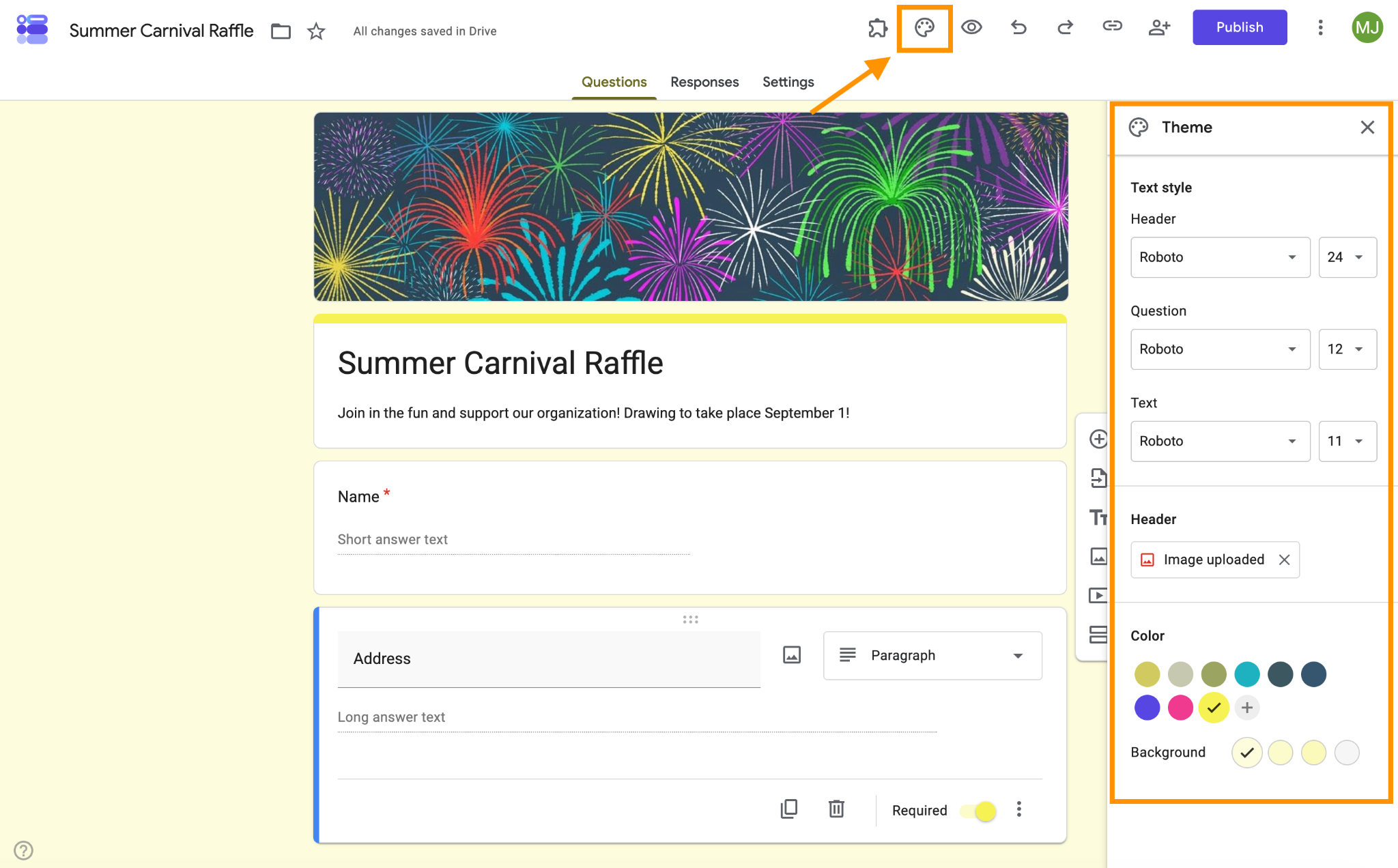
- Click the paint palette at the top to customize the font, choose a header image, and change the color of the form to match your brand and style.
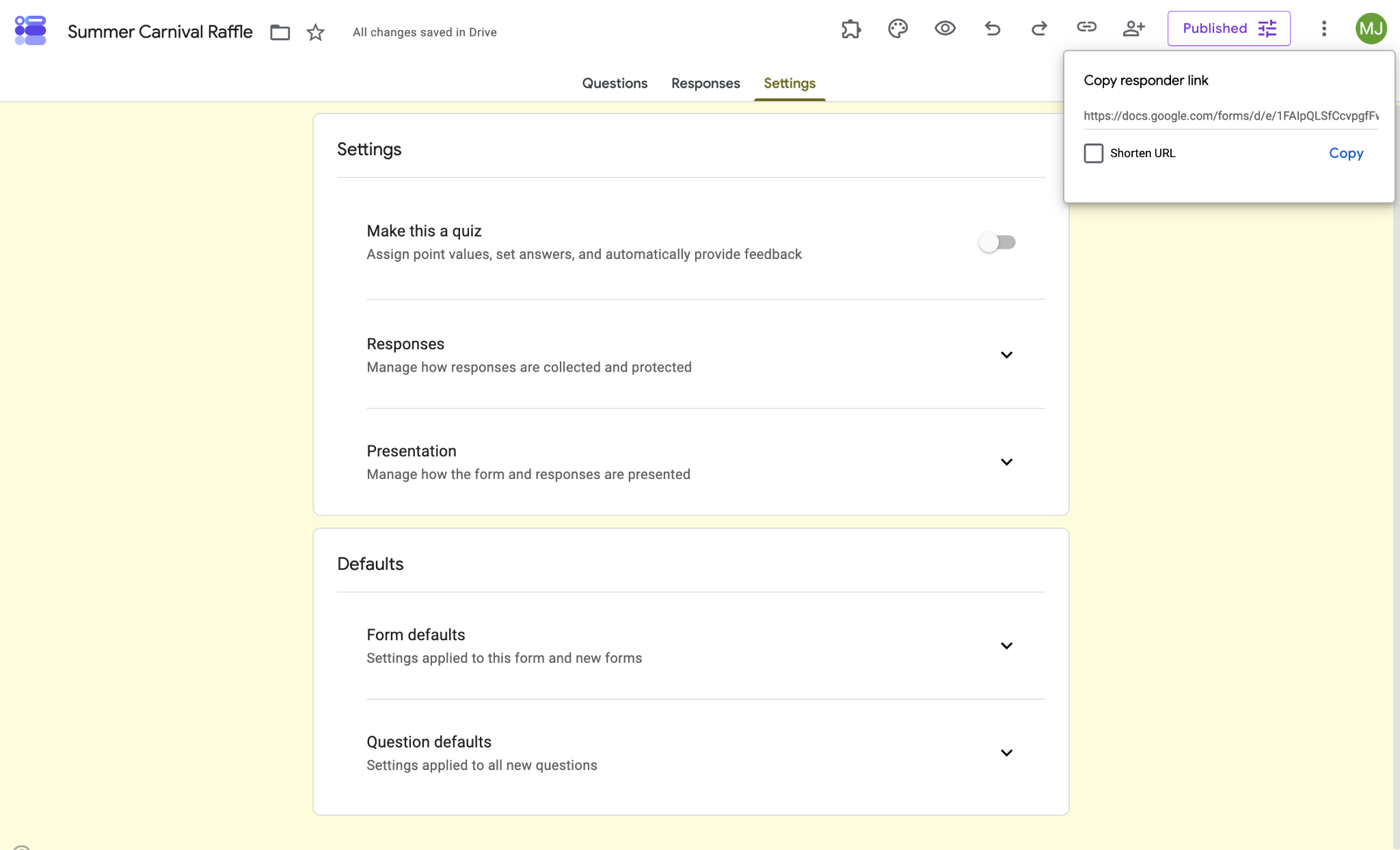
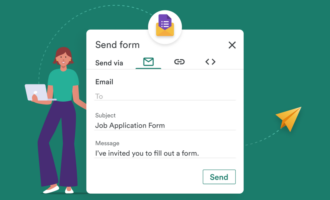
- Click Publish at the top right. To share the entry form and sell raffle tickets online, copy the responder link and share it via email, social media, or SMS. You can also embed the form on your website.
Step 2: Limit entries
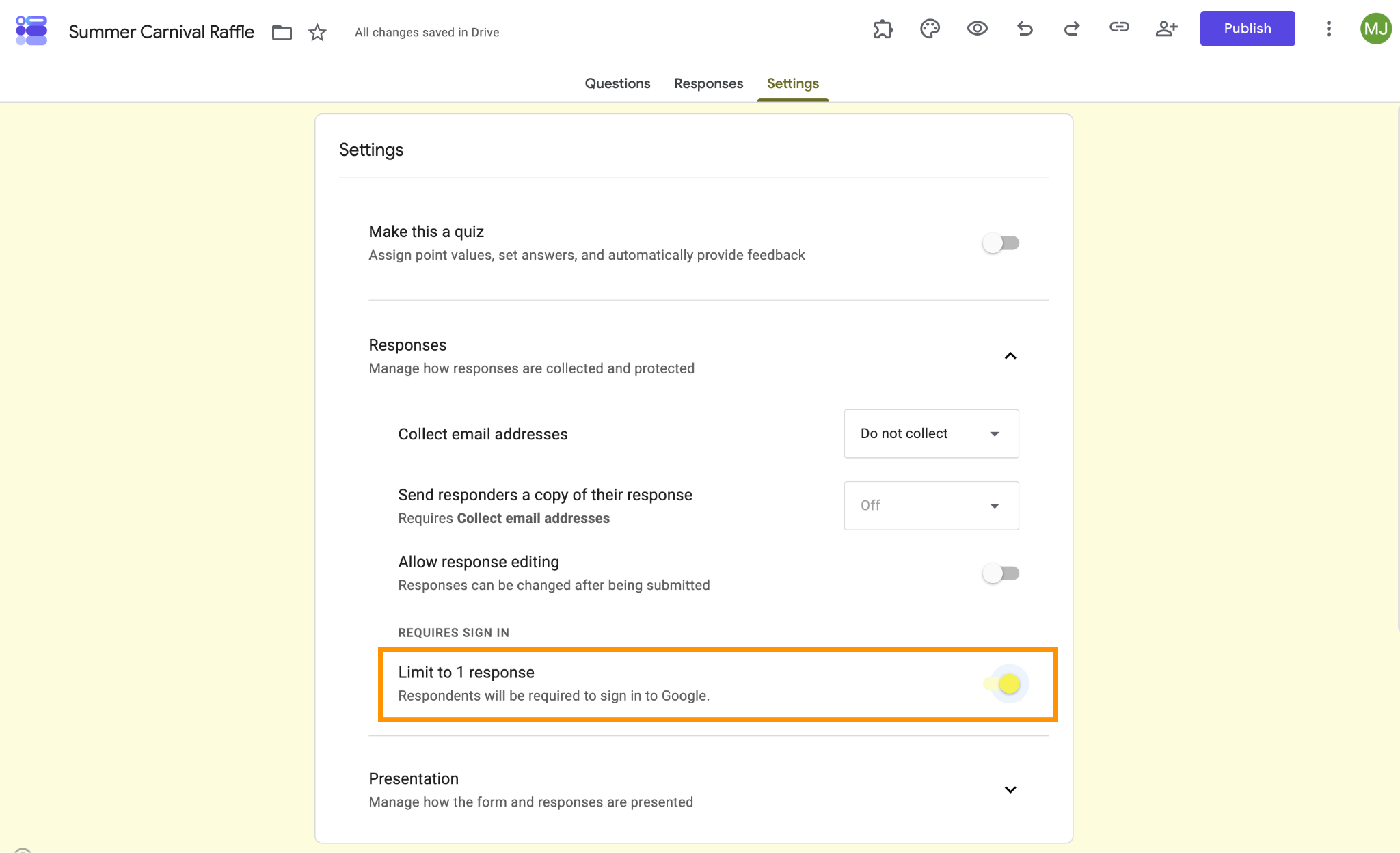
If you want to allow only one entry per person, click Settings and maximize the Responses section. Enable Limit to 1 Response.
It’s important to note that when this setting is on, Google requires participants to sign in so it can track who has already responded. This could deter some people from completing the form.
Pro Tip
To maximize submissions, it’s best to use an entry form that doesn’t require participant sign-ins. By switching to Jotform, you can take advantage of its unique-submission feature, which uses IP addresses and browser cookies to limit entries to one per person, no sign-in required.
Step 3: Figure out a workaround for payment collection
This form builder was designed for simple data-collection tasks (surveys, quizzes, signup sheets, etc.), so accepting payments on Google Forms isn’t possible. This means you’ll need another way to collect entry fees.
One option is to use a third-party add-on such as Payable Forms or PayQ, which extend Google Forms’ capabilities to enable you to collect payments. Before using this option, check each add-on’s pricing. Some require a paid license to use certain features; they may also take a percentage of each transaction amount on top of the payment processor’s cut.
Another option is to choose another mode of payment entirely, such as Venmo or Zelle, and type manual instructions for that in your form description (“Please Venmo the $5 entry fee to @Username”). This method is a bit clunky, however, and adds more friction to the entry process; it also requires you to manually keep track of incoming payments.
Step 4: Randomly pick a winner in Google Sheets
You can’t choose a random winner from Google Forms directly, but you can link Google Forms to Google Sheets to get the job done. To do this, you’ll need to export your submission data to Google Sheets.
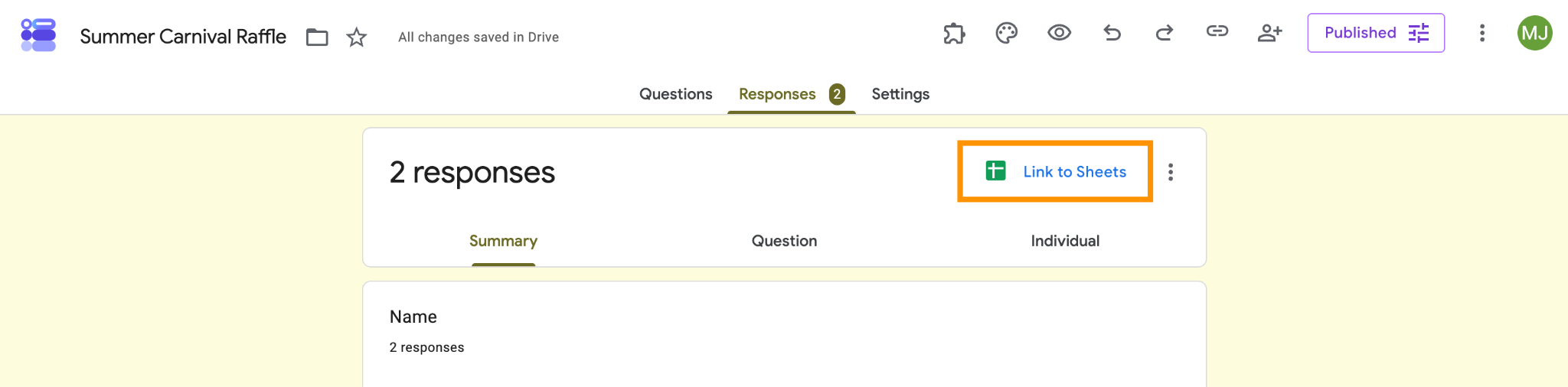
In your Google Form, click on the Responses tab and then Link to Sheets. Create a new sheet that will store incoming responses.
When you’re ready to choose a winner, type the formula below into the blank cell where you want the winner to appear. If your names appear in a column other than B, replace B with the corresponding letter. Replace the xx instances with your total number of responses.
=INDEX(B2:Bxx, RANDBETWEEN(1, COUNTA(B2:Bxx)))Hit Enter, and it will randomly generate a winner. This function in Google Sheets is referred to as “volatile,” meaning the random data chosen is not fixed; it will regenerate every time you reopen the sheet or edit it. To freeze the chosen name, copy and paste it into another cell as a value.
Why Google Forms is not built for raffles
By now, it’s probably clear that Google Forms isn’t designed to handle the back-end mechanics of raffles. It can collect names, but
- It can’t collect payments: Without this functionality, you’re left relying on workarounds, such as mobile payment apps or add-ons, that could be costly and add the administrative work of manually cross-referencing names with payments.
- It can’t automatically generate sequential ticket numbers: If a participant buys five tickets, you’ll have to manually copy and paste their name five times into your spreadsheet to make the drawing fair.
- It has no Alternate Method of Entry (AMOE) logic. Google Forms lacks the advanced capability needed to legally run a “no purchase necessary” type of giveaway. Managing free and paid entrants on a single Google Form makes it hard to choose a winner fairly.
The bottom line: While Google Sheets works well enough for a small giveaway, it creates an administrative headache for organizers running a professional, larger-scale raffle.
Run capable, automated, payment-ready raffles with Jotform
In every well-run raffle, some element of automation is at work behind the scenes. Automation not only eliminates the manual labor associated with payments, data collection, and tracking but also guarantees fairness.
Google Forms has no automation features, but Jotform does. You’ll get all the automation capabilities necessary to run giveaways and raffles smoothly without having to employ workarounds.
Jotform was built to handle complex digital promotions. Unlike Google Forms, it includes these crucial raffle features:
- Zero-fee payment collection: With Jotform, you can collect payments in an entry form without paying additional transaction fees (other than those associated with your payment processor). Our Raffle Ticket form template connects instantly to Stripe, Square, or PayPal.
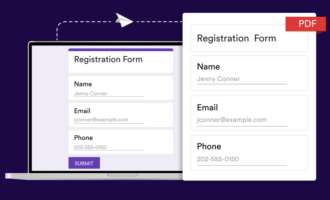
- Automated tickets in PDF: Jotform can automatically generate branded tickets in PDF with unique, sequential ID numbers and email them to entrants after they fill out the form.
- AMOE conditional logic: With Jotform, you can easily manage paying and non-paying entrants in one Jotform table. Simply build a form that asks “How are you entering today?” and use conditional logic to seamlessly route paying users to a checkout cart and free AMOE users to a standard submit button.
- Seamless participant experience: Want to limit your raffle to one ticket per person? It’s no problem with Jotform. Respondents can fill out and submit your form, and even upload files, with no sign-in.
Need more reasons to switch to Jotform?
Millions of people have switched from Google Forms to Jotform because it’s a more powerful tool all around:
- Total customization freedom: You’re not limited to Google’s minimal options for form appearance and question type. With Jotform, you can design every form your way, so it reflects your organization and engages respondents.
- Thousands of quick-start templates: Jotform has 20,000-plus templates and 1,000-plus designer themes, so you can create beautiful, original forms quickly. Its massive template library has something for every industry imaginable.
- Order forms with payment collection: You’ll never have to set up a payment workaround again. Jotform makes it easy to collect one-time and recurring payments in your forms via Stripe, PayPal, or any of our other 40-plus payment integrations. (See our 2,000-plus payment forms for payment templates.)
- Reliable e-signature collection: Collect e-signatures for waivers, petitions, contracts, and more without a third-party tool.
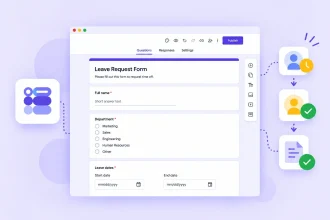
- Multistep workflow automation: Jotform is perfect for organizations that use forms as part of larger processes. For example, you can automate approvals, notifications, and follow-ups based on form responses. We also offer 150-plus form integrations so you can easily link form data to other tools to create a seamless workflow.
- Mobile-ready forms and fillable PDFs: Create responsive forms that work on any device and convert static PDFs into fillable web forms without extra configuration.
If you’re ready to upgrade your raffle experience and the way you use forms every day, switch to Jotform. You’ll save time, money, and frustration, no matter the task.
Already have a Google Form created? No problem: Migrate your Google Forms to Jotform with a single click. In seconds, Jotform will import your questions and form structure so you don’t have to rebuild anything from scratch. From there, you can start using Jotform right away, including advanced features such as payment collection.
For your next raffle, avoid manually checking entry receipts and copying and pasting names into spreadsheets. Score a quick win for yourself by switching to Jotform today.
This article is for PTA members, small business owners, and creators trying to use the free Google Workspace tools they already have to run a quick promotional giveaway or charity raffle.






























































































Send Comment: