
Wondering if there’s a way to automatically transfer your captured leads from Google Forms into HubSpot? Unfortunately, you’re out of luck — there is no native Google Forms integration for HubSpot.
But you can still avoid the heavy lift of manual data transfers if you’re willing to try an available workaround. Comfortable using third-party add-on tools and automation software? Then read on to learn how to create a Google Forms–HubSpot integration using the Form to HubSpot Contacts add-on.
There’s also another option that’s much simpler: Switch to Jotform, a popular online form builder that has a native integration to HubSpot. It’s quick and easy! You can also see an overview of that process below.


Google Forms-HubSpot integration with third-party tools
If you’re interested in connecting your online forms with your other business systems like HubSpot, then using Google Forms can be frustrating. While Google Forms is a popular choice for those who use tools in the Google ecosystem, it’s a fairly basic form builder without advanced functionality and integrations.
One way to extend the capabilities of Google Forms is to search for add-ons in the Google Workspace Marketplace. Here you can find third-party applications with additional functionality for Google’s tools. In this case, that’s Google Forms. To connect Google Forms to HubSpot, one option you can try is the Form to HubSpot Contacts Google Workspace add-on.
Note that you will need to have a HubSpot account to use the add-on. While HubSpot is primarily a paid tool with several pricing plans, it does have a free plan with limited access and features. The Form to HubSpot Contacts add-on also has a free plan, in addition to a paid premium tier that enables additional functionality and access.
Here’s how to connect Google Forms to HubSpot using the Form to HubSpot Contacts add-on:
- Open the form that collects the data to be transferred to HubSpot.
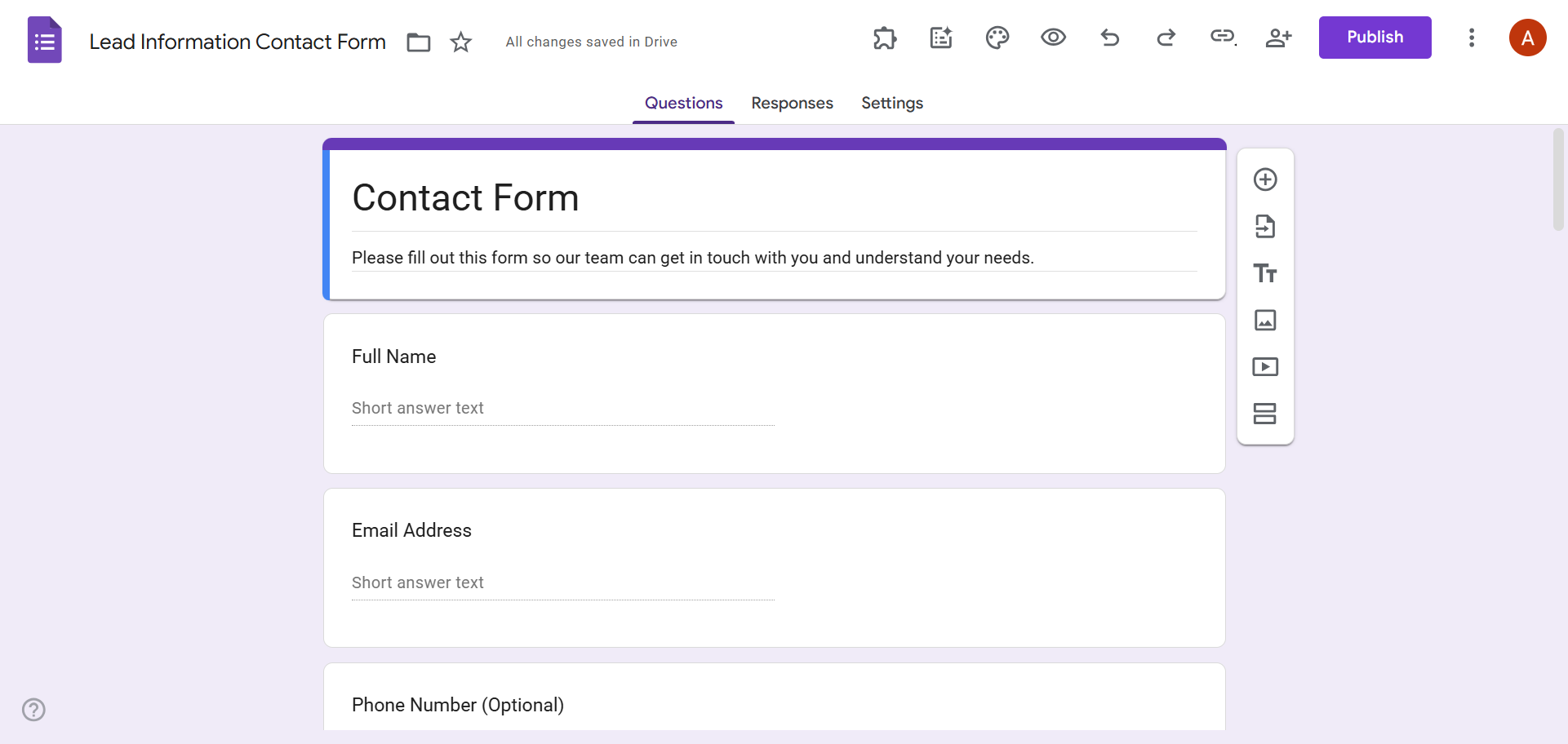
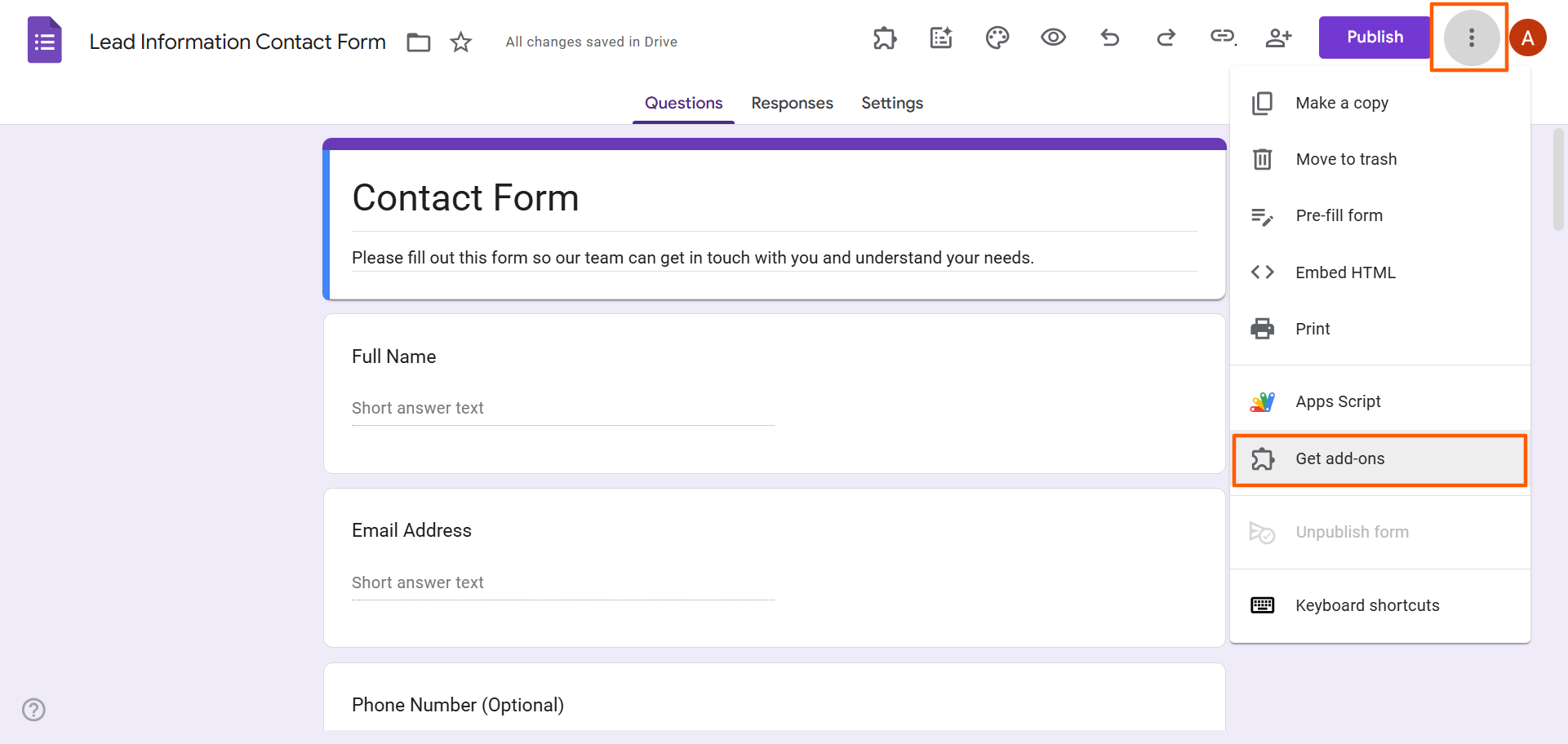
- Click the Three dots icon and select Get add-ons.
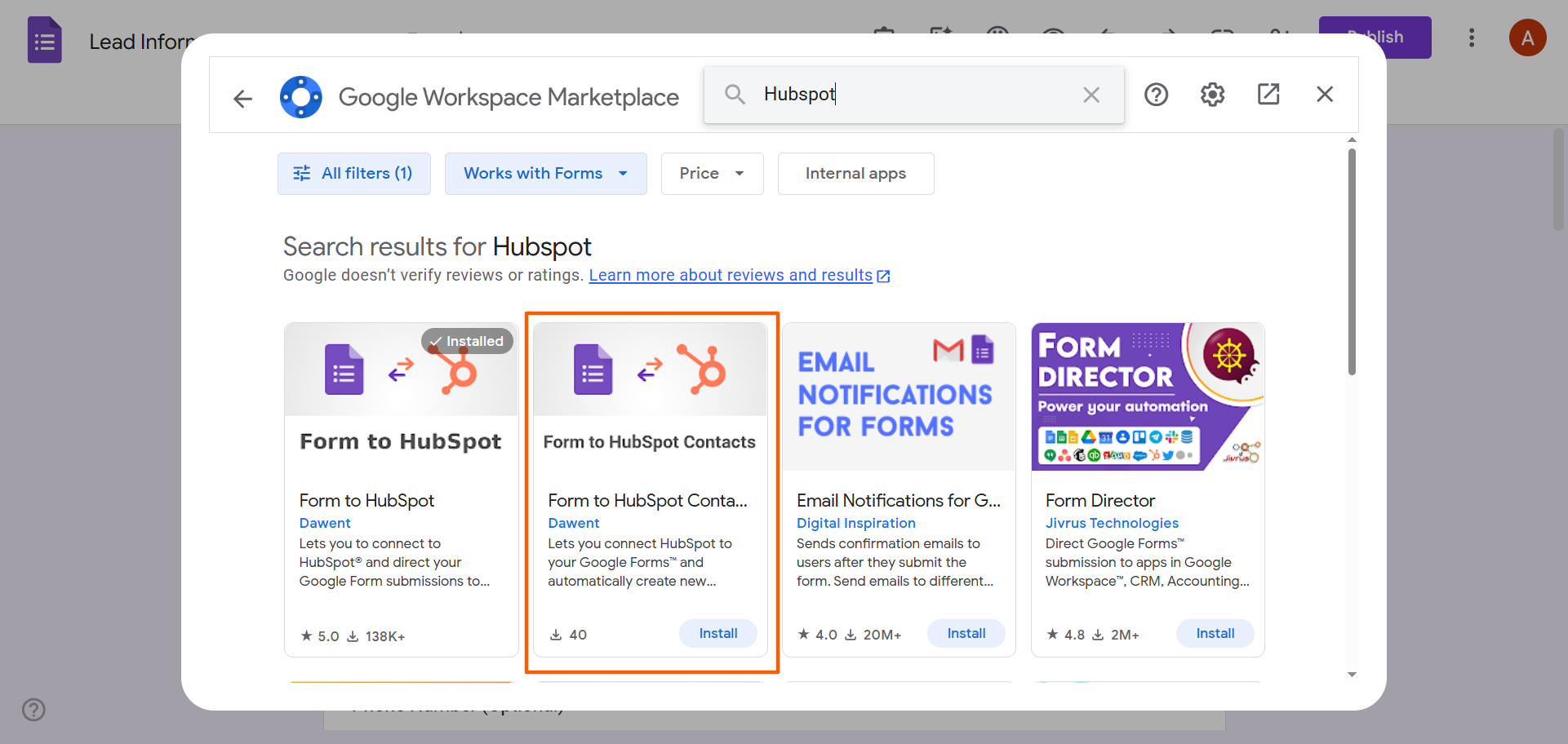
- Search for HubSpot and select Form to HubSpot Contacts. Note that there is also a Forms to HubSpot add-on. However, it is being removed soon, so do not choose that option.
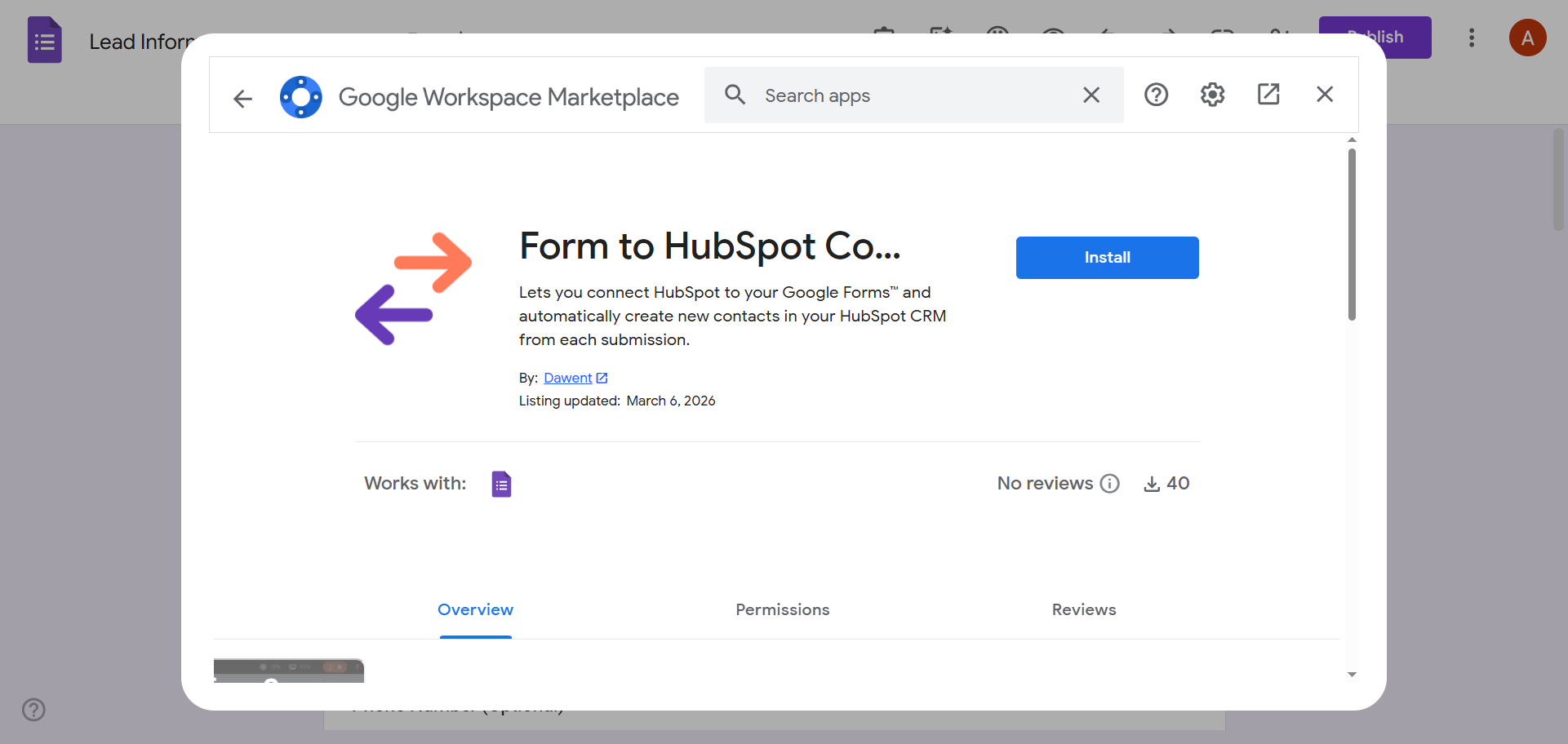
- Click Install. Follow the prompts to install the Google Workspace add-on. Provide the necessary authorizations this add-on requires.
- Once the add-on is installed, go back to the Google Form. Click the Puzzle piece icon at the top and select Form to HubSpot Contacts from the dropdown list.
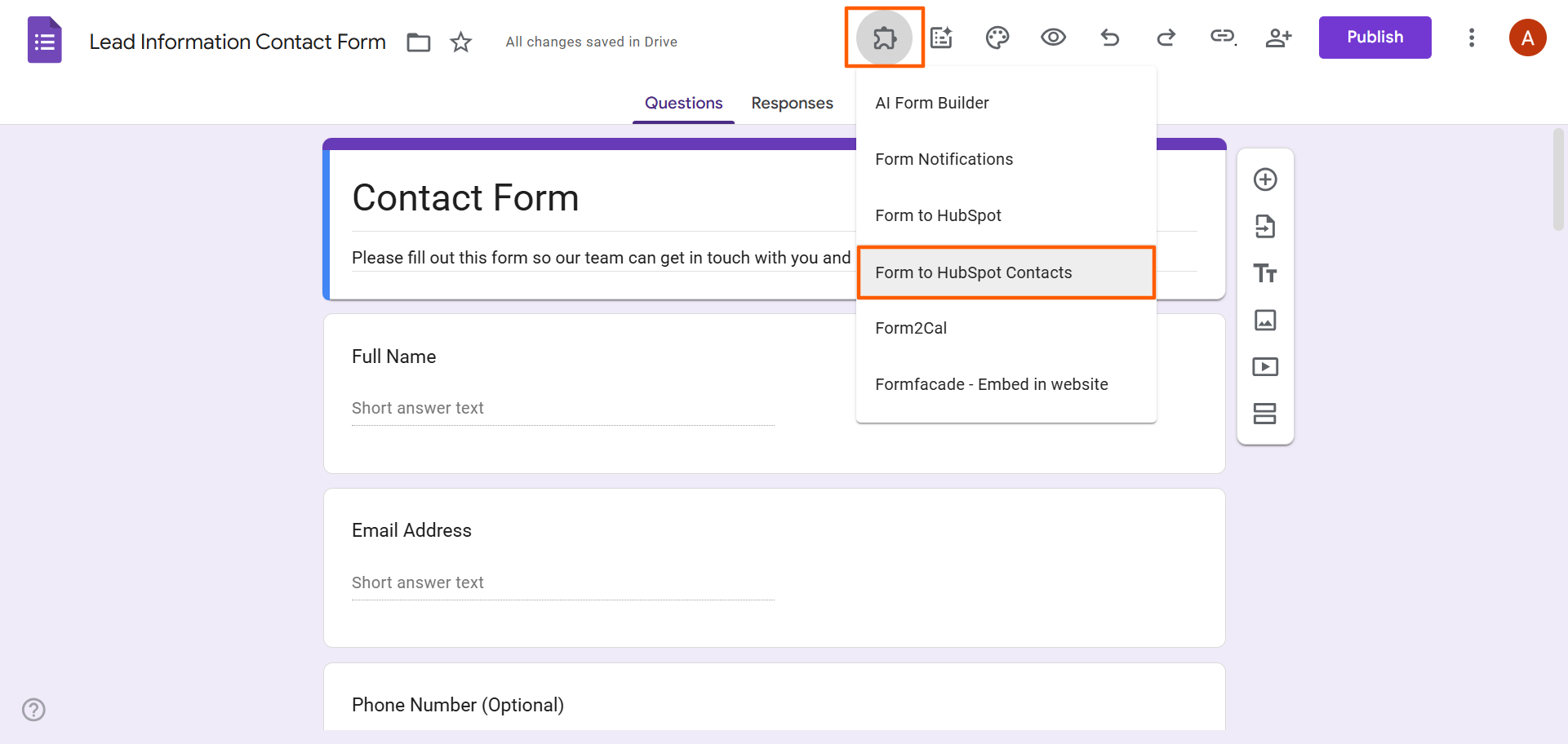
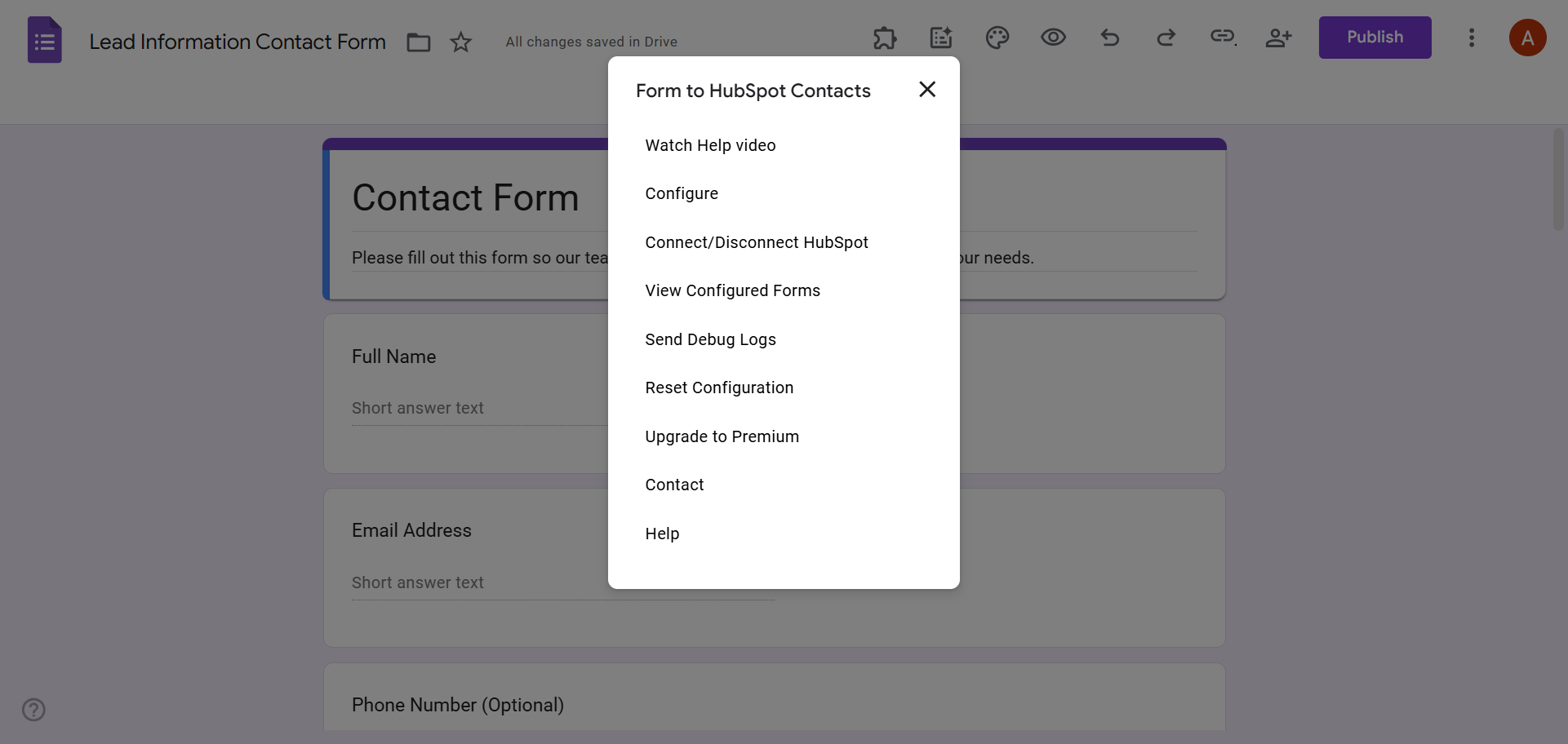
- From the pop-up menu, you can select from several options:
- Click Watch Help video to learn more about what the add-on can do.
- Click Configure to select your settings to sync the Google Form to HubSpot contacts.
- Click Connect/Disconnect HubSpot to connect the add-on with your HubSpot account.
You can also debug issues, reset your configuration, and upgrade to the premium version of the add-on from this menu.
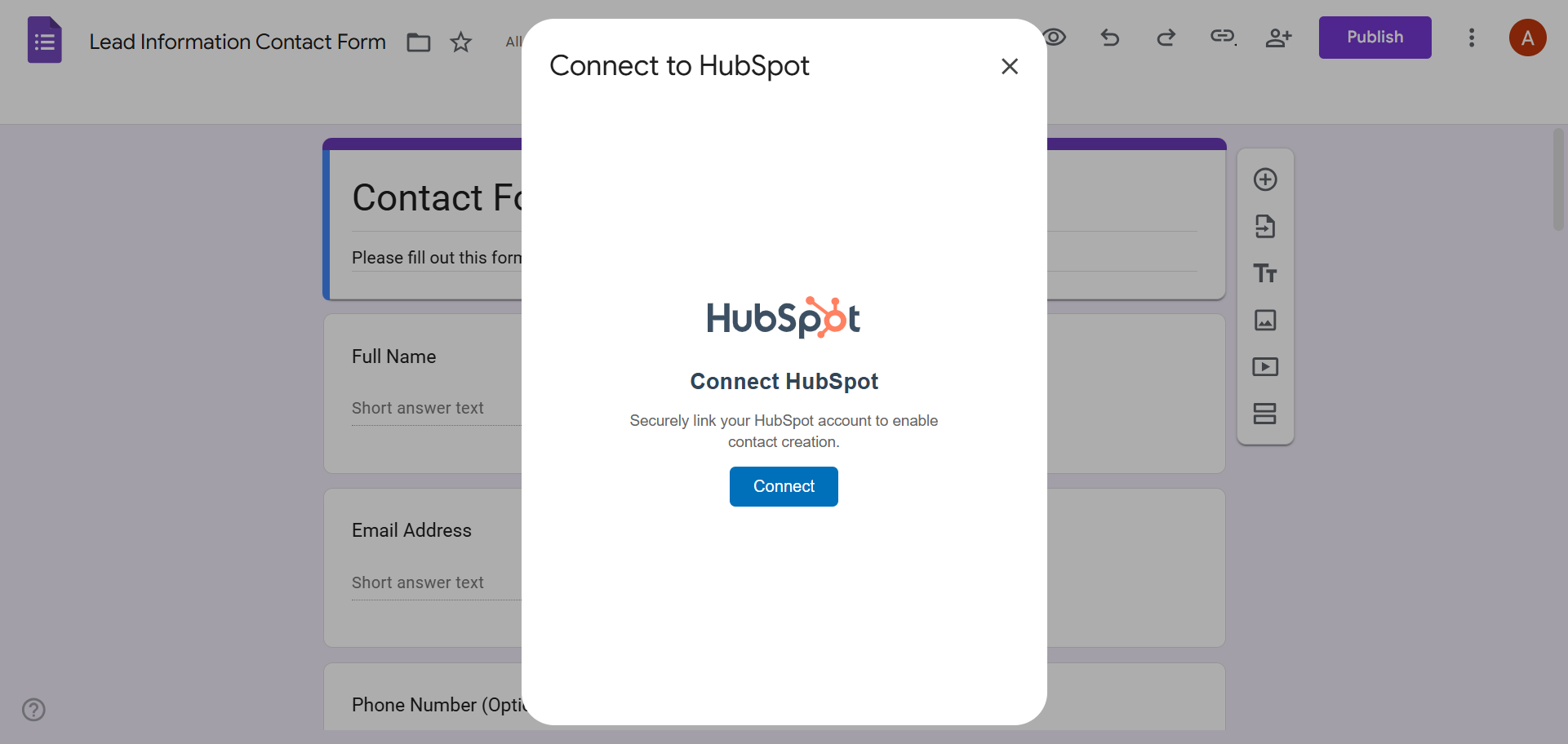
- If you click Connect/Disconnect HubSpot, the add-on opens a pop-up enabling you to connect to HubSpot. Click Connect. Provide the necessary authorization to connect to your account.
- Once you’ve completed the Google Forms–CRM integration, you can configure the settings as needed.
Pro Tip
Google Workspace add-ons are fairly easy to use, but they may not provide the flexibility you’re looking for. There are two third-party automation tools you can use to connect Google Forms to HubSpot:
Using automation tools like these requires more technical skill on your part; however, in the end, you’ll have more customization options to create automated workflows better fitting your needs.
While you can use workarounds to connect Google Forms with HubSpot, they can be costly and difficult to configure. If you want to be able to connect your form builder to HubSpot natively, there is a better way!
Jotform integrates with HubSpot natively
The best Google Forms alternative is Jotform, a leading form builder with a native integration to HubSpot, which means you don’t need to use any third-party add-ons or automation tools. You can easily connect Jotform to HubSpot in minutes with just a few clicks.
The integration lets you create new contacts, deals, tickets, and custom records automatically with every form submission, so you can streamline lead management, follow up with prospects faster, and ensure no leads fall through the cracks.
Here’s how to use the Jotform HubSpot integration:
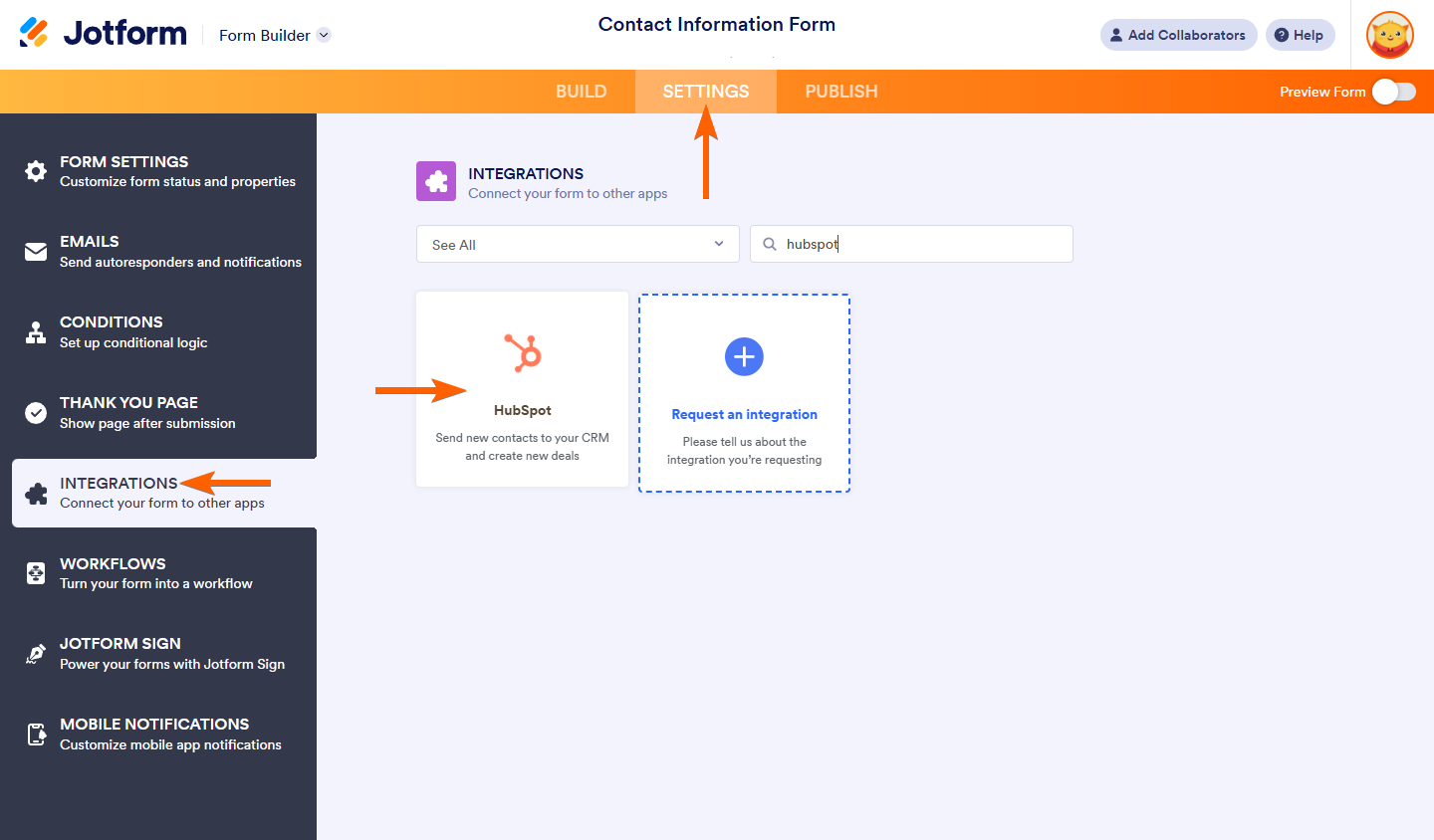
- Open the Jotform form you want to connect to HubSpot. Click Settings.
- Click Integrations from the left menu.
- Search for and select HubSpot.
- Select the action you want to complete with the integration. You can
- Create Contact
- Create Deal
- Create Ticket
- Create Company
- Create Custom Record
Click Next.
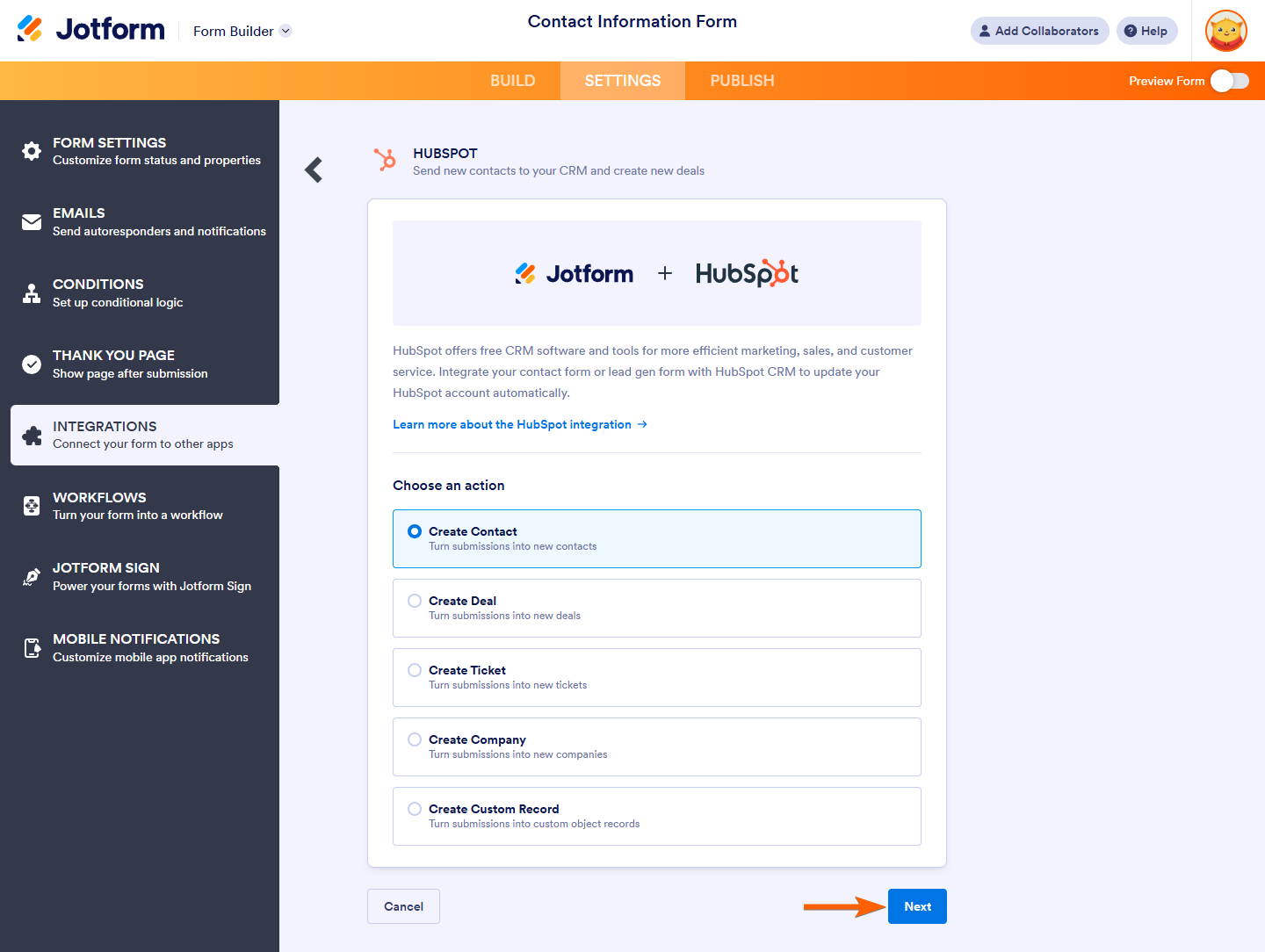
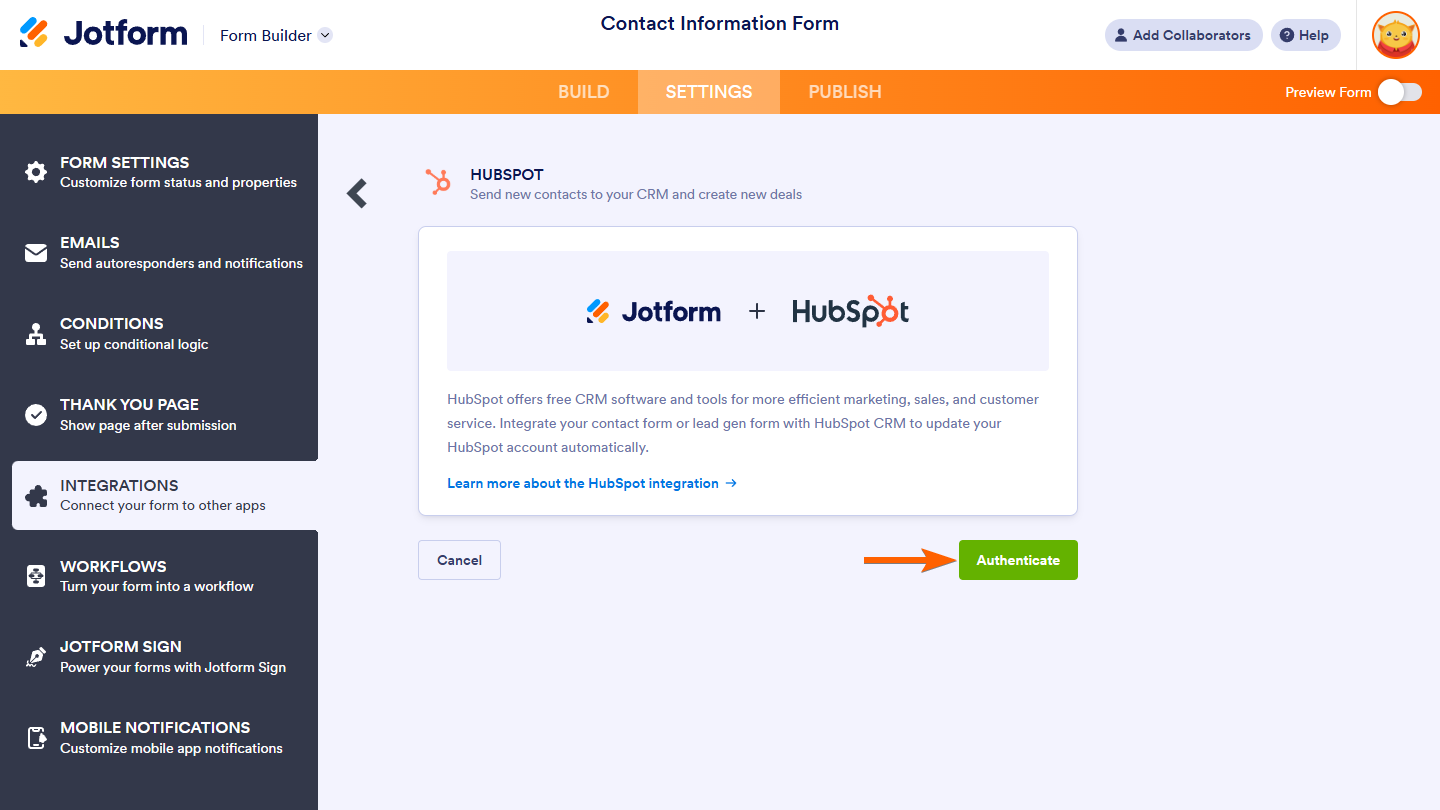
- Click Authenticate. Provide the necessary permissions to connect Jotform to your HubSpot account.
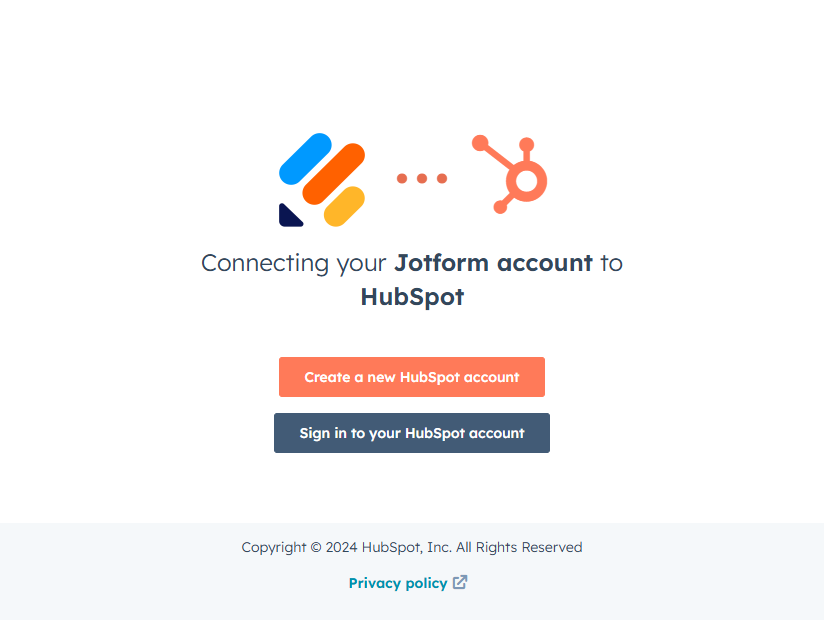
- Either Create a new HubSpot account or Sign in to your HubSpot account.
- Choose the HubSpot account you want to use for this integration.
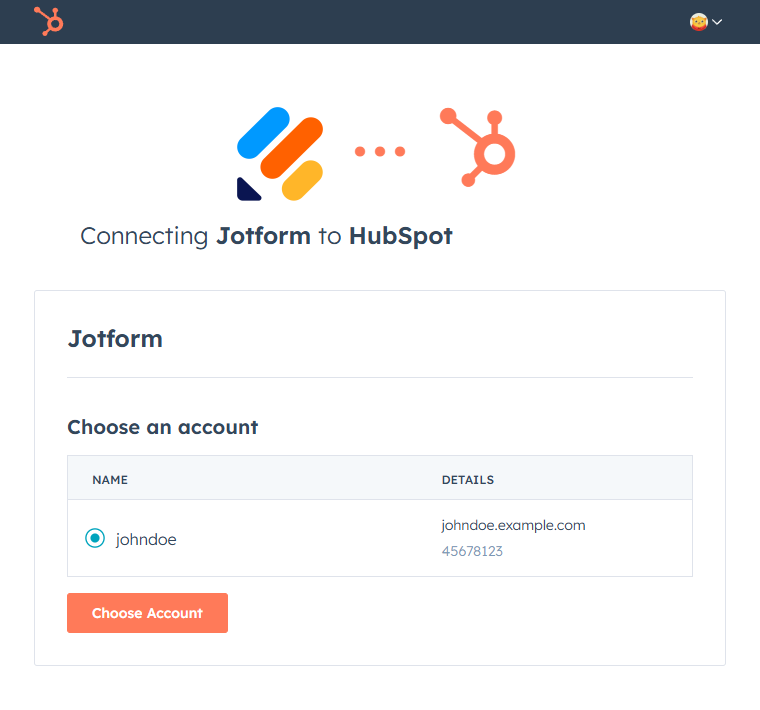
- Once authenticated, your HubSpot account will automatically connect to your Jotform account. You can then finish the integration setup for the specific action you selected in step 4.
Learning how to integrate HubSpot with Jotform is simple. No add-ons or automation tools in sight! You just need to use the native integration to connect the two tools, and then configure the settings for the specific action you want to complete. That’s it!
Switch to Jotform for native HubSpot integration and so much more
See why Google Forms users make the switch to Jotform.
 Jotform |  Google Forms | |
|---|---|---|
| Native HubSpot integration | ||
| Fields and widgets | 20+ basic fields & 100+ widgets | 11 question types |
| Conditional logic | Limited capability | |
| Integrations | 150+ | Add-ons supported |
| Templates | 20,000+ | 17 |
| Themes | 1,000+ ready-made themes & custom theme creation | Limited theme customization |
| Custom notifications & auto-responder emails | ||
| Reporting features | Report Builder and Form Analytics | Limited graphs |
| Mobile app | Jotform Mobile | No |
| Try It Now | Learn more |
What makes Jotform stand out against other form builders like Google Forms?
For one thing, Jotform offers advanced functionality in an easy-to-use user interface. For example, you get a level of flexibility that is simply not available in other form builders. Jotform has more than 20,000 form templates, 150-plus native form integrations, and thousands of ready-made themes, so you can create the form of your dreams. You can also design advanced workflows — like creating contacts in your HubSpot CRM from form submissions!
Jotform also has sophisticated features such as conditional logic, custom notifications, custom auto-responder emails, and more. Plus, it’s available as a mobile app, so you can create, manage, and check your forms on the go, whether you’re meeting with a client or visiting a prospect.
No matter what you want to do in Jotform, you’ll find your way around the user interface with ease. It’s intuitive for everyone, whether you’re a pro at navigating form builders or just getting started.
Migrate your Google Forms to Jotform with a single click
When you can’t get the native Google Forms-HubSpot integration functionality you need, Jotform is the answer. It comes with a built-in integration to HubSpot so you don’t have to deal with any third-party add-ons or automation software.
Switching to Jotform is easy. If you’re worried you have to re-create your Google Forms in Jotform, that’s not the case. All you have to do is migrate your forms to Jotform with our migration tool in a single click. Your form questions and structure are imported automatically from Google Forms, so you don’t need to worry about any formatting issues.


Best of all, Jotform has a free plan. You can get started right away and explore how easy it is to customize advanced forms, natively integrate with tools like HubSpot, and create sophisticated workflows, such as building CRM contacts with form submissions. Try Jotform today!
This article is for sales and marketing teams using HubSpot CRM who want to capture leads from Google Forms and automatically create or update HubSpot contacts, deals, or trigger workflows — without manual data entry.





































































































Send Comment: