If you use Google Forms for appointments and registrations, you might want to automatically create Google Calendar events from each submission. Unfortunately, there’s no built-in way to do that.
But if you get a little creative, you can enable this sequence of actions — you just need third-party add-ons or automation tools. The trick is knowing which tools to use and then how to configure them correctly.
In this article, we show you how to set up a Google Forms–Google Calendar integration so you can automatically create a calendar event based on a form submission. And if you don’t want to fiddle with third-party tools, we’ll introduce you to an alternative form builder with a native Google Calendar integration, so you can skip the setup and get everything working in minutes.


Google Forms–Google Calendar integration via a Google Workspace add-on
Using Google Forms is easy and intuitive when it comes to creating basic forms. But if you want to do something more advanced — whether you’re creating forms or setting up form-related workflows — it’s a struggle. Google Forms doesn’t have many advanced features, which means you’re left to rely on add-ons and third-party tools to get more complex jobs done.
If you want to automatically create calendar events from form submissions, you need to find a tool to connect Google Forms to Google Calendar. The Google Workspace Marketplace has a few add-ons that would work, including Form2Cal, Calendar Events Creator, and Form Calendar Invites. Any of these add-ons will help you avoid the tedious process of manually copying over dates and details from forms into your calendar.
You’ll need to have a Google account for this process. And it’s worth bearing in mind that while most Google Workspace add-ons are free to use, some have additional premium plans that provide access to advanced features.
Follow the below steps to find, install, and configure a Google Workspace add-on for creating Google Forms calendar events.
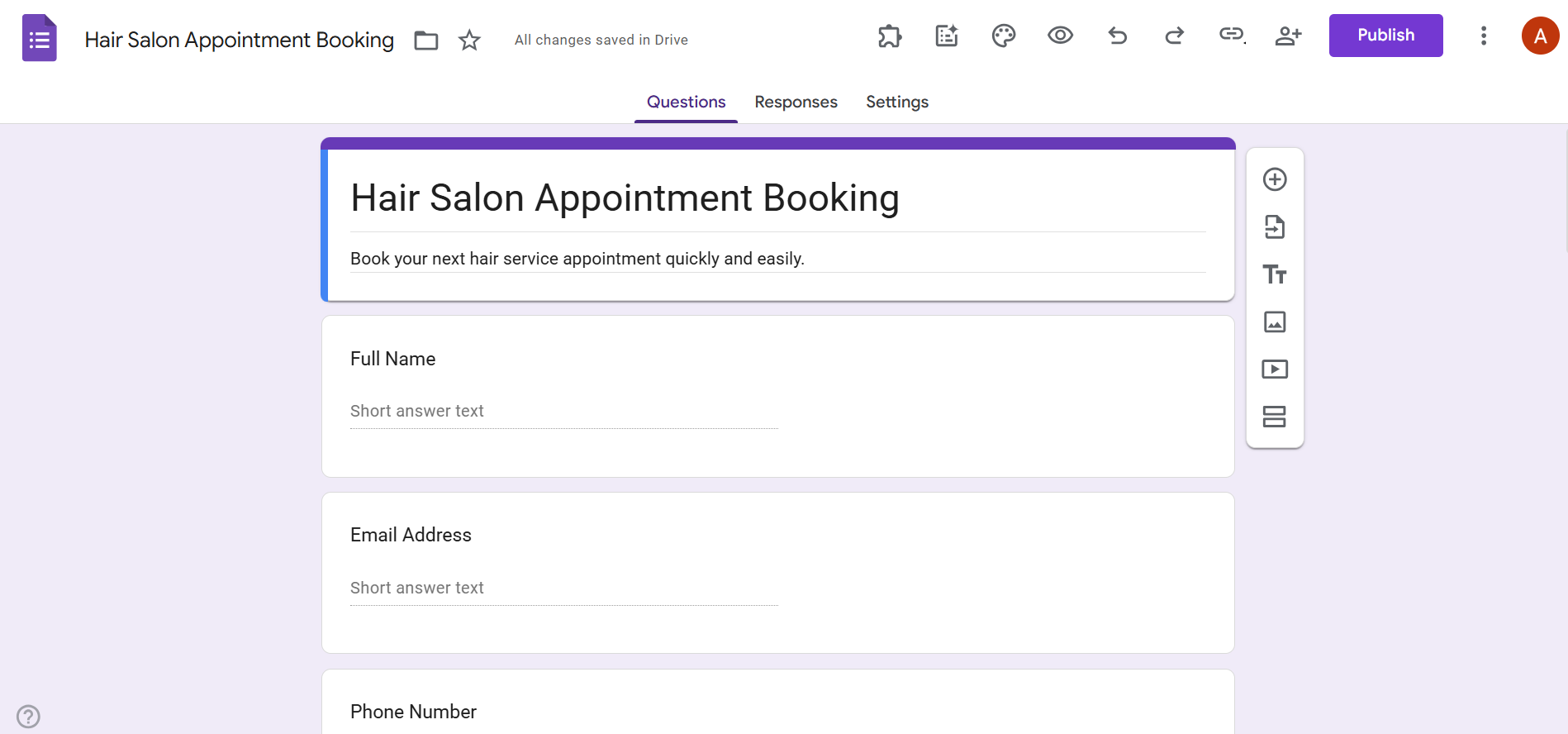
- Open the Google Form that you want to use to automate event creation.
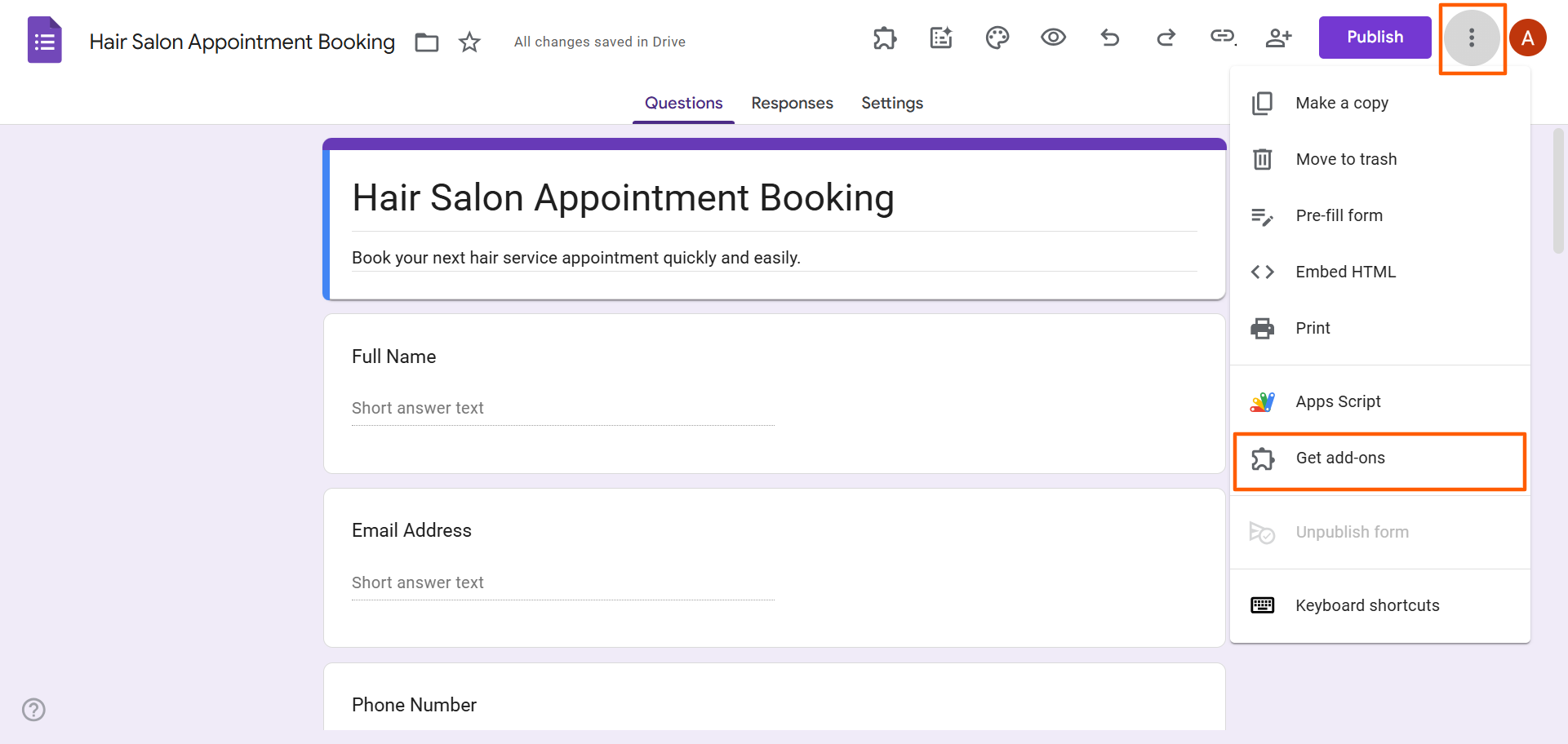
- Click the More (three dots) icon. Select Get add-ons.
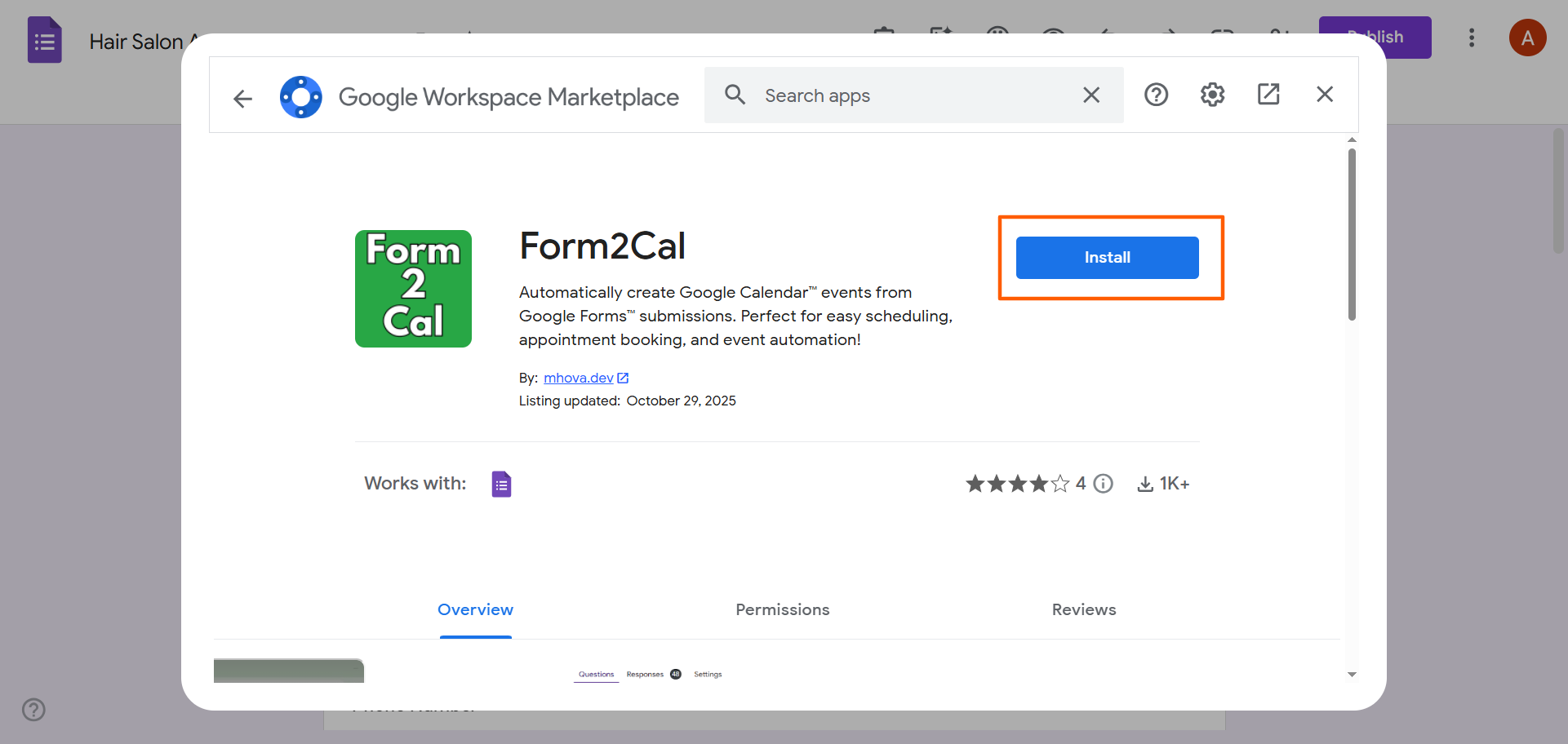
- Search for the Google Workspace add-on you’d like to use. In this case, we’re going to use the Form2Cal add-on.
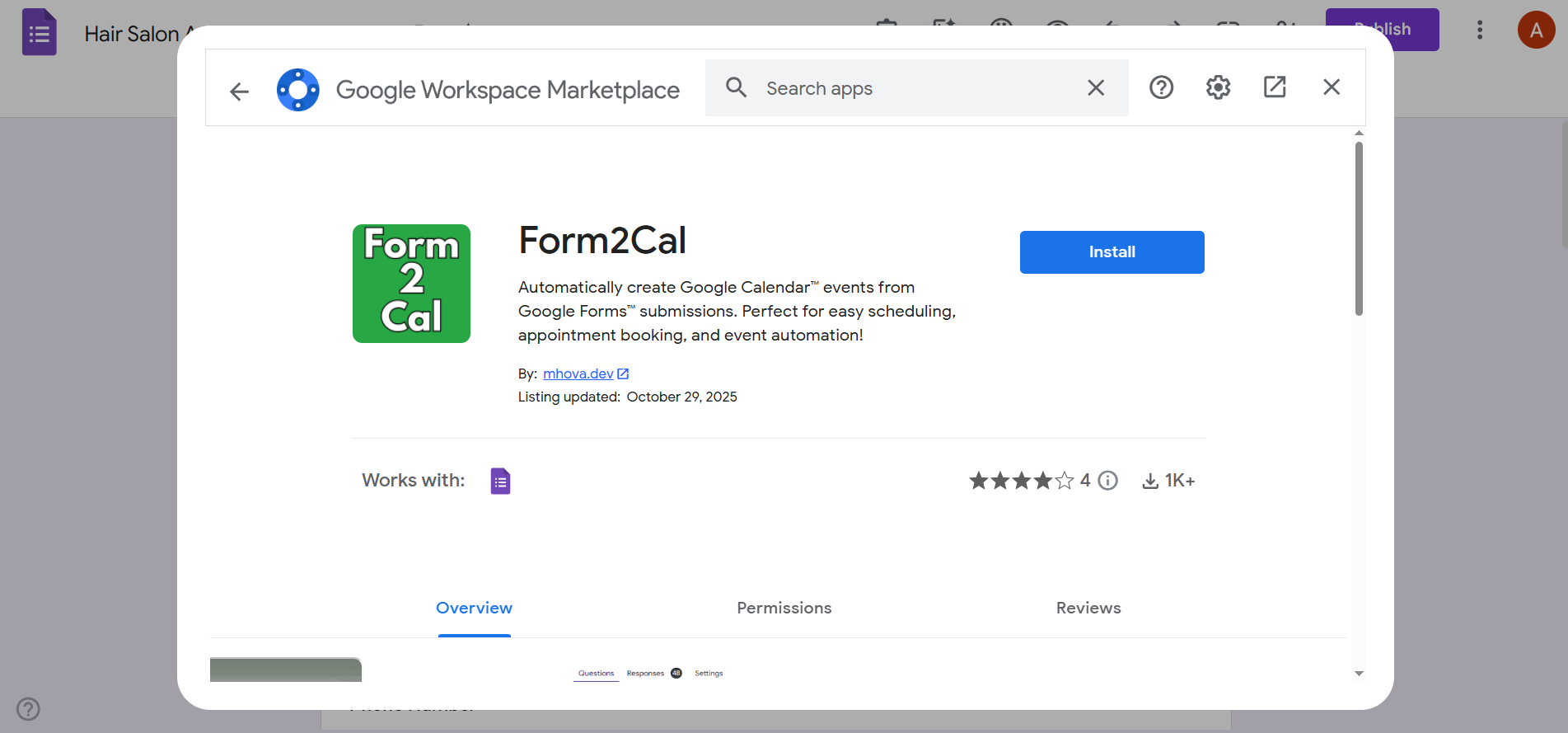
- Click Install. Follow the prompts to install the Google Workspace add-on and provide the necessary authorization.
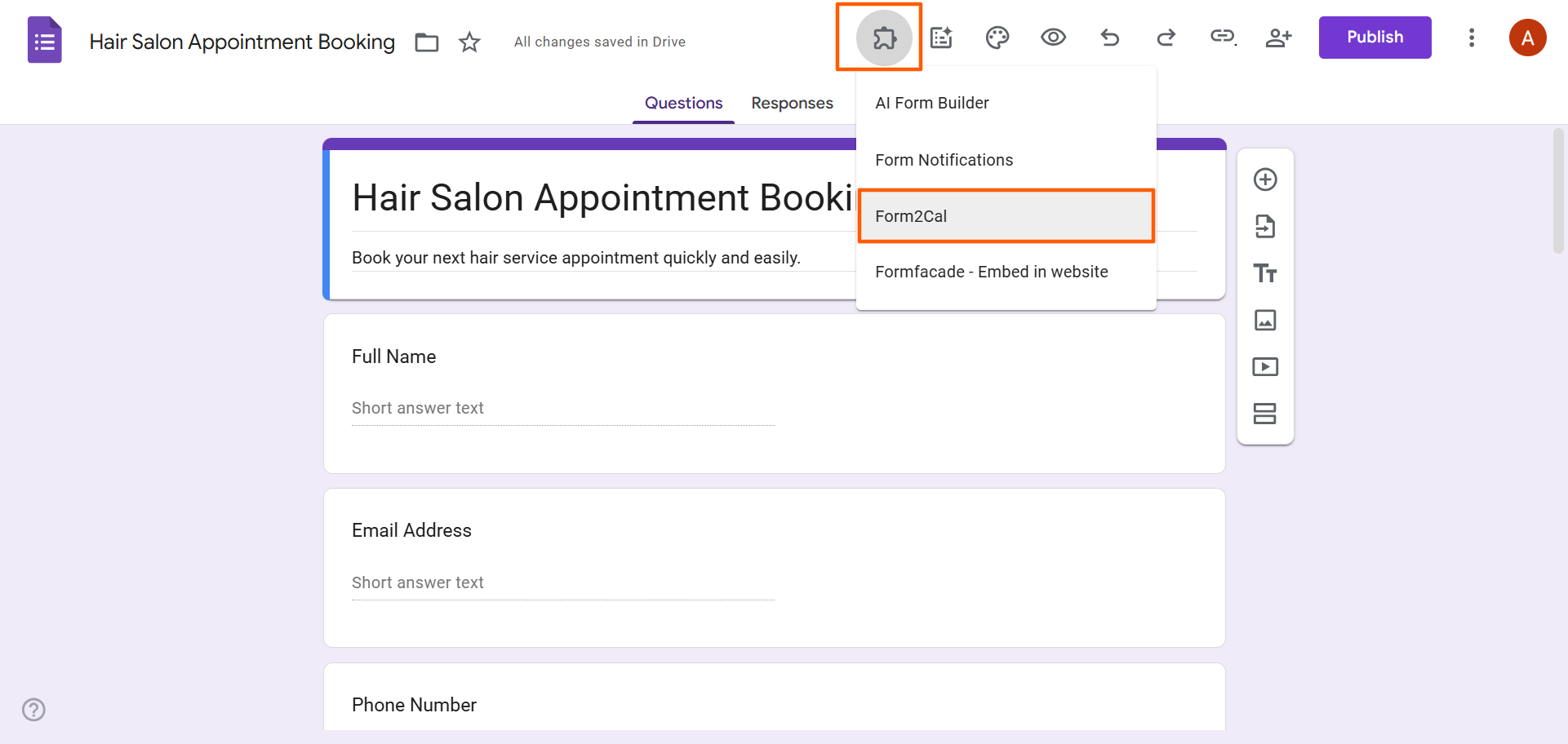
- Once the add-on is installed, go back to the Google Form. Click the Add-ons (puzzle piece) icon at the top and select Form2Cal from the dropdown list.
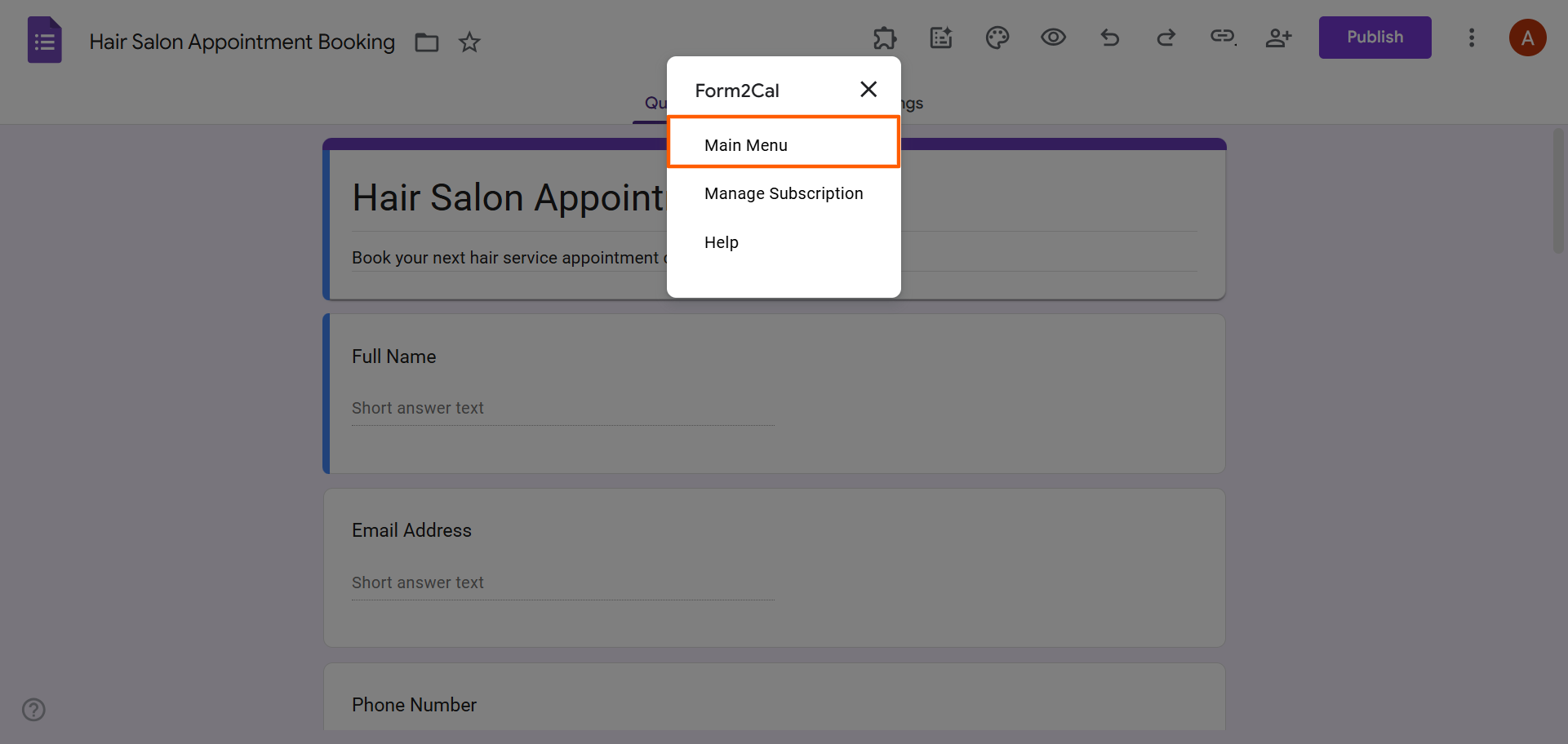
- Click Main Menu.
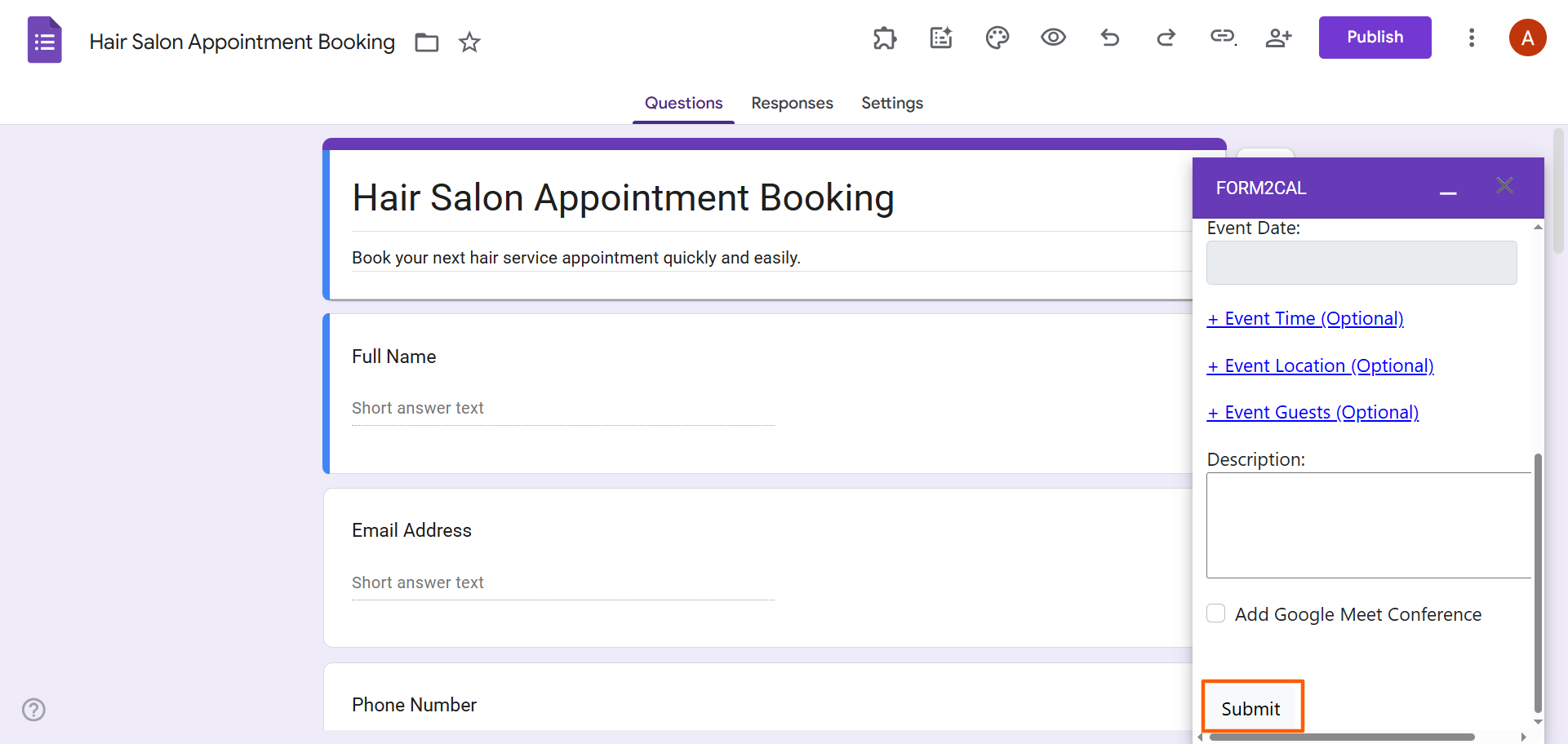
- A Form2Cal menu will open on the bottom right of the Google Form.
Here, you can configure your settings for this workflow, such as selecting a Google Calendar to add events to and specifying the location for the events.
Once you’ve selected the settings you want, click Submit. Now, every completed Google Form creates a calendar event on submission.
Be sure to test the workflow before you share the form with users. You can do this by publishing the form, filling it out, and submitting it yourself. If a Google Calendar event is created automatically, then the add-on was successful. If you encounter any issues, you can try uninstalling and reinstalling the add-on.
Pro Tip
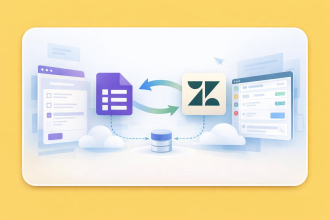
If you don’t want to use a Google Workspace add-on, another option is to use Zapier, a no-code workflow automation tool. It offers the advanced functionality you need to create automated workflows between Google Forms and Google Calendar, with more customization and flexibility compared to a Google Workspace add-on. However, you’ll need to have some technical know-how for this option.
If dealing with add-ons and automation tools gives you a headache, you’re not alone. Many people prefer using tools with native integrations because it makes things easier. That’s where Jotform comes in. The native Jotform–Google Calendar integration not only saves time — you also benefit from Jotform’s numerous other advanced features with every form you create.
Jotform integrates with Google Calendar natively
Jotform is the best Google Forms alternative available. It has advanced form functionality and a highly intuitive user interface. And yes, this form builder has a Google Calendar integration built in so you don’t need to install any add-ons or figure out how to use complicated automation tools like Zapier.
Learn how to integrate Google Calendar with Jotform:
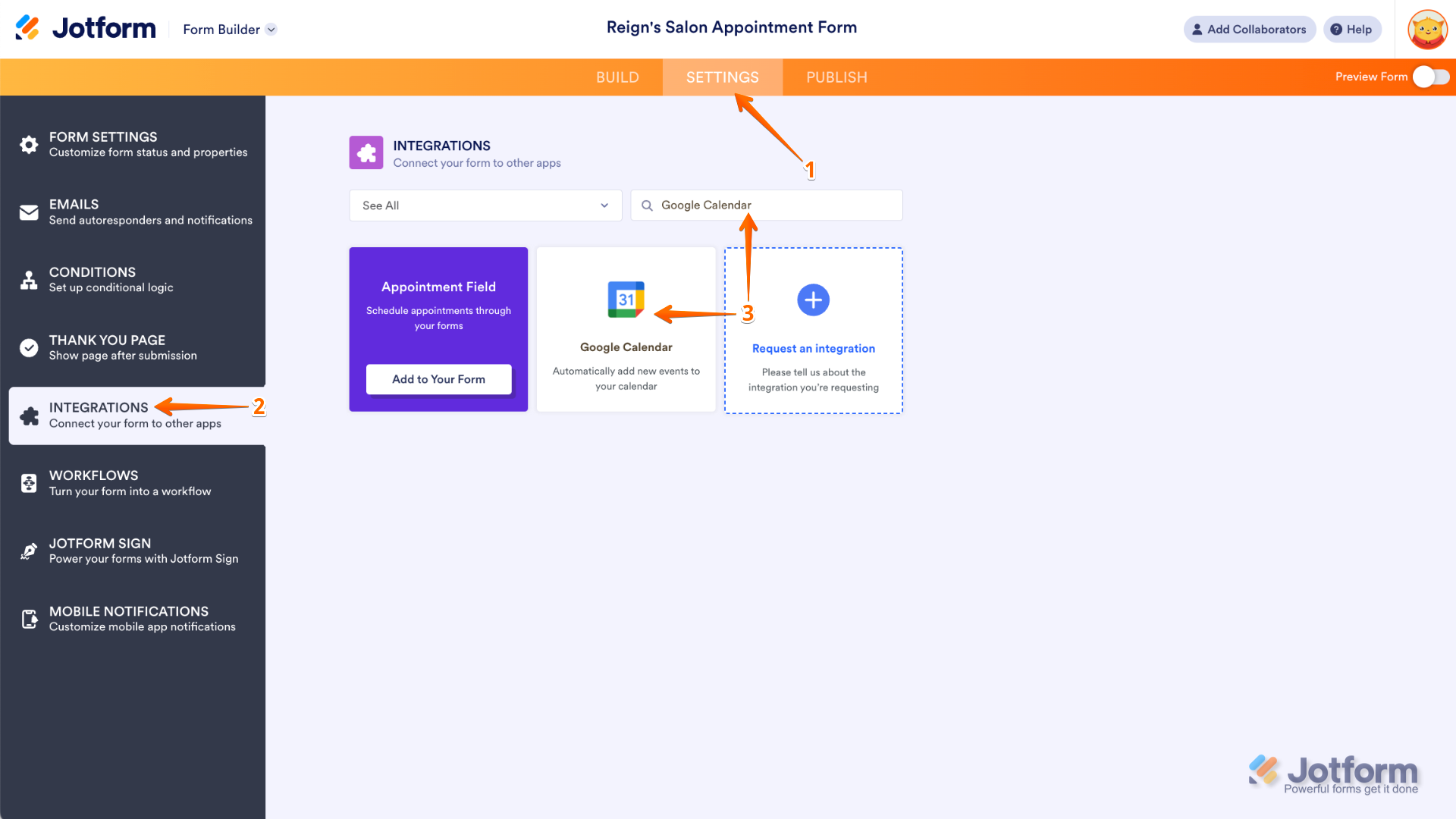
- Open the Jotform Form Builder. Click Settings in the top navigation bar.
- Click Integrations in the left-hand side menu.
- In the search bar, type in Google Calendar. Click the Google Calendar icon.
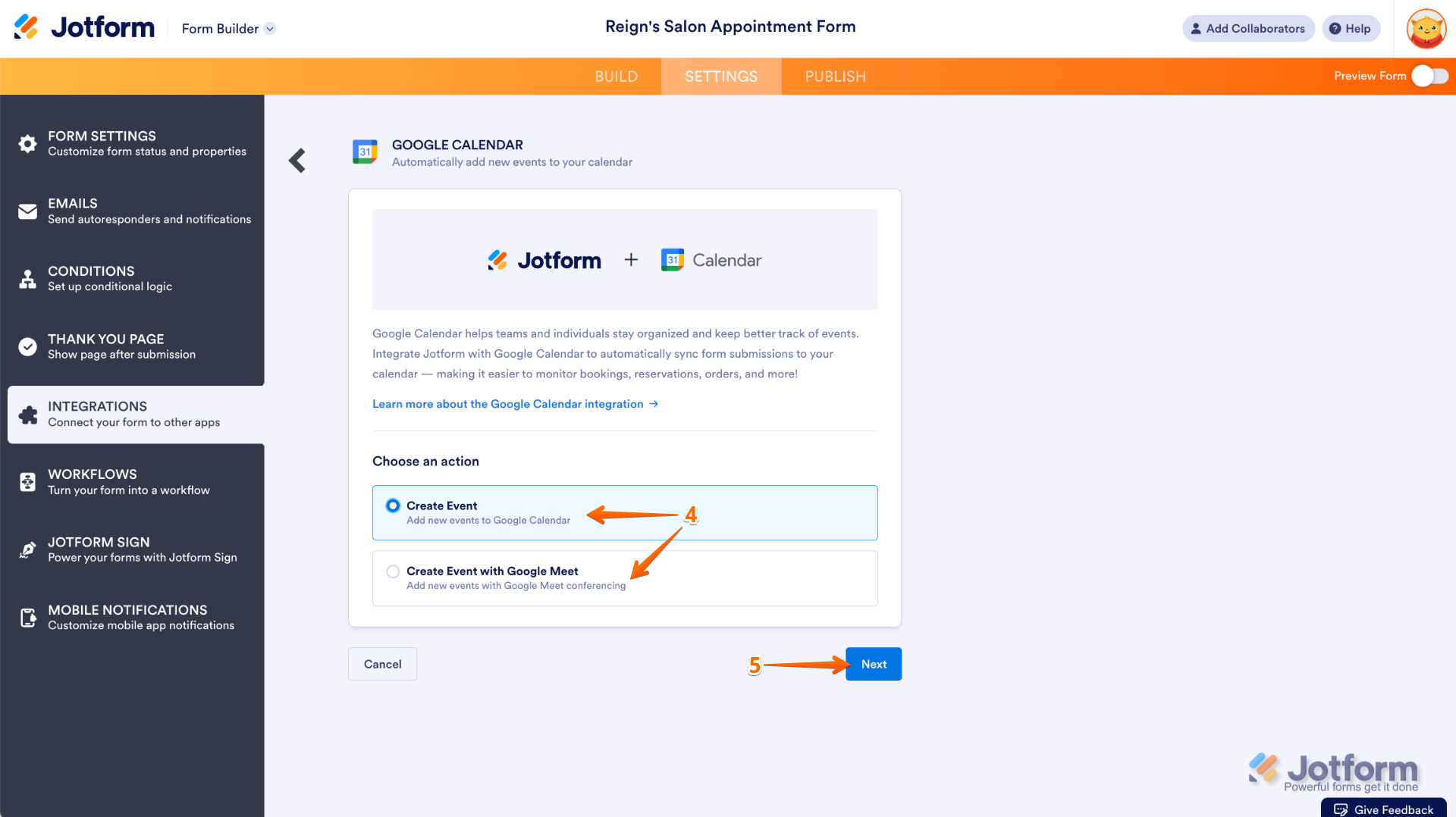
- Choose from Create Event or Create Event with Google Meet:
- Choose Create Event if you want form submissions to become new events on your Google Calendar.
- Choose Create Event with Google Meet if you want new form submissions to become Google Meet conferencing events.
- Click Next.
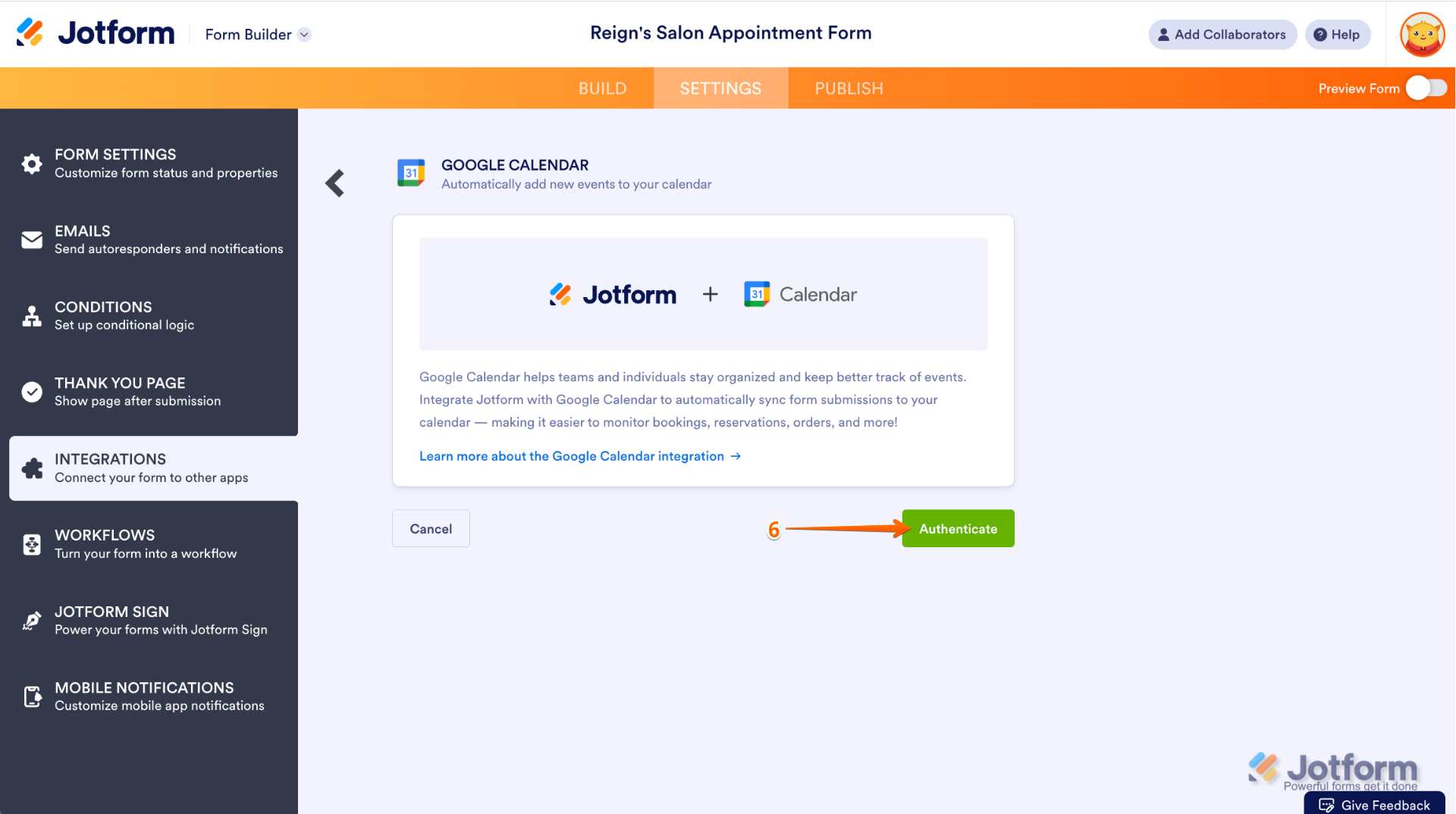
- Click Authenticate.
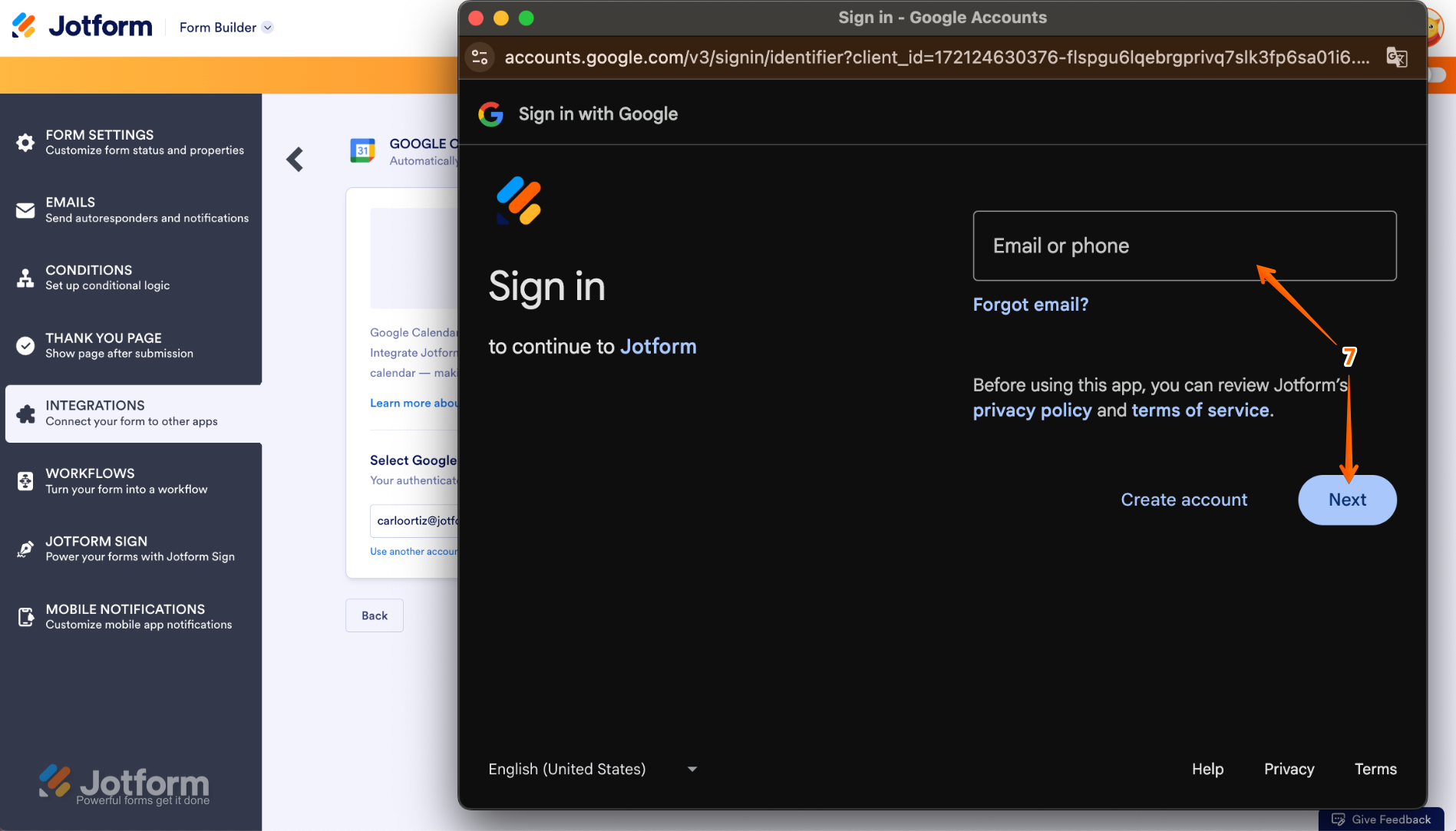
- A pop-up window will appear. Type in your Google email address. Click Next.
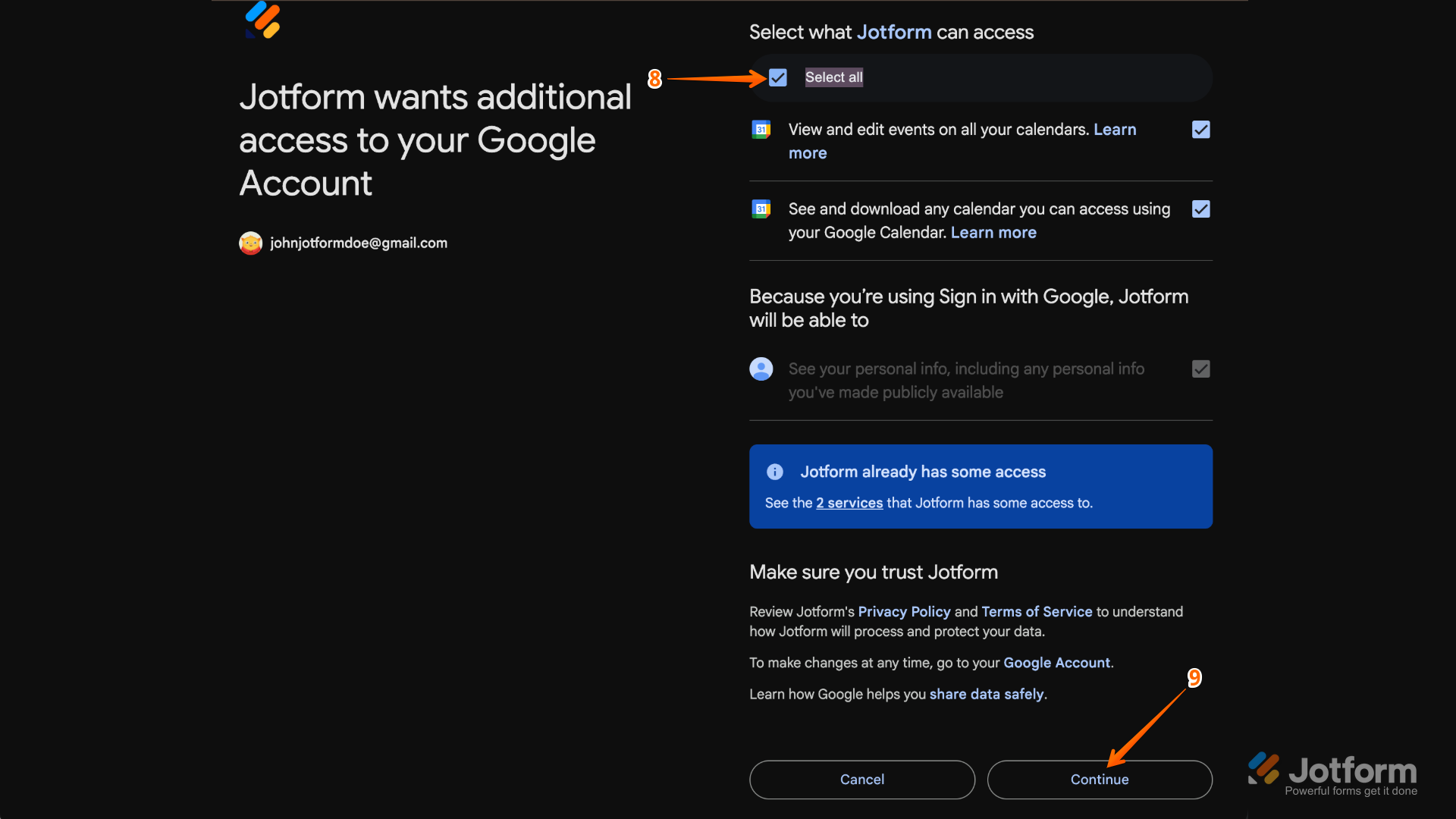
- Click the Select all checkbox.
- Click Continue.
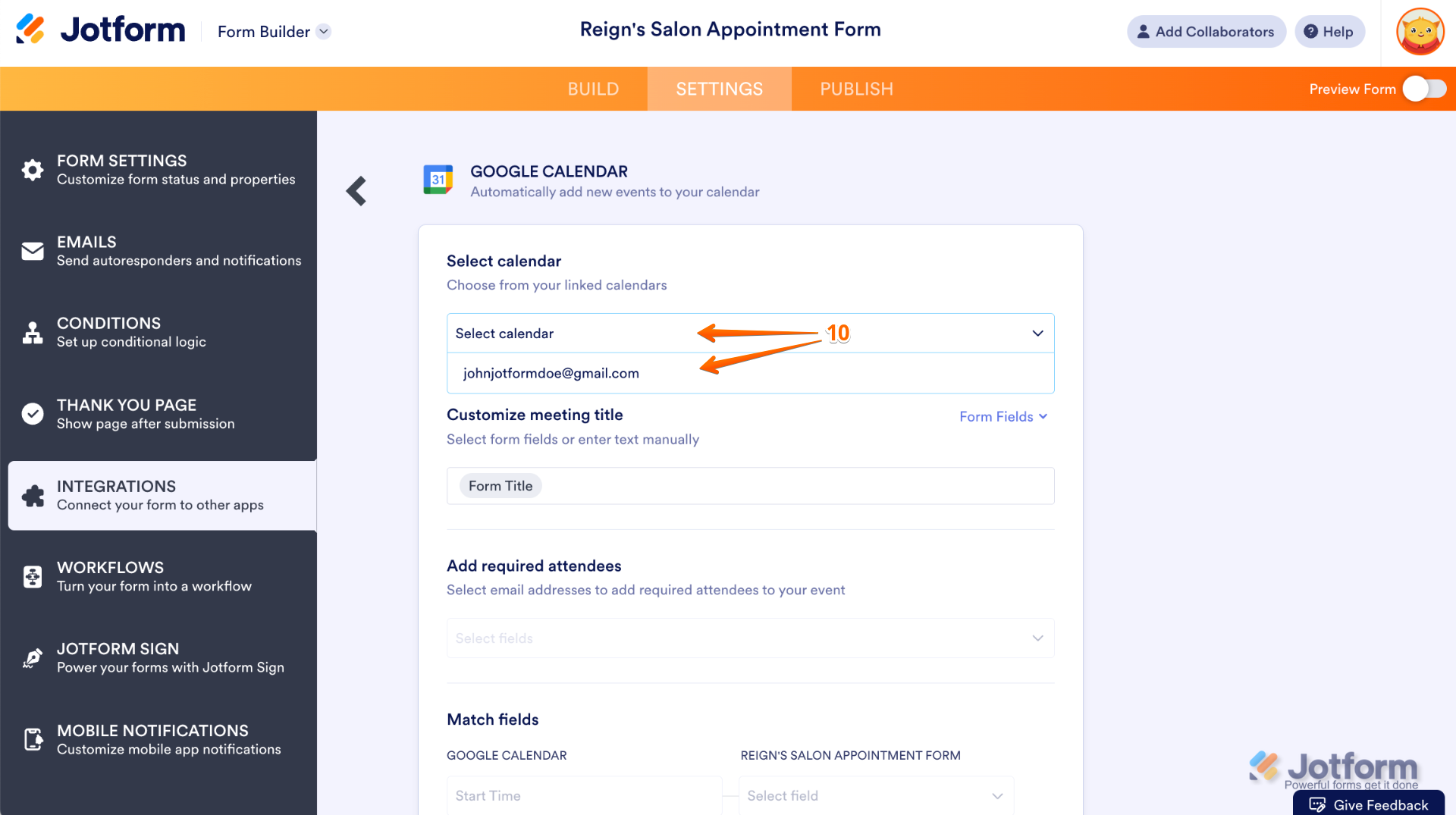
- Choose the calendar you want to integrate from the Select Calendar dropdown.
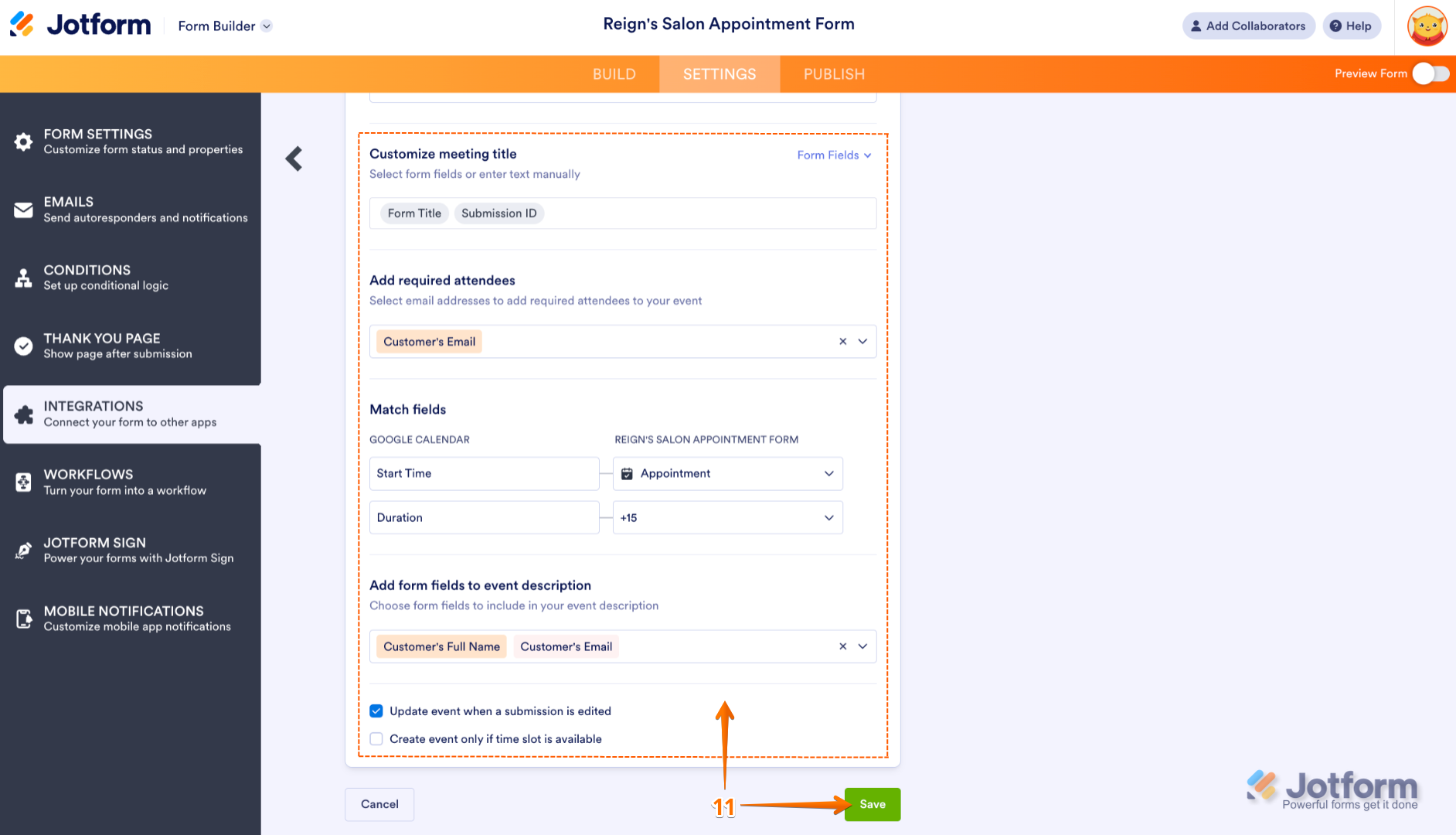
- Edit the following fields based on your needs:
- Customize meeting title
- Add required attendees
- Match fields
- Add form fields to event description
Select the Update event when a submission is edited option. Click Save.
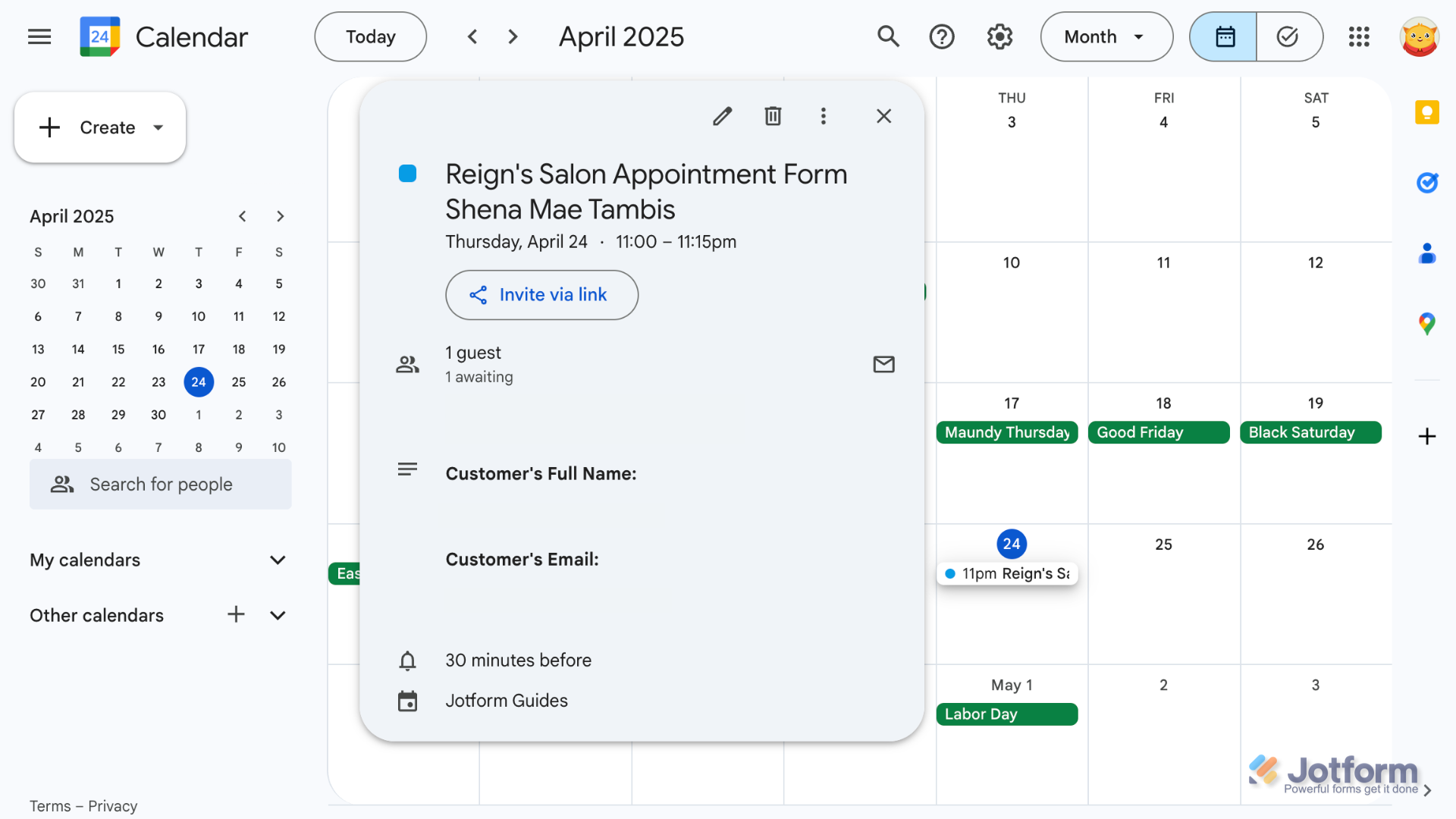
It’s that easy. Your Jotform form is now connected to the designated Google Calendar, and the workflow will automatically create an event when a form is submitted.
Switch to Jotform for a native Google Calendar integration and so much more
Compare Jotform to Google Forms and see why users keep flocking to Jotform:
 Jotform |  Google Forms | |
|---|---|---|
| Native Google Calendar integration | ||
| Fields and widgets | 20-plus basic fields and 100-plus widgets | 12 question types |
| Conditional logic | Limited capability | |
| Integrations | More than 150 | Add-ons supported |
| Templates | More than 20,000 | 17 |
| Themes | 1,000-plus ready-made themes and custom theme creation | Limited theme customization |
| Custom notifications and auto-responder emails | ||
| Reporting features | Report Builder and Form Analytics | Limited graphs |
| Mobile app | Jotform Mobile |
If you just need basic form functionality, you may be able to get by with Google Forms. But if you want more control, you need a form builder like Jotform. With thousands of form templates, hundreds of form integrations (including a native Jotform integration with Google Calendar), and hundreds of widgets, it’s no wonder Jotform comes out ahead.
Users love Jotform’s advanced features, like conditional logic, the ability to customize notifications and auto-responder emails, and the thousands of ready-made themes. With Jotform, you can fully customize your form, add automated workflows through native integrations, and better understand your data through advanced analytics. Plus, with Jotform Mobile, you can do it all on the go without being tied to your desk.
Even with all this extra functionality, Jotform is just as easy to use as Google Forms. Whether you’re tech savvy or new to online forms, you’ll be able to find your way around Jotform with ease. Within a few minutes, you’ll be using advanced features, integrating with other tools, and adding custom themes to your forms.
Migrate your Google Forms to Jotform with a single click
With no native Google Forms–Google Calendar integration, you’re left dealing with third-party add-ons and automation tools. So if you want to use a form builder that has a native integration with Google Calendar, Jotform is the answer.
Thinking about switching? It’s easier than you’d expect. You don’t need to recreate anything from scratch – simply migrate to Jotform to import your existing Google Forms in a few clicks. Then, you can use Jotform to take your form to the next level.
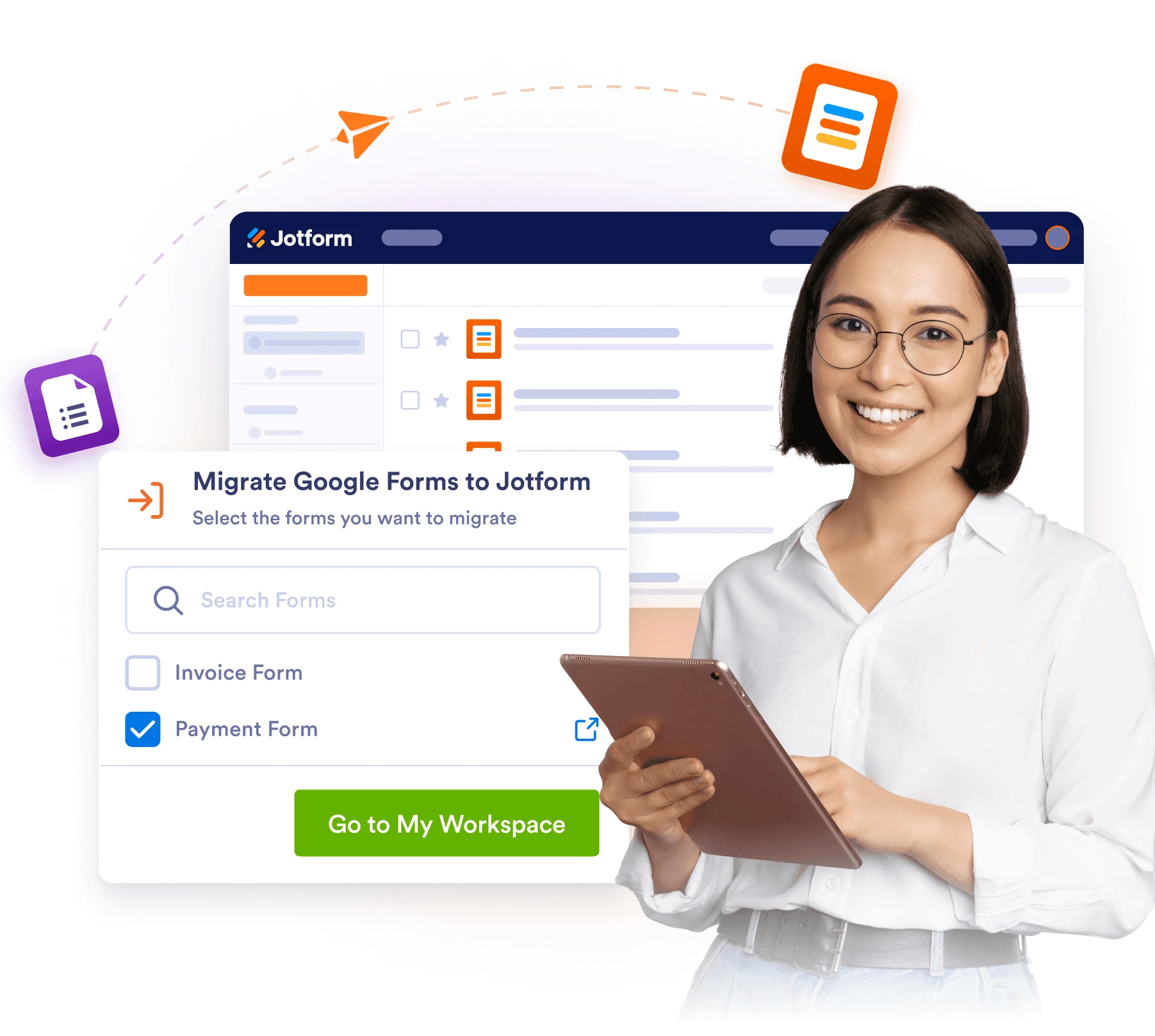
Best of all, Jotform has a free plan, so there’s nothing standing in your way. Explore Jotform today and see how easy it is to migrate to Jotform, customize your forms, and create automated workflows with all your other business tools.
This article is for educators, event organizers, and operations teams who use Google Forms for registrations or bookings and want form submissions to automatically create Google Calendar events — without manually copying over dates and details.

































































































Send Comment: