
Here's how to build an attendance tracking form in Google Forms
- Create a new Google Form.
- Add the core fields needed for check-in.
- Mark all essential fields as required.
- Turn on email collection for stronger identity tracking.
- Turn on the one-response setting to reduce confusion.
- Publish your form.
- Link your form to Google Sheets.
Tracking the attendance of your students or event attendees shouldn’t be complicated — and with Google Forms, it doesn’t have to be. Rather than investing in a complex attendance system, you can set up basic attendance tracking for your classroom, event, training session, or team check-in in just a few minutes.
Whether you’re familiar with Google Forms or not, this step-by-step walkthrough will help you leverage this popular digital solution to simplify your attendance tracking. That said, Google Forms can only go so far. For a full attendance management solution, a more powerful alternative may be a better fit — we’ll explore one here, too.


Creating an attendance Google Form in 7 steps
Creating a basic attendance form in Google Forms only takes a few minutes with this roadmap.
Here’s how to use Google Forms for attendance tracking:
- Open Google Forms and click the Blank form button to start a new form.
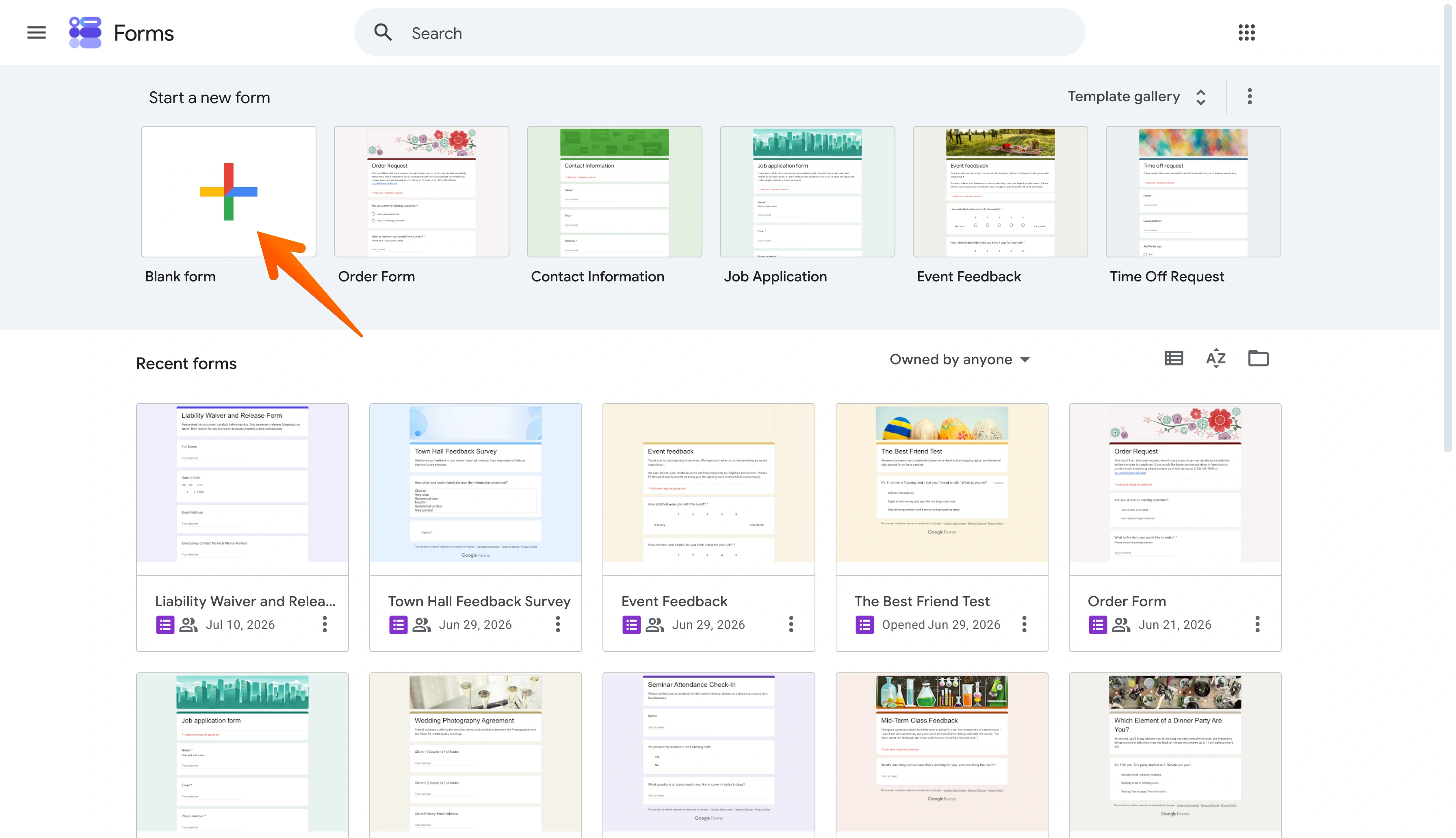
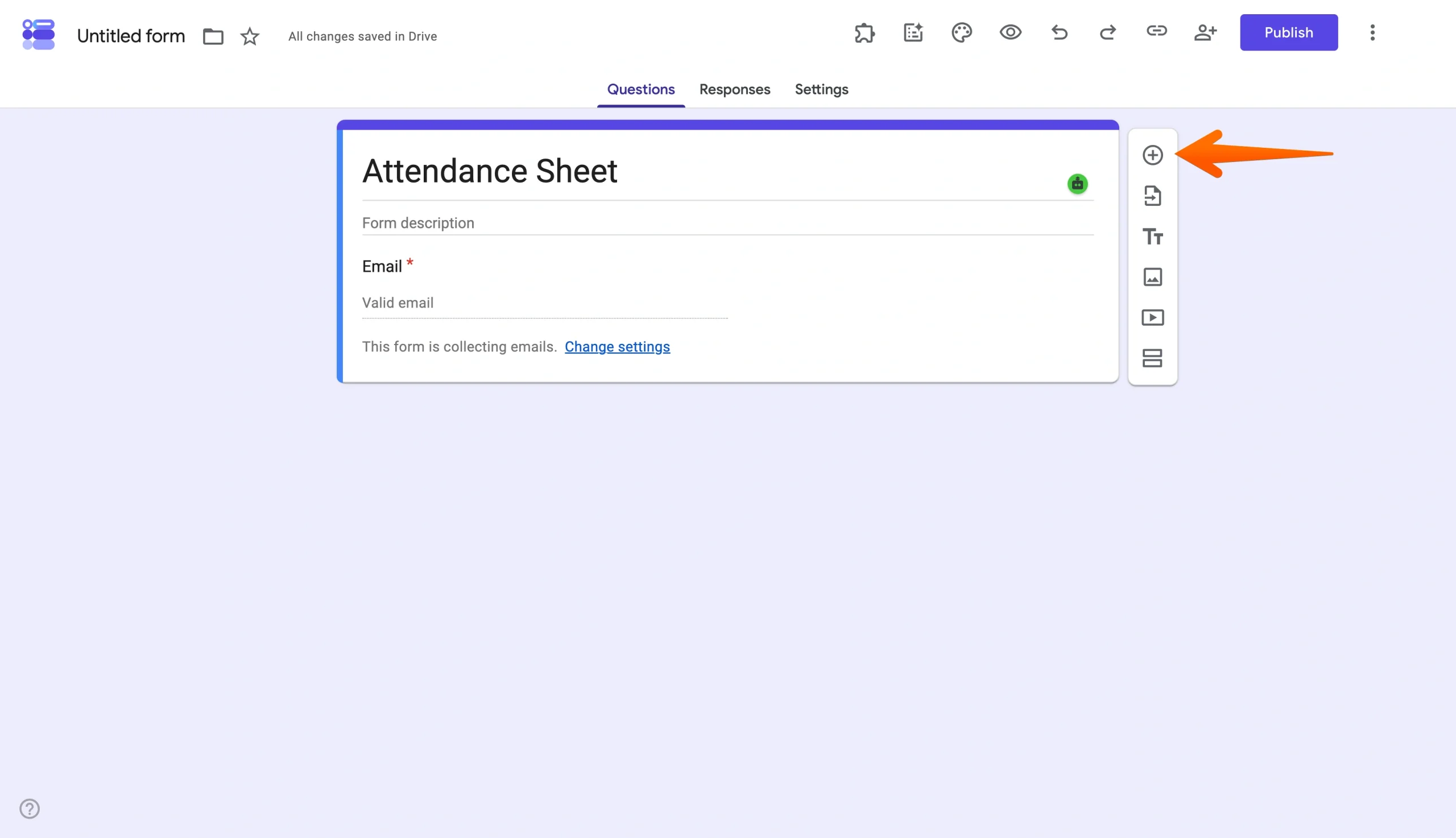
- In your new form, add a title and the core fields you need for check-in. This could include attendee or student names, event name, date, and their attendance status. Click the Plus sign symbol on the right to add new fields.
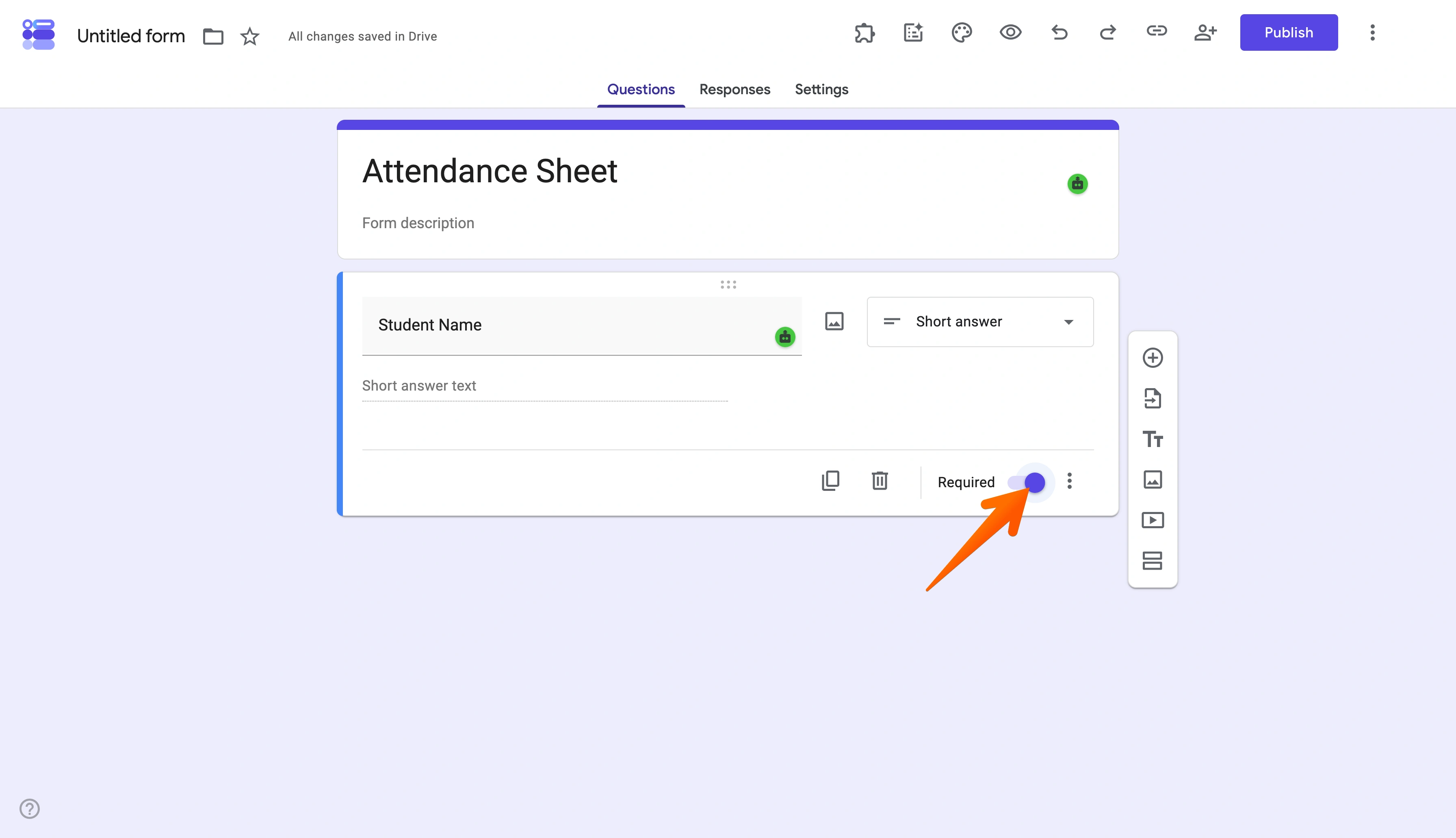
- Toggle the Required setting on for questions that need to be answered.
- Click the Settings tab in the top menu, then click the Responses dropdown menu. Click the Collect email addresses dropdown and select Responder input to require users to provide an email address with their response. This option allows you to connect emails to users without requiring them to log into Google.
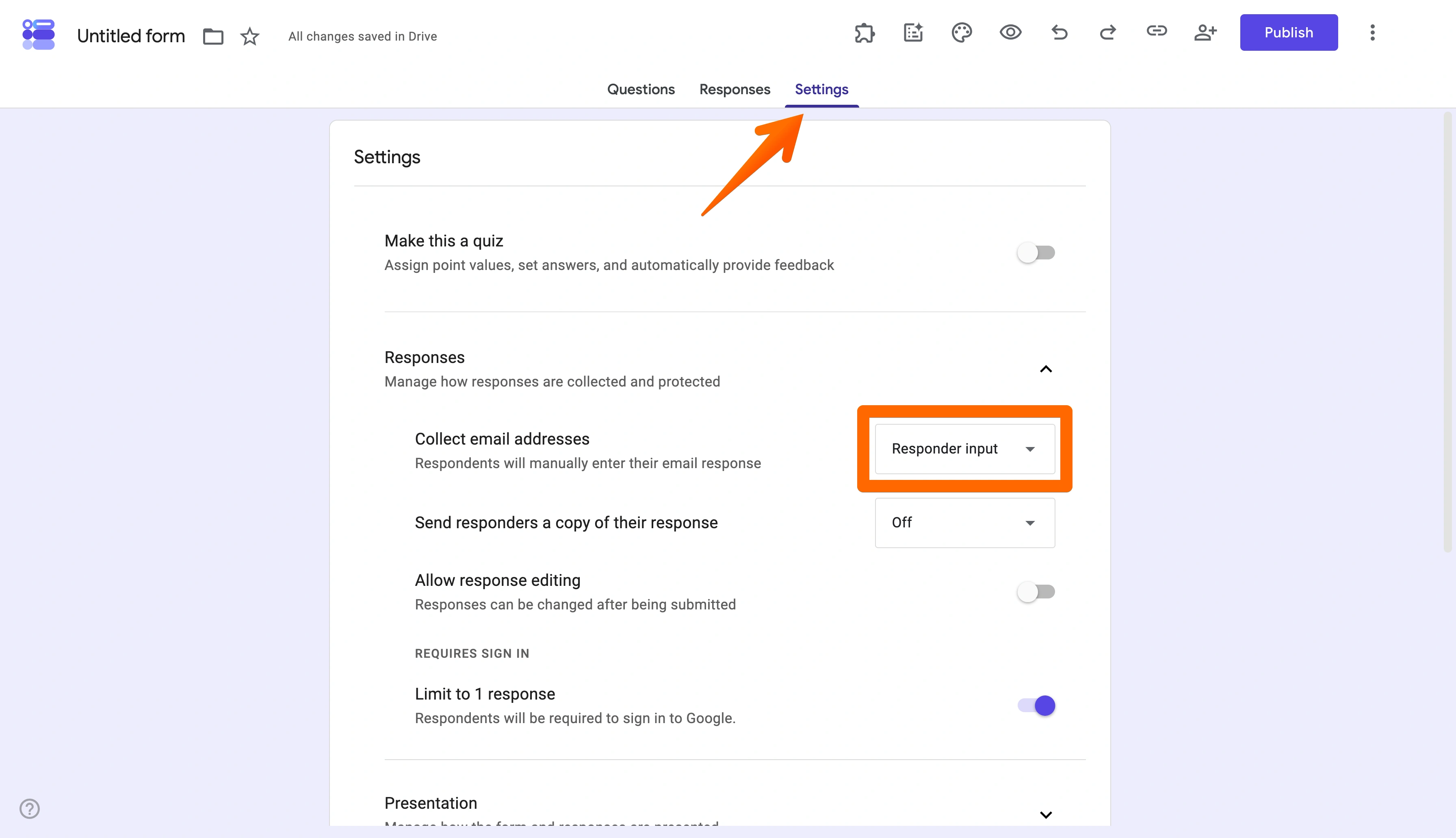
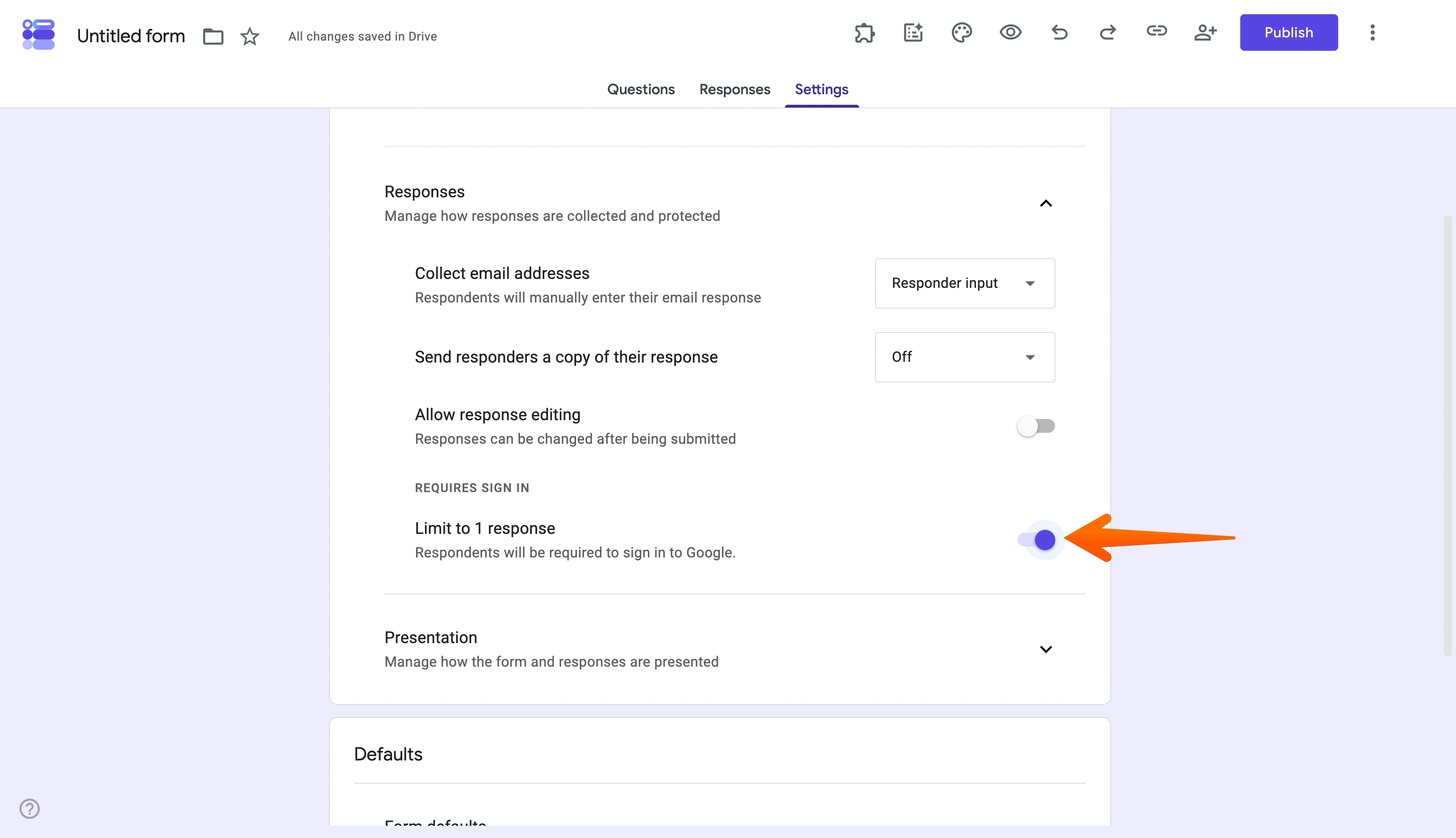
- Toggle the Limit to 1 response setting on. This will help you avoid confusion caused by multiple conflicting responses from a single attendee.
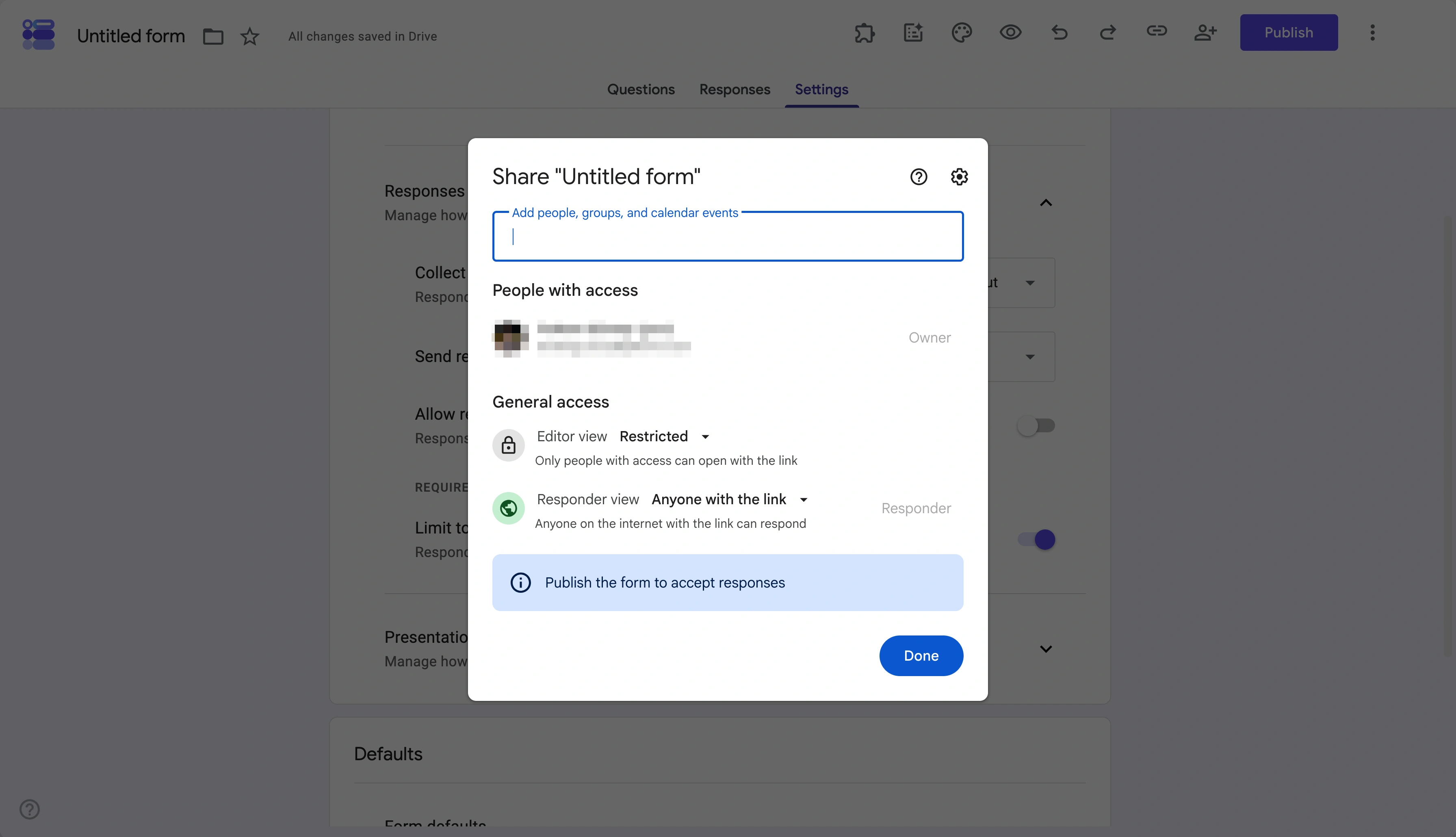
- Click Publish at the top of your form to share your form with intended recipients.
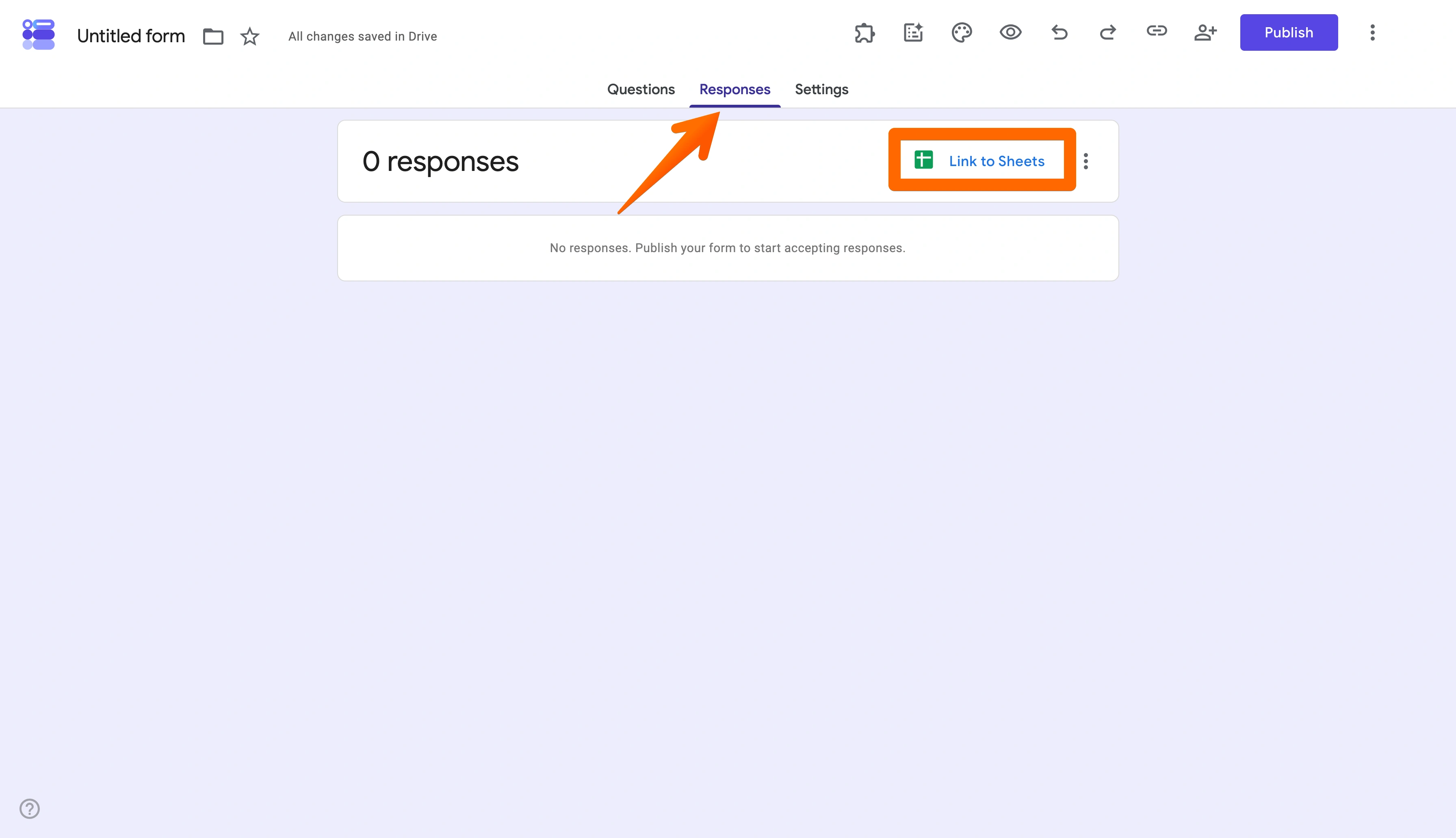
- Link your form to Google Sheets by selecting the Responses tab in the top menu and clicking Link to Sheets. In the pop-up window, you can either create a new spreadsheet or select an existing spreadsheet to populate with response data.
Want to offer an in-person check-in option? Once your form is published, you can copy the shareable link and use QR code attendance tracking with Google Forms by generating a custom QR code from the link.
Google Forms leaves the real attendance work to you
If you need a quick and simple solution, Google Forms is a great option. But what about managing daily attendance records? With repeated use, this attendance tracking system might create more work than it saves.
Consider these potential limitations of Google Forms as an attendance management system at scale:
- One-response control issues: While limiting responses to one per person is essential to avoid duplicate entries, it also means your form is a one-off in contexts like classrooms where the same students must be accounted for repeatedly. To maintain order when using Google Forms as a daily solution, you may need to either edit your form every day or create a new one for each attendance record.
- QR code complications: Using a QR code can be useful for taking in-person attendance as it provides quick access to the form. But Google Forms doesn’t have a native solution to create QR codes after publishing, so you must use a third-party solution to create one — adding friction to the form-building process.
- Google Sheets headaches: With Google Forms, your response data automatically funnels into a Google Sheets spreadsheet. But while this offers a centralized repository for your attendance data, it also requires filtering, cleaning up, and managing that data in Sheets. This can be complex with large datasets.
- Limited workflow capabilities: Google Forms for attendance tracking offers basic capabilities but lacks the polish and repeatability that a larger team may require. It also lacks access to some of the advanced features that many of the best Google Forms alternatives offer.
These issues make Google Forms a less appealing option for institutions that need a way to take attendance at scale. If you’re looking to build more than just a one-time attendance sheet, there’s a better way: Jotform.
Pro Tip
Looking to equip your teaching staff with a user-friendly attendance solution? Jotform offers a 50 percent discount to educational institutions on powerful paid plans.
Google Forms can collect attendance, Jotform can actually manage it
You don’t need a Band-Aid for your attendance tracking issue; you need a permanent solution. That’s why Jotform offers more than just a workaround. With its suite of user-friendly solutions, you can build a full attendance management workflow in a matter of minutes.
Here’s how to get started:
- Create your attendance form from scratch using Jotform’s drag-and-drop form builder, or use Jotform’s Attendance Form Template and Jotform AI to generate forms even faster.
- When your form is created, Jotform will instantly generate a connected smart spreadsheet in Jotform Tables. This spreadsheet will automatically update with every submission. Your spreadsheet’s columns will be mapped to your form’s questions.
- Access your spreadsheet by selecting your attendance form in your Workspace and clicking Submissions in the top menu. Your Jotform Table can be used to generate reports or graphs and is easily shareable.
In addition to this simple way of building your attendance system, Jotform also lets you take things a step further. For example, you can
- Streamline form creation by using ready-made attendance form templates, education forms, and education surveys.
- Go beyond forms and use one of Jotform’s prebuilt attendance apps — like the Custom Attendance Tracker App or Electronic Attendance App — to capture, view, and manage attendance records in a single location.
- Use dedicated Attendance Sheets to filter, search, download, and manage attendance data in a spreadsheet or calendar view from multiple sources.
- Take advantage of offline forms, which can capture in-person attendance data even with a poor internet connection.
Rather than rebuild your process from the ground up for every event, classroom, and meeting, Jotform offers reusable solutions that empower your team and streamline your attendance tracking.
Already have a Google Form? Migrate it to Jotform
If you’re already using Google Forms, that’s okay — Jotform can still help without you having to start over. You can easily migrate Google Forms to Jotform in just a few clicks. This feature is ideal for Google Forms users who are trying to track recurring sessions, collaborate with team members, or just create a smoother attendee experience.
Ready to try a new way to track attendance? Start by using one of our attendee-tracking templates or migrating your existing Google Form today.
This article is for teachers, trainers, event organizers, HR teams, and office managers who want a fast, low-cost way to track attendance digitally.






























































































Send Comment: