
While ActiveCampaign offers impressive marketing automation features to help you manage your contacts and automate email workflows, there’s no native Google Forms ActiveCampaign integration. Every time someone fills out your Google Form, the responses go into a spreadsheet, waiting for manual input.
Fortunately, there are workarounds to connect Google Forms and ActiveCampaign: You can use a third-party automation tool, or you can skip Google Forms entirely and trade it for a form builder with a native ActiveCampaign integration.
Integrating ActiveCampaign with Google Forms via third-party tools
Without a native Google Forms CRM integration, you need to run the data you collect through a third-party tool to connect to ActiveCampaign. When someone submits a response to your Google Form, the third-party tool picks it up and sends it to ActiveCampaign for email marketing automation.
To set up a Google Forms email marketing integration, you can use several third-party tools. Here are the most popular options:
- Zapier: A well-known, no-code automation platform that’s suitable even when you’ve never used an automation tool before
- Make (formerly Integromat): A visual flowchart-style automation tool that gives you more control over complex, multi-step email marketing workflows
- Integrately: A one-click automation platform with pre-built workflows to get you connected as fast as possible
- LeadsBridge: A marketing-focused integration tool specifically built to connect lead generation sources to CRMs and email marketing platforms
- Pabbly Connect: A budget-friendly alternative with unlimited workflows on paid plans — ideal when you have high-volume submissions
How to connect Google Forms to ActiveCampaign with Zapier
With a user base of over 3.4 million, Zapier is the go-to third-party tool for most marketers. It connects Google Forms to ActiveCampaign through triggers and actions.
When someone responds to your Google Form, Zapier captures the response and sends the data straight to your ActiveCampaign account. Here’s a step-by-step walkthrough to set up a Google Forms-ActiveCampaign integration.
Step 1: Log into Zapier and create a new Zap
You’ll need a Zapier account to connect your Google Form to ActiveCampaign. If you don’t have one, sign up first.
For existing users, log into Zapier and click Create in the left-hand panel of your dashboard. Select Zaps from the list of options. The Zap editor will ask you to set a trigger.
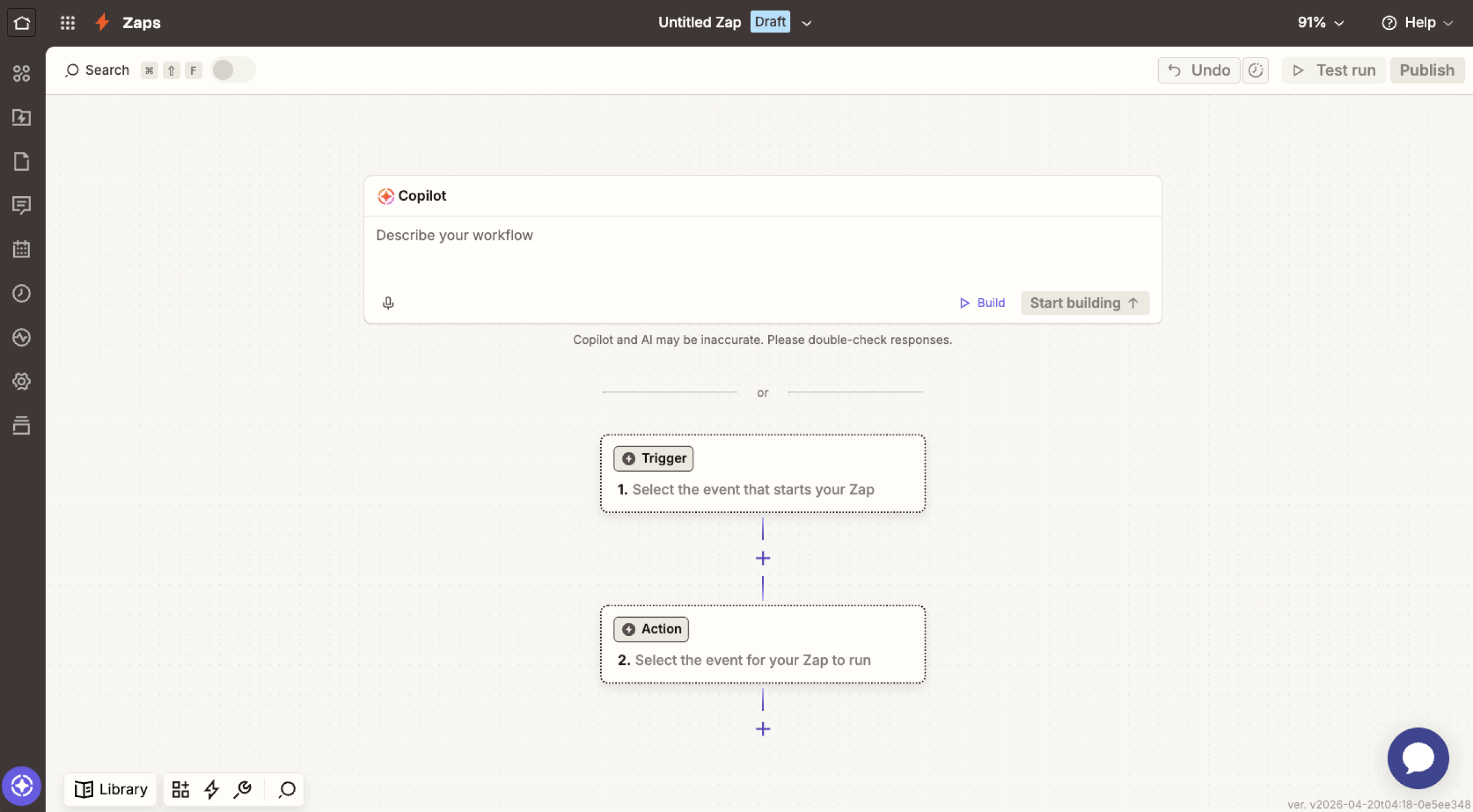
Step 2: Set Google Forms as your trigger
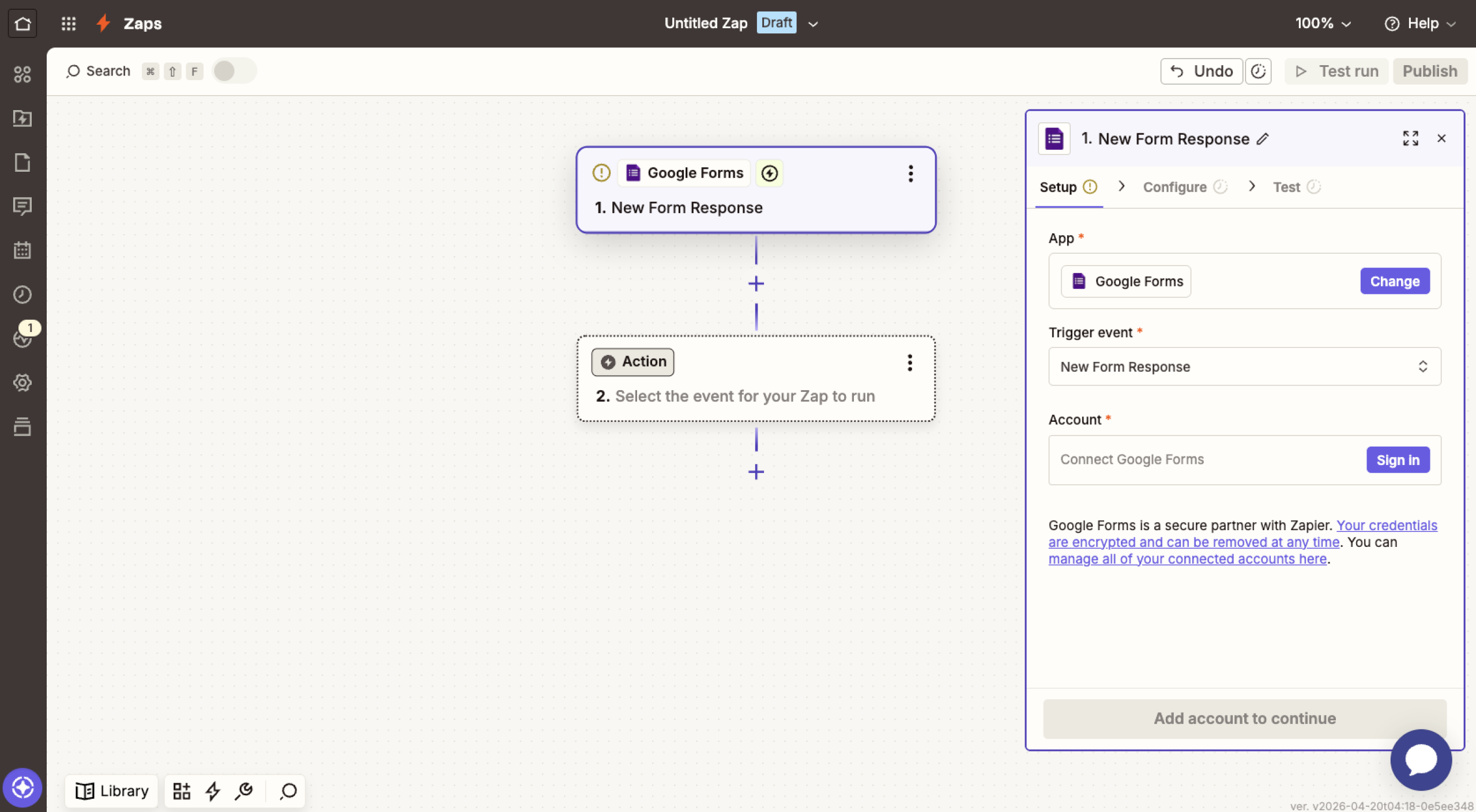
Click Trigger to start the integration process. Then search for Google Forms and select it as the Trigger app. Choose your Trigger Event. You can select New Response in Spreadsheet to tell Zapier to run the automation whenever someone submits a response on your Google Forms.
When prompted, connect your Google account and select the specific form you want to sync. Zapier will ask you to link to the associated Google Sheet, so check that your form is already set up to collect responses in a spreadsheet before connecting it in Zapier.
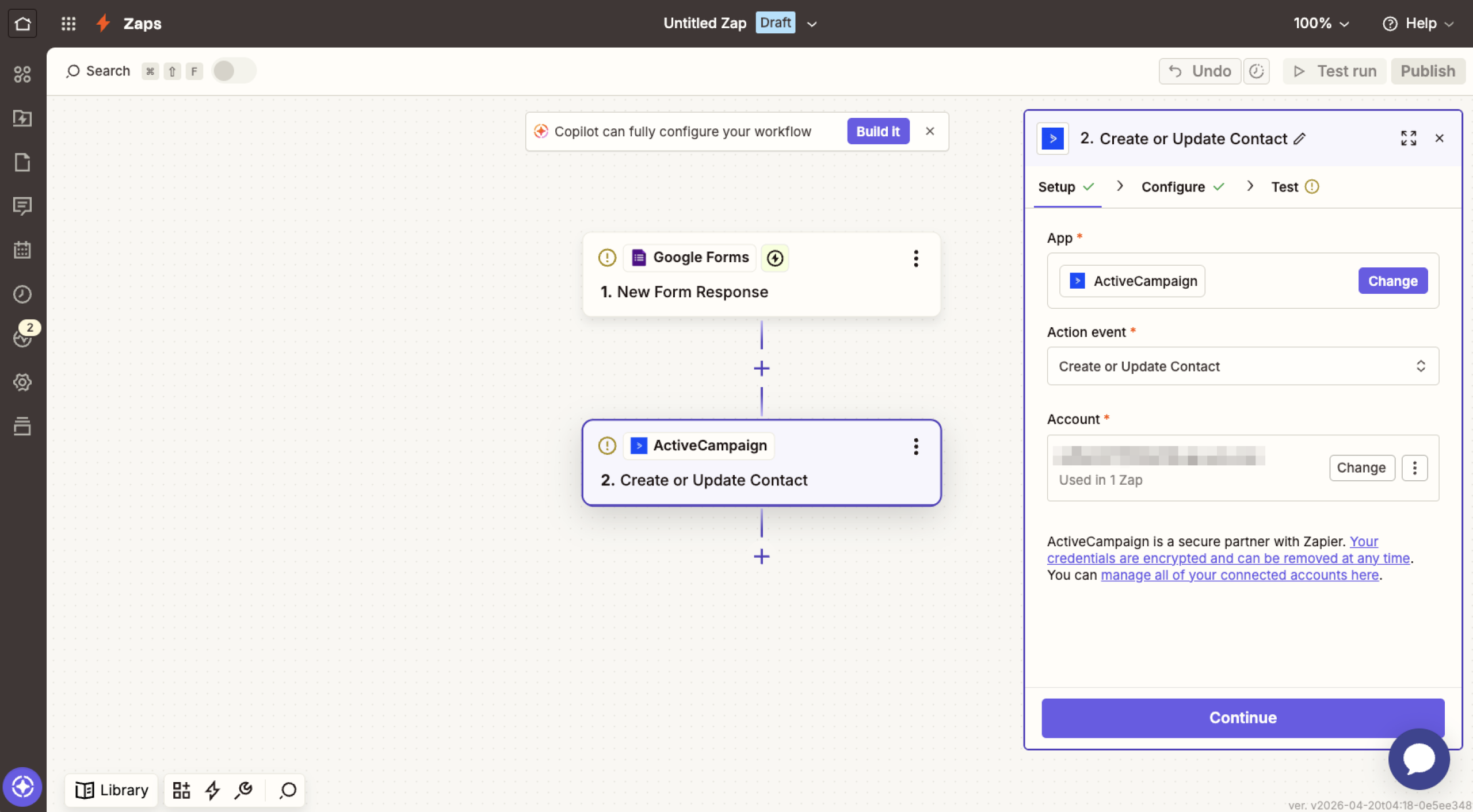
Step 3: Set ActiveCampaign as your action
Next, search for ActiveCampaign and select it as the Action app. Choose Create or Update Contact from the dropdown menu as the Action Event. This step allows the integration to add contacts from Google Forms to ActiveCampaign whenever you receive a new form submission, or update existing contacts if the email is already in your list.
Then, tap Sign In and provide your ActiveCampaign API credentials and URL, which you’ll find in ActiveCampaign Settings > Developer
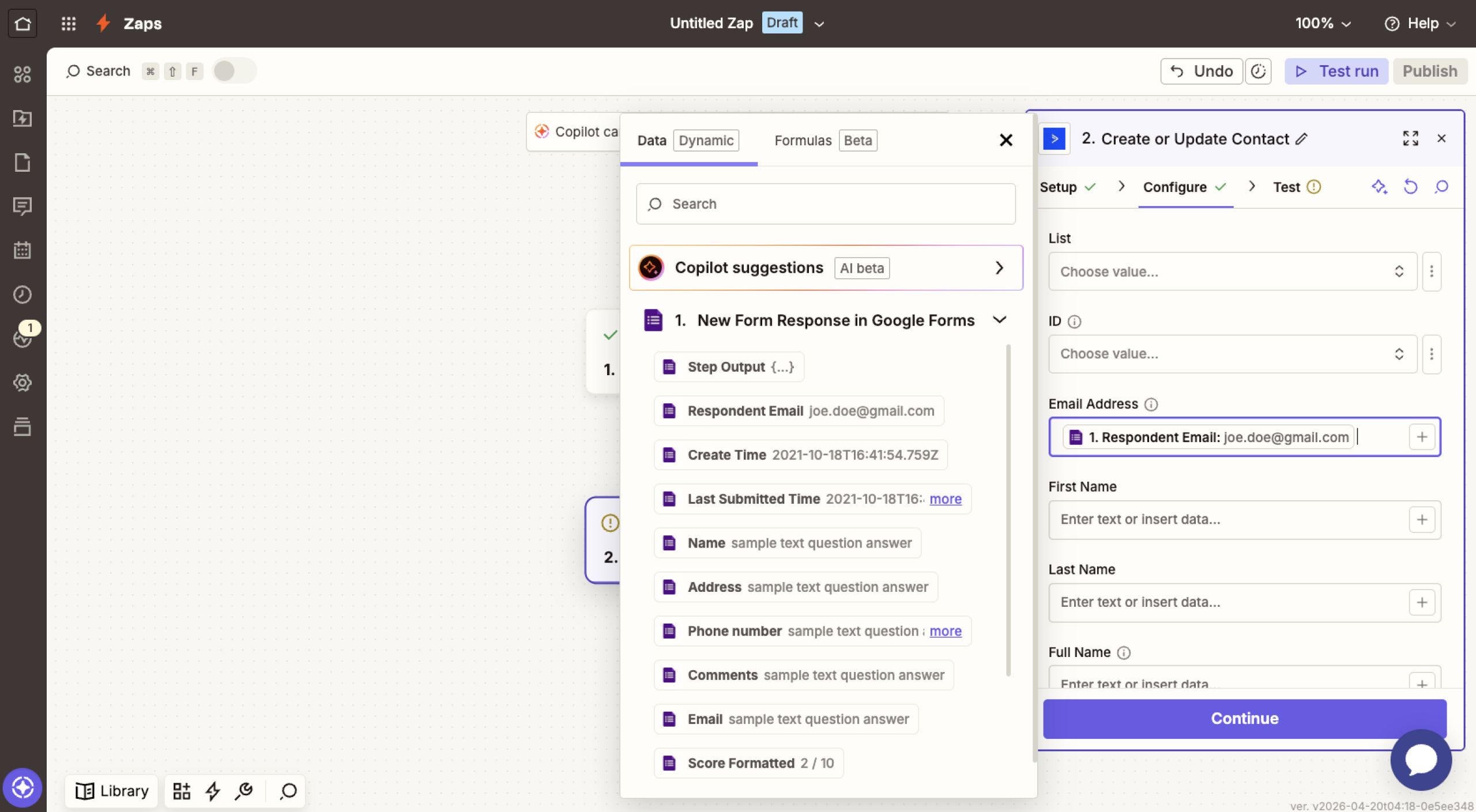
Step 4: Map your form fields to ActiveCampaign contact fields
Once connected, specify which Google Forms responses go to which ActiveCampaign fields. Match each Google Form field to the corresponding contact field in ActiveCampaign. Once done, click Continue to publish and activate the integration.
Now you can send your Google Form data to ActiveCampaign. Every form respondent will enter your email sequences, and you can automatically tag contacts based on their responses for targeted campaigns.
The problem with using third-party tools
Integrating Google Forms and ActiveCampaign using a third-party tool works, but comes with several tradeoffs:
- Increased risk of integration failures due to three-way dependencies
- Extra cost because free plans have strict limits for submissions or automation runs
- Limited field mapping and automation unless you use manual workarounds or upgrade to higher tiers
- More complex troubleshooting because issues can originate from any of the three connected platforms
A simpler alternative is to use a form builder with a native ActiveCampaign integration to keep a direct data flow and simplify setup.
Jotform natively integrates with ActiveCampaign
Jotform is one of the best Google Forms alternatives if you’re looking for a form builder with native ActiveCampaign integration. Instead of using Google Forms, you can switch to Jotform so that whenever someone fills out your form, their details go straight into ActiveCampaign and trigger the automation you’ve set up.
Here’s how to integrate ActiveCampaign with Jotform.
Step 1: Log into Jotform and open the form builder
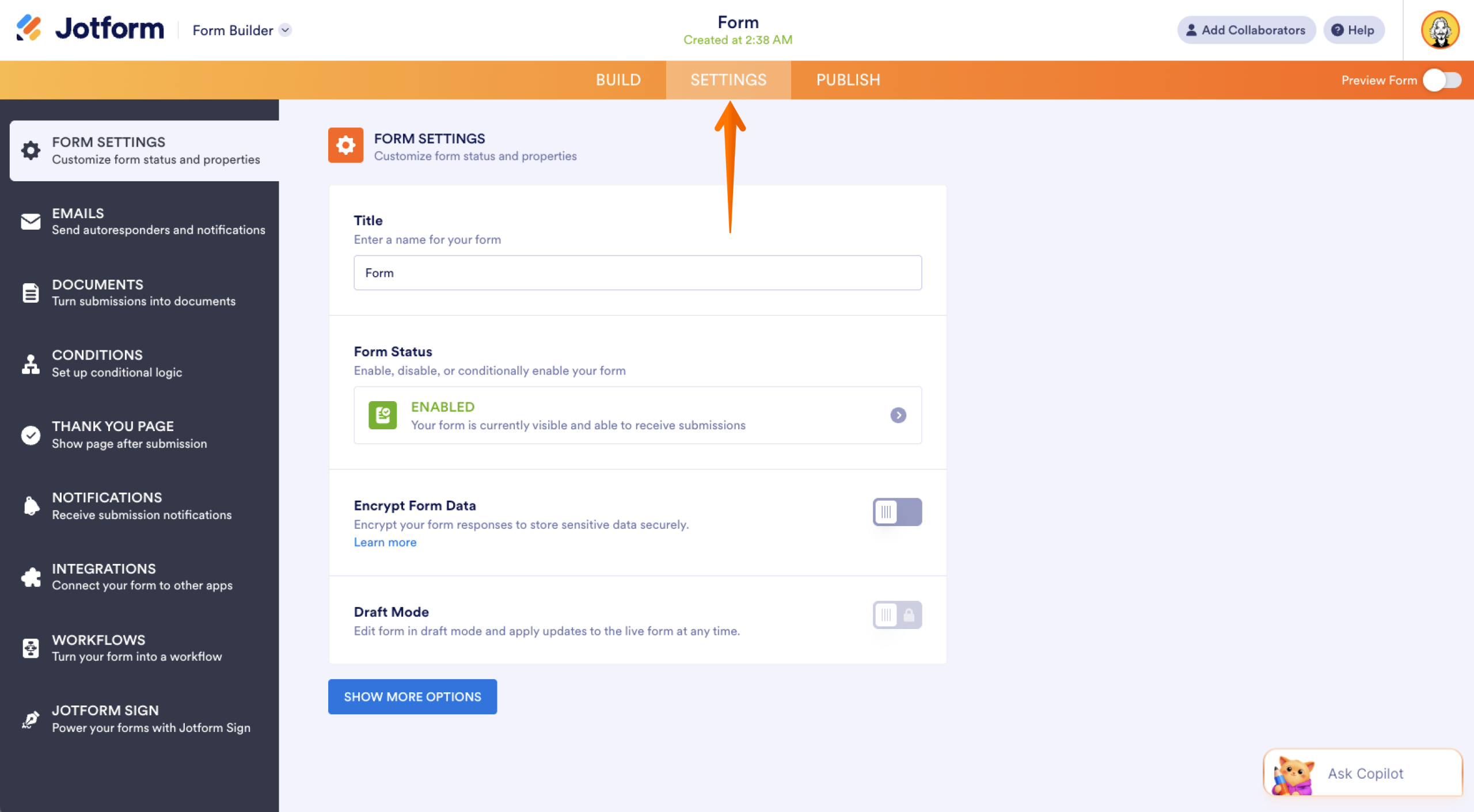
To set up a Jotform ActiveCampaign integration, you’ll need a Jotform account. If you don’t have one, sign up for free and use the AI form generator or a template to create a form. In the Form Builder, find the Settings tab in the upper middle of the page and click it.
Step 2: Find the integrations panel
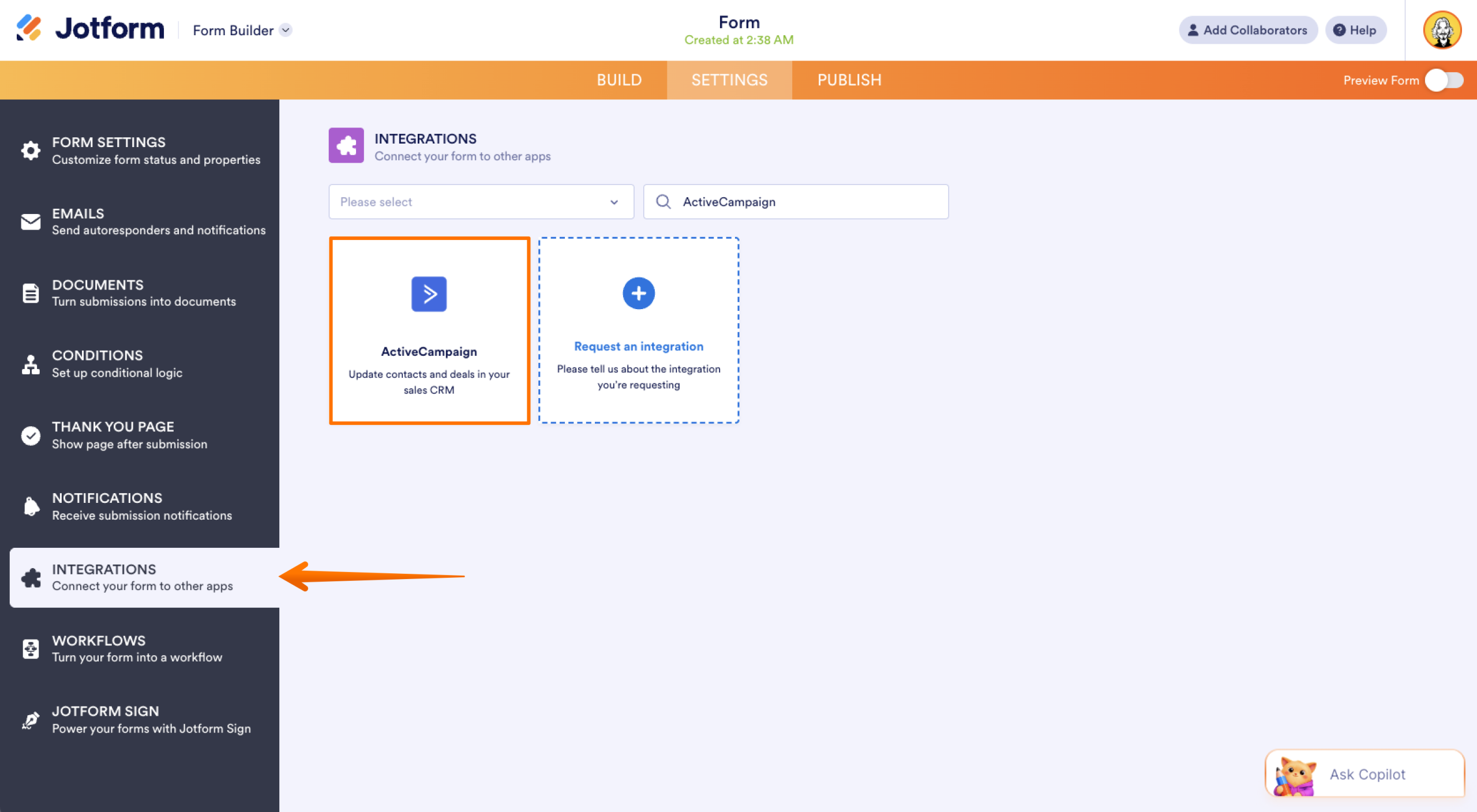
On the left-hand menu that appears, click Integrations. Use the search bar to find ActiveCampaign and click it to open the integration setup.
Step 3: Select an ActiveCampaign action and connect the accounts
On the ActiveCampaign integration setup page, Jotform will ask you to choose an action. You’ll have three options to choose from:
- Create contact: Tells ActiveCampaign to create a new contact for every new Jotform submission
- Create account: Turns Jotform submissions into ActiveCampaign accounts
- Create deal: Instructs ActiveCampaign to treat Jotform submissions as new deals
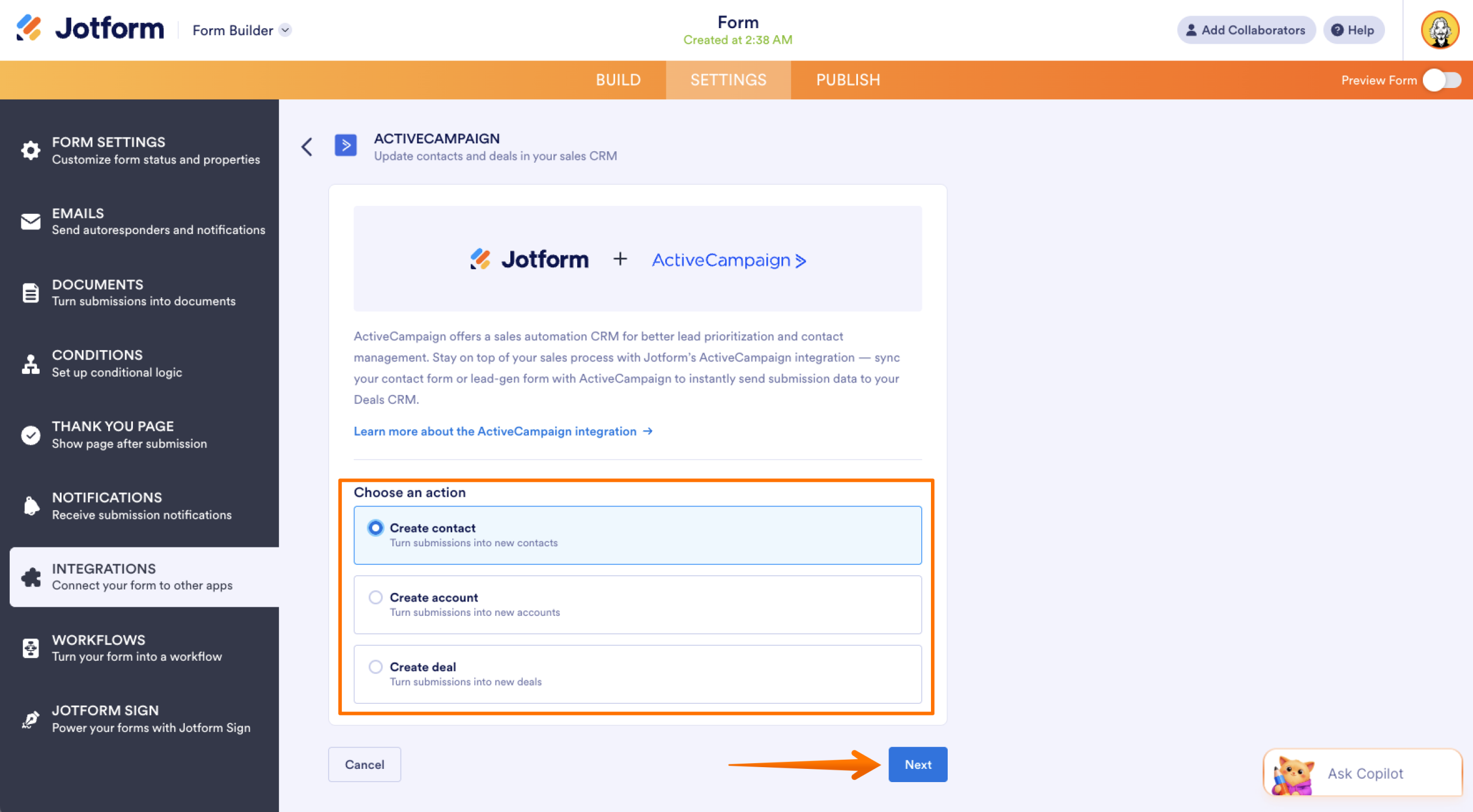
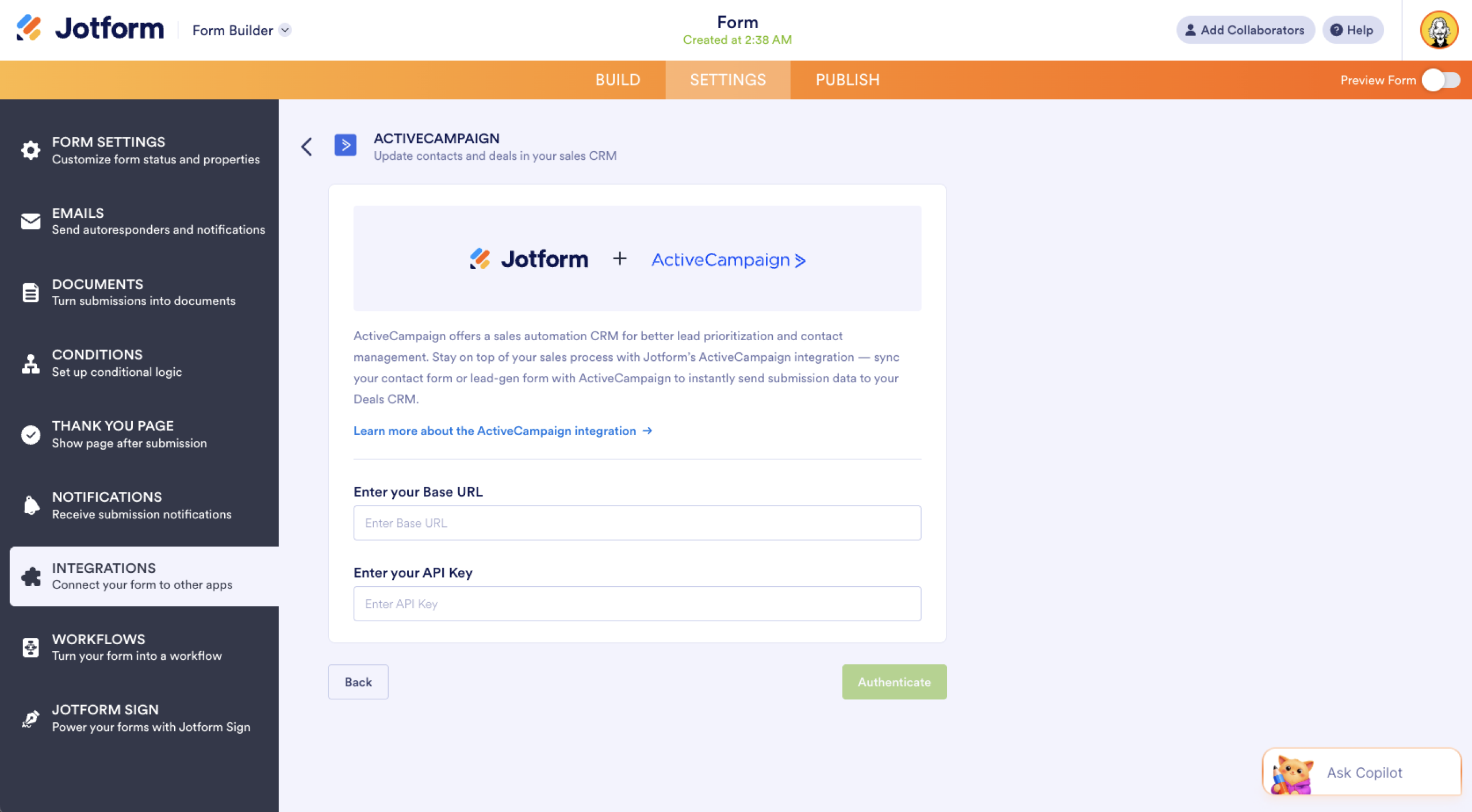
Once you’ve picked the ActiveCampaign action, click Next to enter your ActiveCampaign URL and API keys (found in ActiveCampaign Settings > Developer). Click Authenticate to complete the integration.
Step 4. Map your fields and configure settings
If you choose to create a contact, Jotform will open the ActiveCampaign form sync settings that let you
- Match your fields: Map Jotform fields to your corresponding ActiveCampaign contact fields. This action requires an email address, so verify your form has the email element.
- Choose list: Select a list from your ActiveCampaign account where the integration will add a new contact.
- Set tags: Pick one or more tags to assign to the contacts that the integration creates or updates.
- Choose automation: Add your contact to a specific automated workflow in your ActiveCampaign account.
- Add form fields to your note: Turn this option on to include your form fields in the note to the contact. You can tailor the Note Title with your form fields.
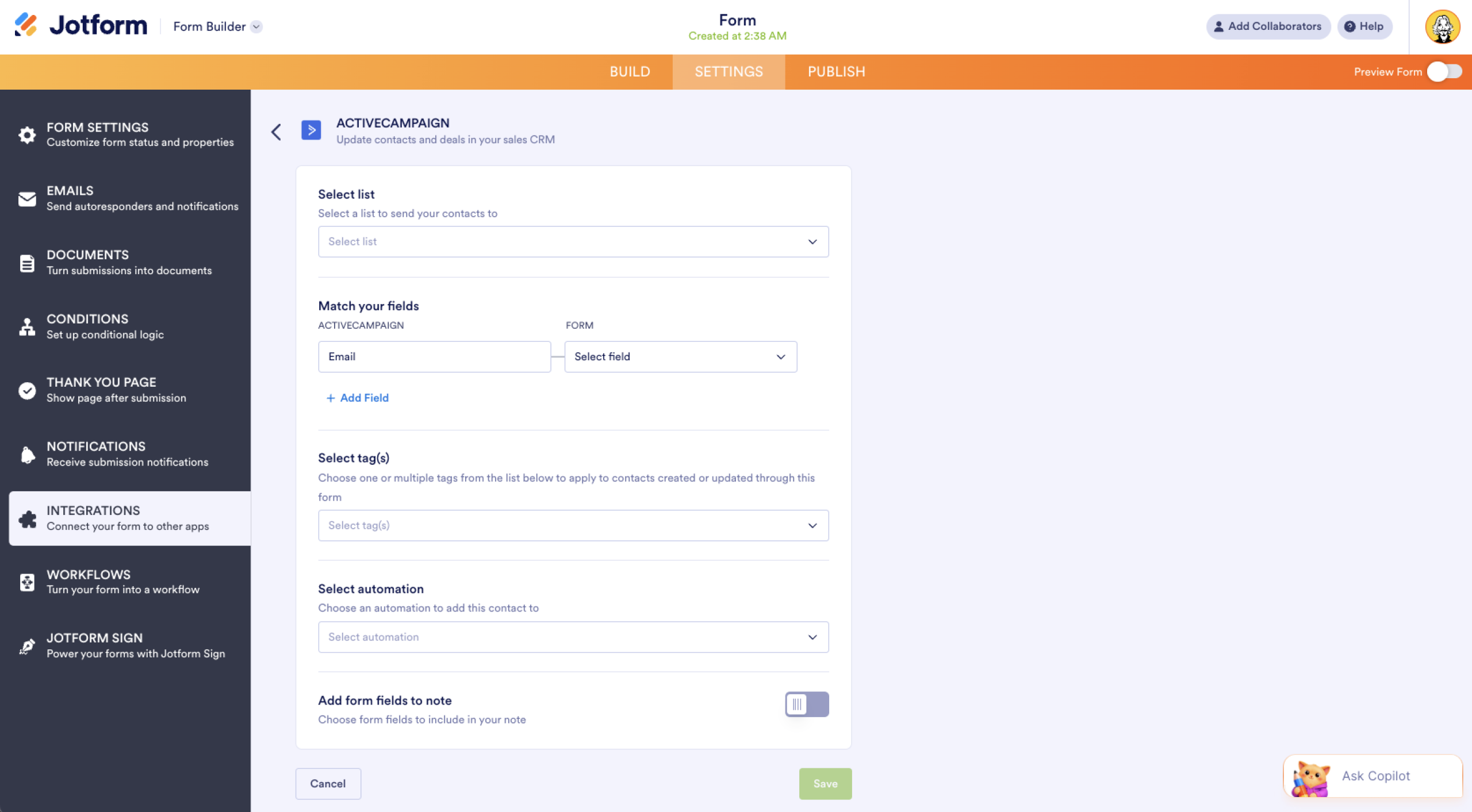
Once you’ve configured your settings, click Save to activate the integration. From this point on, every Jotform submission will automatically sync with ActiveCampaign.
Switch to Jotform for a native ActiveCampaign integration and much more
Here’s how Jotform stacks up against Google Forms.
 Jotform |  Google Forms | |
|---|---|---|
| Native ActiveCampaign integration | ||
| Fields and widgets | 20-plus basic fields and 100-plus widgets | 12 question types |
| Conditional logic | Limited capability | |
| Integrations | More than 150 | Add-ons supported |
| Templates | More than 20,000 | 17 |
| Themes | More than 1,000 ready-made themes as well as custom theme creation | Limited theme customization |
| Custom notifications and auto-responder emails | ||
| Reporting features | Report Builder and Form Analytics | Limited graphs |
| Mobile app | Jotform Mobile | |
| Try It Now | Learn More |
While Google Forms is a solid tool for quick, hassle-free data collection, it lacks the advanced features that a dedicated form builder offers to automate marketing workflows.
Here are some of Google Forms’ drawbacks as a marketing tool:
- You can’t connect to ActiveCampaign natively or to any other major CRM without a third-party tool.
- You won’t get custom email notifications or auto-responder emails to acknowledge submissions.
- Conditional logic is basic at best, restricting how much you can personalize your form’s experience.
- You’re mostly starting from scratch every time because Google Forms only has a small number of templates to choose from.
- Reporting is limited to basic response summaries, so you have little insight into how your forms are performing.
Beyond the ActiveCampaign integration, Jotform offers more than 150 native form integrations. You can connect your forms to marketing tools such as Salesforce, HubSpot, Stripe, PayPal, and Slack to automate most of your marketing workflows. And with access to over 20,000 templates across dozens of categories, you can create high-converting forms tailored to your campaigns in minutes. You also get built-in custom notifications and auto-responder emails, so you can automatically acknowledge every submission without using a third-party tool.
Migrate your Google Forms to Jotform with a single click


Already built your forms in Google Forms, and don’t want the hassle of switching? The good news is that you don’t have to start from scratch. With Jotform’s one-click migration tool, you can move your questions, structure, and field types, and pick up where you left off — just with better tools.Once your forms are on Jotform, you can connect ActiveCampaign in a few minutes and set up your field mapping to start syncing contacts automatically. You can also integrate your forms with over 150 native solutions without a third-party tool or manual CSV uploads. Migrate your Google Forms to Jotform today to simplify your email marketing workflow without the extra steps.
This article is for email marketers, marketing automation managers, and small business owners using ActiveCampaign who want to automatically sync Google Forms responses into their contact lists, tags, or automation workflows without manual CSV exports.































































































Send Comment: