
If you’re using Linktree to organize your online presence and help your audience find you in different places on the web, adding a Google Form to Linktree can be a simple way to capture audience information. A Google Form in Linktree will help you collect leads, gather registrations, or seek feedback by making it easy for your audience to connect with you.
In this article, we’ll show you how to add a Google Form to Linktree. Your form will appear as a link rather than being embedded into the platform. We’ll also introduce you to another form builder you can use with Linktree that offers more functionality and options than Google Forms: Jotform.


Can you add a Google Form to Linktree?
Yes, you can add a Google Form to Linktree. However, you cannot embed a Google Form in Linktree. Linktree supports static links and some embedded apps. Google Forms is shareable only as a link.
If you want to embed a form inside Linktree, you may need to consider using Linktree’s native Contact Form or a different form tool.
Pro Tip
Create a form that captures your target audience’s attention with the tips in our articles “How to create a Google Form” and “How to use Google Forms.” Keep in mind that Google Forms is a fairly basic form builder, so if you’re looking to create a more engaging form that includes branding, conditional logic, payments, and more, look to Jotform.
How to add a Google Form to Linktree
Whether you want to add a questionnaire or an online form such as a survey or poll, we’ll show you how with these step-by-step instructions.
You will need to have a Google Forms account, a Linktree account, and a form ready to add to Linktree.
- Open the Google Form you want to add to Linktree.
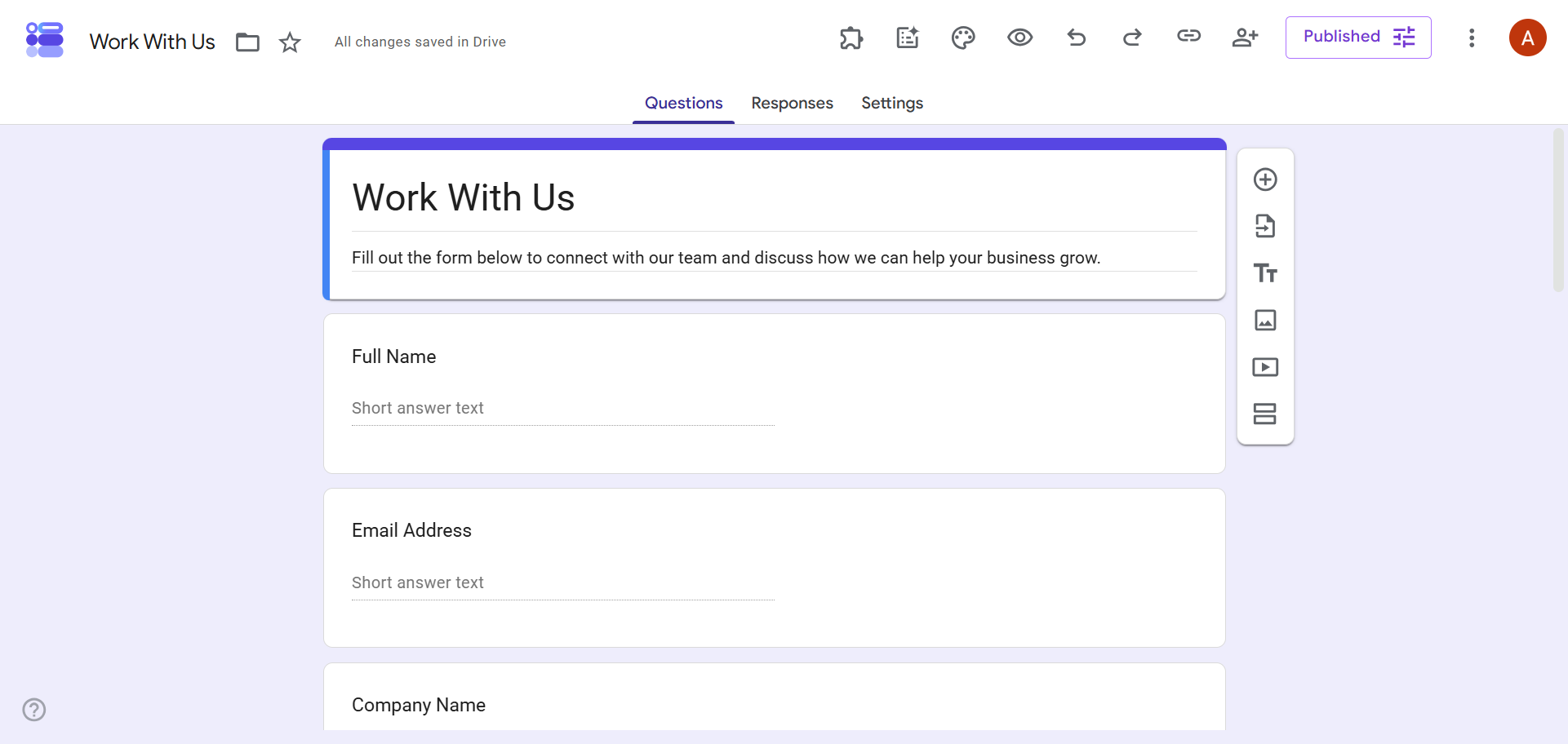
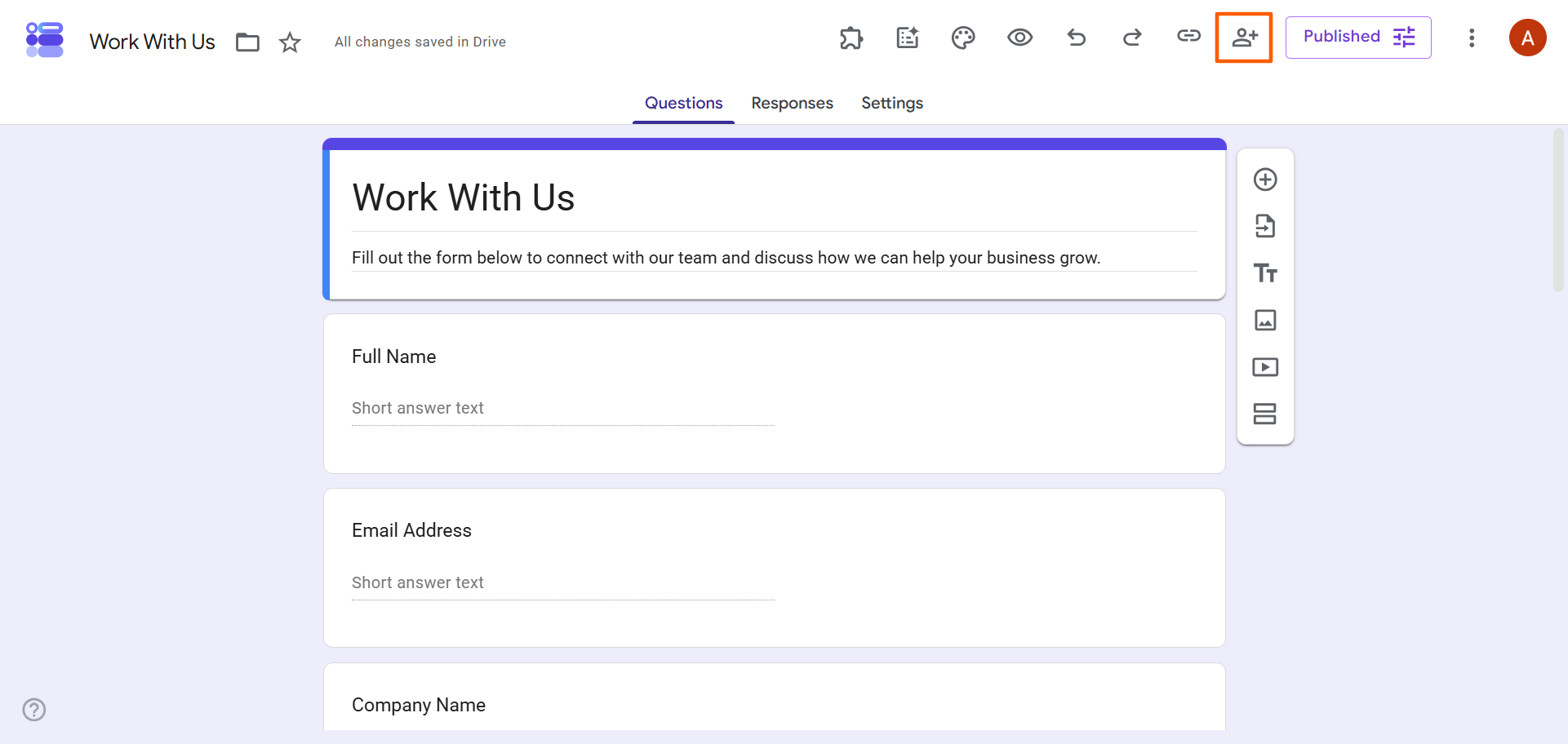
- Click the Share icon in the top right corner.
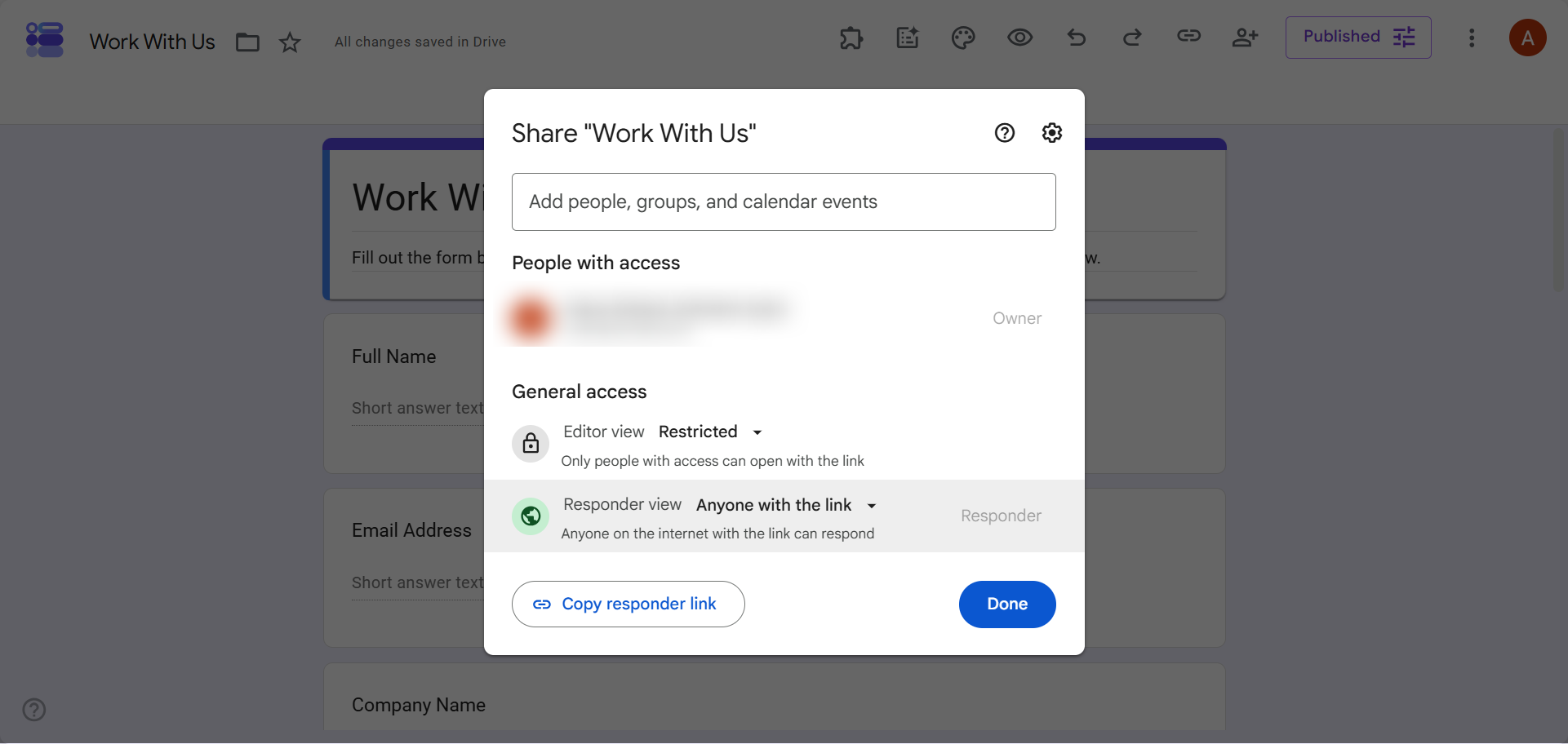
- Adjust the share settings to meet your needs. If you want to make the form accessible to everyone in your target audience, set the Responder View setting to Anyone with the Link.
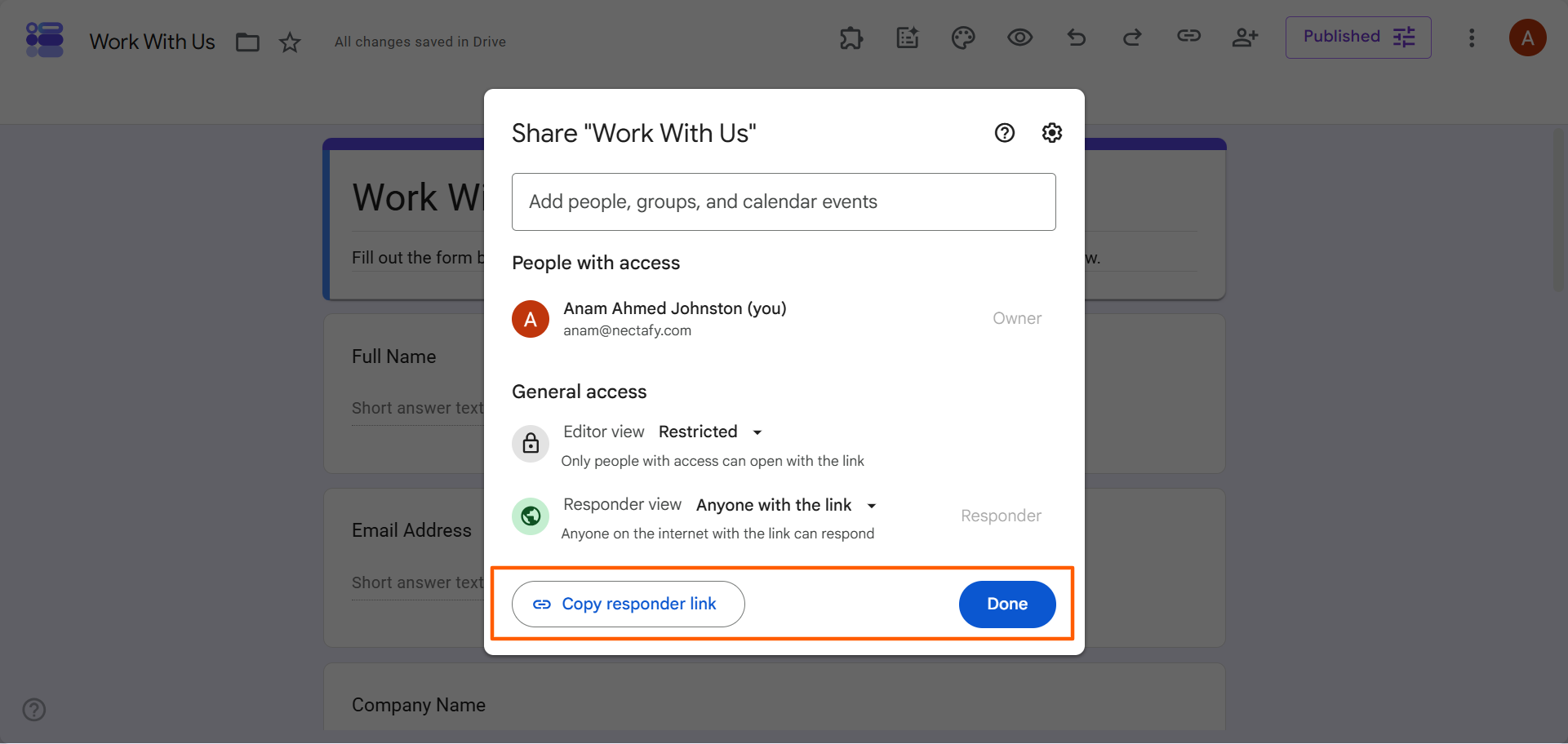
- Click Copy Responder Link. Then click Done. If you want the link to look cleaner, you can shorten it using a link shortening tool such as TinyURL or Bitly.
- Log into Linktree.
- Click Links. Then click + Add.
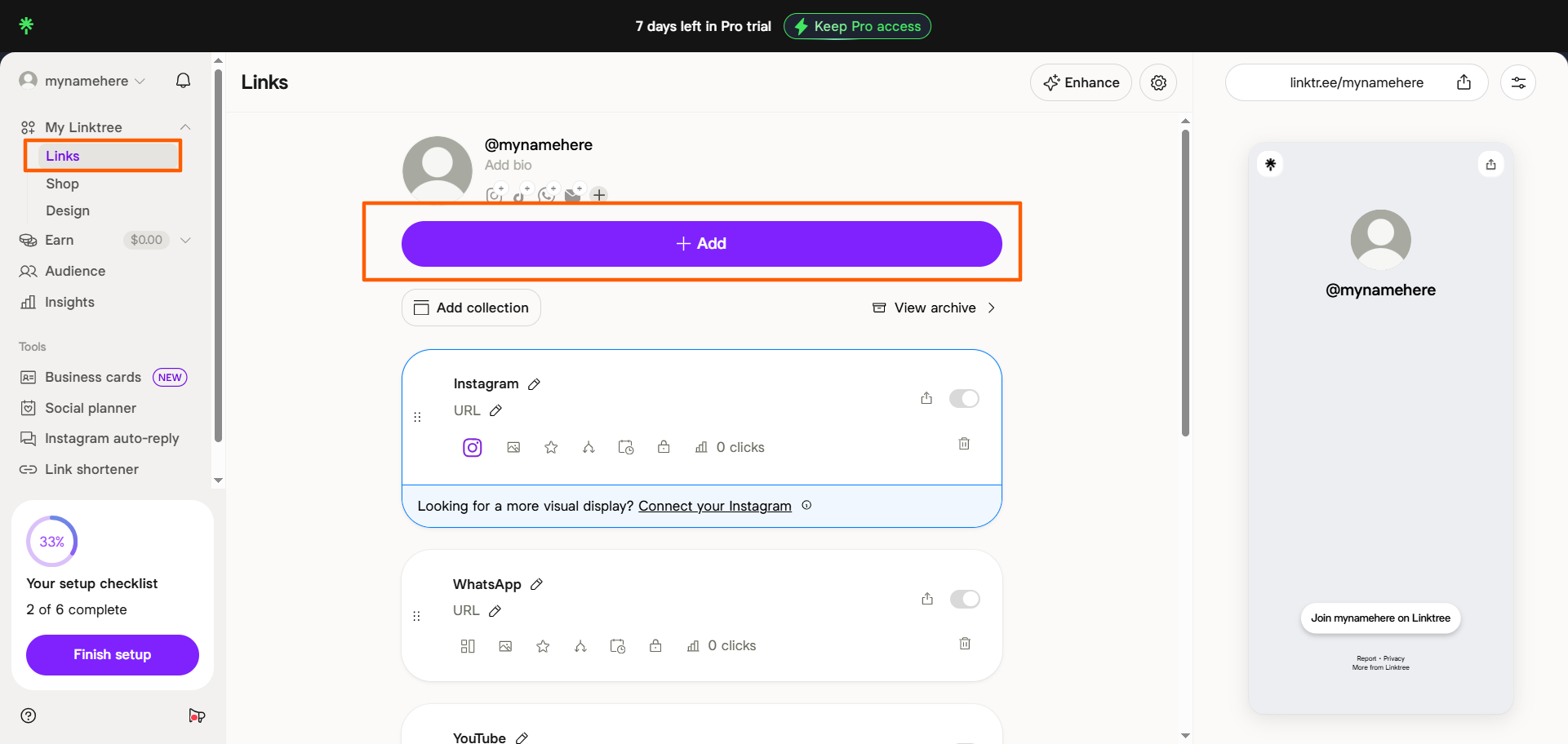
- Paste your link from Google Forms into the search bar.
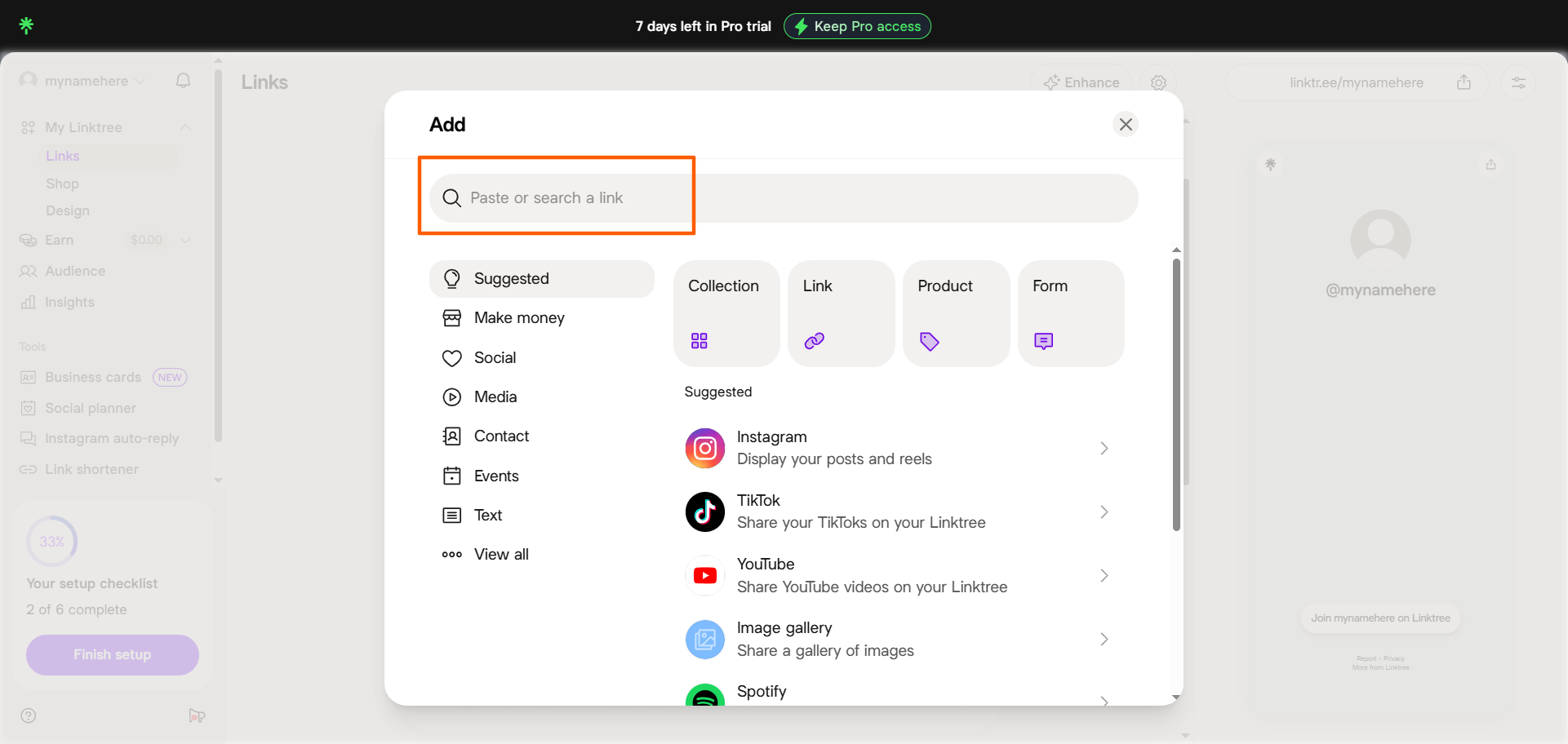
- Click the Link option that appears.
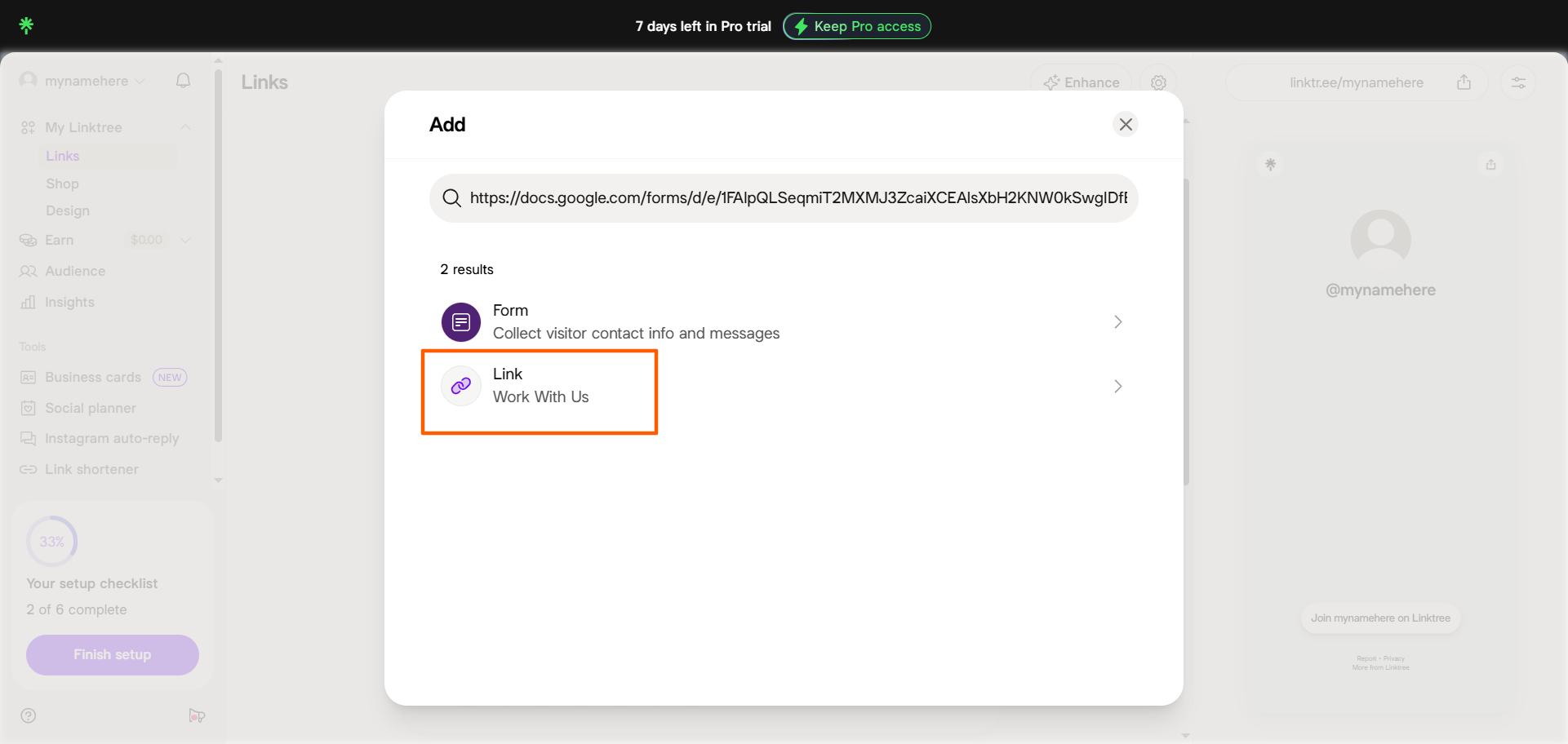
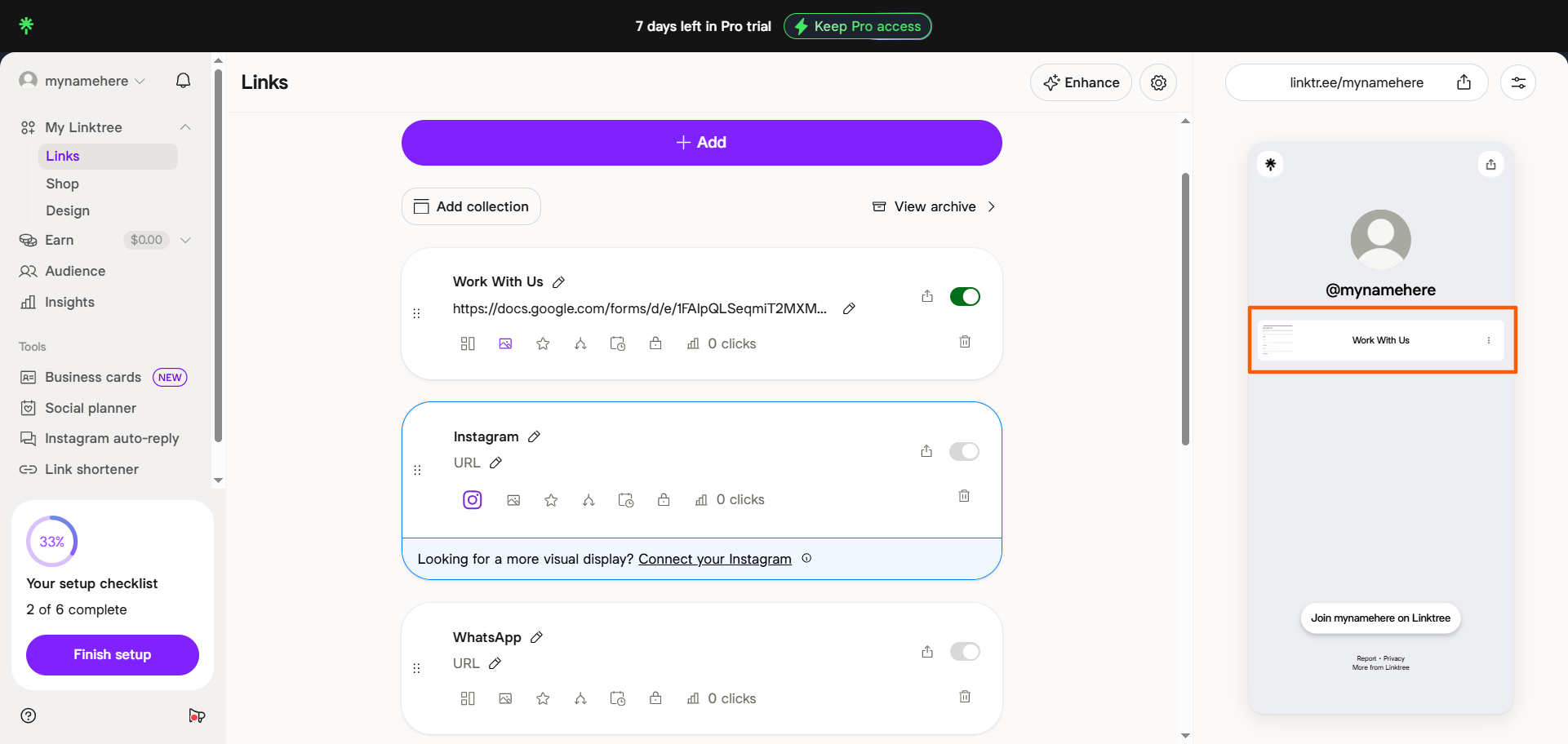
You have now successfully added the Google Form to Linktree, and it will appear in your Linktree list of links. You can rename the link if it doesn’t automatically pick up the title of your Google Form. Linktree will automatically add a thumbnail of the form, which you can edit if needed.
When users click on that link, it will take them to your form. Note that this will not display the form in Linktree; the form will still be in Google Forms.
Pro Tip
Are you looking to embed a Google Form on your website or blog? Check out our article “How to embed a Google Form,” where we show you step-by-step embedding instructions for websites and more.
A better alternative for forms: Jotform
You’ve seen how to add a Google Form to Linktree. But what if the form itself is too basic for your needs? If you’re looking to create a branded form that engages users with relevant questions through advanced conditional logic, you’ll need a form builder that offers more functionality.
Jotform is one of the leading Google Forms alternatives for creators and businesses using Linktree as a conversion tool.
Here are some reasons users choose Jotform over Google Forms:
- Polished forms for all your workflows: Whether you need to collect event signups, contact details, feedback surveys, donations, workshop registrations, or anything else, you can create a professional and branded form with Jotform. Jotform has over 20,000 ready-made form templates, rich customization options, and an intuitive drag-and-drop style form builder. It also supports payment forms. (If you’re looking to make sales on Linktree, check out our article “How to make an order form on Linktree.”
- Better branding and design capabilities: It’s important to give your target audience a seamless experience with your brand, no matter where they are. You can customize all your Jotforms with your brand colors, fonts, and logos. Create a form from scratch and add your branding, or just edit one of Jotform’s templates, such as an order form template.
- Advanced form functionality: Jotform offers sophisticated form features such as conditional logic, autosubmission, electronic signature, and payment integration capabilities. The intuitive form builder is just as easy to use as Google Forms but lets you do much more.
It’s easy to add Google Forms on Linktree, and adding Jotform to Linktree is just as simple. Once you’ve created your form in Jotform, go to the Publish tab and click Copy Link.
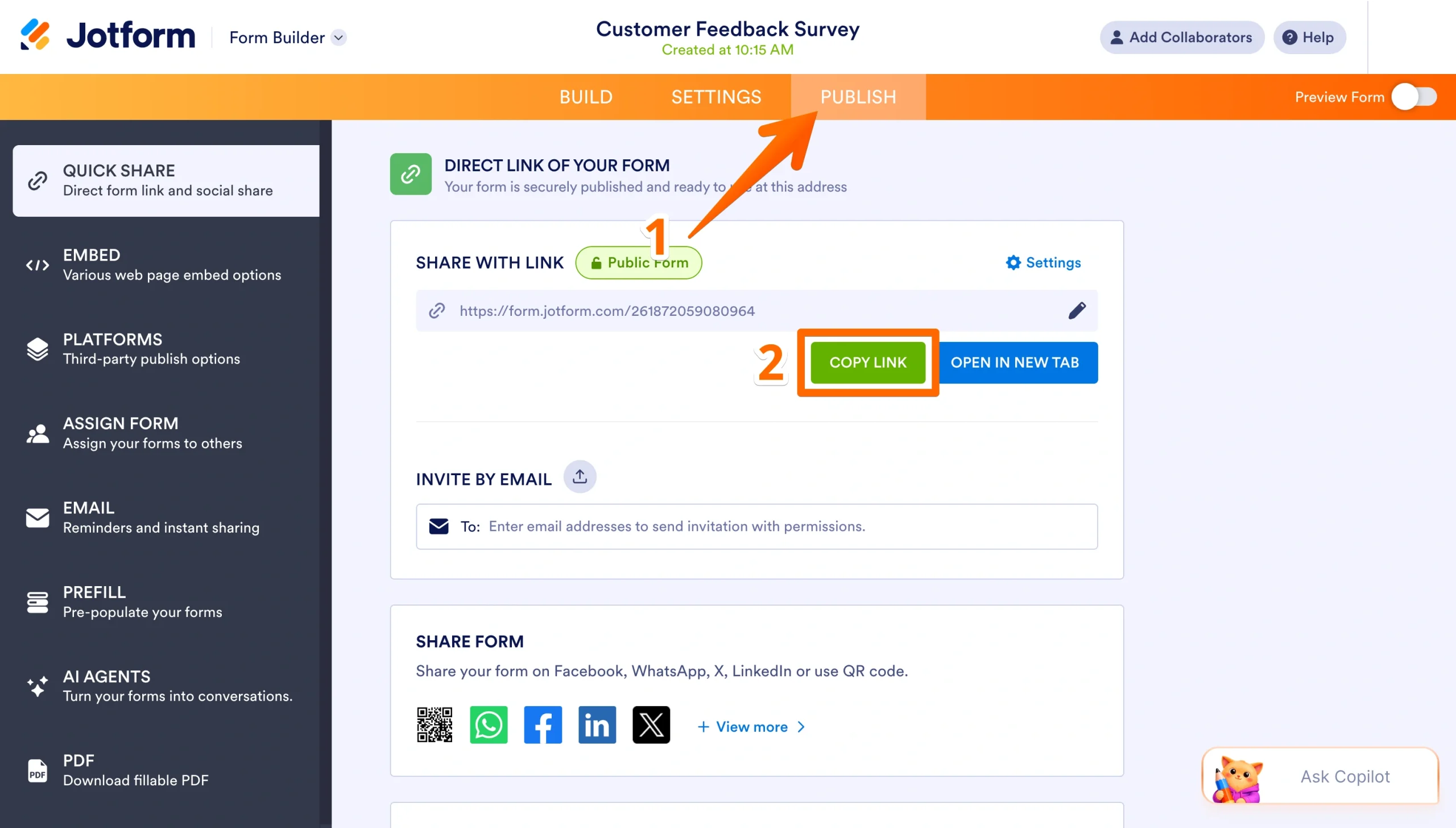
Then you can go to Linktree and add your Jotform form link using the same process you used for Google Forms. Linktree allows you to add a custom name to your link and add a thumbnail of the form, so you can tailor the appearance of your form on Linktree to align with your brand.
Pro Tip
You can use Linktree to share your Jotform link with your target audience, but Linktree isn’t your only option for link-sharing. Check out our list of Linktree alternatives for other link-sharing tools that might better meet your needs. You can also share your form directly. Jotform provides several sharing options, such as direct link, email, social media, AI Agents, and more. You can also easily embed Jotforms on your website.
Build a better Linktree form flow with Jotform
If you’re just looking for a basic form that you can link from Linktree, Google Forms will do. However, if you’re looking to create a more polished, flexible, conversion-friendly form experience, Jotform is the better option.
A sophisticated form builder, Jotform offers thousands of form templates, branding and design options, and advanced form features that Google Forms doesn’t offer. In addition, Jotform naturally integrates with CRM tools such as Salesforce, HubSpot, and Zendesk, as well as other tools such as Google Drive, Slack, Mailchimp, and Canva.
Jotform Mobile Forms lets you create and monitor your forms on the go, so you don’t need to be tied to your desk when you’re collecting event registrations, lead data, or other information. All forms created with Jotform are mobile responsive by default, so your users can fill them out from their phones, tablets, or desktops with ease.
Sign up for a free account and see how easy it is to create a form in Jotform, copy the link, and add it to Linktree.
This article is for creators, small business owners, marketers, nonprofits, and anyone who wants to add a Google Form to Linktree to collect leads, registrations, feedback, or other responses while exploring more advanced form-building options like Jotform.





































































































Send Comment: