
A pivot table is a tool used to aggregate, sort, and organize data from different perspectives. It can be especially helpful in connection with Google Forms — a great way to collect data but no good options for analyzing it.
In this article, we’ll show you how to use Google Forms to create a pivot table so you can extract patterns and anomalies from your results, and automatically group, count, or compare data. We’ll also introduce you to another tool that may work better for your data-gathering and analysis needs: Jotform.
What is a pivot table?
A great solution for analyzing Google Forms data, a pivot table is a tool within spreadsheets that summarizes, counts, compares, sorts, and filters raw data. It lets you look at data from a different perspective and identify trends, patterns, and relationships. A pivot table can also help you determine averages and totals for different categories.
Pivot tables can be useful in any industry, including:
- Education: Compare student survey ratings by grade level or track student attendance across multiple weeks or months.
- Human resources: Analyze employee feedback about the executive team by department or count applications by hiring stage.
- Customer feedback: Analyze NPS scores by demographic or count support tickets for specific issues.
- Event management: Count ticket purchases by location or compare attendee feedback for different workshop sessions.
- Nonprofits: Total volunteer signups by daily availability or group donation interest forms by level of donor.
How to use Google Forms to create a pivot table
Although you can use Google Forms to collect raw data, it does not have a way to create pivot tables. However, Google Forms connects directly to Google Sheets, where you can create pivot tables with information from your respondents.
Here’s how to make a Google Sheets pivot table to analyze Google Forms form data:
1. Open the Google Form from which you’re creating a pivot table (or create a new Google Form and collect responses first).
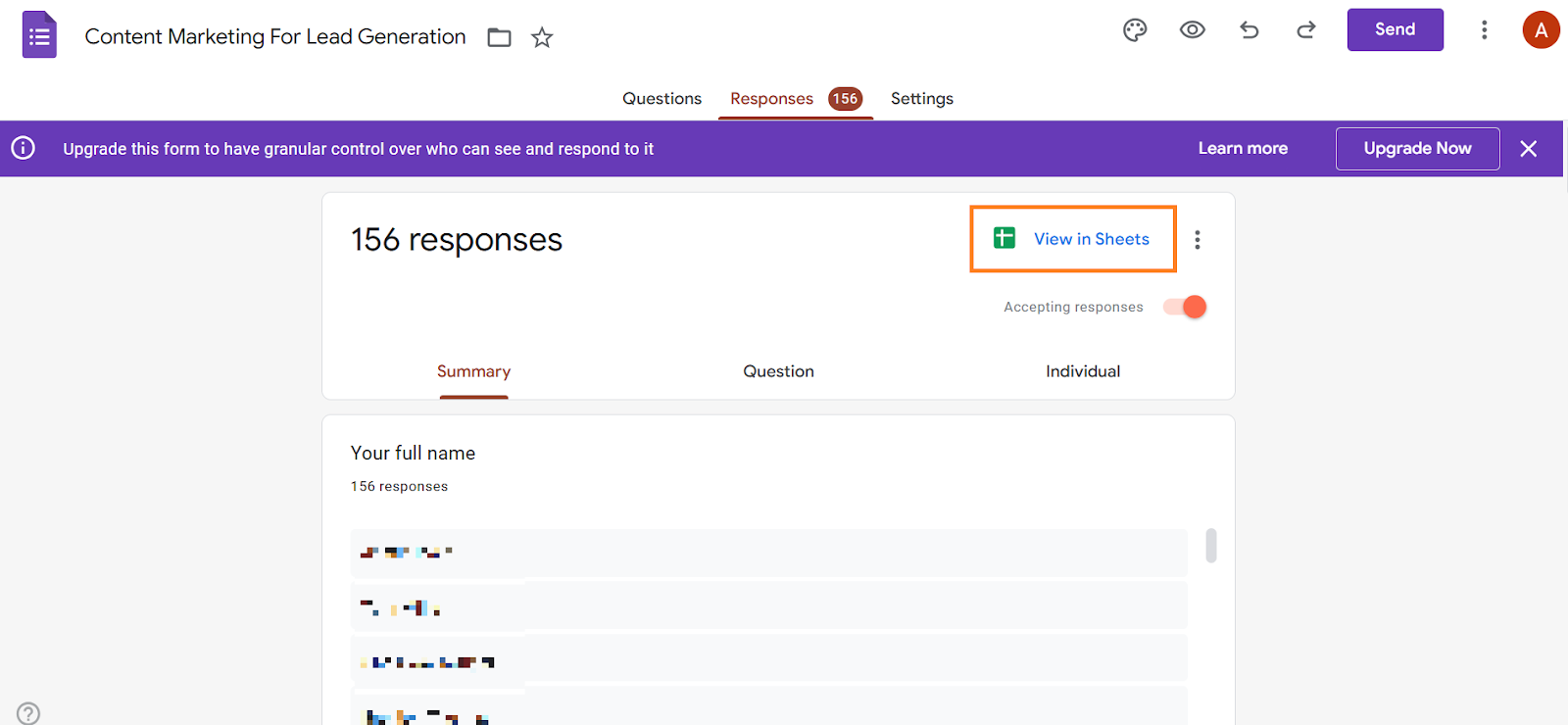
2. Click on the Responses tab where you can see responses on Google Forms. Then, click on the Google Sheets icon (View in Sheets).
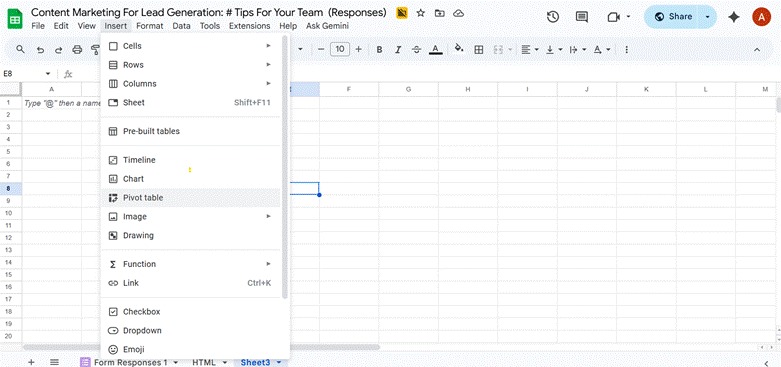
3. Your Google Forms data will open up in Google Sheets. Select the cells of source data that you want to use in the pivot table. Click Insert. Then, click Pivot table.
4. Select New sheet. Click Create.
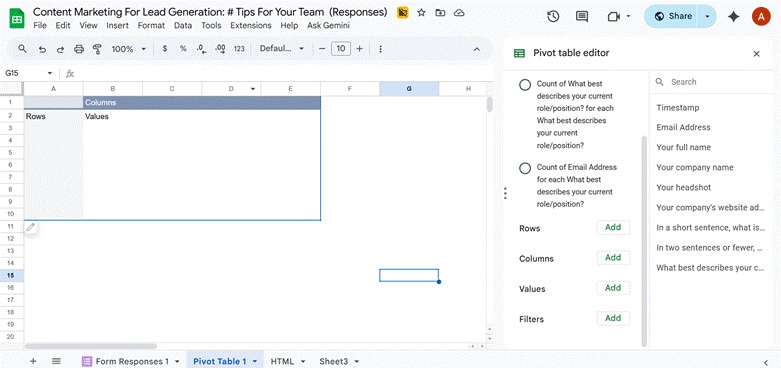
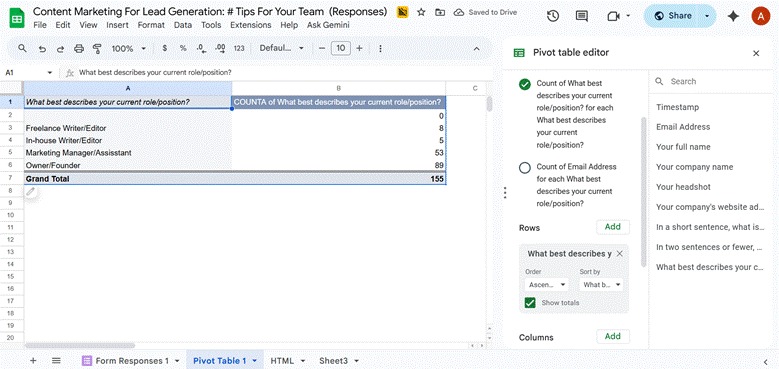
5. Select the Rows, Columns, Values, and Filters you wish to add to the pivot table, based on the information you want to sort, count, compare, or summarize. Sometimes Google Sheets will provide recommendations for pivot tables you can create based on the data in your sheet. For example, you may want to know how many people responded to each answer option for the question, “What best describes your current role/position?”
6. Once you’ve made your selection, Google Sheets creates the pivot table.
Simplify the process: Integrate Jotform with Google Sheets
Now that you know how to use Google Forms to create a pivot table in Google Sheets, you’re wondering if there’s an easier way to get the job done. There is! Instead of using summarized responses with Google Forms, you can use Jotform, a sophisticated form builder that does everything Google Forms can do — and a whole lot more. It also integrates with Google Sheets, so you can collect data with beautifully designed forms and automatically send the responses to Google Sheets for creating pivot tables.
Here’s how to integrate Jotform with Google Sheets:
1. In the Form Builder, click on Settings.
2. Select Integrations.
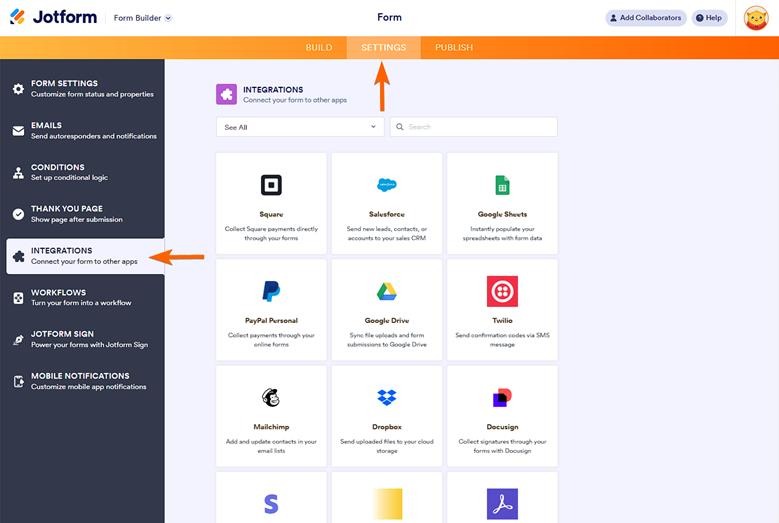
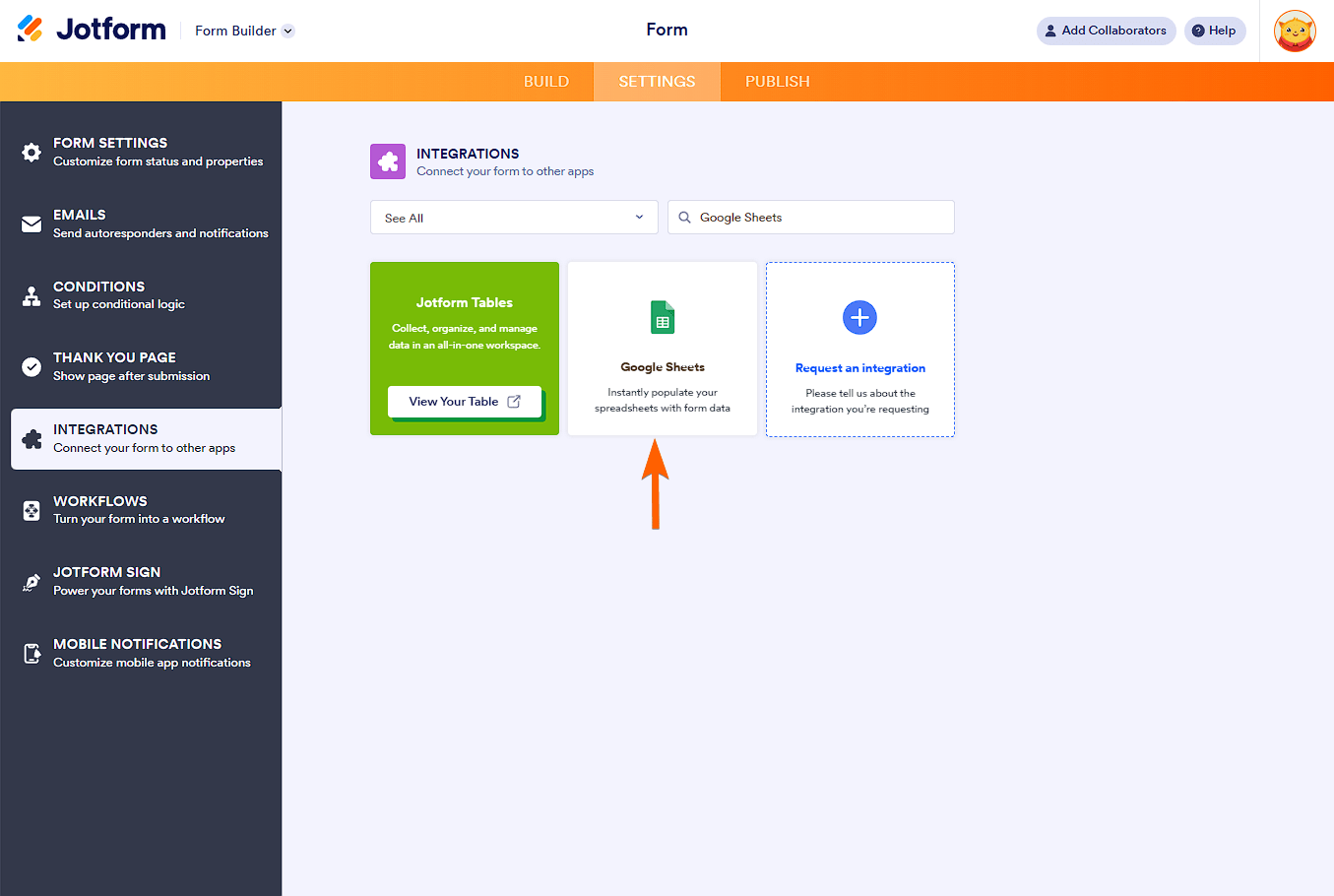
3. Search Google Sheets. Click Google Sheets when it appears in the search results.
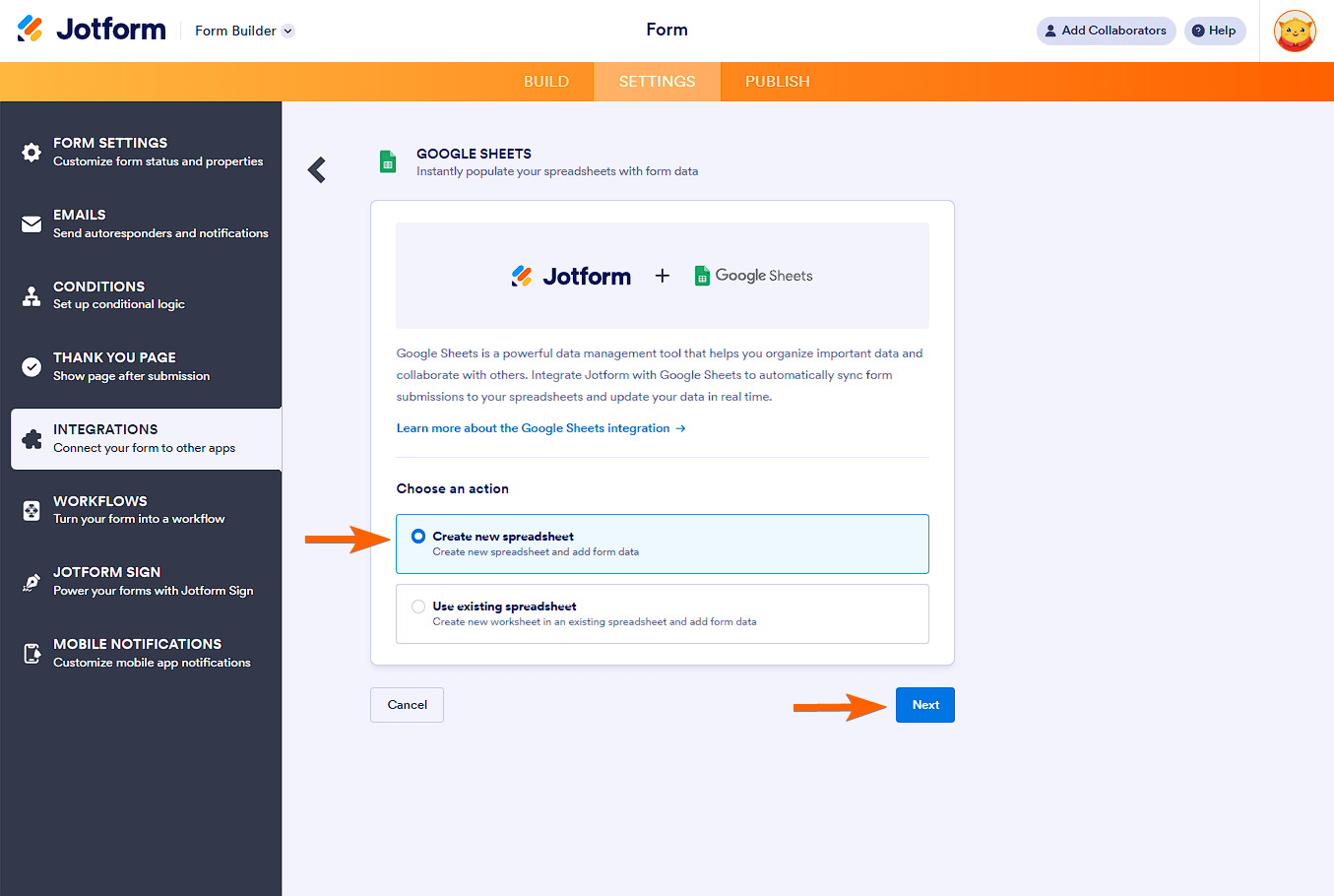
4. Choose whether you want to create a new spreadsheet or use an existing one. Click Next.
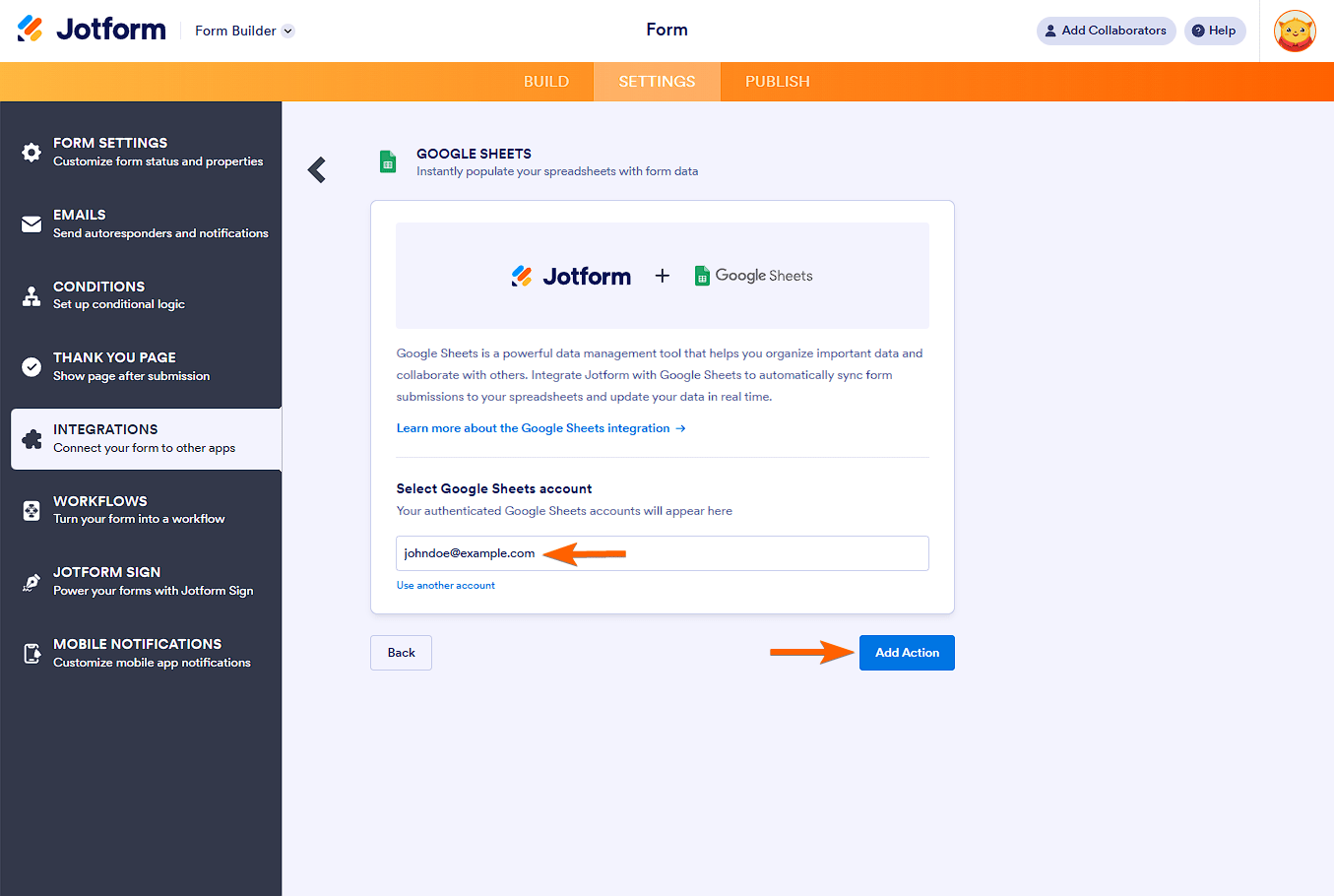
5. Click Authenticate. Select the appropriate Google account.
6. Click Add action.
7. Set up your spreadsheet options. Click Save to complete the integration.
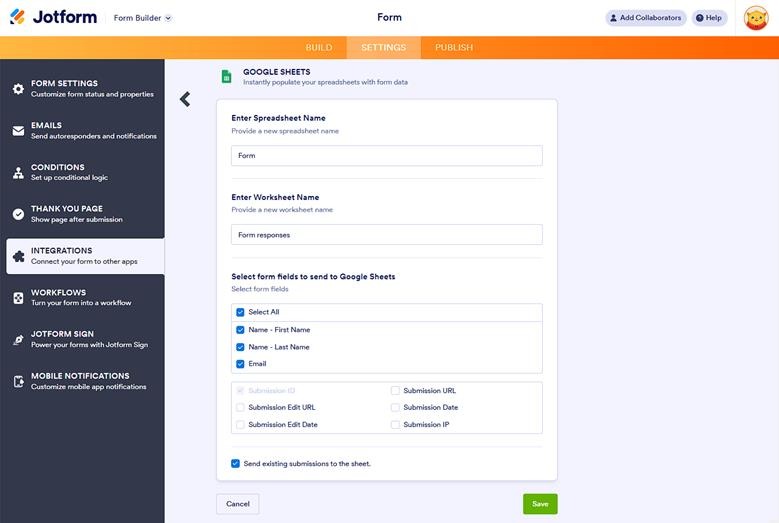
Once you’ve integrated Jotform with Google Sheets, you can create pivot tables in Google Sheets to see your data from different perspectives.
Go beyond spreadsheets with Jotform Tables
Google Sheets has all the basic spreadsheet functionality, but if you want to do more with your data, try Jotform Tables. It’s part of the Jotform ecosystem of products, all of which seamlessly work together to give you a more powerful way to collect, analyze, and share information.
A highly sophisticated workspace for collecting, organizing, and managing your raw data, Jotform Tables goes well beyond what Google Sheets can accomplish with pivot tables.
Here’s why people choose Jotform Tables to take their data to the next level:
- Advanced data management: You can not only see and track your form responses in Jotform Tables, but also visually analyze your raw data to glean valuable insights.
- Custom columns: Personalize column types for text, attachments, dates, and more, so your data is clear and easy to understand.
- Action buttons: Automate actions like sending data or creating PDFs with one click. There are no complicated or confusing steps.
- Formulas: Want to perform instant calculations and combine data fields? You can use formulas in Jotform Tables just as you can with a spreadsheet.
- Collaboration tools: Jotform Tables is a collaborative workspace. Invite teammates, control permissions, and lock columns so you and your team can work together effectively.
- Assignee system: Assign entries and notify teammates instantly so that no data-related tasks fall through the cracks.
- Advanced filters: Do more than just create pivot tables with your data. Jotform Tables lets you search and sort data with smart filters and conditions.
- Automated report generation: Use Jotform Report Builder to create highly visual reports from your data in Jotform Tables. Communicate insights visually with charts, graphs, and more.
Turn form data into insights
With a Google Forms pivot table in Google Sheets, you can easily compare, sort, and count your raw data. However, sometimes you need to go beyond the basics when a simple spreadsheet software like Google Sheets isn’t enough.
With Jotform and Jotform Tables, you can do so much more than pivot tables. With robust features for collecting, analyzing, and visualizing your data, you can uncover important insights and present your findings in stunning visual reports. Explore what Jotform has to offer and learn how you can transform the way you manage data with the right tools.
FAQs: Pivot tables in Google Forms
Your Google Forms responses are stored in the Responses tab in Google Forms, as well as in the connected Google Sheet. To view the Google Sheet, simply click the Google Sheets icon in the Responses tab.
No, there is no way to create a Google Forms pivot table directly in Google Forms. Google Forms is designed only for collecting data, not analyzing it. You have to move data from Google Forms to Google Sheets to create a pivot table.
Jotform Tables is an all-in-one workspace for collecting, managing, and organizing data. It goes beyond the functionality of a spreadsheet like Google Sheets and lets you create tables, collaborate with others, assign tasks, build reports, and much more.









































































































Send Comment: