
Looking for a Google Forms–Sendinblue integration? You won’t find one, in part because the name of Sendinblue, a popular email and SMS marketing automation platform, has changed to Brevo. More important, there simply is no native Google Forms–Brevo integration available. So if you want to capture contact and lead data in Google Forms and use Brevo to automate lead management, segmentation, and follow-ups, you’ll have to go with the only other option available: a third-party automation solution such as Zapier.
In this article, we’ll show you how to create the connection between Google Forms, Zapier, and Brevo that lets you send Google Forms responses to Brevo.
And if you’re looking for an easier option altogether, we’ll introduce you to Jotform, a Google Forms alternative that has a native integration with Brevo, making the transfer of form submission data simple and seamless.


Is there a direct Google Forms–Brevo integration?
No, Brevo does not currently integrate with Google Forms.
Google Forms can collect responses and organize them in Google Sheets, but pushing leads straight into Brevo lists or automations is not possible. With a third-party connector such as Zapier, however, Brevo and Google Forms can work together. You just have to know how to set up the Zapier automation. We’ll walk you through it step-by-step.
Pro Tip
Zapier is one of the leading third-party workflow automation platforms, but it’s not the only option. You can also use other tools, including Make, n8n, and LeadsBridge.
How to connect Google Forms to Brevo with Zapier
Use the following steps to set up the Google Forms–Brevo automation.
Before you begin, you will need an already-created Google Form. It should include fields for all the contact or lead data you want to send into Brevo, such as first name, last name, email address, and phone number, plus any segmentation fields, such as job title. You will also need an active Brevo account with a generated API key (which you can find under Settings in Brevo) and a Zapier account.
Follow these steps to create the Google Forms–Brevo integration.
- Go to the Zapier Brevo Google Forms quick connect page. If needed, click Swap apps to adjust which app is the trigger and which is the action.
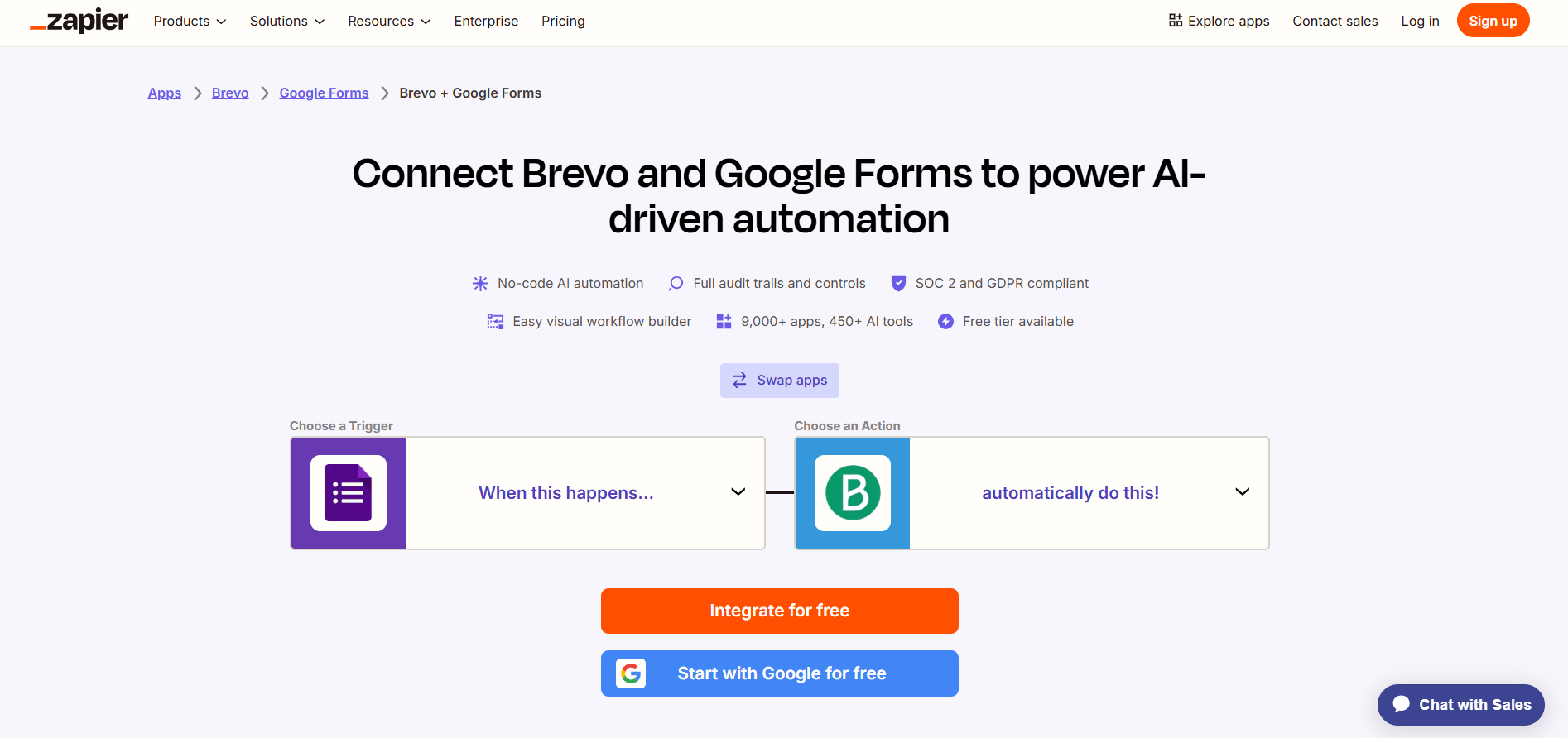
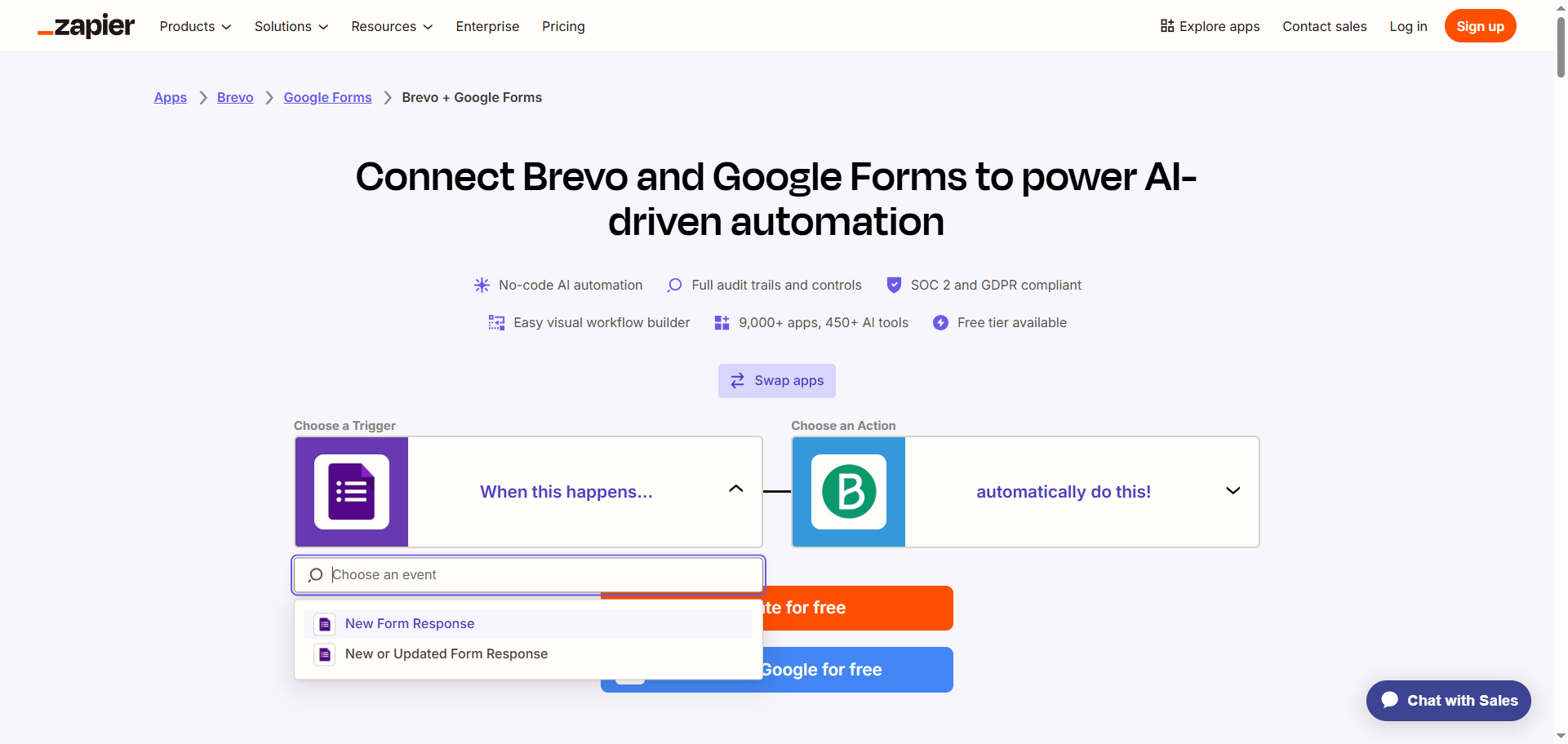
- Click the Google Forms icon and select the trigger that will start the workflow from the dropdown menu, such as New Form Response.
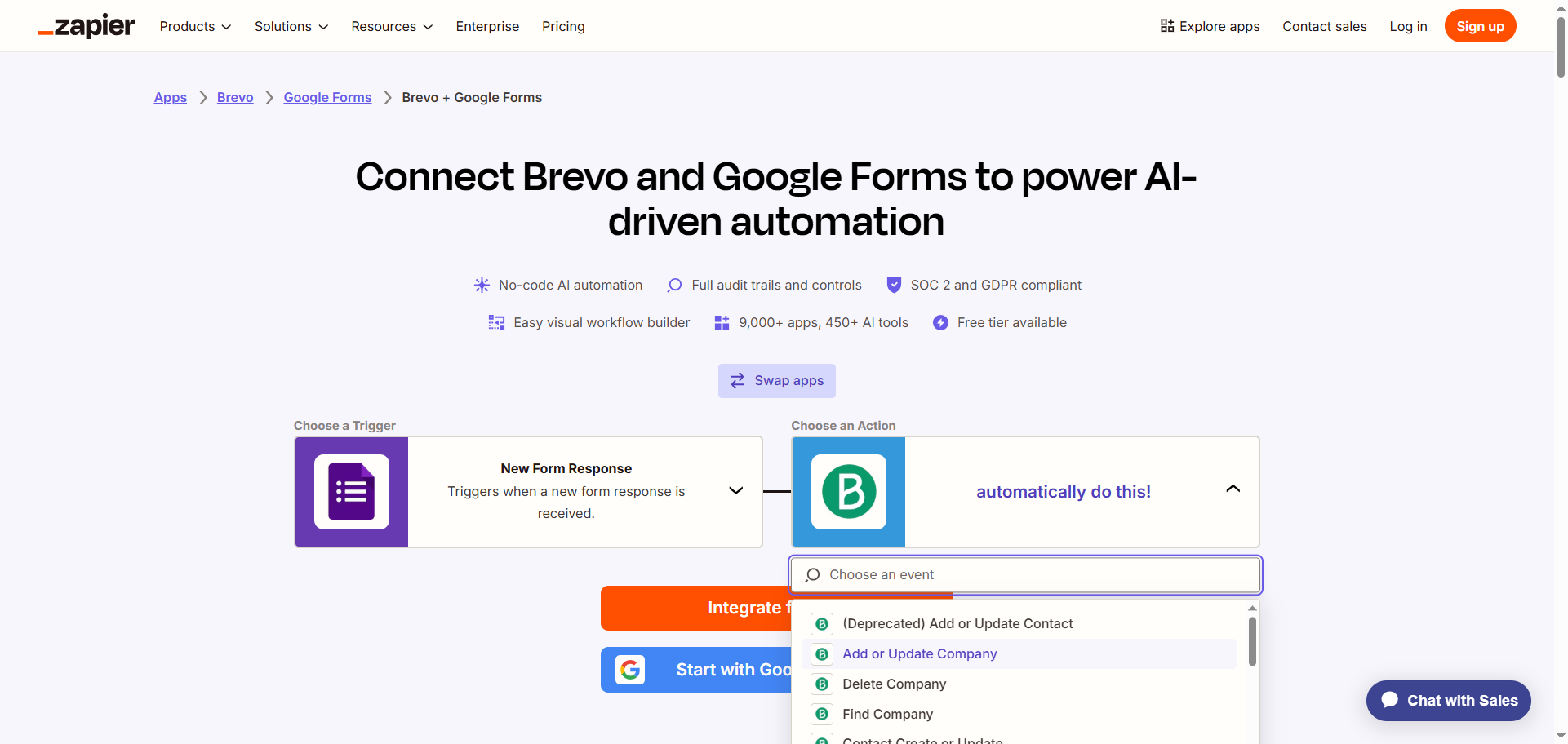
- Click the Brevo icon and select the action that should occur as a result of the trigger from the dropdown menu (for example, Add or Update Company).
Note that there are some actions, such as adding or updating contacts, that are being deprecated by this quick connect workflow. This will be an issue if you need to add Google Forms contacts to Brevo as part of this workflow. In this case, you may need to use a different workflow automation tool.
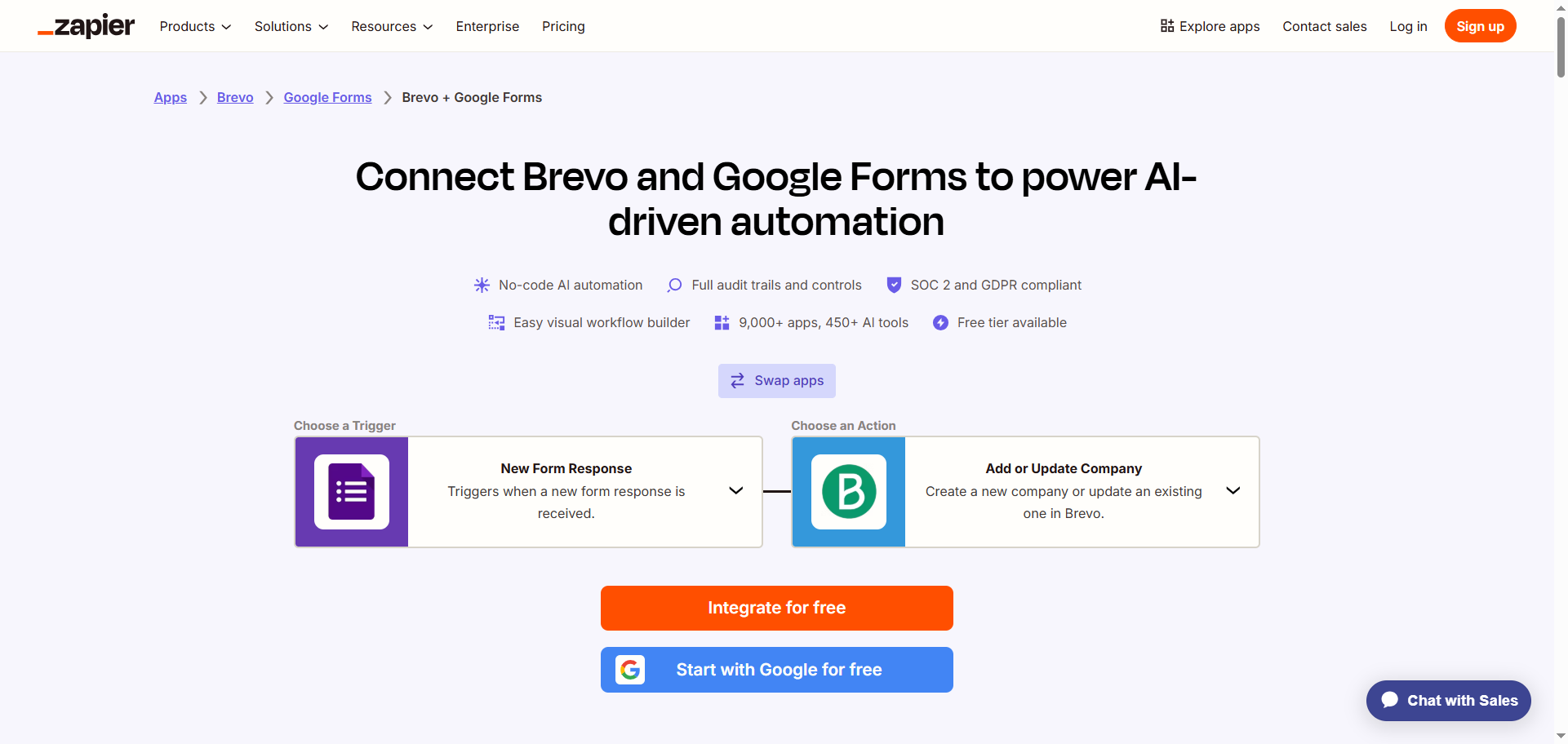
- Click Integrate for Free.
- Log in to your Zapier account.
- Click Google Forms and follow the prompts to connect it to your Zapier account. Configure and test the connection with Google Forms.
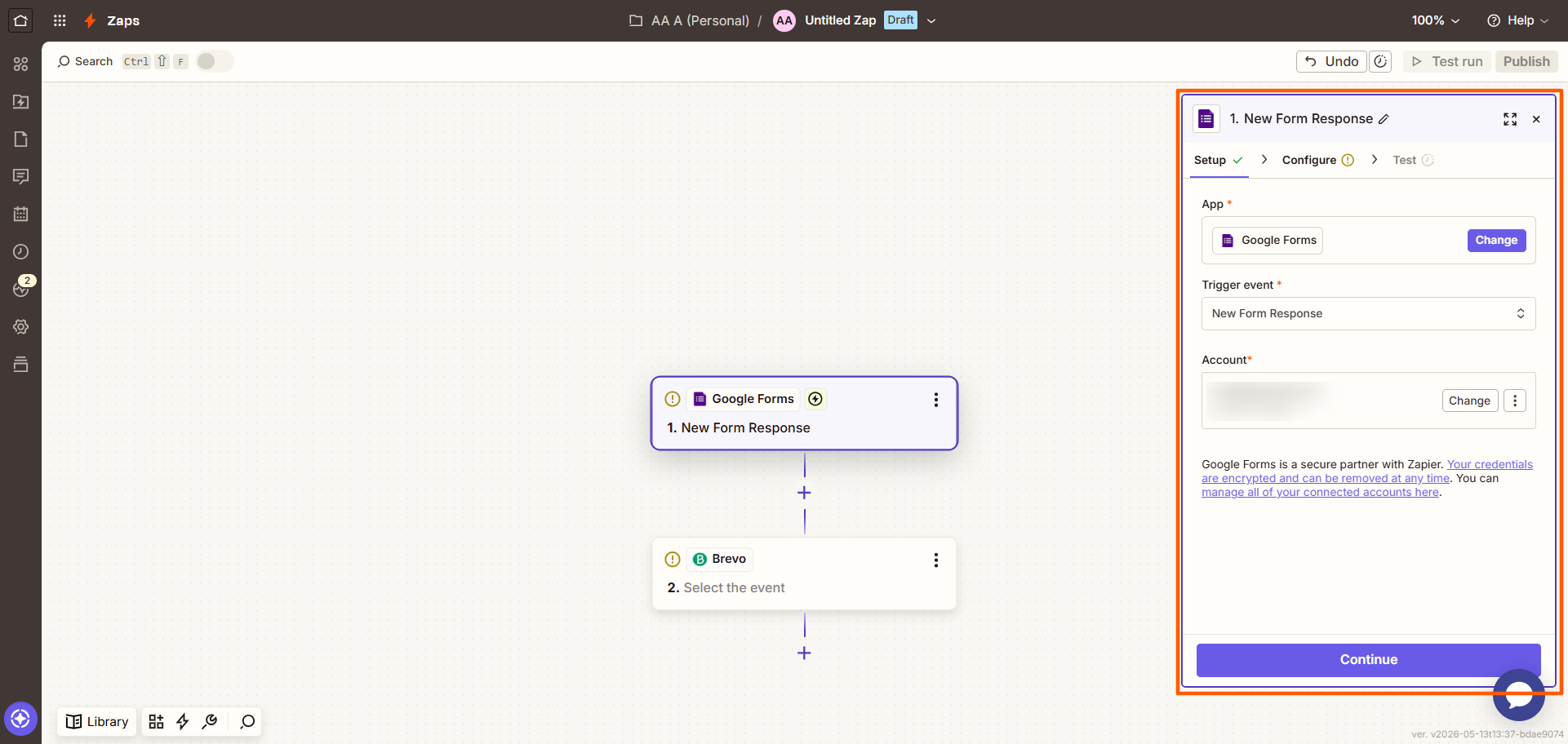
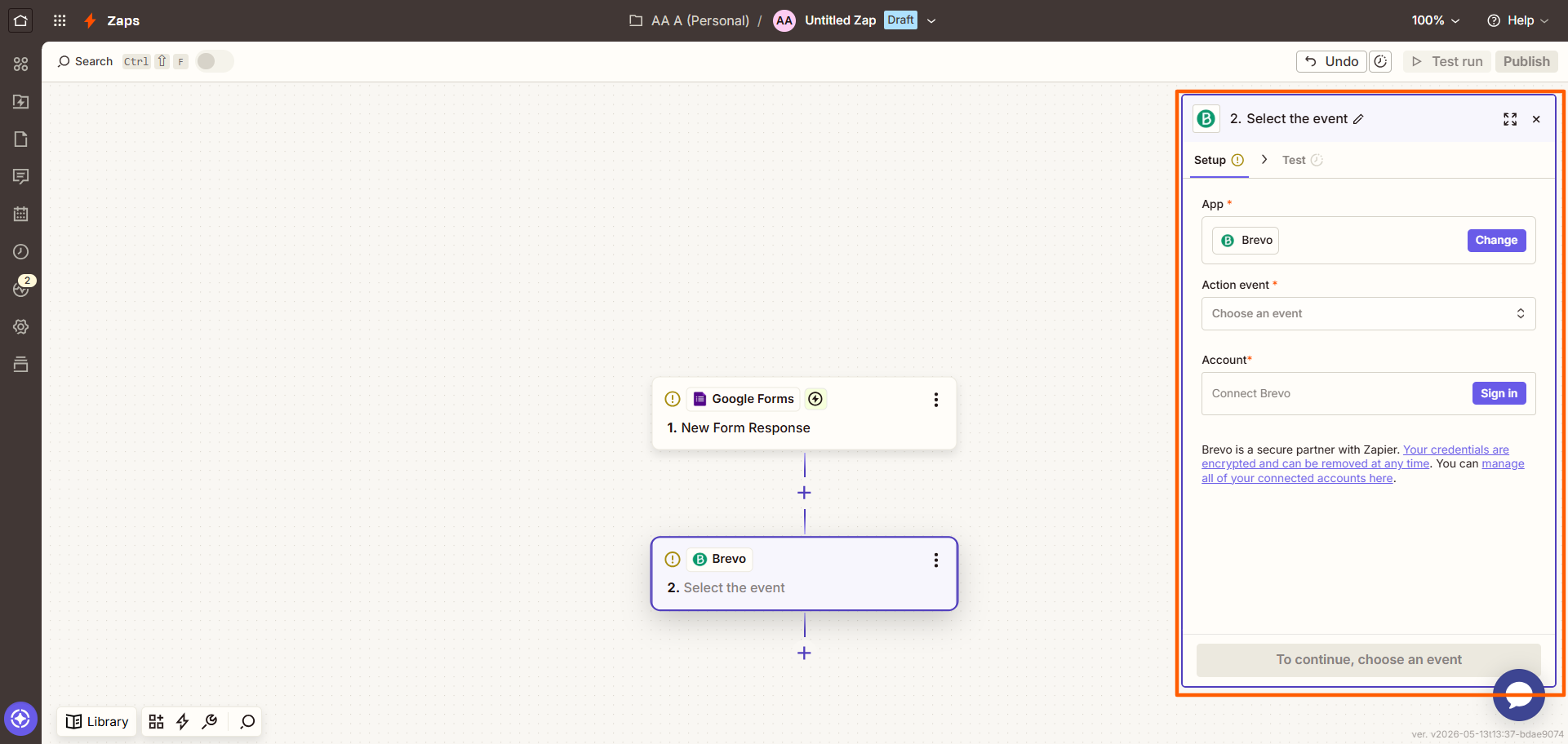
- Click Brevo and follow the prompts to connect it to your Zapier account. Configure and test the connection with Google Forms, ensuring you have mapped the data from Google Forms to Brevo correctly.
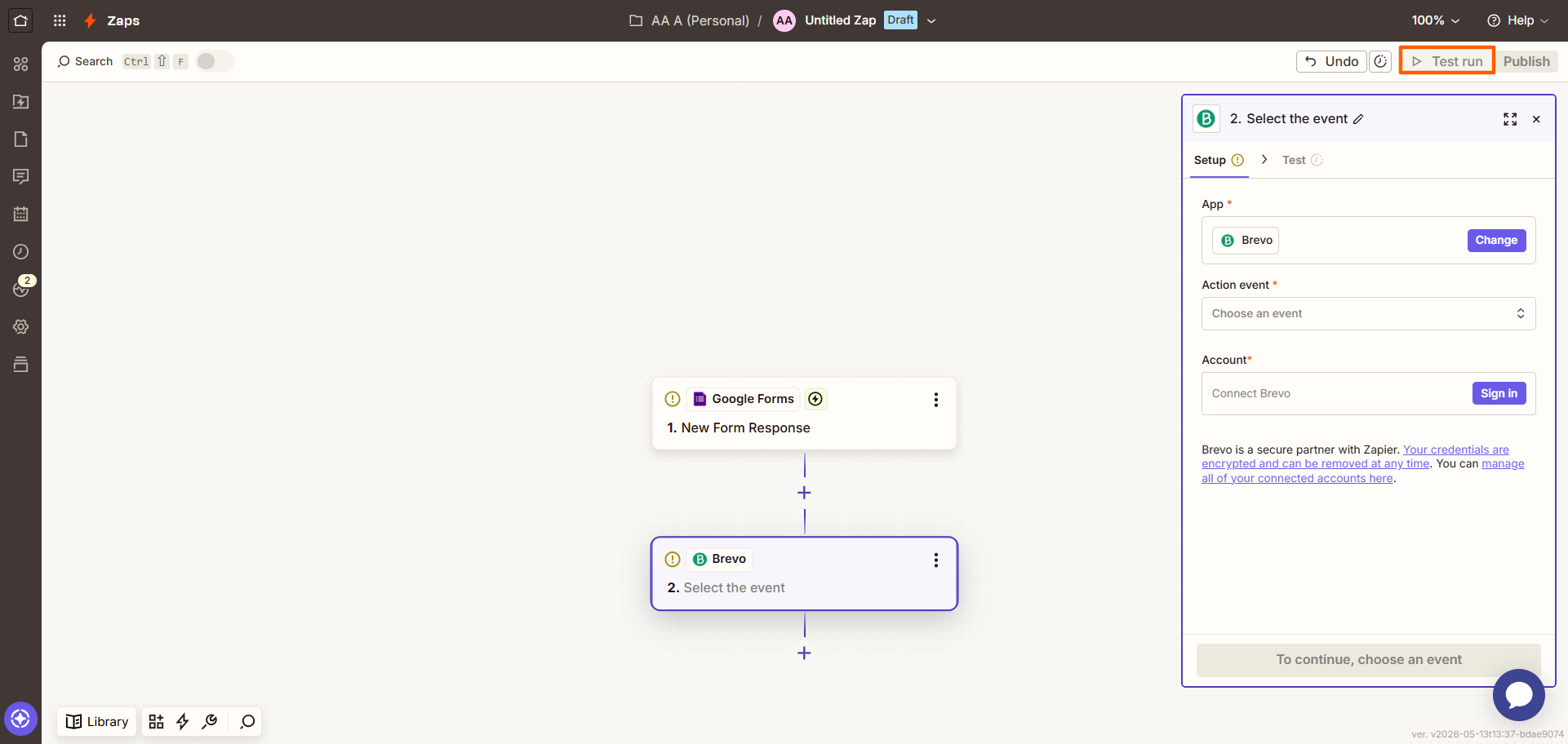
- Click Test Run at the top right to see if the integration works. Make any necessary changes.
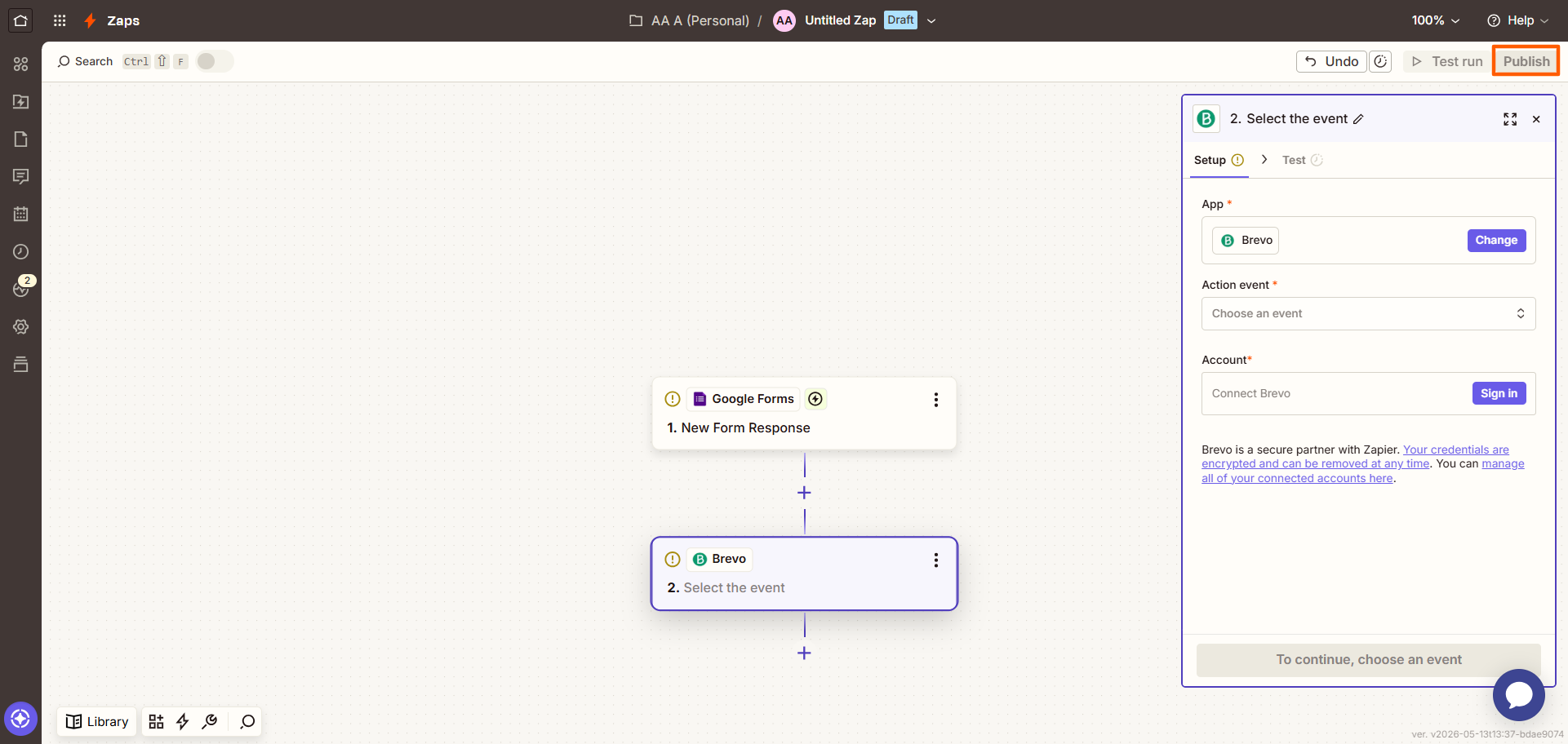
- Click Publish. Now, whenever Google Forms receives a new form submission, it will add or update the data in Brevo.
While using third-party workflow automation tools is a practical option, it’s not ideal. You still need to maintain the automation and double-check field mappings whenever you make changes to the Google Form. In some cases, the process of creating the automation can be complex, and you may need to troubleshoot issues whenever they crop up.
It’s a good thing Google Forms isn’t the only form builder you can use to connect with Brevo.
Want more control over lead capture? Use Jotform with Brevo
While you can’t add Google Forms contacts, company names, or deal details to Brevo with a native integration, you can do so when you use another form builder: Jotform.
Jotform is a leading form builder that is as intuitive as Google Forms, but it comes with advanced form features and native integrations. It’s ideal for capturing and organizing lead information. With Jotform’s Brevo integration, you can automatically create new records in Brevo from your Jotform submissions, with no third-party tools required.
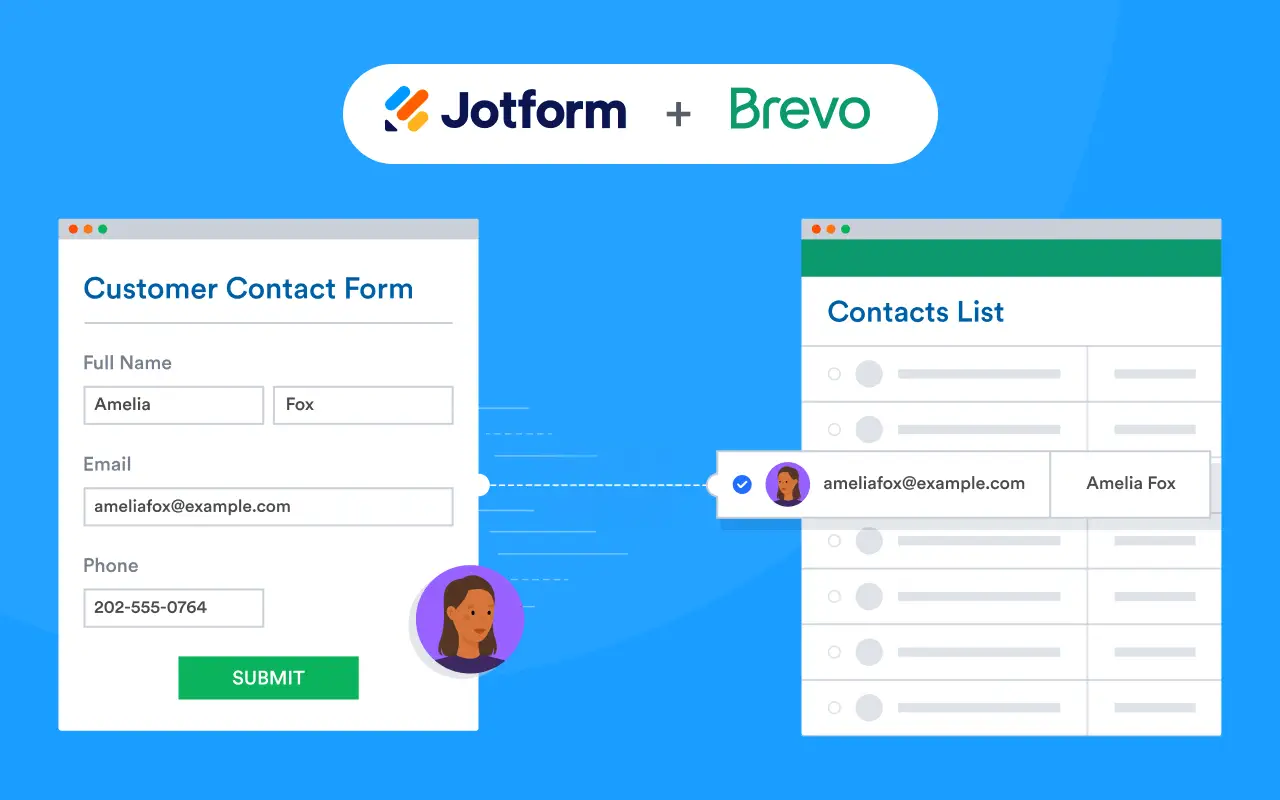
Here’s how easy it is to use the Jotform Brevo integration. Simply create a free Jotform account and follow these steps:
- In the Jotform Form Builder, click Settings.
- Click Integrations.
- Search for and click on Brevo.
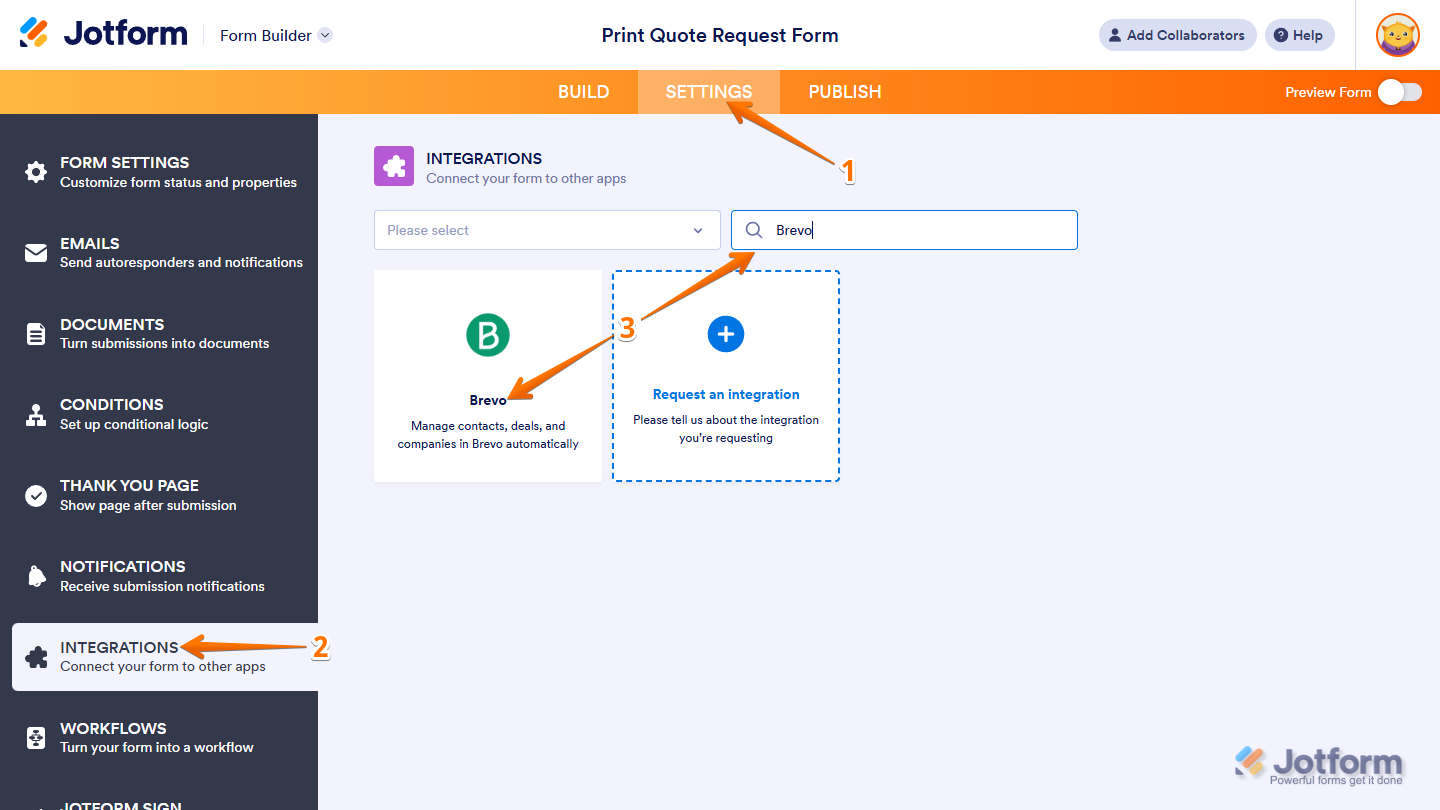
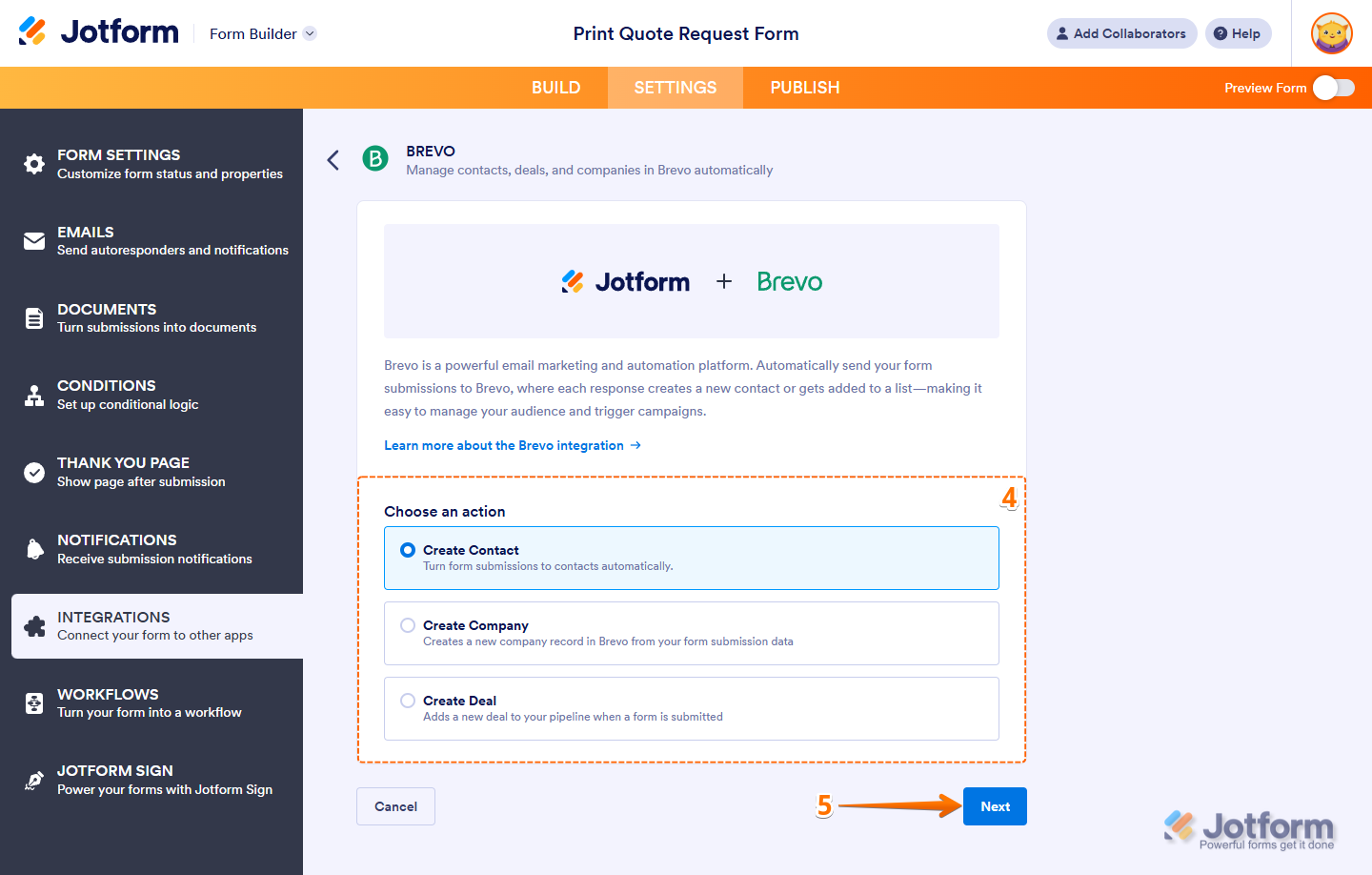
- Under Brevo, select one of the following actions:
- Create Contact
- Create Company
- Create Deal
- Click Next.
- Under Enter Your API Key, paste your Brevo account API key. Click Authenticate.
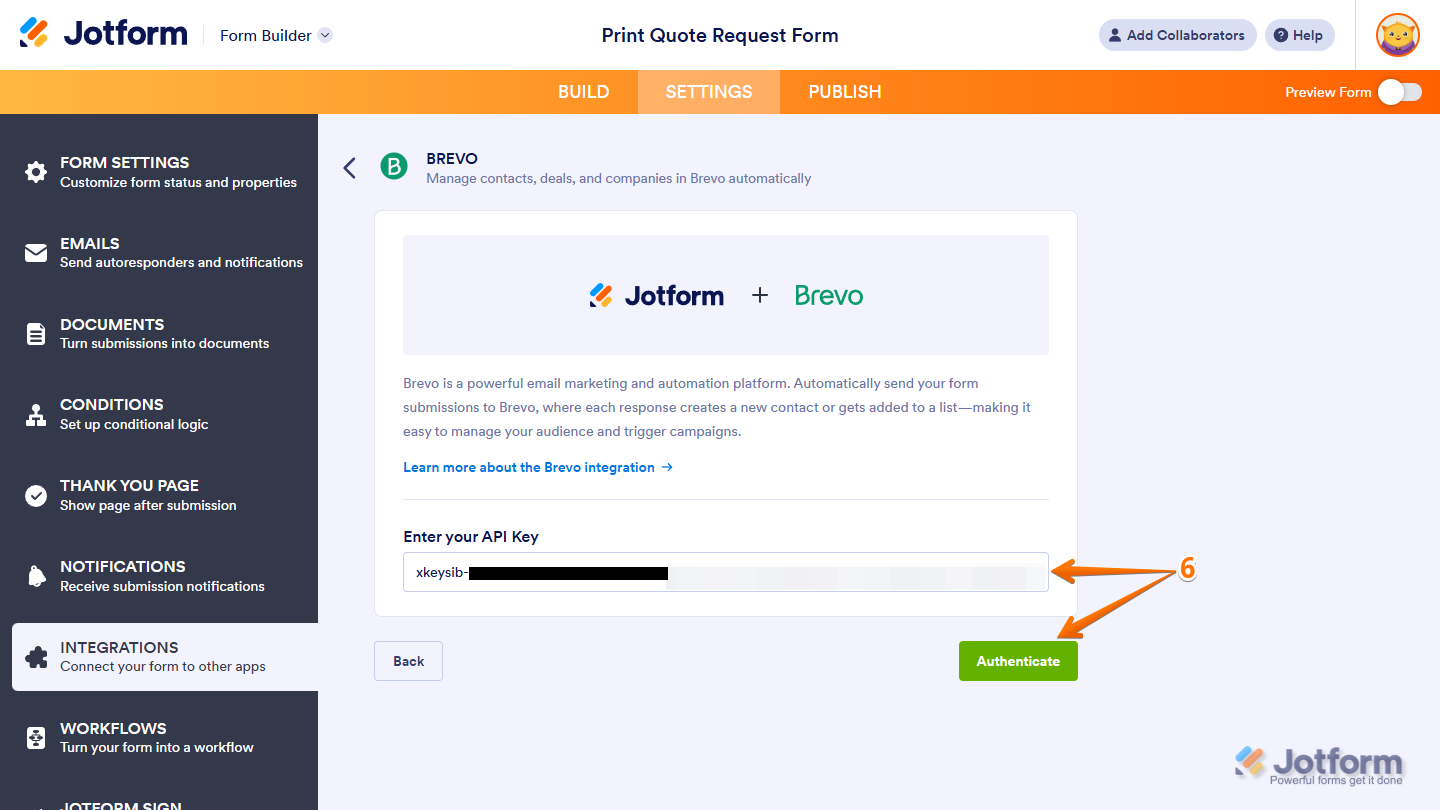
That’s how easy it is to connect Jotform with Brevo. Now you can specify the settings for the action you selected in step 4, and you’re ready to go.
It’s a far simpler process than using third-party workflow automation tools. Every time you receive a new form submission in Jotform, the data will be sent directly to Brevo so your team can manage contacts, deals, and companies effectively.
There are many reasons Google Forms users switch to Jotform:
- Stunning form templates: Jotform comes with more than 20,000 form templates, including contact form templates and lead generation form templates. Just choose a template that works for your use case and customize it with the intuitive drag-and-drop Form Builder.
- Advanced form functionality: With sophisticated features from advanced conditional logic to more than 30 payment gateway options, Jotform can turn a simple form into a useful business tool that is highly relevant to your target audience.
- Productivity-enhancing AI tools: With Jotform AI tools, you can instantly generate a form with one simple prompt. No manual work required.
The absence of a native Google Forms–email marketing integration is just one Google Forms limitation. In contrast, when you choose Jotform, you get access to dozens of native integrations, tons of advanced features, and a no-code interface that’s easy to use.
Migrate your Google Forms to Jotform for a more flexible setup
Switching from Google Forms to Jotform is free, easy, and quick. When you migrate from Google Forms to Jotform with our migration tool, we take care of all the hard work for you.

Jotform’s migration tool imports your form questions, structure, and logic automatically so you don’t need to manually re-create your Google Forms in Jotform.
Get started with Jotform today and see how easy it is to upgrade your form design, get access to advanced features, natively integrate with tools such as Brevo (and lots more), and improve the overall quality of your lead captures.
This article is for small business owners, marketing teams, CRM managers, lead generation specialists, and anyone who wants to connect form submissions with Brevo for easier contact management, segmentation, and follow-up automation.





































































































Send Comment: