
Google Forms is an intuitive form builder, but its fairly basic features don’t allow for advanced customization. That’s why some Google Forms users turn to Formfacade. This add-on lets you customize the Google Forms user interface (UI) by selecting your layout, fonts, language, and more. Forms then become a branded asset.
Why is this important? Your website visitors trust you and your brand, so when they come across a form that shows Google’s branding instead of yours, they may hesitate to fill it out. With Formfacade, you can make any Google Form look like it’s a part of your website, creating a seamless user experience and maintaining user trust.
However, the Formfacade add-on for Google Forms can sometimes be finicky, not to mention costly. In this article, we’ll give you step-by-step instructions for how to connect the Formfacade add-on to Google Forms, so you know exactly what you’re in for.
Plus, we’ll introduce you to an alternative form builder with built-in advanced customization features: Jotform. By the end, you’ll see the difference between an add-on and an advanced form builder.


5 key features of Formfacade
If you’re a frequent Google Forms user, you know that if you want your forms to look or do anything beyond the standard, you need Google Forms add ons. (If you’re a new-ish user, you can find Google Forms tips here.) Available in the Google Workspace Marketplace, Formfacade is a Google Forms add-on that lets you tailor the Google Forms UI to your needs. Formfacade also has products that streamline Google Forms processes, such as calculating scores, uploading files without a login, and prefilling fields.
Formfacade is primarily a paid app. Its Embed in Website product, which enables you to customize the Google Forms UI, is free to install, but you’ll need to pay for the UI customization features.
Here are a few standout features of Formfacade:
- Brand styling: Select your brand colors, fonts, and layout to match your business brand and ensure the Google Form aligns with your other assets.
- Text formatting: Add line breaks, rich text descriptions, and relevant placeholder text to Google Forms questions.
- Form functionality: Add hidden fields and formulas to Google Forms questions so you can dynamically calculate answers.
- Advanced styling: Use CSS to style individual form elements so they meet your needs exactly.
If you like what Formfacade can do for your forms, then the first step is to connect this third-party tool to the form builder.
How to install and use Formfacade with Google Forms
If you know how to use Google Forms, then you know it doesn’t offer much brand styling or visual customization. You can change the background colors, add a header image, and change fonts, but that’s about it.
If you want more control over the look and feel of your form, follow these steps to install and use Formfacade:
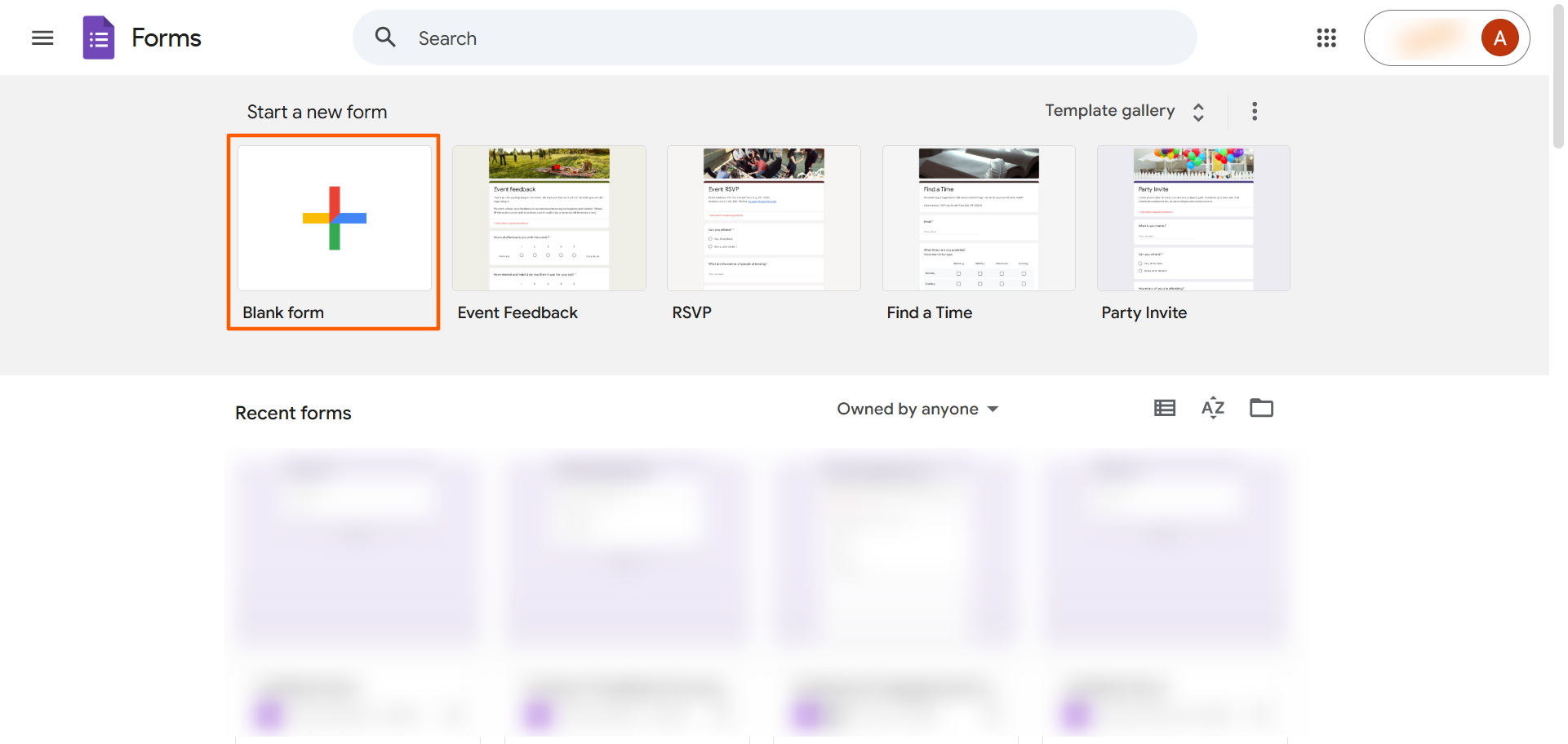
- Go to Google Forms.
- Click Blank Form.
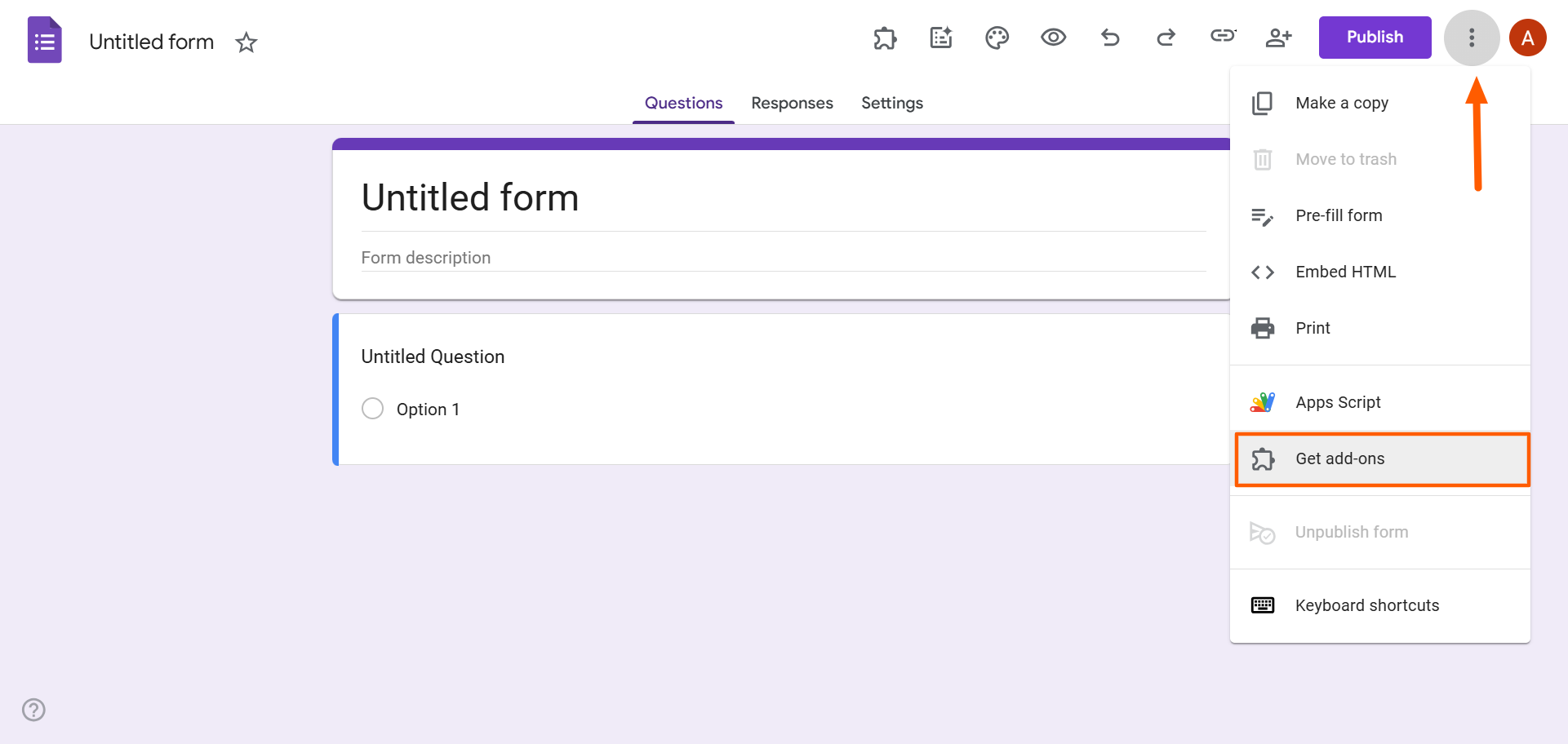
- Click the three-dot icon.
- Select Get add-ons.
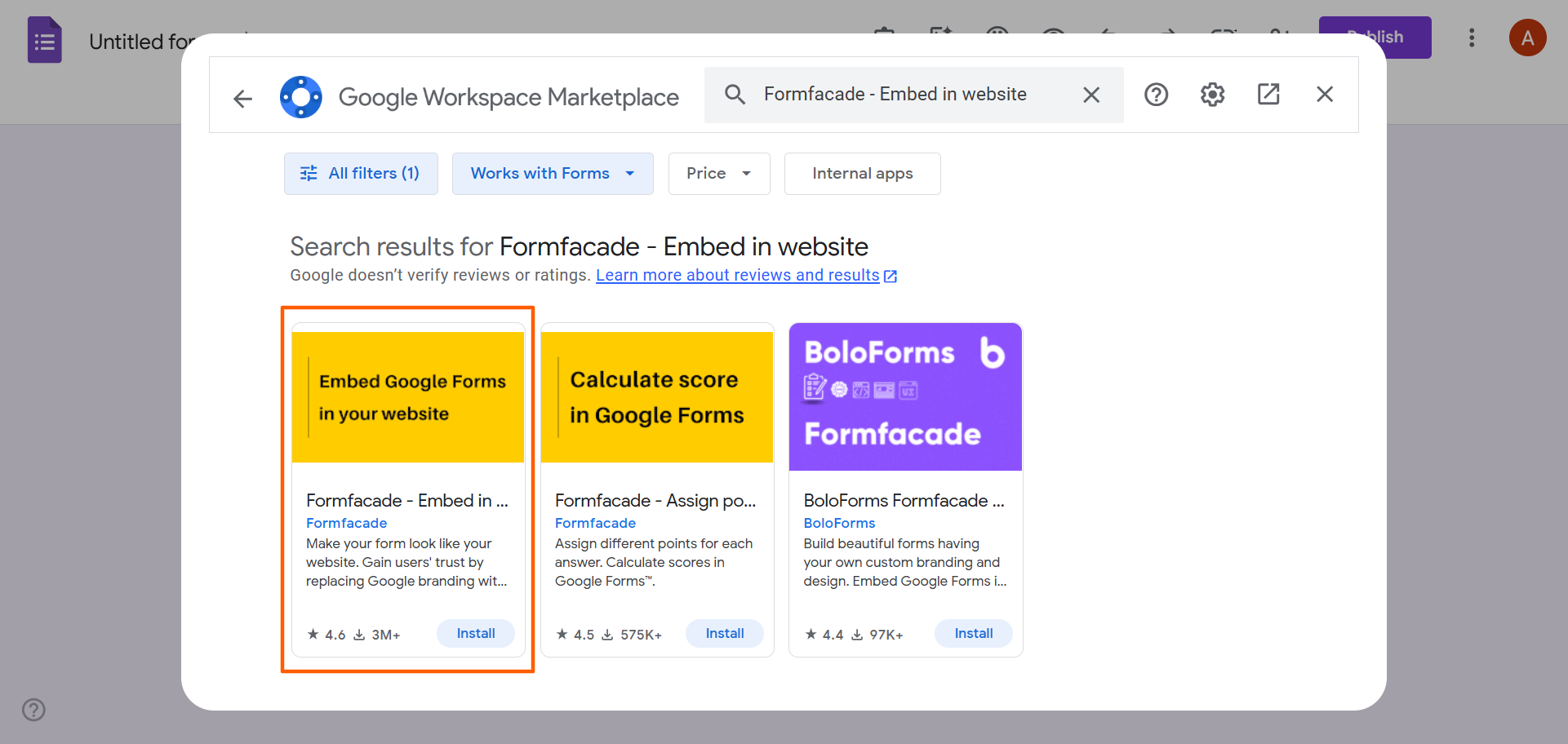
- Type Formfacade in the search bar. Select Formfacade – Embed in Website.
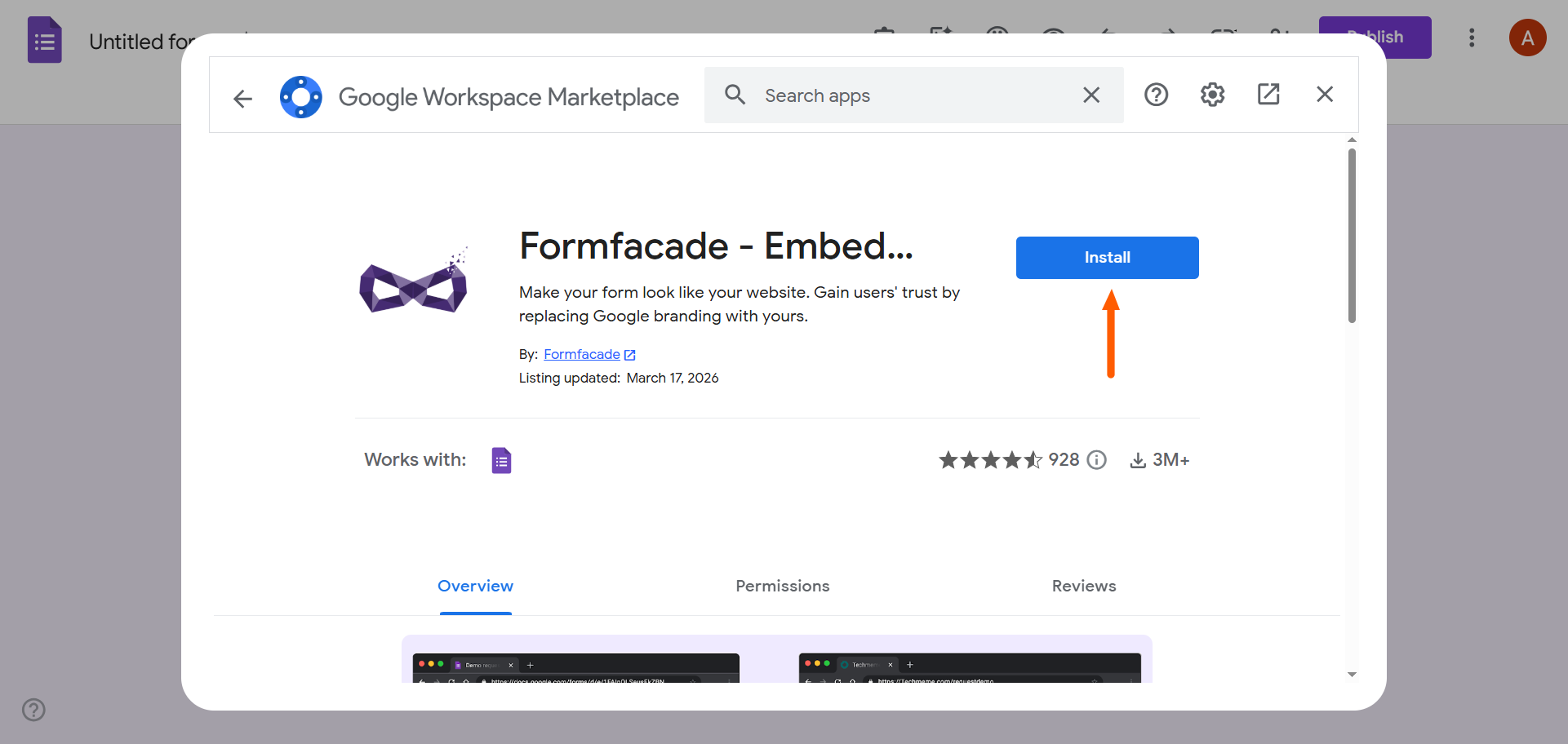
- Click Install. Provide the necessary permissions for your Google account to install the add-on.
- Once it is installed, a Formfacade popup will appear and ask you to either embed the form into your website or customize the form. For this article, we will choose Customize.
Note that, once it is installed, you can also access Formfacade from the Google Forms add-on menu (puzzle piece icon) at the top.
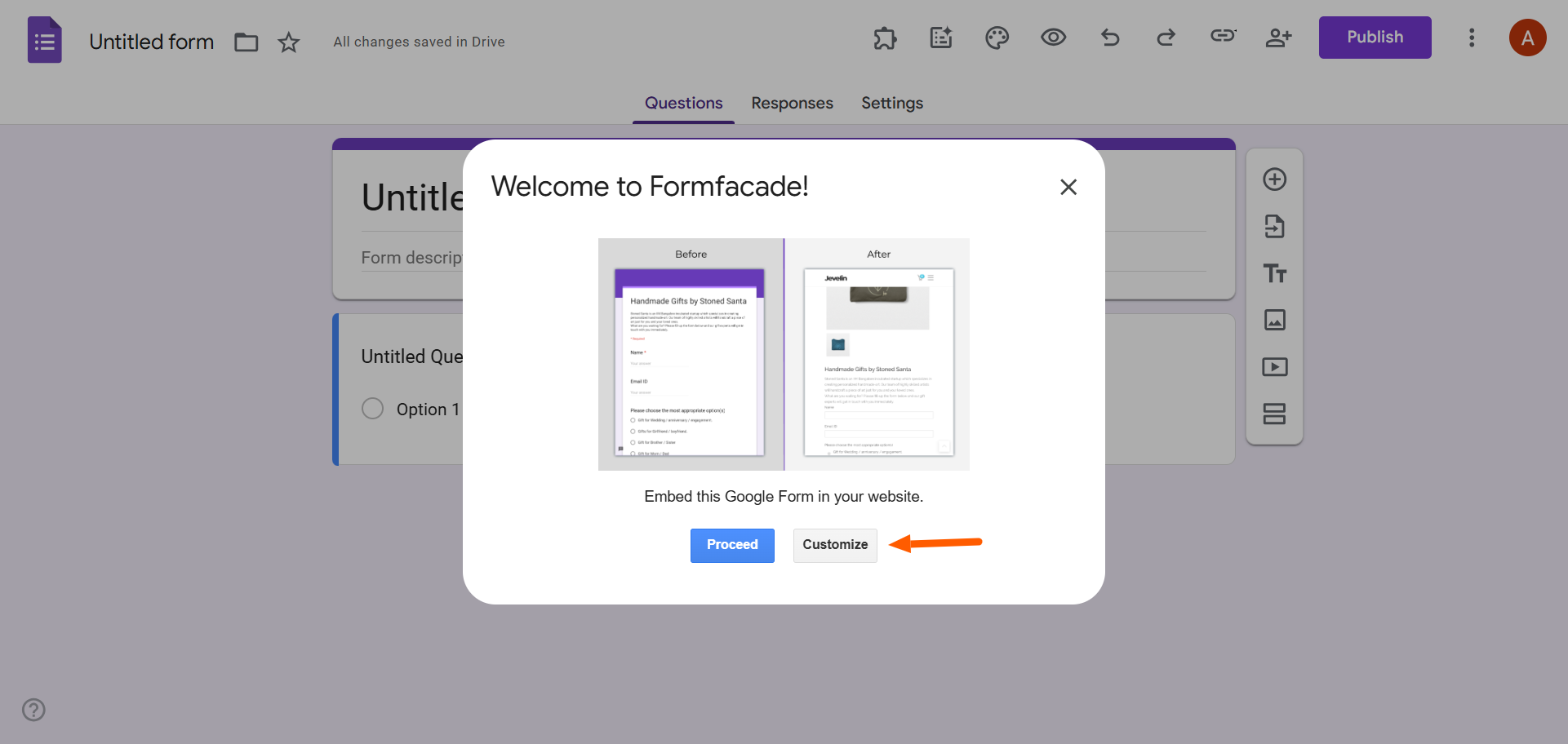
- Another popup will appear, notifying you that customizing forms is a paid feature. However, you will have access to a free seven-day trial. Click Proceed.
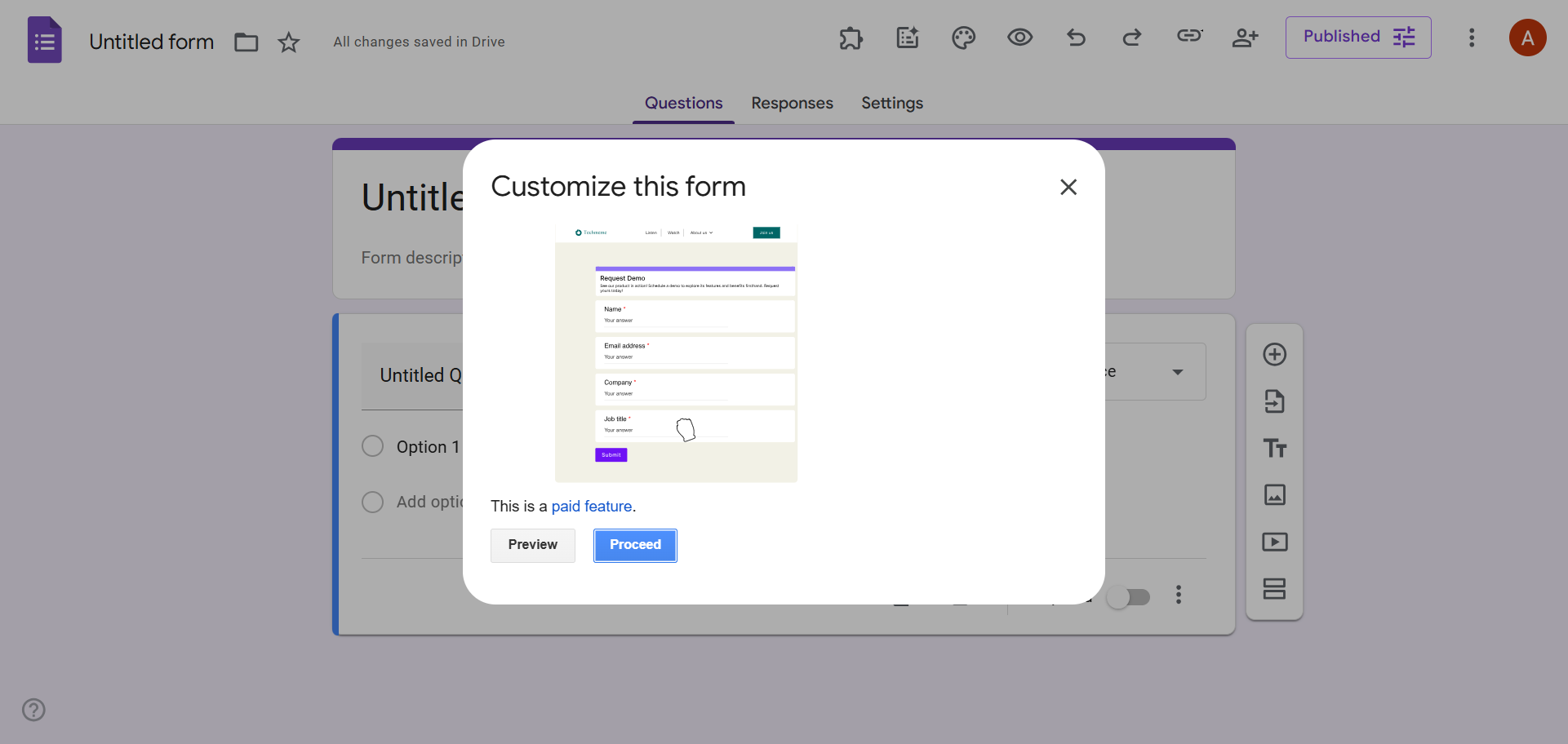
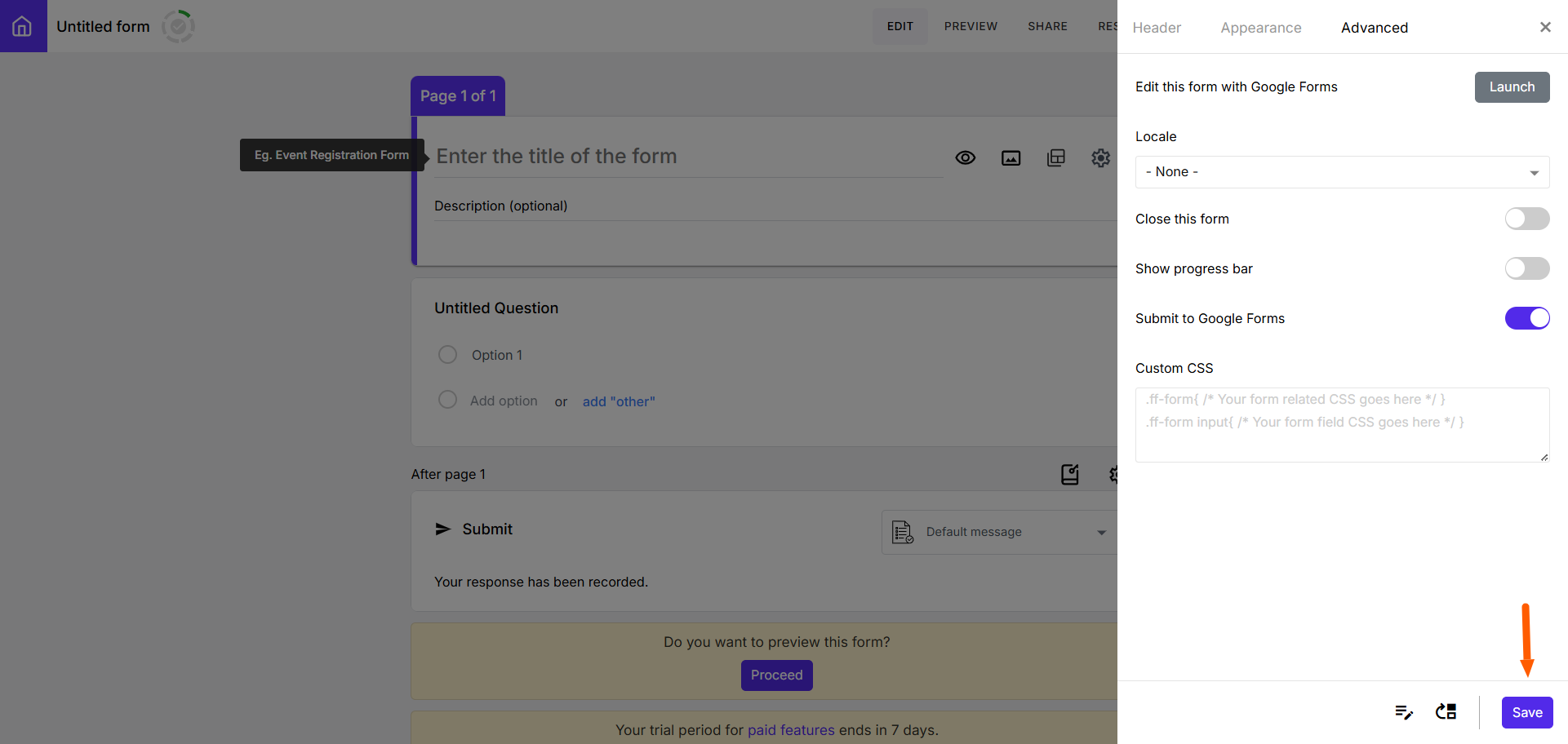
- Your Google Form will then open in the Formfacade app, where you can customize the UI to align with your brand. Click the cog icon to see some of the ways you can customize the form.
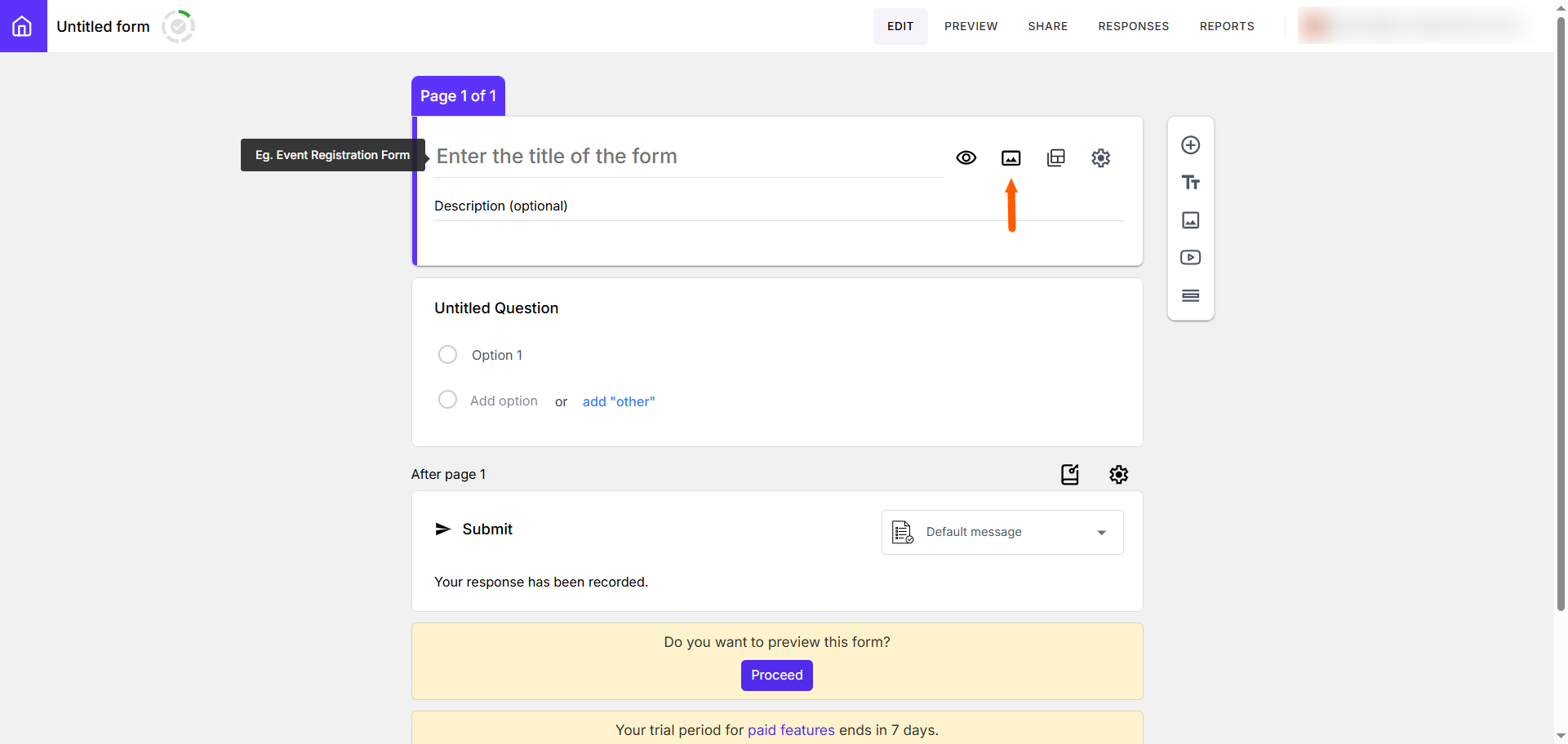
- Under Header, you can add a title, description, and banner image.
Under Appearance, you can choose the layout, color theme, and typography.
Under Advanced, you can edit custom CSS and other features.
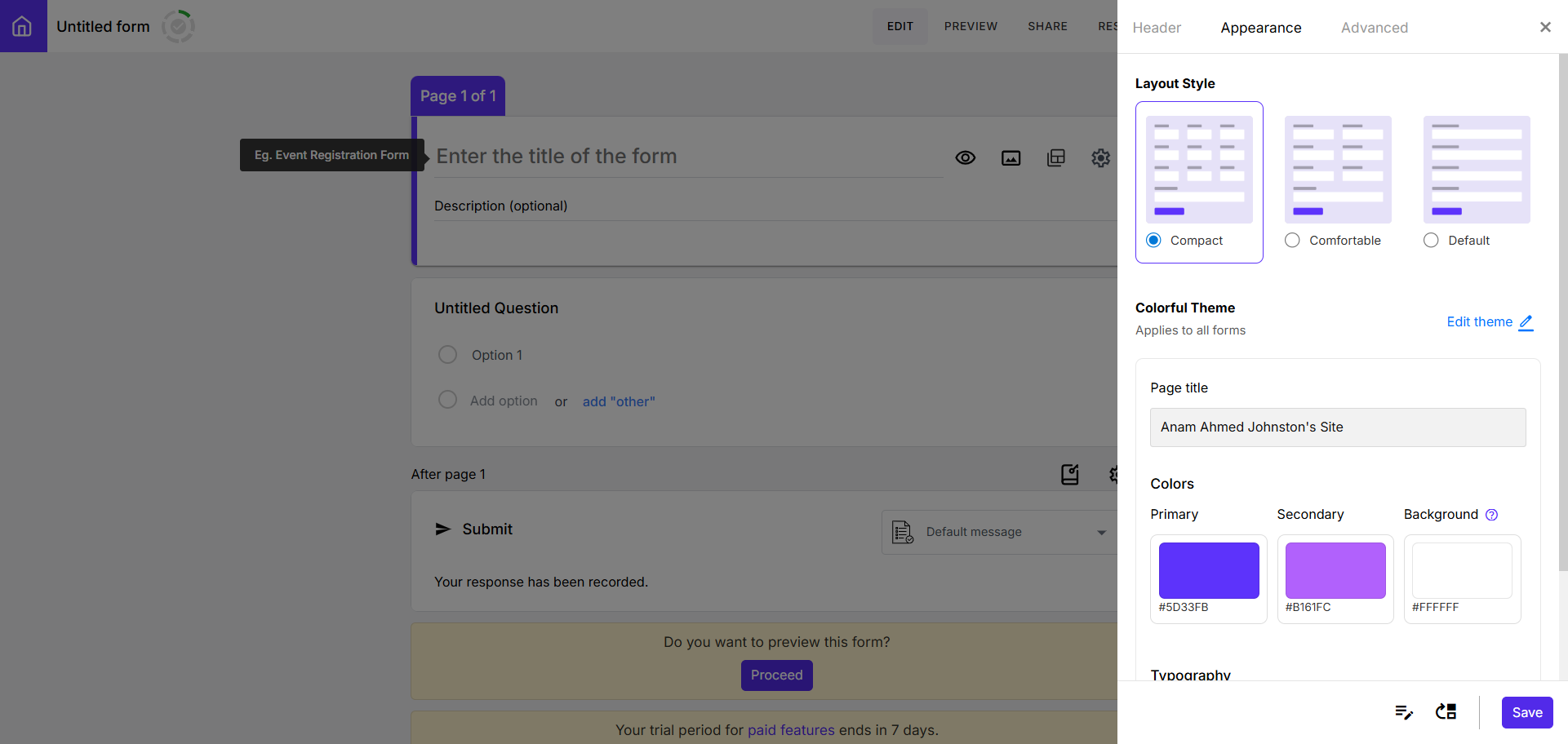
- Once you’ve completed your customization, click Save.
How to customize forms with Formfacade
Formfacade has advanced customization functions, although you have to pay for them. Here is a closer look at some of the ways you can customize your Google Forms with Formfacade:
- Upload a banner image: Click the Upload banner image icon to upload an image, such as your brand logo.
- Select a theme: Go to the Theme menu under Preview to choose from Minimal or Colorful themes. You can also change the primary color from this menu.
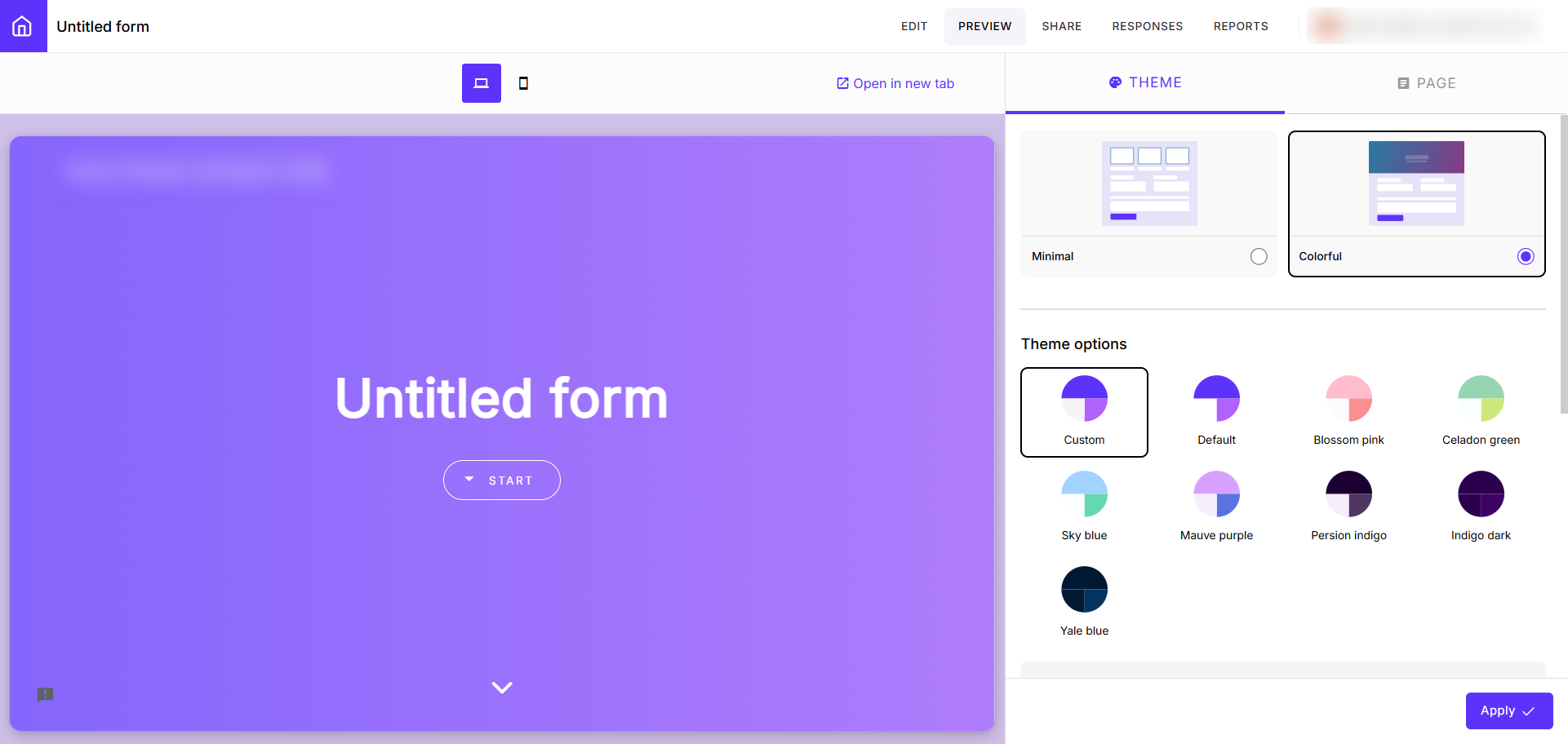
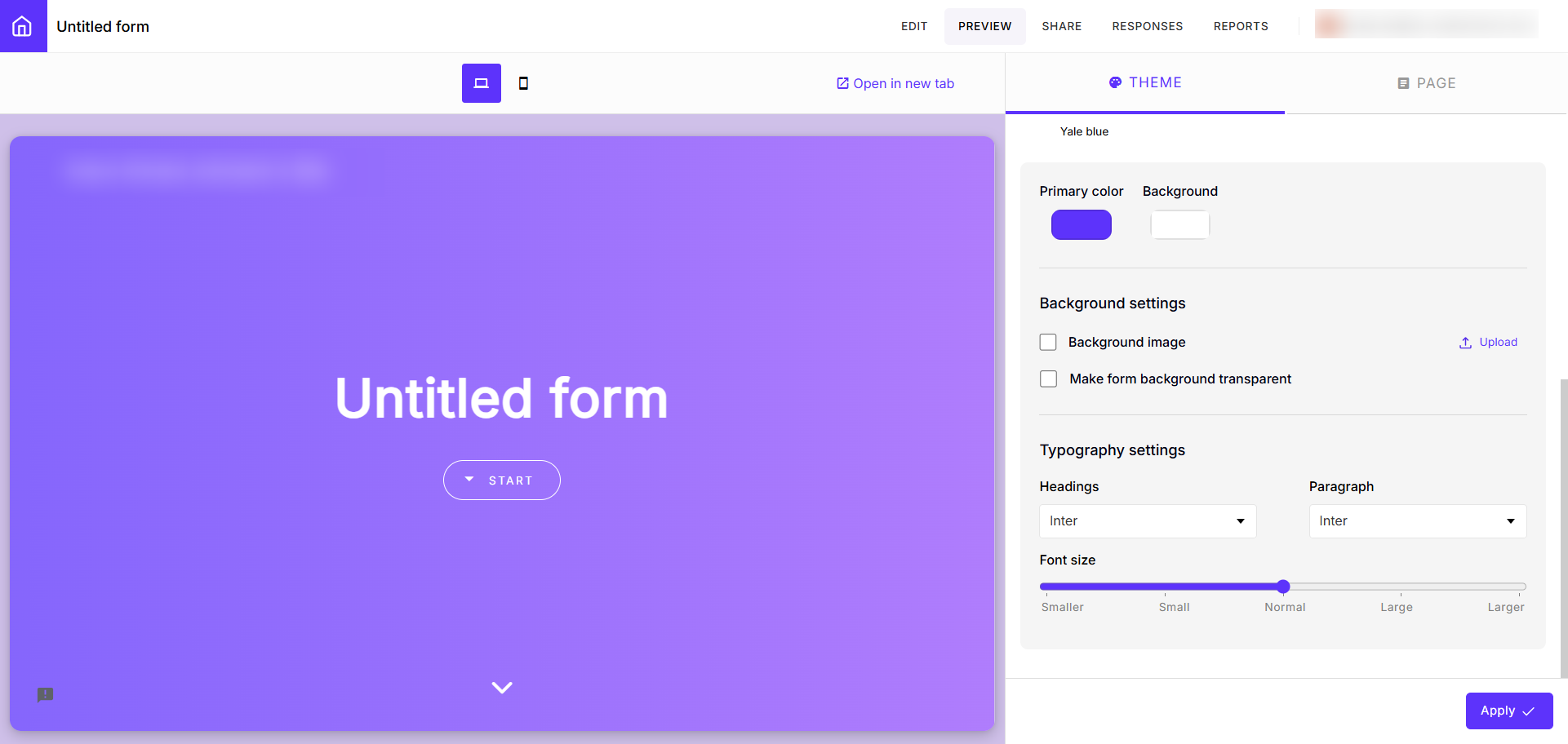
- Choose typography settings: From the Theme menu, select your font and font size for headings and paragraph text.
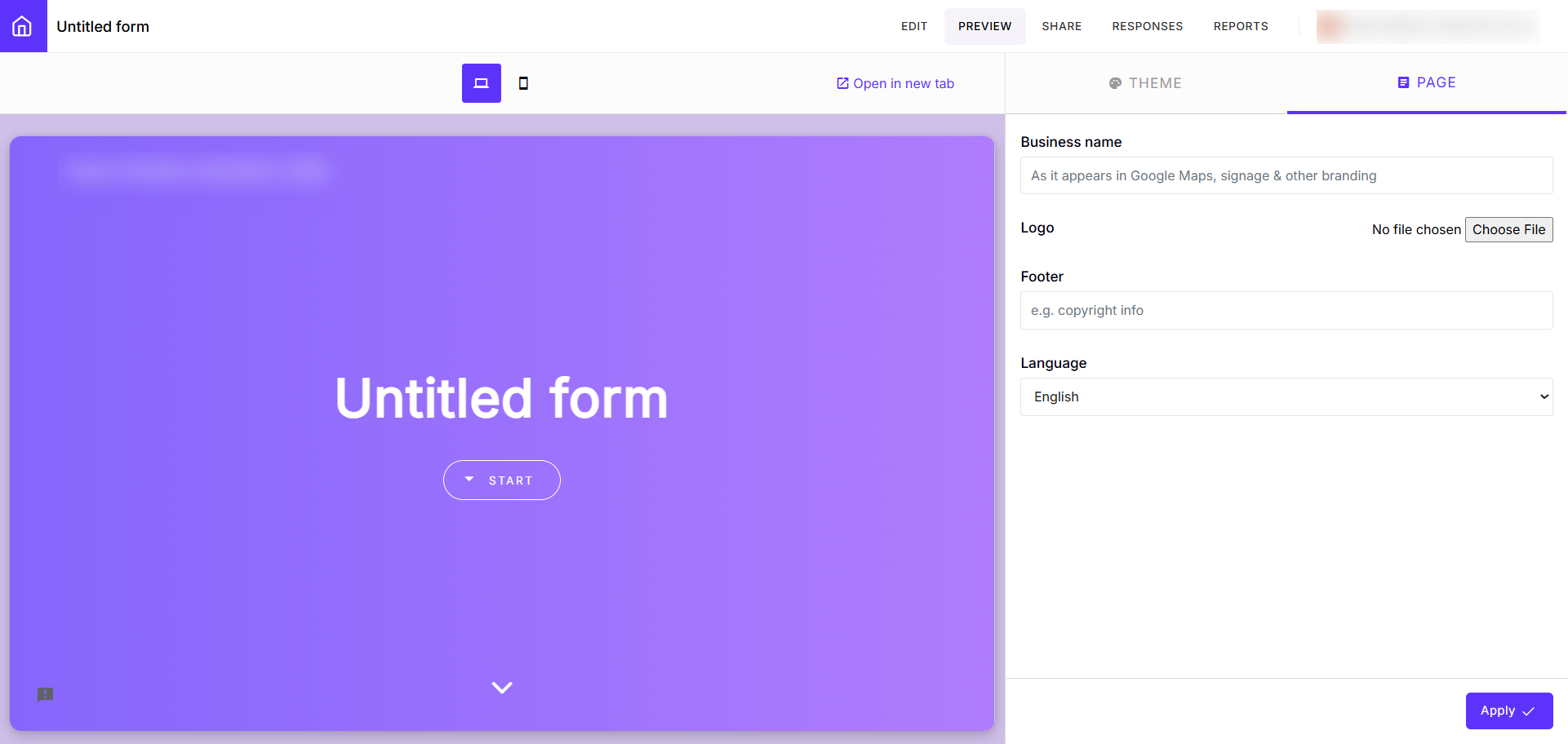
- Add logo and footer: From the Page menu, upload your company logo and add your company name and address in the form footer.
- Select language: Choose from dozens of languages on the Page menu.
- Select layout: Go to the Change Layout icon on the form to choose Compact, Comfortable, or Default as your layout style. You can also select color themes and typography from this menu.
A valuable alternative to the Formfacade add-on for Google Forms: Jotform
If creating Google Forms and customizing them using a paid third-party add-on leaves you frustrated, there is an excellent Google Forms alternative: Jotform.
Unlike Google Forms, Jotform comes with built-in advanced customization features, letting you tailor your form to your brand with ease. No costly add-ons are needed.
Here are a few of Jotform’s form design features that users love:
- 20,000+ form templates: You never have to create a form from scratch if you don’t want to. Choose a template that works best for your situation and customize it based on your company’s needs.
- Custom form design: Jotform’s Form Designer lets you choose fonts, colors, design elements, and more. Everything is built into Jotform, so you don’t need to add tools to enhance functionality.
- Code-free UI: Whether or not you’re a web designer, working with Jotform is easy. You can use Jotform’s WYSIWYG interface to design and brand your forms without a single line of code. Get the intricate customizations you need to give users a seamless experience with your brand.
- Engaging form themes: Choose from a range of accessible form themes in Jotform’s Theme Store that you can apply instantly to create eye-catching forms. Each theme is ready to use and can be customized.
- Advanced form styling: From using custom CSS to video backgrounds, you can customize your form to match your brand or campaign. You’re not limited to the basic functions of other form builders.
- AI Form Generator: Don’t want to design it yourself? Use Jotform’s AI Form Generator to customize your form automatically with AI. Simply type in a prompt, and Jotform creates your form.
Best of all, these advanced customization features are free and included with Jotform; you don’t need to pay for an add-on like you do with Google Forms.
With Jotform, you can create a form that is fully aligned with your brand and embed it into your website for a seamless experience for your end users. Explore Jotform today and see the range of customization features for yourself.
This article is for website owners, marketers, content managers, and small business teams who use Google Forms and want a more customizable, brand-aligned form experience without relying on costly or finicky add-ons.






































































































Send Comment: