
If you’re a content creator, blogger, or small-business owner, growing your subscriber list is key to growing your business. However, as the number of subscribers gets bigger, managing your list manually becomes harder. If you use MailerLite and want to automate data transfer with Google Forms as your email list builder, you may be disappointed to know there isn’t a native integration between the two tools.
Don’t worry; all is not lost. You can still link these applications using a third-party automation tool. In this article, we’ll provide a few options for creating a Google Forms–MailerLite integration, and we’ll walk you through how to use the most popular platform, Zapier, to create the automated workflow you need.
We’ll also introduce you to another form builder, Jotform, that offers a native integration with MailerLite, removing the need for a third-party tool.
Google Forms–MailerLite integration via third party tools
Using Google Forms is pretty easy until you want to do anything other than create a basic form. The form builder doesn’t come with advanced functions or integrations with common tools, which can be frustrating for many users.
To connect Google Forms to MailerLite, you have to rely on third-party tools. Here are some of your options:
- Zapier: This leading no-code workflow automation solution offers a Quick Connect function between Google Forms and MailerLite. It also offers several workflow templates you can customize.
- Pabbly Connect: This workflow automation tool simplifies the process of connecting Google Forms with MailerLite. You don’t need any code, and you can complete the integration in minutes.
- LeadsBridge: This automated lead management and integration platform provides custom integration between Google Forms and MailerLite.
- Integrately: This workflow automation tool offers several workflow templates between Google Forms and MailerLite.
- n8n: This low-code workflow automation tool connects Google Forms and MailerLite with APIs. It also offers several other integration options for MailerLite.
Creating Google Forms newsletter signups in MailerLite can be complex if you’re not familiar with these third-party workflow automation tools. We’ll walk you through how to use Zapier, one of the most popular options. To complete the process, you will need to have a Google account (with a specific form in Google Forms that you want to connect), a MailerLite account, and a Zapier account.
Here’s what you do:
- Go to the Zapier Google Forms and MailerLite Quick Connect page.
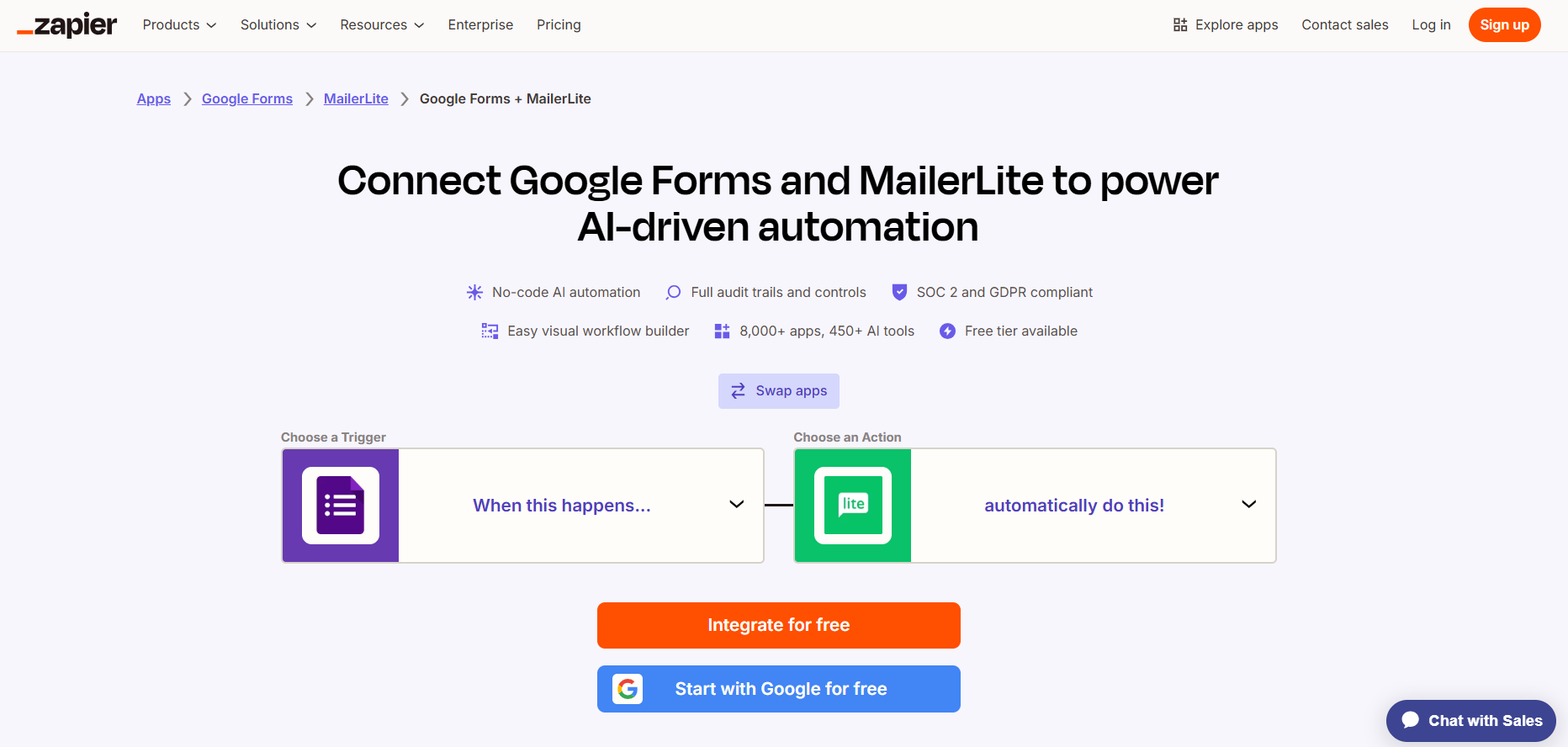
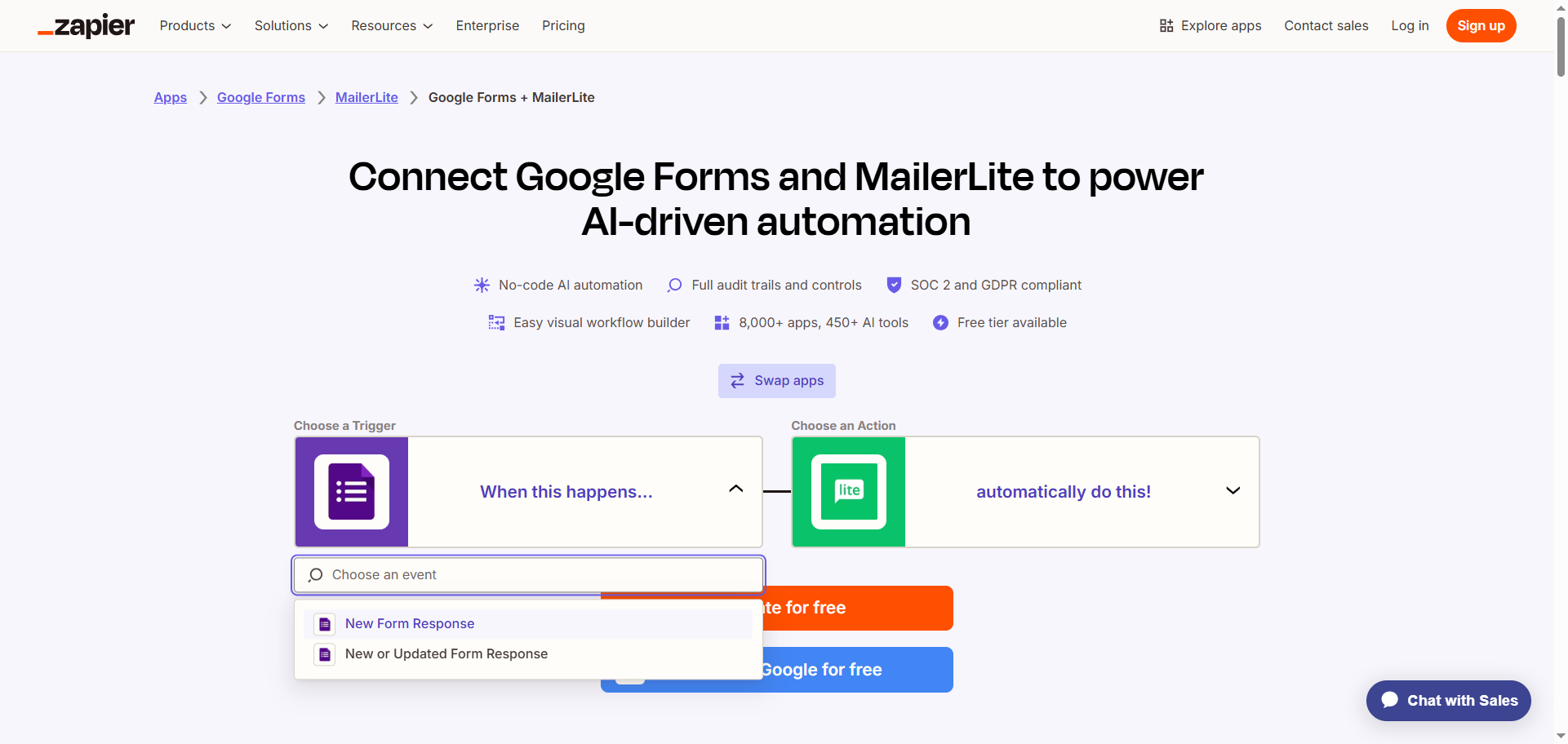
- Click the Google Forms icon and, from the dropdown menu, select the trigger that will start the workflow. For example, you might click New Form Response.
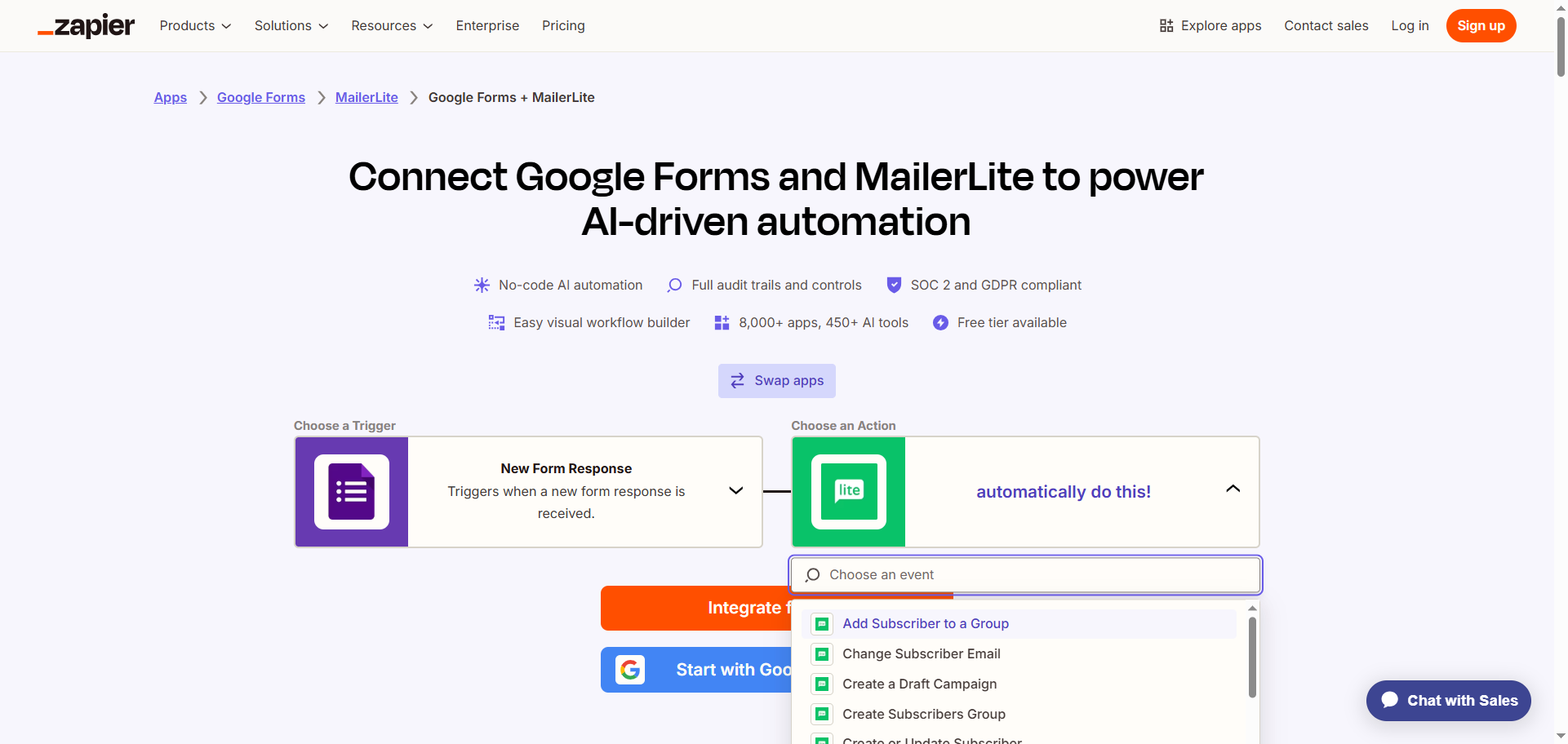
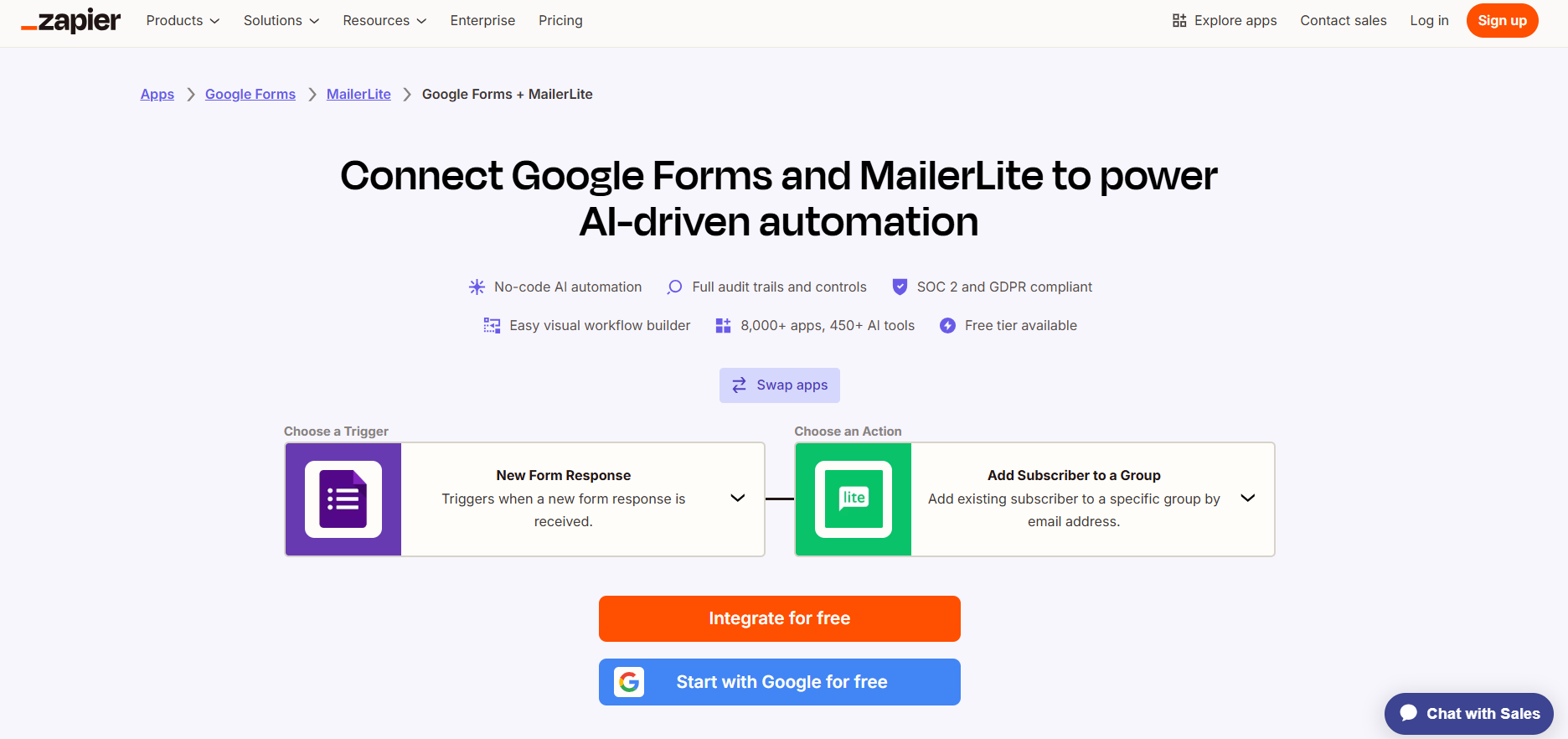
- Click the MailerLite icon and, from the dropdown menu, select the action that should occur as a result of the trigger. For example, you can select Add Subscriber to a Group.
- Click Integrate for free.
- Log in to your Zapier account.
- Click Google Forms and follow the prompts to connect it to your Zapier account. Configure and test the connection with Google Forms.
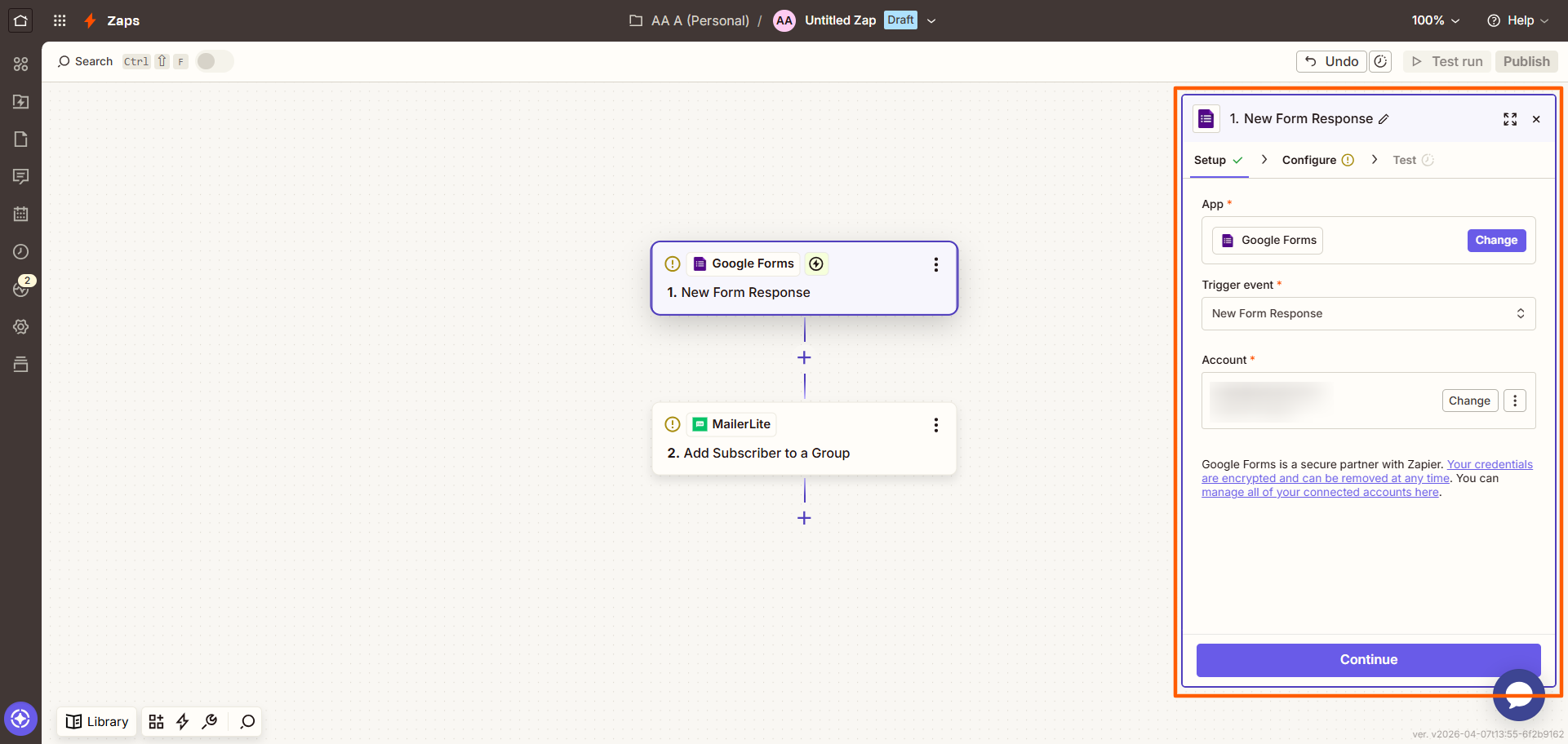
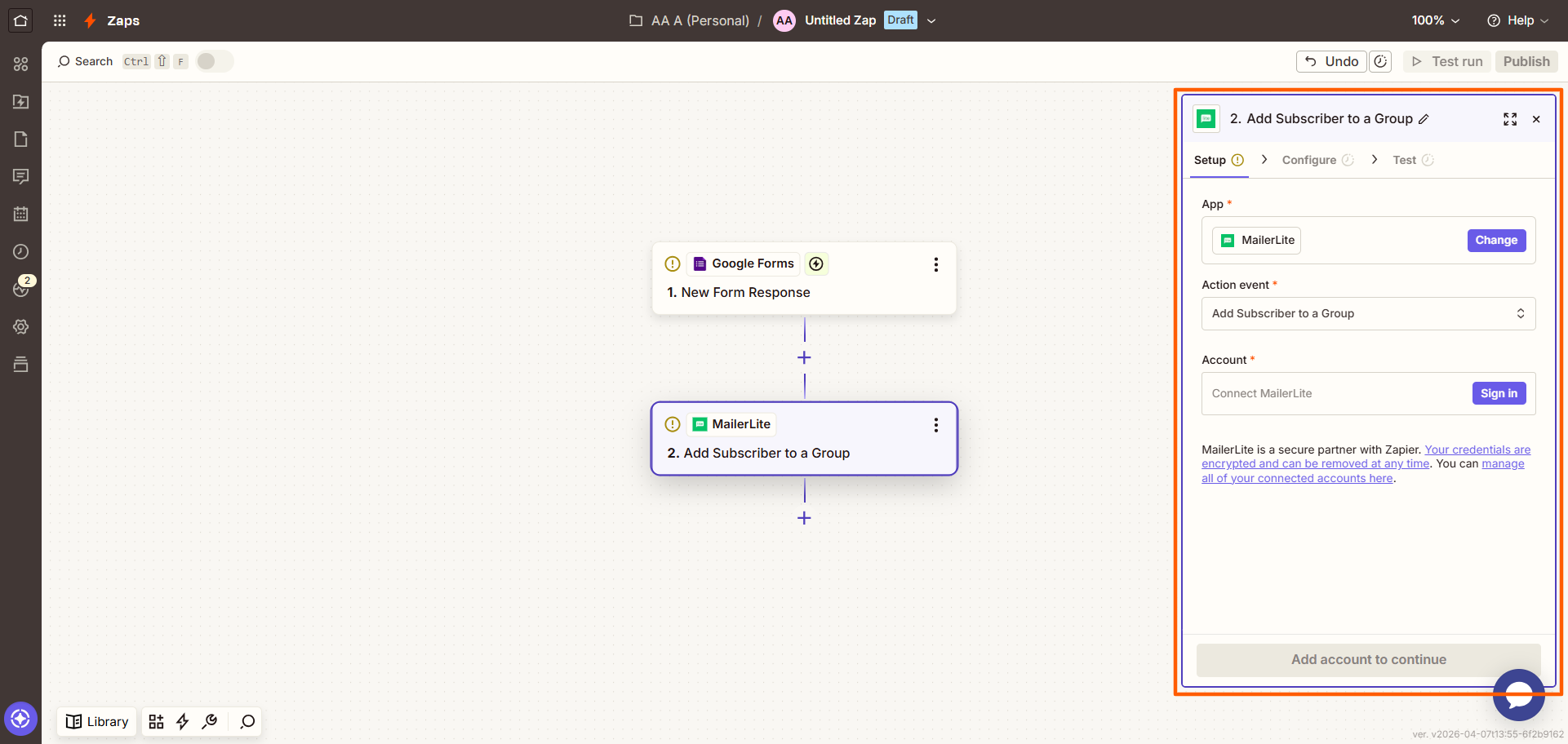
- Click MailerLite and follow the prompts to connect it to your Zapier account. Configure and test the connection with Google Forms, ensuring you have mapped the data from Google Forms to MailerLite.
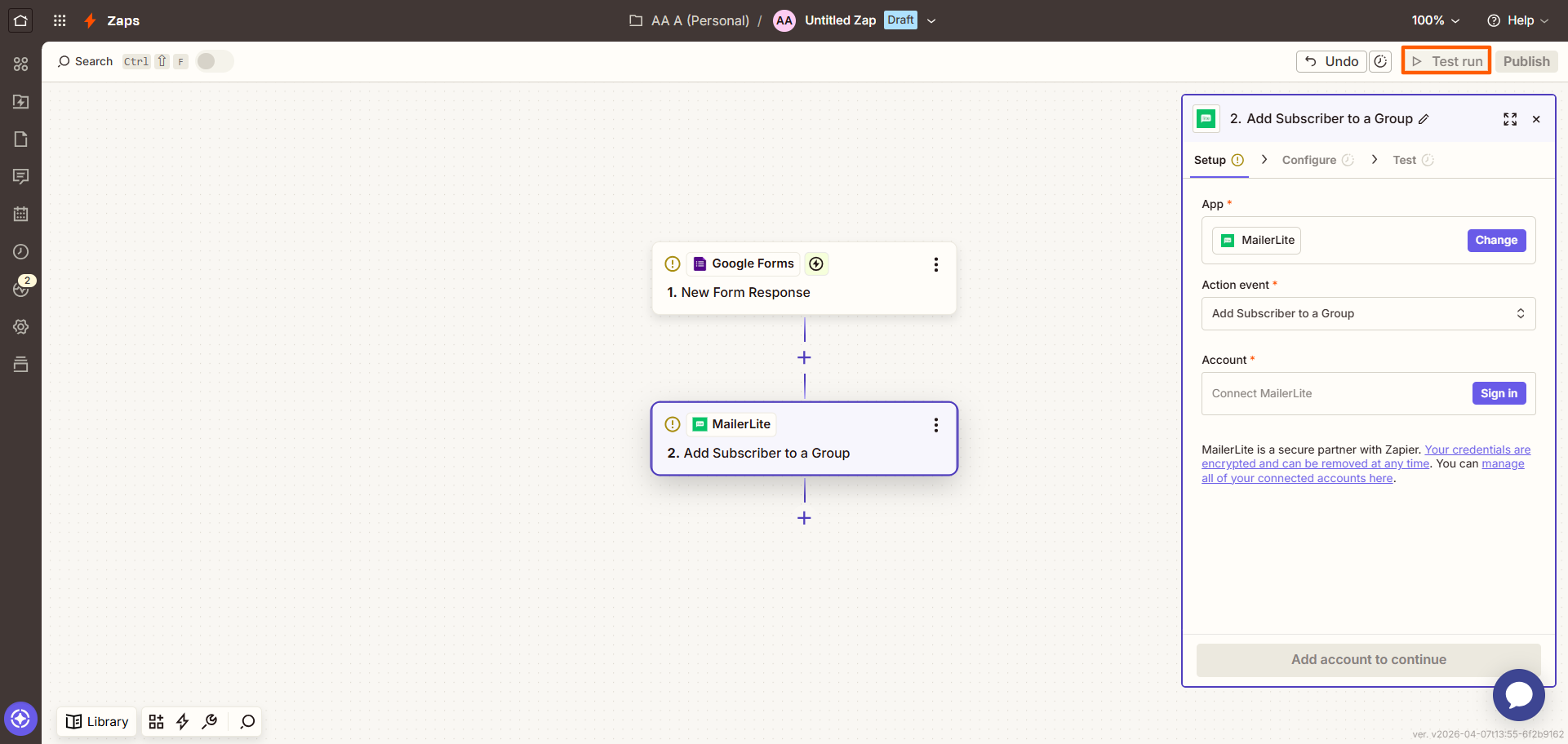
- Click Test run at the top right to see if the connection works. Make any necessary changes.
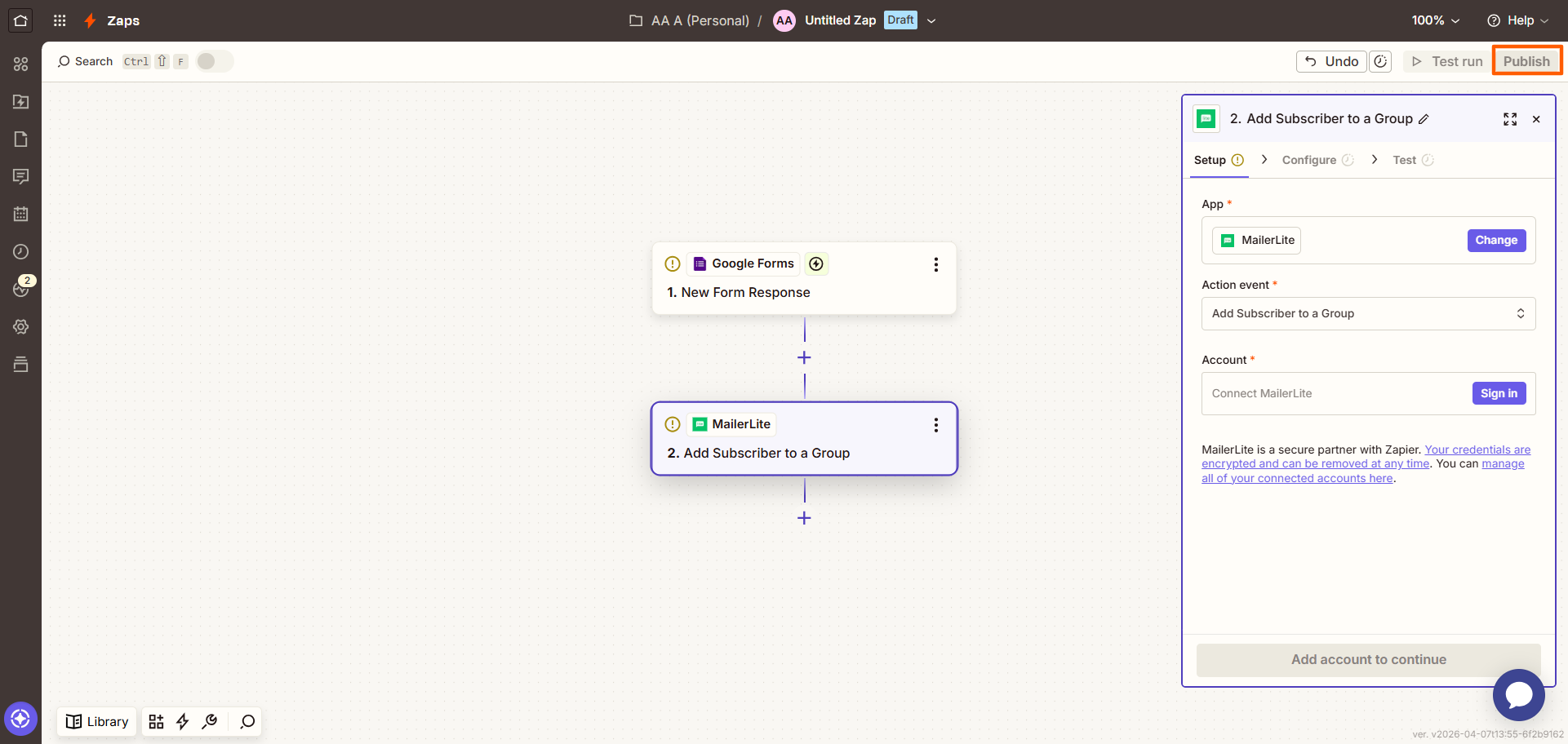
- Click Publish. Now, whenever Google Forms receives a new newsletter signup, for instance, it will add the subscriber to the designated group in MailerLite.
While the process of adding subscribers from Google Forms to MailerLite with Zapier is mostly straightforward, it can sometimes require specialized technical knowledge and troubleshooting skills. If you don’t want to deal with third-party workflow automation solutions, it’s time to look for a form builder that natively connects to MailerLite.
Jotform integrates with MailerLite natively
Creating a MailerLite subscriber sync with Google Forms is possible only with a third-party solution. It’s a good thing Google Forms isn’t the only form builder around. Another option is Jotform, the best Google Forms alternative and one that offers a direct, native integration with MailerLite and several other tools.
With the Jotform MailerLite integration, you can easily collect subscriber emails with online forms and automatically sync them to MailerLite. The direct integration helps you manage subscriber lists in your email marketing software without the hassle of learning new third-party tools.
The integration is quick and easy, built right into the Jotform Form Builder. Learn how to integrate MailerLite with Jotform by following these simple instructions:
- Open the form you want to connect to MailerLite in the Jotform Form Builder, and click Settings in the top menu.
- Click Integrations in the side menu.
- Search for and click on MailerLite.
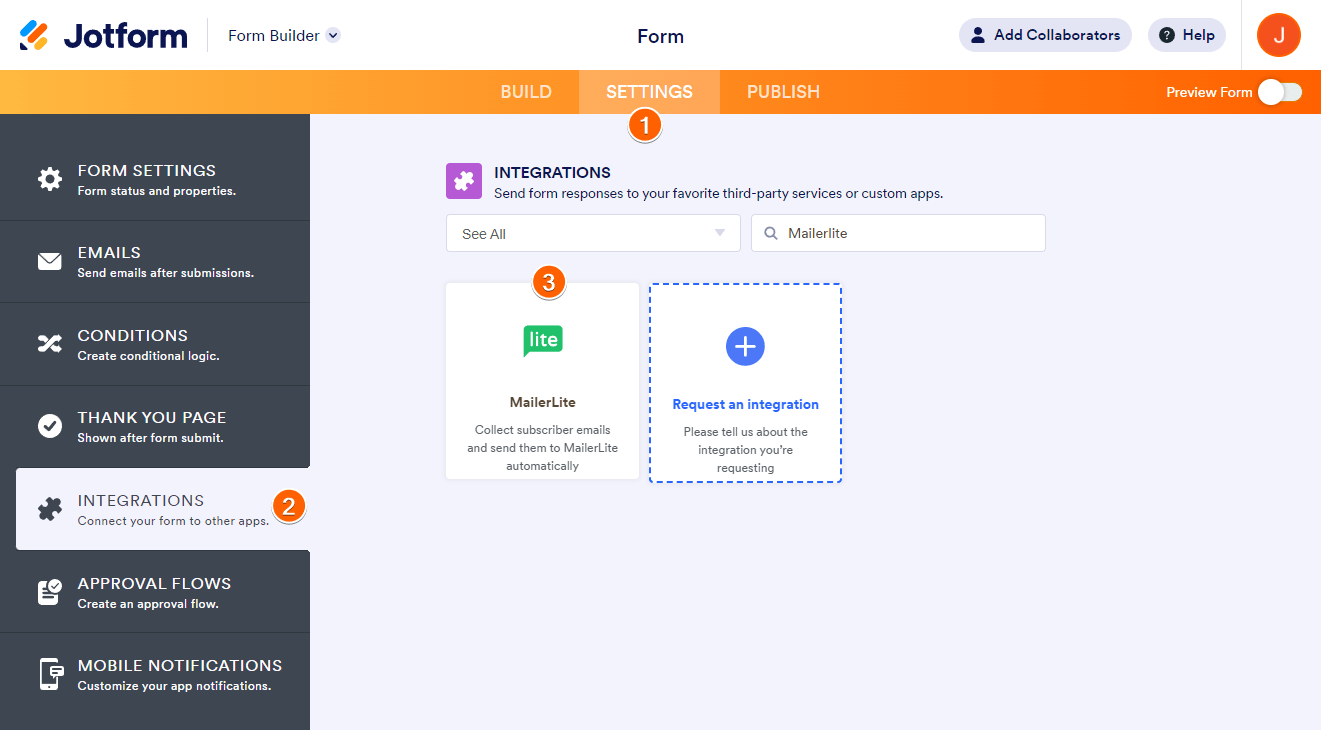
- Enter your MailerLite API key. Click Authenticate. (Not sure where your MailerLite API key is? Follow these directions from MailerLite to locate it.)
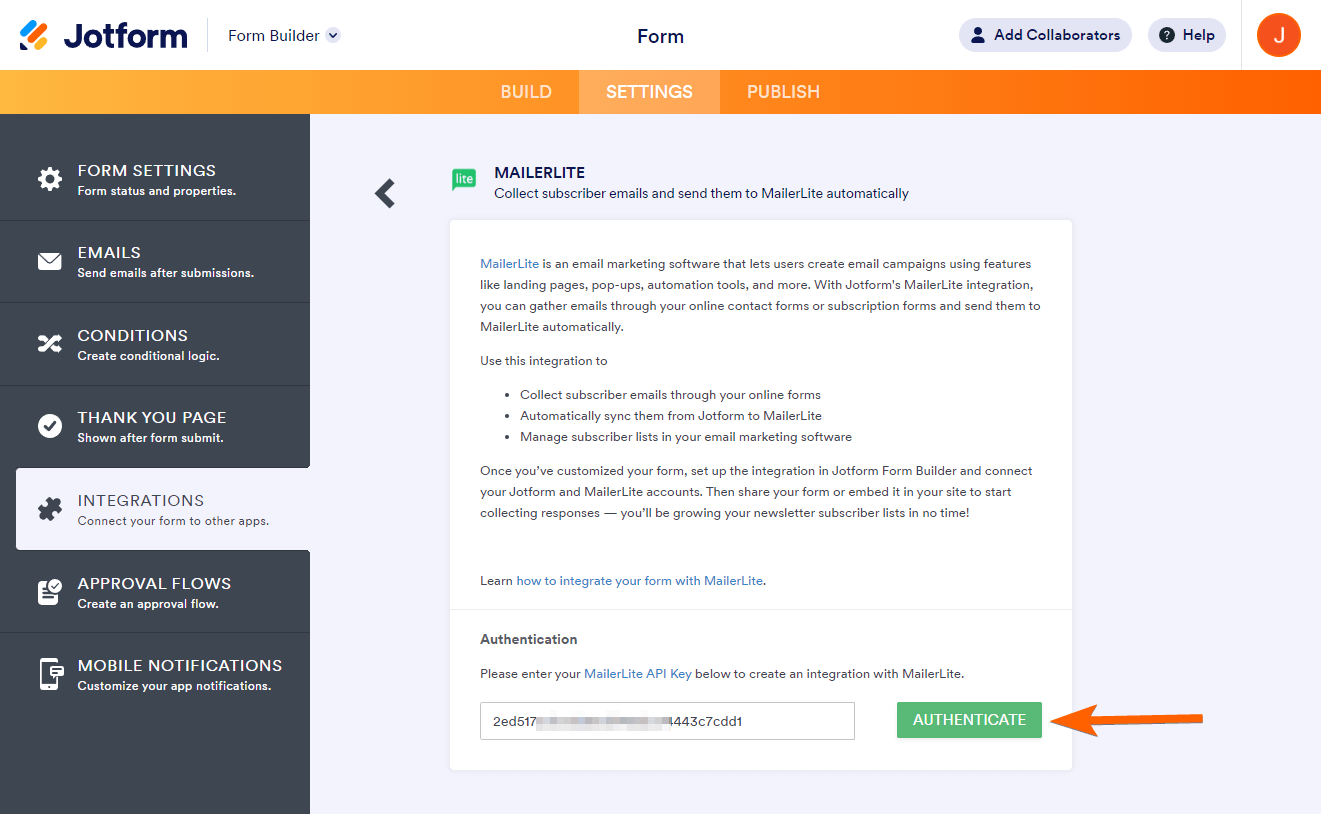
- Provide the following information to configure your integration:
- Match your fields: Align your MailerLite fields with Jotform. The integration automatically matches equivalent fields, but you can also add new fields and match them based on your needs.
- Select a group: Choose the group in MailerLite where you would like to add subscribers.
- Settings: Choose whether you would like to Update existing contacts in MailerLite (if the subscriber is already in your contacts) and if you would like to Add existing submissions to MailerLite (if you have selected a group above).
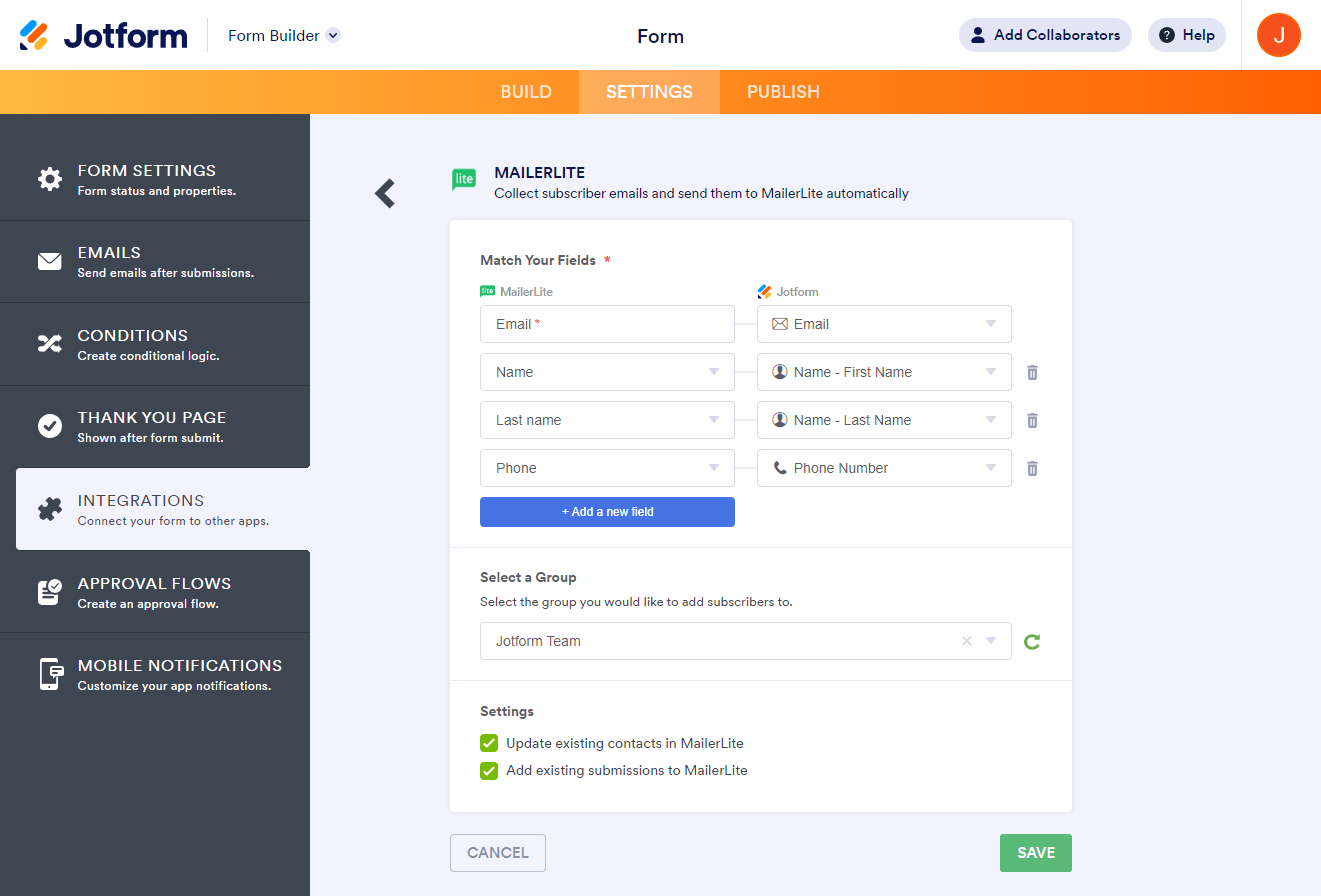
- Click Save.
- Click Finish.
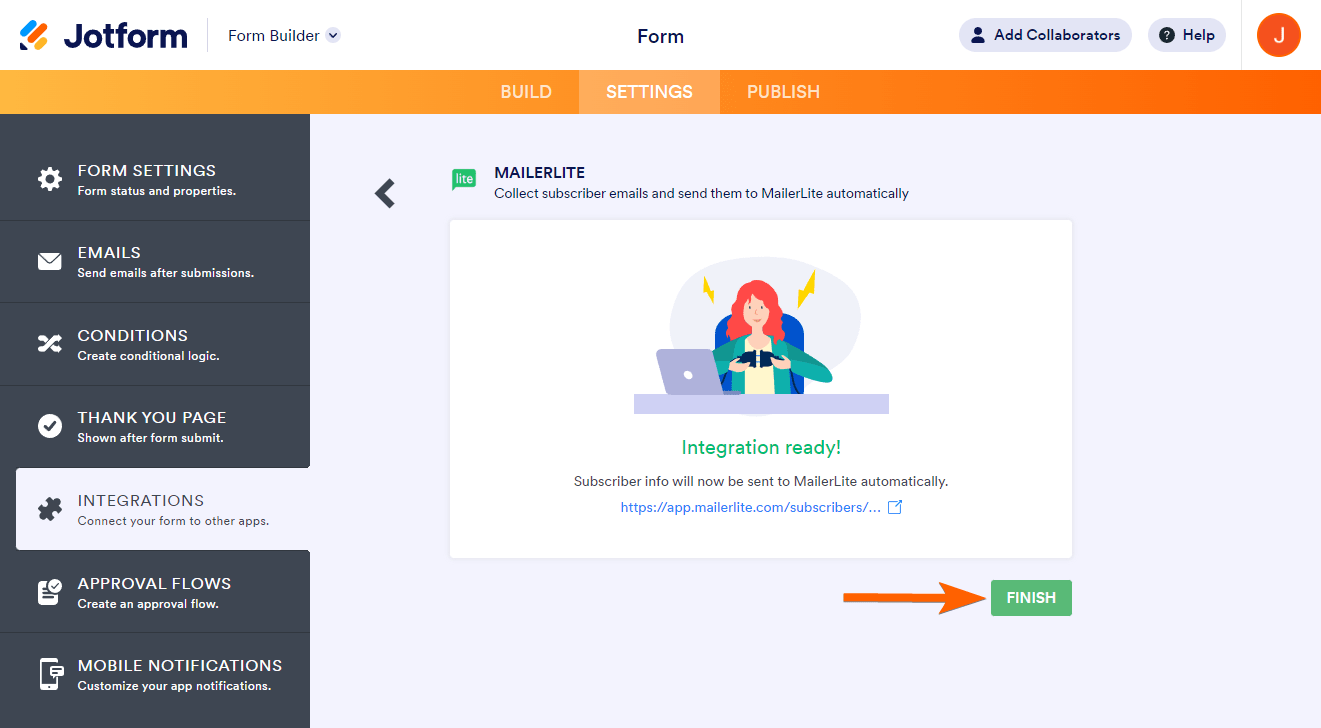
Integrating Jotform with MailerLite is that easy. Now, every time you receive a form submission in Jotform, the workflow will automatically add the contact as a subscriber in MailerLite. This process is far simpler than using third-party solutions to sync the two tools.
Switch to Jotform for native MailerLite integration and more
Google Forms users consistently switch over to Jotform once they compare the two side by side:
 Jotform |  Google Forms | |
|---|---|---|
| Native MailerLite integration | ||
| Fields and widgets | 20+ basic fields & 100+ widgets | 11 question types |
| Conditional logic | Limited capability | |
| Integrations | 150+ | Add-ons supported |
| Templates | 20,000+ | 17 |
| Themes | 1,000+ ready-made themes & custom theme creation | Limited theme customization |
| Custom notifications & auto-responder emails | ||
| Reporting features | Report Builder and Form Analytics | Limited graphs |
| Mobile app | Jotform Mobile | |
| Try It Now | Learn more |
When Jotform and Google Forms go head-to-head, it’s clear why users choose Jotform:
- Automated workflows with native integrations: Jotform offers over 150 native form integrations with tools you already use, such as MailerLite. Native integrations are easy to access and enable from the form builder.
- Form templates to increase productivity: Jotform comes with access to over 20,000 form templates for a range of industries and uses. You don’t ever have to create a form from scratch. Simply find a template and customize it for your needs.
- Advanced features to create engaging forms: With sophisticated features such as conditional logic, you can build highly relevant forms that capture your audiences’ attention, resulting in better data.
- Tools for better understanding form responses: Jotform goes beyond capturing data. It comes with form analytics and report-building tools so you can make sense of the information you collect.
Jotform also offers over 100 widgets (such as for signatures and payments) that are easily accessible from the form builder. And if you want to manage your forms while you’re out creating content or meeting with partners and clients, you can do so with the Jotform mobile app.
With all of these advanced functions, Jotform is still as intuitive as Google Forms. Whether you’re a new user or an expert, you’ll feel comfortable creating forms in Jotform right away.
Migrate your Google Forms to Jotform with a single click
If you’ve already created your forms in Google Forms, you don’t need to re-create them in Jotform. Our one-click migration tool does the heavy lifting for you, transferring your form questions and structure as they are. You don’t need to worry about formatting issues or making large-scale changes after the migration. Everything stays intact.
If Google Forms doesn’t offer the native integrations you need, why stick around? Migrate to Jotform so you can access the MailerLite native integration and create automated workflows that help grow the subscriber base for your business.


Jotform offers a free plan, so what are you waiting for? Create your Jotform account and see how easy it is to migrate from Google Forms, use native integrations, and create automated workflows with the tools you use every day.
This article is for content creators, bloggers, and small business owners using MailerLite who want to automatically grow their subscriber lists from Google Forms sign-up responses without manually importing CSV files.




































































































Send Comment: