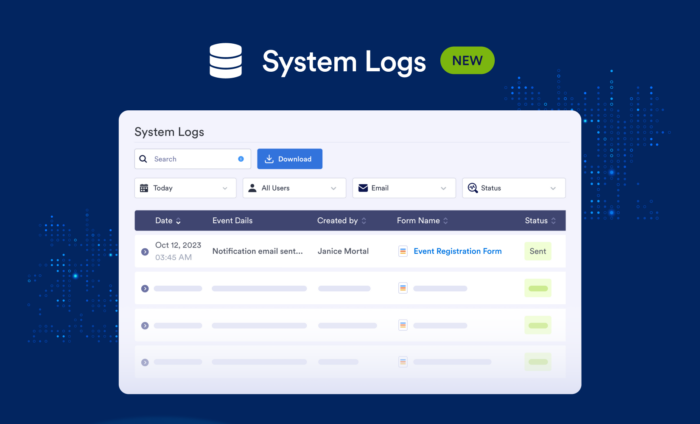
Want to maximize organizational transparency, System Logs for Jotform Enterprise expands on our Activity Log feature to provide even more admin oversight. At a glance, you can track all the integrations and outgoing emails from your Jotform Enterprise instance and teams.
Let’s look at how your organization can leverage System Logs for quick, powerful reporting.
What are System Logs?
The System Logs feature enables Jotform Enterprise admins to track system processes within their organization and teams. So what exactly are system processes, and how do System Logs differ from Activity Logs?
In this context, system processes are actions carried out by the Jotform Enterprise system. For example, if you’ve enabled autoresponder or notification emails for your forms, the Enterprise system can send confirmation emails. System Logs is where you can monitor these activities. Activity Logs, on the other hand, monitor activities carried out by users, such as editing a form.
How to use System Logs for Teams
With System Logs, you can monitor all emails and integrations related to your Jotform Enterprise account. You can see all the emails sent from your Enterprise instance, the date and time they were sent, which form they were sent from, and whether or not the email was delivered successfully.
You can also see all the integrations connected to your system, when they were connected, who connected them, if the integration was connected successfully, and in which form(s) they are used.
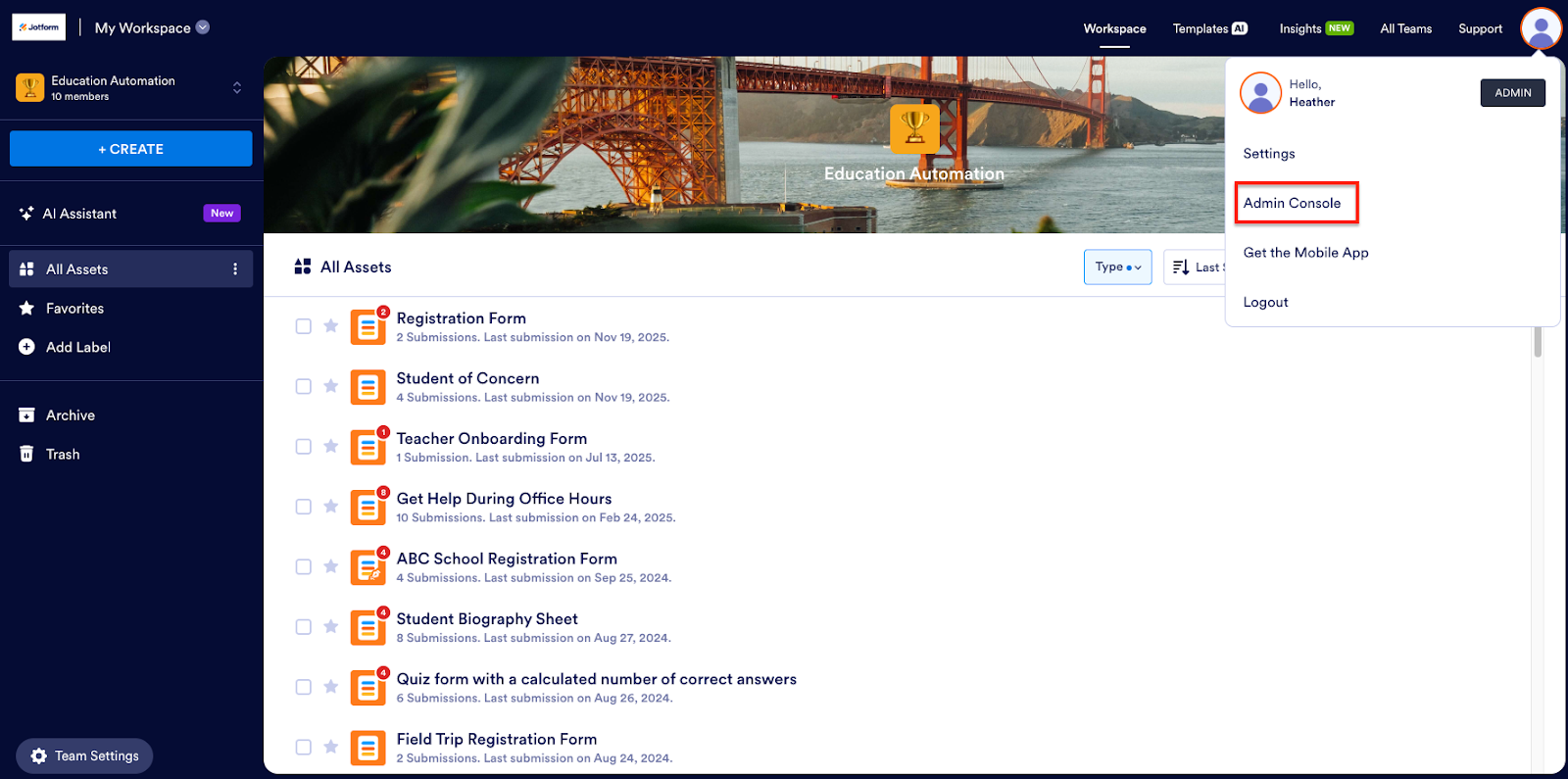
You can access System Logs for both your organization as a whole and by team. To access System Logs for a specific team, go to the Admin Console by clicking on your account avatar in the upper right and then choosing Admin Console from the dropdown menu.
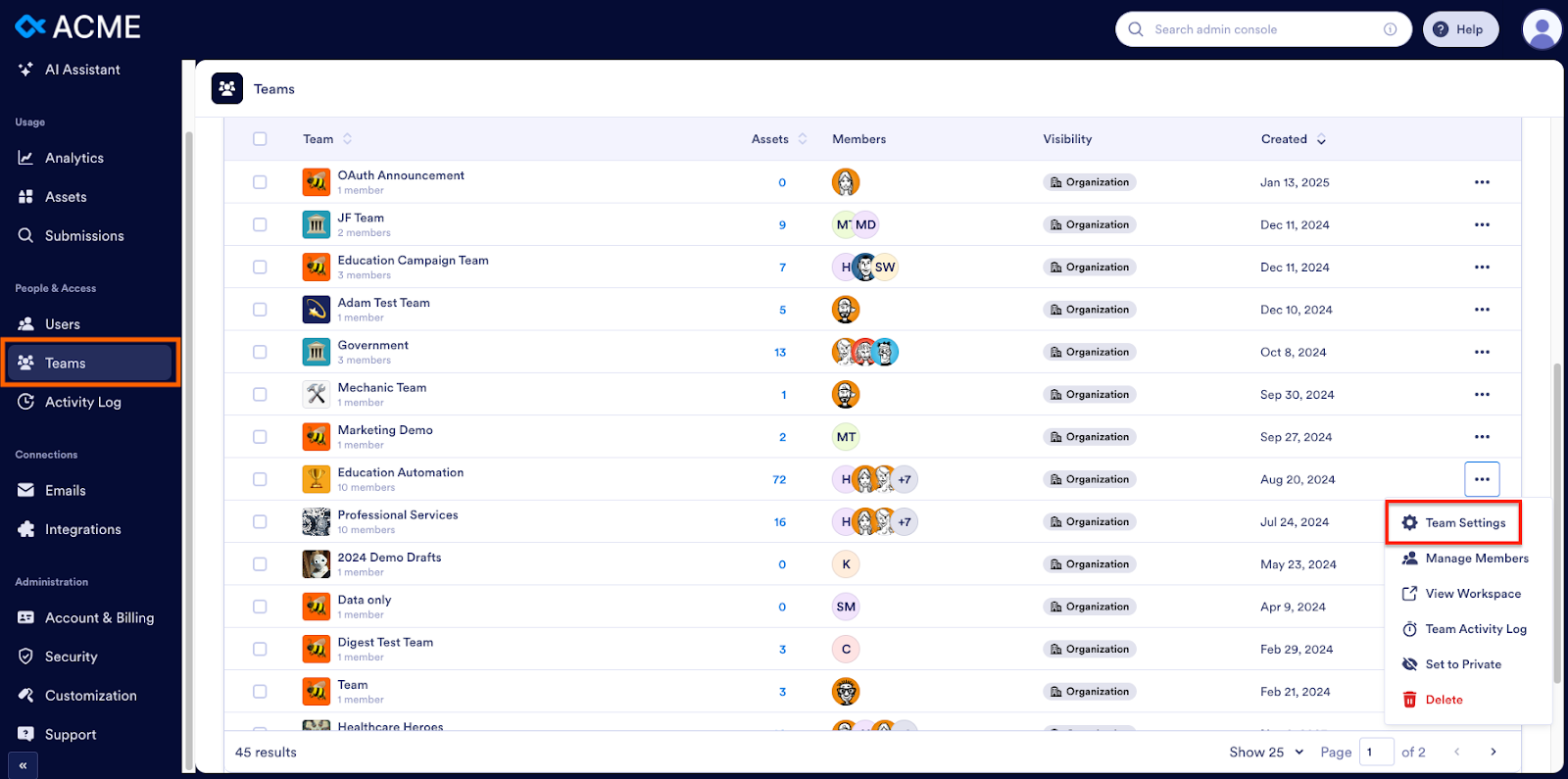
Next, click on Teams in the left panel to see a list of all your organization’s teams. From there, click the three-dot menu next to the team you want to view data for, and then select Team Settings from the dropdown.
Once you’re in Team Settings, click System Logs in the left menu.
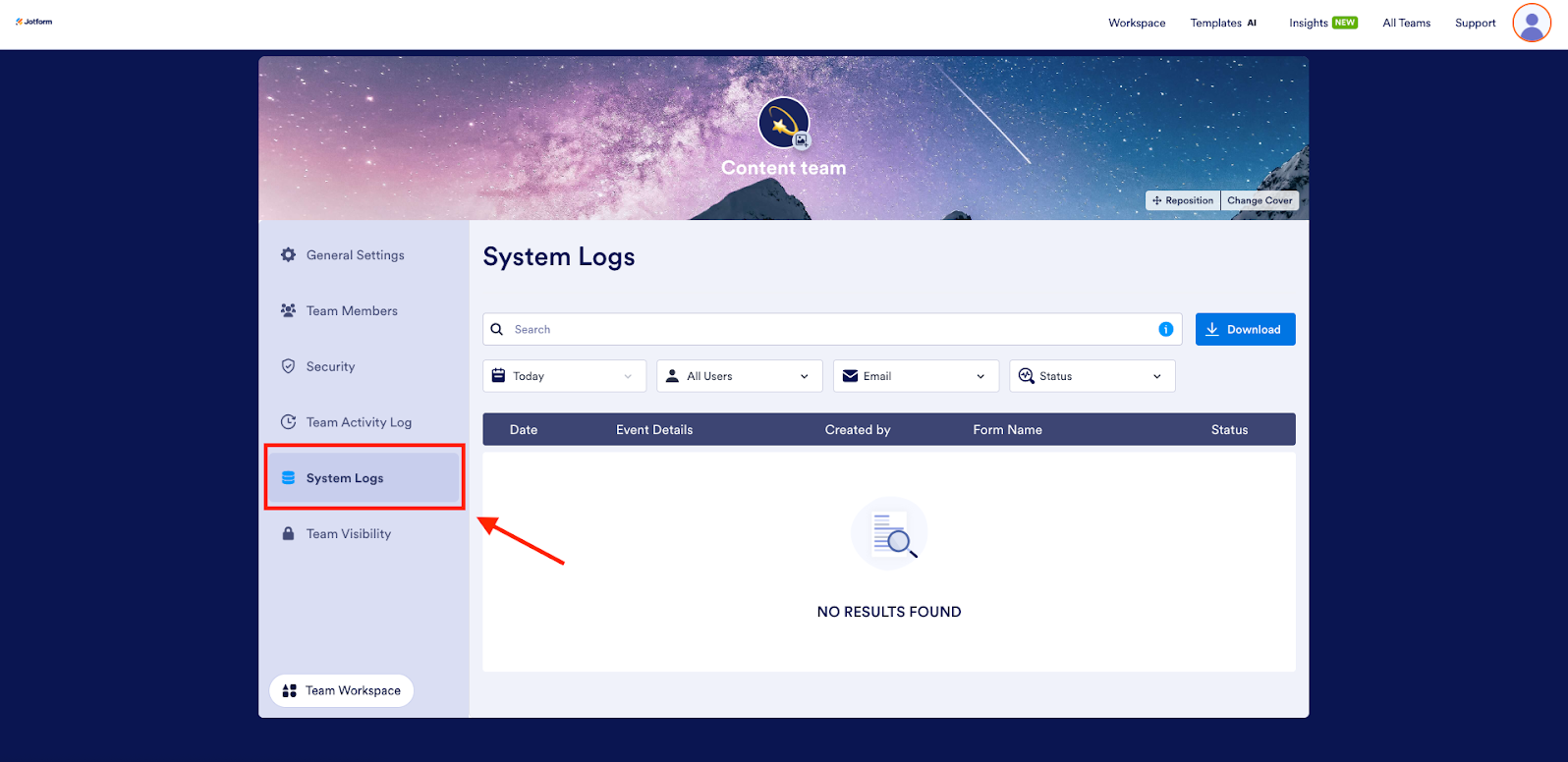
To populate this window with relevant information, use the four dropdown filters at the top of the page. Let’s look at each of these filters and their functions.
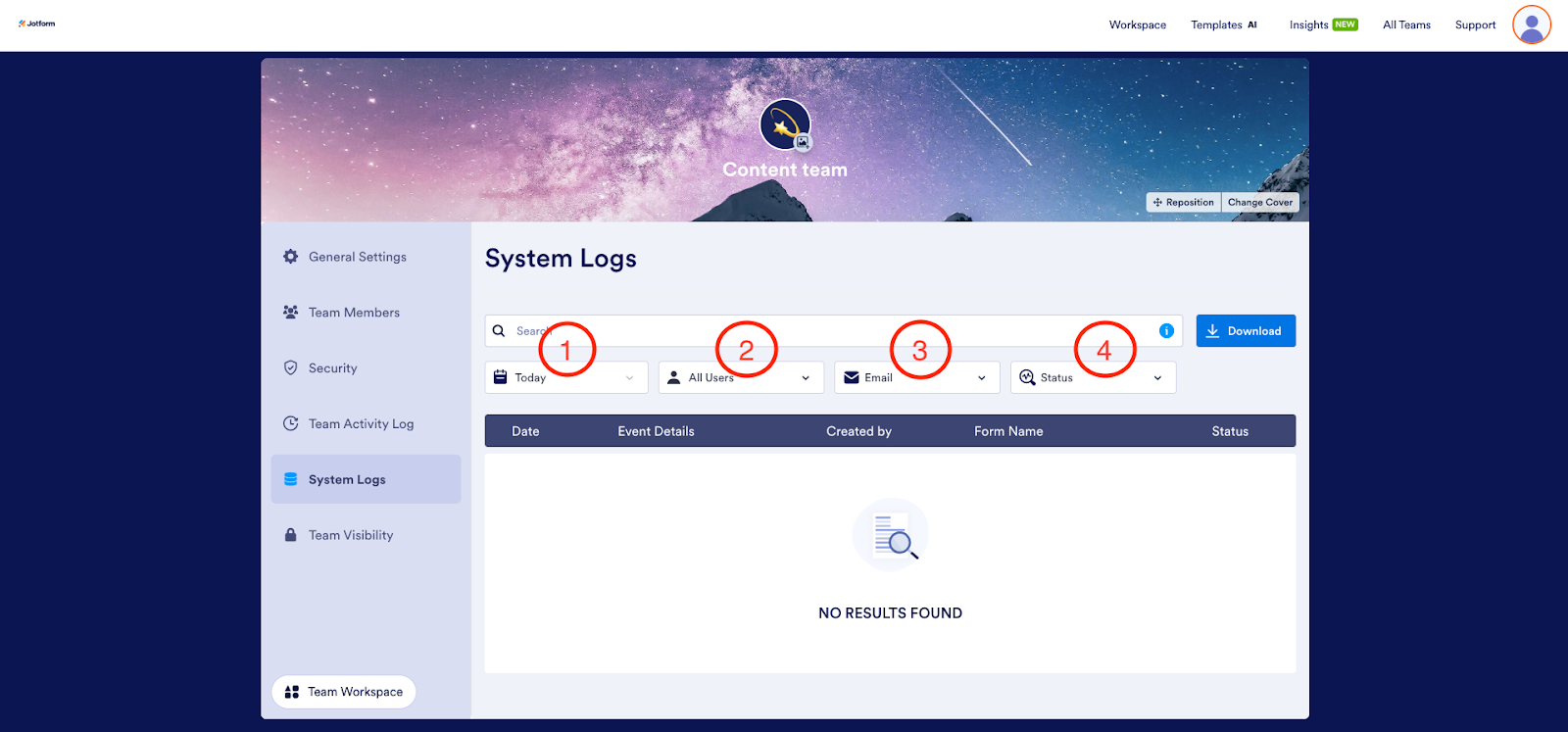
- Date range: Select the time period for which you would like to view emails/integrations. For example, you can view all the outgoing emails from the last week, month, etc.
- User: Sort emails/integrations by user. In this case, the user is whoever created the form the email is sent from or the user who set up an integration.
- Email/Integration: Select whether you’d like to view email logs or integration logs.
- Status: Sort emails/integrations by status. Here, you can filter between emails that were successfully sent and emails that failed to send. Likewise, integrations that were successful and integrations that failed.
Using these filters, you can efficiently sort email and integration history within a team for quick, easy, and powerful oversight.
How to use System Logs information for your whole organization
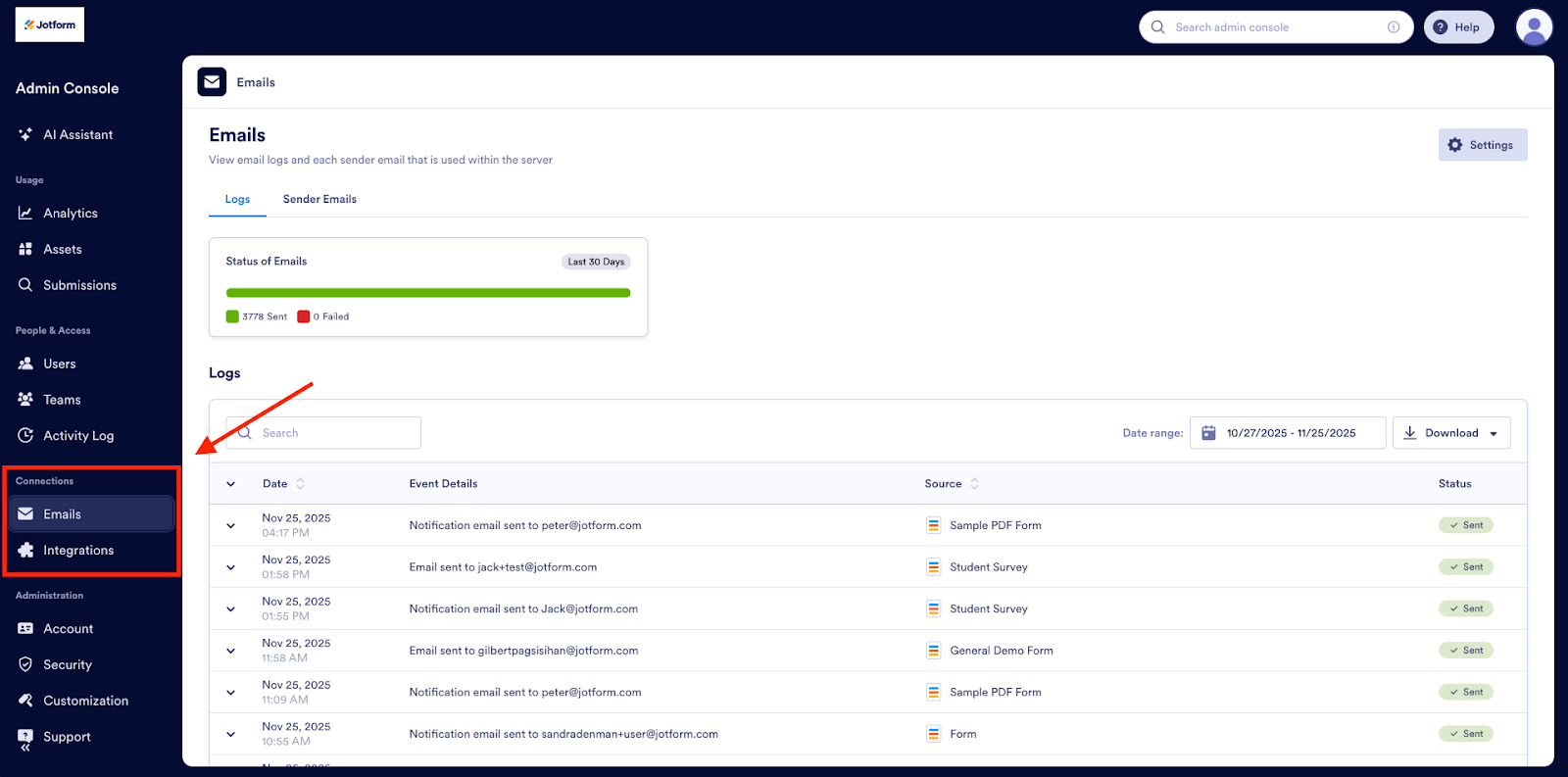
To access System Logs information for your entire organization, go to your Admin Console. In the left panel of the Admin Console, you’ll see a section labeled Connections, which tracks system-wide email and integration activity. Choose Emails or Integrations to see a list of all activities for each category.
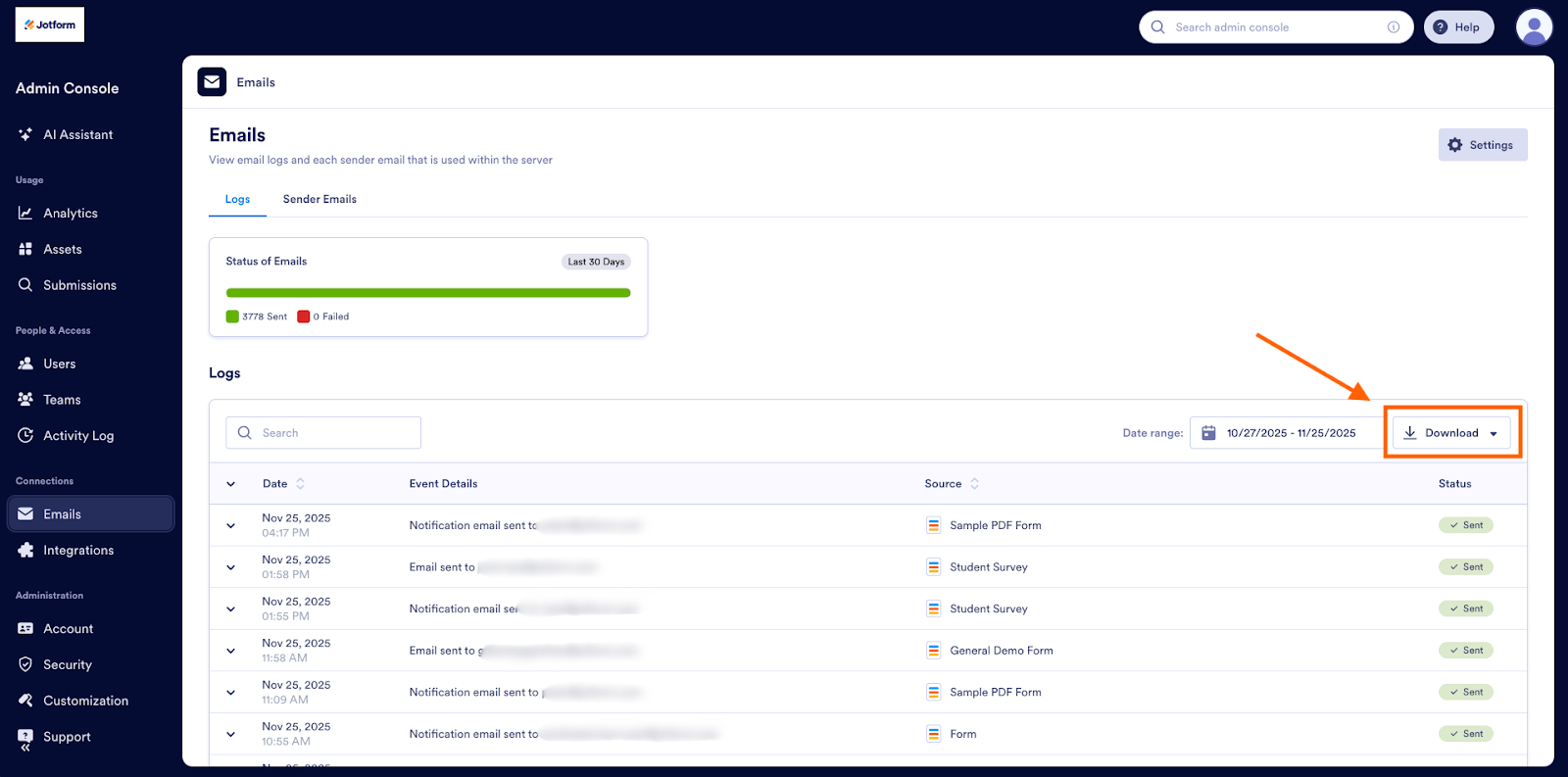
In addition to viewing these reports within your Enterprise instance, you can export email and integration logs. To do this, apply your desired date range or other filter, and then click the Download button above the list of events. Here, you can download your System Log information as an Excel or a CSV file.
We hope the System Logs feature helps you maximize transparency and reporting within your organization. For even more reporting and analytics options, check out Jotform Enterprise Insights. Insights provides a unified dashboard of account activity for all of your Jotform assets in one place.
Want to learn more about administrative oversight with Jotform Enterprise? Read more about our Admin Console, and check out our video demo of Jotform Enterprise admin features.

























































































Send Comment: