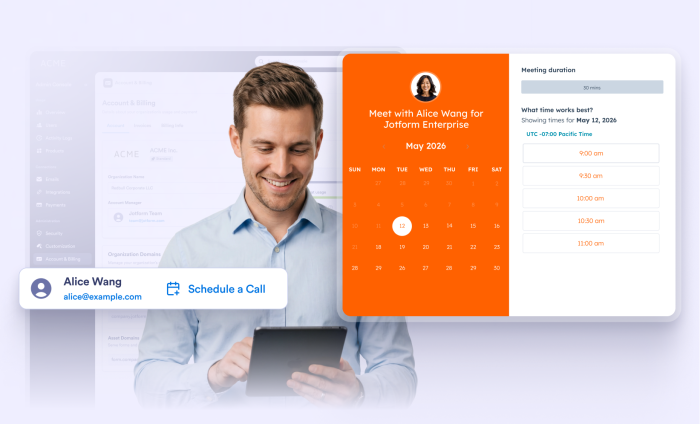
If you’re managing a Jotform Enterprise account, you know that as your organization grows, your needs change. Whether you’re looking to add more seats, discuss a renewal, or review your account’s usage, having a direct line to your account manager is key.
To make managing your account even easier, we’ve added a “Schedule a Call” shortcut directly within your Account & Billing dashboard. You can now skip the back-and-forth emails and book a strategy session — at no additional cost.
Who can access Account & Billing?
By default, only admins have access to the Account & Billing section of the Admin Console. This ensures that sensitive information — like invoices, seat counts, and plan details — remains secure and is managed only by authorized personnel.
Booking a call through Account & Billing: A step-by-step guide
Read on to learn how to use this new shortcut to book time with your account manager in seconds.
Step 1: Access your Admin Console
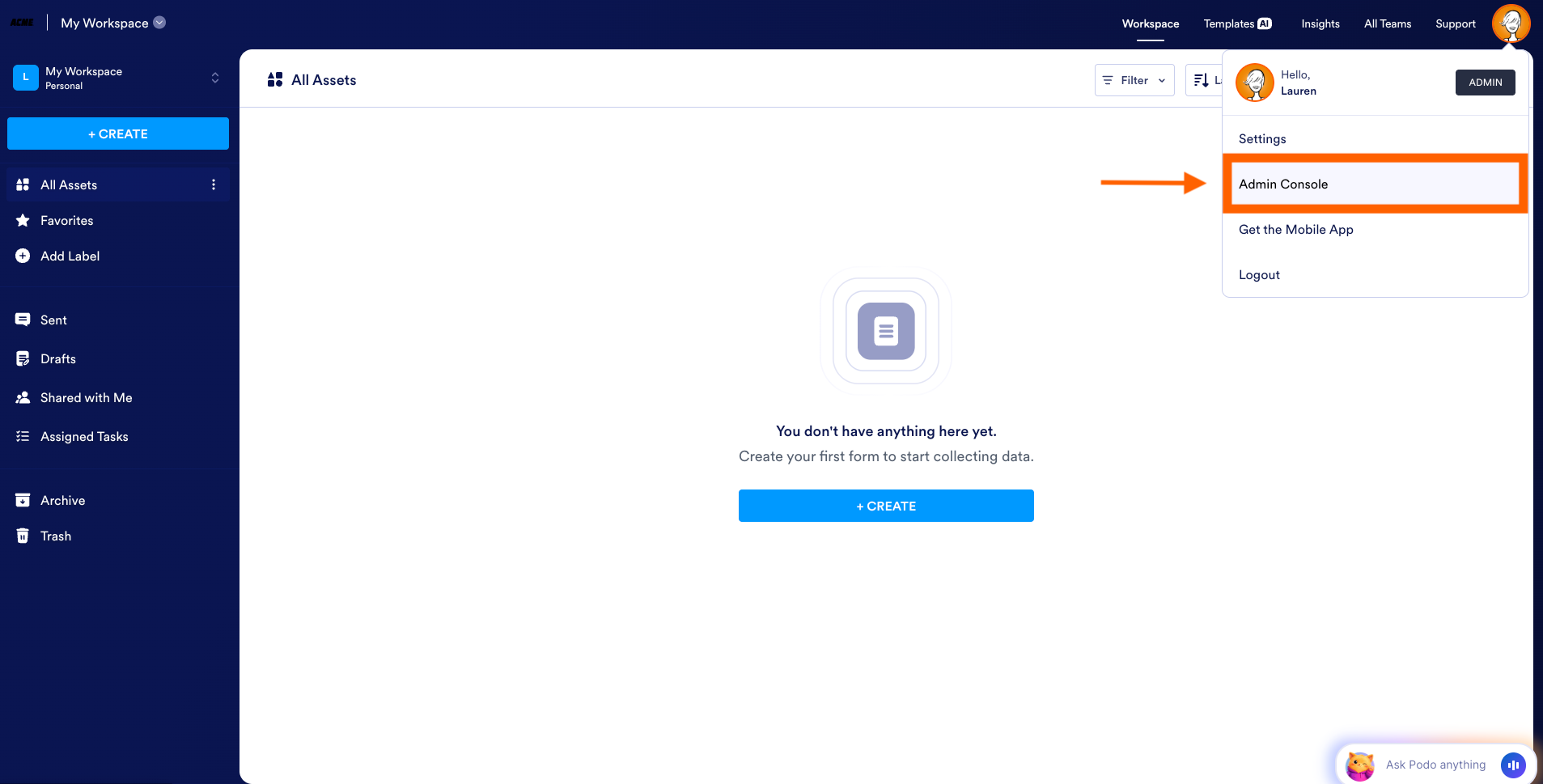
To get started, log in to your Jotform Enterprise account. Click on your avatar in the top right corner of the screen and select Admin Console from the dropdown menu. This is your home base for all high-level management of your organization’s account.
Step 2: Open the Account & Billing section
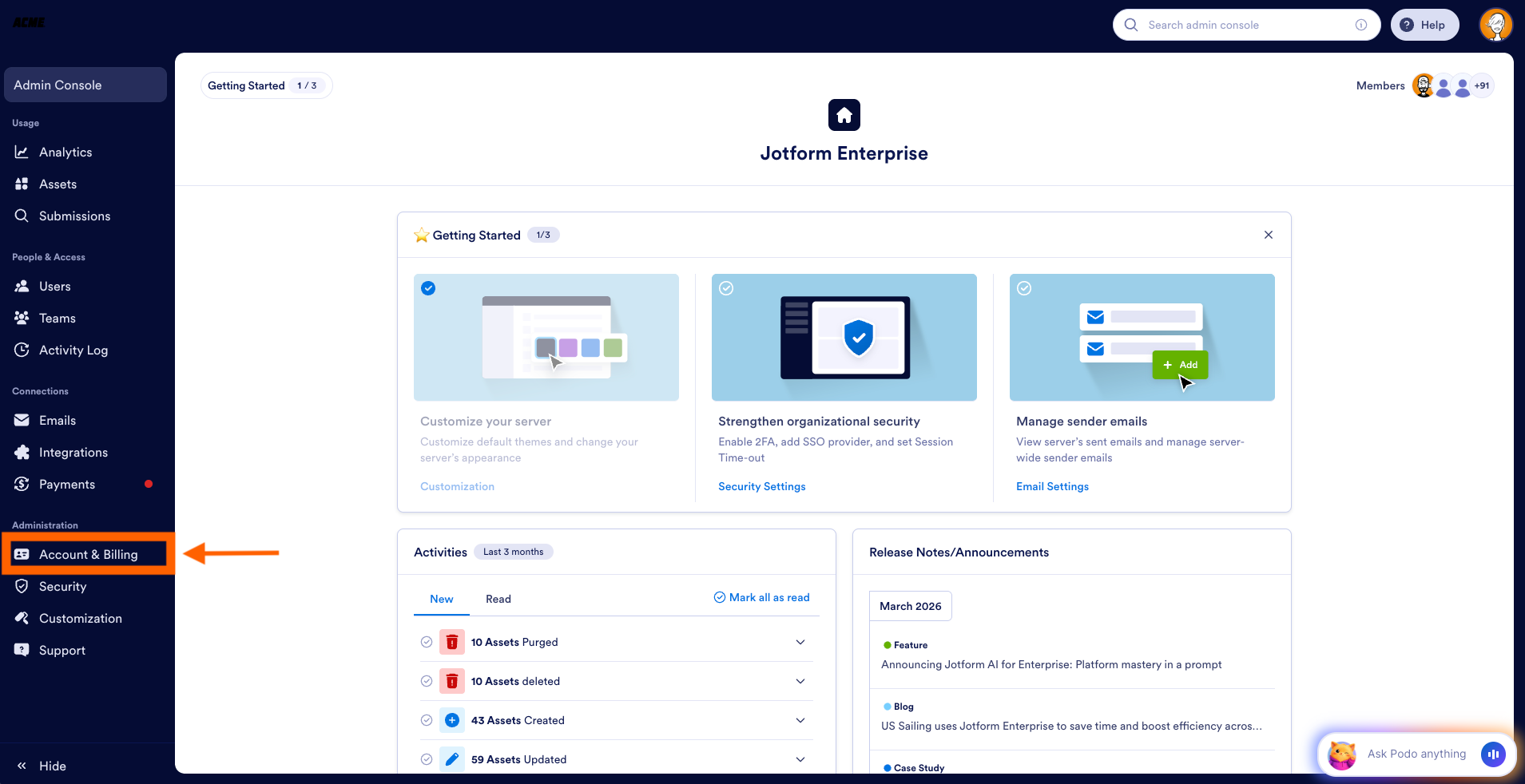
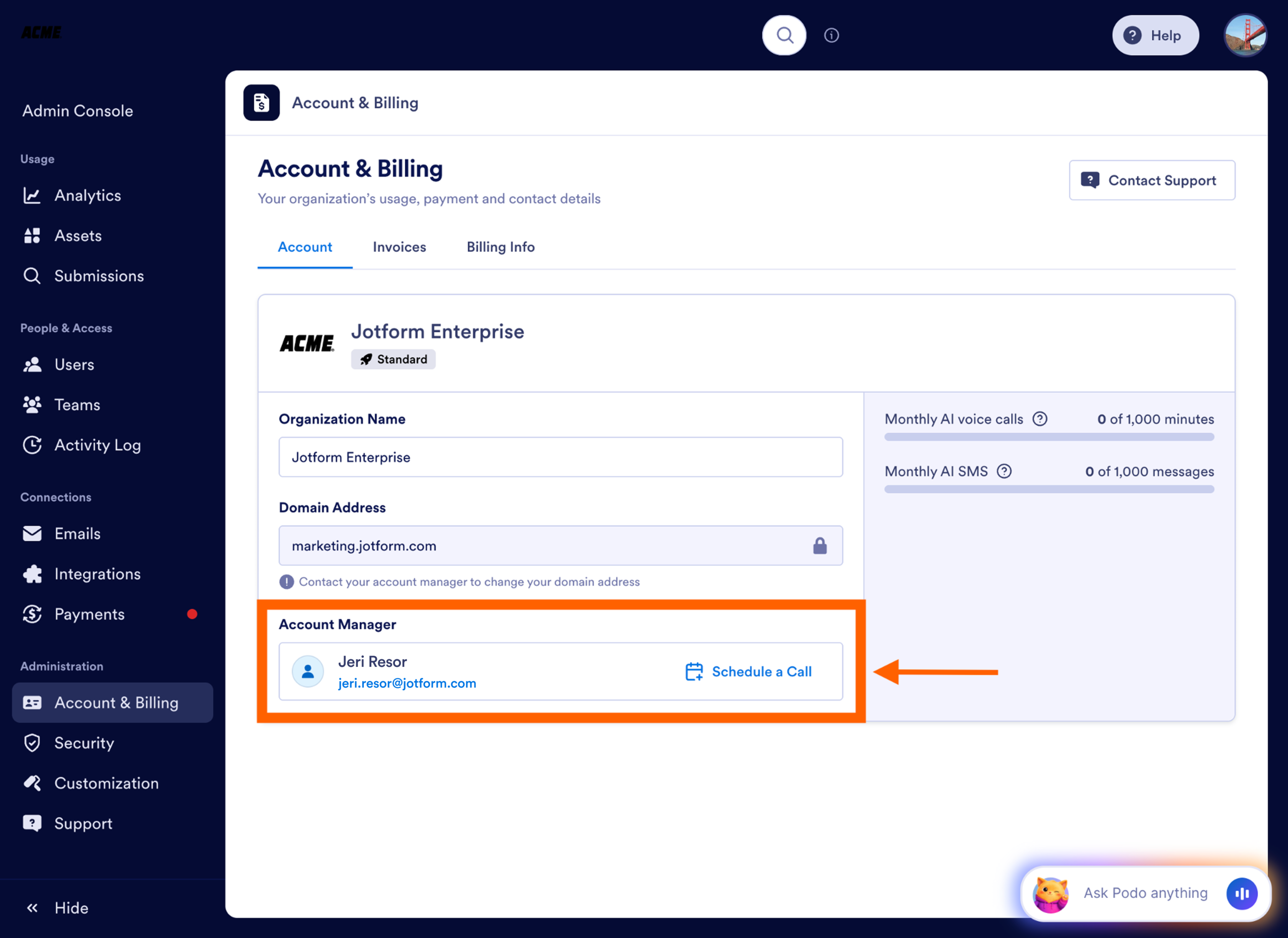
In the Admin Console’s left sidebar menu, click on Account & Billing. This page gives you a clear overview of your current plan, usage, and billing history.
Step 3: Locate your Account Manager’s details
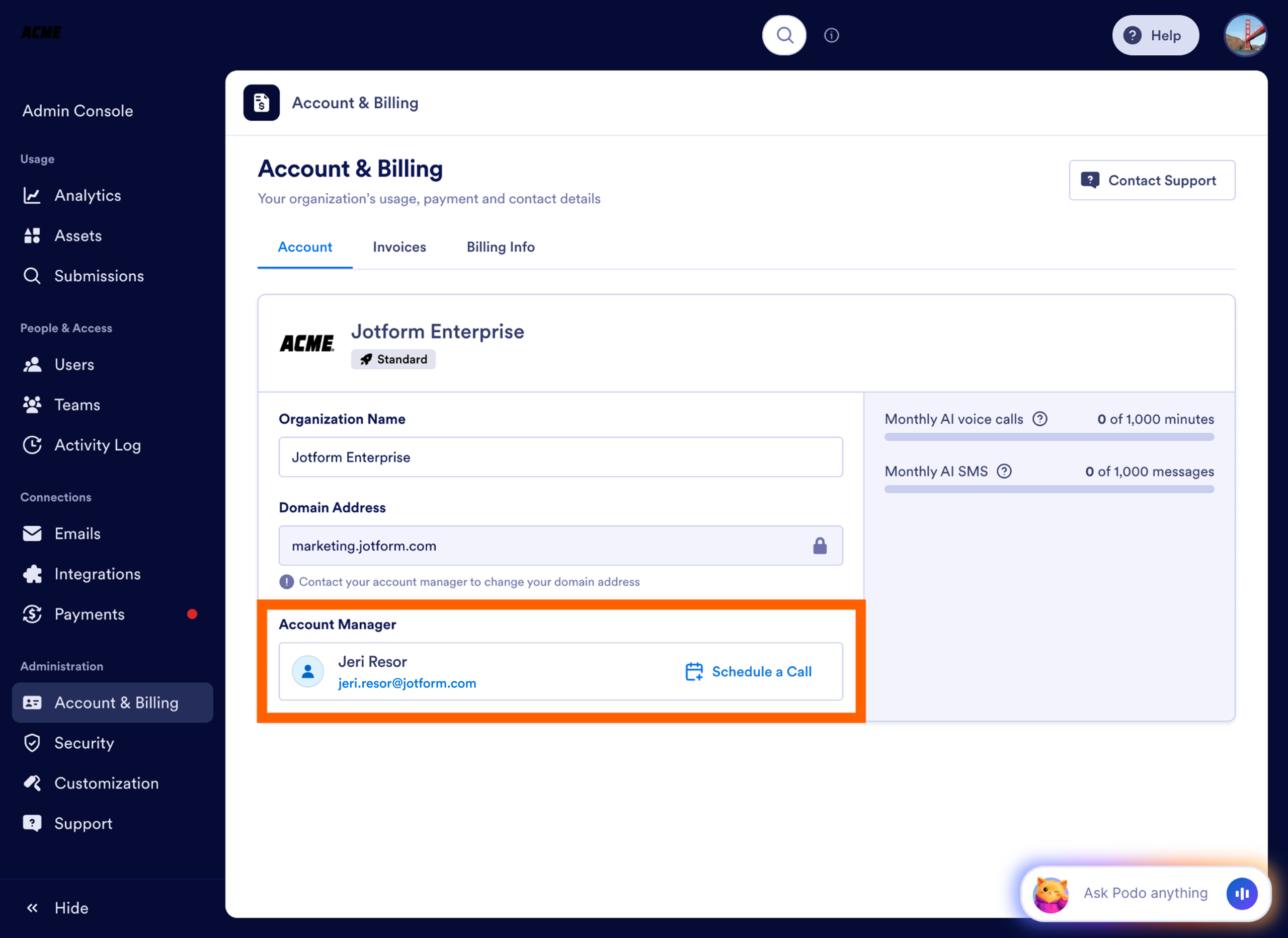
At the bottom of the Account & Billing page, you’ll see a section with your account manager’s name and email address. This is your go-to contact for any high-level account questions.
Step 4: Click “Schedule a Call”
Next to your account manager’s contact information, you’ll now see a Schedule a Call button. Click this button to see their live calendar.
Step 5: Choose your time
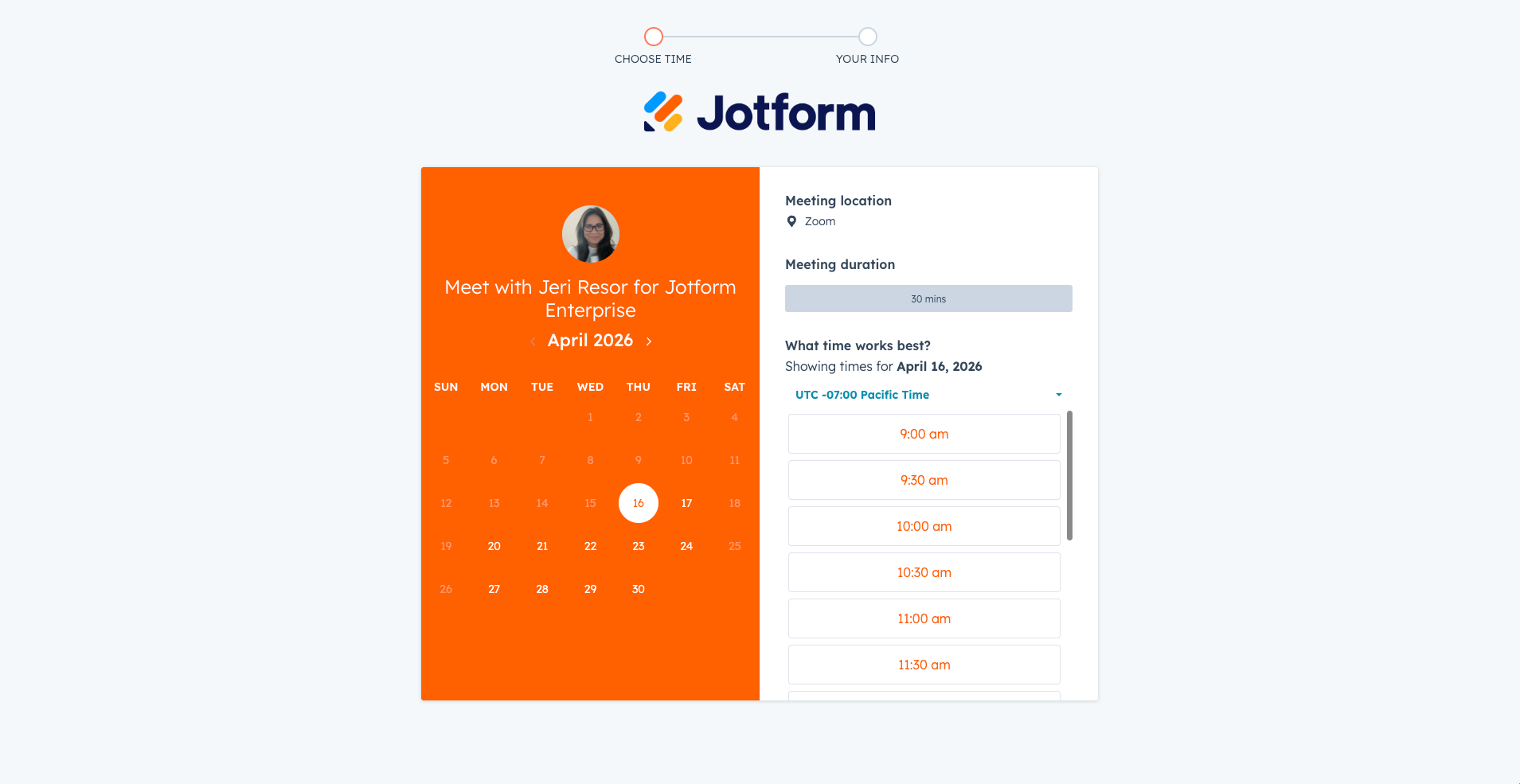
Select a date and time that works best for you. Since the calendar shows their real-time availability, you can confirm your meeting instantly without waiting for a confirmation email.
Step 6: Confirm and connect
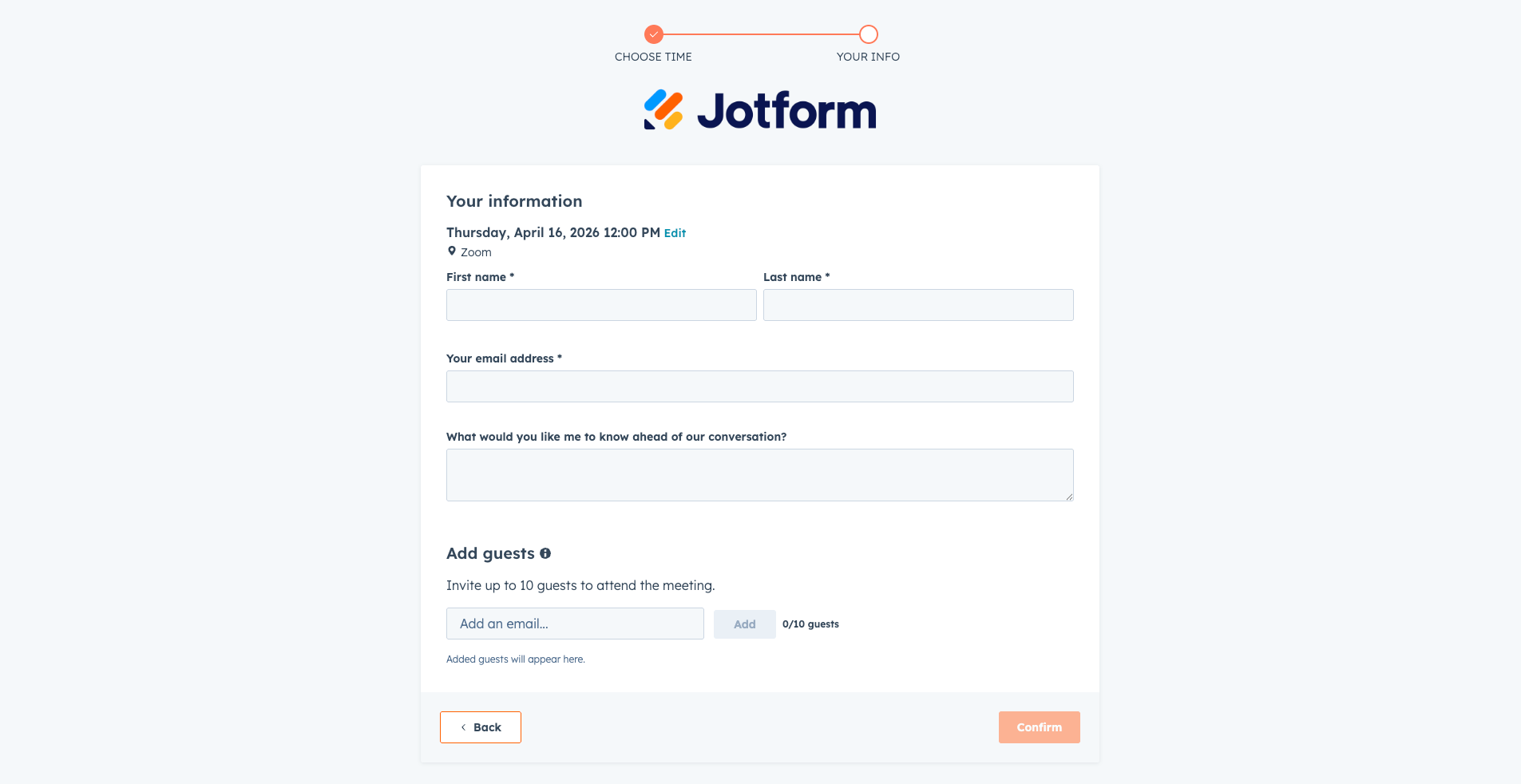
After selecting your slot, just enter your name, email, and a quick note about what you’d like to discuss. If you need to bring the rest of your team along, you can include up to 10 additional guests by adding their email addresses. Once you hit Confirm, both you and your account manager will receive a calendar invitation with the meeting link — no further steps required.
When to use this shortcut
While the Support tab is great for technical troubleshooting, the Account & Billing shortcut is the best way to schedule calls regarding
- Upgrading your plan or adding more seats
- Discussing contract renewals
- Strategic reviews of how your organization is using Jotform Enterprise
Ready to strategize?
Your account management should be as seamless as your forms. We’ve added this feature so you can get the answers you need the moment you need them. Head over to your Account & Billing section today to connect with your account manager and keep your organization moving forward.




















































































Send Comment: