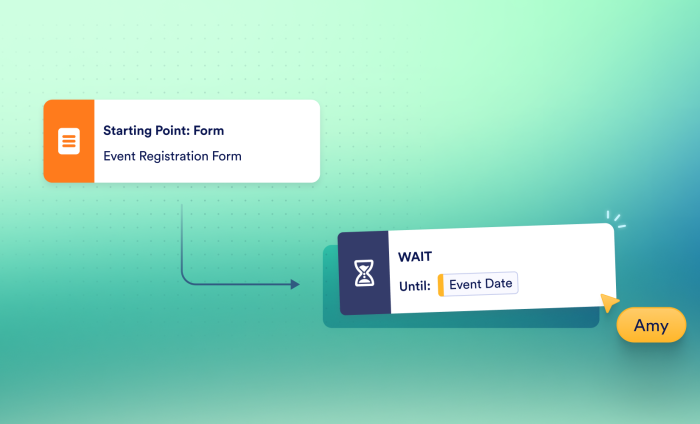
Timing is everything in workflow automation. While running processes instantly is great for tasks like sending quick notifications, real-world workflows rarely happen all at once.
Whether you’re onboarding a new hire, sending reminder emails before an event, or managing contract renewals, critical tasks often need to happen at specific times — not as soon as a form is submitted.
That’s why we’re excited to introduce the Wait element, a powerful new feature that’s now live in Jotform Workflows.
The Wait element gives teams greater control over the timing of their automated processes. You can pause workflow execution and resume actions automatically when you need to, eliminating manual follow-ups and complex workarounds.
What is the Wait element?
The Wait element is a conditional logic and workflow control feature in the drag-and-drop Jotform Workflow Builder. It allows you to pause workflow execution and delay subsequent steps based on set times or dynamic data from form fields. Instead of immediately triggering an email, task assignment, or approval request when someone submits a form, your workflow will pause until a specific condition is met.
Building in precise timing for automated workflows used to require complex workarounds or manual follow-ups. The Wait element gives Jotform Enterprise customers a simple, seamless way to create time-based automations, so every step of your process runs at exactly the right moment.
3 flexible ways to schedule workflow execution
You can find the Wait element directly in the Workflow Builder element list. Once you add it to your workflow, you can choose from these three scheduling options.
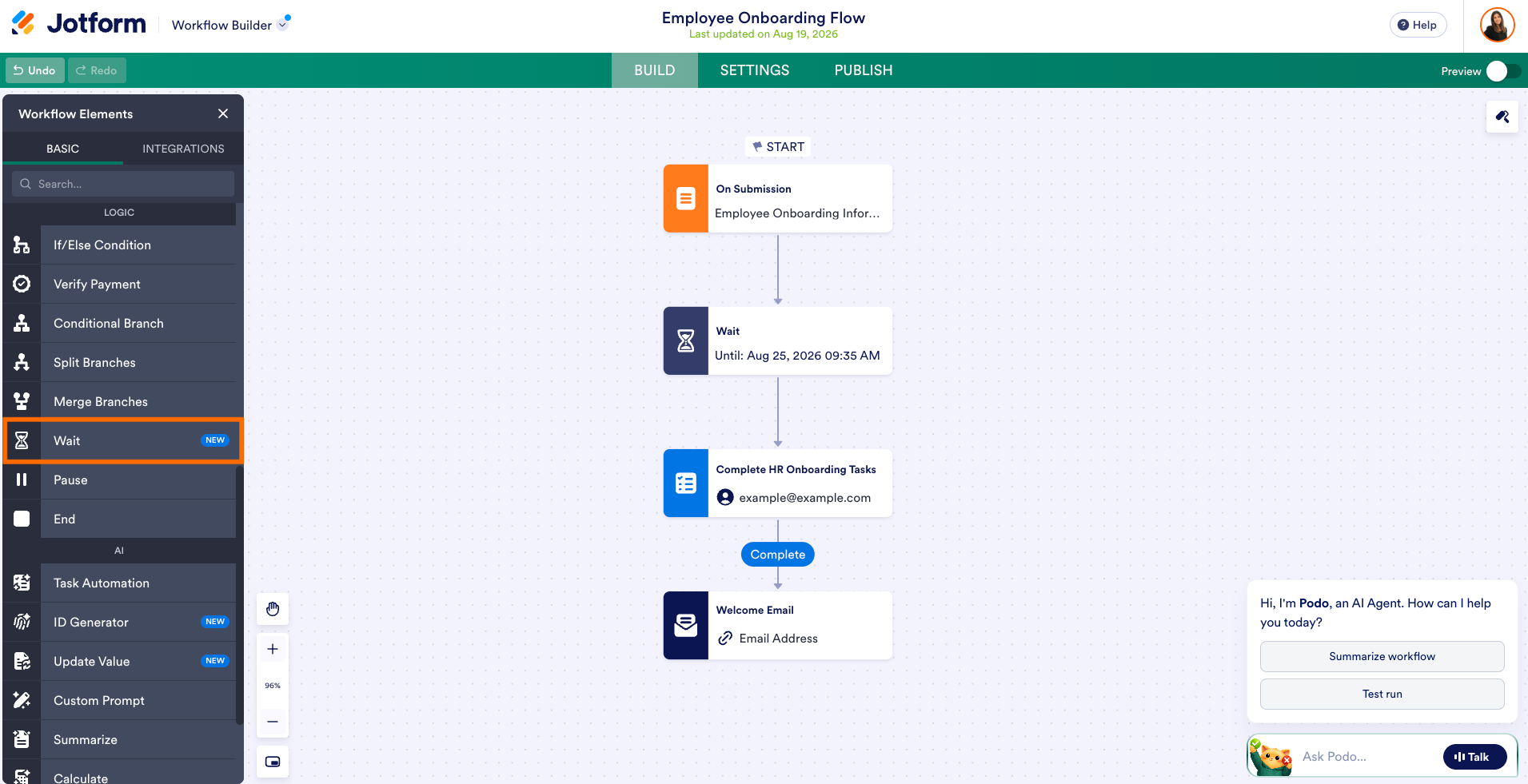
1. Wait until a specific date and time
Need a workflow step to happen on a fixed calendar date? You can set the Wait element to pause the workflow until an exact date and time. This option is ideal for tasks like scheduling quarter-end reviews, product release announcements, and deadline reminders.
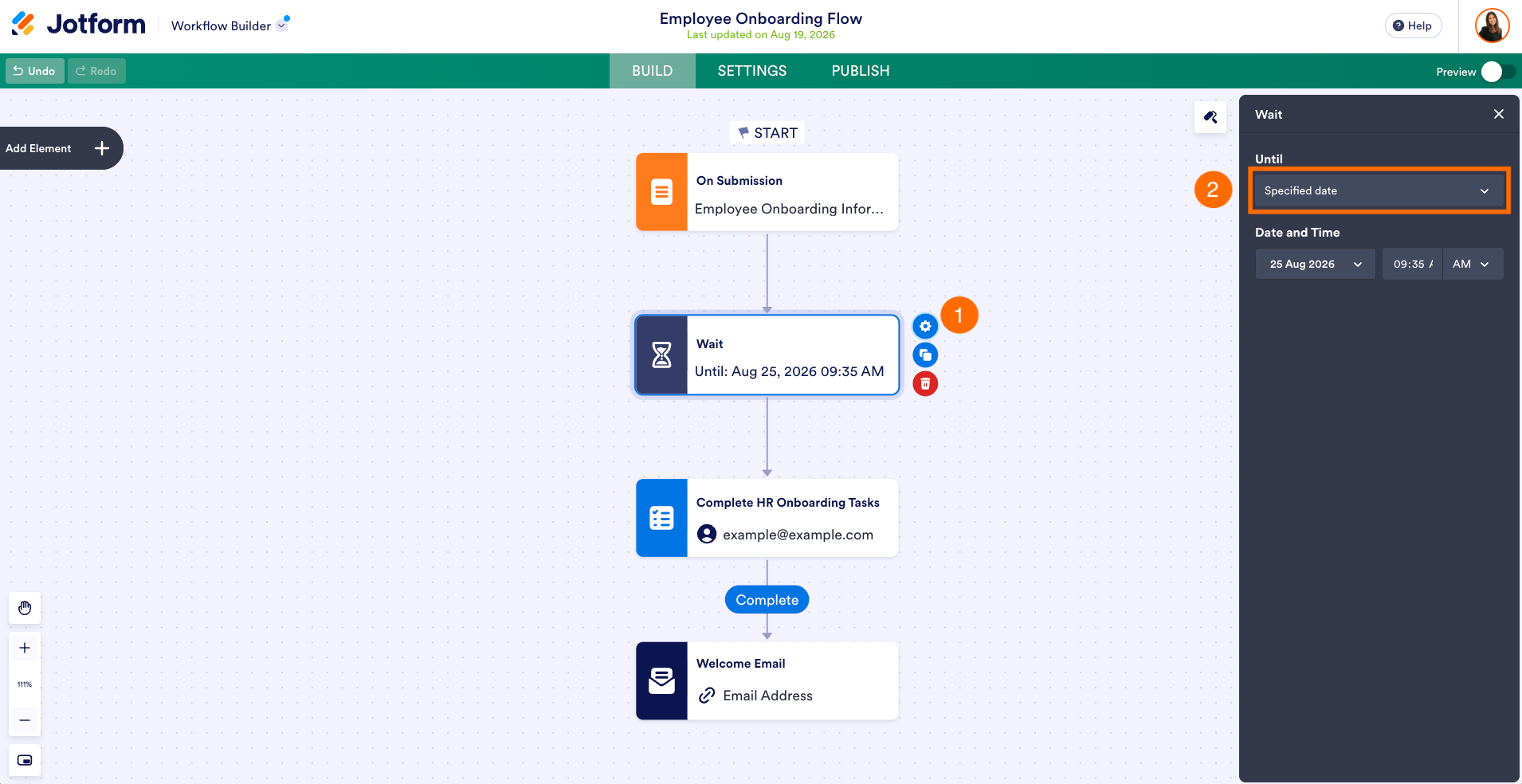
2. Wait for date field data from a form
Your processes are often driven by user input. You can configure the Wait element to pause until a date specified in a form within your workflow. For example, if a user submits an event registration form with an “Event Date” field, your workflow will pause until that specific date.
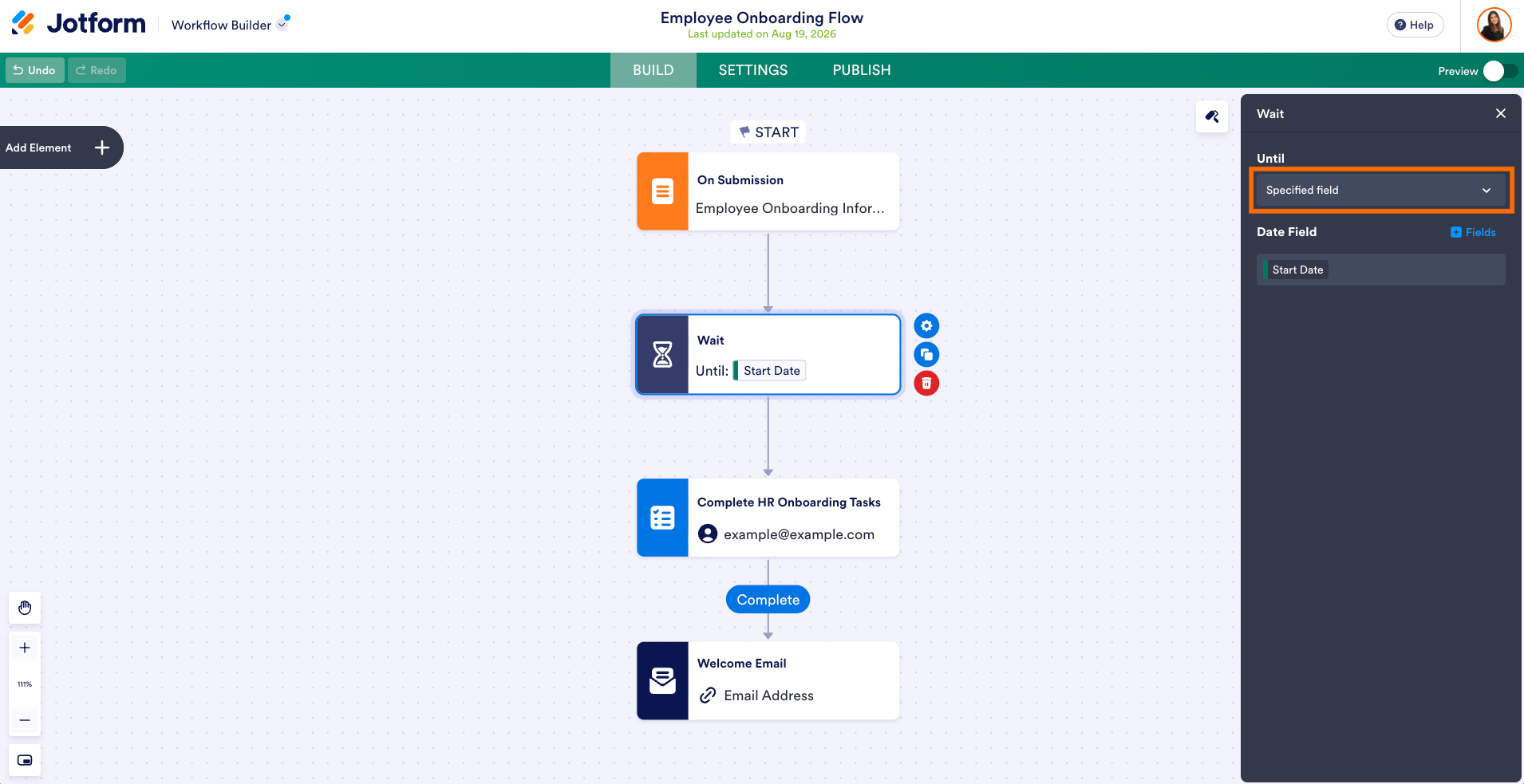
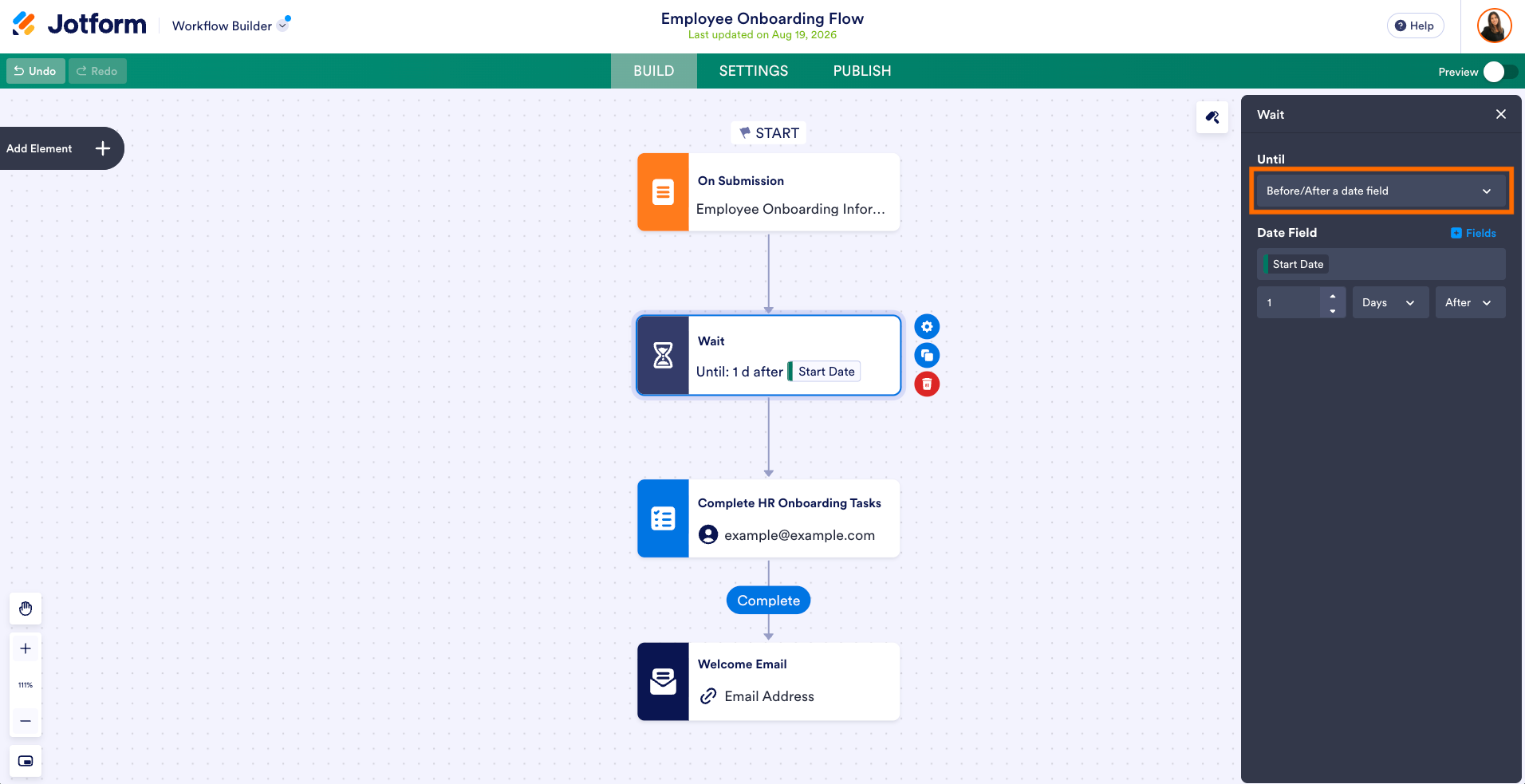
3. Schedule before or after a date field
Want to send a check-in one day after an appointment or an automated reminder email two days before a contract expires? The Wait element lets you schedule actions at intervals from a date field in a form, such as a specific number of days or hours before or after the date. This gives you greater control over deadline-driven processes.
Popular use cases for the Wait element
Adding timed pauses gives teams more ways to automate multistep business processes. Here are few examples:
- HR and onboarding: Collect new-hire documentation, pause the workflow, and automatically send orientation materials two days before the new employee’s’s official start date.
- Event management: Send booking confirmations immediately, pause until 24 hours before the event to send reminders, and follow up three days after the event with a feedback survey.
- Contract and subscription renewals: Send automatic renewal notices at 30, 15, and seven days before an agreement’s expiration date.
- Appointment check-ins: Send post-appointment care instructions or payment reminders after a set delay.
How to set up the Wait element in Jotform Workflows
Setting up the Wait element takes just a few clicks in the Workflow Builder:
- Open Jotform Workflows, and drag the Wait element from the left menu into your workflow canvas.
- Place it between the steps where you want the workflow to pause and resume.
- Click Settings (the gear icon) to configure the conditions for resuming the workflow: a specified date, a date from a form field, or a set amount of time before or after a date field.
- Save your settings and publish your workflow. Then let Jotform handle the timing automatically.
Take control of your automated timelines
With the Wait element in Jotform Enterprise, you can automate time-sensitive processes without relying on manual follow-ups or workarounds. Workflows run according to your schedule, giving your team greater precision and flexibility.
Ready to streamline your time-sensitive automations? Log in to your Jotform Enterprise account today to try out the new Wait element in Jotform Workflows.





































































































Send Comment:
1 Comment:
October 1, 2026
The wait feature looks useful for workflows that need to pause before continuing with the next step. It would be interesting to see how it handles longer delays, scheduled actions, and restarting workflows without losing the existing progress.