
Going crazy trying to figure out how to add a Submit button in Google Forms? No form is complete without it — or some version of it. At first glance, Google Forms appears to be missing this key element.
Good news: You’re not crazy. Google Forms is not missing a submit button. The software simply doesn’t show this button in the form creation phase. It appears only when you’re ready to preview or publish.
Still, other aspects of the submit button remain a mystery, so let’s clear some things up. In this article, we’ll cover what to do when you want to add a submit button in Google Forms, why you might sometimes have trouble viewing the hidden button, and what you should do if you want to customize the button text.


How to view the automatic submit button
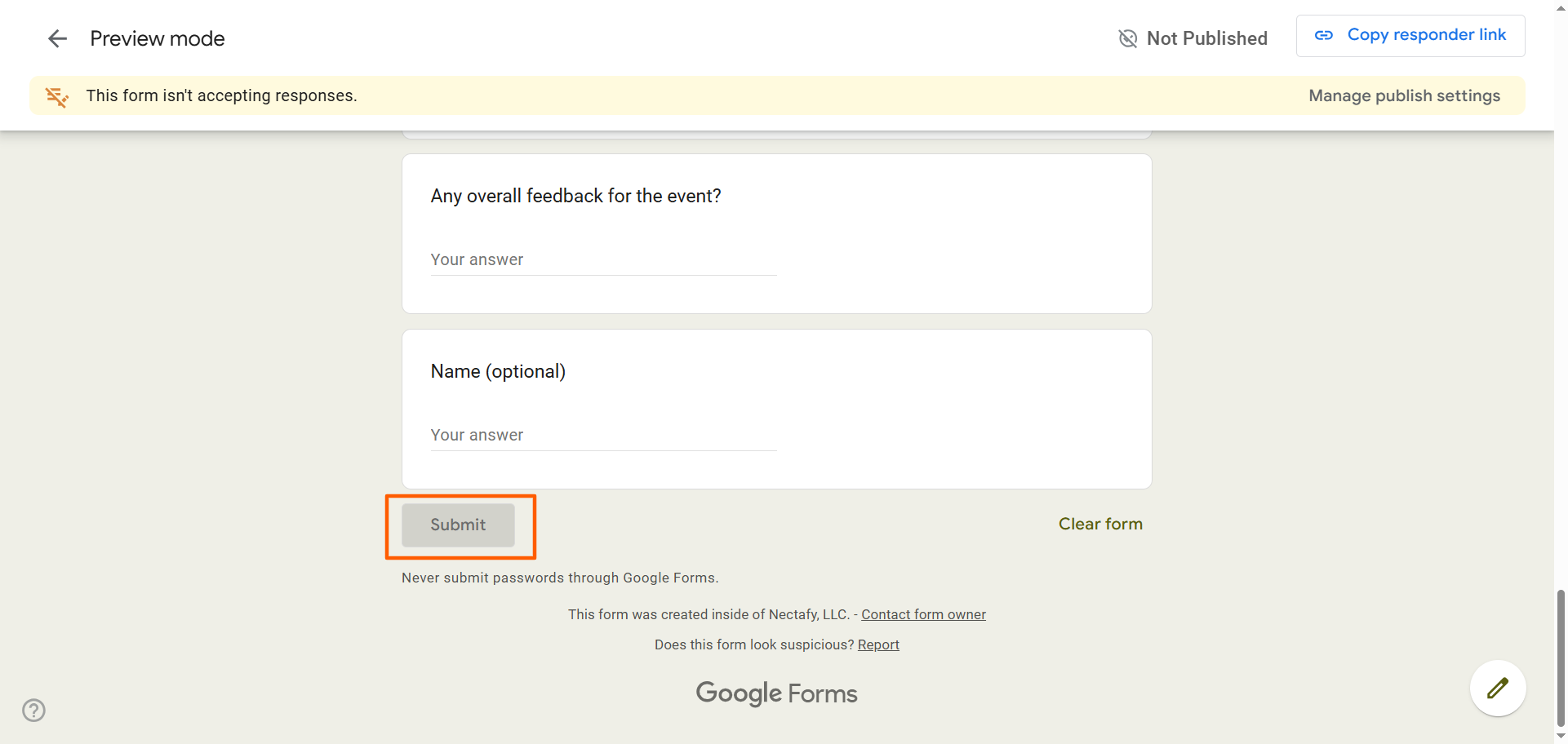
As noted, the Google Forms editor does not display the submit button while you are working on your form. It adds the button automatically in the preview stage, as the button is visible only on a live version of the form. (You can get the lowdown on all the quirky aspects of Google Forms in our article, How to use Google Forms.)
Follow these instructions to find the Google Forms missing submit button:
- Open your form.
- Click the Preview icon.
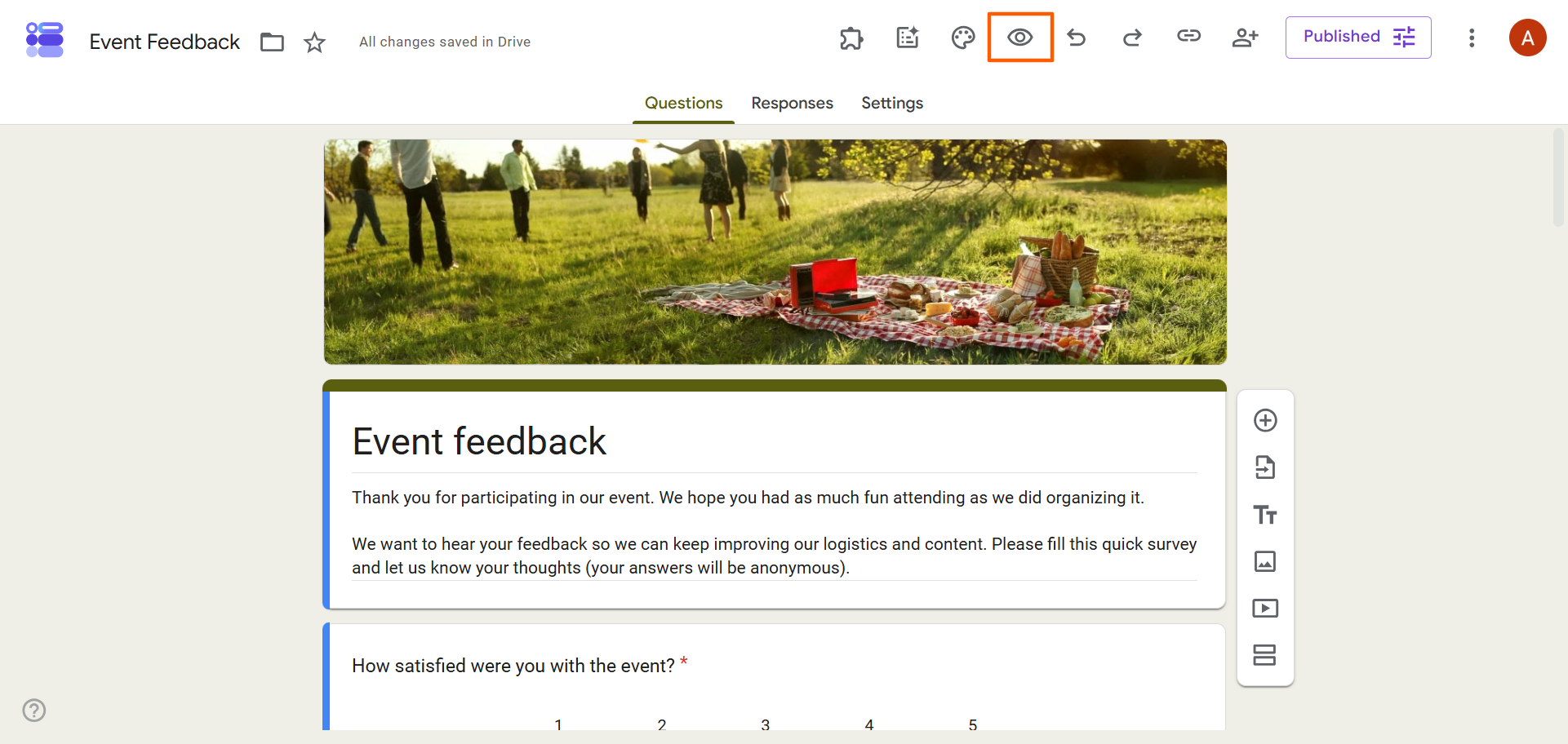
- Scroll to the bottom of the form, where you will see the Submit button.
Why is my submit button missing?
If you’ve followed the instructions above and the Google Forms submit button is still missing, it could be because of the way you have created your form.
If you have used the Add Section field to break your form up into multiple pages, Google Forms will replace the Submit button at the end of each page with a Next button, so respondents know there’s more to come. In this case, you need to navigate to the very last page of your form to see the button.
Pro Tip
Wondering how to make a submit button if one doesn’t appear automatically in your Google Forms? Unfortunately, Google Forms does not have the functionality to create or edit submit buttons. You’re out of luck with this form builder! Try Jotform instead. It gives you full control over submit buttons so you can edit the font, design, placement, and more.
Can you change the text on a Google Forms submit button?
Want to know how to change the submit button text in Google Forms? Customizing Google Forms can be challenging because the form builder isn’t flexible.
Many marketers and business owners want to change the text on the submit button to something more conversion-friendly, such as “RSVP Now,” “Get My Quote,” “Order Now,” or “Download Now.” Here’s the sad truth: Google Forms currently does not have the ability to edit the submit button. There is no way to change the text, size, alignment, or placement of it. The only element you can control is the color of the button, which changes to match your form’s overall color theme.
This inability to customize the Google Forms button frustrates many users. If you want to have more control over the submit button, it’s time to look into a more sophisticated form builder like Jotform.
Design submit buttons that align with your business needs with Jotform

When you’re building a professional form designed to entice your target audience to take action, a generic submit button doesn’t live up to the rest of the form. It doesn’t help your form conversion rates, nor does it align with your brand voice. (By some estimates, the right word choice can increase conversion rates by as much as 10 to 30 percent!)
Jotform is a leading Google Forms alternative for users who want complete control over their forms’ call-to-action buttons. Whether you’re building an event RSVP form, order form, lead generation form, or something else, Jotform lets you control the button on multiple levels.
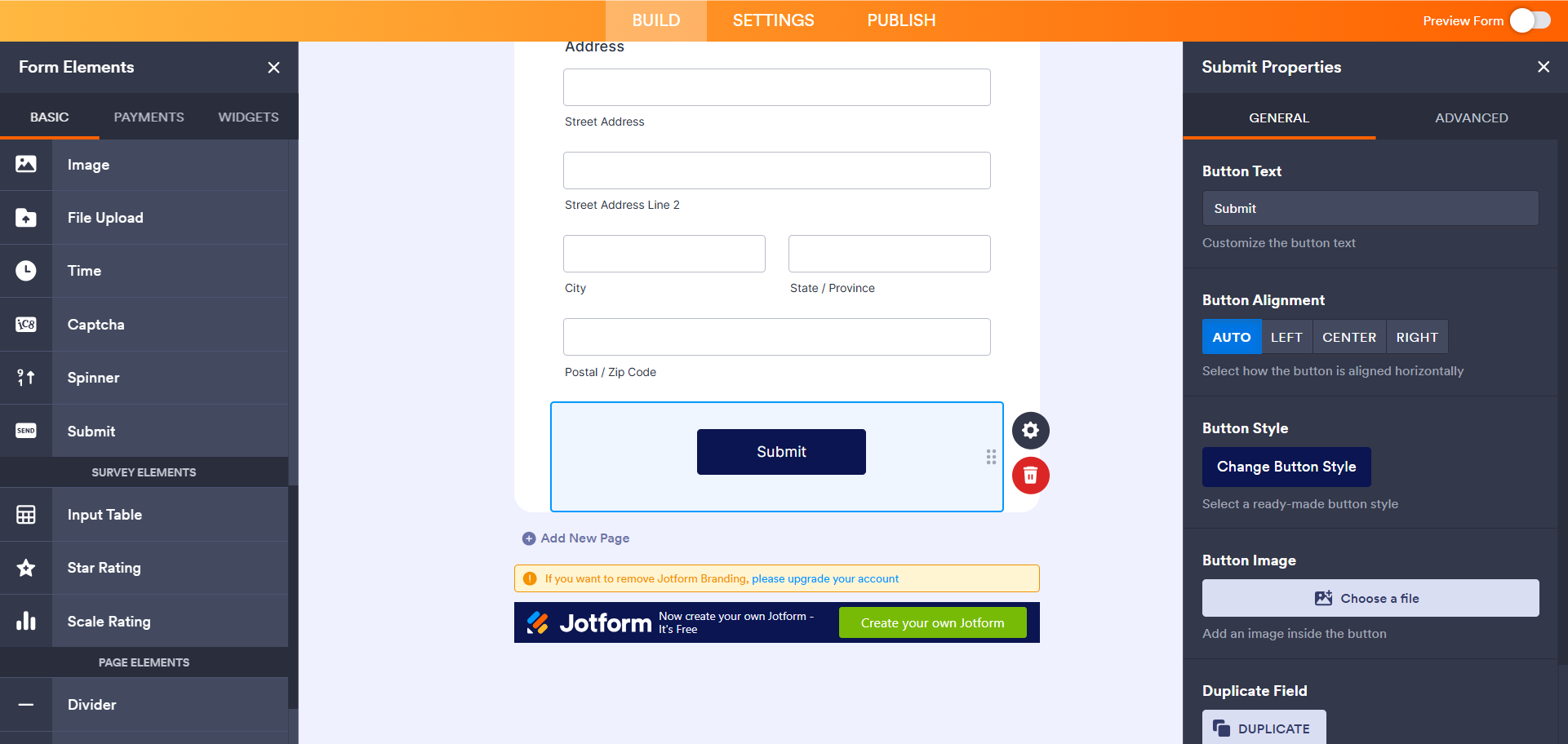
Unlike Google Forms, Jotform treats the submit button as a drag-and-drop element in the form builder. This means you can:
- Change the text of the submit button: Simply click on the button and rewrite the text to say anything you like, such as “Register Now,” “Subscribe Today,” or “Donate Now.”
- Adjust the layout to align with your form: Move the button to the center, place it on the right corner, or stretch it across the page. You can place it wherever you want.
- Control the design and font: Jotform gives you full control over the font and colors of the button so you can align it with your brand. Just customize the submit button with CSS.
- Add secondary actions: Need more than one button? You can add more with additional directives, such as “Print Form” or “Save and Continue Later.”
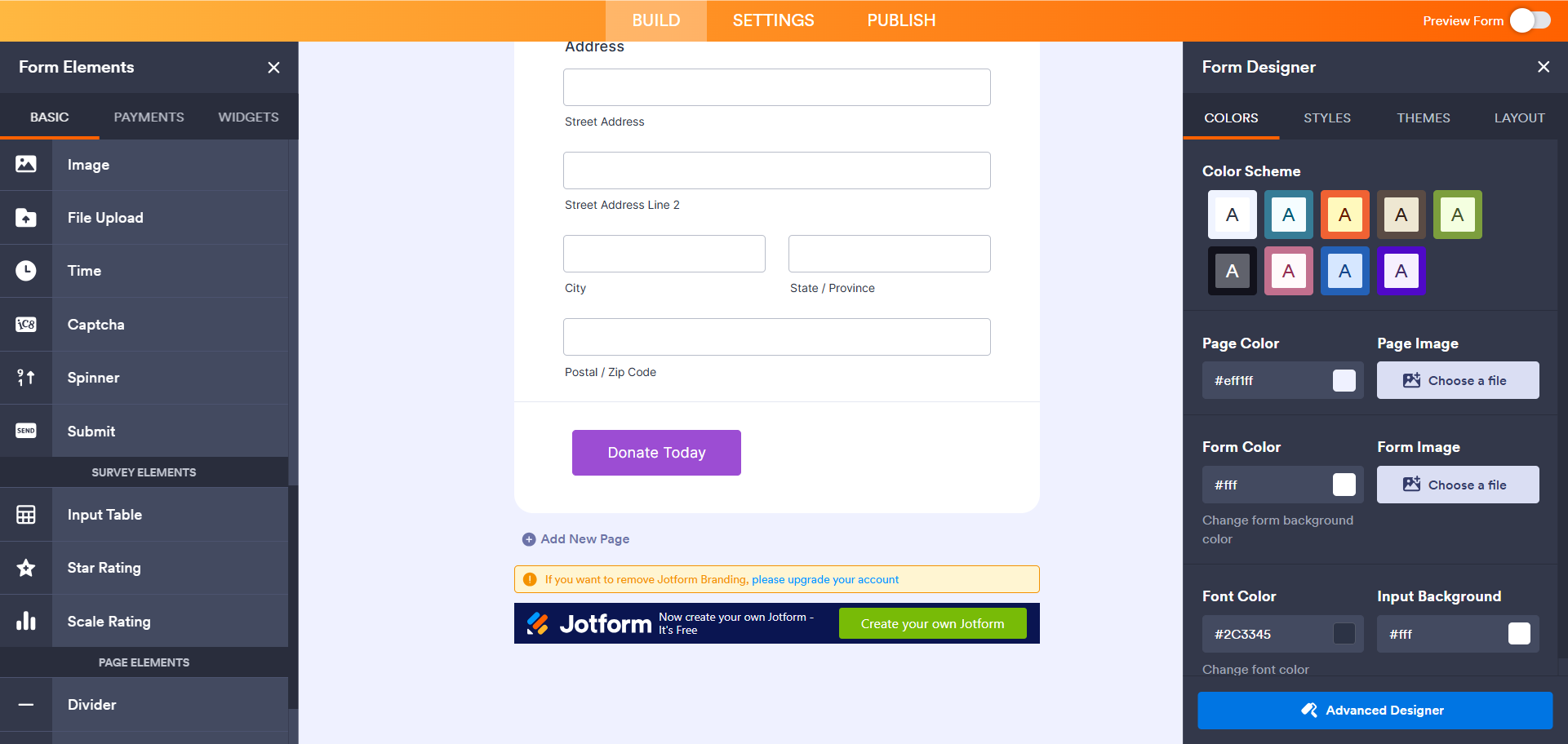
From adding rounded corners and drop shadows to gradient backgrounds and animated hover effects, Jotform offers advanced design capabilities perfect for marketing agencies and brand-conscious businesses. With full control over design and the ability to inject custom CSS directly into the button, you can align the look and feel of the form’s call to action with your brand, giving your target audience a seamless experience. With Jotform, you’re not limited by basic features like you are with Google Forms.
Need more reasons to switch to Jotform? Here are a few
Google’s rigid limitations for the submit button are just the tip of the iceberg. With basic features and minimal design functionality, Google Forms just doesn’t meet the standards of businesses that want to create professional forms for their target audience.
Jotform is a powerful form builder in more ways than one, blowing Google Forms out of the water in several different areas:
- Full design customization: Jotform gives you the freedom to control every aspect of your form, from buttons to text fields to colors and beyond. You can make the form look exactly like your brand.
- Thousands of templates: With 20,000-plus templates and 1,000-plus designer themes, there is no need for manual setup. Just browse Jotform’s template and themes and select one that works for you.
- Easy access for form respondents: Is the Google login screen getting in your audience’s way? With Jotform, respondents can fill out forms and even upload files without logging in.
- Built-in payment collection: Turn your form into a revenue-generating tool. Jotform lets you accept one-time or recurring payments directly from your form with payment processors like Stripe, PayPal, and more.
- Hassle-free e-signature collection: For waivers, petitions, contracts, and other types of documents, you can collect e-signatures directly with Jotform. No third-party tools required!
- Multi-step workflow automation: From approvals to notifications to follow-ups, create automations based on form responses so no tasks fall through the cracks.
- Instantly fillable PDFs: Convert static PDF documents like applications into fillable web forms with Jotform, making it easy for your audience to provide the necessary information.
- Mobile-ready forms: Every form created with Jotform is responsive, working perfectly on any device.
Thinking about switching to Jotform but don’t want to rebuild your forms all over again? Don’t worry, we’ve got it covered!
Simply migrate your Google Forms to Jotform with one click. Our easy-to-use migration tool does the heavy lifting for you. It migrates your form questions and structure from Google Forms to Jotform so you don’t need to recreate your forms in Jotform from scratch.


Just migrate your forms and get access to all of Jotform’s advanced features. Customize button text, explore all the design capabilities, enable form payments, and so much more. Migrate your Google Form to Jotform and get started today!
This article is for small business owners, marketers, and event organizers who are building a form and either can’t find the submit button or want to change it to say something more conversion-friendly (like “Register” or “Buy Tickets”).






























































































Send Comment: