Key takeaways
- Google Forms is a data tool, not a dedicated waiver builder: You can collect “Yes/No” consent, but the platform lacks the signature features required for a formal waiver.
- Signatures are a manual workaround: Google Forms has no native signature field, so you’re left with a short-answer text box or an external add-on.
- Formatting for printing is difficult: Turning a Google Form submission into a clean, readable waiver for your records takes several extra steps.
- Use Jotform for professional waiver compliance: If you need a secure, mobile-friendly experience with real e-signature fields and automatic PDF generation, Jotform handles it natively.
Collecting a signed waiver is often a step you can’t skip. And whether it’s for a new client taking their first class or a new hire starting their first day, Google Forms is often the obvious place to start — it’s free, and most people already know how to use Google Forms.
But a waiver is a consent document, and Google Forms collects data rather than signatures. There’s no real signature field, so you‘re left using a text box and asking people to type in their name. If you also need a printable waiver, you’ll have to create and format it separately in Google Docs, since Google Forms can’t turn a response into a finished waiver on its own.
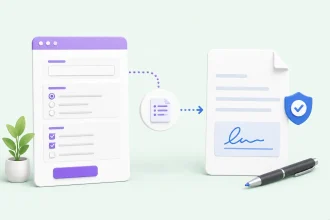
That’s where Jotform comes in. With Jotform Sign, you can add e-signature fields directly to your forms. Jotform’s online waiver forms collect consent so your online liability waiver serves as a record.
In this guide, we’ll show you how to create a waiver in Google Forms, where it falls short for formal consent, and how Jotform makes the entire process simpler.


How to create a waiver in Google Forms
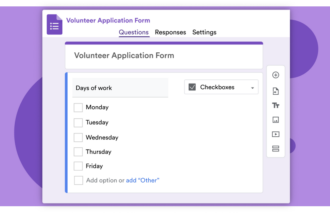
You can create a waiver in Google Forms in about 10 minutes using its standard question types. Here’s how to create a waiver in Google Forms:
- Go to forms.google.com and select Blank form (the plus sign) to start fresh.
- Name the form, then paste the full waiver wording into the form description so that participants can read the terms before they respond.
- Add short-answer questions for the person’s full name, the date, and their email address to collect participant details.
- To add a consent question, insert a multiple-choice question such as “I have read and agree to the terms above” with a single “I agree” option, and toggle on the Required option so no one can submit without it.
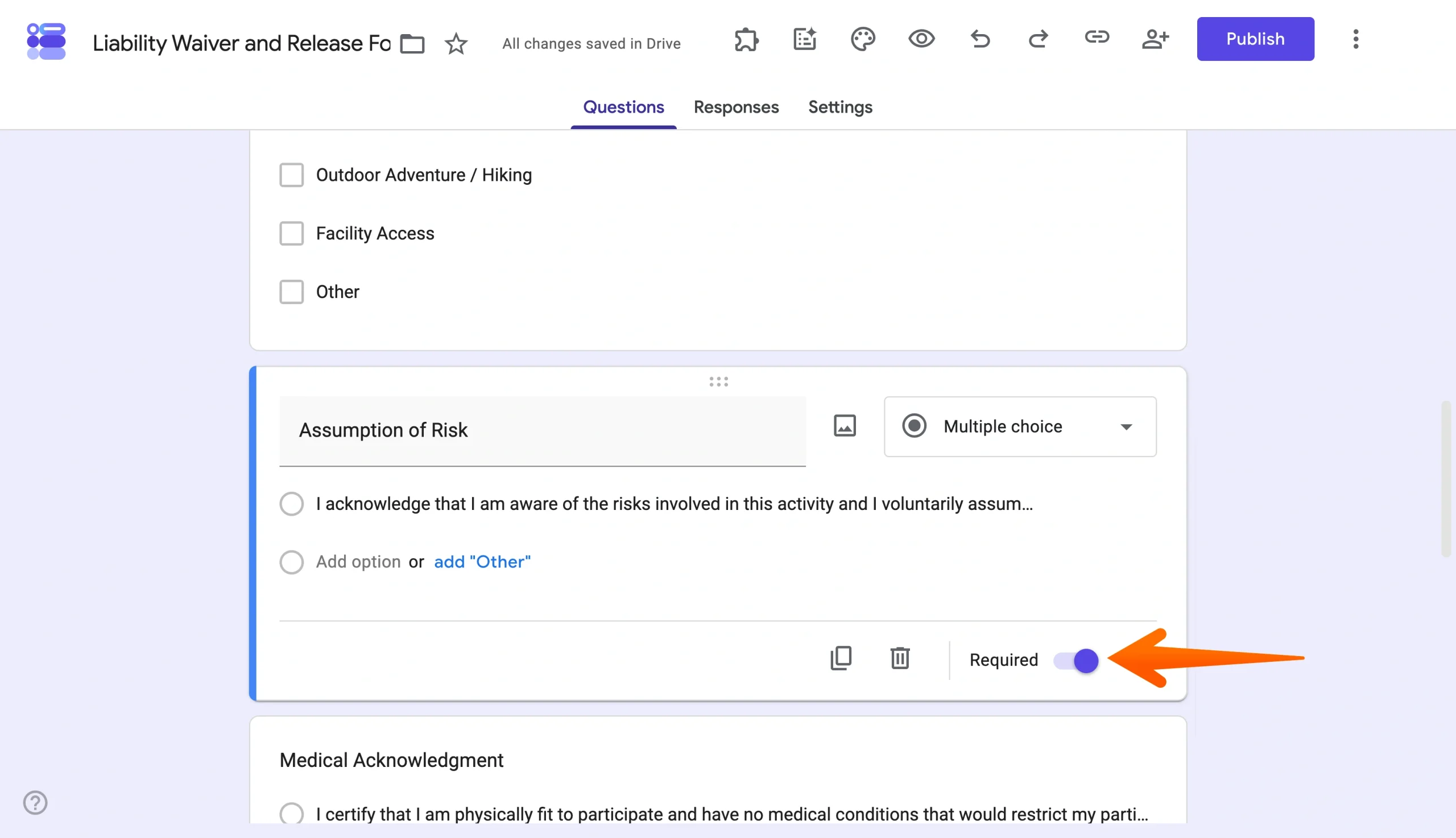
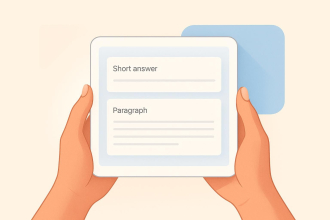
- Since there’s no signature field, either add a short-answer question asking the participant to type their full name as their signature or consider using a third-party signature add-on.
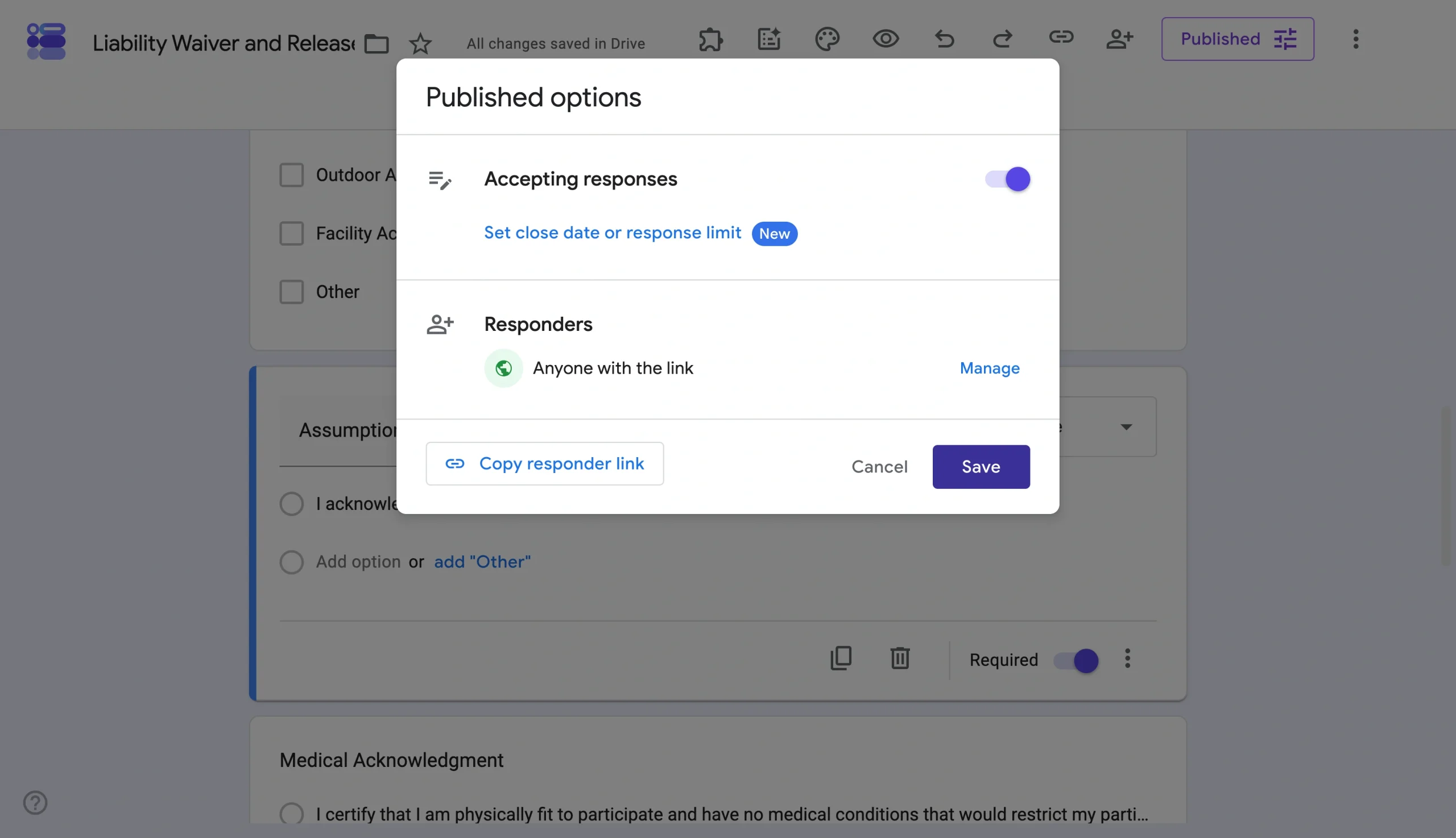
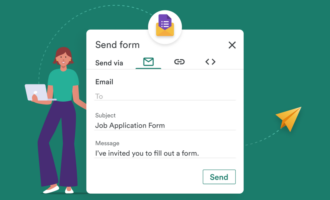
- Open Settings to ensure the form will collect email addresses, then click Publish and copy the responder link to share the form.
A typed name in a text box doesn’t offer the same experience or verification as a drawn digital signature. Anyone can type anyone’s name, and Google Forms keeps no signing timestamp or identity check to tie the consent to a specific person. That may be fine for an internal acknowledgment, but for an electronic waiver for business purposes that’s meant to protect you legally, it raises doubts about whether the consent even counts.
The problems with using Google Forms for waivers
The biggest issue is the one you’ve already run into: there’s no true digital signature in Google Forms, just a typed name in a text box. A typed name proves nothing about who actually filled out the form, and without a signing record, you’re left with a consent that’s easy to dispute. For a document where the entire purpose is protection, that’s a serious gap.
A few other limitations add to the problem:
- No automatic PDF: Google Forms stores responses in a spreadsheet. Getting a clean, individual waiver document for each participant means exporting and reformatting by hand, or wiring up a script to do it.
- No identity verification: There’s no timestamp tied to a signer, no email confirmation of the signed copy, and no audit trail, so you can’t prove when a waiver was completed or who completed it.
- Limited security and control: Anyone with the link can edit their answers before submitting, and you can’t lock the waiver text, so there’s little to stop the terms from being altered or skipped.
Need real waivers? Use Jotform instead
When a waiver actually needs to protect your business, Jotform covers the gaps that Google Forms doesn’t.
- Real e-signatures: Jotform includes dedicated signature fields, so participants sign with a finger or a mouse. That gives you a professional electronic signature experience that a plain text box can’t match.
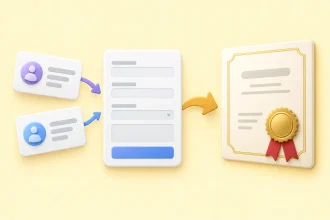
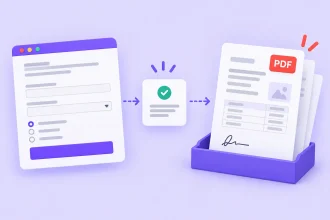
- Automatic PDF records: Each time someone signs, Jotform can generate a clean, branded PDF and email a copy to both you and the participant — with no exporting or scripts on your end.
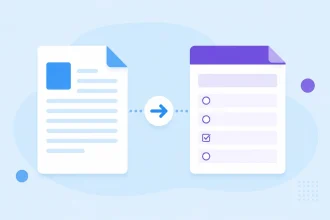
- Smart PDFs: Already have waivers? Turn them into fillable smart PDF forms without rebuilding them from scratch.
- Waiver compliance: Keep your collection in line with your internal standards. Jotform gives you a private, locked-down experience where the signer can’t alter your waiver text.
- Mobile-friendly by default: Participants can sign on a tablet at your front desk or on their own phone before they arrive. Best of all, they don’t need an account to do it, which keeps check-in moving.
- Templates that fit your brand: Start from hundreds of waiver form templates, or browse the full library of over 20,000 form templates and adjust the look to match your identity.
Together, these capabilities turn a basic consent form into a waiver you can actually rely on when it counts.
Transfer your Google Forms to Jotform waivers with a single click
Google Forms can collect a name and a checkbox, but a waiver needs a real signature, a clean record, and text that no one can change. More than a Google Forms alternative, Jotform does all of that without the workarounds.
If you’ve already built your waiver in Google Forms, you don’t have to start over either. You can transfer from Google Forms to Jotform with a single click and add the signature and PDF features that your waivers were missing. Give Jotform a try for free and turn your basic consent form into one that actually protects your business.
FAQs about Google Forms waivers
Not directly. Google Forms doesn’t generate individual PDF documents on its own. You have to export responses to Sheets and format each one by hand, or connect an add-on or script to build the PDFs for you.
Responses are saved in the form itself and can sync to a linked Google Sheet, where each submission becomes a row. For individual records you can file or print, you’ll need to export the data and reformat it, or send it through an add-on that turns each response into a separate document.
This article is for small business owners, event organizers, and HR managers who need a reliable way to collect consent but are frustrated by the lack of real signature fields in Google Forms.


























































































Send Comment: