
If you’ve ever collected responses in Google Forms, you’ve probably run into the same problem. The app only lets you view responses in two ways: the Summary tab, which is a long page filled with charts and graphs, or the Individual tab, where you tediously click through one submission at a time. Neither option is ideal.
Moving Google Forms to a spreadsheet format is one solution. If you’re wondering how to create a table from Google Form responses, the answer is to connect it to a separate app: Google Sheets. As soon as they’re linked, every response appears in a clean spreadsheet where you can organize, filter, and analyze your data.
Once you learn how to use Google Forms, linking your forms with Google Sheets makes data collection much easier. You can view Google Form responses in a table, which can help you spot trends and organize data in a digestible way. Here’s everything you need to know.
How to link your Google Form to Google Sheets
The simplest way to create a table from your form responses is to connect your form to Google Sheets. Every new submission will automatically appear as a new row in your spreadsheet.
Take a closer look at how to link Google Forms to Google Sheets in six key steps.
Step 1: Open your Google Form
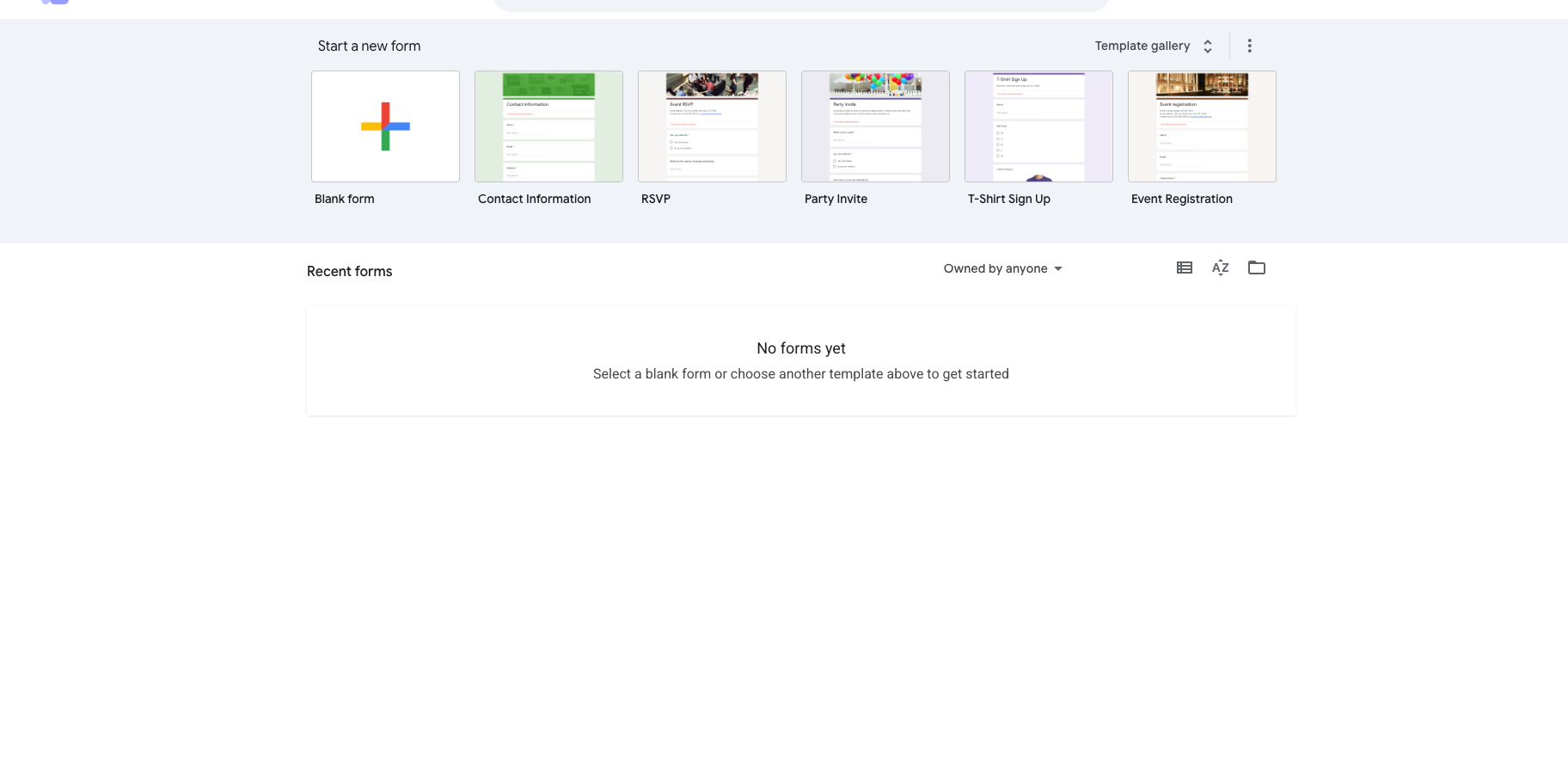
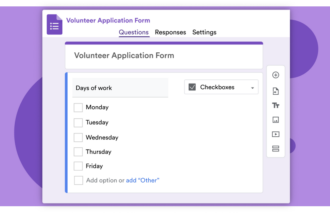
Go to Google Forms and open the form you want to manage. If you don’t have the form yet, create one. You can use a template to save time.
Step 2: Click the Responses tab
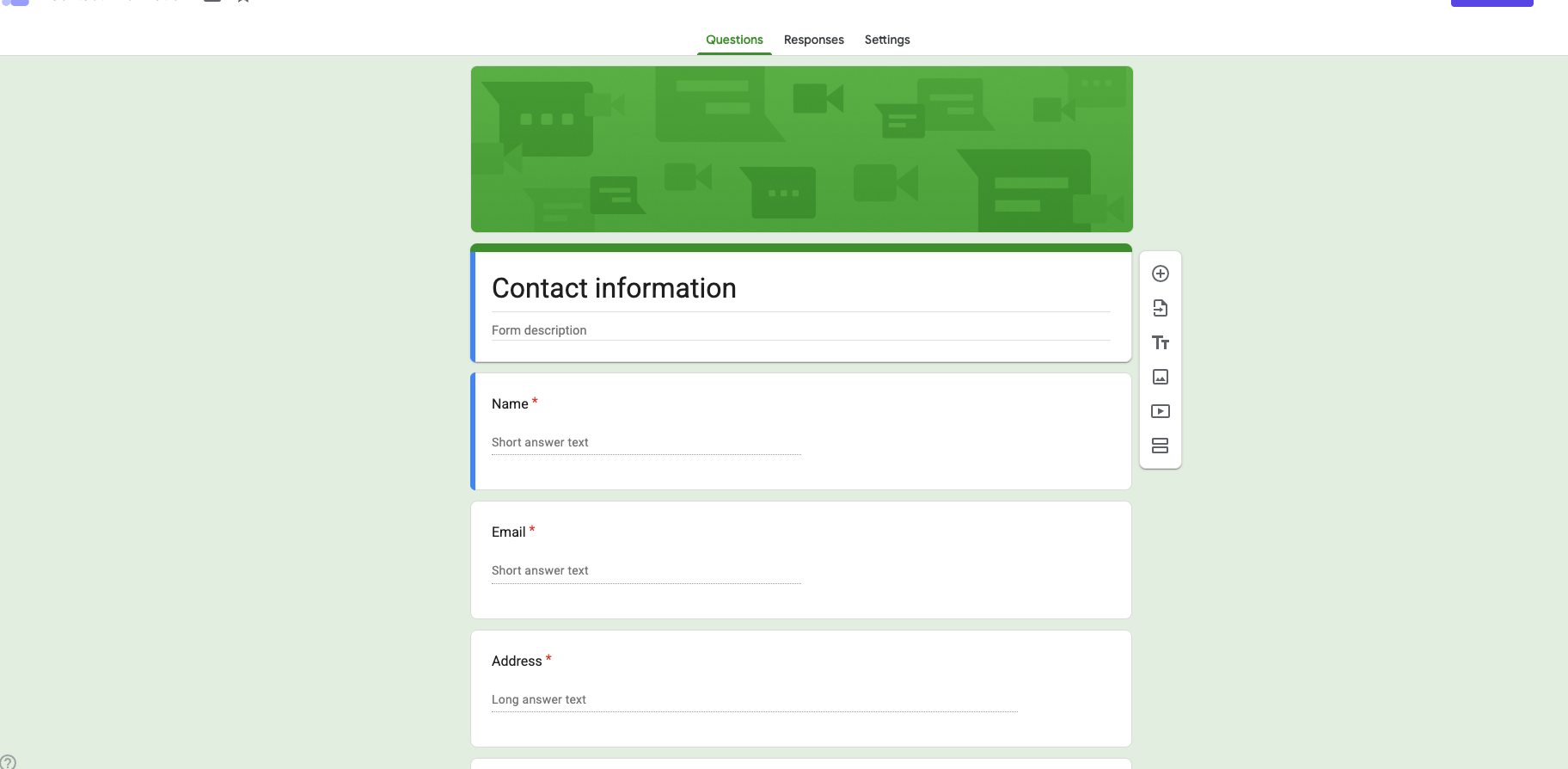
Next, click Responses, which is located at the top of the form editor. This tab shows the Summary, Question, and Individual views if someone has submitted responses. You’ll also see options for exporting your data. Click the View in Sheets option.
Step 3: Create a linked spreadsheet
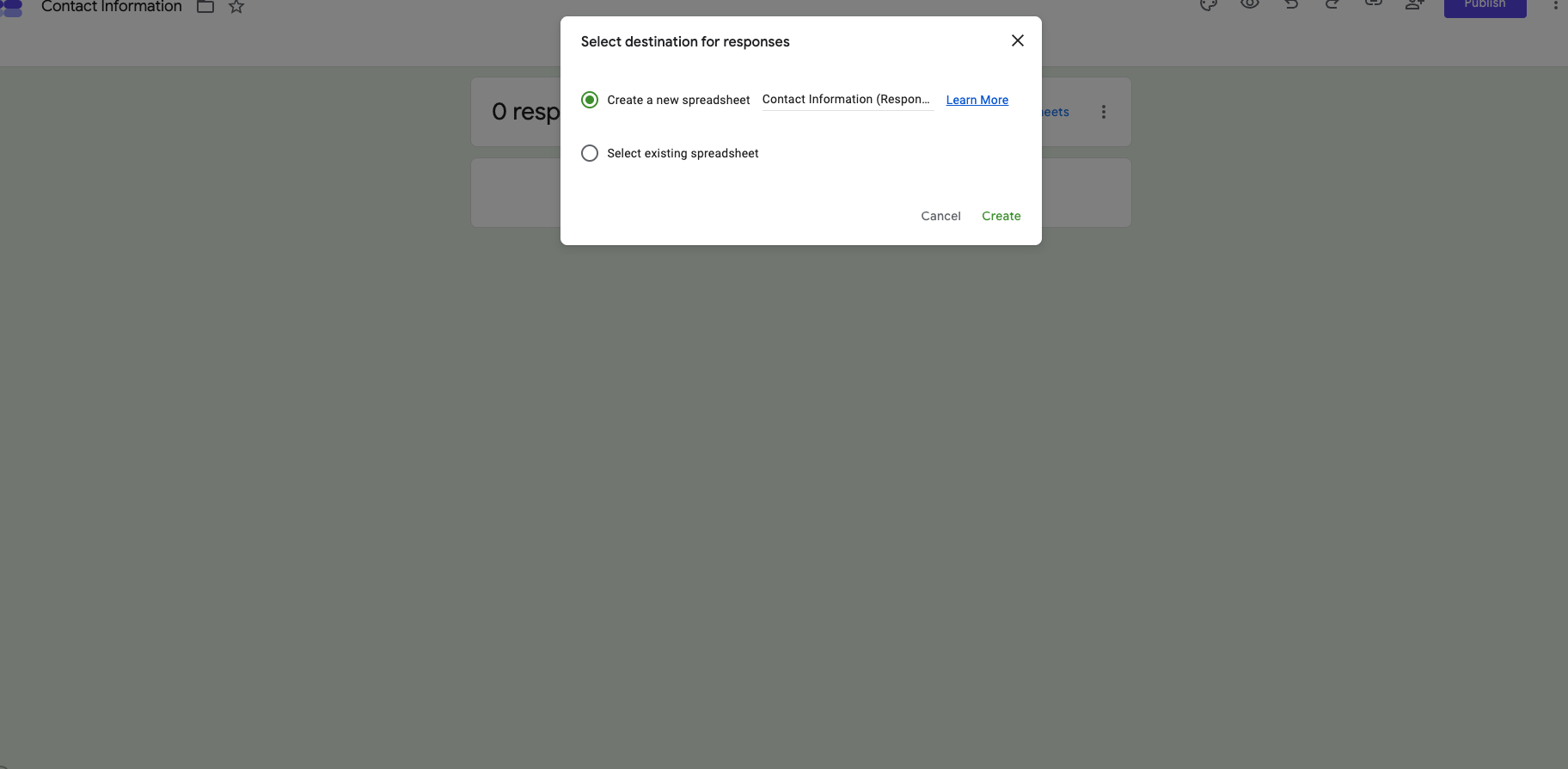
If this is your first time linking the form, Google will ask if you’d like to
- Create a new spreadsheet.
- Select an existing spreadsheet.
Choose your preferred option.
Step 4: Open the spreadsheet
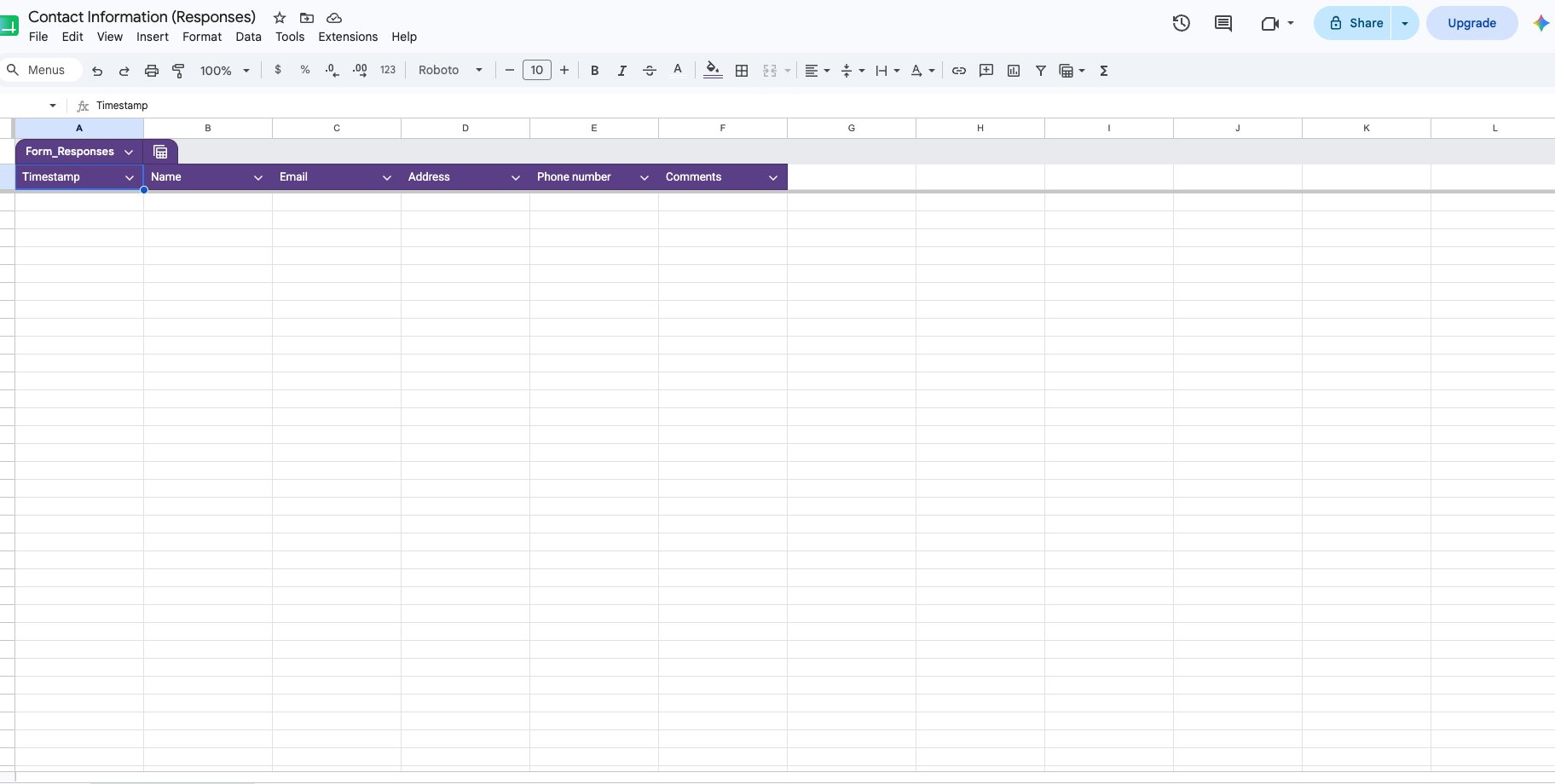
After creating the spreadsheet, Google Sheets will open. Each question becomes a column header, and every form submission is added as a new row in your table. Make sure you see a corresponding header for each response field in your form.
Step 5: Organize your data
Now that you’ve linked your Google Form to Google Sheets, you can use the spreadsheet tools to organize your information. For example, you can sort responses alphabetically or filter specific submissions.
Step 6: Continue collecting responses
Once connected, your spreadsheet updates automatically. Every new form submission is added as another row without any manual importing.
Use these tips to organize Google Form data and unlock useful insights about attendance, registration, surveys, and other important metrics.
Ready for advanced data analysis?
Once your data is safely inside Google Sheets, a basic table might not be enough to spot trends or summarize complex survey answers. If you want to take your data analysis to the next level, check out our complete guide on how to create a pivot table in Google Forms.
The limits of Google Sheets form tables
While Google Sheets gives you the table views you want, the workflow itself is still disconnected — and therein lies another problem. Google Forms and Google Sheets are two separate applications, which means managing your data becomes inherently risky and messy.
Below are some of the biggest pain points and limitations you’ll encounter.
1. Syncing problems
Renaming columns and deleting unused rows can make your Google Sheets look cleaner. However, anytime you make these changes, you could disrupt the sync between your live Google Form and the sheet — meaning future responses could disappear or populate incorrectly.
2. No built-in actions
A Google Sheet is just a static grid of text. You can’t click a button next to a row to reply to a respondent. There are also no built-in buttons for downloading a PDF submission or triggering an approval workflow. Completing these common and necessary tasks takes extra time if you’re relying on Sheets.
3. Problems with file uploads
If your form collects file uploads, the Google Sheet table displays an unattractive, unclickable string of URLs. You still have to manually open your Google Drive to hunt down the images or documents. That can be a huge waste of time that slows down productivity.
Manage data natively with Jotform Tables instead
If you’re exporting every Google Form into a spreadsheet just to make it readable, it’s worth asking whether your form builder should require that extra step in the first place. Jotform takes a different approach.
You can migrate your Google Forms to Jotform with a single click — perfect if you’ve built a huge Google Forms database. Every form then includes a built-in table that functions like a spreadsheet and database, all in one.


Other perks of Jotform Tables include
- Zero setup required: The exact second you publish a Jotform, a connected Table is generated and submissions populate into a crisp grid.
- Multiple views: If you don’t want to look at a standard grid, you can toggle your data into a kanban board, calendar view, or visual cards.
- Action Buttons: Transform your list into an active workspace with one-click Action Buttons.
- Inline file viewing: You can view, preview, and download files directly inside the table cell, which means no more fighting with messy URL links.
Jotform offers more than 20,000 free form templates and more than 150 integrations, making it easier than ever to unify your workflows. You don’t have to keep bouncing back and forth between broken spreadsheets and rigid forms. With Jotform, you can migrate all your Google Forms and choose from thousands of templates to build out your form library with ease.
Ready to get smarter with your data collection and form management? Explore Jotform Tables today.
This article is for admins, teachers, event organizers, and small business owners who are frustrated by the default “Summary” charts in Google Forms and want a clean, structured grid to manage their incoming data.






































































































Send Comment: