Whether you’re trying to collect lead contact information, user feedback, event RSVPs, or other details, a low form conversion rate is frustrating because it means you’re not getting the data you need. If you’re using Google Forms for data collection, the culprit could be this: Your potential responders are being hit with a mandatory Google login screen, causing them to abandon the effort altogether.
There are many reasons form responders may not want to log in to Google, such as not having a Gmail account or wanting to remain anonymous. In this article, we’ll show you how to make Google Forms allow responses without a sign-in. There are ways you can make a Google Form public so anyone can fill it out, even those who don’t have a Gmail account — we’ll help you identify which hidden settings you need to adjust.
Plus, we’ll introduce you to an advanced form builder that avoids sign-in issues altogether: Jotform. It also has several advanced features Google Forms doesn’t, making it a popular choice for data collection.
Pro Tip
Here’s a quick test you can do to see if you have a public Google Form: Copy the form’s share link and paste it into an incognito or private browsing window. If the Google form loads immediately, your settings are configured correctly and form responders won’t be faced with a login screen. If not, keep reading for ways to make your form public.
5 settings that force a Google sign-in and how to disable them
Google Forms doesn’t have a single Make Public setting, so it’s confusing when you want to provide open access to a form. There are five specific settings that trigger a Google sign-in for form responders, all found under the Settings tab. Read on to learn how to identify and disable them. This way, you can make your Google Form public and increase form conversion rates.
Pro Tip
Learn how to customize your forms, use different question types, add e-signatures, and more in our detailed tutorial, How to use Google Forms.
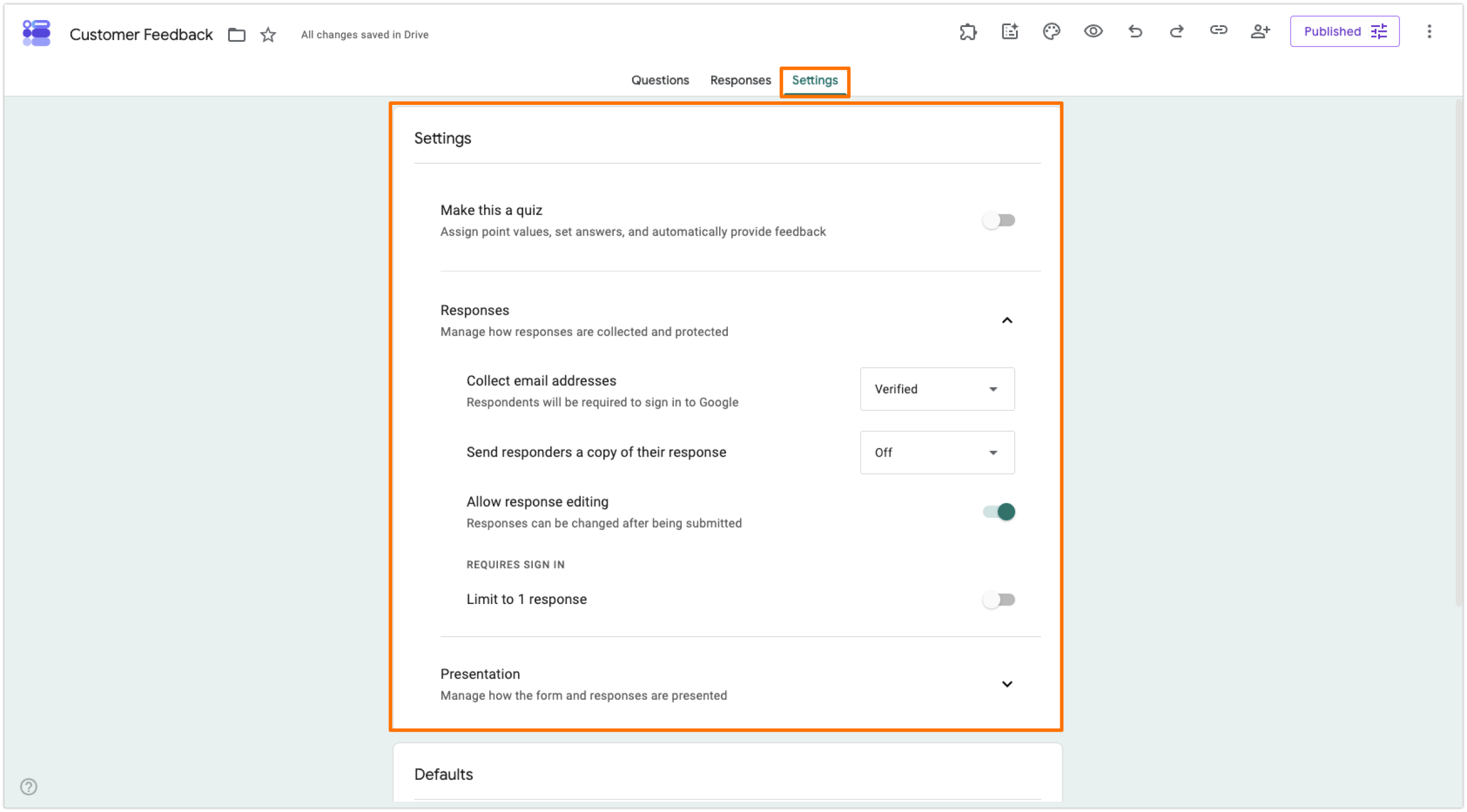
1. “Limit to 1 response” is active
In Google Forms, it’s possible to restrict users from submitting responses more than once, which comes in handy for use cases such as tests or job applications. When this setting is on, Google requires a sign-in so that it can track who has already responded.
If you don’t want form responders to have to sign in, disable the Limit to 1 Response setting. Note that there is no way to limit the number of an individual user’s responses without requiring a sign-in, which is one of the many cons of Google Forms.
Follow these instructions to disable the Limit to 1 Response setting:
- Open the form you want to make public.
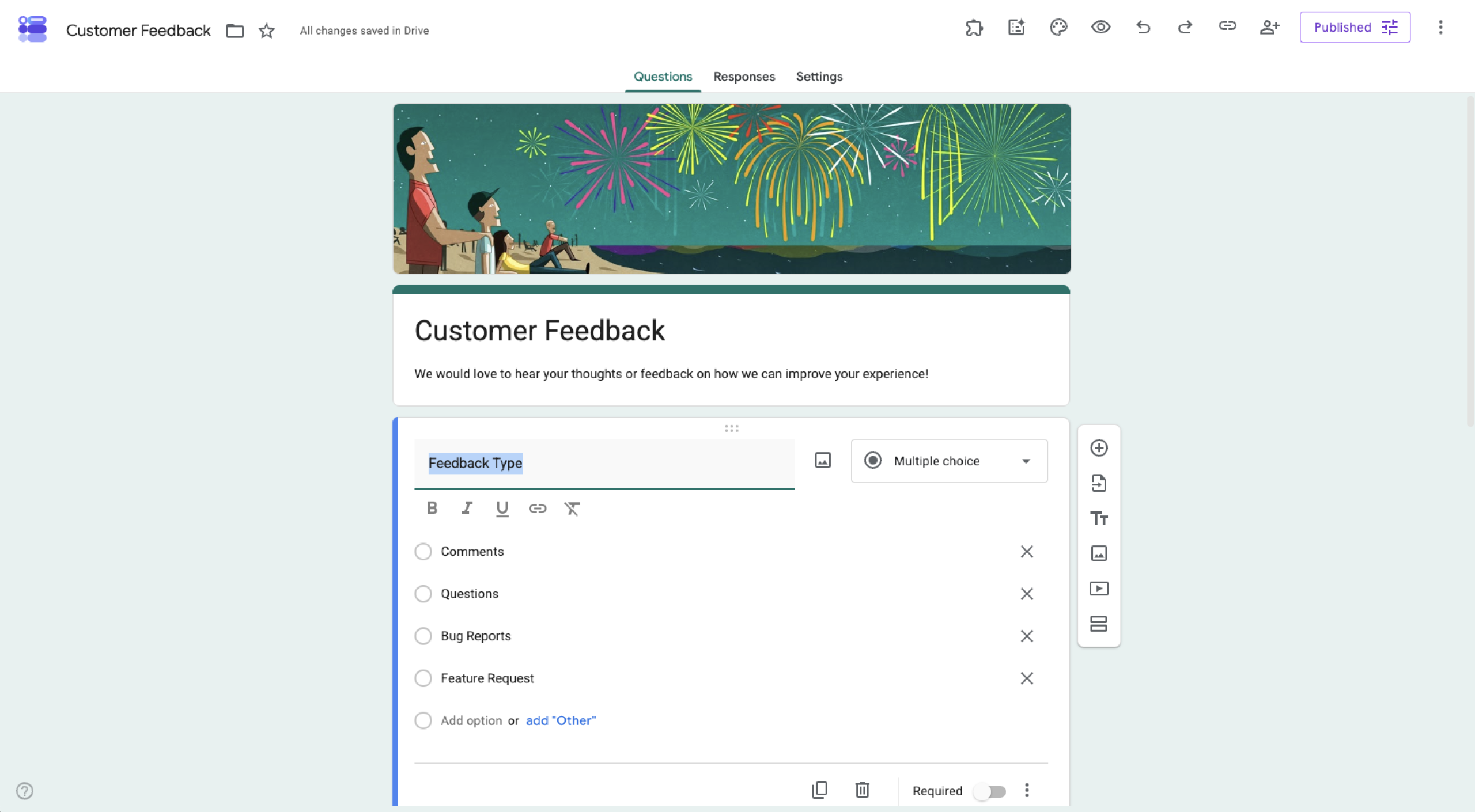
- Click Settings. Scroll down to Responses and maximize the section.
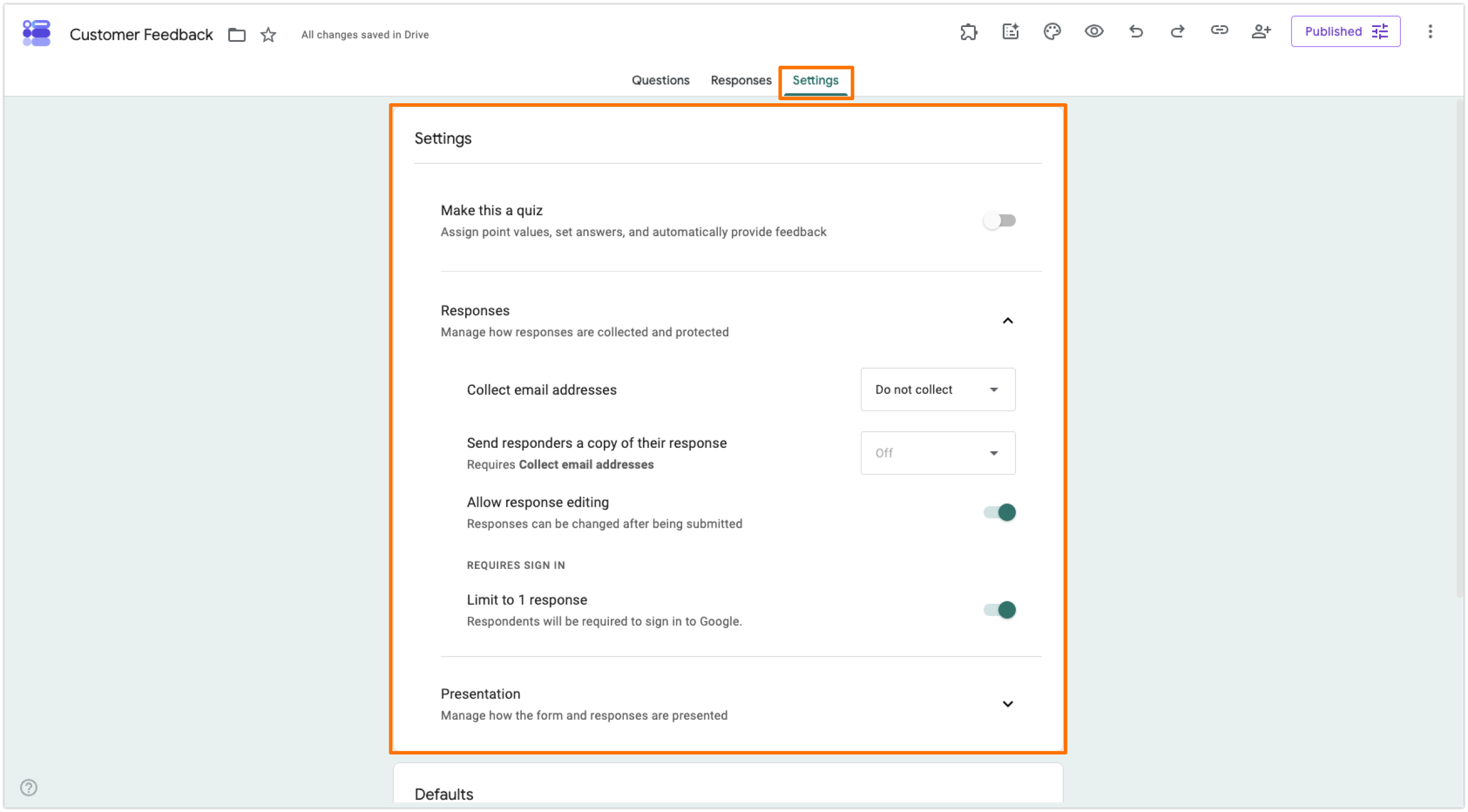
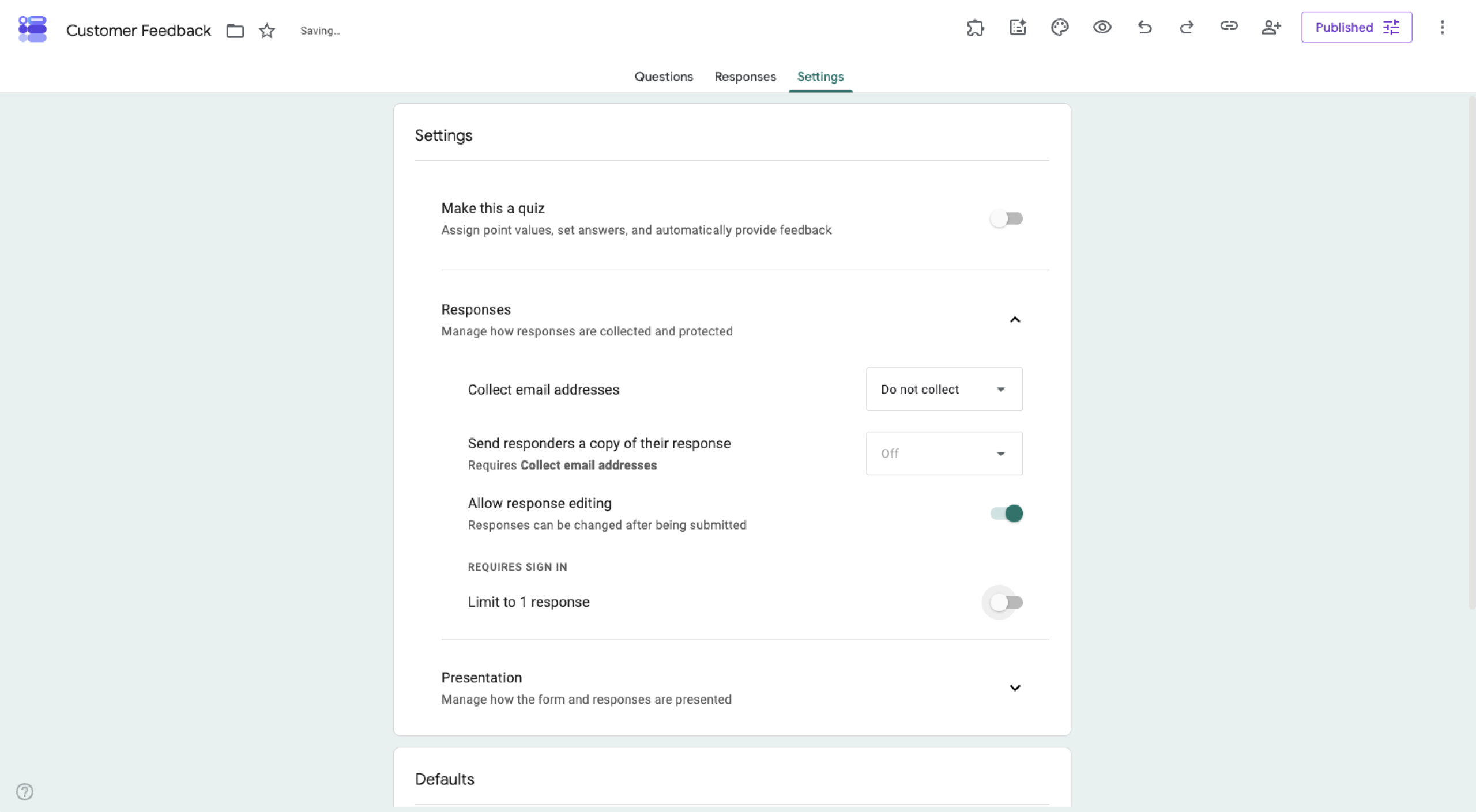
- If the Limit to 1 Response setting is toggled on, untoggle the setting.
Pro Tip
Once you’ve turned off the Limit to 1 Response setting, you may get duplicate responses or spam. You can avoid this problem by switching to Jotform. Jotform’s unique submission feature uses IP addresses and browser cookies to limit entries to one person, which means you get clean, spam-free data without requiring form responders to log in. The result: higher conversion rates without sacrificing unique submissions!
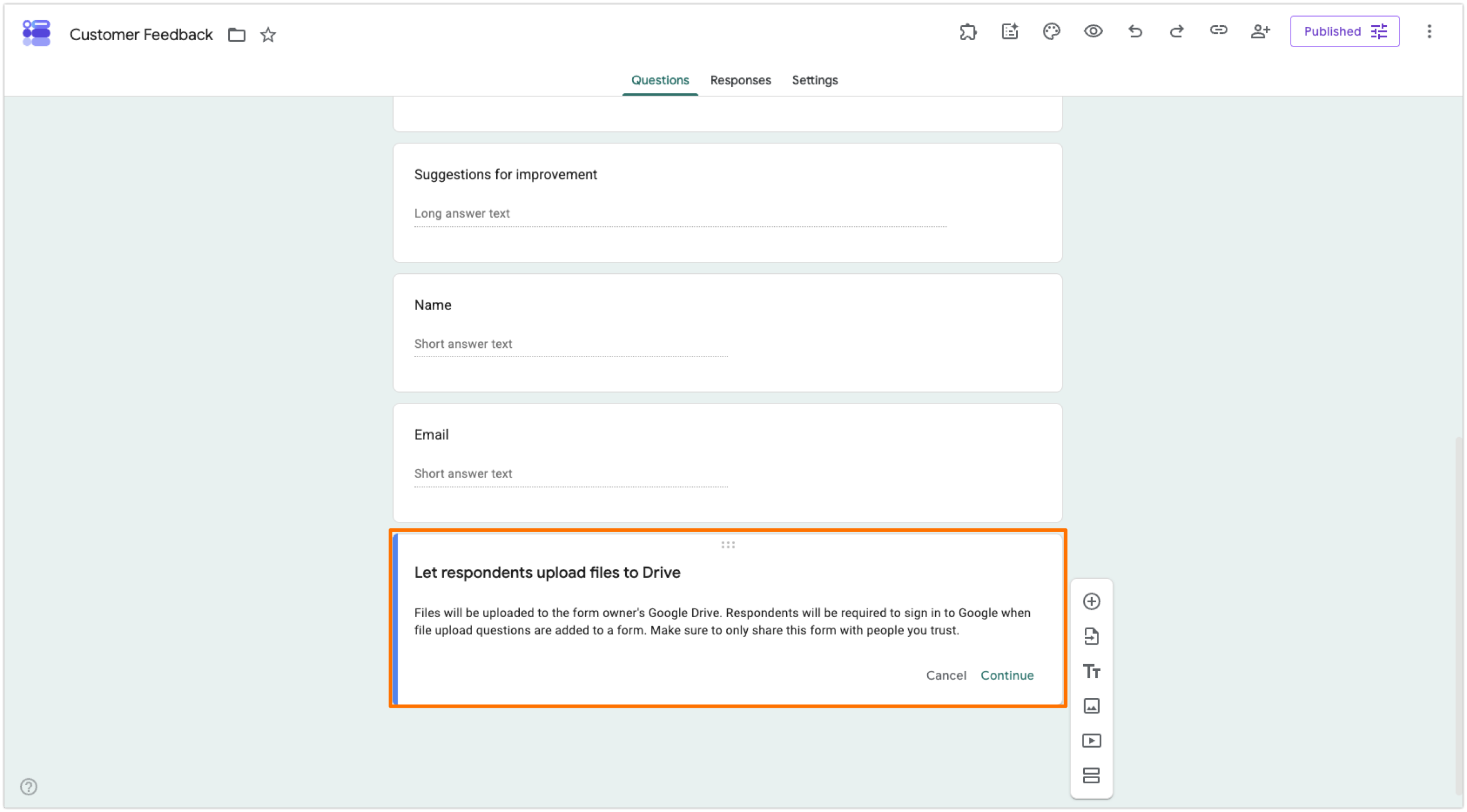
2. The form includes a “File Upload” question
If your Google Form has a question that requires a file upload, such as a document or image, as the answer, Google Forms will always force the form responder to sign in. This is because Google Forms stores uploaded files in your Google Drive and requires user authentication for security purposes.
Unless a file upload is absolutely necessary, avoid these types of questions to maintain open access for your form.
Pro Tip
Sometimes you need to allow file uploads but don’t need to know who is submitting them — such as a use case where customers notify a company of software issues. With file uploads, Google Forms will always require a sign in. If you want to allow true anonymous file uploads, go with Jotform. It lets form responders drop in files and documents into the form without having to sign in.
3. Workspace organization restrictions are on
If you’re building a Google Form on a paid corporate or school account in Google Workspace, Google will default to restricting access of the form to internal colleagues. If you want to avoid sign-in, you’ll need to make sure this setting is toggled off. (You can find it in the Settings > Responses section if it’s relevant for your account. Note that you may not have permission to disable Workspace restrictions and may need to ask the administrator at your organization.)
To check if your form is accessible to the general public, follow these steps:
- Open the form you want to make public.
- Click the Share icon.
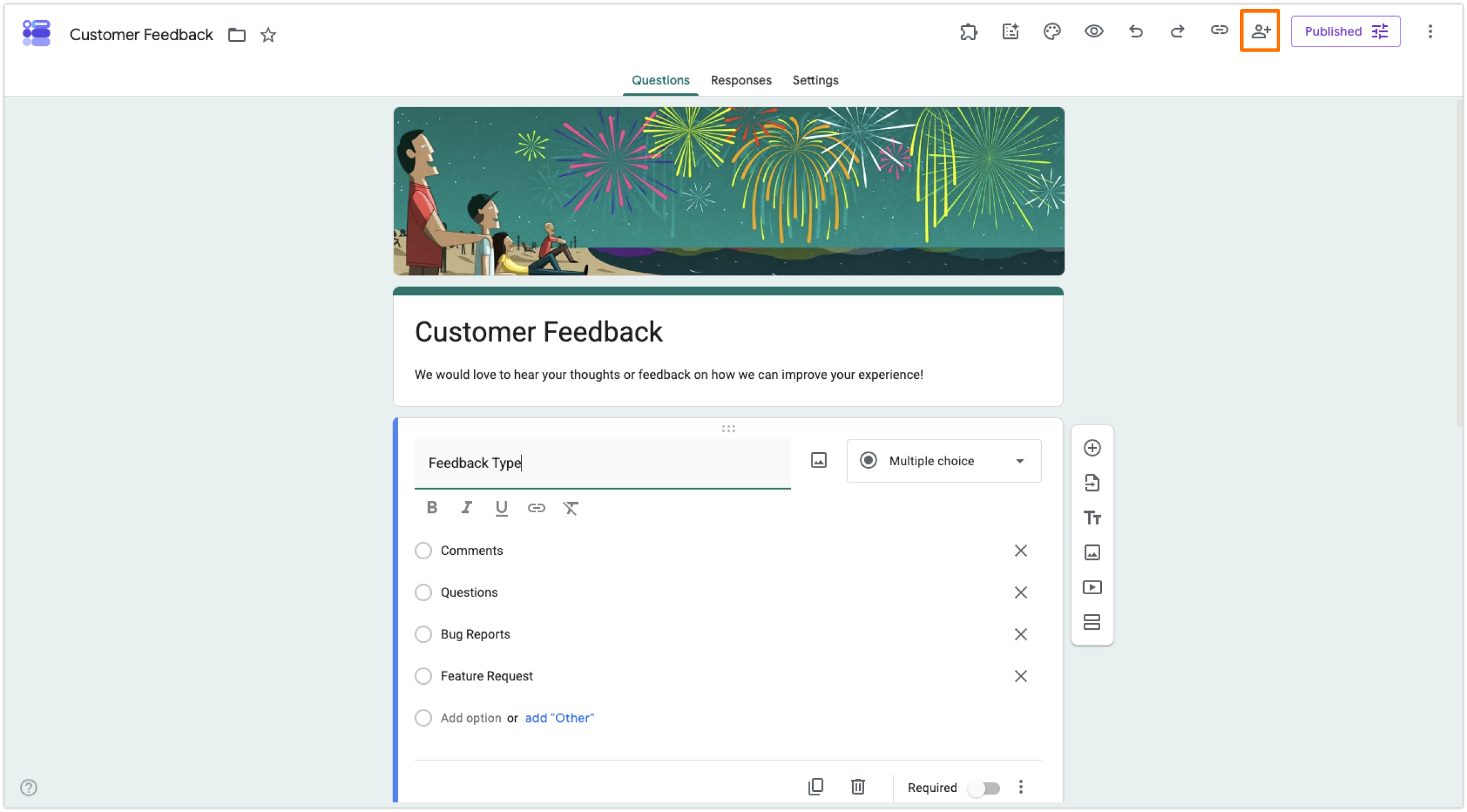
- Confirm that the Responder setting is set to Anyone with the link. If not, speak with your Workspace administrator to make a change.
4. “Collect email addresses” is set to verified
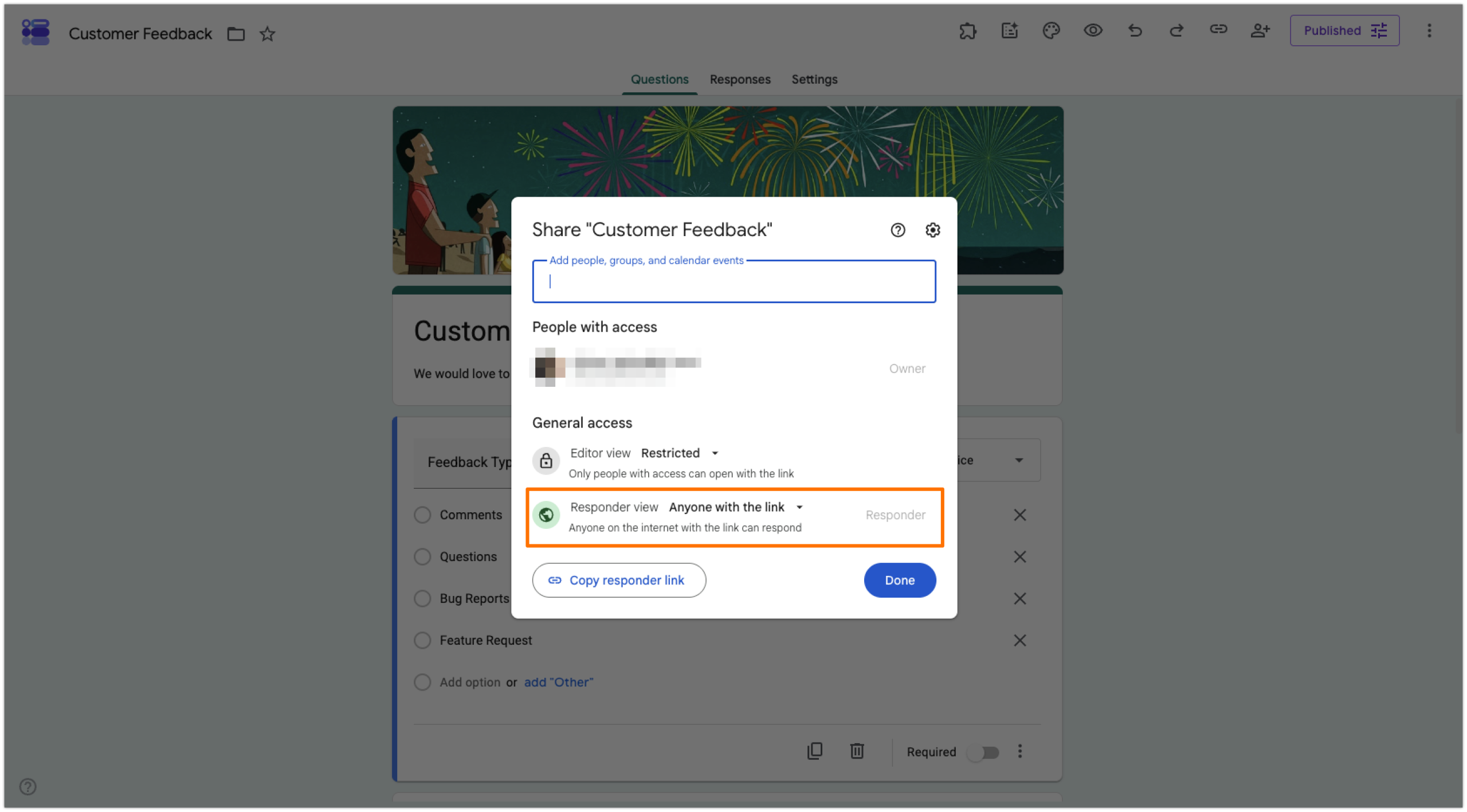
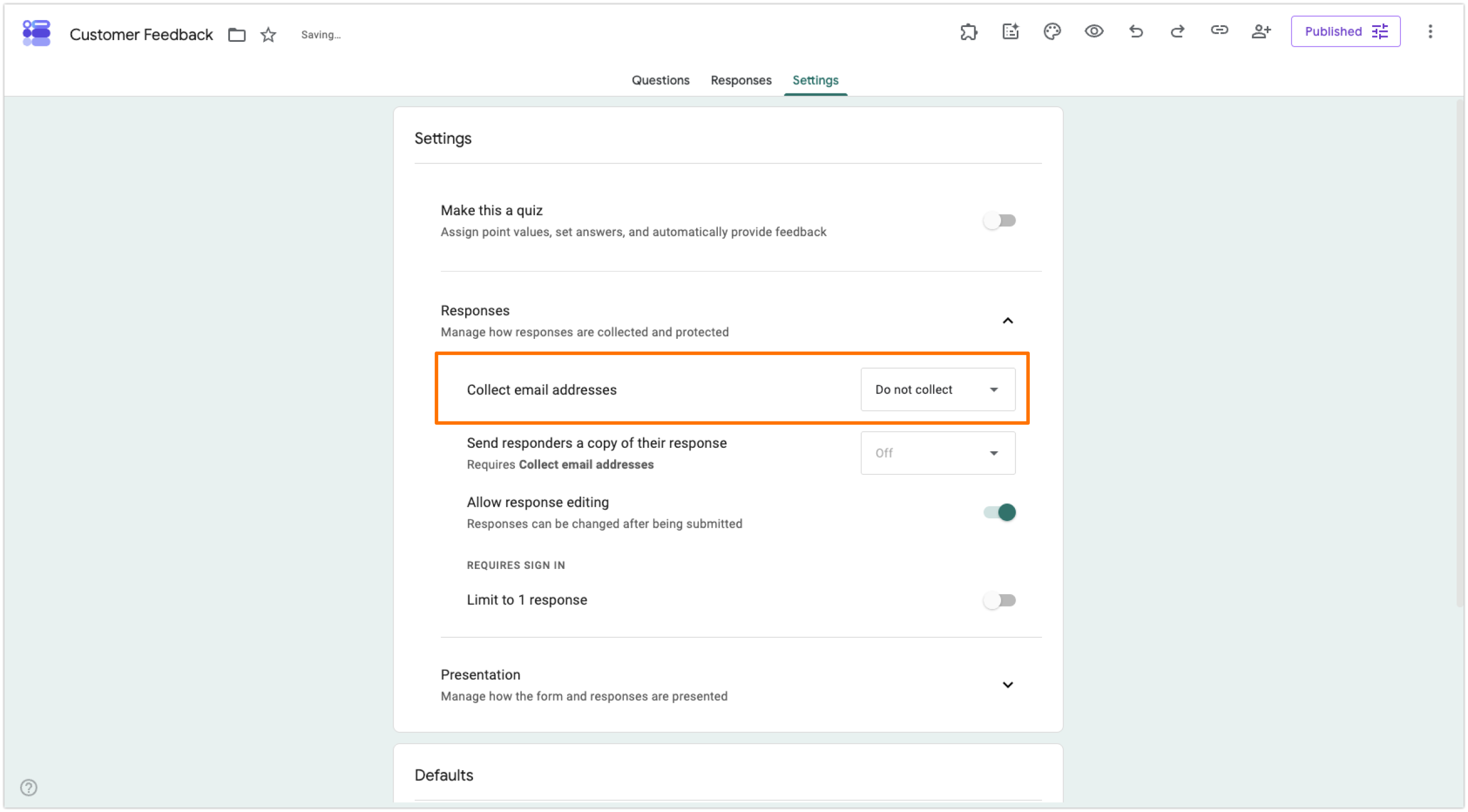
Google Forms will collect email addresses from form respondents if the Collect email addresses setting is on Verified. This forces form responders to sign in. Change it to Do not collect or Responder input to keep the Google Form anonymous and let form responders bypass sign in.
Here’s how to disable the Verified setting and remove the Google Form login requirement for form responders:
- Open the form you want to make public.
- Click Settings. Scroll down to Responses and maximize the section.
- Open the dropdown menu for Collect email addresses and set it to Do not collect or Responder input, depending on your needs.
Pro Tip
You can send form responders a copy of their submission, but this will always require sign-in with Google Forms. To do this, set the Collect email addresses setting to Verified and set the Send responders a copy of their response to Always or When Requested.
5. “Allow response editing” is toggled on
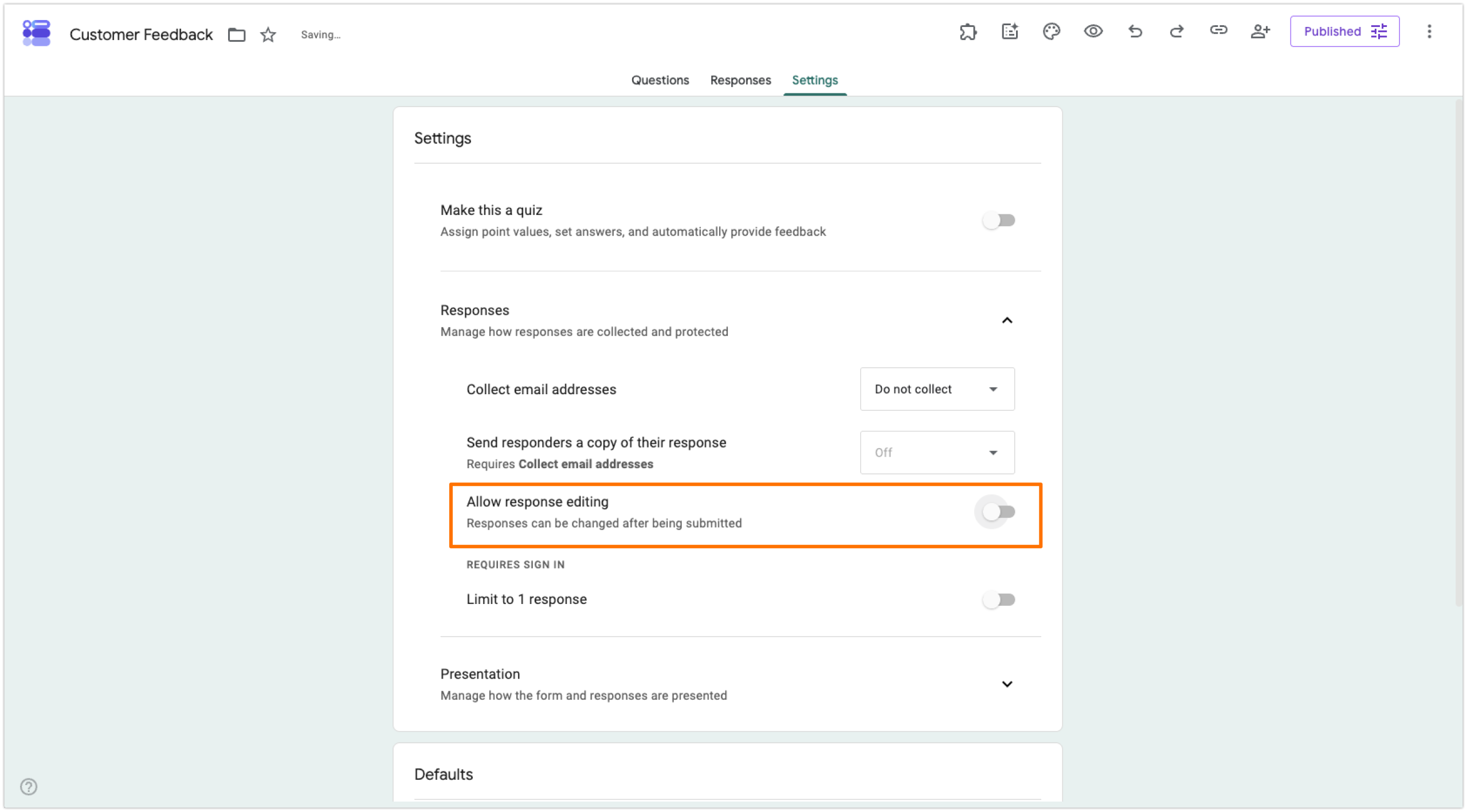
Want to know another way to share Google Forms without a Gmail sign-in requirement? In some use cases, you may want to give form responders the ability to edit their responses after they submit the form. If the Response editing setting is turned on, Google Forms will need to require sign-ins to keep track of people’s submissions.
If you don’t need this feature, follow these instructions to turn it off:
- Open the form you want to make public.
- Click Settings. Scroll down to Responses and maximize the section.
- If the Allow response editing setting is toggled on, toggle it off.
Everything you can do with Jotform that you can’t with Google Forms
Google Forms is a basic form builder that’s fine for casual use. However, its rigid limitations can be a major obstacle for growing businesses and professionals.
Jotform is a leading alternative that goes above and beyond what Google Forms offers in every sense of the word. Here are a few reasons so many Google Forms users migrate to Jotform:
- Flexible response options that don’t require a sign-in: Jotform’s unique submission feature and anonymous file uploads give users a better experience than Google Forms. You can rule out duplicate spam responses and get file uploads without ever having to ask respondents to sign in.
- 20,000-plus free form templates: Google Forms has only a handful of free templates, while Jotform offers templates for any use case you can think of. Simply pick one and edit it to meet your exact needs.
- Dozens of payment options: Unlike Google Forms, Jotform lets you collect one-time and recurring payments directly from your form via Stripe, PayPal, Square, and dozens of other payment processor integrations.
- Built-in e-signatures: Instead of using a Google Forms add-on or paying for a third-party tool, Jotform has native e-signature functionality with Jotform Sign. Users can even sign forms from their mobile devices.
- Multi-step automated workflows: Google Forms offers basic form notifications; in contrast, Jotform Workflows provides multi-step approvals and customized follow-ups based entirely on form responses.
- Advanced logic and form accessibility: With deep conditional logic, answer piping, multi-language support, and offline forms, you can make your Jotform forms as relevant to your target audience as possible to increase conversion rates.
- Complete design freedom: Google Forms’ basic design functionality and fixed header ratios are no match for Jotform! In Jotform, you can upload any image in any size and customize your form branding to match your business, giving your audience a seamless experience.
- Empowered respondents: Jotform enables your form respondents to access, view, and review their own submissions anytime, even after they have submitted their forms.
- Smart PDF Forms: Using Jotform, you can convert any PDF into a fully fillable, submittable web form in seconds. This comes in handy for things like job applications.
- Flawless mobile experience: Every Jotform form is automatically mobile-optimized and works perfectly on any type of mobile device. No extra configuration needed!
- More than 150 form integrations: From analytics and reporting tools to e-commerce platforms, you can natively integrate Jotform with nearly every tool in your tech stack for streamlined workflows.


Stop struggling to figure out how to share your Google Forms without a Gmail sign-in requirement — and work around all its other limitations! Switch to Jotform. You can migrate your Google Forms to Jotform with a single click using our migration tool, instantly unlocking advanced features like anonymous file uploads, native payment collection, and so much more. Explore Jotform today!
This article is for teachers, HR professionals, event organizers, and small business owners trying to remove friction and increase form completion rates by allowing non-Gmail users to respond.








































































Send Comment: