With the Edit URL feature, you have more control over how form entries are updated. You can choose which fields stay visible and which ones remain hidden when someone edits a submission, making the process cleaner and more focused. Edit URLs can be included in your form emails, allowing updates to specific submission details without requiring anyone to log in. You can also share these links directly with your form fillers, giving them an easy way to review and update their information whenever needed.
Sometimes, you may need to show or hide certain fields while editing an entry—especially for administrative purposes. This can be helpful in situations like the following:
- Adding a status to form fillers’ submissions
- Adding extra details
- Updating admin-only fields
- Hiding fields you don’t want form fillers to update
To make this work, you’ll need to use a combination of the Get Form Page URL widget and conditional logic. Together, these features let you control which fields appear or stay hidden when an entry is being edited, giving you more flexibility and control over the editing experience.
Adding the Get Form Page URL Widget
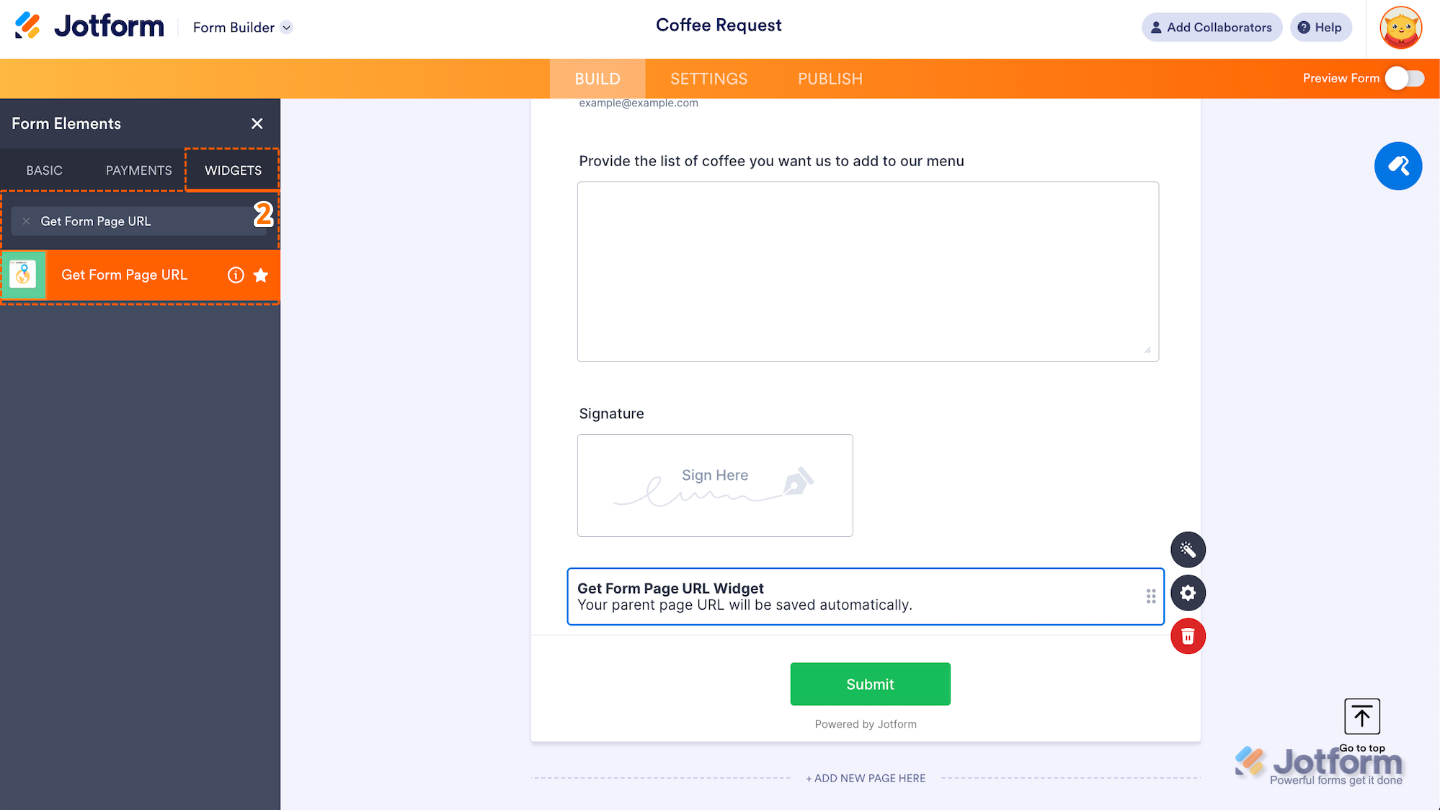
First, you’ll need to add the Get Form Page URL widget to your form. This widget quietly captures the exact URL where the form is opened or submitted. Here’s how to do it:
- In Form Builder, click on the Add Element menu on the left side of the page.
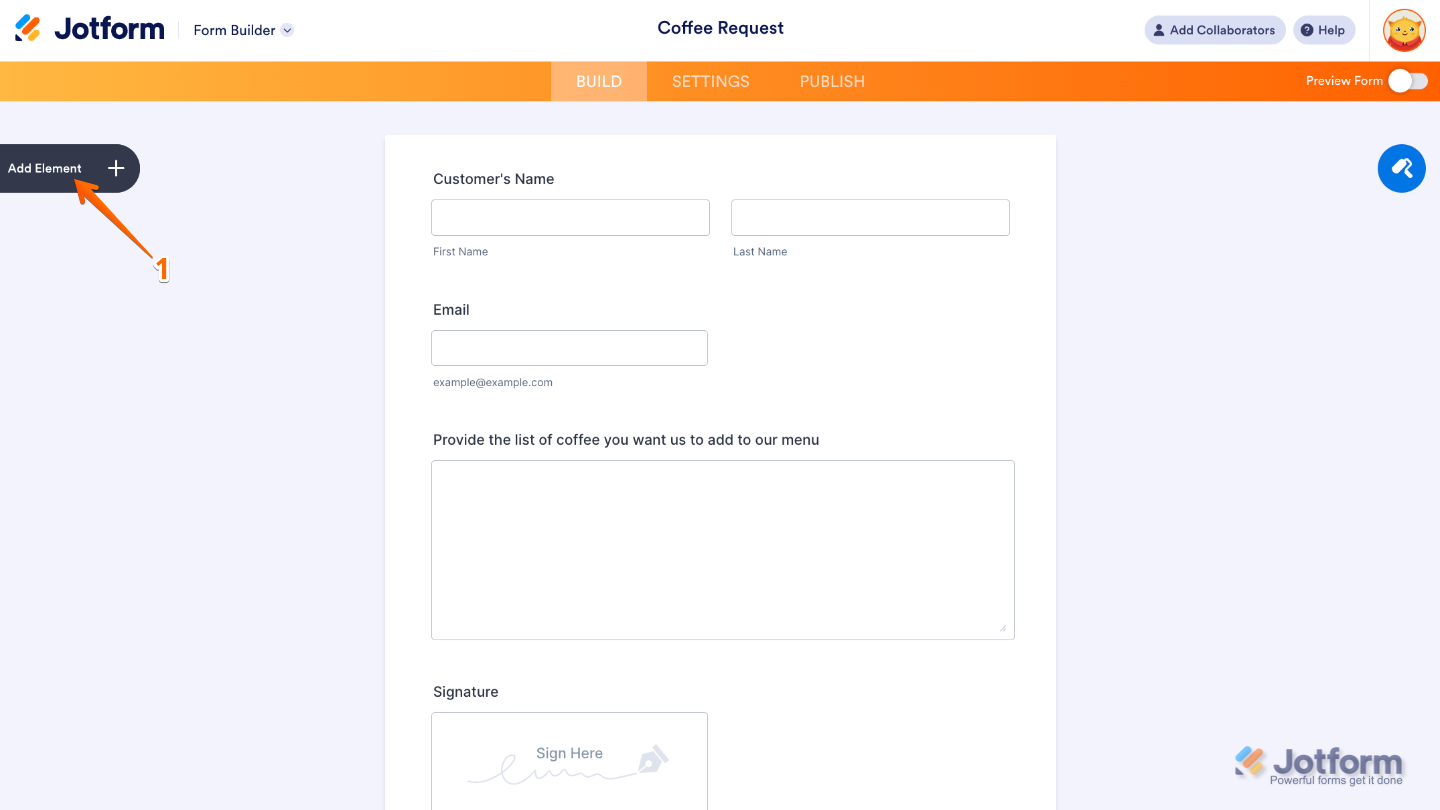
- Now, in the Form Elements menu, under the Widgets tab, search for the Get Form Page URL widget and then click on it. Or, just drag and then drop it to where you want it to be on your form.
Setting up the Conditional Logic
Setting up the condition to show or hide fields is the final step. By showing only what’s needed and hiding the rest, you create a smoother, more personalized experience for anyone editing or submitting the form. You can set it up like this:
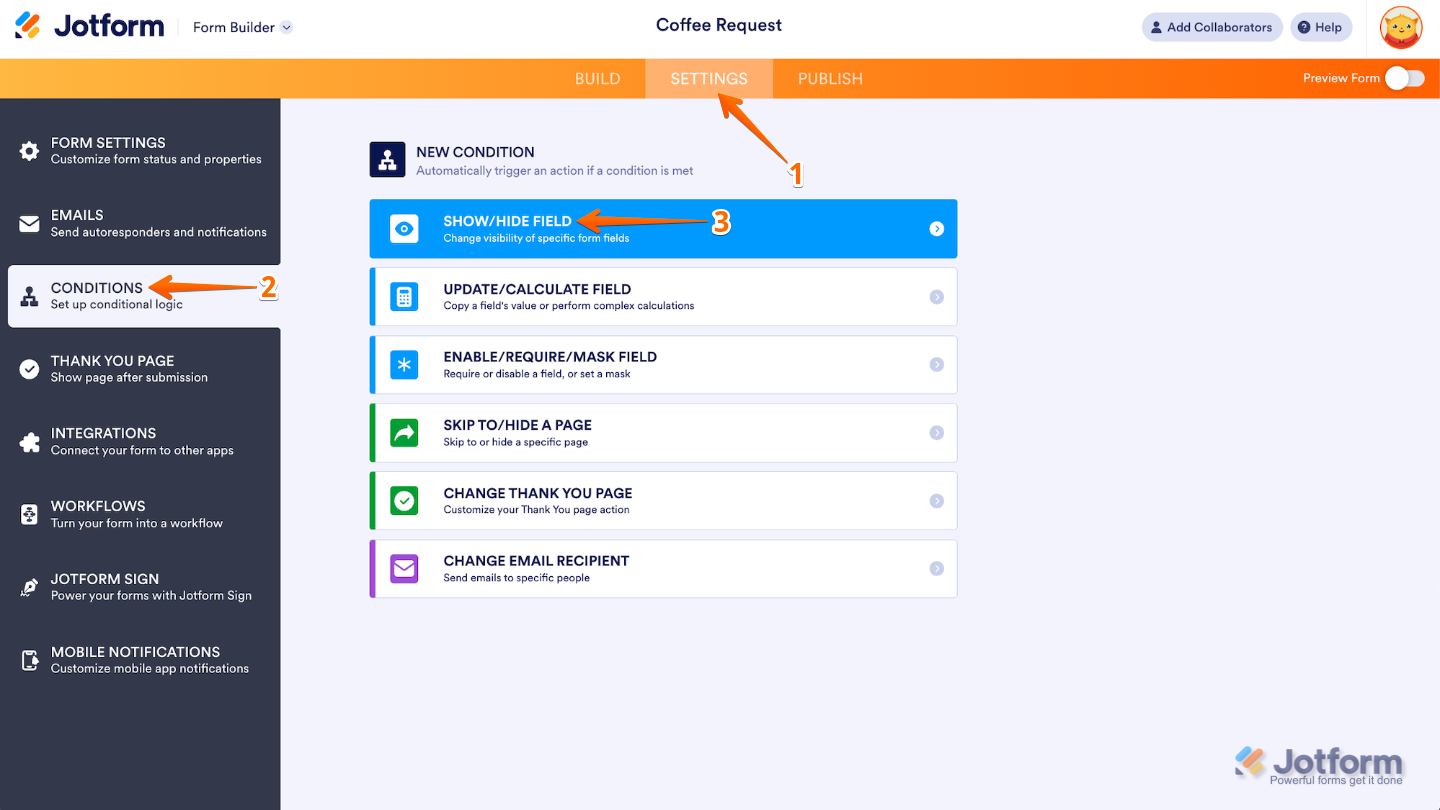
- In Form Builder, in the orange navigation bar at the top of the page, click on Settings.
- Click on Conditions in the menu on the left side of the page.
- Then, select the Show/Hide Field condition.
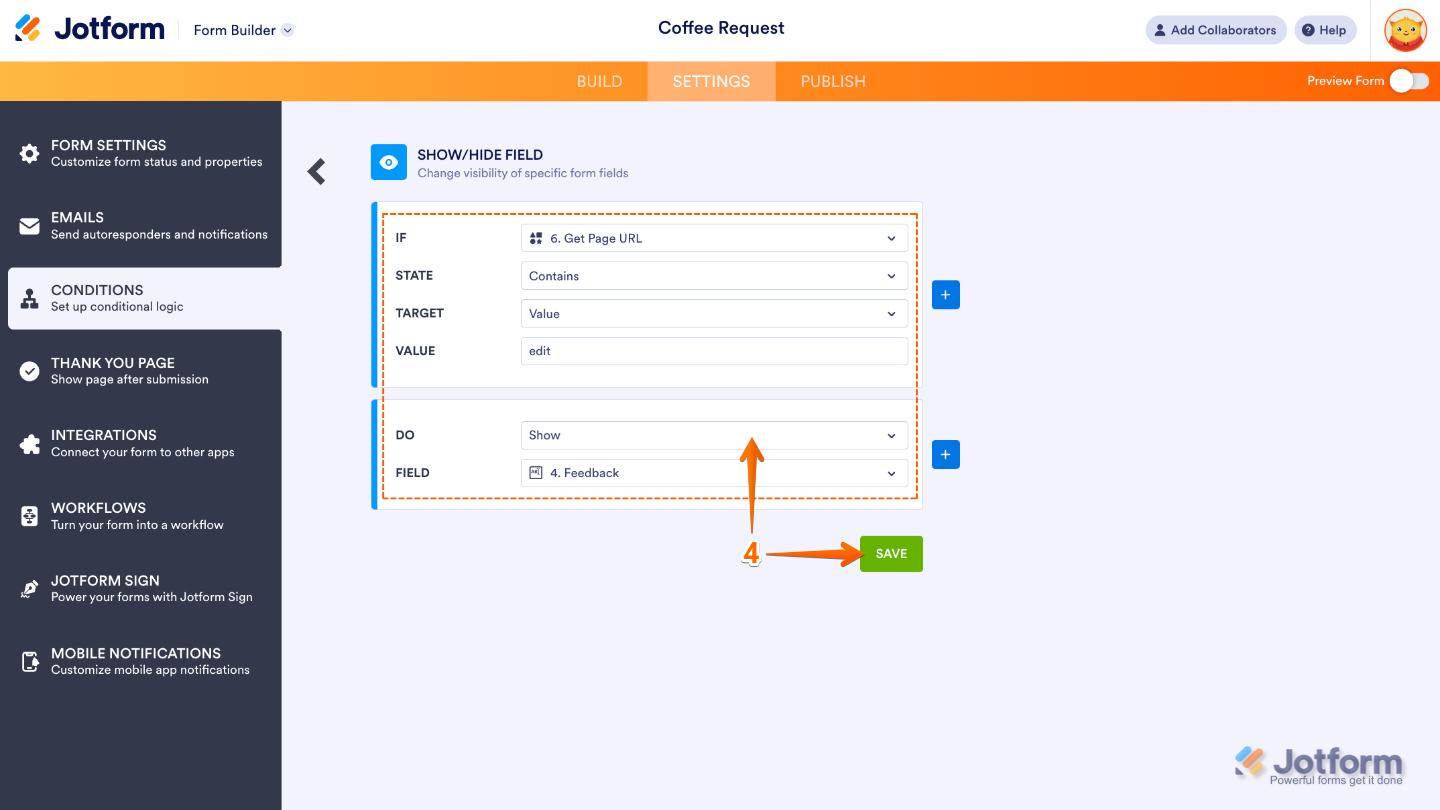
- Next, in the Show/Hide Field section, configure these fields to set an If rule for your condition, nd then click on Save:
- IF — Select a supported form field whose value or status will determine when the condition triggers. You can use the Search bar at the top of the menu to find a specific one easily.
- STATE — Select the status that the condition should check for in the field you chose. You can use the Search bar at the top of the menu to find a specific one easily.
- TARGET — This appears when the selected status is neither Is Empty nor Is Filled. Select whether you want to compare the value or selection of the field you chose to a specified value or to the value of another field.
- VALUE — This appears when Value is selected as the target. Enter a specific text that the selected field’s value will be compared to.
- DO — This defines the action that should happen when the condition is met. For the Show/Hide Field, it either make a field appear or disappear.
- FIELD — This appears when Field is selected as the target. Choose the field whose value will be compared to the field you selected in the If Dropdown menu. You can use the Search bar at the top of the menu to find a specific one easily.
That’s it. Now, when the form owner edits a submission using the edit link in the notification email, the hidden field will appear as intended. You can try it out yourself and see how it works by testing our demo form.
Notes
The heart of this condition is setting Get Form Page URL as the source field, selecting Contains as the condition type, and entering edit as the target value. This ensures the rule only triggers when someone is editing a submission via the edit link.

Send Comment:
12 Comments:
July 27, 2023
I've tried this solutions but than in the edit link it shows also all the hidden fields I've inserited and I don't know why.
What's wrong ? Thank you.
May 3, 2022
can I use this to specify an ID ?
e.g. I have 10 respondents target, each of them is ID'd 1,2,3,... till 10
I want to identify who they are without them putting their ID
so I want to put it in the form e.g. form.com/apply/id1
December 2, 2021
I used a Form Template modified and saved. How do I edit the url?
I texted someone-
Once text was sent it displayed "Condo Rental Application 884 Annagladys Dr.Worthington, OH 43085. form.jotform.com"
February 17, 2020
I have done all the above and am able to edit the hidden fields when i hit the edit link in the email..
However, if the user wants to edit their submission at a later time they will then see all the hidden questions..
So, this isnt really "admin only" solution is it??
Am i going wrong somewhere?
January 15, 2020
Can you add multiple hidden fields on "show" or maybe a section?
October 7, 2019
Hi,
I have 4 hidden fields on a form that I use for some calculations. These are hidden on first use, but if I return to the form using the Edit link they are no longer hidden.
I see here how I could make them hidden but my question is if there default condiftion is hidden why do they not remain hidden when I edit the form?
September 15, 2019
Basically, I'm creating an app. There are 2 fields in the app I am using jotform for. My Medications and My Cards. I want them to be able to click on those links, add their information and refer back to it at a later time...FROM THE SAME LINK, not a different one since the original link is what is in the app. Maybe I need a sign in on page one, and remember me or something. I didn't see it, but do you have that?? Any suggestions are welcome also.
July 18, 2019
hello, I need to edit and can't get into the build section. Can you help? Thank you
April 25, 2019
THere is a bug. When in the first filling process certain fields already have a SHOW condition applied to them, they are all shown in the 'edit' mode. However, if the those fields are set to be HIDDEN in the 'edit' mode, they are automatically shown in the normal mode and are overriding the previous SHOW conditions.
October 7, 2018
This doesn't seem to work - When editing the form the URL is no different.
In Edit mode the form is in a frame with URL something like
https://www.jotform.com /form.php?mode=inlineEdit&formID=...&sid=...
The URL of the Form is same for edit as for filling it in
April 19, 2017
stupid question: but where do i get the edit url from?
thanks for your patience!
August 24, 2016
Hi,
I tested this procedure but when I update a record with fields hidden, the same are updated in blank.
I've updated a record and some fields are hidden with this condition. The result was the visible fields updated correctly, the hidden fields blank!!!
How I can correct it?
Many Thanks