
Key takeaways
- There are two ways to enroll in a Canvas LMS course: by enrolling directly with a secret URL and join code or by having an instructor add you directly to a Canvas course.
- If an instructor adds you to a Canvas course, you’ll receive an invitation email.
- If you cannot join a Canvas LMS course, contact the course instructor or organizational IT team.
- Educational institutions and other organizations can use Jotform to automate creating Canvas accounts and enrolling in Canvas courses from a Jotform form.
You can enroll in a Canvas course only if you have received an invitation email from your institution’s Canvas account, or if you have a Canvas secret URL with a join code that lets you join a class automatically. And you’ll need a Canvas LMS student account, which your organization will have to add for you, to use either of those options to enroll in a course.
Canvas LMS is one of the more popular educational technology tools that enable online learning and class participation. As a student, you’ll use it to enroll in online classes, join discussions, view slides and other class material, take quizzes, submit assignments, and see your grades and completed coursework. Rather than a self-service system for students, it’s built as enrollment management software with centralized controls so schools, colleges, and workplaces can control who joins classes.
If you’re an instructor, you’ll need to invite students, enable the Canvas secret URL for your class, or automate the enrollment process with a workaround such as a Jotform form.
Here’s everything you need to enroll in a Canvas LMS course or, if you’re an instructor, to add students to a Canvas LMS course or let them enroll on their own.
How to enroll in a Canvas LMS course with a join code or secret URL
The easiest way to enroll in a Canvas LMS course is with a direct link to the course, what Canvas calls a secret URL with a join code. If your educational institution or organization shared a link that looks something like organization.edu/enroll/AB1CD2, you can use that to enroll in the course.
To enroll in the Canvas course, open the link in your browser and sign in with your Canvas account. Once you sign in from that link, you’ll automatically be enrolled in the Canvas course.
Or, if you’re already logged in to your Canvas account when you click the link, you’ll see an option to enroll in the course instead. Click the Enroll in Course button to proceed.
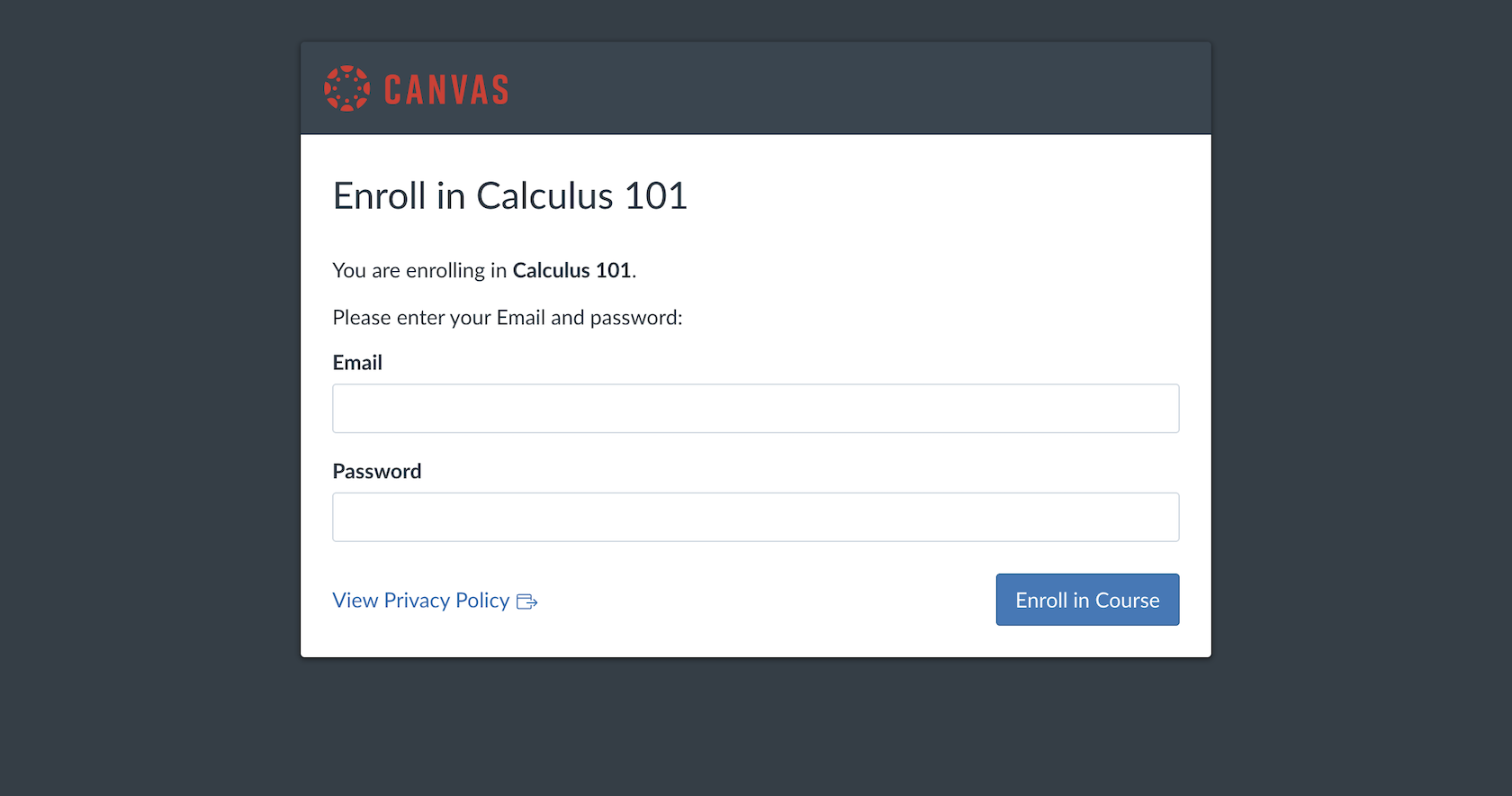
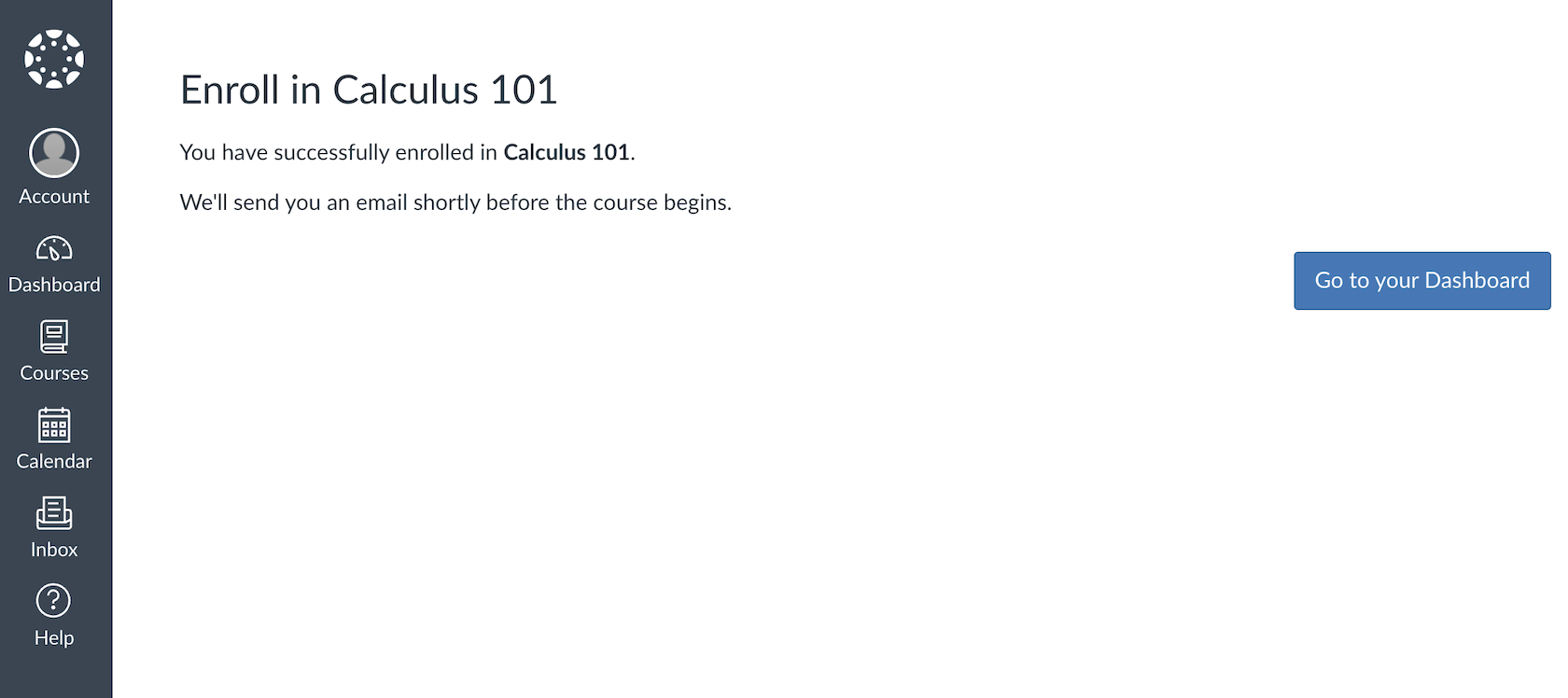
If the class has already started, you may see the course content. If the class has not started yet or the course materials have not been published, you’ll still be enrolled; Canvas will email you when it’s time to start attending class.
If you do not have a Canvas account, you’ll need to contact your IT team or course instructor and ask them to add you to your organization’s Canvas account. Then you can enroll in the course with the Canvas link.
How to accept a Canvas LMS course invitation
A more common way to join Canvas courses is with an email invitation. You’ll receive an email invitation to join a Canvas course typically after an instructor adds you to a course, after you’ve registered through a student portal or other course enrollment form, or when a registrar adds you to the class. Either way, the process for joining a course is the same.
Once you receive the invitation email, click the Get Started button (or a similar button; the design and wording may be customized, depending on your institution).
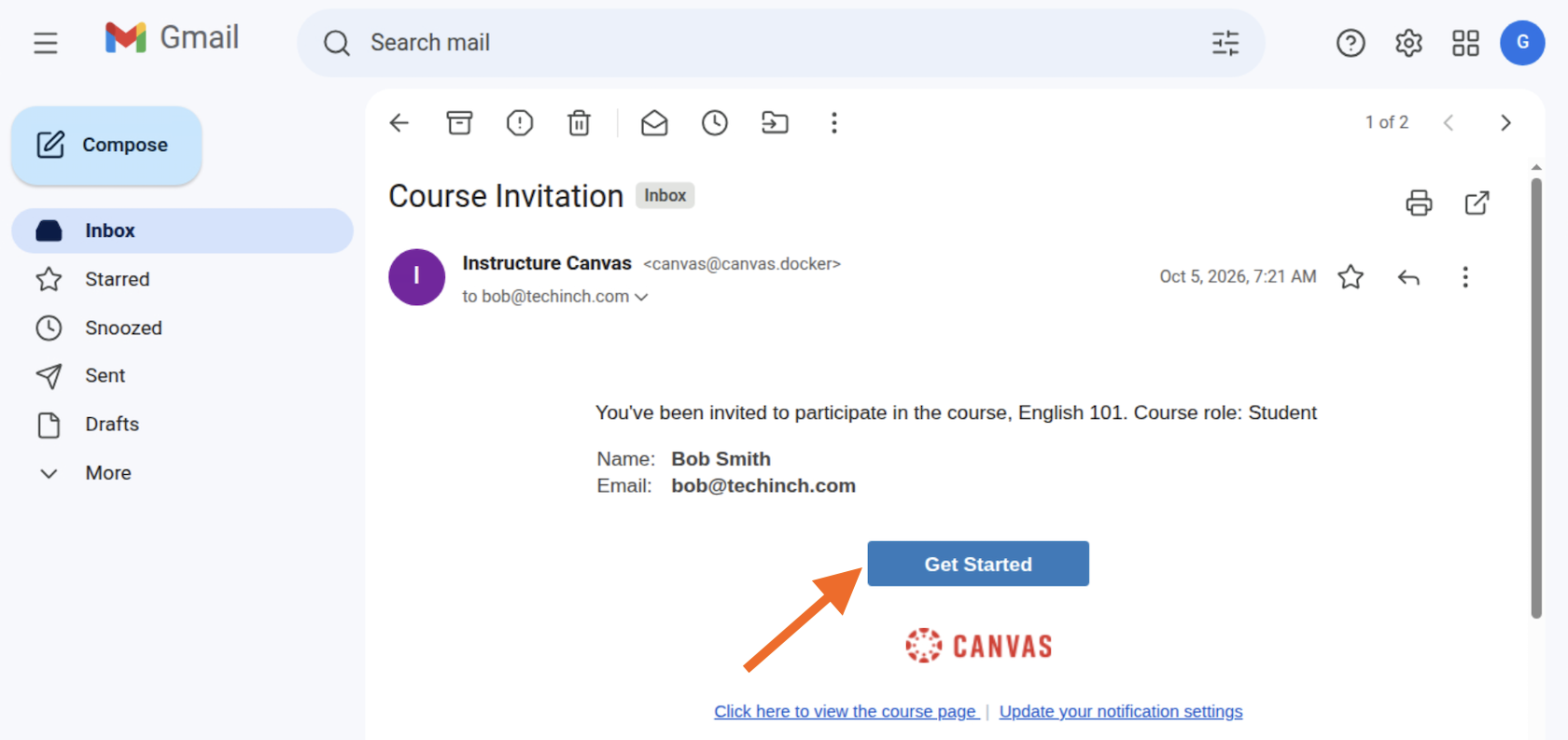
Once you’ve done that, you’ll need to sign in with your Canvas LMS account. Enter your username and password and sign in, and your enrollment in the course will be confirmed.
If you didn’t previously have a Canvas LMS account, you’ll need to add a password to set up your account and enroll in the class.
If your course has already been published and class has begun, you may see a preview of the course with details about lessons, assignments, and more. If so, click the Join This Course button at the top right.
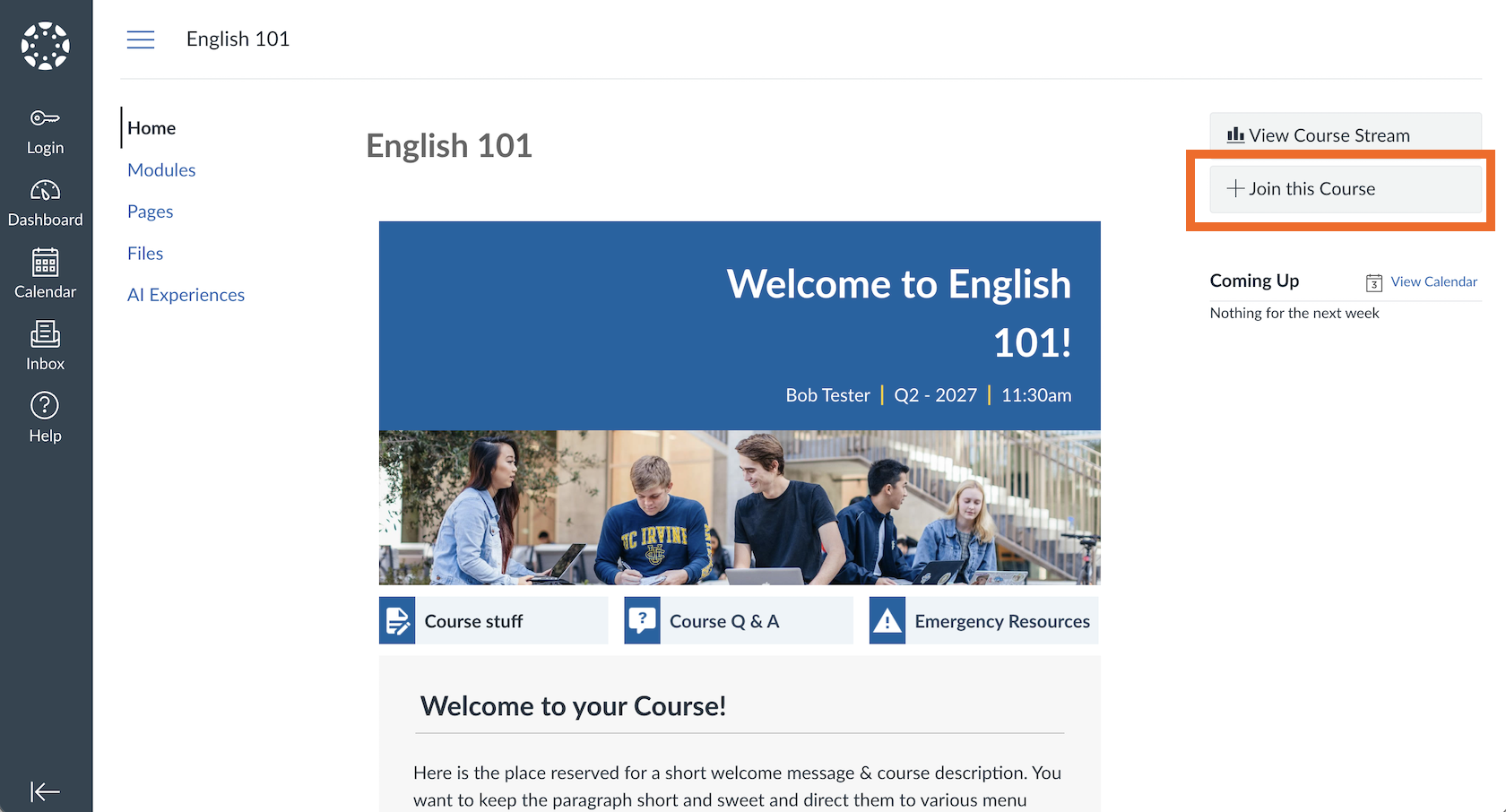
Alternatively, if the course isn’t open yet or doesn’t have a preview, you will see only the course description. Click the Enroll in Course button to continue.
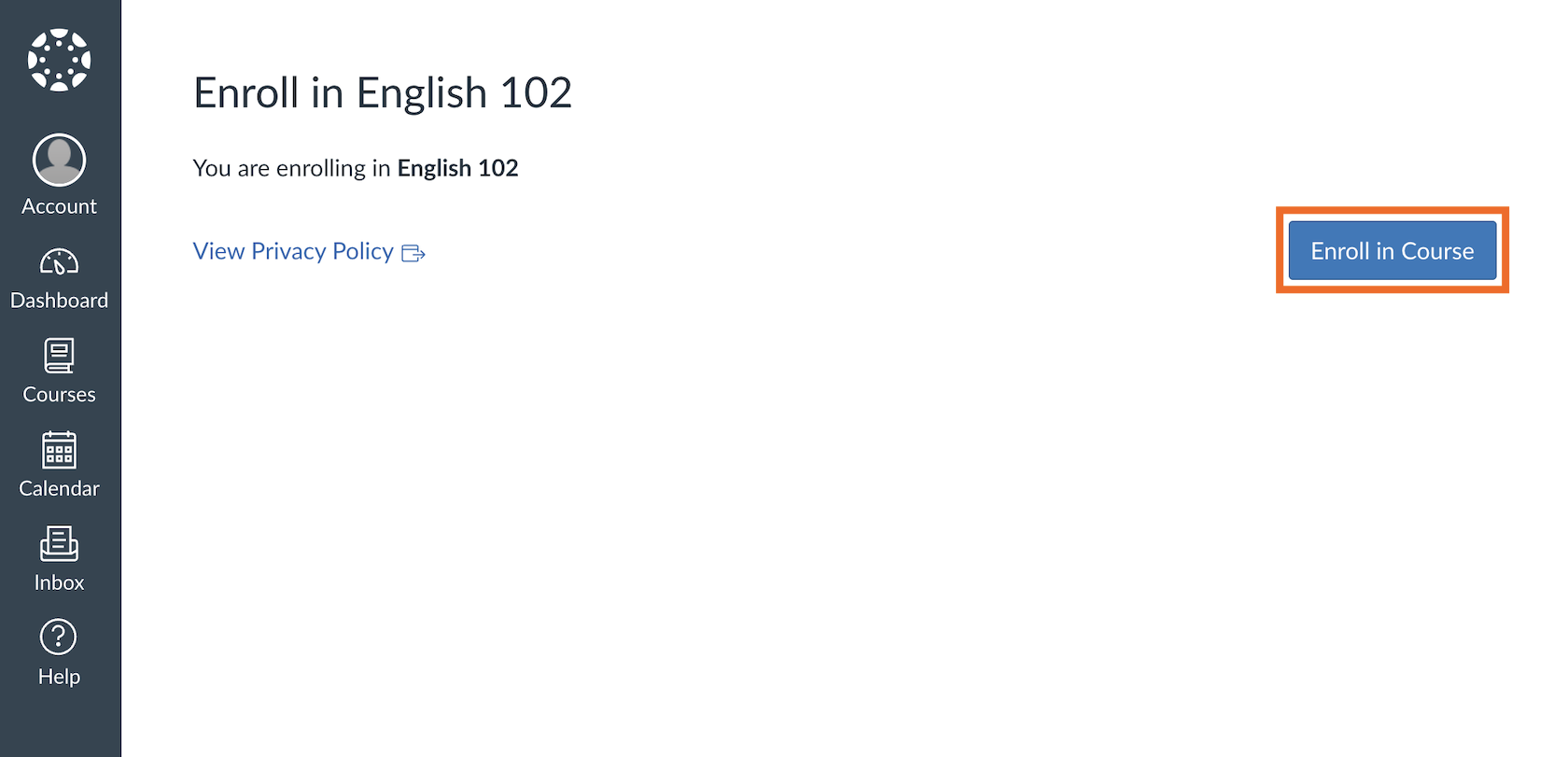
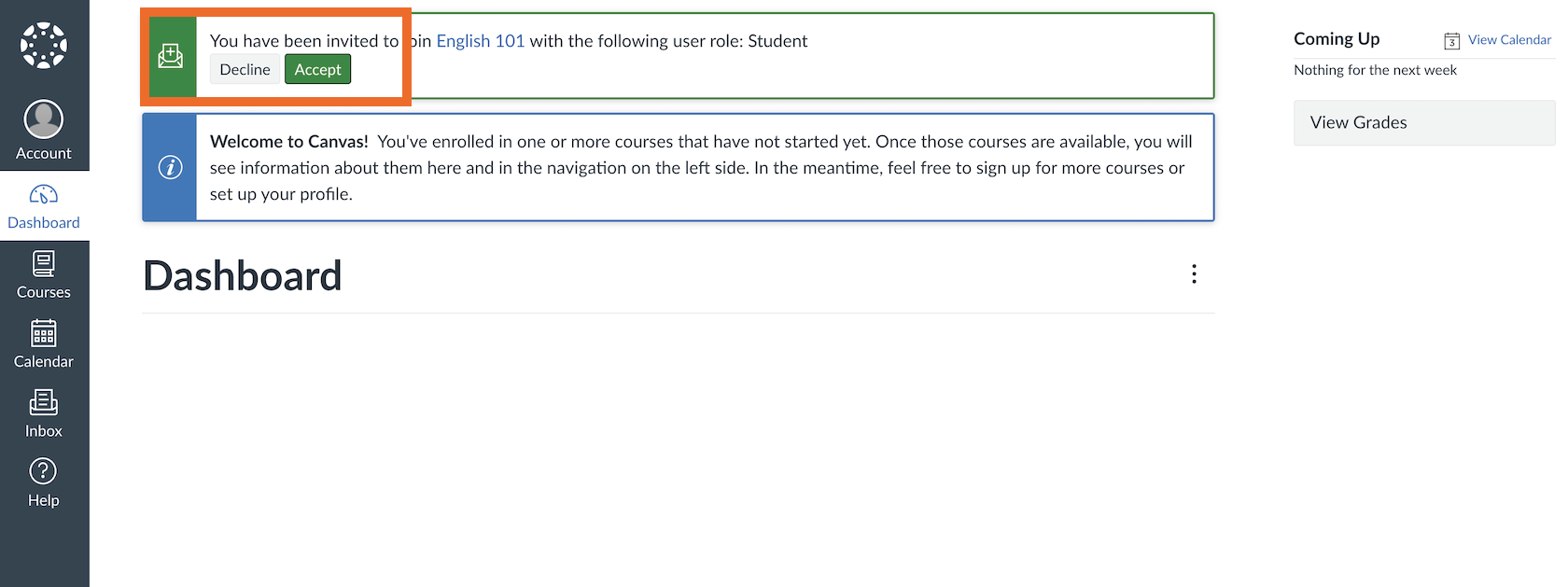
If you’re already signed in to Canvas LMS, you’ll immediately be added to the course. Otherwise, you’ll need to sign in to Canvas to accept the invitation. If you’re new to Canvas, your invitation link will ask you to enter a password to set up your account and accept the invitation.
Alternatively, if you’re already in Canvas LMS when you receive an invitation to join a course, you can accept the invitation without opening your email inbox. Simply click the Accept button in your Canvas LMS dashboard to enroll.
What if your school controls Canvas LMS enrollment?
By default, teachers and other Canvas LMS admins are the only people who can enroll students in Canvas courses. If your school controls enrollment, the only way to join a class is to follow your organization’s default enrollment steps.
Typically, most institutions use Canvas LMS alongside a traditional student portal or registrar. Confirm your organization’s standard signup process, then enroll in the classes you plan to take through your portal or registrar.
Once your professors or instructors have approved your registration, your enrollment will sync with Canvas and you’ll be added as a new student. You’ll receive an invite email or a Canvas secret URL with a join code to sign in to the class and accept enrollment. Be sure to check your course start date; you won’t be able to access the course materials until the course is published and the session has started.
If you still cannot access your course, contact your organization’s e-learning or IT support team to ensure your Canvas account has been created and to see if additional steps are needed to enroll in the course.
For instructors: How to open Canvas LMS classes for enrollment
As an instructor, the default way to enroll students in classes is either to add them manually to the course with their email address, Canvas Login ID, or SIS ID or to have your admin or registrar add students automatically. For courses with open enrollment, you can enable a Canvas secret URL and join code to let students sign up on their own.
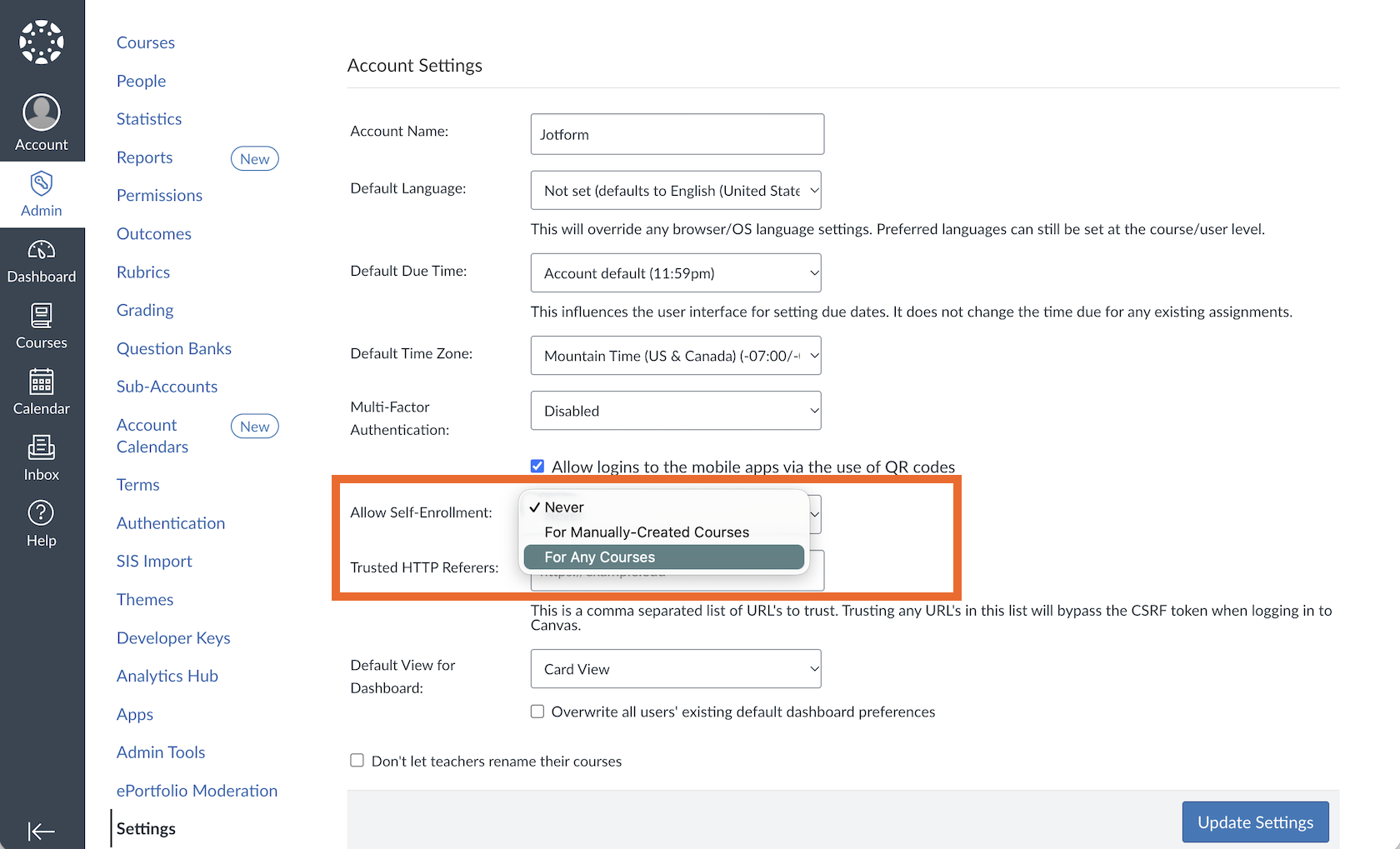
To do that, your IT administrator will need to enable self-enrollment options. Log in with a Canvas LMS admin account, open your organization-wide Admin pane from the left sidebar, and select Settings.
There, beside the Allow Self-Enrollment setting, choose the For Any Courses option to allow open enrollment across your institution.
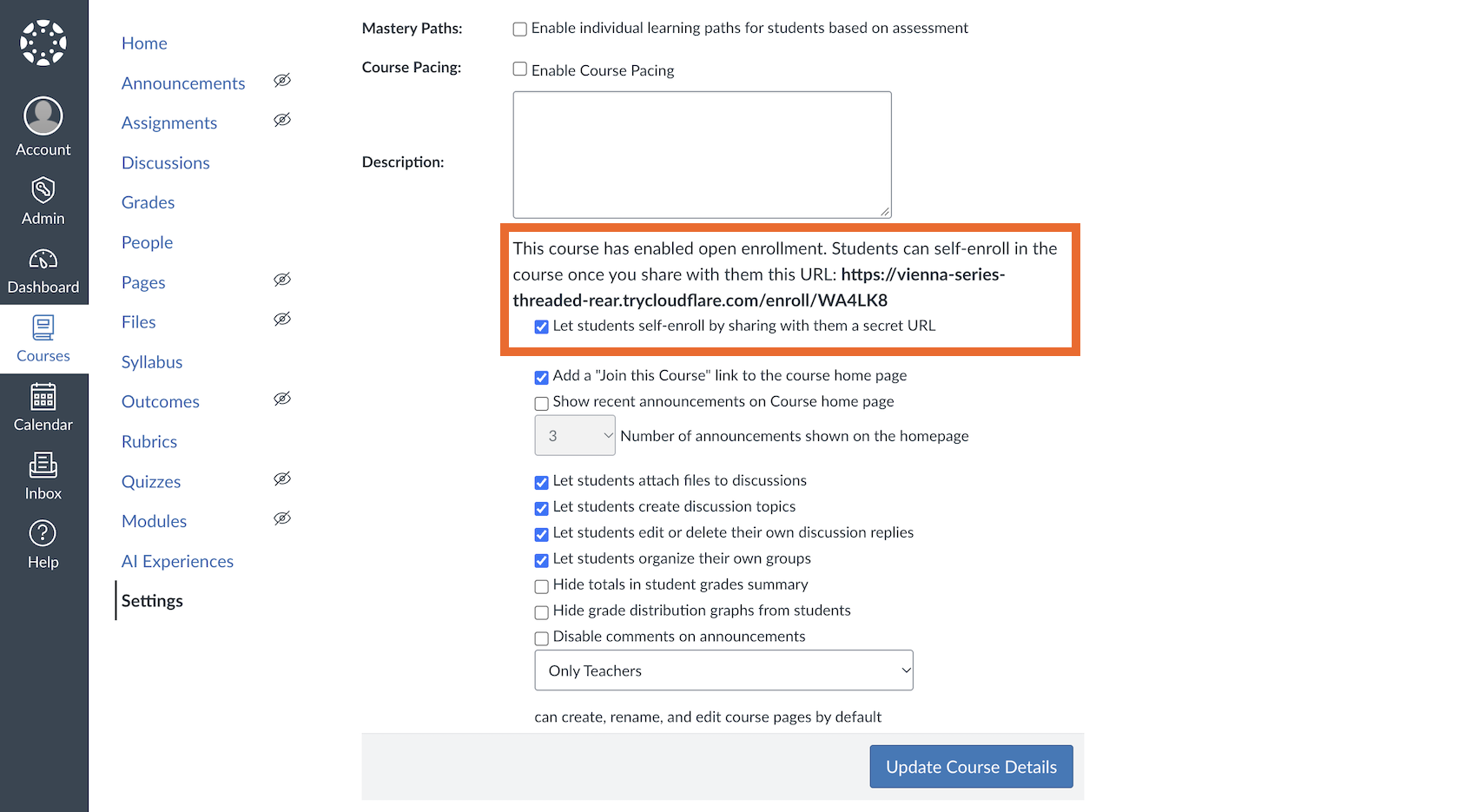
After that’s done, you can enable self-enrollment in any course. Open your Canvas course settings, scroll down near the bottom, and check Let Students Self-Enroll by Sharing with Them a Secret URL. You can also check Add a “Join This Course” Link to the Course Home Page to simplify signup.
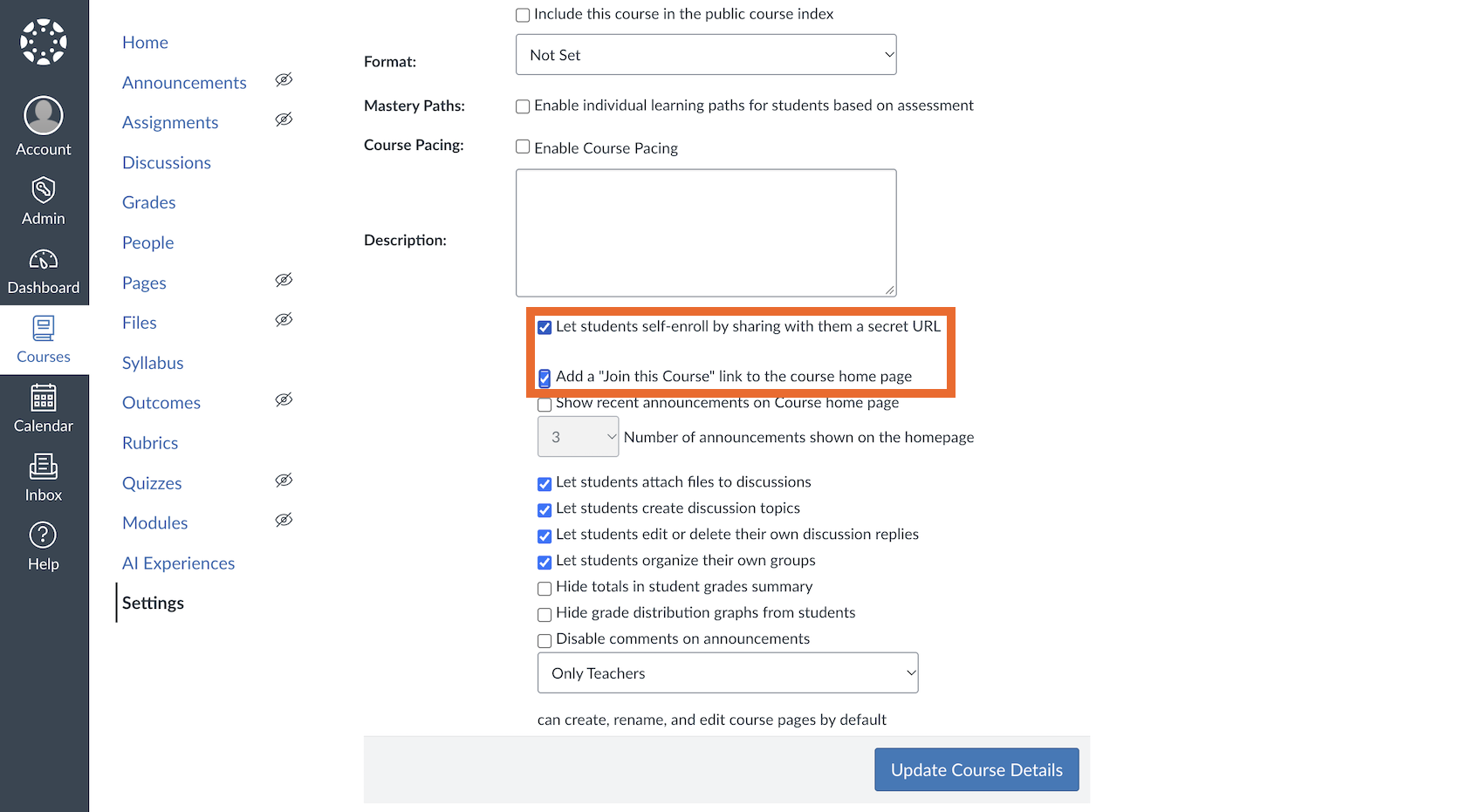
Click the Update Course Details button to save the settings. When the page reloads, you’ll see a sharing URL with a secret code you can copy and share with prospective students.
For schools: Automate Canvas LMS course enrollment with Jotform
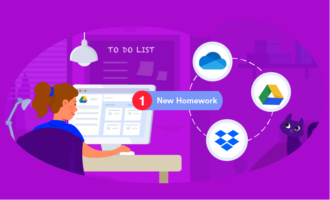
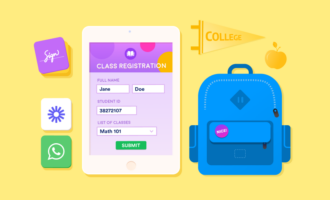
Adding students to courses manually is a tedious, error-prone process that takes admin staff and instructors away from the time they could otherwise spend supporting students. Automating the Canvas course enrollment process with education forms from Jotform lets you create new Canvas LMS accounts and add students to Canvas courses automatically, which vastly simplifies enrollment.
It starts with Jotform’s Canvas by Instructure integration, built into every Jotform form. Create a new Jotform education form, either starting from scratch or using a template for student onboarding, course enrollment, or a training application form (if you’re using Canvas for workplace training courses).
Then, to integrate Jotform with Canvas, open your form’s Settings, select Integrations, search for Canvas LMS, and connect your e-learning platform to your Jotform form. You can set the integration to create Canvas accounts for new students or to enroll existing students in courses, with no need to manually add students or copy and paste data between Canvas and your other educational technology platforms.


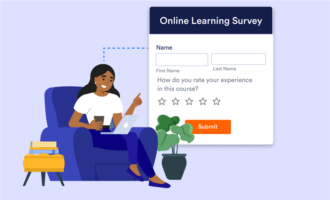
Jotform’s Canvas integration and built-in features that simplify data collection make it one of the best ways to streamline student enrollment in Canvas LMS. And with Jotform’s 50 percent discount for education institutions, it’s incredibly affordable for eligible educational institutions to streamline onboarding with Jotform forms. And you can use the same platform to poll students, get students to sign up for events, and collect any other data you need throughout the semester.
FAQs about enrolling in a Canvas course
If you’re a student, you need to get a Canvas LMS join code from your teacher, professor, instructor, or other administrator at your institution. Canvas join codes are unique per class, disabled by default, and hidden until your instructor shares them with you. Check with your class instructor for your Canvas join code.
If you’re an instructor with a Canvas LMS teacher or admin account, you can find the Canvas join code to share with your students in your course settings. Open your course’s Settings, check Let Students Self-Enroll by Sharing with Them a Secret URL, then click the Update Course Details button. You’ll be able to copy the Canvas join code URL after the page refreshes.
A Canvas secret URL is a unique link Canvas LMS creates for classes when instructors and admins enable the Let Students Self-Enroll by Sharing with Them a Secret URL option. The URL is the institution’s Canvas site, followed by /enroll/ and then an alphanumeric join code, such as https://university.edu/enroll/AB1CD2.
If your Canvas course isn’t showing up after you’ve enrolled, that means the course has not yet started instruction. If you joined a class that starts next Monday, for example, it won’t show up on your Courses dashboard until next Monday, when lessons begin.
When joining a class that’s open for enrollment but classes have not started yet, you’ll see a successful enrollment message after you sign up, with a note that Canvas LMS will email you shortly before the course begins. Once you receive that email, you should see your course inside Canvas. If not, contact your course instructor or organization’s IT administrator for additional assistance.
Yes. To enroll in a Canvas course, even with a secret URL and join code, you will need to have a Canvas account. If you’ve been directly invited to join a Canvas course, you’ll be able to create your Canvas account and enroll in the course from the invite link in the email.
If you don’t have a Canvas LMS account and would like to enroll in a Canvas course from a secret URL, contact the instructor or administrator and ask them to create a student account for you in Canvas LMS. Then you will be able to enroll in a Canvas course from a link.
Yes, Jotform forms with the Jotform Canvas integration can both create new student accounts in a Canvas LMS account and enroll students with accounts in Canvas courses. Instructors or admins will need to build Jotform forms and integrate Jotform with Canvas. Students can then use their Jotform forms to create a Canvas account and enroll in Canvas courses.
This article is for students, employees, continuing education learners, and external training participants who need to join a Canvas course and are unsure whether to use a join code, course invitation, school registration system, or enrollment link.


























































































Send Comment: