
How many of your web forms come back complete and accurate — and how many come back half-filled, with skipped fields, or never submitted at all?
For most businesses, the gap between those numbers is bigger than anyone would like to admit. While some forms get completed quickly and accurately, others frustrate respondents, get abandoned partway through, and leave you with partial information you can’t trust.
Most of this comes down to how the form is built. Forms that ask for too much too early, request information that doesn’t apply to every respondent, or make every field required regardless of context push people away before they finish. That’s where smart forms come in. They adjust in real time to the person filling them out, collect more responses, and deliver cleaner data. In this article, I’ll show you what smart forms are, the features that make data collection more efficient, and how teams across different functions use them to replace manual paperwork workflows.
👀 Need a primer on forms? Our guide on forms covers the basics.
What is a smart form?
A smart form is an online form that adapts to each respondent in real time based on previous responses. Its purpose is to simplify the form-filling experience, improve data quality, and boost efficiency for teams.
An example is a client intake form on a marketing agency’s website. When a visitor selects “I need SEO help,” the form immediately shows fields for current site traffic and target keywords. If they select “I need brand design” instead, the form swaps to questions about existing brand assets. That way, each respondent answers questions that are personally relevant to them and, according to Epsilon, 80 percent of consumers say they’re more likely to do business with a brand that offers personalized experiences.
Smart forms use various elements and input types, such as e-signatures, image selection fields, calculation fields, and AI-powered conversational interfaces, to capture information that text fields alone can’t handle.
Beyond simplifying data collection, smart forms also
- Enhance overall data quality by collecting only the information that’s relevant to each respondent
- Improve data accuracy by validating responses in real time before submission
- Serve multiple audiences with one form by routing different visitors to separate question paths
- Connect to your business-critical tools and trigger workflows after submission, helping you manage team tasks with less effort
Why smart forms are better than static forms
Regular web forms are static. They show the same questions to everyone in the same order, relying on visitors to painstakingly complete them, even though the questions are irrelevant. Nielsen Norman Group’s 2025 framework on simplifying forms puts it plainly: “The more effort a form demands, the more likely users are to abandon it midway.”
A smart form, on the other hand, uses built-in logic to change content based on a user’s input and guide them through a personalized journey.
Consider an event registration form. A static version asks every attendee for dietary restrictions, accessibility accommodations, T-shirt size, session preferences, travel details, and dial-in information, whether they’re attending in person or virtually. Many respondents may become frustrated and drop off, and those who complete the form may leave fields blank or fill them in incorrectly.
But a smart version starts with one question:
“Are you attending in person or virtually?”
Based on that answer, each respondent sees only questions that apply to them, such as travel and dietary details for in-person attendees and time zone and dial-in details for virtual attendees. A direct result of this structured approach is increased signups and more accurate registration data.
To optimize forms for completion and accuracy, smart forms use a few essential features that work together:
- Conditional logic: This is the key feature that makes smart forms think as users type. Conditional logic uses if/then rules to show, hide, or modify fields based on previous answers. It keeps each respondent’s path short, tailored, and dynamic.
- Progressive profiling: This feature spreads data collection across multiple interactions rather than overwhelming visitors by demanding all the details up front. For instance, on first interaction, a form might ask one or two basic questions. Then, in subsequent interactions, it recognizes the respondent (via cookies, email matching, or URL) and replaces old questions with new, relevant ones until it collects all the information needed to build a detailed customer profile.
- Dynamic data validation: This checks inputs as they’re entered to flag errors such as incorrect email or phone number formats, preventing visitors from submitting incorrect information. Inline validation also saves your team time and protects the accuracy of your data.
- Prefill: Prefill link forms with databases, CRMs, and URL parameters to automatically pre-populate fields with known data for returning visitors. This gives visitors a head start, saves time, and improves user engagement.
- Integrations: Smart forms connect to internal and external systems to enable data transfer upon submission and trigger actions such as payment processing or document generation without manual effort.
👀 Pro Tip
See these features in action with Jotform’s autofill form fields, email validation, hidden fields, and more — for free.
How smart forms are used in 2026
Today, smart forms are a core part of forms management for every workflow that involves collecting information from people. With them, small business owners can save time on manual follow-ups, sales teams can qualify leads faster, HR teams can shorten applicant funnels, and ops teams can collect cleaner data from internal requests.
The core capabilities behind these outcomes apply across functions, regardless of what the form is collecting. Newer additions like AI form generation and conversational agents even help automate both ends — building forms from a short description and letting respondents complete them through chat. The subsequent examples show how these advantages play out across different functions and use cases.
Enhancing project management workflows
When you manage a project, smart forms standardize how information flows in and out of your workflows.
Scenario: A product team uses a single smart form to collect all incoming requests — bug reports, feature requests, and stakeholder questions — and automatically routes them to Jira.
Conditional logic application:
- Request-type branching: The first question asks about the type of submission. Selecting “bug report” reveals fields for repro steps, environment, and severity. “Feature request” reveals fields for business case and target user. “Question” reveals a short context box and routes to the team lead.
- Required-field validation: The form blocks submission if critical fields are missing. So, a bug report can’t be filed without repro steps.
- Jira integration: On submission, the integration creates a Jira issue with the right fields populated, the right assignee, and the right priority — no manual triage needed.
👀 Pro Tip
Cut the manual work of triaging requests with the Jotform + Jira integration. Form submissions become Jira issues automatically with the right fields, assignees, and priorities already set.
Improving e-signature and approval processes
For many teams, approval workflows break down at the signature step when someone has to print a PDF, sign it by hand, scan it back to the sender, and then wait for the next approver to repeat the process. E-signature platforms with smart forms can consolidate that manual workflow into a single online form that can be filled out and signed in one session on any device.
Scenario: A marketing agency wants to streamline how it sends master service agreements (MSAs) to new clients.
Conditional logic application:
- PDF-to-smart form conversion: The agency converts its existing MSA PDF into a smart PDF form, which automatically detects fillable fields. Signature fields are placed wherever the agency and client need to sign.
- Signer-specific fields: The client sees the fields they need to complete — company details, signature, date — while internal agency notes and reviews stay hidden from their view.
- Multi-device signing: Clients complete the form on a phone, tablet, or laptop using their mouse or finger, without printing or scanning anything.
- Automated delivery: Once the PDF is signed and submitted, the agency receives a filled-in copy of the original along with a digital audit trail. The client automatically gets their own copy, without any back and forth.
👀 Pro Tip
Looking for how to create smart PDF forms with e-signature capabilities? Use Jotform Smart PDF Forms. Just upload existing PDFs, add fillable fields, and send. No coding, no rebuild.
Supporting field service teams in real time
Field service work happens in conditions that traditional forms don’t handle well. As technicians, inspectors, and drivers move between sites, their workflow often changes based on what they find on the ground. A smart form built for this environment works on any device and stores entries locally to sync once a connection returns. It also adapts through conditional logic to show different fields for different equipment or issue types.
Scenario: An HVAC service company sends technicians out for repair calls. The company needs each tech to submit a complete service report from any job site, even ones without a cell signal.
Conditional logic application:
- Equipment-specific fields: When the technician selects the equipment type, the form reveals only the fields that apply — model number, error codes, parts replaced, and photos of the work area.
- Offline functionality: Even without a cell signal, the technician can complete entries, attach photos, and capture the customer’s signature on the finished work. All details are stored locally on the device.
- Multi-device access: Technicians can open the form on whatever device they have on the job — a phone, tablet, or laptop.
- Automatic sync to dispatch: Once the technician returns to an area with signal, the form syncs automatically. The dispatch team at the office can see the completed job in real time and trigger invoicing or schedule a follow-up.
👀 Pro Tip
Field teams work better together when everyone is looking at the same data. Jotform Teams creates shared workspaces where field updates and office actions stay in sync, with role-based permissions to control who sees and edits what.
Create smart forms with Jotform
Replicating the use cases we’ve just covered requires a modern online form builder that’s intuitive and easy to use. Jotform is the online smart form builder of choice for small and enterprise businesses, thanks to its no-code, drag-and-drop user interface. With it, you can build dynamic interactive forms in seconds or convert existing PDF forms into mobile-friendly smart forms that automate your data collection flows and business.
Jotform smart forms include conditional logic, data prefill, data validation, e-signatures, integrations, and AI features, all configurable through a drag-and-drop interface. In addition, Jotform features data import, routing, and automated email tools that help teams manage collected information more efficiently. Building a smart form with Jotform is easy. To create forms using AI, you can start by describing the kind of form you need in a prompt and let Jotform AI generate it for you in seconds. Or you can choose from 20,000-plus ready-to-use templates across intake, onboarding, sales, employee satisfaction, order cancellation, and more, then customize from there. Alternatively, you can build your smart form from scratch using the drag-and-drop form builder for full control over form behavior and fields. Beyond creating the form, Jotform AI features let you use prompts to refine its design, update settings, and generate emails.
Here’s how to build a smart form in Jotform step by step
Step 1: Log in to your account
Enter your credentials and log in to your Jotform account. Don’t have an account yet? Now is the perfect time to sign up — it’s free.
Step 2: Create
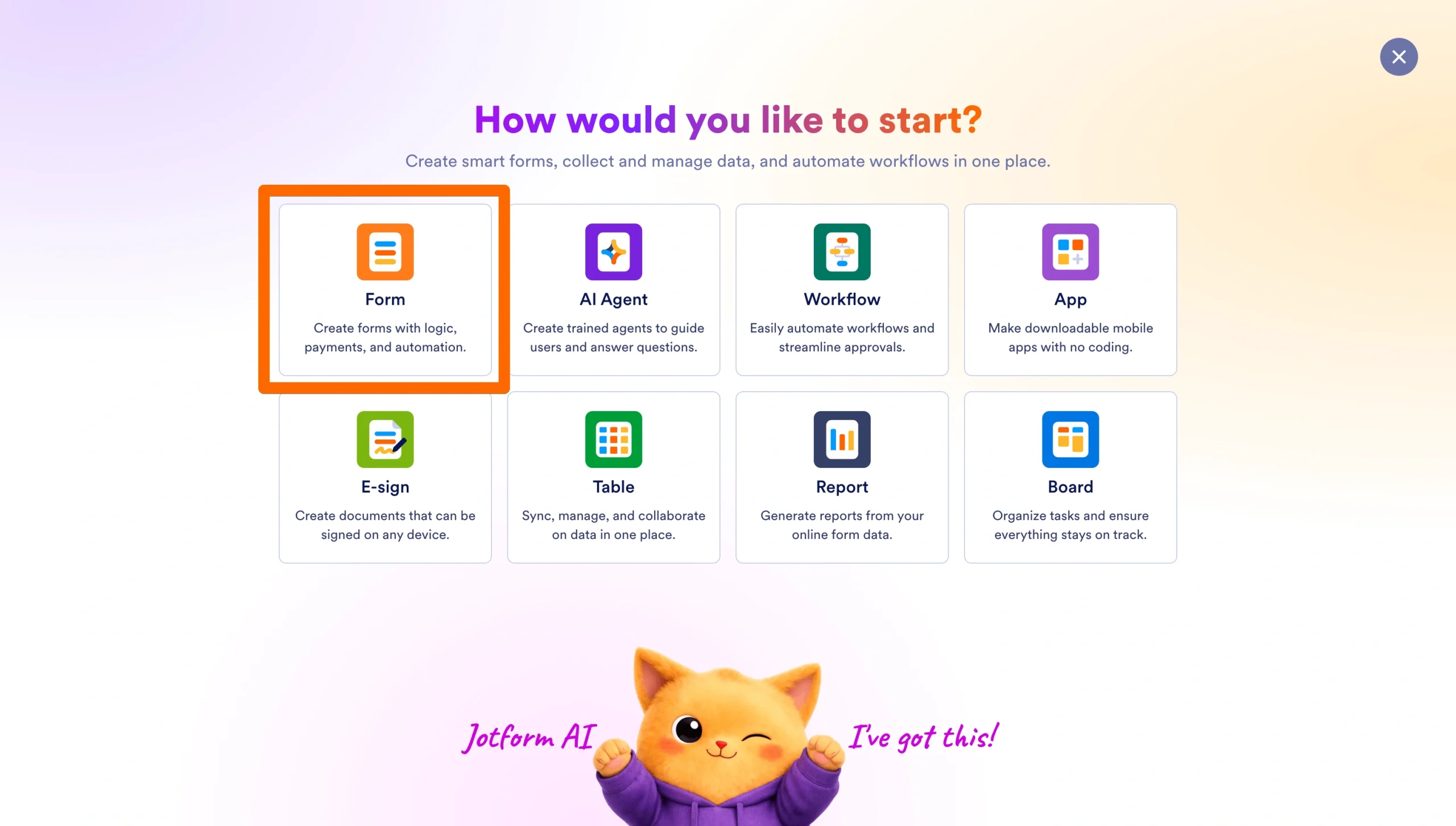
- In the dashboard, click +Create in the top left corner of your screen, then choose Form.
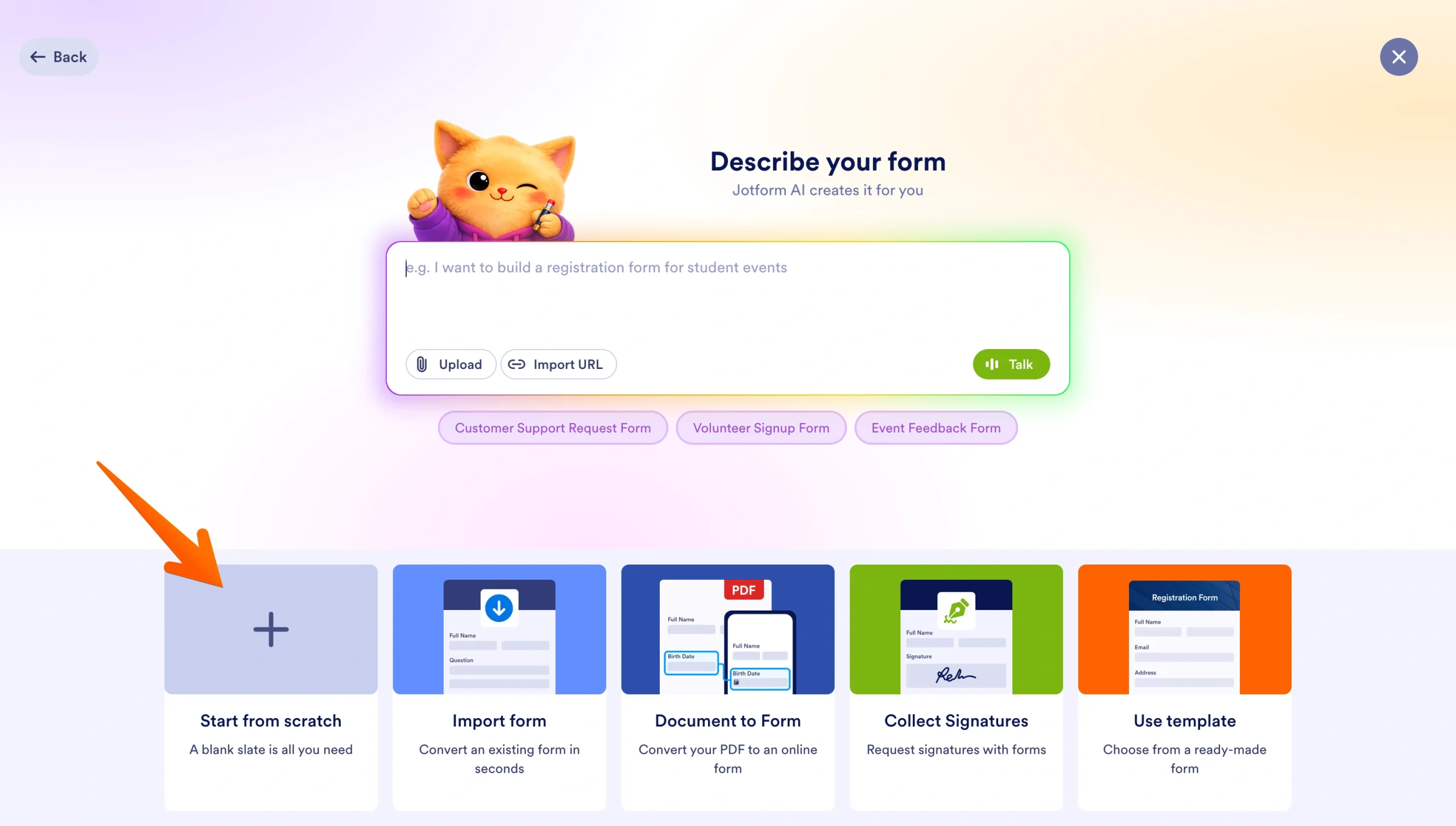
- Choose Start from scratch from the options at the bottom of the screen.
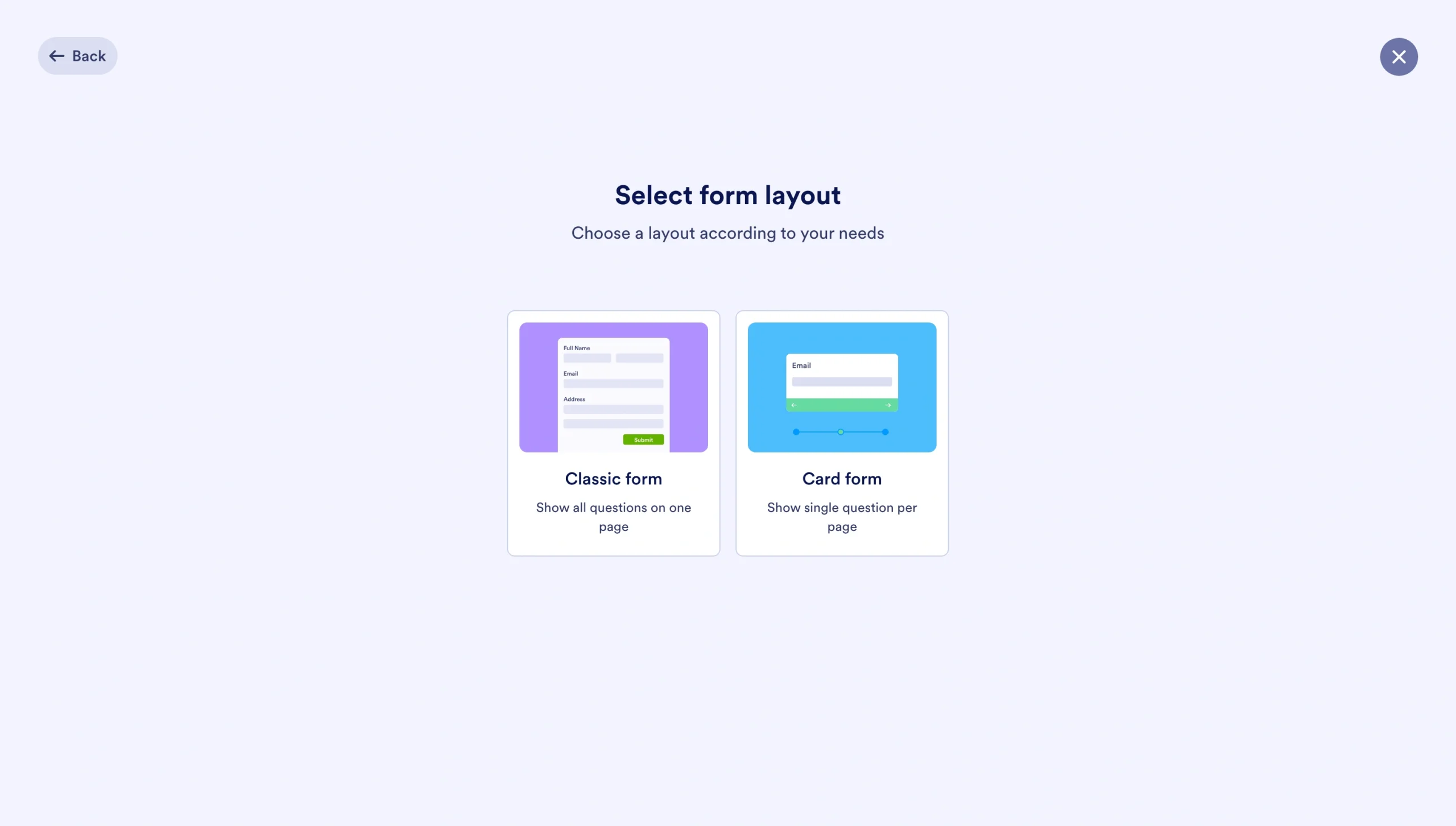
- Choose between the Classic and the Card form layouts to open the form builder.
- Once you’re in the form builder, under the Build tab, add form fields by clicking on Add Element in the left-hand panel. You can also drag elements onto the form canvas and rearrange them to suit your preferences.
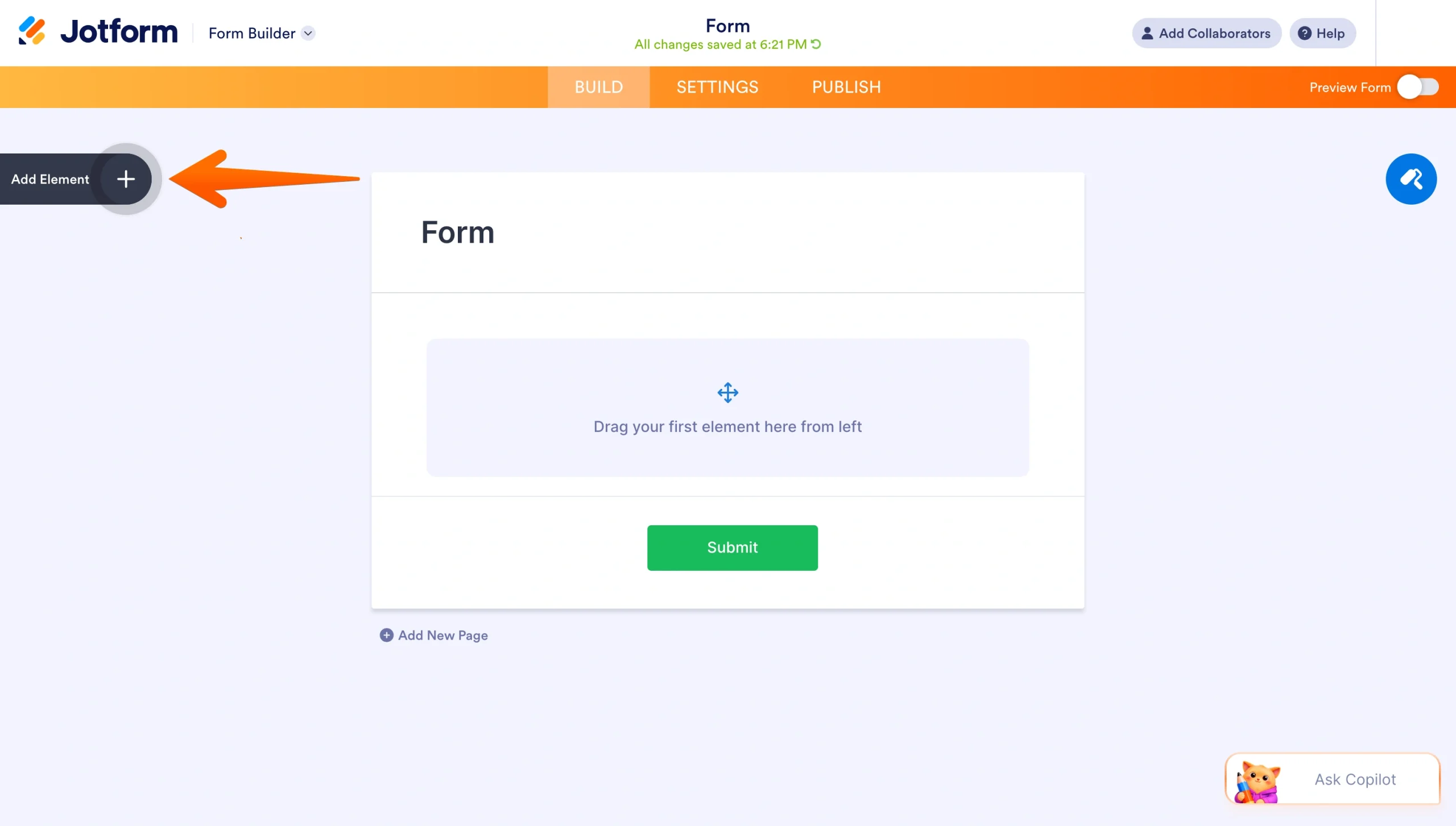
The form builder includes a wide range of form elements, including appointment, signature, product list, multiple-choice questions, dropdowns, captcha, and file upload.
- Want your form to run real-time calculations? Or want users to sign the form before they submit? You can add calculation and signature fields by toggling to Widgets in the left panel and selecting your preferred widget from the list.
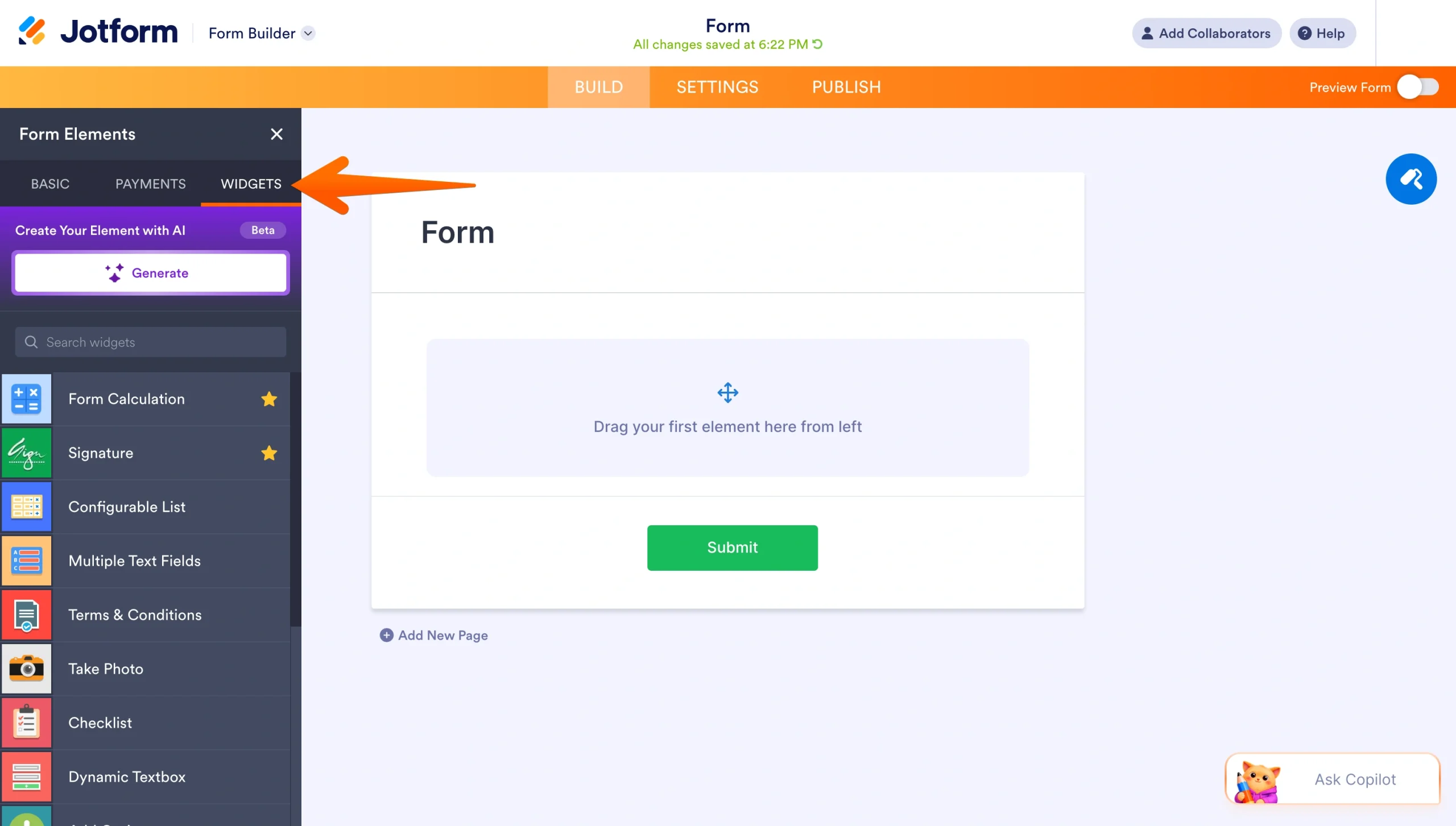
Learn more about Jotform’s form calculation widget.
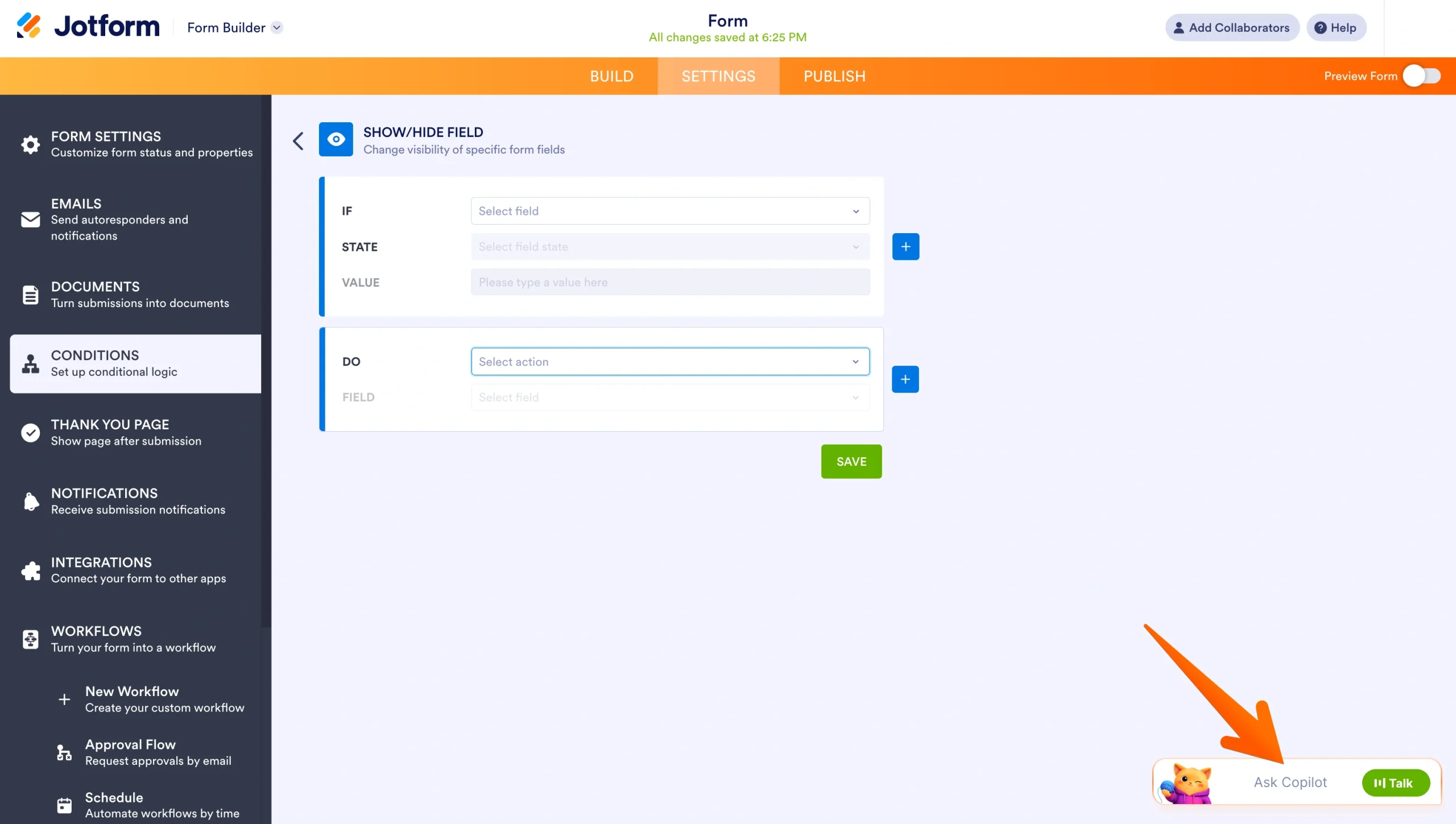
- To add conditional logic, toggle to the Settings tab and click on Conditions from the left panel.
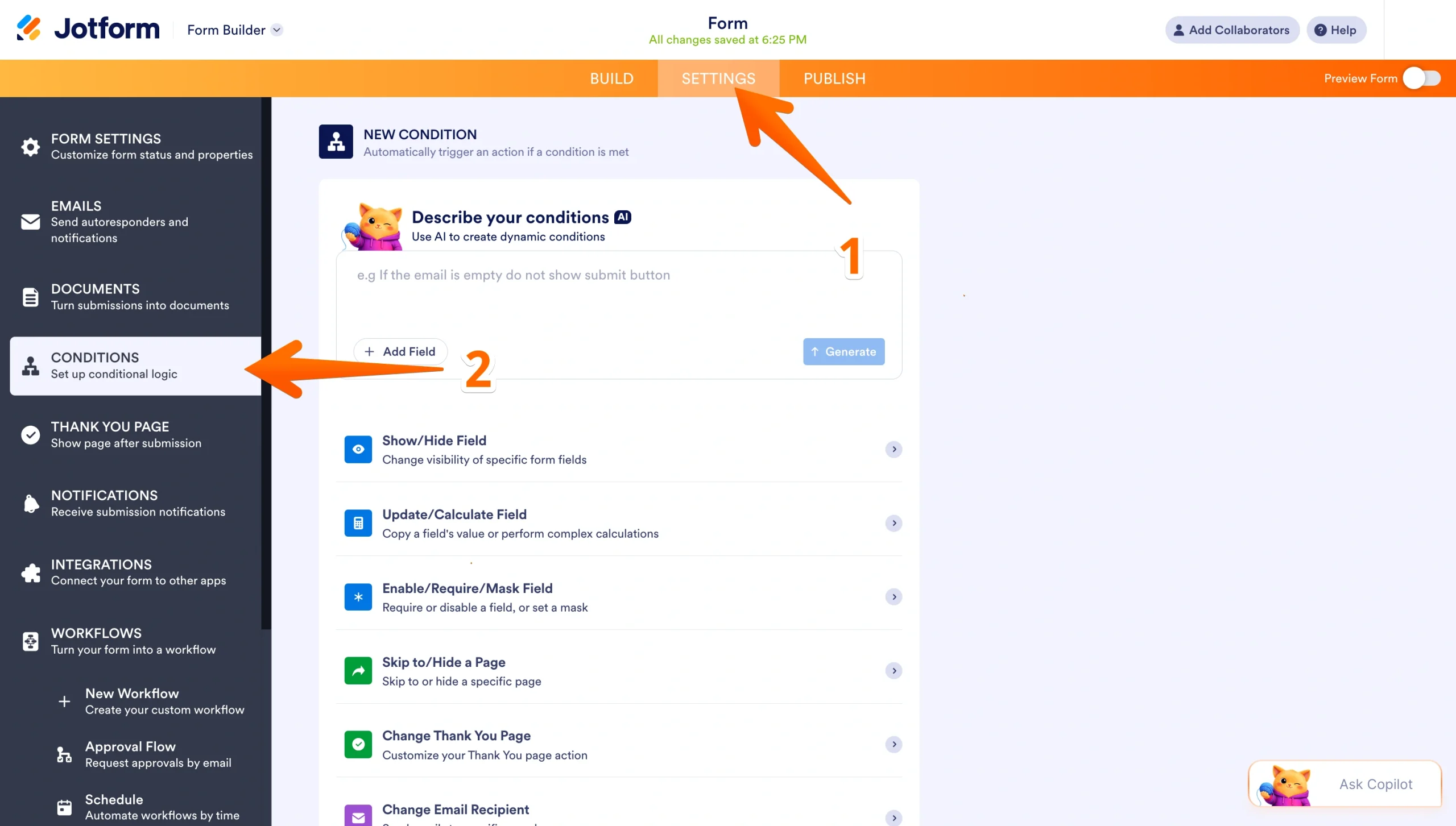
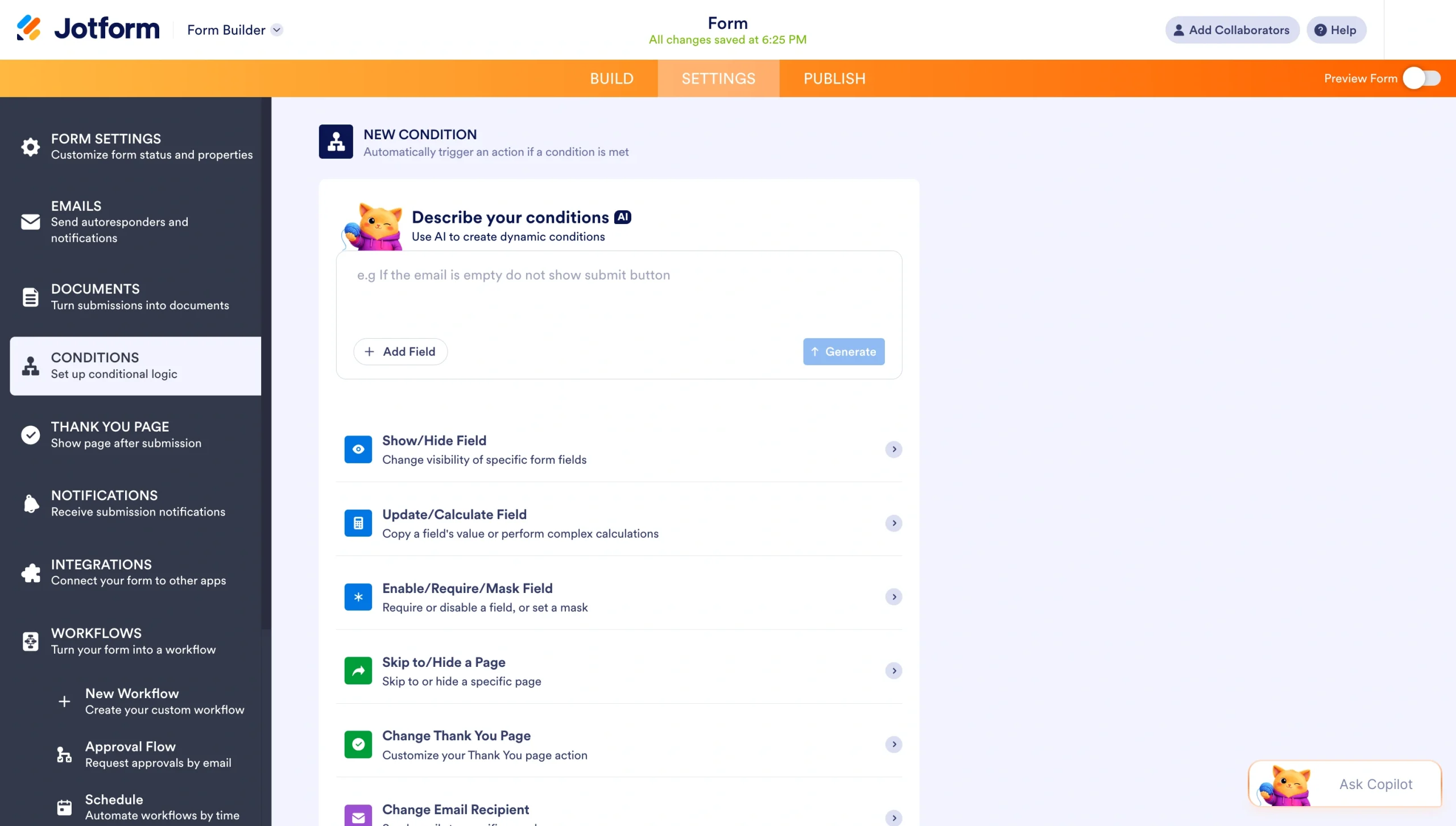
- Choose from the list of condition types to tailor your form to different users based on how they respond.
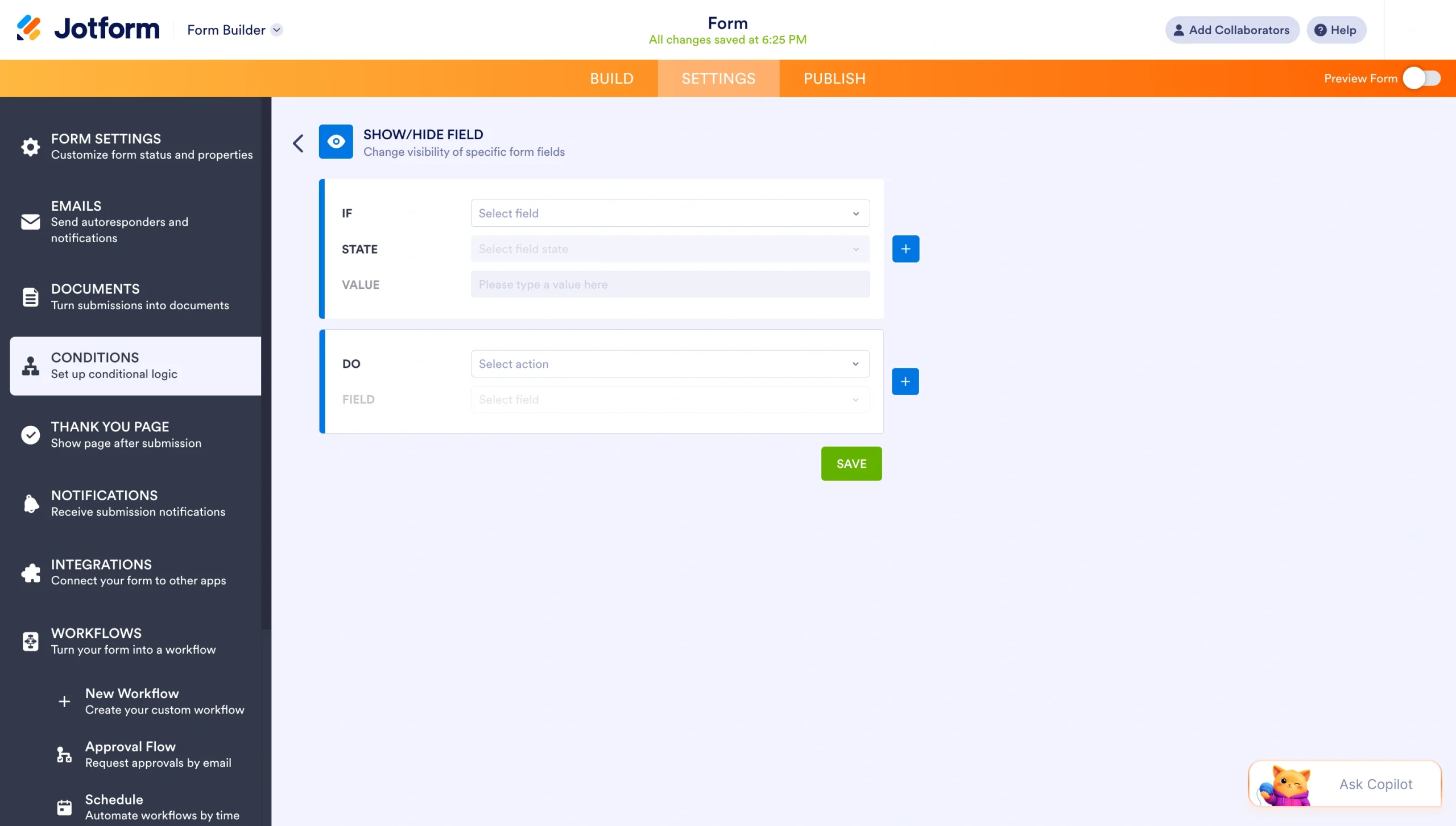
- If you choose Show/Hide Field, define your IF/DO rules so the form can serve up questions the way you want.
- If you need help creating the conditional logic for your forms, you can ask Copilot, the AI assistant within the form builder. Select Copilot on your screen, then hit the talk button to specify your conditions in natural language, and it’ll set them for you.
For a deeper look, see our guides on using conditional logic for more efficient forms and how Jotform AI can set it up automatically.
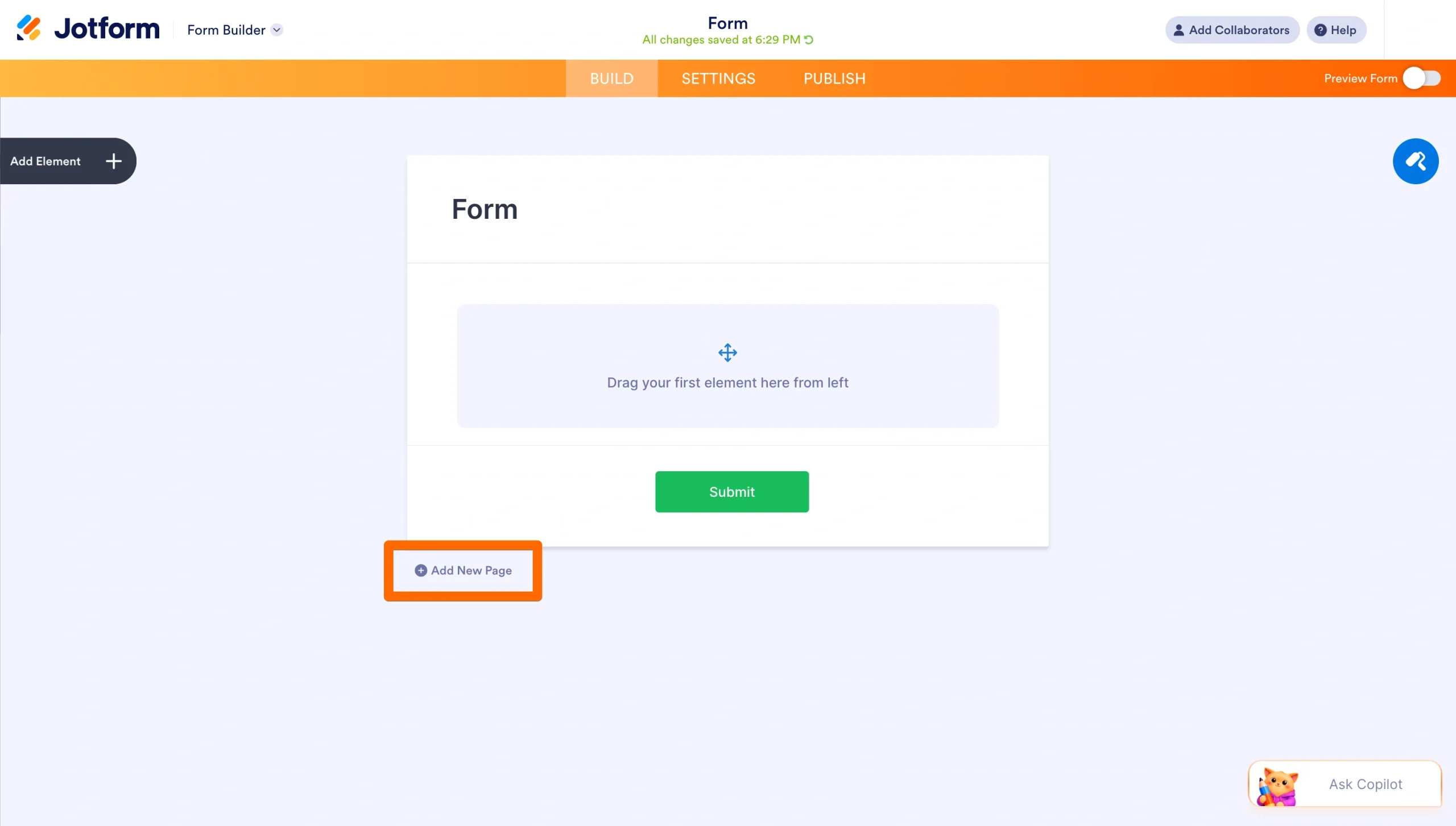
- Building a long form? Add additional pages by clicking on +Add New Page at the bottom of your page.
Step 3: Customize
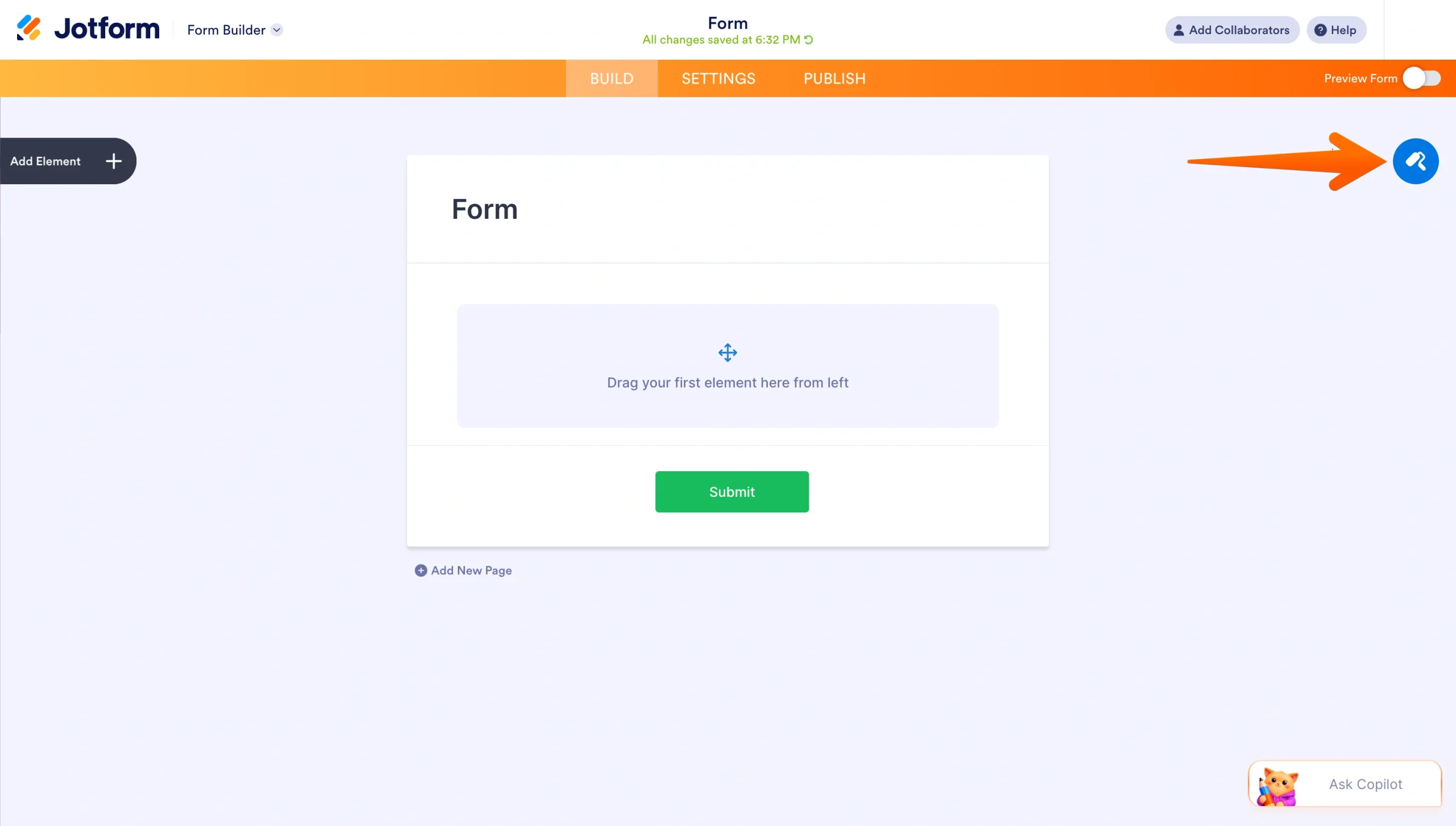
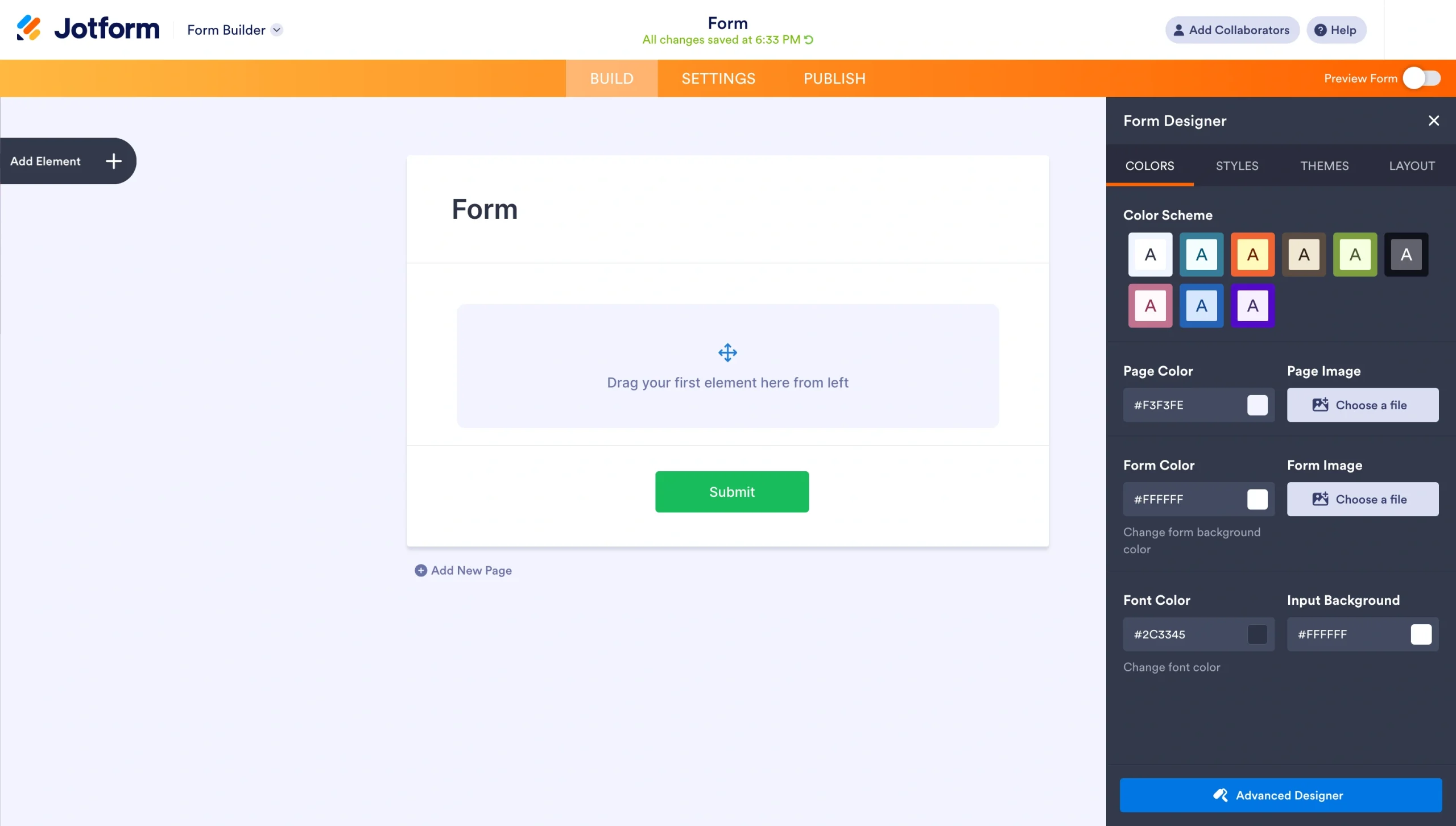
- To customize the form to your branding, go back to the Build tab and click the Form Designer at the top right of your screen.
- In the form designer, you can change the colors, style, theme, and layout of your form to suit your branding. You can also customize the form using custom CSS.
- Within the form builder, you can use Copilot to make changes to your form. For instance, you can ask it to change the colors of the form, add widgets and elements, or move fields around by chatting with the AI.
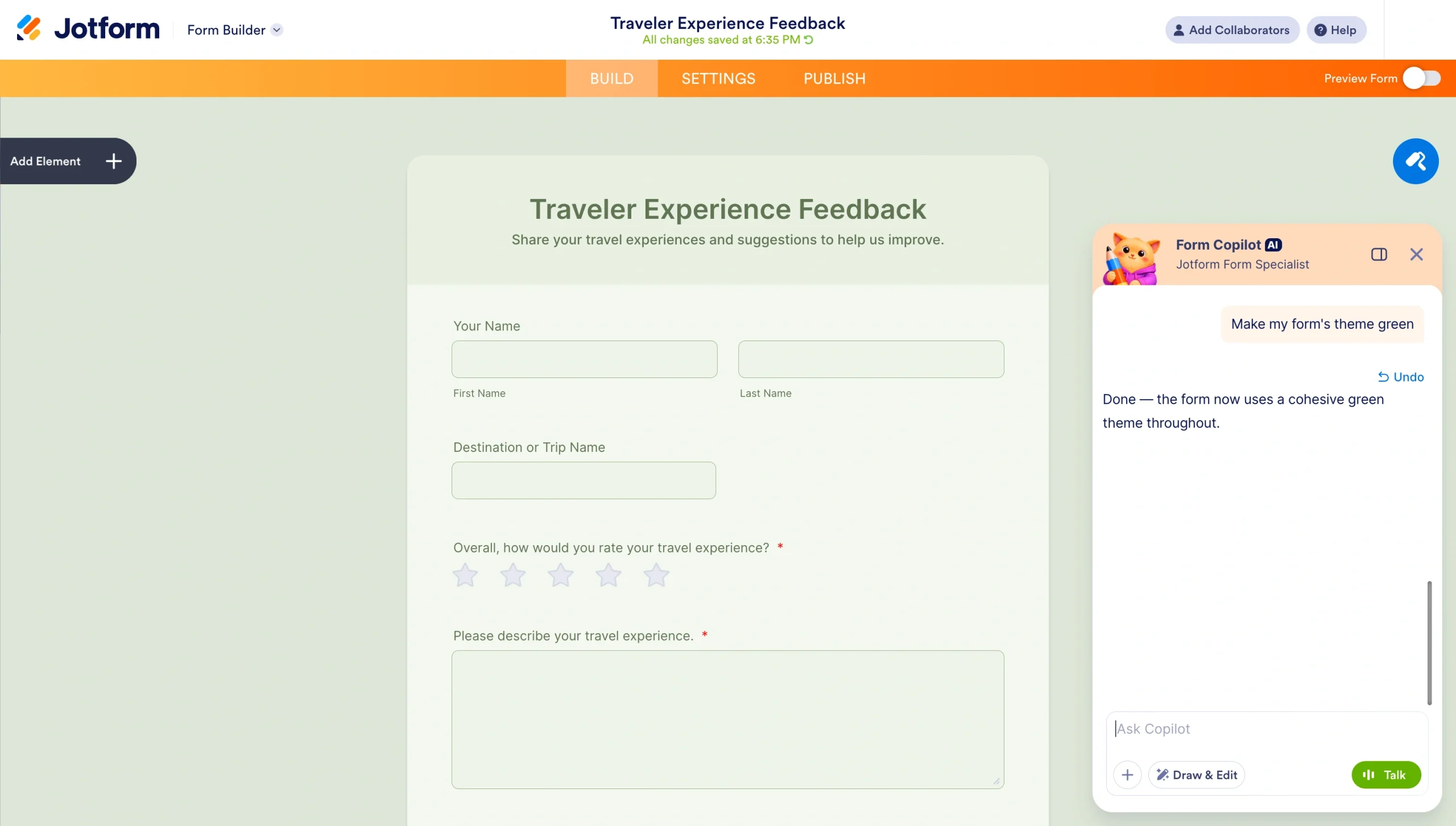
When you’re satisfied with the design, click Preview to see how it looks on mobile and desktop before publishing.
Once the form is ready, connecting it to a CRM, database, email marketing tool, or payment gateways is straightforward, thanks to Jotform’s native integrations with 200-plus business-critical apps.
Smart forms gather smart insights
Businesses are shifting from static forms to smart forms because smart forms do two things well at the same time. They tailor the data collection process to each visitor, keeping form completion rates higher. And once the form is completed, they handle the next steps, routing data to the right systems and triggering follow-up actions, which keeps workflows moving accurately and efficiently. Beyond that, smart forms deliver more accurate data, which means your teams can spend less time cross-checking information and more time acting on it.
Ready to put smart forms to work for your business? Start building today with Jotform. Create a free Jotform account — no credit card required.
Frequently asked questions
On its own, ChatGPT can draft form questions and structure, but it can’t deploy a live fillable form that collects responses. The Jotform ChatGPT App closes that gap. With it, you can describe the form you need to ChatGPT, and Jotform will generate a working smart form in seconds. In the same chat, you can refine the form, adjust settings, and even analyze submissions when they come in.
Use a form builder that supports PDF conversions, like Jotform Smart PDF Forms. Upload your existing PDF, and the tool will automatically detect fillable areas. You can then add new fields, e-signature spots, and conditional logic to turn the static document into a smart interactive form that respondents can complete on any device.
Jotform Sign and Jotform Smart PDF Forms. These tools combine fillable smart forms with built-in e-signature features, letting you convert existing PDFs into interactive smart forms, add conditional logic so different signers see different fields, and collect valid signatures on any device, all from one platform.













































































Send Comment: