
If you want to create a single, customizable landing page to house multiple links, then Linktree is the tool for the job. You can even use it to create a contact/inquiry form and add it to your landing page so your followers and customers can easily get in touch with you.
In this article, we’ll show you how to use the Linktree contact form feature with step-by-step instructions. Keep in mind, however, it’s a pretty basic tool with limitations. If you want to create more customizable, robust forms for your Linktree, consider Jotform — a form builder offering a polished branded form experience. Keep reading to learn more about it!
How to add a contact form to Linktree using Linktree’s own contact form
The Linktree contact form is a fairly straightforward tool without a lot of bells and whistles, but it’s enough to get the job done if you’re looking for a simple form with a few basic fields.
Follow these instructions to create a contact form on Linktree:
- Log in to your Linktree account. (If you don’t yet have an account, you can create a free-forever account, try the limited free trial, or opt for one of its paid plans.)
- Click Links in the left menu.
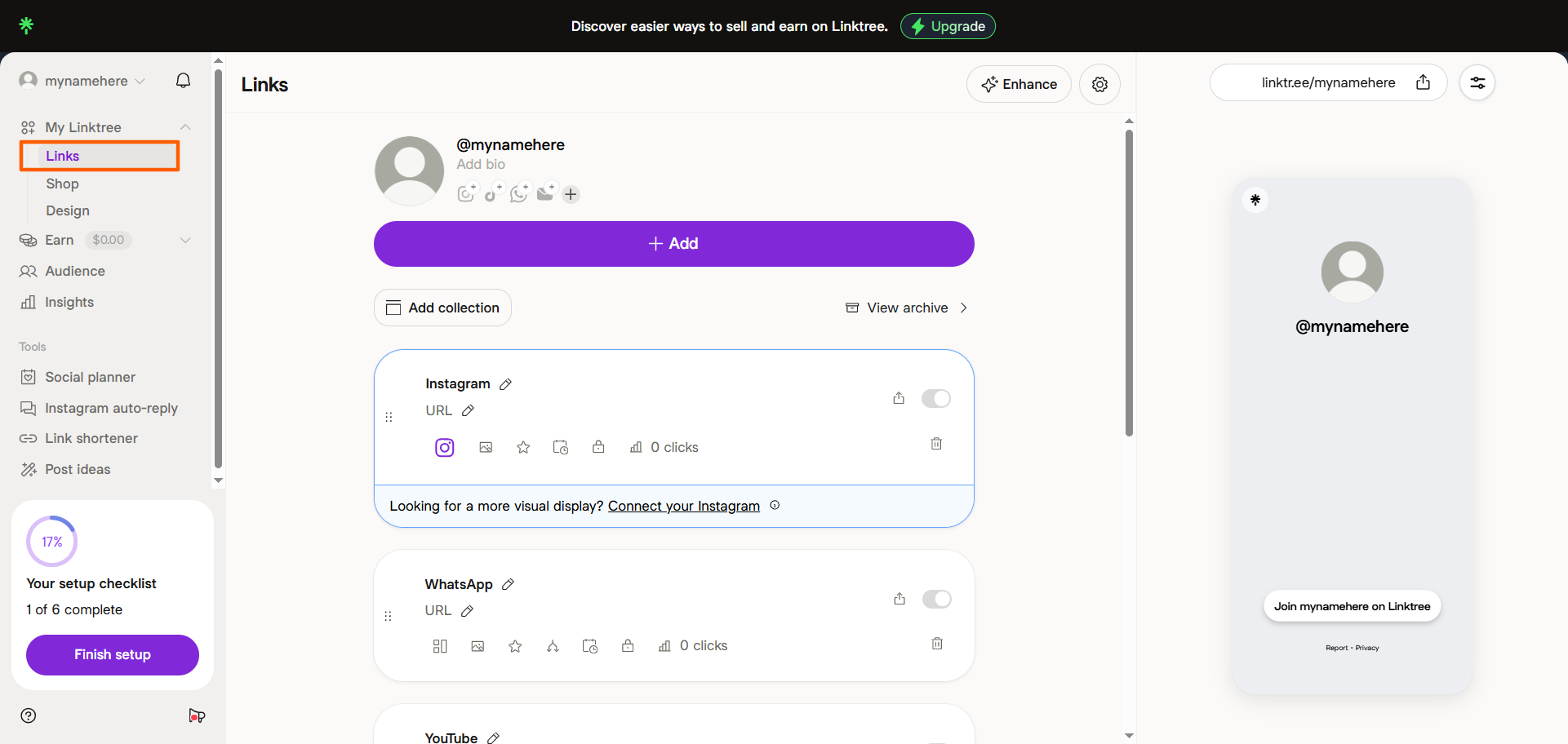
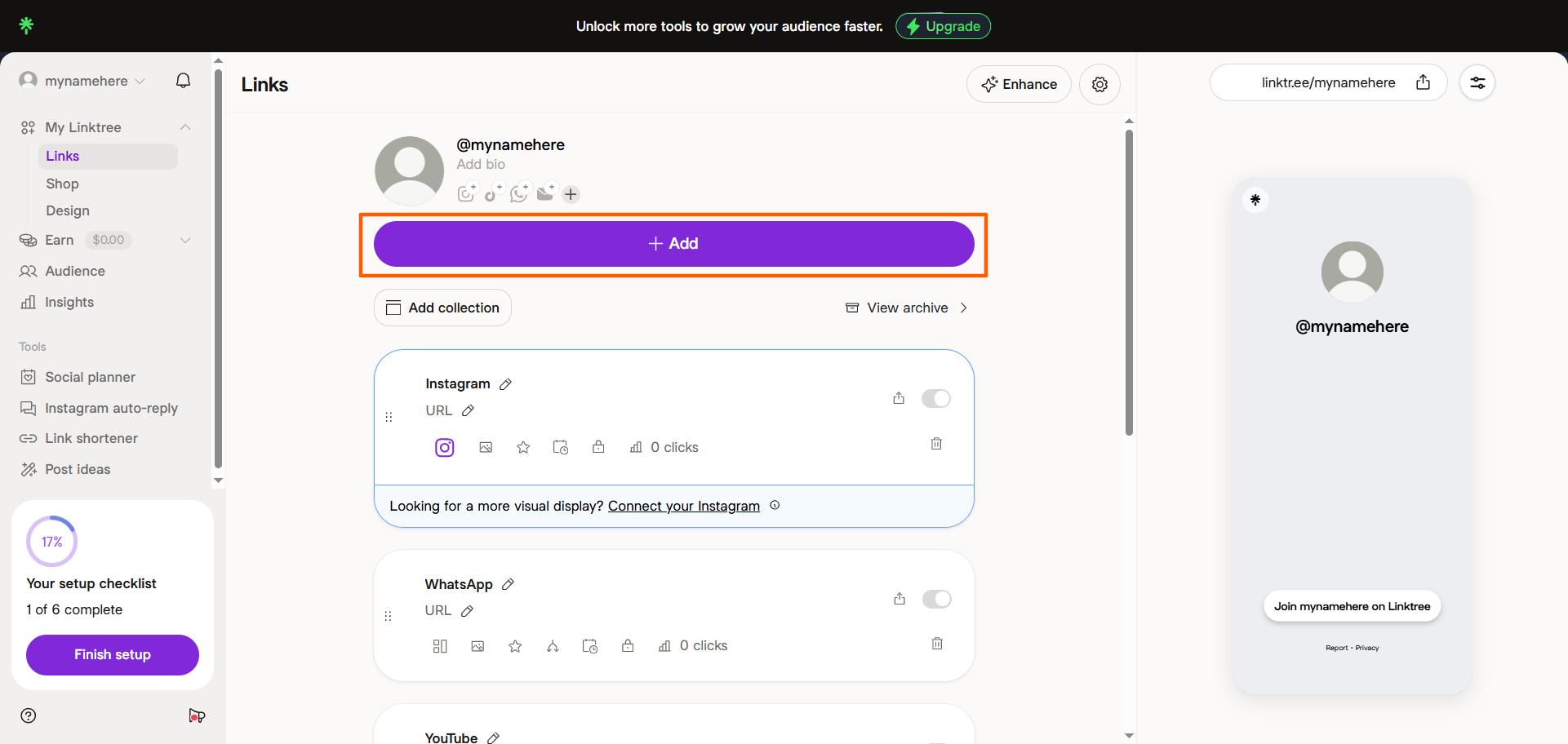
- Click +Add.
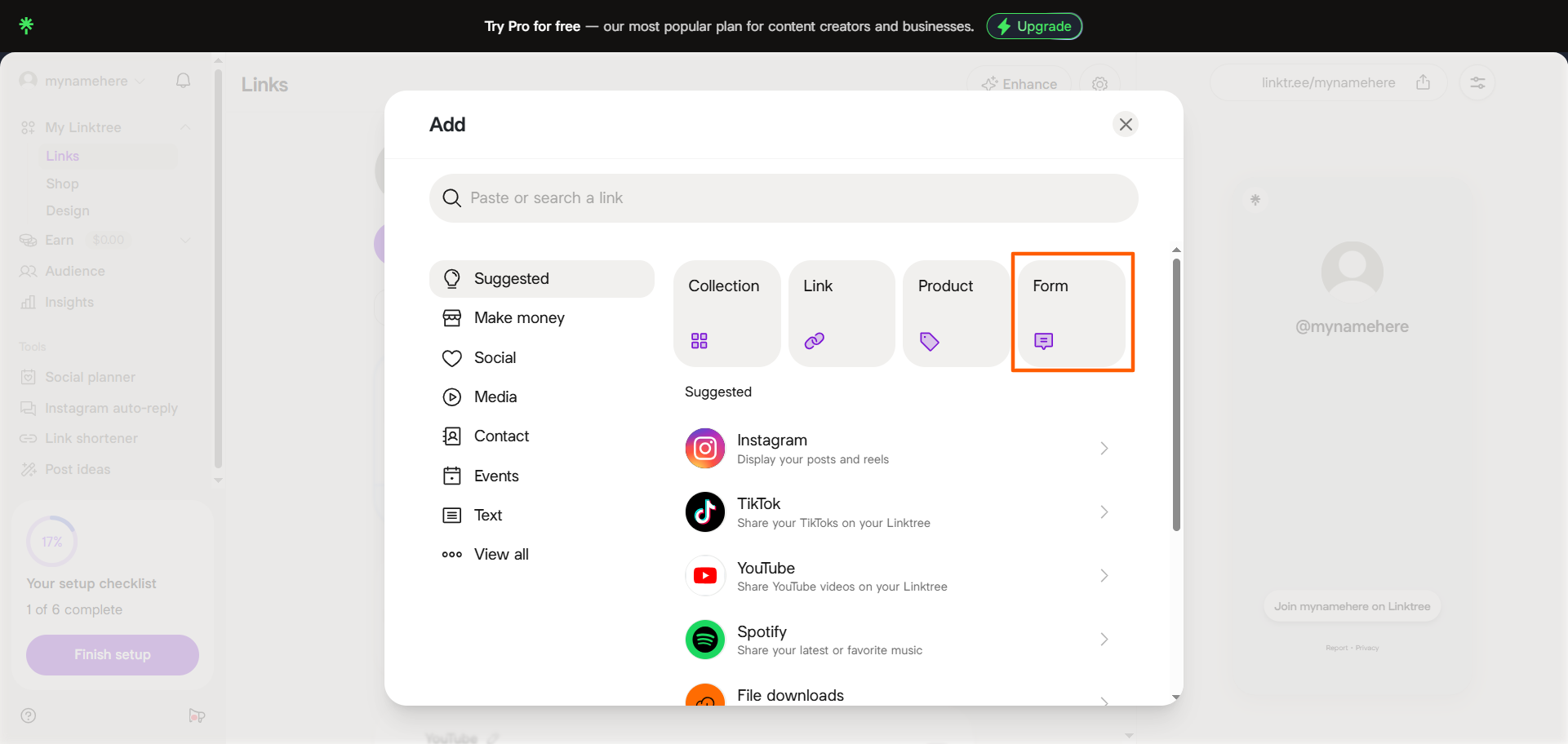
- Click Form.
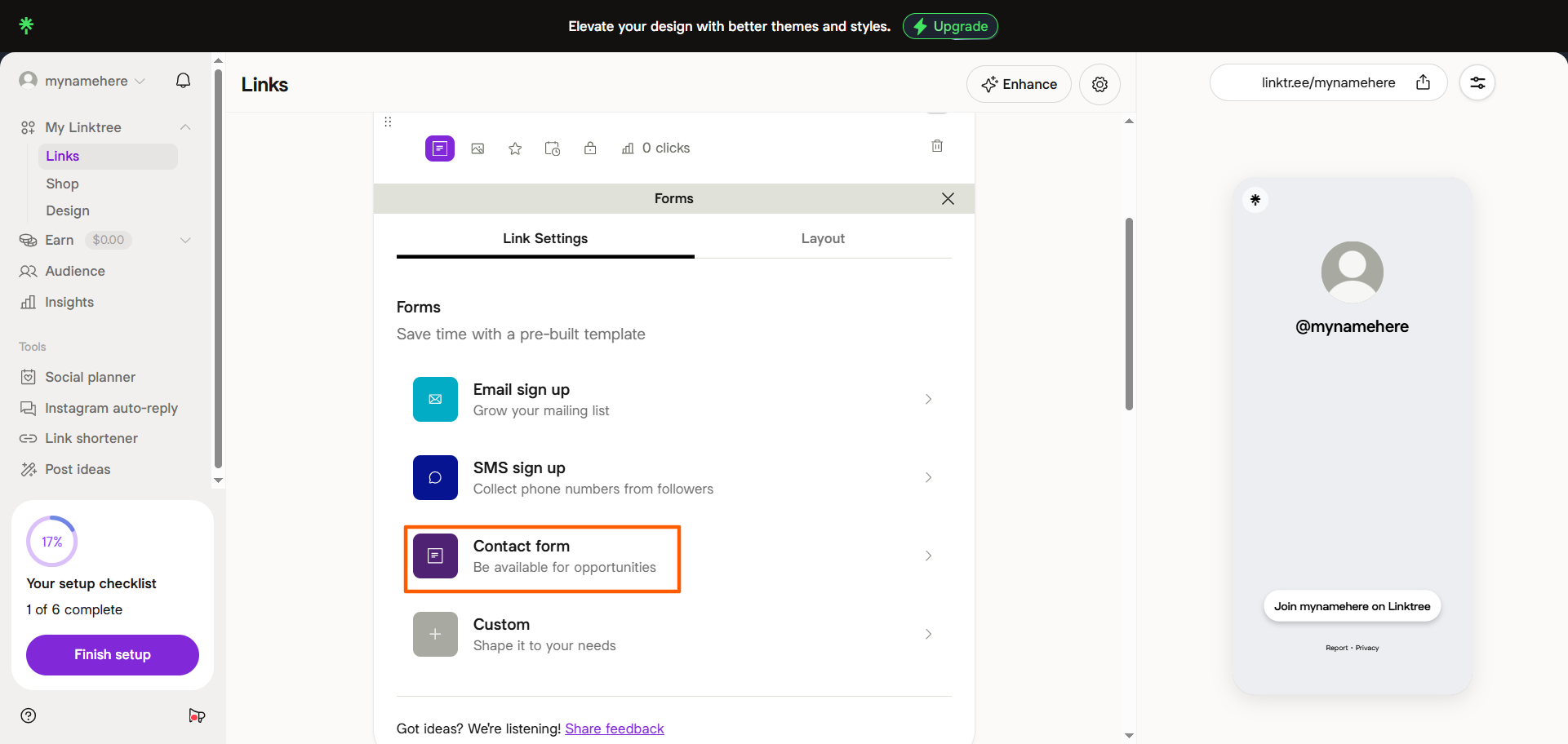
- Click Contact form.
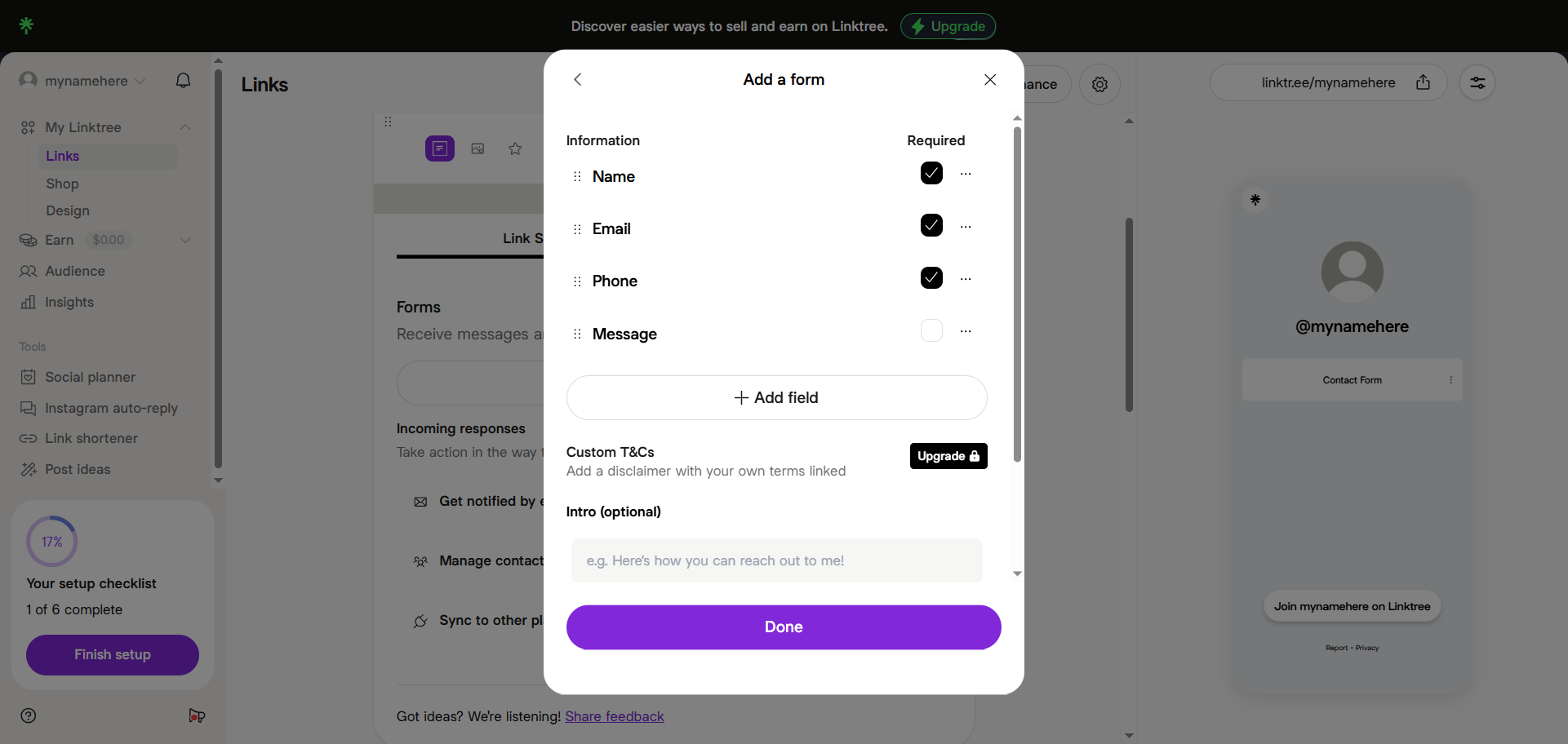
- Click +Add field to add the fields you would like on your contact form. Use the checkboxes to mark the required fields.
If you would like to include a custom terms and conditions section on your contact form, you can do so with one of the paid plans.
From this section, you can customize the intro message and outro message for your contact form, ensuring it creates a seamless brand experience.
Pro Tip
Not sure what fields to include on your contact form? Check out the best practices for contact forms so you can create one that is engaging and highly relevant for your target audience.
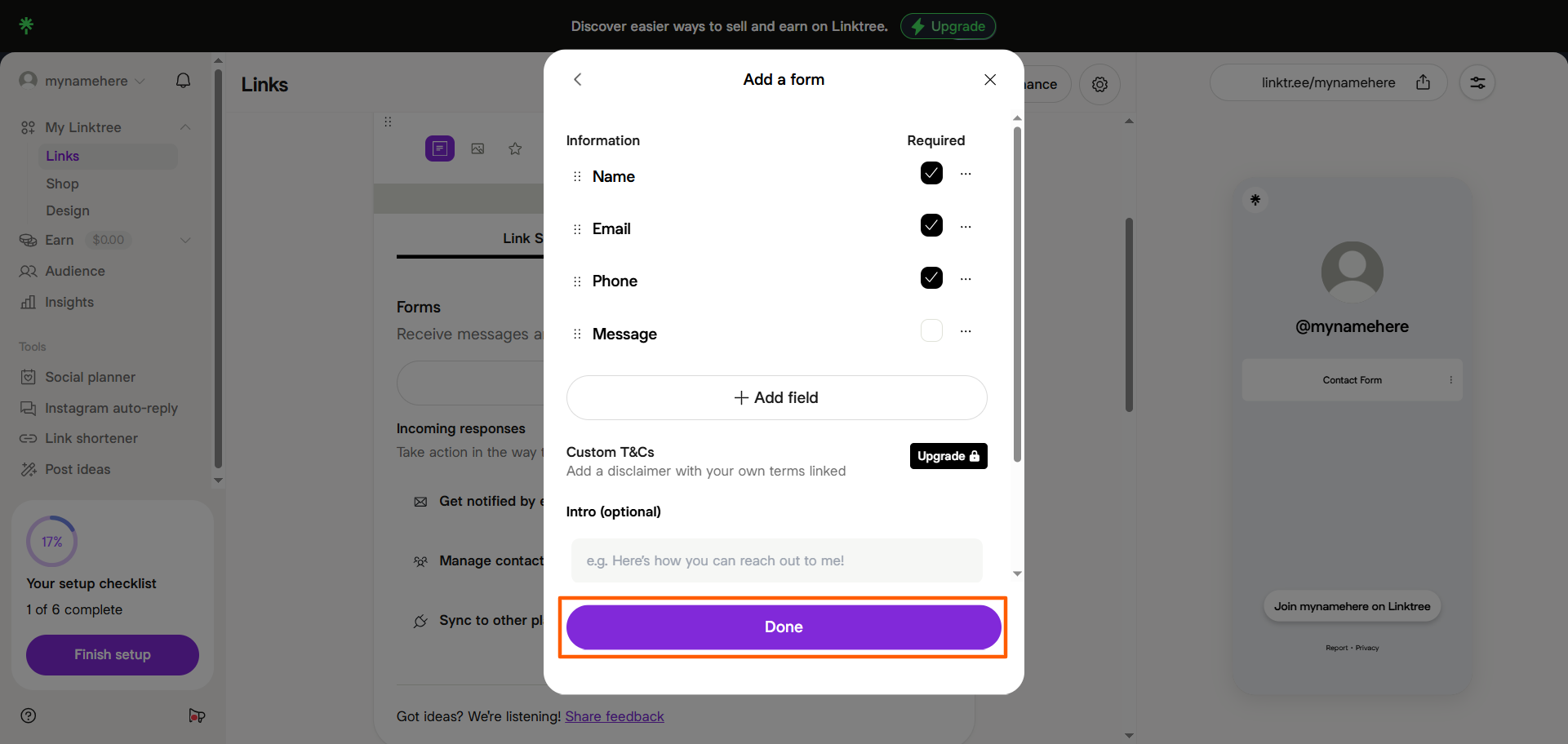
- Once you’ve customized your form, click Done.
Your contact form will now be on your Linktree, and your followers and customers will be able to fill it out to get in touch with you.
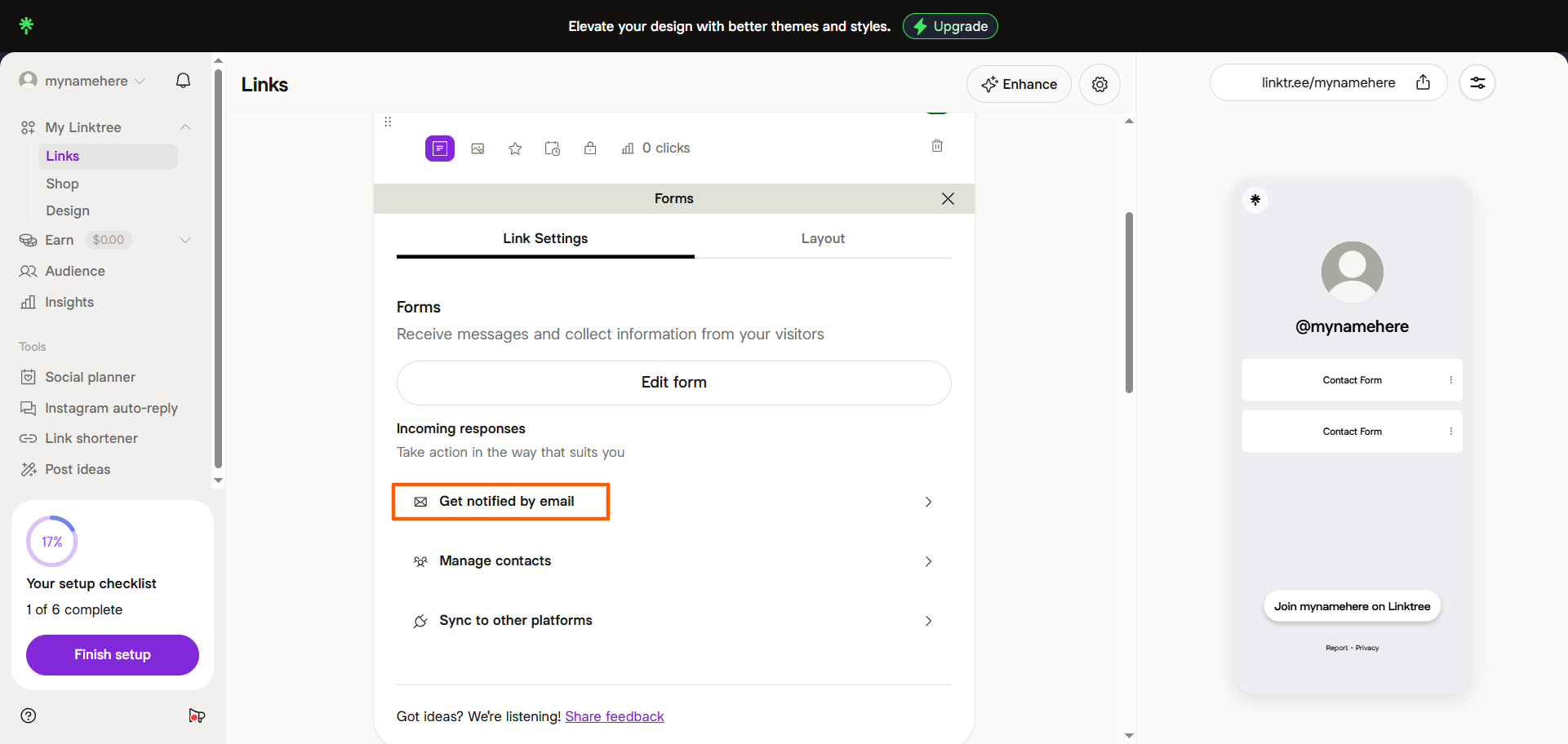
Note that if you would like to get email notifications for each form submission, you can set it up from the Incoming responses section directly under the form section.
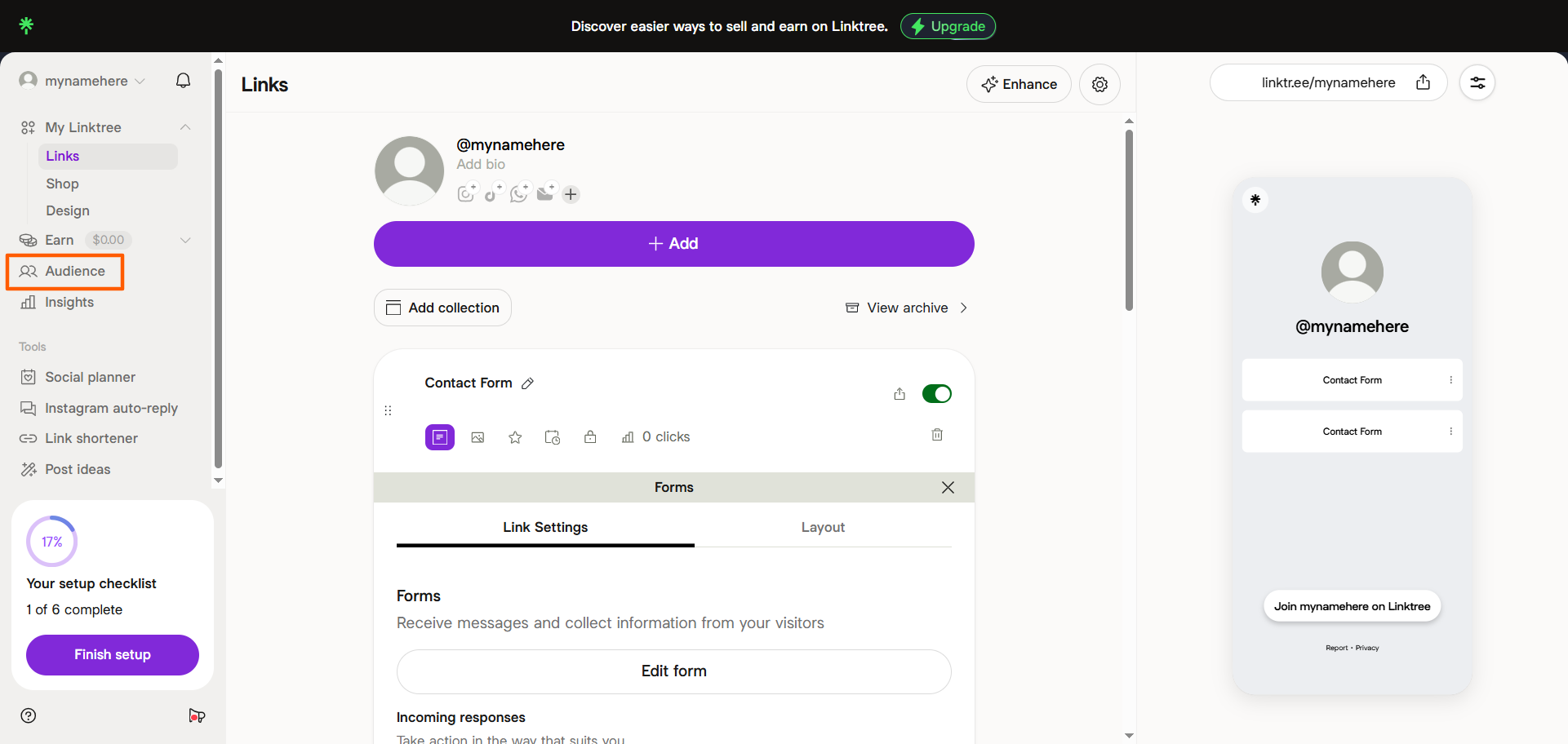
If you want to manage form submissions, you can do so from the Audience section in Linktree.
There you have it: Setting up a Linktree form link is a fairly simple job because the form functionality is basic. For some uses, that’s all you need. But be aware Linktree does have some form-related limitations that may make it more difficult to use certain types of forms — and prevent you from making your forms as engaging as they could be!
Pro Tip
Do you sell products and services online? Learn how to make an order form on Linktree so your audience can make a purchase. Linktree doesn’t have an order form template, but Jotform has several you can try!
What are the limitations of Linktree’s native contact form?
Because Linktree is not a dedicated form builder, it doesn’t offer a full and robust set of form features. This holds true not just for contact forms, but also for Linktree lead forms, inquiry forms, and message forms as well. Consider these limitations of Linktree’s native form-building features:
- No advanced functionality: Linktree’s contact forms are basic at best. You can add custom fields and specify required fields. However, you cannot add complex logic or advanced embeds within the form, making them less relevant to your audience.
- No advanced workflows: If you want to integrate the Linktree form into a larger workflow, such as taking payments for products and services, that’s simply not possible. Linktree does have a payments option, but it’s not on the form feature.
- Limited branding and design flexibility: Unlike dedicated form builders, Linktree doesn’t offer much in the way of branding and design options. You can customize some appearance details, but the options are limited at best, leading to generic-looking forms.
Linktree’s contact form works well for lightweight inquiries, such as when you’re collecting names and email addresses or simple messages. However, for businesses that use Linktree as a conversion channel, its contact form options will hinder your efforts to connect with people. If you need more control over forms for Linktree, it’s best to look for a dedicated form builder that can do everything you need.
Migrate your existing Linktree account to Jotform Apps
Pro Tip
You can also learn connecting your WhatApp by checking our guide on How to Add WhatsApp Link to Linktree.
A more flexible option: Add a Jotform form to Linktree
For adding forms to Linktree, Jotform is a better option. It combines advanced contact form functionality with the ease of an intuitive interface.
Here’s how easy it is to create a contact form in Jotform and add the link to Linktree:
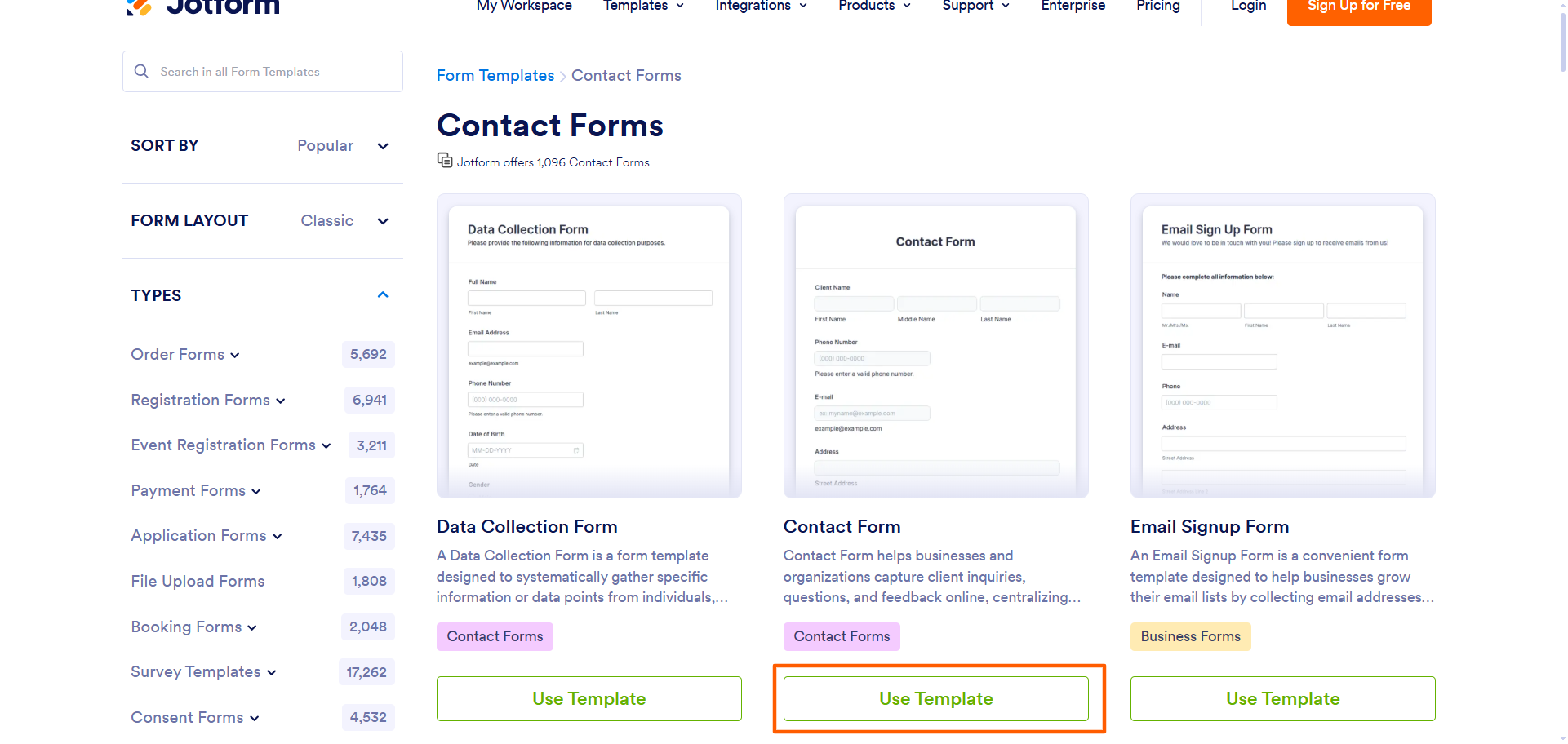
- Choose one of Jotform’s contact form templates. There are hundreds of options, such as the Email Sign Up Form and the Opt In Form. Click Use Template to start. Jotform will prompt you to sign up for an account or log in to your account.
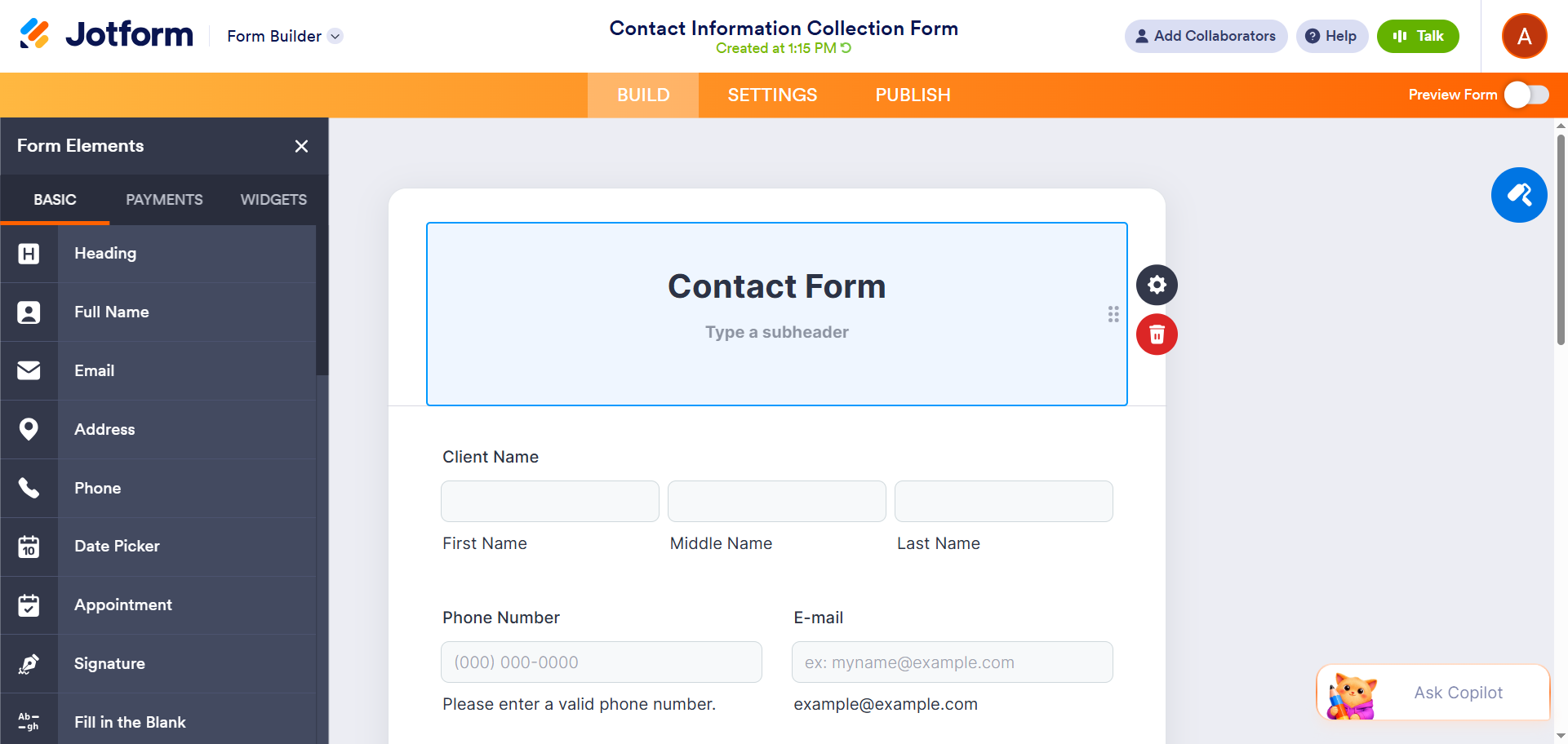
- Customize the branding, fields, and form logic. Jotform offers stronger design control than Linktree and many other dedicated form builders. Once you log into Jotform, it will open up the template in the form builder. From here, you can use the Form Elements menu to easily change fields, customize the design, and add conditional logic. You can also add payments, terms and conditions, images, and more.
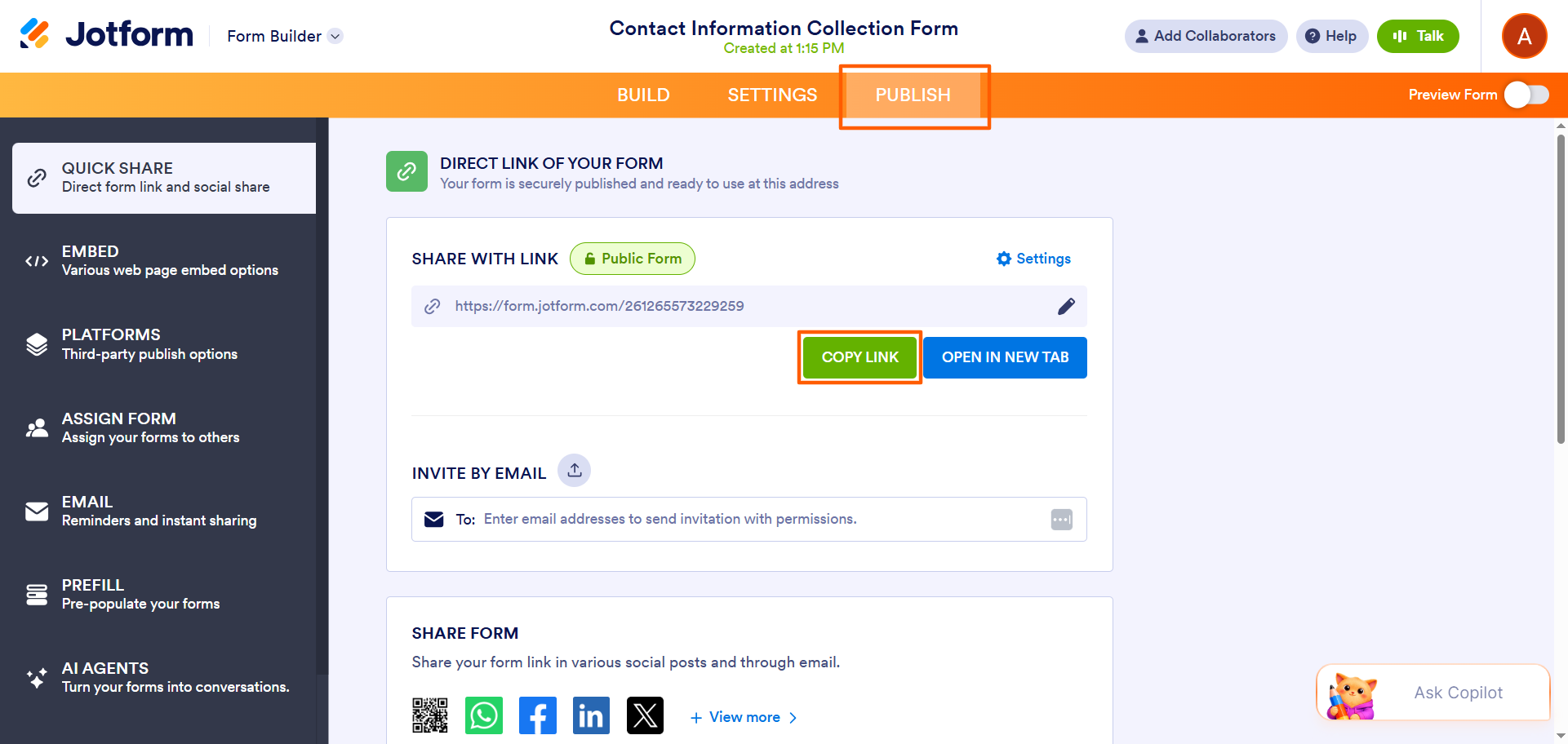
- Copy the Jotform direct form link. Once you’re done customizing the form, click Publish. From here, find the direct form link and click Copy Link.
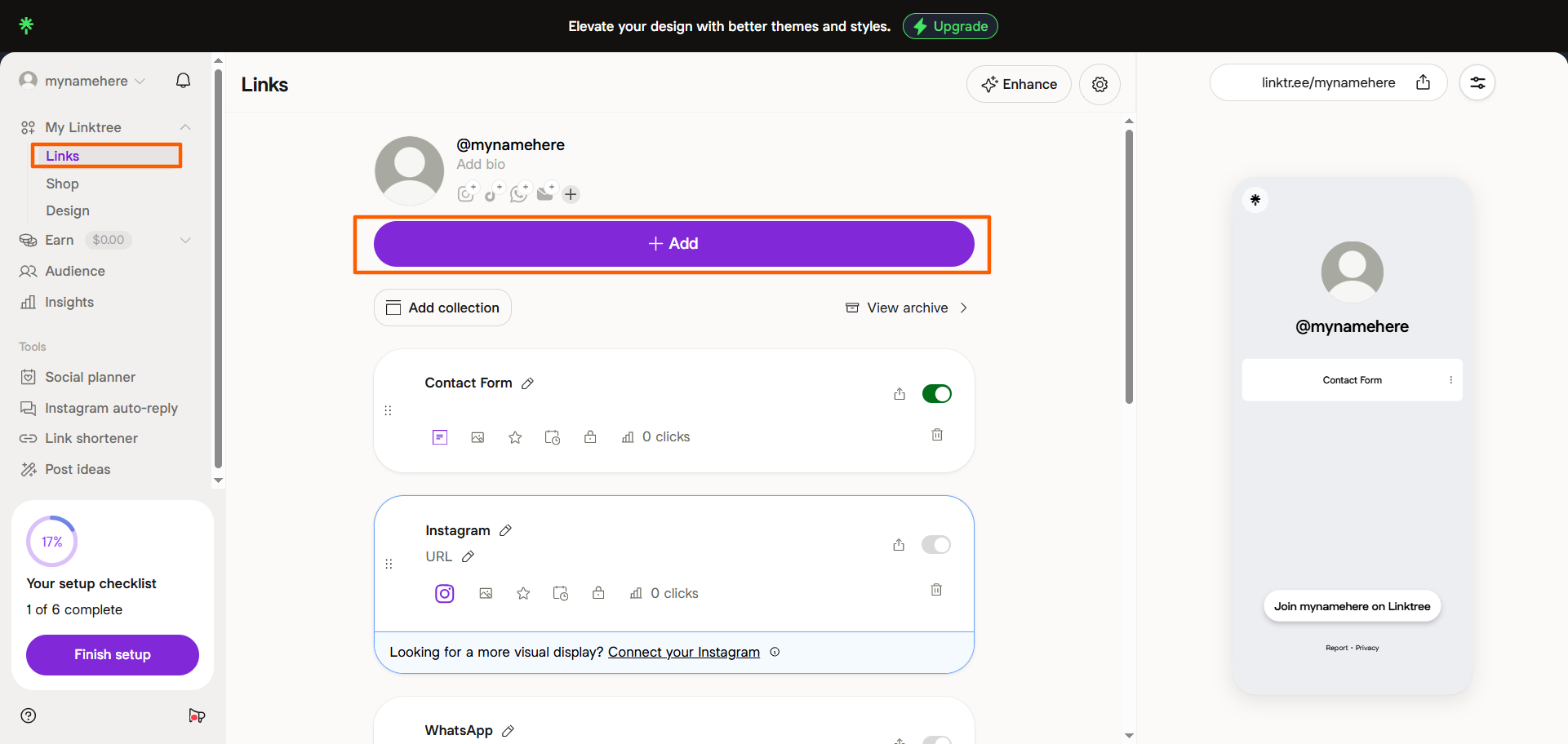
- Go back to Linktree. Just because you’re not using Linktree to create your form doesn’t mean you can’t use it to share the link. Linktree is a great tool for consolidating your links into one landing page. Click Links and then +Add.
- Paste the Jotform direct form link into Linktree. Add your Jotform direct form link into Linktree. Click Link.
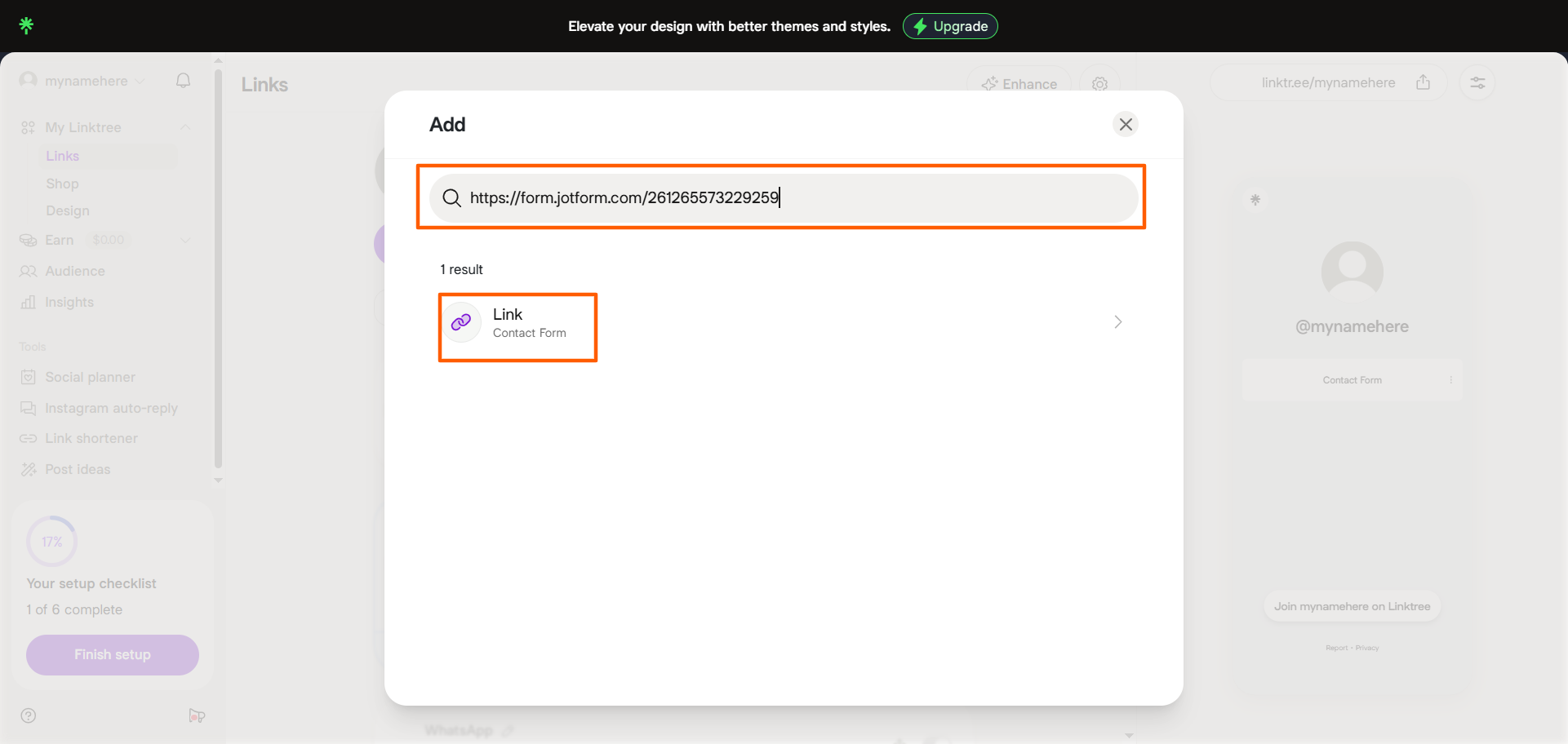
And that’s how easy it is to use Jotform and Linktree together!
Linktree will automatically add the Jotform form direct link to your Linktree landing page. In the screenshot below, you can see the Linktree landing page with both the Jotform contact form and the Linktree contact form. The Jotform contact form stands out because of the Jotform icon, making users more likely to click through to your contact form.

When you’re dealing with more complex use cases like lead capture, support intake, job applications, appointment bookings, or payment-enabled order forms, Jotform is the way to go. Simply use a contact form template from Jotform, customize it, and add the form link to Linktree. Jotform and Linktree work together seamlessly.
Pro Tip
Like what Linktree can do but wondering if there are other solutions with better features? Check out the leading Linktree alternatives on our list and see if one of them, like Jotform Apps, better meets your needs.
Build a better contact form with Jotform
Linktree’s native contact form is the easiest way to handle basic inquiries. If you’re looking for anything that’s more complex — such as custom design or payment tools on your contact form — use Jotform instead. Jotform is the stronger choice for those who want more polished forms and stronger workflows.
Here are a few reasons users choose to create forms on Jotform and link them to Linktree:
- Jotform offers thousands of ready-to-use templates. With 20,000-plus free form templates, you can find one that matches your use case. Simply select the template and use the intuitive drag-and-drop style form builder to customize your fields, design, branding, and layout.
- Jotform comes with advanced form features. Conditional logic, auto submission, electronic signature, and payment collecting capabilities are some of the sophisticated features Jotform offers on its forms.
- Jotform integrates with your tech stack. With 150-plus form integrations, the most in the industry, Jotform integrates with many CRM tools, such as Salesforce, HubSpot, and Zendesk, in addition to other tools like Google Drive, Slack, Mailchimp, Canva, and more.
Learn all about the form builder, and see how easy it is to create a Jotform contact form, copy the share link, and add it to Linktree. Within minutes, you’ll be ready to capture contact information, leads, payments, and more from Linktree with Jotform. Try Jotform today!
This article is for social media creators, small business owners, website operators, content managers, and marketing teams who want to add a contact form to Linktree or create more customizable, conversion-focused forms with Jotform.










































































Send Comment: