With Dropbox file requests, gathering files from others becomes quick and effortless. Instead of chasing documents through email or messaging apps, people can upload exactly what they need straight into a dedicated Dropbox folder. And if you’re using a form, you can make the process even smoother by connecting it directly to Dropbox. This way, every file someone submits through your form is instantly organized right where you want it—no manual downloading or sorting needed.
It’s a simple setup that helps you stay organized, saves time, and keeps everything in one convenient place. Whether you’re collecting documents, images, or any type of file, this workflow makes the whole process feel seamless for both you and your users.
Creating Your File Upload Form
Creating a file upload form makes it easy for people to send you documents, images, and other files—no special access needed. It keeps everything organized and saves you time when collecting submissions from different people. To get going, here’s what you’ll do:
- On the top-left side of the Workspace page, click on Create.
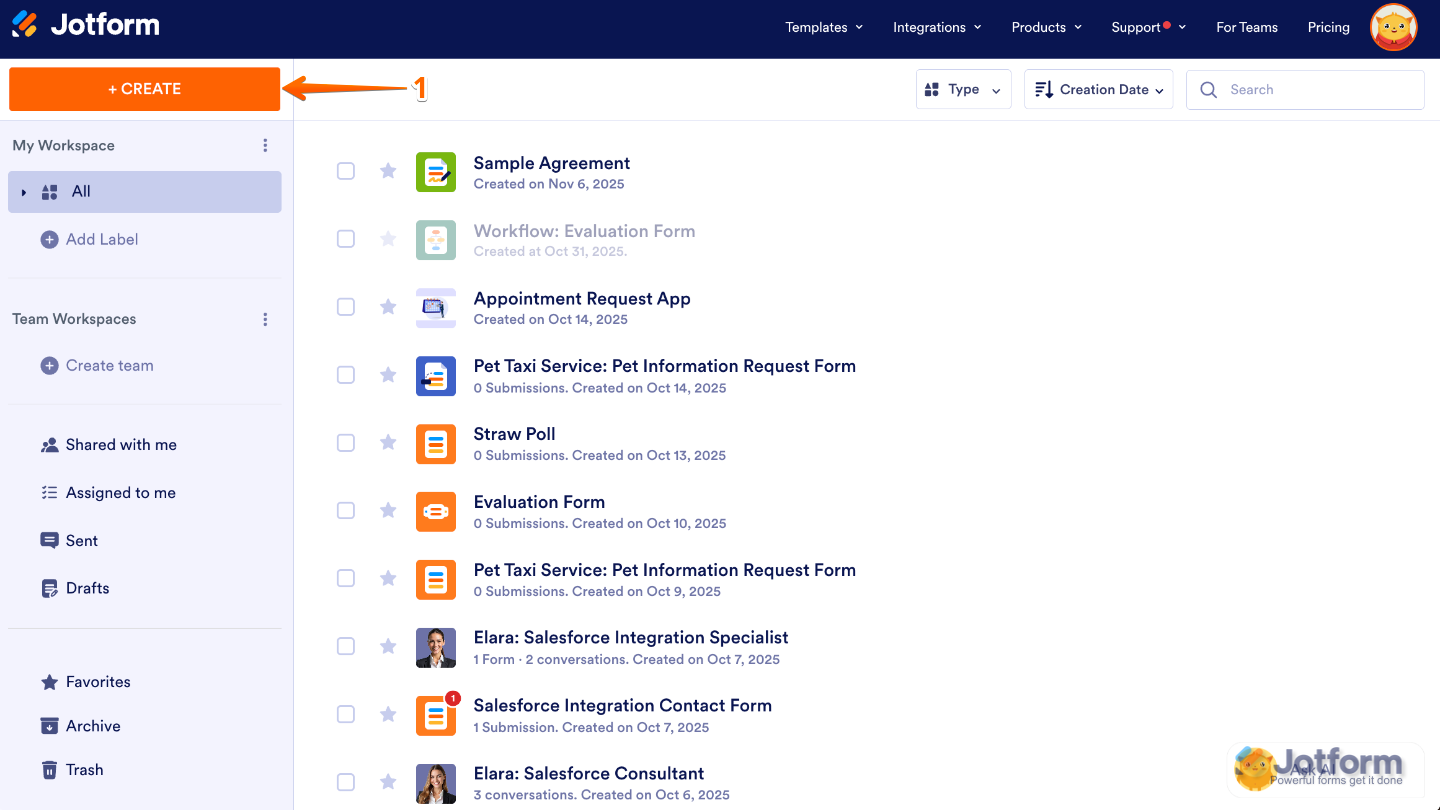
- Then, in the window that opens up, click on Form.
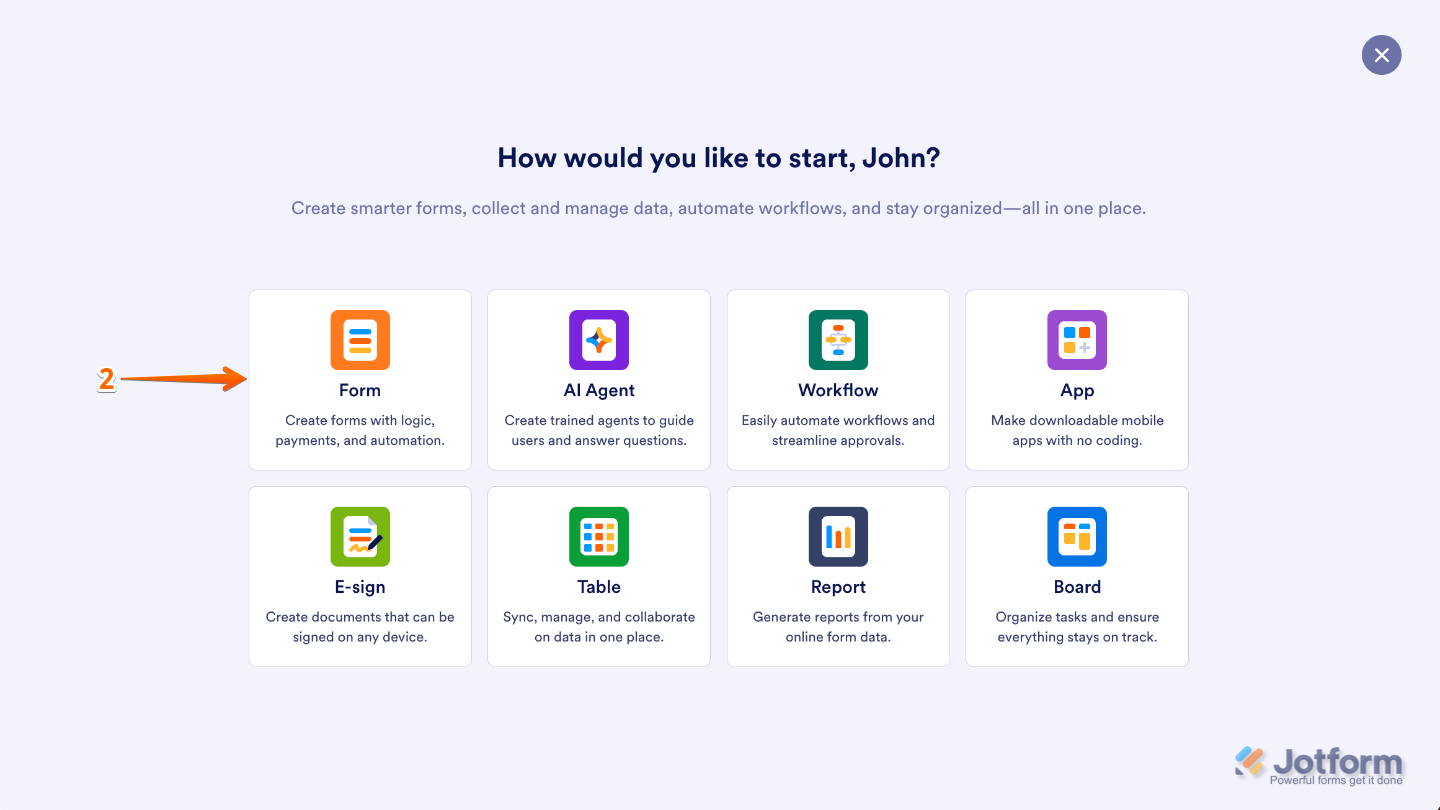
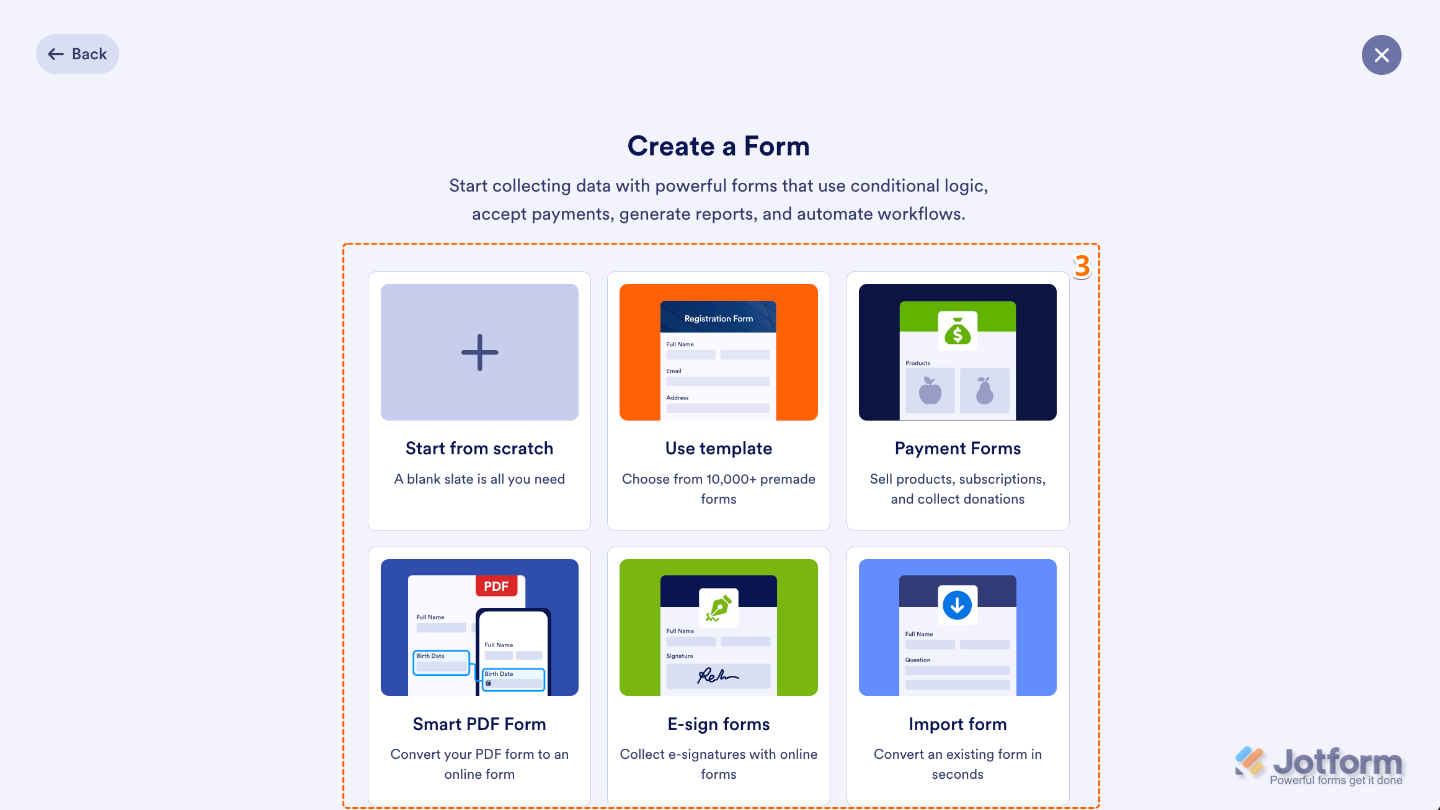
- Next, in the Create Form section, select one of the ways to build your form:
- Start From Scratch — Select a Classic layout to show all questions on one page or a Card layout to show one question per page, then build your form from the ground up.
- Use Template — Pick from thousands of ready-made forms and customize them to match your needs.
- Smart PDF Form — Upload your PDF and turn it into an online form that users can fill out and submit.
- Import Form — Enter the URL of the form you want to copy, or select a form from your account to clone, then turn it into a version you can edit and use.
- Payment Form — Select this option if you want to collect payments, donations, or fees directly through your form.
- E-sign Form — Use this to create a form and collect legally-binding electronic signatures from users.
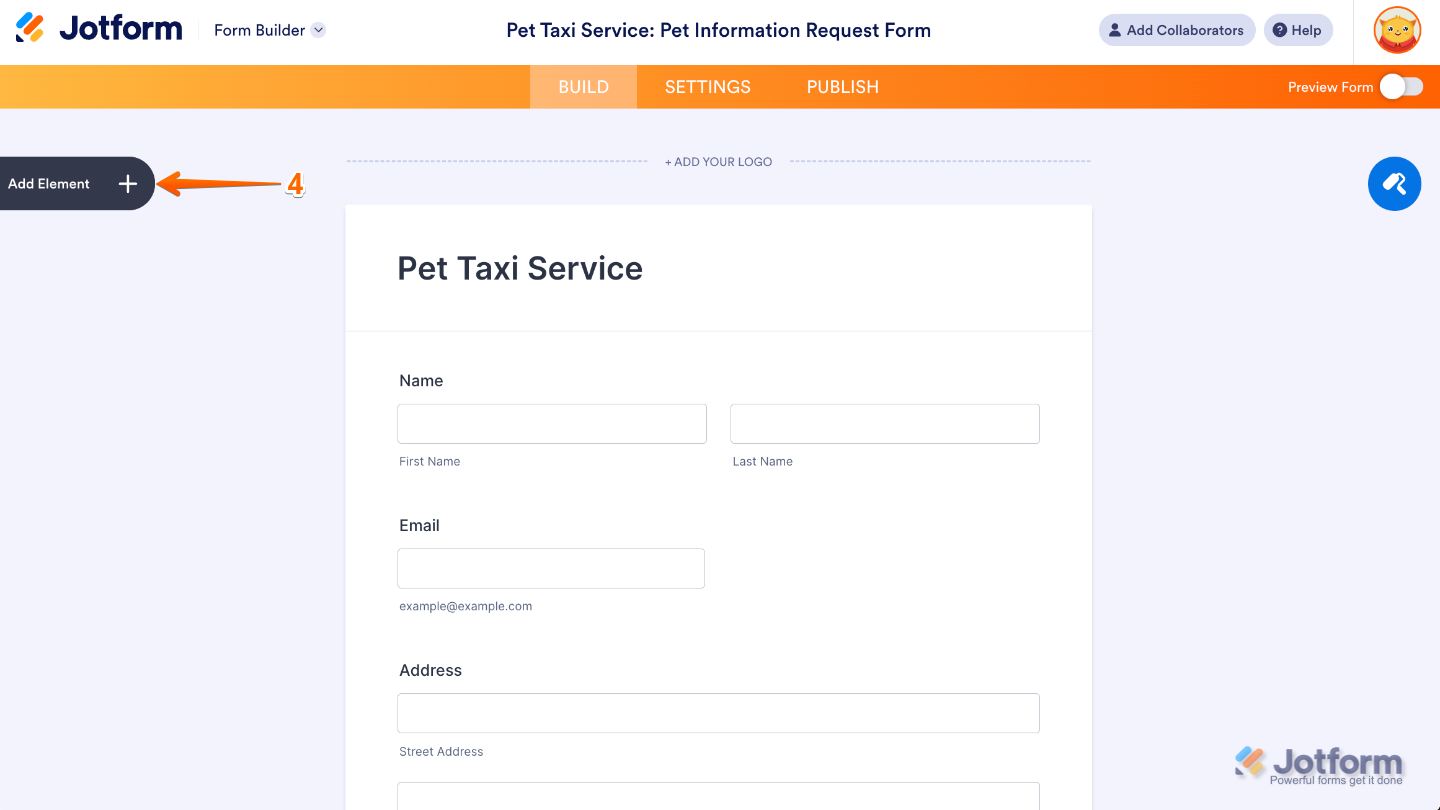
- Now, in Form Builder, click on Add Element on the left side of the page.
- Then, in the Form Elements menu, under the Basic tab, scroll down and click on File Upload. Or, just drag and then drop it to where you want it to be on your form.
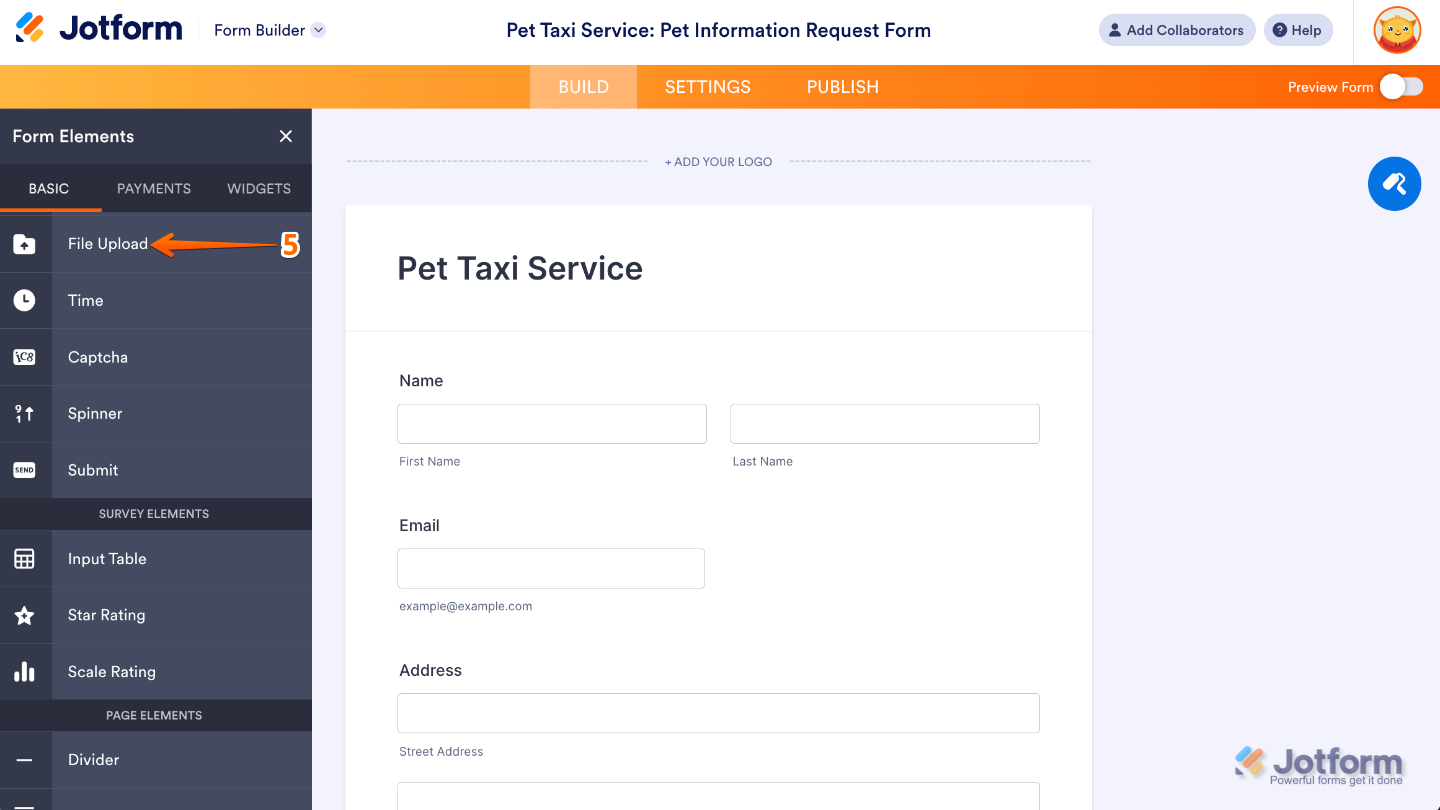
- Next, on the right side of the File Upload field, click on the Gear icon.
- In the File Upload Properties window, under the Optionstab, set the Upload File Size in the Limit File Size section and enter the File Formats you want to allow in the File Types section.
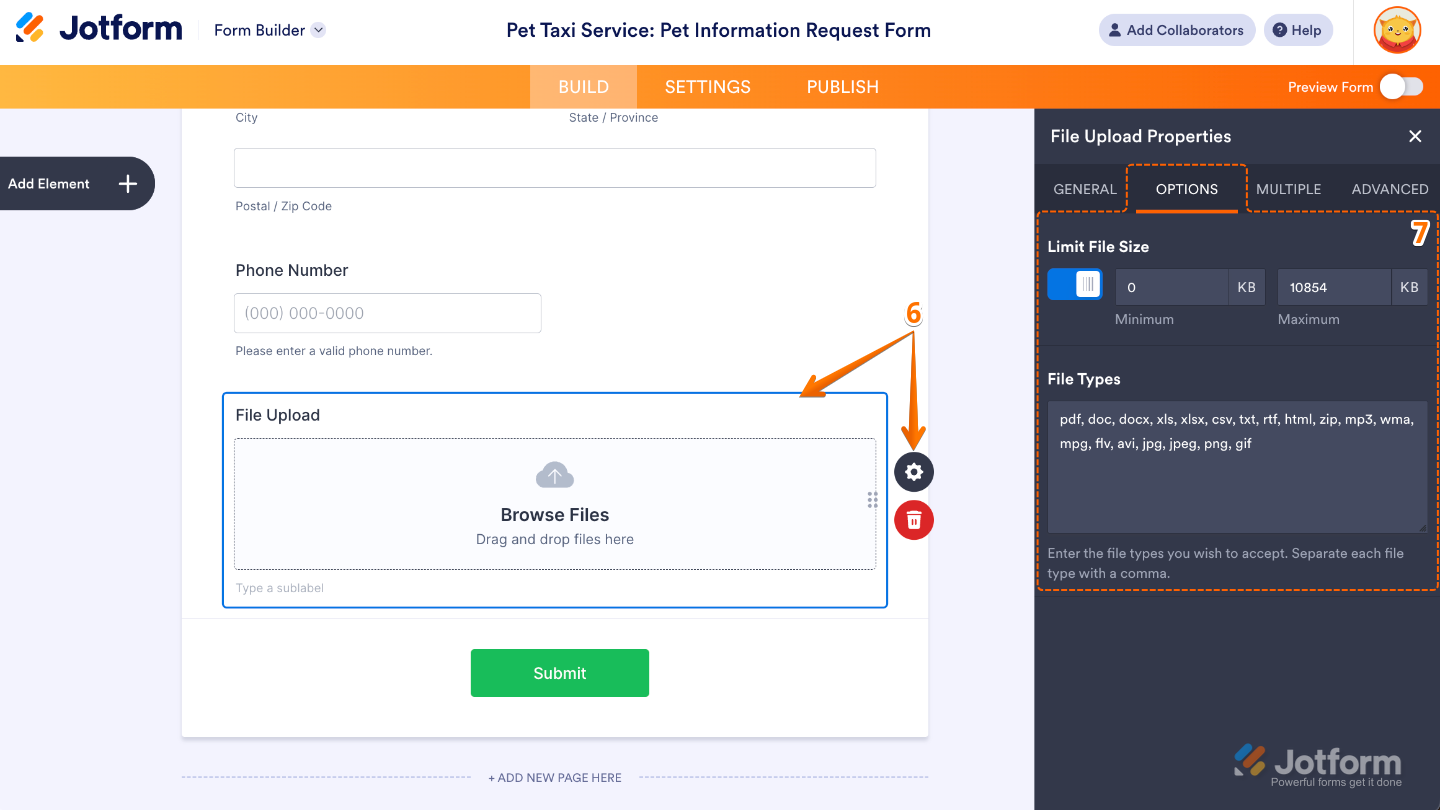
That’s it!. You’ve added a File Upload field to your form, and you’re all set to start receiving files from your users. Feel free to customize it further or continue building out the rest of your form—whatever works best for you.
Integrating Your File Upload Form With Dropbox
Connecting your File Upload form to Dropbox lets all uploaded files flow straight into your Dropbox account, making them easy to access, organize, and share just like the rest of your files. You’ll just need to do this:
- In Form Builder, in the orange navigation bar at the top of the page, click on Settings.
- Then, in the menu on the left side of the page, click on Integrations.
- Now, in the Integrations section on the right, search for Dropbox and click on it.
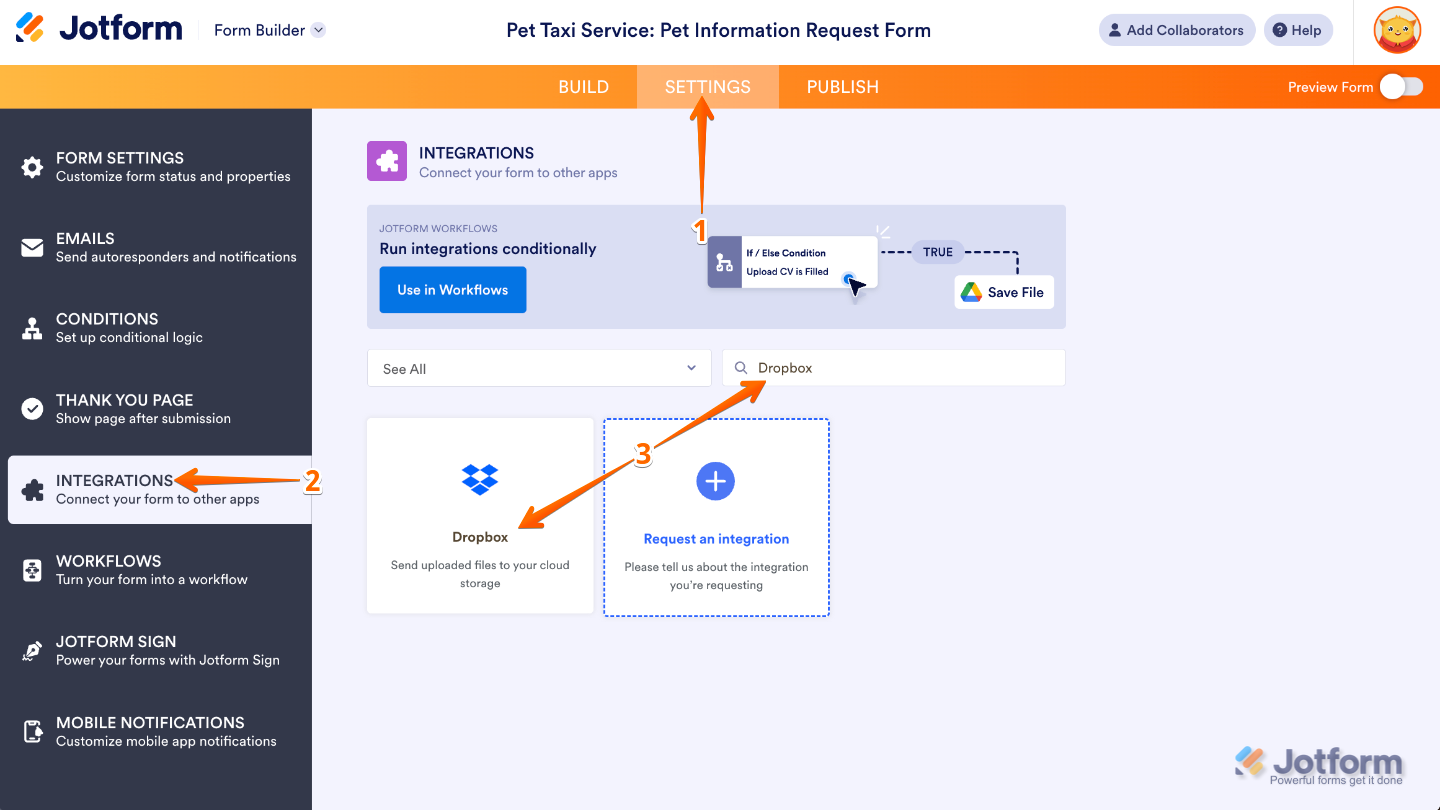
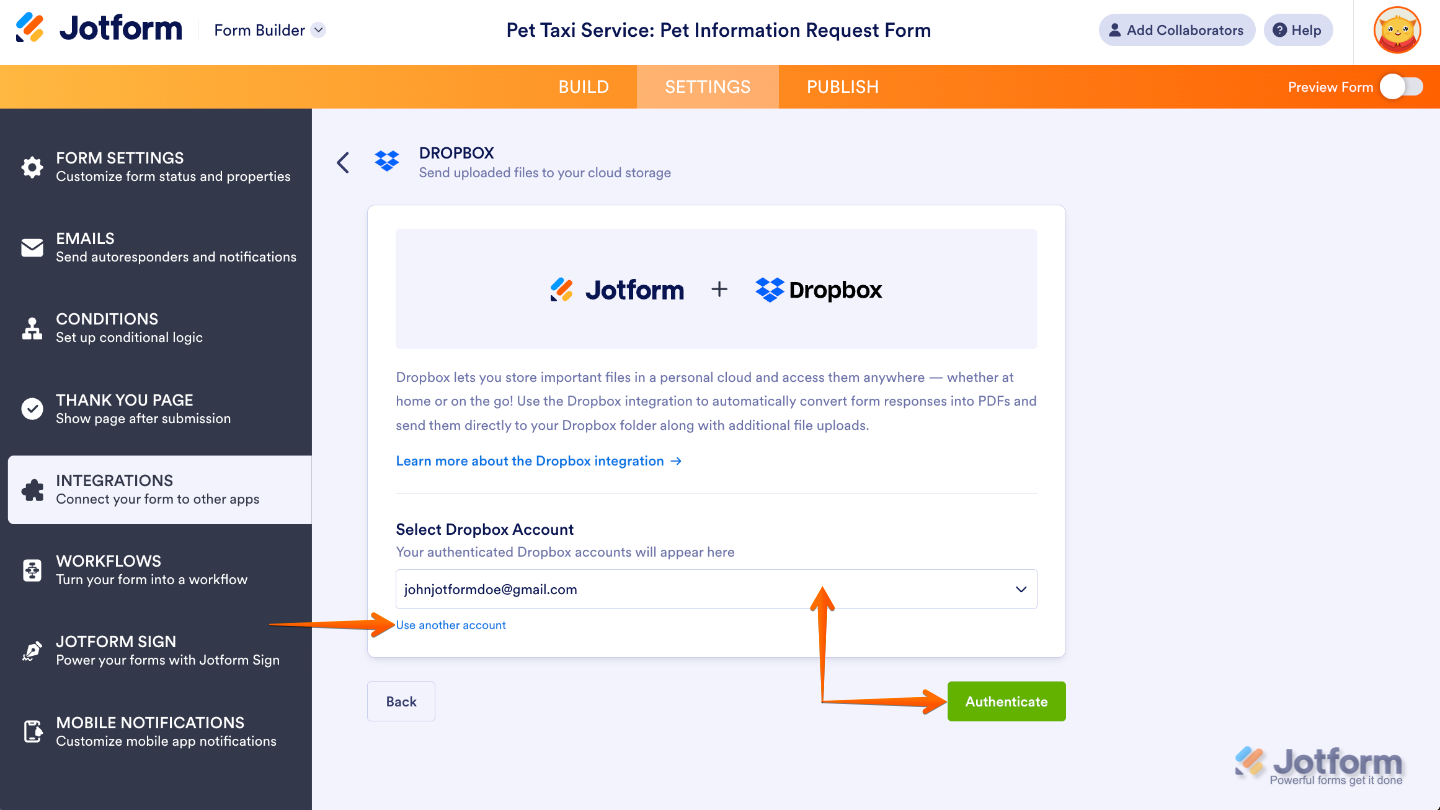
- Next, click on Authenticate. And then, in the pop-up window, log in and authorize access for the integration to your Dropbox account.
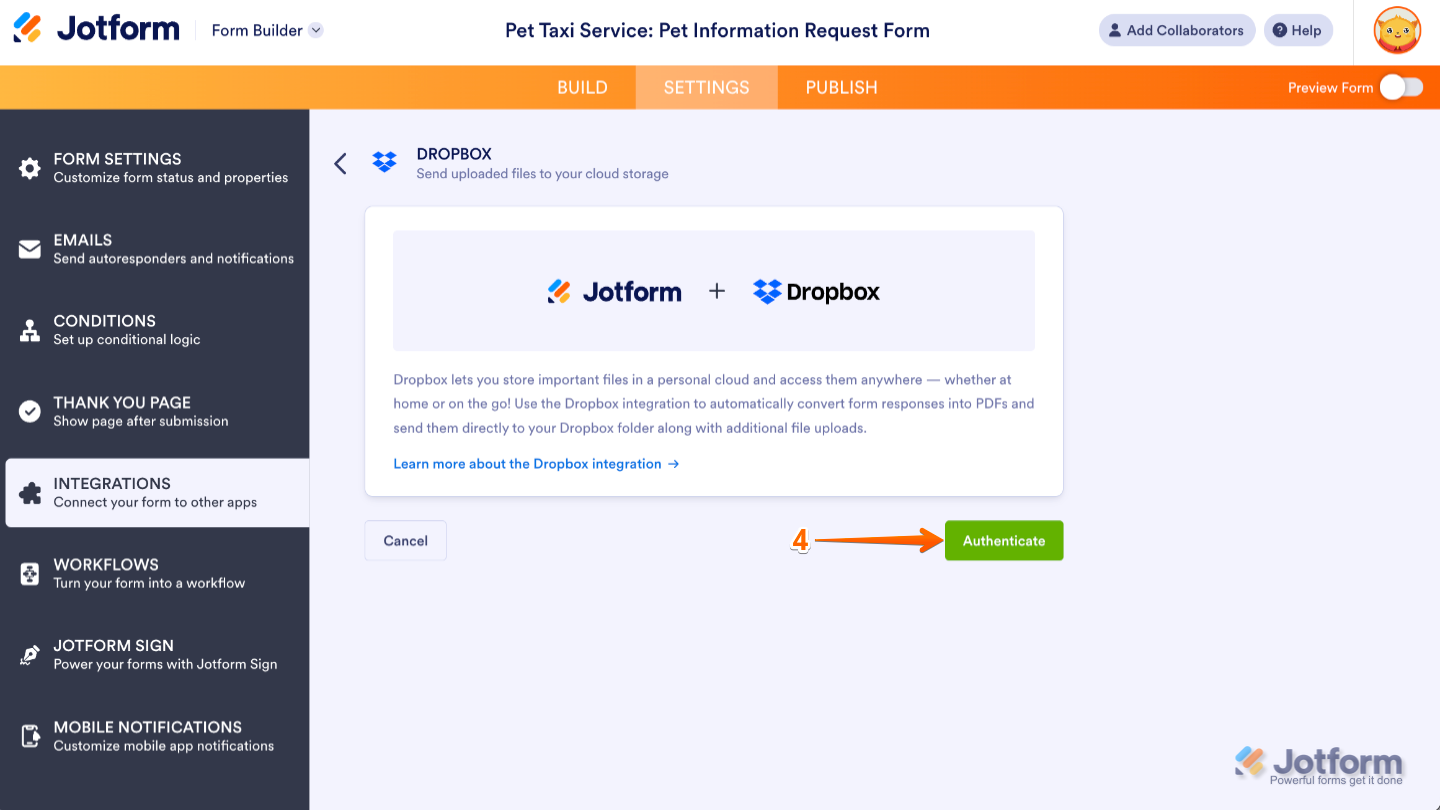
If you’ve already connected a Dropbox account before, you can simply pick it from the dropdown and click Authenticate. To use a different account instead, just select Use Another Account and log in to connect it.
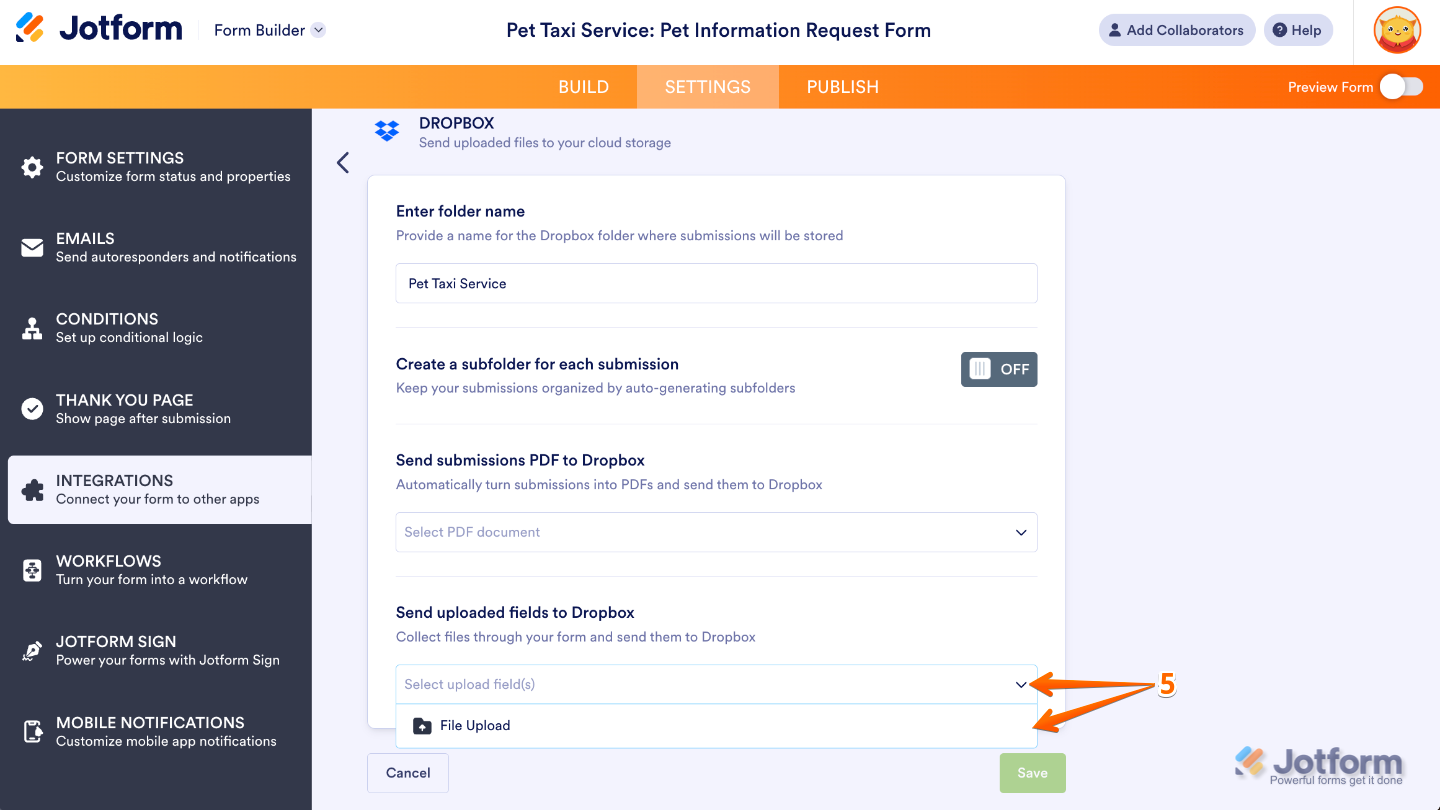
- Then, in the Integration Settings, click on the Send Uploaded Fields to Dropbox Dropdown menu, and select the File Upload field you added to your form.
Notes
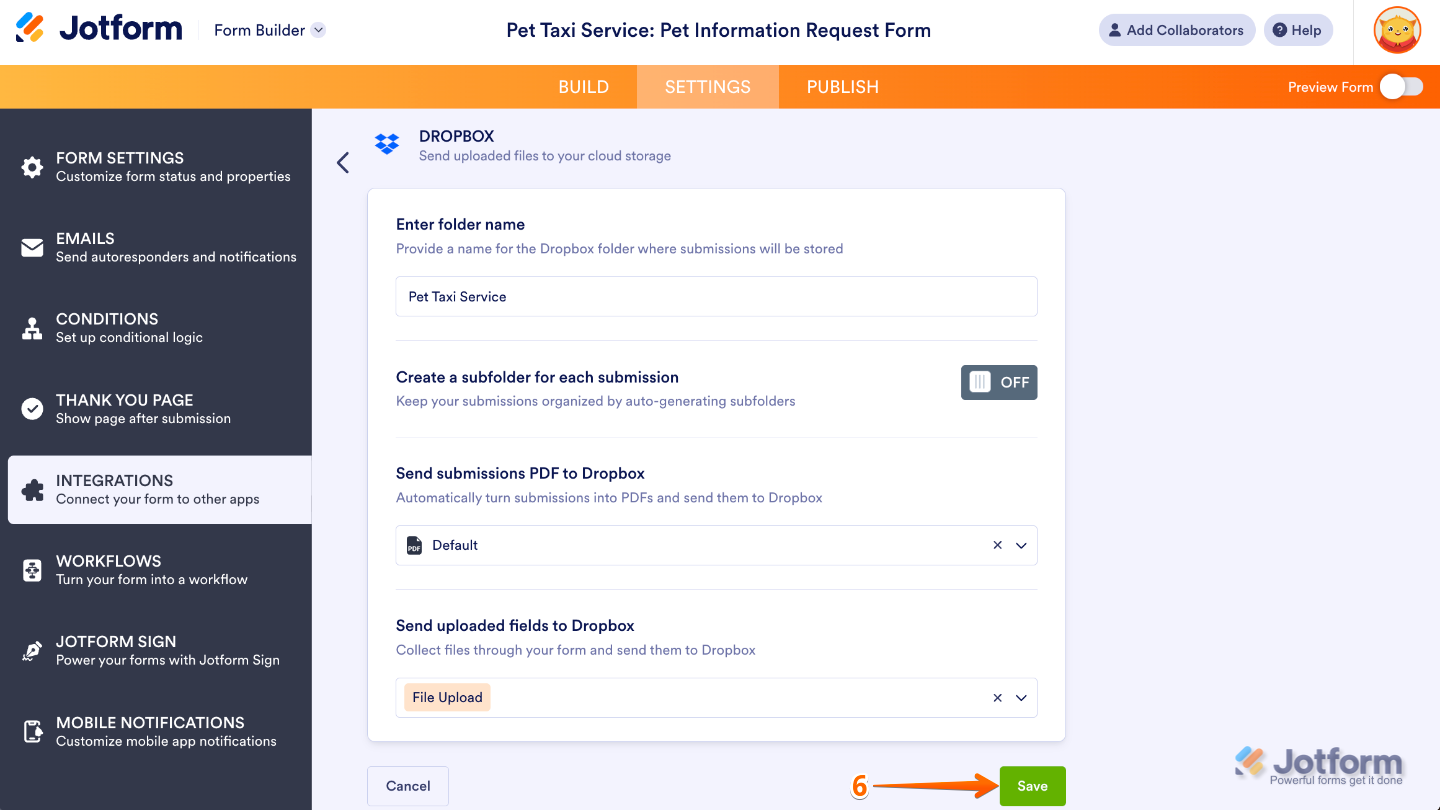
- If the subfolder option is turned off, all uploaded files and PDFs will be saved directly in the main folder. Don’t worry about duplicates—if files have the same name, Dropbox will automatically handle revisions and upload them as needed.
- You can rename the PDF through the PDF Editor. To learn how it’s done, see our guide on How to Assign a Custom File Name to Your PDF Report.
- To learn how to configure the rest of the settings, check out our guide on How to Integrate Forms With Dropbox
- Once everything is set, click on Save.
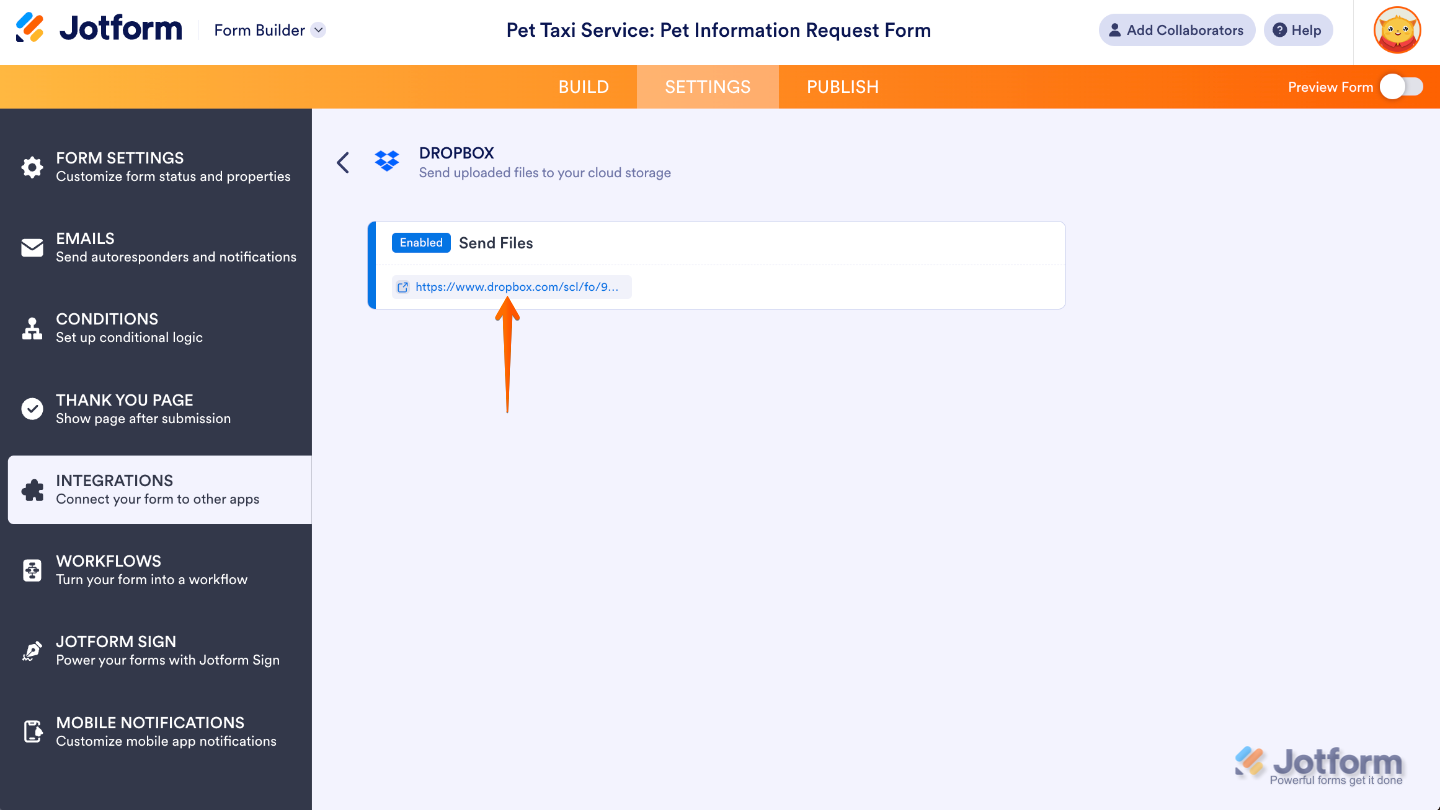
That’s it. Your Dropbox integration is all set. Uploaded files from your form will now go straight into your Dropbox, ready for you to access anytime.
Sharing Your File Upload Form
Once your File Upload form is connected to Dropbox, the next step is to share it so others can start sending files your way. Sharing your form makes it simple for people to upload documents, images, or other files directly, helping you gather everything you need quickly and keep it all in one organized place.
Copying the Form URL
You can easily share your form by copying its URL in just a few simple steps. Once they have the link, they can start uploading documents, images, or other files right away. Here’s how to do it:
- In Form Builder, in the orange navigation bar at the top of the page, click on Publish.
- Then, under Share With Link, click on Copy Link.
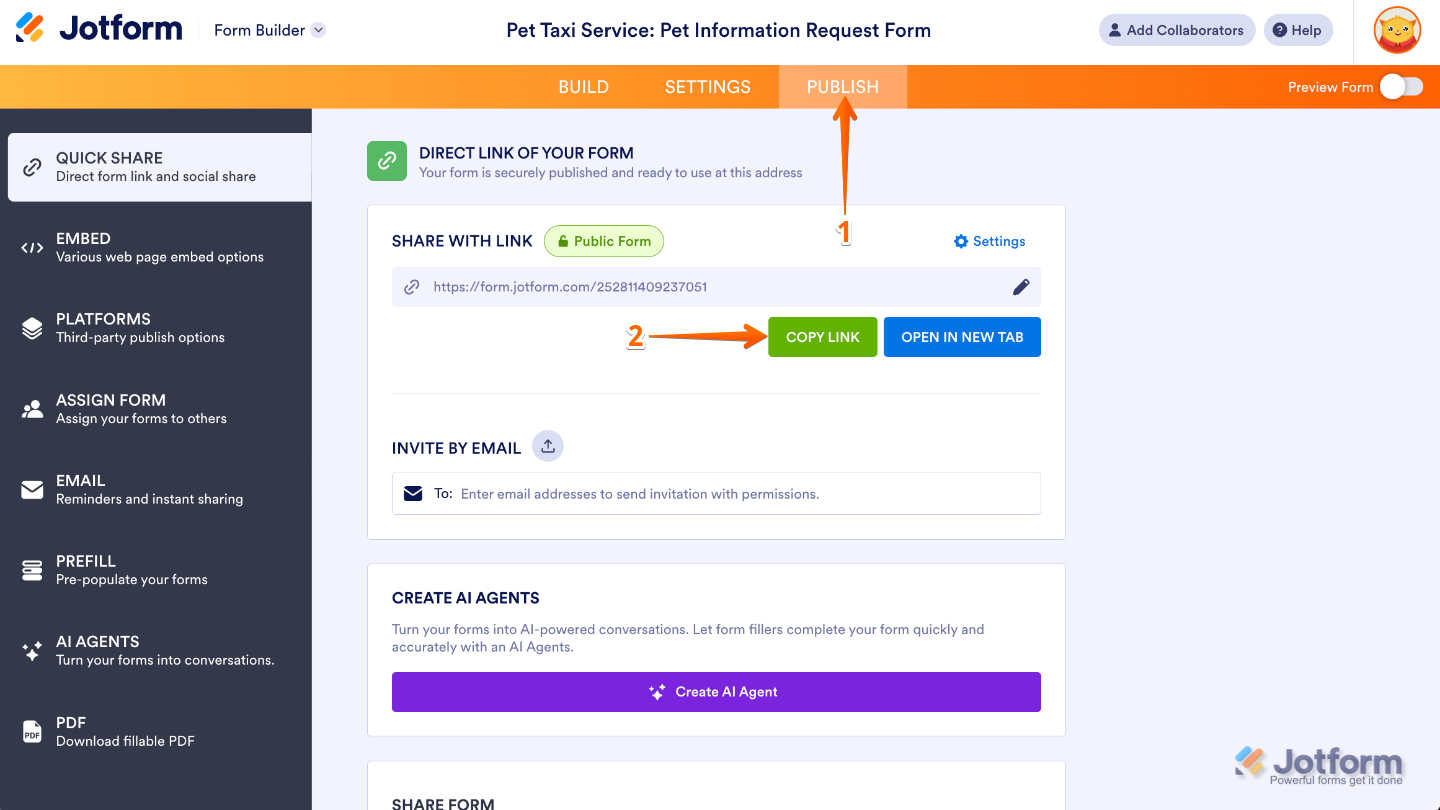
With your form’s URL copied, you can share it anywhere—email, chat, or messaging apps—and start collecting files in no time.
Sending the Form via Email
To share your form quickly, you can get the direct link right from the Form Builder in just a few easy steps. Here’s the quick way to do it:
- In Form Builder, in the orange navigation bar at the top of the page, click on Publish.
- Then, in the menu on the left side of the page, click on Email.
- Now, in the Email Form section on the right, click on Share On Email.
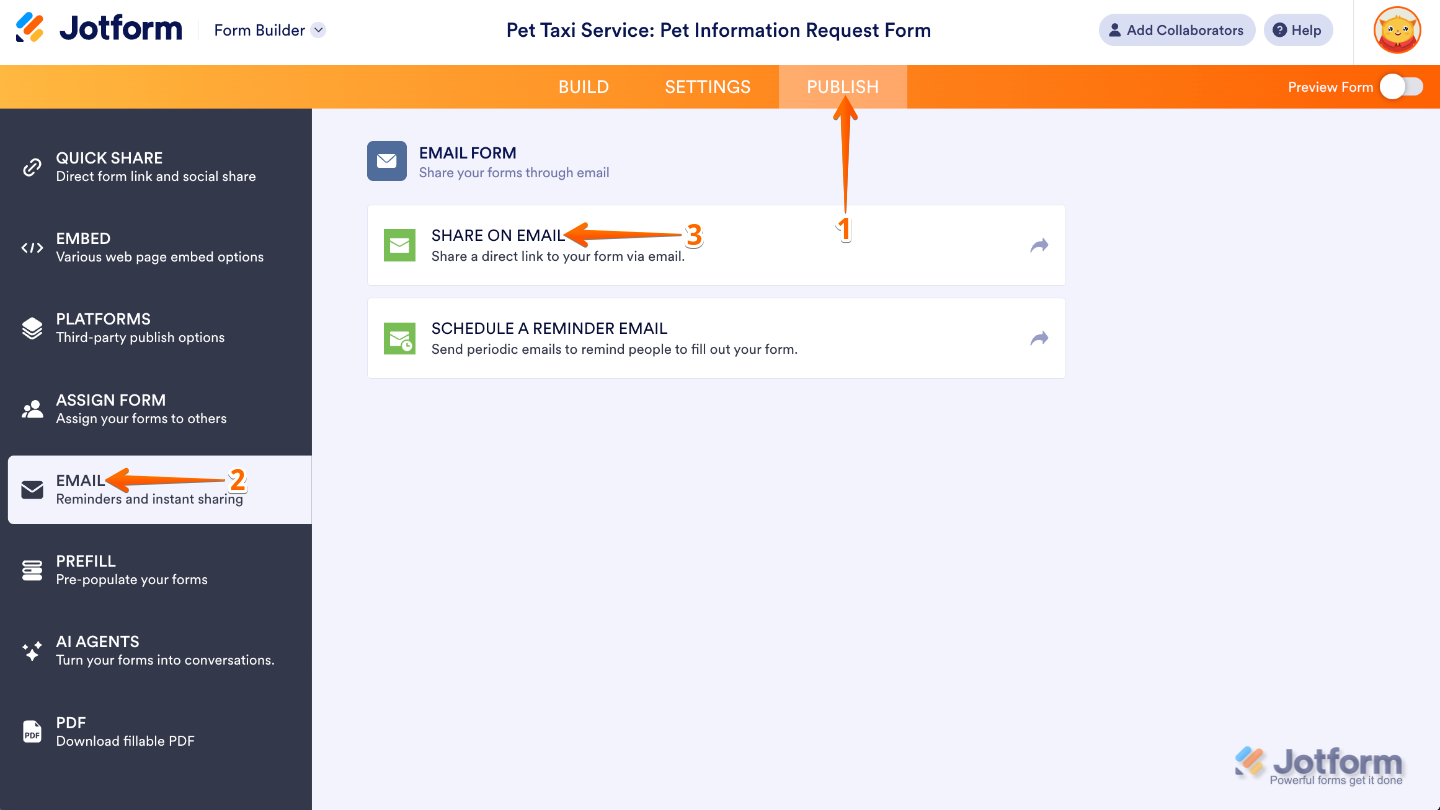
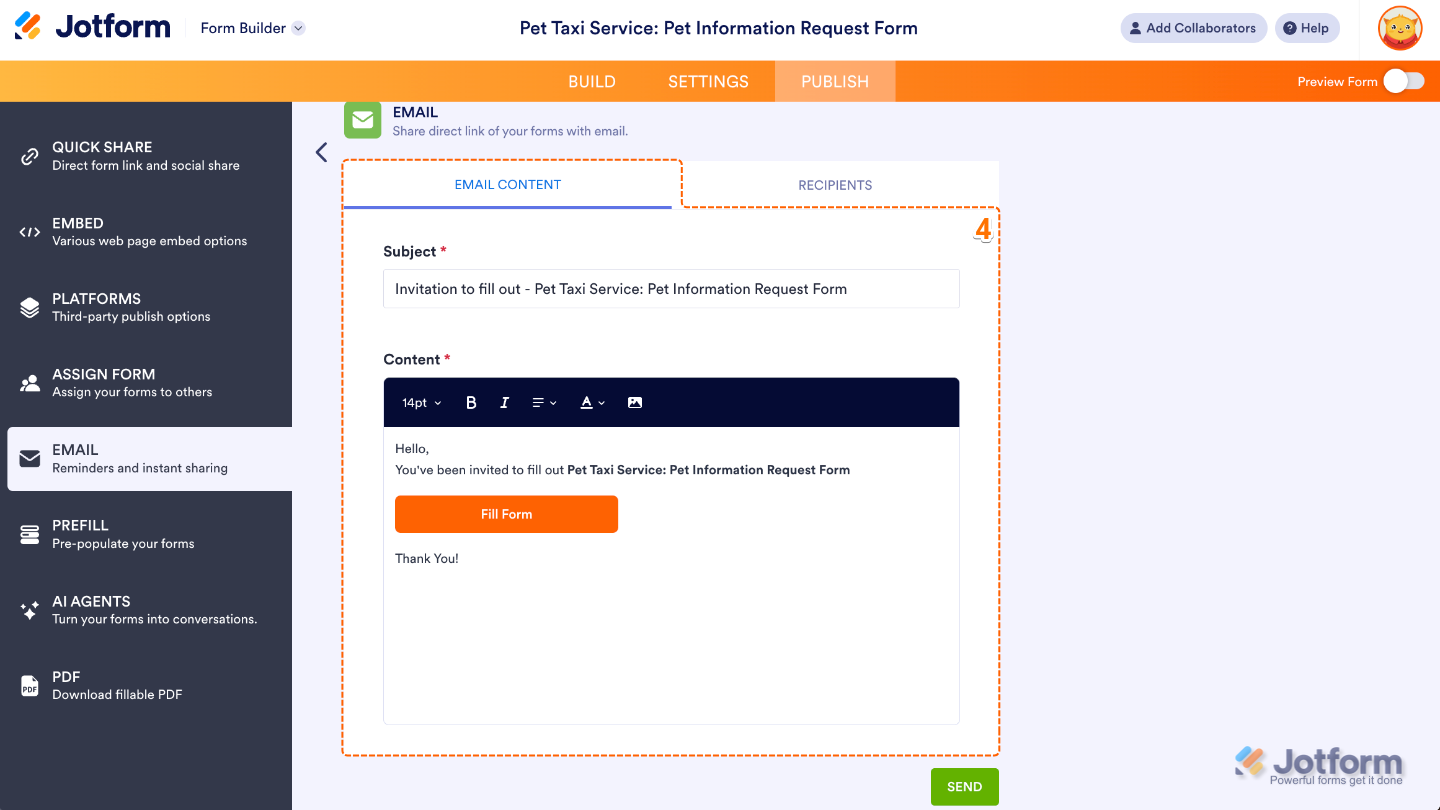
- Next, in the Email section, under the Email tab, enter a subject and message for your email. The message includes your form’s direct link or Custom URL by default, but you can edit it and use the formatting tools in the text editor to personalize it for your recipients.
- Then, under the Recipients tab, set the details for the Sender Name, Reply-To Email, and To fields. You can customize the sender name, update the default reply-to email address, and add one or more recipient email addresses.
- Once everything is set, click on Send at the bottom.
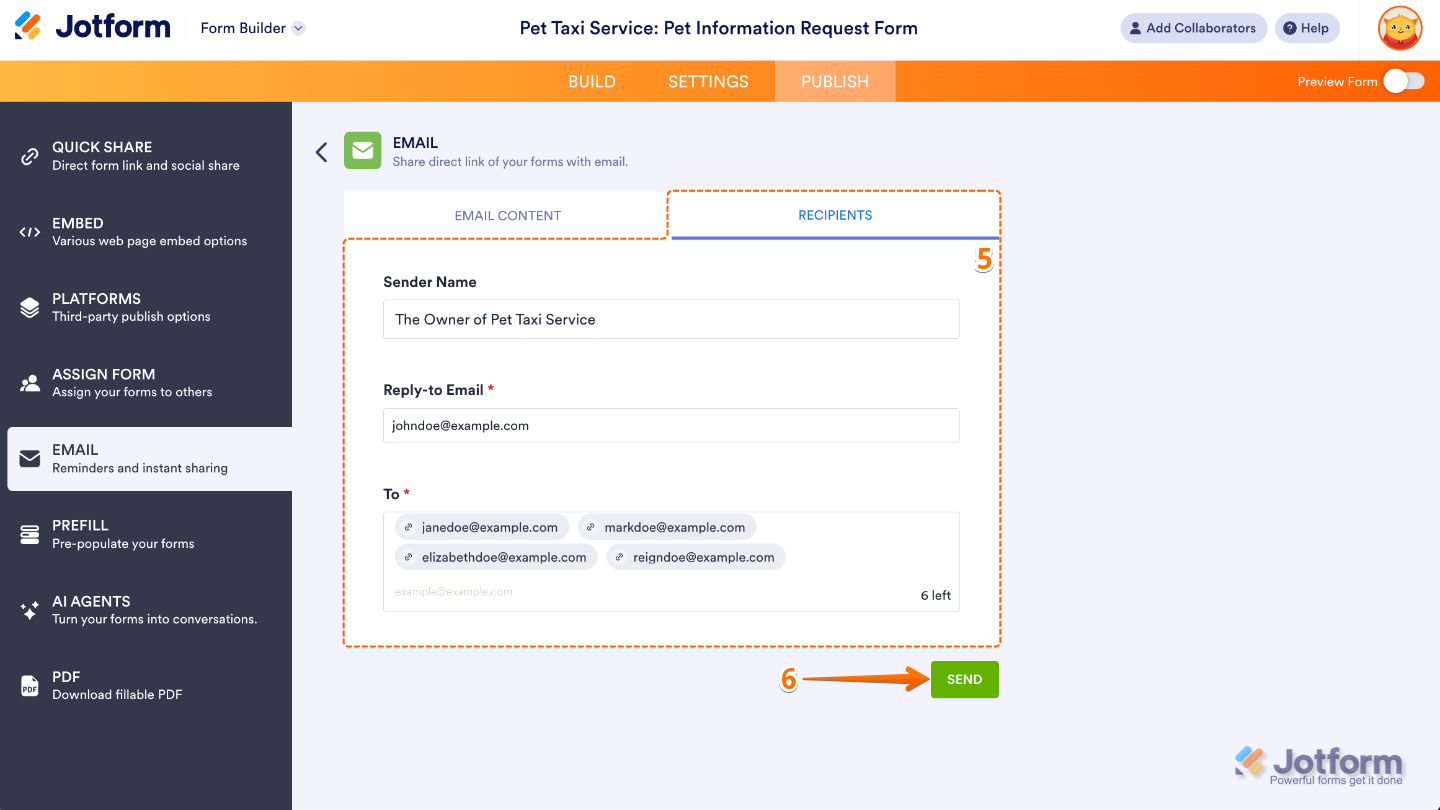
That’s it. You’ve shared your form’s direct link, so anyone with the link can quickly access it and upload their files hassle-free.
Embedding Your Form
To make it even easier for people to submit files, you can embed your form right on your website so visitors can fill it out without ever leaving the page. It’s a simple way to streamline submissions and keep everything organized in one spot. To get going, here’s what you’ll do:
- In Form Builder, in the orange navigation bar at the top of the page, click on Publish.
- Then, in the menu on the left side of the page, click on Embed.
- Now, in the Embed section on the right, click on Copy Code. Or, click on the other embed options listed below to copy the code for embedding your form as an iFrame, feedback button, popup, or lightbox, or to download its source code.
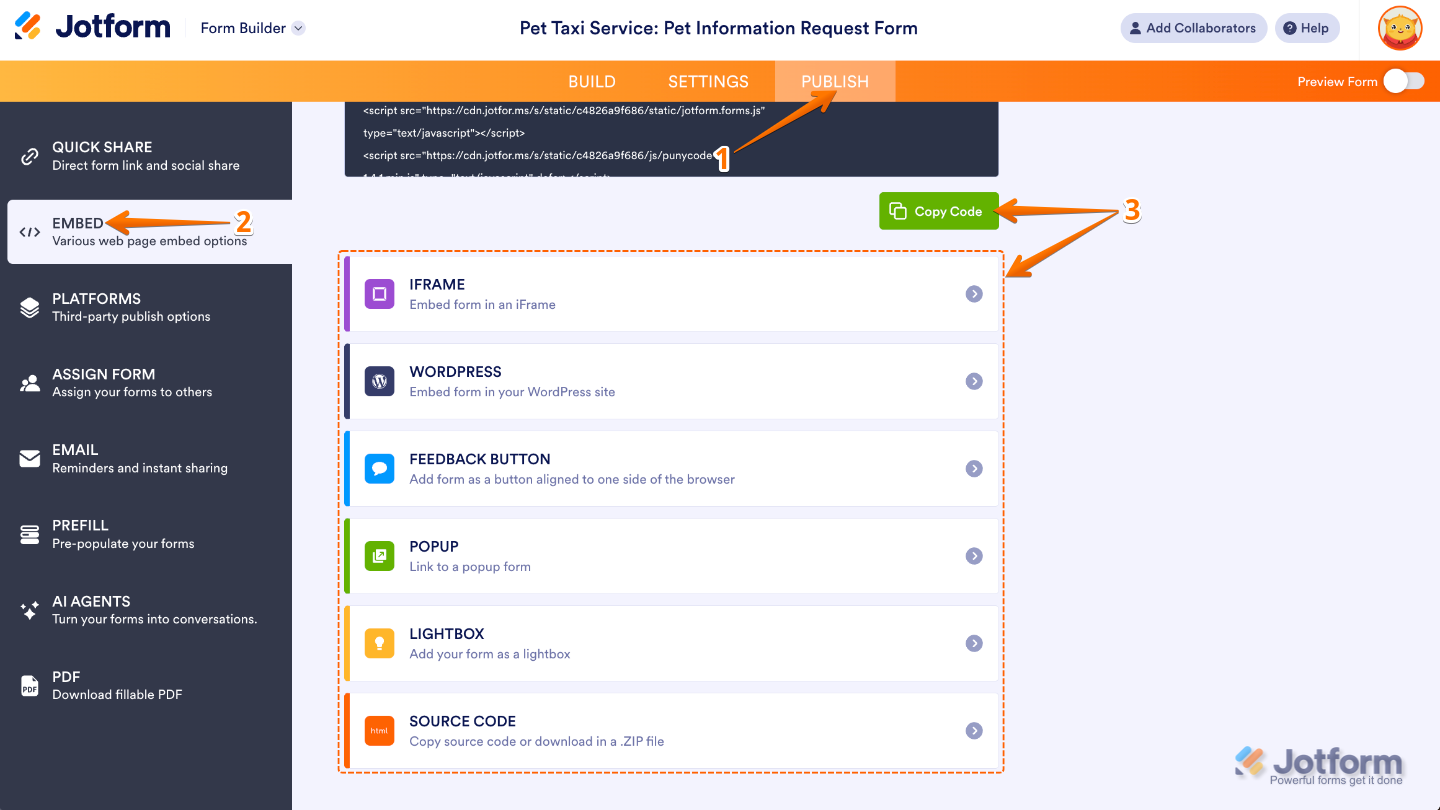
You can paste the code anywhere in your site’s HTML—usually inside the <body> tag—where you want the form to appear. If you’re using a website builder like WordPress, Wix, or Squarespace, just find a block or widget that accepts custom HTML or code embeds. Drop the JavaScript code there, and your form will show up right on the page, ready for visitors to fill out.

Send Comment: