
Key takeaways
- Google Forms is great for collecting ratings, but it can’t calculate a weighted overall score for you.
- Multiple-choice grids are the key component of Google Forms evaluation forms. Respondents can rate several criteria on the same scale in one question.
- You can also use rating or linear scale questions to capture an overall assessment, and paragraph questions to give context.
- Linking your form to Google Sheets is the easiest way to score responses and dig into the results.
- If your evaluations need calculations, follow-up questions, ready-made templates, or workflows, Jotform handles all of that in a single platform.
Although it’s a simple form builder, Google Forms works for most basic training, employee, event, and skills evaluations. To create an evaluation form in Google Forms, you’ll use a combination of multiple-choice grids for rating each criterion, paragraph questions for comments, and ratings or linear scales for your overall assessment.
Google Forms won’t add up or weight those ratings for you, though, which means you’ll have to set up a formula to handle that in Google Sheets. I’ll walk you through how to build the form and score the responses, and explain when it makes sense to switch to a form builder with built-in scoring.


Step-by-step tutorial on how to create an evaluation form in Google Forms
Let’s start with a basic evaluation form with a grid for rating each criterion, an overall score, and a comment box.
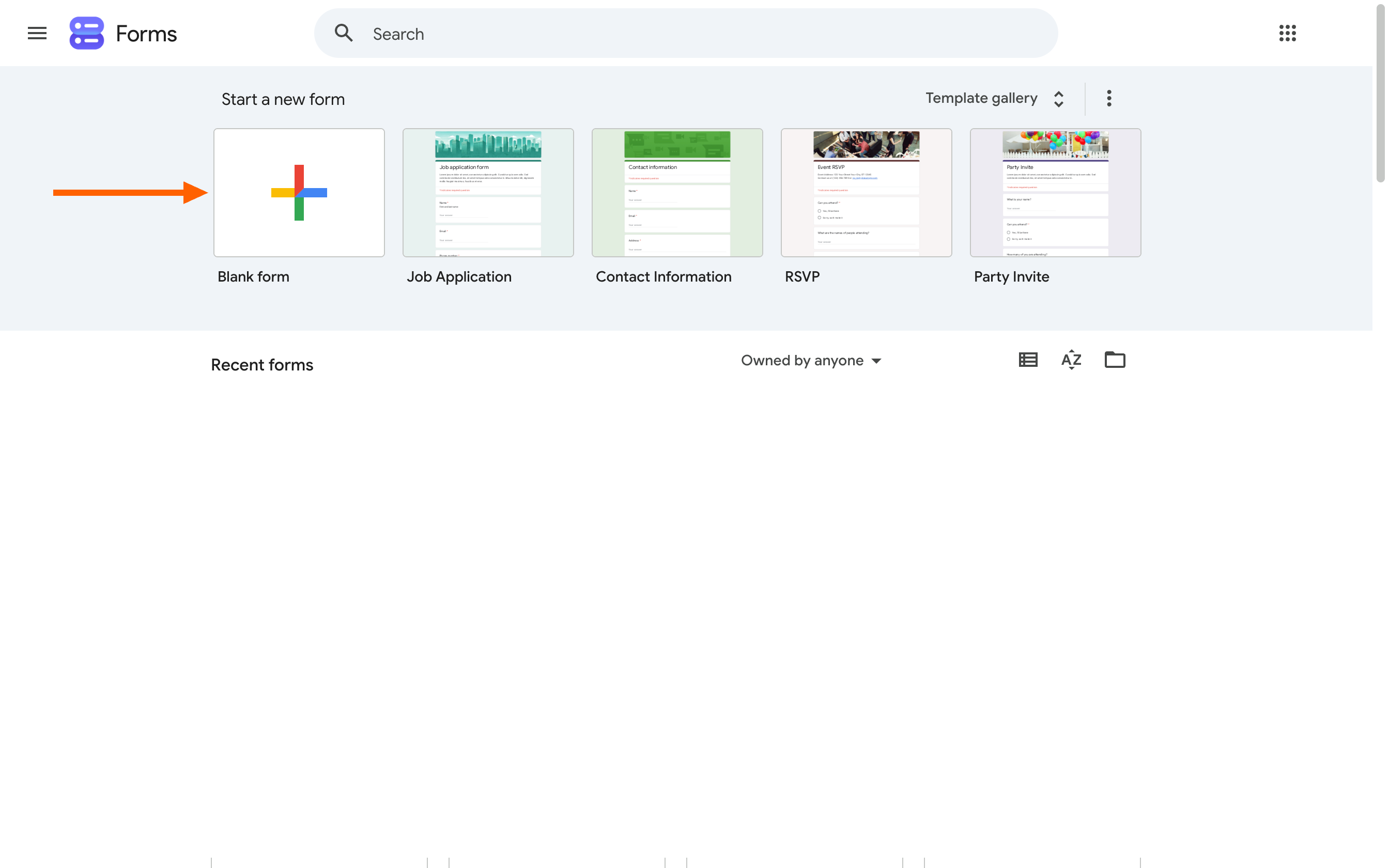
- Go to forms.google.com and click Blank form.
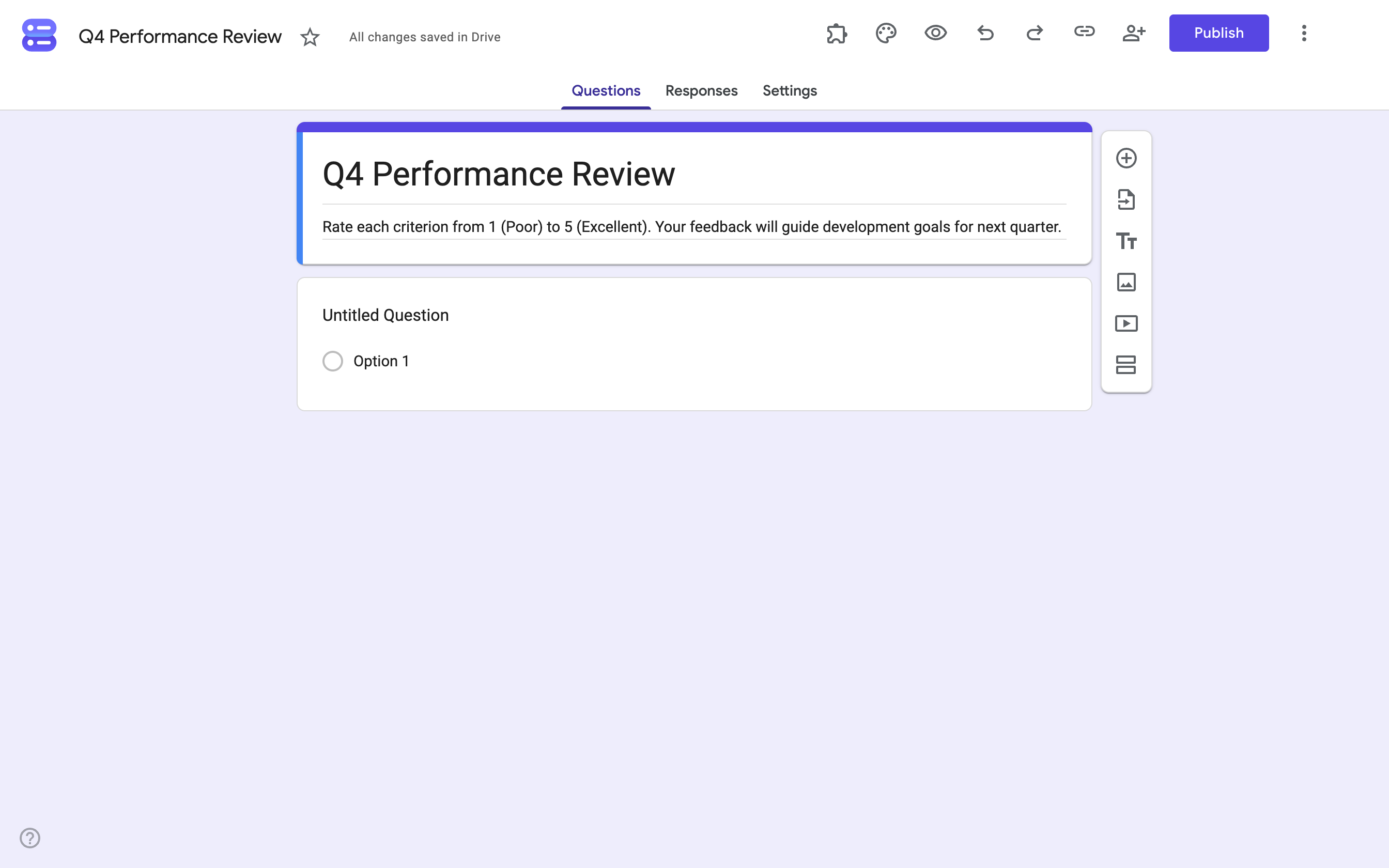
- Click Untitled form and give it a title that says who or what is being evaluated, like “Q4 performance review” or “Intro to Biology course evaluation.”
- Add a short description that explains how you’ll use the responses and what the rating scale means (for example, “1 = Poor, 5 = Excellent”).
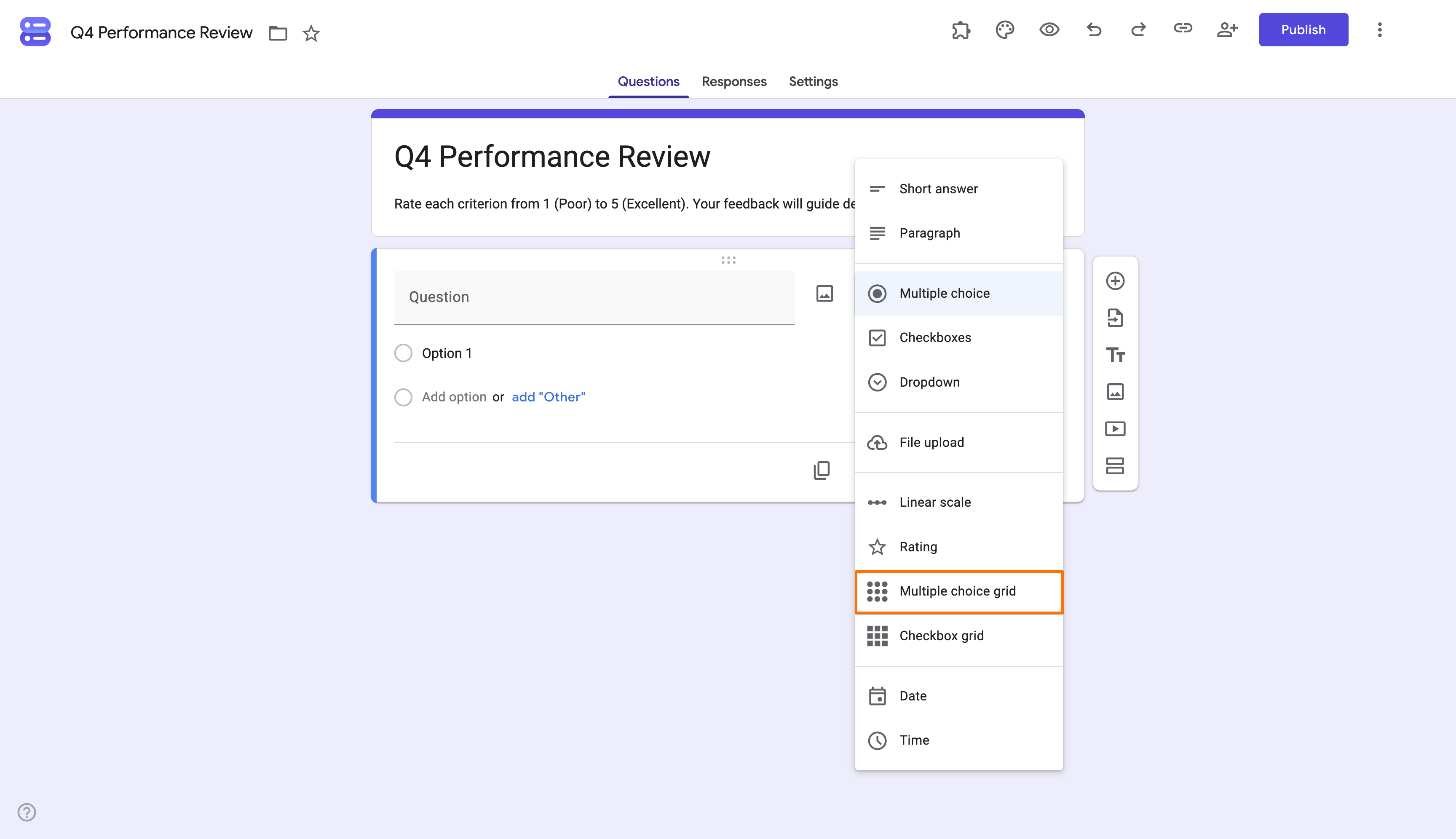
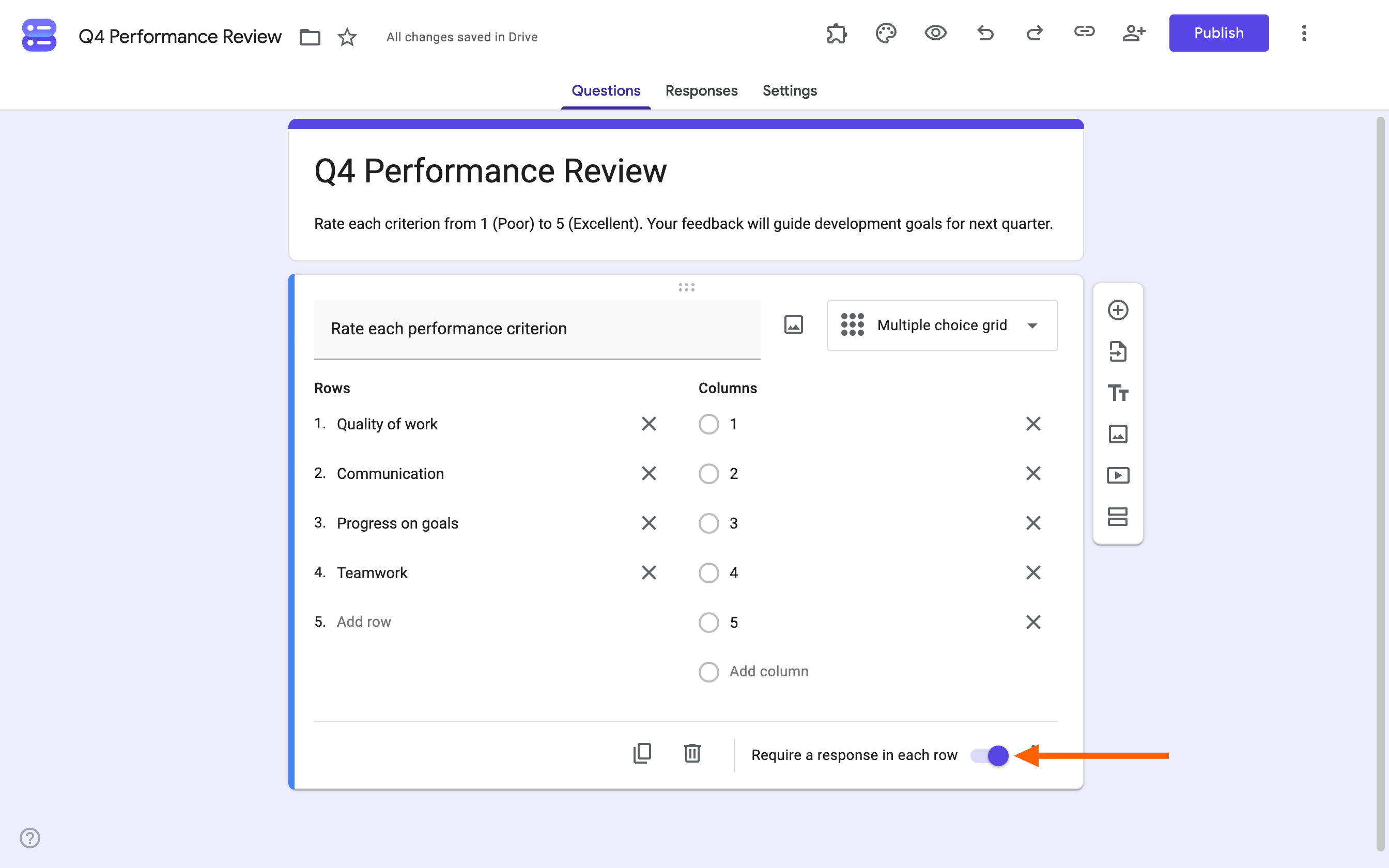
- Click the first question’s type dropdown and select Multiple choice grid.
- Enter one criterion per row (for example, “Communication”). If you’re not sure which criteria to use, these employee evaluation form examples show what most reviews cover.
- Add your rating scale as columns. Use a number scale (like 1 through 5) instead of words like “Excellent,” since words make scoring harder once your responses are in Google Sheets.
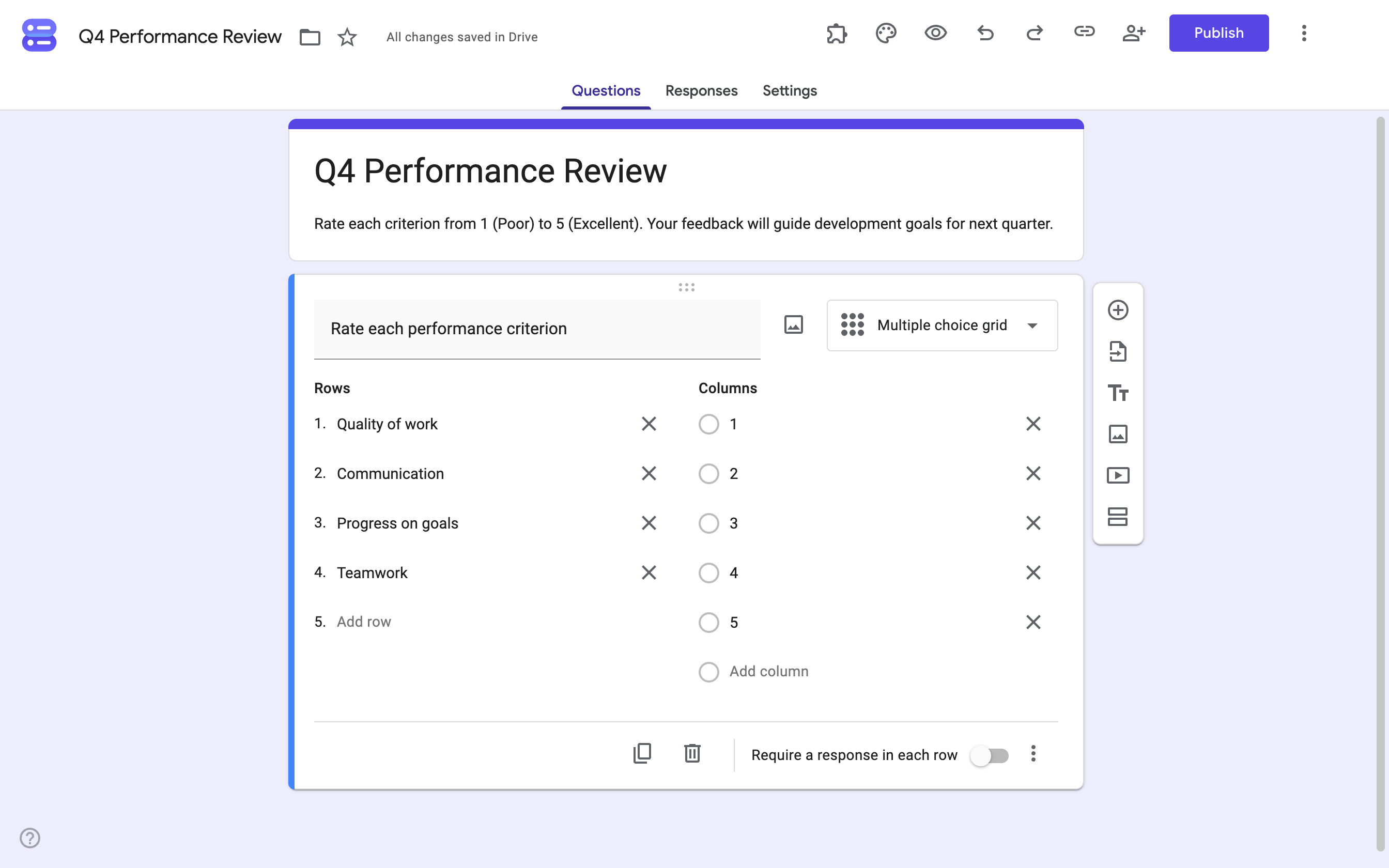
- Turn on Require a response in each row so respondents can’t skip a criterion.
- Now to build a question that captures the respondent’s overall assessment. Click the Add question (+) icon, open the question type dropdown, and select Rating.
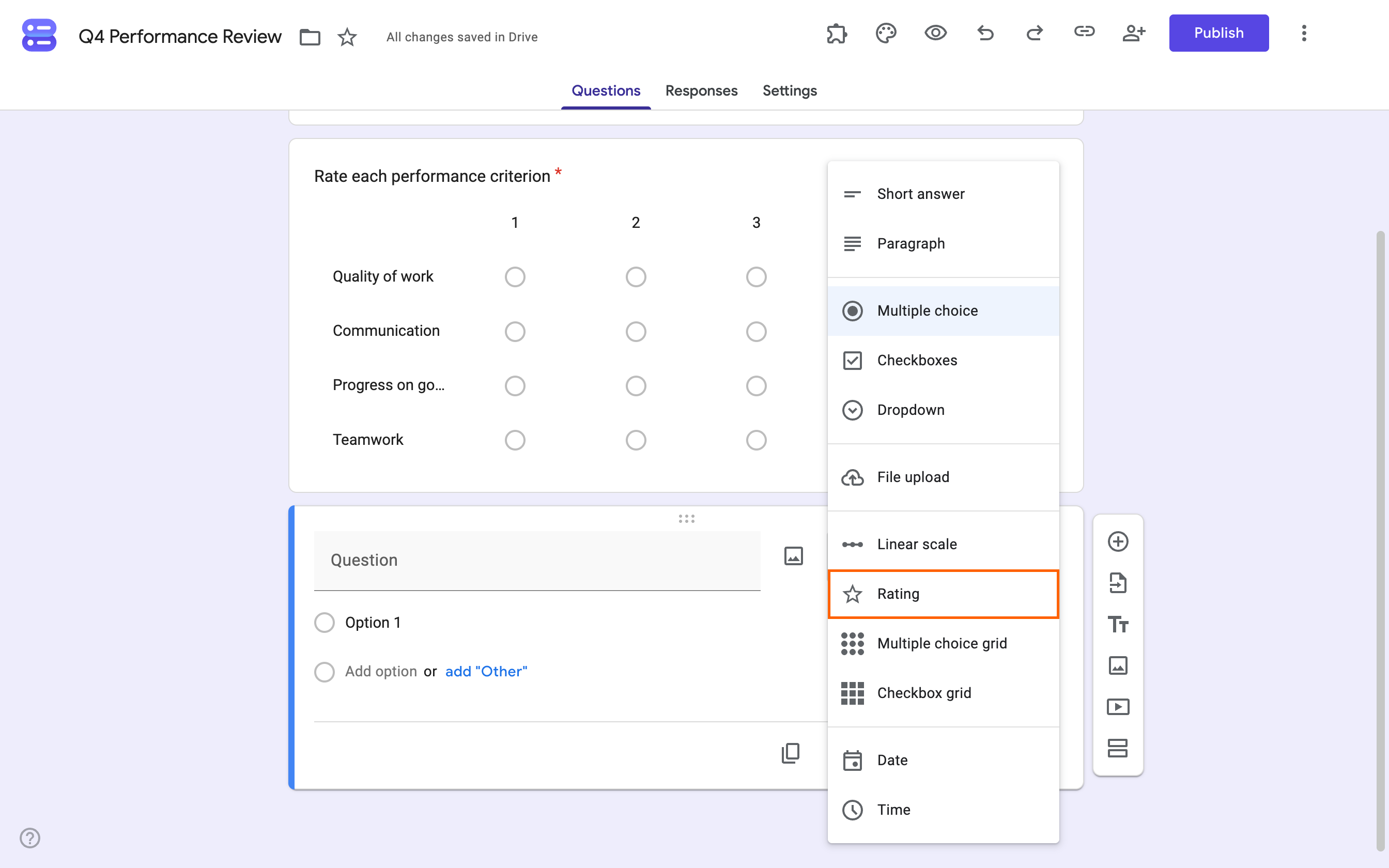
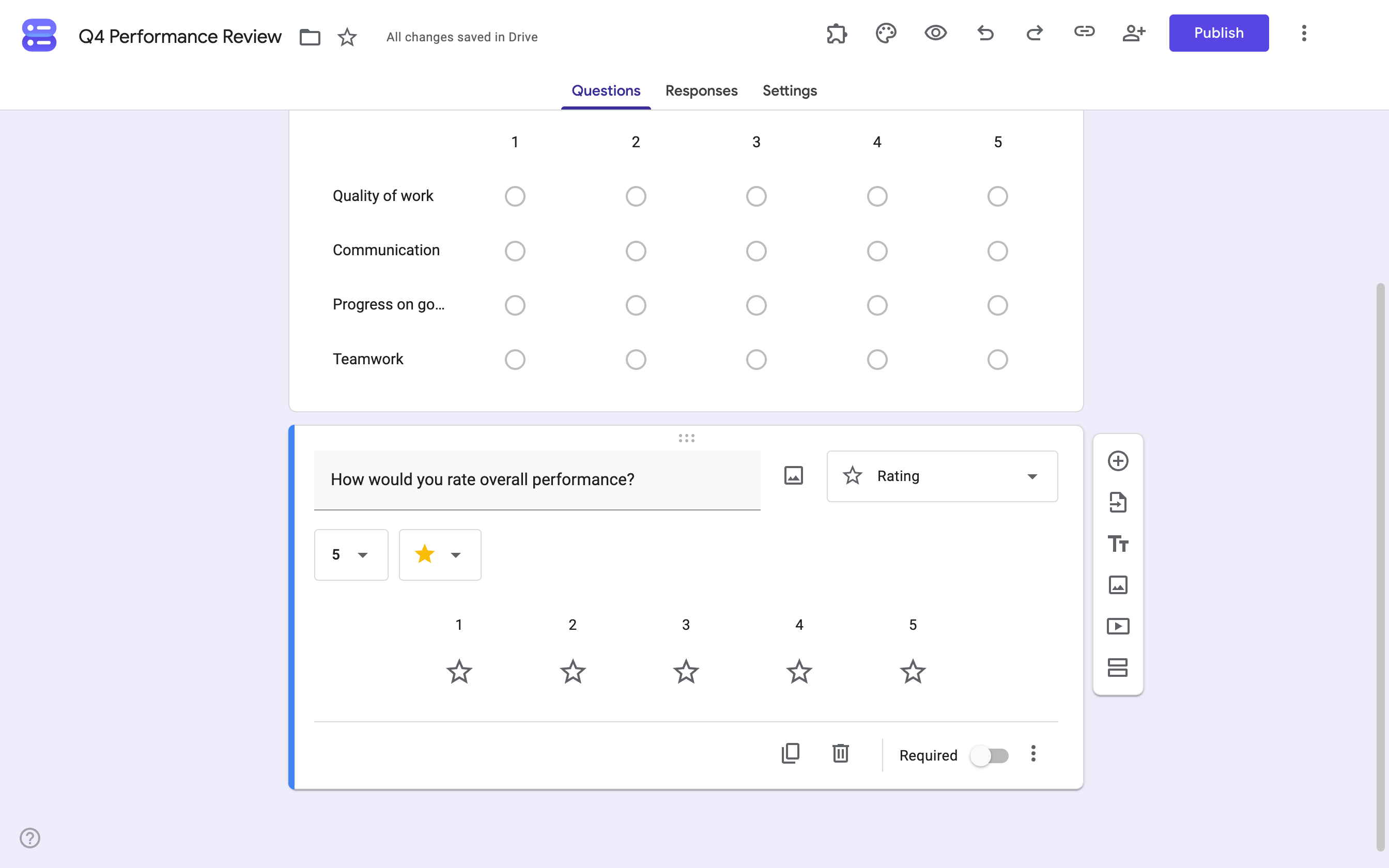
- Set your rating scale (maximum of 10). Google Forms used to offer only a linear scale, but the rating question type now lets respondents answer with stars, hearts, or thumbs-up icons.
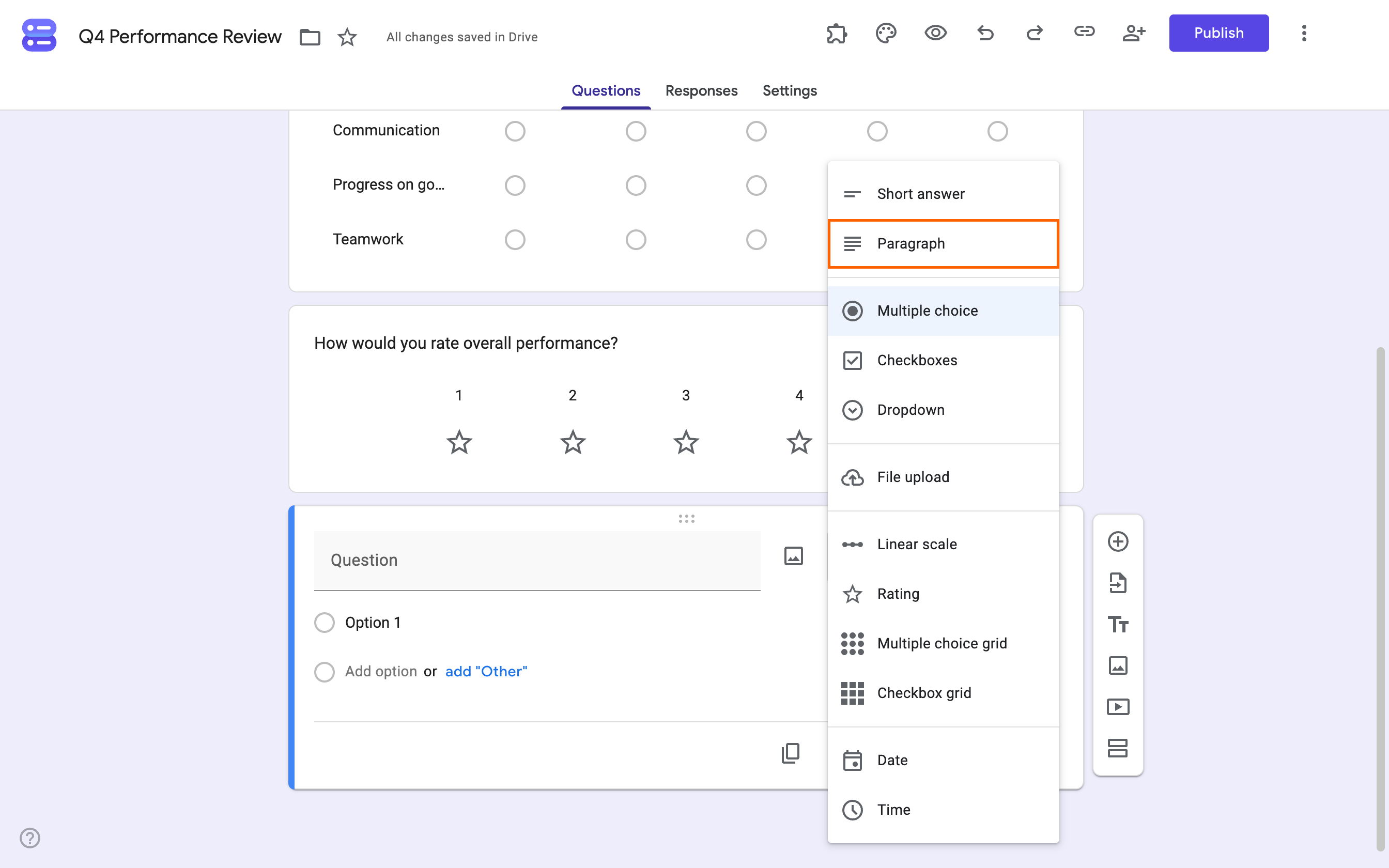
- If you’d like to gather more context, add another question, select Paragraph, and ask something that gets at the reasons behind the ratings, like “What’s one change that would raise this score?”
- Open the Settings tab and expand Responses.
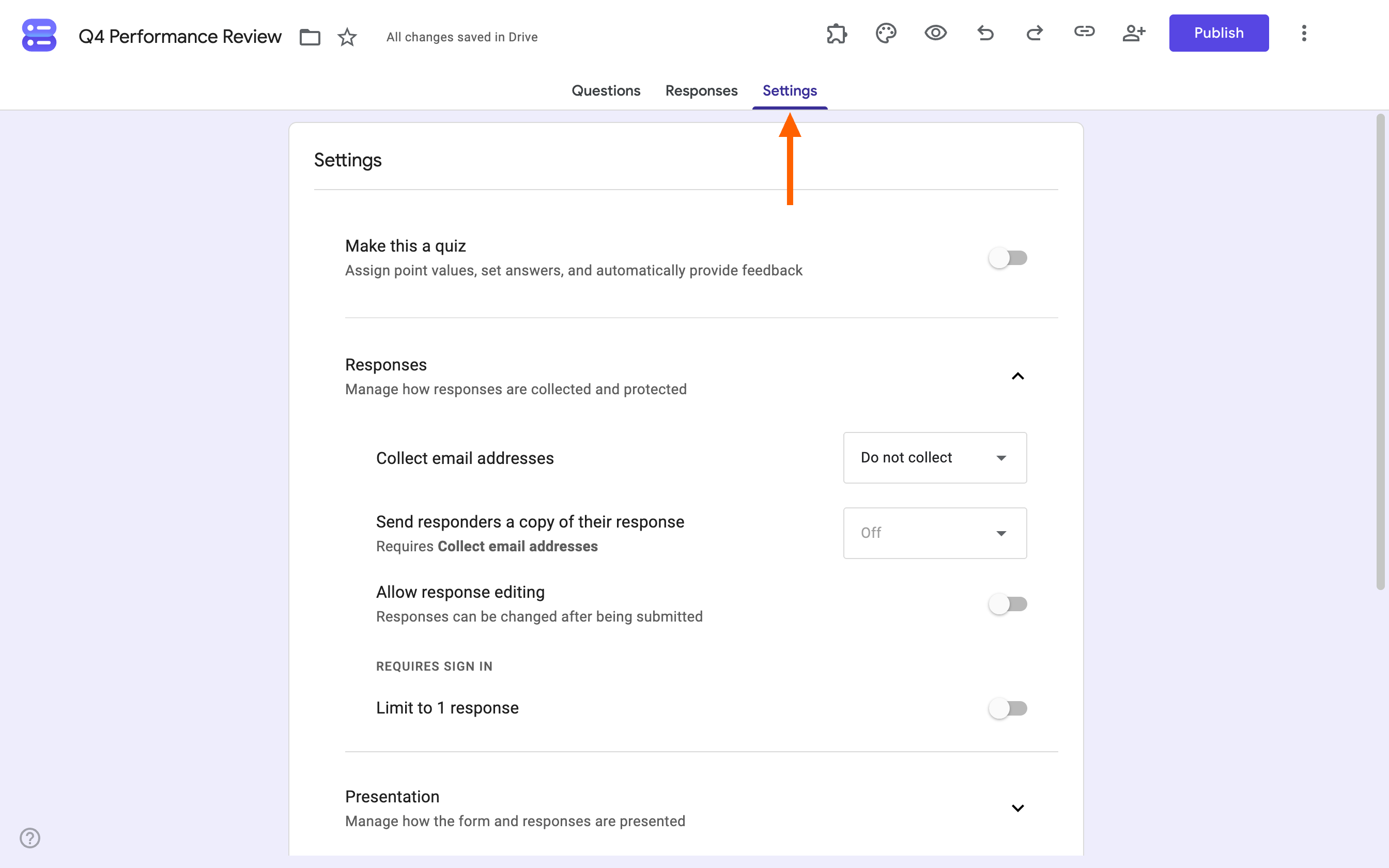
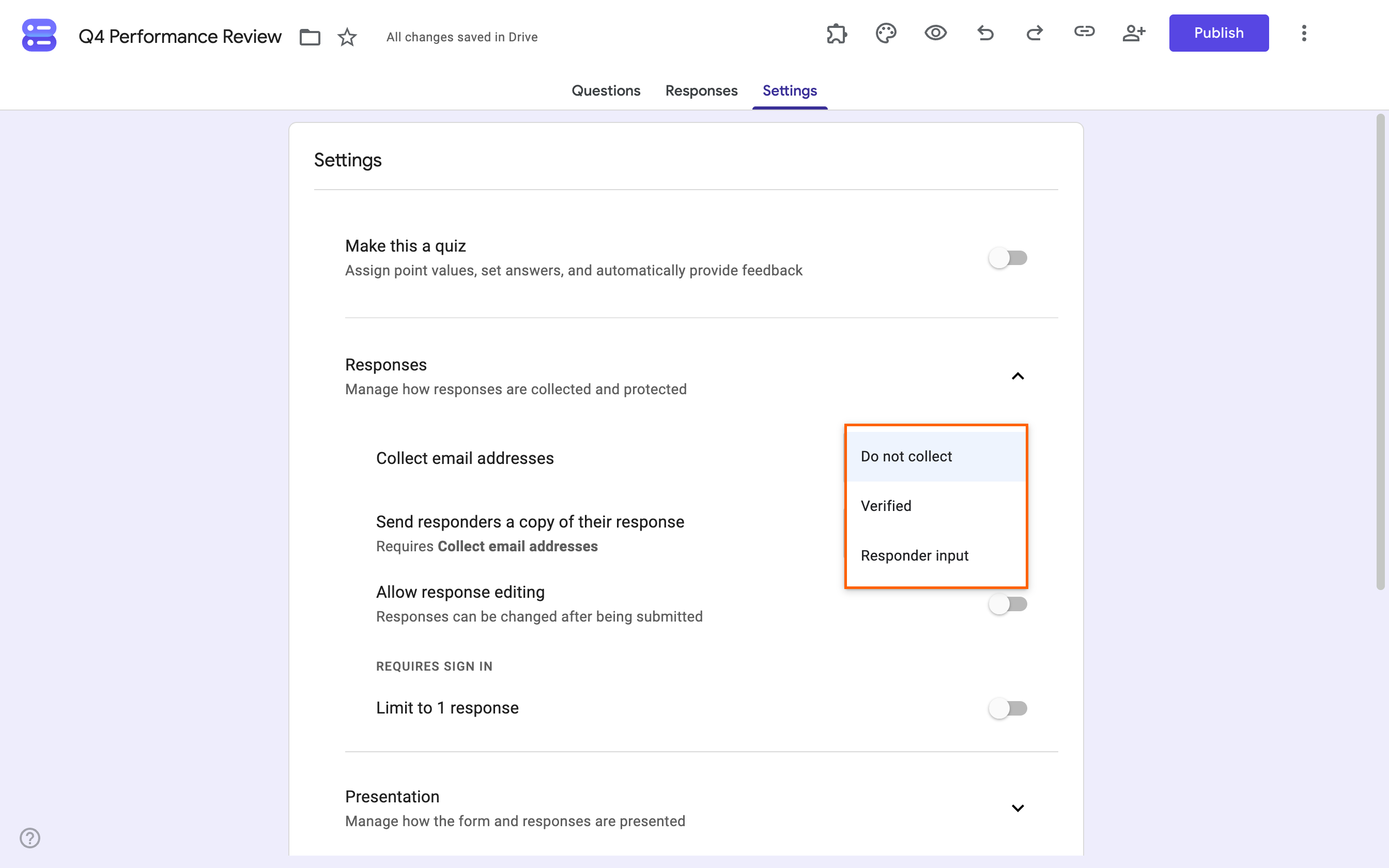
- Set Collect email addresses to Do not collect if you want more candid feedback, or to Verified when you need to know who submitted each evaluation.
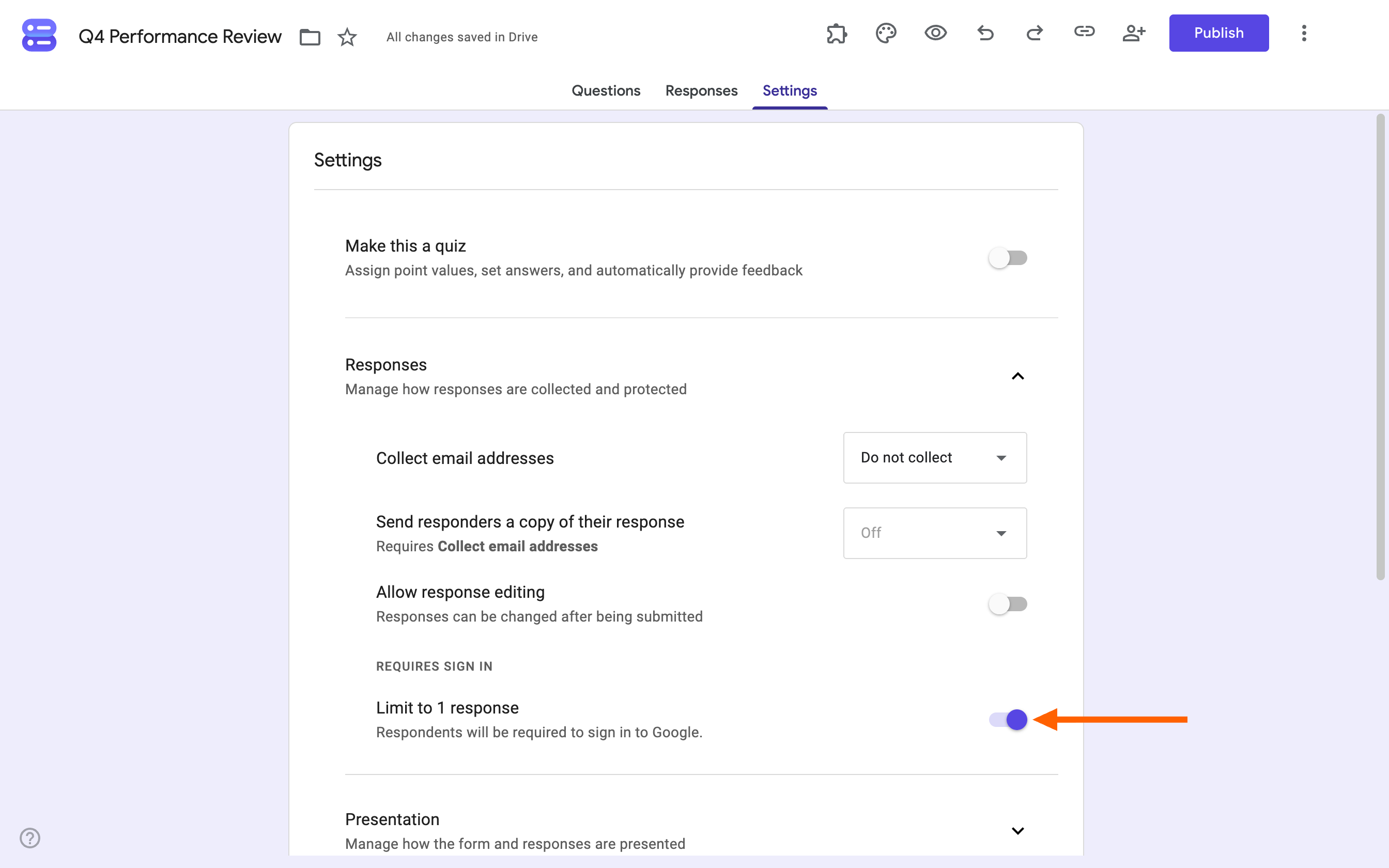
- Turn on Limit to 1 response if each person should submit only once. This setting requires respondents to sign into a Google account.
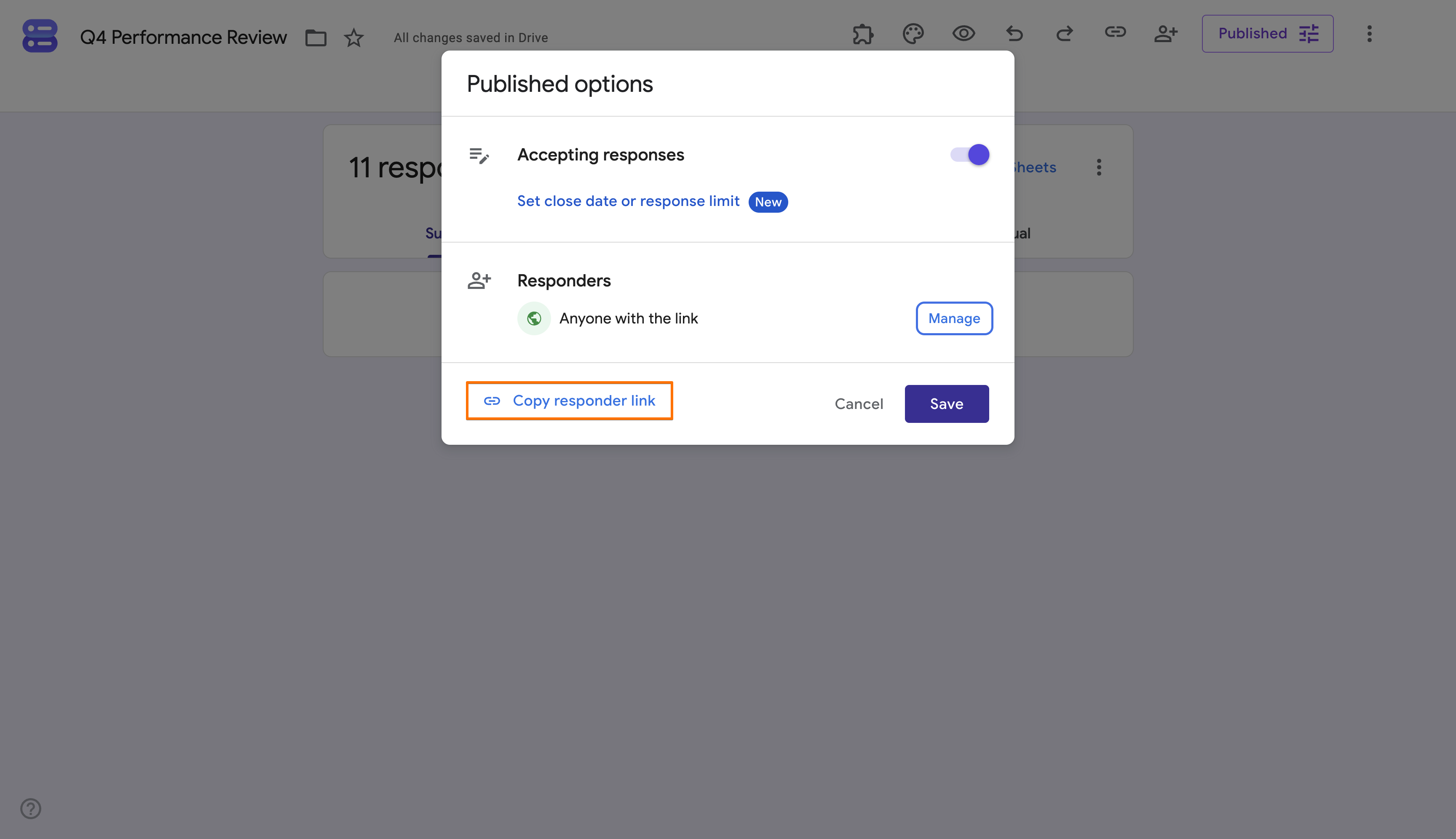
- Click Publish, choose who can respond under Manage, and confirm.
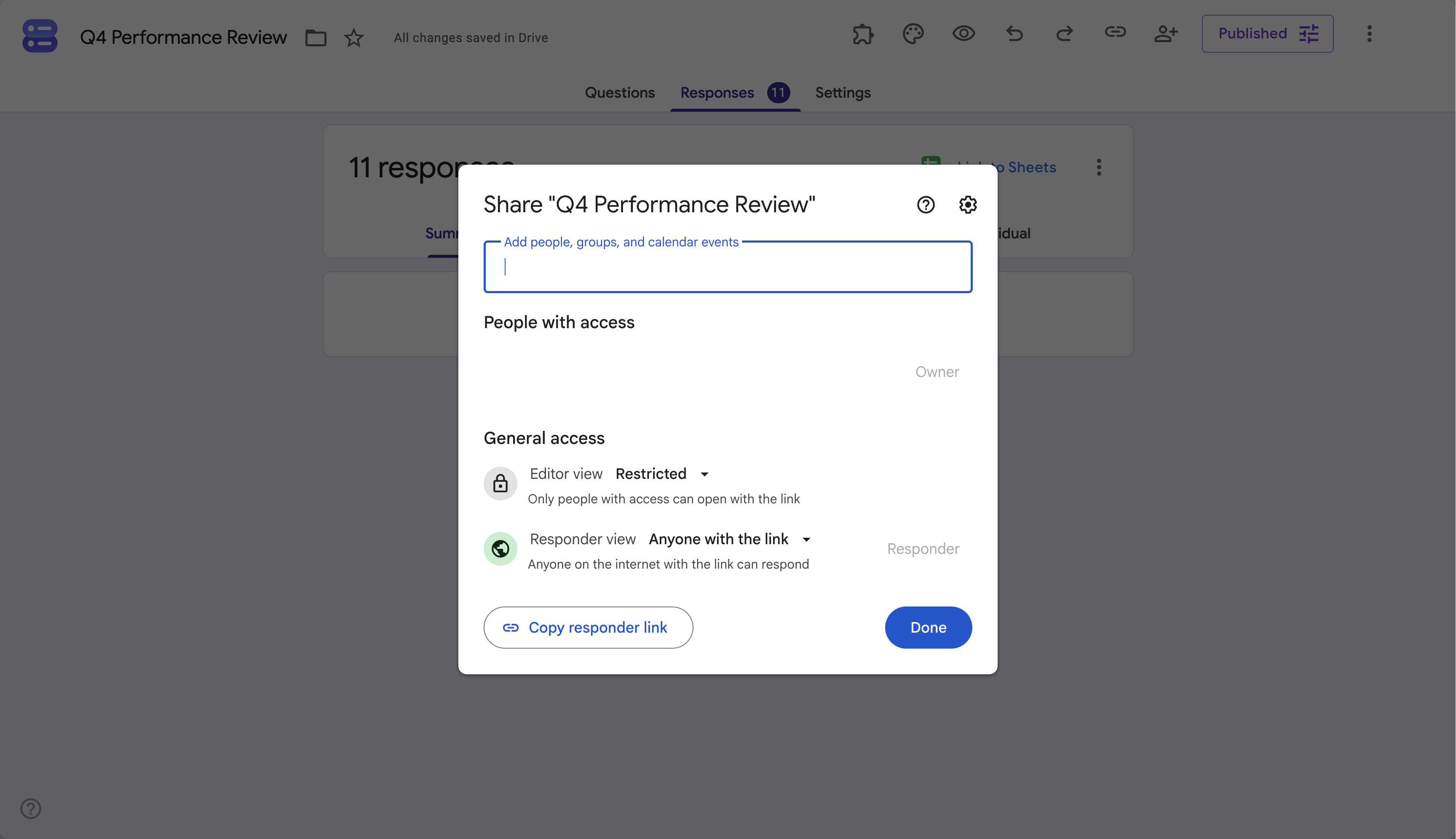
- Click Published and select Copy responder link to share your form.
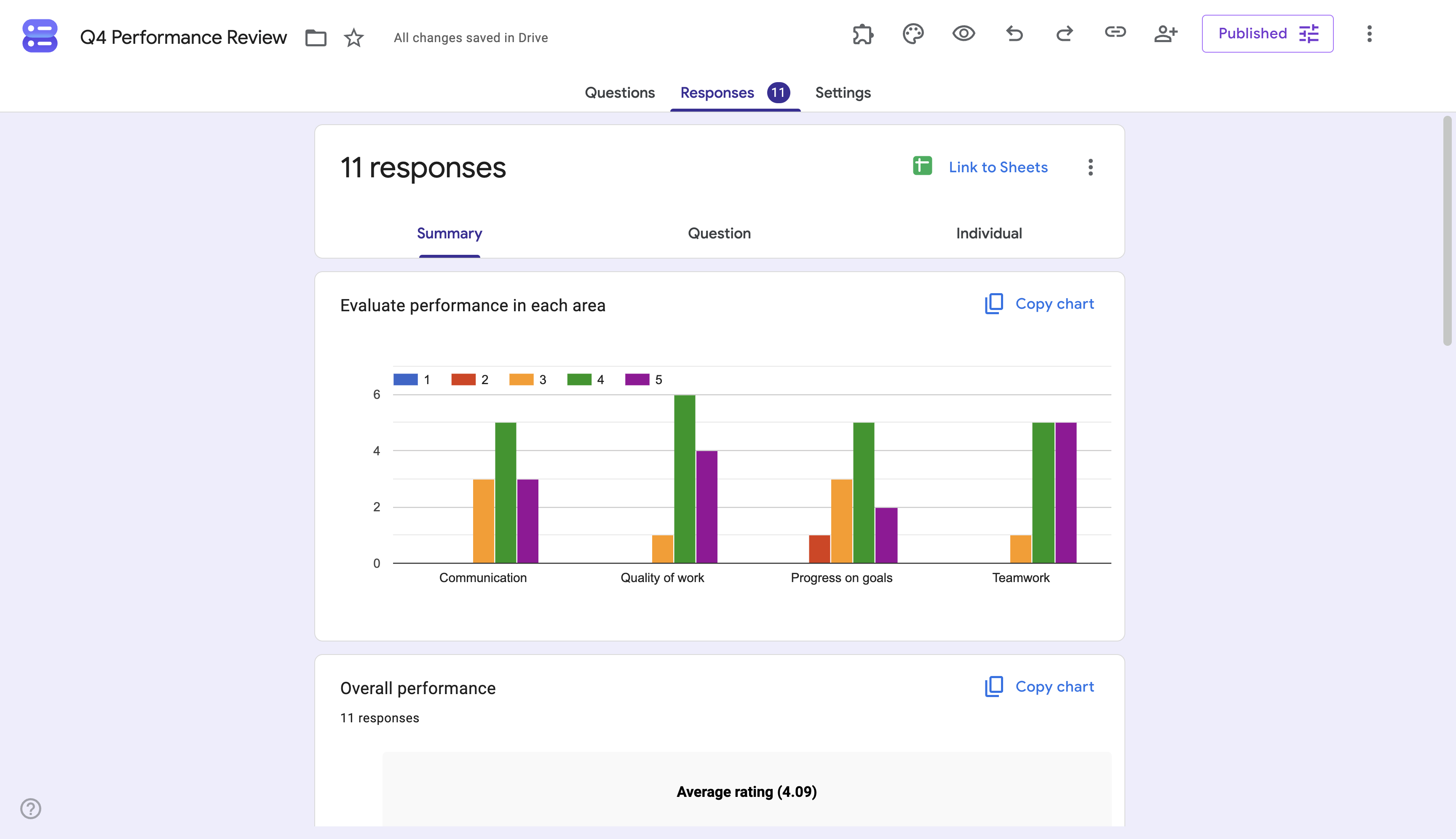
- Once responses come in, open the Responses tab to see summary charts or individual answers.
If you’d rather not start from scratch, Google Forms’ template gallery has “course evaluation” and “event feedback” templates. That’s about it, though. There are only 17 built-in templates, so you may need to pick an option with a theme you like and then modify it.
Either way, try to keep your form short. Surveys with one to three questions have a completion rate of about 83 percent, compared with about 42 percent for surveys with 15 questions or more. Plus, a short evaluation form is a lot easier for you to score later.
Pro Tip
If you’re brand new to Google Forms, our guide on how to use Google Forms covers the basics.
Which Google Forms evaluation setup should you use?
| Evaluation type | Who completes it | Core criteria | Main Google Forms limitation |
|---|---|---|---|
|
Employee performance review |
A manager, or the employee for a self-review |
Quality of work, communication, progress on goals |
Can’t total or weight scores, or send results to HR automatically |
|
Course or instructor evaluation |
Students |
Clarity, pacing, course materials |
Limiting to one response makes students sign in |
|
Skills assessment |
A trainer or assessor |
Skills specific to the role |
Quiz mode only scores right-or-wrong answers |
|
Event or service evaluation |
Attendees or customers |
Content, organization, value for money |
Can’t ask a follow-up question after a low rating |
Start by asking what the purpose of your evaluation is. That’ll help you understand whether you need people’s names, a total score, or follow-up questions. For example, a Google Forms performance evaluation usually needs names and a score, especially if it’s part of a formal performance evaluation process. A course evaluation usually works better as an anonymous form, since students tend to be more honest when they know you can’t see their names.
How to choose the right question types for evaluation forms
Here are the three question types you’ll need for most evaluation forms, and when to use each one.
Use multiple-choice grids for your core criteria
A multiple-choice grid puts every criterion (rows) against the same rating scale (columns), so respondents rate four or five things in one compact question instead of four or five separate ones. Each respondent can pick only one column per row. If you need ideas for what to rate, our list of performance evaluation questions is a good starting point.
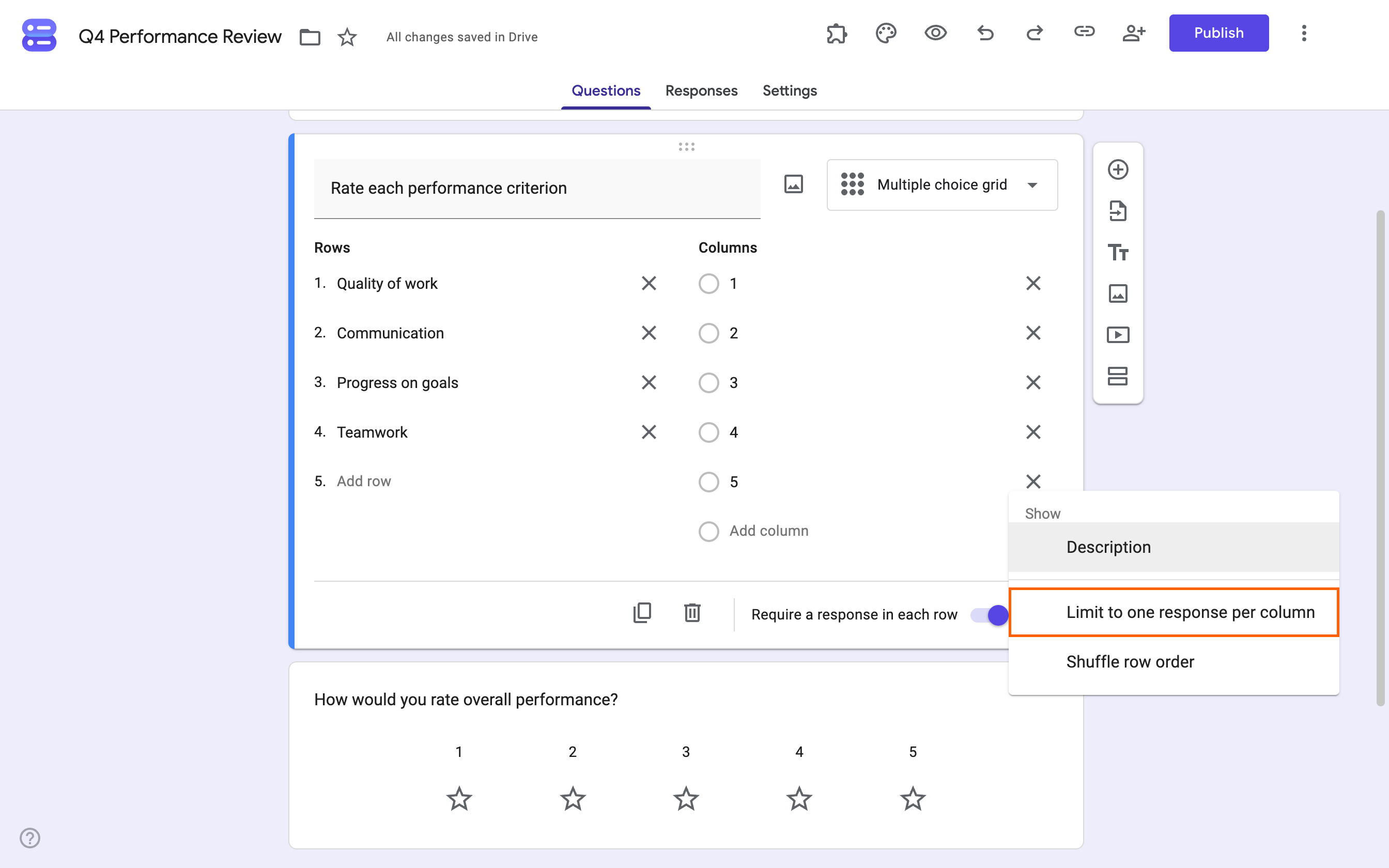
Since each row gets its own column in Google Sheets, multiple-choice grids are an easy question type to score. Just watch out for the “Limit to one response per column” option: It doesn’t work for evaluations because it prevents respondents from selecting the same score for two criteria. It only makes sense when you actually want respondents to rank the criteria.
Add ratings or linear scales for the overall assessment
Either ratings or linear scales work if you want to gather an overall assessment. Ratings show up to 10 stars, hearts, or thumbs up, and Google Forms averages them for you in the Responses tab. A linear scale shows numbered points from 0 or 1 up to 10, with optional labels at each end, like “Needs improvement” and “Exceeds expectations.”
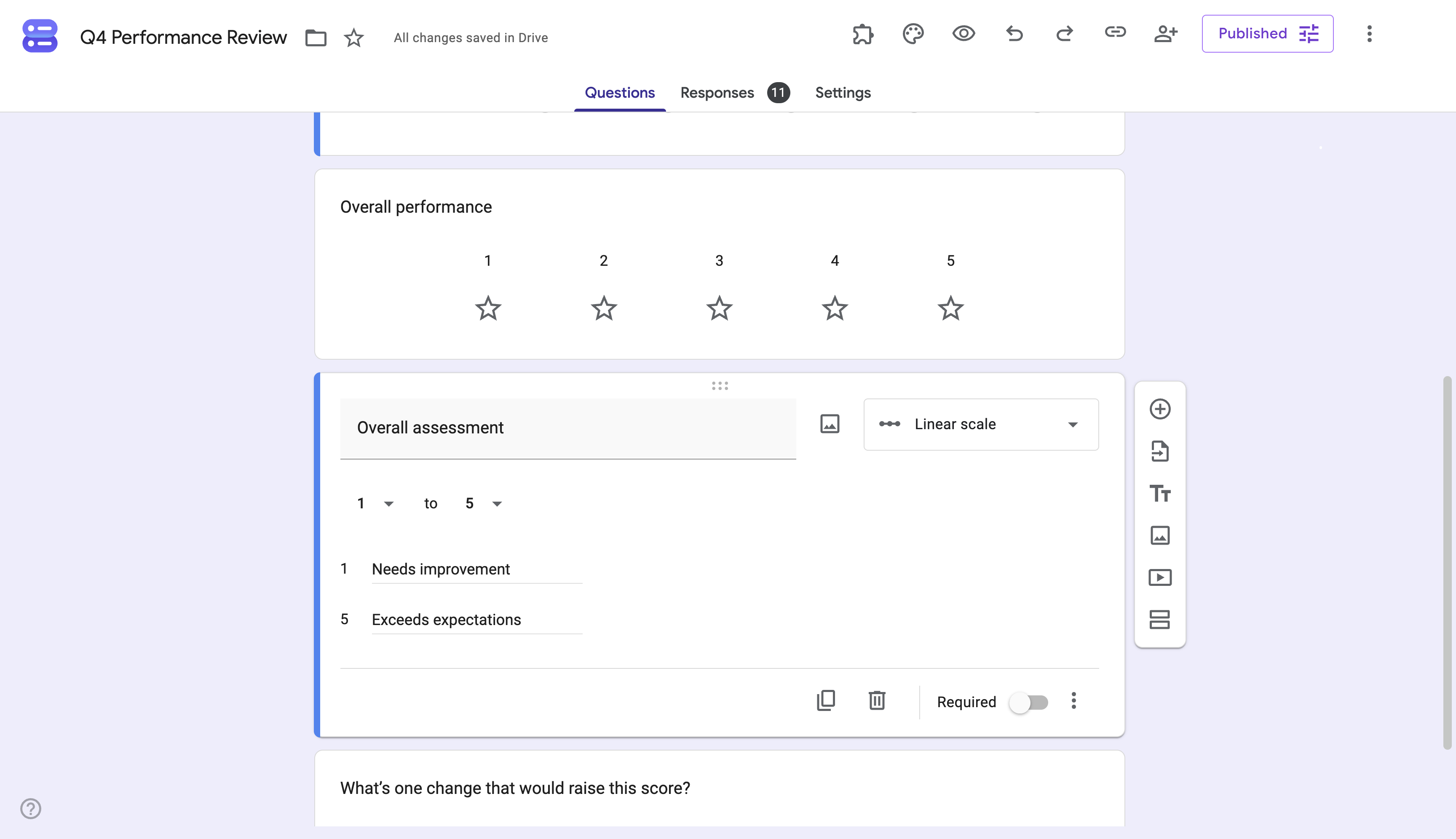
Go with a linear scale if you need to add labels for clarity. Pick a rating if a quick score is all you need. Both show up in Google Sheets as numbers, and the Summary tab gives you basic Google Forms analytics for free.
Use paragraph questions for useful context
Most of your evaluation form should probably be multiple-choice options and ratings. They’re easier for respondents to fill out (leading to higher completion rates) and easier for you to process.
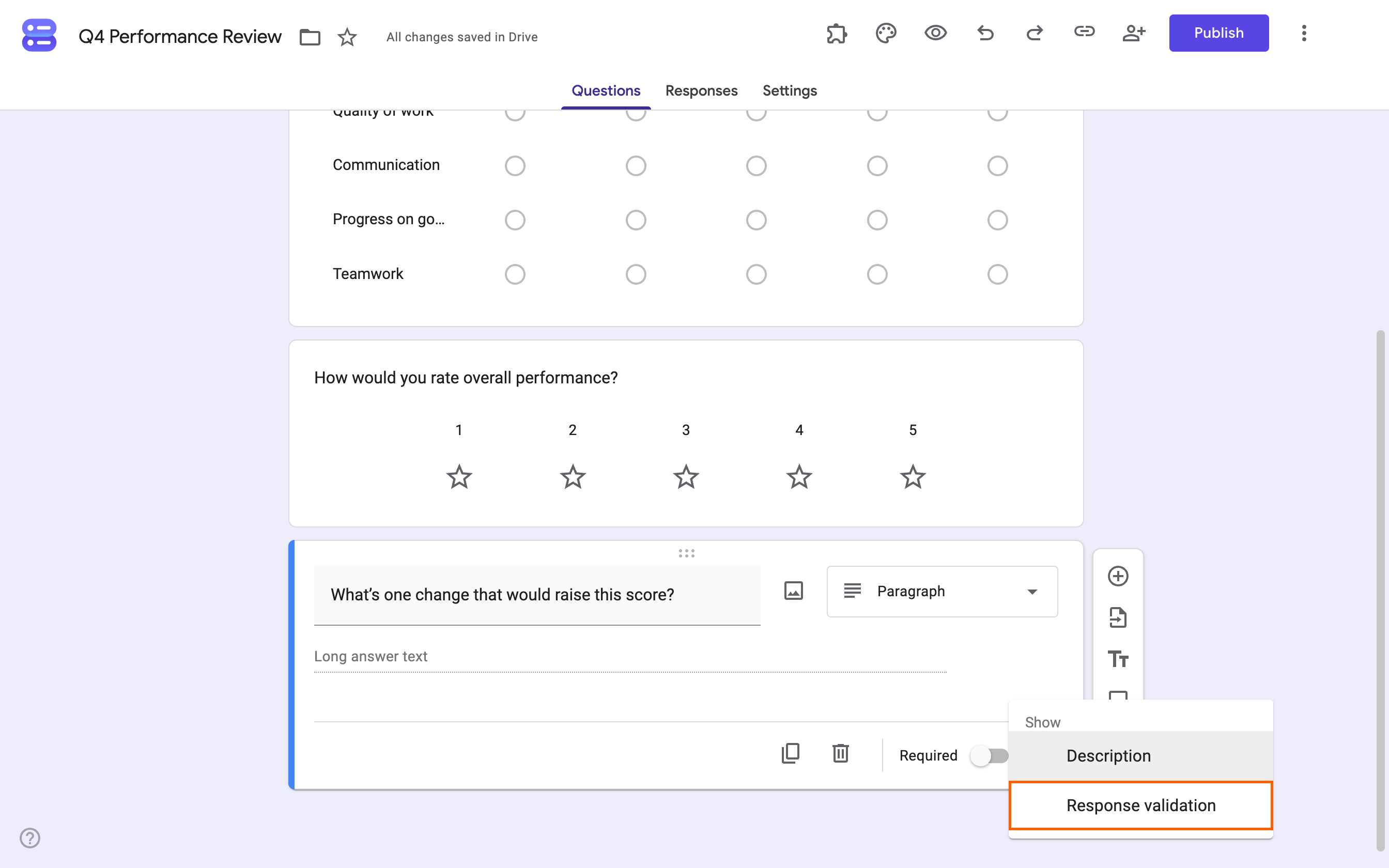
But numbers alone don’t always tell you why the respondent had the experience they did. That’s why evaluation research usually includes open-ended questions. A paragraph question like “What’s one change that would raise this score?” can put answers in context and give you specific improvements.
If you’re getting one-word answers, open the question’s three-dot menu, select Response validation, and set a minimum length. Don’t overdo it, though. Forcing people to write an essay is a good way to get them to quit the form.
How to score an evaluation form with Google Sheets
Google Forms is great for collecting feedback, but it’s not built to weight criteria or calculate an overall score. While there’s a quiz mode that assigns points, it’s not useful for evaluation forms since they don’t have “correct” or “incorrect” answers.
Fortunately, you can send your responses to Google Sheets and handle scoring there.
Here’s how to calculate a weighted score in Google Sheets:
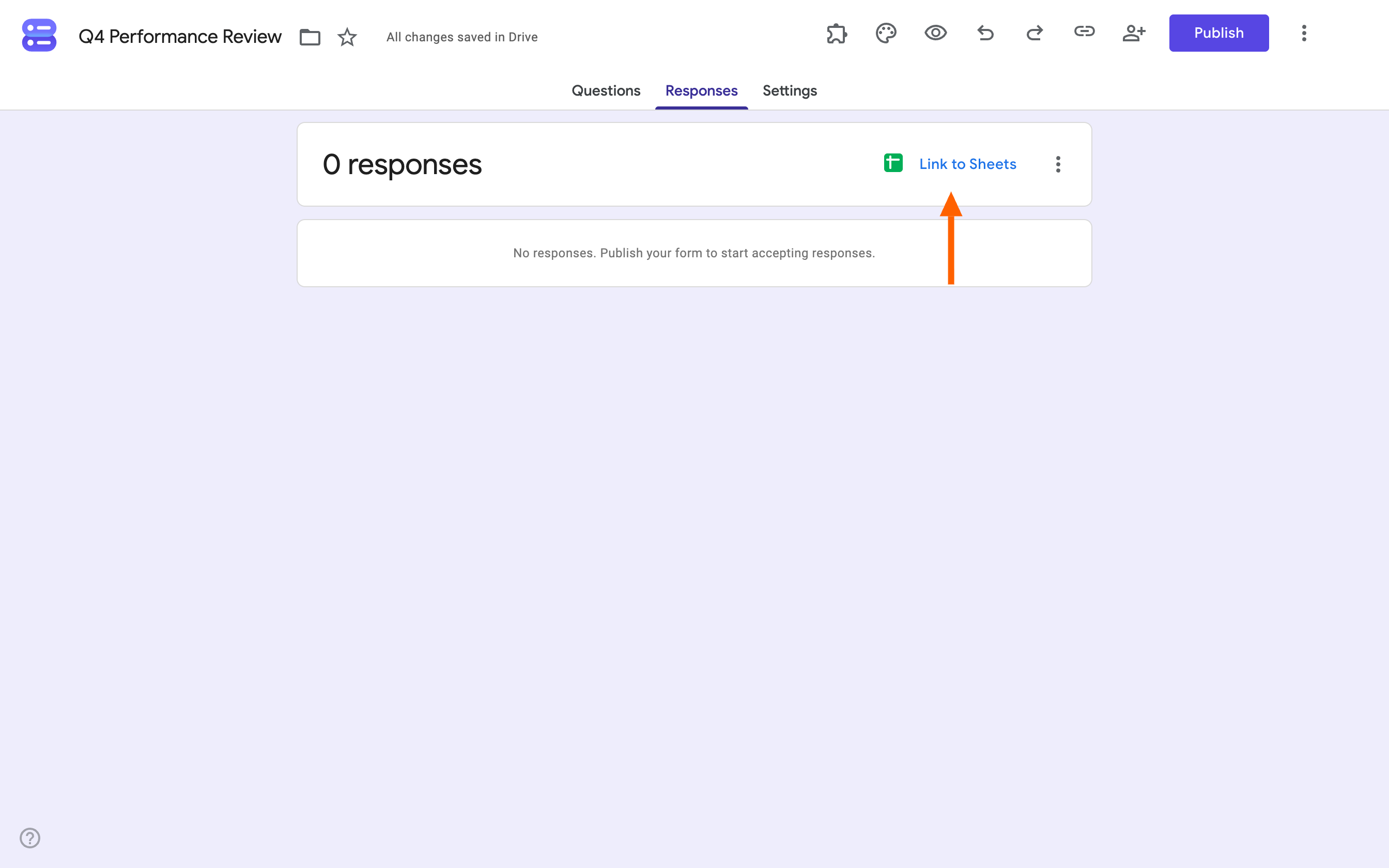
- Open the Responses tab and click Link to Sheets.
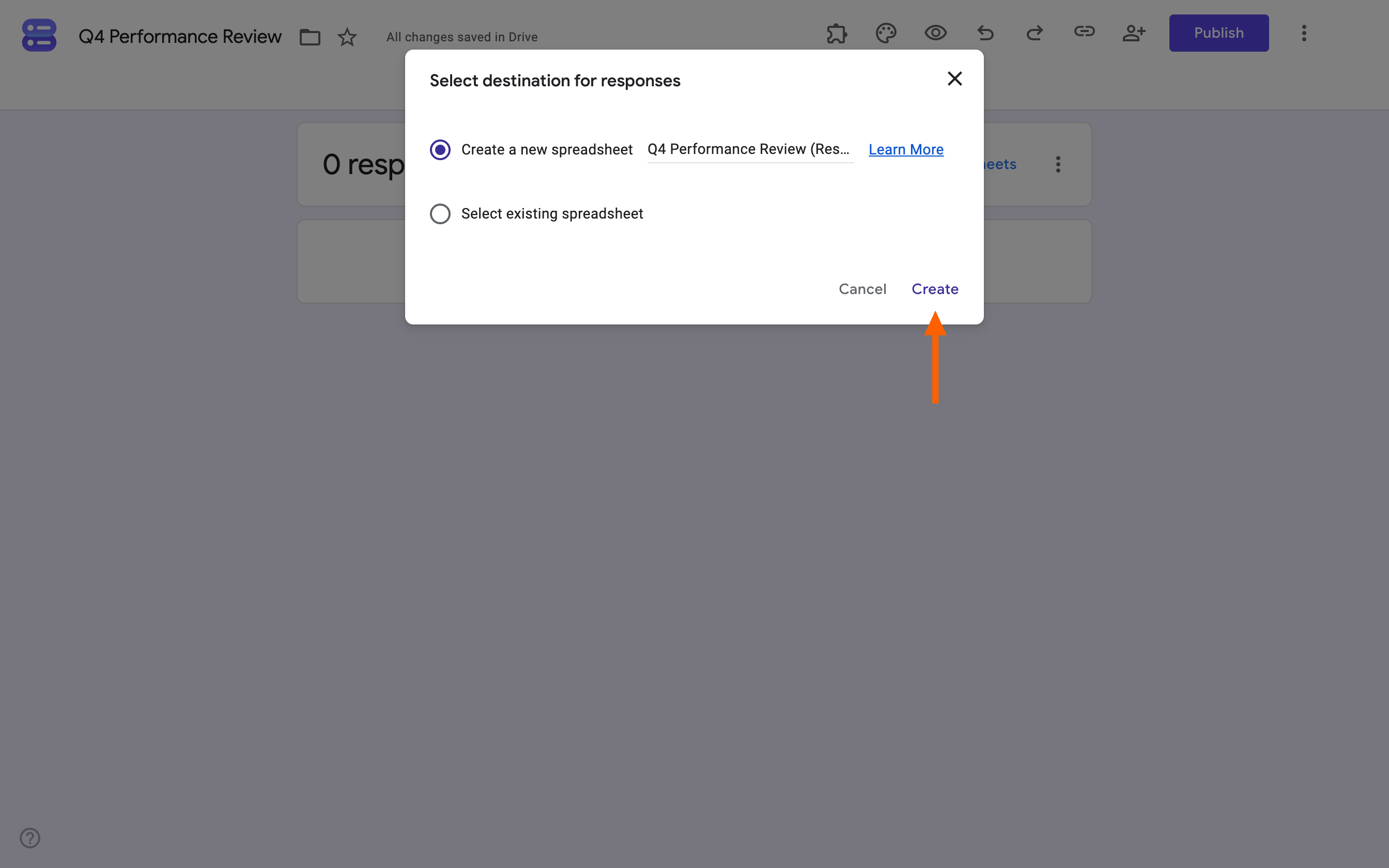
- Select Create a new spreadsheet and click Create. Google saves your responses to a new spreadsheet in a tab called “Form Responses 1.”
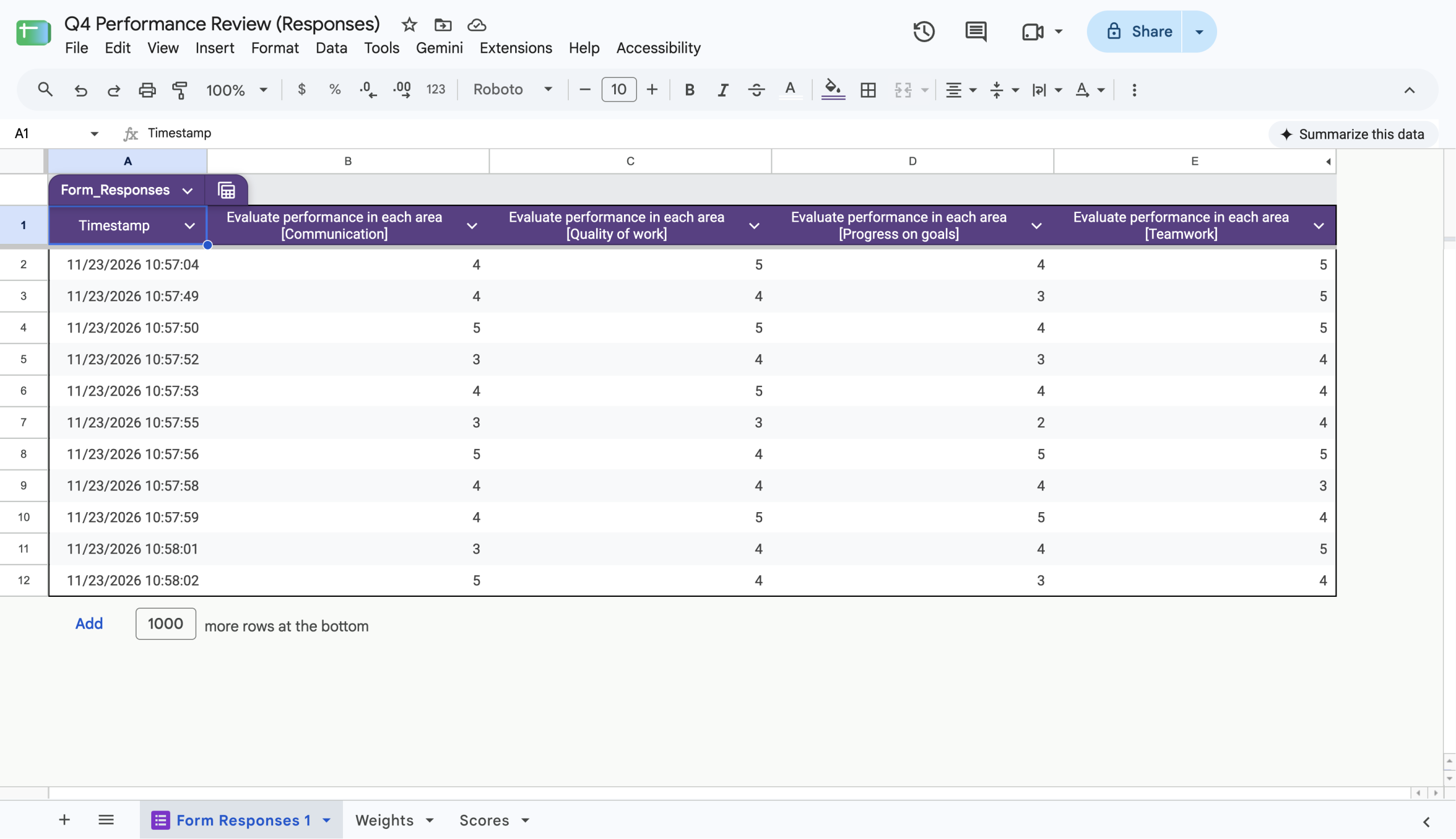
- Check the column headers. Each criterion from your grid gets its own column, labeled with the question and the criterion name in brackets.
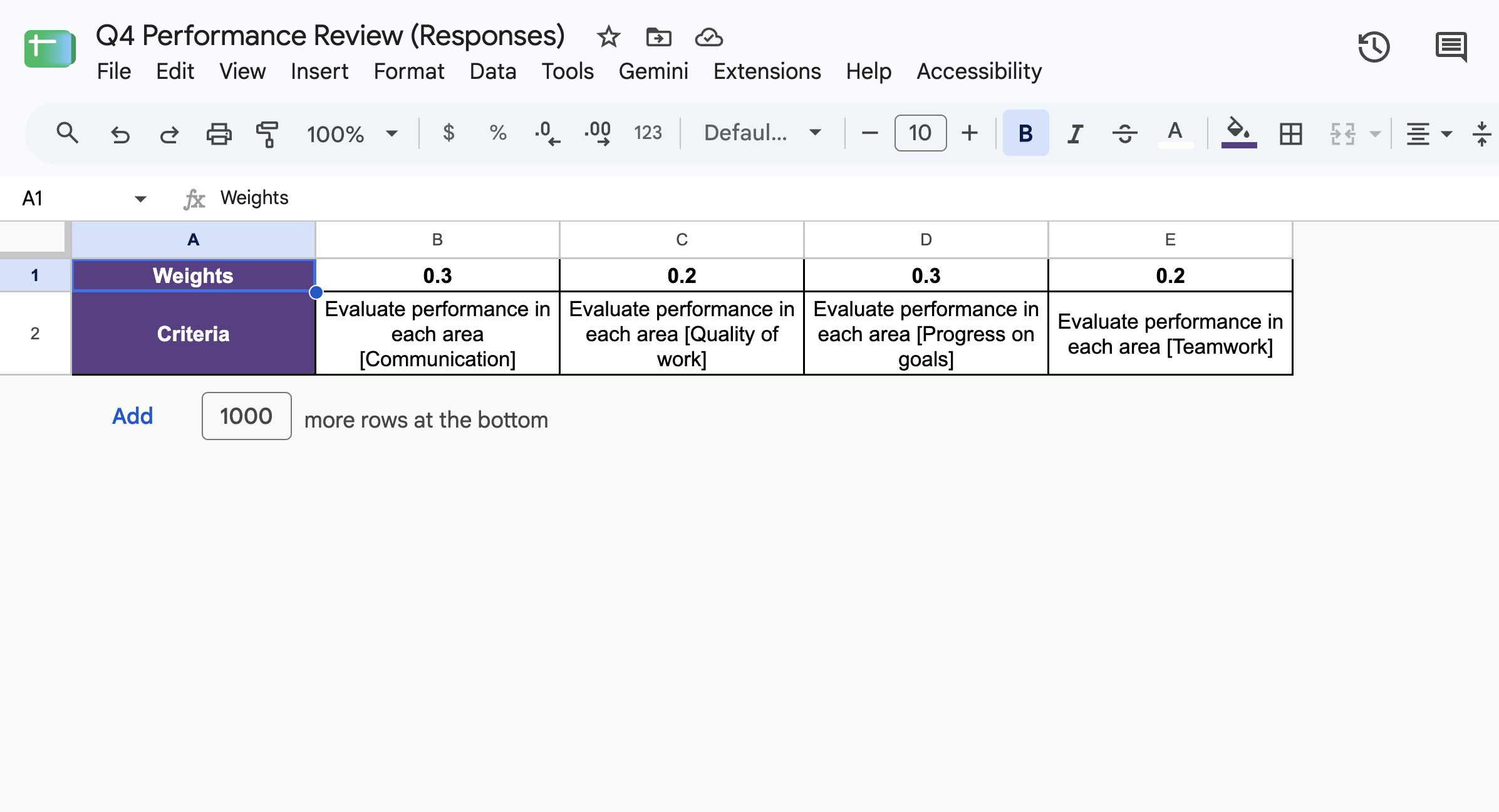
- Add a new tab named “Weights.” Starting in cell B1, enter how much each criterion should count, and make sure you put them in the same order as the columns in the “Form Responses 1” tab. Use column A for labels so the weights start in column B and line up with the criteria columns. Then, add the criterion names in row 2, so it’s easy to tell which weight is which.
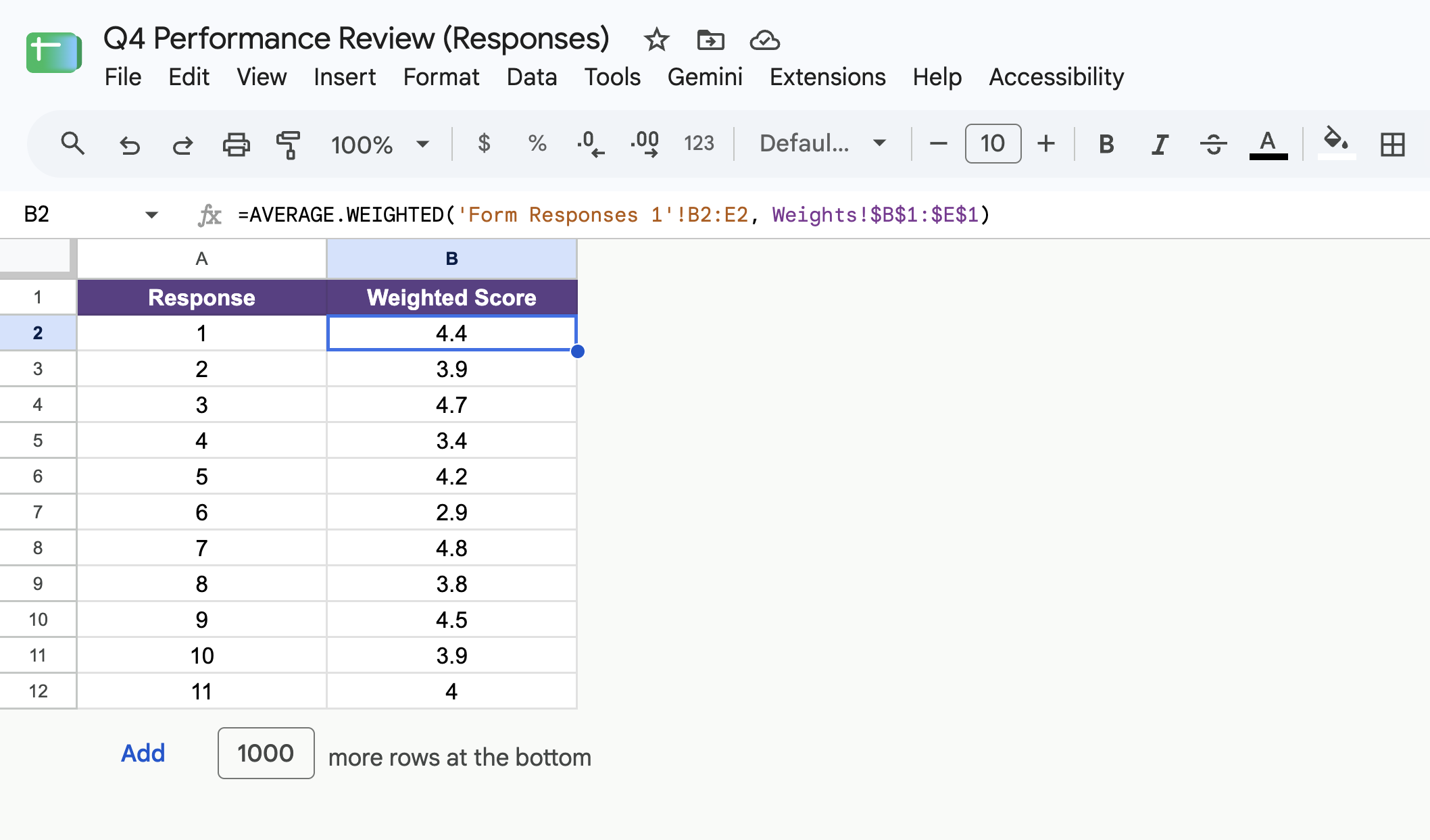
- Add another tab named “Scores,” type “Response” in cell A1 and “Weighted Score” in cell B1. List your responses in column A, then paste the following formula into cell B2.
=AVERAGE.WEIGHTED('Form Responses 1'!B2:E2, Weights!$B$1:$E$1)- Make sure to adjust the cell references for your specific form. Then, drag the formula down so there’s one score for each response. Each row in the “Scores” tab matches the same row in “Form Responses 1,” so Response 1 is row 2. Check one or two by hand to make sure everything’s calculating correctly.
Just keep in mind that this setup may require occasional maintenance because your scoring could break or become inaccurate if someone edits your Google Form. It’s easy enough to manage this if you’re the only admin. But if you’re juggling multiple admins and forms, it often makes sense to switch to a form builder with built-in scoring.
Build evaluation workflows with Jotform
Google Forms works fine for simple feedback, but it can be limiting if you need to handle calculations, routing, logic, or in-depth analysis.
With Jotform, everything is managed within a single platform:
- Evaluation templates: Jotform has 20,000-plus free form templates. You can choose from over 2,000 evaluation forms, including more than 700 employee evaluation forms and 300-plus training evaluation forms. There are also thousands of feedback form templates for events and services.
- Weighted scoring: Give each rating option a number value, then use the built-in Form Calculation widget to weight and total the results. The score updates as people fill out the form, so unlike with Google Forms, there’s no need to manage weights separately in Google Sheets or worry that form changes will break your scoring.
- Conditional logic: When someone chooses a rating below a certain level, Jotform can trigger clarifying questions (like “What was one thing we could have done to improve your experience?”). Google Forms can’t branch from grid, rating, or linear scale questions at all.
- Custom branding: Jotform lets you manage your logo, colors, and fonts. You can also go beyond that by customizing details like page margins, background images, and field labels. And with Jotform Enterprise, you can use custom domains and white label the entire experience.
- Reporting and analysis: Submissions go straight into Jotform Tables, where you can sort, filter, and edit records. Jotform Report Builder turns that data into charts and reports, so you can spot trends across teams, classes, or events.
- Notifications and workflows: Set up email notifications to let the right manager, trainer, or organizer know as soon as an evaluation comes in. For multistep reviews, Jotform Workflows can pass an evaluation along automatically. For example, an evaluation could go from an employee to their manager for comments and then to HR for sign-off.
Already built your evaluation in Google Forms? You don’t have to start over. You can migrate Google Forms to Jotform in a few clicks, then add calculations and logic on top. Give it a try today and see why Jotform is one of the most popular Google Forms alternatives for evaluations and a whole lot more.
Google Forms evaluation FAQs
A multiple-choice grid is usually the best choice. It rates every criterion on the same scale in one question, and each row gets its own column in Google Sheets, which makes scoring easy. Label the columns with numbers (1 through 5) rather than words, and use a rating or linear scale question for the overall assessment.
Not for subjective ratings. Quiz mode can grade answers, but it requires an answer key, and rating and linear scale questions can’t be graded automatically either way. Google Forms also has no calculated fields, which means that totals and weighted averages have to happen in Google Sheets. Alternatively, use a form builder like Jotform that calculates scores as people fill out the form.
You can’t do this natively. However, if you link the form to Google Sheets, you can add each criterion’s weight in a separate tab, then apply a formula (like SUMPRODUCT or AVERAGE.WEIGHTED) to get the weighted total. Just make sure you don’t put your formulas on the responses tab, since new Google Forms responses can push your formulas out of place.
There’s no way to limit your form to one response while also keeping it fully anonymous.
If you want to make your Google Form anonymous, just change your “Collect email addresses” setting to “Do not collect.” Then, when you publish your form, choose the option that allows anyone with the link to fill it out.
If you also check the box that says “Limit to 1 response,” respondents will need to sign into Google to complete the form. While Google says usernames aren’t recorded unless you choose to collect emails, the act of signing in can still make users feel less anonymous.
Yes. Google’s built-in template gallery has 17 templates, and the closest fits for evaluation forms are “course evaluation” and “event feedback.” You can also start with other Google Forms survey templates and adapt them as needed.
This article is for managers, trainers, educators, coaches, and event organizers who need to collect consistent ratings and comments. They want a straightforward evaluation form now, while understanding the extra work Google Forms creates when scoring, anonymity, or response workflows matter.







































































































Send Comment: