
Have you ever wondered whether someone could submit your Google Form more than once, or wished you could control exactly what happens right after someone hits submit? That small moment, right after submission, matters more than it seems — especially if you’re running a quiz, giveaway, or application where each person should only get one shot.
Because of its simplicity and free access, Google Forms is a popular choice for building surveys, quizzes, and signup forms. However, when it comes to controlling repeat submissions, the platform falls short — offering only rigid, all-or-nothing settings rather than real flexibility.
In this guide, we’ll explain how the “Submit another response” link works, how to show or remove it, a related setting that catches a lot of people off guard, and a simpler, more flexible alternative using Jotform, a form builder that gives you full control over the post-submission experience.


How to show the link to submit another response
The “Submit another response” link is actually turned on by default. As soon as your form is published and set to accept responses, anyone who submits it will see this link on their confirmation screen, letting them fill out and submit the form again.
Here’s how to confirm it’s active:
- Open your form in Google Forms.
- Click Publish to make sure the form is live and accepting responses.
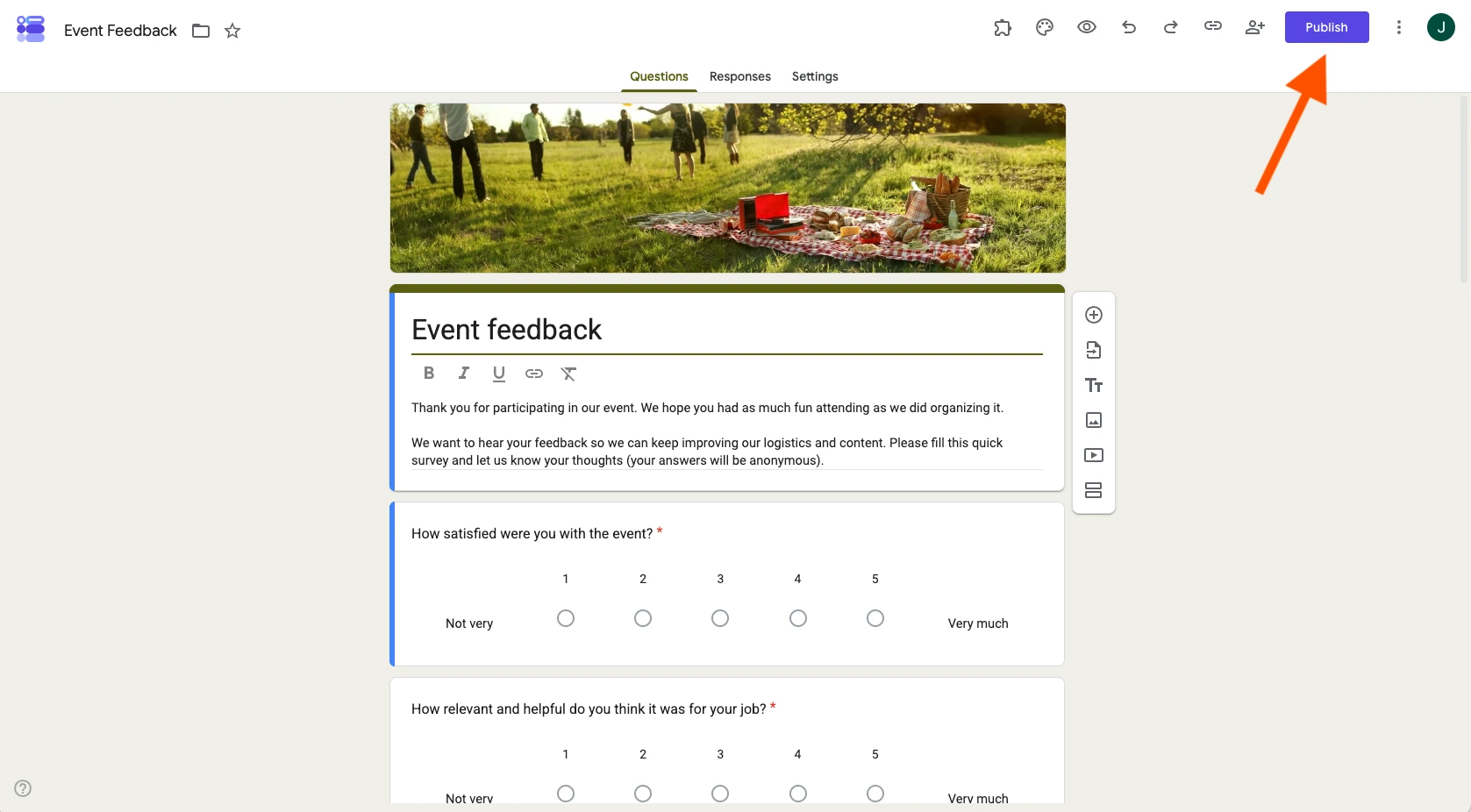
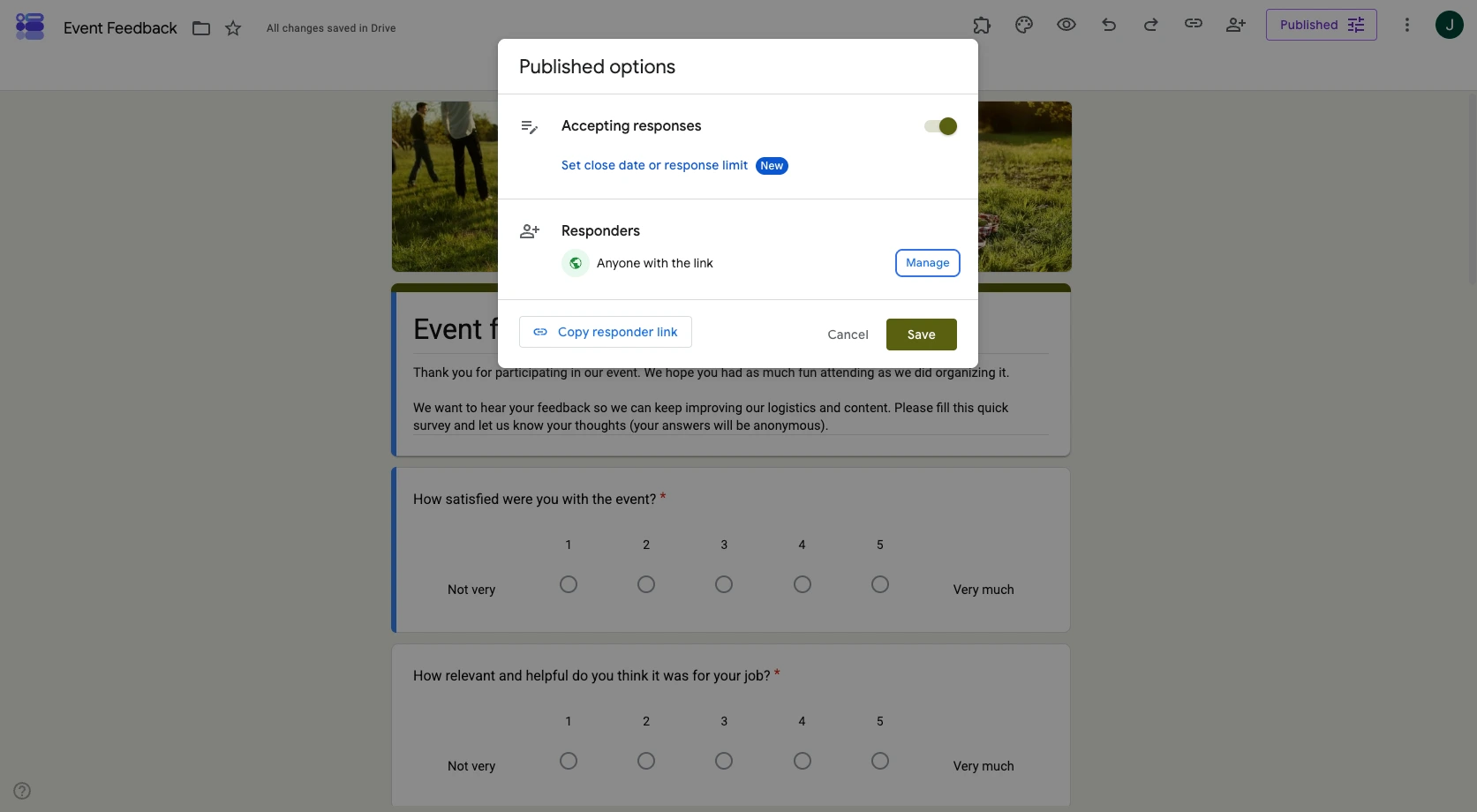
- Click the Published button that now appears where the Publish button once was. From the popup window that opens, confirm the Accepting responses toggle at the top is switched on.
- Submit a test response using the live form link.
- On the confirmation screen, you should see the “Submit another response” link appear automatically.
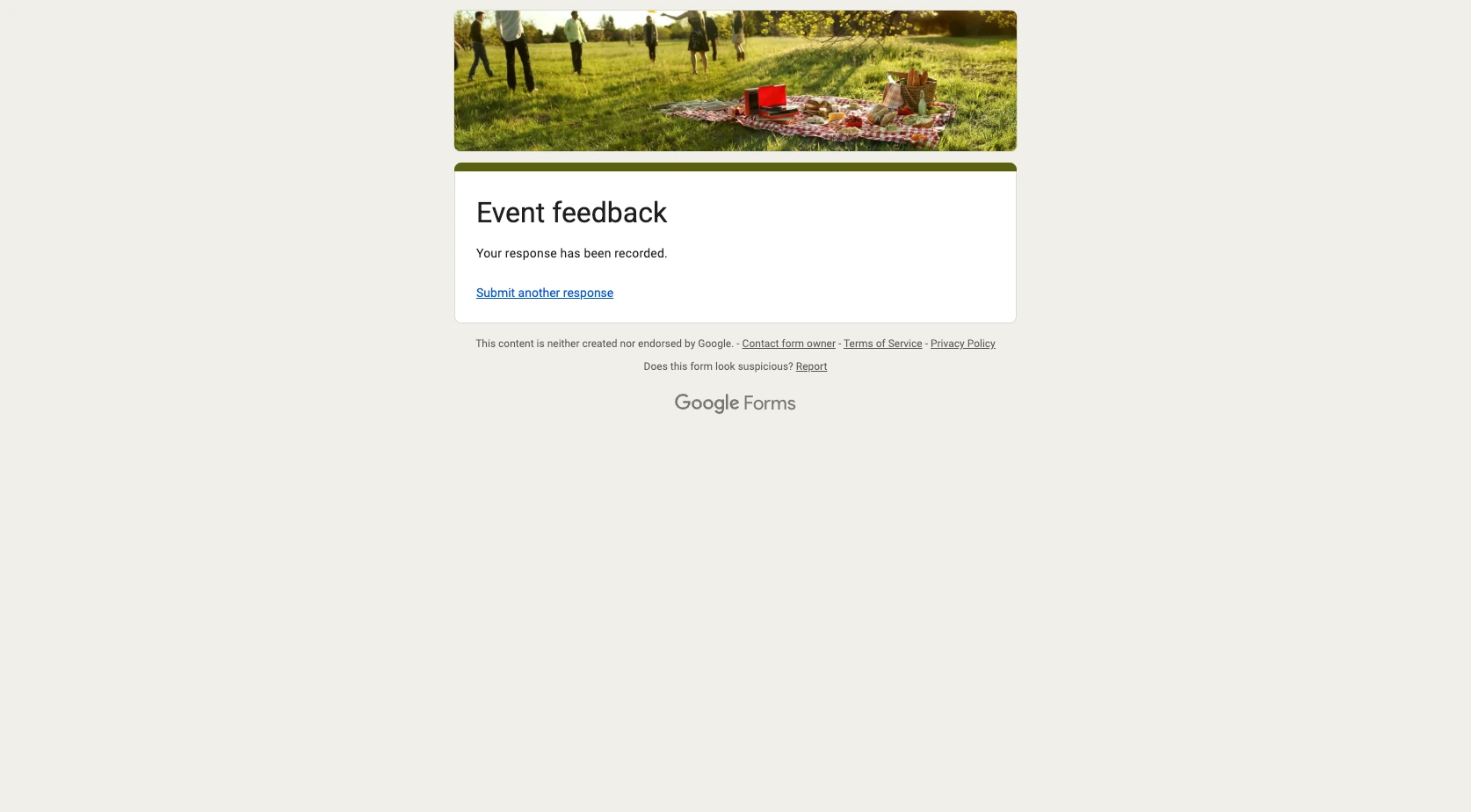
This link will keep appearing for every respondent as long as your form is open and there’s no response limit in place. For more detail on how Google handles publishing and sharing settings, this official guide on publishing and sharing your form with respondents is a helpful reference.
How to remove the “Submit another response” link from Google Forms
If you’d rather respondents not see that link, Google Forms gives you two native ways to handle it — but neither is a simple on/off toggle for the link itself.
Option 1: Turn on “Limit to 1 response”
- Open your form and go to the Settings tab.
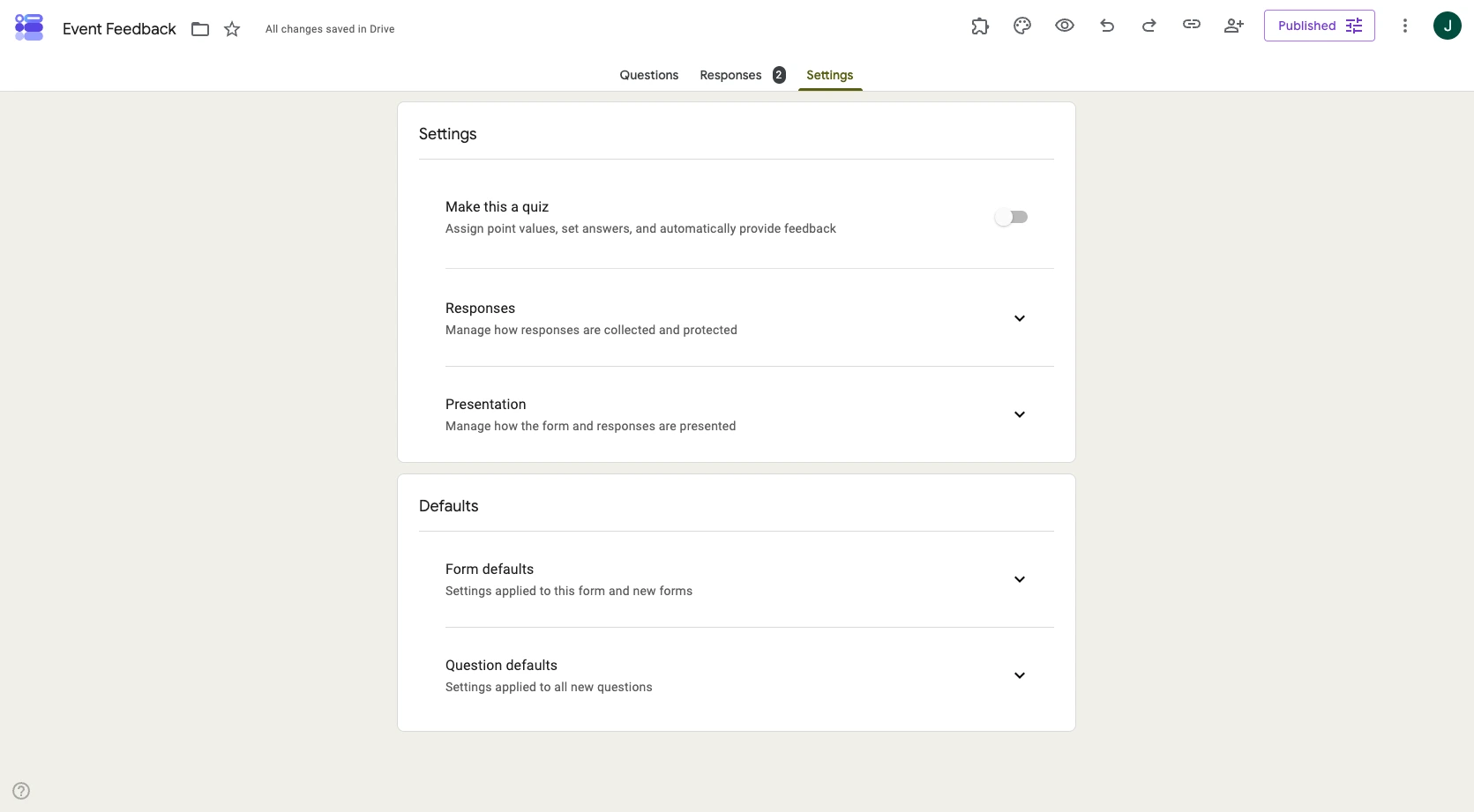
- Under Responses, toggle on Limit to 1 response.
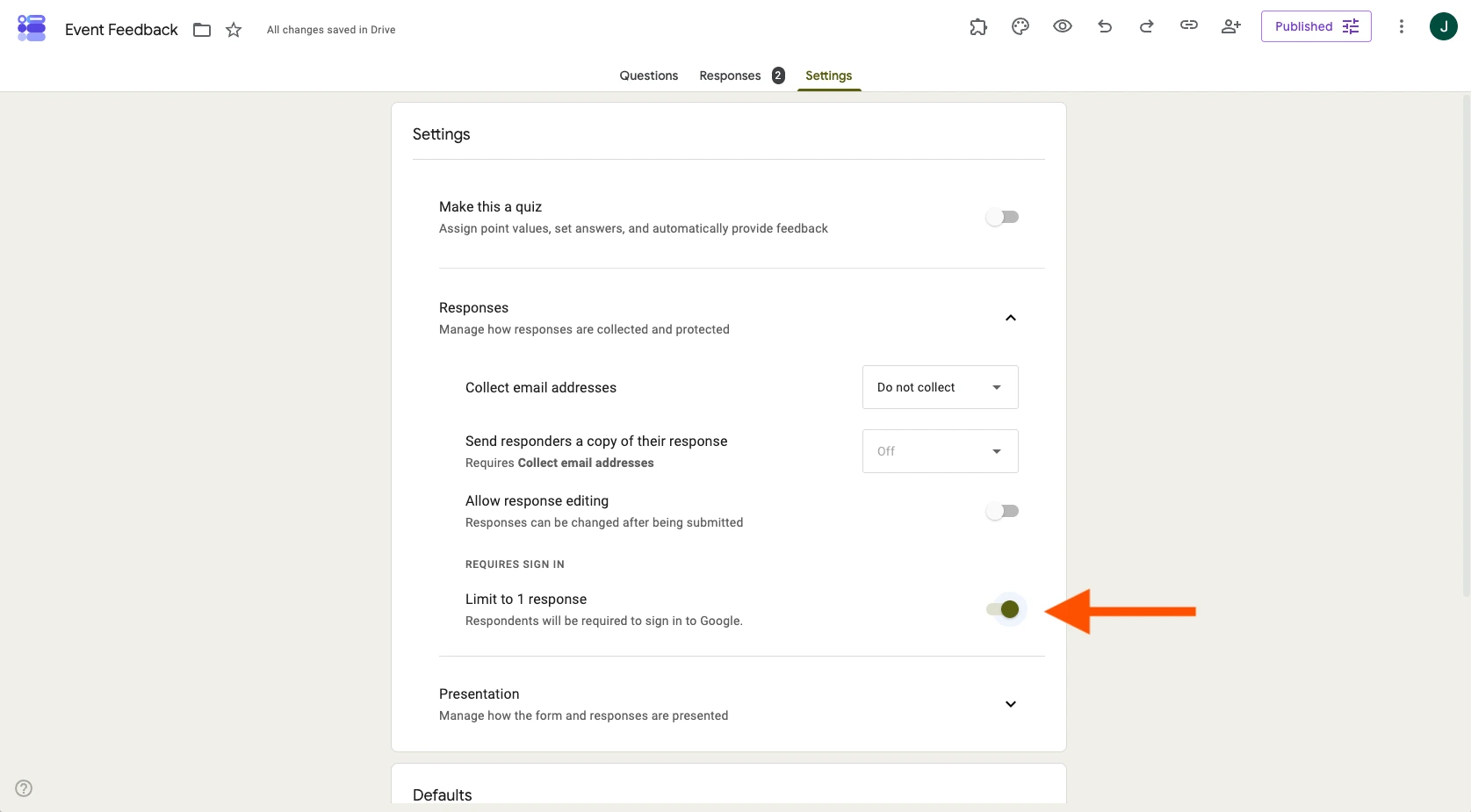
- Your changes are automatically saved.
This is the simplest way to stop the “Submit another response” link from appearing, but it comes with a trade-off: Respondents will be required to sign in with a Google account before they can submit. That means anonymous or non-Google users won’t be able to fill out your form at all, which isn’t ideal for public-facing forms.
Option 2: Turn off “Accepting responses”
- Click on the Published button on the top right of your form.
- Toggle off Accepting responses.
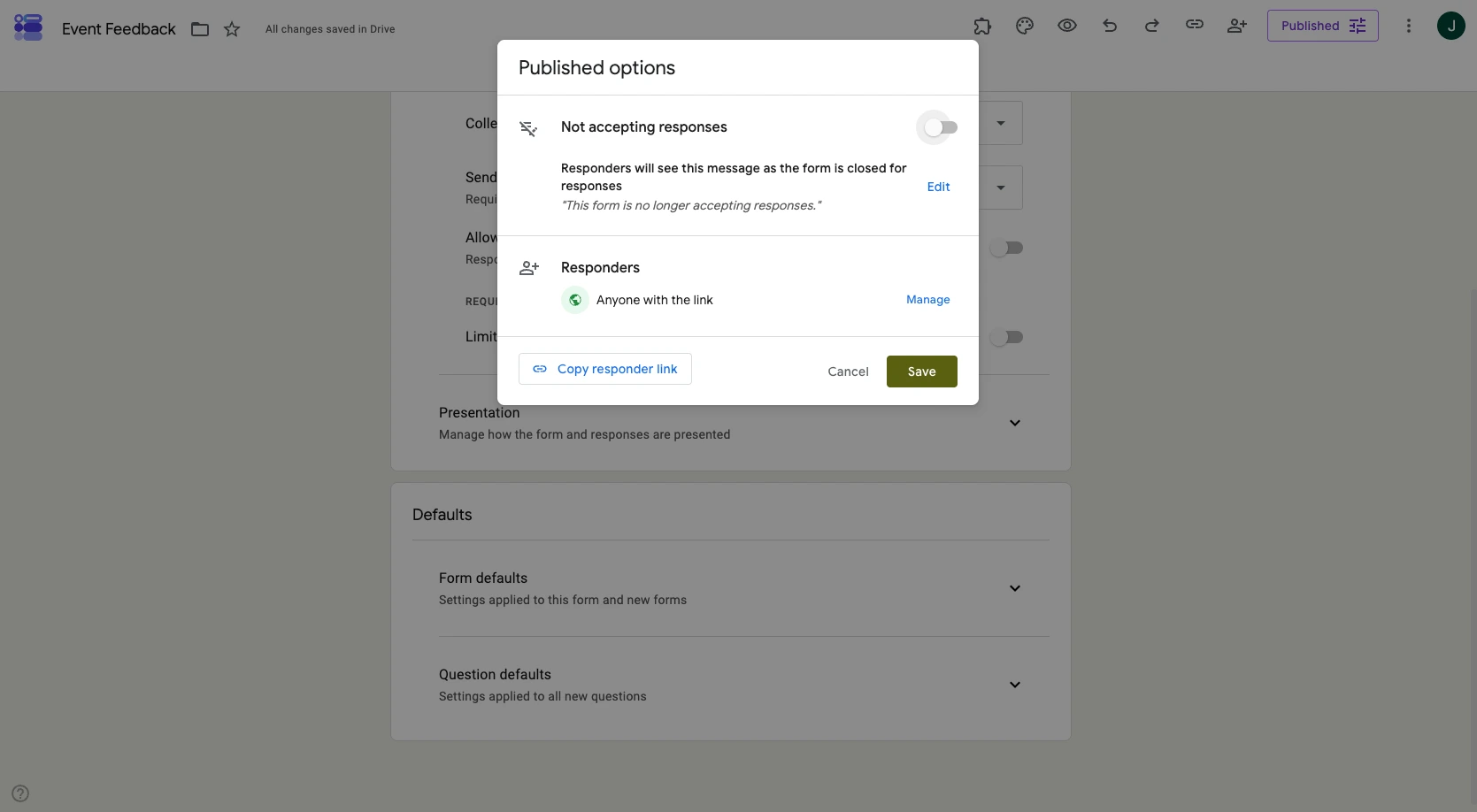
This closes the form entirely, so no one — new or repeat — can submit it anymore. It’s not a per-response fix; it’s closer to shutting the form down once you’ve collected what you need.
The catch with both options is that Google Forms doesn’t offer a native way to simply hide the “Submit another response” link while still letting people submit anonymously and only once. It’s an all-or-nothing setup tied directly to sign-in requirements.
Where Google Forms falls short
Google Forms is great for quick, no-frills data collection, but when it comes to fine-tuning what happens after submission, a few limitations show up:
- Sign-in requirement: Limiting responses to one per person forces Google account sign-in, which excludes anonymous or non-Google users entirely.
- No custom control: You can’t customize what happens after a resubmission attempt — no custom message, no redirect, no branded thank-you page — without manually editing the confirmation text.
- All-or-nothing: You either allow unlimited resubmissions or shut the form down completely. There’s no in-between setting that limits repeat entries without requiring sign-in.
A simpler way to manage submissions: Jotform
If you want more control over what happens after someone submits your form — including whether they can submit it again — Jotform, a Google Forms alternative built for exactly this kind of flexibility, makes this a lot easier to manage. There’s no forced sign-in or all-or-nothing setting, and you can fully customize the post-submission experience with just a few clicks.
How to submit another response in Jotform
Here’s how to control resubmissions once your form is in Jotform:
- Create or import your form. Build a new form from scratch, use templates, create with AI based on your needs, or use the migration tool to bring in your existing Google Form.
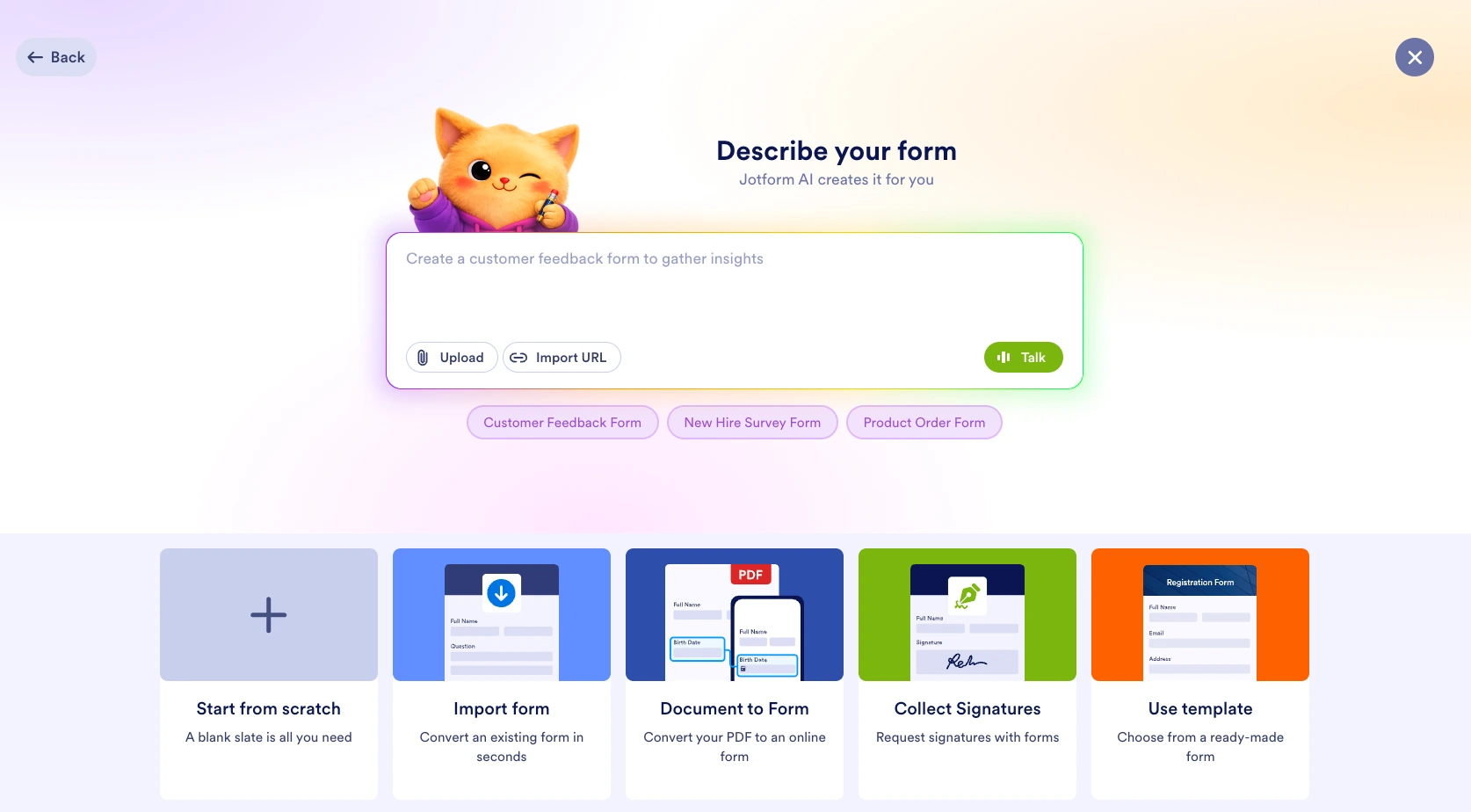
- Open your Form Settings. Head to the Settings tab to manage submission behavior.
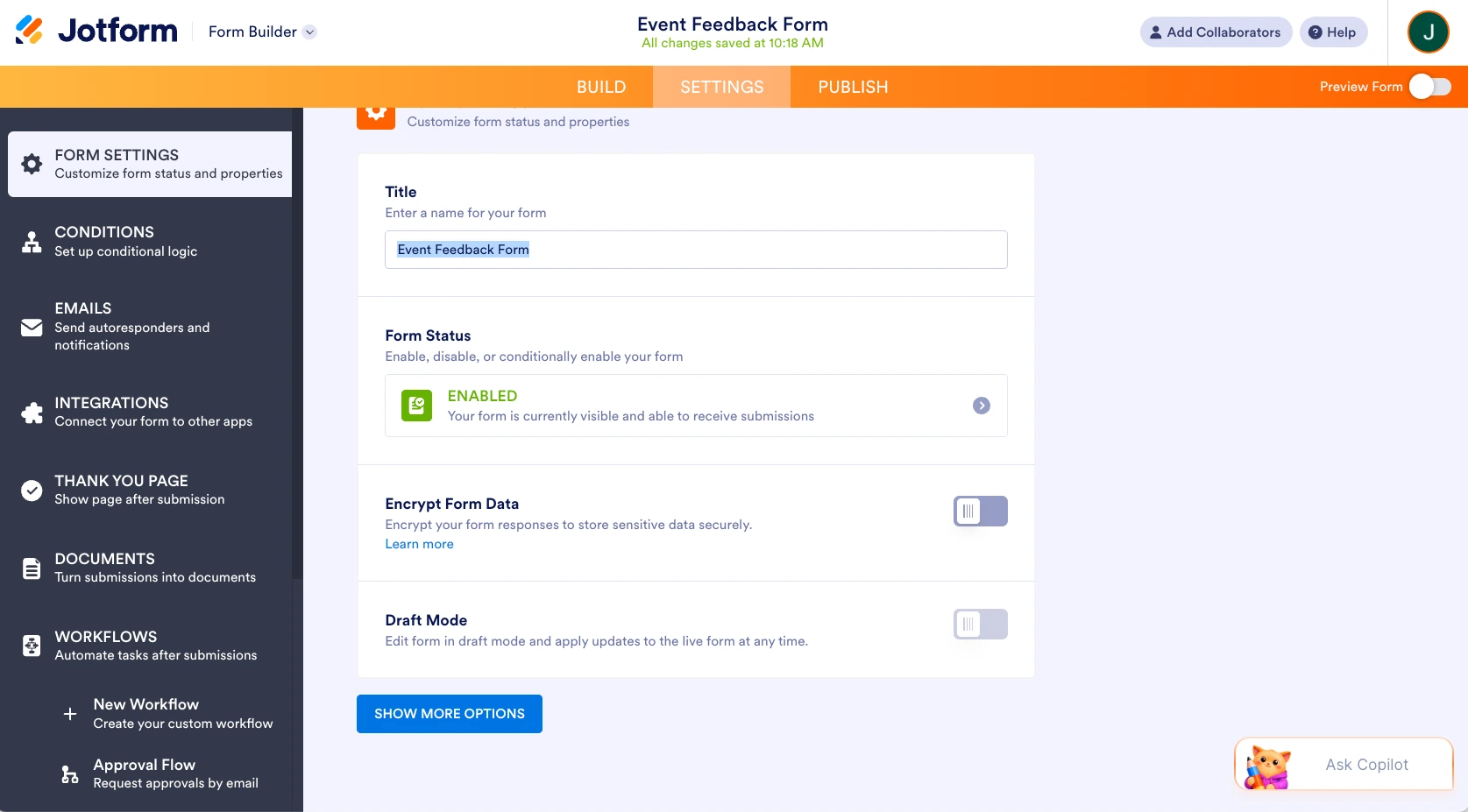
- Customize your thank-you page. Choose whether to show a “submit another response” style link or button, or redirect respondents elsewhere entirely — your choice, fully brandable.
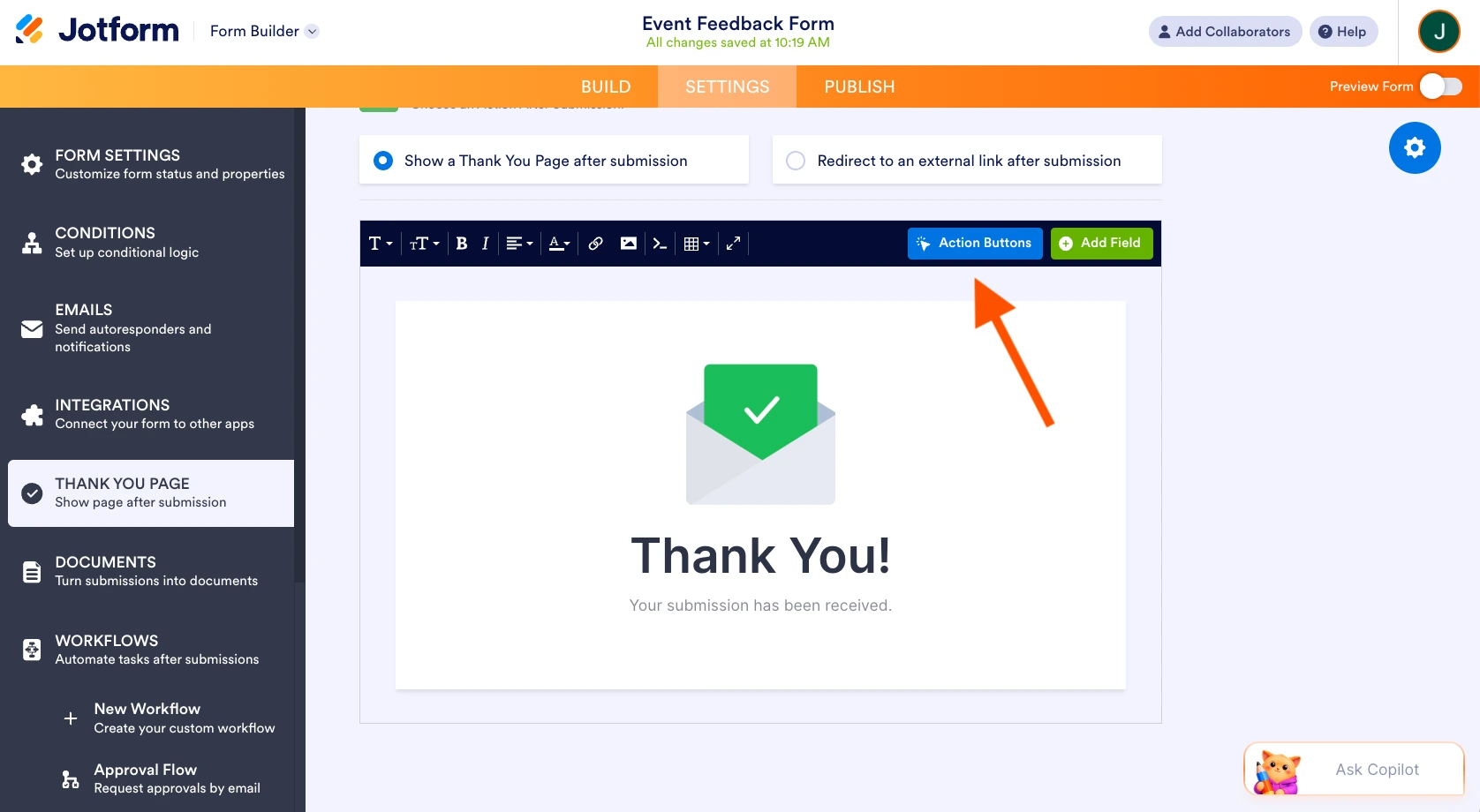
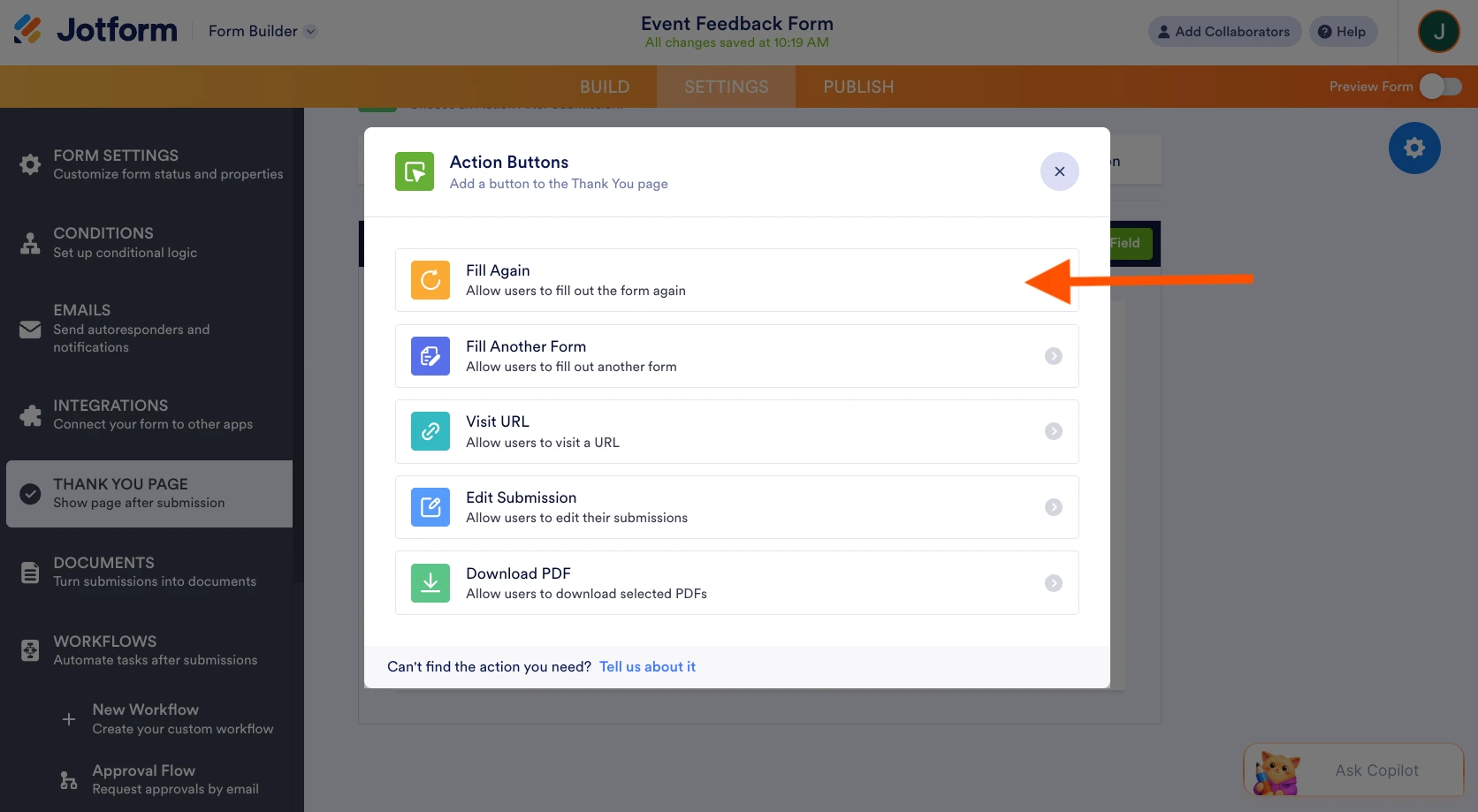
- Select the Fill Again option from the popup window.
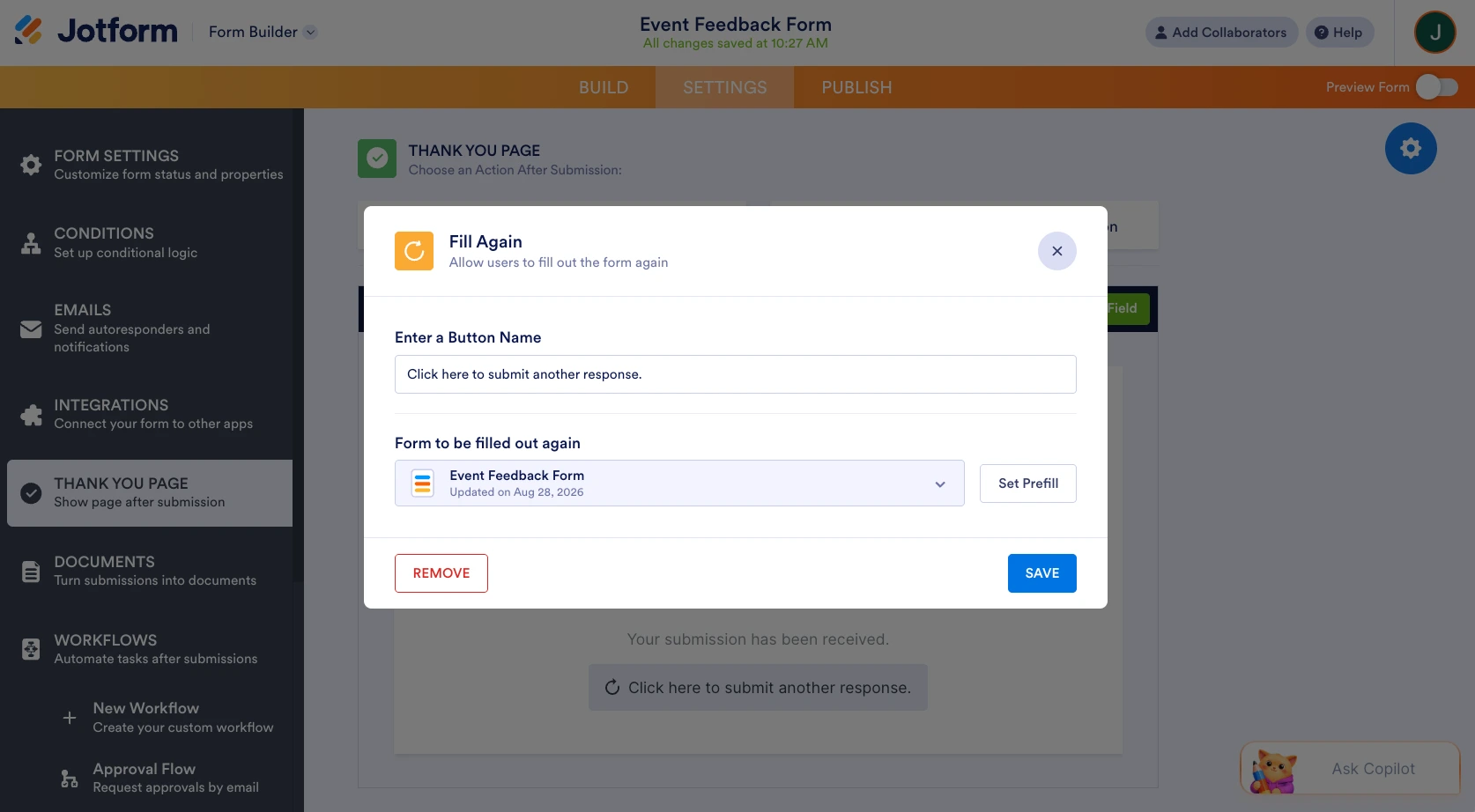
- Customize the Button Name to match your form’s tone, then click Save.
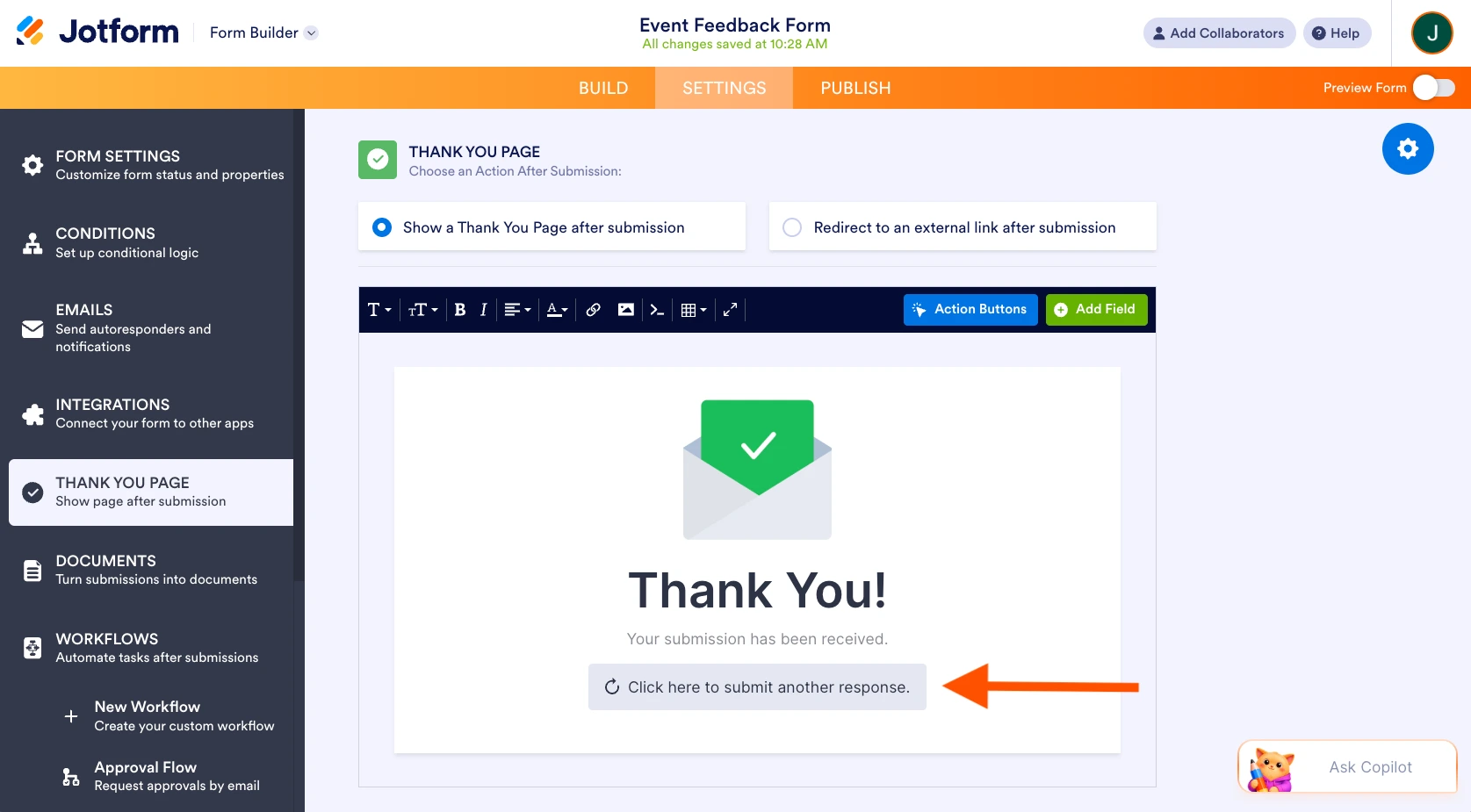
- The button now appears on your form’s thank-you page, ready for respondents to use.
- Set submission limits if needed. If you’d rather cap resubmissions instead of inviting them, Jotform gives you two native, no-sign-in-required options:
- Cap total submissions: In Settings, click the current Form Status, select Disable at submission limit, and enter the maximum number of responses you want to accept. You can also customize the message that respondents see once the limit is reached. Don’t forget to save when done.
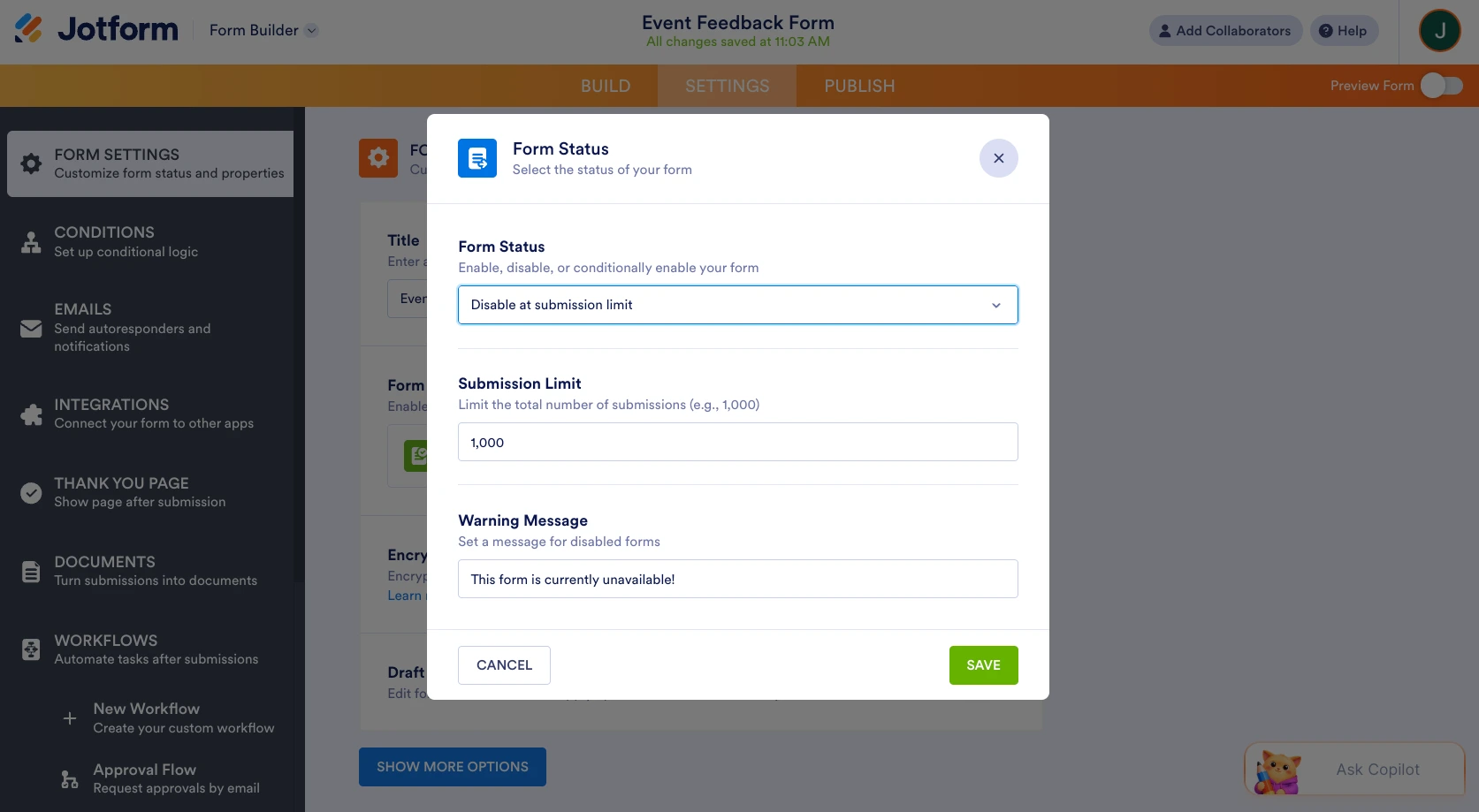
- Block repeat submissions from the same person: In Settings, click Show More Options, scroll to Unique Submission, and choose Check cookies only or Check cookies and IP address to prevent the same browser or device from submitting more than once — no Google sign-in required.
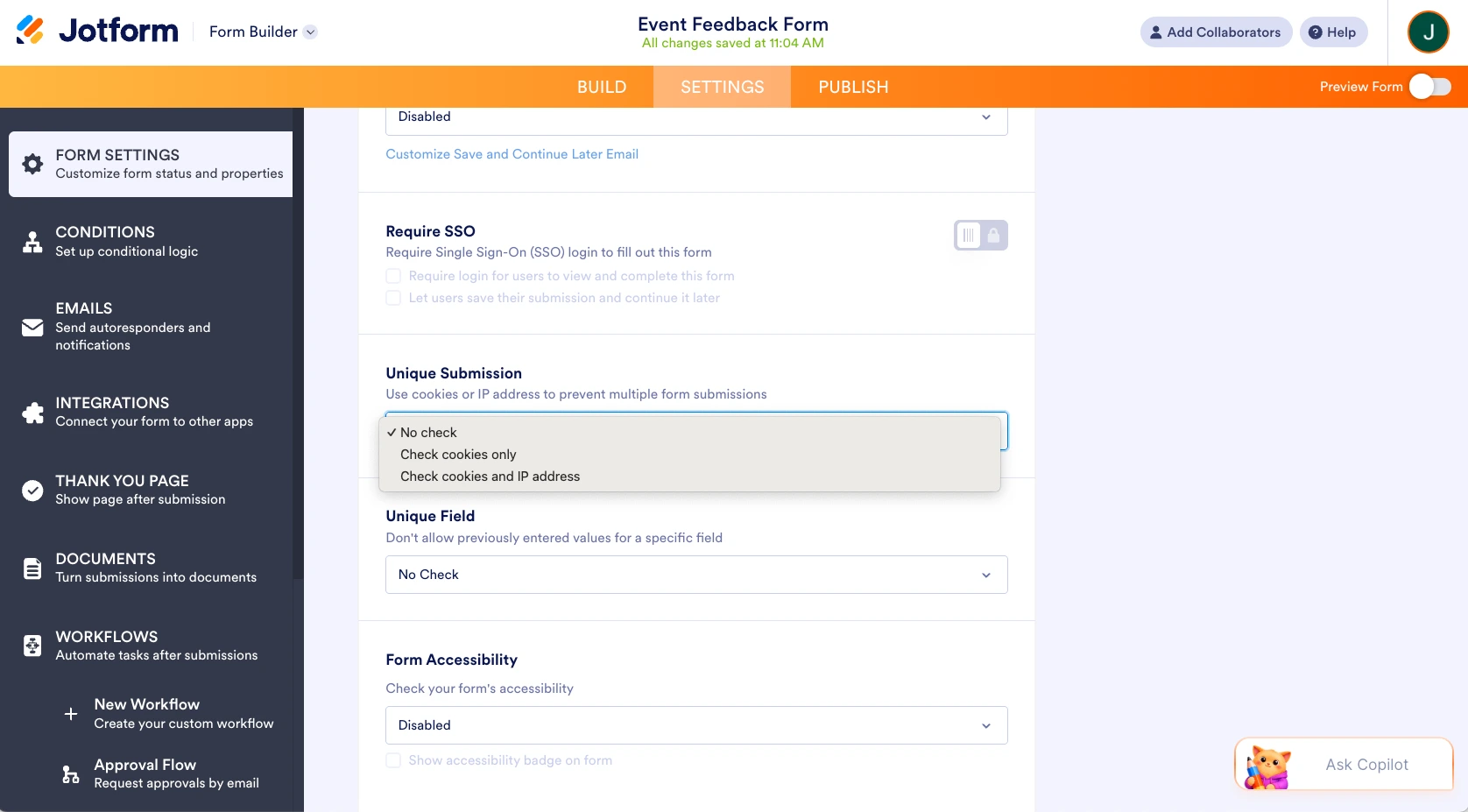
Whether you want to actively invite resubmissions with a Fill Again button or shut them down entirely with a submission limit, it only takes a couple of clicks, and none of it depends on forcing respondents to log in. That’s the core advantage over Google Forms: full control over the resubmission experience, in either direction, without the sign-in trade-off.
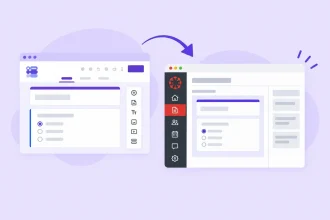
Already have a form built in Google Forms? You don’t need to start over. Jotform’s migration tool lets you import your existing Google Form in a single click, fields and all, so you can apply better resubmission controls right away without rebuilding anything from scratch.
Once your form is in Jotform, you also get access to tools that go well beyond basic response collection: Jotform Tables for organizing and sorting responses, Jotform Workflows for automating what happens after a submission, and Jotform Report Builder for turning your responses into shareable reports. The Jotform AI Data Assistant can also help you manage your data automatically, generating ready-to-use tables, insights, and charts from your responses. And with over 20,000 form templates, along with widgets and integrations for nearly any use case, it’s easy to build out exactly the kind of form you need — not just replicate what you had in Google Forms.
Why choose Jotform for this?
- No login required to submit or resubmit
- Full control over the thank-you and confirmation experience
- One-click import from Google Forms via the migration tool
- Flexible limits — cap total responses or restrict duplicates without blocking anonymous users
Take full control of your form submissions
Google Forms handles “Submit another response” in a fairly rigid, binary way: It’s shown by default, and removing it means either requiring sign-in through “Limit to 1 response” or shutting the form down entirely with “Accepting responses” turned off. For a lot of forms, that’s simply not flexible enough — especially when you need to stay open to anonymous respondents while still controlling repeat entries.
Jotform gives you that in-between option: control over resubmissions, a fully customizable post-submission experience, and no sign-in requirement getting in the way of your respondents. If you already have a form built in Google Forms, there’s no need to start over — migrate it to Jotform in a single click and get access to more flexible submission controls right away.
FAQs
Clicking the “Submit another response” link reopens a fresh, blank copy of the form so you can fill it out and submit again. Your previous submission isn’t overwritten — the new entry is recorded as a separate response.
Yes. By default, Google Forms allows unlimited submissions from the same person. The only way to prevent this is for the form owner to turn on “Limit to 1 response,” which requires respondents to sign in with a Google account.
You can only edit a previous response if the form owner has turned on “Allow response editing” in the settings. When that’s enabled, your confirmation screen will include an “Edit your response” link. If it’s not enabled, submitting the form again simply creates a new, separate response rather than updating your original one.
This article is for Google Forms users, form creators, small business teams, educators, event organizers, and anyone who wants to control repeat submissions or manage form responses more flexibly.
















































































Send Comment: