
Adding a hyperlink to Microsoft Forms sounds like a basic, straightforward function, right? Unfortunately, that’s not the case.
Microsoft does support clickable URLs in some scenarios, but it also has several limitations you should be aware of. Before you start building your form or survey in Microsoft Forms — especially if you need to add links to websites or documents — it’s important to understand where hyperlinks work and where they don’t.
In this article, we’ll walk you through how to add a hyperlink in Microsoft Forms. We’ll also introduce you to Jotform, a more sophisticated form-builder solution and Microsoft Forms alternative that supports hyperlink text.
Can you add a hyperlink in Microsoft Forms?
Before we get into the nitty-gritty of whether you can add a clickable link to Microsoft Forms, let’s define two important terms:
- A hyperlink is a URL that links out to an external resource, such as a web page or document. A hyperlink looks like this: https://www.jotform.com.
- Hypertext, on the other hand, is text that is linked to external resources, such as a web page or document. Hypertext looks like this: Click here for more information.
Both hyperlinks and hypertext take users to external resources. The key difference is in their appearance: A hyperlink looks like a URL while hypertext looks like regular text.
Microsoft Forms does not support the use of hypertext in its forms. However, when you create a Microsoft Form using certain versions of the software, you can add a hyperlink to the form description, question title, or question subtitle/description fields.
To do so, simply type in the full URL, including the “https://”. Remember, you cannot insert hypertext in Microsoft Forms — only full URLs.
The link will not look clickable while you are working on the form. But once you send the form to a respondent, the links will become clickable. Test it out by sending the form to yourself.
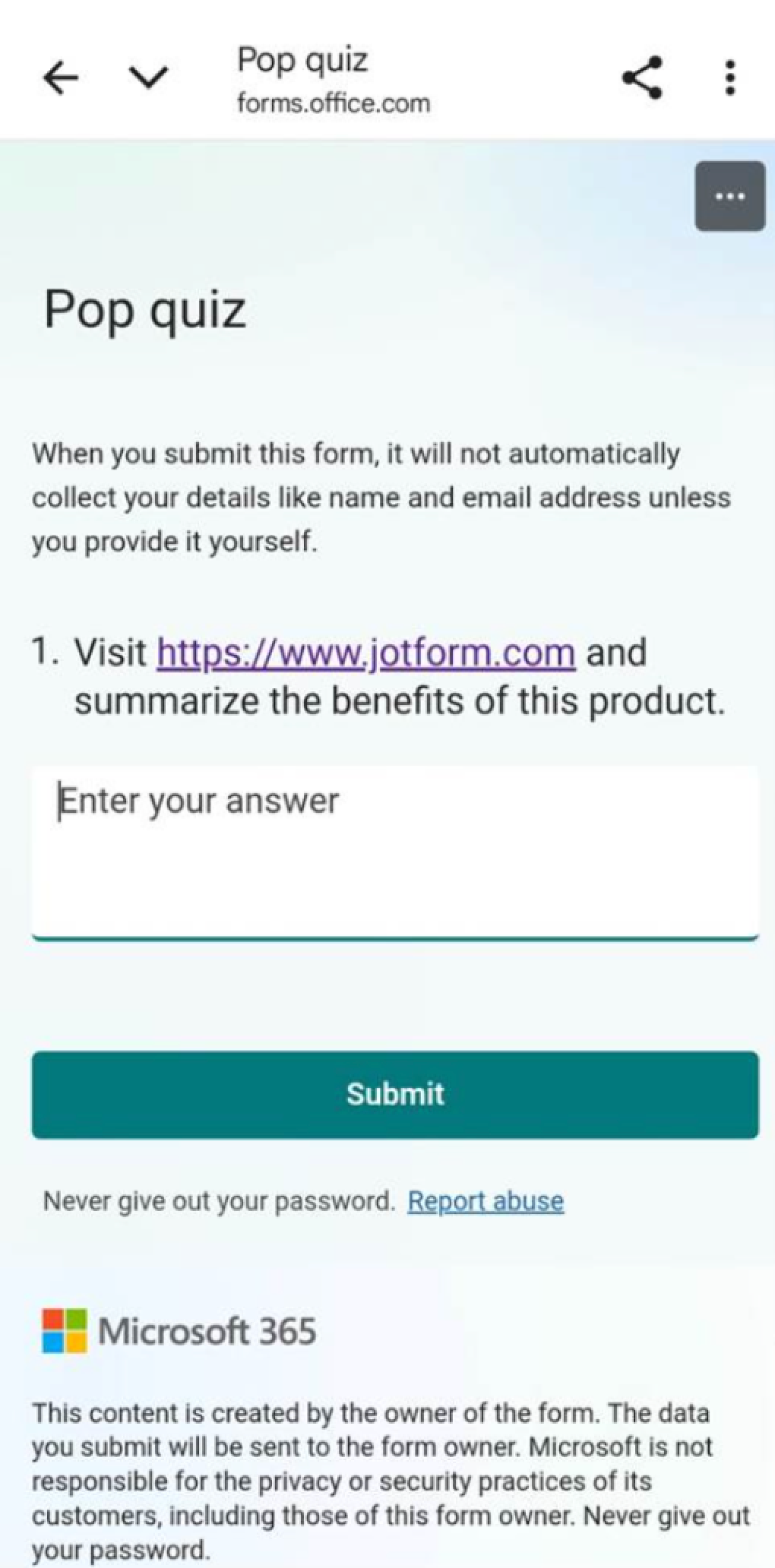
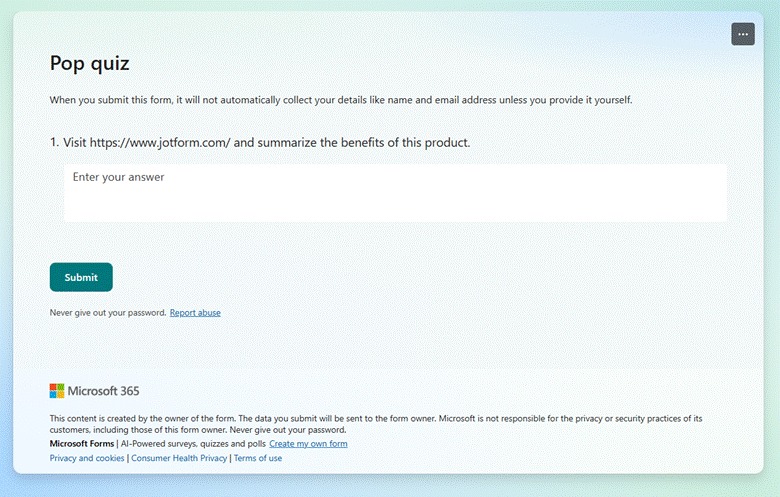
While this functionality is supposedly available in some versions of the software, many Microsoft Forms users have had difficulty adding clickable full links within those versions. Some users have reported that their links remain unclickable, even when they add in the full URL and have published the form. In some cases, the hyperlink works on mobile devices but not on a desktop, as shown in the following images.
Work-arounds to clickable links in Microsoft Forms
While in most cases, you should be able to add hyperlinks in Microsoft Forms questions and subtitles, you can’t insert them in answer choices (such as for multiple-choice questions) or in the Microsoft Forms thank-you message. Respondents cannot add hyperlinks in their answers either. Any URLs entered in these fields will just appear as plain text.
Here are some Microsoft Forms hyperlink work-arounds you can try to get around these limitations:
- Upload the relevant file: If you’re not able to add hyperlink text in Microsoft Forms, try uploading a file to the form instead of asking users to click on a link to go to a document or page.
- Use short URLs: Use a shortened URL that users can easily type into their web browser.
- Add < > symbols: If the full URL does not turn clickable on its own, add the < > symbols around it. Example: <https://www.jotform.com> This should turn it into a clickable link in the appropriate fields.
- Embed the Microsoft Form on a web page: Try embedding your Microsoft Form on a web page that contains the additional information you want users to access.
These four work-arounds should give users the information they need to complete your form. Unfortunately, none of these Microsoft Forms tips offers a smooth user experience the way a hyperlink does.
Jotform: An alternative to Microsoft Forms that supports hyperlink text
While adding a hyperlink to Microsoft Forms may be problematic for many users, you do have other options when it comes to form builders. If having the ability to add hyperlinks and hypertext in your forms, surveys, polls, and quizzes is important to you, then you need Jotform!
With Jotform, you can add hyperlinks and hypertext to any form, no matter which version of the software you’re using — even the free version! Here’s how:
- Open your Jotform form.
- Select Paragraph from the basic Form Elements menu on the left-hand side.
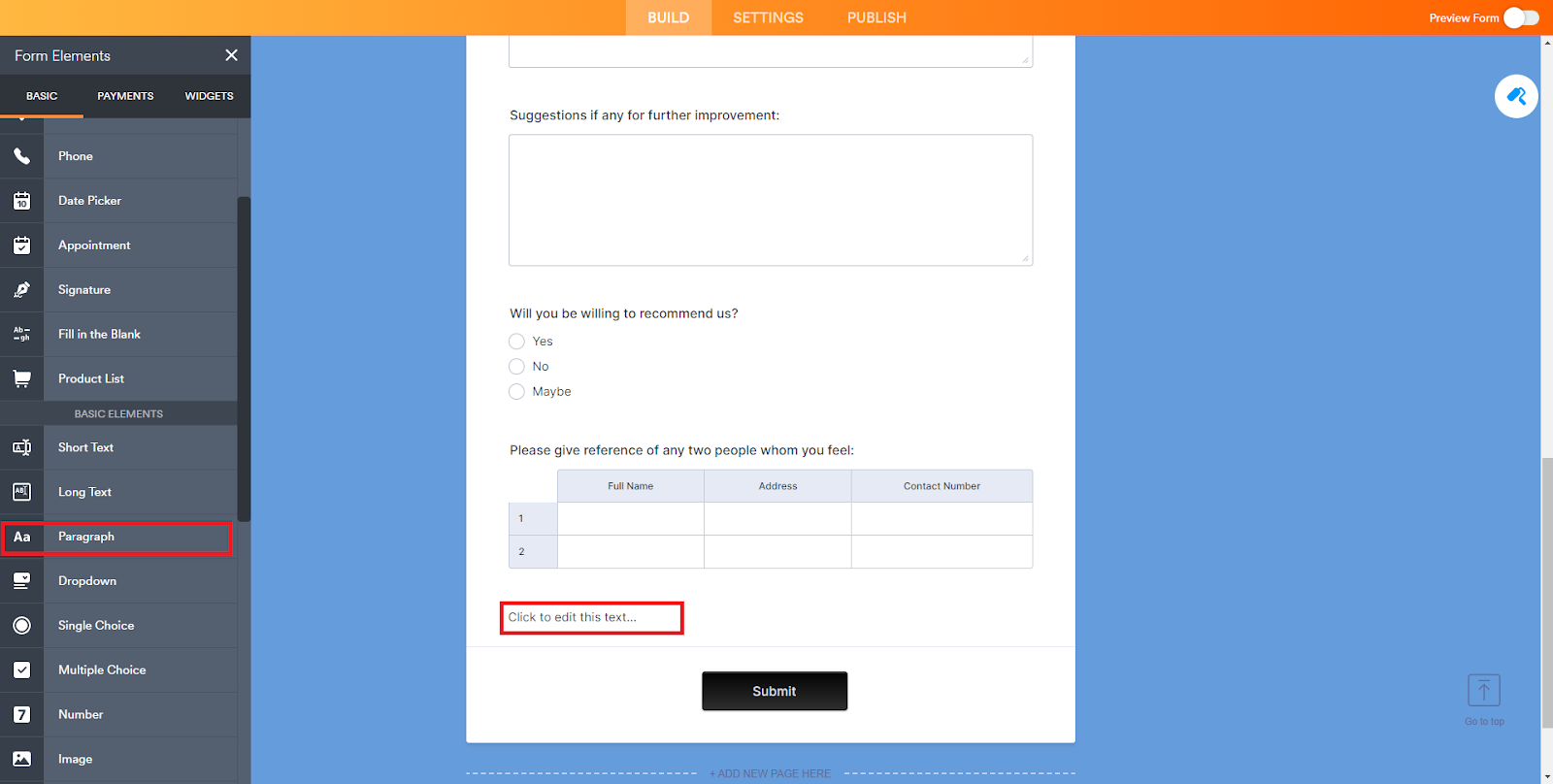
- Enter the text you want to use for your hyperlink.
- Highlight the text and click on the Chain icon to insert or edit the link.
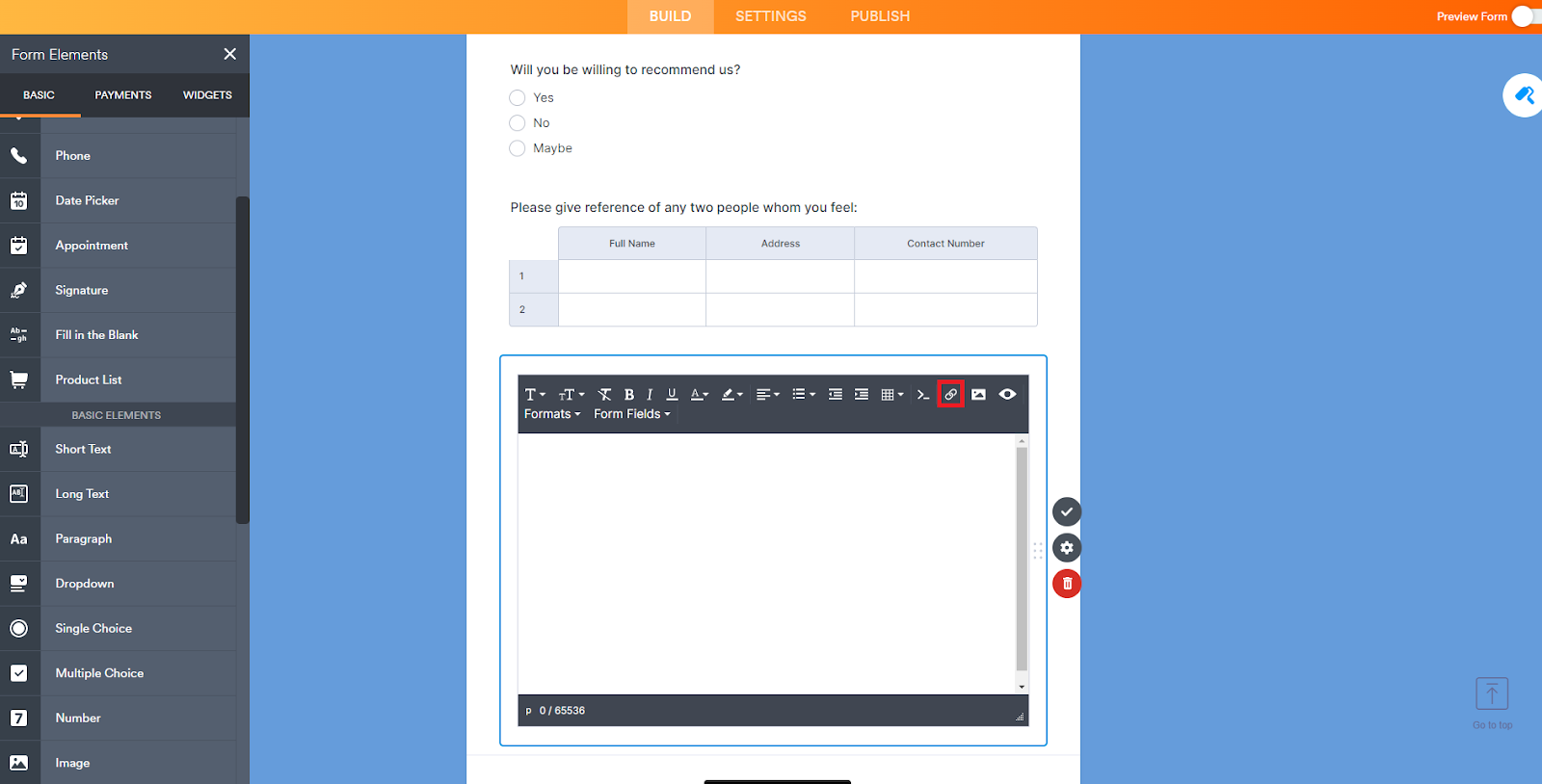
- Type or paste your full URL in the pop-up window. Then click OK.
Jotform is a sophisticated Microsoft Forms alternative that comes with thousands of form templates, helping to speed up the form-building process. All you have to do is select a template, customize details (like fonts, styles, and colors), and add your questions. Plus, Jotform has an easy-to-use drag-and-drop form builder that allows you to build professional forms with advanced features like conditional logic — no coding skills needed.
FAQs: Adding hyperlinks in Microsoft Forms
Wondering how to use Microsoft Forms with rich text format (RTF)? Unfortunately, this is something Microsoft Forms lacks, so you cannot make hypertext clickable. However, you can type in the full hyperlink URL, which in most cases, will become clickable once the form is in answer mode.
You can’t make text clickable in a Microsoft Forms response, but you can type in a full hyperlink URL. Similarly, you can type in a full hyperlink URL and customize the thank-you message in Microsoft Forms. However, in both cases, the full URL may not actually be clickable. In order to go to the link, the user may need to copy and paste it into a browser.
This article is for Microsoft 365 users, educators, survey creators, and anyone who wants to add or work around the limitations of hyperlinks in Microsoft Forms to improve response engagement and functionality.




































































Send Comment:
1 Comment:
December 11, 2025
I´ve created a view customer surveys using Froms. What´s the need in adding links to a survey? When I add a link to a survey, I offer a way to leave the form without sending...